Posts with «arduino» label

LED strobe using dimmer board

In the evenings this week, I soldered up another PWM controller for the LED lamp projects, and programmed it with the ISP cable I made.  The intent was to use this dimmer either with the breakfast-room lighting fixture (which I’ve not made yet) or reprogram it to act as a strobe rather than a dimmer, to replace the Xenon-tube-based Velleman strobe kit that failed last Thanksgiving.

This project took me much longer than expected, because of stupid mistakes I made:

  • I forgot that there was a silkscreen error on the dimmer boards that I had designed.  The outline for the voltage regulator is flipped, because I had not noticed when reading the spec sheet shows the device from the bottom—I’m used to chip views being from the top.  This is the second time that I’ve soldered a voltage regulator on one of the boards backwards, and had to cut it off and replace it with a new one.  I guess I’d better take a permanent felt-tip marker and draw the correct orientation on the remaining boards, so that I don’t make that mistake a third time.
  • When playing with new code for the strobe, refamiliarizing myself with the ATtiny13A processor, I changed the prescaling on the system clock from the default 1.2MHz down to about 75kHz.  What I had not realized is that the on-chip clock is used during the reprogramming also, and the Arduino ISP is not set up for slowly clocked chips.  I found code for TinyISP, which has code for 128kHz clocks, but even when I modified it for 75kHz clocks I couldn’t reprogram the chip (always getting the “Yikes! invalid device signature” message with a signature of 0). Eventually, I gave up, unsoldered the ATtiny13A and put in a new one.  I’ll be very careful in future not to slow down the system clock so much.
  • I got the strobe working this morning, but when I looked at the output pin that was driving the FET gate, it was only going up to 1.3V, not 5V, and the pulse was much longer than I expected.  This mystified me for a while, but I finally realized that I had forgotten to turn the pin on as an output, so I was driving the output just through the built-in pullup resistor, resulting in a very large RC time constant.  The flat top I was seeing on the pulse was probably the Miller plateau.  Enabling the output pin correctly got me back to crisp 5V pulses of the designed duration.
  • The designed duration for the pulses was a bit too short, resulting in a somewhat dimmer than desired flash.  Lengthening the pulse to 1ms was fine for the slow strobes, but at high flash rates the strobe got too bright. So I reprogrammed the flashes so that the on-time was 1/64th of the off-time, but with a maximum on-time of 1.6ms. (I also tried on=off/128 with a maximum of 1ms, but I liked the 1/64 better).

I timed the strobe pulses from the board (looking at the output of the ATtiny13A pin 6, which is also connected to the MISO pin of the ISP header, so is easy to connect a jumper wire to) with PteroDAQ (through a voltage divider, to drop the voltage from 5V to 2.75V).  By triggering the PteroDAQ on edges of the signal, and averaging many measurements, I got very precise timing measurements:

setup on-time off-time
slowest setting, 1:64 1.63745ms 1.52372s
fastest setting, 1:64 104.958µs 6.98761ms
slowest setting, 1:128 955.277µs 1.55881s
fastest setting, 1:128 51.3123µs 6.99286ms

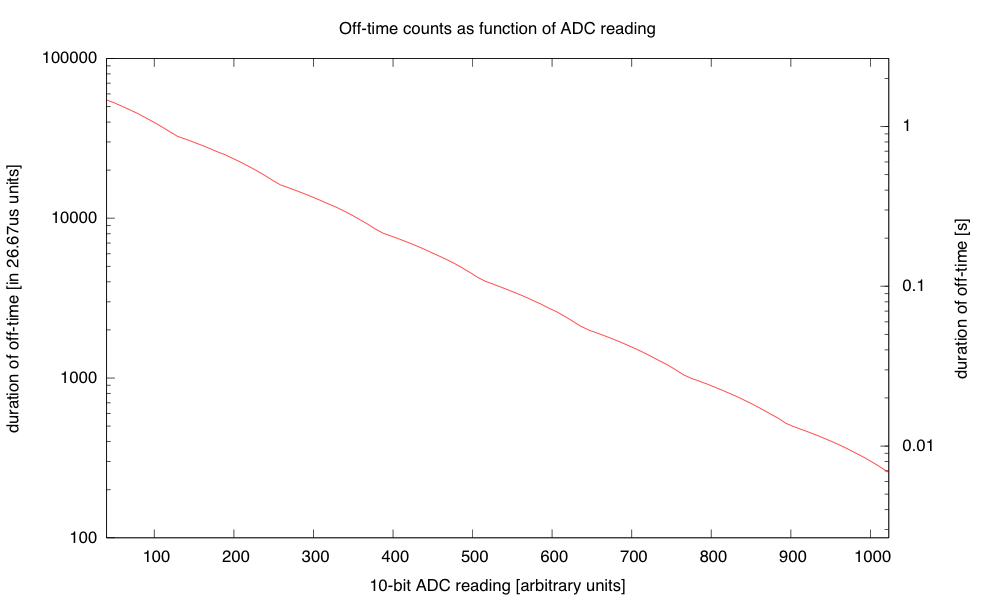
The difference in the “slowest” settings is probably just from my inability to set the knob identically—it has to be just above a threshold below which the strobe doesn’t flash at all. In any case, I have a period from 7.1ms (141Hz) to 1.525s (0.6556Hz), which is a pretty useful range.  I also made the range very smooth, by taking the 10-bit ADC range and converting it to this 215:1 range sort of exponentially with just a few instructions:

if adc<40, then OFF
exp = adc >> 7
frac = 0xff - (adc & 0x7f)
on_time = (frac << 8) >> exp

The tiny number of instructions provides a surprisingly smooth and strictly decreasing approximation to the desired exponential.

The transition is smooth because every time an increment increases the exponent, the frac part is doubled (from 0x80 to 0xff).I use a 16-bit word for the on_time and count it down with an interrupt once every 26.67µs (256 of the approximately 9.6MHz clock ticks). I think that I’ll do a similar thing for controlling the duty cycle of the dimmer, rather than the table of bytes that I currently use, though the duty cycle is limited to a single byte, so I’ll only have 256 levels, and not 1024, and I’ll want the duty cycle to increase exponentially, rather than decreasing, but those are easy fixes.

I also reduced the size of the program in flash, by getting rid of some of the overly general code from core13 and just manipulating the peripheral control registers directly.  I didn’t need to do this, as the ATtiny13A has 1kB of flash, but I got down to 364 bytes (and could probably strip out another 50–100 by getting rid of even more of core13).  The old dimmer code, which doesn’t have much more to do, currently takes 806 bytes, so I might try tightening that up tomorrow.

I also tried powering the strobe off a 9V battery.  The LED board takes about 117mA when turned on (see LED board I-vs-V curve), and if I keep the duty cycle below 1.5%, then the average current is dominated by the ATtiny13A’s worst-case 6mA current, and the total current for the board is probably less than 8mA.  According to Duracell’s data sheet for their 9V alkaline battery, I should be able to get about 50 hours of life before the voltage drops below 6.7V (at which point the LED board no longer maintains the constant current, but I could run the strobe a bit longer getting dimmer).  The 6.7V is also about the voltage where the LDO voltage regulator starts being unable to supply 5V to the ATtiny13A, though that is less of a bottleneck, as the chip can run with the 9.6MHz internal clock down to 3V with no problems.

The battery does not have to provide a full 117mA for the pulses, as there is a 470μF polymer electrolytic capacitor on the dimmer board.  Delivering 117mA for 1.6ms is only 187μC, so the voltage on the capacitor would dip at most 0.4V during the pulse, even without the battery.  The 9V battery has an internal resistance of 2Ω–4Ω, so it could provide 117mA with about a 0.35V drop, so the capacitor isn’t really necessary for one LED board.  It probably increases the efficiency slightly, as the I2R power loss in the internal resistor is reduced if the current is spread out (half the current for twice as long is only half the I2R loss).

I could put more LED boards on the strobe, as the dimmer is designed to handle 5A or more, but battery  operation would limit me to about 10 boards before the voltage drop was large enough to cause problems for the current regulation.  One LED board is bright enough for a Halloween pumpkin, but I could run wires between pumpkins to power several off the same controller.  (I could also keep the controller in the house, powered by a wall wart, and run wires out to the LED boards—I could then power 40 or 50 LED boards off the strobe, though I’d have to watch out for IR drop in the wiring.)

I might try wiring up 10 boards tomorrow, and see whether a battery really can power that many.


Filed under: Uncategorized Tagged: Arduino, Arduino as ISP, ATtiny, dimmable LED lamps, lamp, strobe, stroboscope

NES Reborn as Nexus Player and NES

Anyone who has a Raspberry Pi and an old Nintendo has had the same thought. “Maybe I could shove the Pi in here?” This ran through [Adam’s] head, but instead of doing the same old Raspberry Pi build he decided to put a Nexus Player inside of this old video game console, with great success. Not only does it bring the power of a modern media player, it still works as an NES.

If you haven’t seen the Nexus Player yet, it’s Google’s venture into the low-cost home media center craze. It has some of the same features of the original Chromecast, but runs Android and is generally much more powerful. Knowing this, [Adam] realized it would surpass the capabilities of the Pi and would even be able to run NES emulators.

[Adam] went a little beyond a simple case mod. He used a custom PCB and an Arduino Pro Micro to interface the original controllers to the Nexus Player. 3D printed brackets make sure everything fits inside the NES case perfectly, rather than using zip ties and hot glue. He then details how to install all of the peripherals and how to set up the Player to run your favorite game ROMs. The end result is exceptionally professional, and brings to mind some other classic case mods we’ve seen before.


Filed under: Android Hacks

This Arduino Basic Kit has everything a newbie maker could ask for

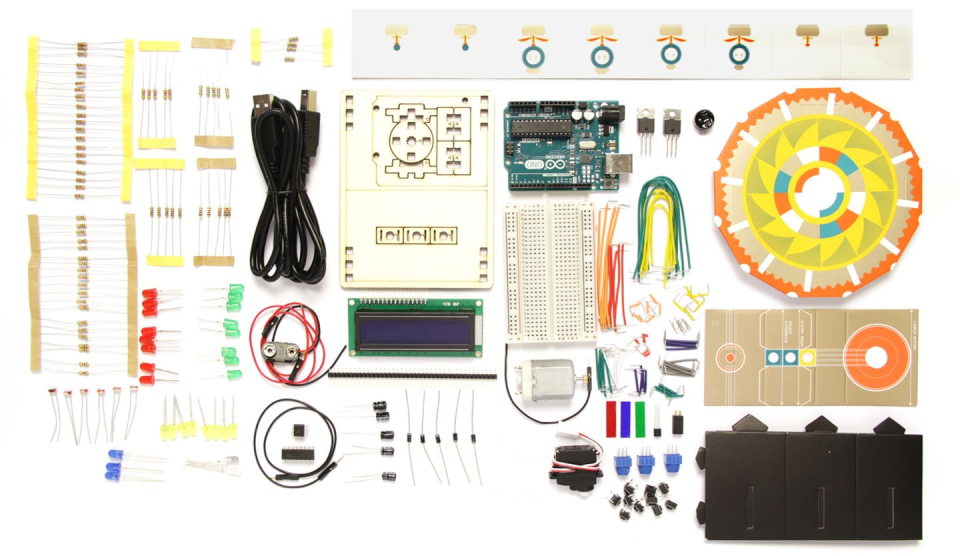
It's easy to think about tinkering around with Arduino, but take more than 30 seconds to look at the platform, and suddenly it becomes daunting: not only do you need an Arduino itself, but to get started you need resisters, wires, LEDs, screens and a host of other components that are almost always sold separately. Have no fear, newbies: there's a new Arduino Basic Kit in town, and it has all the spare parts a beginner could want.

Source: 123D Circuits

Engadget 29 Jul 04:31
arduino  build  diy  maker  misc  projects  

This Arduino Basic Kit has everything a newbie maker could ask for

It's easy to think about tinkering around with Arduino, but take more than 30 seconds to look at the platform, and suddenly it becomes daunting: not only do you need an Arduino itself, but to get started you need resisters, wires, LEDs, screens and a host of other components that are almost always sold separately. Have no fear, newbies: there's a new Arduino Basic Kit in town, and it has all the spare parts a beginner could want.

Filed under: Misc

Comments

Source: 123D Circuits

Engadget 29 Jul 04:31
arduino  build  diy  maker  misc  projects  

Embed with Elliot: There is no Arduino “Language”

This installment of Embed with Elliot begins with a crazy rant. If you want to read the next couple of paragraphs out loud to yourself with something like an American-accented Dave-Jones-of-EEVBlog whine, it probably won’t hurt. Because, for all the good Arduino has done for the Hackaday audience, there’s two aspects that really get our goat.

(Rant-mode on!)

First off is the “sketch” thing. Listen up, Arduino people, you’re not writing “sketches”! It’s code. You’re not sketching, you’re coding, even if you’re an artist. If you continue to call C++ code a “sketch”, we get to refer to our next watercolor sloppings as “writing buggy COBOL”.

And you’re not writing “in Arduino”. You’re writing in C/C++, using a library of functions with a fairly consistent API. There is no “Arduino language” and your “.ino” files are three lines away from being standard C++. And this obfuscation hurts you as an Arduino user and artificially blocks your progress into a “real” programmer.

(End of rant.)

Let’s take that second rant a little bit seriously and dig into the Arduino libraries to see if it’s Arduinos all the way down, or if there’s terra firma just beneath. If you started out with Arduino and you’re looking for the next steps to take to push your programming chops forward, this is a gentle way to break out of the Arduino confines. Or maybe just to peek inside the black box.

Arduino is C/C++

Click on the “What is Arduino” box on the front page of arduino.cc, and you’ll see the following sentence:

“ARDUINO SOFTWARE: You can tell your Arduino what to do by writing code in the Arduino programming language…”

Navigate to the FAQ, and you’ll see

“the Arduino language is merely a set of C/C++ functions that can be called from your code”.

Where we come from, a bunch of functions written in a programming language is called a library. So which is it, Arduino?

(The Language Reference page is a total mess, combining parts of standard C with functions defined in the Arduino core library.)

Maybe that’s not as sexy or revolutionary as claiming to have come up with a new programming language, but the difference matters and it’s a damn good thing that it’s just a set of libraries. Because the beauty about the Arduino libraries is that you don’t have to use them, and that you can pick and choose among them. And since the libraries are written in real programming languages (C/C++), they’re a totally useful document if you understand those languages.

C and Assembly language, on the other hand, are different languages. If you’re writing assembler, you can easily specify exactly which of the chip’s native instructions to use for any particular operation — not so in C. Storing data in particular registers in the CPU is normal in assembler, but heroic in C. So if you start out writing your code in C, and then find out that you need some of the features of assembler, you’re hosed. You stop writing in C and port all your code over to assembler. You have to switch languages. You don’t get to pick and choose.

(Yes, there is inline assembler in GCC.  That’s cheating.)

This is not at all the case with Arduino: it’s not a programming language at all, and that’s a darned good thing. You’re writing in C/C++ with some extra convenience libraries on top, so where the libraries suck, or they’re just plain inconvenient, you don’t have to use them. It’s that simple.

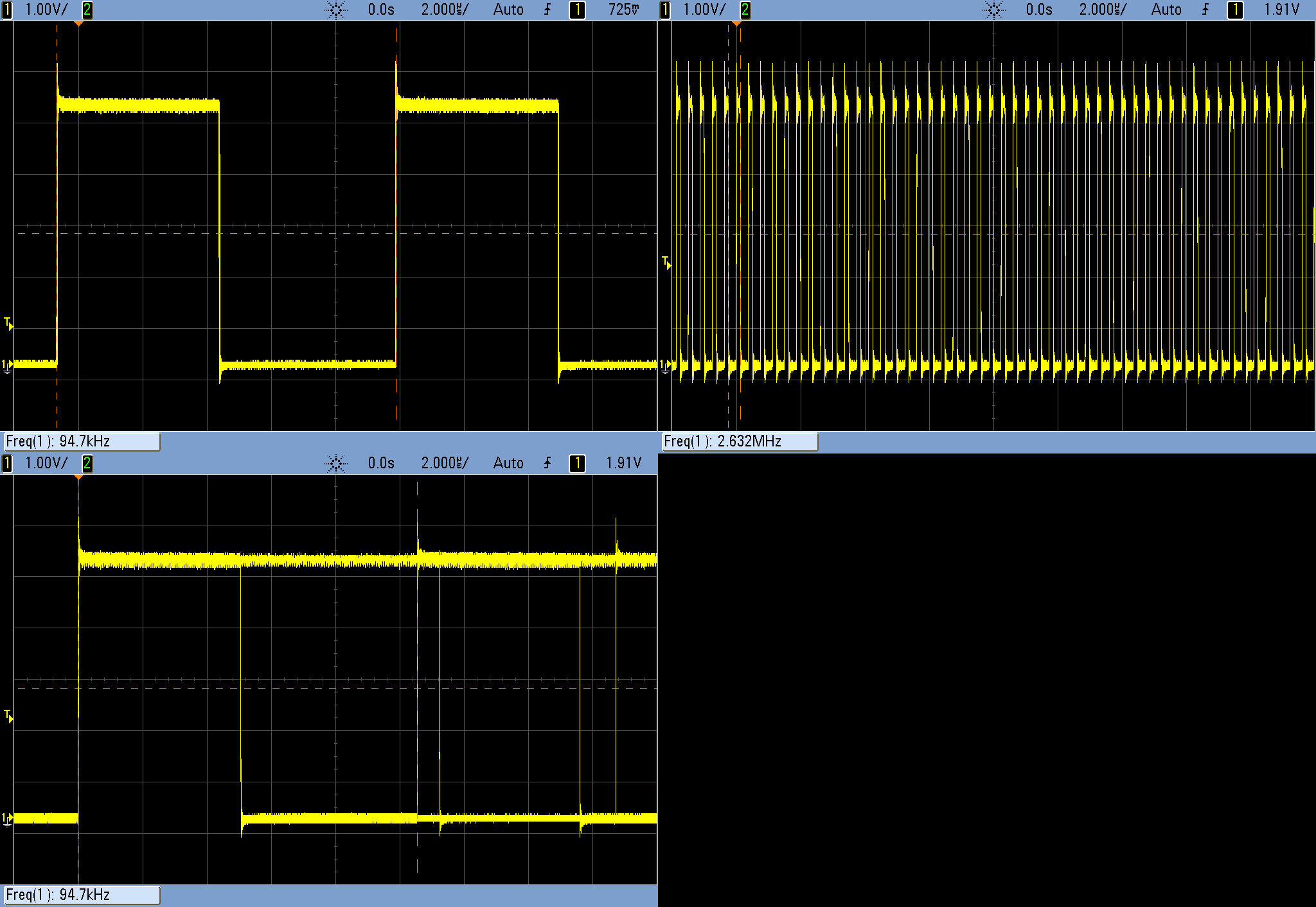
A prime example is digitalWrite() in the Arduino’s core library, found in the “wiring_digital.c” file. It’s madness to use the ridiculously slow digitalWrite() functions when speed or timing matters. Compared to flipping bits in the output registers directly, digitalWrite() is 20-40x slower.

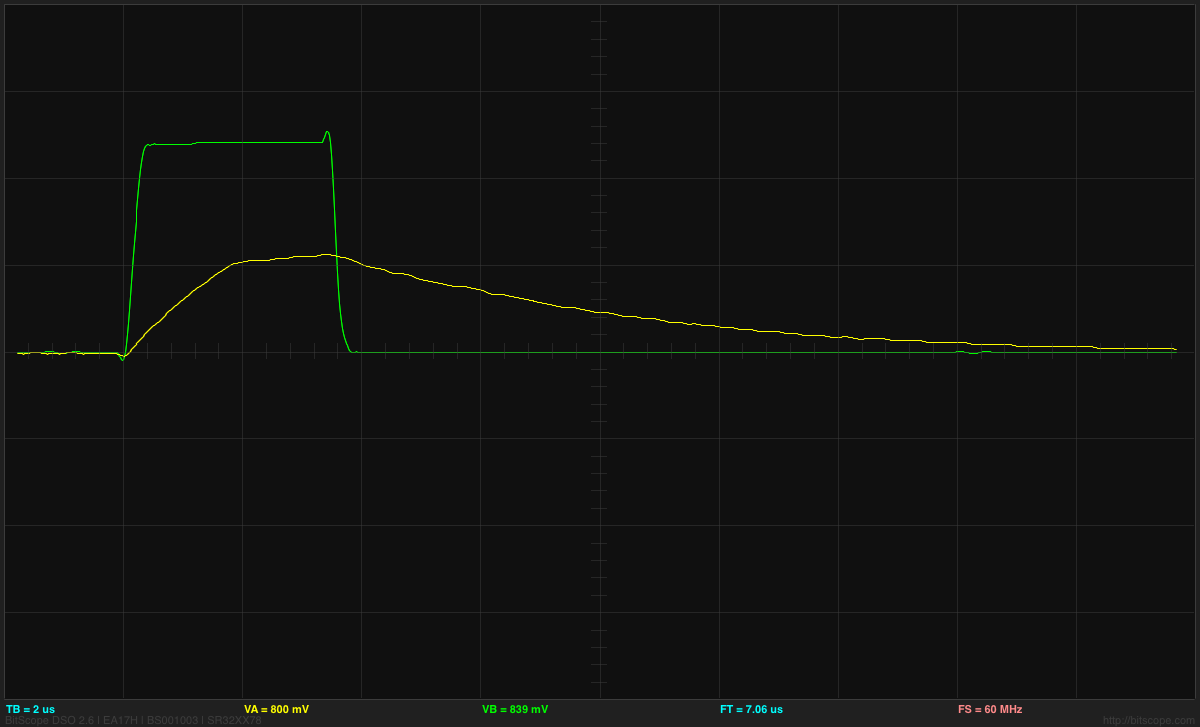
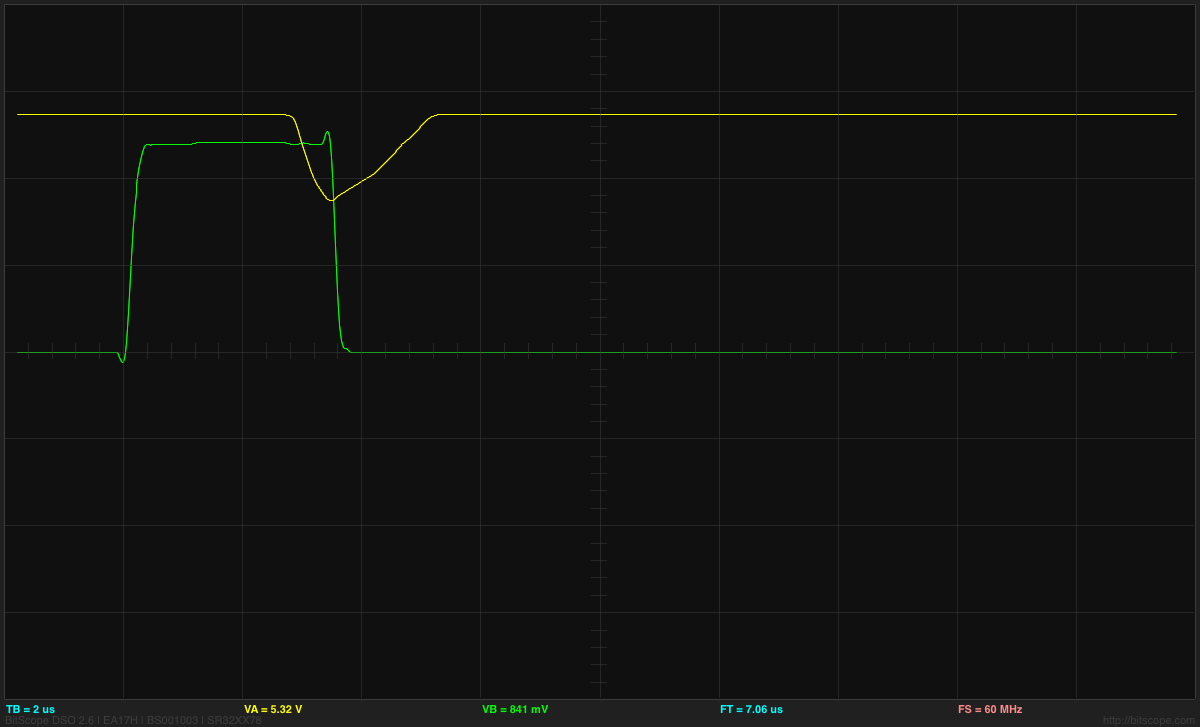
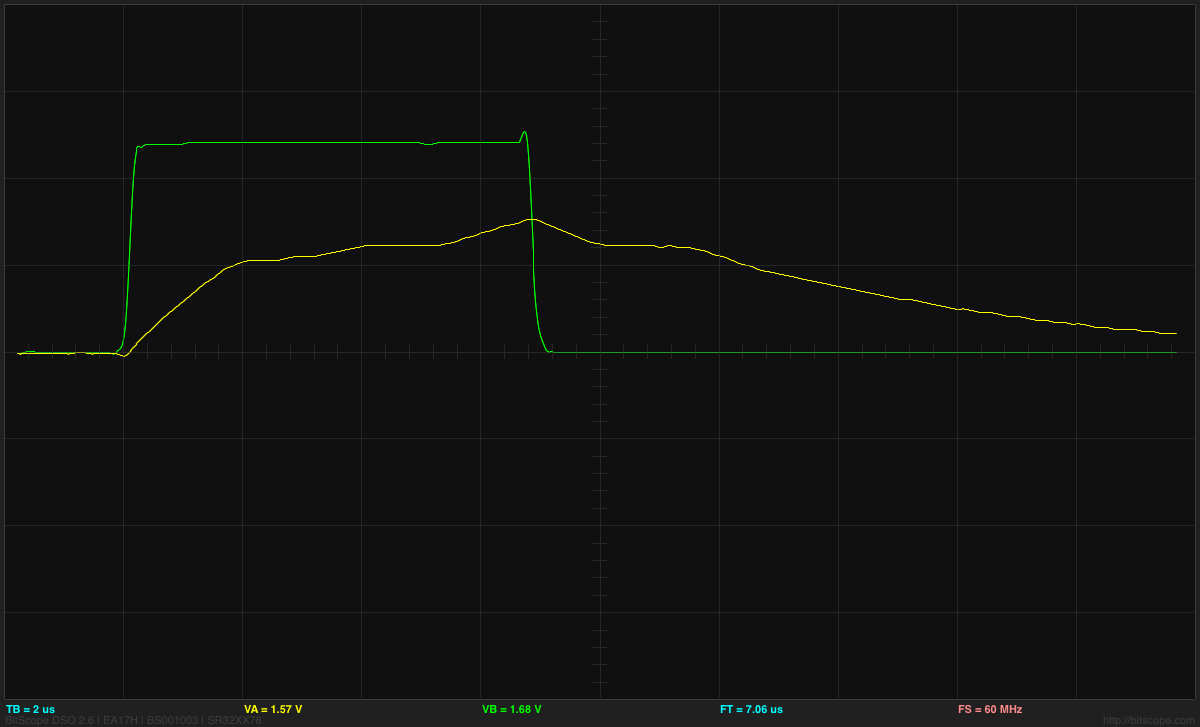
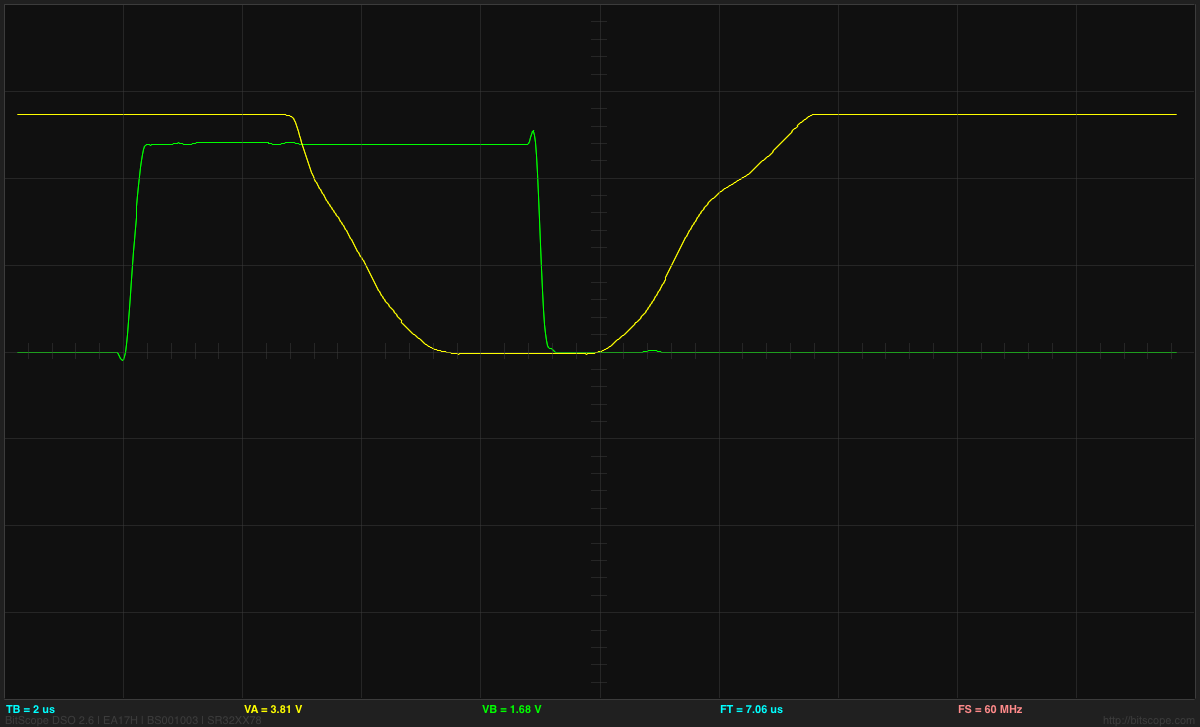
The scope shots here are from simply removing the delay statements from the Blink.ino example code that comes with Arduino — essentially toggling the LED pin at full speed. Upper left is using digitalWrite() to flip the pin state. Upper right is using direct bit manipulation in C: PORTB ^= (1 << LED_BIT); Because Arduino’s digitalWrite() command has a bunch of if...then statements in it that aren’t optimized away by the compiler, it runs 28 times slower.

(And worse, as you can see in the lower left, the Arduino code runs with occasional timing glitches, because an interrupt service routine gets periodically called to update the millisecond timer. That’s not a problem with digitalWrite() per say, but it’s a warning when attempting tight timing using the Arduino defaults.)

OK, so digitalWrite() is no good for timing-critical coding. If Arduino were a real language, and you were stuck with digitalWrite(), you wouldn’t be able to use the language for anything particularly sophisticated. But it’s just a convenience function. So you can feel free to use digitalWrite() in the setup() portion of your code where it’s not likely to be time critical. That doesn’t mean that you have to use it in the loop() portion when timing does matter.

And what this also means is that you’re no longer allowed to say “Arduino sucks”. Arduino is C/C++, and at least C doesn’t suck. (Zing! Take that, C++ lovers. De gustibus non disputandem est.) If you think that some of the Arduino libraries suck, you’re really going to have to specify which libraries in particular you mean, or we’ll call you out on it, because nobody’s forcing you to use them wholesale. Indeed, if you’re coding on an AVR-based Arduino, you’ve got the entire avr-libc project baked in. And it doesn’t suck.

The “.ino” is a Lie

So if Arduino is just C/C++, what’s up with the “.ino” filetype? Why is it not “.c” or “.cpp” like you’d expect? According to the Arduino build process documentation,

“The Arduino environment performs a few transformations to your main sketch file (the concatenation of all the tabs in the sketch without extensions) before passing it to the avr-gcc compiler.”

True C/C++ style requires you to declare (prototype) all functions that you’re going to use before you define them, and this is usually done in a separate header “.h” file. When C compiles your code, it simply takes each function and turns it into machine code. In a philosophically (and often practically) distinct step, references to a function are linked up with the compiled machine code representing them. The linker, then, only needs to know the names of each function and what types of variables it needs and returns — exactly the data in the function declaration.

Long story short: functions need prior declaration in C, and your “.ino” code defines setup() and loop() but never declares them. So that’s one thing that the Arduino IDE does for you. It adds two (or more, if you define more functions in your “.inos”) function prototypes for you.

The other thing the IDE’s preprocessor does is to add #include "Arduino.h" to the top of your code, which pulls in the core Arduino libraries.

(And then, for some mysterious reason, it also deletes all comments from your code, making it harder to debug later on. Does anyone out there know why the Arduino IDE does this?)

So that’s it. Three lines (or maybe a few more) of very simple boilerplate separate a “sketch” from valid C/C++ code. This was presumably done in the interest of streamlining the coding experience for newbies, but given that almost every newb is going to start off with the template project anyway, it’s not clear that this buys much.

On the other hand, the harm done to the microcontroller newbie is reasonably large. The newb doesn’t know that it’s actually C/C++ underneath the covers and doesn’t learn anything about one of the most introductory, although mindless, requirements of the language(s): function declarations.

When the newb eventually does want to include outside code, the newb will need to learn about #include statements anyway, so hiding #include "Arduino.h" is inconsistent and sets up future confusion. In short, the newb is blinded from a couple of helpful learning opportunities, just to avoid some boilerplate that’s templated out anyway.

Write C++ Directly in the Arduino IDE

And if you don’t believe that Arduino is C/C++, try the following experiment:

  1. Save a copy of the example Blink project.
  2. Go into the “sketch’s” directory and copy Blink.ino to Blink.cpp.
  3. Re-open the project in Arduino and delete everything from Blink.ino
  4. Add the required boilerplate to Blink.cpp. (One include and two function declarations.)
  5. Verify, flash, and whatever else you want.

You’ve just learned to write C/C++ directly from within the Arduino IDE.

(Note: for some reason, the Arduino IDE requires a Blink.ino file to be present, even if it’s entirely empty. Don’t ask us.)

main.cpp

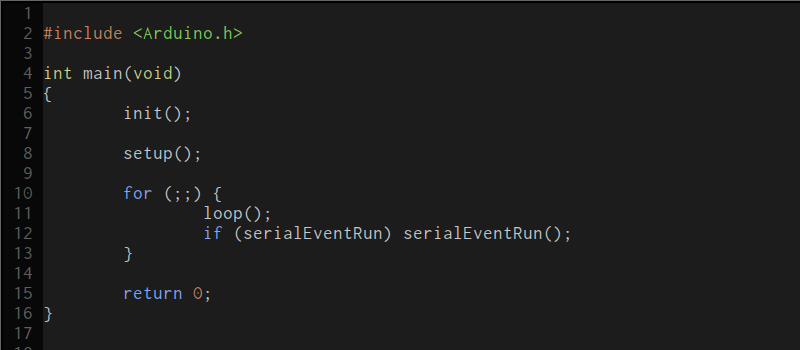
So if Blink.ino turns into Blink.cpp, what’s up with the setup() and loop() functions? When do they ever get called? And wait a minute, don’t all C and C++ programs need a main() function to start off? You are on the path to enlightenment.

Have a look at the main.cpp file in hardware/arduino/avr/cores/arduino.

There’s your main() function! And although we’ve streamlined the file a little bit for presentation, it’s just about this straightforward.

The init() function is called before any of your code runs. It is defined in “wiring.c” and sets up some of the microcontroller’s hardware peripherals. Included among these tasks on the AVR platform is configuring the hardware timers for the milliseconds tick and PWM (analogOut()) functions, and initializing the ADC section. Read through the init() function and the corresponding sections of the AVR datasheet if you’ve never done any low-level initializations of an AVR chip; that’s how it’s done without Arduino.

And then we get to the meat. The setup() function is called, and in an endless for loop, the loop() function is continually called. That’s it, and it’s the same code you’d write in C/C++ for any other microcontroller on the planet. That’s the magic Arduino setup() and loop(). The emperor has no clothes, and the Wizard of Oz is just a pathetic little man behind a curtain.

If you want to dig around more into the internals of the Arduino core library, search for “Arduino.h” on your local install, or hit up the core library on Github.

The Arduino Compile Phase

So we’ve got C/C++ code. Compiling it into an Arduino project is surprisingly straightforward, and it’s well-documented in the Arduino docs wiki. But if you just want to see for yourself, go into Preferences and enable verbose logging during compilation. Now the entire build process will flash by you in that little window when you click “Verify”.

It’s a lot to take in, but it’s almost all repetitive. The compiler isn’t doing anything strange or unique at all. It’s compiling all of the functions in the Arduino core files, and putting the resulting functions into a big (static) library file. Then it’s taking your code and this library and linking them all together. That’s all you’d do if you were writing your own C/C++ code. It’s just that you don’t know it’s happening because you’re pressing something that looks like a play button on an old Walkman. But it’s not rocket science.

There is one more detail here. If you include a library file through the menu, and it’s not part of the core Arduino libraries, the IDE locates its source code and compiles and links it in to the core library for you. It also types the #include line into your “.ino” file. That’s nice, but hardly a deal-breaker.

If you’d like to see this build process in the form of a Makefile, here’s (our) primitive version that’s more aimed at understanding, and this version is more appropriate for production use.

Next Steps

If the Arduino is the embedded electronics world’s gateway drug, what are the next steps that the Arduino programmer should take to become a “real” embedded programmer slash oil-burning heroin junkie? That depends on you.

Are you already good at coding in a lower-level language like C/C++? Then you need to focus on the microcontroller-specific side of things. You’re in great shape to just dive into the Arduino codebase. Try to take a few of the example pieces, or even some of your own “sketches” and look through the included Arduino library’s source code. Re-write some simple code outside the IDE and make sure that you can link to the Arduino core code. Then replace bits of the core with your own code and make sure it still works. You’ll spend half of your time looking into the relevant micro’s datasheet, but that’s good for you.

Are you comfy with electronics but bewildered by coding? You might spend a bit of time learning something like C. Learn C the Hard Way is phenomenal, and although it’s aimed at folks working on bigger computers, it’s got a lot of the background that you’ll need to progress through and beyond the Arduino codebase. You’re going to need to learn about the (relatively trivial) language conventions and boilerplatey stuff to get comfortable in straight C/C++, and then you can dig in to the Arduino source.

Wherever you are, remember that Arduino isn’t a language: it’s a set of libraries written in C/C++, some of them really quite good, and some of them (we’re looking at you EEPROM) simply C++ wrappers on the existant avr-libc EEPROM library. And that means that for every Arduino project you’ve written, you’ve got the equivalent source code sitting around in C/C++, ready for you to dig into. Thank goodness they didn’t invent their own programming language!


Filed under: Hackaday Columns

Controlling a Robot with a Wearable Lego Exosuit

Using a combination of Lego bricks and other electronics, Danny built a robot that is controlled wirelessly by a wearable Lego "exosuit."

Read more on MAKE

The post Controlling a Robot with a Wearable Lego Exosuit appeared first on Make: DIY Projects, How-Tos, Electronics, Crafts and Ideas for Makers.

Autodesk teams up with Arduino to electrify creativity and coding

We are excited to introduce our new collaboration with Autodesk, launching with us the Arduino Basic Kit in the US! Starting today we are bringing creativity and electronics to everyone wanting to get started with more than 30 components added into the 123D Circuits simulator and 15 step-by-step tutorials available through the Project Ignite learning platform.

With the Arduino Basic Kit you’ll be able to access digital simulations for a unique experience of engagement with the kit, understanding and tapping right away into the power of smart objects.

“Arduino is creating new opportunities for makers and educators to get hands on with coding and electronics,” said Samir Hanna, vice president and general manager, Consumer and 3D Printing, Autodesk. “Our collaboration with Arduino will enable our passionate community of users to unlock their creativity while building the skills to succeed in a technologically-focused world.”

“By collaborating with Autodesk on the Arduino Basic Kit we are showing that designing electronics is a great educational area for teachers,” said Massimo Banzi, co-founder of Arduino. “By offering our tutorials in digital format instructors can involve students of all ages on interactive projects within Project Ignite platform.”

Autodesk recently launched Project Ignite during the White House National Week of Making to provide a free and open learning platform that builds the skills of young learners through creative, hands-on design experiences focused on the latest technology trends like 3D printing and electronics. Through these efforts, Autodesk aims to empower the next generation of innovators with the tools and confidently enter this new future of making things.


What’s in the Arduino Basic Kit:

  • All the physical and digital components you need to build simple projects and learn how to turn an idea into reality using Arduino and Autodesk 123D Circuits.
  • The digital simulations in 123D Circuits provide a unique experience to engage and learn about the power of smart objects .
  • Exclusive online access to 15 step-by-step tutorials, through the Project Ignite learning platform, to make simple projects using components that let you control the physical world.

Projects include:

  • Get to know your tools: An introduction to the concepts you need to know to advance
  • Love-O-Meter to measure how hot-blooded you are
  • Zoetrope to create a mechanical animation you can play forward or reverse
  • Knock Lock to tap a secret code and open the door

Get your kit today, exclusively at www.autodesk.com/arduino for $84.00.

Join the conversation on the Arduino Forum.


Arduino as ISP

For the LED lamp projects, I’ve been using ATtiny13A chips for the dimmer board, programmed with the Arduino IDE and an Arduino board as an In-System Programmer (ISP).  The Arduino code is too big for an ATtiny, so I’ve been using a version of the core13 stripped-down system.

I got rather tired of wiring up the 8 wires for the ISP, checking to make sure that each one was correct.  What I wanted to do was just plug in a standard 8-pin cable from the Arduino board to the ATtiny board, but the ISP header on the Arduino board has the Arduino reset line, not the reset line that has to go to the ATtiny board.

I decided to modify a standard cable to do the right thing, separating the reset line from the rest. The reset line is on pin 7, so on a standard ribbon cable, it is the seventh of the eight wires.

First I carefully cut wire 7 near one of the plugs with a razor knife, peeled it back and spliced on another piece of stranded wire:

The blue wire and wire 7 of the ribbon cable were soldered together and covered with heat-shrink tubing.

I taped the soldered joint to rest of the ribbon cable for strain relief, and added a crimp-on female header at the other end. (I prefer female crimp-on headers, because they are more versatile than male pin—I can stick in a double-ended male header pin to convert them to male connectors when needed.)

The electrical tape stabilizes the splice and the crimp-on female header allows connecting to male or female headers on the Arduino board. Here there is a double-ended male header pin in the female header, to convert it to a male header.

Here is a Leonardo board being used to program one of the dimmer boards:

With the new cable, it is easy to unplug the cable after programming to test out the system, then plug it back in with the right orientation (I used a shrouded header on the dimmer board) when reprogramming is needed.

Note that the reset line for the ISP cable connects to pin 10 of the programming Arduino board, which would be connected via a USB cable to the laptop that has the Arduino development environment on it.

I’ve seen several kluges on the web for connecting up Arduinos as ISPs, but none were as simple as and easy to use as what I did here, so I thought I ought to share it.


Filed under: Uncategorized Tagged: Arduino, Arduino as ISP, ATtiny, dimmable LED lamps, lamp

Pinball Table Gets New Lease of Life With Arduino

Forget all of this video game nonsense: pinball is the real king of gaming. After all, it involves large pieces of metal flying around at high speed. [retronics] agrees: he has resurrected an old Briarwood Aspen pinball table using an Arduino.

When he bought the table, he found that the electronics had been fried: many of the discrete components on the board had been burnt out. So, rather than replace the individual parts, he gutted the table and replaced the logic board with an Arduino Mega that drives the flippers, display and chimes that make pinball the delightful experience it is. Fortunately, this home pinball table is well documented, so he was able to figure out how to rewire the remaining parts fairly easily, and how to recreate the scoring system in software.

His total cost for the refurb was about $300 and the junker was just $50 to start with. Now for $350 you can probably find a working pinball table. But that’s not really the point here: he did it for the experience of working with electromechanical components like flippers and tilt switches. We would expect nothing less from the dude who previously built an Android oscilloscope from spare parts.


Filed under: Arduino Hacks
Hack a Day 28 Jul 03:01

Measure time like an egyptian with an Arduino hourglass

Todo is the italian design consultancy and creative agency taking care of Arduino and Genuino brand identity and interviewed in this previous blogpost.

Last year, among other projects, they worked on an unconventional communication campaign to narrate the re-opening of the well-known Turin’s Egyptian Museum, displaying a collection of over 30,000 ancient pieces.

The campaign’s goal was to hold people’s attention over six months before the official opening of the Museum and be able to speak to a broad national and international audience.

TODO created an open air installation composed by an almost-4-meter-tall hourglass (with a hidden mechanism running on Arduino) that had to work day and night, for six months and over the winter. According to Wikipedia, this hourglass could be the 4th biggest of its kind in the world!

The main challenge was that they had to make sure that the very last grain inside the hourglass would fall on the day of the Museum’s inauguration.

The installation was created thanks to many collaborators among which Gabriele Gambotto who developed the electronic part based on the Arduino Yún on which they added a custom shield ( See pic below), connected to various sensors and a precision scale. The sand-like material passed through a valve and a long screw conveyor controlled by a mot

Take a look at the video of the ‘Hourglass Countdown’ and to see it in action:

In an indoor area of the museum an interactive display case was the other face of the campaign revealed to the audience:

A series of replicas of ancient Egyptian finds were covered in sand, and users could interact with the system by choosing the spot they wished to unveil, blowing into a microphone, and having their breath converted by a small robot arm, which placed itself in the exact spot, blew away the sand and revealed part of the find.

The experience came to life in two different contexts. Locally, a roadshow with several stops made the display case accessible all around the city. Online, through the campaign’s website, you could blow away the sand from anywhere in the world, seeing the live streaming video of the robot moving and unveiling the find.


The installation was running on a ROS system, Arduino Mega, using blow sensors and controller, and an iPad to allow interaction with the visitors of the museum.


Check the video to see the amazing expression of people discovering ancient objects below the sand:

Arduino Blog 27 Jul 21:39