Posts with «arduino» label

New Project: Built a Motion Control Rig for Time-Lapse Photography

In this project, you'll learn how to use an Arduino microcontroller and a stepper motor to precisely control the panning of a camera during a time lapse.

Read more on MAKE

The post Built a Motion Control Rig for Time-Lapse Photography appeared first on Make: DIY Projects, How-Tos, Electronics, Crafts and Ideas for Makers.

MT8870 DTMF - Dual Tone Multi Frequency Decoder

Project Description

We will be using an MT8870 DTMF module with an Arduino UNO to control a small servo motor in this project. The DTMF module gives the Arduino super-powers and allows you to control the Servo motor in so many ways. For example, this tutorial will show you how to control the servo motor using:
  • a YouTube Video
  • a voice recorder
  • A web application (Online tone generator)
  • A smart phone app (DTMF Pad)
  • A touch-tone phone to cell-phone call
All of these control methods will take advantage of the same exact Arduino code/sketch. But how???
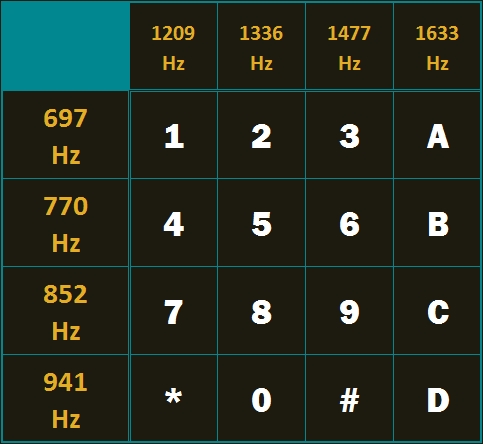
The MT8870 DTMF decoder is quite a neat little module that allows you incorporate DTMF technology into your arduino projects. DTMF stands for Dual-Tone Multi-Frequency. DTMF tones are commonly associated with touch-tone phones and other telecommunication systems. When you press the number "1" on a touch-tone phone, two sine waves with frequencies: 697Hz and 1209Hz are combined to produce a unique DTMF signal which can be transmitted through the phone line. The MT8870 DTMF module can take this signal as an input, and decode it to produce a binary output.


The DTMF module does not care how you produce the DTMF tone. However, if it receives this tone, it will decode it. We can take advantage of this feature to supply the module with tones from different sources. The module has a 3.5mm port for line input. Providing you can connect your DTMF source to this line input in some way, it should work. I must warn you, however that this is a line input and NOT a microphone input. If you wanted to use a microphone, you will need to boost or amplify the signal before sending it to the DTMF module.
 
You will need the following parts for this project
 

Parts Required:

Software/Apps Required

Arduino Sketch


Upload the following sketch to the Arduino.
 

1
2
3
4
5
6
7
8
9
10
11
12
13
14
15
16
17
18
19
20
21
22
23
24
25
26
27
28
29
30
31
32
33
34
35
36
37
38
39
40
41
42
43
44
45
46
47
48
49
50
51
52
53
54
55
56
57
58
59
60
61
62
/* ================================================================================================================================================== Project: MT8870 DTMF Servo sketch Author: Scott C Created: 4th August 2015 Arduino IDE: 1.6.4 Website: http://arduinobasics.blogspot.com/p/arduino-basics-projects-page.html Description: This project will allow you to control a Servo motor using an Arduino UNO and a MT8870 DTMF Module. The DTMF signal is received through the 3.5mm port of the DTMF module and is decoded. We will use the decoded output to control the position of the Servo. A SG-5010 Servo motor was used in this project. ===================================================================================================================================================== *///This sketch uses the Servo library that comes with the Arduino IDE #include <Servo.h> //Global variables----------------------------------------------------------------------------------------- Servo SG5010; // The SG5010 variable provides Servo functionality int servoPosition = 0; // The servoPosition variable will be used to set the position of the servo byte DTMFread; // The DTMFread variable will be used to interpret the output of the DTMF module. const int STQ = 3; // Attach DTMF Module STQ Pin to Arduino Digital Pin 3 const int Q4 = 4; // Attach DTMF Module Q4 Pin to Arduino Digital Pin 4 const int Q3 = 5; // Attach DTMF Module Q3 Pin to Arduino Digital Pin 5 const int Q2 = 6; // Attach DTMF Module Q2 Pin to Arduino Digital Pin 6 const int Q1 = 7; // Attach DTMF Module Q1 Pin to Arduino Digital Pin 7 /*========================================================================================================= setup() : will setup the Servo, and prepare the Arduino to receive the MT8700 DTMF module's output. ========================================================================================================== */void setup() { SG5010.attach(9); // The Servo signal cable will be attached to Arduino Digital Pin 9 SG5010.write(servoPosition); // Set the servo position to zero. //Setup the INPUT pins on the Arduino pinMode(STQ, INPUT); pinMode(Q4, INPUT); pinMode(Q3, INPUT); pinMode(Q2, INPUT); pinMode(Q1, INPUT);} /*========================================================================================================= loop() : Arduino will interpret the DTMF module output and position the Servo accordingly ========================================================================================================== */void loop() { if(digitalRead(STQ)==HIGH){ //When a DTMF tone is detected, STQ will read HIGH for the duration of the tone. DTMFread=0; if(digitalRead(Q1)==HIGH){ //If Q1 reads HIGH, then add 1 to the DTMFread variable DTMFread=DTMFread+1; } if(digitalRead(Q2)==HIGH){ //If Q2 reads HIGH, then add 2 to the DTMFread variable DTMFread=DTMFread+2; } if(digitalRead(Q3)==HIGH){ //If Q3 reads HIGH, then add 4 to the DTMFread variable DTMFread=DTMFread+4; } if(digitalRead(Q4)==HIGH){ //If Q4 reads HIGH, then add 8 to the DTMFread variable DTMFread=DTMFread+8; } servoPosition = DTMFread * 8.5; //Set the servoPosition varaible to the combined total of all the Q1 to Q4 readings. Multiply by 8.5 to amplify the servo rotation. } SG5010.write(servoPosition); //Set the servo's position according to the "servoPosition" variable. }


Fritzing Sketch


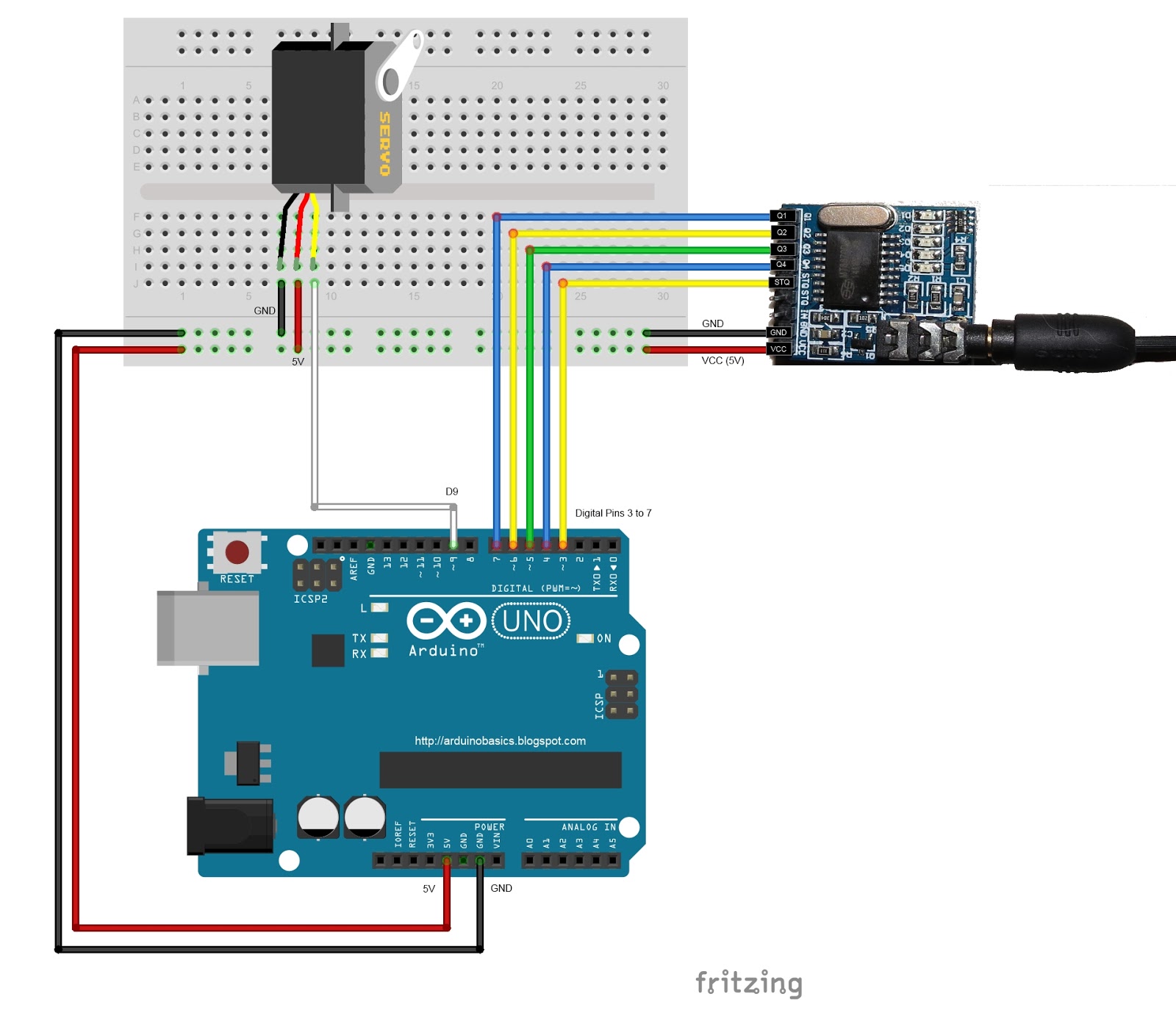
Connect the Arduino to the MT8870 DTMF module, and to a Servo.
Use the following Fritzing sketch as a guide.
 
(Click the image above to enlarge it)


Discussion


You will need to connect a cable from the DTMF module's 3.5mm port to that of your smart phone, computer, voice recorder or any other DTMF source of your choice.


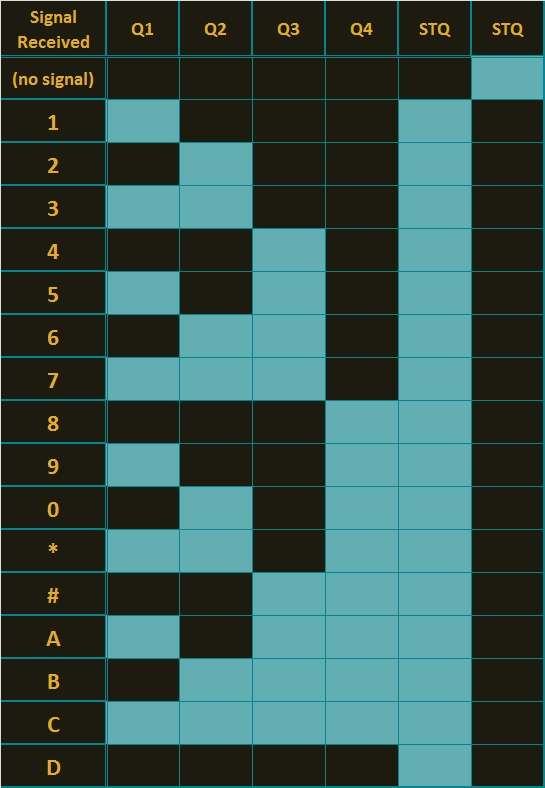
When you power up your Arduino, the Servo motor should turn all the way to the left to it's zero position. Once the DTMF module receives a DTMF signal, it will identify the relevant frequecies as described in the table at the beginning of this tutorial, and produce a binary like output. You will notice the DTMF module's onboard LEDs light up when a tone is detected. Onboard LED (D5) will turn on for the length of the DTMF tone it just received, and turn off when the tone has stopped. On the other hand, the onboard LEDs (D1 to D4) will light up depending on the tone received, and will remain lit until the module receives another tone. The onboard LEDs are a visual representation of the voltages applied to the DTMF module's pins (Q1 to Q4, and STQ). Q1 matches D1, Q2 matches D2 etc etc. and STQ matches D5.
 
You will notice that there are two STQ pins on the DTMF module. The STQ pin that is closest to Q4 will only go high when a DTMF tone is detected, and will remain high for the duration of the tone. The other STQ pin is the exact opposite. It will switch LOW when a tone is received and remain LOW for the duration of the tone. When there is no tone, this STQ pin will remain HIGH. The table below provides a summary of the DTMF module outputs, with a blue box representing a voltage applied to that pin (HIGH), whereas a black box indicates no voltage applied (LOW).


In order to follow this project, you need a source of DTMF tones. You can produce DTMF tones using a touch-tone phone, or through the use of a DTMF Pad app. If you are feeling creative, you can create a DTMF song/tune like the one I posted on YouTube. You can see the video below:


As you can see from the video, I also recorded the DTMF tune onto a voice recorder, and was able to control the servo that way. If you are not feeling creative, you can visit this website to create DTMF tones from your browser.

Concluding comments


This project was very fun, and shows some novel ways to control your Arduino. After completing the project, I realised that I could use this module to alert me when new emails or messages arrive on my phone or computer. If you have the ability to change the email or message notification sound to a DTMF tone, you should be able to get the module and Arduino to respond accordingly. Oh well, maybe I'll save that project for another day.
 
If this project helped you in anyway or if you use my code within your project, please let me know in the comments below. I would be interested to see what you did.


If you like this page, please do me a favour and show your appreciation :

 
Visit my ArduinoBasics Google + page.
Follow me on Twitter by looking for ScottC @ArduinoBasics.
I can also be found on Pinterest and Instagram.
Have a look at my videos on my YouTube channel.


However, if you do not have a google profile...
Feel free to share this page with your friends in any way you see fit.

MT8870 DTMF - Dual Tone Multi Frequency Decoder

Project Description

We will be using an MT8870 DTMF module with an Arduino UNO to control a small servo motor in this project. The DTMF module gives the Arduino super-powers and allows you to control the Servo motor in so many ways. For example, this tutorial will show you how to control the servo motor using:
  • a YouTube Video
  • a voice recorder
  • A web application (Online tone generator)
  • A smart phone app (DTMF Pad)
  • A touch-tone phone to cell-phone call
All of these control methods will take advantage of the same exact Arduino code/sketch. But how???
The MT8870 DTMF decoder is quite a neat little module that allows you incorporate DTMF technology into your arduino projects. DTMF stands for Dual-Tone Multi-Frequency. DTMF tones are commonly associated with touch-tone phones and other telecommunication systems. When you press the number "1" on a touch-tone phone, two sine waves with frequencies: 697Hz and 1209Hz are combined to produce a unique DTMF signal which can be transmitted through the phone line. The MT8870 DTMF module can take this signal as an input, and decode it to produce a binary output.


The DTMF module does not care how you produce the DTMF tone. However, if it receives this tone, it will decode it. We can take advantage of this feature to supply the module with tones from different sources. The module has a 3.5mm port for line input. Providing you can connect your DTMF source to this line input in some way, it should work. I must warn you, however that this is a line input and NOT a microphone input. If you wanted to use a microphone, you will need to boost or amplify the signal before sending it to the DTMF module.
 
You will need the following parts for this project
 

Parts Required:

Software/Apps Required

Arduino Sketch


Upload the following sketch to the Arduino.
 

1
2
3
4
5
6
7
8
9
10
11
12
13
14
15
16
17
18
19
20
21
22
23
24
25
26
27
28
29
30
31
32
33
34
35
36
37
38
39
40
41
42
43
44
45
46
47
48
49
50
51
52
53
54
55
56
57
58
59
60
61
62
/* ================================================================================================================================================== Project: MT8870 DTMF Servo sketch Author: Scott C Created: 4th August 2015 Arduino IDE: 1.6.4 Website: http://arduinobasics.blogspot.com/p/arduino-basics-projects-page.html Description: This project will allow you to control a Servo motor using an Arduino UNO and a MT8870 DTMF Module. The DTMF signal is received through the 3.5mm port of the DTMF module and is decoded. We will use the decoded output to control the position of the Servo. A SG-5010 Servo motor was used in this project. ===================================================================================================================================================== *///This sketch uses the Servo library that comes with the Arduino IDE #include <Servo.h> //Global variables----------------------------------------------------------------------------------------- Servo SG5010; // The SG5010 variable provides Servo functionality int servoPosition = 0; // The servoPosition variable will be used to set the position of the servo byte DTMFread; // The DTMFread variable will be used to interpret the output of the DTMF module. const int STQ = 3; // Attach DTMF Module STQ Pin to Arduino Digital Pin 3 const int Q4 = 4; // Attach DTMF Module Q4 Pin to Arduino Digital Pin 4 const int Q3 = 5; // Attach DTMF Module Q3 Pin to Arduino Digital Pin 5 const int Q2 = 6; // Attach DTMF Module Q2 Pin to Arduino Digital Pin 6 const int Q1 = 7; // Attach DTMF Module Q1 Pin to Arduino Digital Pin 7 /*========================================================================================================= setup() : will setup the Servo, and prepare the Arduino to receive the MT8700 DTMF module's output. ========================================================================================================== */void setup() { SG5010.attach(9); // The Servo signal cable will be attached to Arduino Digital Pin 9 SG5010.write(servoPosition); // Set the servo position to zero. //Setup the INPUT pins on the Arduino pinMode(STQ, INPUT); pinMode(Q4, INPUT); pinMode(Q3, INPUT); pinMode(Q2, INPUT); pinMode(Q1, INPUT);} /*========================================================================================================= loop() : Arduino will interpret the DTMF module output and position the Servo accordingly ========================================================================================================== */void loop() { if(digitalRead(STQ)==HIGH){ //When a DTMF tone is detected, STQ will read HIGH for the duration of the tone. DTMFread=0; if(digitalRead(Q1)==HIGH){ //If Q1 reads HIGH, then add 1 to the DTMFread variable DTMFread=DTMFread+1; } if(digitalRead(Q2)==HIGH){ //If Q2 reads HIGH, then add 2 to the DTMFread variable DTMFread=DTMFread+2; } if(digitalRead(Q3)==HIGH){ //If Q3 reads HIGH, then add 4 to the DTMFread variable DTMFread=DTMFread+4; } if(digitalRead(Q4)==HIGH){ //If Q4 reads HIGH, then add 8 to the DTMFread variable DTMFread=DTMFread+8; } servoPosition = DTMFread * 8.5; //Set the servoPosition varaible to the combined total of all the Q1 to Q4 readings. Multiply by 8.5 to amplify the servo rotation. } SG5010.write(servoPosition); //Set the servo's position according to the "servoPosition" variable. }


Fritzing Sketch


Connect the Arduino to the MT8870 DTMF module, and to a Servo.
Use the following Fritzing sketch as a guide.
 
(Click the image above to enlarge it)


Discussion


You will need to connect a cable from the DTMF module's 3.5mm port to that of your smart phone, computer, voice recorder or any other DTMF source of your choice.


When you power up your Arduino, the Servo motor should turn all the way to the left to it's zero position. Once the DTMF module receives a DTMF signal, it will identify the relevant frequecies as described in the table at the beginning of this tutorial, and produce a binary like output. You will notice the DTMF module's onboard LEDs light up when a tone is detected. Onboard LED (D5) will turn on for the length of the DTMF tone it just received, and turn off when the tone has stopped. On the other hand, the onboard LEDs (D1 to D4) will light up depending on the tone received, and will remain lit until the module receives another tone. The onboard LEDs are a visual representation of the voltages applied to the DTMF module's pins (Q1 to Q4, and STQ). Q1 matches D1, Q2 matches D2 etc etc. and STQ matches D5.
 
You will notice that there are two STQ pins on the DTMF module. The STQ pin that is closest to Q4 will only go high when a DTMF tone is detected, and will remain high for the duration of the tone. The other STQ pin is the exact opposite. It will switch LOW when a tone is received and remain LOW for the duration of the tone. When there is no tone, this STQ pin will remain HIGH. The table below provides a summary of the DTMF module outputs, with a blue box representing a voltage applied to that pin (HIGH), whereas a black box indicates no voltage applied (LOW).


In order to follow this project, you need a source of DTMF tones. You can produce DTMF tones using a touch-tone phone, or through the use of a DTMF Pad app. If you are feeling creative, you can create a DTMF song/tune like the one I posted on YouTube. You can see the video below:


As you can see from the video, I also recorded the DTMF tune onto a voice recorder, and was able to control the servo that way. If you are not feeling creative, you can visit this website to create DTMF tones from your browser.

Concluding comments


This project was very fun, and shows some novel ways to control your Arduino. After completing the project, I realised that I could use this module to alert me when new emails or messages arrive on my phone or computer. If you have the ability to change the email or message notification sound to a DTMF tone, you should be able to get the module and Arduino to respond accordingly. Oh well, maybe I'll save that project for another day.
 
If this project helped you in anyway or if you use my code within your project, please let me know in the comments below. I would be interested to see what you did.


If you like this page, please do me a favour and show your appreciation :

 
Visit my ArduinoBasics Google + page.
Follow me on Twitter by looking for ScottC @ArduinoBasics.
I can also be found on Pinterest and Instagram.
Have a look at my videos on my YouTube channel.


However, if you do not have a google profile...
Feel free to share this page with your friends in any way you see fit.

Embed with Elliot: the Static Keyword You Don’t Fully Understand

One of our favorite nuances of the C programming language (and its descendants) is the static keyword. It’s a little bit tricky to get your head around at first, because it can have two (or three) subtly different applications in different situations, but it’s so useful that it’s worth taking the time to get to know.

And before you Arduino users out there click away, static variables solve a couple of common problems that occur in Arduino programming. Take this test to see if it matters to you: will the following Arduino snippet ever print out “Hello World”?

void loop()
{
	int count=0;
	count = count + 1;
	if (count &gt; 10) {
		Serial.println(&quot;Hello World&quot;);
	}
}

If you said, “Yes” you absolutely need to read this article. If you said “No, you need to define count as a global variable outside of the loop(), silly!”, you got the answer right in principle, but defining the variable as static is yet better. And we’ll see why.

But the shortest possible summary of this article is the following: if you want a variable to retain its value between calls to the function that contains it, declare that variable static.

And the summary rationale is that declaring a variable to be static sets the scope to be local, but makes the variable stick around for the lifetime of the program, rather than just the function call in which it was defined. Which means that it’s not re-initialized on every call to the function, and that lets us effectively store data within a function. It’s a great trick to have in your programmers’ toolbag.

Scope and Duration

To understand static, we’ll have to tease apart two related concepts of a variable’s availability to our code: scope and duration (or lifetime).

Most of you will know about variable scope. In many languages, if you declare a variable within a function or block, it stays inside that function or block. That’s called “local scope” or “function scope” or similar. Other functions can’t use that variable without our function explicitly passing the variable out. This is great, because it means that you can name all your counter variables count and they won’t collide with each other across functions. You probably know this.

Variables in C & Co. also have a lifetime that they’re guaranteed to be available for, also called their “duration”. After their duration is up, you won’t be able to use the variable any more. This is closely related to the idea of “scope” which specifies in which functional blocks of code the variable is available, but you’re going to want to keep them separate in your mind. Easiest is to think of duration as being a time, and scope as being a location (in code-space).

The default duration of a variable is the current call of the function. That’s why something like:

int counter (void)
{
	int count=0;
	count=count+1;
	return count;
}

will always return 1. Each time you call the function, count gets re-initialized to zero, and when the function returns, that variable’s storage gets reallocated because it has function duration. (And this is exactly the problem with the Arduino snippet above.)

We want our counter() function to keep track of how many times it’s been called. We need the variable count to have program duration — it needs to stick around as long as our code is running, and not get reallocated after every function call.

Globals?

The brute-force method is to declare count as a global variable by defining it outside of any functions. Global variables live for the duration of the program, so the value contained in count will stay available. So far, so good. But variables with global scope have the side effect of making count available from any other function. Sometimes this is exactly what we want, but a lot of the time it’s not.

The problem with global scope is that you can’t use any other global variables of the same name, so you need pick the names carefully to be unique so that they don’t clash. This isn’t a huge problem if you just use long, specific names: My_Global_Loop_Counter instead of count, for instance.

A more subtle problem arises when you intend to use another variable named count in a second function, but forget to declare it. The second function thinks that you meant to use the globally defined count, and havoc ensues.

Finally, it’s tempting to use global variables to pass data among different functions. (This is especially true for people who haven’t yet made peace with pointers and structures.) If you spread the functions using a global variable across different files, it can take heroic feats of debugging to track down every location where a popular global variable is accessed or modified. That is to say, global variables can lead to fragmented, hard to debug code.

No, Static.

Anyway, if you buy the arguments above, what you really want is a variable with program duration but function scope. And that’s exactly what static does when it’s applied to a variable inside a function. The language has precisely the feature you want, so you might as well use it.

And to bring it on home, the Arduino snippet up above will work just fine with a globally defined count variable,

int count;
void loop()
{
	count = count + 1;
	if (count &gt; 10) {
		Serial.println(&quot;Hello World&quot;);
	}
}

but it’s also a lot cleaner when written using static:

void loop()
{
	static int count;
	count = count + 1;
	if (count &gt; 10) {
		Serial.println(&quot;Hello World&quot;);
	}
}

because the name “count” isn’t globally exposed. It’s also declared in the function that uses it, so there’s no question of to whom it belongs. And it works. You can’t beat that.

Static and global variables (all variables with program duration) are pre-initialized to zero by default, so we didn’t need to write static int count = 0; above. However, if we wanted the initial value to be non-zero, we could define the variable like so: static int count = 42;.

There’s something creepy about static int count = 42;, though. It looks like we’re declaring the variable and then setting its value on every pass through the code. But the static keyword prevents this. Trust us, or modify the demo code above to test it out for yourself.

Data Hiding and Singletons and Stuff

There’s a second, related, use of static to mention. When used outside of any functions, at the top-level of a file, static limits the scope to the file in question. Contrast this with global variables which have truly global scope and thus are available across files. Static variables defined outside of functions, then, are like a quasi-global variable: available for the duration of the program from every function defined within the file, but not reachable from outside the file.

Here’s an example where this quasi-global functionality is useful. Say we’d like to spin off the counter code into a counter library. We’re starting off with something like this:

int counter(void){
	static int count;
	count++;
	return count;
}

Every time you call counter() from other code, the function keeps the old value of count, adds one to it, and the counter behaves like it should. This is the function-scope static definition.

But now imagine that we’d also like to reset the counter. We might want a reset() function that will set the value back to zero. But count has function scope, so our reset() function won’t be able to touch it. The solution here is to use the static type declaration at file scope.

You could have something like this in your file “counter.c”:

static int count;

int counter(void){
	count++;
	return count;
}

void reset_count(void){
	count = 0;
}

static void my_secret_function(void){
	count = 42;
}

Because count is defined static at file scope, all the functions in the file will be able to use it, and the value will persist between function calls. Additionally, because my_secret_function() is defined static, it’s not callable from outside this file, though functions defined here can call it as usual.

Defining variables (and functions) static at file scope is perfect for storing library-specific stuff that is needed for the library, but that doesn’t need to be seen on the outside. This is a lot like what object-oriented languages do with public and private data and methods.

In contrast to the object-oriented pattern, though, we’ve only got one instance of our data. You can’t create a second one easily. This is what the software engineer types call a singleton.  These singletons are great for keeping track of global state, where you just write some simple functions to modify and access the data. Since the data is static and file-local, you know that you can’t mess it up from outside, and the manipulation functions are available anywhere you can #include them.

The drawback of singletons are that there’s only ever one of them. If you wanted two counters, for instance, this code wouldn’t help. When you get to such cases, you’ll want full-blown object-oriented support.

… and Arduino

This was a lot of heavy C theory, so you might think it’s not applicable if you’re programming in Arduino. If you think like that, you weren’t paying attention during the last “Embed”; Arduino is C/C++ with added convenience libraries. And in fact, the particular way that Arduino repeatedly calls the loop() function makes knowing a bit about scoping nearly mandatory: all of your function-call-duration variables get wiped each time through the loop unless you do something.

As we saw in the introductory example, you can’t initialize a variable inside the loop() without it resetting each time through the loop. If you didn’t know about the static keyword, you’d probably take the brute-force solution and define the variable as global. A bunch of the Arduino examples do just this.

What could go wrong?

int i;

void loop(){
	i++;
	Serial.println(i);
	delay(100);
	doSomethingTwice();
}

void doSomethingTwice(){
	for (i=0; i&lt;2; i++){
		Serial.println(&quot;twice?&quot;);
	}
}

Well, say you’ve gotten in the habit, as we have, of using i as a generic loop variable. And say you re-used it without definition in another function, maybe even in another “.ino” file, that you call from within the loop. Because i is a global variable, the accidental second use is actually perfectly kosher. The compiler won’t be able to help you find the mistake, but your program won’t work right. Instead of counting up, the poor Arduino will just keep printing “3”.

There are two causes of this problem: forgetting to declare i inside doSomethingTwice(), and creating a global variable with an easy-to-reuse name. You will forget to declare variables from time to time. We all do. And when we do, we want the compiler to let us know.

So there are two ways to avoid the problem. The first solution is to name your global variables something crazy so that they’re unlikely to be reused. “My_Amazing_Global_Loop_Counter” would work well. Even typing it once makes me never want to type it again.

The “right” solution solves the initial problem that led us to use a global variable in the first place. We simply define our counter variable as static inside loop() and then it has program duration but function scope and all’s well. Now we can even call the counter variable i with impunity, because it’s scoped to loop().


void loop(){
	static int i;
	i++;
	Serial.println(i);
	delay(100);
	doSomethingTwice();
}

void doSomethingTwice(){
	// You'll get an error here b/c i isn't declared.  Thanks, compiler!
	for (i=0; i&lt;2; i++){
		Serial.println(&quot;twice?&quot;);
	}
}

And what do you do if you want to share variables among different functions within a single “sketch”? One way is to pass them directly as arguments, but again you’ll see lots of folks resort to global variables that can be simply accessed from each relevant function. It’s not a huge problem if you take care to name the variables well, so we won’t insist.

But you could also do it “correctly” and define the global variables as static at the file level instead. You’ll still be able to make subtle mistakes within your own functions, but by declaring the variables static you won’t run the chance of confusing them up with variables defined elsewhere in the Arduino infrastructure. It’s a belt when you’re already wearing suspenders, but it doesn’t cost you anything except a tiny bit more typing.

Conclusion

Use the static keyword for variables within a function when you want the value to persist across function calls, but you don’t need to enlarge the scope. Use the static keyword for functions and variables at the file level when you want them to behave like quasi-globals, being accessible everywhere within the file but hidden from the outside.

See? That’s not so mysterious after all.


Filed under: Hackaday Columns

This Second-Grader Built an Arduino-Embedded Pinewood Derby Car

Makers come in many different forms, nationalities, and ages. The same can be said about the many projects that those Makers design and build, which range from robotics to automated homes and everything in between. One of the more interesting projects I came across at the Westport Maker Faire was from a young […]

Read more on MAKE

The post This Second-Grader Built an Arduino-Embedded Pinewood Derby Car appeared first on Make: DIY Projects, How-Tos, Electronics, Crafts and Ideas for Makers.

New Project: LED Matrix Dessert Tray

Everyone loves dessert, but what if they could light up and play animations? I'll show you how to make a dessert tray with a built-in LED matrix.

Read more on MAKE

The post LED Matrix Dessert Tray appeared first on Make: DIY Projects, How-Tos, Electronics, Crafts and Ideas for Makers.

Hacklet 68 – Rocket Projects

There’s just something amazing about counting down and watching a rocket lift off the pad, soaring high into the sky. The excitement is multiplied when the rocket is one you built yourself. Amateur rocketry has been inspiring hackers and engineers for centuries. In the USA, modern amateur rocketry gained popularity after Sputnik-1, continuing on through the space race. Much of this history captured in the book Rocket Boys by Homer Hickam, which is well worth a read. This week’s Hacklet is dedicated to some of the best rocketry projects on Hackaday.io!

We start with [Sagar] and Guided Rocket. [Sagar] is building a rocket with a self stabilization system. Many projects use articulated fins for this, and [Sagar] plans to add fins in the future, but he’s starting with an articulated rocket motor. The motor sits inside a gimbal, which allows it to tilt about 10 degrees in any direction. An Arduino is the brain of the system. The Arduino gathers data from a MPU6050 IMU sensor, then determines how to steer the rocket motor. Steering is accomplished with a couple of micro servos connected to the gimbal.


Next up is [Howie], with Homemade rocket engine. [Howie] is cooking some seriously hot stuff on his stove. Rocket candy to be precise, similar to the fuel [Homer Hickam] wrote about in Rocket Boys. This solid fuel is so named because one of the main ingredients is sugar. The other main ingredient is stump remover, or potassium nitrate. Everything is mixed and heated together on a skillet for about 30 minutes, then pushed into rocket engine tubes. It goes without saying that you shouldn’t try this one at home unless you’re really sure of what you’re doing!


Everyone wants to know how high their rocket went. [Vcazan] created AltiRocket to record acceleration and altitude data. AltiRocket also transmits the data to the ground via a radio link. An Arduino Nano keeps things light. A BMP108 barometric sensor captures pressure data, which is easily converted into altitude. Launch forces are captured by a 3 Axis accelerometer. A tiny LiPo battery provides power. The entire system is only 23 grams! [Vcazan] has already flown AltiRocket, collecting data from several flights earlier this summer.


Finally we have [J. M. Hopkins] who is working on a huge project to do just about everything! High Power Experimental Rocket Platform includes designing and building everything from the rocket fuel, to the rocket itself, to a GPS guided parachute recovery system. [J. M. Hopkins] has already accomplished two of his goals, making his own fuel and testing nozzle designs. The electronics package to be included on the rocket is impressive, including a GPS, IMU, barometric, and temperature sensors. Data will be sent back to the ground by a 70cm transceiver. The ground station will use a high gain human-guided yagi tracking antenna with a low noise amplifier to pick up the signal.

If you want more rocketry goodness, check out our brand new rocket project list! Rocket projects move fast, if I missed yours as it streaked by, don’t hesitate to drop me a message on Hackaday.io. That’s it for this week’s Hacklet, As always, see you next week. Same hack time, same hack channel, bringing you the best of Hackaday.io!


Filed under: Hackaday Columns

New Project: How to Build a Mission Control Desk

A kid's homework table lifts up to reveal a NASA-inspired mission control center. Follow along for help in building your own.

Read more on MAKE

The post How to Build a Mission Control Desk appeared first on Make: DIY Projects, How-Tos, Electronics, Crafts and Ideas for Makers.

New dimmer software

Based on the success of the stroboscope software, I rewrote the dimmer software for my desk lamp (see LED lamp projects for more about the lamps).  The new software provides smoother control of the light levels (having 256 levels plus off, rather than 63 levels plus off) and now has a 256:1 brightness range rather than the approximately 256:6 range of the previous code.

I removed a lot of the general-purpose crap that was inherited from core13 (which was in turn stripped down from the Arduino core software).  I did not get rid of all of core13, so I could probably take out another 50–100 bytes, but the code is down to 222 bytes (and the ATtiny13A has 1kB of flash, so I’m way below the limit).

The actual brightness range of the new dimmer is a bit more than 256:1, because on the shortest pulse the FET doesn’t turn all the way on.  The pulse duration from the ATtiny13A is approximately 3.4µs times the brightness level (9.6MHz clock divided down by 4 and by 8), but I had deliberately slowed the FET transitions by adding a series resistor to the gate, so that nFET doesn’t finish turning on for 5.2µs (as judged by the end of the Miller plateau on the gate).  So at the lowest brightness level, the nFET does not turn all the way on and the voltage on the drain only gets down to 3.5V, which leaves 5.5V across the LED board—enough to turn on the LED, but with only about 10mA, not 118mA. At this low level, the LEDs sometimes flicker, perhaps as a result of some thermal feedback effects. The all flicker together, so the effect is probably in the dimmer’s nFET, not on the LED boards.

ATtiny output (green) and gate voltage (yellow) at 2V/division and 2µs/division for the shortest pulse length. The gate voltage has not quite reached the end of the Miller plateau before being discharged again.

ATtiny output (green) and drain voltage (yellow) at 2V/division and 2µs/division for the shortest pulse length. The BitScope BS-10 oscilloscope clips the voltage to 5.5V—it actually goes to 9V.

At the next brightness level, the drain voltage does drop to 0V for at least 2.4µs and stays low enough for the LED board to be at maximum current (below 2.5V) for at least 5.5µs.  There is an enormous difference in brightness between length 2 and length 1 pulses (more like 1:20 than 1:2), because of the low current for pulse length 1, but for length 2 and longer the steps in brightness are pretty much as one would expect from the pulse lengths.

ATtiny output (green) and gate voltage (yellow) at 2V/division and 2µs/division for the shortest pulse length. The gate voltage has gone past the end of the Miller plateau and started charging past that point. The Miller plateau is also visible on the discharge as the nFET turns off.

ATtiny output (green) and drain voltage (yellow) at 2V/division and 2µs/division for the second shortest pulse length. The BitScope BS-10 oscilloscope clips the voltage to 5.5V—it actually goes to 9V.
The longer pulses allow the nFET to turn on fully.

The conversion from the linear 10-bit analog-to-digital reading (0–1023) to pulse lengths is done by the following method:

expon = ADC>>7
frac = 0x80 + (ADC & 0x7f)
pulse_len = ADC < 0x20? 0:  ADC < 0x40? 1: 1+ (frac>> (7-expon))

The stepwise nature of the brightness at low levels is apparent in a plot of the conversion function:

The steps in brightness are quite visible at the low end, but after the first 10 steps, the differences are small enough not to be easily noticed.

Overall, I’m pleased with the rework of the dimmer code. I’ll probably have to solder up another of the dimmer boards this summer, since I’ll want one for the light fixture that I haven’t started building yet and one for the Halloween stroboscope.


Filed under: Uncategorized Tagged: Arduino, ATtiny, BitScope, dimmable LED lamps, lamp, Miller plateau

This Nixie Tube Speedometer Gives Retro-Futuristic Life to a 70s Motorcycle

Nixie tubes are interesting pieces of equipment. They have a "retro-futuristic" look that has great appeal to electronics hackers.

Read more on MAKE

The post This Nixie Tube Speedometer Gives Retro-Futuristic Life to a 70s Motorcycle appeared first on Make: DIY Projects, How-Tos, Electronics, Crafts and Ideas for Makers.