Posts with «featured» label

MMA7455L Three Axis Digital Output Accelerometer


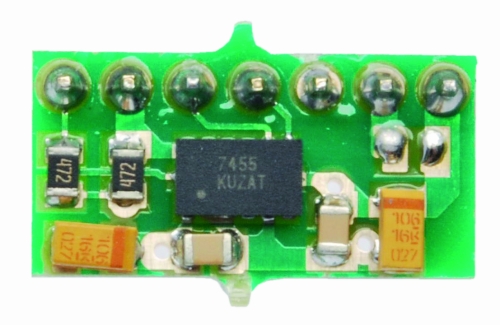
This module integrates the sensor MMA7455L (produced by Freescale), able to detect the movement on three axes, and then in every direction. The chip offers the possibility to select three different sensitivity (± 2g, ± 4g, ± 8g) and makes available, on an SPI bus and the I ² C-Bus, the data detected by allowing a more easily read by a microcontroller. There are also two programmable interrupt lines to communicate a certain event, or to perform one or more actions when it detects a certain acceleration or when the module is stopped.

The accelerometer connections are carried out on a male strip pitch 2.54 mm, seven contacts, which allows the insertion in any dip socket, female strip or directly on the printed circuit. The module, powered with a DC voltage of 2.5 to 3.6 V, is suitable for be used in all systems that require the detection of movement, acceleration, such as an alarm systems for vehicle, laboratory analytical instruments, electrical equipment, machinery test and robots.

The module has extremely compact dimensions (10x18x3, 6mm).

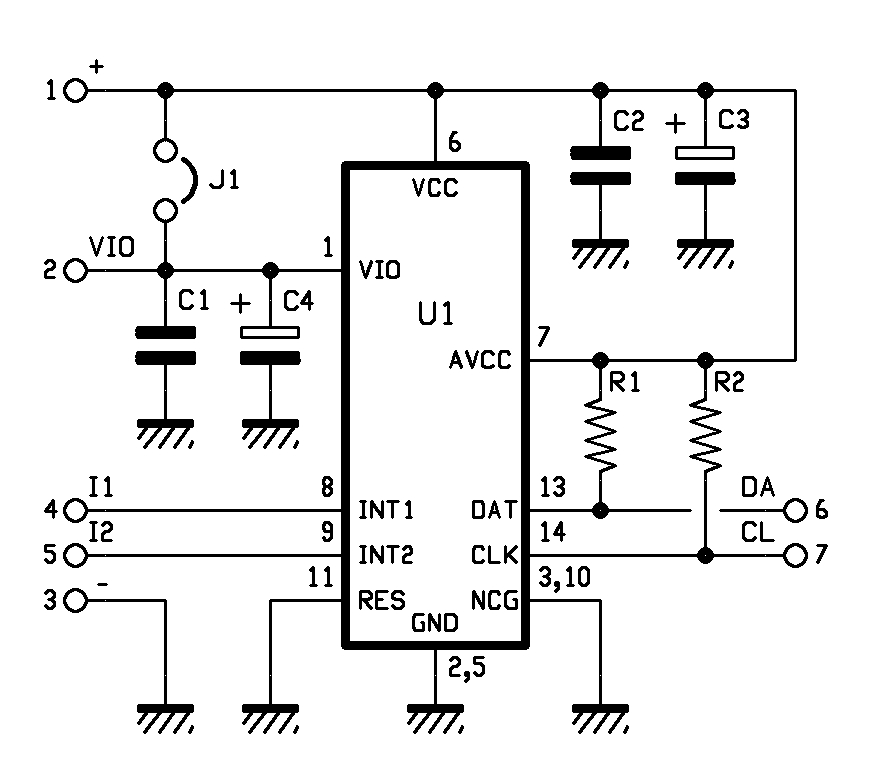
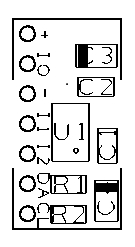
Before using this module is necessary to establish (through jumper J1) which must be the voltage applied to pin VIO (Digital Power for I/O pads), levels of the I / O interface must be the same of micro. If the voltage applied between the pin + and – of the module is the same as the interface device is necessary to close J1, while if it is different (for example because the micro operates at 5V) the jumper must be open and the line VIO must be connects to the same supply voltage of the microcontroller. The I ² C-Bus module is assigned to 00111011. For more information on the chip MMA7455L consult the datasheet from the Internet site www.freescale.com.

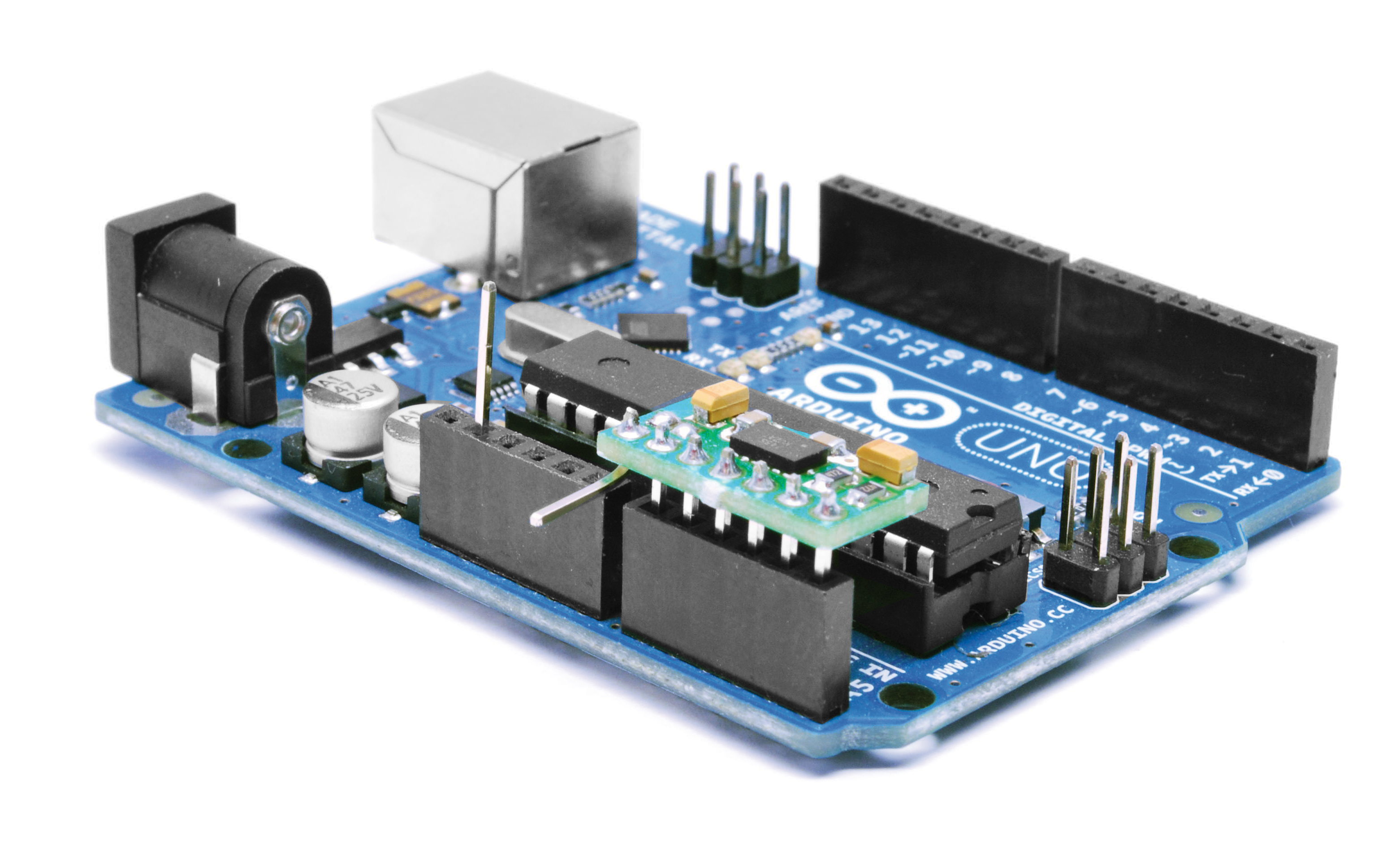
To show the operation of the module I made a little demo with Arduino.

The connection to the microcontroller is very simple and the pin-out allows you to insert the module in the 6-pin for the analog inputs.
The low absorption permit to use the input pin A0 as level of communicationis (VIO) brought it to a high logic level (5V), while the pin A1 is set to 0, the mass for the MMA7455L.
The main supply voltage is provide from 3.3 V by Arduino.

Thanks to the library Wire.h pin A4 and A5 are used to communicate directly with the module.
The communication is very simple thank the library MMA_7455.h developed by Moritz Kemper.

// Example which uses the MMA_7455 library
// Moritz Kemper, IAD Physical Computing Lab
// moritz.kemper@zhdk.ch
// ZHdK, 20/11/2011

//Modified by Boris Landoni
//www.open-electronics.org

#include <Wire.h> //Include the Wire library
#include <MMA_7455.h> //Include the MMA_7455 library

const int vcc =  A0;
const int gnd =  A1; 

MMA_7455 mySensor = MMA_7455(); //Make an instance of MMA_7455

char xVal, yVal, zVal; //Variables for the values from the sensor
float x, y, z;

void setup()
{
  pinMode(gnd, OUTPUT);
  pinMode(vcc, OUTPUT);
  digitalWrite(gnd, LOW);
  digitalWrite(vcc, HIGH);
  delay (1000);

  Serial.begin(9600);
  Serial.println("start");

  // Set the sensitivity you want to use
  // 2 = 2g, 4 = 4g, 8 = 8g
  mySensor.initSensitivity(8);
  // Calibrate the Offset, that values corespond in
  // flat position to: xVal = -30, yVal = -20, zVal = +20
  // !!!Activate this after having the first values read out!!!
  mySensor.calibrateOffset(0, 0, 0);

}

void loop()
{
  long start = micros();
  //xVal = mySensor.readAxis('x'); //Read out the 'x' Axis
  //yVal = mySensor.readAxis('y'); //Read out the 'y' Axis
  //zVal = mySensor.readAxis('z'); //Read out the 'z' Axis
 /* Serial.print("x: ");
  Serial.print(xVal*0.016, 2);
  Serial.print("\t y: ");
  Serial.print(yVal*0.016, 2);
  Serial.print("\t z: ");
  Serial.println(zVal*0.016, 2);

  Serial.print("x: ");
  Serial.print(xVal,DEC);
  Serial.print("\t y: ");
  Serial.print(yVal,DEC);
  Serial.print("\t z: ");
  Serial.print(zVal,DEC);
  Serial.print("\t summ: ");
  Serial.println((abs(xVal)+abs(yVal)+abs(zVal)),DEC);*/
    if (Serial.available() > 0) {
    int inByte = Serial.read();
      if (inByte==0x01){
        Serial.print( average(5,'x')); //Serial.print( "\t" );
        Serial.print( average(5,'y')); //Serial.print( "\t" );
        Serial.print( average(5,'z')); //Serial.print( "\t" );
      }
    //Serial.print( micros() - start ); Serial.println();
  }
}

char average(int num, char axis){
  long tot=0;
  char val;
  for (int i=1; i<=num; i++){
    val=mySensor.readAxis(axis);
    tot += val;
   //Serial.print( val,DEC );Serial.print( " " );
   delay(2);
  }
  val=tot/num;
  //Serial.println( val );
  return(val);

}


The software written in Processing By IAN allows you to immediately verify the correct operation of Freescale chip. A cube will rotate like the movements of the sensor.
The applications of this sensor are different and I will show you just developed.

//This example reads in a single byte value from 0 to 255 and graphs it.

/////////////////////////////////////////
//Basic serial communication code
//by Chang Soo Lee
//ITP, NYU
//Created 11/27/2005
/////////////////////////////////////////

//Modified by Boris Landoni
//www.open-electronics.org

import processing.serial.*;
Serial myPort;
int serial = 1;
byte s8=1, x8=0, y8=0, z8=0, cnt=0;
PFont font;
int numH = 370;  

// This will contain the pixels used to calculate the fire effect
int[][] fire;

// Flame colors
color[] palette;
float angle;
int[] calc1,calc2,calc3,calc4,calc5;

PGraphics pg;

void setup () {
    size(1500, 1000, P2D);

  // Create buffered image for 3d cube
  pg = createGraphics(width, height, P3D);

  calc1 = new int[width];
  calc3 = new int[width];
  calc4 = new int[width];
  calc2 = new int[height];
  calc5 = new int[height];

    colorMode(HSB);

  fire = new int[width][height];
  palette = new color[255];

  // Generate the palette
  for(int x = 0; x < palette.length; x++) {
    //Hue goes from 0 to 85: red to yellow
    //Saturation is always the maximum: 255
    //Lightness is 0..255 for x=0..128, and 255 for x=128..255
    palette[x] = color(x/3, 255, constrain(x*3, 0, 255));

  }

  // Precalculate which pixel values to add during animation loop
  // this speeds up the effect by 10fps
  for (int x = 0; x < width; x++) {
    calc1[x] = x % width;
    calc3[x] = (x - 1 + width) % width;
    calc4[x] = (x + 1) % width;
  }

  for(int y = 0; y < height; y++) {
    calc2[y] = (y + 1) % height;
    calc5[y] = (y + 2) % height;
  }

  //size(270, 440);
  println(Serial.list());
  myPort = new Serial(this, Serial.list()[15], 9600);
  // Load the font. Fonts must be placed within the data
  // directory of your sketch. Use Tools > Create Font
  // to create a distributable bitmap font.
  // For vector fonts, use the createFont() function.
  hint(ENABLE_NATIVE_FONTS);
  //font = loadFont("ArialMT-48.vlw");
  smooth();
    myPort.write(0x01);

}

void draw () {
  if (myPort.available() > 0) {
    serial = (myPort.read());
    s8=0;
    s8+=serial;
    switch(cnt) {
      case 0:
        x8=s8;
         break;
      case 1:
        y8=s8;
         break;
      case 2:
        z8=s8;
         break;
      default:
        cnt=0;
        break;
    }
    if(cnt<2){
      cnt++;
      return;
    }
    cnt=0;
    serialEvent();
  }
  //serial=50;
        //rect(120,numH-serial, 20, serial);
  angle = angle + 0.05;

  // Rotating wireframe cube
  pg.beginDraw();
  pg.translate(width >> 1, height >> 1);
  pg.rotateZ(radians((-x8)));
  pg.rotateX(radians(y8));
  pg.background(0);
  pg.stroke(128);
  pg.scale(80);
  pg.noFill();
  pg.box(4);
  pg.endDraw();

  loadPixels();

  int counter = 0;
    // Do the fire calculations for every pixel, from top to bottom
  for (int y = 0; y < height; y++) {
    for(int x = 0; x < width; x++) {
      // Add pixel values around current pixel

      fire[x][y] =
          ((fire[calc3[x]][calc2[y]]
          + fire[calc1[x]][calc2[y]]
          + fire[calc4[x]][calc2[y]]
          + fire[calc1[x]][calc5[y]]) << 5) / 129; 

      // Output everything to screen using our palette colors
      pixels[counter] = palette[fire[x][y]];

      // Extract the red value using right shift and bit mask
      // equivalent of red(pg.pixels[x+y*w])
      if ((pg.pixels[counter++] >> 16 & 0xFF) == 128) {
        // Only map 3D cube 'lit' pixels onto fire array needed for next frame
        fire[x][y] = 128;
      }
    }
  }
  //updatePixels();

}

void serialEvent(){

   background(255);
  line(70,70,70,370);
  line(70,270,200,270);
  line(70,370,200,370);
  fill(0);
  //textFont(font, 11);
  text("Sensor\nValue",22,80);
  text("Analog Input", 95, 390);

  noFill();

  println(x8+" "+y8+" "+z8);

  rect(100,270, 20, x8);
  rect(140,270, 20, y8);
  rect(180,270, 20, z8);
    text(s8,25,110);
        myPort.write(0x01);

}

Arduino WiFi Shield


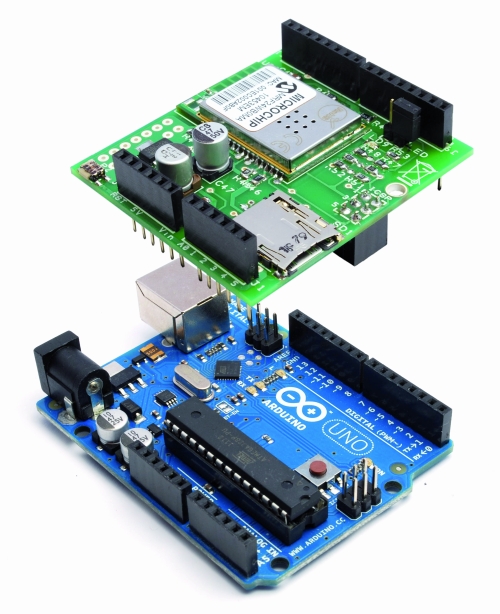
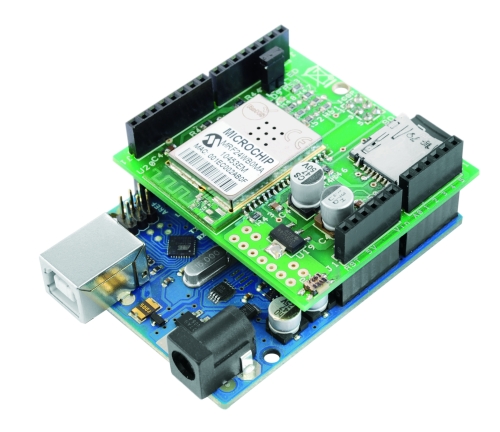
The shield most used in practice are those that expand the communication of the Arduino board and in particular those that allow to add a network connection to a TCP / IP.
The first shield of this kind were those based on Ethernet technology, which helps the Arduino to connect to a LAN based on Ethernet TCP / IP, and so to Internet.
The convenience of Wi-Fi is now known to all: no more cables to spread (which increases the cost and time of construction of any plant) and full freedom in the positioning of the different nodes of the wireless network.

One of the first companies to focus on Wi-Fi was the AsyncLabs, who proposed a famous WiFi shield, including the appropriate libraries.
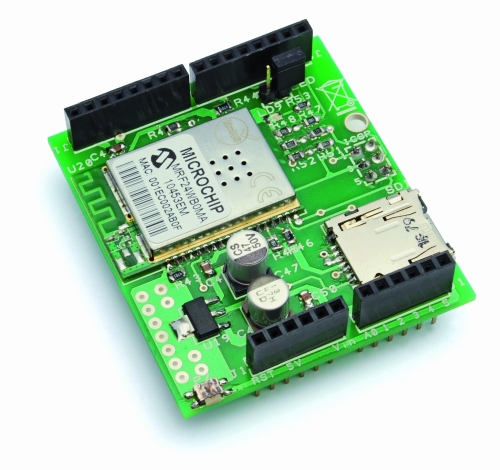
What we propose is a new solution for Wi-Fi: this is a shield that the hardware was inspired by that of AsyncLabs, but in addition, we have provided a slot for microSD memory.

The basic component of the shield that we have made is a Wi-Fi module MRF24WB0MA manufactured by Microchip.
The device is a Wi-Fi IEEE 802.11 RF transceiver, with a data rate between 1 and 2 Mbps, and with an internal antenna.
The WiFi shield supports both types of wireless networks infrastructure (BSS) and ad-hoc (IBSS) and is also allowed to connect to secure networks (cryptographers and are supported 64 and 128-bit WEP, WPA/WPA2 and TKIP, AES and PSK).

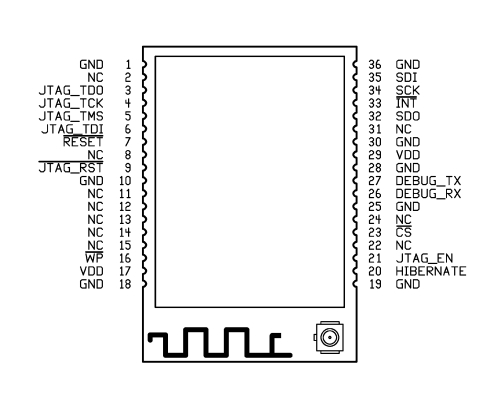
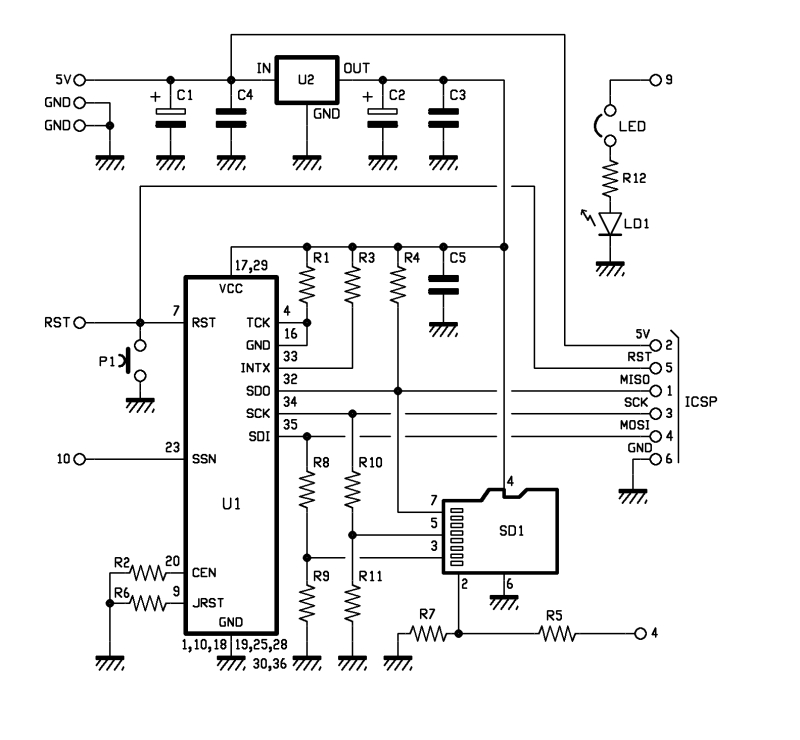
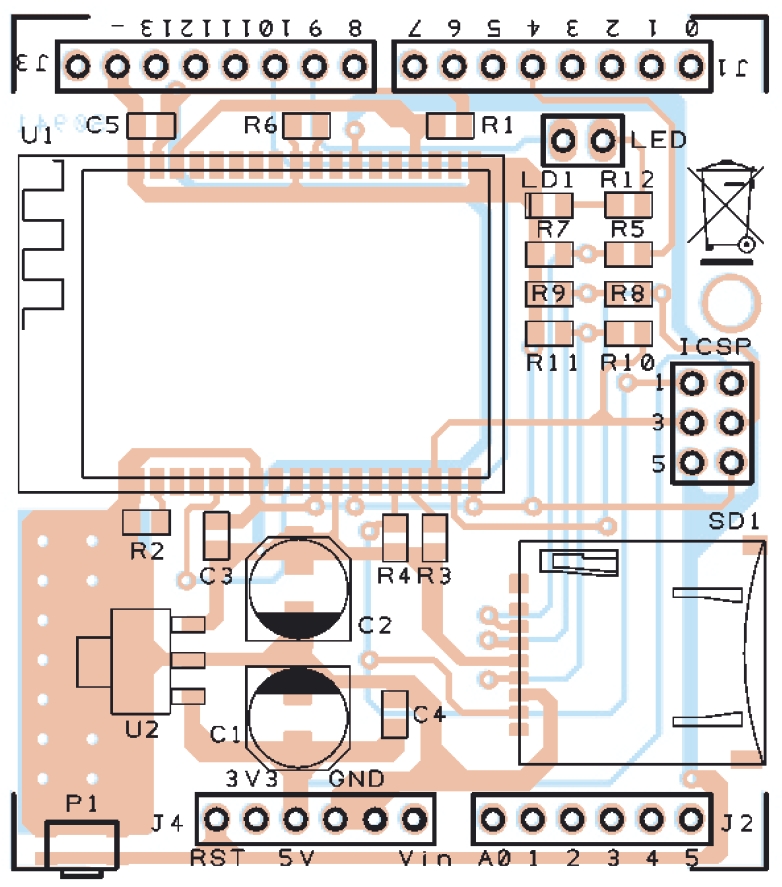
In our project is using the SPI connection for communication with the WiFi controller through the SDO, SCK and SDI (pin 32, 34 and 35) and, if necessary, can be reset using a button (P1 in the diagram).
Peculiarities of our shield is that it has a SD card slot (SD1 signed in the schematic), managed by Arduino always through the SPI port.
There is also a LED (LD1 signed) used to indicate whether the Wi-Fi is active or not, its management is implemented through a hardware port, so you usually can not be used by software. In the event that was needed precisely this port, you still have a jumper that, when opened, making it available again disconnect the LED pin I / O.
Finally, to complete the hardware of the shield there is a section dedicated to the power, consists of a 3.3 V voltage regulator (indicated with U2).

BOM

R1: 4,7 kohm (0805)
R2: 4,7 kohm (0805)
R3: 4,7 kohm (0805)
R4: 4,7 kohm (0805)
R5: 1 kohm (0805)
R6: 4,7 kohm (0805)
R7: 2,2 kohm (0805)
R8: 1 kohm (0805)
R9: 2,2 kohm (0805)
R10: 1 kohm (0805)
R11: 2,2 kohm (0805)
R12: 330 ohm (0805)

C1: 220 µF 6,3 VL (D)
C2: 220 µF 6,3 VL (D)
C3: 100 nF (0805)
C4: 100 nF (0805)
C5: 100 nF (0805)

LD1: Led (0805)

U1: MRF24WB0MA/RM
U2: TC1262-3.3 (SOT-223)

SD1: µSD-Card (MICROSDSOCK2)

P1: switch SMD

Varie:
- headers  male 2 via
- headers  M/F 6 via(2 pz.)
- headers  M/F 8 via(2 pz.)
- headers  M/F 3 via(2 pz.)
- Jumper
- PCB

The library supports various operating modes, which are Web Server, Web Client, Socket, UDP and WiServer.

The library is constantly evolving, so we have provided a space where they will be published on code.google.com various versions available.

Code Example for WiFi shield

 Web Client

/******************************************************
 SoftwareDemo2WebClientWiFi
 Esempio codice Web Client tramite Wi-Fi
 Autori: Ingg. Tommaso Giusto e Ing. Alessandro Giusto
 Email:  tommro@libero.it
******************************************************/

// Inclusione Libreria per Server Web WiFi
#include <WiServer.h>

// Definizione Parametri Rete Wireless
#define WIRELESS_MODE_INFRA	1  // Infrastrutturata (basata su Access Point)
#define WIRELESS_MODE_ADHOC	2  // Ad-hoc (senza Access Point)

unsigned char local_ip[] = {192, 168, 1, 250};      // Indirizzo IP
unsigned char gateway_ip[] = {192, 168, 1, 91};	    // Indirizzo gateway IP
unsigned char subnet_mask[] = {255, 255, 255, 0};   // Subnet Mask
const prog_char ssid[] PROGMEM = {"Sitecom"};	    // SSID access point

// Selezione tipo di cifratura rete Wireless
unsigned char security_type = 0;  // 0 -> nessuna cifratura
                                  // 1 -> cifratura WEP
                                  // 2 -> cifratura WPA
                                  // 3 -> cifratura WPA2

// Password cifratura per WPA/WPA2 (max. 64 cratteri)
const prog_char security_passphrase[] PROGMEM = {"12345678"};

// Password cifratura per WEP 128-bit keys
prog_uchar wep_keys[] PROGMEM = {0x01, 0x02, 0x03, 0x04, 0x05, 0x06, 0x07, 0x08, 0x09, 0x0a, 0x0b, 0x0c, 0x0d,
				 0x00, 0x00, 0x00, 0x00, 0x00, 0x00, 0x00, 0x00, 0x00, 0x00, 0x00, 0x00, 0x00,
				 0x00, 0x00, 0x00, 0x00, 0x00, 0x00, 0x00, 0x00, 0x00, 0x00, 0x00, 0x00, 0x00,
				 0x00, 0x00, 0x00, 0x00, 0x00, 0x00, 0x00, 0x00, 0x00, 0x00, 0x00, 0x00, 0x00};

// Selezione tipo di rete Wireless infrastrutturata
unsigned char wireless_mode = WIRELESS_MODE_INFRA;

// Variabili per lunghezza SSID e password di cifratura
unsigned char ssid_len;
unsigned char security_passphrase_len;

// Definizione Parametri Google Search
// Indirizzo IP per server www.google.it
uint8 google_ip[] = {209, 85, 148, 106};

// Richiesta GET verso GOOGLE
GETrequest getGoogleSearch (google_ip, 80, "www.google.it", "/search?q=ElettronicaIn");

// Inizializzazione Scheda
void setup() {
  // Inizializzo WiServer (NULL indica non dobbiamo servire pagine Web)
  WiServer.init (NULL);
  // Inizializzo porta seriale
  Serial.begin (9600);
  WiServer.enableVerboseMode (false);

  // Inizializzazione richiesta GET (parametro indica funzione a cui verra' passata la risposta)
  getGoogleSearch.setReturnFunc (Gestione_Risposte_Web);
}

// Variabile memorizzazione riavvio (millisecondi) di esecuzione ricerca
long updateSearch = 0;

// Programma Principale
void loop() {
  // Se passato periodo di attesa esecuzione ricerca
  if (millis() >= updateSearch) {
    // Eseguo ricerca
    getGoogleSearch.submit();
    // Aggiorno tempo di riavvio (attensa di 1 ora)
    updateSearch = updateSearch + (1000 * 60 * 60);
  }

  // Avvio WiServer
  WiServer.server_task();

  // Attesa
  delay(10);
}

// Gestione diverse risposte provenienti dal WEB
void Gestione_Risposte_Web (char* data, int len) {
  // Stampo la risposta proveniente dal WEB su porta seriale
  int i;

  // Stampo i singoli caratteri della risposta proveniente dal WEB su porta seriale
  for (i = 0; i < len; i++) {
    Serial.print(*(data));
    data++;
  }
}

Web Server

/******************************************************
 SoftwareDemo1WebServerWiFi
 Esempio codice Web Server tramite Wi-Fi
 Autori: Ingg. Tommaso Giusto e Ing. Alessandro Giusto
 Email:  tommro@libero.it
******************************************************/

// Inclusione Libreria per Server Web WiFi
#include <WiServer.h>

// Definizione pin INPUT/OUTPUT
int Pin_Led_Rosso = 7;  // Led rosso uscita digitale 7

// Definizione Variabili Globali Stato Led
byte Stato_Led_Rosso = 0;  // Stato led rosso

// Definizione Parametri Rete Wireless
#define WIRELESS_MODE_INFRA	1  // Infrastrutturata (basata su Access Point)
#define WIRELESS_MODE_ADHOC	2  // Ad-hoc (senza Access Point)

unsigned char local_ip[] = {192, 168, 1, 250};      // Indirizzo IP
unsigned char gateway_ip[] = {192, 168, 1, 91};	    // Indirizzo gateway IP
unsigned char subnet_mask[] = {255, 255, 255, 0};   // Subnet Mask
const prog_char ssid[] PROGMEM = {"Sitecom"};	    // SSID access point

// Selezione tipo di cifratura rete Wireless
unsigned char security_type = 0;  // 0 -> nessuna cifratura
                                  // 1 -> cifratura WEP
                                  // 2 -> cifratura WPA
                                  // 3 -> cifratura WPA2

// Password cifratura per WPA/WPA2 (max. 64 cratteri)
const prog_char security_passphrase[] PROGMEM = {"12345678"};

// Password cifratura per WEP 128-bit keys
prog_uchar wep_keys[] PROGMEM = {0x01, 0x02, 0x03, 0x04, 0x05, 0x06, 0x07, 0x08, 0x09, 0x0a, 0x0b, 0x0c, 0x0d,
				 0x00, 0x00, 0x00, 0x00, 0x00, 0x00, 0x00, 0x00, 0x00, 0x00, 0x00, 0x00, 0x00,
				 0x00, 0x00, 0x00, 0x00, 0x00, 0x00, 0x00, 0x00, 0x00, 0x00, 0x00, 0x00, 0x00,
				 0x00, 0x00, 0x00, 0x00, 0x00, 0x00, 0x00, 0x00, 0x00, 0x00, 0x00, 0x00, 0x00};

// Selezione tipo di rete Wireless infrastrutturata
unsigned char wireless_mode = WIRELESS_MODE_INFRA;

// Variabili per lunghezza SSID e password di cifratura
unsigned char ssid_len;
unsigned char security_passphrase_len;

// Inizializzazione Scheda
void setup() {
  // Inizializzo pin usati come INPUT/OUTPUT
  pinMode (Pin_Led_Rosso, OUTPUT);

  // Inizializzo WiServer (Gestione_Richieste_Web per creare/trasmettere pagine HTML)
  WiServer.init (Gestione_Richieste_Web);
  // Inizializzo porta seriale
  Serial.begin (9600);
  WiServer.enableVerboseMode (false);

  // Spengo led rosso
  Led_Rosso_OFF();
}

// Programma Principale
void loop() {
  // Avvio WiServer
  WiServer.server_task();
}

// Gestione diverse richieste provenienti dal WEB
// INPUT:   URL pagina web richiesta
// OUTPUT:  Flag URL riconosciuto/non riconosciutoo
boolean Gestione_Richieste_Web (char* URL) {
  // Se URL richieso corrisponde a "/" (pagina index)
  if (strcmp (URL, "/") == 0) {
    // Secondo gli I/O creo e invio le pagine Web
    Invia_Pagina_Web();

    // Ritorno URL è stato riconosciuto
    return (true);
  }    // Chiusura if URL richieso corrisponde a "/" (pagina index)

  // Se URL richieso corrisponde a "?OPERATION=ACCENDI_ROSSO
  if (strcmp (URL, "/?OPERATION=ACCENDI_ROSSO") == 0) {
    // Accendo led rosso
    Led_Rosso_ON();
    Stato_Led_Rosso = 1;

    // Secondo gli I/O creo e invio le pagine Web
    Invia_Pagina_Web();

    // Ritorno URL è stato riconosciuto
    return (true);
  }    // Chiusura if URL richieso corrisponde a "?OPERATION=ACCENDI_ROSSO"

  // Se URL richieso corrisponde a "?OPERATION=SPEGNI_ROSSO"
  if (strcmp (URL, "/?OPERATION=SPEGNI_ROSSO") == 0) {
    // Spengo led rosso
    Led_Rosso_OFF();
    Stato_Led_Rosso = 0;

    // Secondo gli I/O creo e invio le pagine Web
    Invia_Pagina_Web();

    // Ritorno URL è stato riconosciuto
    return (true);
  }    // Chiusura if URL richieso corrisponde a "?OPERATION=SPEGNI_ROSSO"

  // Ritorno URL non riconosciuto
  return (false);
}

// Funzione che, secondo gli I/O, crea e invia le pagine Web
void Invia_Pagina_Web() {
  // Usando le funzioni WiServer.print trasmette al pagina Web da visualizzare
  WiServer.print ("<html>");
  WiServer.print ("<head>");
  WiServer.print ("<meta http-equiv=""refresh"" content=""10;url=http://");
  WiServer.print (local_ip[0], DEC);
  WiServer.print (".");
  WiServer.print (local_ip[1], DEC);
  WiServer.print (".");
  WiServer.print (local_ip[2], DEC);
  WiServer.print (".");
  WiServer.print (local_ip[3], DEC);
  WiServer.print ("/"" />");
  WiServer.print ("</head>");
  WiServer.print ("<p align=""center"">");
  WiServer.print ("Hello World!<br>");
  WiServer.print ("Esempio Web Server tramite librerie WiShield<br>");
  WiServer.print ("By Ingg. Tommaso Giusto e Ing. Alessandro Giusto<br>");
  WiServer.print ("(tommro@libero.it)<br>");

  // Se led rosso spento
  if (Stato_Led_Rosso == 0) {
    WiServer.print ("<form>Led rosso spento<br>");
    WiServer.print ("<method=GET>");
    WiServer.print ("<input type=submit name=OPERATION value=ACCENDI_ROSSO></form><br>");
  }    // Chiusura if led rosso spento
  // Se led rosso acceso
  else {
    WiServer.print ("<form>Led rosso acceso<br>");
    WiServer.print ("<method=GET>");
    WiServer.print ("<input type=submit name=OPERATION value=SPEGNI_ROSSO></form><br>");
  }    // Chiusura if led rosso acceso

  // Termino pagina HTML
  WiServer.print ("</html>");
}

// Accende il led rosso
void Led_Rosso_ON() {
  digitalWrite (Pin_Led_Rosso, LOW);
}

// Spegne il led rosso
void Led_Rosso_OFF() {
  digitalWrite (Pin_Led_Rosso, HIGH);
}


TiDiGino, the Arduino-based GSM remote control


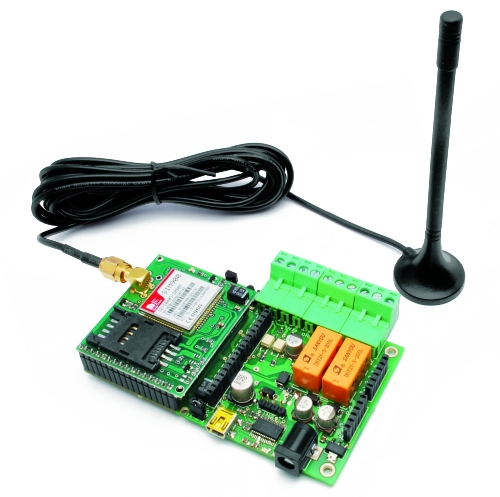
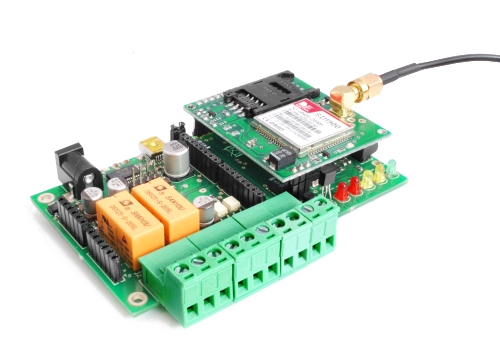
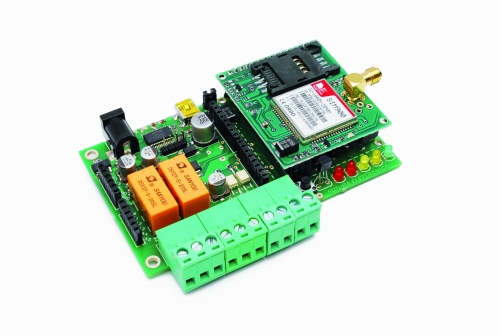
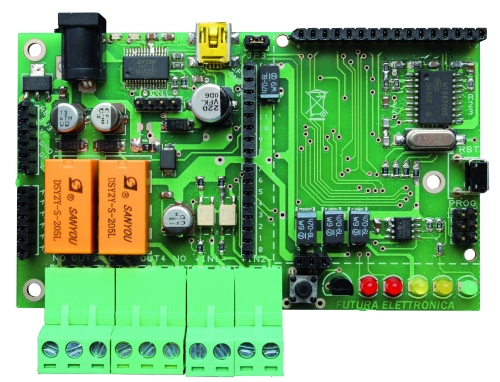
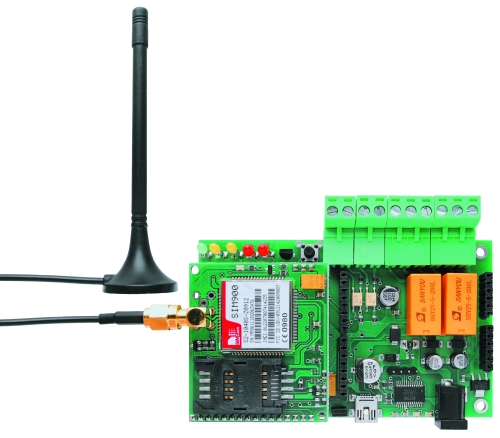
Using an ATmega 2560 and therefore the heart of Arduino, we have developed a universal remote control with GSM. This allows  to control 2IN/2OUT, DTMF key, gate control and GSM thermostat activated remotely.

We have already presented several remote control with different functions.
But now we want to present the best remote control ever made with Arduino.
The remote control is easier, thanks to the availability of several libraries that allow you to do anything to the Arduino microprocessor; if there is not really a specific library, you can modify an existing one. Thus was born TiDiGino, based on the chip ATmega 2560 used in Arduino Mega. Our system has connectors S.I.L. to mount any shield, each of them is in the same location where you would be in the original development platform, which enables the use of commercial and in any case the standard shield.
We said that the functions of our remote control, ie 2IN/2OUT, gate opener, key DTMF GSM and thermostat can be achieved by using special firmware, well, we could write these ourselves, but we wanted to offer our readers who know the Arduino environment do them. This is the sense of TiDiGino Contest, which you could follow our blog and that has just ended, as promised, we publish the hardware of the remote control and a few routines.

The circuit

The TiDiGino is based on a ATmega 2560 chip, some pins are used to manage GSM functionality, corresponding to ports that are not used in the original Arduino MEGA. For this reason it is necessary to replace the file pins_arduino.c located under the folder C:\ProgramFiles\arduino-0022\hardware\arduino\cores\arduino that is created by downloading the Arduino IDE, with that we made available with the library, otherwise it is possible to manage all’ATmega 2560 lines of I/O provided by the platform Arduino MEGA.

This choice was intended to leave some I/O free for use by any shield. Therefore you can use the sketches already made to control a specific shield with the original Arduino board, even on TiDiGino.
In compliance with the open-source philosophy we have made available on our site libraries to operate the main blocks of the TiDiGino.
To test the circuit we made four sketches, each of which allows you to use a section of the system. The sketches are all contained in the file GSM_TDGINO.zip, downloadable from the development page of Google, which contains the library that allows you to manage the GSM of TDGINO.
This library comes from the one developed by HWKitchen, but has been adapted to our hardware, as, for example, use the second serial dell’ATMEGA2560 to manage the GSM module of Simcom SIM900. Decompressing the zip in the folder of the Arduino libraries (eg C:\ProgramFiles\arduino-0022\libraries) the library is immediately usable.
By copying the library, are also automatically installed the examples we have developed to manage the various sections, in order to test these examples must be connected to the USB port TDGINO and provide an external power supply circuit of about 12 VDC (1 A of current).
This creates a virtual COM will be used to program the remote control. Select the Board “Arduino Mega 2560″ and from File-> Examples-> GSM_TDGINO, choose the example that you want to upload to the remote control.


The hardware

The I/O used for the expansions are PB4÷PB7, PE3÷PE5, PG5, PH3÷PH6, then there are PE0 and PE1 that are, respectively, RXD and TXD of the first internal UART to the microcontroller.
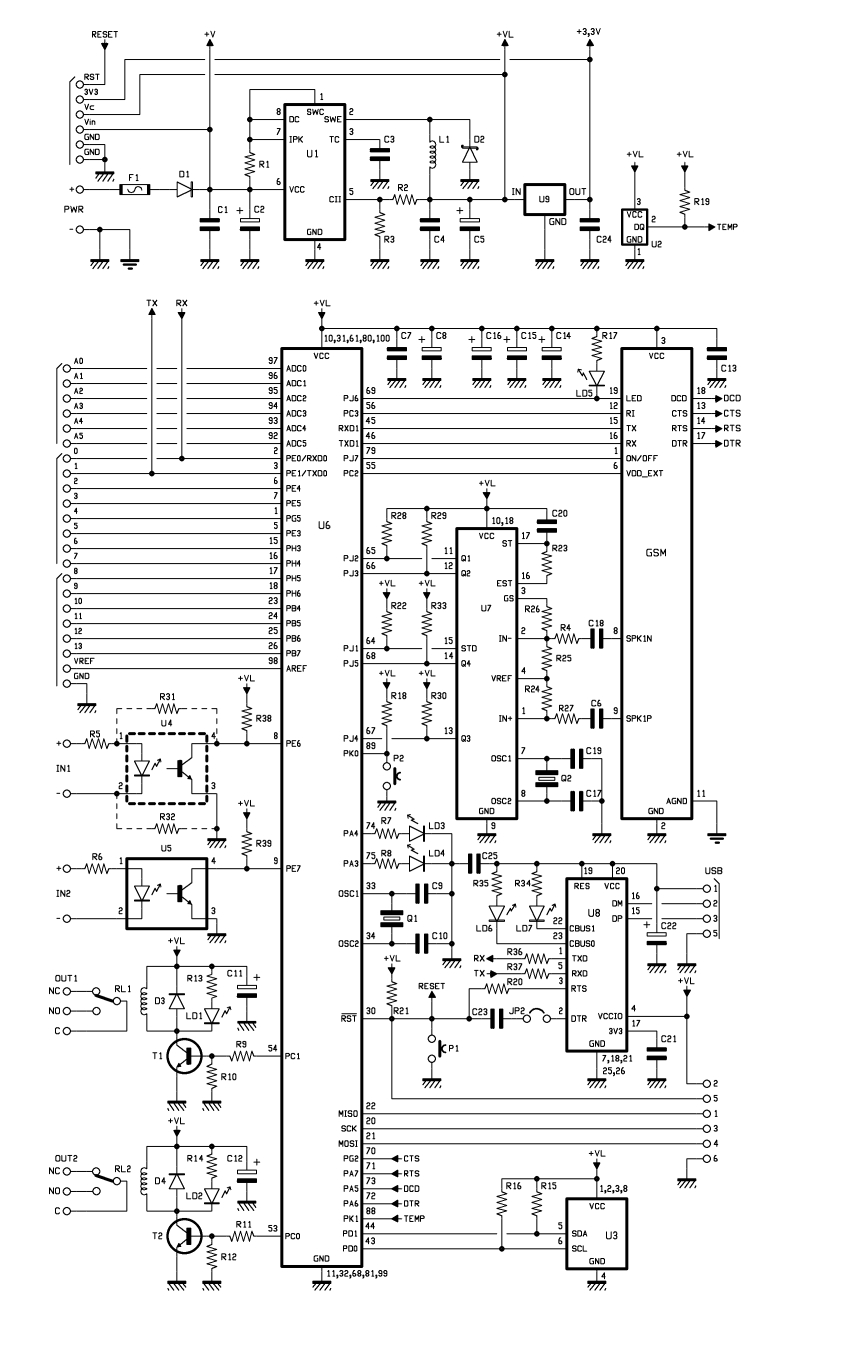
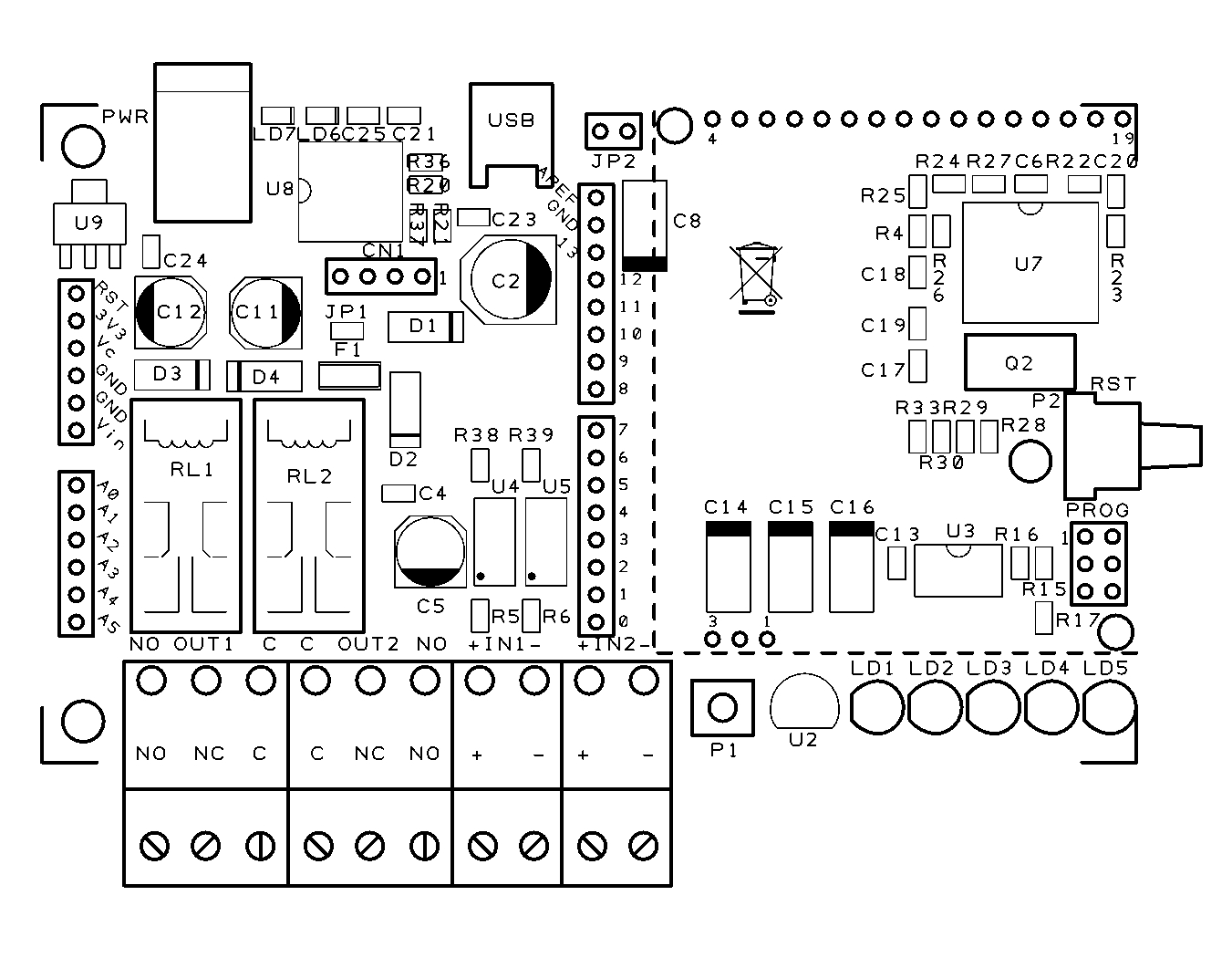
Now we see the lines of I/O used to manage the devices necessary to implement the functions of remote control, starting from PE6 and PE7 configured as input (pull-up R38 and R39) used to read the status of the optically isolated inputs, each of which detects the presence of a dc voltage (from a minimum of 3 to a maximum of about 35 volts) and AC (from a minimum of 2.5 to a maximum of 30 Vrms) applied to IN1 (circuit U4) and IN2 (circuit U5).
The command of the relay output is obtained with PC0 and PC1, initialized as outputs, each relay is controlled by an NPN transistor.
The GSM in the circuit diagram is not the GSM module, but a circuit (TDGGSM_900 - Store) that mounts it.
There is also a EEPROM memory 24FC256-SN to store user data.
For the management of the temperature sensor, used for the feature “Thermostat GSM”, the ATmega use the pin PK1 initialized as two-way line, the remote temperature sensor used in the Dallas DS1820 is capable of measuring temperatures in the range -5 to 150 ° C with an accuracy of ± 0.5 ° C (-10 to 85 ° C).
The DTMF section use the U7 (a MT8870, SMD): capable to decode standards tone thanks to a complex pattern of active filters agreed by the clock signal generated from its oscillator.
The USB interface circuit uses the integrated U8: the classic FT232RL. The pins 3 (TX) and 2 (RX) correspond to the first UART, since they are essentially used to program TiDiGino thanks the bootloader.
P1 is the button to reset the circuit, which also DTR is forced, by the computer when we want to load the firmware in the micro, exploiting the bootloader.
Well, we conclude the analysis with the power, which is a DC voltage, even non-stabilized (applied to the points + and – PWR) in value between 7 and 32 V, this voltage is filtered downstream of the protection diode reverse polarity (D1) by the capacitors C1 and C2, the fuse F1 allows us to protect the circuit and the source of power in an integrated circuit in the controller below and that we need to derive the 4 volts required to make run the rest of the circuit.

BOM

R1: 0,1 ohm 1W (1206)
R2: 2,2 kohm (0805)
R3: 1 kohm (0805)
R4: 100 kohm (0805)
R5: 4,7 kohm (0805)
R6: 4,7 kohm (0805)
R7: 330 ohm (0805)
R8: 330 ohm (0805)
R9: 4,7 kohm (0805)
R10: 10 kohm (0805)
R11: 4,7 kohm (0805)
R12: 10 kohm (0805)
R13: 330 ohm (0805)
R14: 330 ohm (0805)
R15: 1,5 kohm (0805)
R16: 1,5 kohm (0805)
R17: 330 ohm (0805)
R18: 4,7 kohm (0805)
R19: 4,7 kohm (0805)
R20: 100 ohm (0805)
R21: 4,7 kohm (0805)
R22: 4,7 kohm (0805)
R23: 330 kohm (0805)
R24: 39 kohm (0805)
R25: 56 kohm (0805)
R26: 100 kohm (0805)
R27: 100 kohm (0805)
R28: 4,7 kohm (0805)
R29: 4,7 kohm (0805)
R30: 4,7 kohm (0805)
R31: 0 ohm (0805) *
R32: 0 ohm (0805) *
R33: 4,7 kohm (0805)
R34: 470 ohm (0805)
R35: 470 ohm (0805)
R36: 10 ohm (0805)
R37: 10 ohm (0805)
R38: 4,7 kohm (0805)
R39: 4,7 kohm (0805)

C1: 100 nF (0805)
C2: 220 µF 35 VL (F)
C3: 100 pF (0805)
C4: 100 nF (0805)
C5: 100 µF 16 VL (D)
C6: 100 nF (0805)
C7: 100 nF (0805)
C8: 470 µF 6,3 VL (D)
C9: 22 pF (0805)
C10: 22 pF (0805)
C11: 47 µF 16 VL (D)
C12: 47 µF 16 VL (D)
C13: 100 nF (0805)
C14: 470 µF 6,3 VL (D)
C15: 470 µF 6,3 VL (D)
C16: 470 µF 6,3 VL (D)
C17: 10 pF (0805)
C18: 100 nF (0805)
C19: 10 pF (0805)
C20: 100 nF (0805)
C21: 100 nF (0805)
C22: 4,7 µF 6,3 VL  (R)
C23: 100 nF (0805)
C24: 100 nF (0805)
C25: 100 nF (0805)

Q1: Quartz 16 MHz (C7S)
Q2: Quartz 3,579545 MHz (HC49/4H SMX)

U1: MC34063AD
U2: DS18B20+
U3: 24FC256-SN
U4: TLP181
U5: TLP181
U6: ATMEGA2560-16AU
U7: MT88L70AS
U8: FT232RL
U9: TC1262-3.3 (SOT-223)
GSM: TDGGSM_900

D1: GF1M-E3
D2: MBRS140TRPBF
D3: GF1M-E3
D4: GF1M-E3

T1: BC817
T2: BC817

LD1: LED 3 mm red
LD2: LED 3 mm red
LD3: LED 3 mm yellow
LD4: LED 3 mm yellow
LD5: LED 3 mm green
LD6: LED yellow(0805)
LD7: LED red (0805)

L1: coil 22 µH

RL1: relay 5V 2 vias
RL2: relay 5V 2 vias

P1: Microswitch
P2: Microswitch 90°

F1: Fuse 2 A (1206)

- screw 2 vias(2 pz.)
- screw 3 vias (2 pz.)
- Mini-USB
- Plug
- Jumper
- Strip male 2 poli
- Strip male 3 poli (2 pz.)
- Strip male 4 poli
- Strip female 3 poli
- Strip female 6 poli (2 pz.)
- Strip female 8 poli (2 pz.)
- Strip female 16 poli
- PCB

Functions

There are several sketches to handle the remote control, all came through TiDiGino contest.
These files can be downloaded from Google, where you will find the library and files created by various readers.
Basically all the sketches perform the same functions.
Summarize here the common features.

The remote can be operated by commands sent by SMS, but you can also control it via the serial port (connected to USB converter).
Each command is followed by a response (via SMS) directly to the sender, but the answer may be disabled. In addition there is an alarm function, as the automatic sending of SMS or voice calls, based on conditions on each of the two inputs.
The circuit can also be used as a gate control, calling the SIM in the TiDiGino: the system recognize the calling number and if this number is stored the relay will switch on. In the DTMF mode, the remote control can be controlled by a multi-frequency telephone tone.
In addition, the circuit can operate as a thermostat, running an air conditioning system.

In summary, there are the following features:

• Remote alarm
• Gate control
• GSM termostat
• Remote control with DTMF

Library and sketch

Download the latest sketch for this GSM remote control.

Design


Lighted plexiglass Christmas ornaments (Arduino version)

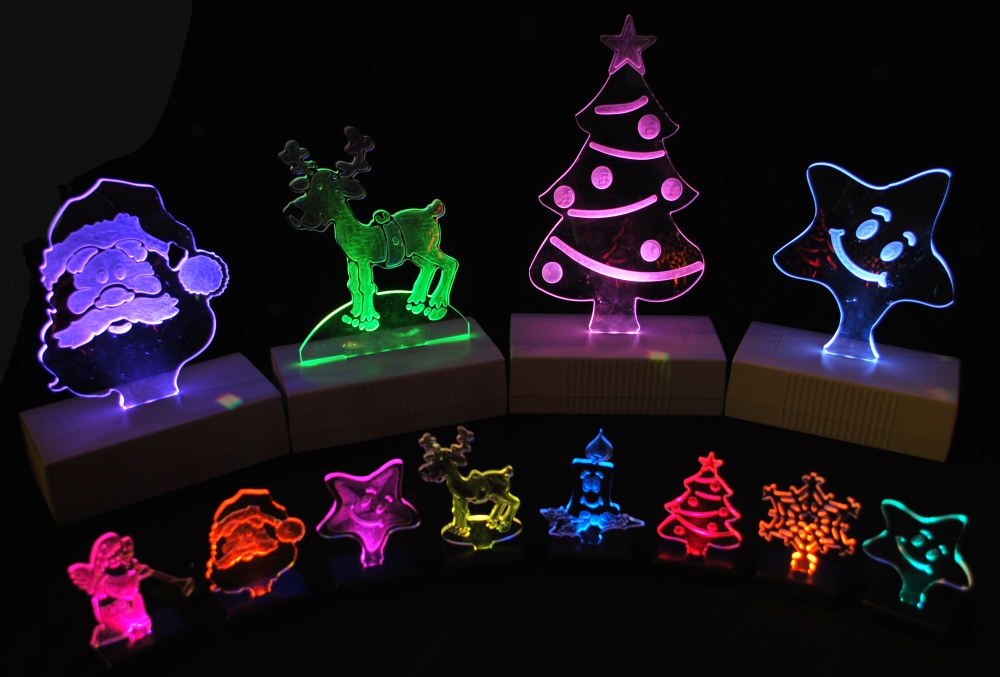
In the previous post we showed you how to make small Christmas shapes using an RGB LED and a small circuit based on PIC.
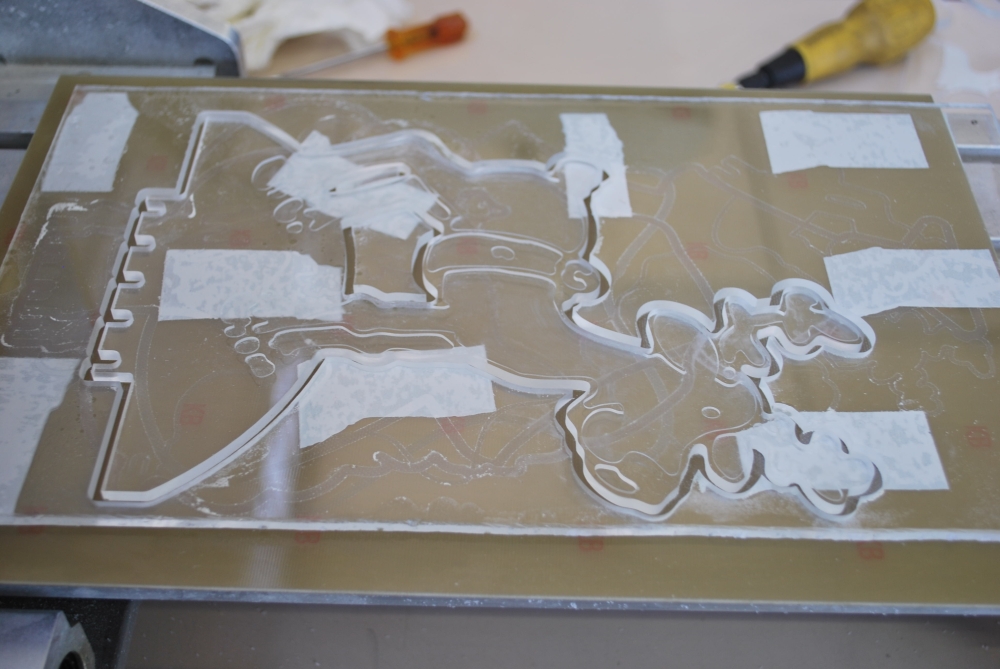
The designs were obtained working with the CNC some acrylic sheets.
But our CNC can do much more … Therefore we decided to make the greatest figure and design a new driver that mounts more LEDs.

Just because we do not like things simple we recreated all using a system based on Arduino.
This allows you to create an open source system easy to modify.
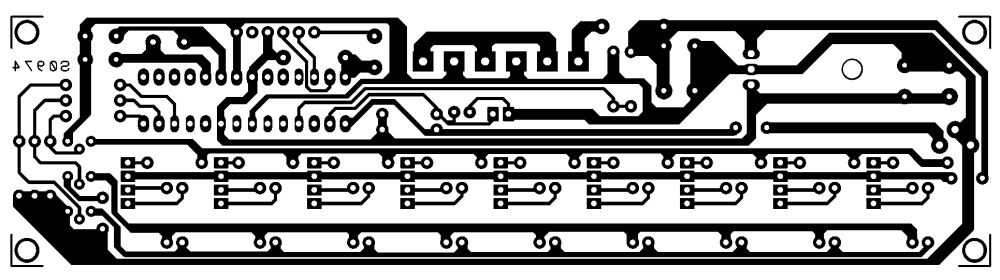
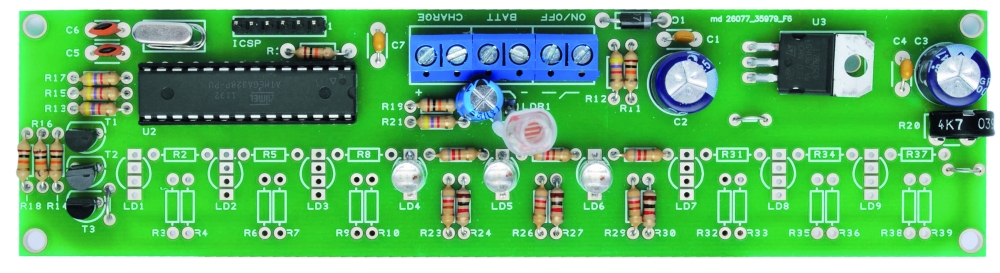
The microcontroller is an Atmega328 preprogrammed with the bootloader of Arduino UNO. The programming can be done via a USB / TTL (eg FTDI5V of SparkFun).
The circuit operation is very similar to that of the smallest model: here we find the photocell that allows to verify the amount of light present in the environment, but in this case, you can adjust the sensitivity of the circuit by a trimmer.

BOM

R1: 10 kohm
R2: 820 ohm
R3: 820 ohm
R4: 1 kohm
R5: 820 ohm
R6: 820 ohm
R7: 1 kohm
R8: 820 ohm
R9: 820 ohm
R10: 1 kohm
R11: 820 ohm
R12: 820 ohm
R13: 1 kohm
R14: 820 ohm
R15: 820 ohm
R16: 1 kohm
R17: 820 ohm
R18: 820 ohm
R19: 1 kohm
R20: 820 ohm
R21: 820 ohm
R22: 1 kohm
R23: 820 ohm
R24: 820 ohm
R25: 1 kohm
R26: 820 ohm
R27: 820 ohm
R28: 1 kohm
R29: 10 kohm
R30: 4,7 kohm
R31: 10 kohm
R32: 4,7 kohm
R33: 4,7 kohm
R34: 10 kohm
R35: 4,7 kohm
R36: 10 kohm
R37: 4,7 kohm
R38: 10 kohm
R39: Trimmer 4,7 kohm MV

C1: 100 nF
C2: 470 µF 25 VL
C3: 470 µF 25 VL
C4: 100 nF
C5: 15 pF
C6: 15 pF
C7: 100 nF
C8: 100 µF 25 VL

T1: BC547
T2: BC547
T3: BC547

LD1: LED 5 mm RGB c.a.
LD2: LED 5 mm RGB c.a.
LD3: LED 5 mm RGB c.a.
LD4: LED 5 mm RGB c.a.
LD5: LED 5 mm RGB c.a.
LD6: LED 5 mm RGB c.a.
LD7: LED 5 mm RGB c.a.
LD8: LED 5 mm RGB c.a.
LD9: LED 5 mm RGB c.a.

U1: 7805
U2: ATMEGA328P-PU (with bootloader)

Q1: 16 MHz

LDR1: photoresistor 2÷20 kohm

- Terminal 2 via (3 pz.)
- Socket 14+14
- Battery 12V/2A
- Strip male 6 via
- Plug
- Switch

Comparing the value read from the A/D converter connected to the photoresistor with that connected to trimmer R39, the micro decides whether to start the sequence of fading, or whether turn off the LEDs. RGB LEDs are driven by the transistor; this choice permit to control with a single line of microcontroller, more LEDs in order to create large luminous figures.

As you can see, we use a line dell’ATmega for each of the primary colors of red, green and blue, so it is clear that all the diodes will do the same play of light. Of course isn’t required to mount all the LEDs provided in the circuit: you mount those who need to obtain a good visual effect on the size of the pattern in the Plexiglass. Note that there are three terminals on the PCB: one to connect the power switch (ON / OFF) a second (BATT) to apply to the circuit power supply and a third (CHARGE) for a possible battery charger lead or a small 12-volt solar panel, which already incorporates the charging circuit. These solutions allow you to use the figures lack the power grid. In this regard, an analog input of the microcontroller is dedicated to control the battery voltage: when it drops below 10 V, the circuit will emit flashes to warn that the energy is about to end.

This circuit is evidently intended to be used externally (provided it is properly isolated) and will turn on and off independently, thanks to the ambient light sensor, which will illuminate the figures in the evening to let off in the morning. In short, is a solution to decorate the garden or backyard.

Building shapes
The materials chosen for this application are clear polycarbonate (or methacrylate) or Plexiglas, which can give the shape you want. Then we need to affect, deep enough (half or two thirds the thickness of the plate) the drawing or writing that you want to appear bright.

The Sketch

//****************************************************************
//*  Name    : RGB controller for common anode led               *
//*  Author  : Landoni Boris                                     *
//*  www.open-electronics.org                                    *
//*  blog.elettronicain.it                                       *
//*  www.futurashop.it                                           *
//****************************************************************

int red = 9;    // RED LED connected to PWM pin 3
int green = 10;    // GREEN LED connected to PWM pin 5
int blue = 11;    // BLUE LED connected to PWM pin 6
int photo = A4;    // BLUE LED connected to PWM pin 6
int trim = A5;    // BLUE LED connected to PWM pin 6
int volt = A2;    // BLUE LED connected to PWM pin 6
int r=50; int g=100; int b=150;
int rup; int gup; int bup;
int fader=1;
int inc=10;
void setup()
{
      Serial.begin(9600);
      Serial.println("Serial READY");
      rgb(r, g, b);
      r = random(0,255);
      g = random(0,255);
      b = random(0,255);

} 

void loop()  {

  Serial.print("trim  ");
  Serial.println(analogRead(trim)*2);  

  Serial.print("photo ");
  Serial.println(analogRead(photo)); 

  Serial.print("volt ");
  Serial.println(analogRead(volt));
  if (analogRead(volt)<600){
      Serial.println("low battery");
      rgb(0, 0, 0);
      delay(500);
      rgb(255, 255, 255);
  }

  if ((analogRead(trim)*2)>analogRead(photo)){
      Serial.println("trim > photo  -  off");
      rgb(0, 0, 0);
      fader=0;
  }
  else
  {
    if (fader==0){
      r = random(0,255);
      g = random(0,255);
      b = random(0,255);
    }
    fader=1;

  }
  //delay(2000);

  if (fader==1){
    funcfader();
  }
}

void funcfader(){
    Serial.println("fader");
    if (rup==1){r+=1;}
    else{r-=1;}
    if (r>=255){rup=0;}
    if (r<=0){rup=1;}

    if (gup==1){g+=1;}
    else{g-=1;}
    if (g>=255){gup=0;}
    if (g<=0){gup=1;}

    if (bup==1){b+=1;}
    else{b-=1;}
    if (b>=255){bup=0;}
    if (b<=0){bup=1;}

    delay(inc*2);
    rgb(r, g, b);
}

void rgb(int r, int g, int b)
{
  Serial.print("RGB: ");
  Serial.print(r);
  Serial.print(" ");
  Serial.print(g);
  Serial.print(" ");
  Serial.println(b);
  if (r>255) r=255;
  if (g>255) g=255;
  if (b>255) b=255;
  if (r<0) r=0;
  if (g<0) g=0;
  if (b<0) b=0;
  analogWrite(red, r);
  analogWrite(green, g);
  analogWrite(blue, b);
}


Star
Reindeer
Santa Claus
Tree

How to connect a weather station WS2355 (or WS2300) to Weather Underground with Arduino

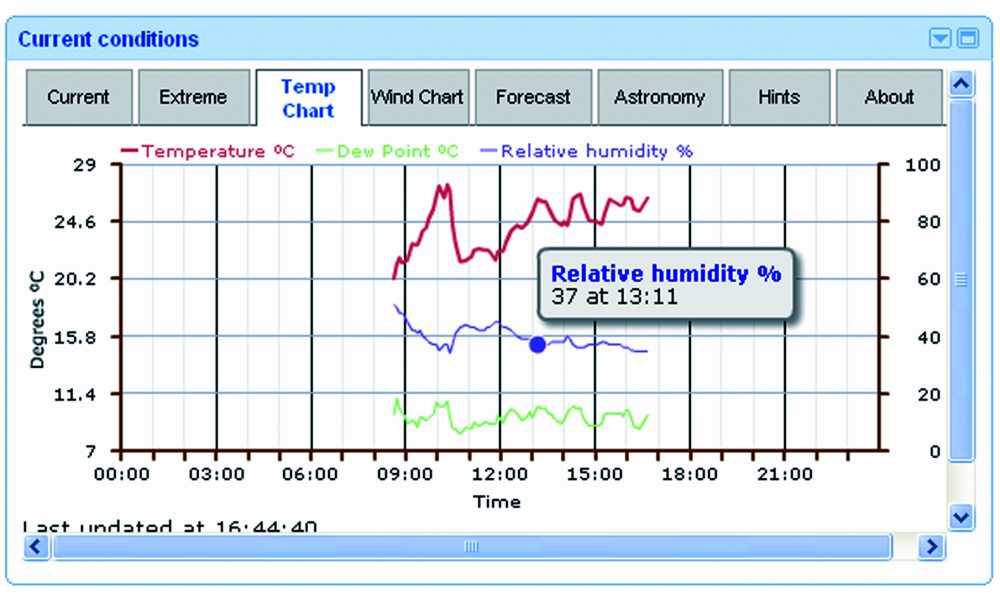
Our weather station LIVE
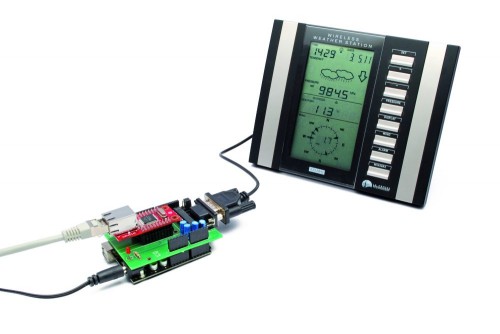
 

There are several softwares that enable the publication of the weather data of a professional weather station, but they all work on PC, so we should connect the weather station to a computer and leave it on, the idea is not good because the computer takes up space and consumes a lot. At a time when we should spare the energy, its not a good thing.
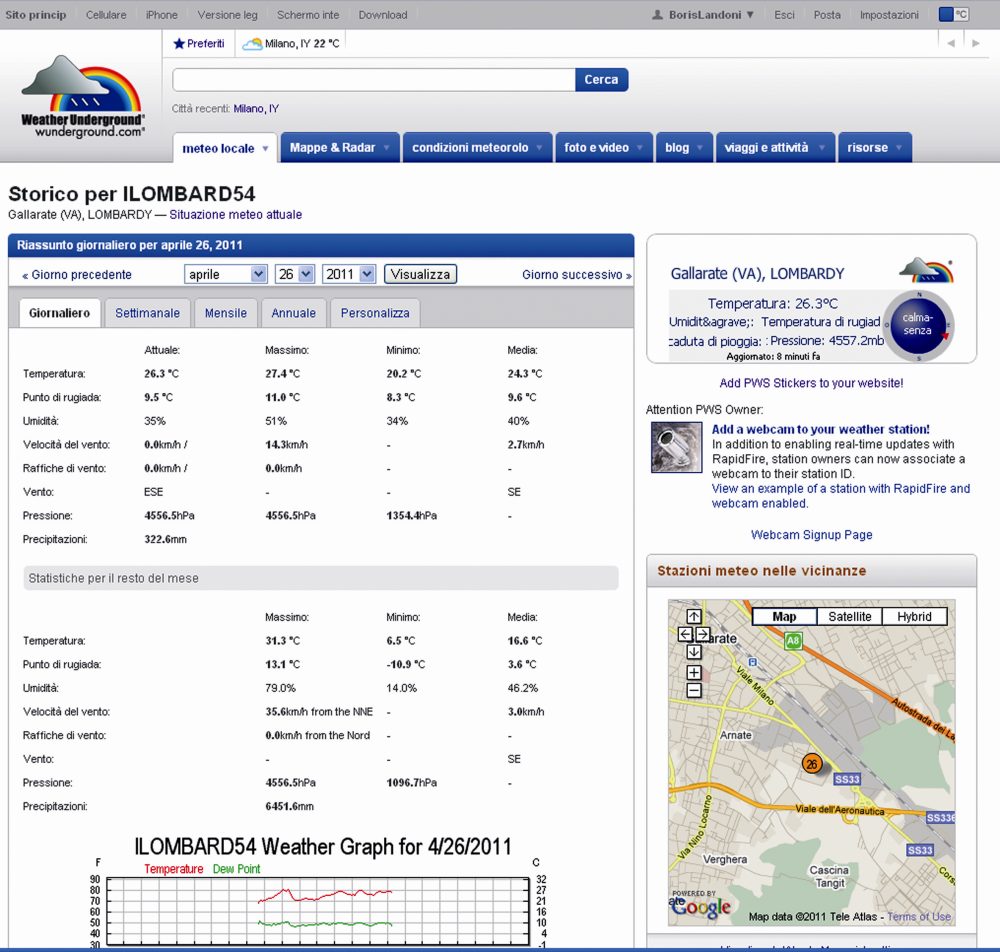
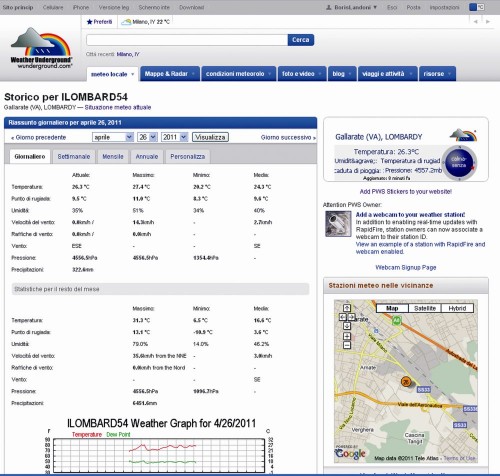
The project we’re talking about instead operates as a stand-alone application and allows you to publish the weather station data independently on http://www.wunderground.com, “forgetting” the PC consumption and even the desk space.
Arduino controls the dialogue with the weather station to acquire the data and also the Ethernet interface to transfer them, by making the necessary connection to the Internet via ADSL, passing by a router pointing to the IP address of the Weather Underground site and transferring information using the TCP / IP.


Our project

This circuit reads data from a weather station with serial interface and upload the data collected on http://www.wunderground.com.
Not all stations are equal, therefore, our circuit can not be universal but it is indicated specifically for stations La Crosse WS2355, WS2300 or WS2350.

The choice of weather station WS23xx was dictated primarily by a consideration: it has a convenient serial interface to connect and dialogue with a microcontroller such as Arduino.
We chose www.wunderground.com site because it allows anyone to upload their weather data, but also to monitor the temperature, humidity, pressure, wind etc. on line. Also on this site there are many widgets that allow you to integrate data in website or blog.
An example is the Widget for the home page of Google.
The data sent by users are publicly available, then from the home page we can specify the geographic area that interests us and we will see a screen that lists all of the corresponding stations.
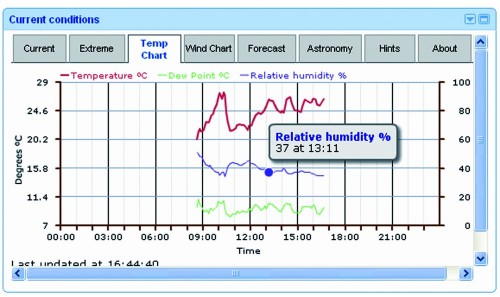
How does it work?
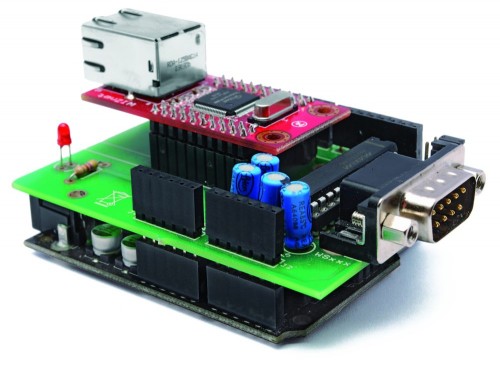
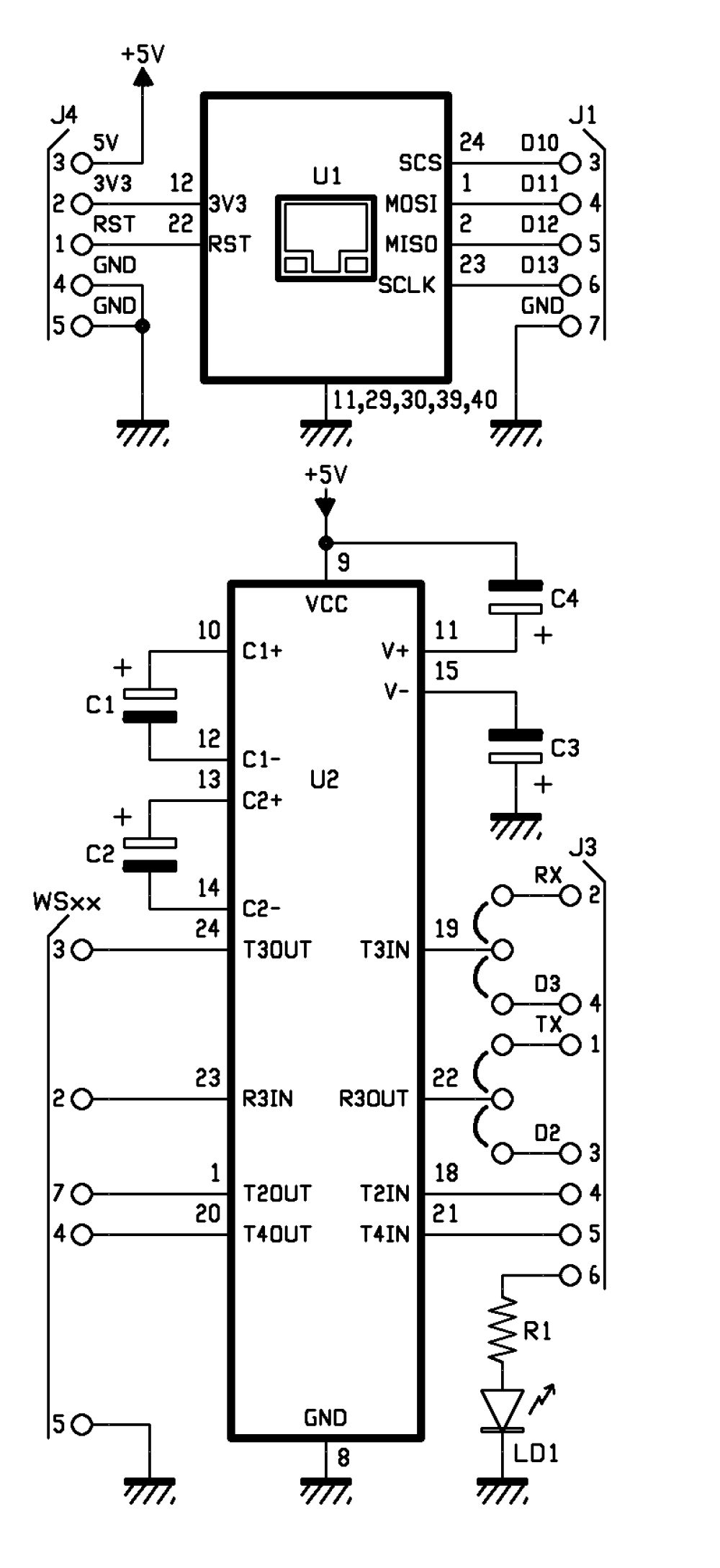
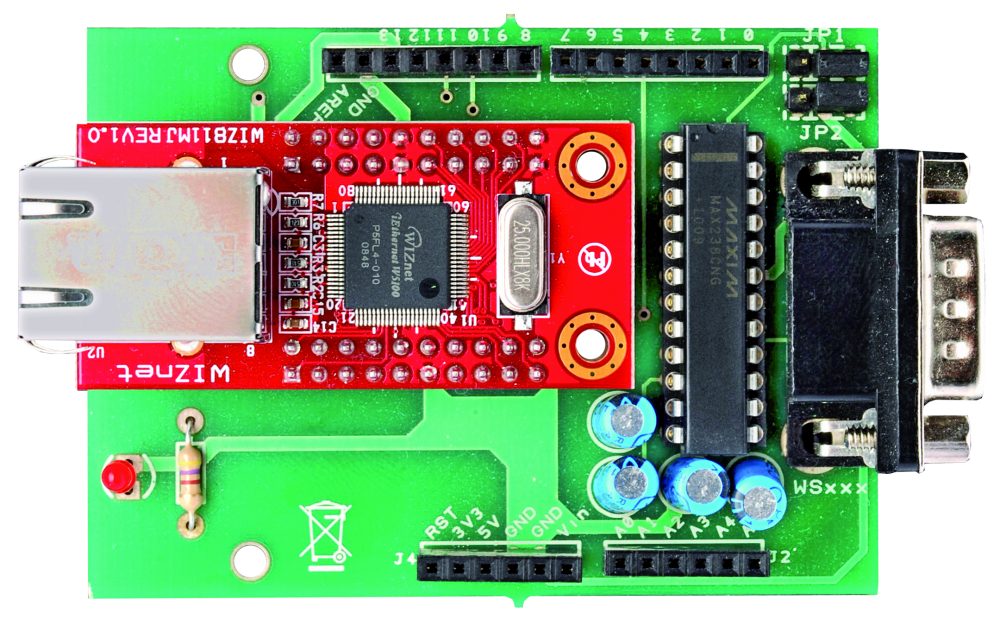
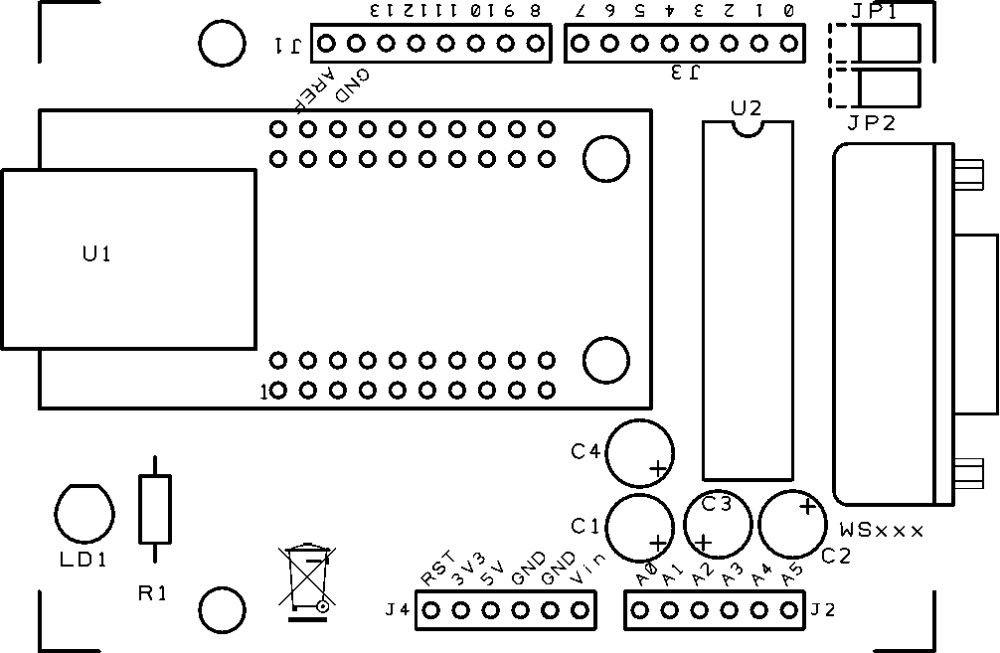
The system has two circuit: one is the famous Arduino UNO and the other is a shield that integrates the Ethernet module WIZnet (you may, of course, use the the original Ethernet Shield), as well as a TTL/RS232 logic level converter MAX238 type. The converter allows you to adapt the serial levels of weather station to the TTL levels of Arduino.
Please be aware that the communication port of the weather station is not a simple RS232, because it has no ground reference. The DTR line must have a negative voltage while the RTS must be positive. The lack of common ground leads to the hypothesis (remember that there is no official document) that these two lines are taken as a reference of logic levels used in communication. It is a system that not only allows the use of serial connections relatively long, but also gives the opportunity to agree devices with different voltage levels on the serial port.
To communicate with La Crosse, the speed of the serial device (in our case, the Arduino module) must be set to 2,400 bps, with blocks of 8 bits, no parity and one stop bit (2400-8-N-1).
The memory map of the weather station, like many other unofficial information on the WS2355 is on the site http://www.lavrsen.dk/foswiki/bin/view/Open2300/WebHome.


The hardware
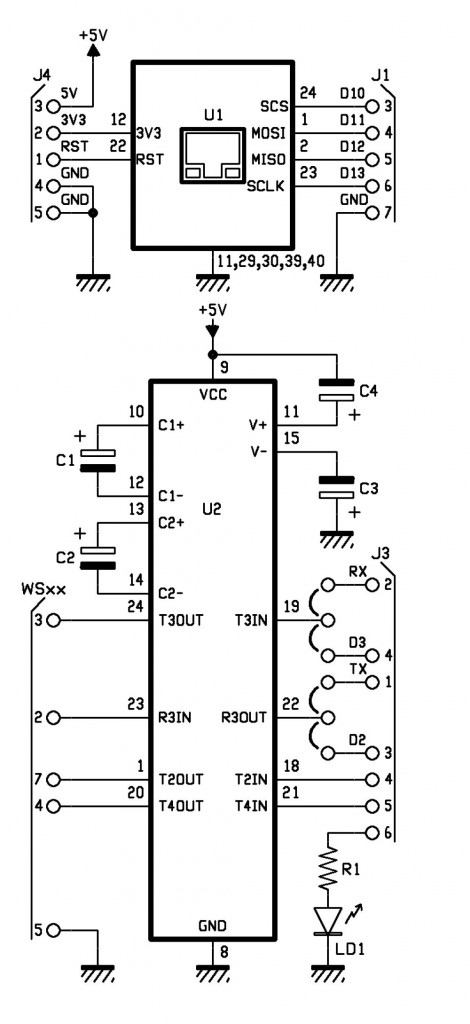
The jumpers on the lines T3IN and R3OUT (respectively RS232/TTL converter output and RS232/TTL converter input) let you choose which lines use for Arduino communication: we give you the opportunity to choose if use the serial hardware TXD and RXD or the two I/O digital D2 and D3 emulating a serial port with the appropriate library that can be downloaded from the website http://arduiniana.org/libraries/newsoftserial.
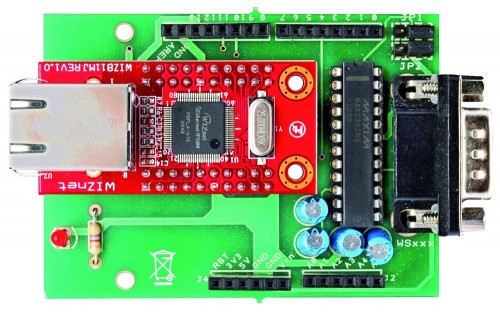
 

R1: 470 ohm
C1: 1 µF 100 VL
C2: 1 µF 100 VL
C3: 1 µF 100 VL
C4: 1 µF 100 VL
U1: WIZNET
U2: MAX238CNG
LD1: led 3 mm red

- socket 12+12
- Strip male 3 via (2 pz.)
- Jumper (2 pz.)
- Strip female/male 6 via (2 pz.)
- Strip female/male 8 via(2 pz.)
- Strip female 10 via (4 pz.)
- DB9 male
- PCB


The sketch

/*

****************************************************************
*  Name    : Personal Weather Station to wunderground.com      *
*  Author  : Landoni Boris                                     *
*  www.open-electronics.org                                    *
*  blog.elettronicain.it                                       *
*  www.futurashop.it                                           *
****************************************************************

http://wiki.wunderground.com/index.php/PWS_-_Upload_Protocol#Example_URL

action [action=updateraw] -- always supply this parameter to indicate you are making a weather observation upload
ID [ID as registered by wunderground.com]
PASSWORD [PASSWORD registered with this ID, case sensative]
dateutc - [YYYY-MM-DD HH:MM:SS (mysql format)] In Universal Coordinated Time (UTC) Not local time
winddir - [0-360 instantaneous wind direction]
windspeedmph - [mph instantaneous wind speed]
humidity - [% outdoor humidity 0-100%]
tempf - [F outdoor temperature]
rainin - [rain inches over the past hour)] -- the accumulated rainfall in the past 60 min
indoortempf - [F indoor temperature F]
indoorhumidity - [% indoor humidity 0-100]
softwaretype - [text] ie: WeatherLink, VWS, WeatherDisplay

windgustmph - [mph current wind gust, using software specific time period]
windgustdir - [0-360 using software specific time period]
windspdmph_avg2m  - [mph 2 minute average wind speed mph]
winddir_avg2m - [0-360 2 minute average wind direction]
windgustmph_10m - [mph past 10 minutes wind gust mph ]
dewptf- [F outdoor dewpoint F]
dailyrainin - [rain inches so far today in local time]
baromin - [barometric pressure inches]
weather - [text] -- metar style (+RA)
clouds - [text] -- SKC, FEW, SCT, BKN, OVC
soiltempf - [F soil temperature]
 * for sensors 2,3,4 use soiltemp2f, soiltemp3f, and soiltemp4f
soilmoisture - [%]
* for sensors 2,3,4 use soilmoisture2, soilmoisture3, and soilmoisture4
leafwetness  - [%]
+ for sensor 2 use leafwetness2
solarradiation - [W/m^2]
UV - [index]
visibility - [nm visibility]

http://weatherstation.wunderground.com/weatherstation/updateweatherstation.php?ID=KCASANFR5&PASSWORD=XXXXXX&dateutc=2000-01-01+10%3A32%3A35&winddir=230&windspeedmph=12&windgustmph=12&tempf=70&rainin=0&baromin=29.1&dewptf=68.2&humidity=90&weather=&clouds=&softwaretype=vws%20versionxx&action=updateraw

mappa ws2300

Command	Hex Digit	  	Command	Hex Digit
82	 0	  	 A2	 8
86	 1	  	 A6	 9
8A	 2	  	 AA	 A
8E	 3	  	 AE	 B
92	 4	  	 B2	 C
96	 5	  	 B6	 D
9A	 6	  	 BA	 E
9E	 7	  	 BE	 F

*/

#include <SPI.h>
#include <Ethernet.h>
#include <EEPROM.h>
#include <NewSoftSerial.h>

byte mac[] = {  0xDE, 0xAD, 0xBE, 0xEF, 0xFE, 0xED };
byte ip[] = { 192,168,0,145 };
byte server[] = { 38,102,136,125 }; // http://weatherstation.wunderground.com/

#define UPDATE_INTERVAL            300000    // if the connection is good wait 60 seconds before updating again - should not be less than 5
unsigned long update=0;

NewSoftSerial mySerial(2, 3);   //NewSoftSerial mySerial(rx,tx);

const int ledPin = 6; // the pin that the LED is attached to
const int rts = 4;
const int dtr = 5;
String id = "xxxxxxx";
String PASSWORD = "xxxxxxx";
boolean upload=1;
boolean leggicontinuo=0;

Client client(server, 80);

void setup() {
  Ethernet.begin(mac, ip);

  digitalWrite(ledPin, LOW);
  // initialize serial communication:
  Serial.begin(2400);
  Serial.println("Goodmorning WS2300!");
  // set the data rate for the NewSoftSerial port
  mySerial.begin(2400);

  // initialize the LED pin as an output:
  pinMode(ledPin, OUTPUT);
  pinMode(rts, OUTPUT);
  pinMode(dtr, OUTPUT);

  digitalWrite(rts, HIGH);
  digitalWrite(dtr, LOW);
  delay(2000);
  digitalWrite(rts, LOW);
  digitalWrite(dtr, HIGH);

  for (int i=0;i<10;i++){
    digitalWrite(ledPin, HIGH);
    delay(200);
    digitalWrite(ledPin, LOW);
    delay(200);
  }

}

void loop() {

  int incomingByteSer;      // a variable to read incoming serial data into
  // see if there's incoming serial data:
  if (Serial.available() > 0) {
    // read the oldest byte in the serial buffer:
    incomingByteSer = Serial.read();
    // if it's a capital H (ASCII 72), turn on the LED:
    Serial.flush();
    if (incomingByteSer == 'o') {
      String data=getTime();
      Serial.print("ora ");
      Serial.println(data);
    }  

    if (incomingByteSer == 'd') {
      String data=getDay();
      Serial.print("giorno ");
      Serial.println(data);
    }
    if (incomingByteSer == 't') {
      String data=getTemp(1);
      Serial.print("temperatura interna F ");
      Serial.println(data);
    } 

    if (incomingByteSer == 'T') {
      String data=getTemp(0);
      Serial.print("temperatura esterna F ");
      Serial.println(data);
    } 

    if (incomingByteSer == 'h') {
      String data=getHum(1);
      Serial.print("umidità interna ");
      Serial.println(data);
    } 

    if (incomingByteSer == 'H') {
      String data=getHum(0);
      Serial.print("umidità esterna ");
      Serial.println(data);
    } 

    if (incomingByteSer == 'p') {
      String data=getPress(1);
      Serial.print("pressione hPa ");
      Serial.println(data);
    } 

    if (incomingByteSer == 'P') {
      String data=getPress(0);
      Serial.print("pressione Hg ");
      Serial.println(data);
    } 

    if (incomingByteSer == 'w') {
      String data=getWind(0);
      Serial.print("wind speed mph ");
      Serial.println(data);     

    } 

    if (incomingByteSer == 'W') {
      String data=getWind(1);
      Serial.print("wind dir ");
      Serial.println(data);
    } 

    if (incomingByteSer == 'r') {
      String data=getRain(1);
      Serial.print("rain 1 ");
      Serial.println(data);
    } 

    if (incomingByteSer == 'R') {
      String data=getRain(0);
      Serial.print("rain 24 ");
      Serial.println(data);
    }  

    if (incomingByteSer == 'e') {
      String data=getDew();
      Serial.print("dew point ");
      Serial.println(data);
    } 

    if (incomingByteSer == 'U') {
      readws();
    } 

    if (incomingByteSer == 'u') {
      pubblica();
    }

    if (incomingByteSer == 'a') {
      if (upload==1){
        upload=0;
        Serial.println("Disattivo l'upload automatico ");
      }
      else
      {
        upload=1;
        Serial.println("Attivo l'upload automatico ");
      }
    }

    if (incomingByteSer == 'A') {
      if (leggicontinuo==1){
        leggicontinuo=0;
        Serial.println("Disattivo lettura continua ");
      }
      else
      {
        leggicontinuo=1;
        Serial.println("Attivo lettura continua ");
      }
    }

    // if it's an L (ASCII 76) turn off the LED:
    if (incomingByteSer == 'L') {
      digitalWrite(ledPin, LOW);
    }
  }

  if (upload==1){
    if (millis() < update) update = millis();
      if ((millis()% 1000) < 2){
        delay (100);
        Serial.print(".");
      }
        if ((millis() - update) > UPDATE_INTERVAL){
            update = millis();
            readws();
            pubblica();
            Serial.println("tempo impiegato per fare la pubblicazione: ");
            Serial.println(millis()-update);
        }
  }

  if (leggicontinuo==1){
    if (millis() < update) update = millis();
      if ((millis()% 1000) < 2){
        delay (100);
        Serial.print(".");
      }
        if ((millis() - update) > UPDATE_INTERVAL){
            update = millis();
            readws();
        }
  }

}

void pubblica()
{

  int timeout=0;
  int skip=0;
  String inString="";
  digitalWrite(ledPin, HIGH);
  Serial.print("connecting  ");

  if (client.connect()) {

    Serial.println("connected");
    //client.println("GET / HTTP/1.0");
    Serial.print("GET /weatherstation/updateweatherstation.php?");//modificare qua.
    client.print("GET /weatherstation/updateweatherstation.php?");//modificare qua.
    pubbws();
    client.println(" HTTP/1.0");
    Serial.println(" HTTP/1.0");

    Serial.print("HOST: ");
    client.print("HOST: ");
    client.println("http://www.wunderground.com");
    Serial.println("http://www.wunderground.com");
    client.println();
  } else {
    Serial.println("connection failed");
  }
  while (!client.available() && timeout<50)
  {
    timeout++;
    Serial.print("Time out ");
    Serial.println(timeout);
    delay(100);
  }

  while (client.available())
  {
        char c = client.read();
          if ((inString.length())<150){ inString.concat(c);}
  }         

  client.flush();

      if ((inString.length())>5)
      {
              Serial.print("Risposta ");
              Serial.print(inString);
      }              

   if (!client.connected())
   {
        Serial.println("disconnecting.");
        client.stop();
        delay (1000);
   }
   digitalWrite(ledPin, LOW);

}

void readws(){

      Serial.println("URL ");
      Serial.print("http://weatherstation.wunderground.com/weatherstation/updateweatherstation.php?");
      String temp =getDay();
      String temp1=getTime();
      if ((temp.length()>6) && (temp1.length()>4)){
        Serial.print("ID=");
        Serial.print(id);
        Serial.print("&PASSWORD=");
        Serial.print(PASSWORD);
        Serial.print("&dateutc=");
        Serial.print(temp);
        Serial.print("+");
        Serial.print(temp1);
        scrivimem(temp,0);
        scrivimem(temp1,20);
      }
      else
      {
        Serial.println("Lettura data/ora non riuscita torno");
        return;
      }
      temp=getWind(1);
      if (temp.length()>1){
        Serial.print("&winddir=");
        Serial.print(temp);
        scrivimem(temp,40);
      }
      temp=getWind(0);
      if (temp.length()>2){
        Serial.print("&windspeedmph=");
        Serial.print(temp);
       scrivimem(temp,60);
      }
      temp=getTemp(0);
      if (temp.length()>3){
        Serial.print("&tempf=");
        Serial.print(temp);
        scrivimem(temp,80);
      }
      temp=getRain(1);
      if (temp.length()>2){
        Serial.print("&rainin=");
        Serial.print(temp);
        scrivimem(temp,100);
      }
      temp=getRain(0);
      if (temp.length()>2){
        Serial.print("&dailyrainin=");
        Serial.print(temp);
        scrivimem(temp,120);
      }
      temp=getHum(0);
      if (temp.length()>1){
        Serial.print("&humidity=");
        Serial.print(temp);
        scrivimem(temp,140);
      }
      temp=getDew();
      if (temp.length()>1){
        Serial.print("&dewptf=");
        Serial.print(temp);
        scrivimem(temp,160);
      }
      temp=getPress(0);
      if (temp.length()>1){
        Serial.print("&baromin=");
        Serial.print(temp);
        scrivimem(temp,180);
      }
}

void pubbws(){
      String temp =leggimem(0);
      String temp1=leggimem(20);
      if ((temp.length()>6) && (temp1.length()>4)){
        Serial.print("ID=");
        Serial.print(id);
        Serial.print("&PASSWORD=");
        Serial.print(PASSWORD);
        Serial.print("&dateutc=");
        Serial.print(temp);
        Serial.print("+");
        Serial.print(temp1);
        client.print("ID=");
        client.print(id);
        client.print("&PASSWORD=");
        client.print(PASSWORD);
        client.print("&dateutc=");
        client.print(temp);
        client.print("+");
        client.print(temp1);
      }
      else
      {
        Serial.println("Lettura data/ora non riuscita torno");
        return;
      }
      temp=leggimem(40);
      if (temp.length()>1){
        Serial.print("&winddir=");
        Serial.print(temp);    

        client.print("&winddir=");
        client.print(temp);
      }    

      temp=leggimem(60);
      if (temp.length()>2){
        Serial.print("&windspeedmph=");
        Serial.print(temp);        

        client.print("&windspeedmph=");
        client.print(temp);
      }   

      temp=leggimem(80);
      if (temp.length()>3){
        Serial.print("&tempf=");
        Serial.print(temp);

        client.print("&tempf=");
        client.print(temp);
      }   

      temp=leggimem(100);
      if (temp.length()>2){
        Serial.print("&rainin=");
        Serial.print(temp);       

        client.print("&rainin=");
        client.print(temp);
      }   

      temp=leggimem(120);
      if (temp.length()>2){
        Serial.print("&dailyrainin=");
        Serial.print(temp);       

        client.print("&dailyrainin=");
        client.print(temp);
      }   

      temp=leggimem(140);
      if (temp.length()>1){
        Serial.print("&humidity=");
        Serial.print(temp);        

        client.print("&humidity=");
        client.print(temp);
      }   

      temp=leggimem(160);
      if (temp.length()>1){
        Serial.print("&dewptf=");
        Serial.print(temp);        

        client.print("&dewptf=");
        client.print(temp);        

      }   

      temp=leggimem(180);
      if (temp.length()>1){
        Serial.print("&baromin=");
        Serial.print(temp);        

        client.print("&baromin=");
        client.print(temp);        

      } 

        Serial.print("&windgustmph=0.00");
        client.print("&windgustmph=0.00");
        Serial.print("&action=updateraw");
        client.print("&action=updateraw");

}

void scrivimem(String dataStr, int pos){

  for (int i=0; i<dataStr.length();i++)
  {
    EEPROM.write((pos+i),dataStr[i]);
  }
  EEPROM.write((pos+dataStr.length()),'#');
  for (int i=pos;i<(pos+50);i++)
  {
    if (EEPROM.read(i)=='#')
    {
      break;
    }
  }

}

String leggimem(int pos){
  int lung=0;
  char dataStr[15];

  for (int i=0;i<15;i++)
  {
    dataStr[i]=0;
  }
  for (int i=pos;i<(pos+20);i++)
  {
    lung++;
    if (EEPROM.read(i)=='#')
    {
      break;
    }
    char c=EEPROM.read(i);
    dataStr[i-pos]=(c); 

  }
  dataStr[lung]='\0';
  return(dataStr);
}

String Leggi (int mem[]) {
    String inString;
    char inChar [3];
    int incomingByte=0;      // a variable to read incoming serial data into
    int time=0;
    String chk;
     while ((incomingByte!=2) && (time<20)){
          time++;
          mySerial.print(byte(06));
          delay(20); 

            if ((mySerial.available() > 0) && (time<20)) {
              delay(30);
              time++;
              incomingByte = mySerial.read();
              inString.concat(incomingByte);
            }
      }

     inString="";
     time=0;
     inString.concat("00"); //aggiungo due cifre
     mySerial.flush();
     if (time>18){
          return("0\0");
     }  

      for (int i=0; i<2; i++){

          if (inString.length()>8){
            chk=(inString.substring(4,8));
          }
          inString="";
          inString.concat("00"); //aggiungo due cifre
          for (int tmp=0; tmp<5; tmp++){
            mySerial.print(byte(mem[tmp]));
            while ((mySerial.available() == 0) && (time<100)){
             delay(30);
             time++;
            }
            if (time>98){
              return("0\0");
              break;  

            }        

            if (mySerial.available() > 0) {
              incomingByte = mySerial.read();
            }

            time=0;
           //delay(200);
               while ((mySerial.available() > 0) && time<200 ) {
                    time++;
                    delay(20);
                    incomingByte = mySerial.read();
                    if (tmp<4){
                      if (tmp!=((incomingByte & B11110000)/B10000)){
                          return("0\0");
                          break;
                      }
                    }
                    if (tmp==4){
                      sprintf(inChar, "%02X", incomingByte);
                      inString.concat(inChar);
                    }
               }
           }

      }
        if (chk!=(inString.substring(4,8)))
        {
          return("0\0");

        }
        inString=inString.trim();
        if (inString.length()>16){
          inString=(inString.substring(0,15));
        }
        return(inString);
}

String getTime(){

      String dataStr="";
      int my_array[] = {0x82,0x8A,0x82,0x82,0xDA};  //0200
      String inString;

        for (int ritenta=0; ritenta<10; ritenta++){
           dataStr="";
            inString=Leggi(my_array);
            if (inString.length()>5){
                //data= inString.substring(4,6);  //estraggo i decimali della temperatura
                dataStr.concat(inString.substring(6,8));  //estraggo l'ora
                dataStr.concat(":");
                dataStr.concat(inString.substring(4,6));  //estraggo i minuti
                dataStr.concat(":");
                dataStr.concat(inString.substring(2,4));  //estraggo i secondi
                if (((inString.substring(6,8))<23 && (inString.substring(6,8))>=0)&&((inString.substring(4,6))<60 && (inString.substring(4,6))>=0) && ((inString.substring(2,4))<60 && (inString.substring(2,4))>=0)) {
                    break;
                }
                else {
                  dataStr="";
                }

             }
             else
             {
                 delay(500);
             }
        }
      return(dataStr);
}

String getDay(){
      String inString;
      String dataStr="";
      int my_array[] = {0x82,0x8A,0x8E,0xAE,0xEE};
        for (int ritenta=0; ritenta<10; ritenta++){
            dataStr="";
            inString=Leggi(my_array);
            if (inString.length()>5){
                dataStr.concat("20");
                dataStr.concat(inString.charAt(13));
                dataStr.concat(inString.charAt(10));
                dataStr.concat("-");
                dataStr.concat(inString.charAt(11));
                dataStr.concat(inString.charAt(8));
                dataStr.concat("-");
                dataStr.concat(inString.charAt(9));
                dataStr.concat(inString.charAt(6));
                if (((inString[13]<='9' && inString[13]>='0')&&(inString[10]<='9' && inString[10]>='0')) && ((inString[11]<='1' && inString[11]>='0')&&(inString[8]<='9' && inString[8]>='0')) && ((inString[9]<='3' && inString[9]>='0')&&(inString[6]<='9' && inString[6]>='0'))) {
                    break;
                }
                else {
                  dataStr="";
                }
           }
           else
           {
               delay(500);
           }
        }
      return(dataStr);
}

String getTemp(int dato){
      String inString;
      String dataStr="";
      //String dataStr;
      char cdata [10];
      int lung=0;
      char buff[10];
      int my_array[6];

      if (dato==1){
        my_array[0] = (0x82);
        my_array[1] = (0x8E);
        my_array[2] = (0x92);
        my_array[3] = (0x9A);
        my_array[4] = (0xFA);
      }
       else
      {
        my_array[0] = (0x82);
        my_array[1] = (0x8E);
        my_array[2] = (0x9E);
        my_array[3] = (0x8E);
        my_array[4] = (0xFA);
      }
        for (int ritenta=0; ritenta<10; ritenta++){
            dataStr="";
            inString=Leggi(my_array);
            if (inString.length()>5){
                (inString.substring(4,6)).toCharArray(buff,3);
                dataStr.concat((atoi(buff))-30);
                dataStr.concat(".");
                dataStr.concat(inString.substring(2,4));  //estraggo le decine e unità della temperatura
               if (((inString[4]<='9' && inString[4]>='0')&&(inString[5]<='9' && inString[5]>='0')) && ((inString[2]<='9' && inString[2]>='0')&&(inString[3]<='9' && inString[3]>='0'))) {
                   break;
                }
                else {
                  dataStr="";
                }
           }
           else
           {
              delay(500);
           }
        }
      if (dataStr.length()>2)
      {

        dataStr.toCharArray(cdata, dataStr.length()+1);
          float fdata=(atof(cdata)*1.800+32.000);
          if (fdata<1000){lung=7;}
          if (fdata<100){lung=6;}
          if (fdata<10){lung=5;}
          dtostrf(fdata,lung,3,cdata);
          dataStr=cdata;
      }
      else
      {
        dataStr="";
      }

      return(dataStr);
}

String getHum(int dato){
      String dataStr="";
      String inString;
      int my_array[6];
      if (dato==1){
        my_array[0] = (0x82);
        my_array[1] = (0x8E);
        my_array[2] = (0xBE);
        my_array[3] = (0xAE);
        my_array[4] = (0xDA);
      }
       else
      {
        my_array[0] = (0x82);
        my_array[1] = (0x92);
        my_array[2] = (0x86);
        my_array[3] = (0xA6);
        my_array[4] = (0xDA);
      }
        for (int ritenta=0; ritenta<10; ritenta++){
            dataStr="";
            inString=Leggi(my_array);
            if (inString.length()>5){
                dataStr.concat(inString.substring(2,4));  //estraggo le decine e unità della temperatura
               if ((inString[2]<='9' && inString[2]>='0')&&(inString[3]<='9' && inString[3]>='0')) {
                   break;
                }
                else {
                  dataStr="";
                }
           }
           else
           {
               delay(500);
           }
        }
      return(dataStr);
}

String getPress(int dato){
      String dataStr="";
      String inString;
      int my_array[6];
      if (dato==1){
        my_array[0] = (0x82);
        my_array[1] = (0x96);
        my_array[2] = (0xBA);
        my_array[3] = (0x8A);
        my_array[4] = (0xD6);
      }
       else
      {
        my_array[0] = (0x82);      //press hg
        my_array[1] = (0x96);
        my_array[2] = (0xB6);
        my_array[3] = (0xB6);
        my_array[4] = (0xD6);
      } 

        for (int ritenta=0; ritenta<10; ritenta++){
            dataStr="";
            inString=Leggi(my_array);
            if (inString.length()>5){
                dataStr.concat(inString.charAt(7));
                dataStr.concat(inString.charAt(4));
                dataStr.concat(inString.charAt(5));
                if (dato==1){
                  dataStr.concat(inString.charAt(2));
                  dataStr.concat(".");
                  dataStr.concat(inString.charAt(3));
                }
                else
                {
                  dataStr.concat(".");
                  dataStr.concat(inString.charAt(2));
                  dataStr.concat(inString.charAt(3));
                }

                if ((inString[7]<='9' && inString[7]>='0')&&(inString[4]<='9' && inString[4]>='0') && (inString[5]<='9' && inString[5]>='0')&&(inString[2]<='9' && inString[2]>='0') && (inString[2]<='9' && inString[2]>='0')) {
                  break;
                }
                else {
                  dataStr="";
                }
           }
           else
           {
              delay(500);
           }
        }
      return(dataStr);

}

String getWind(int dato){
      String dataStr="";
      char cdata [10];
      int lung=0;
      String inString;
      char buff[10];
      int my_array[] = {0x82,0x96,0x8A,0x9E,0xF2};
        for (int ritenta=0; ritenta<10; ritenta++){
            dataStr="";
            inString=Leggi(my_array);
            if (inString.length()>5){
              if (dato==0){
                 dataStr.concat(inString.charAt(7));
                 buff[0]=inString[4];
                 buff[1]=inString[5];
                 int tmp=(strtol(buff,NULL,16));
                 if (tmp<=9){
                   dataStr.concat("0");
                 }

                 dataStr.concat(tmp); // converts a HEX string to long
                 dataStr.concat(dataStr.charAt(2));
                 dataStr.setCharAt(2, '.');
                if ((inString[4]<='9' && inString[4]>='0')&&(inString[5]<='9' && inString[5]>='0')) {
                  break;
                }
                else {
                  dataStr="";
                }
              }
              else
              {
                 buff[0]=inString[6];
                 buff[1]=0;
                 int tmp=((strtol(buff,NULL,16))*22.5);
                 dataStr.concat(tmp);
                if ((tmp>=0)&&(tmp<=360)) {
                  break;
                }
                else {
                  dataStr="";
                  ritenta=0;
                }
              }
           }
           else
           {
               delay(500);
           }
        }

      if (dato==0){    //se richiedo la velocità convertoin miglia orarie    

           if (dataStr.length()>2)
           {
                  dataStr.toCharArray(cdata, (dataStr.length()+1));
                  float fdata=(atof(cdata)*2.23);
                  if (fdata<1000){lung=6;}
                  if (fdata<100){lung=5;}
                  if (fdata<10){lung=4;}
                  dtostrf(fdata,lung,2,cdata);
                  dataStr=cdata;
          }
          else
          {
            dataStr="";
          }
      }

      return(dataStr);
}

String getRain(int dato){
       String dataStr="";
      char cdata [10];
      int lung=0;
      String inString;
            int my_array[6];
      if (dato==1){      //pioggia 1 ora
        my_array[0] = (0x82);
        my_array[1] = (0x92);
        my_array[2] = (0xAE);
        my_array[3] = (0x92);
        my_array[4] = (0xDA);
      }
       else
      {
        my_array[0] = (0x82);      //0497
        my_array[1] = (0x96);
        my_array[2] = (0xA6);
        my_array[3] = (0x9E);
        my_array[4] = (0xD6);
      }
        for (int ritenta=0; ritenta<10; ritenta++){
            dataStr="";
            inString=Leggi(my_array);
            if (inString.length()>5){
                dataStr.concat(inString.substring(6,8));
                dataStr.concat(inString.substring(4,6));
                if ((inString[6]<='9' && inString[6]>='0')&&(inString[7]<='9' && inString[7]>='0') && (inString[4]<='9' && inString[4]>='0')&&(inString[5]<='9' && inString[5]>='0') && (inString[2]<='9' && inString[2]>='0')&& (inString[3]<='9' && inString[3]>='0')) {
                  break;
                }
                else {
                  dataStr="";
                }
           }
           else
           {
               delay(500);
           }
        }

         if (dataStr.length()>2)
      {  

          dataStr.toCharArray(cdata, (dataStr.length()+1));
            //Serial.print("cdata ");
            //Serial.println(cdata);
          float fdata=(atof(cdata)*2.54);  //in pollici
          if (fdata<1000){lung=6;}
          if (fdata<100){lung=5;}
          if (fdata<10){lung=4;}
          dtostrf(fdata,lung,2,cdata);
          dataStr=cdata;
      }
      else
      {
        dataStr="";
      }

      return(dataStr);
}

String getDew(){

      String inString;
      String dataStr="";
      char cdata [10];
      int lung=0;
      char buff[10];

      //Serial.println("leggo pioggia 1h ");
      int my_array[] = {0x82,0x8E,0xB2,0xBA,0xFA};
        for (int ritenta=0; ritenta<10; ritenta++){
            dataStr="";
            inString=Leggi(my_array);
            if (inString.length()>5){            

                (inString.substring(4,6)).toCharArray(buff,3);
                dataStr.concat((atoi(buff))-30);
                dataStr.concat(".");
                dataStr.concat(inString.substring(2,4));  //estraggo le decine e unità della temperatura
               if (((inString[4]<='9' && inString[4]>='0')&&(inString[5]<='9' && inString[5]>='0')) && ((inString[2]<='9' && inString[2]>='0')&&(inString[3]<='9' && inString[3]>='0'))) {
                   break;
                }
                else {
                  dataStr="";
                }
           }
           else
           {
              delay(500);
           }
        }

      if (dataStr.length()>2)
      {

          dataStr.toCharArray(cdata, dataStr.length()+1);
          float fdata=(atof(cdata)*1.800+32.000);
            if (fdata<1000){lung=7;}
            if (fdata<100){lung=6;}
            if (fdata<10){lung=5;}
            dtostrf(fdata,lung,3,cdata);

          dataStr=cdata;
            }
      else
      {
        dataStr="";
      }

      return(dataStr);
}

For the connection we uses the serial port pins 2 and 3 of module Arduino for this reason we have used the library NewSoftSerial that lets you emulate a UART using the generic contact I/O such as serial lines.
Periodically, the Arduino microcontroller polls the weather station and stores the data for the date, time, outside temperature, outside humidity, wind speed and direction, rain fell in one hour and 24 hours, the atmospheric pressure and dew point. The constant UPDATE_INTERVAL defines after how many seconds Arduino public the data collected on the site www.wunderground.com.
In order to publish the data of the control unit on this site, as already mentioned, you must have an account, once registered, there is assigned an ID that will be introduced during the connection to the site in order to proceed with publication.
In the sketch for the Arduino you must enter your ID and password, so that the publication will be successful, otherwise our system will point to the site but will not get access.
For the publication of data is sufficient to recall the page http://weatherstation.wunderground.com/weatherstation/updateweatherstation.php,
passing data to the URL. For example, you have to compose a string like this:

http://weatherstation.wunderground.com/weatherstation/updateweatherstation.php?ID=KCASANFR5&PASSWORD=XXXXXX&dateutc=2000-01-01+10&winddir=230&windspeedmph=12&windgustmph=12&tempf=70&rainin=0&baromin=29.1&dewptf=68.2&humidity=90&weather=&clouds=&softwaretype=vws%20versionxx&action=updateraw.

As you see, the user ID and password are inserted in the string. The data temperature should be expressed in Fahrenheit degrees and the wind speed must be in mph (miles per hour). The conversion of the data read by the control unit is made directly from the sketch, so as to spare you the burden to proceed with the manual calculation.

The use of the site www.wunderground.com for the publication of meteorological data is free and subject only to the rules of the provider, there are also advanced features, including the addition of photos and images from a webcam filming on location is the weather station and sent through the Internet.


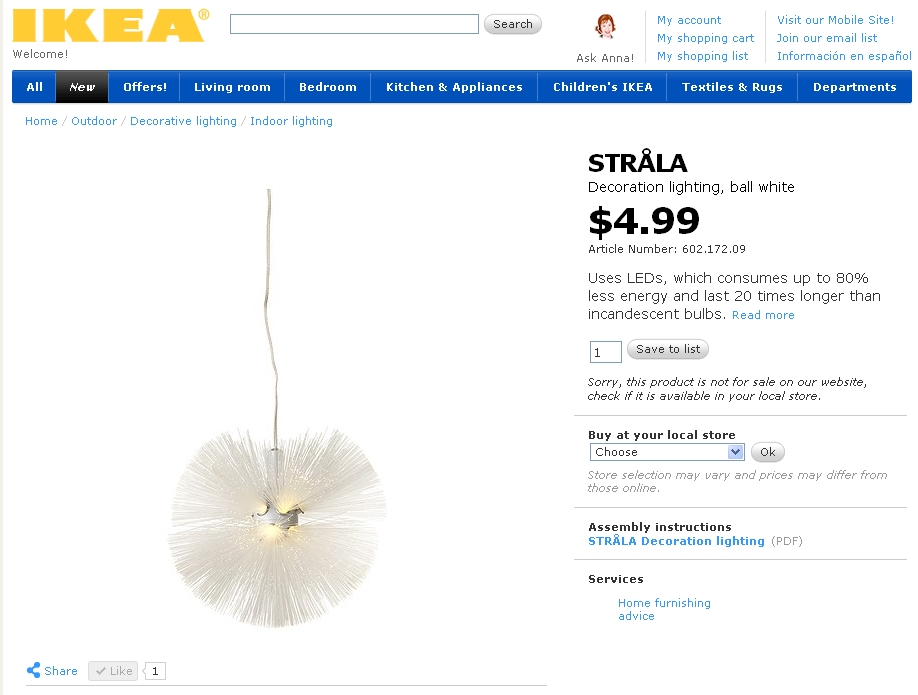
IKEA lamp mod – STRÅLA

I love IKEA and her low cost products.

Last week I found this STRÅLA lamp.

The cost is $4.99, so I bought it.
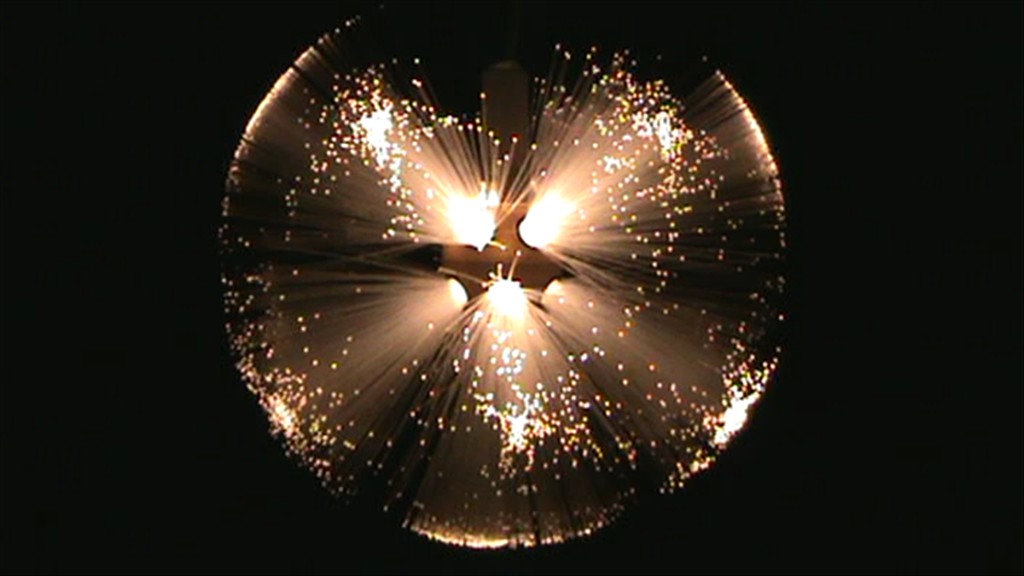
Lighting the lamp I saw that it ‘s very pretty but also … too soft…

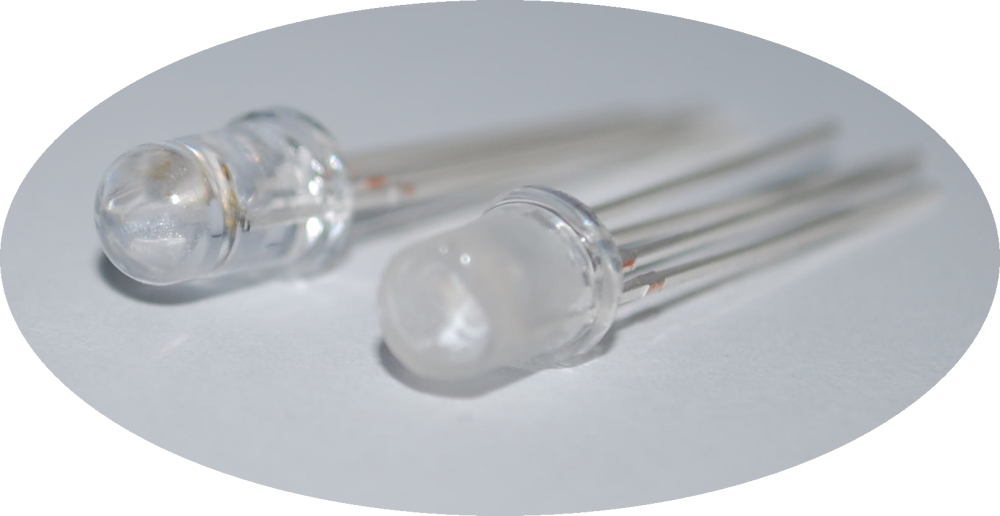
So I thought to modify the LED and add a RGB led.
With simple modify you can obtain a dinamic lamp.
I used an Arduino to do a fast work, but of course it isn’t necessary.
You can use a small microcontroller like a PIC12F675, or a ATTiny.

And this it the result:

How to

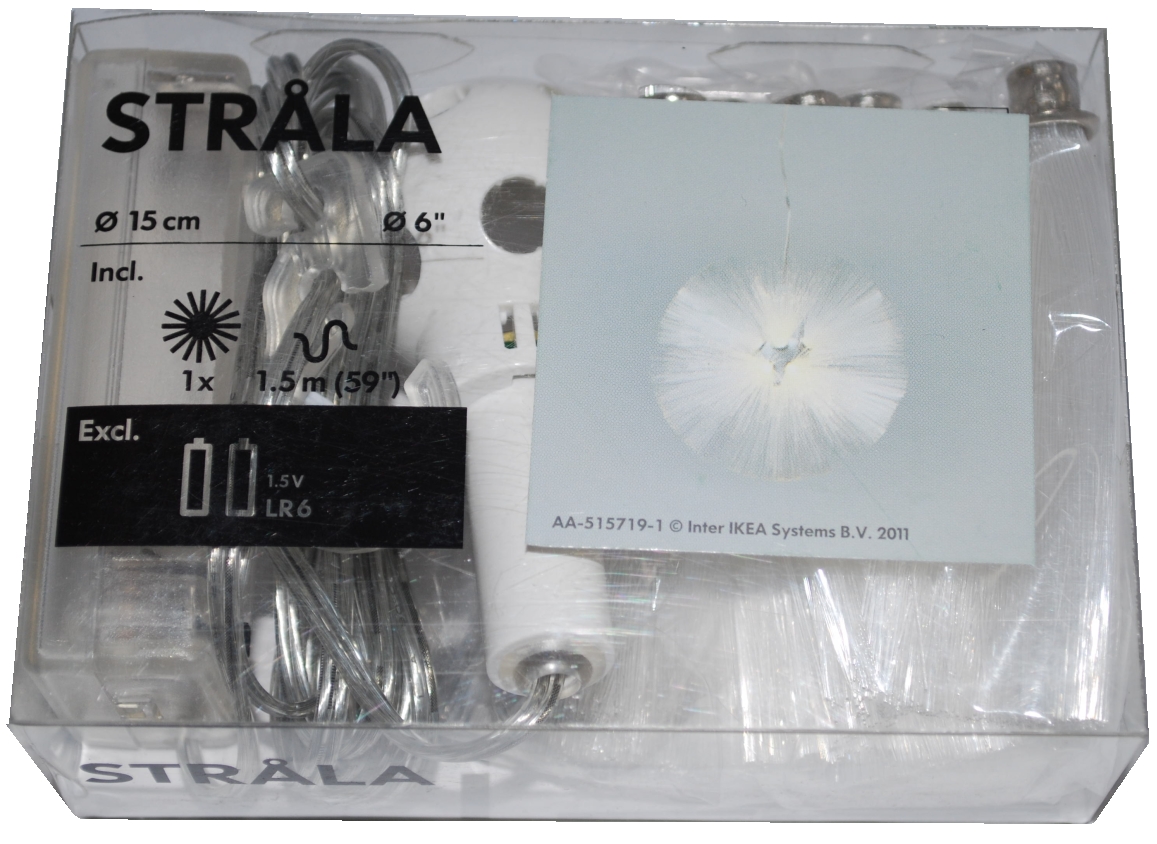
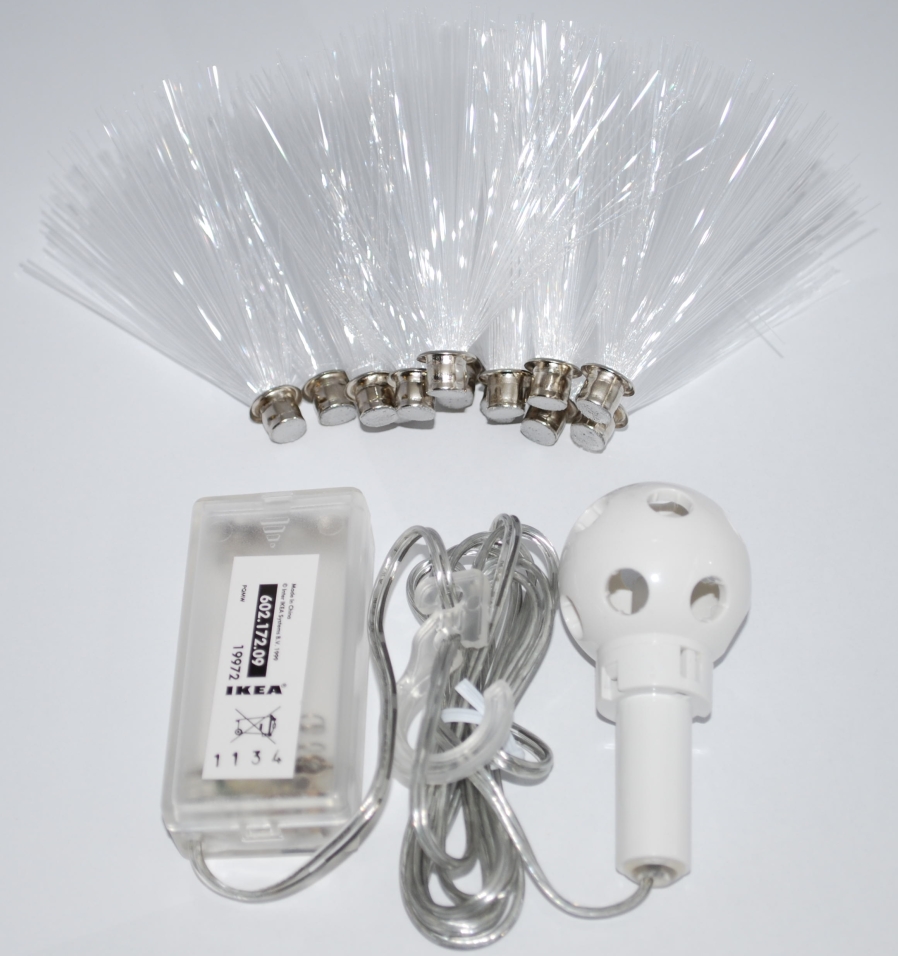
Before all, you have to buy a STRÅLA 

Open the package

And disassemble the original LED

As you can see the LED shape isn’t normal, but there is a cone in the center to better spread the light.
So I modify the RGB led to obtain the same effects and I also smoothed the surface.

Connect the wire to the led and reassemble all.

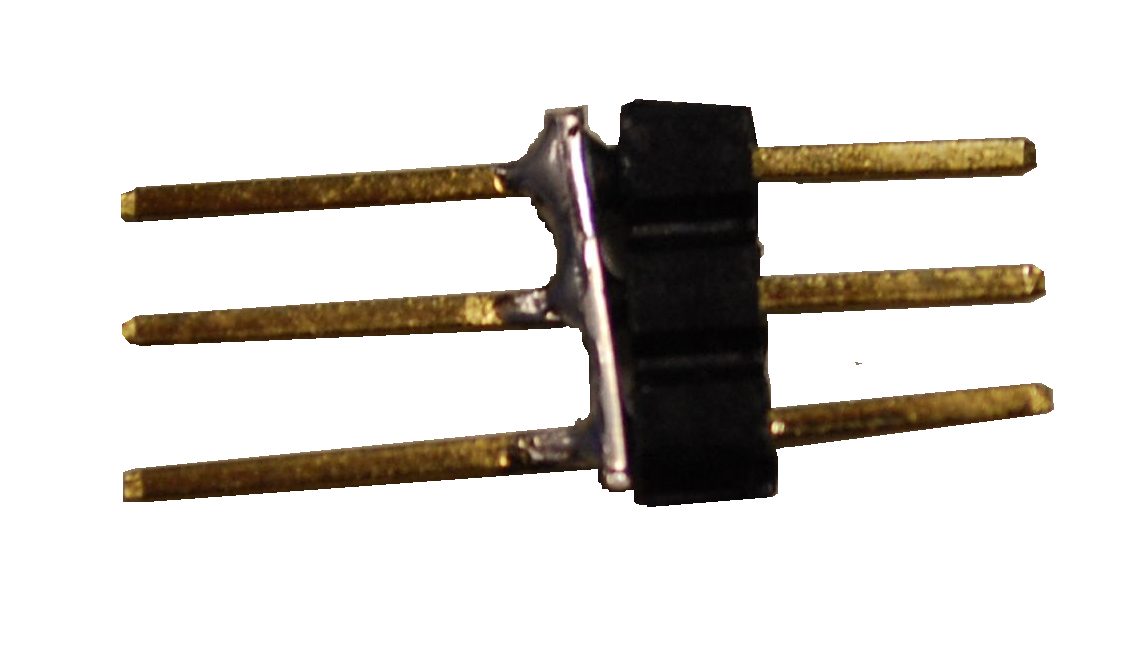
To connect the RGB led I used a strip wire and some pin.

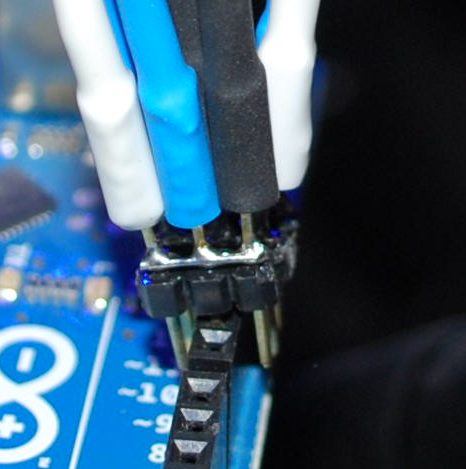
And now you can connect this pin to PWM ports of Arduino.

The black, blue and white wire are the RGB pin of the LED.

The red one is the Anode.

 The sketch

/* IKEA Strala mods

 created 2011
 by Boris Landoni

 This example code is in the public domain.

http://www.open-electronics.org

http://www.futurashop.it

http://blog.elettronicain.it/

 */

#include <EEPROM.h>

int red = 9;    // RED LED connected to PWM pin 3
int green = 10;    // GREEN LED connected to PWM pin 5
int blue = 11;    // BLUE LED connected to PWM pin 6
int r=50; int g=100; int b=150;
int rup; int gup; int bup;
int fader=1;
int inc=10;
void setup()
{
  // start the Ethernet connection and the server:
      Serial.begin(9600);
      Serial.println("Serial READY");
      r = EEPROM.read(1);
      g = EEPROM.read(2);
      b = EEPROM.read(3);
      inc = EEPROM.read(4);
      fader = EEPROM.read(5);
      rgb(r, g, b);
} 

void loop()  { 

  if (fader==1){
    funcfader();
  }

}

void funcfader(){
    Serial.println("fader");
    if (rup==1){r+=1;}
    else{r-=1;}
    if (r>=255){rup=0;}
    if (r<=0){rup=1;}

    if (gup==1){g+=1;}
    else{g-=1;}
    if (g>=255){gup=0;}
    if (g<=0){gup=1;}

    if (bup==1){b+=1;}
    else{b-=1;}
    if (b>=255){bup=0;}
    if (b<=0){bup=1;}

    delay(inc*2);
    rgb(r, g, b);
}

void rgb(int r, int g, int b)
{

  Serial.print("RGB: ");
  Serial.print(r);
  Serial.print(" ");
  Serial.print(g);
  Serial.print(" ");
  Serial.print(b);
  if (r>255) r=255;
  if (g>255) g=255;
  if (b>255) b=255;
  if (r<0) r=0;
  if (g<0) g=0;
  if (b<0) b=0;

  analogWrite(red, r);
  analogWrite(green, g);
  analogWrite(blue, b);
}

Good modding

Open Electronics 09 Nov 17:27
arduino  featured  gadget  ikea  mods  

Simple Halloween Skull


Maybe it’s too late to present an Halloween project with a lot of function, so we decide to develope a simple application to show how controll a mandible of a skull.

In this project the skull speaks and moves the mandible according to the sound level.
An Arduino analyzes the level sound of a audio source and drives a servo motor connected to the mandible.
All very simple.

The video show how it works.

The sketch:


/* Skull
 created 2011
 by Boris Landoni

 This example code is in the public domain.

http://www.open-electronics.org

http://www.futurashop.it

*/

#include <Servo.h> 

Servo myservo;  // create servo object to control a servo 

int potpin = 0;  // analog pin used to connect the potentiometer
int val;    // variable to read the value from the analog pin 

void setup()
{
  myservo.attach(9);  // attaches the servo on pin 9 to the servo object
} 

void loop()
{
  val = (analogRead(potpin)*3);            // reads the value of the potentiometer
  val = map(val, 0, 1023, 50, 0);     // scale it to use it with the servo
  myservo.write(val);                  // sets the servo position according to the scaled value
  delay(15);                           // waits for the servo to get there
}


The schemtaics shows how we connect the servo to Arduino.
     Download the Fritzing file


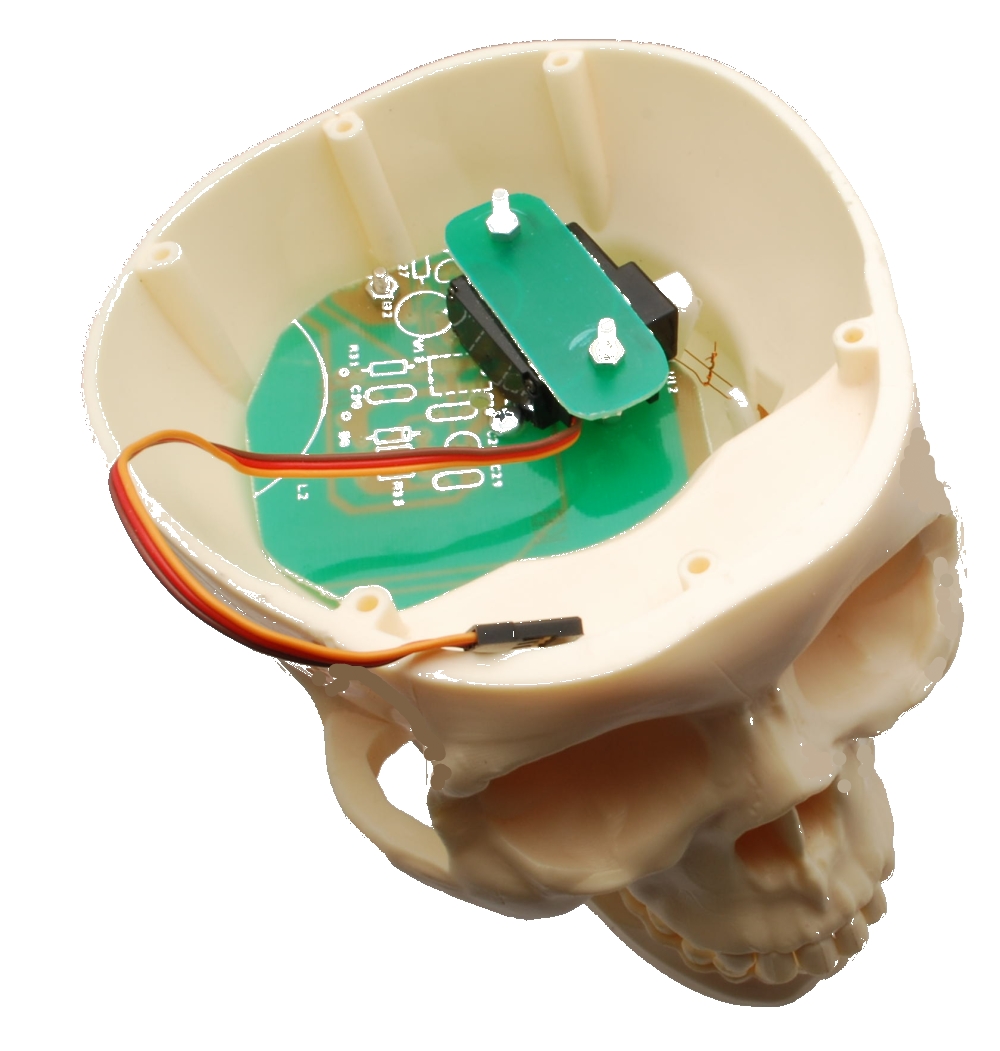
Inside the skull we use an old PCB to fix the servo (you can use what you want).

This project wants to be a start point for yours ideas….
Have a good work

Open Electronics 26 Oct 13:53