Posts with «arduino» label

Review – Iteaduino Lite “nearly 100% Arduino-compatible” board

Introduction

Over the last year there have been a few crowd-funded projects that offered very inexpensive Arduino-compatible boards. Frankly most of them weren’t anything out of the ordinary, however one of them is quite interesting due to the particular design of the board, and is the subject of this review.

An established company Iteadstudio ran a successful Indiegogo campaign last December to fund their Iteaduino Lite – Most inexpensive full-sized Arduino derivative board”. Having a spare US$5 we placed an order and patiently waited for the board. Being such a low price it was guaranteed to raise the funding – but was it worth the money? Or the effort? Possibly.

The board

In typical fashion the board arrived in bare packaging:

 The Iteaduino Lite isn’t that surprising at first glance:

To the new observer, it looks like an Arduino board of some sort. Nice to see all those GPIO pins with double breakouts. No surprises underneath:

The URL on the bottom is incorrect, instead visit http://imall.iteadstudio.com/iteaduino-lite.html. Looking at the board in more detail, there are some interesting points of difference with the usual Arduino Uno and compatibles.

The USB interface is handled with the Silabs CP2102 USB to UART bridge IC:

The next difference is the power circuitry – instead of using a linear voltage regulator, Itead have used a contemporary DC-DC converter circuit which can accept between 7 and 24V DC:

Furthermore, the entire board can operate at either 5V or 3.3V, which is selected with the slide switch in the above image. Finally – the microcontroller. Instead of an Atmel product, Itead have chosen the LogicGreen LGT8F88 microcontroller, a domestic Chinese product:

And there are only two LEDs on the Iteaduino Lite, for power and D13. The LED on D13 ins’t controlled via a MOSFET like other Arduino-compatibles, instead it’s simply connected to GND via a 1kΩ resistor.

Getting started with the Iteaduino Lite

The stacking header sockets will need to be soldered in – the easiest way is to insert them into the board, use an shield to hold them in and flip the lot upside down:

Which should give you neatly-installed headers:

Watch out for the corners of the board, they’re quite sharp. Next, you need to install the USB driver for the CP2102. My Windows 7 machine picked it up without any issues, however the drivers can be downloaded if necessary.

Finally a new board profile is required for the Arduino IDE. At the time of writing you’ll need Arduino IDE v1.0.5 r2. Download this zip file, and extract the contents into your ..\Arduino-1.0.5-r2\hardware folder. The option should now be available in the Tools > Board menu in the IDE, for example:

From this point you can run the blink example to check all is well. At this point you will realise one of the limitations of the Iteaduino Lite – memory. For example:

You only have 7168 bytes of memory for your sketches – compared to 32, 256 for an Arduino Uno or compatible. The reason for this is the small capacity of  …

The LogicGreen LGT8F88 microcontroller

This MCU is a Chinese company’s answer to the Atmel ATmega88A. You can find more details here, and Itead also sells them separately. The LGT8F88 offers us 8Kbyte of flash memory of which 0.7KB is used by bootloader, 1 KB of SRAM and 504 bytes (count ’em) of EEPROM. Apparently it can run at speeds of up to 32 MHz, however the LGT8F88 is set to 16 MHz for the Iteaduino Lite.

According to Logic Green, their LGT8F88 “introduce a smart instruction cache, which can fetch more instructions one time, effectively decrease memory accessing operations“. So to see if there’s a speed bump, we uploaded the following sketch – written by Steve Curd from the Arduino forum. It calculates Newton Approximation for pi using an infinite series:

//
// Pi_2
//
// Steve Curd
// December 2012
//
// This program approximates pi utilizing the Newton's approximation.  It quickly
// converges on the first 5-6 digits of precision, but converges verrrry slowly
// after that.  For example, it takes over a million iterations to get to 7-8
// significant digits.
//
// I wrote this to evaluate the performance difference between the 8-bit Arduino Mega,
// and the 32-bit Arduino Due.
// 

#define ITERATIONS 100000L    // number of iterations
#define FLASH 1000            // blink LED every 1000 iterations

void setup() {
  pinMode(13, OUTPUT);        // set the LED up to blink every 1000 iterations
  Serial.begin(57600);
}

void loop() {

  unsigned long start, time;
  unsigned long niter=ITERATIONS;
  int LEDcounter = 0;
  boolean alternate = false;
  unsigned long i, count=0;
  float x = 1.0;
  float temp, pi=1.0;

  Serial.print("Beginning ");
  Serial.print(niter);
  Serial.println(" iterations ...");
  Serial.println();

  start = millis();  
  for ( i = 2; i < niter; i++) {
    x *= -1.0;
    pi += x / (2.0f*(float)i-1.0f);
    if (LEDcounter++ > FLASH) {
      LEDcounter = 0;
      if (alternate) {
        digitalWrite(13, HIGH);
        alternate = false;
      } 
      else {
        digitalWrite(13, LOW);
        alternate = true;
      }
      temp = 40000000.0 * pi;
    }
  }
  time = millis() - start;

  pi = pi * 4.0;

  Serial.print("# of trials = ");
  Serial.println(niter);
  Serial.print("Estimate of pi = ");
  Serial.println(pi, 10);

  Serial.print("Time: "); 
  Serial.print(time); 
  Serial.println(" ms");

  delay(10000);
}

For a baseline comparison, an Arduno Uno R3 completes the calculations in 5563 ms:

… and the Iteaduino Lite completed it in 5052 ms:

So that’s around a 10% speed increase. Not bad at all. The LGT8F88 also has the requisite GPIO, SPI, and I2C available as per normal Arduino Uno boards. You can download the data sheet with more technical details from here. Frankly the LGT8F88 is an interesting contender in the marketplace, and if Logic Green can offer a DIP version at a good price, the ATtiny fans will have a field day. Time will tell.

Power Circuit

The DC-DC circuit promises 5V output, with up to 24V DC input – so we cranked the input to 24V,  put a 1A load on the 5V output – and put the DSO over 5V to measure the variations – with a neat result:

So no surprises there at all, the Iteaduino Lite gives you more flexible power supply options than the usual Arduino board. However an eagle-eyed reader notes that a few of the capacitors are only rated at 25V – especially the two right after the DC socket/Vin. You can see this in the schematic (.pdf). So take that into account, or drop your Vin to something more regular such as below 12V.

Conclusion

The Iteaduino Lite is an interesting experiment in bargain Arduino-compatible boards. However we say “why bother?” and just get a Uno R3-compatible board.

At the end of the day – why bother with this board? For a little extra you can get boards with the ATmega328P or 32U4 which gives you 100% compatibility. Nevertheless, this was an interesting experiment. Full-sized images are available on flickr. And if you enjoyed this article, or want to introduce someone else to the interesting world of Arduino – check out my book (now in a third printing!) “Arduino Workshop”.

Have fun and keep checking into tronixstuff.com. Why not follow things on twitterGoogle+, subscribe  for email updates or RSS using the links on the right-hand column, or join our forum – dedicated to the projects and related items on this website. Sign up – it’s free, helpful to each other –  and we can all learn something.

The post Review – Iteaduino Lite “nearly 100% Arduino-compatible” board appeared first on tronixstuff.
Tronixstuff 30 Jan 23:01

This smart handbag could stop you from overspending

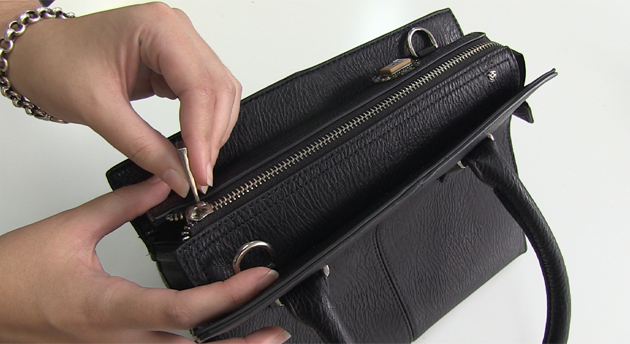
If you're the sort who overspends at the mall, you may need a firm reminder to watch your budget. How does an ever-vigilant handbag sound? Finder.com.au could soon make one: meet the iBag, a prototype carryall that locks you out if it believes you're going to splurge. The Arduino-powered bag automatically shuts tight at those times you're most likely to shop. Outside of those moments, it uses GPS to warn you when you get too close to favorite stores; ignore the alert and it will both record when you take out your wallet as well as send a text message to a trusted partner. iBag is primarily a publicity stunt meant to highlight the dangers of credit card debt, but it might become a reality. The site is asking potential customers to register their interest, and it may sell both men's and women's versions of the bag for $199 AUD ($173 US) if there's enough demand.

Filed under: GPS, Household

Comments

Source: Finder.com.au

Engadget 30 Jan 09:07

Easily test and experiment with GSM modules using AT Command Tester

Introduction

Working with GSM modules and by extension Arduino GSM shields can either be a lot of fun or bring on a migraine. This is usually due to the quality of module, conditions placed on the end user by the network, reception, power supply and more.

Furthermore we have learned after several years that even after following our detailed and tested tutorials, people are having trouble understanding why their GSM shield isn’t behaving. With this in mind we’re very happy to have learned about a free online tool that can be used to test almost every parameter of a GSM module with ease – AT Command Tester. This software is a Java application that runs in a web browser, and communicates with a GSM module via an available serial port.

Initial Setup

It’s simple, just visit http://m2msupport.net/m2msupport/module-tester/ with any web browser that can run Java. You may need to alter the Java security settings down to medium. Windows users can find this in Control Panel> All Control Panel Items  > Java – for example:

Once the security settings have been changed, just visit the URL, click ‘accept’ and ‘run’ in the next dialogue box that will appear, for example:

And after a moment, the software will appear:

Once you’re able to run the AT Command Tester software, the next step is to physically connect the hardware. If you’re just using a bare GSM module, a USB-serial adaptor can be used for easy connection to the PC. For Arduino GSM shield users, you can use the Arduino as a bridge between the shield and PC, however if your GSM shield uses pins other than D0/D1 for serial data transmission (such as our SIM900 shield) then you’ll need to upload a small sketch to bridge the software and hardware serial ports, for example:

//Serial Relay – Arduino will patch a serial link between the computer and the GPRS Shield
//at 19200 bps 8-N-1 Computer is connected to Hardware UART
//GPRS Shield is connected to the Software UART

#include <SoftwareSerial.h>

SoftwareSerial mySerial(7,8); // change these paramters depending on your Arduino GSM Shield

void setup()
{
  Serial.begin(19200);
  //Serial.println(“Begin”);
  mySerial.begin(19200);

}

void loop()
{
  if (mySerial.available())
    Serial.write(mySerial.read());
  if (Serial.available())
    mySerial.write(Serial.read());
}

Using the software

Once you have the hardware connected and the Arduino running the required sketch, run the software – then click “Find ports” to select the requried COM: port, set the correct data speed and click “Connect”. After a moment the software will interrogate the GSM module and report its findings in the yellow log area:

 As you can see on the left of the image above, there is a plethora of options and functions you can run on the module. By selecting the manufacturer of your GSM module form the list, a more appropriate set of functions for your module is displayed.

When you click a function, the AT command sent to the module and its response is shown in the log window – and thus the magic of this software. You can simply throw any command at the module and await the response, much easier than looking up the commands and fighting with terminal software. You can also send AT commands in batches, experiment with GPRS data, FTP, and the GPS if your module has one.

To give you a quick overview of what is possible, we’ve made this video which captures us running a few commands on a SIM900-based Arduino shield. If possible, view it in 720p.

Conclusion

Kudos to the people from the M2Msupport website for bringing us this great (and free) tool. It works – so we’re happy to recommend it. And if you enjoyed this article, or want to introduce someone else to the interesting world of Arduino – check out my book (now in a third printing!) “Arduino Workshop”.

Have fun and keep checking into tronixstuff.com. Why not follow things on twitterGoogle+, subscribe  for email updates or RSS using the links on the right-hand column, or join our forum – dedicated to the projects and related items on this website. Sign up – it’s free, helpful to each other –  and we can all learn something.

The post Easily test and experiment with GSM modules using AT Command Tester appeared first on tronixstuff.

Easily test and experiment with GSM modules using AT Command Tester

Introduction

Working with GSM modules and by extension Arduino GSM shields can either be a lot of fun or bring on a migraine. This is usually due to the quality of module, conditions placed on the end user by the network, reception, power supply and more.

Furthermore we have learned after several years that even after following our detailed and tested tutorials, people are having trouble understanding why their GSM shield isn’t behaving. With this in mind we’re very happy to have learned about a free online tool that can be used to test almost every parameter of a GSM module with ease – AT Command Tester. This software is a Java application that runs in a web browser, and communicates with a GSM module via an available serial port.

Initial Setup

It’s simple, just visit http://m2msupport.net/m2msupport/module-tester/ with any web browser that can run Java. You may need to alter the Java security settings down to medium. Windows users can find this in Control Panel> All Control Panel Items  > Java – for example:

Once the security settings have been changed, just visit the URL, click ‘accept’ and ‘run’ in the next dialogue box that will appear, for example:

And after a moment, the software will appear:

Once you’re able to run the AT Command Tester software, the next step is to physically connect the hardware. If you’re just using a bare GSM module, a USB-serial adaptor can be used for easy connection to the PC. For Arduino GSM shield users, you can use the Arduino as a bridge between the shield and PC, however if your GSM shield uses pins other than D0/D1 for serial data transmission (such as our SIM900 shield) then you’ll need to upload a small sketch to bridge the software and hardware serial ports, for example:

//Serial Relay – Arduino will patch a serial link between the computer and the GPRS Shield
//at 19200 bps 8-N-1 Computer is connected to Hardware UART
//GPRS Shield is connected to the Software UART

#include <SoftwareSerial.h>

SoftwareSerial mySerial(7,8); // change these paramters depending on your Arduino GSM Shield

void setup()
{
  Serial.begin(19200);
  //Serial.println(“Begin”);
  mySerial.begin(19200);

}

void loop()
{
  if (mySerial.available())
    Serial.write(mySerial.read());
  if (Serial.available())
    mySerial.write(Serial.read());
}

Using the software

Once you have the hardware connected and the Arduino running the required sketch, run the software – then click “Find ports” to select the requried COM: port, set the correct data speed and click “Connect”. After a moment the software will interrogate the GSM module and report its findings in the yellow log area:

 As you can see on the left of the image above, there is a plethora of options and functions you can run on the module. By selecting the manufacturer of your GSM module form the list, a more appropriate set of functions for your module is displayed.

When you click a function, the AT command sent to the module and its response is shown in the log window – and thus the magic of this software. You can simply throw any command at the module and await the response, much easier than looking up the commands and fighting with terminal software. You can also send AT commands in batches, experiment with GPRS data, FTP, and the GPS if your module has one.

To give you a quick overview of what is possible, we’ve made this video which captures us running a few commands on a SIM900-based Arduino shield. If possible, view it in 720p.

Conclusion

Kudos to the people from the M2Msupport website for bringing us this great (and free) tool. It works – so we’re happy to recommend it. And if you enjoyed this article, or want to introduce someone else to the interesting world of Arduino – check out my book (now in a third printing!) “Arduino Workshop”.

Have fun and keep checking into tronixstuff.com. Why not follow things on twitterGoogle+, subscribe  for email updates or RSS using the links on the right-hand column, or join our forum – dedicated to the projects and related items on this website. Sign up – it’s free, helpful to each other –  and we can all learn something.

Sabertron: a foam lightsaber game that finally proves who's got the most midi-chlorians

Chances are you've clutched a lightsaber or two in your time, whether that be an inexpensive imitation of the iconic Jedi weapon, or a deluxe model. You may even be a veteran duelist, but unless you're willing to commit murder with a Star Wars toy (or, someone else could just score the bout, we guess), then the dance always ends with no true victor. If you think that something with a name like Sabertron can't solve this dilemma, then these aren't the swords you're looking for. Just launched on Kickstarter, the idea of Sabertron is pretty simple: foam sword, electronics to detect blows, LED scoreboard above the grip. The current prototype uses an Arduino board with accelerometer to register hits, with Xbee handling the wireless connection so swords know when they've merely collided, and when to shut off LEDs after an opponent's successful strike. Also, a control panel and screen built into the grip lets you pick between different game modes for one-on-one combat.

During the year, LevelUp intends to created a chest/back mounted scoreboard with proximity detection that'll allow for multiplayer battles, with other accessories for the Sabertron range expected later. While it's aimed at Star Wars fans and live-action role players primarily, only a fun-sponge would be incapable of enjoying a few rounds of Alliance vs Empire with a buddy. And, with early bird pledges of $99 getting you a pair, breaking the will of Jedi scum doesn't have to break the bank.

Filed under: Misc

Comments

Source: Kickstarter (Sabertron), LevelUp

Engadget 29 Jan 20:00

Tutorial – pcDuino GPIO with Arduino IDE

Introduction

In this tutorial we’ll explain how to use the GPIO pins of the Arduino implementation in the pcDuino v2 and v3. As the v3 is now available you can use it as well, and it’s interchangeable with the v2. Although the pcDuino v2 is Arduino-compatible, there are a few differences that you need to be aware of – in order to make your projects a success and also to avoid any costly mistakes.

This tutorial builds on the knowledge from the initial review, so if pcDuino v2 is new to you please review this article before moving on. In this instalment we’ll run through the following:

  • ADC (analogue to digital)
  • Digital input and outputs
  • PWM (pulse-width modulation)
  • I2C bus
  • SPI bus

Using ADC pins

Just like an Arduino Uno or compatible, the pcDuino v2 has six ADC pins, in the expected locations:

Using the pcDuino v2’s ADC pins is quite straight forward, however you just need to remember a few things about the hardware – that the maximum input voltage on A0 and A1 is 2V – and 3.3V for A2~A5.

Although there is an AREF pin on the board, this function isn’t supported at the time of writing. From the software perspective A0 and A1’s values have a 6-bit resolution and can fall between 0 and 63 (0~2V), otherwise the others have a 12-bit resolution and thus return values between 0 and 4095 (0~3.3V). Using the ADC pins is simple, and demonstrated in the following sketch:

// pcDuino v2 ADC demonstration

#include <core.h> // for pcDuino

int a0, a1, a2, a3, a4, a5;

void setup() 
{
}

void loop() 
{
  // read all the ADCs
  a0 = analogRead(0);
  a1 = analogRead(1);
  a2 = analogRead(2);
  a3 = analogRead(3);
  a4 = analogRead(4);
  a5 = analogRead(5);
  // display ADC values to console
  printf(A0, A1,   A2,   A3,   A4,   A5\n);
  printf(%d  %d  %d  %d  %d  %d\n, a0, a1, a2, a3, a4, a5);
  printf(n);
  delay(1000);
}

… which results with the following in the console:

Digital outputs

The pcDuino v2’s implementation of digital outputs aren’t anything out of the ordinary – except that you are limited to a maximum voltage of 3.3V instead of the usual 5V. Furthermore you can only source 4mA from each pin. However if you have some 5V-only shields that you must use with your pcDuino v2 – there is a Voltage Translation board that can be used to solve the problem:

However using 3.3V for new designs shouldn’t be an issue – new sensors, ICs and so on should be 3.3V-compatible. And with the pcDuino v2 you get an extra four digital I/O pins, located next to the SPI grouping as shown below:

These are simply addressed as D14~D17. Now back for a quick demonstration with the typical LEDs. As the current sourced from each GPIO pin cannot exceed 4mA, you need to use a resistor to keep things under control. Using the LED wizard, by entering a 3.3V supply, 2.1V forward voltage for our LEDs and a 4mA current – the resistor value to use is 330Ω.

If you’re having a lazy attack and use 560Ω, the current will be around 2.5mA with acceptable results. We’ve done just that with the following demonstration sketch:

// pcDuino v2 digital output demonstration

#include <core.h> // for pcDuino

void setup() 
{
  pinMode(4, OUTPUT);
  pinMode(5, OUTPUT);
  pinMode(6, OUTPUT);
  pinMode(7, OUTPUT);  
  digitalWrite(4, LOW);  
  digitalWrite(5, LOW);
  digitalWrite(6, LOW);
  digitalWrite(7, LOW);  
}

void loop() 
{
  for (int i = 4; i < 8; i++)
  {
    digitalWrite(i, HIGH);
    delay(250);
    digitalWrite(i, LOW);
  }
}

… and the results in this video.

Digital inputs

When using the digital pins as inputs, just treat them as normal except they have a maximum input voltage of 3.3V for HIGH. Again – just keep thinking “3.3V”.

Using the I2C data bus

The I2C bus (or “two wire interface”) is a common serial data bus used for interfacing all manner of devices with a microcontroller. You can find a background on the I2C bus and Arduino tutorial here. Just like an Arduino Uno R3, the I2C bus pins are both A4 and A5 (for SCL and SDA) and can also be found up near D13, for example.

The limitations for the pcDuino v2’s version of I2C bus are few – the maximum speed is 200 kHz, it only uses 7-bit addresses and you can’t use the pcDuino in slave mode. However there are 2.2kΩ pullup resistors which can save using them with external circuitry.

We demonstrate the I2C bus by writing data to and reading it from a Microchip 24LC256 EEPROM (which is handy in itself as there isn’t any EEPROM function on the pcDuino v2). This is demonstrated with an Arduino Uno in part two of our I2C tutorials.

Connection is very easy – pins 1 to 4 of the EEPROM are connected to GND, pin 5 to SDA, pin 6 to SCL, pin 7 to GND and pin 8 to 3.3V. Finally a 0.1uF capacitor is placed across 3.3V and GND.

The sketch to read and write values to the EEPROM is simple, and apart from the #include <core.h> for the pcDuino all the other functions operate as normal.

// pcDuino I2C demonstration

#include <core.h> // for pcDuino
#include <Wire.h>   for I2C
#define chip1 0x50  device bus address for EEPROM

// always have your values in variables
unsigned int pointer = 69;  // we need this to be unsigned, as you may have an address  32767
byte d=0;  // example variable to handle data going in and out of EERPROMS

void setup()
{
  Wire.begin();  // wake up, I2C!
}

void writeData(int device, unsigned int add, byte data) 
// writes a byte of data 'data' to the chip at I2C address 'device', in memory location 'add'
{
  Wire.beginTransmission(device);
  Wire.write((int)(add  8)); // left-part of pointer address
  Wire.write((int)(add & 0xFF)); // and the right
  Wire.write(data);
  Wire.endTransmission();
  delay(10);
}

byte readData(int device, unsigned int add) 
// reads a byte of data from memory location 'add' in chip at I2C address 'device' 
{
  byte result;  // returned value
  Wire.beginTransmission(device);  // these three lines set the pointer position in the EEPROM
  Wire.write((int)(add  8));  // left-part of pointer address
  Wire.write((int)(add & 0xFF)); // and the right
  Wire.endTransmission();
  Wire.requestFrom(device,1); // now get the byte of data...
  result = Wire.read();
  return result;  // and return it as a result of the function readData
}

void loop()
{
  printf(Writing data...\n);
  for (int a=0; a10; a++)
  {
    writeData(chip1,a,a);
  }
  printf(Reading data...\n);
  for (int a=0; a10; a++)
  {
    d=readData(chip1,a);    
    printf(Pointer %d holds %d.\n,a,d);
  }
}

… which results with the following output in the console:

As you now know, using I2C isn’t hard at all. A lot of beginners shy away from it – or run screaming for the nearest library for their part. You don’t need libraries – spend a little time now learning about I2C and you’re set for life.

Using the SPI data bus

Again we have some SPI tutorials for Arduino, so check them out first if the concept is new to you. Writing to an SPI device with the pcDuino v2 isn’t tricky at all, you have the 3.3V hardware limitation and the SPI pins are in the same location (D10~D13) or in a separate group on the board:

Furthermore the maximum SPI speed is 12 MHz and the pcDuino v2’s  implementation of SPI can only work as a master. However in the sketch there are a few differences to note. To demonstrate this we’ll control a Microchip MCP4162 digital rheostat via SPI to control the brightness of an LED. Here is the circuit:

And now for the sketch. Take note of the fourth line in void setup() –  this is used to set the SPI bus speed to 12 MHz. You can also reduce the speed with other multipliers such as 32, 64 and 128 to slow it down even further. The other point to note is the use of SPI.transfer(). With the pcDuino v2 there are two parameters – the first is the data to send to the SPI device, and the second is either

SPI_CONTINUE

if there is another byte of data following immediately, or

SPI_LAST

if that is the last byte for that immediate transfer. You can see this use of the paramters within the function setValue() in the demonstration sketch below.

// pcDuino SPI demonstration

#include <core.h>  // for pcDuino
#include <SPI.h>
int ss = 10;
int del = 1000;

void setup()
{
  SPI.begin();
  SPI.setDataMode(SPI_MODE3);
  SPI.setBitOrder(MSBFIRST);
  SPI.setClockDivider(SPI_CLOCK_DIV16);
  pinMode(ss, OUTPUT);
  digitalWrite(ss, HIGH);
}

void setValue(int value)
{
  digitalWrite(ss, LOW);
  SPI.transfer(0, SPI_CONTINUE);
  SPI.transfer(value, SPI_LAST);
  digitalWrite(ss, HIGH);
}

void loop()
{
  setValue(255);
  delay(del);
  setValue(223);
  delay(del);
  setValue(191);
  delay(del);
  setValue(159);
  delay(del);
  setValue(127);
  delay(del);
  setValue(95);
  delay(del);
  setValue(63);
  delay(del);
  setValue(31);
  delay(del);
  setValue(0);
  delay(del);
}

When using the SPI bus, relevant data will appear in the console, for example:

And finally the demonstration video to show you it really works – you can see the output voltage from the rheostat and the matching LED brightness.

Receiving data from the SPI bus is equally as simple, however at the time of writing we don’t have an SPI device to demonstrate this, so please refer the SPI part of the pcDuino guide. Finally, you can’t use PWM on D10 or D11 when using the SPI bus in your sketch.

Pulse-width modulation

You can simulate analogue output using PWM with a pcDuino v2 – however there are two types of PWM pins available. The first is found on digital pins D3, D9, D10 and D11 – they are simulated PWM – and have a low range of zero to twenty at 5 Hz. There are two hardware PWM pins – D5 and D6, which  run at 520Hz and have the full range of 0~255 available in analogWrite(). Once again – they output 3.3V. Furthermore, you can’t use pinMode() functions or the SPI bus if using D10 and/or D11 for PWM.

Conclusion

Now you should have an understanding of the features and limitations of using GPIO pins with your pcDuino v2 Arduino sketches. And finally a plug for my own store – tronixlabs.com – offering a growing range and Australia’s best value for supported hobbyist electronics from adafruit, DFRobot, Freetronics, Seeed Studio and much more.

Have fun and keep checking into tronixstuff.com. Why not follow things on twitterGoogle+, subscribe  for email updates or RSS using the links on the right-hand column, or join our forum – dedicated to the projects and related items on this website.

The post Tutorial – pcDuino GPIO with Arduino IDE appeared first on tronixstuff.

Tronixstuff 29 Jan 04:12
adc  arduino  gpio  i2c  input  output  pcduino  pwm  review  spi  tronixlabs  tronixstuff  tutorial  

Sixth day of freshman design seminar

Today I went into class with a long list of things to get done, but didn’t quite get to all of them:

  • Feedback on first homework.
  • Look at data sheets together.
  • Get class consensus on resistor values from homework due today.
  • Demo the Arduino Data Logger with the phototransistor and photodiode.
  • Discuss next homework (designing a colorimeter).
  • Start talking about Arduino programming.

The feedback on the homework went pretty much as planned.  I told them that the homework was not graded, but that I had both individual and general feedback on it.  Here is a summary of the general feedback:

  • College homework should be typed.  Professors expect it, even if they never say so.  The one exception is math homework, and I recommend to students that they learn LaTeX and typeset even their math.
  • Homework should always be stapled, not loose sheets, which get separated and lost.
  • Hand-drawn pictures are ok for this class (and many other classes), but I strongly recommend learning to use a drawing tool.  Adobe Illustrator is a popular one for those who have money, but Inkscape is an adequate tool for 2D diagrams and is free, though its user interface is rather clunky.  For more professional engineering drawings, I believe that AutoCAD has a free (or very low-cost) version for students. Sketchup and Blender are popular free tools for 3D modeling.  For schematic capture, I now use DigiKey’s SchemeIt, which I demoed briefly for the students (after having some trouble with the wireless connection in the room—I’ll have to check to see whether there is a live DHCP port by the projector cable in the room).
  • Most students added little to what we did in class. I pointed out that K–12 teachers mainly wanted them to spit back what they had been told, but that college professors were usually looking for added value—stuff from reading outside class or from original design.
  • I pointed out the importance of vocabulary (“diffraction” vs. “refraction”, “focus” vs. “collimate”) and of getting the right physical phenomena (Bragg’s Law for diffraction gratings, Snell’s Law and optical dispersion for prisms).  I told them to read the Wikipedia article on optical dispersion, so that they could understand the complexity of determining the wavelength-to-refraction-angle transformation, which is highly dependent on the material the prism is made of.
  • I also suggested that just dumping factoids (like the Bragg’s Law formula) on the paper without explaining the connection to the design didn’t really buy them much.
  • I pointed out the difficult design problem I had given them (300nm–700nm) with a diffraction grating would result in the second diffraction of 350nm at the same location as the first diffraction spot for 700nm—to handle both one would need two optical filters: one for the long wavelength, one for the short.  Even if we limit the range we’re interested in (say to 400nm–700nm), we’d still need a filter, since the sensor would still detect the 2nd-order 350nm spot, even though we weren’t interested in it.
  • I showed a couple of designs for a collimator (a lens and a slit, or a pair of slits on either end of a black tube) and explained why collimation was needed for a spectrometer (none of them had included a collimator).

The feedback took about the amount of time I expected, and I think I managed to communicate the problems without crushing anyone’s egos.  I was careful to tell them that I was not grading them on the homework, but providing feedback for them to do better later on things that would count—particularly that other faculty would often have these expectations of them without ever articulating them.  This freshman class is intended in part to help the students adapt to the college culture in a low-stakes environment.

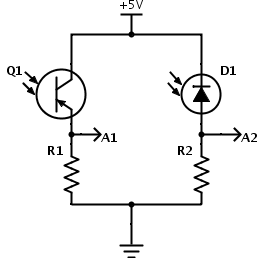
Simple circuits for measuring light with an Arduino. Update 2014 Feb 6: Q1 is intended to be an NPN phototransistor, not PNP as shown here!

We then looked at the WP3DP3BT phototransistor data sheet together.  First, I explained the mechanical drawing (dimensions in mm, the diameter sign , the two different ways that the case indicates which lead is which—both the flat and the shorter lead indicating the collector). This prompted a question about the naming of the collector and emitter (since it seemed strange to them that the collector went to the power lead and the emitter to the resistor), so I briefly explained that it was a NPN transistor, that the N’s stood for negative doping resulting in an excess of electrons as charge carriers, and that the emitter emitted the electrons and the collector collected them. I don’t know if that helped anyone.

I then asked the students what they needed help understanding for the numeric part of the data sheet. We ended up talking about 5 of the 7 parameters provided, covering a lot of different things (like that nA stood for nanoamps, not “not available”—a confusion I had not anticipated). I briefly went over milli-, micro-, nano- and explained that engineers preferred using those prefixes to expressing powers of 10, so that the prefer to express the dark current as 100nA, rather than 10-7A. Some scientific calculators provide engineering notation, in which only multiples of 3 are used as the power of 10, and the numbers are between 1 and 999.999999… .

I had to explain the difference between collector-to-emitter and emitter-to-collector voltages, and show the current vs. VCE curve with the two breakdowns. We talked a bit about the saturation voltage (0.8V with an irradiance of 20mW/cm2 and a current of 2mA). I’m not sure I understand that specification that well myself—it mainly tells me that we want to stay well below a 2mA current.

I asked the students for their resistance values from their homework, expecting some fairly random values that would reveal different misunderstandings. What I had not expected is that most of the class had nothing—not even a guess—at the resistance. I would have expected them to ask questions on the class e-mail list if they didn’t understand, but the notion of asking each other (or a faculty member) for help still seems completely foreign to them.

So we spent some time going over how to interpret the on-state collector current: 0.2 nA at an irradiance of 1mW/cm2 of 940nm light. I then had the look for more information that was given in the question, which no one had in front of them:

For Monday, 2014 Jan 27, as individuals (not groups), find a data sheet for the phototransistor WP3DP3BT. Also, select a cheap photodiode that is available in the same size and shape of package as the WP3DP3BT phototransistor and look up its data sheet. For the photodiode and the phototransistor, report the dark current, the voltage drop across the device (that would be collector-emitter saturation voltage for a phototransistor and the open-circuit voltage for a photodiode), and the sensitivity (current at 1mW/cm2 at λ=940nm, which is the wavelength where silicon photodiodes and phototransistors are most sensitive). Find a plot of the spectral sensitivity of a silicon photodiode or phototransistor (it need not be from the data sheets you found—all the silicon photodiodes and phototransistors have similar properties, unless the packaging they are in filters the light). We want to make a circuit so that the full-scale (5v) reading on the Arduino corresponds to an irradiance of 204.8μW/cm2 at 940nm, so that each of the 1024 steps corresponds to an increment of 0.2μW/cm2.

Eventually someone figured out that we wanted a 5v output to correspond to 204.8μW/cm2. I asked what current that irradiance produced. Note that this is a simple linear scaling of the 0.2 nA at an irradiance of 1mW/cm2. It took several minutes for them to do this on their calculators, and several tries before the class agreed on a value (luckily the right one). Now that they had a voltage and a current, I asked them for the resistance that was needed. One student quickly mentioned Ohm’s law, and they set about doing the division. It took them a couple of minutes to do this division on their calculators, and then most of them got it wrong (getting values in the µΩ range!).  Eventually they managed to converge to 122.1kΩ, after almost settling on 12.2kΩ, but what I had expected to be a 30–60-second computation for computing the resistance had taken 10–15 minutes.  The arithmetic and algebra skills of college freshmen are even lower than I had feared.

I showed them a chart of standard resistance values and helped them round to 120kΩ.  I showed them a 120kΩ resistor and measured it with a multimeter to make sure I had the right resistor.  I passed around an Arduino board and a breadboard and explained the point of ther breadboard. I hooked the resistor up in series with the phototransistor (on a pre-prepared breadboard) and used the Arduino data logger to show them the voltage changing as I covered and uncovered the phototransistor. (Next year I should probably reduce the sensitivity they are requested to match to 0.1µW/cm2 per step, as the classroom light was bright enough to move the voltage almost full scale.)

Class had been over officially by 10 minutes at this point (the first time I looked at my watch), so I gave each student a cuvette and asked them to look up what a colorimeter was and design one around the cuvette.

We still need to discuss the photodiode resistance value (I’ll see if anyone figures it out by Wednesday, when I’ve asked them to turn in the homework for real).  We have lab tours on Wednesday, though, so there won’t be time to discuss colorimeters before they design them.  I hope they have the sense to read about them on Wikipedia or the many web sites that give high school labs using them. The actual assignment was

By Mon 2014 Feb 3, design a colorimeter around the cuvette you picked up in class. Your design report should describe the function of the device, explain how it works, have a detailed drawing (with dimensions) of it, have a materials list of what is needed to build it, and give instructions for using it. If there are any computer components, an outline of the needed software should be included also.


Filed under: freshman design seminar Tagged: Arduino, bioengineering, colorimeter, engineering education, homework, photodiode, phototransistor

Sixth day of freshman design seminar

Today I went into class with a long list of things to get done, but didn’t quite get to all of them:

  • Feedback on first homework.
  • Look at data sheets together.
  • Get class consensus on resistor values from homework due today.
  • Demo the Arduino Data Logger with the phototransistor and photodiode.
  • Discuss next homework (designing a colorimeter).
  • Start talking about Arduino programming.

The feedback on the homework went pretty much as planned.  I told them that the homework was not graded, but that I had both individual and general feedback on it.  Here is a summary of the general feedback:

  • College homework should be typed.  Professors expect it, even if they never say so.  The one exception is math homework, and I recommend to students that they learn LaTeX and typeset even their math.
  • Homework should always be stapled, not loose sheets, which get separated and lost.
  • Hand-drawn pictures are ok for this class (and many other classes), but I strongly recommend learning to use a drawing tool.  Adobe Illustrator is a popular one for those who have money, but Inkscape is an adequate tool for 2D diagrams and is free, though its user interface is rather clunky.  For more professional engineering drawings, I believe that AutoCAD has a free (or very low-cost) version for students. Sketchup and Blender are popular free tools for 3D modeling.  For schematic capture, I now use DigiKey’s SchemeIt, which I demoed briefly for the students (after having some trouble with the wireless connection in the room—I’ll have to check to see whether there is a live DHCP port by the projector cable in the room).
  • Most students added little to what we did in class. I pointed out that K–12 teachers mainly wanted them to spit back what they had been told, but that college professors were usually looking for added value—stuff from reading outside class or from original design.
  • I pointed out the importance of vocabulary (“diffraction” vs. “refraction”, “focus” vs. “collimate”) and of getting the right physical phenomena (Bragg’s Law for diffraction gratings, Snell’s Law and optical dispersion for prisms).  I told them to read the Wikipedia article on optical dispersion, so that they could understand the complexity of determining the wavelength-to-refraction-angle transformation, which is highly dependent on the material the prism is made of.
  • I also suggested that just dumping factoids (like the Bragg’s Law formula) on the paper without explaining the connection to the design didn’t really buy them much.
  • I pointed out the difficult design problem I had given them (300nm–700nm) with a diffraction grating would result in the second diffraction of 350nm at the same location as the first diffraction spot for 700nm—to handle both one would need two optical filters: one for the long wavelength, one for the short.  Even if we limit the range we’re interested in (say to 400nm–700nm), we’d still need a filter, since the sensor would still detect the 2nd-order 350nm spot, even though we weren’t interested in it.
  • I showed a couple of designs for a collimator (a lens and a slit, or a pair of slits on either end of a black tube) and explained why collimation was needed for a spectrometer (none of them had included a collimator).

The feedback took about the amount of time I expected, and I think I managed to communicate the problems without crushing anyone’s egos.  I was careful to tell them that I was not grading them on the homework, but providing feedback for them to do better later on things that would count—particularly that other faculty would often have these expectations of them without ever articulating them.  This freshman class is intended in part to help the students adapt to the college culture in a low-stakes environment.

Simple circuits for measuring light with an Arduino. Update 2014 Feb 6: Q1 is intended to be an NPN phototransistor, not PNP as shown here!

We then looked at the WP3DP3BT phototransistor data sheet together.  First, I explained the mechanical drawing (dimensions in mm, the diameter sign , the two different ways that the case indicates which lead is which—both the flat and the shorter lead indicating the collector). This prompted a question about the naming of the collector and emitter (since it seemed strange to them that the collector went to the power lead and the emitter to the resistor), so I briefly explained that it was a NPN transistor, that the N’s stood for negative doping resulting in an excess of electrons as charge carriers, and that the emitter emitted the electrons and the collector collected them. I don’t know if that helped anyone.

I then asked the students what they needed help understanding for the numeric part of the data sheet. We ended up talking about 5 of the 7 parameters provided, covering a lot of different things (like that nA stood for nanoamps, not “not available”—a confusion I had not anticipated). I briefly went over milli-, micro-, nano- and explained that engineers preferred using those prefixes to expressing powers of 10, so that the prefer to express the dark current as 100nA, rather than 10-7A. Some scientific calculators provide engineering notation, in which only multiples of 3 are used as the power of 10, and the numbers are between 1 and 999.999999… .

I had to explain the difference between collector-to-emitter and emitter-to-collector voltages, and show the current vs. VCE curve with the two breakdowns. We talked a bit about the saturation voltage (0.8V with an irradiance of 20mW/cm2 and a current of 2mA). I’m not sure I understand that specification that well myself—it mainly tells me that we want to stay well below a 2mA current.

I asked the students for their resistance values from their homework, expecting some fairly random values that would reveal different misunderstandings. What I had not expected is that most of the class had nothing—not even a guess—at the resistance. I would have expected them to ask questions on the class e-mail list if they didn’t understand, but the notion of asking each other (or a faculty member) for help still seems completely foreign to them.

So we spent some time going over how to interpret the on-state collector current: 0.2 nA at an irradiance of 1mW/cm2 of 940nm light. I then had the look for more information that was given in the question, which no one had in front of them:

For Monday, 2014 Jan 27, as individuals (not groups), find a data sheet for the phototransistor WP3DP3BT. Also, select a cheap photodiode that is available in the same size and shape of package as the WP3DP3BT phototransistor and look up its data sheet. For the photodiode and the phototransistor, report the dark current, the voltage drop across the device (that would be collector-emitter saturation voltage for a phototransistor and the open-circuit voltage for a photodiode), and the sensitivity (current at 1mW/cm2 at λ=940nm, which is the wavelength where silicon photodiodes and phototransistors are most sensitive). Find a plot of the spectral sensitivity of a silicon photodiode or phototransistor (it need not be from the data sheets you found—all the silicon photodiodes and phototransistors have similar properties, unless the packaging they are in filters the light). We want to make a circuit so that the full-scale (5v) reading on the Arduino corresponds to an irradiance of 204.8μW/cm2 at 940nm, so that each of the 1024 steps corresponds to an increment of 0.2μW/cm2.

Eventually someone figured out that we wanted a 5v output to correspond to 204.8μW/cm2. I asked what current that irradiance produced. Note that this is a simple linear scaling of the 0.2 nA at an irradiance of 1mW/cm2. It took several minutes for them to do this on their calculators, and several tries before the class agreed on a value (luckily the right one). Now that they had a voltage and a current, I asked them for the resistance that was needed. One student quickly mentioned Ohm’s law, and they set about doing the division. It took them a couple of minutes to do this division on their calculators, and then most of them got it wrong (getting values in the µΩ range!).  Eventually they managed to converge to 122.1kΩ, after almost settling on 12.2kΩ, but what I had expected to be a 30–60-second computation for computing the resistance had taken 10–15 minutes.  The arithmetic and algebra skills of college freshmen are even lower than I had feared.

I showed them a chart of standard resistance values and helped them round to 120kΩ.  I showed them a 120kΩ resistor and measured it with a multimeter to make sure I had the right resistor.  I passed around an Arduino board and a breadboard and explained the point of ther breadboard. I hooked the resistor up in series with the phototransistor (on a pre-prepared breadboard) and used the Arduino data logger to show them the voltage changing as I covered and uncovered the phototransistor. (Next year I should probably reduce the sensitivity they are requested to match to 0.1µW/cm2 per step, as the classroom light was bright enough to move the voltage almost full scale.)

Class had been over officially by 10 minutes at this point (the first time I looked at my watch), so I gave each student a cuvette and asked them to look up what a colorimeter was and design one around the cuvette.

We still need to discuss the photodiode resistance value (I’ll see if anyone figures it out by Wednesday, when I’ve asked them to turn in the homework for real).  We have lab tours on Wednesday, though, so there won’t be time to discuss colorimeters before they design them.  I hope they have the sense to read about them on Wikipedia or the many web sites that give high school labs using them. The actual assignment was

By Mon 2014 Feb 3, design a colorimeter around the cuvette you picked up in class. Your design report should describe the function of the device, explain how it works, have a detailed drawing (with dimensions) of it, have a materials list of what is needed to build it, and give instructions for using it. If there are any computer components, an outline of the needed software should be included also.


Filed under: freshman design seminar Tagged: Arduino, bioengineering, colorimeter, engineering education, homework, photodiode, phototransistor

Actual homework on data sheets and photodetectors

To save people the trouble of finding the homework on the class web page, I’ve copied the assignment that I mentioned in Fifth day of freshman design seminar here:

  • By Thursday night, 2014 Jan 23, e-mail your photospectrometer design to the class e-mail list, so that everyone can share the designs.
  • For Monday, 2014 Jan 27, as individuals (not groups), find a data sheet for the phototransistor WP3DP3BT. Also, select a cheap photodiode that is available in the same size and shape of package as the WP3DP3BT phototransistor and look up its data sheet.For the photodiode and the phototransistor, report the dark current, the voltage drop across the device (that would be collector-emitter saturation voltage for a phototransistor and the open-circuit voltage for a photodiode), and the sensitivity (current at 1mW/cm2 at λ=940nm, which is the wavelength where silicon photodiodes and phototransistors are most sensitive).Find a plot of the spectral sensitivity of a silicon photodiode or phototransistor (it need not be from the data sheets you found—all the silicon photodiodes and phototransistors have similar properties, unless the packaging they are in filters the light).We want to make a circuit so that the full-scale (5v) reading on the Arduino corresponds to an irradiance of 204.8μW/cm2 at 940nm, so that each of the 1024 steps corresponds to an increment of 0.2μW/cm2. Remember that 1000μW=1mW. (We may not be able to use the full range, as the circuit should saturate at a somewhat lower value, depending on the saturation voltage or open-circuit voltage of the photodetector.)Update 2014 Feb 6: Q1 is intended to be an NPN phototransistor, not PNP as shown here!
    For the circuits above, figure out what values of R1 and R2 to use to get the desired voltage range at A1 or A2. Look up what standard resistance values are available with 2% tolerance, and pick the nearest one. (Hint: Google is your friend for finding tables of information.)

    In class on Monday, we’ll try building this circuit and seeing how it works with the Arduino Data Logger.

  • Before Monday 2014 Feb 3, get an Arduino board (I recommend Uno Rev 3, but any ATMega Arduino board should do), install Arduino software (more instructions in the Getting started guide), and start doing some of the on-line tutorials.

Filed under: freshman design seminar Tagged: Arduino, bioengineering, engineering education, homework, photodiode, phototransistor

Actual homework on data sheets and photodetectors

To save people the trouble of finding the homework on the class web page, I’ve copied the assignment that I mentioned in Fifth day of freshman design seminar here:

  • By Thursday night, 2014 Jan 23, e-mail your photospectrometer design to the class e-mail list, so that everyone can share the designs.
  • For Monday, 2014 Jan 27, as individuals (not groups), find a data sheet for the phototransistor WP3DP3BT. Also, select a cheap photodiode that is available in the same size and shape of package as the WP3DP3BT phototransistor and look up its data sheet.For the photodiode and the phototransistor, report the dark current, the voltage drop across the device (that would be collector-emitter saturation voltage for a phototransistor and the open-circuit voltage for a photodiode), and the sensitivity (current at 1mW/cm2 at λ=940nm, which is the wavelength where silicon photodiodes and phototransistors are most sensitive).Find a plot of the spectral sensitivity of a silicon photodiode or phototransistor (it need not be from the data sheets you found—all the silicon photodiodes and phototransistors have similar properties, unless the packaging they are in filters the light).We want to make a circuit so that the full-scale (5v) reading on the Arduino corresponds to an irradiance of 204.8μW/cm2 at 940nm, so that each of the 1024 steps corresponds to an increment of 0.2μW/cm2. Remember that 1000μW=1mW. (We may not be able to use the full range, as the circuit should saturate at a somewhat lower value, depending on the saturation voltage or open-circuit voltage of the photodetector.)Update 2014 Feb 6: Q1 is intended to be an NPN phototransistor, not PNP as shown here!
    For the circuits above, figure out what values of R1 and R2 to use to get the desired voltage range at A1 or A2. Look up what standard resistance values are available with 2% tolerance, and pick the nearest one. (Hint: Google is your friend for finding tables of information.)

    In class on Monday, we’ll try building this circuit and seeing how it works with the Arduino Data Logger.

  • Before Monday 2014 Feb 3, get an Arduino board (I recommend Uno Rev 3, but any ATMega Arduino board should do), install Arduino software (more instructions in the Getting started guide), and start doing some of the on-line tutorials.

Filed under: freshman design seminar Tagged: Arduino, bioengineering, engineering education, homework, photodiode, phototransistor