Posts with «arduino» label

A DIY water-saving device

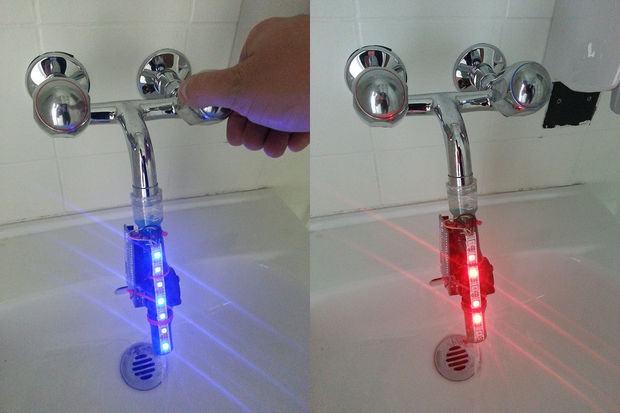
Last June Thomas Amberg participated to Water Hackathon – Open Source Technologies for Rivers, Oceans and Lakes taking place in Lausanne. He came up with a DIY solution made with Arduino Uno and a flow sensor to help monitor how much water a tub consumes.

The Augmented Water device helps you save water by turning red after one Liter and helping you not to waste it unnecessarily.
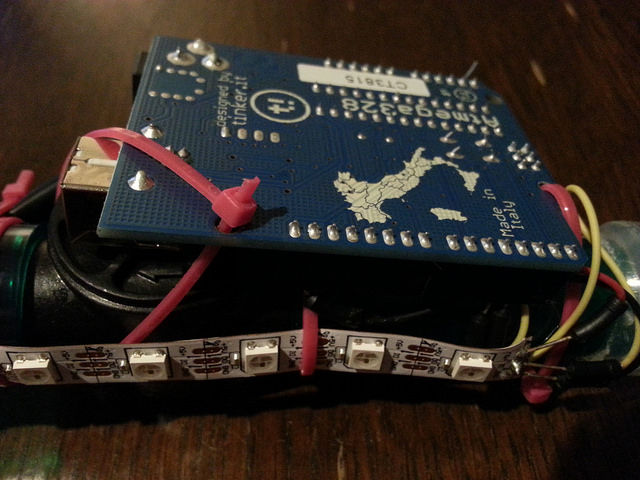
The ingredients you need to reach the results are the following: an Arduino Uno, Adafruit Neopixels, Flow sensor, LiPo battery, LiPo charger, jumper wires, tube fitting the sensor, plastic test tube and some zip ties. You can easily make one in 6 steps with his tutorial on Instructables.

Arduino Blog 09 Jul 19:50

When WiFi imitates art

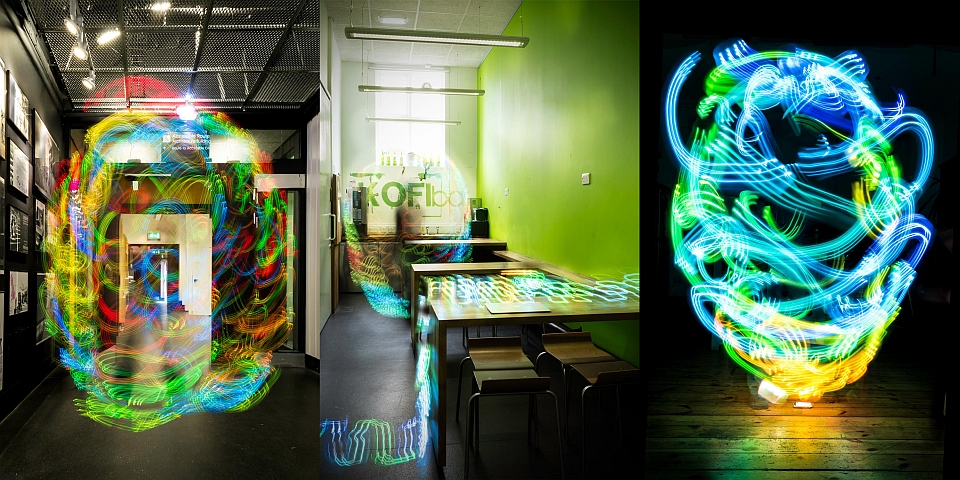
For most of us, the only way we can see the strength of a WiFi network is by the familiar signal icon on any given device. Newcastle University School of Architecture doctorate student Luis Hernan, however, has a different method: spirit photography. He's using the new age-y method of capturing someone's aura via electric coronal discharges -- a Kirlian Device -- with a few geeky augmentations (an Arduino Uno board and WiFi Shield, for example) to illustrate how strong a wireless broadcast is with colors. As Wired notes, these components take account of the nearby signal and convert it into color information that's then beamed onto an LED strip; red being the strongest and blue being weaker sections of the network. To create the pictures like what you see above and at the source, Hernan swung the home-made device around after setting up long-exposure shots with a camera. While we can't know for sure, we'd imagine that something with no signal would look a lot like this.

Filed under: Wireless, Science, Alt

Comments

Via: Wired

Source: DigitalEthereal (1), (2)

The world knows what you did last summer


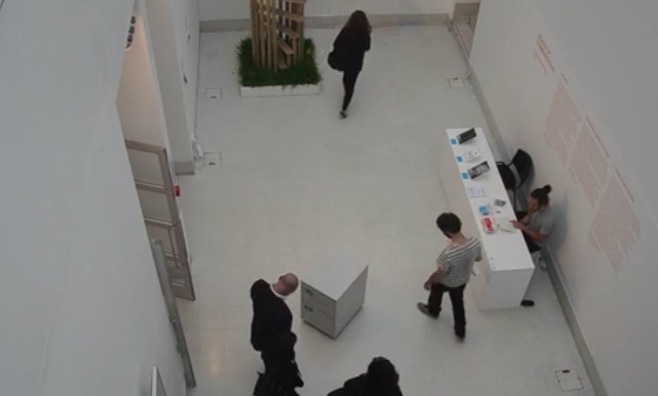
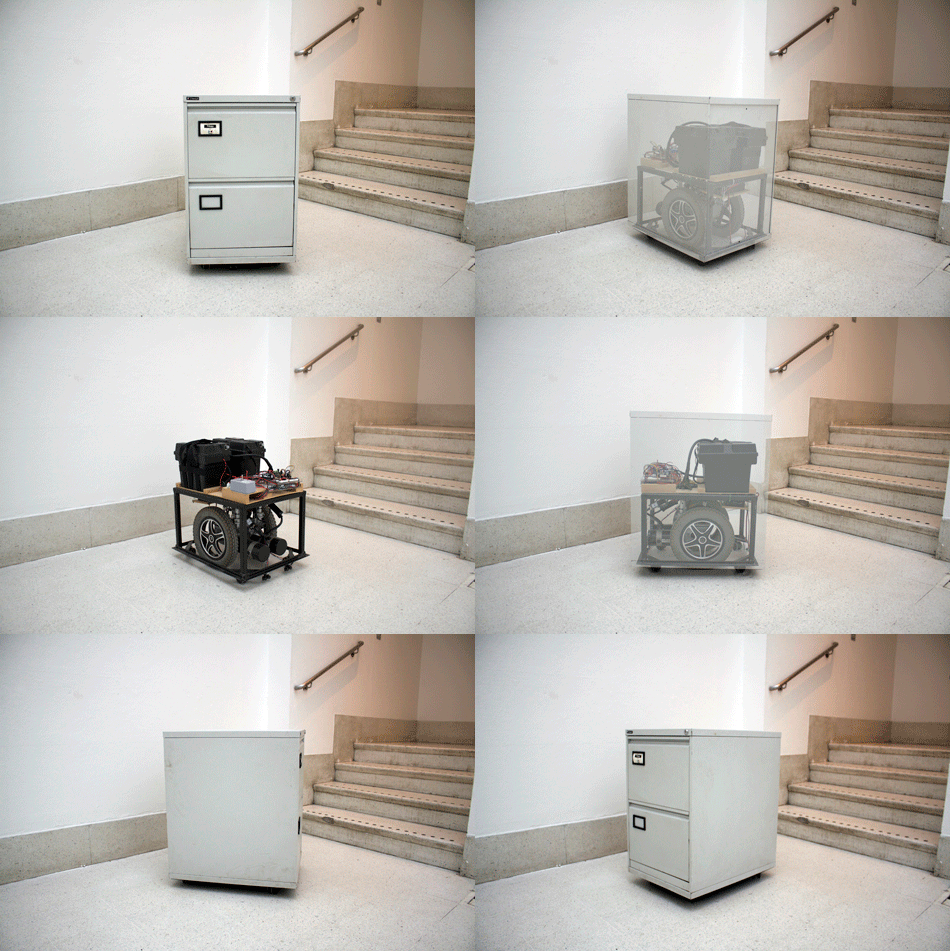
Jaap de Maat shared with us his final year project called I know what you did last summer, the finale to a two-year-long MA in Information Experience Design of the Royal College of Art. The ingredients are  simple (an old electric wheel chair, an Arduino Mega, 12v motor board, Bluetooth slave, wires, blood sweat and tears) and the concept is very actual:

It is physically impossible for the human brain to remember every event from our past in full detail. The default setting is to forget and our memories are constructed based on our current values. In the digital age it has become easier to look back with great accuracy. But this development contains hidden dangers, as those stored recollections can easily be misinterpreted and manipulated. That sobering thought should rule our online behaviour, because the traces we leave behind now will follow us around for ever.

The video of the installation shows how the physical presence of an archive drawer  stalking has a real impact on visitors:

Here’s the making of the prototype:

Arduino Blog 08 Jul 20:53

Node.js on the Arduino Yún

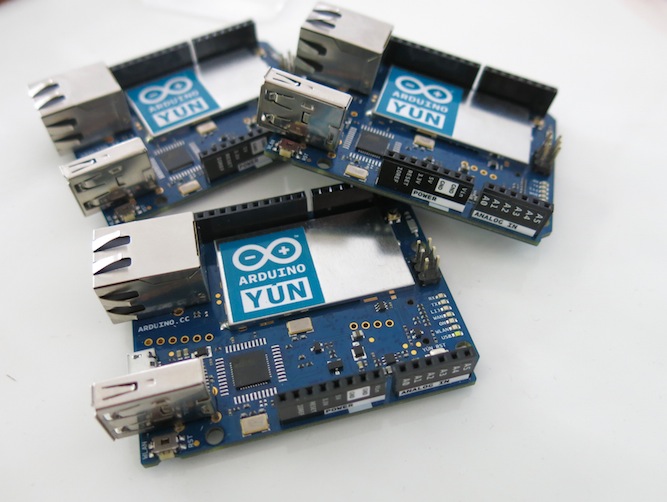
Tom Igoe some days ago wrote an interesting post about Arduino Yún on his blog.  We post it here as it could be useful to the Arduino Community.

————————–

Recently, Federico Fissore added node.js to the package repository for the Arduino Yún. Here’s how you get node to communicate with the Arduino processor on the Yún via the Bridge library.

To do this, you’ll need an Arduino Yún, a microSD card, a microUSB cable and a wifi connection. You should be familiar with the basics of the Arduino Yún and node.js in order to get the most out of this post.

All of the code for this post can be found on my GitHub repository.

First you’ll need to install node on the Yún. Make sure you’ve upgraded to the current Yún software image and have connected to the internet via wifi. Then ssh into your Yún, or connect to the command line interface using the the YunSerialTerminal sketch, and issue the following commands:


$ opkg update
$ opkg install node

That’s it. Now you have node.js onboard. You can check that it’s okay by checking the version:

$ node -v

You should get the version number in reply.

Once you’ve got that working, you’ll undoubtedly want to communicate with the Yún’s Arduino processor from node. You can do this using the Bridge library. On a microSD drive, make a directory for your node scripts. I called mine /arduino/node. Then insert it into your Yún. For reference, its path from the command line is /mnt/sda1/arduino/node.

Note: The Yún automatically treats the microSD card’s /arduino/www/ directory as a public web directory. Anything you put in there will be served out as static HTML. So you may not want to put your node scripts in this directory, so they’re not visible via the browser. That’s why I created a node directory at the same level as the www directory, but outside it.

Read the complete post at this link>>

Arduino Blog 07 Jul 18:20

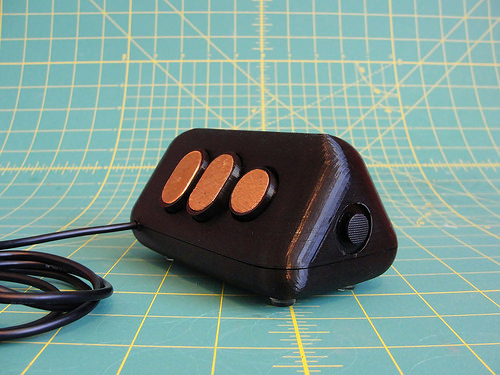
The Rabbit H1 is a Stationary Mouse Replacement

[Dave] has some big plans to build himself a 1980′s style computer. Most of the time, large-scale projects can be made easier by breaking them down into their smaller components. [Dave] decided to start his project by designing and constructing a custom controller for his future computer. He calls it the Rabbit H1.

[Dave] was inspired by the HOTAS throttle control system, which is commonly used in aviation. The basic idea behind HOTAS is that the pilot has a bunch of controls built right into the throttle stick. This way, the pilot doesn’t ever have to remove his hand from the throttle. [Dave] took this basic concept and ran with it.

He first designed a simple controller shape in OpenSCAD and printed it out on his 3D printer. He tested it out in his hand and realized that it didn’t feel quite right. The second try was more narrow at the top, resulting in a triangular shape. [Dave] then found the most comfortable position for his fingers and marked the piece with a marker. Finally, he measured out all of the markings and transferred them into OpenSCAD to perfect his design.

[Dave] had some fun with OpenSCAD, designing various hinges and plywood inlays for all of the buttons. Lucky for [Dave], both the 3D printer software as well as the CNC router software accept STL files. This meant that he was able to design both parts together in one program and use the output for both machines.

With the physical controller out of the way, it was time to work on the electronics. [Dave] bought a couple of joysticks from Adafruit, as well as a couple of push buttons. One of the joysticks controls the mouse cursor. The other joystick controls scrolling vertically and horizontally, and includes a push button for left-click. The two buttons are used for middle and right-click. All of these inputs are read by a Teensy Arduino. The Teensy is compact and easily capable of emulating a USB mouse, which makes it perfect for this job.

[Dave] has published his designs on Thingiverse if you would like to try to build one of these yourself.


Filed under: Arduino Hacks

This playable Tetris T-shirt requires you to touch yourself

In the 30 years since Alexey Pajitnov first launched Tetris, the world's most popular game has regularly been immortalized in fashion. Luxembourgian Mark Kreger wanted to do the same, but instead of cooking up a colorful print, he's staving off boredom with something much more interactive: a playable Tetris T-shirt. Featuring 128 LEDs powered by an Arduino Uno microcontroller, Kreger's marvellous tee requires only four rechargeable AA batteries to power the game. It'll keep score and display level numbers -- the only thing it appears to be lacking is the super-funky soundtrack.

Filed under: Gaming, Wearables

Comments

Via: Time

Source: Mark Kerger (YouTube)

Engadget 05 Jul 04:10
arduino  game  gaming  t-shirt  tetris  wearables  

The Funky Chicken


The Funky Chicken was created during a series of workshops that were given as part of the larger project “Interactive Sensory Objects Designed for and by People with Learning Disabilities”:

It was designed by Rumena, a student from the Reading College LLD/D course (people with learning disabilities) who attended the workshops on a regular basis. She made the papier mache chicken, painted it and added the frills and ornaments, and wanted it to sit inside a basket but flap it’s wings and cluck. We helped her to complete this artwork by adding the necessary electronics including an Arduino Uno, Adafruit Waveshield, speaker and a servo to make the wings flap.

The whole flapping/clucking of the chicken is triggered using a sonar attached to Arduino Uno. Moving within 1m of the chicken will trigger it:

 In the image below the sonar is hooked up to the Arduino Uno, and the Arduino is connected to the servo controller (not shown). The sonar is a very inexpensive off-the-shelf HC-SR04, which has a range of about 3m.

Here’s the video with the chicken at work:


Arduino Blog 03 Jul 18:49

Laser Piano Worthy Of The Band ‘Wyld Stallyns’

[Robi] and [Kathy] from elecfreaks have put together a how-to article about a Laser Piano they just built. Instead of keys, the user breaks beams of laser light to trigger the sounds.

Several laser pointer diodes are wired in parallel and mounted in a box, cardboard in this case. The laser diodes are aimed at photocells that reside on the other side of the box. Each photocellis connected to a digital input pin on an Arduino. When the Arduino senses a state change from one of the photocell, meaning the beam of light has been interrupted, it plays the appropriate wave file stored on an external JQ6500 sound module.

[Robi] admits that there are some improvements to be made, specifically the trigger response time and the piano sounding too monotonous. If you have any ideas, please leave them in the comments section.

If you’d like to build one, the bill of materials and Arduino code are listed on the above site. We’ve features some other interesting laser-based instruments in the past, such as this guitar, this harp and this harp.

“Be excellent to each other!”


Filed under: musical hacks
Hack a Day 03 Jul 06:00

Freefall camera: an autonomous skydiving robot

A group of skydivers and engineers, combined their passions to create the world’s first autonomous skydiving robot, equipped by a camera and controlled by Arduino Mega.

The Freefall Camera is a student project at the University of Nottingham, its team is composed by David Alatorre, Tom Dryden, Tom Shorten and Peter Storey who received the third prize at the Student Venture Challenge from the Haydn Green Institute for Innovation and Entrepreneurship.

Their robot freefall camera is already in testing phase and the team features in a number of videos created by the University’s Nottingham Science YouTube channel.

Take a look at the video below explaining how they used Arduino Mega and enjoy the whole playlist at this link.

Arduino Blog 02 Jul 22:17

Pew Pew! An Arduino Based Laser Rangefinder


Lasers are some of the coolest devices around. We can use them to cut things, create laser light shows, and also as a rangefinder.[Ignas] wrote in to tell us about [Berryjam's] AMAZING write-up on creating an Arduino based laser rangefinder. This post is definitely worth reading.

Inspired by a Arduino based LIDAR system, [Berryjam] decided that he wanted to successfully use an affordable Open Source Laser RangeFinder (OSLRF-01) from LightWare. The article starts off by going over the basics of how to measure distance with a laser based system. You measure the time between an outgoing laser pulse and the reflected return pulse; this time directly relates to the distance of the object. Sounds simple? In practice, it is not as simple as it may seem. [Berryjam] has done a great job doing some real world testing of this device, with nice plots to top it all off. After fiddling with the threshold and some other aspects of the code, the resulting accuracy is quite good.

Recently, we have seen more projects utilizing lasers for range-finding, including LIDAR projects. It is very exciting to see such high-end sensors making their way into the maker/hacker realm. If you have a related laser project, be sure to let us know!


Filed under: laser hacks