Posts with «arduino» label

Raspberry Pi teases finished Gertboard I/O extender, revs creative engines

The Raspberry Pi faithful have been looking forward to the Gertboard almost as much as the main device itself: Gert van Loo's I/O extender promises to flash lights, spin motors and otherwise take on the tasks that the Raspberry Pi doesn't directly manage on its own. While we've seen work on the project since late 2011, the expansion now looks to be closer to reality following a fresh teaser. The refined design's biggest tweak is replacing its original PIC controller with an Arduino-powered chip -- an element no doubt familiar to the crowd that would already be looking at a very hackable, miniature Linux computer. Most everything else is a refinement, although Gert has brought in three physical buttons and two-channel analog-to-digital and digital-to-analog converters. We'll learn the full story later this week, and until then we'll be dreaming of all the off-kilter Arduino projects that might be made better with a little Raspberry Pi companionship.

Filed under: Misc. Gadgets, Peripherals

Raspberry Pi teases finished Gertboard I/O extender, revs creative engines originally appeared on Engadget on Wed, 08 Aug 2012 18:41:00 EST. Please see our terms for use of feeds.

Permalink | Email this | Comments

Making a game with capacitive touch

Hackaday has seen a ton of builds make use of the Arduino CapSense library of late, so it was only a matter of time before we posted a capacitive sensing game controller that is able to move sprites around a screen.

For this build, the controller is made out of small strips of Aluminum foil, wired straight to an Arduino with a few resistors. Once embedded inside a wonderful enclosure that brings about pangs of nostalgia it’s time tow write the game.

For the game portion of the build, Processing was brought into the mix to create a SpongeBob-themed ‘capture all the jellyfish in jellyfish fields’ game. By taping the contacts for the d-pad, the player can move SpongeBob around to catch jellyfish. If you’d like to give the game a go, you can play it in your browser on the project page.

This isn’t the first – or the last – CapSense build we’ll see on Hackaday, but it is the first one dedicated to making a DIY (albeit Nintendo inspired) video game controller. If six buttons aren’t enough, you’ll just have to wait for the PS3 version.


Filed under: arduino hacks
Hack a Day 09 Aug 00:00

Super Angry Birds USB controller puts the sling back in your shot (video)

Yeah. We know. There are pretty much as many ways to play Angry Birds, as there are people who play it. That's a lot. However, the Super Angry Birds controller you see above speaks to us. Why? Because it's not just a sling shot, or a fudged use of existing technology. That wooden "sling" hides one of those motorized faders you see in big music studio desks. Using some coding magic (i.e. a force curve stored in a table), the creators were able to give it a realistic resistance feeling, sans elastic. The rest of the hardware is programmed in Max / MSP and Arduino, with a "Music and Motors" microcontroller. It's not just the sling part, either, with angle and special power triggering available from the same device. A pretty neat solution, we think. Now, we wonder if we could scale this thing up?

Continue reading Super Angry Birds USB controller puts the sling back in your shot (video)

Filed under: Gaming, Peripherals

Super Angry Birds USB controller puts the sling back in your shot (video) originally appeared on Engadget on Wed, 08 Aug 2012 16:34:00 EST. Please see our terms for use of feeds.

Permalink | Email this | Comments

“Hello Garden” – Making Aquaponics Smart


If you’ve ever walked around West Oakland, farming probably doesn’t come to mind. That’s because it’s the fifth busiest shipping port in the United States. But that hasn’t stopped maker Eric Maundu from feeding himself with locally-grown food from his aquaponic gardens, a combination of fish farming and hydroponic planting. Frequently proclaiming, “I am not a farmer,” Eric has applied his robotics and software background to making gardens smart.

“I feel knowledge of electronics and software programming makes me a better farmer than just having a hoe. Gardens that can communicate for themselves using the internet can lead to exchanging of ideas in ways that were not possible before. I can test, for instance, whether the same tomato grows better in Oakland or the Sahara Desert given the same conditions. Then I can share the same information with farmers in Iceland and China.”

His company, Kijani Grows, sells kits, components, installs gardens throughout the Bay Area, and teaches classes on aquaponics. This inspiring video from fair companies gives an epic walkthrough (note the length of the video – how leet!) of his various indoor & outdoor systems and designs:


Filed under: Arduino, Home and Garden

Accelerometer for circuits course?

One of the people that I asked to look over the course notes and give me suggestions suggested another lab that would likely appeal to bioengineers:

another cheap experiment, accelerometers from Sparkfun to measure gait patterns or detect falls.  If really ambitious, you can teach chaos theory here with analyzing chaos levels in gait patterns—they are different for men and women.

I’ve used accelerometers before, both the analog output ADXL335 and the I2C MQA8452Q. The ADXL335 breakout board was from Adafruit Industries, the MQA8452Q from Sparkfun.  Although I personally prefer the I2C interface, since it takes up only 2 Arduino pins, programming is outside the scope of this class.

This lab sounds like fun, and it would be good for the bioengineers to think of accelerometers as cheap sensors that are easily used, rather than as magic that comes in cell phones, I’m not sure how we would get a circuits lab out of this. Even the analog-output accelerometer just needs to have its XYZ pins connected to analog inputs on the Arduino.  Anything interesting you do with the accelerometer is in either the mechanical mounting or in the software analyzing the data, not in electronic circuits.

We have several constraints in selecting labs for this circuits course:

  • Lab must teach something useful to the students.
  • Lab must seem interesting (or at least useful) to bioengineering students.
  • Lab must not be dangerous (either to students or to equipment).
  • Lab must be doable in one 3-hour lab session (we can afford at most 2 labs that are 2-session labs).
  • Lab cannot require students to be able to program computers.
  • Lab cannot require knowledge of electronics beyond what is taught in the course.
  • Lab should support the teaching of traditional linear circuits.
  • Lab should involve student design and not just analysis of existing designs.

The accelerometer lab fails on two points: any design component would have to be software and there is no support for teaching linear circuits in the lab.  That’s too bad, because it is otherwise a cool lab idea.


Filed under: Accelerometer, Circuits course Tagged: accelerometer, Arduino, bioengineering, circuits, course design

Robotic Development Platform

Hello everybody :)

I made this blog to tell you all about my latest project, after my Robotic Arm project has died out a little.

This little thing will be my first actual "robot". The whole idea behind it is that I will have a platform which will be easy to further develop, and thus be awesome to learn new stuff. 

read more

Let's Make Robots 06 Aug 23:27

3-axis accelerometer motion detector project

Description:
A 3-axis accelerometer sits at the heart of this project to provide a nifty little motion detector. Want to know who is stealing from the cookie jar? Want a simple home intrusion detector? Or to test your partner's driving skills? Then have a look at this:

(Soldering required for this project)


Video:


Parts Required:


Instructions:

  1. Overlay the Seeed Studio Base Shield onto the Freetronics Eleven (or compatible Arduino).
  2. Use a Universal Cable to attach a Seeed Studio Grove Button to Analog Pin 0 on the Base Shield. The socket is located directly above the Freetronics Eleven Power plug, and next to the Reset button on the Base Shield. Please note that Analog Pin 1 is not used by the Grove Button.
  3. Use a universal Cable to attache a Seeed Studio Grove Buzzer to Analog Pin 1 on the Base Shield. This is the socket next to the one used in Step 2.
  4. Solder the female header pins to the Protoboard. Overlay the protoboard onto the Base Shield to create a third layer. I created this layer to tidy up the project and make it a little bit more portable. You could just wire up another breadboard on the side.
  5. Stick a mini-breadboard (4.5cm x 3.5cm) onto the protoboard. This allows you to use the protoboard for other projects.
  6. Solder the male headers to the 3-axis accelerometer, and then place it centrally onto the breadboard.
  7. You need 5 wires to connect:
    • GND on protoboard to GND on accelerometer
    • 5V on protoboard to     VIN on accelerometer
    • Analog Pin 3 on protoboard to X on accelerometer
    • Analog Pin 4 on protoboard to Y on accelerometer
    • Analog Pin 5 on protoboard to Z on accelerometer
  8. Connect digital pin 8 to an LED and 330 ohm resistor on the breadboard,
  9. Use a wire to connect the resistor mentioned above to GND on the protoboard
  10. Connect the USB cable from your computer to the Freetronics Eleven, and upload the Arduino Sketch to the board. 
  11. Disconnect the USB cable, and then power the Freetronics Eleven using a 9V battery and clip.
  12. When you press the button, it will sound 3 warning sounds before it becomes activated.
  13. If it detects a vibration or motion that exceeds the tolerance level, it will alarm. The alarm will continue until you either press the Grove button - which resets and reactivates the device or you can press the Reset button on the Base Shield to Stop monitoring for motion.


Sketch


Freetronics Eleven / Arduino Sketch:

 1
2
3
4
5
6
7
8
9
10
11
12
13
14
15
16
17
18
19
20
21
22
23
24
25
26
27
28
29
30
31
32
33
34
35
36
37
38
39
40
41
42
43
44
45
46
47
48
49
50
51
52
53
54
55
56
57
58
59
60
61
62
63
64
65
66
67
68
69
70
71
72
73
74
75
76
77
78
79
80
81
82
83
84
85
86
87
88
89
90
91
92
93
94
95
96
97
98
99
100
101
102
103
104
105
106
107
108
109
110
111
112
113
114
115
116
117
118
119
120
121
122
123
124
125
126
127
128
129
130
131
132
133
134
135
136
137
138
139
140
141
142
143
144
145
146
147
148
149
150
151
152
153
154
155
156
157
158
159
160
161
162
163
164
165
166
167
168
169
170
171
172
173
174
175
176
177
178
179
180
181
182
183
184
185
186
187
188
189
190
191
192
193
194
195
196
197
198
199
200
201
202
203
204
205
206
207
208
209
210
211
212
213
214
215
216
217
218
219
//Motion Detector Alarm - Written by ScottC on 2/08/2012

//Global Variables and constants
const int buttonPin = A0; // button Pin connected to Analog 0
const int buzzerPin = A1; // buzzer Pin connected to Analog 1


//Accelerometer Pins
const int x = A3; // X pin connected to Analog 3
const int y = A4; // Y pin connected to Analog 4
const int z = A5; // Z pin connected to Analog 5


//Alarm LED
const int ledPin = 8; // LED connected to Digital 8


int tolerance=20; // Sensitivity of the Alarm
boolean calibrated=false; // When accelerometer is calibrated - changes to true
boolean moveDetected=false; // When motion is detected - changes to true


//Accelerometer limits
int xMin; //Minimum x Value
int xMax; //Maximum x Value
int xVal; //Current x Value

int yMin; //Minimum y Value
int yMax; //Maximum y Value
int yVal; //Current y Value

int zMin; //Minimum z Value
int zMax; //Maximum z Value
int zVal; //Current z Value


void setup(){
//Begin Serial communication
Serial.begin(38400);

//Initilise LED Pin
pinMode(ledPin, OUTPUT);

}


void loop(){
// If the button is pressed, initialise and recalibrate the Accelerometer limits.
if(analogRead(buttonPin)>500){
calibrateAccel();
}

// Once the accelerometer is calibrated - check for movement
if(calibrated){
if(checkMotion()){
moveDetected=true;
}
}

// If motion is detected - sound the alarm !
if(moveDetected){
Serial.println("ALARM");
ALARM();
delay(1000);
}

}


//This is the function used to sound the buzzer
void buzz(int reps, int rate){
for(int i=0; i<reps; i++){
analogWrite(buzzerPin,900);
delay(100);
analogWrite(buzzerPin,0);
delay(rate);
}
}


// Function used to calibrate the Accelerometer
void calibrateAccel(){
// reset alarm
moveDetected=false;

//initialise x,y,z variables
xVal = analogRead(x);
xMin = xVal;
xMax = xVal;

yVal = analogRead(y);
yMin = yVal;
yMax = yVal;

zVal = analogRead(z);
zMin = zVal;
zMax = zVal;

// Calibration sequence initialisation sound - 3 seconds before calibration begins
buzz(3,1000);

//calibrate the Accelerometer (should take about 0.5 seconds)
for (int i=0; i<50; i++){
// Calibrate X Values
xVal = analogRead(x);
if(xVal>xMax){
xMax=xVal;
}else if (xVal < xMin){
xMin=xVal;
}

// Calibrate Y Values
yVal = analogRead(y);
if(yVal>yMax){
yMax=yVal;
}else if (yVal < yMin){
yMin=yVal;
}

// Calibrate Z Values
zVal = analogRead(z);
if(zVal>zMax){
zMax=zVal;
}else if (zVal < zMin){
zMin=zVal;
}

//Delay 10msec between readings
delay(10);
}

//End of calibration sequence sound. ARMED.
buzz(3,40);
printValues(); //Only useful when connected to computer- using serial monitor.
calibrated=true;

}


//Function used to detect motion. Tolerance variable adjusts the sensitivity of movement detected.
boolean checkMotion(){
boolean tempB=false;
xVal = analogRead(x);
yVal = analogRead(y);
zVal = analogRead(z);

if(xVal >(xMax+tolerance)||xVal < (xMin-tolerance)){
tempB=true;
Serial.print("X Failed = ");
Serial.println(xVal);
}

if(yVal >(yMax+tolerance)||yVal < (yMin-tolerance)){
tempB=true;
Serial.print("Y Failed = ");
Serial.println(yVal);
}

if(zVal >(zMax+tolerance)||zVal < (zMin-tolerance)){
tempB=true;
Serial.print("Z Failed = ");
Serial.println(zVal);
}

return tempB;
}


// Prints the Sensor limits identified during Accelerometer calibration.
// Prints to the Serial monitor.
void printValues(){
Serial.print("xMin=");
Serial.print(xMin);
Serial.print(", xMax=");
Serial.print(xMax);
Serial.println();

Serial.print("yMin=");
Serial.print(yMin);
Serial.print(", yMax=");
Serial.print(yMax);
Serial.println();

Serial.print("zMin=");
Serial.print(zMin);
Serial.print(", zMax=");
Serial.print(zMax);
Serial.println();

Serial.println("------------------------");
}


//Function used to make the alarm sound, and blink the LED.
void ALARM(){

//don't check for movement until recalibrated again
calibrated=false;

// sound the alarm and blink LED
digitalWrite(ledPin, HIGH);
buzz(4,20);
digitalWrite(ledPin, LOW);
}

Yet another Arduino blinkenlight thing, actually pretty cool

On the Tasmanian Linux User Group mailing list, [Hoolio] read someone complaining about the eventual downfall of their upcoming hackerspace as becoming a club of Arduino fanboys. [Hoolio] asked what was wrong with the Arduino, and this terrible, terrible Tasmanian replied, “there’s far too much boring blinkenlights and not enough actual cool stuff.” [Hoolio] took this as a challenge and created his own Arduino blinkenlight project that emulates Space Invaders on a 5×5 matrix of LEDs

The board is just a buzzer, 25 LEDs, 10 transistors, and a pot and button. Before the game begins, a LED chaser is traced out on the perimeter of the display, its speed controllable by the pot. When the button is pressed the game begins, allowing [Hoolio] to move his ship left and right with the pot and fire his lazor with the button.

Yes, it’s a game written for an array of blinkenlights for the Arduino. This doesn’t diminish the build, though. If this were put in a fabulous beige and transported back to 1978, we’d look on the LED version of Space Invaders as fondly as Mattel’s Football.

You can see [Hoolio]‘s game demo after the break.


Filed under: arduino hacks

Learn a new language with the Babel Fish

The Babel fish from Hitchhiker’s Guide to the Galaxy is one of the strangest things in the universe. After inserting a Babel fish into your ear, it feeds off brain wave energy and excretes a matrix from the conscious frequencies into the speech areas of the brain. It’s invaluable as a universal translator, but until Earth is targeted for demolition we’ll have to make do with [Becky] from Adafruit’s Babel fish language toy.

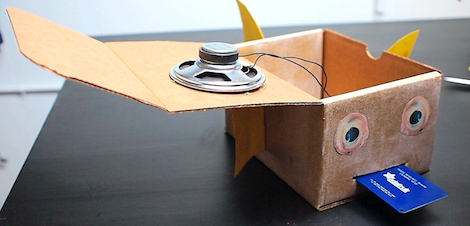
[Becky]‘s Babel fish is still able to feed off the energy given off by language, but in this case the energy comes from a set of RFID cards on which Chinese characters are written. After waving these RFID flash cards in front of the Babel fish, a wave shield connected to the Arduino plays a recording of how the logogram on the flash card should sound when pronounced.

While it’s not a biologically engineered fish that simultaneously proves and disproves the existence of god, every human endeavor – learning a language included - needs more [Douglas Adams] references. You can check out [Becky]‘s Babel fish demo video after the break.


Filed under: arduino hacks

Arduino updates - I hate the new Arduino

When I started using Arduino, V0018 was the latest and greatest. Since then there have been about 7 updates and every time they update, more and more of my code fails to compile.

Since V1.0 and now V1.01 it seems the capital letter "F" cannot be used for a function name. This caused the error:
error: expected unqualified-id before 'reinterpret_cast'

read more

Let's Make Robots 06 Aug 05:18
arduino  avr  code  compatibility  error  strange  update