Posts with «arduino» label

Skube, a tangible radio

Skube is a music player that allows you to discover and share music.

There are two modes, Playlist and Discovery. Playlist plays the tracks on your Skube, while Discovery looks for tracks similar to the ones on your Skube so you can discover new music that still fits your taste. When Skubes are connected together, they act as one player that shuffles between all the playlists. You can control the system as a whole using any Skube.

The interface is designed to be intuitive and tangible. Flipping the Skube changes the modes, tapping will play or skip songs and flipping a Skube on its front face will turn it off.

The Skube is a fully functional device, not just a concept. It use a combination of Arduino, Max/MSP and an XBee wireless network.

This project was made by Andrew Nip, Ruben van der Vleuten, Malthe Borch, and Andrew Spitz. It was part of the Tangible User Interface module at CIID ran by Vinay Venkatraman, David Cuartielles, Richard Shed, and Tomek Ness.

You can read the details and see the inner workings of the Skube here.

Via:[Create Digital Music]


Arduino Blog 20 Sep 10:21

Quasi real-time oscilloscope: REMIX

 Updated on 21 Sept. 2012, version 4.

 Updated on 15 Oct. 2012, version 5.

Recently I was reviewing one of my oldest project, and decided to “refresh” previous design by taking full advantage of the new arduino Leonardo board.  Based on AtMega32U4, which include PGA (programmable gain amplifier), oscilloscope’s  analog front end doesn’t require external OPA this time, end could be build in 1-2 hours on prototype board, using 5 resistors, 5 capacitors and one IC. Short specification:

  • Four channels.
  • Switchable gain settings 1x, 10x, 40x, 200x.

Hardware.

 As you can see on drawings above, inputs are AC coupled with caps, and biased with 1.25V generated by LM317. Connector for other two inputs not installed yet.

Software.

Project keeps almost same  structure of commands (CLI – command line interface) as its ancestor, with only two new for channel and gain selection. Read comments, it explains how to use them. One more things, I removed “r” – re-print option from the list of available commands.

Have fun!.

Link to arduino Leonardo sketch:  Oscilloscope_Leonardo.

********************************************* Version 4*********************************************

 Well, even posted above sketch has low complexity, and its good for beginning, nevertheless it’s quite limited as measuring device. The most important feature for oscilloscope, except V/div,  is T/div, or timing, that has to be as much precise as possible.   This is why “standard” timing options based on TIMER1 were add to next version of software. There are 9 time settings Time/div (10 samples):

50ms, 20ms, 10ms, 5ms, 2ms, 1ms, 500us, 200us, 100usec

corresponding to

200Hz, 500Hz, 1kHz, 2kHz, 5kHz, 10kHz, 20kHz, 50kHz, 100kHz

sampling rate. You can choose any of of this in the same manner, entering a digit 1-9 and letter d (display). Zero would skip capture, and just do whatever next letter request. Basically, 0 should be used to print channels data from memory. Combination: 9d0i – capture at 100 kHz rate, print chart and info-table,
4c2g7d – select 4-th channel, set gain to 10, select 20 kHz sampling rate and display.

I also add multichannel sampling capability. Commands 2m, 3m or 4m would configure oscilloscope for 2, 3 or 4 channels simultaneously capturing input waveform.   As arduino has only 1 ADC, switching in multichannel mode would reduce sampling rate proportionally to number of channels, and this changes would be reflected in right top corner of the display. What more, arduino would automatically change vertical resolution per channel, to fit all 2 – 4 charts on one screen!

Known caveats:

  • Sampling rate 9, or 100 usec per division (10 usec per sample) could not be selected in multichannel mode, should be in use for single channel only (1m, 1c – 2c – 3c – 4c).
  • There is a “shift” in channel number, signal  presented at input 1 would show up on screen 2, and so on. This happens on time settings 7 (occasionally), 8 and 9 in 4x multichannel mode due delay in MUX registers switching. Shouldn’t be an issue for 2x channel mode, or when you have an “overview” of the signals shape in single channel mode (1m) before switching to 4x, so you would know what to expect at each input port.

Link to arduino Leonardo sketch:  Oscilloscope_LeonardoV4

********************************************* Version 5*********************************************

 New updated version. I was thinking how to improve simplest ever oscilloscope, and have made some structural changes in the code, mostly related to sampling in multichannel mode.

First of all, instead of “delay” 2 microseconds, that was used to give a multiplexer (and PGA amplifier) time to “settle” on new channel, I decided not to waste a time (that may be priceless in real-time application), rather start new conversion, than track samples based on the “history” of MUX settings, and store new sample in corresponding two dimensional array box. Now MUX and PGA would have more time,  and consequently I could reduce ADC pre-selector’s clock to get better readings. It solved all the problems with wrong association port number and picture on the screen.

Secondly,  as you, probably, already notice I’ve been working on another project recently, where phase is a PRIME factor of the whole idea of the design. Phase noise is a jitter, and it degrades  spatial resolution and the sensitivity of the sound localization.  Jitter always would be presented in the incoming signal – sampled waveform due “not synchronous” way of sampling, as “start new conversion” events were generated in “manual” mode. As microprocessor spend different amount of time to get inside of the ISR (interrupt subroutine) depends on where it was interrupted, time frame of the events, basically, was not defined. In order to get rid off the phase noise, I changed ADC settings to be triggered via TIMER 1. There is a code:

ADCSRA = ((1<< ADEN)| // 1 = ADC Enable
(0<< ADSC)| // 1 = ADC Start Conversion
(1 <<ADATE) | / / 1 = ADC Auto Trigger Enable
*****
ADCSRB = ((1<<ADHSM)| // High Speed mode select
(0<< MUX5)| // 0 (10100) ADC1<->ADC4 Gain = 1x.
(0<<ADTS3)|
(1 <<ADTS2) | / / Sets Auto Trigger source Timer/Counter1 Compare Match B
(0 <<ADTS1) |
(1 <<ADTS0) );

For some unknown for me reason, Atmel designed TIMER 1 channel B to be an auto trigger source of the ADC, the same time to run TIMER 1 itself in CTC mode, channel A must be set. I simply “bind” two channels A and B in “parallel”, so both of them rise interrupt flag at the same moment, only A re-starts a TIMER 1, and B generates “start new conversion” event and calling ISR for “maintenance” – take a new sample waiting in the line and switch a MUX to another channel of the oscilloscope.

uint8_t take_it( int fast )
{
   ADCSRA &= 0xF8;
   if ( multChan -1 )
   {
    switch( fast ) { 
       case 7: // 20 kHz / 
         ADCSRA |= 0×03; 
         break; 
       case 8: // 50 kHz / 
         ADCSRA |= 0×02; 
         break; 
       case 9: // 100 kHz / 
         Serial.print(F(“\n\t *** NOT SUPPORTED ***”));
         return 0;
        default:
        ADCSRA |= 0×04;
       }
     }
    else
    { 
     switch( fast ) { 
        case 6: // 10 kHz / 
          ADCSRA |= 0×06; 
          break; 
        case 7: // 20 kHz / 
          ADCSRA |= 0×05; 
          break; 
        case 8: // 50 kHz / 
          ADCSRA |= 0×04; 
          break; 
        case 9: // 100 kHz / 
          ADCSRA |= 0×03; 
          break; 
        default:
          ADCSRA |= 0×07;
        }
      }
OCR1A   = smplTime[fast -1];
OCR1B   = smplTime[fast -1];
TCNT1   = 0;
TIFR1    |= (1<<OCF1B); 
TIMSK1 |= (1<<OCIE1B);
   flagSamp = 0; 
   while ( !flagSamp );
   for ( uint8_t indx, y = 0; y < multChan; y++){
      if ( multChan -1) indx = y;
      else indx = chanNumb;
   for ( int i = 0; i < INBUF; i++){
      if ( x[indx][i] & 0×0200) x[indx][i] += 0xFE00; // Convert to negative 16-bit word (2′s comp)
      else x[indx][i] += 0×200;
      }
     }
  return 1;
}
ISR(TIMER1_COMPB_vect)
{
   static uint8_t n_sampl = 0;
   static uint8_t history = 0;
   x[history][n_sampl] = ADC;
    history = chanNumb; 
   if ( multChan -1 )
   { 
    chanNumb++;
    if ( chanNumb >= multChan )
      {
       chanNumb = 0;
       n_sampl++;
      }   
     ADMUX &= 0xFC;
     ADMUX |= chanNumb; 
    }
   else
   {
     n_sampl++;
    }
   if ( n_sampl >= INBUF )
    {
      flagSamp = 1;
      n_sampl = 0;
TIMSK1 &= ~(1<<OCIE1B);
   }
}

Oscilloscope_Leonardo_V5.

The only issue that not solved yet, is a sampling in multichannel mode in “9″ T/div. Probably, Atmel just was not design to do such things…


Qube robots use well-designed laser-cut acrylic

These robot cubes, called BOXZ, use an interesting interlocking part design to mount and protect the parts within. But to really make them pop you need to color and apply your own papercraft skins.

The actual hardware is quite simple. They’ve used an Arduino, along with motor driver and Bluetooth shields, to control a set of geared DC motors. There’s a battery pack which holds four AA cells and a pair of servo motors which seem to be there to act as arms. This base can then be adorned with sensors to add functionality (line following, wall following, obstacle avoidance, etc.).

Despite the simple appearance of the cube, the chassis is the most complicated part. It uses sixteen pieces of acrylic, but they may also be hand cut from cardboard by printing out templates and gluing them onto the material. The parts are designed with interlocking tabs which we often see used on laser-cut wooden box parts.

We’ve embedded the video presentation of BOXZ after the break.


Filed under: robots hacks

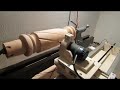
Building an Arduino Controlled Lathe

After picking up a vintage Delta Homecraft wood lathe from a garage sale, Chris decided to convert to CNC using an Arduino:

I found an old lathe at a garage sale and decided to turn it into a router lathe for cutting spirals, flutes and threads. Initially, I considered using a strictly mechanical mechanism to synchronize spindle rotation and cross-feed travel, but after playing with an Arduino and some stepper motors, I realized that could be a better solution, possibly even converted to a full CNC system sometime in the future. Now that I know it’s going to work, (I made the first cut today) I’m sharing some notes on the build.


I love the detail Chris put into documenting this conversion. He even explains how he prototyped the design using an Arduino, a MotorShield, and some old stepper motors to make sure everything would work on his full-sized version. Check out the entire build on Chris’s Blog. [Thanks Rob!]


Filed under: Arduino, CNC, Furniture

"First Robot" Problems!

Hi everyone, 

I made my first robot according to the instructions from HERE : http://communityofrobots.com/tutorial/kawal/how-make-your-first-robot-using-arduino

After constructing the body and circuit of the robot, I put in the servo program, and that works fine so thats good

read more

Baobot

Primary image

What does it do?

Line follow, Navigate with front and rear bump sensors, Remote control via USB connection

Baobot is my team's entry into the AFRON Design Competition. It is a 2-wheeled design intended for classroom use as a way to teach middle and high school students about electronics, programming, and robotics.

Cost to build

$34,00

Embedded video

Finished project

Complete

Number

Time to build

40 hours

Type

wheels

URL to more information

Weight

read more

In the Maker Shed: MintDuino Game Pack

The MintDuino Game Pack provides a fun and informative way to learn about the world of Arduino compatible microcontrollers. This exclusive Maker Shed kit combines the Mintronics: MintDuino, Mintronics: Survival Pack, and the MintDuino book to give you all the necessary parts and instructions to create your very own 2-player reaction game. Even if you’ve never dabbled in electronics have no idea how to program, the MintDuino Game Pack will give you a firm foundation with Arduino and the confidence and ability to create your very own projects!

Using book as your guide and the included components you will:

  • Build the Mintduino and see first hand the relationship between the wires, capacitors, resistors and integrated circuits that come together to create an Arduino compatible microcontroller.
  • Learn how how to create basic circuits and program your microcontroller to blink an LED.
  • Discover how to use of the random() function to blink the LED unpredictably.
  • Interact with your MintDuino by using buttons as inputs.
  • Combine your skills to build a two player reaction based game you can play with your friends!

Features


Filed under: Arduino, Maker Shed

Gyro Angle Calc - using Arduino Uno & IMU Breakout Board GY-521, MPU6050

I'm building a balancing robot using Arduino Uno & a MPU6050 IMU.

I've never programed anything before so naturally I'm struggling a bit.

I've got some code that calculates an angle from the accelerometer reading & I need to do the same for the gyro reading to feed into a complimentary filter. However it's not working & I haven't figured out why. (I've used the lirbray built by Jeff Rowberg and some of his code too).

Please have a look at the code attached & see if you can help me out a little.


read more

MPU6050 IMU - Gyro angle calc for balancing robot

Primary image

What does it do?

Balancing RObot

I'm building a balancing robot using Arduino Uno & a MPU6050 IMU.

I've never programed anything before so naturally I'm struggling a bit.

I've got some code that calculates an angle from the accelerometer reading & I need to do the same for the gyro reading to feed into a complimentary filter. However it's not working & I haven't figured out why. (I've used the lirbray built by Jeff Rowberg and some of his code too).

Please have a look at the code attached & see if you can help me out a little. 


Cost to build

Embedded video

Finished project

Number

Time to build

Type

URL to more information

Weight

read more

DSS Circuits - bringing SMD to DIY

This is a cool site with some interesting PCB's including an I2C GPS Arduino sheild. The owner of the site, Wayne Truchsess has also written a great I2C library that I am using now.

Check out his open source tracking device that featured on Kickstarter here: http://www.kickstarter.com/projects/dsscircuits/open-source-tracking-device

read more

Let's Make Robots 18 Sep 06:52
arduino  gps  i2c  library  pcb  robot  shield  shops  smd