Posts with «arduino» label

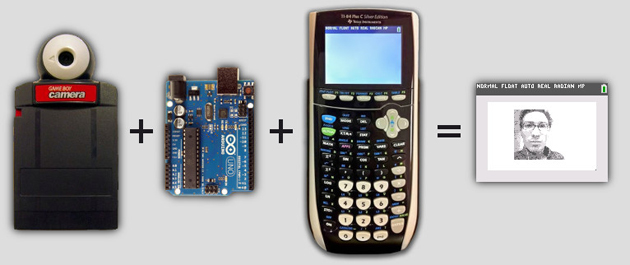
ArTICam Interfaces Game Boy Camera with TI Calculators

[Christopher Mitchell] has given Texas Instruments calculators the ability to capture images through a Game Boy Camera with ArTICam. First introduced in 1998, The Game Boy Camera was one of the first low-cost digital cameras available to consumers. Since then it has found its way into quite a few projects, including this early Atmel AT90 based hack, and this Morse code transceiver.

TI calculators don’t include a Game Boy cartridge slot, so [Christopher] used an Arduino Uno to interface the two. He built upon the Arduino-TI Calculator Linking (ArTICL) Library  to create ArTICam. Getting the Arduino to talk with the Game Boy Camera’s M64282FP image sensor turned out to be easy, as there already are code examples available. The interface between the camera sensor and the Arduino is simple enough. 6 digital lines for an oddball serial interface, one analog sense line, power and ground. [Christopher] used a shield to solder everything up, but says you can easily get away with wiring directly the Arduino Uno’s I/O pins. The system is compatible with the TI-83 Plus and TI-84 Plus family of calculators. Grabbing an image is as simple as calling  GetCalc(Pic1) from your calculator program.

So, If you have an old calculator lying around, give it a try to enjoy some 128×123-pixel grayscale goodness!


Filed under: Arduino Hacks, classic hacks

Earthquakes reinterpreted by the human body become art

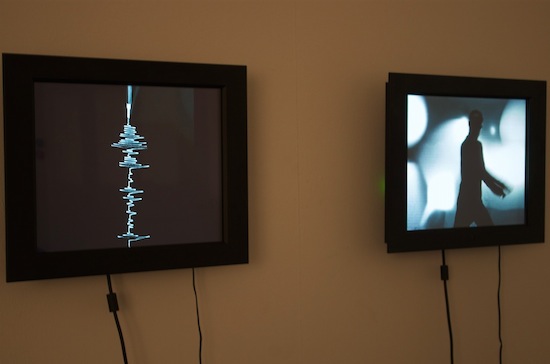
“Earth Partitions” installation by artist Melik Ohanian was exhibited at the Centre d’Art Contemporain à Sète in France and it’s composed by two synchronized videos with a dancer and a seismogram, the second being “written” by the first.

The dancer with two controllers in the hands was asked to “translate” into corporal expression and movements what he saw in a seismogram of an earthquake . His movements were consequently “translated back” to a seismogram using a device. Both the mime and the seismograph were filmed at the same time and both were then broadcasted simultaneously on two different screens during the exhibition.

The project was made thanks to the work of Out of Pluto, a multidisciplinary startup working on the research and development of new technologies to materialize various projects and ideas and decided to share with us some more info about this installation.

Arthur and Mathias, founders of the startup, submitted the project to this blog describing me how they used two Arduino boards:

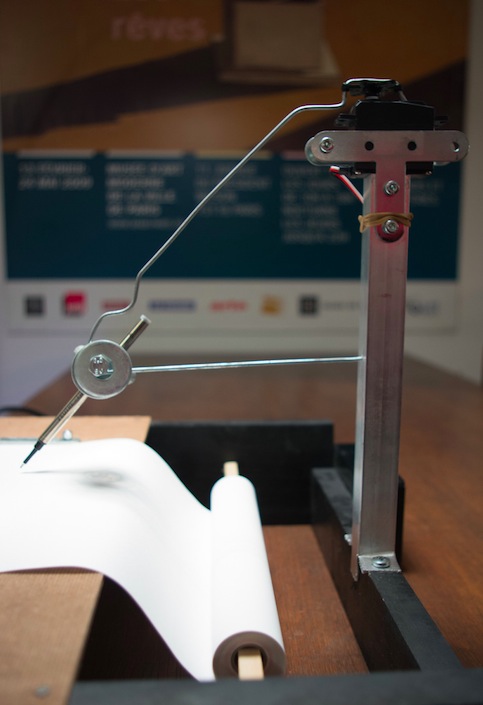
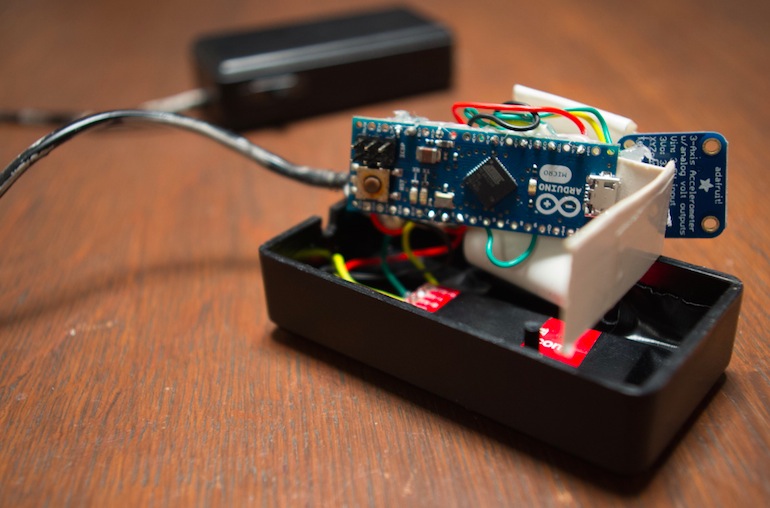
The Arduino Micro reads the accelerometer values, computes a global value and sends it via bluetooth to the computer. The computer reads this value, computes an angle according to a configurable ratio (sensitivity) and sends a new value to the Arduino Uno. The Arduino Uno sends the angle to the servo motor that rotates to this angle and then come back to 0 (if no other value is sent). Coming back to 0 simulates the end of the “earthquake”. The mechanical part of the arm is flexible so there is some inertia involved, creating the typical outline of seismograms. There is a simple motor to pull the paper at a constant speed.

Take a look at the video:

Micro Word Clock

A word clock – a clock that tells time with words, not dials or numbers – is one of those builds that’s on every Arduino neophyte’s ‘To Build’ list. It’s a bit more complex than blinking a LED, but an easily attainable goal that’s really only listening to a real time clock and turning a few LEDs on and off in the right pattern.

One of the biggest hurdles facing anyone building a word clock is the construction of the LED matrix; each LED or word needs to be in its own light-proof box. There is another option, and it’s something we’ve never seen before: you can just buy 8×8 LED matrices, so why not make a word clock out of that? That’s what [Daniel] did, and the finished project is just crying out to be made into a word watch.

[Daniel]’s word clock only uses eight discrete components: an ATMega328p, a DS1307 real time clock, some passives, and an 8×8 LED matrix. A transparency sheet with printed letters fits over the LED matrix forming the words, and the entire device isn’t much thicker than the LED matrix itself.

All the files to replicate this build can be found on [Daniel]’s webpage, with links to the Arduino code, the EAGLE board files, and link to buy the board on OSH Park.


Filed under: clock hacks
Hack a Day 29 Nov 09:00

Pimp your ikea lamp into a customized death star

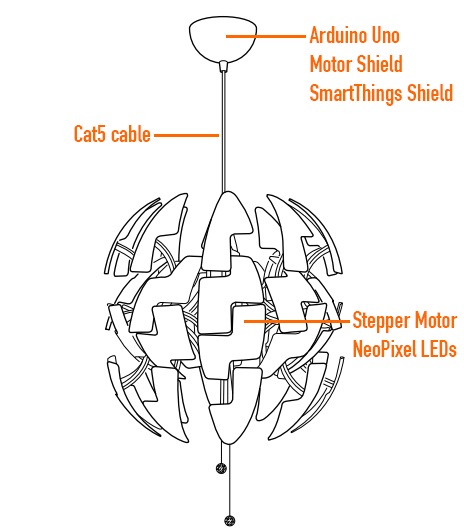
Ikea hacks are well widespread in the maker movement and David Bliss, founder at Nurun, did a great job transforming the Death Star inspired PS 2014 Pendant Lamp into something more dynamic.

The lamp was pimped up with an Arduino Uno and Arduino Motor Shield, NeoPixel LEDs and other components you can see in the illustration.

The detailed description of the project is on his blog , the code on github and the final result in the following video:

Arduino Blog 26 Nov 22:41
arduino  featured  ikea  led  motor  shield  

Ray tracing on an Arduino

[Greg] implemented a simple ray tracer for Arduino as a fun exercise and a way to benchmark the processor. He started out with the Moller-Trumbore algorithm, a common ray-tracing algorithm that calculates the intersection of a ray with a triangular plane without doing any pre-calculation of the planes. His code supports one static light and one static camera, which is enough to render a simple scene.

[Greg] started out with a small scene composed of a few polygons, but just finished up a scene with 505 vertices, 901 faces, and reflective surfaces (shown above). He made the above render on his PC emulator, but estimates that it would take just over 4 days to render on the Arduino. [Greg]’s project supports multiple bounces of light, which differentiates his ray tracer from some we’ve covered before (and which explains why it takes so long to render).

The ray tracer is implemented entirely with double-precision floats. This translates to a ton of software float emulation instructions, since the Arduino doesn’t have a floating-point unit. While this ray tracer can’t render anything near real-time graphics due to the slowness of the microcontroller, it’s still a great proof of concept.

The title image for this post was rendered on a modern PC, taking 263 seconds to complete. The same scene, at 64×64 resolution, was rendered on the Arduino, taking 4008 seconds to complete. That render is below.


Filed under: Arduino Hacks

Tutorial – L298N Dual Motor Controller Modules and Arduino

Learn how to use inexpensive L298N motor control modules to drive DC and stepper motors with Arduino. This is chapter fifty-nine of our huge Arduino tutorial series.

You don’t have to spend a lot of money to control motors with an Arduino or compatible board. After some hunting around we found a neat motor control module based on the L298N H-bridge IC that can allows you to control the speed and direction of two DC motors, or control one bipolar stepper motor with ease.

The L298N H-bridge module can be used with motors that have a voltage of between 5 and 35V DC. With the module used in this tutorial, there is also an onboard 5V regulator, so if your supply voltage is up to 12V you can also source 5V from the board.

So let’s get started!

First we’ll run through the connections, then explain how to control DC motors then a stepper motor. At this point, review the connections on the L298N H-bridge module.

Consider the following image – match the numbers against the list below the image:

  1. DC motor 1 “+” or stepper motor A+
  2. DC motor 1 “-” or stepper motor A-
  3. 12V jumper – remove this if using a supply voltage greater than 12V DC. This enables power to the onboard 5V regulator
  4. Connect your motor supply voltage here, maximum of 35V DC. Remove 12V jumper if >12V DC
  5. GND
  6. 5V output if 12V jumper in place, ideal for powering your Arduino (etc)
  7. DC motor 1 enable jumper. Leave this in place when using a stepper motor. Connect to PWM output for DC motor speed control.
  8. IN1
  9. IN2
  10. IN3
  11. IN4
  12. DC motor 2 enable jumper. Leave this in place when using a stepper motor. Connect to PWM output for DC motor speed control.
  13. DC motor 2 “+” or stepper motor B+
  14. DC motor 2 “-” or stepper motor B-

Controlling DC Motors

To control one or two DC motors is quite easy with the L298N H-bridge module. First connect each motor to the A and B connections on the L298N module. If you’re using two motors for a robot (etc) ensure that the polarity of the motors is the same on both inputs. Otherwise you may need to swap them over when you set both motors to forward and one goes backwards!

Next, connect your power supply – the positive to pin 4 on the module and negative/GND to pin 5. If you supply is up to 12V you can leave in the 12V jumper (point 3 in the image above) and 5V will be available from pin 6 on the module. This can be fed to your Arduino’s 5V pin to power it from the motors’ power supply. Don’t forget to connect Arduino GND to pin 5 on the module as well to complete the circuit.

Now you will need six digital output pins on your Arduino, two of which need to be PWM (pulse-width modulation) pins. PWM pins are denoted by the tilde (“~”) next to the pin number, for example:

Finally, connect the Arduino digital output pins to the driver module. In our example we have two DC motors, so digital pins D9, D8, D7 and D6 will be connected to pins IN1, IN2, IN3 and IN4 respectively. Then connect D10 to module pin 7 (remove the jumper first) and D5 to module pin 12 (again, remove the jumper).

The motor direction is controlled by sending a HIGH or LOW signal to the drive for each motor (or channel). For example for motor one, a HIGH to IN1 and a LOW to IN2 will cause it to turn in one direction, and  a LOW and HIGH will cause it to turn in the other direction.

However the motors will not turn until a HIGH is set to the enable pin (7 for motor one, 12 for motor two). And they can be turned off with a LOW to the same pin(s). However if you need to control the speed of the motors, the PWM signal from the digital pin connected to the enable pin can take care of it.

This is what we’ve done with the DC motor demonstration sketch. Two DC motors and an Arduino Uno are connected as described above, along with an external power supply. Then enter and upload the following sketch:

// connect motor controller pins to Arduino digital pins
// motor one
int enA = 10;
int in1 = 9;
int in2 = 8;
// motor two
int enB = 5;
int in3 = 7;
int in4 = 6;
void setup()
{
  // set all the motor control pins to outputs
  pinMode(enA, OUTPUT);
  pinMode(enB, OUTPUT);
  pinMode(in1, OUTPUT);
  pinMode(in2, OUTPUT);
  pinMode(in3, OUTPUT);
  pinMode(in4, OUTPUT);
}
void demoOne()
{
  // this function will run the motors in both directions at a fixed speed
  // turn on motor A
  digitalWrite(in1, HIGH);
  digitalWrite(in2, LOW);
  // set speed to 200 out of possible range 0~255
  analogWrite(enA, 200);
  // turn on motor B
  digitalWrite(in3, HIGH);
  digitalWrite(in4, LOW);
  // set speed to 200 out of possible range 0~255
  analogWrite(enB, 200);
  delay(2000);
  // now change motor directions
  digitalWrite(in1, LOW);
  digitalWrite(in2, HIGH);  
  digitalWrite(in3, LOW);
  digitalWrite(in4, HIGH); 
  delay(2000);
  // now turn off motors
  digitalWrite(in1, LOW);
  digitalWrite(in2, LOW);  
  digitalWrite(in3, LOW);
  digitalWrite(in4, LOW);
}
void demoTwo()
{
  // this function will run the motors across the range of possible speeds
  // note that maximum speed is determined by the motor itself and the operating voltage
  // the PWM values sent by analogWrite() are fractions of the maximum speed possible 
  // by your hardware
  // turn on motors
  digitalWrite(in1, LOW);
  digitalWrite(in2, HIGH);  
  digitalWrite(in3, LOW);
  digitalWrite(in4, HIGH); 
  // accelerate from zero to maximum speed
  for (int i = 0; i < 256; i++)
  {
    analogWrite(enA, i);
    analogWrite(enB, i);
    delay(20);
  } 
  // decelerate from maximum speed to zero
  for (int i = 255; i >= 0; --i)
  {
    analogWrite(enA, i);
    analogWrite(enB, i);
    delay(20);
  } 
  // now turn off motors
  digitalWrite(in1, LOW);
  digitalWrite(in2, LOW);  
  digitalWrite(in3, LOW);
  digitalWrite(in4, LOW);  
}
void loop()
{
  demoOne();
  delay(1000);
  demoTwo();
  delay(1000);
}

So what’s happening in that sketch? In the function demoOne() we turn the motors on and run them at a PWM value of 200. This is not a speed value, instead power is applied for 200/255 of an amount of time at once.

Then after a moment the motors operate in the reverse direction (see how we changed the HIGHs and LOWs in thedigitalWrite() functions?).

To get an idea of the range of speed possible of your hardware, we run through the entire PWM range in the function demoTwo() which turns the motors on and them runs through PWM values zero to 255 and back to zero with the two for loops.

Finally this is demonstrated in the following video – using our well-worn tank chassis with two DC motors:

Controlling a Stepper Motor

Stepper motors may appear to be complex, but nothing could be further than the truth. In this example we control a typical NEMA-17 stepper motor that has four wires:

It has 200 steps per revolution, and can operate at at 60 RPM. If you don’t already have the step and speed value for your motor, find out now and you will need it for the sketch.

The key to successful stepper motor control is identifying the wires – that is which one is which. You will need to determine the A+, A-, B+ and B- wires. With our example motor these are red, green, yellow and blue. Now let’s get the wiring done.

Connect the A+, A-, B+ and B- wires from the stepper motor to the module connections 1, 2, 13 and 14 respectively. Place the jumpers included with the L298N module over the pairs at module points 7 and 12. Then connect the power supply as required to points 4 (positive) and 5 (negative/GND).

Once again if your stepper motor’s power supply is less than 12V, fit the jumper to the module at point 3 which gives you a neat 5V power supply for your Arduino.

Next, connect L298N module pins IN1, IN2, IN3 and IN4 to Arduino digital pins D8, D9, D10 and D11 respectively. Finally, connect Arduino GND to point 5 on the module, and Arduino 5V to point 6 if sourcing 5V from the module.

Controlling the stepper motor from your sketches is very simple, thanks to the Stepper Arduino library included with the Arduino IDE as standard.

To demonstrate your motor, simply load the stepper_oneRevolution sketch that is included with the Stepper library, for example:

Finally, check the value for

	const int stepsPerRevolution = 200;

in the sketch and change the 200 to the number of steps per revolution for your stepper motor, and also the speed which is preset to 60 RPM in the following line:

	myStepper.setSpeed(60);

Now you can save and upload the sketch, which will send your stepper motor around one revolution, then back again. This is achieved with the function

	myStepper.step(stepsPerRevolution); // for clockwise
	myStepper.step(-stepsPerRevolution); // for anti-clockwise

Finally, a quick demonstration of our test hardware is shown in the following video:

So there you have it, an easy an inexpensive way to control motors with your Arduino or compatible board. And if you enjoyed this article, or want to introduce someone else to the interesting world of Arduino – check out my book (now in a fourth printing!) “Arduino Workshop”.

Have fun and keep checking into tronixstuff.com. Why not follow things on twitterGoogle+, subscribe  for email updates or RSS using the links on the right-hand column, or join our forum – dedicated to the projects and related items on this website.

Tronixstuff 25 Nov 11:54

Tutorial – L298N Dual Motor Controller Modules and Arduino

Learn how to use inexpensive L298N motor control modules to drive DC and stepper motors with Arduino. This is chapter fifty-nine of our huge Arduino tutorial series.

You don’t have to spend a lot of money to control motors with an Arduino or compatible board. After some hunting around we found a neat motor control module based on the L298N H-bridge IC that can allows you to control the speed and direction of two DC motors, or control one bipolar stepper motor with ease.

The L298N H-bridge module can be used with motors that have a voltage of between 5 and 35V DC. With the module used in this tutorial, there is also an onboard 5V regulator, so if your supply voltage is up to 12V you can also source 5V from the board.

So let’s get started!

First we’ll run through the connections, then explain how to control DC motors then a stepper motor. At this point, review the connections on the L298N H-bridge module.

Consider the following image – match the numbers against the list below the image:

  1. DC motor 1 “+” or stepper motor A+
  2. DC motor 1 “-” or stepper motor A-
  3. 12V jumper – remove this if using a supply voltage greater than 12V DC. This enables power to the onboard 5V regulator
  4. Connect your motor supply voltage here, maximum of 35V DC. Remove 12V jumper if >12V DC
  5. GND
  6. 5V output if 12V jumper in place, ideal for powering your Arduino (etc)
  7. DC motor 1 enable jumper. Leave this in place when using a stepper motor. Connect to PWM output for DC motor speed control.
  8. IN1
  9. IN2
  10. IN3
  11. IN4
  12. DC motor 2 enable jumper. Leave this in place when using a stepper motor. Connect to PWM output for DC motor speed control.
  13. DC motor 2 “+” or stepper motor B+
  14. DC motor 2 “-” or stepper motor B-

Controlling DC Motors

To control one or two DC motors is quite easy with the L298N H-bridge module. First connect each motor to the A and B connections on the L298N module. If you’re using two motors for a robot (etc) ensure that the polarity of the motors is the same on both inputs. Otherwise you may need to swap them over when you set both motors to forward and one goes backwards!

Next, connect your power supply – the positive to pin 4 on the module and negative/GND to pin 5. If you supply is up to 12V you can leave in the 12V jumper (point 3 in the image above) and 5V will be available from pin 6 on the module. This can be fed to your Arduino’s 5V pin to power it from the motors’ power supply. Don’t forget to connect Arduino GND to pin 5 on the module as well to complete the circuit.

Now you will need six digital output pins on your Arduino, two of which need to be PWM (pulse-width modulation) pins. PWM pins are denoted by the tilde (“~”) next to the pin number, for example:

Finally, connect the Arduino digital output pins to the driver module. In our example we have two DC motors, so digital pins D9, D8, D7 and D6 will be connected to pins IN1, IN2, IN3 and IN4 respectively. Then connect D10 to module pin 7 (remove the jumper first) and D5 to module pin 12 (again, remove the jumper).

The motor direction is controlled by sending a HIGH or LOW signal to the drive for each motor (or channel). For example for motor one, a HIGH to IN1 and a LOW to IN2 will cause it to turn in one direction, and  a LOW and HIGH will cause it to turn in the other direction.

However the motors will not turn until a HIGH is set to the enable pin (7 for motor one, 12 for motor two). And they can be turned off with a LOW to the same pin(s). However if you need to control the speed of the motors, the PWM signal from the digital pin connected to the enable pin can take care of it.

This is what we’ve done with the DC motor demonstration sketch. Two DC motors and an Arduino Uno are connected as described above, along with an external power supply. Then enter and upload the following sketch:

// connect motor controller pins to Arduino digital pins
// motor one
int enA = 10;
int in1 = 9;
int in2 = 8;
// motor two
int enB = 5;
int in3 = 7;
int in4 = 6;
void setup()
{
  // set all the motor control pins to outputs
  pinMode(enA, OUTPUT);
  pinMode(enB, OUTPUT);
  pinMode(in1, OUTPUT);
  pinMode(in2, OUTPUT);
  pinMode(in3, OUTPUT);
  pinMode(in4, OUTPUT);
}
void demoOne()
{
  // this function will run the motors in both directions at a fixed speed
  // turn on motor A
  digitalWrite(in1, HIGH);
  digitalWrite(in2, LOW);
  // set speed to 200 out of possible range 0~255
  analogWrite(enA, 200);
  // turn on motor B
  digitalWrite(in3, HIGH);
  digitalWrite(in4, LOW);
  // set speed to 200 out of possible range 0~255
  analogWrite(enB, 200);
  delay(2000);
  // now change motor directions
  digitalWrite(in1, LOW);
  digitalWrite(in2, HIGH);  
  digitalWrite(in3, LOW);
  digitalWrite(in4, HIGH); 
  delay(2000);
  // now turn off motors
  digitalWrite(in1, LOW);
  digitalWrite(in2, LOW);  
  digitalWrite(in3, LOW);
  digitalWrite(in4, LOW);
}
void demoTwo()
{
  // this function will run the motors across the range of possible speeds
  // note that maximum speed is determined by the motor itself and the operating voltage
  // the PWM values sent by analogWrite() are fractions of the maximum speed possible 
  // by your hardware
  // turn on motors
  digitalWrite(in1, LOW);
  digitalWrite(in2, HIGH);  
  digitalWrite(in3, LOW);
  digitalWrite(in4, HIGH); 
  // accelerate from zero to maximum speed
  for (int i = 0; i &lt; 256; i++)
  {
    analogWrite(enA, i);
    analogWrite(enB, i);
    delay(20);
  } 
  // decelerate from maximum speed to zero
  for (int i = 255; i &gt;= 0; --i)
  {
    analogWrite(enA, i);
    analogWrite(enB, i);
    delay(20);
  } 
  // now turn off motors
  digitalWrite(in1, LOW);
  digitalWrite(in2, LOW);  
  digitalWrite(in3, LOW);
  digitalWrite(in4, LOW);  
}
void loop()
{
  demoOne();
  delay(1000);
  demoTwo();
  delay(1000);
}

So what’s happening in that sketch? In the function demoOne() we turn the motors on and run them at a PWM value of 200. This is not a speed value, instead power is applied for 200/255 of an amount of time at once.

Then after a moment the motors operate in the reverse direction (see how we changed the HIGHs and LOWs in thedigitalWrite() functions?).

To get an idea of the range of speed possible of your hardware, we run through the entire PWM range in the function demoTwo() which turns the motors on and them runs through PWM values zero to 255 and back to zero with the two for loops.

Finally this is demonstrated in the following video – using our well-worn tank chassis with two DC motors:

Controlling a Stepper Motor

Stepper motors may appear to be complex, but nothing could be further than the truth. In this example we control a typical NEMA-17 stepper motor that has four wires:

It has 200 steps per revolution, and can operate at at 60 RPM. If you don’t already have the step and speed value for your motor, find out now and you will need it for the sketch.

The key to successful stepper motor control is identifying the wires – that is which one is which. You will need to determine the A+, A-, B+ and B- wires. With our example motor these are red, green, yellow and blue. Now let’s get the wiring done.

Connect the A+, A-, B+ and B- wires from the stepper motor to the module connections 1, 2, 13 and 14 respectively. Place the jumpers included with the L298N module over the pairs at module points 7 and 12. Then connect the power supply as required to points 4 (positive) and 5 (negative/GND).

Once again if your stepper motor’s power supply is less than 12V, fit the jumper to the module at point 3 which gives you a neat 5V power supply for your Arduino.

Next, connect L298N module pins IN1, IN2, IN3 and IN4 to Arduino digital pins D8, D9, D10 and D11 respectively. Finally, connect Arduino GND to point 5 on the module, and Arduino 5V to point 6 if sourcing 5V from the module.

Controlling the stepper motor from your sketches is very simple, thanks to the Stepper Arduino library included with the Arduino IDE as standard.

To demonstrate your motor, simply load the stepper_oneRevolution sketch that is included with the Stepper library, for example:

Finally, check the value for

const int stepsPerRevolution = 200;

in the sketch and change the 200 to the number of steps per revolution for your stepper motor, and also the speed which is preset to 60 RPM in the following line:

myStepper.setSpeed(60);

Now you can save and upload the sketch, which will send your stepper motor around one revolution, then back again. This is achieved with the function

myStepper.step(stepsPerRevolution); // for clockwise
	myStepper.step(-stepsPerRevolution); // for anti-clockwise

Finally, a quick demonstration of our test hardware is shown in the following video:

So there you have it, an easy an inexpensive way to control motors with your Arduino or compatible board. And if you enjoyed this article, or want to introduce someone else to the interesting world of Arduino – check out my book (now in a fourth printing!) “Arduino Workshop”.

Have fun and keep checking into tronixstuff.com. Why not follow things on twitterGoogle+, subscribe  for email updates or RSS using the links on the right-hand column, or join our forum – dedicated to the projects and related items on this website.

The post Tutorial – L298N Dual Motor Controller Modules and Arduino appeared first on tronixstuff.
Tronixstuff 25 Nov 11:54

Enhanced Coffee Brewer Knows How Much of a Caffeine Addict You Are

Who should chip in the most to restock the community coffee supply at work is a common point of contention at some offices. This RFID infused coffee brewer called Juraduino by [Oliver Krohn] solves the issue at his workplace once and for all by logging how much is being consumed by each person and how often; quite the diplomatic hack.

[Oliver] donated his old Jura Coffee maker to his office with some added hardware cleverly hidden underneath the faceplate of the machine. An Arduino mounted within runs the show, powered through mini USB from the logic unit of the coffee maker itself. Once a co-worker swipes their RFID card over the front of the machine, a real-time clock module stamps when the coffee was requested, and then logs the amount selected by that person on a mini SD card. The data stored is sent via an additional bluetooth module to a custom app [Oliver] created with MIT App Inventor for his phone which displays the information. These details can then be exported in the form of an email addressed to everyone in the office at the end of the week, announcing definitively who can be counted on to restock the bulk of the community supplies.

Though there isn’t a link available with further documentation, [Oliver] mentions in the ‘details’ portion of his video that he’d be happy to share that information with anyone who contacts him regarding the project. You can see the Jura at work below:


Filed under: Arduino Hacks

Save the date for Arduino Day 2015: Saturday 28th of March

Last year, during the first celebration of Arduino Day more than 240 user groups, makerspaces, hackerspaces, fablabs, schools, studios and educators throughout Europe, North and South America, Asia, Africa and Australia planned activities, workshops, events for a wide range of audiences and skillsets. They celebrated together the open source community gathered around Arduino globally.

We are now organizing the second edition of this worldwide anniversary celebrating Arduino community and the makers’ movement. Everyone can participate in the role of organizer or as a participant.
Stay tuned because at the beginning of February we’ll be launching the open call for entries. In the meanwhile check the countdown here http://arduinoday.tv – Hashtag: #ArduinoD15


One in a million

Just quietly - I am really happy that this blog has reached over 1 million page views !
I don't know what to say, but I feel like I should say something.

Thank you for visiting my blog.

Here are the blog posts that have received most attention to date:
1. Ultrasonic sensor
2. Simple Arduino Serial Communication
3. Bluetooth tutorial 1
4. Bluetooth Android Processing
5. Sound Sensor
6. 433 MHz RF Module with Arduino : this one is rising FAST !
7. Reading from a text file and sending to Arduino
8. Flex sensor and LEDs
9. PhotoCell - sensing light
10. Simple Arduino Serial Communication (Part 2)


For a list of all my projects - please visit my projects page:
ArduinoBasics Project Page

If that is not enough, then perhaps you should visit the Arduino Tutorials Community on Google+.
You are bound to find a project that sparks your interest, or perhaps you could even share your own !

Feel free to leave your thoughts, suggestions or messages in the comments.
Or if you wish to send a confidential message to me - then I would advise to use the form on my Feedback page.

Thanks again for visiting, and good luck with your project and/or Arduino journey !!
ScottC 24 Nov 17:19