Posts with «arduino» label

Using an Arduino to Light a Grounded F-16

Arduino boards and military hardware don’t generally go together. For a piece of hardware that is no longer in use and will be on display, however, it makes a great method for lighting control. In this case, the lights go to an F-16, beautifully restored for the National Museum of […]

Read more on MAKE

MAKE » Arduino 08 Dec 12:47
arduino  f-16  light  

Hackaday Links: December 7, 2014

Have some .40 cal shell casings sitting around with nothing to do? How about some bullet earbuds? If you’ve ever wondered about the DIY community over at imgur, the top comment, by a large margin, is, “All of these tools would cost so much more than just buying the headphones”

Here’s something [Lewin] sent in. It’s a USB cable, with a type A connector on one end, and a type A connector on the other end. There is no circuitry anywhere in this cable. This is prohibited by the USB Implementors Forum, so if you have any idea what this thing is for, drop a note in the comments.

Attention interesting people in Boston. There’s a lecture series this Tuesday on Artificial Consciousness and Revolutionizing Medical Device Design. This is part two in a series that Hackaday writer [Gregory L. Charvat] has been working with. Talks include mixed signal ASIC design, and artificial consciousness as a state of matter. Free event, open bar, and you get to meet (other) interesting people.

Ghostbusters. It’s the 30th anniversary, and to celebrate the event [Luca] is making a custom collectors edition with the BluRay and something very special: the Lego ECTO-1.

Let’s say you need to store the number of days in each month in a program somewhere. You could look it up in the Time Zone Database, but that’s far too easy. How about a lookup table, or just a freakin’ array with 12 entries? What is this, amateur hour? No, the proper way of remembering the number of days in each month is some bizarre piece-wise function. It is: f(x) = 28 + (x + ⌊x8⌋) mod 2 + 2 mod x + 2 ⌊1x⌋. At least the comments are interesting.

Arduinos were sold in the 70s! Shocking, yes, but don’t worry, time travel was involved. Here’s a still from Predestination, in theatres Jan 9, rated R, hail corporate.


Filed under: Hackaday links

The Robotic Workbench You Wish You Had

If you’ve been looking to add or upgrade your workbench, this fully automated model by “Dirk the Engineer” could give you some inspiration. Made out of Baltic birch, maple, and walnut, it appears quite well-made on first inspection. Look a little further, and you’ll find a general-purpose vise built in, […]

Read more on MAKE

MAKE » Arduino 04 Dec 22:01

New Project: Cyberpunk Spikes

3D-print these soft, flexible spikes and light them up with full-color programmable LEDs

Read more on MAKE

Pico-Kubik Quadruped Fits in the Palm of your Hand

Most of the legged robots we see here are of the hexapod variety, and with good reason. Hexapods are very stable and can easily move even if one or more of the legs has been disabled. [Radomir] has taken this a step farther and has become somewhat of an expert on the more technically difficult quadruped robot, building smaller and smaller ones each time. He has been hard at work on his latest four-legged creation called the Pico-Kubik, and this one will fit in the palm of your hand.

The Pico-Kubik runs Micropython on a VoCore board, which allows for it to have a small software footprint to complement its small hardware footprint. It accomplishes the latter primarily through the use of HK-282A Ultra-Micro Servos, an Arduino Pro Mini, and a tiny lithium ion battery. It’s still a work in progress, but the robot can already crawl across the tabletop.

This isn’t [Radomir]’s first time at the tiny quadruped rodeo, either. He has already built the Nano-Kubik and the µKubik, all of which followed the first (aptly-named) Kubik quadruped. Based on the use of SI prefixes, we can only assume the next one will be the hella-Kubik!


Filed under: robots hacks

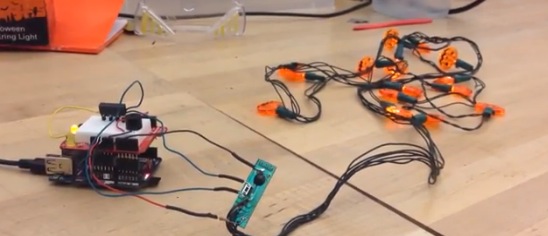
Control your Christmas lights with sms and Arduino Yún

December is finally here and we can start thinking about indoor or outdoor decorations for the holiday. Christmas lights are an excellent way to light up any event and a user on instructables wanted to be able to control the lights remotely with text messages.

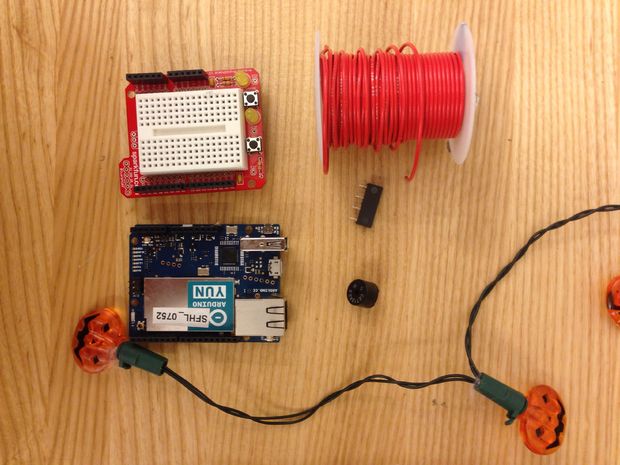
Check his 12-step tutorial  and take a look at the bill of materials:

  • An Arduino Yún – You could use another Arduino with a Wifi Shield though.
  • A Protoshield with (or without) a tiny breadboard
  • A regular breadboard will work as well, but will be less compact.
    If you want to solder more, you can just use a small circuit board instead.
  • A 5V relay
  • A piezo buzzer
  • Wires
  • A battery operated Christmas decoration (It’s not even Thanksgiving, so I’m using a Halloween decoration)
  • A Temboo account
  • A Twilio account


Arduino Blog 01 Dec 21:43

Tutorial – Using DS1307 and DS3231 Real-time Clock Modules with Arduino

We keep getting requests on how to use DS1307 and DS3231 real-time clock modules with Arduino from various sources – so this is the first of a two part tutorial on how to use them. For this Arduino tutorial we have  two real-time clock modules to use, one based on the Maxim DS1307:

and another based on the DS3231:

There are two main differences between the ICs on the real-time clock modules, which is the accuracy of the time-keeping. The DS1307 used in the first module works very well, however the external temperature can affect the frequency of the oscillator circuit which drives the DS1307’s internal counter.

This may sound like a problem, however will usually result with the clock being off by around five or so minutes per month. The DS3231 is much more accurate, as it has an internal oscillator which isn’t affected by external factors – and thus is accurate down to a few minutes per year at the most. If you have a DS1307 module- don’t feel bad, it’s still a great value board and will serve you well.

With both of the modules, a backup battery is installed when you receive them from Tronixlabs, however these are an inexpensive variety and shouldn’t be relied on for more than twelve months. If you’re going to install the module in a more permanent project, it’s a good idea to buy a new CR2032 battery and fit it to the module.

Along with keeping track of the time and date, these modules also have a small EEPROM, an alarm function (DS3231 only) and the ability to generate a square-wave of various frequencies – all of which will be the subject of a second tutorial.

Connecting your module to an Arduino

Both modules use the I2C bus, which makes connection very easy. If you’re not sure about the I2C bus and Arduino, check out the I2C tutorials (chapters 20 and 21), or review chapter seventeen of my book “Arduino Workshop“.

Moving on – first you will need to identify which pins on your Arduino or compatible boards are used for the I2C bus – these will be knows as SDA (or data) and SCL (or clock). On Arduino Uno or compatible boards, these pins are A4 and A5 for data and clock:

If you’re using an Arduino Mega the pins are D20 and D21 for data and clock:

If you’re using an Pro Mini-compatible the pins are A4 and A5 for data and clock, which are parallel to the main pins, as shown below:

DS1307 module

If you have the DS1307 module you will need to solder the wires to the board, or solder on some inline header pins so you can use jumper wires. Then connect the SCL and SDA pins to your Arduino, and the Vcc pin to the 5V pin and GND to GND.

DS3231 module

Connecting this module is easy as header pins are installed on the board at the factory. You can simply run jumper wires again from SCL and SDA to the Arduino and again from the module’s Vcc and GND pins to your board’s 5V or 3.3.V and GND. However these are duplicated on the other side for soldering your own wires.

Both of these modules have the required pull-up resistors, so you don’t need to add your own. Like all devices connected to the I2C bus, try and keep the length of the SDA and SCL wires to a minimum.

Reading and writing the time from your RTC Module

Once you have wired up your RTC module. enter and upload the following sketch. Although the notes and functions in the sketch refer only to the DS3231, the code also works with the DS1307.

#include "Wire.h"
#define DS3231_I2C_ADDRESS 0x68
// Convert normal decimal numbers to binary coded decimal
byte decToBcd(byte val)
{
  return( (val/10*16) + (val%10) );
}
// Convert binary coded decimal to normal decimal numbers
byte bcdToDec(byte val)
{
  return( (val/16*10) + (val%16) );
}
void setup()
{
  Wire.begin();
  Serial.begin(9600);
  // set the initial time here:
  // DS3231 seconds, minutes, hours, day, date, month, year
  // setDS3231time(30,42,21,4,26,11,14);
}
void setDS3231time(byte second, byte minute, byte hour, byte dayOfWeek, byte
dayOfMonth, byte month, byte year)
{
  // sets time and date data to DS3231
  Wire.beginTransmission(DS3231_I2C_ADDRESS);
  Wire.write(0); // set next input to start at the seconds register
  Wire.write(decToBcd(second)); // set seconds
  Wire.write(decToBcd(minute)); // set minutes
  Wire.write(decToBcd(hour)); // set hours
  Wire.write(decToBcd(dayOfWeek)); // set day of week (1=Sunday, 7=Saturday)
  Wire.write(decToBcd(dayOfMonth)); // set date (1 to 31)
  Wire.write(decToBcd(month)); // set month
  Wire.write(decToBcd(year)); // set year (0 to 99)
  Wire.endTransmission();
}
void readDS3231time(byte *second,
byte *minute,
byte *hour,
byte *dayOfWeek,
byte *dayOfMonth,
byte *month,
byte *year)
{
  Wire.beginTransmission(DS3231_I2C_ADDRESS);
  Wire.write(0); // set DS3231 register pointer to 00h
  Wire.endTransmission();
  Wire.requestFrom(DS3231_I2C_ADDRESS, 7);
  // request seven bytes of data from DS3231 starting from register 00h
  *second = bcdToDec(Wire.read() & 0x7f);
  *minute = bcdToDec(Wire.read());
  *hour = bcdToDec(Wire.read() & 0x3f);
  *dayOfWeek = bcdToDec(Wire.read());
  *dayOfMonth = bcdToDec(Wire.read());
  *month = bcdToDec(Wire.read());
  *year = bcdToDec(Wire.read());
}
void displayTime()
{
  byte second, minute, hour, dayOfWeek, dayOfMonth, month, year;
  // retrieve data from DS3231
  readDS3231time(&second, &minute, &hour, &dayOfWeek, &dayOfMonth, &month,
  &year);
  // send it to the serial monitor
  Serial.print(hour, DEC);
  // convert the byte variable to a decimal number when displayed
  Serial.print(":");
  if (minute<10)
  {
    Serial.print("0");
  }
  Serial.print(minute, DEC);
  Serial.print(":");
  if (second<10)
  {
    Serial.print("0");
  }
  Serial.print(second, DEC);
  Serial.print(" ");
  Serial.print(dayOfMonth, DEC);
  Serial.print("/");
  Serial.print(month, DEC);
  Serial.print("/");
  Serial.print(year, DEC);
  Serial.print(" Day of week: ");
  switch(dayOfWeek){
  case 1:
    Serial.println("Sunday");
    break;
  case 2:
    Serial.println("Monday");
    break;
  case 3:
    Serial.println("Tuesday");
    break;
  case 4:
    Serial.println("Wednesday");
    break;
  case 5:
    Serial.println("Thursday");
    break;
  case 6:
    Serial.println("Friday");
    break;
  case 7:
    Serial.println("Saturday");
    break;
  }
}
void loop()
{
  displayTime(); // display the real-time clock data on the Serial Monitor,
  delay(1000); // every second
}

There may be a lot of code, however it breaks down well into manageable parts.

It first includes the Wire library, which is used for I2C bus communication, followed by defining the bus address for the RTC as 0x68. These are followed by two functions that convert decimal numbers to BCD (binary-coded decimal) and vice versa. These are necessary as the RTC ICs work in BCD not decimal.

The function setDS3231time() is used to set the clock. Using it is very easy, simple insert the values from year down to second, and the RTC will start from that time. For example if you want to set the following date and time – Wednesday November 26, 2014 and 9:42 pm and 30 seconds – you would use:

setDS3231time(30,42,21,4,26,11,14);

Note that the time is set using 24-hour time, and the fourth paramter is the “day of week”. This falls between 1 and 7 which is Sunday to Saturday respectively. These parameters are byte values if you are subsituting your own variables.

Once you have run the function once it’s wise to prefix it with // and upload your code again, so it will not reset the time once the power has been cycled or micrcontroller reset.

Reading the time form your RTC Is just as simple, in fact the process can be followed neatly inside the function displayTime(). You will need to define seven byte variables to store the data from the RTC, and these are then inserted in the function readDS3231time().

For example if your variables are:

byte second, minute, hour, dayOfWeek, dayOfMonth, month, year;

… you would refresh them with the current data from the RTC by using:

readDS3232time(&second, &minute, &hour, &dayOfWeek, &dayOfMonth, &month, &year);

Then you can use the variables as you see fit, from sending the time and date to the serial monitor as the example sketch does – to converting the data into a suitable form for all sorts of output devices.

Just to check everything is working, enter the appropriate time and date into the demonstration sketch, upload it, comment out the setDS3231time() function and upload it again. Then open the serial monitor, and you should be provided with a running display of the current time and date, for example:

From this point you now have the software tools to set data to and retrieve it from your real-time clock module, and we hope you have an understanding of how to use these inexpensive modules.

You can learn more about the particular real-time clock ICs from the manufacturer’s website – DS1307 and DS3231.

And if you enjoyed this article, or want to introduce someone else to the interesting world of Arduino – check out my book (now in a fourth printing!) “Arduino Workshop”.

Have fun and keep checking into tronixstuff.com. Why not follow things on twitterGoogle+, subscribe  for email updates or RSS using the links on the right-hand column, or join our forum – dedicated to the projects and related items on this website.

Tronixstuff 01 Dec 01:43

Tutorial – Using DS1307 and DS3231 Real-time Clock Modules with Arduino

We keep getting requests on how to use DS1307 and DS3231 real-time clock modules with Arduino from various sources – so this is the first of a two part tutorial on how to use them. For this Arduino tutorial we have  two real-time clock modules to use, one based on the Maxim DS1307:

and another based on the DS3231:

There are two main differences between the ICs on the real-time clock modules, which is the accuracy of the time-keeping. The DS1307 used in the first module works very well, however the external temperature can affect the frequency of the oscillator circuit which drives the DS1307’s internal counter.

This may sound like a problem, however will usually result with the clock being off by around five or so minutes per month. The DS3231 is much more accurate, as it has an internal oscillator which isn’t affected by external factors – and thus is accurate down to a few minutes per year at the most. If you have a DS1307 module- don’t feel bad, it’s still a great value board and will serve you well.

With both of the modules, a backup battery is installed when you receive them from Tronixlabs, however these are an inexpensive variety and shouldn’t be relied on for more than twelve months. If you’re going to install the module in a more permanent project, its’ a good idea to buy a new CR2023 battery and fit it to the module.

Along with keeping track of the time and date, these modules also have a small EEPROM, an alarm function (DS3231 only) and the ability to generate a square-wave of various frequencies – all of which will be the subject of a second tutorial.

Connecting your module to an Arduino

Both modules use the I2C bus, which makes connection very easy. If you’re not sure about the I2C bus and Arduino, check out the I2C tutorials (chapters 20 and 21), or review chapter seventeen of my book “Arduino Workshop“.

Moving on – first you will need to identify which pins on your Arduino or compatible boards are used for the I2C bus – these will be knows as SDA (or data) and SCL (or clock). On Arduino Uno or compatible boards, these pins are A4 and A5 for data and clock:

If you’re using an Arduino Mega the pins are D20 and D21 for data and clock:

If you’re using an Pro Mini-compatible the pins are A4 and A5 for data and clock, which are parallel to the main pins, as shown below:

DS1307 module

If you have the DS1307 module you will need to solder the wires to the board, or solder on some inline header pins so you can use jumper wires. Then connect the SCL and SDA pins to your Arduino, and the Vcc pin to the 5V pin and GND to GND.

DS3231 module

Connecting this module is easy as header pins are installed on the board at the factory. You can simply run jumper wires again from SCL and SDA to the Arduino and again from the module’s Vcc and GND pins to your board’s 5V or 3.3.V and GND. However these are duplicated on the other side for soldering your own wires.

Both of these modules have the required pull-up resistors, so you don’t need to add your own. Like all devices connected to the I2C bus, try and keep the length of the SDA and SCL wires to a minimum.

Reading and writing the time from your RTC Module

Once you have wired up your RTC module. enter and upload the following sketch. Although the notes and functions in the sketch refer only to the DS3231, the code also works with the DS1307.

#include "Wire.h"
#define DS3231_I2C_ADDRESS 0x68
// Convert normal decimal numbers to binary coded decimal
byte decToBcd(byte val)
{
  return( (val/10*16) + (val%10) );
}
// Convert binary coded decimal to normal decimal numbers
byte bcdToDec(byte val)
{
  return( (val/16*10) + (val%16) );
}
void setup()
{
  Wire.begin();
  Serial.begin(9600);
  // set the initial time here:
  // DS3231 seconds, minutes, hours, day, date, month, year
  // setDS3231time(30,42,21,4,26,11,14);
}
void setDS3231time(byte second, byte minute, byte hour, byte dayOfWeek, byte
dayOfMonth, byte month, byte year)
{
  // sets time and date data to DS3231
  Wire.beginTransmission(DS3231_I2C_ADDRESS);
  Wire.write(0); // set next input to start at the seconds register
  Wire.write(decToBcd(second)); // set seconds
  Wire.write(decToBcd(minute)); // set minutes
  Wire.write(decToBcd(hour)); // set hours
  Wire.write(decToBcd(dayOfWeek)); // set day of week (1=Sunday, 7=Saturday)
  Wire.write(decToBcd(dayOfMonth)); // set date (1 to 31)
  Wire.write(decToBcd(month)); // set month
  Wire.write(decToBcd(year)); // set year (0 to 99)
  Wire.endTransmission();
}
void readDS3231time(byte *second,
byte *minute,
byte *hour,
byte *dayOfWeek,
byte *dayOfMonth,
byte *month,
byte *year)
{
  Wire.beginTransmission(DS3231_I2C_ADDRESS);
  Wire.write(0); // set DS3231 register pointer to 00h
  Wire.endTransmission();
  Wire.requestFrom(DS3231_I2C_ADDRESS, 7);
  // request seven bytes of data from DS3231 starting from register 00h
  *second = bcdToDec(Wire.read() & 0x7f);
  *minute = bcdToDec(Wire.read());
  *hour = bcdToDec(Wire.read() & 0x3f);
  *dayOfWeek = bcdToDec(Wire.read());
  *dayOfMonth = bcdToDec(Wire.read());
  *month = bcdToDec(Wire.read());
  *year = bcdToDec(Wire.read());
}
void displayTime()
{
  byte second, minute, hour, dayOfWeek, dayOfMonth, month, year;
  // retrieve data from DS3231
  readDS3231time(&second, &minute, &hour, &dayOfWeek, &dayOfMonth, &month,
  &year);
  // send it to the serial monitor
  Serial.print(hour, DEC);
  // convert the byte variable to a decimal number when displayed
  Serial.print(":");
  if (minute<10)
  {
    Serial.print("0");
  }
  Serial.print(minute, DEC);
  Serial.print(":");
  if (second<10)
  {
    Serial.print("0");
  }
  Serial.print(second, DEC);
  Serial.print(" ");
  Serial.print(dayOfMonth, DEC);
  Serial.print("/");
  Serial.print(month, DEC);
  Serial.print("/");
  Serial.print(year, DEC);
  Serial.print(" Day of week: ");
  switch(dayOfWeek){
  case 1:
    Serial.println("Sunday");
    break;
  case 2:
    Serial.println("Monday");
    break;
  case 3:
    Serial.println("Tuesday");
    break;
  case 4:
    Serial.println("Wednesday");
    break;
  case 5:
    Serial.println("Thursday");
    break;
  case 6:
    Serial.println("Friday");
    break;
  case 7:
    Serial.println("Saturday");
    break;
  }
}
void loop()
{
  displayTime(); // display the real-time clock data on the Serial Monitor,
  delay(1000); // every second
}

There may be a lot of code, however it breaks down well into manageable parts.

It first includes the Wire library, which is used for I2C bus communication, followed by defining the bus address for the RTC as 0x68. These are followed by two functions that convert decimal numbers to BCD (binary-coded decimal) and vice versa. These are necessary as the RTC ICs work in BCD not decimal.

The function setDS3231time() is used to set the clock. Using it is very easy, simple insert the values from year down to second, and the RTC will start from that time. For example if you want to set the following date and time – Wednesday November 26, 2014 and 9:42 pm and 30 seconds – you would use:

setDS3231time(30,42,21,4,26,11,14);

Note that the time is set using 24-hour time, and the fourth paramter is the “day of week”. This falls between 1 and 7 which is Sunday to Saturday respectively. These parameters are byte values if you are subsituting your own variables.

Once you have run the function once it’s wise to prefix it with // and upload your code again, so it will not reset the time once the power has been cycled or micrcontroller reset.

Reading the time form your RTC Is just as simple, in fact the process can be followed neatly inside the function displayTime(). You will need to define seven byte variables to store the data from the RTC, and these are then inserted in the function readDS3231time().

For example if your variables are:

byte second, minute, hour, dayOfWeek, dayOfMonth, month, year;

… you would refresh them with the current data from the RTC by using:

readDS3232time(&second, &minute, &hour, &dayOfWeek, &dayOfMonth, &month, &year);

Then you can use the variables as you see fit, from sending the time and date to the serial monitor as the example sketch does – to converting the data into a suitable form for all sorts of output devices.

Just to check everything is working, enter the appropriate time and date into the demonstration sketch, upload it, comment out the setDS3231time() function and upload it again. Then open the serial monitor, and you should be provided with a running display of the current time and date, for example:

From this point you now have the software tools to set data to and retrieve it from your real-time clock module, and we hope you have an understanding of how to use these inexpensive modules.

You can learn more about the particular real-time clock ICs from the manufacturer’s website – DS1307 and DS3231.

And if you enjoyed this article, or want to introduce someone else to the interesting world of Arduino – check out my book (now in a fourth printing!) “Arduino Workshop”.

Have fun and keep checking into tronixstuff.com. Why not follow things on twitterGoogle+, subscribe  for email updates or RSS using the links on the right-hand column, or join our forum – dedicated to the projects and related items on this website.

The post Tutorial – Using DS1307 and DS3231 Real-time Clock Modules with Arduino appeared first on tronixstuff.

Tronixstuff 01 Dec 01:43

Mod turns your graphing calculator into a selfie camera

Your graphing calculator may not be getting much use these days now that other mobile devices can do the job, but it still has a few tricks up its sleeve if you're willing to do some tinkering. Christopher Mitchell's latest project, ArTICam, lets you turn a TI-83 Plus or TI-84 Plus calculator into a selfie-oriented camera. The mod mostly requires a Game Boy Camera and a programmable Arduino board like the Uno. After a little bit of wiring and some (thankfully ready-made) code, you can snap self-portraits with a calculator command. The 128 x 123 grayscale pictures you take won't win photography awards, but that's not the point -- this is more about having fun with gadgets that might otherwise sit in the closet gathering dust. Hit the source link if you have the gear and want to give ArTICam a whirl.

[Thanks, Christopher]

Filed under: Cameras, Handhelds, Nintendo

Comments

Source: Cemetech

L3D Cube Takes the Work out of Building an LED Cube

Building an LED cube usually means a heck of a lot of delicate soldering work. Bending jigs, assembly jigs, and lots of patience are the name of the game. The problem multiplies if you want to build with RGB LEDs. [Shawn and Alex] are hoping to change all that with their L3D cube. Yes, L3D is a Kickstarter campaign, but it has enough good things about it that we’re comfortable featuring it here on Hackaday. What [Shawn and Alex] have done is substitute WS2812b surface mount LEDs for the 5mm  or 3mm through hole LEDs commonly used in cubes. The downside is that the cube is no longer visible on all sides. The upside is that it becomes a snap to assemble.

The L3D cube is open source hardware. The source files are available from separate software and hardware Github repositories. Not next week, not when they hit their funding goal, but now. We seriously like this, and hope all crowdfunding campaigns go this route.

The L3D cube uses an open source Spark Core as its processor and WiFi interface. Using WS2812b’s means less I/O pins, and no LED driver chips needed. This makes it perfect for a board like Spark or Arduino.  On the software side, the team has created a Processing Library which makes it easy to create animations with no coding necessary.

L3D has all the features one would expect from an LED cube – a microphone for ambient sound visualizations, and lots of built in animations. It seems [Shawn and Alex] have also created some sort of synchronization system while allows multiple cubes to work together when stacked. The team is hoping someone will come up with a 3D printed light diffuser to make these cubes truly a 360 degree experience.

The L3D cube campaign is doing well, [Shawn and Alex] are close to doubling their $38,000 goal. Click past the break to check out their Kickstarter video!


Filed under: led hacks
Hack a Day 30 Nov 00:00