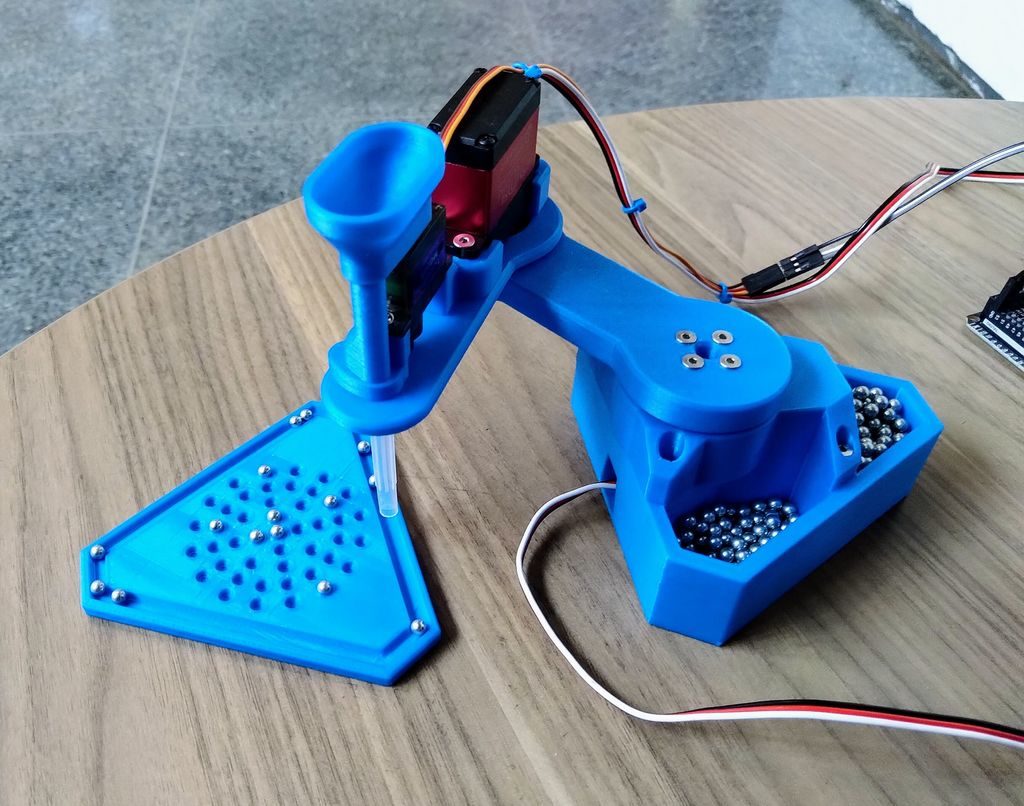
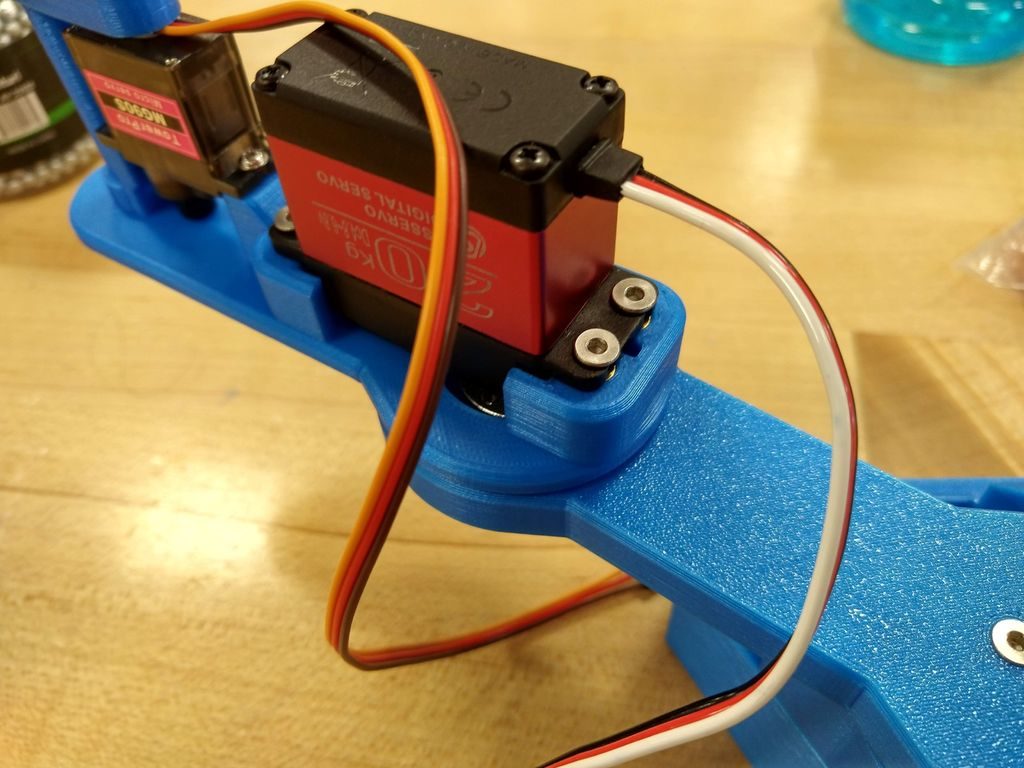
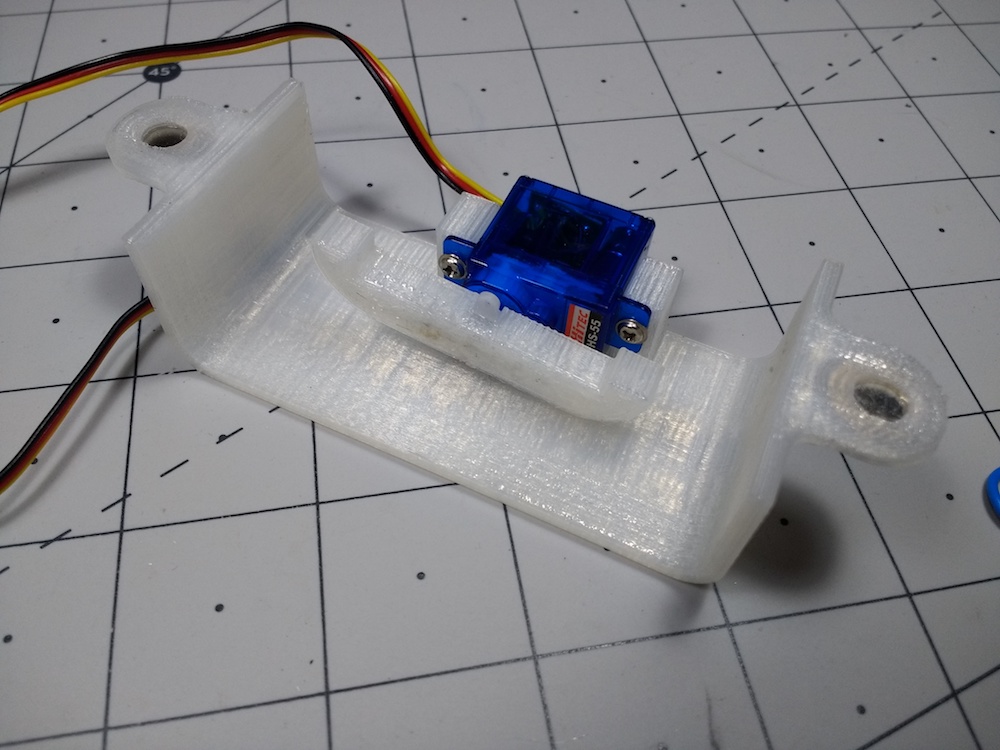
SCARA robots are often used in industrial settings to move components in the proper location. In order to demonstrate the concept to students, Nicholas Schwankl has come up with a simple unit that employs three servos and 3D-printed parts to dispense 4.5mm bearings.
The device runs on an Arduino Mega (though an Uno or other model would work) and as seen in the video below, it twists its ‘shoulder’ and ‘elbow’ joint to position its dispenser tube. Once in place, a micro servo releases a bearing, allowing the tiny steel ball to drop into an empty slot.
What can you do with ferromagnetic PLA? [TheMixedSignal] used it to give new meaning to the term ‘musicians’ gear’. He’s made a proof of concept for a DIY tone generator, which is the same revolutionary system that made the Hammond organ sing.
Whereas the Hammond has one tonewheel per note, this project uses an Arduino to drive a stepper at varying speeds to produce different notes. Like we said, it’s a proof of concept. [TheMixedSignal] is proving that tonewheels can be printed, pickups can be wound at home, and together they will produce audible frequencies. The principle is otherwise the same — the protruding teeth of the gear induce changes in the magnetic field of the pickup.
[TheMixedSignal] fully intends to expand on this project by adding more tone wheels, trying different gear profiles, and replacing the stepper with a brushless motor. We can’t wait to hear him play “Karn Evil 9”. In the meantime, put on those cans and check out the demo/build video after the break.
Arduino is on a mission to make machine learning easy enough for anyone to use. The other week we announced the availability of TensorFlow Lite Micro in the Arduino Library Manager. With this, some cool ready-made ML examples such as speech recognition, simple machine vision and even an end-to-end gesture recognition training tutorial. For a comprehensive background we recommend you take a look at that article.
In this article we are going to walk through an even simpler end-to-end tutorial using the TensorFlow Lite Micro library and the Arduino Nano 33 BLE Sense’s colorimeter and proximity sensor to classify objects. To do this, we will be running a small neural network on the board itself.
Arduino BLE 33 Nano Sense running TensorFlow Lite Micro
The philosophy of TinyML is doing more on the device with less resources – in smaller form-factors, less energy and lower cost silicon. Running inferencing on the same board as the sensors has benefits in terms of privacy and battery life and means its can be done independent of a network connection.
The fact that we have the proximity sensor on the board means we get an instant depth reading of an object in front of the board – instead of using a camera and having to determine if an object is of interest through machine vision.
In this tutorial when the object is close enough we sample the color – the onboard RGB sensor can be viewed as a 1 pixel color camera. While this method has limitations it provides us a quick way of classifying objects only using a small amount of resources. Note that you could indeed run a complete CNN-based vision model on-device. As this particular Arduino board includes an onboard colorimeter, we thought it’d be fun and instructive to demonstrate in this way to start with.
We’ll show a simple but complete end-to-end TinyML application can be achieved quickly and without a deep background in ML or embedded. What we cover here is data capture, training, and classifier deployment. This is intended to be a demo, but there is scope to improve and build on this should you decide to connect an external camera down the road. We want you to get an idea of what is possible and a starting point with tools available.
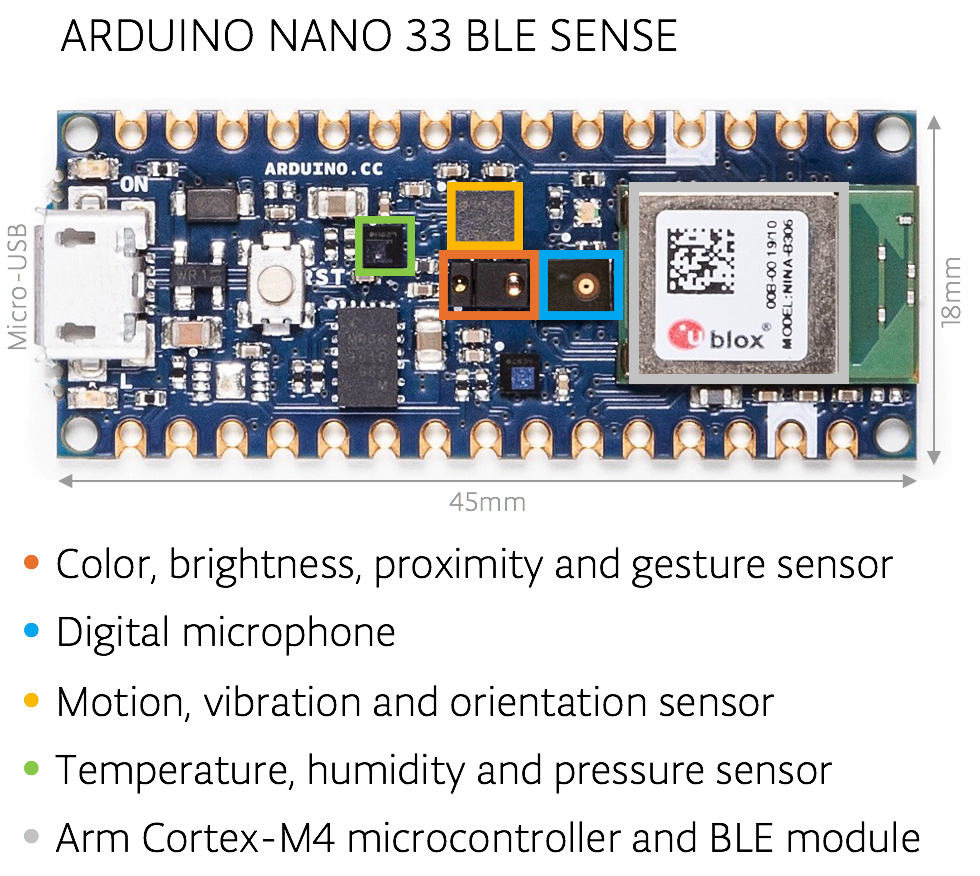
The Arduino Nano 33 BLE Sense board we’re using here has an Arm Cortex-M4 microcontroller running mbedOS and a ton of onboard sensors – digital microphone, accelerometer, gyroscope, temperature, humidity, pressure, light, color and proximity.
While tiny by cloud or mobile standards the microcontroller is powerful enough to run TensorFlow Lite Micro models and classify sensor data from the onboard sensors.
Setting up the Arduino Create Web Editor
In this tutorial we’ll be using the Arduino Create Web Editor – a cloud-based tool for programming Arduino boards. To use it you have to sign up for a free account, and install a plugin to allow the browser to communicate with your Arduino board over USB cable.
You can get set up quickly by following the getting started instructions which will guide you through the following:
Download and install the plugin
Sign in or sign up for a free account
(NOTE: If you prefer, you can also use the Arduino IDE desktop application. The setup for which is described in the previous tutorial.)
Capturing training data
We now we will capture data to use to train our model in TensorFlow. First, choose a few different colored objects. We’ll use fruit, but you can use whatever you prefer.
Setting up the Arduino for data capture
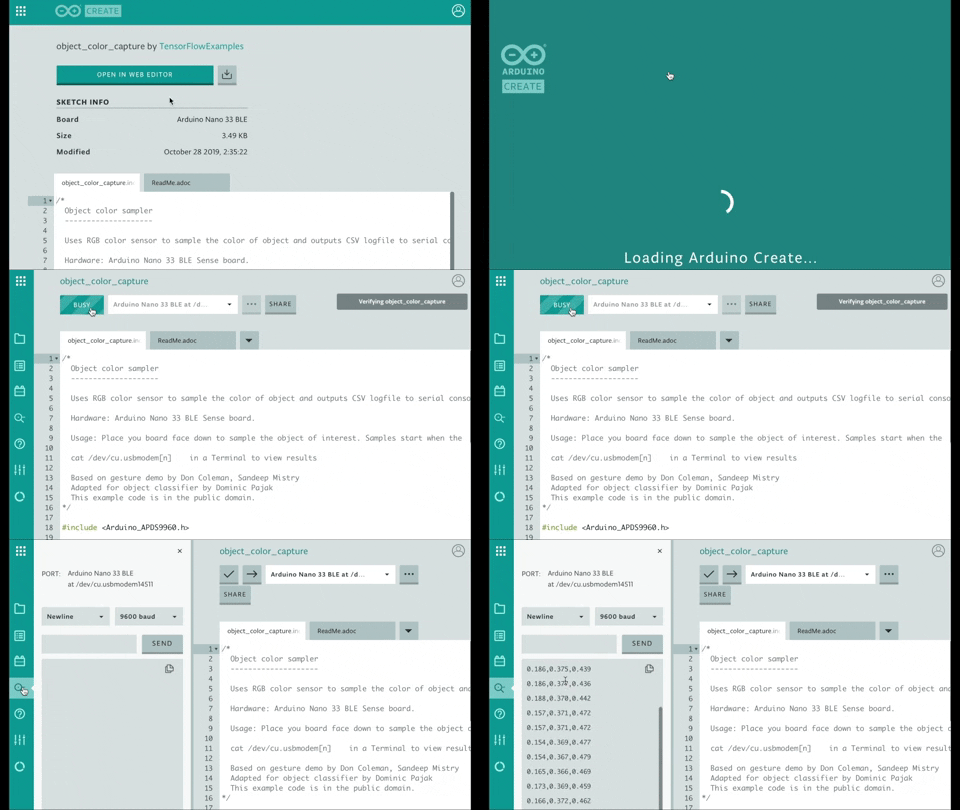
Next we’ll use Arduino Create to program the Arduino board with an application object_color_capture.ino that samples color data from objects you place near it. The board sends the color data as a CSV log to your desktop machine over the USB cable.
To load the object_color_capture.ino application onto your Arduino board:
Connect your board to your laptop or PC with a USB cable
The Arduino board takes a male micro USB
Open object_color_capture.ino in Arduino Create by clicking this link
Your browser will open the Arduino Create web application (see GIF above).
Press OPEN IN WEB EDITOR
For existing users this button will be labeled ADD TO MY SKETCHBOOK
Press Upload & Save
This will take a minute
You will see the yellow light on the board flash as it is programmed
Open the serial Monitor
This opens the Monitor panel on the left-hand side of the web application
You will now see color data in CSV format here when objects are near the top of the board
Capturing data in CSV files for each object
For each object we want to classify we will capture some color data. By doing a quick capture with only one example per class we will not train a generalized model, but we can still get a quick proof of concept working with the objects you have to hand!
Say, for example, we are sampling an apple:
Reset the board using the small white button on top.
Keep your finger away from the sensor, unless you want to sample it!
The Monitor in Arduino Create will say ‘Serial Port Unavailable’ for a minute
You should then see Red,Green,Blue appear at the top of the serial monitor
Put the front of the board to the apple.
The board will only sample when it detects an object is close to the sensor and is sufficiently illuminated (turn the lights on or be near a window)
Move the board around the surface of the object to capture color variations
You will see the RGB color values appear in the serial monitor as comma separated data.
Capture at a few seconds of samples from the object
Copy and paste this log data from the Monitor to a text editor
Tip: untick AUTOSCROLL check box at the bottom to stop the text moving
Save your file as apple.csv
Reset the board using the small white button on top.
Do this a few more times, capturing other objects (e.g. banana.csv, orange.csv).
NOTE: The first line of each of the .csv files should read:
Red,Green,Blue
If you don’t see it at the top, you can just copy and paste in the line above.
Training the model
We will now use colab to train an ML model using the data you just captured in the previous section.
First open the FruitToEmoji Jupyter Notebook in colab
Follow the instructions in the colab
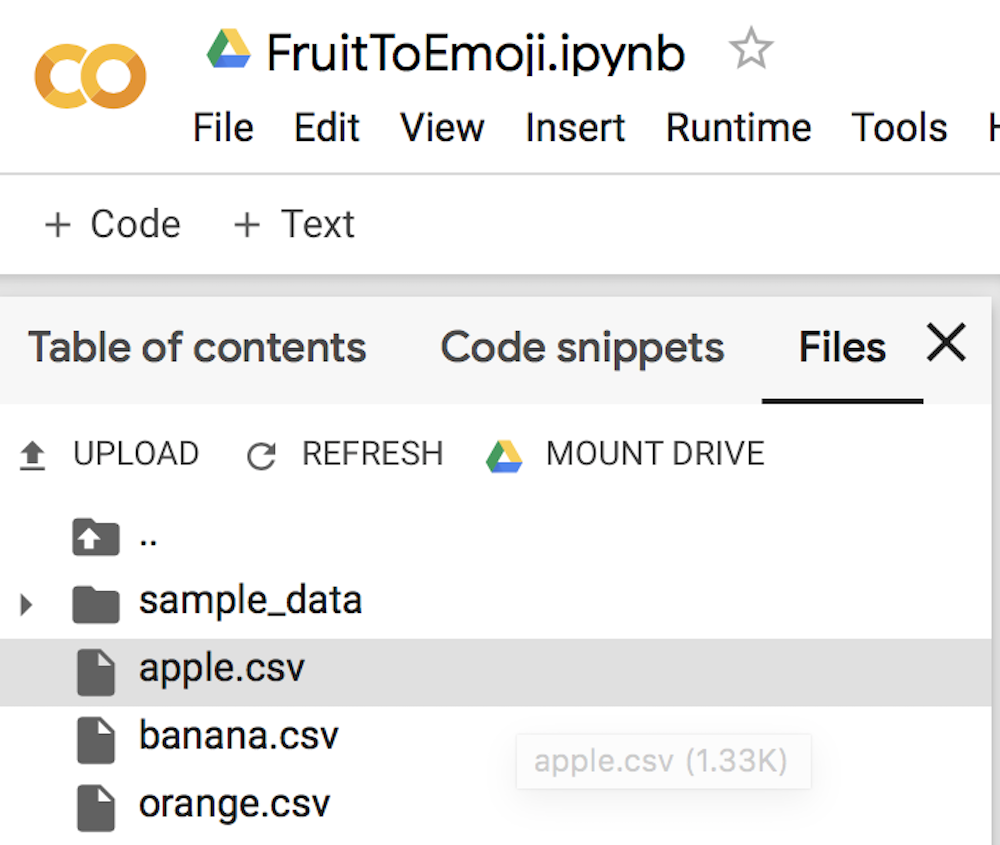
You will be uploading your *.csv files
Parsing and preparing the data
Training a model using Keras
Outputting TensorFlowLite Micro model
Downloading this to run the classifier on the Arduino
With that done you will have downloaded model.h to run on your Arduino board to classify objects!
The colab will guide you to drop your .csv files into the file window, the result shown above
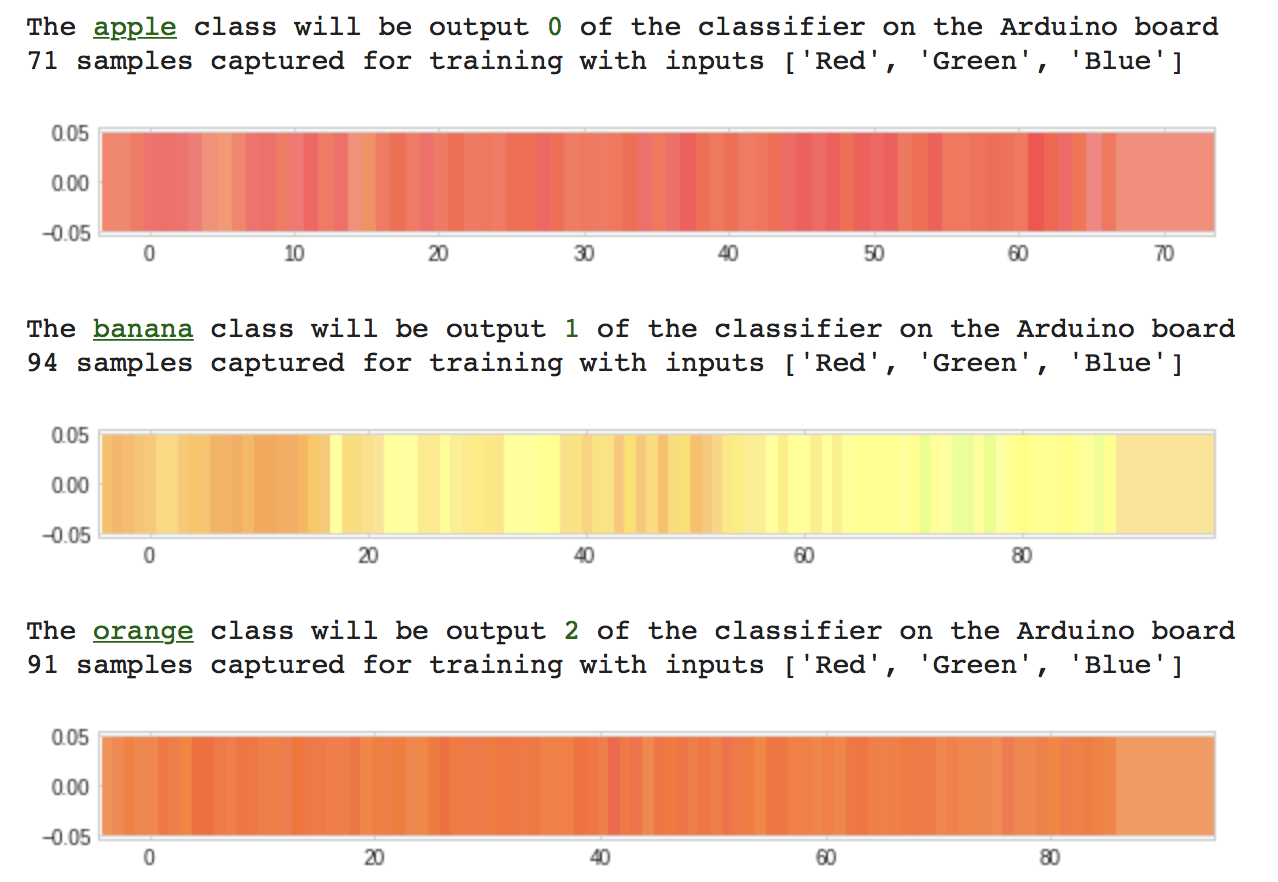
Normalized color samples captured by the Arduino board are graphed in colab
Program TensorFlow Lite Micro model to the Arduino board
Finally, we will take the model we trained in the previous stage and compile and upload to our Arduino board using Arduino Create.
Your browser will open the Arduino Create web application:
Press the OPEN IN WEB EDITOR button
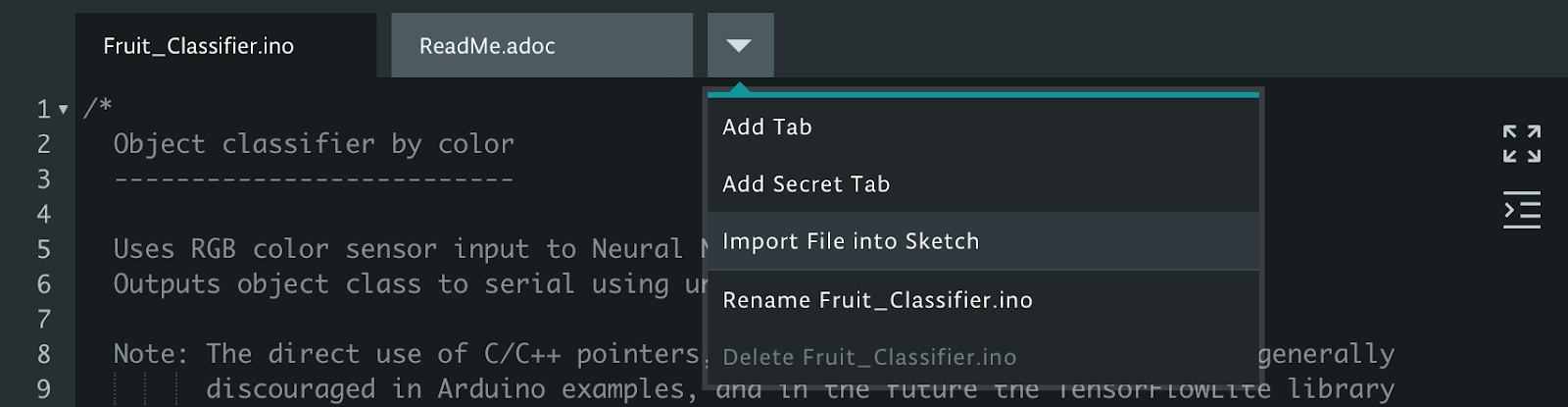
Import the model.h you downloaded from colab using Import File to Sketch:
Import the model.h you downloaded from colab
The model.h tab should now look like this
Compile and upload the application to your Arduino board
This will take a minute
When it’s done you’ll see this message in the Monitor:
Put your Arduino’s RGB sensor near the objects you trained it with
You will see the classification output in the Monitor:
Classifier output in the Arduino Create Monitor
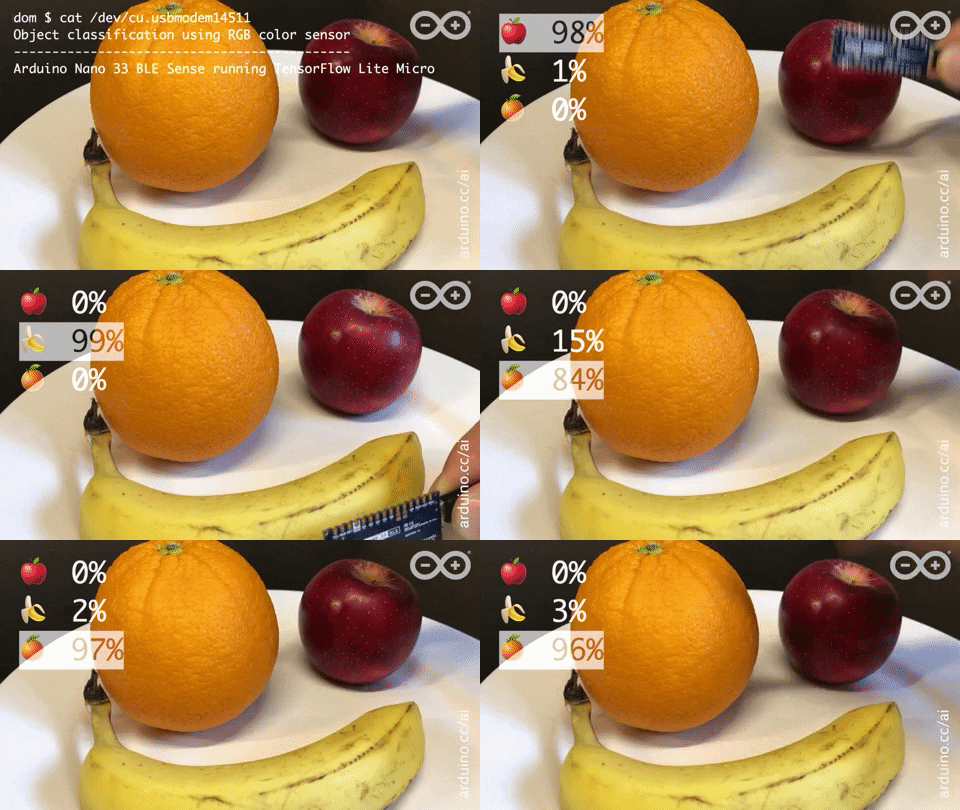
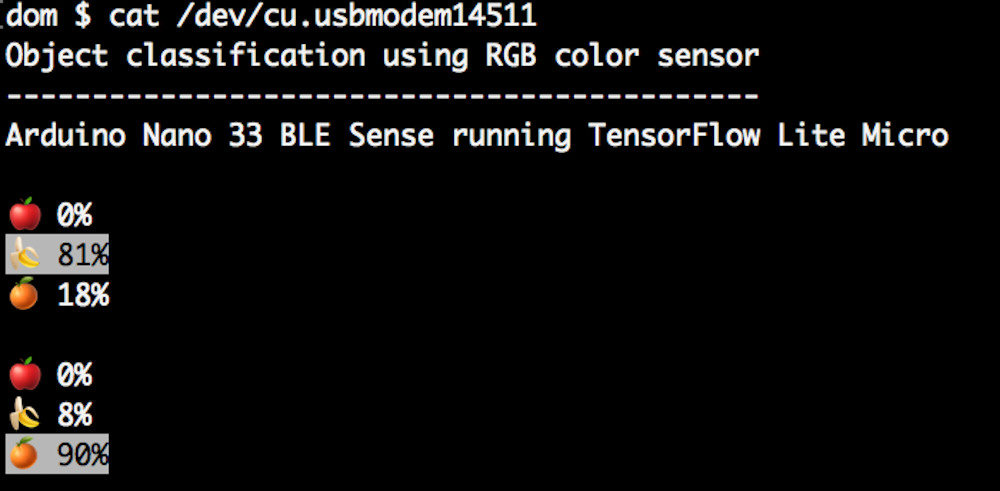
You can also edit the object_color_classifier.ino sketch to output emojis instead (we’ve left the unicode in the comments in code!), which you will be able to view in Mac OS X or Linux terminal by closing the web browser tab with Arduino Create in, resetting your board, and typing cat /cu/usb.modem[n].
Output from Arduino serial to Linux terminal using ANSI highlighting and unicode emojis
Learning more
The resources around TinyML are still emerging but there’s a great opportunity to get a head start and meet experts coming up 2-3 December 2019 in Mountain View, California at the Arm IoT Dev Summit. This includes workshops from Sandeep Mistry, Arduino technical lead for on-device ML and from Google’s Pete Warden and Daniel Situnayake who literally wrote the book on TinyML. You’ll be able to hang out with these experts and more at the TinyML community sessions there too. We hope to see you there!
Conclusion
We’ve seen a quick end-to-end demo of machine learning running on Arduino. The same framework can be used to sample different sensors and train more complex models. For our object by color classification we could do more, by sampling more examples in more conditions to help the model generalize. In future work, we may also explore how to run an on-device CNN. In the meantime, we hope this will be a fun and exciting project for you. Have fun!
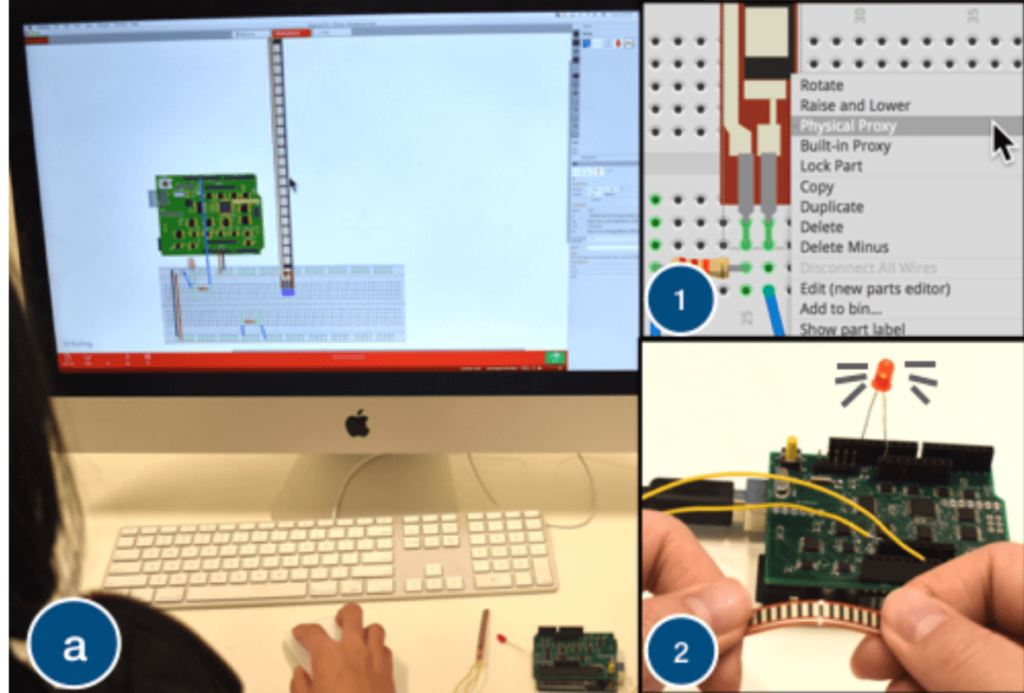
While circuit simulation tools become more accessible all the time, at some point it’s necessary to actual build your device and test it. Proxino, developed by researchers at Dartmouth College, takes a different approach, and enables you to virtually create a circuit, then test parts of it as needed with electronic components via physical proxies.
To accomplish this, Proxino hardware sits on an Arduino Uno as a shield, and generates the virtual circuit’s responses to inputs. This setup allows for the implementation of physical elements like buzzers, lights, and sensors to complement the simulated environment, which can even be shared by remote collaborators in different locations.
Proxino certainly looks like it could be an excellent instructional tool, or perhaps more!
The central controller runs on a Raspberry Pi which is running Mozilla’s new smart home operating system. Each individual device is Arduino based, and when you click through on the site you get a well designed graphic explaining how to build each device. The devices them
It’s also fun to see how many people worked together on this project and added their own touch. Whether it’s a unique covering for the devices or a toggle switch that can toggle itself there’s quite a few personal touches.
As anyone who’s had the sneaking suspicion that Jeff Bezos was listening in to their conversations, we get the need for this. We also love how approachable it makes hacking your own hardware. What are your thoughts?
Servos aren’t particularly hard to control with Arduinos, and in fact there’s a library available just for that purpose. Actually making the connection between the board and servo and managing one’s power usage will require a bit more finesse.
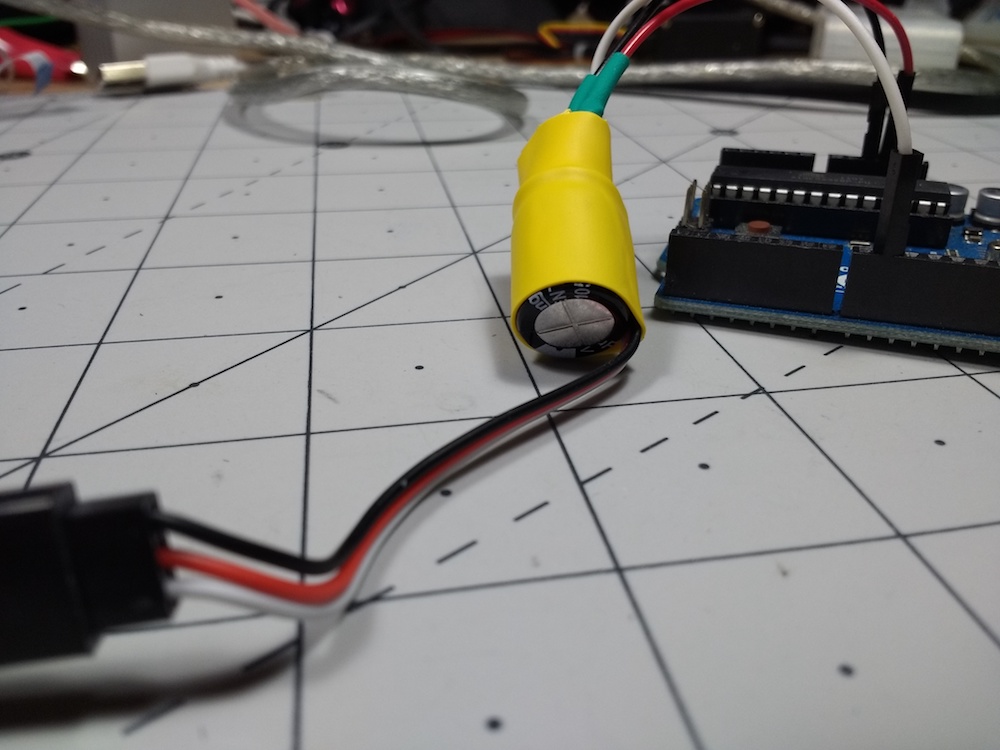
In the video below, Jeremy S. Cook explains how you can create an adapter that goes between your servo and an Uno, including a capacitor to help even out voltage spikes. While in most cases you would want to supply power your servos separately from the Arduino, this technique seems to work well in a quick round of tests.
In addition, the clip shows how to attach a servo and then detach it to cut it off, using a function outside of the main loop and no additional hardware. This would be very helpful in applications where power is at a premium — or if you just don’t want the servo jittering back and forth!
Smartphones have become a part of our day-to-day lives, but for those with visual impairments, accessing one can be a challenge. This can be especially difficult if one is using a cane that must be put aside in order to interact with a phone.
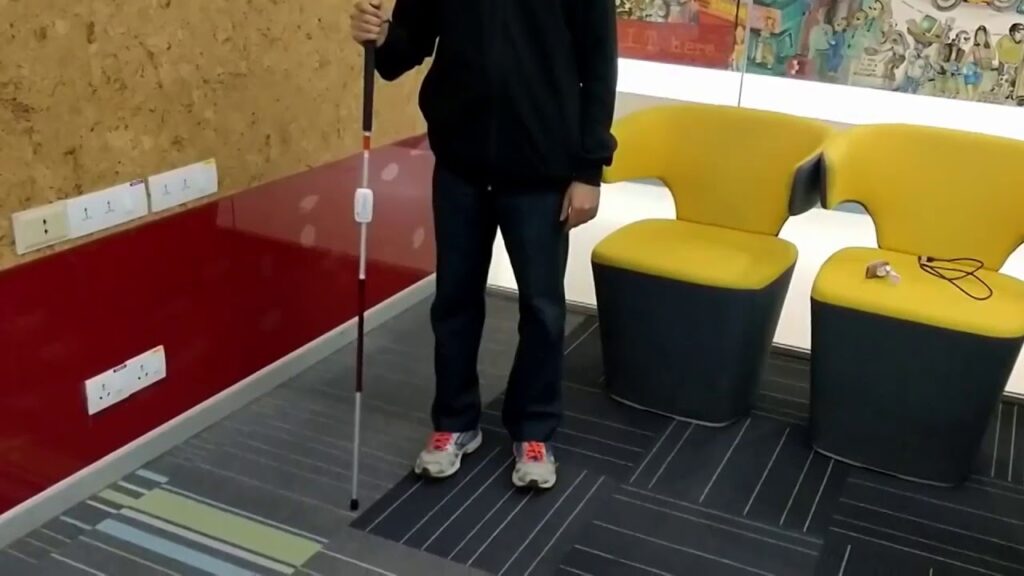
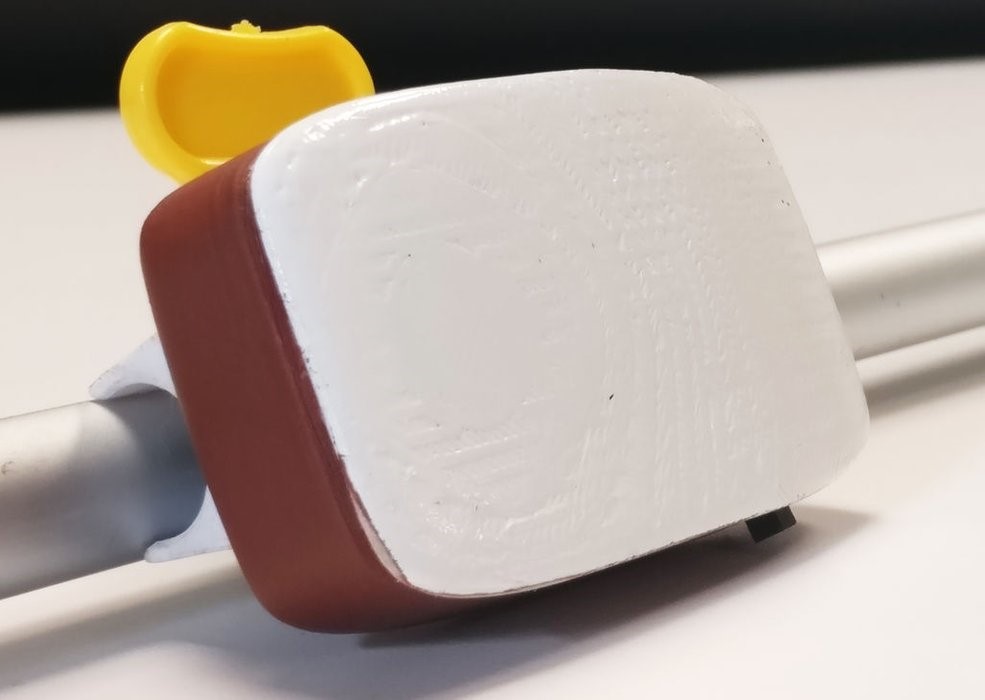
The GesturePod offers another interface alternative that actually attaches to the cane itself. This small unit is controlled by a MKR1000 and uses an IMU to sense hand gestures applied to the cane.
If a user, for instance, taps twice on the ground, a corresponding request is sent to the phone over Bluetooth, causing it to output the time audibly. Five gestures are currently proposed, which could expanded upon or modified for different functionality as needed.
People using white canes for navigation find it challenging to concurrently access devices such as smartphones. Build ing on prior research on abandonment of specialized devices, we explore a new touch free mode of interaction wherein a person with visual impairment can perform gestures on their existing white cane to trigger tasks on their smartphone. We present GesturePod, an easy-to-integrate device that clips on to any white cane, and detects gestures performed with the cane. With GesturePod, a user can perform common tasks on their smartphone without touch or even removing the phone from their pocket or bag. We discuss the challenges in build ing the device and our design choices. We propose a novel, efficient machine learning pipeline to train and deploy the gesture recognition model. Our in-lab study shows that Ges turePod achieves 92% gesture recognition accuracy and can help perform common smartphone tasks faster. Our in-wild study suggests that GesturePod is a promising tool to im prove smartphone access for people with VI, especially in constrained outdoor scenarios.
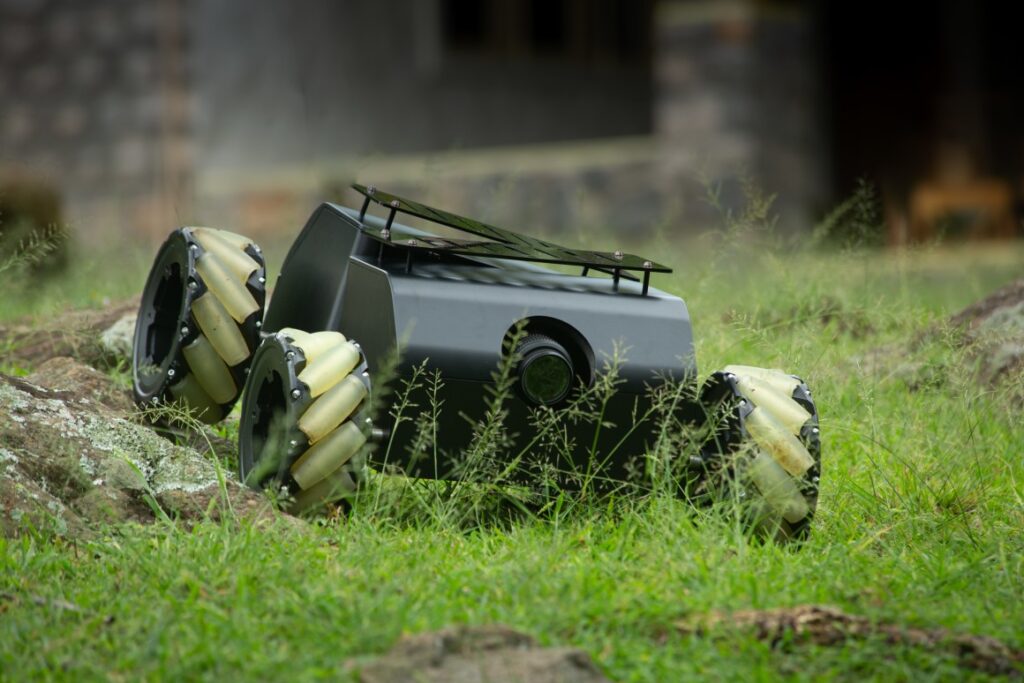
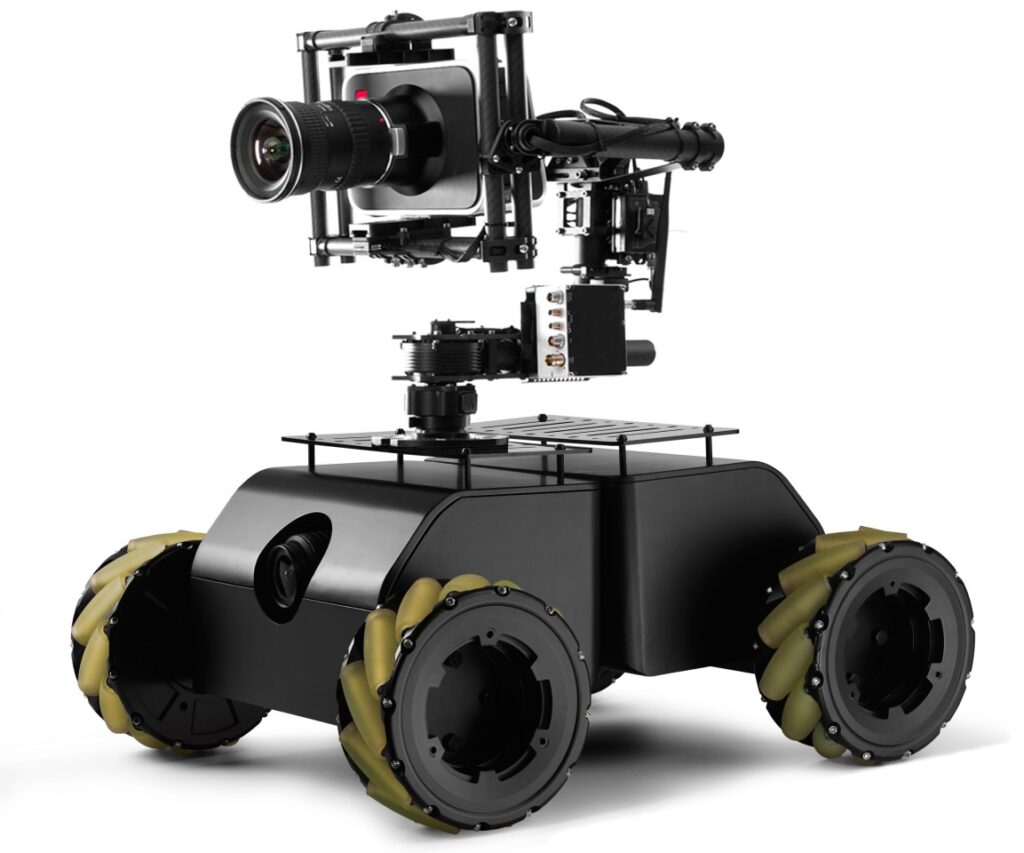
Taking photos or recording videos by hand is great, but in many situations you’d prefer to have your camera mounted on a movable or even programmable platform. Steve — now funding on Kickstarter — aims to fill that role as a remote-controlled vehicle that can maneuver your camera into places where you couldn’t reach before, all while capturing cinematic shots.
The device is able to carry a payload of 20kg, and features a suspension system that allows it to traverse rough terrain, along with Mecanum wheels that let it slide in any direction.
Best of all, it’s powered by an Arduino, meaning that when you’re ready to move on from manual RC operation, it can be customized for a wide variety of uses!
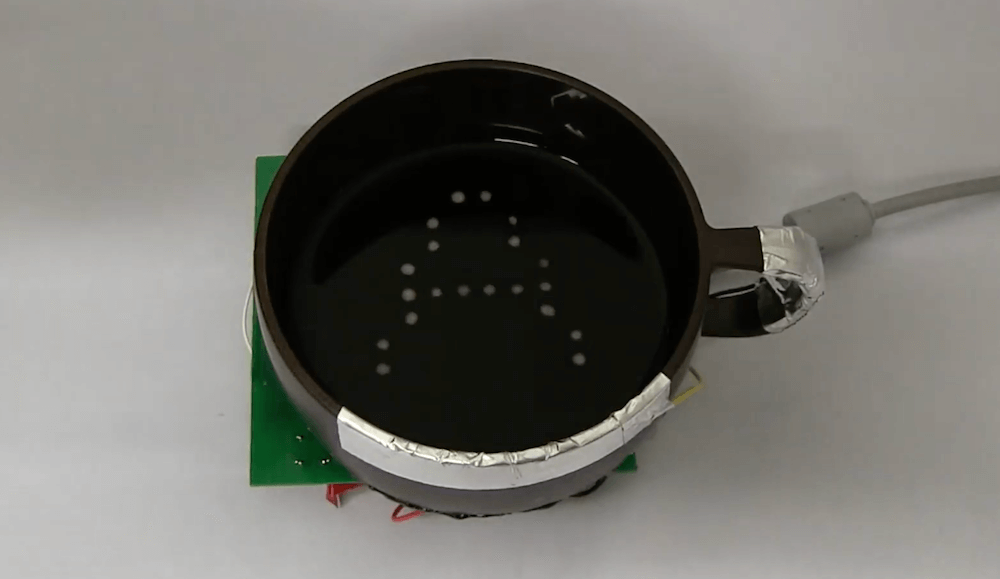
Ads, notifications, and other messages surround us today, and if you were overwhelmed before, researchers at Ochanomizu University in Tokyo, Japan have figured out how to print text and images in your cup of coffee! This system, dubbed “BubBowl,” uses electrolysis to dynamically generate a dot-matrix pattern of 10 x 10 pixels on the surface of beverages.
The Arduino-based device utilizes a series of shift registers to control matrix outputs, along with MOSFETs to handle current through the liquid as it produces tiny amounts of (non-toxic) gas.
Resolution is good enough to display four characters at once — meaning it can show the time, or even very short messages. The drinks are still consumable after messaging, though touch-sensitive electrodes are implemented to cut off power when imbibing!
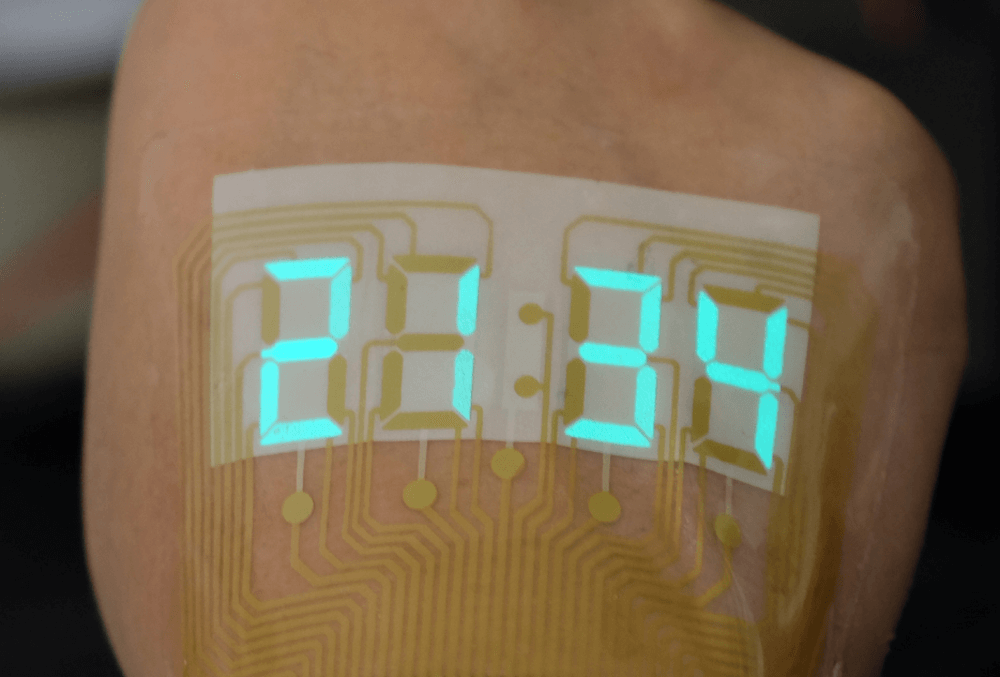
A stretchable light-emitting device becomes an epidermal stopwatch. Image: Adapted from ACS Materials Letters 2019
Imagine if your watch wasn’t mounted on your wrist, but was instead integrated into a sort of temporary tattoo on the back of your hand? Such an idea is now one step closer to reality, thanks to new research into alternating-current electroluminescent (ACEL) display technology.
While normally such displays require well over 100VAC to produce sufficient brightness, scientists have worked to get this number down into the 10-35V range, allowing them to be used in much closer proximity to human skin.
To demonstrate this technology, the team constructed a 4-digit 7-segment display that can be applied to one’s hand, using an Arduino Mega and driver circuitry to turn it into a digital timepiece.