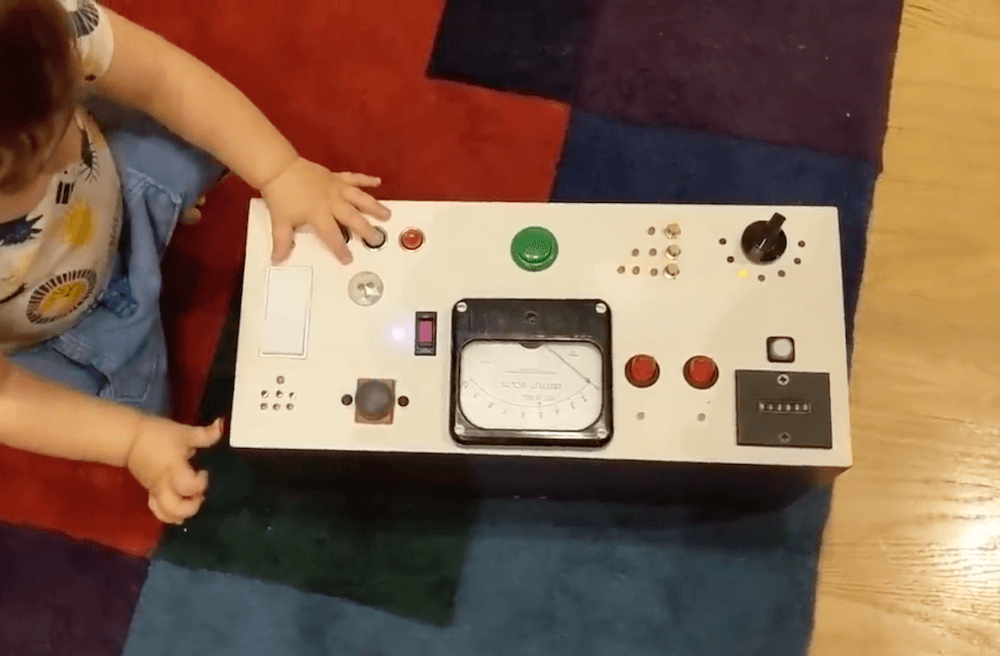
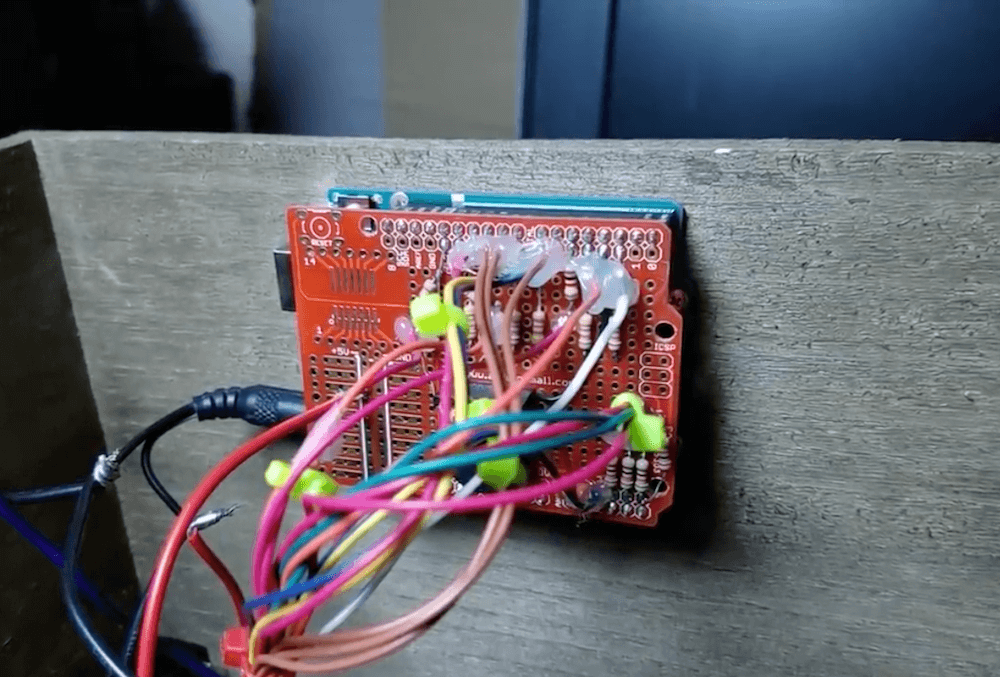
Like most one-year-olds, CodePanda’s son really likes pushing buttons. Rather than purchasing a so-called busy board that might teach him skills like unlocking doors or plugging in electrical outlets, he decided to build his own custom device controlled by an Arduino Uno.
The resulting toy features a wide variety of lights, buttons and switches, and makes sounds to keep the little guy entertained. In the center, a big green button activates an analog voltmeter, which not only looks cool, but actually indicates the battery level of the unit.
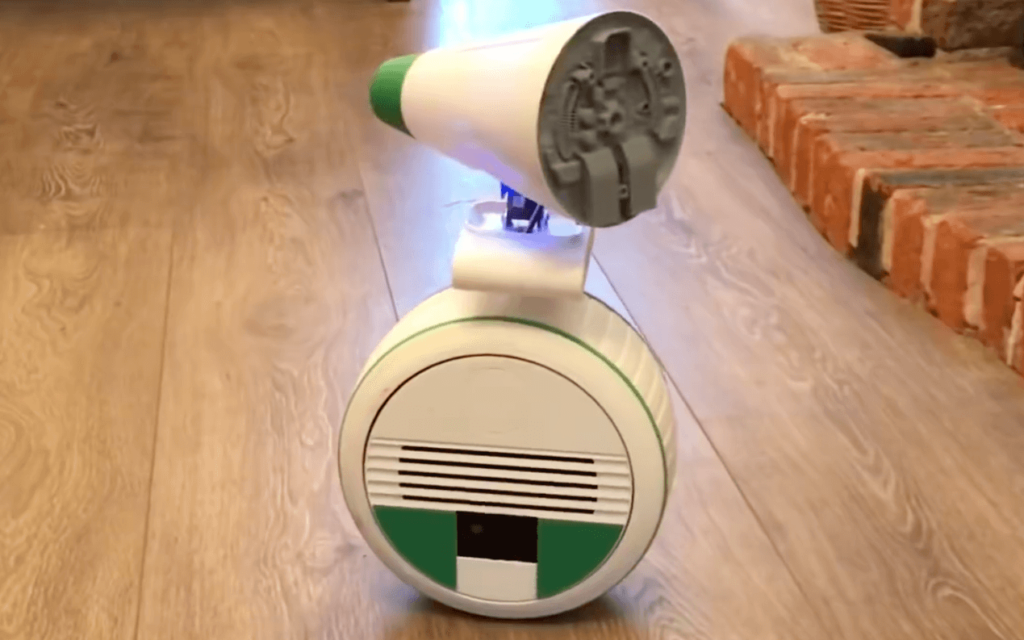
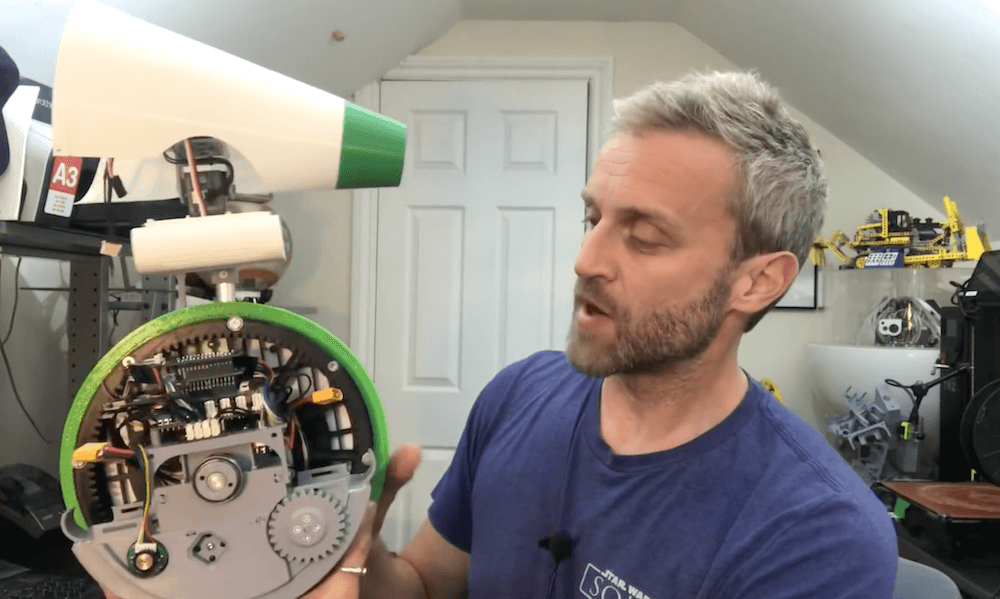
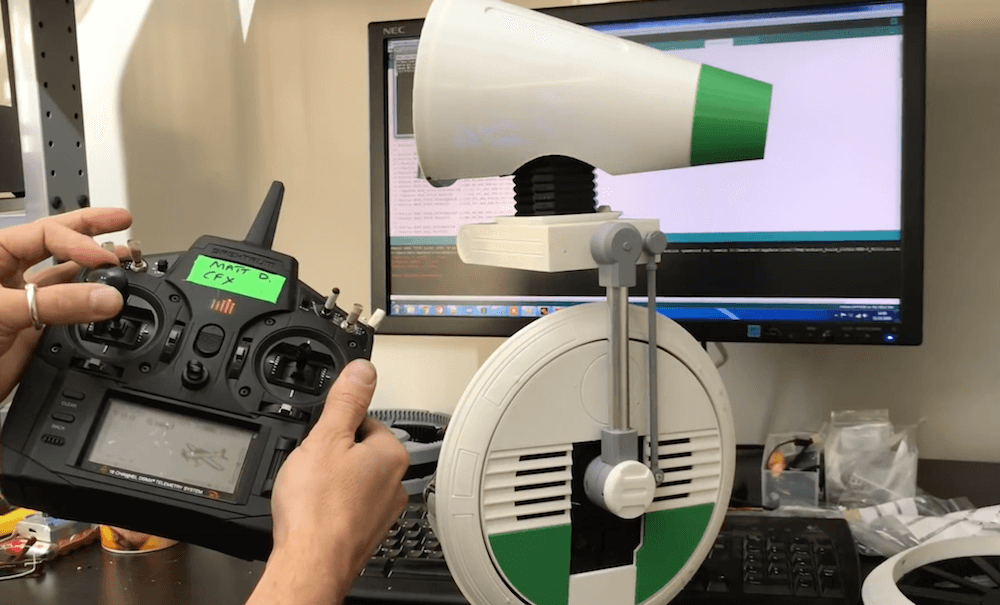
While it’s yet to make its premiere, Matt Denton has already built the D-O droid from Star Wars: The Rise of Skywalker using a MKR WiFi 1010 for control, along with a MKR IMU Shield and a MKR Motor Carrier.
The droid scoots around on what appears to be one large wheel, which conceals the Arduino boards as well as other electronics, batteries, and mechanical components. Denton’s wheel design is a bit more complicated mechanically than it first appears, as its split into a center section, with thin drive wheels on the side that enable differential steering.
On top, a cone-shaped head provides sounds and movement, giving the little RC D-O a ton of personality. The droid isn’t quite finished as of the video below, but given how well it works there, the end product should be amazing!
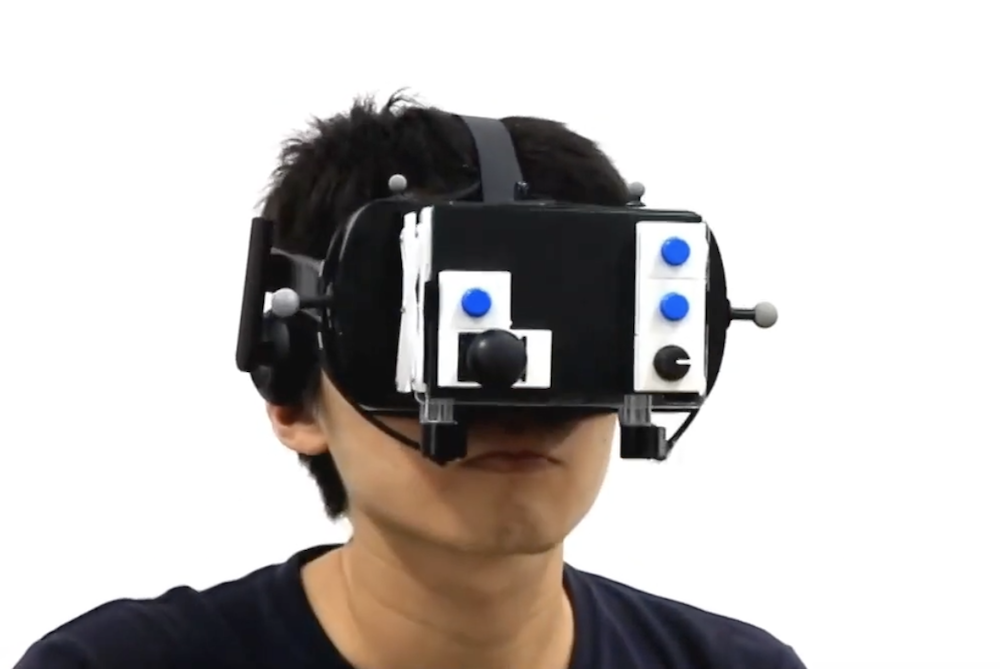
When using a virtual reality (VR) system, you may need to flip a switch, touch a button, etc., which can be represented by a carefully coordinated series of pixels in front of your eyes. As a physical alternative — or augmentation — researchers at the National Chiao Tung University in Hsinchu, Taiwan have developed a system of interchangeable physical control panels, called FaceWidgets, that reside on the backside of head-mounted unit itself.
When a wearer places their palm near their face (and headset), this is sensed and an on-screen canvas appears depending on the application. They can then manipulate these widgets both physically and in the virtual world to control the experience.
Physical interactions are detected with the help of an Arduino Mega and the facial control pad even extends and retracts for optimal usage via a motor shield and stepper motors.
We present FaceWidgets, a device integrated with the backside of a head-mounted display (HMD) that enables tangible interactions using physical controls. To allow for near range-to-eye interactions, our first study suggested displaying the virtual widgets at 20 cm from the eye positions, which is 9 cm from the HMD backside. We propose two novel interactions, widget canvas and palm-facing gesture, that can help users avoid double vision and allow them to access the interface as needed. Our second study showed that displaying a hand reference improved performance of face widgets interactions. We developed two applications of FaceWidgets, a fixed-layout 360 video player and a contextual input for smart home control. Finally, we compared four hand visualizations against the two applications in an exploratory study. Participants considered the transparent hand as the most suitable and responded positively to our system.
We’ve all committed the sin of making a little arduino robot and running it off AA batteries. Little Flash is better than that and runs off three 350 F capacitors.
In fact, that’s the entire mission of the robot. [Mike Rigsby] wants people to know there’s a better way. What’s really cool is that 10 A for 40 seconds lets the robot run for over 25 minutes!
The robot itself is really simple. The case is 3D printed with an eye towards simplicity. The brains are an Arduino nano and the primary input is a bump sensor. The robot runs around randomly, but avoids getting stuck with the classic reverse-and-turn on collision.
It’s cool to see how far these capacitors have come. We remember people wondering about these high priced specialty parts when they first dropped on the hobby scene, but they’re becoming more and more prevalent compared to other solutions such as coin-cells and solder tab lithium batteries for PCB power solutions.
Have you ever wished that slot machines dispensed money as easily as an ATM? Well so did [Scotty Allen] from Strange Parts, so in collaboration with his friend [Matt] decided to combine the two. After a four-month journey fraught with magic smoke and frustration, they managed to build a fully functional ATM slot machine.
The basic idea is that you insert your card and enter your pin like on a normal ATM, select your winning amount, and pull the lever. This sets wheels spinning, which come to a stop with three-of-a-kind every time, and you win your own money as a bucket load of coins with all the accompanying fanfare. The project took way longer than [Scotty] expected, and he ended up missing his original deadline to show off the machine at DEF CON.
They started with an old broken Japanese slot machine, and replaced the control board with an Arduino Due after a lot of reverse engineering and hacking. [Scotty] did a cool video just on getting the original vacuum fluorescent display working. Integrating the ATM parts proved to be the biggest challenge, with number of very expensive parts releasing their magic smoke or getting bricked in the process. [Scotty] came up with an ingeniously simple hack to interface the ATM hardware with the Arduino. The cash note dispenser uses multiple sensors to detect if there are notes loaded and if one is successfully dispensed. These were spoofed by the Arduino, which controls two coin hoppers instead to dispense appropriate amount of quarters or pennies. The build was rounded off with some very neat custom graphics on the glass panels, and the machine was finally showed off at a local arcade.
This was an awesome project, and we can appreciate the fact that [Scotty] made no attempt to hide the real emotional roller coaster that anyone who has worked on a large project knows, but is rarely documented in logs. [Scotty] has made a name for himself by building his own iPhone from parts and touring Shenzhen’s many factories. Check out the videos after the break
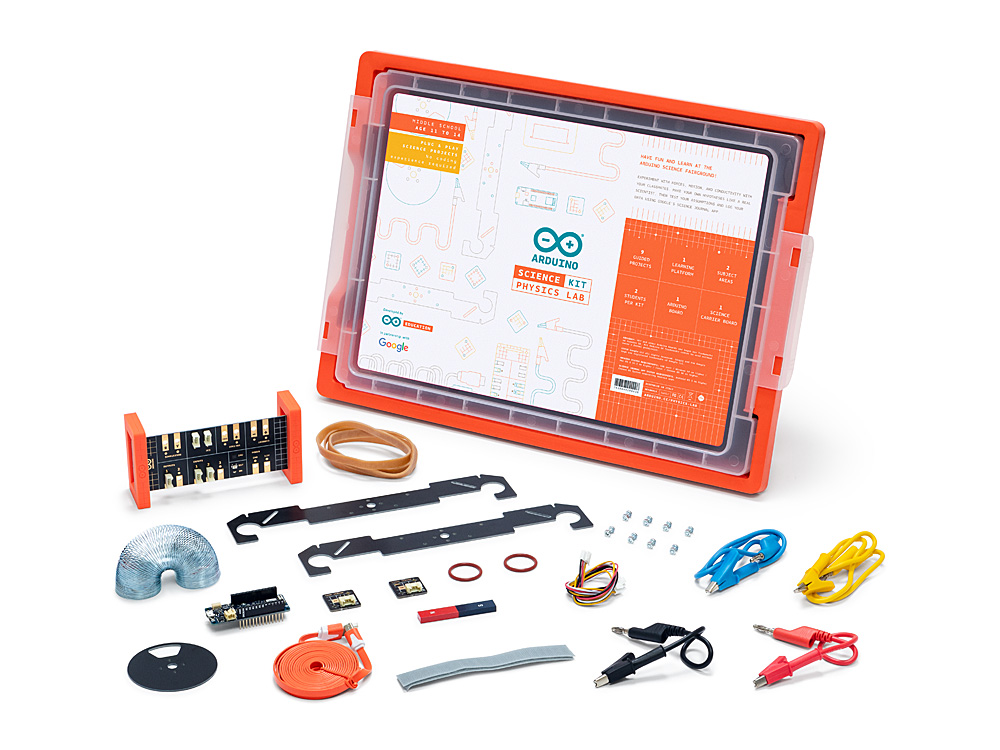
Launched back in January 2019 in partnership with Google, the Arduino Science Kit Physics Lab is designed for middle school students (aged 11 to 14) to explore science. It is now available with Italian and Spanish course content, making it more accessible than ever.
“You discovered it yourself, so it was really fun doing that” UK Student from ARK Burlington Danes Academy.
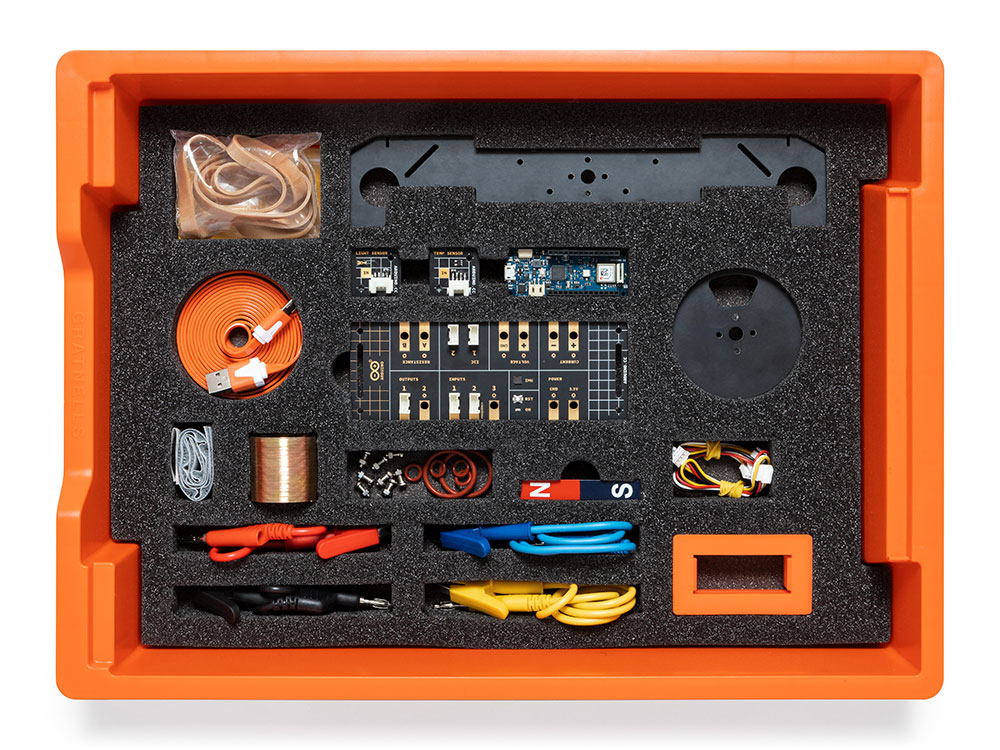
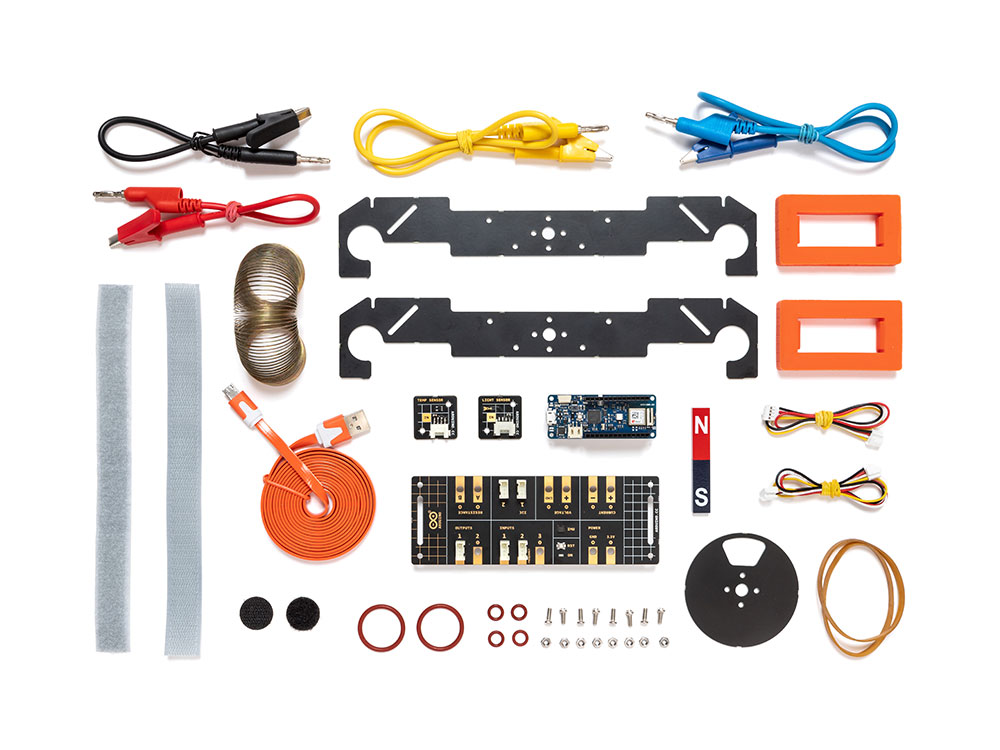
The Arduino Science Kit Physics Lab, requires no prior electronics knowledge. It features online course content and equipment to conduct and test the fundamental laws of traditional physics through nine exciting science projects inspired by popular fairground rides like the Gravitron and Pirate Ship. It is perfect for developing transferable skills such as critical thinking and problem solving through an inquiry-based learning approach. Students will experiment with forces, motion, magnetism, and conductivity – making their own hypothesis like real scientists, checking their assumptions, and logging data in real-time using Google’s Science Journal for Android.
“Makes it more accessible for students to do practical physics” – Graeme Wood, UK – Physics teacher, ARK Burlington Danes Academy.
Incredibly easy to get started, students simply connect their Android mobile device to the board, build their project, and then use the onboard sensor and plug-and-play modules to simulate the rides’ dynamics. Data is transmitted from the experiment to the student’s mobile device via Bluetooth, where they can analyse and record their results in Google’s Science Journal App or worksheets.
The Arduino Education Science Kit Physics Lab isn’t confined to the classroom. In fact, students can use the kit outdoors to turn the playground into their very own fairground by applying the concepts they’ve learned to design and test their own rides. Based upon the Arduino MKR WiFi 1010, it is a fully portable lab including a range of sensors to measure light, temperature, motion, and magnetic fields, and much more… that come in a protective Gratnells classroom tray.
Arduino Education aims to assist educators by providing our programs, online course content and worksheets in as many languages as possible: not only relevant European languages, but for example, Arabic and Japanese are also planned for future release. Next in line for the Science Kit Physics Lab will be German, Hungarian and Portuguese so watch this space.
Ya están disponibles las ediciones de Science kit en Italiano y en Español
Lanzado en Enero de 2019 en colaboración con Google, Arduino Science Kit Physics Lab está diseñado para estudiantes de primaria ( de 11 a 14 años ) para aprender sobre ciencia. Ahora el contenido está disponible en Italiano y Español, haciéndolo aún más accesible que nunca.
“Lo vas descubriendo todo tú mismo, fue muy divertido” Estudiante de Reino Unido de ARK Burlington Danes Academy
Arduino Science Kit Physics Lab, no necesita conocimientos previos sobre electrónica. Incluye un curso online y equipamiento para llevar a cabo y probar las leyes fundamentales de la física tradicional a través de 9 proyectos científicos excitantes inspirados en atracciones populares de las ferias como el Gravitron y el Barco Pirata. Es perfecta para desarrollar habilidades como el pensamiento crítico y la resolución de problemas, a través de un aprendizaje mediante enseñanza reflexiva. Los alumnos experimentaran con fuerzas, movimientos, magnetismo y conductividad – haciendo sus propias hipótesis como científicos de verdad, probando sus suposiciones y recogiendo información en tiempo real usando la app de Google “Science Journal” para Android.
“Hace que la física práctica sea más accesible para los estudiantes” –Graeme Wood, UK – Profesor de física, ARK Burlington Danes Academy.
Increiblemente facil de empezar a usar, los alumnos simplemente tienen que conectar el dispositivo Android a la placa, montar el proyecto, y después usa los sensores que contiene la shield y los módulos plug-and-play para simular las atracciones. Los datos son transmitidos del experimento a el dispositivo móvil del alumno via Bluetooth, donde se puede ver y analizar el resultado obtenido en la app Science Journal de Google o en las fichas de los alumnos.
Arduino Education Science Kit Physics Lab no está pensado para usarse únicamente en clase. De hecho, los alumnos pueden usar el kit en exteriores para convertir su recreo en su propia feria de ciencia aplicando los conceptos que han aprendido, y así, diseñar y probar sus propias atracciones. Basado en el uso de Arduino MKR WiFi 1010 , que es un laboratorio portátil incluyendo un grupo de sensores para medir luminosidad, temperatura, movimiento, campos magnéticos y mucho más… todo esto en una caja Gratnells protectora.
Arduino Education apunta a apoyar a los profesores proporcionando nuestros programas, contenido online y las hojas del alumno en el mayor número de idiomas posible: no solo en los idiomas Europeos relevantes, por ejemplo, Árabe y Japonés están planeados para futuras actualizaciones. Lo siguientes idiomas para Science Kit Physics Lab serán Alemán, Húngaro y Portugués.
Da oggi Science Kit è disponibile anche in italiano e spagnolo.
Nel Gennaio 2019, in collaborazione con Google, Arduino Science Kit Physics Lab è stato lanciato sul mercato, per studenti di scuola media (tra 11 e 14 anni) e non solo, con l’obiettivo di esplorare la scienza, divertendosi.
Da oggi, i contenuti del corso sono disponibili in italiano e spagnolo, rendendolo ancora più accessibile.
“Sei tu che esperimenti in prima persona, ed è stato davvero divertente poterlo fare” ha commentato uno studente inglese dell’accademia di ARK Burlington Danes.
Arduino Science Kit Physics Lab non richiede nessuna conoscenza pregressa in elettronica. Possiede un corso online con tutti i contenuti e gli strumenti per poterli condurre e testare le leggi fondamentali della fisica classica attraverso nove esperimenti di scienza, ispirati dalle attrazioni più popolari nei parchi divertimento, come la nave pirata o il Gravitron. E’ un prodotto ideale per poter sviluppare competenze come l’abilità di saper risolvere problemi e il pensiero critico, attraverso un metodo di apprendimento basato sull’indagine pratica. Gli studenti sperimentano con le forze, il moto, il magnetismo e la conduttività; creando le loro ipotesi come veri scienziati, verificando le loro supposizioni, e prendendo nota dei dati in tempo reale usando il Google Science Journal per Android.
“Rende molto più accessibile agli studenti praticare la fisica” Graeme Wood, docente di fisica, presso ARK Burlington Danes Academy.
E’ incredibilmente facile da avviare, gli studenti connettono semplicemente il loro dispositivo mobile Android alla scheda, costruiscono il progetto, e dopo, usano i sensori installati e i moduli plug-and-play per simulare le dinamiche dei dati. I dati sono trasmessi dall’esperimento al dispositivo mobile via Bluetooth, dove possono analizzare, registrare i risultati nel loro Google Science Journal oppure nelle loro schede di lavoro.
Arduino Education Science Kit Physics Lab non si limita soltanto alla classe. Infatti, gli studenti possono usare il kit anche fuori all’aperto, trasformando il cortile della scuola in un luna-park, applicando i concetti che hanno imparato e progettando e testando le loro attrazioni. Basato su Arduino MKR WiFi 1010, è un laboratorio portatile completo, che include vari sensori per misurare la luce, la temperatura, il moto, i campi magnetici e molto altro…tutto incluso in una comoda e sicura scatola.
Arduino Education mira ad assistere gli insegnanti sostenendo i corsi, i contenuti online e le schede per gli studenti, in più’ lingue possibili: non soltanto lingue europee, ma anche per esempio arabo e giapponese sono in programma per il futuro. Prossimamente, Science Kit Physics Lab verrà rilasciato in tedesco, ungherese e portoghese, perciò continuate a seguirci per restare informati.
A lot of consumer gadgets use touch sensors now. It is a cheap and reliable way to replace a variety of knobs and switches on everything from headphones to automobiles. However, creating a custom touch controller for a one-off project can be daunting. A recent ACM paper shows how just about any capacitive sensor can work as a multitouch sensor with nothing more than an Arduino although a PC running processing interprets the data for higher-level functions.
The key is that the Arduino excites the grid using PWM and then examines the signal coming out of the grid. Finger poking changes the response quite a bit and the Arduino can sense it using the analog to digital converters onboard. You can find the actual software kit online. The tutorial document is probably more interesting than the ACM paper if you only want to use the kit.
The optimum drive frequency is 10 MHz. The examples rely on harmonics of a lower frequency PWM signal to get there. The analog conversion, of course, isn’t that fast but since your finger touch rate is relatively slow, they treat the signal as an amplitude-modulated input which is very easy to decode.
The sensors can be conductive ink, thread, or copper strips. There are several example applications, including a 3D printed bunny you can pet, a control panel on a sleeve, and an interactive greeting card.
The sensor forms an image and OpenCV detects the actual touch configuration. It appears you can use the raw data from the Arduino, too, but it might be a little harder.
This post is from Massimiliano Pippi, Senior Software Engineer at Arduino.
GitHub Actions is the name of the SDLC (Software Development Life Cycle) system introduced by GitHub about a year ago, currently in public beta and now approaching the general availability status. When you read SDLC, think about some sort of CI/CD system that’s generic enough to let you define a sequence of operations not necessarily limited to build, test, and deploy code: GitHub Actions can help you automate processes in code reviews, issue triaging, and repository management.
GitHub Actions have been part of the tools we use at Arduino for a while now; helping us solve a wide range of problems from automating workflows within our backend infrastructure, to managing the release process of our open source software. In the spirit of giving back to the community, we started publishing some of the Actions we developed internally so that they can be used right ahead from any GitHub account that’s been granted access to the public beta of GitHub Actions, and eventually in any GitHub repository.
Our Actions are available from this repository and there’s one in particular we think the Arduino community will be happy to have – it’s called setup-arduino-cli and under the hood it takes all the steps necessary to have the `arduino-cli` binary available in a Workflow. This means that in any step of your Workflow you can leverage the long list of features of the Arduino CLI.
# This is the name of the workflow, visible on GitHub UI.
name: test

# Here we tell GitHub to run the workflow when a commit
# is pushed or a Pull Request is opened.
on: [push, pull_request]

# This is the list of jobs that will be run concurrently.
# Since we use a build matrix, the actual number of jobs
# started depends on how many configurations the matrix
# will produce.
jobs:
  # This is the name of the job - can be whatever.
  test-matrix:

    # Here we tell GitHub that the jobs must be determined
    # dynamically depending on a matrix configuration.
    strategy:
      matrix:
        # The matrix will produce one job for each configuration
        # parameter of type arduino-platform, in this case a
        # total of 2.
        arduino-platform: ["arduino:samd", "arduino:avr"]
        # This is usually optional but we need to statically define the
        # FQBN of the boards we want to test for each platform. In the
        # future the CLI might automatically detect and download the core
        # needed to compile against a certain FQBN, at that point the
        # following include section will be useless.
        include:
          # This works like this: when the platform is "arduino:samd", the
          # variable fqbn is set to "arduino:samd:nano_33_iot".
          - arduino-platform: "arduino:samd"
            fqbn: "arduino:samd:nano_33_iot"
          - arduino-platform: "arduino:avr"
            fqbn: "arduino:avr:uno"

    # This is the platform GitHub will use to run our workflow, we
    # pick Windows for no particular reason.
    runs-on: windows-latest

    # This is the list of steps this job will run.
    steps:
      # First of all, we clone the repo using the checkout action.
      - name: Checkout
        uses: actions/checkout@master

      # We use the arduino/setup-arduino-cli action to install and
      # configure the Arduino CLI on the system.
      - name: Setup Arduino CLI
        uses: arduino/setup-arduino-cli@v1.0.0

      # We then install the platform, which one will be determined
      # dynamically by the build matrix.
      - name: Install platform
        run: |
          arduino-cli core update-index
          arduino-cli core install ${{ matrix.arduino-platform }}

      # Finally, we compile the sketch, using the FQBN that was set
      # in the build matrix.
      - name: Compile Sketch
        run: arduino-cli compile --fqbn ${{ matrix.fqbn }} ./blink
Example
Let’s say you keep your sketches in a GitHub repository, and you want to be sure that every time you push a git commit or you merge a pull request, the sketches compile correctly on certain boards you own, for example a Nano 33 IoT and a Uno. To keep the configuration at minimum, we can use a “build matrix”, so that GitHub will start a different job for each one of the platforms we list in the matrix, without the need to configure them explicitly.
You can find more info and docs for the Action on the GitHub Marketplace: if you like it, please leave us a star! We’re eager to hear your feedback, feel free to hit the Action repository and open an issue should you find any problem, or a feature request in case you want more from the action.
[Will] wanted to build some animatronic eyes that didn’t require high-precision 3D printing. He wound up with a forgiving design that uses an Arduino and six servo motors. You can see the video of the eyes moving around in the video below.
The bill of materials is pretty simple and features an Arduino, a driver board, and a joystick. The 3D printing parts are easy to print with no supports, and will work with PLA. Other than opening up holes there wasn’t much post-processing required, though he did sand the actual eyeballs which sounds painful.
The result is a nice tight package to hold six motors, and the response time of the eye motion is very impressive. This would be great as part of a prop or even a robot in place of the conventional googly eyes.
While the joystick is nice, we’d like to see an ultrasonic sensor connected so the eyes track you as you walk across the room. Maybe they could be mounted behind an old portrait for next Halloween. Then again, perhaps a skull would be even better. If you want a refresher about servos, start with a laser turret tutorial.
If you’ve ever thought that your musical performance needed more LEDs, then James Bruton’s DJ helmet may be just the thing for you.
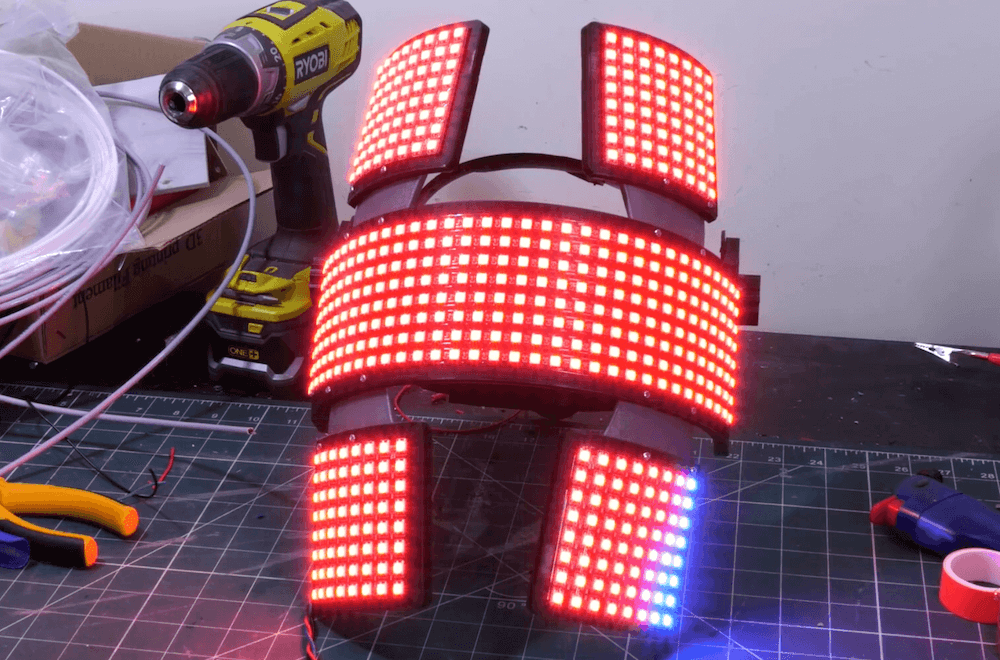
The YouTuber’s wearable device is built on the base of a protective face shield, substituting in a 3D-printed support for an 8×32 LED matrix, as well as four smaller 8×8 LED matrices arranged above and below the main section.
The 512 LEDs are powered using a portable LiPo battery and a 10A power regulator. Control is via an Arduino Mega, which is connected to an RJ45 jack that enables it to work with DMX lighting data.
The result is a spectacular display, shown off nicely in an electronic concert (with his barcode guitar) starting at around 8:20 in the video below!