Posts with «arduino» label

Teaching the Word Clock Some New Tricks

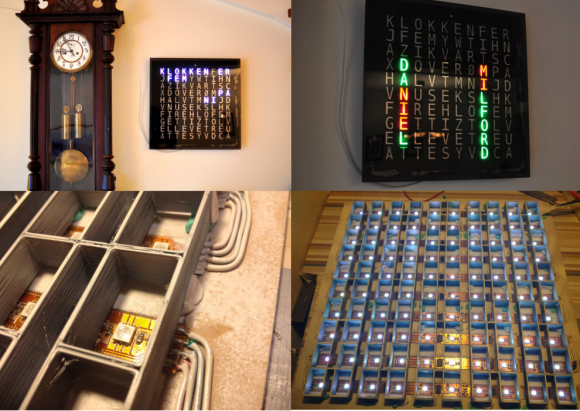
[Joakim] has built a clock that spells out the time in words. Wait a second – word clock, what is this, 2009? Word clocks are one of those projects that have become timeless. When we see a build that stands out, we make sure to write it up. [Joakim's] clock is special for a number of reasons. The time is spelled out in Norwegian, and since the clock is a birthday gift for [Daniel], [Joakim] added the his full name to the clock’s repertoire.

One of the hard parts of word clock design is controlling light spill. [Joakim] used a simple 3D printed frame to box each LED in. This keeps the spill under control and makes everything easier to read. The RGB LED’s [Joakim] used are also a bit different from the norm. Rather than the WS2812 Neopixel, [Joakim] used LPD8806 LED strips. On the controller side [Joakim] may have gone a bit overboard in his choice of an Arduino Yun, but he does put the ATmega328 and Embedded Linux machine to good use.

The real magic happens at boot. [Daniel's] name lights up in red, with various letters going green as each step completes. A green ‘D’ indicates an IP address was obtained from the router’s DHCP server. ‘N’ switches to green when four NTP servers have been contacted, and the Linux processor is reasonably sure it has the correct time. The last letter to change will be the ‘E’, which reports ambient light.

[Joakim] added a web interface to trigger his new features, such as a rainbow color palette, or the ability to show minutes by changing the color of the letters K,L,O,K. The final result is a slick package, which definitely brings a 2009 era design up to 2014 standards!


Filed under: Arduino Hacks, clock hacks

433 MHz RF module with Arduino Tutorial 4:


WARNING: Please check whether you can legally use RF transmitters and receivers at your location before attempting this project (or buying the components). This project is aimed at those who are looking to automate their home.
There are 4 parts to this tutorial:
To get the most out of this tutorial - it is best to start at tutorial Part 1, and then progress to Part 2 then Part 3 and then do Part 4 last. Doing the RF tutorials in this order will help you to understand the process better.


Project 4 : 433 Mhz RF remote replacement tutorial

Carrying on from my previous "433MHz transmitter and receiver" tutorials (1,2 & 3): I have thrown away the need to process the signal with a computer. This means that we can now get the Arduino to record the signal from an RF remote (in close proximity), and play it back in no time at all.
The Arduino will forget the signal when powered down or when the board is reset. The Arduino does not have an extensive memory - there is a limit to how many signals can be stored on the board at any one time. Some people have opted to create a "code" in their projects to help maximise the number of signals stored on the board. In the name of simplicity, I will not encode the signal like I did in my previous tutorials.
I will get the Arduino to record the signal and play it back - with the help of a button. The button will help manage the overall process, and control the flow of code.
Apart from uploading the sketch to the Arduino, this project will not require the use of a computer. Nor will it need a sound card, or any special libraries. Here are the parts required:


Parts Required:


Fritzing Sketch


Arduino Sketch


Now let's see this project in action !
Have a look at the video below to see the Arduino turning a light and fan on/off shortly after receiving the RF signal from the RF remote. The video will also show you how to put this whole project together - step by step.

The Video


This concludes my 433MHz transmitter and receiver tutorials (for now). I hope you enjoyed them.
Please let me know whether this worked for you or not.
I have not tested this project with other remotes or other frequencies - so would be interested to find out whether this technique can be used for ALL RF projects ??


If you like this page, please do me a favour and show your appreciation :

  Visit my ArduinoBasics Google + page.
Follow me on Twitter by looking for ScottC @ArduinoBasics.
Have a look at my videos on my YouTube channel.


However, if you do not have a google profile...
Feel free to share this page with your friends in any way you see fit.
ScottC 29 Jul 19:09

433 MHz RF module with Arduino Tutorial 4:

WARNING: Please check whether you can legally use RF transmitters and receivers at your location before attempting this project (or buying the components). This project is aimed at those who are looking to automate their home.

Carrying on from my previous "433MHz transmitter and receiver" tutorials (1,2 & 3): I have thrown away the need to process the signal with a computer. This means that we can now get the Arduino to record the signal from an RF remote (in close proximity), and play it back in no time at all.

The Arduino will forget the signal when powered down or when the board is reset. The Arduino does not have an extensive memory - there is a limit to how many signals can be stored on the board at any one time. Some people have opted to create a "code" in their projects to help maximise the number of signals stored on the board. In the name of simplicity, I will not encode the signal like I did in my previous tutorials.

I will get the Arduino to record the signal and play it back - with the help of a button. The button will help manage the overall process, and control the flow of code.

Apart from uploading the sketch to the Arduino, this project will not require the use of a computer. Nor will it need a sound card, or any special libraries. Here are the parts required:


Parts Required:

Fritzing Sketch


Arduino Sketch


  1
2
3
4
5
6
7
8
9
10
11
12
13
14
15
16
17
18
19
20
21
22
23
24
25
26
27
28
29
30
31
32
33
34
35
36
37
38
39
40
41
42
43
44
45
46
47
48
49
50
51
52
53
54
55
56
57
58
59
60
61
62
63
64
65
66
67
68
69
70
71
72
73
74
75
76
77
78
79
80
81
82
83
84
85
86
87
88
89
90
91
92
93
94
95
96
97
98
99
100
101
102
103
104
105
106
107
108
109
110
111
112
113
114
115
116
117
118
119
120
121
122
123
124
125
126
127


/* 
  433 MHz RF REMOTE REPLAY sketch 
     Written by ScottC 24 Jul 2014
     Arduino IDE version 1.0.5
     Website: http://arduinobasics.blogspot.com
     Receiver: XY-MK-5V      Transmitter: FS1000A/XY-FST
     Description: Use Arduino to receive and transmit RF Remote signal          
 ------------------------------------------------------------- */
 
 #define rfReceivePin A0     //RF Receiver data pin = Analog pin 0
 #define rfTransmitPin 4  //RF Transmitter pin = digital pin 4
 #define button 6           //The button attached to digital pin 6
 #define ledPin 13        //Onboard LED = digital pin 13
 
 const int dataSize = 500; //Arduino memory is limited (max=1700)
 byte storedData[dataSize]; //Create an array to store the data
 const unsigned int threshold = 100; //signal threshold value
 int maxSignalLength = 255; //Set the maximum length of the signal
 int dataCounter = 0; //Variable to measure the length of the signal
 int buttonState = 1; //Variable to control the flow of code using button presses
 int buttonVal = 0; //Variable to hold the state of the button
 int timeDelay = 105; //Used to slow down the signal transmission (can be from 75 - 135)

 void setup(){
   Serial.begin(9600); //Initialise Serial communication - only required if you plan to print to the Serial monitor
   pinMode(rfTransmitPin, OUTPUT);
   pinMode(ledPin, OUTPUT);
   pinMode(button, INPUT);
 }
 
 void loop(){
   buttonVal = digitalRead(button);
  
   if(buttonState>0 && buttonVal==HIGH){
     //Serial.println("Listening for Signal");
     initVariables();
     listenForSignal();
   }
   
   buttonVal = digitalRead(button);
   
   if(buttonState<1 && buttonVal==HIGH){
     //Serial.println("Send Signal");
     sendSignal();
   }
   
   delay(20);
 }
 
 
 /* ------------------------------------------------------------------------------
     Initialise the array used to store the signal 
    ------------------------------------------------------------------------------*/
 void initVariables(){
   for(int i=0; i<dataSize; i++){
     storedData[i]=0;
   }
   buttonState=0;
 }
 
 
 /* ------------------------------------------------------------------------------
     Listen for the signal from the RF remote. Blink the RED LED at the beginning to help visualise the process
     And also turn RED LED on when receiving the RF signal 
    ------------------------------------------------------------------------------ */
 void listenForSignal(){
   digitalWrite(ledPin, HIGH);
   delay(1000);
   digitalWrite(ledPin,LOW);
   while(analogRead(rfReceivePin)<threshold){
     //Wait here until an RF signal is received
   }
   digitalWrite(ledPin, HIGH);
   
   //Read and store the rest of the signal into the storedData array
   for(int i=0; i<dataSize; i=i+2){
     
      //Identify the length of the HIGH signal---------------HIGH
      dataCounter=0; //reset the counter
      while(analogRead(rfReceivePin)>threshold && dataCounter<maxSignalLength){
        dataCounter++;
      }  
      storedData[i]=dataCounter;    //Store the length of the HIGH signal
    
      
      //Identify the length of the LOW signal---------------LOW
      dataCounter=0;//reset the counter
      while(analogRead(rfReceivePin)<threshold && dataCounter<maxSignalLength){
        dataCounter++;
      }
      storedData[i+1]=dataCounter;  //Store the length of the LOW signal
   }
   
     storedData[0]++;  //Account for the first AnalogRead>threshold = lost while listening for signal
     digitalWrite(ledPin, LOW);
 }
 
 
 /*------------------------------------------------------------------------------
    Send the stored signal to the FAN/LIGHT's RF receiver. A time delay is required to synchronise
    the digitalWrite timeframe with the 433MHz signal requirements. This has not been tested with different
    frequencies.
    ------------------------------------------------------------------------------ */
 void sendSignal(){
   digitalWrite(ledPin, HIGH);
   for(int i=0; i<dataSize; i=i+2){
       //Send HIGH signal
       digitalWrite(rfTransmitPin, HIGH);
       delayMicroseconds(storedData[i]*timeDelay);
       //Send LOW signal
       digitalWrite(rfTransmitPin, LOW);
       delayMicroseconds(storedData[i+1]*timeDelay);
   }
   digitalWrite(ledPin, LOW);
   delay(1000);
   
   
   /*-----View Signal in Serial Monitor
   for(int i=0; i<dataSize; i=i+2){
       Serial.println("HIGH,LOW");
       Serial.print(storedData[i]);
       Serial.print(",");
       Serial.println(storedData[i+1]);
   }
   ---------------------------------- */
 }


Now let's see this project in action !

Have a look at the video below to see the Arduino turning a light and fan on/off shortly after receiving the RF signal from the RF remote. The video will also show you how to put this whole project together - step by step.

The Video


This concludes my 433MHz transmitter and receiver tutorials (for now). I hope you enjoyed them.
Please let me know whether this worked for you or not.
I have not tested this project with other remotes or other frequencies - so would be interested to find out whether this technique can be used for ALL RF projects ??

 
  Loading...


If you like this page, please do me a favour and show your appreciation :

  Visit my ArduinoBasics Google + page.
Follow me on Twitter by looking for ScottC @ArduinoBasics.
Have a look at my videos on my YouTube channel.


However, if you do not have a google profile...
Feel free to share this page with your friends in any way you see fit.

ScottC 29 Jul 19:09

Microsoft and Intel's latest development board will cost you $300

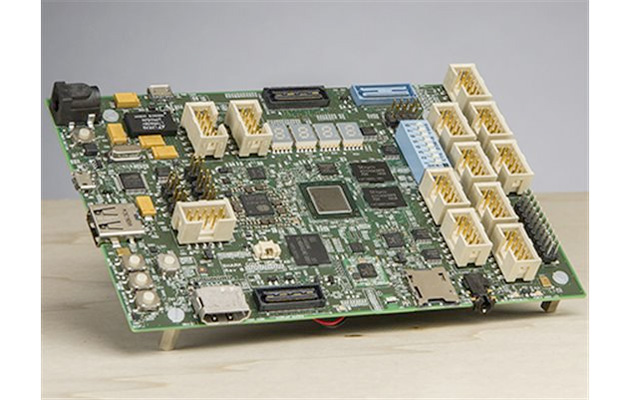
Intel may reign supreme in the desktop and laptop space, but ARM is eating its lunch almost everywhere else. That's not something the chipmaker can ignore, which is why it's having another crack at the hobby / developer market with Sharks Cove. The board, designed with Microsoft, has the stated aim of helping developers build apps and drivers for Windows and Android devices that use Intel chips. Since it's also available for everyone else to buy, it could also be quietly positioned as a more powerful alternative to boards like Arduino and Raspberry Pi. Unfortunately, as with the NUC, there's a catch: the board will retail for $300.

Filed under: Desktops, Microsoft, Intel

Comments

Via: Ars Technica, Gizmodo

Source: MSDN, Mouser, SharksCove

PWM controller

For the last couple of days I’ve been working on designing and building a PWM controller capable of handling moderately large currents at modest voltages (5A @ 9V). I don’t need high PWM frequency (4kHz should be plenty), but some of the loads I’m thinking of are rather nonlinear (very little current at low voltages, large but constant current at higher voltages).

I decided to try using an ATtiny chip as the PWM controller, because they are very cheap and can be programmed from the Arduino IDE (using an Arduino board as the ISP programmer).  I first prototyped the design using a Arduino ProMini (so I could add debugging statements and not have to worry about the 1kByte flash limitation of the ATtiny13A).  Once that was working, I rewrote the code for the ATtiny, doing some hand optimization to reduce the code size. I got it down to 880 bytes, but I can see why C is more popular than C++ for the really tiny processors—the C++ and Arduino overhead accounts for about 150 of the 1k bytes of flash!  I could make my code much smaller if I made it more special purpose and did everything in C rather than C++, but once it fit in the 1024 bytes, I stopped worrying about the size.
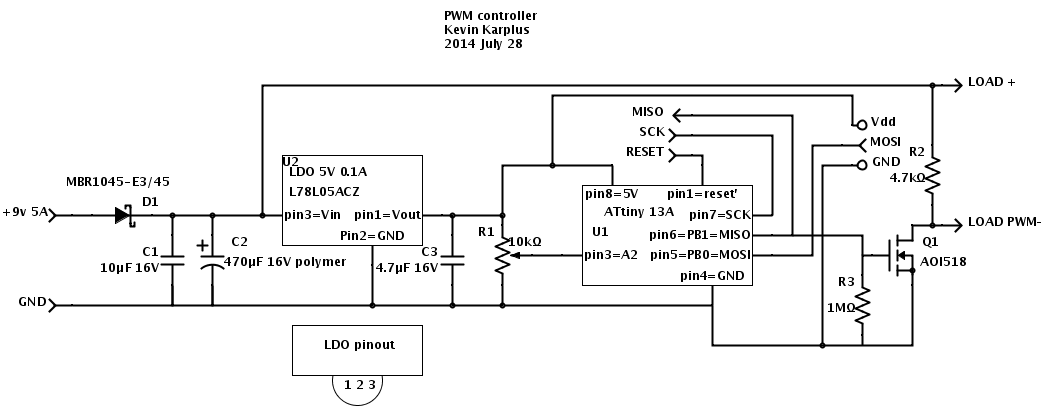
PWM controller using ATtiny 13A

The design I came up with uses a low-dropout regulator to provide 5V for the ATtiny13A. A potentiometer provides analog input and a nFET provides a low-resistance switch for the output. I used the AOI518, because I have some on hand, but they are reaching the “end of life” so some other nFET may need to be used in a future design (perhaps one of the others in the series, such as the AOI516 which has a slightly lower on-resistance but a slightly higher gate capacitance).

The capacitors C1 and C2 are to keep the switching of the large load from propagating spikes into power supply.  The 470µF capacitor with a 5A current spike should limit the voltage slew to 10.6V/ms—with a 4.7kHz current square wave, this would be about a 1.1V triangle wave.  A polymer electrolytic is used (despite the price) to keep the effective series resistance small.  The one I’m using has an ESR of 9mΩ (@100kHz) and a ripple current up to 6.1A.  The leakage current could be as high as 1.5mA though.  C1 is a small ceramic capacitor to remove higher-frequency noise.  The big Schottky diode on the input is just to provide protection against accidentally hooking the circuit up backwards. I should probably add a 60¢ resettable fuse as well, to keep the current from getting excessive if there is a short.

When there is no load, the maximum current draw is 1.9mA for the pullup resistor R2, 0.9mA for the pot, 4–6mA for the ATtiny13A, and up to 1.5mA for C2, for a total of 8.3–10.3mA.  With a typically 80% efficient 9v switching power supply, this is a waste of about 100mW, or about 0.9kWh/year.

The pullup resistor R2 is not strictly necessary, but was added to keep the PWM pulses clean, turning all the way off even when the load had only tiny current draw—otherwise I could not get very low duty-cycle pulses to work well—the nFET acted as if it were a 1.3nF capacitor and kept a low voltage even when the nFET was off.  With the 4.7kΩ pullup, the voltage goes up appropriately, with a time constant of about 6µs.

So far, I’ve not tried the circuit with a large load—just with a small load that takes 13mA.  With that tiny a load, I don’t see any ripple in the power supply from the PWM.  With a 210mA load, the ripple on the power supply is noticeable: on top of the 20mV of ripple at about 20MHz with no load, I see 30mV of ripple synchronized with the switching of the PWM, when switching 210mA with a duty cycle of 1/2.  Without the 470µF polymer capacitor, the synchronized ripple is more like 200mV, indicating that the capacitor is indeed smoothing out the ripple.

The 30mV swing on 210mA implies that I should see about a 710mV swing if switching 5A.   That shouldn’t cause a problem in my design, but I do need to allow a little more voltage so that the swing isn’t a problem.  I could also use a bigger capacitor, but the polymer electrolytics are a bit expensive, and the regular wet electrolytics can’t handle a big ripple current—one with the same 6A ripple current rating would be 20 times the volume and 3 times the price of the polymer capacitor.

The high-frequency noise is almost certainly coming from the ATtiny, as it is synchronized with the PWM signal. The 5V power supply at the ATtiny is showing a 40mV ripple, which is large considering that there is a bypass capacitor on the Vdd pin.  There is a lot of inductance from the wiring on the board though, which could be increasing the propagation of the high-frequency noise.


Filed under: Uncategorized Tagged: Arduino, ATtiny, PWM

PWM controller

For the last couple of days I’ve been working on designing and building a PWM controller capable of handling moderately large currents at modest voltages (5A @ 9V). I don’t need high PWM frequency (4kHz should be plenty), but some of the loads I’m thinking of are rather nonlinear (very little current at low voltages, large but constant current at higher voltages).

I decided to try using an ATtiny chip as the PWM controller, because they are very cheap and can be programmed from the Arduino IDE (using an Arduino board as the ISP programmer).  I first prototyped the design using a Arduino ProMini (so I could add debugging statements and not have to worry about the 1kByte flash limitation of the ATtiny13A).  Once that was working, I rewrote the code for the ATtiny, doing some hand optimization to reduce the code size. I got it down to 880 bytes, but I can see why C is more popular than C++ for the really tiny processors—the C++ and Arduino overhead accounts for about 150 of the 1k bytes of flash!  I could make my code much smaller if I made it more special purpose and did everything in C rather than C++, but once it fit in the 1024 bytes, I stopped worrying about the size.

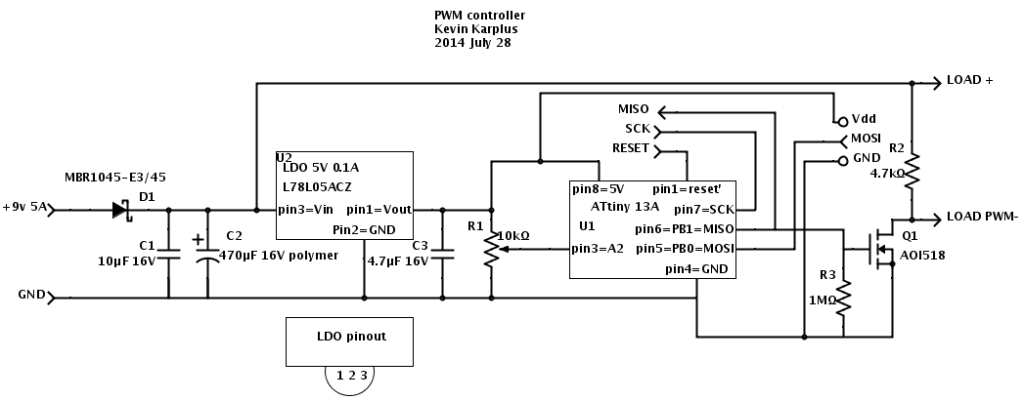
PWM controller using ATtiny 13A

The design I came up with uses a low-dropout regulator to provide 5V for the ATtiny13A. A potentiometer provides analog input and a nFET provides a low-resistance switch for the output. I used the AOI518, because I have some on hand, but they are reaching the “end of life” so some other nFET may need to be used in a future design (perhaps one of the others in the series, such as the AOI516 which has a slightly lower on-resistance but a slightly higher gate capacitance).

The capacitors C1 and C2 are to keep the switching of the large load from propagating spikes into power supply.  The 470µF capacitor with a 5A current spike should limit the voltage slew to 10.6V/ms—with a 4.7kHz current square wave, this would be about a 1.1V triangle wave.  A polymer electrolytic is used (despite the price) to keep the effective series resistance small.  The one I’m using has an ESR of 9mΩ (@100kHz) and a ripple current up to 6.1A.  The leakage current could be as high as 1.5mA though.  C1 is a small ceramic capacitor to remove higher-frequency noise.  The big Schottky diode on the input is just to provide protection against accidentally hooking the circuit up backwards. I should probably add a 60¢ resettable fuse as well, to keep the current from getting excessive if there is a short.

When there is no load, the maximum current draw is 1.9mA for the pullup resistor R2, 0.9mA for the pot, 4–6mA for the ATtiny13A, and up to 1.5mA for C2, for a total of 8.3–10.3mA.  With a typically 80% efficient 9v switching power supply, this is a waste of about 100mW, or about 0.9kWh/year.

The pullup resistor R2 is not strictly necessary, but was added to keep the PWM pulses clean, turning all the way off even when the load had only tiny current draw—otherwise I could not get very low duty-cycle pulses to work well—the nFET acted as if it were a 1.3nF capacitor and kept a low voltage even when the nFET was off.  With the 4.7kΩ pullup, the voltage goes up appropriately, with a time constant of about 6µs.

So far, I’ve not tried the circuit with a large load—just with a small load that takes 13mA.  With that tiny a load, I don’t see any ripple in the power supply from the PWM.  With a 210mA load, the ripple on the power supply is noticeable: on top of the 20mV of ripple at about 20MHz with no load, I see 30mV of ripple synchronized with the switching of the PWM, when switching 210mA with a duty cycle of 1/2.  Without the 470µF polymer capacitor, the synchronized ripple is more like 200mV, indicating that the capacitor is indeed smoothing out the ripple.

The 30mV swing on 210mA implies that I should see about a 710mV swing if switching 5A.   That shouldn’t cause a problem in my design, but I do need to allow a little more voltage so that the swing isn’t a problem.  I could also use a bigger capacitor, but the polymer electrolytics are a bit expensive, and the regular wet electrolytics can’t handle a big ripple current—one with the same 6A ripple current rating would be 20 times the volume and 3 times the price of the polymer capacitor.

The high-frequency noise is almost certainly coming from the ATtiny, as it is synchronized with the PWM signal. The 5V power supply at the ATtiny is showing a 40mV ripple, which is large considering that there is a bypass capacitor on the Vdd pin.  There is a lot of inductance from the wiring on the board though, which could be increasing the propagation of the high-frequency noise.


Filed under: Uncategorized Tagged: Arduino, ATtiny, PWM

Bar Mixva: The Drink Mixing Robot

If you’d like a “cool refreshing drink,” but don’t really feel like mixing it yourself, why not just build a robot to do it for you? It might not save time in the long run (I seriously hope not), but as creator Yu Jiang Tham notes, “It’s great fun at […]

Read more on MAKE

MAKE » Arduino 28 Jul 22:07

Digioxide: A Portable Device That Makes Art Out of Environmental Pollution

In an effort to raise public awareness of environmental pollution, artist Dmitry Morozov has created a device called that makes digital prints from the pollutants it detects.

Read more on MAKE

A Better Google Glass For $60 (This One Folds)

For [Tony]‘s entry for The Hackaday Prize, he’s doing something we’ve all seen before – a head mounted display, connected to a Bluetooth module, displaying information from a smartphone. What we haven’t seen before is a cheap version of this tech, and a version of Google Glass that folds – you know, like every other pair of glasses on the planet – edges this project over from ‘interesting’ to ‘nearly practical’.

For the display, [Tony] is using a 0.96″ OLED connected to an Arduino Nano. This screen is directed into the wearer’s eye with a series of optics that, along with every other part of the frame, was 3D printed on a Solidoodle 2. The frame itself not only folds along the temples, but also along the bridge, making this HMD surprisingly compact when folded up.

Everything displayed on this head mounted display is controlled by  either an Android phone or a Bluetooth connection to a desktop. Using relatively simple display means [Tony] is limited to text and extremely simple graphics, but this is more than enough for some very interesting applications; reading SMS messages and checking email is easy, and doesn’t overpower the ‘duino.


The project featured in this post is an entry in The Hackaday Prize. Build something awesome and win a trip to space or hundreds of other prizes.


Filed under: 3d Printer hacks, wearable hacks

The RC White House Robot

This remote controlled, Arduino-based robot was created by a young student named [Quin] who likes to teach electronics classes at hackerspaces. It is an adaptation of this awesome, fast, fully autonomous mini Roomba that has since driven its way into the Presidential building during the 1st ever White House Maker Faire.

The quick, little device uses a robot chassis kit with an XBee wireless module so that the controller and the robot can be connected together. An NFC Shield was hacked and split in half so that the wires could be soldered in place.

[Quin]‘s goal was to develop a fun game that records the number of times the robot drives over NFC tags laid across a flat surface. Points are shown in the form of blinking lights that illuminate when the device goes over the sensors, keeping track of the score.

The controller container was made with an open source 3D printer called a Bukobot. The enclosure holds an Arduino and another XBee shield along with a joystick and a neopixel ring, giving it a nice polished look complete with a circle of beautiful, flashing LED’s.

We saw the robot in action during an Arduino workshop at a local 3D printing store/makerspace in Pasadena called Deezmaker. [Quin] told us that will.i.am, the musician, tried it out during the Maker Faire in Washington DC. He also said that he met Bill Nye the Science Guy there as well.

This simple project, and more inventions of his, has opened up many doors in the maker community. And yet [Quin] seems unphased by all the attention, staying very focused on teaching his skills to anyone who is eager to learn.

Documentation of the project is on his website (Qtechknow) along with this color-changing Christmas star; which is perfect for sprucing up a holiday Christmas tree. Another project is this methane sensing fart cap. All 3 can be seen in the photo below.

A video with the robot being demoed comes next. In it, [Quin] talks about what it was like to be invited into the White House.

Also, check out this spectacular video about the Maker Movement with [Quin] in it.

In addition, here is a Popular Science article and this feature in Make Magazine about him.


Filed under: robots hacks