Arduino Leaks a Peek of Their Upcoming 3D Printer
 The company will present their new Arduino Materia 101 at Maker Faire Rome next weekend.


 The company will present their new Arduino Materia 101 at Maker Faire Rome next weekend.
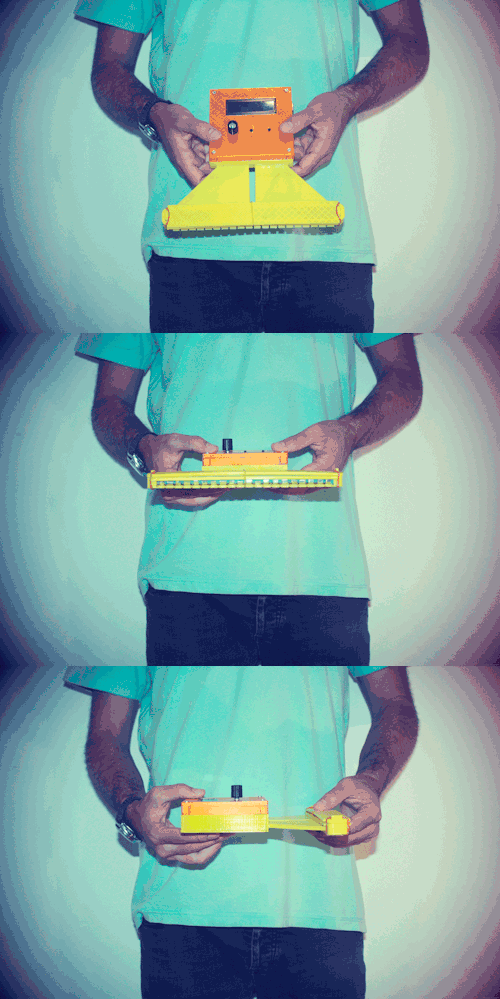
‘Draw It Yourself’ is a MIDI controller created by Dani Sanz which uses conductive ink as push-buttons. It is based on Arduino Uno and uses a capacitive sensor to determine whether the drawn buttons are being touched or not:
This was my second semester project for the Interactive Music Systems Design Course (CDSIM) at the Music Technology Group (MTG) at University Pompeu Fabra of Barcelona. I presented this project at Sonar+D, part of the Sonar festival of Barcelona, held between June 12th and 14th 2014.
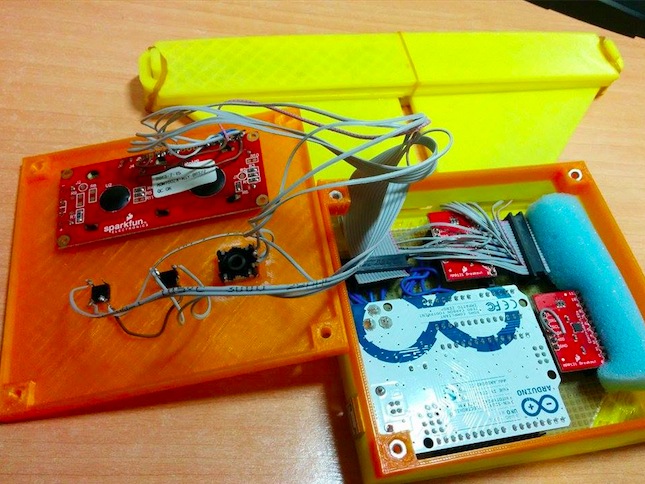
It can be used for multiple applications, not only for music! You can download the Fritzing and make it yourself on the Instructable and see it in action with this video:
 When I was a kid I had an Erector set, Size 8 ½, and learned how to build mechanical projects the hard way. There were no step-by-step instructions, no snap together parts, no video tutorials, just a bunch of really cool drawings and 169 nuts and bolts. I […]
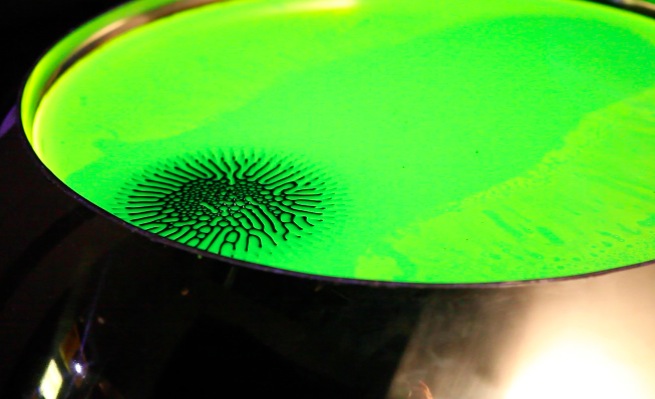
Solaris is an interactive installation created by Julia Borovaya (idea curation), Edward Rakhmanov (robotic system, chemistry), Vtol (programming, electronics) with the help of Alexander Kaplan, professor of neurophysiology:
it demonstrates the field influence of the permanent magnet on the magnetic and spirit (fluorescent) liquids. Two liquids constitute the diphasic system. Due to liquids movements and their surfaces’ modifications we visualize the unique processes of human brain. The spectator wears on neuro interface Emotive Epoc, the device computes a brain activity and sends information to the installation machinery.
To test the project people of different ages, social groups and professional areas were invited. Test results confirmed that brain activity and mood of the man reflect on the dynamic and character of liquids movements in the sphere. Object reacts on the changes of mind and emotion states. People who spent a plenty of time with the object managed to influence the dynamic and direction of the liquids on the unconsciousness level. We also reveal that the installation visualizes the temperament of the person. The object copies your mental organization and echoes it on the liquid’s surface. The object becomes a part of the participant.
It runs on Arduino Uno controlling dc motors, 2 actuators and a custom digital motor control system interface.

Fans of the bouncing lamp from the Pixar corporate logo will enjoy [Daniel]‘s latest project. It’s a motion controlled desk lamp that uses ultrasonic sensors to control its physical position.
The core of the project is an Arduino and the three ultrasonic sensors. The sensors act as range finders, and when they are all working together under the direction of the microcontroller they can tell which direction a hand was moving when it passed by. This information is used to drive two servos, one in the base and one on the lamp’s arm.
The project requires an articulating desk lamp of some sort (others besides the specific one [Daniel] used shouldn’t be much of a problem as long as they bend in the same way). Most hackers will have the rest of the parts on hand, with the possible exception of the rangefinder. The code is up on the project site for a look-see or in case you want to build your own.
The only problem that [Daniel] had when putting this all together was that the base was a little wobbly. He was able to fix that with some thumbtacks, and we think the next step for the project should be switching the light on and off over the internet.


 Homebrew tracking device was designed using an Arduino Uno and GPRS+GPS shield.
Using it to track persons is highly illegal unless you belong to an alphabet agency.
Homebrew tracking device was designed using an Arduino Uno and GPRS+GPS shield.
Using it to track persons is highly illegal unless you belong to an alphabet agency.

Learn how to use inexpensive serial backpacks with character LCD modules with your Arduino. This is chapter fifty-eight of our huge Arduino tutorial series.
Using LCD modules with your Arduino is popular, however the amount of wiring requires time and patience to wire it up correctly – and also uses a lot of digital output pins. That’s why we love these serial backpack modules – they’re fitted to the back of your LCD module and allows connection to your Arduino (or other development board) with only four wires – power, GND, data and clock.
You can use this with LCD modules that have a HD44780-compatible interface with various screen sizes. For example a 16 x 2 module:

The backpack can also be used with 20 x 4 LCDs. The key is that your LCD must have the interface pads in a single row of sixteen, so it matches the pins on the backpack – for example:

Now let’s get started. First you need to solder the backpack to your LCD module. While your soldering iron is warming up, check that the backpack pins are straight and fit in the LCD module, for example:

Then solder in the first pin, while keeping the backpack flush with the LCD:

If it’s a bit crooked, you can reheat the solder and straighten it up again. Once you’re satisfied with the alignment, solder in the rest of the pins:

Now to keep things neat, trim off the excess header pins:

Once you’ve finished trimming the header pins, get four male to female jumper wires and connect the LCD module to your Arduino as shown in the following image and table. Then connect your Arduino to the computer via USB:


The next step is to download and install the Arduino I2C LCD library for use with the backpack. First of all, rename the “LiquidCrystal” library folder in your Arduino libraries folder. We do this just to keep it as a backup.
If you’re not sure where your library folder can be found – it’s usually in your sketchbook folder, whose location can usually be found in the Arduino IDE preferences menu:

Next, visit https://bitbucket.org/fmalpartida/new-liquidcrysta… and download the latest file, currently we’re using v1.2.1. Expanding the downloaded .zip file will reveal a new “LiquidCrystal” folder – copy this into your Arduino libraries folder.
Now restart the Arduino IDE if it was already running – or open it now. To test the module we have a demonstration sketch prepared, simply copy and upload the following sketch:
/* Demonstration sketch for PCF8574T I2C LCD Backpack
Uses library from https://bitbucket.org/fmalpartida/new-liquidcrystal/downloads GNU General Public License, version 3 (GPL-3.0) */
#include <Wire.h>
#include <LCD.h>
#include <LiquidCrystal_I2C.h>

LiquidCrystal_I2C	lcd(0x27,2,1,0,4,5,6,7); // 0x27 is the I2C bus address for an unmodified backpack

void setup()
{
  // activate LCD module
  lcd.begin (16,2); // for 16 x 2 LCD module
  lcd.setBacklightPin(3,POSITIVE);
  lcd.setBacklight(HIGH);
}

void loop()
{
  lcd.home (); // set cursor to 0,0
  lcd.print(" tronixlabs.com");
  lcd.setCursor (0,1);        // go to start of 2nd line
  lcd.print(millis());
  delay(1000);
  lcd.setBacklight(LOW);      // Backlight off
  delay(250);
  lcd.setBacklight(HIGH);     // Backlight on
  delay(1000);
}
After a few moments the LCD will be initialised and start to display our URL and the value for millis, then blink the backlight off and on – for example:

If the text isn’t clear, or you just see white blocks – try adjusting the contrast using the potentiometer on the back of the module.
As opposed to using the LCD module without the backpack, there’s a few extra lines of code to include in your sketches. To review these, open the example sketch mentioned earlier.
You will need the libraries as shown in lines 3, 4 and 5 – and initialise the module as shown in line 7. Note that the default I2C bus address is 0x27 – and the first parameter in the LiquidCrystal_I2C function.
Finally the three lines used in void setup() are also required to initialise the LCD. If you’re using a 20×4 LCD module, change the parameters in the lcd.begin() function.
From this point you can use all the standard LiquidCrystal functions such as lcd.setCursor() to move the cursor and lcd.write() to display text or variables as normal. The backlight can also be turned on and off with lcd.setBacklight(HIGH) or lcd.setBacklight(LOW).
You can permanently turn off the backlight by removing the physical jumper on the back of the module.
If you want to use more than one module, or have another device on the I2C bus with address 0x27 then you’ll need to change the address used on the module. There are eight options to choose from, and these are selected by soldering over one or more of the following spots:

There are eight possible combinations, and these are described in Table 4 of the PCF8574 data sheet which can be downloaded from the NXP website. If you’re unsure about the bus address used by the module, simply connect it to your Arduino as described earlier and run the I2C scanner sketch from the Arduino playground.
We hope you enjoyed this tutorial and you can make use of it. Finally, if you enjoyed this tutorial, or want to introduce someone else to the interesting world of Arduino – check out my book (now in a fourth printing!) “Arduino Workshop”.

Learn how to use inexpensive serial backpacks with character LCD modules with your Arduino. This is chapter fifty-eight of our huge Arduino tutorial series.
Using LCD modules with your Arduino is popular, however the amount of wiring requires time and patience to wire it up correctly – and also uses a lot of digital output pins. That’s why we love these serial backpack modules – they’re fitted to the back of your LCD module and allows connection to your Arduino (or other development board) with only four wires – power, GND, data and clock.
You can use this with LCD modules that have a HD44780-compatible interface with various screen sizes. For example a 16 x 2 module:

The backpack can also be used with 20 x 4 LCDs. The key is that your LCD must have the interface pads in a single row of sixteen, so it matches the pins on the backpack – for example:

Now let’s get started. First you need to solder the backpack to your LCD module. While your soldering iron is warming up, check that the backpack pins are straight and fit in the LCD module, for example:

Then solder in the first pin, while keeping the backpack flush with the LCD:

If it’s a bit crooked, you can reheat the solder and straighten it up again. Once you’re satisfied with the alignment, solder in the rest of the pins:

Now to keep things neat, trim off the excess header pins:

Once you’ve finished trimming the header pins, get four male to female jumper wires and connect the LCD module to your Arduino as shown in the following image and table. Then connect your Arduino to the computer via USB:


The next step is to download and install the Arduino I2C LCD library for use with the backpack. First of all, rename the “LiquidCrystal” library folder in your Arduino libraries folder. We do this just to keep it as a backup.
If you’re not sure where your library folder can be found – it’s usually in your sketchbook folder, whose location can usually be found in the Arduino IDE preferences menu:

Next, visit https://bitbucket.org/fmalpartida/new-liquidcrysta… and download the latest file, currently we’re using v1.2.1. Expanding the downloaded .zip file will reveal a new “LiquidCrystal” folder – copy this into your Arduino libraries folder.
Now restart the Arduino IDE if it was already running – or open it now. To test the module we have a demonstration sketch prepared, simply copy and upload the following sketch:
/* Demonstration sketch for PCF8574T I2C LCD Backpack
Uses library from https://bitbucket.org/fmalpartida/new-liquidcrystal/downloads GNU General Public License, version 3 (GPL-3.0) */
#include <Wire.h>
#include <LCD.h>
#include <LiquidCrystal_I2C.h>

LiquidCrystal_I2C	lcd(0x27,2,1,0,4,5,6,7); // 0x27 is the I2C bus address for an unmodified backpack

void setup()
{
  // activate LCD module
  lcd.begin (16,2); // for 16 x 2 LCD module
  lcd.setBacklightPin(3,POSITIVE);
  lcd.setBacklight(HIGH);
}

void loop()
{
  lcd.home (); // set cursor to 0,0
  lcd.print(" tronixlabs.com");
  lcd.setCursor (0,1);        // go to start of 2nd line
  lcd.print(millis());
  delay(1000);
  lcd.setBacklight(LOW);      // Backlight off
  delay(250);
  lcd.setBacklight(HIGH);     // Backlight on
  delay(1000);
}
After a few moments the LCD will be initialised and start to display our URL and the value for millis, then blink the backlight off and on – for example:

If the text isn’t clear, or you just see white blocks – try adjusting the contrast using the potentiometer on the back of the module.
As opposed to using the LCD module without the backpack, there’s a few extra lines of code to include in your sketches. To review these, open the example sketch mentioned earlier.
You will need the libraries as shown in lines 3, 4 and 5 – and initialise the module as shown in line 7. Note that the default I2C bus address is 0x27 – and the first parameter in the LiquidCrystal_I2C function.
Finally the three lines used in void setup() are also required to initialise the LCD. If you’re using a 20×4 LCD module, change the parameters in the lcd.begin() function.
From this point you can use all the standard LiquidCrystal functions such as lcd.setCursor() to move the cursor and lcd.write() to display text or variables as normal. The backlight can also be turned on and off with lcd.setBacklight(HIGH) or lcd.setBacklight(LOW).
You can permanently turn off the backlight by removing the physical jumper on the back of the module.
If you want to use more than one module, or have another device on the I2C bus with address 0x27 then you’ll need to change the address used on the module. There are eight options to choose from, and these are selected by soldering over one or more of the following spots:

There are eight possible combinations, and these are described in Table 4 of the PCF8574 data sheet which can be downloaded from the NXP website. If you’re unsure about the bus address used by the module, simply connect it to your Arduino as described earlier and run the I2C scanner sketch from the Arduino playground.
We hope you enjoyed this tutorial and you can make use of it. Finally, if you enjoyed this tutorial, or want to introduce someone else to the interesting world of Arduino – check out my book (now in a fourth printing!) “Arduino Workshop”.

The post Tutorial – PCF8574 backpacks for LCD modules and Arduino appeared first on tronixstuff.
In case you haven’t noticed, one of the more popular themes for new dev boards is Bluetooth. Slap a Bluetooth 4.0 module on a board, and you really have something: just about every phone out there has it, and the Low Energy label is great for battery-powered Internets of Things.
Most of these boards fall a little short. It’s one thing to throw a Bluetooth module on a board, but building the software to interact with this board is another matter entirely. Revealing Hour Creations is bucking that trend with their Tah board. Basically, it’s your standard Arduino compatible board with a btle module. What they’ve done is add the software for iOS and Android that makes building stuff easy.
Putting Bluetooth on a single board is one thing, but how about putting Bluetooth on everything. SAM Labs showed off their system of things at Maker Faire with LEDs, buttons, fans, motors, sensors, and just about every electrical component you can imagine.
All of these little boards come with a Bluetooth module and a battery. The software for the system is a graphical interface that allows you to draw virtual wires between everything. Connect a button to a LED in the software, and the LED will light up when the button is pressed. Move your mouse around the computer, and the button will turn on a motor when it’s pressed.
There are a few APIs that also come packaged into the programming environment – at the booth, you could open a fridge (filled with cool drinks that didn’t cost five dollars, a surprise for the faire) and it would post a tweet.


The Drink Up Fountain is project created in September 2013 by YesYesNo Interactive studio in collaboration with PHA Honorary Chair First Lady Michelle Obama and dedicated to encouraging people to drink more water more often: “You are what you drink, and when you drink water you drink up!”
The Fountain runs on Arduino Mega and
dispenses entertaining greetings and compliments intended to entice the drinker to continue sipping. When a drinker’s lips touch the water, the fountain “talks,” completing a circuit and activating speakers. When the drinker pulls his or her head away and stops drinking, the circuit breaks and the fountain stops talking. With hidden cameras set up, Drink Up caught unsuspecting individuals using the fountain in New York City’s Brooklyn Bridge Park
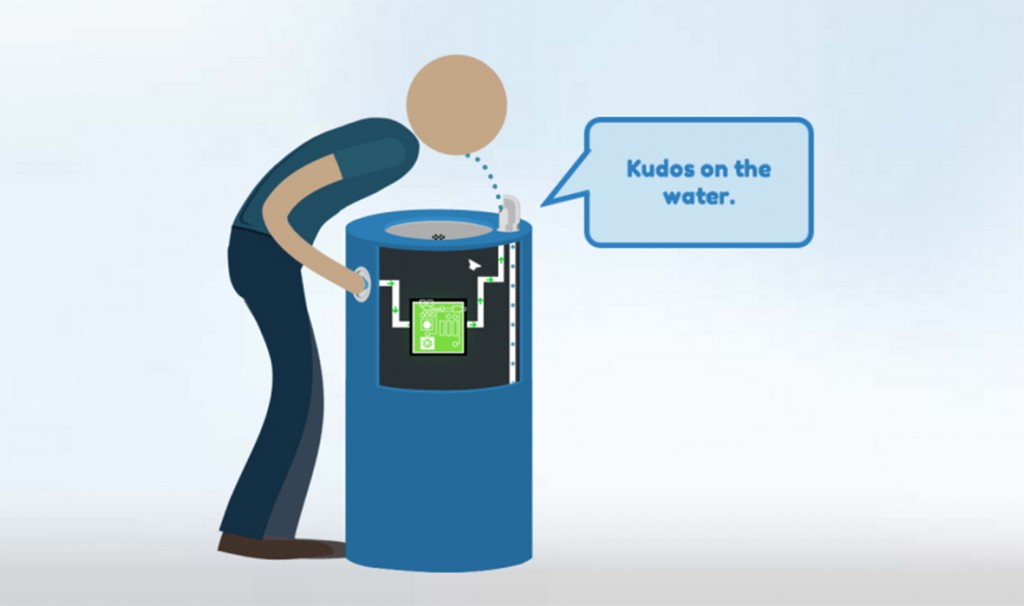
Take a look at the video to see how the fountain interacts the people: