Posts with «arduino» label

Keep an Eye on Your Fermenting Beer with BrewMonitor

The art of brewing beer is as old as civilization itself. Many people enjoy brewing their own beer at home. Numerous steps must be taken before you can take a swig, but fermentation is one of the most critical. [Martin Kennedy] took up the hobby with his friends, and wanted a convenient way to monitor the fermentation temperature remotely. He started working on the BrewMonitor, a cloud-based homebrewing controller powered by an Arduino clone.

His goal was to create something cheap, convenient, and easy to set up. Traditional fermentation monitoring equipment is very expensive. The typical open-source alternative will set you back 80 euros (roughly $101), using the Arduino-sensor with a Raspberry Pi gateway via the BrewPi webserver. [Martin] did not want to go through the hassle of viewing BrewPi remotely, since it requires a home network and all of the configuration that would entail. Instead, he coupled an Arduino clone with a DS18B20 temperature sensor while using an ESP8266 module for wireless communication, all for less than 18 euros ($23). This connects to a simple webpage based on Scotch.io with a PHP backend (Laravel with RESTful API), a MySQL database, and an AngularJS frontend to display the graph. Once the sensor is placed into the fermenter bucket’s thermowell, the temperature is transmitted once a minute to the REST API. You can see the temperature over time (in Celsius). The design files are available on GitHub.

[Martin] would like to expand the functionality of BrewMonitor, such as adding the ability to adjust the temperature remotely by controlling a heater or fridge, and lowering its cost by single boarding it. Since the information is stored on the cloud, upgrading the system is much easier than using a separate gateway device. He doesn’t rule out crowdfunding campaigns for the future. We would like to see this developed further, since different yeast species and beer styles require very stringent conditions, especially during the weeks-long fermentation process; a 5-degree Celsius difference can ruin an entire brew! Cloud-based temperature adjustment seems like the next big goal for BrewMonitor. DIY brewers salute you, [Martin]!

[via Dangerous Prototypes]


Filed under: Beer Hacks

How-To: Hocus Pocus Book Replica

Remember the spell book from Hocus Pocus with the creepy moving eyeball? Since it is the season of Halloween-movie-replica-prop-making, I’ve found a great DIY tutorial that covers the steps required to make a pretty accurate copy! This tutorial doesn’t include how to make the eyeball actually move, but I would […]

Read more on MAKE

Animating A Halloween Door Knocker with Digispark

A software engineer turns a cheap $5 Halloween decoration into an animated nightmare. A Digispark development board controls the LED eyes and knocker actuator for haunting effects.
MAKE » Arduino 11 Oct 16:01

Home Automation with a Custom Wireless Sensor Network

We’re no strangers to home automation projects around here, but it’s not often that you see one described in this much detail. [Paul] designed a custom home automation system with four teammates for an undergraduate thesis project.

The system is broken into two main components; the server and the peripherals. The team designed their peripherals from early prototypes of an upcoming ArduIMU v4 measurement unit. They removed all of the default sensors to keep costs down and reduce assembly time. The units can them be hooked up to various peripherals such as temperature sensors, mains relays, RGB color strips, etc.

The central management of the system is performed using a web-based user interface. The web server runs on Java, and interacts with the peripherals wirelessly. Basic messages can be sent back and forth to either read the state of the peripherals or to change the state. As far as the user is concerned, these messages appear as simple triggers and actions. This makes it very simple to program the peripherals using if, then, else logic.

The main project page is a very brief summary of what appears to be a very well documented project. The team has made available their 182 page final report (pdf), which goes into the nitty-gritty details of the project. Also, be sure to watch the demonstration video below.


Filed under: home hacks

MacGyvered Optoisolator is a Great Introduction

Sometimes the best way to learn about a technology is to just build something yourself. That’s what [Dan] did with his DIY optoisolator. The purpose of an optoisolator is to allow two electrical systems to communicate with each other without being electrically connected. Many times this is done to prevent noise from one circuit from bleeding over into another.

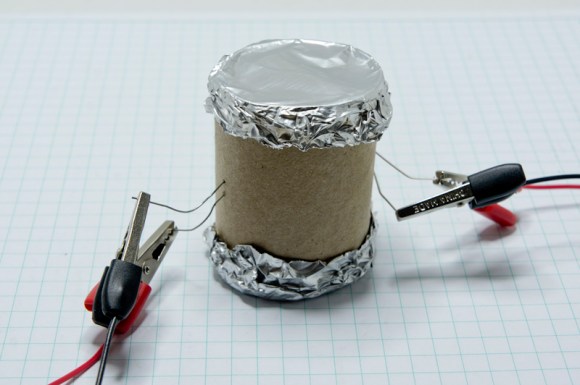
[Dan] built his incredibly simple optoisolator using just a toilet paper tube, some aluminum foil, an LED, and a photo cell. The electrical components are mounted inside of the tube and the ends of the tube are sealed with foil. That’s all there is to it. To test the circuit, he configured an Arduino to send PWM signals to the LED inside the tube at various pulse widths. He then measured the resistance on the other side and graphed the resulting data. The result is a curve that shows the LED affects the sensor pretty drastically at first, but then gets less and less effective as the frequency of the signal increases.

[Dan] then had some more fun with his project by testing it on a simple temperature controller circuit. An Arduino reads a temperature sensor and if the temperature rises above a certain value, it turns on a fan to cool the sensor off again. [Dan] first graphed the sensor data with no fan hooked up. He only used ambient air to cool things down. The resulting graph is a pretty smooth curve. Next he hooked the fan up and tried again. This time the graph went all kinds of crazy. Every time the fan turned on, it created a bunch of electrical noise that prevented the Arduino from getting an accurate analog reading of the temperature sensor.

The third test was to remove the motor circuit and move it to its own bread board. The only thing connecting the Arduino circuit to the fan was a wire for the PWM signal and also a common ground. This smoothed out the graph but it was still a bit… lumpy. The final test was to isolate the fan circuit from the temperature sensor and see if it helped the situation. [Dan] hooked up his optoisolator and tried again. This time the graph was nice and smooth, just like the original graph.

While this technology is certainly not new or exciting, it’s always great to see someone learning by doing. What’s more is [Dan] has made all of his schematics and code readily available so others can try the same experiment and learn it for themselves.


Filed under: Arduino Hacks

New Project: Ultrasonic Spider-Sense

Using an ultrasonic range sensor we can sense how far away objects are.

Read more on MAKE

GPS lamps and the (in)visible landscape of the networked city

Satellite Lamps is a project investigating one of the most important contemporary infrastructures, the Global Positioning System or GPS. It’s a project curated by Einar Sneve Martinussen, Jørn Knutsen and Timo Arnall as part of the Yourban research project at the Oslo School of Architecture and Design and continues their previous work on revealing the materials of technologies that started in 2009 with RFID and Immaterials: Light Painting Wifi. The project uses Arduino extensively, and is also thoroughly documented:

GPS is widely used yet it’s invisible and few of us really have any idea of how it works or how it inhabits our everyday environments. We created a series of Lamps that change brightness according to the accuracy of received GPS signals, and when we photograph them as timelapse films, we start to get a picture of how these signals behave in actual urban spaces.


They published a film that you can watch above, and published an article that details very thoroughly how it was made and why. If you are interested in the project, you can read more on how they explored GPS , how the visualisations were made, and about the cultural history of GPS.

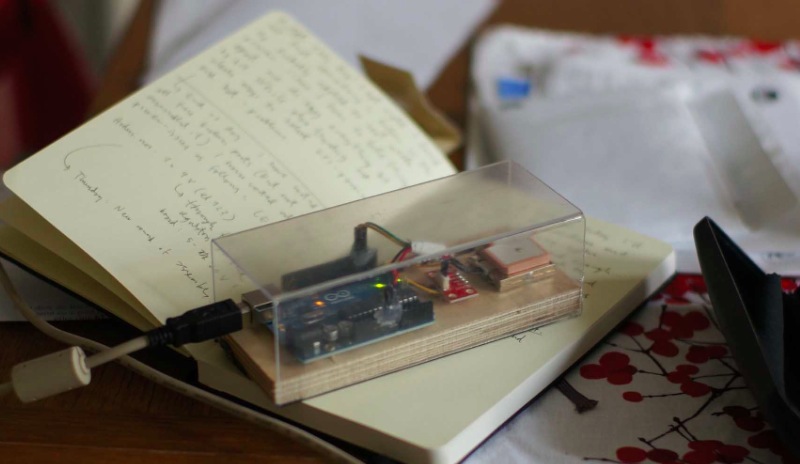
This is a GPS receiver connected to Arduino that sends data to a piece of software running on a laptop. It is a quickly designed tool, a transparent plastic box that that allows us to observe the performance of the electronics, and still mobile enough to carry in hand or a backpack.

Arduino Blog 09 Oct 17:42
arduino  arduino uno  featured  gps  lamp  lamp(s)  oslo  

Flora-Powered TARDIS Dog Costume

How To: Doctor Who TARDIS costume for dogs complete with TARDIS sounds and lights

Read more on MAKE

DIY Canon Intervalometer using Arduino


An intervalometer allows you to take photos at set intervals to view a slow process in super fast speed. Watching paint dry is just as boring in fast motion as it is at normal speed, however, when you point your camera to the clouds in the sky, you can get some amazing effects.
 
By taking a picture every 3 seconds, and then playing the sequence back at 30 frames a second, you will get to see a 10 minute event in just 7 seconds.To get a nice flowing motion picture, you need to get a good balance between the recording frame rate, and the play-back frame rate.


The recording frame rate is limited by the amount of memory you have in your camera, the length of the captured event, battery charge, and the camera's general capabilities. The playback frame rate needs to be fast enough to prevent jittering, but not so fast that you lose the event in a blink of an eye. The more you practice with different subject matters, the more you get a feel for how long you need to keep the camera running and how long to leave between shots.
 
When taking pictures of the clouds, you can generally use a 3-5 second frame rate, depending on their speed across the sky. To capture the flow of traffic, I would recommend a picture every 1-2 seconds. However, for really slow events like a plant growing, you may need to extend the frame capture rate significantly. You will get a better idea once you try it for yourself.


This tutorial follows on from the Arduino selfie tutorial, so you might notice some similarities. However, in this tutorial, we will have more control over the intervalometer by using a sliding potentiometer and an LED bar. The pin layout is slightly different from the Arduino Selfie tutorial - so best to start from scratch to avoid pin misconfigurations.
 

Warning : Any circuit you build for your camera (including this one) is at your own risk. I will not take responsibility for any damage caused to any of your equipment.
 
I found out that my Canon Powershot SX50 HS camera has a port on the side for a remote switch. In the "Optional Accessories" section of the camera brochure, it identifies the remote switch model as RS-60E3. I then looked up the model number on this website to find out the size of the jack (3 core, 2.5mm), and the pinout (Ground, focus and shutter) required to emulate the remote switch. Once I had this information, I was able to solder some really long wires to the jack and connect up the circuit (as described below).
 
I use Time-Lapse tool to stitch all of the pictures together to create a movie/animation.
 
You will need to download and install the LED_Bar library from Seeedstudio into your Arduino IDE libraries folder in order to use the LED Bar in this tutorial. For more information about the LED Bar - visit the LED Bar Seeed-Studio wiki.
 

Parts Required:


Fritzing Sketch


Connection Tables


Arduino to Relay Module:


Relay Module to Camera:


Arduino to Slide Potentiometer:


Arduino to LED Bar:


Arduino Sketch


  1
2
3
4
5
6
7
8
9
10
11
12
13
14
15
16
17
18
19
20
21
22
23
24
25
26
27
28
29
30
31
32
33
34
35
36
37
38
39
40
41
42
43
44
45
46
47
48
49
50
51
52
53
54
55
56
57
58
59
60
61
62
63
64
65
66
    
/* ===============================================================
      Project: DIY Canon Intervalometer using Arduino
       Author: Scott C
      Created: 9th October 2014
  Arduino IDE: 1.0.5
      Website: http://arduinobasics.blogspot.com/p/arduino-basics-projects-page.html
  Description: Use Arduino as an intervalometer for Canon PowerShot SX50 HS
               A slide potentiometer is used to control the time between photos.
               The LED Bar is used to display the delay between photos.
               A 3 core 2.5mm jack is used to connect the Arduino and Relay module to the Camera.
================================================================== */

 /* You will need to download and install the LED_Bar library from here: https://github.com/Seeed-Studio/Grove_LED_Bar */
 #include <LED_Bar.h>

 /* Connect 5V on Arduino to VCC on Relay Module
    Connect GND on Arduino to GND on Relay Module */

 #define CH1 7   // Connect Digital Pin 7 on Arduino to CH1 on Relay Module
 #define CH3 6   // Connect Digital Pin 6 on Arduino to CH3 on Relay Module
 
 int potPin=A0; //Connect Slide potentiometer to Analog Pin 0 on Grove Base Shield
 int potValue=0; //The variable used to hold the value of the potentiometer

 LED_Bar bar1(9,8); //Connect LED Bar to Digital I/O 8 on Grove base shield.
                   //The LED Bar actually uses digital pin 8 and 9.

 void setup(){
   pinMode(CH1, OUTPUT);
   pinMode(CH3, OUTPUT);
   
   //Turn OFF any power to the Relay channels
   digitalWrite(CH1,LOW);
   digitalWrite(CH3,LOW);
   delay(2000); //Wait 2 seconds before starting sequence
   
   //Focus camera by switching Relay 1
   digitalWrite(CH1, HIGH);
   delay(2000);
   digitalWrite(CH1, LOW); //Stop focus
   delay(3000);
 }

 void loop(){
      // Read the slide potentiometer and convert the reading to a value between 0 and 10.
      potValue=constrain(map(analogRead(potPin),0,1000,0,10),0,10);
      
      //Use the pot value to create a visual count-down display on the LED bar.
      for(int i = potValue; i>0; i--){
        bar1.setLevel(i);
        delay(1000);
      }
      
      //If the pot value is less than 1, then delay for 30 seconds.
      if(potValue<1){
        delay(30000);
      }
      
      //Turn LED Bar off when taking photo
      bar1.setLevelReverse(0);
      
      //Press shutter button for 0.1 seconds. Modify delay if required.
      digitalWrite(CH3, HIGH);
      delay(100);
      digitalWrite(CH3,LOW); //Release shutter button
 }


The Video


This project shows how to make your Canon Powershot SX50 HS a whole lot smarter using an Arduino. There are so many things that look so different with an intervalometer. While I connected a slide potentiometer to the Arduino to provide extra flexibility, and an LED Bar for visual feedback, there are many other sensors out there that can be combined with the camera. For example, you could use a PIR sensor to take a picture when movement is detected. Or take a picture when a laser trip-wire is broken. What about sound activation, light activation, leak detection.... the options are limitless.
 
This has been one of my favorite projects, it was a lot of fun, and very interesting.
I highly recommend that you try it out!


If you like this page, please do me a favour and show your appreciation :


Visit my ArduinoBasics Google + page.
Follow me on Twitter by looking for ScottC @ArduinoBasics.
Have a look at my videos on my YouTube channel.


However, if you do not have a google profile...
Feel free to share this page with your friends in any way you see fit.

Snapshots from Maker Faire Rome 2014!

Last weekend the second edition of Maker Faire Rome – The European Edition,  hosted 90,000 people (15,000 young boys and girls!) at the Auditorium Parco della Musica, discovering more than 600 maker projects, participated to workshops and attended the conferences and many light-talks.

Take a look at some snapshots on our Flickr account: we took them during the faire at the Arduino Booth and Store (also behind the scene),  the Arduino Activities and the presentations announcing  the State of Arduino and CasaJasmina – the open source connected home – curated by Bruce Sterling. During the long and intense weekend Arduino participated also to the press conference and vernissage of the exhibition 50 years of italian inventions, from Programma 101 to the first 3d printed car, a project by Make in Italy CDB foundation.

In the next weeks we are going to share some  videos of the presentations and the events of those amazing days! Thanks for participating to Maker Faire Rome! Stay tuned…

Do you have any picture to share about the event? Post the link in the comments!