Posts with «arduino» label

Meet the Arduino Clone That’s the Size of a AA Battery

A clever design for a pint-sized, wireless Arduino clone that also turns a battery holder into a project box.

Read more on MAKE

The post Meet the Arduino Clone That’s the Size of a AA Battery appeared first on Make: DIY Projects and Ideas for Makers.

Small Experiments in DIY Home Security

[Dann Albright] writes about some small experiments he’s done in home security.

He starts with the simplest. Which is to purchase an off the shelf web camera, and hook it up to software built to do the task. The first software he uses is the free, iSpy open source software. This adds basic features like motion detection, time stamping, logging, and an interface. He also explores other commercial options.

Next he delves a bit deeper. He starts by making a simple motion detector. When the Arduino detects motion using a PIR sensor it gets a computer to text an alert. After the tutorial begins to veer a little and he adds his WiFi light bulbs to the mix. Now he can send an email and change the color of the lights.

We suppose, that from a security standpoint. It would really freak a burglar out if all the lights turned red when they walked into a room. Either way, there’s definitely a fun weekend project in playing around with all these systems.


Filed under: home hacks
Hack a Day 24 Apr 12:00

Gear Clock Uses Stepper Motor

[Rjeuch] liked a wooden clock he saw on the Internet, but the gears were produced with a proprietary software tool. So he built his own version. Unlike the original, however, he chose to use a stepper motor to drive the hands.

The clock’s gears aren’t just for show, and the post does a good job explaining how the gears work, how you might customize them, and how they fit together. The clock’s electronics rely on an Arduino.

The issue with an Arduino, of course, is that the time base isn’t always good enough to keep time over long periods. To fix that problem [Rjeuch] used a ChronoDot which is a real-time clock that uses temperature compensation and claims to be accurate to a minute a year.

Of course, no plan goes off without a hitch. Owing to bad stepper mode specs, the original version of the clock was gaining time overnight. Although the stepper claimed to have a 1:64 reduction gear, the actual ratio wasn’t that precise ([Rjeuch] estimates it as 1:63.876. The steps he took to fix this are worth a read.

You can see a video of the clock below. We’ve seen lots of other clocks, of course. Some of them even make this one looks simple.


Filed under: Arduino Hacks
Hack a Day 24 Apr 09:00

Home Made Pen Plotter

As someone who started using computers in the last century, I find the current resurgence of pen plotters somewhat nostalgic. The difference, of course, is that this century it is easier to make your own, which is what [Miguel Sanchez] is doing.

Inspired by the Axidraw, he is making his own pen plotter. He’s made great progress so far, creating a design that looks quite simple to build. His design is driven by an Arduino Uno with a stepper shield, a couple of NEMA 17 stepper motors and a servo to raise and lower the pen. Throw in a few rods, a belt or two and a number of 3D printed parts, and you’ve got a decent looking pen plotter.

He originally started with laser cut components, but shifted over to 3D printing as the design evolved. It’s not as fancy as the HP pen plotter I used to print out rude words in giant letters with in my youth (a HP7475, I think), but it is a neat build. Check it in action in the video below.


Filed under: Arduino Hacks
Hack a Day 24 Apr 03:00

Arduino Quadcopter Game Uses Serial Monitor

Every new generation of computers repeats the techniques used by the earlier generations. [Kim Salmi] created an ASCII-based quadcopter simulation game using an Arduino that displays on the Arduino serial monitor. The modern twist is the controller: an accelerometer supplements the joystick for immersive play. And of course there are flashing LEDs.

An Arduino Uno provides the processing power and drives the serial monitor. A joystick and a Hitachi H48C accelerometer are mounted on a breadboard and wired to the Uno. The tilting of the accelerometer controls the height and left-right motion of the quadcopter on the screen. The joystick sets the the ‘copter in hover mode and lowers a ‘rescue’ line. Another LED warns when the maximum height, the vertical limit of the screen, is reached. The joystick also selects one of the three quadcopters, which have different performance characteristics.

There’s a video after the break. [Kim] provides the source code so  you use it as a reference for handling the joystick and accelerometer inputs.

More proof that what is old is new. 


Filed under: Arduino Hacks

Arduino Stroboscope Animation


UPDATE: Magzor has just started a Kickstarter campaign. Please check it out to get a good package deal on many of their components. Many of which were used in this tutorial.
 
This tutorial will show you how to build your own Stroboscopic Animator using Magzor's Mechanotronic Design Portal as a starting point. Magzor Corporation is a business in California that is trying really hard to simplify robotic design. They want to enable users with little to no engineering experience to design and manufacture a custom robot by themselves in a matter of hours.
What is a stroboscope? A stroboscope is an instrument that uses a strobe light to make a moving object look stationary… We will use this feature to create an interesting 4 picture animation on a rotating disk.


Have a look at the video below to see the project in action, and the MDP process walk-through:


Video


Parts Required:


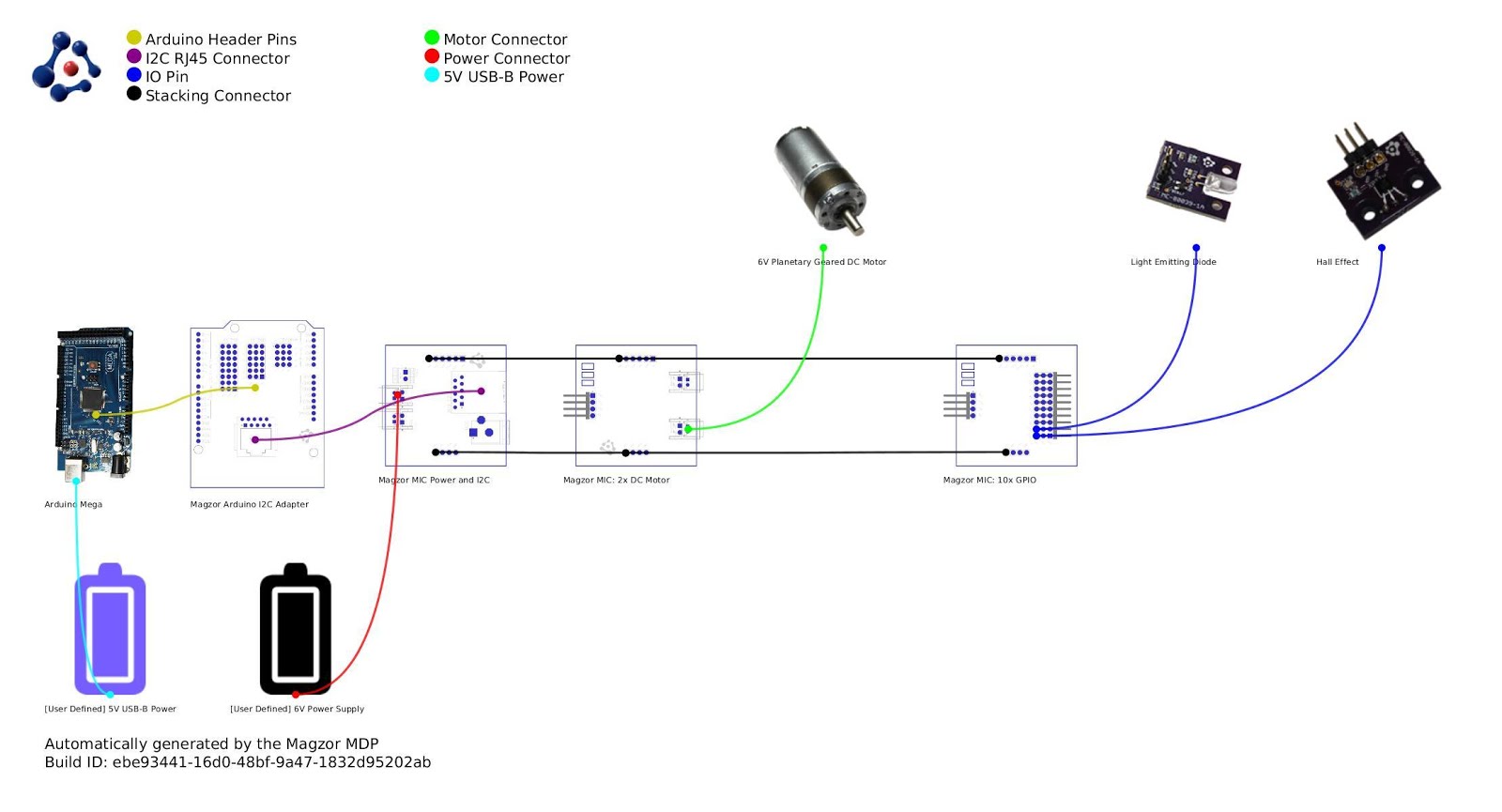
Magzor Schematic Diagram

Click to zoom ...

 
Further build instructions can be obtained by selecting the components in the Mechanotronics Design Portal within the Magzor website. Generating the build, and then selecting "Setup Instructions" tab at the top of the page. See video above to see this process in action.


Arduino Sketch


Make sure to copy and paste the following code into your Arduino IDE. It doesn't seem to work directly from the browser. You also need to install the Arduino Magzor I2C library ( http://magzor.com/downloads/ )


Putting it together


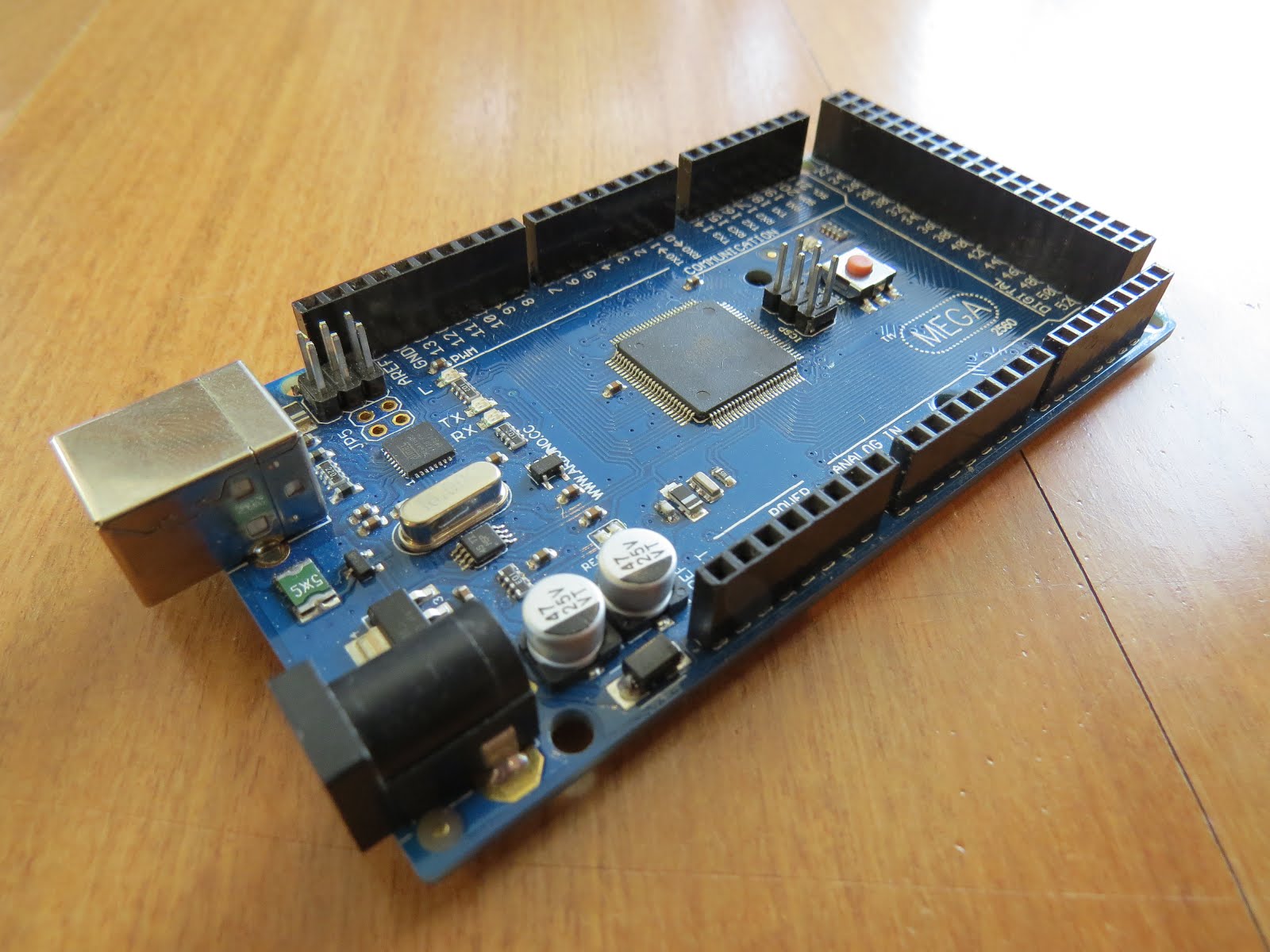
Arduino MEGA


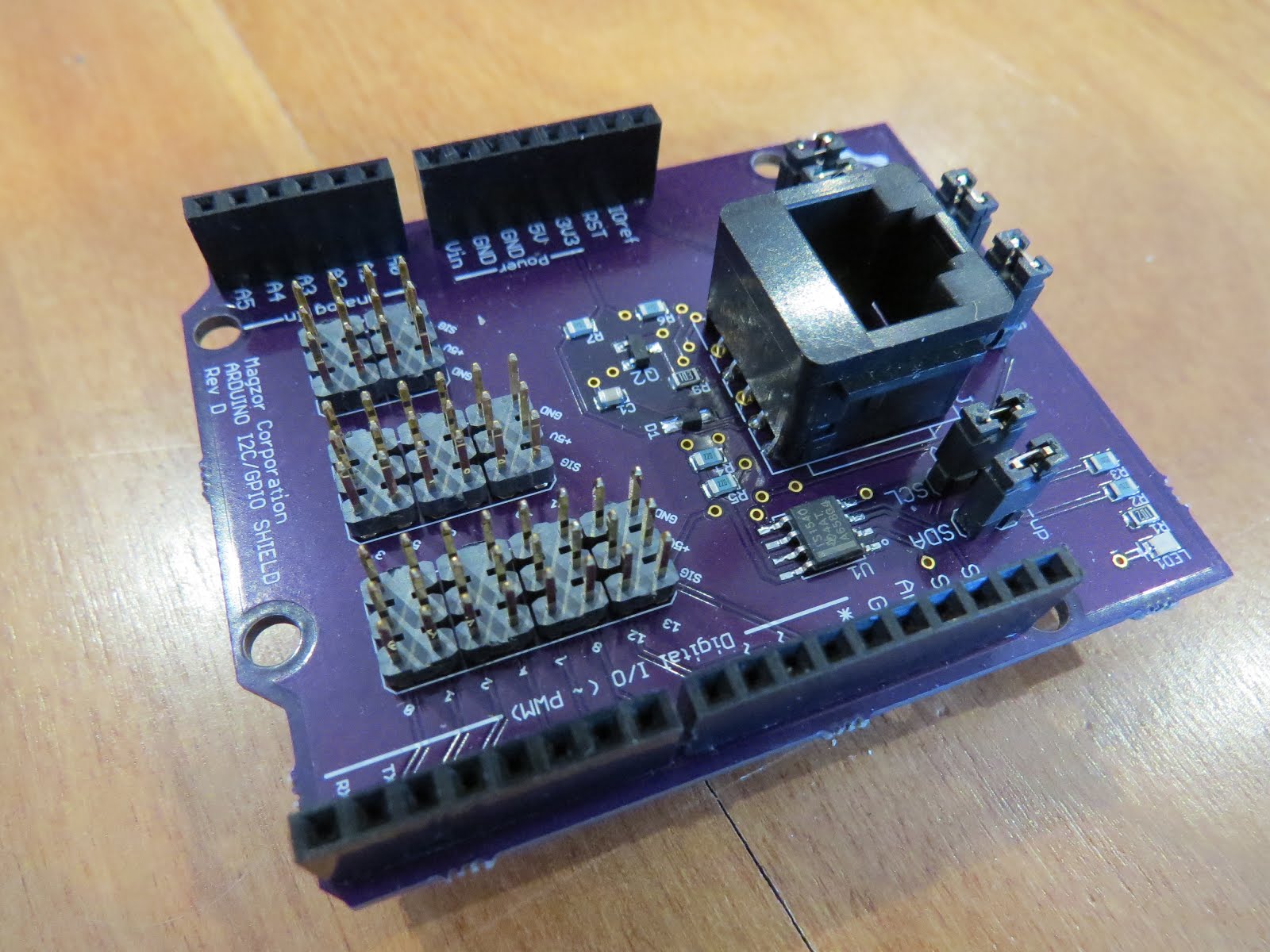
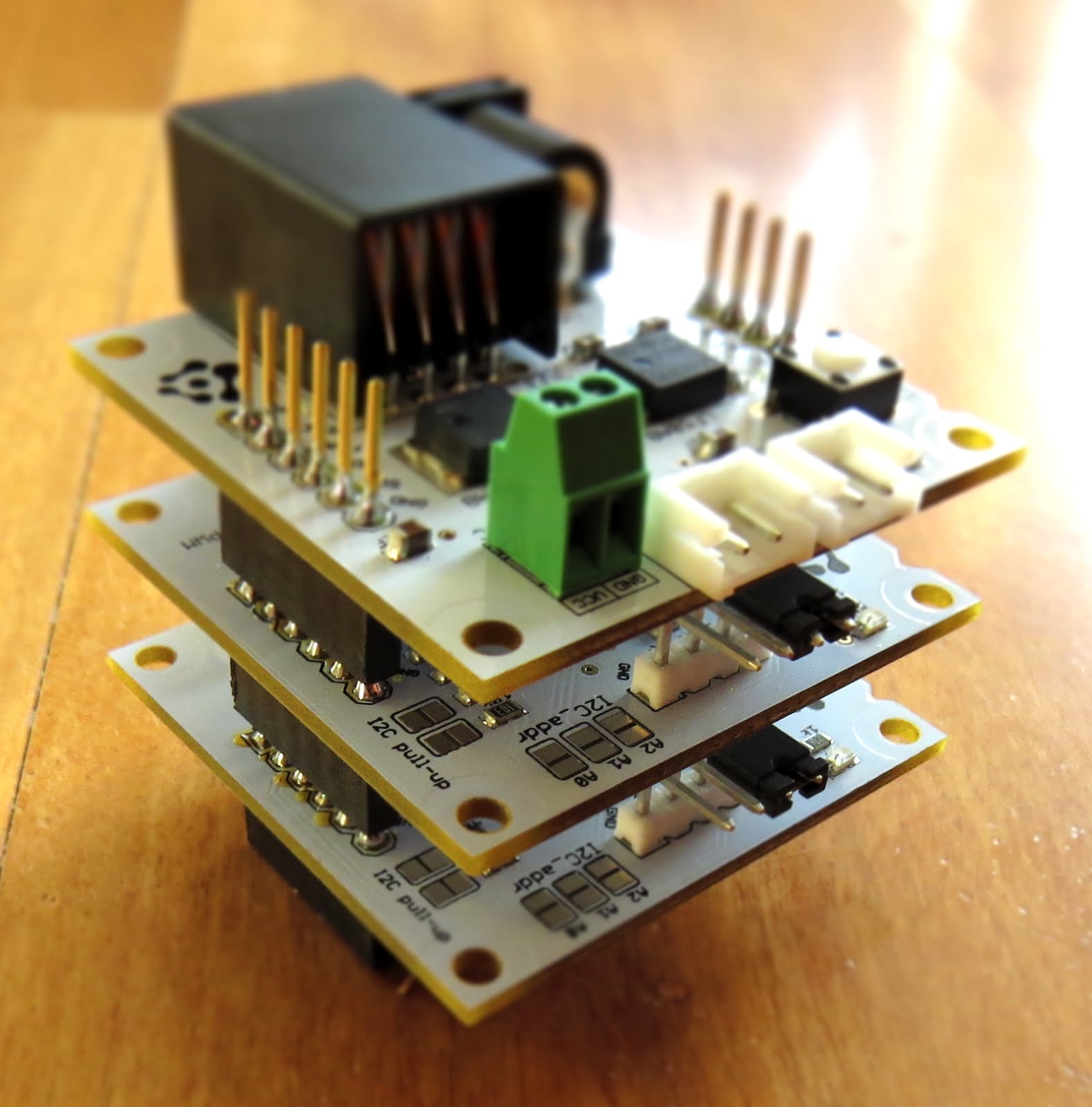
Magzor I2C board


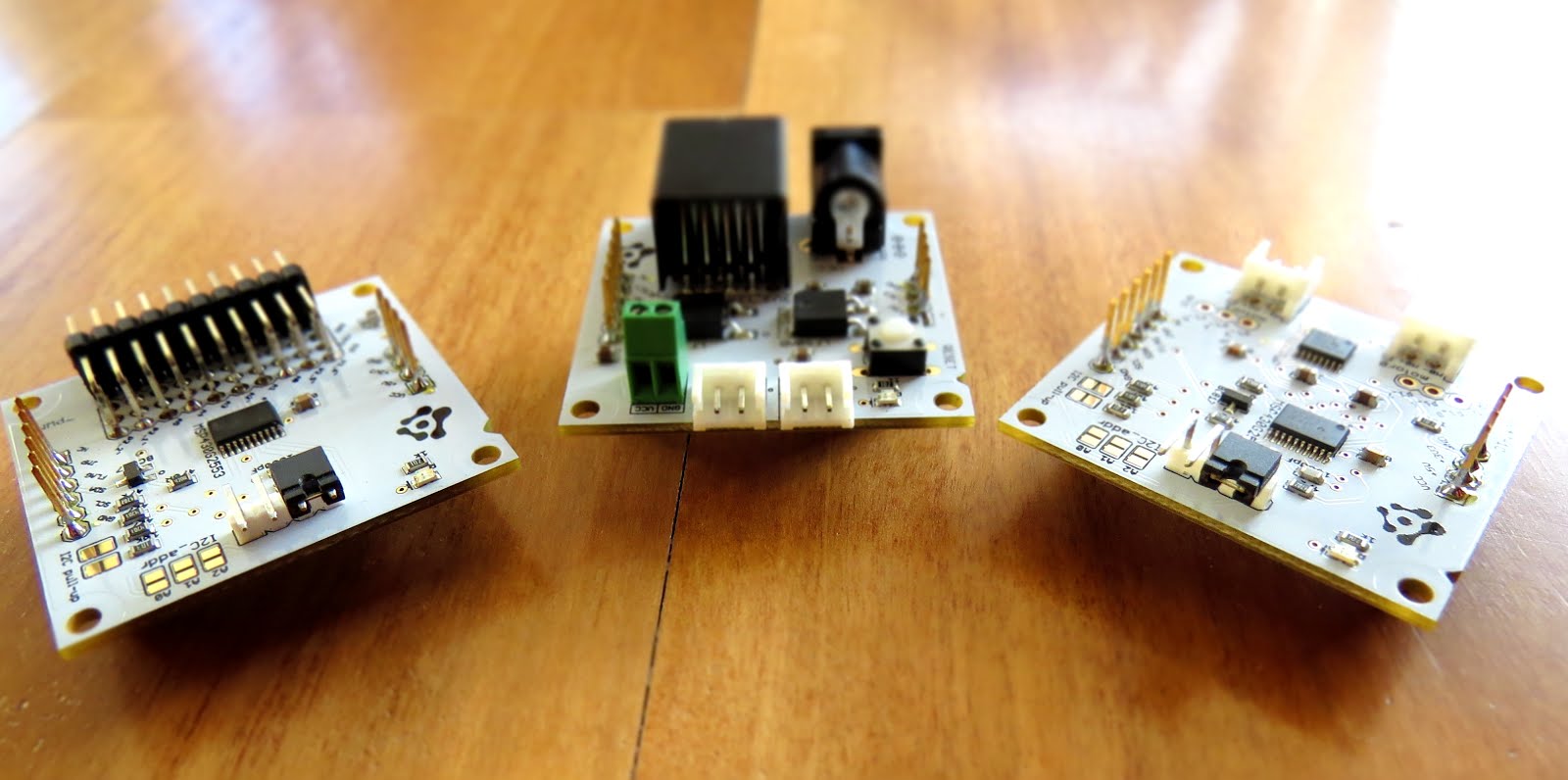
MIC Boards


MIC Boards Assembled


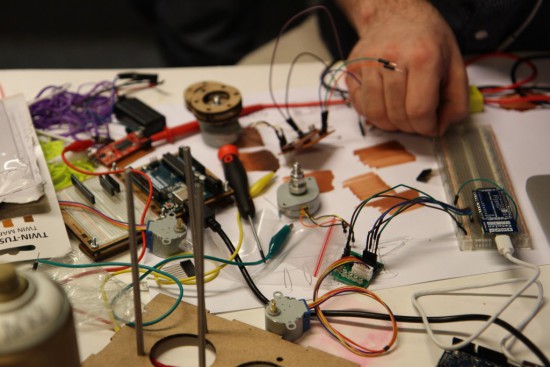
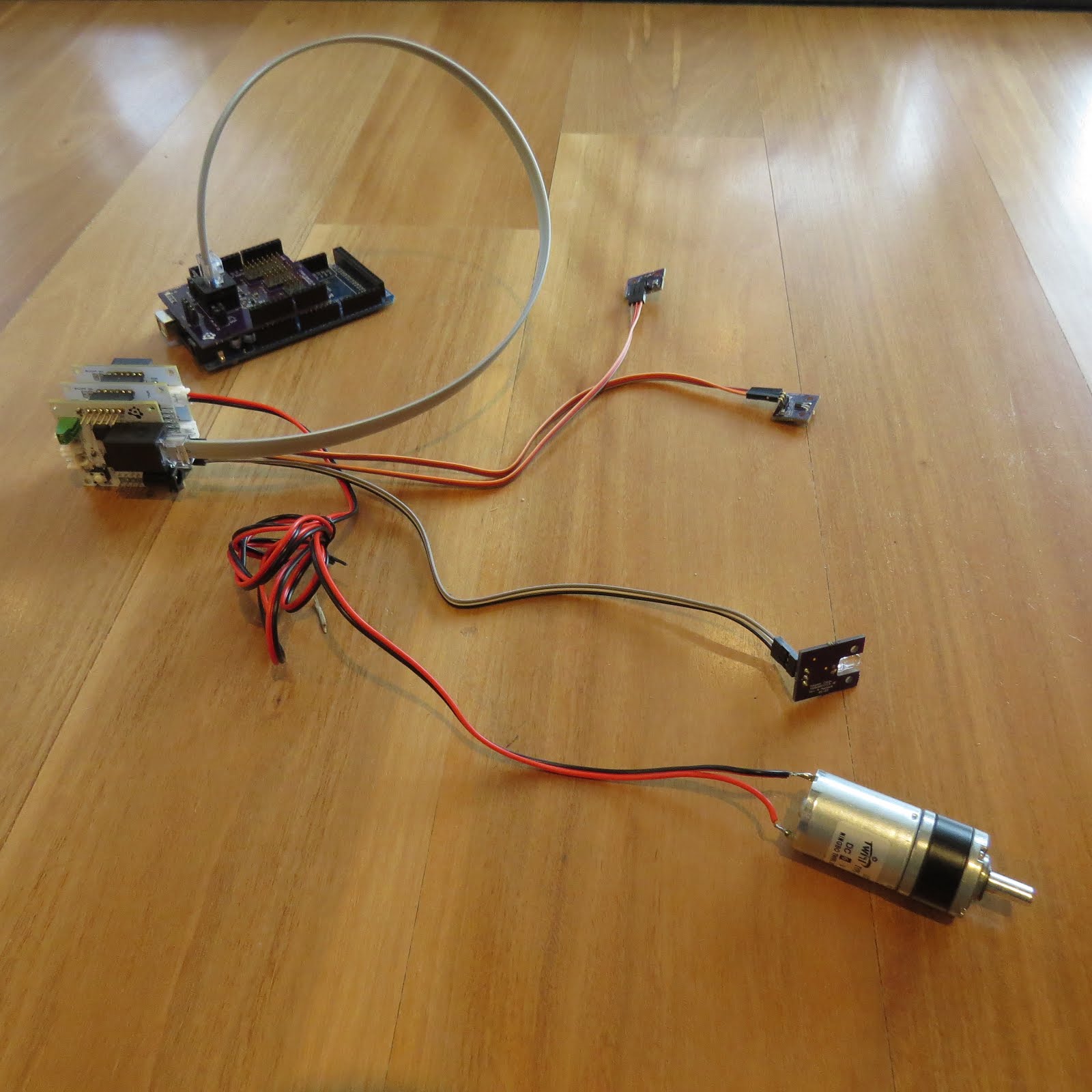
Sensors, Modules and Shields - all put together


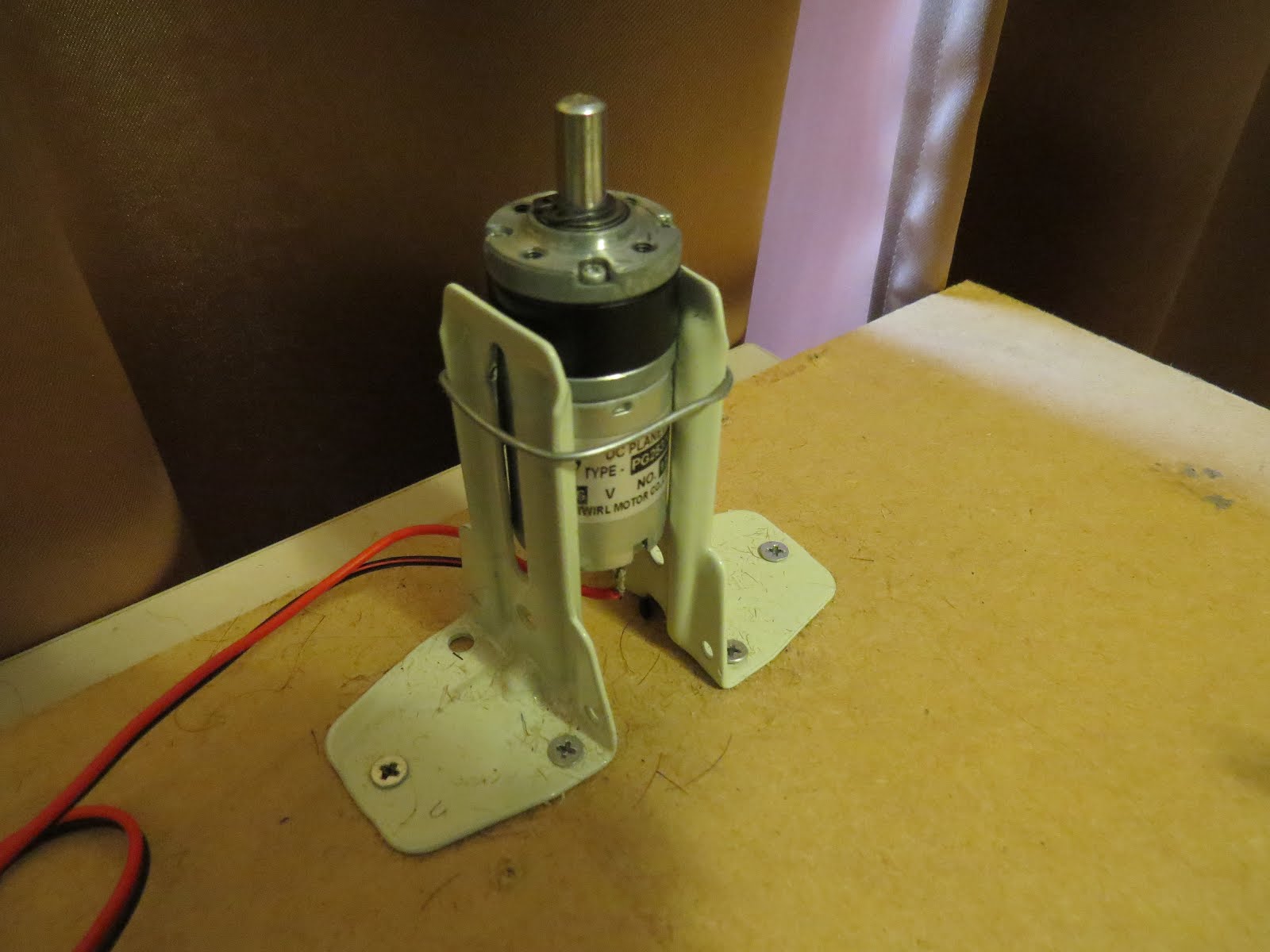
Motor with Bracket and Wire


Picture lined up with magnet on disk


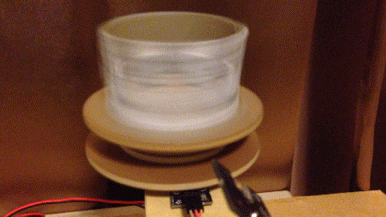
Stroboscopic Animation


The Arduino MEGA microcontroller listens for the hall effect sensor to be triggered by the south facing side of the magnet on the underside of the rotating disk. As the magnet moves over the hall effect sensor, the sensor is triggered and the Arduino instructs the LED to blink for a fraction of a second. By manipulating the delay after the trigger time, we can get the LED to blink when one of the four images on the rotating disk is towards the front position. And if we get the timing right, we can make a simple animation.
 
If you watch the video above, you will see that the image bounces around a little bit. The duration of each frame is determined by the speed of the rotating disk (or motor), and the number of LED flashes per frame. Any changes in rotation speed will affect the position of the picture when the LED blinks. My rotating disk is not completely semetrical or centred correctly, and therefore a bit jumpy… but you get the idea. Bold images with high contrast seem to work best… Precision is key for this type of project. And if you can get the disk to rotate at a constant speed, you could probably do away with the hall effect sensors and magnets… however, in my case, these were essential in getting the project to work as intended.
 
This project is a lot of fun. You can really get creative by making your own pictures or 3 dimensional models (for a stop motion effect). Try different colours. It really is quite cool.


Concluding Comments


I would like to thank Magzor for supplying the components used in this tutorial, and letting me try out their MDP process. I really like the concept, the one stop shop which looks after you from beginning to end. Providing everything I needed to get the project off the ground. The point of this exercise was to go through the entire process of selecting the parts, build the project, and get it up and running. And I have done that in no time at all.
 
There is only one library to download and install, and the good thing is that you don't have to go hunting for it. The latest "correct" working version of the library is easy to find, right there on the Magzor website… Speaking of the Magzor website, please make sure to take a quick look around. It is quite impressive.
 
  UPDATE: Magzor has just started a Kickstarter campaign. Please check it out to get a good package deal on many of their components. Many of which were used in this tutorial.


If you like this page, please do me a favour and show your appreciation :

 
Visit my ArduinoBasics Google + page.
Follow me on Twitter by looking for ScottC @ArduinoBasics.
I can also be found on Pinterest and Instagram.
Have a look at my videos on my YouTube channel.


This project would not have been possible without the collaborative effort from Magzor Corporation.
Please visit their site and check out the MDP.


However, if you do not have a google profile...
Feel free to share this page with your friends in any way you see fit.

Arduino Stroboscope Animation


This tutorial will show you how to build your own Stroboscopic Animator using Magzor's Mechanotronic Design Portal as a starting point. Magzor Corporation is a business in California that is trying really hard to simplify robotic design. They want to enable users with little to no engineering experience to design and manufacture a custom robot by themselves in a matter of hours.

What is a stroboscope? A stroboscope is an instrument that uses a strobe light to make a moving object look stationary… We will use this feature to create an interesting 4 picture animation on a rotating disk.


Have a look at the video below to see the project in action, and the MDP process walk-through:


Video


Parts Required:


Magzor Schematic Diagram

Click to zoom ...


Further build instructions can be obtained by selecting the components in the Mechanotronics Design Portal within the Magzor website. Generating the build, and then selecting "Setup Instructions" tab at the top of the page. See video above to see this process in action.


Arduino Sketch


Make sure to copy and paste the following code into your Arduino IDE. It doesn't seem to work directly from the browser. You also need to install the Arduino Magzor I2C library ( http://magzor.com/downloads/ )


Putting it together


Arduino MEGA


Magzor I2C board


MIC Boards


MIC Boards Assembled


Sensors, Modules and Shields - all put together


Motor with Bracket and Wire


Picture lined up with magnet on disk


Stroboscopic Animation


The Arduino MEGA microcontroller listens for the hall effect sensor to be triggered by the south facing side of the magnet on the underside of the rotating disk. As the magnet moves over the hall effect sensor, the sensor is triggered and the Arduino instructs the LED to blink for a fraction of a second. By manipulating the delay after the trigger time, we can get the LED to blink when one of the four images on the rotating disk is towards the front position. And if we get the timing right, we can make a simple animation.
 
If you watch the video above, you will see that the image bounces around a little bit. The duration of each frame is determined by the speed of the rotating disk (or motor), and the number of LED flashes per frame. Any changes in rotation speed will affect the position of the picture when the LED blinks. My rotating disk is not completely semetrical or centred correctly, and therefore a bit jumpy… but you get the idea. Bold images with high contrast seem to work best… Precision is key for this type of project. And if you can get the disk to rotate at a constant speed, you could probably do away with the hall effect sensors and magnets… however, in my case, these were essential in getting the project to work as intended.
 
This project is a lot of fun. You can really get creative by making your own pictures or 3 dimensional models (for a stop motion effect). Try different colours. It really is quite cool.


Concluding Comments


I would like to thank Magzor for supplying the components used in this tutorial, and letting me try out their MDP process. I really like the concept, the one stop shop which looks after you from beginning to end. Providing everything I needed to get the project off the ground. The point of this exercise was to go through the entire process of selecting the parts, build the project, and get it up and running. And I have done that in no time at all.
 
There is only one library to download and install, and the good thing is that you don't have to go hunting for it. The latest "correct" working version of the library is easy to find, right there on the Magzor website… Speaking of the Magzor website, please make sure to take a quick look around. It is quite impressive.


If you like this page, please do me a favour and show your appreciation :

 
Visit my ArduinoBasics Google + page.
Follow me on Twitter by looking for ScottC @ArduinoBasics.
I can also be found on Pinterest and Instagram.
Have a look at my videos on my YouTube channel.


This project would not have been possible without the collaborative effort from Magzor Corporation.
Please visit their site and check out the MDP.


However, if you do not have a google profile...
Feel free to share this page with your friends in any way you see fit.

Atomic Arduino (and Other) Development

Even the most die-hard Arduino fan boys have to admit that the Arduino development environment isn’t the world’s greatest text editor (they’d probably argue that its simplicity is its strength, but let’s ignore that for now). If you are used to using a real code editor, you’ll probably switch to doing your Arduino coding in that and then use the external editor integration in the IDE.

That works pretty well, but there are other options. One we noticed, PlatformIO, extends GitHub’s Atom editor. That makes it cross-platform, powerful, and with plenty of custom plug ins. It also supports a range of platforms including Arduino, many ARM platforms, MSP430, and even desktop computers running Linux or Windows.

The author claims the plug in will generate code for over 200 embedded boards. It handles all the common development tasks and even includes a terminal window. There are command line tools if you want to build scripts or make files and bypass the GUI.

You can install Platform.io on Windows, Linux, or Mac. It uses Python, so porting it elsewhere might be easy, too. The feature list is broad: code completion, linting, multiple projects, and library management. It can even import projects from the Arduino IDE. There are plenty of plug ins to add features (like Emacs keybindings, although that took a little troubleshooting).

There is also something attractive about having a single IDE that targets different platforms if you switch back and forth a lot. In all fairness, the Arduino IDE isn’t as bad as it used to be, and they both have significantly improved versions in the works (Arduino Create and Arduino Studio). We’ve seen plenty of other IDE hacks for Arudino in the past.

Thanks for the tip [Martin]


Filed under: Arduino Hacks
Hack a Day 23 Apr 18:00

IntelliServo

Servos are extremely versatile actuators used in a large number of applications which need controlled mechanical movement. The usual way of driving them is by using a PWM output from a micro-controller. But if you’re building a robot or a drone which requires a large number of servos, then it makes sense to add smarts directly to the servo.

[Alvaro Ferrán Cifuentes] did just that by building IntelliServo – an add on board which makes regular servos smart by giving them enhanced capabilities as found in high-end versions. His approach is different compared to other takes on this theme. The IntelliServo is designed to replace the electronics in any regular servo and is not limited to any particular make or type. Once upgraded, it’s possible to read the servos position, temperature and current consumption. This allows interesting uses, such as controlling one servo by moving another one, or detecting collision or stalling by monitoring the servo current. Multiple servos can be daisy-chained and controlled over I²C from a micro-controller, or over USB directly from a computer. Each board features an LPC11U24 32-bit Cortex-M0 micro-controller, a DRV8837 motor driver, a TMP36 temperature sensor and a PCA9508 I²C repeater.

The project is open source and the Github repository contains the board design, Arduino library and examples, servo firmware and mechanical parts as well as use instructions. It’s a modular design which allows using either an external controller or running it directly via the on-board micro-USB socket. Check out the videos after the break to see the IntelliServo in action.


Filed under: hardware
Hack a Day 22 Apr 09:01

Automated Blinds Open the Window to our Heart

[Brian Harms] made his living room window blinds open and close automatically using servos, an Arduino, and a SmartThings Arduino shield. Best of all, it’s connected to his Amazon Echo so that merely saying “Alexa, turn on/off the blinds” will open and close them.

To accomplish the feat [Brian] used two laser cut acrylic gears; one of which was attached to the servo horn, and the other to the long square rod running the length of the blinds. Despite using the bulky Arduino and shield, the finished product is inconspicuous and streamlined, and the single Arduino controls all three of the blinds in the living room. [Brian] answered a bunch of questions on a Reddit thread.

Blinds are a common connected home hack, and while none of the hacks we’ve covered in the past were voice activated, we have seen temp-sensitive blinds and a Raspberry Pi-based solution.


Filed under: home hacks