Posts with «microcontrollers» label

Before Arduino There was Basic Stamp: A Classic Teardown

Microcontrollers existed before the Arduino, and a device that anyone could program and blink an LED existed before the first Maker Faire. This might come as a surprise to some, but for others PICs and 68HC11s will remain as the first popular microcontrollers, found in everything from toys to microwave ovens.

Arduino can’t even claim its prominence as the first user-friendly microcontroller development board. This title goes to the humble Basic Stamp, a four-component board that was introduced in the early 1990s. I recently managed to get my hands on an original Basic Stamp kit. This is the teardown and introduction to the first user friendly microcontroller development boards. Consider it a walk down memory lane, showing us how far the hobbyist electronics market has come in the past twenty year, and also an insight in how far we have left to go.

The Basic Stamp 1. A Simple circuit with just a microcontroller, an EEPROM, crystal, and brownout circuit.

Teardown

The Basic Stamp kit on my workbench was made in 1993, and sold for a suggested retail price of $139 USD. Adjusted for inflation, this is nearly $230 in 2015 dollars. What do you get in the Basic Stamp starter kit? A single stamp, a programmer cable, and a surprising amount of documentation.

The Basic Stamp is an extremely minimalist board that does just enough to blink an LED, read a button, or drive an LCD. In the official documentation,  there are only a handful of parts: a microcontroller, an EEPROM with a few bytes of memory, a crystal, and a voltage regulator.

The PIC16C56XL is the brains of the outfit, featuring 1.5kilobits of Flash memory and 25 bytes of RAM. By modern standards, it’s tiny; the closest modern analog would be the ATtiny10, itself not a very recent chip. Microchip’s smallest and newest chip is the PIC12LF1522, featuring twice as much Flash and ten times the amount of RAM. We’re dealing with an old microcontroller when using the Basic Stamp

Like the Arduino, it was encouraged to use the Basic Stamp in product design.

Other components include a 93LC56 serial EEPROM. beside that is a 4MHz regulator, a 5V linear regulator, and a transistor and a few resistors for the ‘brown out’ circuit. Power is provided by a 9V battery connector soldered onto the board.

The electronic design of the Basic Stamp is simple, yes, but there’s a method to the madness. The code you write for the Basic Stamp is stored in 256 bytes of the EEPROM. This code is read by a PBASIC interpreter on the PIC, dutifully following commands to blink a LED or display a character on an LCD. No user code is actually stored on the microcontroller.

Programming

How about the programming environment? That’s a single executable running in a DOS shell. The system requirements are only, an IBM PC or compatible, DOS 2.0+, 128k of RAM, and a disk drive. Meager requirements, but this is not something that will run on your modern Windows workstation; it requires a proper parallel port.

For an IDE, the Basic Stamp editor is comparable to earlier Arduino IDEs; Alt+R runs the program on the Stamp connected to the computer, Alt+L loads a program, Alt+S saves a program, and Alt+Q quits the editor.

The BASIC language implemented on the PIC is minimal, but it does everything you would expect; individual pins can be set as input and output, buttons are debounced, and PWM functions are baked into the language.

An ad for the Basic Stamp. From High Tech Entrepreneur, October/November 1993. Ads had text in the past.

Context

The Basic Stamp is now regarded as a slow, inconvenient artifact from the past. No one uses it, and the only place you’ll find one is in the back cabinet in a physics or EE classroom. This is an incredible disservice to a still-impressive piece of technology, and looking back at the Basic Stamp with our modern expectations is an incredible bias.

There were microcontroller development platforms before the Basic Stamp, but these were engineering tools, and expensive compared to the Stamp. Development platforms for the electrical hobbyist were around after the stamp, too: the Micromint Domino packed an entire development platform into a rectangular brick of plastic. None of these designs could match the popularity of the Basic Stamp despite the platform’s shortcomings.

The Arduino receives a lot of hate. Detractors say it’s too high-level for proper embedded programming, not high-level enough for a modern workflow, is based on old, obsolete chips, doesn’t have the features of modern ARM microcontrollers, and the IDE is a mess. Despite an even less capable IDE, meager memory, and a slow processor, the Basic Stamp proved incredibly popular. The fact that you could pick up a Basic Stamp development kit at any Radio Shack probably didn’t hurt it’s popularity, either.

Now, with our fancy IDEs, mbed microcontrollers, powerful ARMs, and huge libraries, the ease of use of the Basic Stamp has still not been equaled. It may be slow, outdated, but all of us owe a great debt to the Basic Stamp for introducing an entire generation to the world of embedded programming, microcontrollers, and electronics tinkering.


Filed under: classic hacks, Featured, Microcontrollers

Embed with Elliot: I2C Bus Scanning

A lot of great ICs use I2C to communicate, but debugging a non-working I2C setup can be opaque, especially if you’re just getting started with the protocol/bus. An I2C bus scanner can be a helpful first step in debugging an I2C system. Are all the devices that I think should be present actually there and responding? Do they all work at the bus speed that I’m trying to run? If you’ve got an Arduino or Bus Pirate sitting around, you’re only seconds away from scanning your I2C bus, and answering these questions.

The Lowdown: I2C in Brief

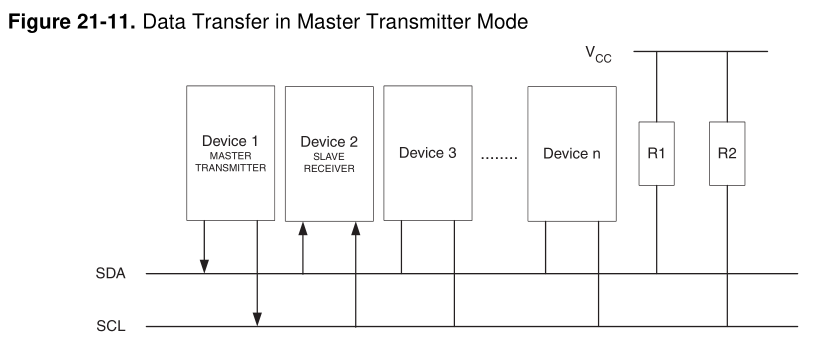
I2C is a two-wire (plus ground) communications bus and protocol. The physical layer is just two signal wires: a clock line (SCL) that’s controlled by the master, and a data line (SDA) that can be controlled by either the master or the addressed slave unit. Data is always read on the SDA line when the clock is high, and a new value is established while the clock is low. The two exceptions to this rule are the stop and start signals, where the master is allowed to raise and drop the data line while the clock is still high. Because this change shouldn’t ever happen during data transfer, the stop and start signals are easy to detect.

All data is sent in eight-bit packets and each packet is acknowledged by the recipient, whether master or slave. To start up a conversation, the master sends the start signal and then the seven-bit address of the slave device that it wants to speak to. The eighth bit in the master’s first packet tells the slave whether the master is going to transmit more data (a “write” command, a zero) or whether the master is requesting data back from the slave (a “read” value, a one).

After the eight bits are sent, the slave is required to acknowledge receipt by pulling the data line low.  This acknowledge signal is exactly what the I2C bus scanning software will need to look for in order to detect a chip with the given address on the bus.

There are, of course, a lot more complicating details to I2C. For instance, there are a whole range of permissible clock speeds at which the transmissions can take place: ranging from the default 100kHz data rate, through 400kHz “fast mode”, 1MHz “fast mode plus”, and up as far as 5MHz “ultra-fast mode”. (We await the 10MHz “super-duper, really-really-fast mode” with baited breath.) And since the bus is clocked by the SCL line, almost any slower data rate up to the maximum allowed will work just fine.

The physical lines are pulled up to a logic-high voltage level by pullup resistors, and the devices signal low by pulling the line down. This means that the voltage transitions can be a little blurry, especially on long runs or other situations where the line itself capacitively couples to the circuit. These physical factors will play a role in determining how fast you can send signals on the I2C bus, and you may need to fine-tune the pullup resistors in your particular system.

There are a surprisingly large number of other ways that things can go wrong on an I2C bus, so it’s great to be able to start debugging at the very beginning — is the slave even getting my first (address) packet at the speed I’m sending? Hence the utility of an I2C scanner.

A Scanner

A first cut at an I2C bus scanner, then, can be made by just cycling through all 127 possible slave device addresses, and checking whether or not they acknowledge. Next, you might want to re-run the same test at a bunch of different bus speeds, if you thought that you might be having troubles with signal rise- and fall-times. Finally, and we’ve never seen this implemented, it might be cool to have a database of common I2C slave device addresses so that the scanner itself can report back which particular chips it’s found.

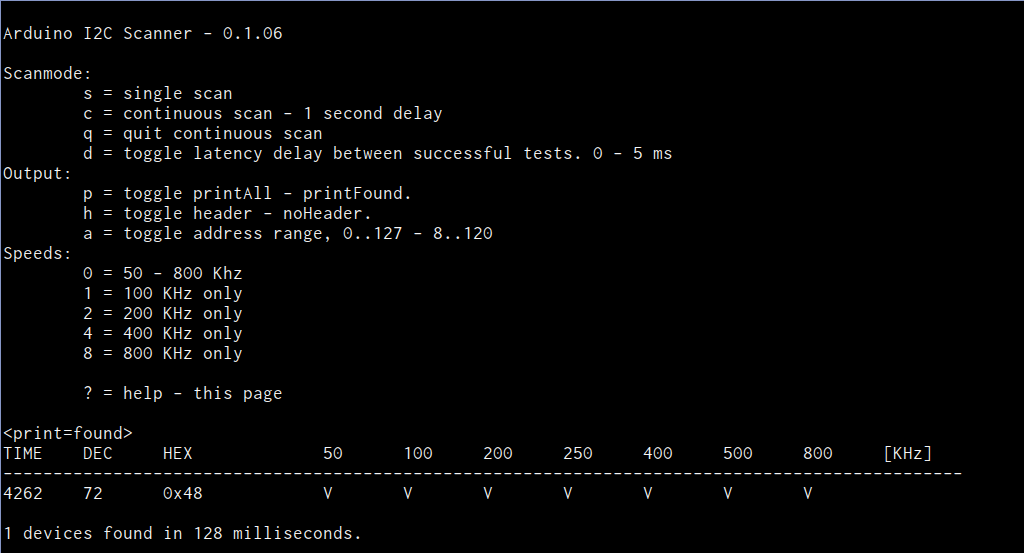
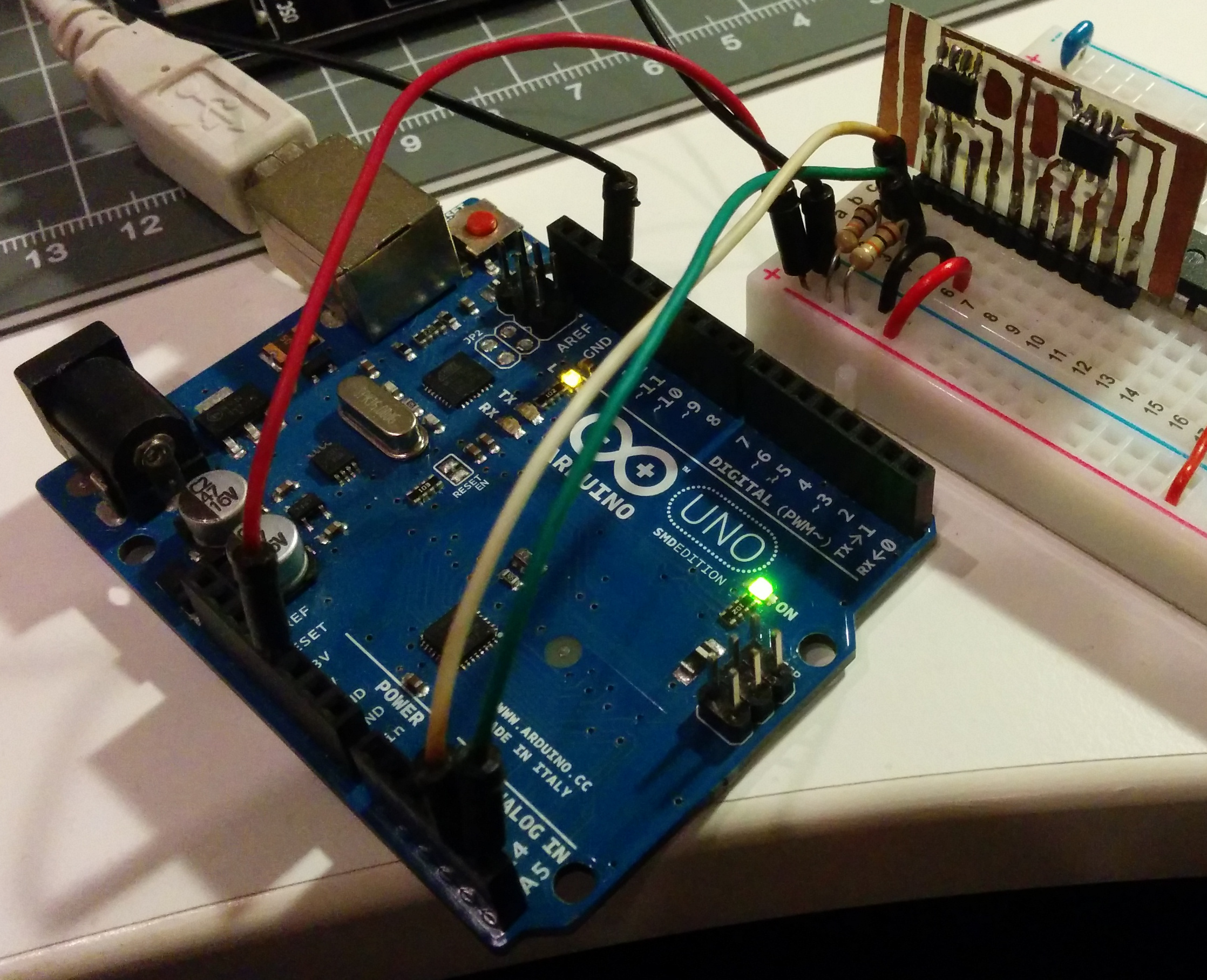
For the Arduino, the most featureful scanner we’ve seen is posted on the Arduino forums, with the code hosted on Github, in the “sketches/MultiSpeedI2CScanner” folder.  It actually does everything that we’d want in a simple scanner: scans the entire bus at different speeds and plots the results out nicely over the serial port for perusal on your computer. It’s configured to do a full scan on reboot. Type “ps” to print only the found devices and start a scan. Bam!

The one caveat with the Arduino scanner is that if you’ve neglected to connect pullup resistors on the SDA and SCL lines (we would never!) the scanner seems to hang somewhere when running at 800kHz. We suspect it’s waiting to become bus master and just gets stuck; we wonder why there’s not a timeout in the twi_writeTo() function in the Arduino “twi.c” library. (Anyone have a good guess?) Other speed modes worked just fine, and everything was peachy again after adding a 10k pullup resistor to SDA.

Naturally, the Bus Pirate (the swiss-army knife of serial communications) will do an I2C scan. It only runs one frequency at a time, but it’s quick enough that you can step through them all in short order. It’s got a quirk, or maybe a feature; it treats the read/write bit as part of the address, so it will test each chip in both directions. Enter the I2C mode, set the desired speed and pullup/power options, and finally type “(1)” for option 1: 7-bit address search. You should see all the devices that responded on the bus listed out for you.

Writing your own code to do a scan is surprisingly simple as well, if you know the chips you’re working with. Most microcontrollers’ dedicated hardware I2C interfaces will report error codes in a specific register. If you can figure out how to test for the “didn’t acknowledge after sending the address and data-direction packet” error, the code pretty much writes itself.

Going Further

Once you’ve got the basics verified — the slave responds when addressed at the desired speed — and your I2C setup still isn’t working, you’re on to debugging the harder problems. There are other tests you might like to do, but unfortunately they all run quickly into the slave-device specific command sets. For instance, many devices will receive a command to reply with a known device ID, or the contents of a default register, or similar. These are useful to make certain that you’ve got multi-byte commands working as expected.

If you suspect that you’re having problems with the signals not rising or falling fast enough, perhaps because you’ve seen chips respond at low speeds but not at higher ones during the scan above, you’re going to need an oscilloscope to actually probe out the analog voltages on the lines. Or try lower-value pullup resistors to speed up the rising edges and test again.

Harder to catch or infrequently occurring glitches on a multi-master I2C bus get really hard to track down really fast. But getting the simple stuff verified working first — all parts are on the addresses that you think they are — can get you set on the right path.

Good luck with your I2C projects! And if you’ve got any other useful I2C debugging tools or strategies up your sleeves, feel free to discuss in the comments.


Filed under: Hackaday Columns, Microcontrollers, peripherals hacks

Tracking Bitcoin With The ESP8266

[Kendrick] was looking for something to do with an ESP8266 WiFi module, and since he loves Bitcoin and Arduino, the obvious solution was to make a Bitcoin price tracker.

The ESP8266 is a complete microcontroller with a WiFi chip and a few pins for a serial connection. It’s certainly possible to write some firmware for the ESP to get the current conversion rate of Bitcoin, but for simplicity’s sake, [Kendrick] chose to use an Arduino for this project. He’s using a 5V Arduino, and the ESP operates on 3.3V logic, but a few Zeners take care of the logic level conversion.

The code running on the Arduino checks the CoinDesk API minute, parses the JSON coming from the API, and prints the current Bitcoin price to the serial port. For tracking the current conversion rate of Bitcoin, it’s vastly overkill. This project could have a few interesting applications, from hooking up a few seven-segment displays, to an RGB LED mood lamp that keeps track of this magic Internet money.


Filed under: Microcontrollers, wireless hacks

Two New Dev Boards That Won’t Make Your Wallet Hurt-So-Good

If you’ve been keeping up with the hobbyist FPGA community, you’ll recognize the DE0 Nano as “that small form-factor FPGA” with a deep history of projects from Oldland cpu cores to synthesizable Parallax Propeller processors. After more than four years in the field though, it’s about time for a reboot.

Its successor, the DE0 Nano SoC, is a complete redesign from multiples perspectives while doing it’s best to preserve the bite-size form factor and price that made the first model so appealing. First, the dev board boasts a Cyclone V with 40,000 logical elements (up from the DE0’s 22K) and an integrated dual-core Arm Cortex A9 Processor. The PCB layout also brings us  3.3V Arduino shield compatibility via female headers, 1 Gig of external DDR3 SDRAM and gigabit ethernet support via two onboard ASICs to handle the protocol. The folks at Terasic also seem to be tipping their hats towards the “Duino-Pi” hobbyist community, given that they’ve kindly provided both Linux and Arduino images to get you started a few steps above your classic finite-state machines and everyday combinational logic.

And while the new SoC model sports a slightly larger form factor at 68.59mm x 96mm (as opposed to the original’s 49mm x 75.2mm), we’d say it’s a small price to pay in footprint for a whirlwind of new possibilities on the logic level. The board hits online shelves now at a respectable $100.

Next, as a heads-up, the aforementioned Arduino Zero finally makes it’s release on June 15. If you’ve ever considered taking the leap from an 8-bit to a 32-bit processor without having to hassle through the setup of an ARM toolchain, now might be a great time to get started.

via [the Arduino Blog]


Filed under: hardware, Microcontrollers

DFRobot Encourages the Open Hardware Community

DFRobot is a Shanghai-based open source hardware facilitator whose mission is to encourage people to develop their own products and simply enable more rapid project creation. We caught up with Hector Saldana of DFRobot to find out more about the company’s offerings. Saldana notes one of their main focuses of […]

Read more on MAKE

The post DFRobot Encourages the Open Hardware Community appeared first on Make:.

DFRobot Encourages the Open Hardware Community

DFRobot is a Shanghai-based open source hardware facilitator whose mission is to encourage people to develop their own products and simply enable more rapid project creation. We caught up with Hector Saldana of DFRobot to find out more about the company’s offerings. Saldana notes one of their main focuses of […]

Read more on MAKE

The post DFRobot Encourages the Open Hardware Community appeared first on Make:.

New Project: Minecraft Activated Arduino Alarm

You’ve amassed a small fortune in diamonds, wood, coal, iron, food, and the other resources you need. You’ve spent hours building the perfect Minecraft fortress to stockpile your goods. But who will watch your stash while you’re on another server? In this project guide, you’ll learn to use Arduino coding […]

Read more on MAKE

The post Minecraft Activated Arduino Alarm appeared first on Make:.

New Project: Minecraft Activated Arduino Alarm

You’ve amassed a small fortune in diamonds, wood, coal, iron, food, and the other resources you need. You’ve spent hours building the perfect Minecraft fortress to stockpile your goods. But who will watch your stash while you’re on another server? In this project guide, you’ll learn to use Arduino coding […]

Read more on MAKE

The post Minecraft Activated Arduino Alarm appeared first on Make:.

A Tool For Spying On Serial Data

[Piotr] was working on a recent Arduino project when he ran into a problem. He was having trouble getting his Arduino Pro Mini to communicate with an ESP8266 module. He needed a way to snoop on the back and forth serial communications. Since he didn’t have a specialized tool for this task, [Piotr] ended up building his own.

The setup is pretty simple. You start with a standard serial cable containing the TX, RX, DTR, and GND wires. This cable connects the Arduino to the ESP8266 WiFi module. The TX and RX lines are then tapped into. Each wire is routed to the RX pin of two different serial to USB adapters. This way, the data being sent from the Arduino shows up on one COM port and the data being transmitted from the module shows up on the other.

The next piece of the puzzle was coming up with a way to see the data more clearly. [Piotr] could have opened two serial terminals simultaneously, but this wasn’t ideal because it would be difficult to compare the timing of the data. Instead, [Piotr] spent less than an hour writing his own simple serial terminal. This one connects to two COM ports at the same time and prints the data on the same screen. The data from each COM port is displayed in a separate color to make it easy to differentiate. The schematic and source code to this project can be found on [Piotr’s] website.


Filed under: Arduino Hacks, Microcontrollers

Non-Arduino powered by a piece of Computing history

Sometimes it is a blessing to have some spare time on your hands, specially if you are a hacker with lots of ideas and skill to bring them to life. [Matt] was lucky enough to have all of that and recently completed an ambitious project 8 months in the making – a Non-Arduino powered by the giant of computing history – Intel’s 8086 processor. Luckily, [Matt] provides a link to describe what Non-Arduino actually means; it’s a board that is shield-compatible, but not Arduino IDE compatible.

He was driven by a desire to build a single board computer in the old style, specifically, one with a traditional local bus. In the early days, a System Development Kit for Intel’s emerging range of  microprocessors would have involved a fair bit of discrete hardware, and software tools which were not all too easy to use.

Back in his den, [Matt] was grappling with his own set of challenges. The 8086 is a microprocessor, not a microcontroller like the AVR, so the software side of things are quite different. He quickly found himself locking horns with complex concepts such as assembly bootstrapping routines, linker scripts, code relocation, memory maps, vectors and so on. The hardware side of things was also difficult. But his goal was learning so he did not take any short cuts along the way.

[Matt] documented his project in detail, listing out the various microprocessors that run on his 8OD board, describing the software that makes it all run, linking to the schematics and source code. There’s also an interesting section on running Soviet era (USSR) microprocessor clones on the 8OD. He is still contemplating if it is worthwhile building this board in quantities, considering it uses some not so easy to source parts. If you are interested in contributing to the project, you could get lucky. [Matt] has a few spares of the prototypes which he is willing to loan out to anyone who can can convince him that they could add some value to the project.

Thanks for the tip, [Garrett]


Filed under: Arduino Hacks, Microcontrollers