Posts with «arduino» label

WiFi-equipped Arduino Yun now available for $69 (video)

If you were wondering what happened to the Arduino Yun after it missed its original June release target, you can relax: it's now on sale worldwide. As promised, the $69 (€52) design combines a garden variety Leonardo board with a WiFi system-on-chip running Limino, giving owners a customizable wireless access point with Ethernet, USB and a microSD slot. Tinkerers can also program the Arduino component over the air using a newly updated developer environment. Those already sold on the concept can buy an Arduino Yun at the source link, while newcomers can check out an introductory video after the break.

Filed under: Misc, Networking

Comments

Via: Arduino Blog

Source: Arduino Store

Engadget 11 Sep 14:51

Flutter: A $20 wireless Arduino with a long reach

If the words "ARM-powered wireless Arduino" send your heart aflutter, then you might be interested in... Flutter -- a development platform with the aforementioned qualities. The Kickstarter project claims the device has a usable range of over half a mile, letting you nail that wireless letterbox-checker project with ease. Similar tools, such as Xbee and Zigbee already exist, but the $20 price tag for the Flutter basic, and $30 for Flutter Pro (adds battery charging, another button, more memory) make this a tempting option for tinkerers on a budget. So, if building that mesh network of quadrocopters has been sitting at the top of your to-do list for too long, we recommend you get backing right now.

Filed under: Networking, Internet

Comments

Via: Ycombinator

Source: Kickstarter

Engadget 28 Aug 13:17

Using older Noritake Itron VFD modules

Introduction

Now and again you come across interesting parts on ebay, from friends or just rooting around in second-hand stores. One example of this was a huge Noritake Itron 40 x 2 character vacuum-fluorescent display from 1994 (or earlier) which was passed on from a client. Originally it looked quite complex, however after spending some time the data sheets were found and it was discovered to have a simple serial interface – and with a little work we’ve got it working, so read on if you’re interested in classic VFDs or have a similar unit.

Getting Started

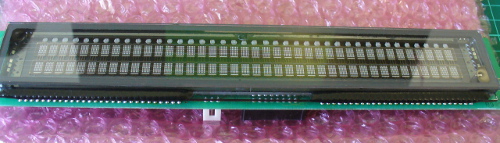
The model number for our display is CU40026SCPB-T20A. Here’s a quick walk-around, the front:

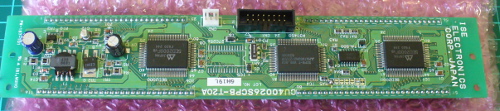
… the back:

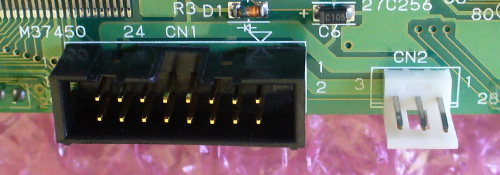
… the interfaces:

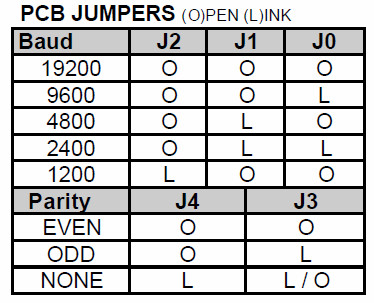
… and configuration jumpers:

The serial interface baud rate is determined by the jumpers (above), for example:

So comparing the table above against the jumpers on our module gives us a data speed of 19200 bps with no parity. Great – we can easily create such a connection with a microcontroller with a serial output and 5V logic levels; for our examples we’ll use an Arduino-compatible board.

Wiring up the VFD is simple – see the white jumpers labelled CN2 as shown previously. Pin 1 is 5V (you need an external supply that can offer up to 700 mA), pin 2 to Arduino digital pin 7, and pin 3 to Arduino and power supply GND. We use Arduino D7 with software serial instead of TX so that the display doesn’t display garbage when a sketch is being uploaded. Then it’s a matter of simply sending text to the display, for example here’s a quick demonstration sketch:

// Working with Noritake Itron VFD modules - model CU40026SCPB-T20A
// John Boxall 2013

#include <SoftwareSerial.h>
SoftwareSerial VFD(6,7); // RX, TX

void setup()
{
  VFD.begin(19200);
}

void loop()
{
  VFD.print("Hello, world. This is a Noritake VFD "); // You can blast out text 
  do {} while (1);
}

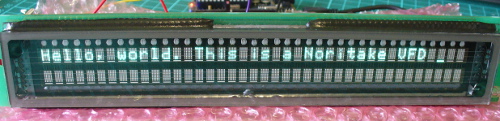
… and the results:

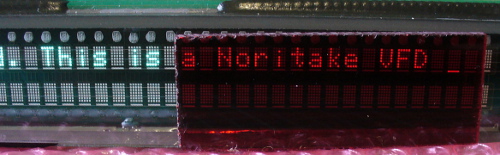
If you’re not keen on the colour or intensity of the display, try some Perspex over the top – for example:

Controlling the display

At this point you’ll need the data sheet, there’s a couple you can download: data sheet onedata sheet two. As you saw previously, writing text is very simple – just use .print functions. However you may want to send individual characters, as well as special commands to control aspects of the display. These are outlined in the data sheet – see the “Software Commands” and “Character Fonts” tables.

If you need to send single commands – for example “clear display” which is 0x0E, use a .write command, such as:

VFD.write(0x0E); // clear display

Some commands are in the format of escape codes (remember those?) so you need to send ESC then the following byte, for example to change the brightness to 50%:

VFD.write(0x1B); // ESC
    VFD.write(0x4C); // brightness
    VFD.write(0x40); // 50% brightness

Armed with that knowledge and the data sheets you can now execute all the commands. According to the data sheet it is possible to change fonts however no matter what the hardware jumper or command we tried it wouldn’t budge from the Japanese katakana font. Your screen may vary. If you use the “screen priority write” function heed the data sheet with respect to the extended “busy” time by delaying subsequent writes to the display by a millisecond.

 Putting it all together

Instead of explaining each and every possible command, I’ve put the common ones inside documented functions in the demonstration sketch below, which is followed by a quick video of the sketch in operation.

// Working with Noritake Itron VFD modules - model CU40026SCPB-T20A
// John Boxall 2013

#include <SoftwareSerial.h>
SoftwareSerial VFD(6,7); // rx, tx

void setup()
{
  VFD.begin(19200); // set speed for software serial port 
  resetVFD();  
  VFDclearsceen();
//  VFD.write(0x12); // vertical scroll mode (on)
}

void resetVFD()
// performs a software reset on the VFD controller
{
  VFD.write(0x1B); // ESC
  VFD.write(0x49); // software reset
}

void VFDnewline()
// moves cursor to start of next line
{
  VFD.write(0x0D); // carriage return
  VFD.write(0x0A); // line feed
}

void VFDclearsceen()
// moves cursor to top-left and clears display
{
  VFD.write(0x0E); // clear display 
  VFD.write(0x0C); // form feed - cursor to top-left
}

void VFDbrightness(int amount)
// sets VFD brightness - 25/50/75/100%
// uses ESC sequences
{
  switch(amount)
  {
  case 25:
    VFD.write(0x1B); // ESC
    VFD.write(0x4C); // brightness
    VFD.print(0); // 25% brightness
    break;
  case 50:
    VFD.write(0x1B); // ESC
    VFD.write(0x4C); // brightness
    VFD.write(0x40); // 50% brightness
    break;
  case 75:
    VFD.write(0x1B); // ESC
    VFD.write(0x4C); // brightness
    VFD.write(0x80); // 75% brightness
    break;
  case 100:
    VFD.write(0x1B); // ESC
    VFD.write(0x4C); // brightness
    VFD.write(0xC0); // 100% brightness
  }
}

void VFDchars()
// run through characters for selected font
{
  for (int i = 21 ; i < 256; i++)
  {
    VFD.write(0x16); // underline cursor off
    VFD.write(i);
    delay(100);
  }
}

void moveCursor(byte position)
// moves the cursor - top row is 0~39, bottom row is 40~79
// vertical scroll mode must be turned off if used
{
    VFD.write(0x1B); // ESC
    VFD.write(0x48); // move cursor 
    VFD.write(position); // location
}

void loop()
{
  VFD.write(0x16); // underline cursor off
  VFD.print("Hello, world - line one."); // You can blast out text 
  delay(1000);      
  VFDnewline();
  VFD.print("Hello, world - line two."); 
  delay(1000);    
  VFDclearsceen();
  VFDbrightness(25);
  VFD.print("*** 25% brightness ***");   
  delay(1000);
  VFDclearsceen();  
  VFDbrightness(50);
  VFD.print("*** 50% brightness ***");     
  delay(1000);
  VFDclearsceen();   
  VFDbrightness(75);
  VFD.print("*** 75% brightness ***");       
  delay(1000);
  VFDclearsceen();   
  VFDbrightness(100);
  VFD.print("*** 100% brightness ***");         
  delay(1000);
  VFDclearsceen();

  VFDchars();
  VFDclearsceen();

  for (int i = 0; i < 80; i++)
  {
    VFD.write(0x16); // underline cursor off
    moveCursor(i);
    VFD.print("X");
    delay(100);
    moveCursor(i);    
    VFD.print(" ");    
  }
  VFDclearsceen();
}


Conclusion

We hope you found this interesting and helpful. And if you have an inexpensive source for these old displays, let us know in the comments. Full-sized images are on flickr. And if you made it this far – check out my new book “Arduino Workshop” from No Starch Press.

In the meanwhile have fun and keep checking into tronixstuff.com. Why not follow things on twitterGoogle+, subscribe  for email updates or RSS using the links on the right-hand column? And join our friendly Google Group – dedicated to the projects and related items on this website. Sign up – it’s free, helpful to each other –  and we can all learn something.

The post Using older Noritake Itron VFD modules appeared first on tronixstuff.

Build an Arduino-controlled Larson Scanner

Introduction

For fun and a little bit of learning, let’s make a Larson Scanner. This isn’t a new project, for example we reviewed a kit in the past – however after finding some large LEDs we decided to make our own version. We’ll use an Arduino-compatible circuit to control the LEDs, and explain both the hardware and required Arduino sketch – then build a temporary small and a more permanent large version (and a bonus project).

So what is a Larson Scanner anyway? Named in honour of Glen A. Larson the creator of television shows such as Battlestar Galactica and Knight Rider – as this kit recreates the left and right blinking motion used in props from those television shows. For example:

Making your own is quite simple, it’s just eight LEDs or lamps blinking in a certain order. If you’re not familiar with the Arduino hardware, please have a quick review of this tutorial before continuing.

Small version

If you’re just interested in whipping up a solderless breadboard or small version, it will take less than fifteen minutes. Just get an Arduino Uno or compatible board and construct the following circuit (the resistors are 560Ω):

The sketch is also very simple. There are two ways to address those digital output pins, and to save sanity and clock cycles we’re going to use port manipulation instead of many digitalWrite() functions. So for our circuit above, enter and upload the following sketch:

// Simple Arduno LED back-and-forth effects, similar to "KITT" from "Knight Rider"
// Original idea by Glen A. Larson 
// Arduino sketch - John Boxall 2013

int del=75; // delay between LED movements

void setup()
{
  DDRD = B11111111; // D0~D7 outputs
}

void loop()
{
  PORTD = B00000001; 
  delay(del);
  PORTD = B00000011; 
  delay(del);
  PORTD = B00000111;   
  delay(del);
  PORTD = B00001110; 
  delay(del);  
  PORTD = B00011100; 
  delay(del);  
  PORTD = B00111000; 
  delay(del);  
  PORTD = B01110000; 
  delay(del);  
  PORTD = B11100000; 
  delay(del);  
  PORTD = B11000000; 
  delay(del);  
  PORTD = B10000000; 
  delay(del);  
  PORTD = B11000000; 
  delay(del);  
  PORTD = B11100000; 
  delay(del);  
  PORTD = B01110000;   
  delay(del);  
  PORTD = B00111000;   
  delay(del);  
  PORTD = B00011100;   
  delay(del);  
  PORTD = B00001110;   
  delay(del);  
  PORTD = B00000111;   
  delay(del);  
  PORTD = B00000011;   
  delay(del);  
}

Notice how the ones and zeros in the byte send to PORTD (digital pins 7~0) represent the “movement” of the scanner? You’d have to agree this is a better method of addressing the LEDs. Have some fun and experiment with the patterns you can generate and also the delay. In the following video we’ve quickly demonstrated the circuit on a solderless breadboard using different delay periods:

Large Version

Now to make something more permanent, and much larger. There are many ways of completing this project, so the following version will be a design narrative that you can follow to help with planning your own. The first consideration will be the LEDs you want to use. For our example we used some Kingbright DLC2-6SRD 20mm bright red versions we had in stock:

However you can use what you have available. The key to success will be driving the LEDs at their maximum brightness without damage. So you need to find out the best forward voltage and current for the LEDs, then do some basic mathematics. From our example LEDs’ data sheet, the maximum brightness is from 60 mA of current, at just under 6 V. A quick connection to a variable power supply shows the LEDs at this setting:

We can’t get this kind of brightness from our Arduino 5V circuit, so instead we’ll increase the circuit supply voltage to 9V and use resistors to reduce the current for the LEDs. To find the resistor value, use the following:

… where Vs is the supply voltage (9), VLED is the forward voltage for the LED (5.6), and ILED is the forward current (60 mA). The value for R is 56.66 Ω – however you can’t get that value, so 68 Ω will be the closest value from the supplier. Finally, the power of the resistor required (in watts) is calculated by W = VA. So W = 3.4 (voltage drop over resistor) * 0.06 = 0.204 W. So we’ll need 68 Ω 0.25 W resistors for our LEDs. Thus instead of running the LED straight off a digital output, it will be switched on and off via a simple BC548 transistor – shown in the following schematic example:

The digital output for each LED is connected to the 1k Ω resistor and thus switches the transistor on to allow the current to flow through the LED when required. This is repeated for each LED we intend to use – which for the case of our large scanner project is six. (Why six? Someone bought a board which was too narrow for eight…) Next is the Arduino-compatible circuit. Timing isn’t critical so we’ll save components by using a ceramic resonator instead of a crystal and two capacitors. And as shown below (note that although the image on the microcontroller says ATmega168, we’ll use an ATmega328P):

(If you’re not up for making your own Arduino-compatible circuit, there’s plenty of alternative small boards you can use such as the Nano or LeoStick). Although the symbol for Y1 (the resonator) looks complex, it’s just a resonator – for example:

the centre pin goes to GND and the outside pins go to XTAL1 and XTAL2 on the microcontroller. It isn’t polarised so either direction is fine.

At this point you may also want to consider how you’ll upload and update sketches on the project. One method is to mount the microcontroller in a socket, and just yank it between an Arduino board to upload the sketch, and then put it back in the project board. If you use this method then you’ll need a microcontroller with the Arduino bootloader.  However a more civilised method is to add ICSP header pins – they’re the 2 x 3 pins you see on most boards, for example:

With which you can use a USBASP programmer to connect your board directly to a computer just like a normal Arduino. Just use Ctrl-Shift-U to upload your sketch via the programmer. Furthermore you can use bare microcontrollers without the bootloader, as all the necessary code is included with the direct upload. So if this method interests you, add the following to your circuit:

The RESET pin is connected to pin 1 of the microcontroller. Speaking of which, if you’re unsure about which pins on the ATmega328P are which, a variety of suppliers have handy labels you can stick on top, for example:

At this point it’s time to put it all together. We’re using a random piece of prototyping PCB, and your final plan will depend on your board. As an aside, check out the Lochmaster stripboard planning software if you use stripboard a lot. As mentioned earlier your final schematic will vary depending on the number of LEDs, their requirements with respect to current and your choice of Arduino platform. By now you have the knowledge to plan the circuit yourself. After some work here’s our final board:

… and the scanner in action. We used the same sketch as for the temporary version – however reduce it to six outputs (D0~5) to match the LEDs.

 Bonus project – Electronic Die

What else can you do with six LEDs? Make an electronic die! Here’s a simple sketch that simply picks a random number every five seconds. The random number generator is seeded from unused an analogue input pin.

// Simple Arduno LED die using Larson Scanner hardware described in http://wp.me/p3LK05-36m 
// John Boxall 2013

int del=5000; // delay between new rolls
int num;

byte  digits[] = { B00000001, 
                   B00000010, 
                   B00000100, 
                   B00001000,
                   B00010000,
                   B00100000 };

void setup()
{
  randomSeed(analogRead(0)); // reseed the random number generator with some noise
  DDRD = B11111111; // D0~D7 outputs
}

void rollDie()
{
  for (int i = 0; i< 20; i++)
  {
    num = random(0,6);
    PORTD = digits[num];
    delay(50);
  }
}

void pickNumber()
{
  num = random(0,5);
  PORTD = digits[num];
  delay(1000);
}

void loop()
{
  rollDie();
  pickNumber();
}

And a quick video of our die in action:

Conclusion

We hope you found this interesting and at least made a temporary scanner on a breadboard – or at least learned something. Kudos if you went ahead and made a larger one. If you made a video, share it with us in the comments. And if you made it this far – check out my new book “Arduino Workshop” from No Starch Press.

In the meanwhile have fun and keep checking into tronixstuff.com. Why not follow things on twitterGoogle+, subscribe  for email updates or RSS using the links on the right-hand column? And join our friendly Google Group – dedicated to the projects and related items on this website. Sign up – it’s free, helpful to each other –  and we can all learn something.

The post Build an Arduino-controlled Larson Scanner appeared first on tronixstuff.

Tronixstuff 22 Aug 01:13

How to: Super Simple Self-Balancing Robot Tutorial

Since the introduction of the segway, DIYers have been building their own self-balancing transportation devices.  Before you go off and build a full-size version, here’s a simple project to help you learn the basics of control system design (the software which powers the balancing act).  Essentially, a microcontroller reads sensors such as gyroscopes and accelerometers, then uses a PID algorithm to make minute adjustments to the robot’s wheels.

The little robot featured above is powered by an Arduino Nano and remotely controlled via bluetooth.  Additionally, the device features three potentiometers to fine tune the balancing algorithm.  Both the wheels and body were 3D printed.  To learn how to build your own minature self-balancing robot, check out the full project details and be sure to check out these three epic self-balancing posts:

Don’t Miss Out:

Tutorial – Arduino and PCF8563 real time clock IC

Use the NXP PCF8563 real-time clock IC with Arduino in chapter fifty-four of our Arduino Tutorials. The first chapter is here, the complete series is detailed here.

Updated 20/08/2013

Introduction

Recently a few people have been asking about the PCF8563 real-time clock IC from NXP – so this is a tutorial on how to use it for time, date, alarm clock and square-wave generation purposes.

The PCF8563 is another inexpensive RTC that can be used with an Arduino or other platforms due to the wide operating voltage (1 to 5.5V DC), I2C interface, and very low power consumption (when powered by a backup battery it only draws 0.25 μA). If you aren’t up to speed on the I2C interface, please review the I2C tutorials before moving forward. And please download the data sheet (.pdf).

The PCF8563 is available in various chip packages, for the curious we’re using the TSSOP8 version mounted on a breakout board:

Don’t panic – you can also get it in a breadboard-friendly DIP (through-hole) package as well, and also on a pre-built module from the usual suspects.

Demonstration Circuit

If you have a pre-made module, you can skip to the next section. However if you’re making up the circuit yourself, you will need:

  • One 32.768 kHz crystal
  • Two 1N4148 diodes*
  • One 3V coin cell (with holder)*
  • Two 10kΩ resistors
  • One 0.1 uF capacitor

And here’s the schematic:

* You can skip the diodes and battery if you don’t want a backup power supply when the main power is turned off or removed. Pin 3 is for the interrupt output (we’ll consider that later) and pin 7 is for the square-wave oscillator output.

Communicating with the PCF8563

Now to get down into the land of I2C once more. When looking through the data sheet NXP mentions two bus addresses, which have the same 7-bits finished with either a 1 for read or 0 for write. However you can just bitshift it over one bit as we don’t need the R/W bit – which gives you a bus address of 0x51.

Next you need to know which registers store the time and date – check the register map (table 4) on page 7 of the data sheet:

 There will be a few other registers of interest, but we’ll return to those later. For now, note that the time and date start from 0x02. And one more thing – data is stored in the BCD (binary-coded- decimal) format. But don’t panic, we have a couple of functions to convert numbers between BCD and decimal.

Writing the time and date is a simple matter of collating the seconds, minutes, hours, day of week, day of month, month and year into bytes, converting to BCD then sending them to the PCF8563 with seven Wire.write() functions. Reading the data is also easy, just set the pointer to 0x02 and request seven bytes of data – then run them through a BCD to decimal conversion. With a catch.

And that catch is the need to sort out unwanted bits. Revisit table 4 in the data sheet – if you see an x that’s an unused bit. If any of them are a 1 they will mess up the BCD-decimal conversion when reading the register, so they need to be eliminated just like a whack-a-mole. To do this, we perform an & (bitwise AND) operation on the returned byte and mask out the unwanted bits with a zero. How does that work?

Example – the byte for dayOfMonth is returned – we only need bits 5 to 0. So 6 and 7 are superfluous. If you use (dayOfMonth & B00111111) the & function will set bits 6 and 7 to zero, and leave the other bits as they were.

Now to put all that together in a demonstration sketch. It puts everything mentioned to work and simply sets the time to the PCF8563, and then returns it to the serial monitor. The data is kept in global variables declared at the start of the sketch, and the conversions between BCD and decimal are done “on the fly” in the functions used to send or retrieve data from the PCF8563. Read through the following sketch and see how it works for yourself:

// Example 54.1 - PCF8563 RTC write/read demonstration

#include "Wire.h"
#define PCF8563address 0x51

byte second, minute, hour, dayOfWeek, dayOfMonth, month, year;
String days[] = {"Sunday", "Monday", "Tuesday", "Wednesday", "Thursday", "Friday", "Saturday" };

byte bcdToDec(byte value)
{
  return ((value / 16) * 10 + value % 16);
}

byte decToBcd(byte value){
  return (value / 10 * 16 + value % 10);
}

void setPCF8563()
// this sets the time and date to the PCF8563
{
  Wire.beginTransmission(PCF8563address);
  Wire.write(0x02);
  Wire.write(decToBcd(second));  
  Wire.write(decToBcd(minute));
  Wire.write(decToBcd(hour));     
  Wire.write(decToBcd(dayOfMonth));
  Wire.write(decToBcd(dayOfWeek));  
  Wire.write(decToBcd(month));
  Wire.write(decToBcd(year));
  Wire.endTransmission();
}

void readPCF8563()
// this gets the time and date from the PCF8563
{
  Wire.beginTransmission(PCF8563address);
  Wire.write(0x02);
  Wire.endTransmission();
  Wire.requestFrom(PCF8563address, 7);
  second     = bcdToDec(Wire.read() & B01111111); // remove VL error bit
  minute     = bcdToDec(Wire.read() & B01111111); // remove unwanted bits from MSB
  hour       = bcdToDec(Wire.read() & B00111111); 
  dayOfMonth = bcdToDec(Wire.read() & B00111111);
  dayOfWeek  = bcdToDec(Wire.read() & B00000111);  
  month      = bcdToDec(Wire.read() & B00011111);  // remove century bit, 1999 is over
  year       = bcdToDec(Wire.read());
}

void setup()
{
  Wire.begin();
  Serial.begin(9600);
  // change the following to set your initial time
  second = 0;
  minute = 28;
  hour = 9;
  dayOfWeek = 2;
  dayOfMonth = 13;
  month = 8;
  year = 13;
  // comment out the next line and upload again to set and keep the time from resetting every reset
  setPCF8563();
}

void loop()
{
  readPCF8563();
  Serial.print(days[dayOfWeek]); 
  Serial.print(" ");  
  Serial.print(dayOfMonth, DEC);
  Serial.print("/");
  Serial.print(month, DEC);
  Serial.print("/20");
  Serial.print(year, DEC);
  Serial.print(" - ");
  Serial.print(hour, DEC);
  Serial.print(":");
  if (minute < 10)
  {
    Serial.print("0");
  }
  Serial.print(minute, DEC);
  Serial.print(":");  
  if (second < 10)
  {
    Serial.print("0");
  }  
  Serial.println(second, DEC);  
  delay(1000);
}

And a quick video of this in operation:

If all you need to do is write and read the time with the PCF8563, you’re ready to go. However there’s a few more features of this unassuming little part which you might find useful, so at least keep reading…

Square-wave output

As with any clock or RTC IC, an oscillator is involved, and as mentioned earlier you can take this from pin 7 of the PCF8563. However – it’s an open-drain output – which means current flows from the supply voltage into pin 7. For example if you want to blink an LED, connect a 560Ω resistor between 5V and the anode of the LED, then connect the cathode to pin 7 of the PCF8563.

The frequency is controlled from the register at 0x0D. Simply write one of the following values for the respective frequencies:

  • 10000000 for 32.768 kHz;
  • 10000001 for 1.024 kHz;
  • 10000010 for 32 kHz;
  • 10000011 for 1 Hz;
  • 0 turns the output off and sets it to high impedance.

The following is a quick demonstration sketch which runs through the options:

// Example 54.2 - PCF8563 square-wave generator (signal from pin 7)

#include "Wire.h"
#define PCF8563address 0x51

void PCF8563oscOFF()
// turns off oscillator
{
  Wire.beginTransmission(PCF8563address);
  Wire.write(0x0D);
  Wire.write(0);
  Wire.endTransmission();
}

void PCF8563osc1Hz()
// sets oscillator to 1 Hz
{
  Wire.beginTransmission(PCF8563address);
  Wire.write(0x0D);
  Wire.write(B10000011);
  Wire.endTransmission();
}

void PCF8563osc32Hz()
// sets oscillator to 32 kHz
{
  Wire.beginTransmission(PCF8563address);
  Wire.write(0x0D);
  Wire.write(B10000010);
  Wire.endTransmission();
}

void PCF8563osc1024kHz()
// sets oscillator to 1.024 kHz
{
  Wire.beginTransmission(PCF8563address);
  Wire.write(0x0D);
  Wire.write(B10000001);
  Wire.endTransmission();
}

void PCF8563osc32768kHz()
// sets oscillator to 32.768 kHz
{
  Wire.beginTransmission(PCF8563address);
  Wire.write(0x0D);
  Wire.write(B10000000);
  Wire.endTransmission();
}

void setup()
{
  Wire.begin();
}

void loop()
{
  PCF8563osc1Hz();
  delay(2000);
  PCF8563osc32Hz();
  delay(2000);
  PCF8563osc1024kHz();
  delay(2000);
  PCF8563osc32768kHz();
  delay(2000);
  PCF8563oscOFF();
  delay(2000);
}

And the resulting waveforms from slowest to highest frequency. Note the sample was measured from a point between the LED and resistor, so the oscillations don’t vary between the supply voltage and zero:

Self-awareness of clock accuracy

The PCF8563 monitors the oscillator and supply voltage, and if the oscillator stops or the voltage drops below a certain point – the first bit of the seconds register (called the VL bit) is set to 1. Thus your sketch can tell you if there’s a chance of the time not being accurate by reading this bit. The default value is 1 on power-up, so you need to set it back to zero after setting the time in your sketch – which is done when you write seconds using the code in our example sketches. Then from that point it can be monitored by reading the seconds register, isolating the bit and returning the value.

Examine the function checkVLerror() in the following example sketch. It reads the seconds byte, isolates the VL bit, then turns on D13 (the onboard LED) if there’s a problem. The only way to restore the error bit to “OK” is to re-set the time:

// Example 54.3 - PCF8563 RTC write/read demonstration with error-checking

#include "Wire.h"
#define PCF8563address 0x51

byte second, minute, hour, dayOfWeek, dayOfMonth, month, year;
String days[] = {"Sunday", "Monday", "Tuesday", "Wednesday", "Thursday", "Friday", "Saturday" };

byte bcdToDec(byte value)
{
  return ((value / 16) * 10 + value % 16);
}

byte decToBcd(byte value){
  return (value / 10 * 16 + value % 10);
}

void setPCF8563()
// this sets the time and date to the PCF8563
{
  Wire.beginTransmission(PCF8563address);
  Wire.write(0x02);
  Wire.write(decToBcd(second));  
  Wire.write(decToBcd(minute));
  Wire.write(decToBcd(hour));     
  Wire.write(decToBcd(dayOfMonth));
  Wire.write(decToBcd(dayOfWeek));  
  Wire.write(decToBcd(month));
  Wire.write(decToBcd(year));
  Wire.endTransmission();
}

void readPCF8563()
// this gets the time and date from the PCF8563
{
  Wire.beginTransmission(PCF8563address);
  Wire.write(0x02);
  Wire.endTransmission();
  Wire.requestFrom(PCF8563address, 7);
  second     = bcdToDec(Wire.read() & B01111111); // remove VL error bit
  minute     = bcdToDec(Wire.read() & B01111111); // remove unwanted bits from MSB
  hour       = bcdToDec(Wire.read() & B00111111); 
  dayOfMonth = bcdToDec(Wire.read() & B00111111);
  dayOfWeek  = bcdToDec(Wire.read() & B00000111);  
  month      = bcdToDec(Wire.read() & B00011111);  // remove century bit, 1999 is over
  year       = bcdToDec(Wire.read());
}

void checkVLerror()
// this checks the VL bit in the seconds register
// and turns on D13 if there's a possible accuracy error
{
  byte test;
  Wire.beginTransmission(PCF8563address);
  Wire.write(0x02);
  Wire.endTransmission();
  Wire.requestFrom(PCF8563address, 1);
  test = Wire.read(); 
  test = test & B10000000;
  if (test == B10000000)
  {
    // error
    digitalWrite(13, HIGH);
    Serial.println("Uh-oh - possible accuracy error");
  } else 
  if (test != B10000000)
  {
    digitalWrite(13, LOW);
  }
}

void setup()
{
  Wire.begin();
  pinMode(13, OUTPUT);
  digitalWrite(13, HIGH);
  Serial.begin(9600);
  // change the following to set your inital time
  second = 0;
  minute = 42;
  hour = 11;
  dayOfWeek = 2;
  dayOfMonth = 13;
  month = 8;
  year = 13;
  // comment out the next line and upload again to set and keep the time from resetting every reset
  // setPCF8563();
}

void loop()
{
  readPCF8563();
  Serial.print(days[dayOfWeek]); 
  Serial.print(" ");  
  Serial.print(dayOfMonth, DEC);
  Serial.print("/");
  Serial.print(month, DEC);
  Serial.print("/20");
  Serial.print(year, DEC);
  Serial.print(" - ");
  Serial.print(hour, DEC);
  Serial.print(":");
  if (minute < 10)
  {
    Serial.print("0");
  }
  Serial.print(minute, DEC);
  Serial.print(":");  
  if (second < 10)
  {
    Serial.print("0");
  }  
  Serial.println(second, DEC);  
  checkVLerror();
  delay(1000);
}

And now for a demonstration of the error-checking at work. We have the PCF8563 happily returning the data to the serial monitor. Then the power is removed and restored. You see D13 on the Arduino-compatible board turn on and then the error is displayed in the serial monitor:

This function may sound frivolous, however if you’re building a real product or serious project using the PCF8563, you can use this feature to add a level of professionalism and instil confidence in the end user.

Alarm Clock

You can use the PCF8563 as an alarm clock, that is be notified of a certain time, day and/or day of the week – at which point an action can take place. For example, trigger an interrupt or turn on a digital output pin for an external siren. Etcetera. Using the alarm in the sketch is quite similar to reading and writing the time, the data is stored in certain registers – as shown in the following table from page seven of the data sheet:

However there is a catch – the MSB (most significant bit, 7) in the registers above is used to determine whether that particular register plays a part in the alarm. For example, if you want your alarm to include hours and minutes, bit 7 needs to be set to 1 for the hour and minute alarm register. Don’t panic – you can easily set that bit by using a bitwise OR (“|”) and B10000000 to set the bit on with the matching data before writing it to the register.

Checking if the alarm has occurred can be done with two methods – software and hardware. Using software you check bit 3 of the register at 0x01 (the “AF” alarm flag bit). If it’s 1 – it’s alarm time! Then you can turn the alarm off by setting that bit to zero. Using hardware, first set bit 1 of register 0x01 to 1 – then whenever an alarm occurs, current can flow into pin 3 of the PCF8563. Yes – it’s an open-drain output – which means current flows from the supply voltage into pin 3. For example if you want to turn on an LED, connect a 560Ω resistor between 5V and the anode of the LED, then connect the cathode to pin 3 of the PCF8563. To turn off this current, you need to turn off the alarm flag bit as mentioned earlier.

Now let’s put all that into a demonstration sketch. It’s documented and if you’ve been following along it shouldn’t be difficult at all:

// Example 54.4 - PCF8563 alarm clock demonstration

#include "Wire.h"
#define PCF8563address 0x51

byte second, minute, hour, dayOfWeek, dayOfMonth, month, year;
byte alarmMinute, alarmHour, alarmDay, alarmDayOfWeek;
String days[] = {"Sunday", "Monday", "Tuesday", "Wednesday", "Thursday", "Friday", "Saturday" };

byte bcdToDec(byte value)
{
  return ((value / 16) * 10 + value % 16);
}

byte decToBcd(byte value){
  return (value / 10 * 16 + value % 10);
}

void setPCF8563alarm()
// this sets the alarm data to the PCF8563
{
  byte am, ah, ad, adow;
  am = decToBcd(alarmMinute);
  am = am | 100000000; // set minute enable bit to on
  ah = decToBcd(alarmHour);
  ah = ah | 100000000; // set hour enable bit to on
  ad = decToBcd(alarmDay);
  ad = ad | 100000000; // set day of week alarm enable bit on
  adow = decToBcd(alarmDayOfWeek);
  adow = ad | 100000000; // set day of week alarm enable bit on

  // write alarm data to PCF8563
  Wire.beginTransmission(PCF8563address);
  Wire.write(0x09);
  Wire.write(am);  
  Wire.write(ah);

  // optional day of month and day of week (0~6 Sunday - Saturday)
  /*
  Wire.write(ad);
  Wire.write(adow);  
  */
  Wire.endTransmission();

  // optional - turns on INT_ pin when alarm activated  
  // will turn off once you run void PCF8563alarmOff()
  Wire.beginTransmission(PCF8563address);
  Wire.write(0x01);
  Wire.write(B00000010);
  Wire.endTransmission();
}

void PCF8563alarmOff()
// turns off alarm enable bits and wipes alarm registers. 
{
  byte test;
  // first retrieve the value of control register 2
  Wire.beginTransmission(PCF8563address);
  Wire.write(0x01);
  Wire.endTransmission();
  Wire.requestFrom(PCF8563address, 1);
  test = Wire.read();

  // set bit 3 "alarm flag" to 0
  test = test - B00001000;

  // now write new control register 2  
  Wire.beginTransmission(PCF8563address);
  Wire.write(0x01);
  Wire.write(test);
  Wire.endTransmission();
}

void checkPCF8563alarm()
// checks if the alarm has been activated
{
  byte test;
  // get the contents from control register #2 and place in byte test;
  Wire.beginTransmission(PCF8563address);
  Wire.write(0x01);
  Wire.endTransmission();
  Wire.requestFrom(PCF8563address, 1);
  test = Wire.read();
  test = test & B00001000; // isolate the alarm flag bit
  if (test == B00001000) // alarm on?
  {
    // alarm! Do something to tell the user
    Serial.println("** alarm **");
    delay(2000);

    // turn off the alarm
    PCF8563alarmOff();
  }
}

void setPCF8563()
// this sets the time and date to the PCF8563
{
  Wire.beginTransmission(PCF8563address);
  Wire.write(0x02);
  Wire.write(decToBcd(second));  
  Wire.write(decToBcd(minute));
  Wire.write(decToBcd(hour));     
  Wire.write(decToBcd(dayOfMonth));
  Wire.write(decToBcd(dayOfWeek));  
  Wire.write(decToBcd(month));
  Wire.write(decToBcd(year));
  Wire.endTransmission();
}

void readPCF8563()
// this gets the time and date from the PCF8563
{
  Wire.beginTransmission(PCF8563address);
  Wire.write(0x02);
  Wire.endTransmission();
  Wire.requestFrom(PCF8563address, 7);
  second     = bcdToDec(Wire.read() & B01111111); // remove VL error bit
  minute     = bcdToDec(Wire.read() & B01111111); // remove unwanted bits from MSB
  hour       = bcdToDec(Wire.read() & B00111111); 
  dayOfMonth = bcdToDec(Wire.read() & B00111111);
  dayOfWeek  = bcdToDec(Wire.read() & B00000111);  
  month      = bcdToDec(Wire.read() & B00011111);  // remove century bit, 1999 is over
  year       = bcdToDec(Wire.read());
}

void setup()
{
  Wire.begin();
  Serial.begin(9600);
  // change the following to set your initial time
  second = 50;
  minute = 44;
  hour = 13;
  dayOfWeek = 1;
  dayOfMonth = 19;
  month = 8;
  year = 13;
  // comment out the next line and upload again to set and keep the time from resetting every reset
  setPCF8563();

  alarmMinute = 45;
  alarmHour = 13;
  // comment out the next line and upload again to set and keep the alarm from resetting every reset  
  setPCF8563alarm();
}

void loop()
{
  readPCF8563();
  Serial.print(days[dayOfWeek]); 
  Serial.print(" ");  
  Serial.print(dayOfMonth, DEC);
  Serial.print("/");
  Serial.print(month, DEC);
  Serial.print("/20");
  Serial.print(year, DEC);
  Serial.print(" - ");
  Serial.print(hour, DEC);
  Serial.print(":");
  if (minute < 10)
  {
    Serial.print("0");
  }
  Serial.print(minute, DEC);
  Serial.print(":");  
  if (second < 10)
  {
    Serial.print("0");
  }  
  Serial.println(second, DEC);  
  delay(1000);

  // alarm?
  checkPCF8563alarm();
}

This is the same as the example 54.1, however we’ve added the required functions to use the alarm. The required alarm data is stored in the global bytes:

byte alarmMinute, alarmHour, alarmDay, alarmDayOfWeek;

and is written to the PCF8563 using the function:

void setPCF8563alarm()

Note the use of bitwise OR (“|”) to add the enable bit 7 to the data before writing to the register. The interrupt pin is also set to activate at the end of this function, however you can remove that part of the code if unnecessary. We also demonstrate checking the alarm status via software using the function:

void checkPCF8563alarm()

which simply reads the AF bit in the register at 0x01 and let’s us know if the alarm has occurred via the Serial Monitor. In this function you can add code to take action for your required needs. It also calls the function:

void PCF8563alarmOff()

which retrieves the contents of the register at 0x01, sets the AF bit to zero and writes it back. We do this to preserve the status of the other bits in that register. For the curious and non-believers you can see this sketch in action through the following video, first the software and then the hardware interrupt pin method (an LED comes on at the alarm time and is then turned off:

Conclusion

Hopefully you found this tutorial useful and now have the confidence to use the PCF8563 in your own projects. Furthermore I hope you learned something about the I2C bus and can have satisfaction in that you didn’t take the lazy option of using the library. People often say to me “Oh, there’s a library for that”, however if you used every library – you’d never learn how to interface things for yourself. One day there might not be a library! And then where would you be? So learning the hard way is better for you in the long run.

And if you enjoy my tutorials, or want to introduce someone else to the interesting world of Arduino – check out my book (now in a second printing) “Arduino Workshop” from No Starch Press.

In the meanwhile have fun and keep checking into tronixstuff.com. Why not follow things on twitterGoogle+, subscribe  for email updates or RSS using the links on the right-hand column? And join our friendly Google Group – dedicated to the projects and related items on this website. Sign up – it’s free, helpful to each other –  and we can all learn something.

The post Tutorial – Arduino and PCF8563 real time clock IC appeared first on tronixstuff.

Tronixstuff 13 Aug 03:18
arduino  clock  i2c  ic  nxp  pcf8563  real  real time clock  rtc  time  tronixstuff  tutorial  

Tutorial – 74HC4067 16-Channel Analog Multiplexer Demultiplexer

Introduction

Now and again there’s a need to expand the I/O capabilities of your chosen micorocontroller, and instead of upgrading you can often use external parts to help solve the problem. One example of this is the 74HC4067 16-channel analog multiplexer demultiplexer. That’s a mouthful – however in simple form it’s an IC that can direct a flow of current in either direction from one pin  to any one of sixteen pins. Another way to think abou it is that you can consider the 74HC4067 to be a digital replacement to those rotary switches that allow you to select one of sixteen positions.

Here’s an example of the SMD version:

Don’t let that put you off, it’s just what we had in stock at the time. The part itself is available in through-hole and surface mount versions.

Using the 74HC4067

At this point you should download the data sheet, as we refer to it through the course of the article. The first thing to note is that the 74HC4067 can operate on voltages between 2 and 6V DC, which allows use with 3.3V and 5V microcontrollers and boards such as Arduino and Raspberry Pi. If for some reason you have the 74HCT4067 it can only work on 4.5~5.5V DC.  Next – consider the pinout diagram from the data sheet:

The power supply for the part is applied to pin 24, and GND to … pin 12. Pin 15 is used to turn the control the current flow through the inputs/outputs – if this is connected to Vcc the IC stops flow, and when connected to GND it allows flow. You can always control this with a digital output pin if required, or just tie it to GND if this doesn’t matter.

Next – pin one. This is where the current either flows in to be sent to one of the sixteen outputs – or where the current flows out from one of the sixteen inputs. The sixteen inputs/outputs are labelled I0~I15. Finally there are the four control pins – labelled S0~S3. By setting these HIGH or LOW (Vcc or GND) you can control which I/O pins the current flow is directed through. So how does that work? Once again – reach for the the data sheet and review the following table:

Not only does it show what happens when pin 15 is set to HIGH (i.e. nothing) it shows what combination of HIGH and LOW for the control pins are required to select which I/O pin the current will flow through. If you scroll down a bit hopefully you noticed that the combination of S0~S3 is in fact the binary equivalent of the pin number – with the least significant bit first. For example, to select pin 9 (9 in binary is 1001) you set the IC pins S0 and S3 to HIGH, and S1 and S2 to LOW. How you control those control pins is of course up to you – either with some digital logic circuit for your application or as mentioned earlier with a microcontroller.

Limitations 

Apart from the power supply requirements, there are a few limitations to keep in mind. Open you data sheet and consider the “DC Electrical Specifications” table. The first two parameters show what the minimum voltage that can be considered as a HIGH and the maximum for a LOW depending on your supply voltage. The next item of interest is the “ON” resistance – that is the resistance in Ohms (Ω) between one of the sixteen inputs/outputs and the common pin. When a channel is active, and a 5V supply voltage, we measured a resistance of 56Ω without a load through that channel – and the data sheet shows other values depending on the current load and supply voltage. Finally, don’t try and run more than 25 mA of current through a pin.

Examples

Now to show an example of both multiplexing and demultiplexing. For demonstration purposes we’re using an Arduino Uno-compatible board with the 74HC4067 running from a 5V supply voltage. Pin 15 of the ‘4067 is set to GND, and control pins S0~S3 are connected to Arduino digital output pins D7~D4 respectively.

Multiplexing

This is where we select one input pin of sixteen and allow current to flow through to the common pin (1). In this example we connect the common pin to the board’s analog input pin – so this can be used as a method of reading sixteen analog signals (one at a time) using only one ADC. When doing so – take note of the limitations mentioned earlier – take some resistance measurements in your situation to determine what the maximum value will be from your ADC and calibrate code accordingly.

With both of the examples we’ll use port manipulation to control the digital pins which are connected to the 74HC4067’s control pins. We do this as it reduces the code required and conceptually I feel it’s easier. For example – to select I/O 15 you need to turn on all the control pins – so you just have to set Arduino PORTD to B11110000 (which is binary 15 LSB first) and much neater than using four digitalWrite() functions.

In the following example sketch, you can see how we’ve put the binary values for each control possibility in the array byte controlPins[] – which is then used to set the pins easily in void loop().

This simply sets each input pin in turn, then reads the ADC value into an array – whose values are then sent to the serial monitor:

// 74HC4067 multiplexer demonstration (16 to 1)

// control pins output table in array form
// see truth table on page 2 of TI 74HC4067 data sheet
// connect 74HC4067 S0~S3 to Arduino D7~D4 respectively
// connect 74HC4067 pin 1 to Arduino A0
byte controlPins[] = {B00000000, 
                  B10000000,
                  B01000000,
                  B11000000,
                  B00100000,
                  B10100000,
                  B01100000,
                  B11100000,
                  B00010000,
                  B10010000,
                  B01010000,
                  B11010000,
                  B00110000,
                  B10110000,
                  B01110000,
                  B11110000 }; 

// holds incoming values from 74HC4067                  
byte muxValues[] = {0,0,0,0,0,0,0,0,0,0,0,0,0,0,0,0,};

void setup()
{
  Serial.begin(9600);
  DDRD = B11111111; // set PORTD (digital 7~0) to outputs
}

void setPin(int outputPin)
// function to select pin on 74HC4067
{
  PORTD = controlPins[outputPin];
}

void displayData()
// dumps captured data from array to serial monitor
{
  Serial.println();
  Serial.println("Values from multiplexer:");
  Serial.println("========================");
  for (int i = 0; i < 16; i++)
  {
    Serial.print("input I"); 
    Serial.print(i); 
    Serial.print(" = "); 
    Serial.println(muxValues[i]);
  }
  Serial.println("========================");  
}

void loop()
{
  for (int i = 0; i < 16; i++)
  {
    setPin(i); // choose an input pin on the 74HC4067
    muxValues[i]=analogRead(0); // read the vlaue on that pin and store in array
  }

  // display captured data
  displayData();
  delay(2000); 
}

… and a quick video of the results:

Demultiplexing

Now for the opposite function – sending current from the common pin to one of sixteen outputs. A fast example of this is by controlling one of sixteen LEDs each connected to an output pin, and with 5V on the 74HC4067 common pin. We don’t need current-limiting resistors for the LEDs due to the internal resistance in the 74HC4067. Here’s the sketch:

// 74HC4067 demultiplexer demonstration (1 to 16)

// control pins output table in array form
// see truth table on page 2 of TI 74HC4067 data sheet
// connect 74HC4067 S0~S3 to Arduino D7~D4 respectively
// 5V to 74HC4067 pin 1 to power the LEDs :)
byte controlPins[] = {B00000000, 
                      B10000000,
                      B01000000,
                      B11000000,
                      B00100000,
                      B10100000,
                      B01100000,
                      B11100000,
                      B00010000,
                      B10010000,
                      B01010000,
                      B11010000,
                      B00110000,
                      B10110000,
                      B01110000,
                      B11110000 }; 

void setup()
{
  DDRD = B11111111; // set PORTD (digital 7~0) to outputs
}

void setPin(int outputPin)
// function to select pin on 74HC4067
{
  PORTD = controlPins[outputPin];
}

void loop()
{
  for (int i = 0; i < 16; i++)
  {
    setPin(i);
    delay(250);
  }
}

… and the LEDs in action:

Conclusion

If you’re considering the 74HC4067 or hadn’t known about it previously, we hope you found this of interest. If you have any questions please leave them below or privately via the contact page. And if you made it this far – check out my new book “Arduino Workshop” from No Starch Press.

In the meanwhile have fun and keep checking into tronixstuff.com. Why not follow things on twitterGoogle+, subscribe  for email updates or RSS using the links on the right-hand column? And join our friendly Google Group – dedicated to the projects and related items on this website. Sign up – it’s free, helpful to each other –  and we can all learn something.


The post Tutorial – 74HC4067 16-Channel Analog Multiplexer Demultiplexer appeared first on tronixstuff.
Mac OS 10.6.8 kernel bug

Today I managed to tickle a rather nasty kernel bug in Mac OS 10.6.8 on my laptop.  The bug resulted in unkillable zombie processes—including one stuck in a busy-wait loop that took up 100% of the CPU (in kernel mode). You can’t kill the processes (not even “kill -9″ works), and you can’t shut down or restart the computer—only power cycling works.

Here is how I tickled the bug:

  1. I had a KL25Z board plugged into a USB slot, providing data at 115200 baud.
  2. I started a python program that read the stream from the USB and echoed it to the terminal window:
    #!/usr/bin/env python
    
    from __future__ import print_function,division
    from glob import glob
    from serial import Serial
    
    USB_serial_ports = glob("/dev/tty.usb*")
    print ("# Possible ports = {}".format(USB_serial_ports))
    usb_serial = Serial(USB_serial_ports[0],baudrate=115200,timeout=5);
    print ("# Opened {}".format(usb_serial))
    
    try:
        for line in usb_serial:
           print (line.strip())
    except KeyboardInterrupt:
        usb_serial.close()
    
  3. I used ^C to kill the python program and close the port.  So far, everything was working great.  The program echoed the stream from the KL25Z board nicely to the terminal window, and the try-except block caught the ^C interrupt and (presumably) closed the port.
  4. I started the python program again.  This time, it was unable to open the USB serial port (never getting to the “Opened” print statement), and could not be killed. The Activity Monitor showed that the kernel was using 100% of a CPU core (I have a dual-core MacBook Pro, so this was only half the available CPU). I tried ^C, Force Quit, and “kill -9″ with the process number of the Python process—none had any effect. ^Z claimed that the process was suspended, but the kernel was still in a busy-wait loop, and attempting to kill the suspended process had no effect on either the kernel busy-wait or the Python process.
  5. Unplugging the USB cable stopped the kernel busy-wait loop (at least the system CPU usage dropped from 100% down to 2%), but the Python process was still unkillable.

I could do this cycle repeatedly, since each time I plugged in the cable to the KL25Z board the Mac assigned a new device number, and I could thereby build up a lot of unkillable Python processes.  Eventually, I got tired of the large number of unkillable processes, and tried restarting the computer.  It got to the blue screen, then spun the waiting icon forever (well, longer than I was willing to wait), so I had to use option-power to turn off the computer.  It rebooted fine.

I have so such trouble with the Arduino Duemilanove board (which resets whenever the USB serial port is opened).  The same Python program also works fine with the Arduino Leonardo board, which does not reset.  I can run my little echoing program, ^C it, and run it again to continue getting the stream from the board.

There must be some difference between how the Leonardo sets up the USB serial connection and how the KL25Z board does it—a difference that causes a kernel busy-wait when reopening the stream from the KL25Z, but not when re-opening the stream from the Leonardo.  Since the default serial setup is the same for both, I’m a little mystified what that could be.

Of course, I’m now left with a bit of a dilemma—how do I record data from the KL25Z board without having to unplug and replug the USB cable for every event I want to record?

I looked around the Web to see if anyone else had similar problems.  It does seem to have been a problem with OS 10.6 in other USB contexts:

http://support.plugable.com/plugable/topics/baud_rate_switches_cause_driver_hangs_in_the_kernel

http://stackoverflow.com/questions/4064832/open-function-hangs-never-returns-when-trying-to-open-serial-port-in-mac-os

And the stackoverflow answers suggest that the problem is buggy device driver, but I’ve no idea which device driver either the Leonardo or the KL25Z board (with MBED firmware) causes to be used on the Mac.  Are they using different drivers?  How do I find out?


According to the USB Prober application, the KL25Z board opens with

           4: MBED CMSIS-DAP@4100000  <class IOUSBDevice>
               AppleUSBCDC  <class AppleUSBCDC>
               USB_MSC@0  <class IOUSBInterface>
                   IOUSBMassStorageClass  <class IOUSBMassStorageClass>
               IOUSBInterface@1  <class IOUSBInterface>
                   AppleUSBCDCACMControl  <class AppleUSBCDCACMControl>
               IOUSBInterface@2  <class IOUSBInterface>
                   AppleUSBCDCACMData  <class AppleUSBCDCACMData>
                       IOModemSerialStreamSync  <class IOModemSerialStreamSync>
               MBED CMSIS-DAP@3  <class IOUSBInterface>
                   IOUSBHIDDriver  <class IOUSBHIDDriver>
                       IOHIDInterface  <class IOHIDInterface>

while the Leonardo opens with

           3: Arduino Leonardo@6200000  <class IOUSBDevice>
               AppleUSBCDC  <class AppleUSBCDC>
               IOUSBInterface@0  <class IOUSBInterface>
                   AppleUSBCDCACMControl  <class AppleUSBCDCACMControl>
               IOUSBInterface@1  <class IOUSBInterface>
                   AppleUSBCDCACMData  <class AppleUSBCDCACMData>
                       IOModemSerialStreamSync  <class IOModemSerialStreamSync>
               IOUSBInterface@2  <class IOUSBInterface>
                   IOUSBHIDDriver  <class IOUSBHIDDriver>
                       IOHIDInterface  <class IOHIDInterface>

The biggest difference seems to be that the KL25Z board (with MBED firmware) offers one more interface—the mass-storage interface that is used for downloading programs to the board. I don’t understand a lot of what I can see poking around with USB Prober, but I’m not seeing anything else that looks like a significant difference between the Leonardo board and the KL25Z (with MBED firmware). Certainly the serial interface specs look identical, so far as I can tell.


Filed under: Uncategorized Tagged: Arduino, busy wait, kernel bug, KL25Z, Mac OS X

Mac OS 10.6.8 kernel bug

Today I managed to tickle a rather nasty kernel bug in Mac OS 10.6.8 on my laptop.  The bug resulted in unkillable zombie processes—including one stuck in a busy-wait loop that took up 100% of the CPU (in kernel mode). You can’t kill the processes (not even “kill -9″ works), and you can’t shut down or restart the computer—only power cycling works.

Here is how I tickled the bug:

  1. I had a KL25Z board plugged into a USB slot, providing data at 115200 baud.
  2. I started a python program that read the stream from the USB and echoed it to the terminal window:
    #!/usr/bin/env python
    
    from __future__ import print_function,division
    from glob import glob
    from serial import Serial
    
    USB_serial_ports = glob("/dev/tty.usb*")
    print ("# Possible ports = {}".format(USB_serial_ports))
    usb_serial = Serial(USB_serial_ports[0],baudrate=115200,timeout=5);
    print ("# Opened {}".format(usb_serial))
    
    try:
        for line in usb_serial:
           print (line.strip())
    except KeyboardInterrupt:
        usb_serial.close()
    
  3. I used ^C to kill the python program and close the port.  So far, everything was working great.  The program echoed the stream from the KL25Z board nicely to the terminal window, and the try-except block caught the ^C interrupt and (presumably) closed the port.
  4. I started the python program again.  This time, it was unable to open the USB serial port (never getting to the “Opened” print statement), and could not be killed. The Activity Monitor showed that the kernel was using 100% of a CPU core (I have a dual-core MacBook Pro, so this was only half the available CPU). I tried ^C, Force Quit, and “kill -9″ with the process number of the Python process—none had any effect. ^Z claimed that the process was suspended, but the kernel was still in a busy-wait loop, and attempting to kill the suspended process had no effect on either the kernel busy-wait or the Python process.
  5. Unplugging the USB cable stopped the kernel busy-wait loop (at least the system CPU usage dropped from 100% down to 2%), but the Python process was still unkillable.

I could do this cycle repeatedly, since each time I plugged in the cable to the KL25Z board the Mac assigned a new device number, and I could thereby build up a lot of unkillable Python processes.  Eventually, I got tired of the large number of unkillable processes, and tried restarting the computer.  It got to the blue screen, then spun the waiting icon forever (well, longer than I was willing to wait), so I had to use option-power to turn off the computer.  It rebooted fine.

I have so such trouble with the Arduino Duemilanove board (which resets whenever the USB serial port is opened).  The same Python program also works fine with the Arduino Leonardo board, which does not reset.  I can run my little echoing program, ^C it, and run it again to continue getting the stream from the board.

There must be some difference between how the Leonardo sets up the USB serial connection and how the KL25Z board does it—a difference that causes a kernel busy-wait when reopening the stream from the KL25Z, but not when re-opening the stream from the Leonardo.  Since the default serial setup is the same for both, I’m a little mystified what that could be.

Of course, I’m now left with a bit of a dilemma—how do I record data from the KL25Z board without having to unplug and replug the USB cable for every event I want to record?

I looked around the Web to see if anyone else had similar problems.  It does seem to have been a problem with OS 10.6 in other USB contexts:

http://support.plugable.com/plugable/topics/baud_rate_switches_cause_driver_hangs_in_the_kernel

http://stackoverflow.com/questions/4064832/open-function-hangs-never-returns-when-trying-to-open-serial-port-in-mac-os

And the stackoverflow answers suggest that the problem is buggy device driver, but I’ve no idea which device driver either the Leonardo or the KL25Z board (with MBED firmware) causes to be used on the Mac.  Are they using different drivers?  How do I find out?


According to the USB Prober application, the KL25Z board opens with

           4: MBED CMSIS-DAP@4100000  <class IOUSBDevice>
               AppleUSBCDC  <class AppleUSBCDC>
               USB_MSC@0  <class IOUSBInterface>
                   IOUSBMassStorageClass  <class IOUSBMassStorageClass>
               IOUSBInterface@1  <class IOUSBInterface>
                   AppleUSBCDCACMControl  <class AppleUSBCDCACMControl>
               IOUSBInterface@2  <class IOUSBInterface>
                   AppleUSBCDCACMData  <class AppleUSBCDCACMData>
                       IOModemSerialStreamSync  <class IOModemSerialStreamSync>
               MBED CMSIS-DAP@3  <class IOUSBInterface>
                   IOUSBHIDDriver  <class IOUSBHIDDriver>
                       IOHIDInterface  <class IOHIDInterface>

while the Leonardo opens with

           3: Arduino Leonardo@6200000  <class IOUSBDevice>
               AppleUSBCDC  <class AppleUSBCDC>
               IOUSBInterface@0  <class IOUSBInterface>
                   AppleUSBCDCACMControl  <class AppleUSBCDCACMControl>
               IOUSBInterface@1  <class IOUSBInterface>
                   AppleUSBCDCACMData  <class AppleUSBCDCACMData>
                       IOModemSerialStreamSync  <class IOModemSerialStreamSync>
               IOUSBInterface@2  <class IOUSBInterface>
                   IOUSBHIDDriver  <class IOUSBHIDDriver>
                       IOHIDInterface  <class IOHIDInterface>

The biggest difference seems to be that the KL25Z board (with MBED firmware) offers one more interface—the mass-storage interface that is used for downloading programs to the board. I don’t understand a lot of what I can see poking around with USB Prober, but I’m not seeing anything else that looks like a significant difference between the Leonardo board and the KL25Z (with MBED firmware). Certainly the serial interface specs look identical, so far as I can tell.


Filed under: Uncategorized Tagged: Arduino, busy wait, kernel bug, KL25Z, Mac OS X

Failed attempt at pulse oximeter

In Optical pulse monitor with little electronics  and Digital filters for pulse monitor, I developed an optical pulse monitor using an IR emitter, a phototransistor, 2 resistors, and an Arduino.  On Thursday, I decided to try to extend this to a pulse oximeter, by adding a red LED (and current-limiting resistor) as well.  Because excluding ambient light is so important, I decided to build a mount for everything out of a block of wood:

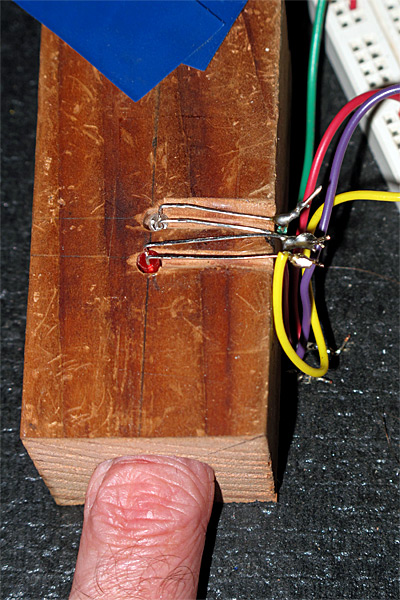
Short piece of 2×2 wood, with a 3/4″ diameter hole drilled with a Forstner bit partway through the block. Two 1/8″ holes drilled for 3mm LEDs on top, and one for a 3mm phototransistor on the bottom (lined up with the red LED). Wiring channels were cut with the same 1/8″ drill bit, and opened up a with a round riffler. Electrical tape holds the LEDs and phototransistor in place (removed here to expose the diodes).

My first test with the new setup was disappointing.  The signal from the IR LED swamped out the signal from the red LED, being at least 4 times as large. The RC discharge curves for the phototransistor for the IR signal was slow enough that I would have had to go to a very low sampling rate to see the red LED signal without interference from the discharge from the IR pulse.  I could reduce the signal for the IR LED to only twice the red output by increasing the IR current-limiting resistor to 1.5kΩ, and reduce the RC time constant of the phototransistor by reducing the pulldown resistor for it to 100kΩ The reduction in the output of the IR LED and decreased sensitivity of the phototransistor made about a 17-fold reduction in the amplitude of the IR signal, and the red signal was about a thirtieth of what I’d previously been getting for the IR signal.  Since the variation in amplitude that made up my real signal was about 10 counts before, it is substantially less than 1 count now, and is  too small to be detected even with the digital filters that I used.

I could probably solve this problem of a small signal by switching from the Arduino to the KL25Z, since going from a 10-bit ADC to a 16-bit ADC would allow a 64 times larger signal-to-noise ratio (that is, +36dB), getting me back to enough signal to be detectable even with the reductions..  I’ve ordered headers from Digi-Key for the KL25Z, so next week I’ll be able to test this.

I did do something very stupid yesterday, though in a misguided attempt to fix the problem.  I had another red LED (WP710A10ID) that was listed on the spec sheet as being much brighter than the one I’d been using (WP3A8HD), so I soldered it in.  The LED was clearly much brighter, but when I put my finger in the sensor, I got almost no red signal!  What went wrong?

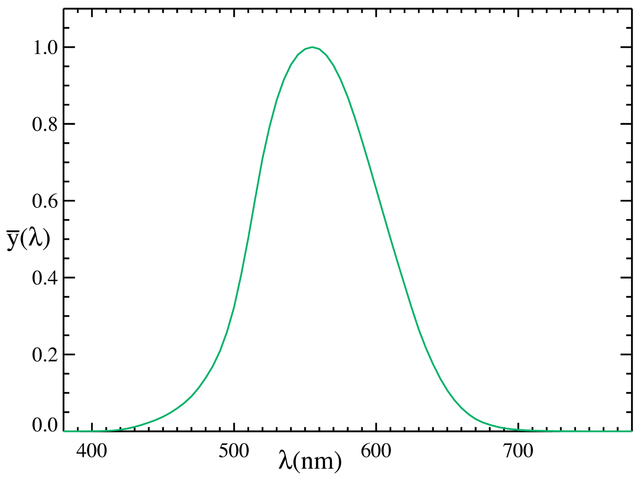
A moment’s thought explained the problem to me (I just wish I had done that thinking BEFORE soldering in the LED).  Why was the new LED brighter for the same current?  It wasn’t that the LED was more efficient at generating photons, but that the wavelength of the light was shorter, and so the eye was more sensitive to it.

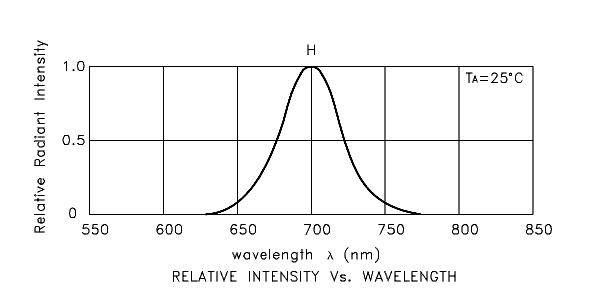
Spectrum of the WP3A8HD red LED that I first used. It has a peak at 700nm and dominant wavelength at 660nm. I believe that the “dominant wavelength” refers to the peak of the spectrum multiplied by the sensitivity of the human eye.  Spectrum copied from Kingbright preliminary specification for WP3A8HD.

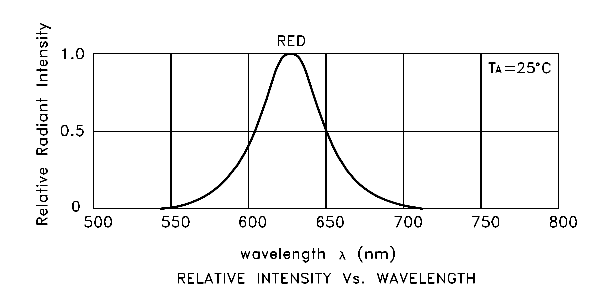
Spectrum of the WP710A10ID brighter red LED that didn’t work for me. The peak is at 627nm and the “dominant wavelength” is 617nm. The extra brightness is coming from this shorter wavelength, where the human eye is more sensitive. Image copied from the Kingbright spec sheet.

1931 CIE luminosity curve, representing a standardized sensitivity of the human eye with bright lighting (photopic vision). The peak is at 555nm. Note that there are better estimates of human eye sensitivity now available (see the discussion of newer ones in the Wikipedia article on the Luminosity function).
Image copied from Wikipedia.

The new LED is brighter, because the human eye is more sensitive to its shorter wavelength, but the optimum sensitivity of the phototransistor is at longer wavelengths, so the phototransistor is less sensitive to the new LED than to the old one.

Typical spectral sensitivity of a silicon photodiode or phototransistor. This curve does not take into account any absorption losses in the packaging of the part, which can substantially change the response. Note that the peak sensitivity is in the infrared, around 950nm, not in the green around 555nm as with the human eye. Unfortunately, Kingbright does not publish a spectral sensitivity curve for their WP3DP3B phototransistor, so this image is a generic one copied from https://upload.wikimedia.org/wikipedia/commons/4/41/Response_silicon_photodiode.svg

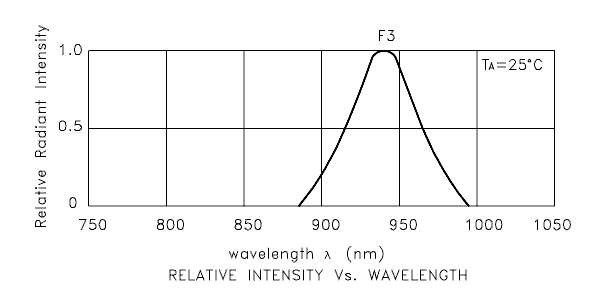
This sensitivity is much better matched to the IR emitter (WP710A10F3C) than to either of the red LEDs:

Spectrum for the WP710A10F3C IR emitter, copied from the Kingbright spec sheet. The peak is at 940nm with a 50nm bandwidth. There is no “dominant wavelength”, because essentially all the emissions are outside the range of the human eye.

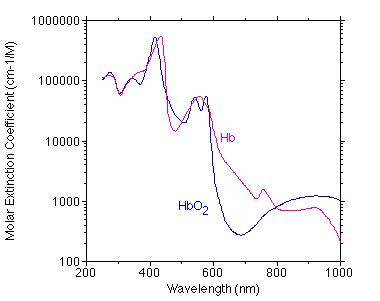
Furthermore, blood and flesh is more opaque at the shorter wavelength, so I had more light absorbed and less sensitivity in the detector, making for a much smaller signal.

Scott Prahl’s estimate of oxyhemoglobin and deoxyhemoglobin molar extinction coefficients, copied from http://omlc.ogi.edu/spectra/hemoglobin/summary.gif
Tabulated values are available at http://omlc.ogi.edu/spectra/hemoglobin/summary.html and general discussion at http://omlc.ogi.edu/spectra/hemoglobin/
The higher the curve here the less light is transmitted. Note that 700nm has very low absorption (290), but 627nm has over twice as high an absorption (683).  Also notice that in the infrared

I had to go back to the red LED (WP3A8HD) that I started with. Here is an example of the waveform I get with that LED, dropping the sampling rate to 10Hz:

The green waveform is the voltage driving the red LED and through a 100Ω resistor. The red LED is on for the 1/30th of second that the output is low, then the IR LED is on (through a 1.5kΩ resistor) for 1/30th of a second, then both are off. THe yellow trace shows the voltage at the phototransistor emitter with a 680kΩ pulldown.
This signal seems to have too little amplitude for the variation to be detected with the Arduino (the scale is 1v/division with 0v at the bottom of the grid).

I can try increasing the signal by using 2 or more red LEDs (though the amount of current needed gets large), or I could turn down the IR signal to match the red signal and use an amplifier to get a big enough signal for the Arduino to read.  Sometimes it seems like a 4.7kΩ resistor on the IR emitter matches the output, and sometimes there is still much more IR signal received, depending on which finger I use and how I hold it in the device.

I was thinking of playing with some amplification, but I could only get a gain of about 8, and even then I’d be risking saturation of the amplifier.  I think I’ll wait until the headers come and I can try the KL25Z board—the gain of 64 from the higher resolution ADC is likely to be more useful.  If that isn’t enough, I can try adding gain also.  I could also eliminate the “off-state” and just amplify the difference between IR illumination and red illumination.  I wonder if that will let me detect the pulse, though.


Filed under: Circuits course, freshman design seminar Tagged: Arduino, biquad filter, digital filter, IIR filter, IR emitter, LED, phototransistor, pulse, pulse monitor, pulse oximeter