Posts with «arduino» label

Low-cost Arduino-compatible electronics kit

There is an Indiegogo campaign to sell a kit for learning electronics that seems to have better pricing than most of the similar kits I’ve seen: BE MAKER! KIT plus FREE lessons on electronics, from Zero to Internet of Things | Indiegogo.

The most popular product they are selling seems to be a $69 kit with a microprocessor board (a clone of the Arduino Leonardo); a “shield” with an LCD display driver, pushbuttons, microSD card reader, 2 servo connections, RGB LED strip driver, and Ethernet adapter; a bunch of useful electronics parts (including an LCD display for the shield and an RGB LED strip); “lessons” (which are probably just assembly instructions for different projects, but may be more tutorial) and a box to keep all the tiny parts in.

As Arduino and Arduino-compatible kits go, this one looks pretty good.  Forget about it for holiday gift-giving though, as they don’t expect to deliver until February 2014.  If you want something similar for this year, look at the somewhat more expensive kits from AdaFruit or SparkFun.


Filed under: Uncategorized Tagged: Adafruit Industries, Arduino, education, electronics, Indiegogo, SparkFun Electronics

Low-cost Arduino-compatible electronics kit

There is an Indiegogo campaign to sell a kit for learning electronics that seems to have better pricing than most of the similar kits I’ve seen: BE MAKER! KIT plus FREE lessons on electronics, from Zero to Internet of Things | Indiegogo.

The most popular product they are selling seems to be a $69 kit with a microprocessor board (a clone of the Arduino Leonardo); a “shield” with an LCD display driver, pushbuttons, microSD card reader, 2 servo connections, RGB LED strip driver, and Ethernet adapter; a bunch of useful electronics parts (including an LCD display for the shield and an RGB LED strip); “lessons” (which are probably just assembly instructions for different projects, but may be more tutorial) and a box to keep all the tiny parts in.

As Arduino and Arduino-compatible kits go, this one looks pretty good.  Forget about it for holiday gift-giving though, as they don’t expect to deliver until February 2014.  If you want something similar for this year, look at the somewhat more expensive kits from AdaFruit or SparkFun.


Filed under: Uncategorized Tagged: Adafruit Industries, Arduino, education, electronics, Indiegogo, SparkFun Electronics

Punch Through's new Arduino board can stay wireless forever (video)

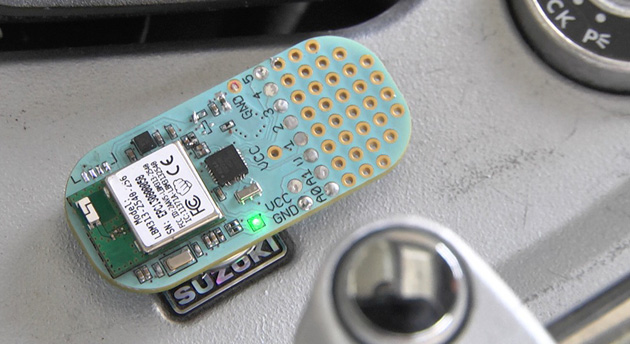
You'll have to plug in a typical Arduino-compatible board at some point in its life, whether it's to add code or just to supply power. Not Punch Through Design's upcoming Cortado, however. The tiny device centers on a custom Bluetooth 4.0 LE module that both enables wireless programming (including through mobile apps) and helps the board last for more than a year on a replaceable watch battery. In fact, the Cortado will already be powered up when you get it -- you can start coding before you've opened the shipping box. It should also be relatively flexible for its size with a built-in accelerometer and the ability to serve as an Apple iBeacon transmitter. Punch Through is crowdfunding the board with hopes of shipping its first units in May. If you're interested, you can pledge $18 to pre-order a Cortado; there's also a helpful promo video after the break.

Filed under: Peripherals

Comments

Via: Make

Source: Punch Through Design

Tutorial – Send email with the Arduino Yún

Introduction

This is the third in a series of tutorials examining various uses of the Arduino Yún. In this article we’ll examine how your Arduino Yún can send email from a Google email account. Doing so gives you a neat and simple method of sending data captured by the Arduino Yún or other notifications.

Getting Started

If you haven’t already done so, ensure your Arduino Yún can connect to your network via WiFi or cable – and get a Temboo account (we run through this here). And you need (at the time of writing) IDE version 1.5.4 which can be downloaded from the Arduino website.

Finally, you will need a Google account to send email from, so if you don’t have one – sign up here. You might want to give your Arduino Yún an email address of its very own.

Testing the Arduino Yún-Gmail connection

In this first example we’ll run through the sketch provided by Temboo so you can confirm everything works as it should. This will send a simple email from your Arduino Yún to another email address. First, copy the following sketch into the IDE but don’t upload it yet:

/*
  SendAnEmail

  Demonstrates sending an email via a Google Gmail account using the Temboo Arduino Yun SDK.

  This example code is in the public domain.
*/

#include <Bridge.h>
#include <Temboo.h>
#include "TembooAccount.h" // contains Temboo account information

/*** SUBSTITUTE YOUR VALUES BELOW: ***/

// Note that for additional security and reusability, you could
// use #define statements to specify these values in a .h file.

// your Gmail username, formatted as a complete email address, eg "bob.smith@gmail.com"
const String GMAIL_USER_NAME = "sender@gmail.com";

// your Gmail password
const String GMAIL_PASSWORD = "gmailpassword";

// the email address you want to send the email to, eg "jane.doe@temboo.com"
const String TO_EMAIL_ADDRESS = "recipient@email.com";

boolean success = false; // a flag to indicate whether we've sent the email yet or not

void setup() {
  Serial.begin(9600);

  // for debugging, wait until a serial console is connected
  delay(4000);
  while(!Serial);

  Bridge.begin();
}

void loop()
{
  // only try to send the email if we haven't already sent it successfully
  if (!success) {

    Serial.println("Running SendAnEmail...");

    TembooChoreo SendEmailChoreo;

    // invoke the Temboo client
    // NOTE that the client must be reinvoked, and repopulated with
    // appropriate arguments, each time its run() method is called.
    SendEmailChoreo.begin();

    // set Temboo account credentials
    SendEmailChoreo.setAccountName(TEMBOO_ACCOUNT);
    SendEmailChoreo.setAppKeyName(TEMBOO_APP_KEY_NAME);
    SendEmailChoreo.setAppKey(TEMBOO_APP_KEY);

    // identify the Temboo Library choreo to run (Google > Gmail > SendEmail)
    SendEmailChoreo.setChoreo("/Library/Google/Gmail/SendEmail");

    // set the required choreo inputs
    // see https://www.temboo.com/library/Library/Google/Gmail/SendEmail/ 
    // for complete details about the inputs for this Choreo

    // the first input is your Gmail email address
    SendEmailChoreo.addInput("Username", GMAIL_USER_NAME);
    // next is your Gmail password.
    SendEmailChoreo.addInput("Password", GMAIL_PASSWORD);
    // who to send the email to
    SendEmailChoreo.addInput("ToAddress", TO_EMAIL_ADDRESS);
    // then a subject line
    SendEmailChoreo.addInput("Subject", "Email subject line here");

     // next comes the message body, the main content of the email   
    SendEmailChoreo.addInput("MessageBody", "Email content");

    // tell the Choreo to run and wait for the results. The 
    // return code (returnCode) will tell us whether the Temboo client 
    // was able to send our request to the Temboo servers
    unsigned int returnCode = SendEmailChoreo.run();

    // a return code of zero (0) means everything worked
    if (returnCode == 0) {
        Serial.println("Success! Email sent!");
        success = true;
    } else {
      // a non-zero return code means there was an error
      // read and print the error message
      while (SendEmailChoreo.available()) {
        char c = SendEmailChoreo.read();
        Serial.print(c);
      }
    } 
    SendEmailChoreo.close();

    // do nothing for the next 60 seconds
    delay(60000);
  }
}

Before uploading you need to enter five parameters – the email address to send the email with, the password for that account, the recipient’s email address, and the email’s subject line and content. These can be found in the following lines in the sketch – for example:

const String GMAIL_USER_NAME = "sender@gmail.com";
const String GMAIL_PASSWORD = "emailpassword";
const String TO_EMAIL_ADDRESS = "recipient@email.com";
SendEmailChoreo.addInput("Subject", "This is the subject line of the email");
SendEmailChoreo.addInput("MessageBody", "And this is the content of the email");

So enter the required data in the fields above. If you’re sending from a Google Apps account instead of a Gmail account – that’s ok, just enter in the sending email address as normal. Temboo and Google will take care of the rest.

Finally, create your header file by copying the the header file data from here (after logging to Temboo) into a text file and saving it with the name TembooAccount.h in the same folder as your sketch from above. You know this has been successful when opening the sketch, as you will see the header file in a second tab, for example:

Now you can upload the sketch, and after a few moments check the recipient’s email account. If all goes well you will be informed by the IDE serial monitor as well (if your Yún is connected via USB). It’s satisfying to see an email come from your Arduino Yún, for example in this short video.

If your email is not coming through, connect your Arduino Yún via USB (if not already done so) and open the serial monitor. It will let you know if there’s a problem in relatively plain English – for example:

Error
A Step Error has occurred: “An SMTP error has occurred. Make sure that your credentials are correct and that you’ve provided a fully qualified Gmail
username (e.g., john.smith@gmail.com) for the Username input. When using Google 2-Step Verification, make sure to
provide an application-specific password. If this problem persists, Google may be restricting access to your account, and you’ll need to
explicitly allow access via gmail.com.”. The error occurred in the Stop (Authentication error) step.
HTTP_CODE
500


So if this happens, check your email account details in the sketch, and try again.

Sending email with customisable subject and content data

The example sketch above is fine if you want to send a fixed message. However what if you need to send some data? That can be easily done. For our example we’ll generate some random numbers, and integrate them into the email subject line and content. This will give you the framework to add your own sensor data to emails from your Arduino Yún. Consider the following sketch:

/*
  SendAnEmail

  Demonstrates sending an email via a Google Gmail account using the Temboo Arduino Yun SDK.

  This example code is in the public domain.
*/

#include <Bridge.h>
#include <Temboo.h>
#include "TembooAccount.h" // contains Temboo account information

/*** SUBSTITUTE YOUR VALUES BELOW: ***/

// Note that for additional security and reusability, you could
// use #define statements to specify these values in a .h file.

// your Gmail username, formatted as a complete email address, eg "bob.smith@gmail.com"
const String GMAIL_USER_NAME = "sender@gmail.com";

// your Gmail password
const String GMAIL_PASSWORD = "gmailpassword";

// the email address you want to send the email to, eg "jane.doe@temboo.com"
const String TO_EMAIL_ADDRESS = "recipient@email.com";

int a,b; // used to store our random numbers
boolean success = false; // a flag to indicate whether we've sent the email yet or not

void setup() 
{
  Serial.begin(9600);
  // for debugging, wait until a serial console is connected
  delay(4000);
  while(!Serial);
  Bridge.begin();
  randomSeed(analogRead(0)); // fire up random number generation
}

void loop()
{
  // generate some random numbers to send in the email
  a = random(1000);
  b = random(1000);
  // compose email subject line into a String called "emailSubject"
  String emailSubject("The random value of a is: ");
  emailSubject += a;
  emailSubject += " and b is: ";
  emailSubject += b;  
  // compose email content into a String called "emailContent"
  String emailContent("This is an automated email from your Arduino Yun. The random value of a is: ");
  emailContent += a;
  emailContent += " and b is: ";
  emailContent += b;  
  emailContent += ". I hope that was of some use for you. Bye for now.";  

  // only try to send the email if we haven't already sent it successfully
  if (!success) {

    Serial.println("Running SendAnEmail...");

    TembooChoreo SendEmailChoreo;

    // invoke the Temboo client
    // NOTE that the client must be reinvoked, and repopulated with
    // appropriate arguments, each time its run() method is called.
    SendEmailChoreo.begin();

    // set Temboo account credentials
    SendEmailChoreo.setAccountName(TEMBOO_ACCOUNT);
    SendEmailChoreo.setAppKeyName(TEMBOO_APP_KEY_NAME);
    SendEmailChoreo.setAppKey(TEMBOO_APP_KEY);

    // identify the Temboo Library choreo to run (Google > Gmail > SendEmail)
    SendEmailChoreo.setChoreo("/Library/Google/Gmail/SendEmail");

    // set the required choreo inputs
    // see https://www.temboo.com/library/Library/Google/Gmail/SendEmail/ 
    // for complete details about the inputs for this Choreo

    // the first input is your Gmail email address
    SendEmailChoreo.addInput("Username", GMAIL_USER_NAME);
    // next is your Gmail password.
    SendEmailChoreo.addInput("Password", GMAIL_PASSWORD);
    // who to send the email to
    SendEmailChoreo.addInput("ToAddress", TO_EMAIL_ADDRESS);
    // then a subject line
    SendEmailChoreo.addInput("Subject", emailSubject); // here we send the emailSubject string as the email subject

     // next comes the message body, the main content of the email   
    SendEmailChoreo.addInput("MessageBody", emailContent); // and here we send the emailContent string

    // tell the Choreo to run and wait for the results. The 
    // return code (returnCode) will tell us whether the Temboo client 
    // was able to send our request to the Temboo servers
    unsigned int returnCode = SendEmailChoreo.run();

    // a return code of zero (0) means everything worked
    if (returnCode == 0) {
        Serial.println("Success! Email sent!");
        success = true;
    } else {
      // a non-zero return code means there was an error
      // read and print the error message
      while (SendEmailChoreo.available()) {
        char c = SendEmailChoreo.read();
        Serial.print(c);
      }
    } 
    SendEmailChoreo.close();

    // do nothing for the next 60 seconds
    delay(60000);
  }
}

Review the first section at the start of void loop(). We have generated two random numbers, and then appended some text and the numbers into two Strings – emailContent and emailSubject.

These are then inserted into the SendEmailChoreo.addInput lines to be the email subject and content. With a little effort you can make a neat email notification, such as shown in this video and the following image from a mobile phone:

Conclusion

It’s no secret that the Yún isn’t the cheapest development board around, however the ease of use as demonstrated in this tutorial shows that the time saved in setup and application is more than worth the purchase price of the board and extra Temboo credits if required.

And if you’re interested in learning more about Arduino, or want to introduce someone else to the interesting world of Arduino – check out my book (now in a third printing!) “Arduino Workshop” from No Starch Press.

In the meanwhile have fun and keep checking into tronixstuff.com. Why not follow things on twitterGoogle+, subscribe  for email updates or RSS using the links on the right-hand column? And join our friendly Google Group – dedicated to the projects and related items on this website. Sign up – it’s free, helpful to each other –  and we can all learn something.

The post Tutorial – Send email with the Arduino Yún appeared first on tronixstuff.

Tronixstuff 23 Nov 01:40
arduino  email  gmail  google  iot  lesson  mail  review  send  temboo  tronixstuff  tutorial  wifi  yún  

Arduino Tutorials – Chapter 15 – RFID

Learn how to use RFID readers with your Arduino. In this instalment we use an RDM630 or RDM6300 RFID reader. This is chapter fifteen of our huge Arduino tutorial seriesUpdated 19/11/2013

Introduction

RFID – radio frequency identification. Some of us have already used these things, and they have become part of everyday life. For example, with electronic vehicle tolling, door access control, public transport fare systems and so on. It sounds complex – but isn’t.

To explain RFID for the layperson, we can use a key and lock analogy. Instead of the key having a unique pattern, RFID keys hold a series of unique numbers which are read by the lock. It is up to our Arduino sketch to determine what happens when the number is read by the lock.  The key is the tag, card or other small device we carry around or have in our vehicles. We will be using a passive key, which is an integrated circuit and a small aerial. This uses power from a magnetic field associated with the lock. Here are some key or tag examples:

In this tutorial we’ll be using 125 kHz tags – for example. To continue with the analogy our lock is a small circuit board and a loop aerial. This has the capability to read the data on the IC of our key, and some locks can even write data to keys. Here is our reader (lock) example:

These readers are quite small and inexpensive – however the catch is that the loop aerial is somewhat fragile. If you need something much sturdier, consider the ID20 tags used in the other RFID tutorial.

Setting up the RFID reader

This is a short exercise to check the reader works and communicates with the Arduino. You will need:

Simply insert the RFID reader main board into a solderless breadboard as shown below. Then use jumper wires to connect the second and third pins at the top-left of the RFID board to Arduino 5V and GND respectively. The RFID coil connects to the two pins on the top-right (they can go either way). Finally, connect a jumper wire from the bottom-left pin of the RFID board to Arduino digital pin 2:

Next, upload the following sketch to your Arduino and open the serial monitor window in the IDE:

#include <SoftwareSerial.h>
SoftwareSerial RFID(2, 3); // RX and TX

int i;

void setup()
{
  RFID.begin(9600);    // start serial to RFID reader
  Serial.begin(9600);  // start serial to PC 
}

void loop()
{
  if (RFID.available() > 0) 
  {
     i = RFID.read();
     Serial.print(i, DEC);
     Serial.print(" ");
  }
}

If you’re wondering why we used SoftwareSerial – if you connect the data line from the RFID board to the Arduino’s RX pin – you need to remove it when updating sketches, so this is more convenient.

Now start waving RFID cards or tags over the coil. You will find that they need to be parallel over the coil, and not too far away. You can experiment with covering the coil to simulate it being installed behind protective surfaces and so on. Watch this short video which shows the resulting RFID card or tag data being displayed in the Arduino IDE serial monitor.

As you can see from the example video, the reader returns the card’s unique ID number which starts with a 2 and ends with a 3. While you have the sketch operating, read the numbers from your RFID tags and note them down, you will need them for future sketches.

To do anything with the card data, we need to create some functions to retrieve the card number when it is read and place in an array for comparison against existing card data (e.g. a list of accepted cards) so your systems will know who to accept and who to deny. Using those functions, you can then make your own access system, time-logging device and so on.

Let’s demonstrate an example of this. It will check if a card presented to the reader is on an “accepted” list, and if so light a green LED, otherwise light a red LED. Use the hardware from the previous sketch, but add a typical green and red LED with 560 ohm resistor to digital pins 13 and 12 respectively. Then upload the following sketch:

#include <SoftwareSerial.h>
SoftwareSerial RFID(2, 3); // RX and TX

int data1 = 0;
int ok = -1;
int yes = 13;
int no = 12;

// use first sketch in http://wp.me/p3LK05-3Gk to get your tag numbers
int tag1[14] = {2,52,48,48,48,56,54,66,49,52,70,51,56,3};
int tag2[14] = {2,52,48,48,48,56,54,67,54,54,66,54,66,3};
int newtag[14] = { 0,0,0,0,0,0,0,0,0,0,0,0,0,0}; // used for read comparisons

void setup()
{
  RFID.begin(9600);    // start serial to RFID reader
  Serial.begin(9600);  // start serial to PC 
  pinMode(yes, OUTPUT); // for status LEDs
  pinMode(no, OUTPUT);
}

boolean comparetag(int aa[14], int bb[14])
{
  boolean ff = false;
  int fg = 0;
  for (int cc = 0 ; cc < 14 ; cc++)
  {
    if (aa[cc] == bb[cc])
    {
      fg++;
    }
  }
  if (fg == 14)
  {
    ff = true;
  }
  return ff;
}

void checkmytags() // compares each tag against the tag just read
{
  ok = 0; // this variable helps decision-making,
  // if it is 1 we have a match, zero is a read but no match,
  // -1 is no read attempt made
  if (comparetag(newtag, tag1) == true)
  {
    ok++;
  }
  if (comparetag(newtag, tag2) == true)
  {
    ok++;
  }
}

void readTags()
{
  ok = -1;

  if (RFID.available() > 0) 
  {
    // read tag numbers
    delay(100); // needed to allow time for the data to come in from the serial buffer.

    for (int z = 0 ; z < 14 ; z++) // read the rest of the tag
    {
      data1 = RFID.read();
      newtag[z] = data1;
    }
    RFID.flush(); // stops multiple reads

    // do the tags match up?
    checkmytags();
  }

  // now do something based on tag type
  if (ok > 0) // if we had a match
  {
    Serial.println("Accepted");
    digitalWrite(yes, HIGH);
    delay(1000);
    digitalWrite(yes, LOW);

    ok = -1;
  }
  else if (ok == 0) // if we didn't have a match
  {
    Serial.println("Rejected");
    digitalWrite(no, HIGH);
    delay(1000);
    digitalWrite(no, LOW);

    ok = -1;
  }
}

void loop()
{
  readTags();
}

In the sketch we have a few functions that take care of reading and comparing RFID tags. Notice that the allowed tag numbers are listed at the top of the sketch, you can always add your own and more – as long as you add them to the list in the function checkmytags() which determines if the card being read is allowed or to be denied.

The function readTags() takes care of the actual reading of the tags/cards, by placing the currently-read tag number into an array which is them used in the comparison function checkmytags(). Then the LEDs are illuminated depending on the status of the tag at the reader. You can watch a quick demonstration of this example in this short video.

Conclusion

After working through this chapter you should now have a good foundation of knowledge on using the inexpensive RFID readers and how to call functions when a card is successfully read. For example, use some extra hardware (such as an N-MOSFET) to control a door strike, buzzer, etc. Now it’s up to you to use them as a form of input with various access systems, tracking the movement of people or things and much more.

And if you enjoyed the tutorial, or want to introduce someone else to the interesting world of Arduino – check out my book (now in a third printing!) “Arduino Workshop” from No Starch Press.

In the meanwhile have fun and keep checking into tronixstuff.com. Why not follow things on twitterGoogle+, subscribe  for email updates or RSS using the links on the right-hand column? And join our friendly Google Group – dedicated to the projects and related items on this website. Sign up – it’s free, helpful to each other –  and we can all learn something.

Arduino Tutorials – Chapter 15 – RFID

Learn how to use RFID readers with your Arduino. In this instalment we use an RDM630 or RDM6300 RFID reader. If you have an Innovations ID-12 or ID-20 RFID reader, we have a different tutorial for you.

This is chapter fifteen of our huge Arduino tutorial seriesUpdated 19/11/2013

Introduction

RFID – radio frequency identification. Some of us have already used these things, and they have become part of everyday life. For example, with electronic vehicle tolling, door access control, public transport fare systems and so on. It sounds complex – but isn’t.

To explain RFID for the layperson, we can use a key and lock analogy. Instead of the key having a unique pattern, RFID keys hold a series of unique numbers which are read by the lock. It is up to our Arduino sketch to determine what happens when the number is read by the lock.  The key is the tag, card or other small device we carry around or have in our vehicles. We will be using a passive key, which is an integrated circuit and a small aerial. This uses power from a magnetic field associated with the lock. Here are some key or tag examples:

In this tutorial we’ll be using 125 kHz tags – for example. To continue with the analogy our lock is a small circuit board and a loop aerial. This has the capability to read the data on the IC of our key, and some locks can even write data to keys. Here is our reader (lock) example:

These readers are quite small and inexpensive – however the catch is that the loop aerial is somewhat fragile. If you need something much sturdier, consider the ID20 tags used in the other RFID tutorial.

Setting up the RFID reader

This is a short exercise to check the reader works and communicates with the Arduino. You will need:

Simply insert the RFID reader main board into a solderless breadboard as shown below. Then use jumper wires to connect the second and third pins at the top-left of the RFID board to Arduino 5V and GND respectively. The RFID coil connects to the two pins on the top-right (they can go either way). Finally, connect a jumper wire from the bottom-left pin of the RFID board to Arduino digital pin 2:

Next, upload the following sketch to your Arduino and open the serial monitor window in the IDE:

#include <SoftwareSerial.h>
SoftwareSerial RFID(2, 3); // RX and TX

int i;

void setup()
{
  RFID.begin(9600);    // start serial to RFID reader
  Serial.begin(9600);  // start serial to PC 
}

void loop()
{
  if (RFID.available() > 0) 
  {
     i = RFID.read();
     Serial.print(i, DEC);
     Serial.print(" ");
  }
}

If you’re wondering why we used SoftwareSerial – if you connect the data line from the RFID board to the Arduino’s RX pin – you need to remove it when updating sketches, so this is more convenient.

Now start waving RFID cards or tags over the coil. You will find that they need to be parallel over the coil, and not too far away. You can experiment with covering the coil to simulate it being installed behind protective surfaces and so on. Watch this short video which shows the resulting RFID card or tag data being displayed in the Arduino IDE serial monitor.

As you can see from the example video, the reader returns the card’s unique ID number which starts with a 2 and ends with a 3. While you have the sketch operating, read the numbers from your RFID tags and note them down, you will need them for future sketches.

To do anything with the card data, we need to create some functions to retrieve the card number when it is read and place in an array for comparison against existing card data (e.g. a list of accepted cards) so your systems will know who to accept and who to deny. Using those functions, you can then make your own access system, time-logging device and so on.

Let’s demonstrate an example of this. It will check if a card presented to the reader is on an “accepted” list, and if so light a green LED, otherwise light a red LED. Use the hardware from the previous sketch, but add a typical green and red LED with 560 ohm resistor to digital pins 13 and 12 respectively. Then upload the following sketch:

#include <SoftwareSerial.h>
SoftwareSerial RFID(2, 3); // RX and TX

int data1 = 0;
int ok = -1;
int yes = 13;
int no = 12;

// use first sketch in http://wp.me/p3LK05-3Gk to get your tag numbers
int tag1[14] = {2,52,48,48,48,56,54,66,49,52,70,51,56,3};
int tag2[14] = {2,52,48,48,48,56,54,67,54,54,66,54,66,3};
int newtag[14] = { 0,0,0,0,0,0,0,0,0,0,0,0,0,0}; // used for read comparisons

void setup()
{
  RFID.begin(9600);    // start serial to RFID reader
  Serial.begin(9600);  // start serial to PC 
  pinMode(yes, OUTPUT); // for status LEDs
  pinMode(no, OUTPUT);
}

boolean comparetag(int aa[14], int bb[14])
{
  boolean ff = false;
  int fg = 0;
  for (int cc = 0 ; cc < 14 ; cc++)
  {
    if (aa[cc] == bb[cc])
    {
      fg++;
    }
  }
  if (fg == 14)
  {
    ff = true;
  }
  return ff;
}

void checkmytags() // compares each tag against the tag just read
{
  ok = 0; // this variable helps decision-making,
  // if it is 1 we have a match, zero is a read but no match,
  // -1 is no read attempt made
  if (comparetag(newtag, tag1) == true)
  {
    ok++;
  }
  if (comparetag(newtag, tag2) == true)
  {
    ok++;
  }
}

void readTags()
{
  ok = -1;

  if (RFID.available() > 0) 
  {
    // read tag numbers
    delay(100); // needed to allow time for the data to come in from the serial buffer.

    for (int z = 0 ; z < 14 ; z++) // read the rest of the tag
    {
      data1 = RFID.read();
      newtag[z] = data1;
    }
    RFID.flush(); // stops multiple reads

    // do the tags match up?
    checkmytags();
  }

  // now do something based on tag type
  if (ok > 0) // if we had a match
  {
    Serial.println("Accepted");
    digitalWrite(yes, HIGH);
    delay(1000);
    digitalWrite(yes, LOW);

    ok = -1;
  }
  else if (ok == 0) // if we didn't have a match
  {
    Serial.println("Rejected");
    digitalWrite(no, HIGH);
    delay(1000);
    digitalWrite(no, LOW);

    ok = -1;
  }
}

void loop()
{
  readTags();
}

In the sketch we have a few functions that take care of reading and comparing RFID tags. Notice that the allowed tag numbers are listed at the top of the sketch, you can always add your own and more – as long as you add them to the list in the function checkmytags() which determines if the card being read is allowed or to be denied.

The function readTags() takes care of the actual reading of the tags/cards, by placing the currently-read tag number into an array which is them used in the comparison function checkmytags(). Then the LEDs are illuminated depending on the status of the tag at the reader. You can watch a quick demonstration of this example in this short video.

Conclusion

After working through this chapter you should now have a good foundation of knowledge on using the inexpensive RFID readers and how to call functions when a card is successfully read. For example, use some extra hardware (such as an N-MOSFET) to control a door strike, buzzer, etc. Now it’s up to you to use them as a form of input with various access systems, tracking the movement of people or things and much more.

And if you enjoyed the tutorial, or want to introduce someone else to the interesting world of Arduino – check out my book (now in a third printing!) “Arduino Workshop” from No Starch Press.

In the meanwhile have fun and keep checking into tronixstuff.com. Why not follow things on twitterGoogle+, subscribe  for email updates or RSS using the links on the right-hand column? And join our friendly Google Group – dedicated to the projects and related items on this website. Sign up – it’s free, helpful to each other –  and we can all learn something.

The post Arduino Tutorials – Chapter 15 – RFID appeared first on tronixstuff.

Book – “Arduino Workshop – A Hands-On Introduction with 65 Projects”

Over the last few years you may have noticed a few of my Arduino tutorials, and during this time many people have mentioned that I should write a book. And now thanks to the team from No Starch Press this recommendation has morphed into my book – “Arduino Workshop“:

Now into the third print run, “Arduino Workshop” is one of the few books on the market that can take the reader from zero knowledge to understanding the Arduino development platform, and working with a huge array of add-ons and technologies. And a huge “thank you” to all those who have purchased and supported the book so far.

Arduino Workshop” offers a professionally-edited and curated path for the beginner to learn with and have fun. It’s a hands-on introduction to Arduino with 65 projects – from simple LED use right through to RFID, Internet connection, wireless data, working with cellular communications, and much more. Plus the reader also learns about electronics, good coding and other interesting topics.

Each project is explained in detail, explaining how the hardware and Arduino code works together. Plus we teach you how to read and understand circuit schematics and use this clear method of describing circuits which prepares the read for further electronics learning.

The reader doesn’t need any expensive tools or workspaces, and all the parts used are available from almost any electronics retailer. Furthermore all of the projects can be finished without soldering, so it’s safe for readers of all ages.

The editing team at No Starch Press, our technical editor Marc Alexander and myself have worked hard to make the book perfect for those without any electronics or Arduino experience at all, and it makes a great gift for someone to get them started. After working through the 65 projects the reader will have gained enough knowledge and confidence to create many things – and to continue researching on their own. Or if you’ve been enjoying the results of my thousands of hours of work here at tronixstuff, you can show your appreciation by ordering a copy for yourself or as a gift. If you’re still not sure, review the table of contents, index and download a sample chapter from the Arduino Workshop website.

Arduino Workshop is available from No Starch Press in printed or DRM-free eBook (PDF, Mobi, and ePub) formats. And the eBooks are also included with the printed orders so you can get started immediately. Furthermore you can also find Arduino Workshop for sale from all the popular booksellers around the globe.

In the meanwhile have fun and keep checking into tronixstuff.com. Why not follow things on twitterGoogle+, subscribe  for email updates or RSS using the links on the right-hand column? And join our friendly Google Group – dedicated to the projects and related items on this website. Sign up – it’s free, helpful to each other –  and we can all learn something.

The post Book – “Arduino Workshop – A Hands-On Introduction with 65 Projects” appeared first on tronixstuff.

Tronixstuff 13 Nov 22:17

Touch Board kit combines an Arduino heart with touch sensors, conductive paint

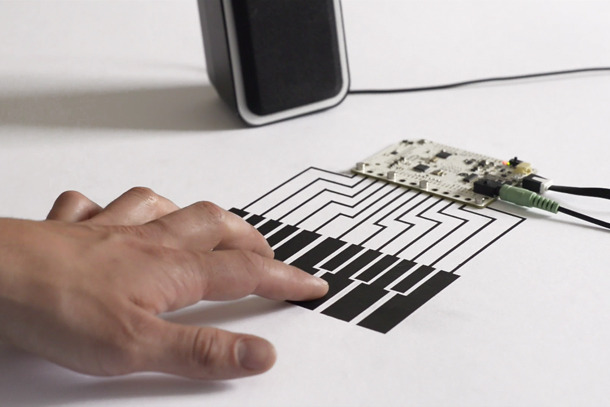
Capacitive sensing isn't limited to your smartphone. In fact, you can use contact with human skin (or any other conductive surface) to trigger almost any circuit. And the Touch Board from Bare Conductive wants you to combine your DIY spirit with the ability to turn practically any surface into a sensor. At the heart is an Arduino compatible microcontroller (based on the Leonardo) with a few extras baked in, including a Freescale touch sensor connected to 12 electrodes and an audio processor for triggering MIDI sounds or MP3 files. While you can simply trigger the electrodes by touching them or connecting them to any conductive material, such as a wire, the Electric Paint Pen really opens up the input possibilities. It's just like a paint marker, often used for small scale graffiti, except it spits out conductive black ink that can turn a wall, a piece of paper or almost anything else into a trigger. In fact, it's preloaded with a bunch of sample sounds on a microSD card so that you can simply paint a soundboard out of the box.

The Kickstarter startup has already more than quadrupled its target funding, but there's still a few days left to get in on the fun. For £45 you can get a Touch Board (with microSD card), an Electric Paint Pen and your choice of either a micro USB cable or a rechargable lithium battery for your untethered projects. And, since its pin compatible with most Arduino shields, you can add even more capabilities to the Touch Board for more complex projects. For example, pop on a relay switch shield, like the one included in the £100 light switch kit, and you can turn your lights on and off or tackle any other high-voltage project on your wishlist. And, since the Electric Paint can also act as a proximity sensor, you could potentially build a dimmer that brightens the room as you bring your hand closer to the wall. For the requisite sales pitch and demo, check out the video after the break.

Filed under: Misc

Comments

Source: Touch Board (Kickstarter)

Tutorial – Google Docs and the Arduino Yún

Introduction

This is the second in a series of tutorials examining various uses of the Arduino Yún. In this article we’ll examine how your Arduino Yún can send data that it captures from the analogue and digital inputs and a real-time clock IC to an online Google Docs spreadsheet. Doing so gives you a neat and inexpensive method of capturing data in real-time and having the ability to analyse the data from almost anywhere, and export it with very little effort.

Getting Started

If you haven’t already done so, ensure your Arduino Yún can connect to your network via WiFi or cable – and get a Temboo account (we run through this here). And you need (at the time of writing) IDE version 1.5.4 which can be downloaded from the Arduino website. Finally, you will need a Google account, so if you don’t have one – sign up here.

Testing the Arduino Yún-Google Docs connection

In this first example we’ll run through the sketch provided by Temboo so you can confirm everything works as it should. First of all, create a spreadsheet in Google Docs. Call it “ArduinoData” and label the first two columns as “time” and “sensor”, as shown in the screen shot below:

Always label the required columns. You can call them whatever you need. For new Google users, the URL shown in my example will be different to yours. Next, copy the following sketch to the IDE:

/*
  SendDataToGoogleSpreadsheet

  Demonstrates appending a row of data to a Google spreadsheet from the Arduino Yun 
  using the Temboo Arduino Yun SDK.  

  This example code is in the public domain.

*/

#include <Bridge.h>
#include <Temboo.h>
#include "TembooAccount.h" // contains Temboo account information

/*** SUBSTITUTE YOUR VALUES BELOW: ***/

// Note that for additional security and reusability, you could
// use #define statements to specify these values in a .h file.

const String GOOGLE_USERNAME = "your-google-username";
const String GOOGLE_PASSWORD = "your-google-password";

// the title of the spreadsheet you want to send data to
// (Note that this must actually be the title of a Google spreadsheet
// that exists in your Google Drive/Docs account, and is configured
// as described above.)
const String SPREADSHEET_TITLE = "your-spreadsheet-title";

const unsigned long RUN_INTERVAL_MILLIS = 60000; // how often to run the Choreo (in milliseconds)

// the last time we ran the Choreo 
// (initialized to 60 seconds ago so the
// Choreo is run immediately when we start up)
unsigned long lastRun = (unsigned long)-60000;

void setup() {

  // for debugging, wait until a serial console is connected
  Serial.begin(9600);
  delay(4000);
  while(!Serial);

  Serial.print("Initializing the bridge...");
  Bridge.begin();
  Serial.println("Done");
}

void loop()
{
  // get the number of milliseconds this sketch has been running
  unsigned long now = millis();

  // run again if it's been 60 seconds since we last ran
  if (now - lastRun >= RUN_INTERVAL_MILLIS) {

    // remember 'now' as the last time we ran the choreo
    lastRun = now;

    Serial.println("Getting sensor value...");

    // get the value we want to append to our spreadsheet
    unsigned long sensorValue = getSensorValue();

    Serial.println("Appending value to spreadsheet...");

    // we need a Process object to send a Choreo request to Temboo
    TembooChoreo AppendRowChoreo;

    // invoke the Temboo client
    // NOTE that the client must be reinvoked and repopulated with
    // appropriate arguments each time its run() method is called.
    AppendRowChoreo.begin();

    // set Temboo account credentials
    AppendRowChoreo.setAccountName(TEMBOO_ACCOUNT);
    AppendRowChoreo.setAppKeyName(TEMBOO_APP_KEY_NAME);
    AppendRowChoreo.setAppKey(TEMBOO_APP_KEY);

    // identify the Temboo Library choreo to run (Google > Spreadsheets > AppendRow)
    AppendRowChoreo.setChoreo("/Library/Google/Spreadsheets/AppendRow");

    // set the required Choreo inputs
    // see https://www.temboo.com/library/Library/Google/Spreadsheets/AppendRow/ 
    // for complete details about the inputs for this Choreo

    // your Google username (usually your email address)
    AppendRowChoreo.addInput("Username", GOOGLE_USERNAME);

    // your Google account password
    AppendRowChoreo.addInput("Password", GOOGLE_PASSWORD);

    // the title of the spreadsheet you want to append to
    AppendRowChoreo.addInput("SpreadsheetTitle", SPREADSHEET_TITLE);

    // convert the time and sensor values to a comma separated string
    String rowData(now);
    rowData += ",";
    rowData += sensorValue;

    // add the RowData input item
    AppendRowChoreo.addInput("RowData", rowData);

    // run the Choreo and wait for the results
    // The return code (returnCode) will indicate success or failure 
    unsigned int returnCode = AppendRowChoreo.run();

    // return code of zero (0) means success
    if (returnCode == 0) {
      Serial.println("Success! Appended " + rowData);
      Serial.println("");
    } else {
      // return code of anything other than zero means failure  
      // read and display any error messages
      while (AppendRowChoreo.available()) {
        char c = AppendRowChoreo.read();
        Serial.print(c);
      }
    }

    AppendRowChoreo.close();
  }
}

// this function simulates reading the value of a sensor 
unsigned long getSensorValue() {
  return analogRead(A0);
}

Now look for the following two lines in the sketch:

const String GOOGLE_USERNAME = "your-google-username";
const String GOOGLE_PASSWORD = "your-google-password";

This is where you put your Google account username and password. For example, if your Google account is “CI5@gmail.com” and password “RS2000Escort” the two lines will be:

const String GOOGLE_USERNAME = "CI5@gmail.com";
const String GOOGLE_PASSWORD = "RS2000Escort";

Next, you need to insert the spreadsheet name in the sketch. Look for the following line:

const String SPREADSHEET_TITLE = "your-spreadsheet-title";

and change your-spreadsheet-title to ArduinoData. 

Finally, create your header file by copying the the header file data from here (after logging to Temboo) into a text file and saving it with the name TembooAccount.h in the same folder as your sketch from above. You know this has been successful when opening the sketch, as you will see the header file in a second tab, for example:

Finally, save and upload your sketch to the Arduino Yún. After a moment or two it will send values to the spreadsheet, and repeat this every sixty seconds – for example:

If your Yún is connected via USB you can also watch the status via the serial monitor.

 One really super-cool and convenient feature of using Google Docs is that you can access it from almost anywhere. Desktop, tablet, mobile… and it updates in real-time:

So with your Yún you can capture data and view it from anywhere you can access the Internet. Now let’s do just that.

Sending your own data from the Arduino Yún to a Google Docs Spreadsheet

In this example we’ll demonstrate sending three types of data:

With these types of data you should be able to represent all manner of things. We use the RTC as the time and date from it will match when the data was captured, not when the data was written to the spreadsheet. If you don’t have a DS3232 you can also use a DS1307.

If you’re not familiar with these parts and the required code please review this tutorial. When connecting your RTC – please note that SDA (data) is D2 and SCL (clock) is D3 on the Yún.

The sketch for this example is a modified version of the previous sketch, except we have more data to send. The data is captured into variables from the line:

// get the values from A0 to A3 and D7, D8

You can send whatever data you like, as long as it is all appended to a String by the name of rowdata. When you want to use a new column in the spreadsheet, simply append a comma “,” between the data in the string. In other words, you’re creating a string of CSV (comma-separated values) data. You can see this process happen from the line that has the comment:

// CSV creation starts here!

in the example sketch that follows shortly. Finally, you can alter the update rate of the sketch – it’s set to every 60 seconds, however you can change this by altering the 60000 (milliseconds) in the following line:

const unsigned long RUN_INTERVAL_MILLIS = 60000;

Don’t forget that each update costs you a call and some data from your Temboo account – you only get so many for free then you have to pay for more. Check your Temboo account for more details.

So without further ado, the following sketch will write the values read from A0~A3, the status of D7 and D8 (1 for HIGH, 0 for LOW) along with the current date and time to the spreadsheet. Don’t forget to update the password, username and so on as you did for the first example sketch:

#include <Bridge.h>
#include <Temboo.h>
#include "TembooAccount.h" // contains Temboo account information
#include "Wire.h"
#define DS3232_I2C_ADDRESS 0x68

unsigned long analog0, analog1, analog2, analog3;
int digital7 = 7;
int digital8 = 8;
boolean d7, d8;
byte second, minute, hour, dayOfWeek, dayOfMonth, month, year; // for RTC

const String GOOGLE_USERNAME = "your-google-username";
const String GOOGLE_PASSWORD = "your-google-password";
const String SPREADSHEET_TITLE = "your-spreadsheet-title";

// update interval in milliseconds (every minute would be 60000)
const unsigned long RUN_INTERVAL_MILLIS = 60000; 
unsigned long lastRun = (unsigned long)-60000;

void setup() 
{
  // activate I2C bus
  Wire.begin();  
  // for debugging, wait until a serial console is connected
  Serial.begin(9600);
  delay(4000);
  while(!Serial);
  Serial.print("Initializing the bridge...");
  Bridge.begin();
  Serial.println("Done");
  // Set up digital inputs to monitor
  pinMode(digital7, INPUT);
  pinMode(digital8, INPUT);
}

// for RTC
// Convert normal decimal numbers to binary coded decimal
byte decToBcd(byte val)
{
  return ( (val/10*16) + (val%10) );
}

// Convert binary coded decimal to normal decimal numbers
byte bcdToDec(byte val)
{
  return ( (val/16*10) + (val%16) );
}

void readDS3232time(byte *second, 
byte *minute, 
byte *hour, 
byte *dayOfWeek, 
byte *dayOfMonth, 
byte *month, 
byte *year)
{
  Wire.beginTransmission(DS3232_I2C_ADDRESS);
  Wire.write(0); // set DS3232 register pointer to 00h
  Wire.endTransmission();  
  Wire.requestFrom(DS3232_I2C_ADDRESS, 7); // request 7 bytes of data from DS3232 starting from register 00h
  // A few of these need masks because certain bits are control bits
  *second     = bcdToDec(Wire.read() & 0x7f);
  *minute     = bcdToDec(Wire.read());
  *hour       = bcdToDec(Wire.read() & 0x3f);  // Need to change this if 12 hour am/pm
  *dayOfWeek  = bcdToDec(Wire.read());
  *dayOfMonth = bcdToDec(Wire.read());
  *month      = bcdToDec(Wire.read());
  *year       = bcdToDec(Wire.read());
}

void setDS3232time(byte second, byte minute, byte hour, byte dayOfWeek, byte dayOfMonth, byte month, byte year)
// sets time and date data to DS3232
{
  Wire.beginTransmission(DS3232_I2C_ADDRESS);  
  Wire.write(0); // sends 00h - seconds register
  Wire.write(decToBcd(second));     // set seconds
  Wire.write(decToBcd(minute));     // set minutes
  Wire.write(decToBcd(hour));       // set hours
  Wire.write(decToBcd(dayOfWeek));  // set day of week (1=Sunday, 7=Saturday)
  Wire.write(decToBcd(dayOfMonth)); // set date (1~31)
  Wire.write(decToBcd(month));      // set month
  Wire.write(decToBcd(year));       // set year (0~99)
  Wire.endTransmission();
}

void loop()
{
  // get the number of milliseconds this sketch has been running
  unsigned long now = millis();

  // run again if it's been 60 seconds since we last ran
  if (now - lastRun >= RUN_INTERVAL_MILLIS) {

    // remember 'now' as the last time we ran the choreo
    lastRun = now;
    Serial.println("Getting sensor values...");
    // get the values from A0 to A3 and D7, D8
    analog0 = analogRead(0);
    analog1 = analogRead(1);
    analog2 = analogRead(2);
    analog3 = analogRead(3);
    d7 = digitalRead(digital7);
    d8 = digitalRead(digital8);

    Serial.println("Appending value to spreadsheet...");
    // we need a Process object to send a Choreo request to Temboo
    TembooChoreo AppendRowChoreo;

    // invoke the Temboo client
    // NOTE that the client must be reinvoked and repopulated with
    // appropriate arguments each time its run() method is called.
    AppendRowChoreo.begin();

    // set Temboo account credentials
    AppendRowChoreo.setAccountName(TEMBOO_ACCOUNT);
    AppendRowChoreo.setAppKeyName(TEMBOO_APP_KEY_NAME);
    AppendRowChoreo.setAppKey(TEMBOO_APP_KEY);

    // identify the Temboo Library choreo to run (Google > Spreadsheets > AppendRow)
    AppendRowChoreo.setChoreo("/Library/Google/Spreadsheets/AppendRow");
    // your Google username (usually your email address)
    AppendRowChoreo.addInput("Username", GOOGLE_USERNAME);
    // your Google account password
    AppendRowChoreo.addInput("Password", GOOGLE_PASSWORD);
    // the title of the spreadsheet you want to append to
    AppendRowChoreo.addInput("SpreadsheetTitle", SPREADSHEET_TITLE);

    // get time and date from RTC
    readDS3232time(&second, &minute, &hour, &dayOfWeek, &dayOfMonth, &month, &year);

    // smoosh all the sensor, date and time data into a String
    // CSV creation starts here!
    String rowData(analog0);
    rowData += ",";
    rowData += analog1;
    rowData += ",";
    rowData += analog2;
    rowData += ",";
    rowData += analog3;
    rowData += ",";
    rowData += d7;
    rowData += ",";
    rowData += d8;    
    rowData += ",";
    // insert date
    rowData += dayOfMonth; 
    rowData += "/";
    rowData += month; 
    rowData += "/20";
    rowData += year; 
    rowData += ",";    
    // insert time    
    rowData += hour;  
    if (minute<10)
    {
        rowData += "0";  
    }    
    rowData += minute; 
    rowData += "."; 
    if (second<10)
    {
        rowData += "0";  
    }    
    rowData += second; 
    rowData += "h";     

    // add the RowData input item
    AppendRowChoreo.addInput("RowData", rowData);

    // run the Choreo and wait for the results
    // The return code (returnCode) will indicate success or failure 
    unsigned int returnCode = AppendRowChoreo.run();

    // return code of zero (0) means success
    if (returnCode == 0) {
      Serial.println("Success! Appended " + rowData);
      Serial.println("");
    } else {
      // return code of anything other than zero means failure  
      // read and display any error messages
      while (AppendRowChoreo.available()) {
        char c = AppendRowChoreo.read();
        Serial.print(c);
      }
    }
    AppendRowChoreo.close();
  }
}

… which in our example resulted with the following:

… and here is a video that shows how the spreadsheet updates in real time across multiple devices:

 Conclusion

It’s no secret that the Yún isn’t the cheapest devleopment board around, however the ease of use as demonstrated in this tutorial shows that the time saved in setup and application is more than worth the purchase price of the board and extra Temboo credits if required.

And if you’re interested in learning more about Arduino, or want to introduce someone else to the interesting world of Arduino – check out my book (now in a third printing!) “Arduino Workshop” from No Starch Press.

In the meanwhile have fun and keep checking into tronixstuff.com. Why not follow things on twitterGoogle+, subscribe  for email updates or RSS using the links on the right-hand column? And join our friendly Google Group – dedicated to the projects and related items on this website. Sign up – it’s free, helpful to each other –  and we can all learn something.

The post Tutorial – Google Docs and the Arduino Yún appeared first on tronixstuff.

Tronixstuff 11 Nov 06:35

Project – LED Cube Spectrum Analyzer

Introduction

A few weeks ago I was asked about creating a musical-effect display with an RGB LED cube kit from Freetronics, and with a little work this was certainly possible using the MSGEQ7 spectrum analyser IC. In this project we’ll create a small add-on PCB containing the spectrum analyser circuit and show how it can drive the RGB LED cube kit.

Assumed knowledge

To save repeating myself, please familiarise yourself with the MSGEQ7 spectrum aanalyserIC in Chapter 48 of our Arduino tutorials. And learn more about the LED cube from our review and the product page.

You can get MSGEQ7 ICs from various sources, however they had varying results. We now recommend using the neat module from Tronixlabs.

The circuit

The LED cube already has an Arduino Leonardo-compatible built in to the main PCB, so all you need to do is build a small circuit that contains the spectrum analyzer which connects to the I/O pins on the cube PCB and also has audio input and output connections. First, consider the schematic:

For the purposes of this project our spectrum analyser will only display the results from one channel of audio – if you want stereo, you’ll need two! And note that the strobe, reset and DCOUT pins on the MSGEQ7 are labelled with the connections to the cube PCB. Furthermore the pinouts for the MSGEQ7 don’t match the physical reality – here are the pinouts from the MSGEQ7 data sheet (.pdf):

The circuit itself will be quite small and fit on a small amount of stripboard or veroboard. There is plenty of room underneath the cube to fit the circuit if so desired:

With a few moments you should be able to trace out your circuit to match the board type you have, remember to double-check before soldering. You will also need to connect the audio in point after the 1000 pF capacitor to a source of audio, and also pass it through so you can connect powered speakers, headphones, etc.

One method of doing so would be to cut up a male-female audio extension lead, and connect the shield to the GND of the circuit, and the signal line to the audio input on the circuit. Or if you have the parts handy and some shielded cable, just make your own input and output leads:

Be sure to test for shorts between the signal and shield before soldering to the circuit board. When finished, you should have something neat that you can hide under the cube or elsewhere:

Double-check your soldering for shorts and your board plan, then fit to the cube along with the audio source and speakers (etc).

Arduino Sketch

The sketch has two main functions – the first is to capture the levels from the MSGEQ7 and put the values for each frequency band into an array, and the second function is to turn on LEDs that represent the level for each band. If you’ve been paying attention you may be wondering how we can represent seven frequency bands with a 4x4x4 LED cube. Simple – by rotating the cube 45 degrees you can see seven vertical columns of LEDs:

So when looking from the angle as shown above, you have seven vertical columns, each with four levels of LEDs. Thus the strength of each frequency can be broken down into four levels, and then the appropriate LEDs turned on.

After this is done for each band, all the LEDs are turned off and the process repeats. For the sake of simplicity I’ve used the cube’s Arduino library to activate the LEDs, which also makes the sketch easier to fathom. The first example sketch only uses one colour:

// Freetronics CUBE4: and MSGEQ7 spectrum analyser
// MSGEQ7 strobe on A4, reset on D5, signal into A0

#include "SPI.h"
#include "Cube.h"
Cube cube;

int res = 5; // reset pins on D5
int left[7]; // store band values in these arrays
int band;

void setup()
{
  pinMode(res, OUTPUT); // reset
  pinMode(A4, OUTPUT); // strobe
  digitalWrite(res,LOW); 
  digitalWrite(A4,HIGH); 
  cube.begin(-1, 115200);
  Serial.begin(9600);
}

void readMSGEQ7()
// Function to read 7 band equalizers
{
  digitalWrite(res, HIGH);
  digitalWrite(res, LOW);
  for(band=0; band <7; band++)
  {
    digitalWrite(A4,LOW); // strobe pin on the shield - kicks the IC up to the next band 
    delayMicroseconds(30); // 
    left[band] = analogRead(0); // store band reading
    digitalWrite(A4,HIGH); 
  }
}

void loop()
{
  readMSGEQ7();

  for (band = 0; band < 7; band++)
  {
    // div each band strength into four layers, each band then one of the odd diagonals 

    // band one ~ 63 Hz
    if (left[0]>=768) { 
      cube.set(3,3,3, BLUE); 
    } 
    else       
      if (left[0]>=512) { 
      cube.set(3,3,2, BLUE); 
    } 
    else   
      if (left[0]>=256) { 
      cube.set(3,3,1, BLUE); 
    } 
    else       
      if (left[0]>=0) { 
      cube.set(3,3,0, BLUE); 
    } 

    // band two ~ 160 Hz
    if (left[1]>=768) 
    { 
      cube.set(3,2,3, BLUE); 
      cube.set(2,3,3, BLUE);      
    }  
    else
      if (left[1]>=512) 
      { 
        cube.set(3,2,2, BLUE); 
        cube.set(2,3,2, BLUE);      
      } 
      else   
        if (left[1]>=256) 
      { 
        cube.set(3,2,1, BLUE); 
        cube.set(2,3,1, BLUE);      
      } 
      else   
        if (left[1]>=0) 
      { 
        cube.set(3,2,0, BLUE); 
        cube.set(2,3,0, BLUE);      
      } 

    // band three ~ 400 Hz
    if (left[2]>=768) 
    { 
      cube.set(3,1,3, BLUE); 
      cube.set(2,2,3, BLUE);      
      cube.set(1,3,3, BLUE);            
    }  
    else
      if (left[2]>=512) 
      { 
        cube.set(3,1,2, BLUE); 
        cube.set(2,2,2, BLUE);      
        cube.set(1,3,2, BLUE);            
      } 
      else   
        if (left[2]>=256) 
      { 
        cube.set(3,1,1, BLUE); 
        cube.set(2,2,1, BLUE);      
        cube.set(1,3,1, BLUE);            
      } 
      else   
        if (left[2]>=0) 
      { 
        cube.set(3,1,0, BLUE); 
        cube.set(2,2,0, BLUE);      
        cube.set(1,3,0, BLUE);            
      } 

    // band four ~ 1 kHz
    if (left[3]>=768) 
    { 
      cube.set(3,0,3, BLUE); 
      cube.set(2,1,3, BLUE);      
      cube.set(1,2,3, BLUE);            
      cube.set(0,3,3, BLUE);                  
    }  
    else
      if (left[3]>=512) 
      { 
        cube.set(3,0,2, BLUE); 
        cube.set(2,1,2, BLUE);      
        cube.set(1,2,2, BLUE);            
        cube.set(0,3,2, BLUE);                        
      } 
      else   
        if (left[3]>=256) 
      { 
        cube.set(3,0,1, BLUE); 
        cube.set(2,1,1, BLUE);      
        cube.set(1,2,1, BLUE);      
        cube.set(0,3,1, BLUE);                        
      } 
      else   
        if (left[3]>=0) 
      { 
        cube.set(3,0,0, BLUE); 
        cube.set(2,1,0, BLUE);      
        cube.set(1,2,0, BLUE);            
        cube.set(0,3,0, BLUE);                        
      } 

    // band five  ~ 2.5 kHz
    if (left[4]>=768) 
    { 
      cube.set(2,0,3, BLUE); 
      cube.set(1,1,3, BLUE);      
      cube.set(0,2,3, BLUE);            
    }  
    else
      if (left[4]>=512) 
      { 
        cube.set(2,0,2, BLUE); 
        cube.set(1,1,2, BLUE);      
        cube.set(0,2,2, BLUE);            
      } 
      else   
        if (left[4]>=256) 
      { 
        cube.set(2,0,1, BLUE); 
        cube.set(1,1,1, BLUE);      
        cube.set(0,2,1, BLUE);      
      } 
      else   
        if (left[4]>=0) 
      { 
        cube.set(2,0,0, BLUE); 
        cube.set(1,1,0, BLUE);      
        cube.set(0,2,0, BLUE);            
      } 

    // band six   ~ 6.25 kHz
    if (left[5]>=768) 
    { 
      cube.set(1,0,3, BLUE); 
      cube.set(0,1,3, BLUE);      
    }  
    else
      if (left[5]>=512) 
      { 
        cube.set(1,0,2, BLUE); 
        cube.set(0,1,2, BLUE);      
      } 
      else   
        if (left[5]>=256) 
      { 
        cube.set(1,0,1, BLUE); 
        cube.set(0,1,1, BLUE);      
      } 
      else   
        if (left[5]>=0) 
      { 
        cube.set(1,0,0, BLUE); 
        cube.set(0,1,0, BLUE);      
      } 

    // band seven  ~ 16 kHz
    if (left[6]>=768) 
    { 
      cube.set(0,0,3, BLUE); 
    }  
    else
      if (left[6]>=512) 
      { 
        cube.set(0,0,2, BLUE); 
      } 
      else   
        if (left[6]>=256) 
      { 
        cube.set(0,0,1, BLUE); 
      } 
      else   
        if (left[6]>=0) 
      { 
        cube.set(0,0,0, BLUE); 
      } 
  }
  // now clear the CUBE, or if that's too slow - repeat the process but turn LEDs off
  cube.all(BLACK);
}

… and a quick video demonstration:

For a second example, we’ve used various colours:

// Freetronics CUBE4: and MSGEQ7 spectrum analyser
// MSGEQ7 strobe on A4, reset on D5, signal into A0
// now in colour!

#include "SPI.h"
#include "Cube.h"
Cube cube;

int res = 5; // reset pins on D5
int left[7]; // store band values in these arrays
int band;
int additional=0;

void setup()
{
  pinMode(res, OUTPUT); // reset
  pinMode(A4, OUTPUT); // strobe
  digitalWrite(res,LOW); 
  digitalWrite(A4,HIGH); 
  cube.begin(-1, 115200);
  Serial.begin(9600);
}

void readMSGEQ7()
// Function to read 7 band equalizers
{
  digitalWrite(res, HIGH);
  digitalWrite(res, LOW);
  for(band=0; band <7; band++)
  {
    digitalWrite(A4,LOW); // strobe pin on the shield - kicks the IC up to the next band 
    delayMicroseconds(30); // 
    left[band] = analogRead(0) + additional; // store band reading
    digitalWrite(A4,HIGH); 
  }
}

void loop()
{
  readMSGEQ7();

  for (band = 0; band < 7; band++)
  {
    // div each band strength into four layers, each band then one of the odd diagonals 

    // band one ~ 63 Hz
    if (left[0]>=768) { 
      cube.set(3,3,3, RED); 
    } 
    else       
      if (left[0]>=512) { 
      cube.set(3,3,2, YELLOW); 
    } 
    else   
      if (left[0]>=256) { 
      cube.set(3,3,1, YELLOW); 
    } 
    else       
      if (left[0]>=0) { 
      cube.set(3,3,0, BLUE); 
    } 

    // band two ~ 160 Hz
    if (left[1]>=768) 
    { 
      cube.set(3,2,3, RED); 
      cube.set(2,3,3, RED);      
    }  
    else
      if (left[1]>=512) 
      { 
        cube.set(3,2,2, YELLOW); 
        cube.set(2,3,2, YELLOW);      
      } 
      else   
        if (left[1]>=256) 
      { 
        cube.set(3,2,1, YELLOW); 
        cube.set(2,3,1, YELLOW);      
      } 
      else   
        if (left[1]>=0) 
      { 
        cube.set(3,2,0, BLUE); 
        cube.set(2,3,0, BLUE);      
      } 

    // band three ~ 400 Hz
    if (left[2]>=768) 
    { 
      cube.set(3,1,3, RED); 
      cube.set(2,2,3, RED);      
      cube.set(1,3,3, RED);            
    }  
    else
      if (left[2]>=512) 
      { 
        cube.set(3,1,2, YELLOW); 
        cube.set(2,2,2, YELLOW);      
        cube.set(1,3,2, YELLOW);            
      } 
      else   
        if (left[2]>=256) 
      { 
        cube.set(3,1,1, YELLOW); 
        cube.set(2,2,1, YELLOW);      
        cube.set(1,3,1, YELLOW);            
      } 
      else   
        if (left[2]>=0) 
      { 
        cube.set(3,1,0, BLUE); 
        cube.set(2,2,0, BLUE);      
        cube.set(1,3,0, BLUE);            
      } 

    // band four ~ 1 kHz
    if (left[3]>=768) 
    { 
      cube.set(3,0,3, RED); 
      cube.set(2,1,3, RED);      
      cube.set(1,2,3, RED);            
      cube.set(0,3,3, RED);                  
    }  
    else
      if (left[3]>=512) 
      { 
        cube.set(3,0,2, YELLOW); 
        cube.set(2,1,2, YELLOW);      
        cube.set(1,2,2, YELLOW);            
        cube.set(0,3,2, YELLOW);                        
      } 
      else   
        if (left[3]>=256) 
      { 
        cube.set(3,0,1, YELLOW); 
        cube.set(2,1,1, YELLOW);      
        cube.set(1,2,1, YELLOW);      
        cube.set(0,3,1, YELLOW);                        
      } 
      else   
        if (left[3]>=0) 
      { 
        cube.set(3,0,0, BLUE); 
        cube.set(2,1,0, BLUE);      
        cube.set(1,2,0, BLUE);            
        cube.set(0,3,0, BLUE);                        
      } 

    // band five  ~ 2.5 kHz
    if (left[4]>=768) 
    { 
      cube.set(2,0,3, RED); 
      cube.set(1,1,3, RED);      
      cube.set(0,2,3, RED);            
    }  
    else
      if (left[4]>=512) 
      { 
        cube.set(2,0,2, YELLOW); 
        cube.set(1,1,2, YELLOW);      
        cube.set(0,2,2, YELLOW);            
      } 
      else   
        if (left[4]>=256) 
      { 
        cube.set(2,0,1, YELLOW); 
        cube.set(1,1,1, YELLOW);      
        cube.set(0,2,1, YELLOW);      
      } 
      else   
        if (left[4]>=0) 
      { 
        cube.set(2,0,0, BLUE); 
        cube.set(1,1,0, BLUE);      
        cube.set(0,2,0, BLUE);            
      } 

    // band six   ~ 6.25 kHz
    if (left[5]>=768) 
    { 
      cube.set(1,0,3, RED); 
      cube.set(0,1,3, RED);      
    }  
    else
      if (left[5]>=512) 
      { 
        cube.set(1,0,2, YELLOW); 
        cube.set(0,1,2, YELLOW);      
      } 
      else   
        if (left[5]>=256) 
      { 
        cube.set(1,0,1, YELLOW); 
        cube.set(0,1,1, YELLOW);      
      } 
      else   
        if (left[5]>=0) 
      { 
        cube.set(1,0,0, BLUE); 
        cube.set(0,1,0, BLUE);      
      } 

    // band seven  ~ 16 kHz
    if (left[6]>=768) 
    { 
      cube.set(0,0,3, RED); 
    }  
    else
      if (left[6]>=512) 
      { 
        cube.set(0,0,2, YELLOW); 
      } 
      else   
        if (left[6]>=256) 
      { 
        cube.set(0,0,1, YELLOW); 
      } 
      else   
        if (left[6]>=0) 
      { 
        cube.set(0,0,0, BLUE); 
      } 
  }
  // now clear the CUBE, or if that's too slow - repeat the process but turn LEDs off
  cube.all(BLACK);
}

… and the second video demonstration:

A little bit of noise comes through into the spectrum analyser, most likely due to the fact that the entire thing is unshielded. The previous prototype used the Arduino shield from the tutorial which didn’t have this problem, so if you’re keen perhaps make your own custom PCB for this project.

xxxxxxx

Conclusion

Well that was something different and I hope you enjoyed it, and can find use for the circuit. That MSGEQ7 is a handy IC and with some imagination you can create a variety of musically-influenced displays. And if you enjoyed this article, or want to introduce someone else to the interesting world of Arduino – check out my book (now in a fourth printing!) “Arduino Workshop”.

Have fun and keep checking into tronixstuff.com. Why not follow things on twitterGoogle+, subscribe  for email updates or RSS using the links on the right-hand column, or join our forum – dedicated to the projects and related items on this website.

The post Project – LED Cube Spectrum Analyzer appeared first on tronixstuff.