Posts with «arduino» label

Using KL25Z for measuring salinity

Continuing the series of posts on measuring salinity with a couple of resistors and microprocessor

  1. Towards automatic measurement of conductivity of saline solution describes another possible freshman design project: a conductivity meter using the KL25Z board.
  2. More on automatic measurement of conductivity of saline solution looks at waveforms for square waves generated using PWM on the KL25Z board.  In this post I found that 100kHz square waves would work well.
  3. Still more on automatic measurement of conductivity of saline solution looks at waveforms for bursts of square waves generated by an Arduino board.  The bursts are limited to about 4kHz, but that may be good enough for a conductivity meter.

Today I started over on using the KL25Z board.  Since I wasn’t interested in precise frequencies, I didn’t use the PWM output this time, but used the same trick I used on the Arduino board: flipping the output bit, reading a sample, and repeating in a burst.

I record the sum of the differences between the high and low readings, and report the average at the end of each burst.  By using 40,000 cycles of warmup in each burst (discarded), then averaging over the next 10,000 cycles, I get a voltage reading that has a standard deviation of about 0.1mV on a reading of 2.843V, which is about 14–15 bits of accuracy.  The voltage reading is not constant, though, but drifts downward.
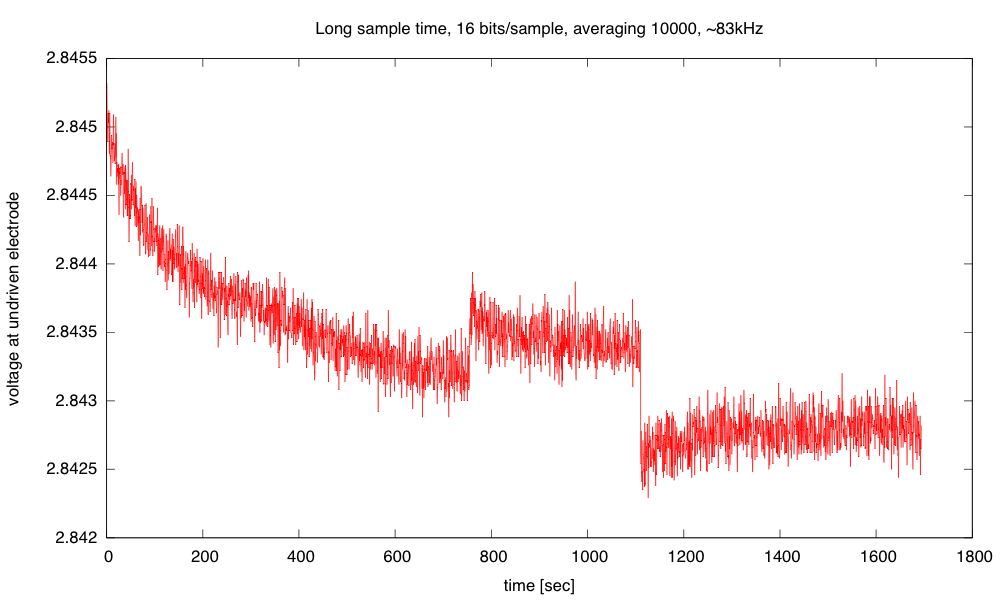
(click to embiggen) Voltage difference at undriven electrode as a function of time. The two sudden steps were probably the result of my jostling the table by putting down my teacup too hard.

I don’t have an explanation of the gradual drift in the voltage. I don’t think that this is a change in the salinity of the solution (which should be unchanged or increasing slowly due to evaporation). but a change in the characteristics of the electrodes. More likely, it is a change in the characteristics of the electrodes.  The sudden shifts when the table was jostled may be due to electrodes shifting their position in the cup or the release of a bubble.  Releasing a bubble should increase the surface area of the electrode and hence increase the conductivity and the voltage difference at the undriven electrode.  The gradual downward shift could be due to building up tiny hydrogen bubbles (too small to see) on the negative electrode.  The changes in voltage observed here are less than 0.1%, which is fairly respectable for a homebrew instrument.

Here is the (undocumented, throw-away) code that I wrote today to test out the ideas of an automatic salinity measurement system using a KL25Z:

#include "mbed.h"

DigitalInOut square_out(PTB0);   // PTB0=arduino A0
//PTB0, PTB1, PTD6, and PTD7 I/O have both high drive and normal drive capability selected by the associated PTx_PCRn[DSE] control bit.

AnalogIn IN(PTB1);  // PTB1=Arduino A1

Serial USB_io(USBTX, USBRX);  // defaults to 9600 8N1 (reset in main to 115200 baud)
Timer since_start;

#define WARMUP (40000)    // number of cycles of toggling output before collecting data
#define COLLECT (10000)   // number of cycles of data to sum for each output
#define Vdd (3.3)      // High voltage at output
int main()
{
    USB_io.baud(115200);
    USB_io.printf("\nusec\tvolts\nN\tN\n");

    //DEFAULT configuration of analog input
    ADC0->CFG1 = ADC_CFG1_ADLPC_MASK    // Low-Power Configuration
               | ADC_CFG1_ADIV(3)       // Clock Divide Select: (Input Clock)/8
               | ADC_CFG1_ADLSMP_MASK   // Long Sample Time
               | ADC_CFG1_MODE(3)       // (16)bits Resolution
               | ADC_CFG1_ADICLK(1);    // Input Clock: (Bus Clock)/2

    ADC0->CFG2 = ADC_CFG2_MUXSEL_MASK   // ADxxb channels are selected
               | ADC_CFG2_ADACKEN_MASK  // Asynchronous Clock Output Enable
               | ADC_CFG2_ADHSC_MASK    // High-Speed Configuration
               | ADC_CFG2_ADLSTS(0);    // Long Sample Time Select

    ADC0->SC2 = ADC_SC2_REFSEL(0);      // Default Voltage Reference

    ADC0->SC3 = ADC_SC3_AVGE_MASK       // Hardware Average Enable
                | ADC_SC3_AVGS(0);        // 4 Samples Averaged

    // FAST analog input
    ADC0->CFG1 =
                ADC_CFG1_MODE(3)       // (16)bits Resolution
               | ADC_CFG1_ADLSMP_MASK   // Long Sample Time
               | ADC_CFG1_ADICLK(0);    // Input Clock: (Bus Clock)

    ADC0->CFG2 = ADC_CFG2_MUXSEL_MASK   // ADxxb channels are selected
               | ADC_CFG2_ADACKEN_MASK  // Asynchronous Clock Output Enable
               | ADC_CFG2_ADHSC_MASK    // High-Speed Configuration
               | ADC_CFG2_ADLSTS(0);    // longest "long" Sample Time Select

//             | ADC_CFG2_ADLSTS(3);    // shortest "long" Sample Time Select

    ADC0->SC2 = ADC_SC2_REFSEL(0);      // Default Voltage Reference
    ADC0->SC3 = 0;        // No hardware averaging

    // set PORTB pin 0 to high drive here
    PORTB->PCR[0]  |= PORT_PCR_DSE_MASK;

    since_start.start();
    while(1)
    {
         square_out.output();
         for (int i=0; i
         {
             square_out=1;
             wait_us(1);
             volatile uint16_t rise_read=IN.read_u16();
             square_out=0;
             wait_us(1);
             volatile uint16_t fall_read=IN.read_u16();
        }
        int32_t sum=0;
        for (int i=0;i<COLLECT; i++)
        {
             square_out=1;
             wait_us(1);
             int32_t rise_read=IN.read_u16();
             square_out=0;
             wait_us(1);
             sum += rise_read - IN.read_u16();
        }
        square_out.input(); // hiZ state when not driving pulses

        USB_io.printf("%10d\t%7.5f\n", since_start.read_us(), sum*(Vdd/COLLECT/(1<<16))); // scale output to volts
    }
 }

There is still a lot that needs to be done to make this a finished project, but I’ve convinced myself that it is doable as freshman design project, which is all I really needed to do.


Filed under: Circuits course, freshman design seminar Tagged: Arduino, bioengineering, circuits, conductivity, electrodes, KL25Z

Using KL25Z for measuring salinity

Continuing the series of posts on measuring salinity with a couple of resistors and microprocessor

  1. Towards automatic measurement of conductivity of saline solution describes another possible freshman design project: a conductivity meter using the KL25Z board.
  2. More on automatic measurement of conductivity of saline solution looks at waveforms for square waves generated using PWM on the KL25Z board.  In this post I found that 100kHz square waves would work well.
  3. Still more on automatic measurement of conductivity of saline solution looks at waveforms for bursts of square waves generated by an Arduino board.  The bursts are limited to about 4kHz, but that may be good enough for a conductivity meter.

Today I started over on using the KL25Z board.  Since I wasn’t interested in precise frequencies, I didn’t use the PWM output this time, but used the same trick I used on the Arduino board: flipping the output bit, reading a sample, and repeating in a burst.

I record the sum of the differences between the high and low readings, and report the average at the end of each burst.  By using 40,000 cycles of warmup in each burst (discarded), then averaging over the next 10,000 cycles, I get a voltage reading that has a standard deviation of about 0.1mV on a reading of 2.843V, which is about 14–15 bits of accuracy.  The voltage reading is not constant, though, but drifts downward.

(click to embiggen) Voltage difference at undriven electrode as a function of time. The two sudden steps were probably the result of my jostling the table by putting down my teacup too hard.

I don’t have an explanation of the gradual drift in the voltage. I don’t think that this is a change in the salinity of the solution (which should be unchanged or increasing slowly due to evaporation). but a change in the characteristics of the electrodes. More likely, it is a change in the characteristics of the electrodes.  The sudden shifts when the table was jostled may be due to electrodes shifting their position in the cup or the release of a bubble.  Releasing a bubble should increase the surface area of the electrode and hence increase the conductivity and the voltage difference at the undriven electrode.  The gradual downward shift could be due to building up tiny hydrogen bubbles (too small to see) on the negative electrode.  The changes in voltage observed here are less than 0.1%, which is fairly respectable for a homebrew instrument.

Here is the (undocumented, throw-away) code that I wrote today to test out the ideas of an automatic salinity measurement system using a KL25Z:

#include "mbed.h"

DigitalInOut square_out(PTB0);   // PTB0=arduino A0
//PTB0, PTB1, PTD6, and PTD7 I/O have both high drive and normal drive capability selected by the associated PTx_PCRn[DSE] control bit.

AnalogIn IN(PTB1);  // PTB1=Arduino A1

Serial USB_io(USBTX, USBRX);  // defaults to 9600 8N1 (reset in main to 115200 baud)
Timer since_start;

#define WARMUP (40000)    // number of cycles of toggling output before collecting data
#define COLLECT (10000)   // number of cycles of data to sum for each output
#define Vdd (3.3)      // High voltage at output
int main()
{
    USB_io.baud(115200);
    USB_io.printf("\nusec\tvolts\nN\tN\n");

    //DEFAULT configuration of analog input
    ADC0->CFG1 = ADC_CFG1_ADLPC_MASK    // Low-Power Configuration
               | ADC_CFG1_ADIV(3)       // Clock Divide Select: (Input Clock)/8
               | ADC_CFG1_ADLSMP_MASK   // Long Sample Time
               | ADC_CFG1_MODE(3)       // (16)bits Resolution
               | ADC_CFG1_ADICLK(1);    // Input Clock: (Bus Clock)/2

    ADC0->CFG2 = ADC_CFG2_MUXSEL_MASK   // ADxxb channels are selected
               | ADC_CFG2_ADACKEN_MASK  // Asynchronous Clock Output Enable
               | ADC_CFG2_ADHSC_MASK    // High-Speed Configuration
               | ADC_CFG2_ADLSTS(0);    // Long Sample Time Select

    ADC0->SC2 = ADC_SC2_REFSEL(0);      // Default Voltage Reference

    ADC0->SC3 = ADC_SC3_AVGE_MASK       // Hardware Average Enable
                | ADC_SC3_AVGS(0);        // 4 Samples Averaged

    // FAST analog input
    ADC0->CFG1 =
                ADC_CFG1_MODE(3)       // (16)bits Resolution
               | ADC_CFG1_ADLSMP_MASK   // Long Sample Time
               | ADC_CFG1_ADICLK(0);    // Input Clock: (Bus Clock)

    ADC0->CFG2 = ADC_CFG2_MUXSEL_MASK   // ADxxb channels are selected
               | ADC_CFG2_ADACKEN_MASK  // Asynchronous Clock Output Enable
               | ADC_CFG2_ADHSC_MASK    // High-Speed Configuration
               | ADC_CFG2_ADLSTS(0);    // longest "long" Sample Time Select

//             | ADC_CFG2_ADLSTS(3);    // shortest "long" Sample Time Select

    ADC0->SC2 = ADC_SC2_REFSEL(0);      // Default Voltage Reference
    ADC0->SC3 = 0;        // No hardware averaging

    // set PORTB pin 0 to high drive here
    PORTB->PCR[0]  |= PORT_PCR_DSE_MASK;

    since_start.start();
    while(1)
    {
         square_out.output();
         for (int i=0; i
         {
             square_out=1;
             wait_us(1);
             volatile uint16_t rise_read=IN.read_u16();
             square_out=0;
             wait_us(1);
             volatile uint16_t fall_read=IN.read_u16();
        }
        int32_t sum=0;
        for (int i=0;i<COLLECT; i++)
        {
             square_out=1;
             wait_us(1);
             int32_t rise_read=IN.read_u16();
             square_out=0;
             wait_us(1);
             sum += rise_read - IN.read_u16();
        }
        square_out.input(); // hiZ state when not driving pulses

        USB_io.printf("%10d\t%7.5f\n", since_start.read_us(), sum*(Vdd/COLLECT/(1<<16))); // scale output to volts
    }
 }

There is still a lot that needs to be done to make this a finished project, but I’ve convinced myself that it is doable as freshman design project, which is all I really needed to do.


Filed under: Circuits course, freshman design seminar Tagged: Arduino, bioengineering, circuits, conductivity, electrodes, KL25Z

Put a box to good use with ShoeboxCNC

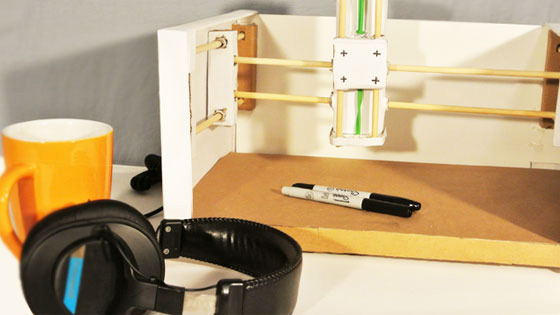
Oh, the lowly box. It spends most of the year being broken down, stashed away and pulped, but one day a year, it gets its moment to shine (at least in the UK and various Commonwealth Nations). Consider the ShoeboxCNC a continued celebration of the cardboard vessel, a kit you build from the box it arrives in. The router is an Arduino-controlled CNC fabrication machine you can put to use for all sorts of things that require an arm that moves on the X Y and Z axes - from cookie frosting to picturing painting (with varying degrees of success, of course). It's not exactly a heavy duty router or miller - more the sort of kit you'd expect from something made out of cardboard. Still, it looks to be a fun weekend activity for burgeoning makers - or a nice classroom project. The company's just opened up its Kickstarter, hoping to harness a bit of that spirit of giving. $250 will get you a kit scheduled to be delivered around this time next year, for an early Boxing Day celebration.

Filed under: Peripherals

Comments

Source: Kickstarter

Still more on automatic measurement of conductivity of saline solution

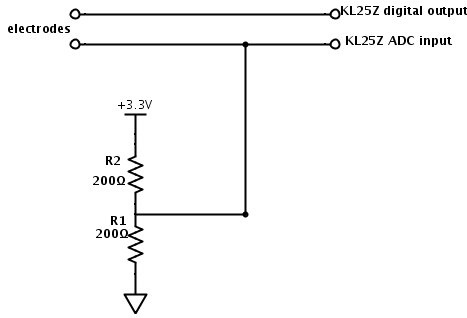
In More on automatic measurement of conductivity of saline solution, I suggested using a simple voltage divider and a microcontroller to make conductivity measurements with polarizable electrodes:

Simplified circuit for conductivity tester.

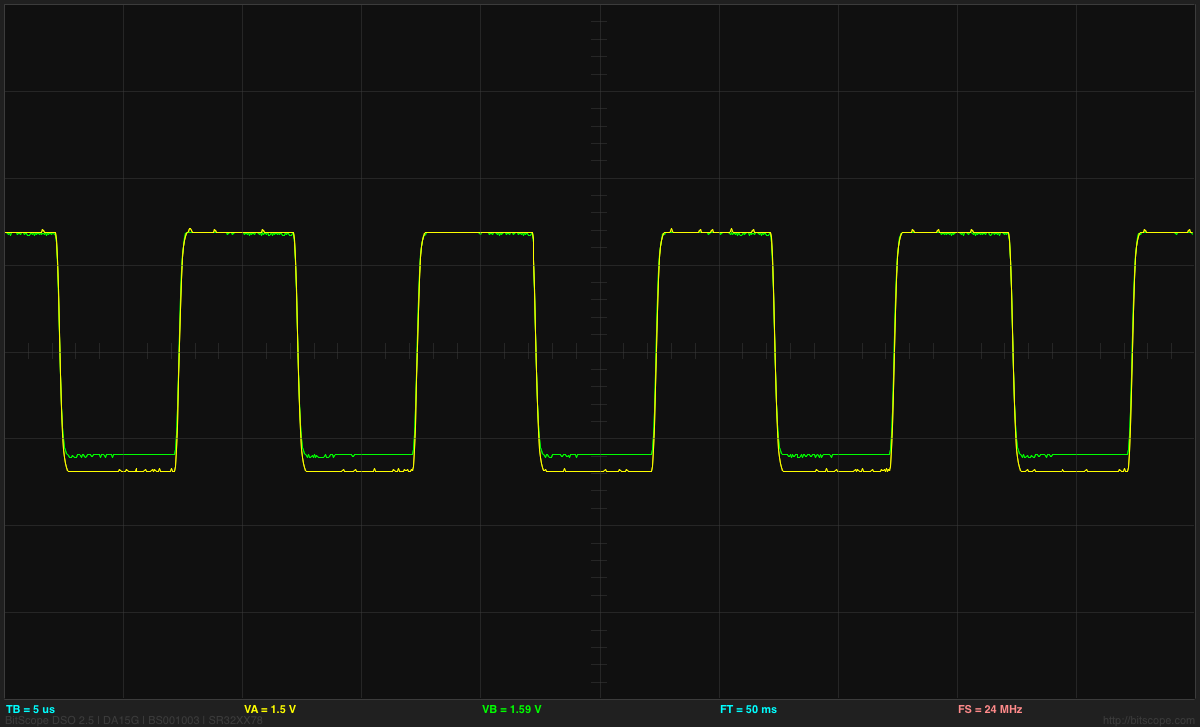
I found that putting in a 100kHz square wave worked well:

At 100kHz, both the voltage waveforms (input and output) look like pretty good square waves.

I have not yet figured out a good way on the KL25Z to provide the 100kHz signal, sample the outputs at fixed points, and communicate the result out the USB port.  Using PWM for the output was handy for just generating the output (once I fixed mbed’s off-by-one bug in their pwmout_api.c file), but that makes connecting up the analog reads more difficult.  I think that I may be better off not using PWM, but using a timer interrupt to read the analog value, change the output, and do the subtraction.  It would be fairly easy to arrange that (though I’ll probably have to figure out all the registers for the sample-and-hold and the analog-to-digital converter, as the mbed AnalogIn routine is unlikely to have the settings I want to use).   The hard part remains the interface to the host computer, as mbed does not include a simple serial interface and serial monitor like the Arduino IDE. [Correction 2013 Dec 25: my son points out that the mbed development kit has a perfectly usable serial USB interface—I had overlooked the inheritance from "Stream", which has all the functions I thought were missing. I should be able to use the Arduino serial monitor with the Freedom KL25Z board, as long as the serial interface is set up right.]

Because I’m more familiar with the Arduino environment, and because I already have Arduino Data Logger code for the host end of the interface, I started by making a simple loop that toggles the output and reads the value after each change in output.  After repeating this several times (40 or 100), I take the last difference as the output and report that to the data logger.  I couldn’t get the frequency up where I really want it (100kHz), because the Arduino analog-to-digital converter is slow, but I was able to run at about 4kHz, which would be adequate.

Because there needs to be time for the serial communication, I did bursts of pulses with pauses between bursts.  The bursts were alternating as fast as the analog inputs were read for a fixed number of cycles, and the start of the bursts was controlled by the Arduino data logger software. Although the ends of the bursts looked the same on the oscilloscope, with the same peak-to-peak voltage, I got different readings from the Arduino depending on the spacing between the bursts. I’m not sure what is causing the discrepancy.

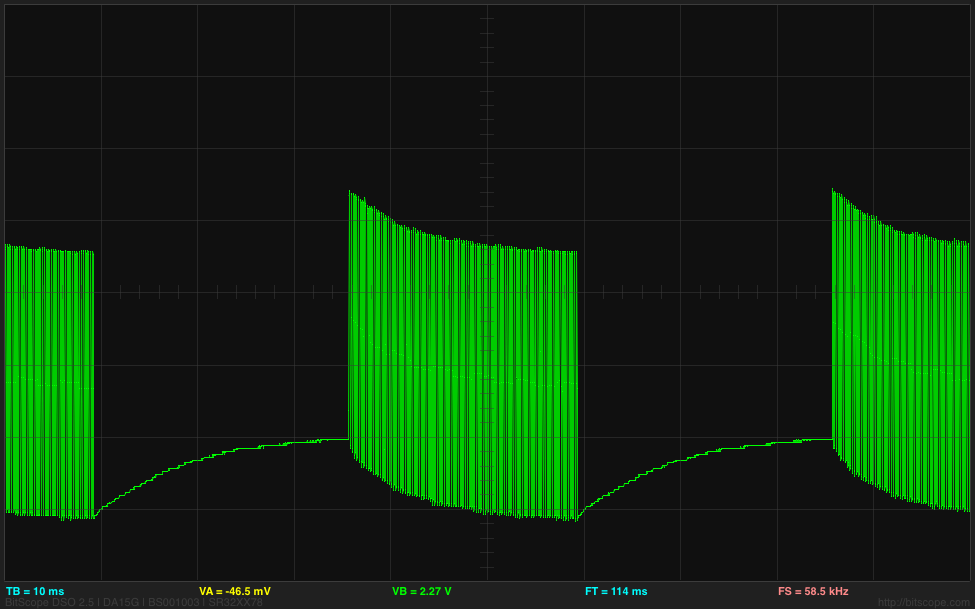
A difference at the beginnings of the bursts I would understand as the space between the bursts put a DC voltage across the electrodes which gradually charged them up, so that the first few pulses actually end up going outside the range of the ADC:

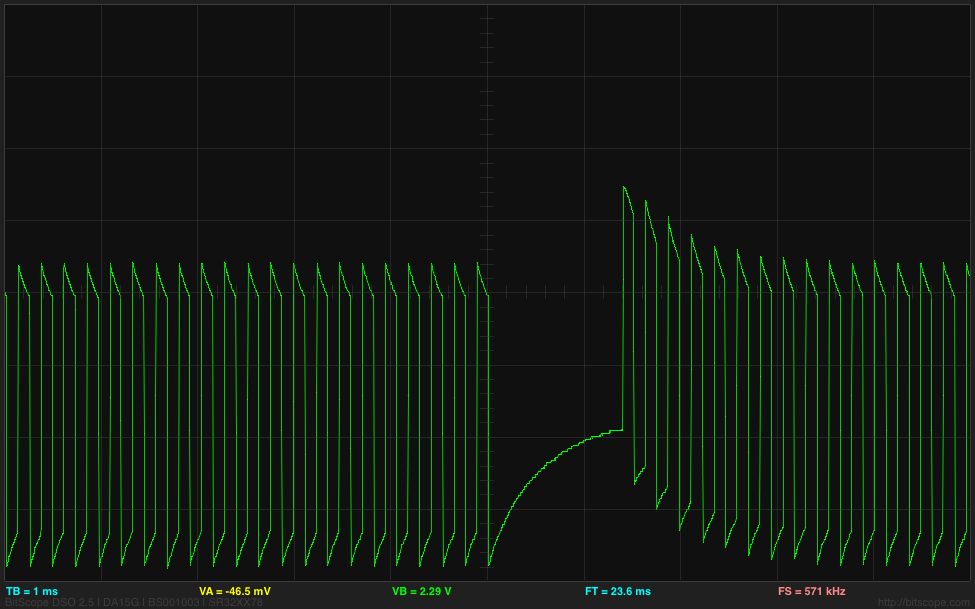
The bottom of the grid is 0v, and the first pulse goes up to 5.442v. The pulses are at about 4kHz, but the bursts start 50msec apart.

The differences at the ends of the bursts as I change the spacing between bursts are probably also due to the charging, though I don’t see that clearly on the oscilloscope. I really don’t like the idea of having a DC bias across the electrodes, as we get electrolysis, with hydrogen bubbles forming on the more negative electrode. No oxygen bubbles form, probably because any oxygen released is reacting with the stainless steel to form metal oxides. If I increase the voltage and current, I get a lot of hydrogen bubbles on the negative electrode, some rusty looking precipitate coming off the positive electrode (probably an iron oxide), and a white coating building up on the positive electrode (probably a chromium oxide).

By putting a 4.7µF capacitor between the Arduino output and the electrode, I can reduce DC bias on the electrodes and get a more consistent signal from the Arduino, almost independent of the spacing between the bursts:

By using a 25msec spacing between the beginnings of bursts, I can get both the end of the burst and the beginning of the burst on the oscilloscope at once.
Using a 4.7µF capacitor between the square wave output and the electrodes results in sharp peaks across the resistor, but a more consistent reading from the Arduino ADC.

The voltage across the electrodes still does not average to 0v, as the pair of resistors provides a bias voltage halfway between the rails, but the pulse does not really swing rail to rail, but from 0.28v to 4.28v.  I think that the low-pass filter for setting the bias voltage that I suggested in More on automatic measurement of conductivity of saline solution may be a good idea after all, to make sure that there is no residual DC bias.

I can use the differential inputs of the Bitscope DP01 to look at the voltage across the electrodes and across the resistor to get voltage and current traces for the electrodes:

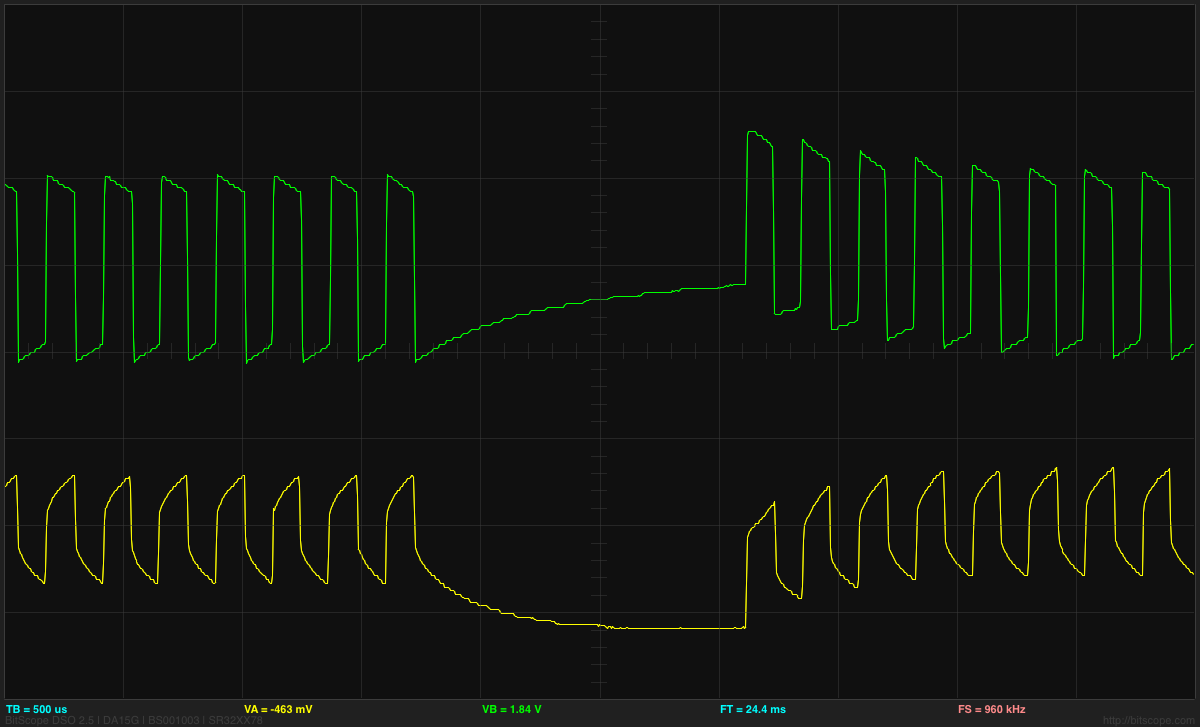
The central horizontal line is 0V for both traces here. The green trace is the voltage at the undriven electrode (@ 2v/division) and so corresponds to the current, and the yellow trace is the voltage between the electrodes (@0.2v/division).

Note that the voltage on the undriven electrode does run a little below 0V, outside the range of the Arduino ADC.  The voltage ratio of 0.248v/4.16v, together with the 100Ω Thévenin equivalent resistance results in a 5.47Ω resistance between the electrodes.  (Note: this is no longer a 1M NaCl solution—there has been evaporation, plus contamination from iron oxides, and the electrodes are not covered to the depth defined by the plastic spacer.)

I don’t know whether the conductivity meter is a good project for the freshman design seminar or not—I don’t expect the students to have the circuit skills or the programming skills to be able to do a design like this without a lot of coaching.  Even figuring out that they need to eliminate DC bias to eliminate electrolysis may be too much for them, though I do expect all to have had at least high-school chemistry. It is probably worth doing a demo of putting a large current through electrodes in salt solution, to show both the hydrogen bubbles and the formation of the oxides.  I could probably coach freshmen through the design, if they were interested in doing it, so I’ll leave it on the feasible list.

The square-wave analysis is not really suitable for a circuits course, so I think I’ll stick with sine-wave excitation for that course.


Filed under: Circuits course, freshman design seminar Tagged: Arduino, bioengineering, circuits, conductivity, electrodes, KL25Z, voltage divider

Still more on automatic measurement of conductivity of saline solution

In More on automatic measurement of conductivity of saline solution, I suggested using a simple voltage divider and a microcontroller to make conductivity measurements with polarizable electrodes:

Simplified circuit for conductivity tester.

I found that putting in a 100kHz square wave worked well:

At 100kHz, both the voltage waveforms (input and output) look like pretty good square waves.

I have not yet figured out a good way on the KL25Z to provide the 100kHz signal, sample the outputs at fixed points, and communicate the result out the USB port.  Using PWM for the output was handy for just generating the output (once I fixed mbed’s off-by-one bug in their pwmout_api.c file), but that makes connecting up the analog reads more difficult.  I think that I may be better off not using PWM, but using a timer interrupt to read the analog value, change the output, and do the subtraction.  It would be fairly easy to arrange that (though I’ll probably have to figure out all the registers for the sample-and-hold and the analog-to-digital converter, as the mbed AnalogIn routine is unlikely to have the settings I want to use).   The hard part remains the interface to the host computer, as mbed does not include a simple serial interface and serial monitor like the Arduino IDE. [Correction 2013 Dec 25: my son points out that the mbed development kit has a perfectly usable serial USB interface—I had overlooked the inheritance from "Stream", which has all the functions I thought were missing. I should be able to use the Arduino serial monitor with the Freedom KL25Z board, as long as the serial interface is set up right.]

Because I’m more familiar with the Arduino environment, and because I already have Arduino Data Logger code for the host end of the interface, I started by making a simple loop that toggles the output and reads the value after each change in output.  After repeating this several times (40 or 100), I take the last difference as the output and report that to the data logger.  I couldn’t get the frequency up where I really want it (100kHz), because the Arduino analog-to-digital converter is slow, but I was able to run at about 4kHz, which would be adequate.

Because there needs to be time for the serial communication, I did bursts of pulses with pauses between bursts.  The bursts were alternating as fast as the analog inputs were read for a fixed number of cycles, and the start of the bursts was controlled by the Arduino data logger software. Although the ends of the bursts looked the same on the oscilloscope, with the same peak-to-peak voltage, I got different readings from the Arduino depending on the spacing between the bursts. I’m not sure what is causing the discrepancy.

A difference at the beginnings of the bursts I would understand as the space between the bursts put a DC voltage across the electrodes which gradually charged them up, so that the first few pulses actually end up going outside the range of the ADC:

The bottom of the grid is 0v, and the first pulse goes up to 5.442v. The pulses are at about 4kHz, but the bursts start 50msec apart.

The differences at the ends of the bursts as I change the spacing between bursts are probably also due to the charging, though I don’t see that clearly on the oscilloscope. I really don’t like the idea of having a DC bias across the electrodes, as we get electrolysis, with hydrogen bubbles forming on the more negative electrode. No oxygen bubbles form, probably because any oxygen released is reacting with the stainless steel to form metal oxides. If I increase the voltage and current, I get a lot of hydrogen bubbles on the negative electrode, some rusty looking precipitate coming off the positive electrode (probably an iron oxide), and a white coating building up on the positive electrode (probably a chromium oxide).

By putting a 4.7µF capacitor between the Arduino output and the electrode, I can reduce DC bias on the electrodes and get a more consistent signal from the Arduino, almost independent of the spacing between the bursts:

By using a 25msec spacing between the beginnings of bursts, I can get both the end of the burst and the beginning of the burst on the oscilloscope at once.
Using a 4.7µF capacitor between the square wave output and the electrodes results in sharp peaks across the resistor, but a more consistent reading from the Arduino ADC.

The voltage across the electrodes still does not average to 0v, as the pair of resistors provides a bias voltage halfway between the rails, but the pulse does not really swing rail to rail, but from 0.28v to 4.28v.  I think that the low-pass filter for setting the bias voltage that I suggested in More on automatic measurement of conductivity of saline solution may be a good idea after all, to make sure that there is no residual DC bias.

I can use the differential inputs of the Bitscope DP01 to look at the voltage across the electrodes and across the resistor to get voltage and current traces for the electrodes:

The central horizontal line is 0V for both traces here. The green trace is the voltage at the undriven electrode (@ 2v/division) and so corresponds to the current, and the yellow trace is the voltage between the electrodes (@0.2v/division).

Note that the voltage on the undriven electrode does run a little below 0V, outside the range of the Arduino ADC.  The voltage ratio of 0.248v/4.16v, together with the 100Ω Thévenin equivalent resistance results in a 5.47Ω resistance between the electrodes.  (Note: this is no longer a 1M NaCl solution—there has been evaporation, plus contamination from iron oxides, and the electrodes are not covered to the depth defined by the plastic spacer.)

I don’t know whether the conductivity meter is a good project for the freshman design seminar or not—I don’t expect the students to have the circuit skills or the programming skills to be able to do a design like this without a lot of coaching.  Even figuring out that they need to eliminate DC bias to eliminate electrolysis may be too much for them, though I do expect all to have had at least high-school chemistry. It is probably worth doing a demo of putting a large current through electrodes in salt solution, to show both the hydrogen bubbles and the formation of the oxides.  I could probably coach freshmen through the design, if they were interested in doing it, so I’ll leave it on the feasible list.

The square-wave analysis is not really suitable for a circuits course, so I think I’ll stick with sine-wave excitation for that course.


Filed under: Circuits course, freshman design seminar Tagged: Arduino, bioengineering, circuits, conductivity, electrodes, KL25Z, voltage divider

Project – Arduino “Book Monster”

Introduction

Recently we saw a neat project by the people from Evil Mad Scientist – their “Peek-O-Book“, a neat take on a book with a shy monster inside, based on hardware from their Snap-O-Lantern kit. Not wanting to fork out for the postage to Australia we decided to make our own version, of which you can follow along.

This is a fun project that doesn’t require too much effort and has a lot of scope for customisation. There’s no right or wrong when making your own (or this one!) so just have fun with it.

Construction

First, you’ll need a book of some sort, something large enough to hide the electronics yet not too large to look “suspicious” – then cut the guts out to make enough space for the electronics. Then again it’s subjective, so get whatever works for you. Coincidentally we found some “dummy books” (not books for dummies) that were perfect for the job:

After spraying the inside with matt black paint, the inside is better suited for the “eyes in the dark” effect required for the project:

The “book” had a magnet and matching metal disk on the flap to aid with keep the cover shut, however this was removed as it will not allow for smooth opening with the servo.

The electronics are quite simple if you have some Arduino or other development board experience. Not sure about Arduino? You can use any microcontroller that can control a servo and some LEDs. We’re using a Freetronics LeoStick as it’s really small yet offers a full Arduino Leonardo-compatible experience, and a matching Protostick to run the wires and power from:

By fitting all the external wiring to the Protostick you can still use the main LeoStick for other projects if required. The power is from 4 x AA cells, with the voltage reduced with a 1n4004 diode:

And for the “eyes” of our monster – you can always add more if it isn’t too crowded in the book:

We’ll need a resistor as well for the LEDs. As LEDs are current driven you can connect two in series with a suitable dropping resistor which allows you to control both if required with one digital output pin. You can use the calculator here to help determine the right value for the resistor.

Finally a servo is required to push the lid of the book up and down. We used an inexpensive micro servo that’s available from Tronixlabs:

The chopsticks are cut down and used as an extension to the servo horn to give it more length:

Don’t forget to paint the arm black so it doesn’t stand out when in use. We had a lazy attack and mounted the servo on some LEGO bricks held in with super glue, but it works. Finally, here is the circuit schematic for our final example – we also added a power switch after the battery pack:

To recap  – this is a list of parts used:

After some delicate soldering the whole lot fits neatly in the box:

Arduino Sketch

The behaviour of your “book monster” comes down to your imagination. Experiment with the servo angles and speed to simulate the lid opening as if the monster is creeping up, or quickly for a “pop-up” surprise. And again with the LED eyes you can blink them and alter the brightness with PWM. Here’s a quick sketch to give you an idea:

int angle;
int d; // for delays
int ledPin = 9; // LEDs on digital pin 9

#include <Servo.h>
Servo myservo;

void setup()
{
  myservo.attach(4); // servo control pin on digital 4
  pinMode(9, OUTPUT); 
  randomSeed(analogRead(0));
  myservo.write(10);
  delay(5000);
}

void behaviour1()
{
  for (angle = 10; angle <=40; angle++)
  {
    myservo.write(angle);
    delay(50);
  }
  digitalWrite(ledPin, HIGH);
  delay(250);
  digitalWrite(ledPin, LOW);
  delay(250);  
  digitalWrite(ledPin, HIGH);
  delay(250);
  digitalWrite(ledPin, LOW);
  delay(250);    
  digitalWrite(ledPin, HIGH);
  delay(1000);
  digitalWrite(ledPin, LOW);
  delay(250);    
  digitalWrite(ledPin, HIGH);
  delay(1000);
  digitalWrite(ledPin, LOW);
  delay(250);    
  digitalWrite(ledPin, HIGH);
  delay(1000);
  digitalWrite(ledPin, LOW);
  delay(250);    
  for (angle = 40; angle >=10; --angle)
  {
    myservo.write(angle);
    delay(5);
  }
}

void loop()
{
  behaviour1();
  delay(random(60000));
}

You can watch our example unit in this video.

Frankly the entire project is subjective, so just do what you want.

Conclusion

Well that was fun, and I am sure this will entertain many people. A relative is a librarian so this will adorn a shelf and hopefully give the children a laugh. Once again, thanks to the people from Evil Mad Science for the inspiration for this project – so go and buy something from their interesting range of kits and so on.

And if you enjoyed this article, or want to introduce someone else to the interesting world of Arduino – check out my book (now in a third printing!) “Arduino Workshop”.

Have fun and keep checking into tronixstuff.com. Why not follow things on twitterGoogle+, subscribe  for email updates or RSS using the links on the right-hand column, or join our forum – dedicated to the projects and related items on this website. Sign up – it’s free, helpful to each other –  and we can all learn something.

The post Project – Arduino “Book Monster” appeared first on tronixstuff.

Grove Button Tutorial

The Grove Button is a handy little component which simplifies the push-button experience. It doesn't take much programming to get this component to work. And while the button works extremely well with the Grove Base Shield, we will be connecting this button directly to the Arduino UNO.

The button will be LOW in its normal resting state, and report HIGH when the button is pressed. Have a look at the video below to see this project in action.

Video


Parts Required


Sketch


Arduino Sketch


 1
2
3
4
5
6
7
8
9
10
11
12
/* Grove Button Sketch - Written by ScottC 22nd Dec 2013 
http://arduinobasics.blogspot.com
--------------------------------------------------------- */

void setup(){
pinMode(8, INPUT);
pinMode(13, OUTPUT);
}

void loop(){
digitalWrite(13, digitalRead(8));
}

The signal pin of the Grove Button attaches to digital pin 8 on the Arduino, and the LED is connected to digital pin 13 on the Arduino. When the button is pressed, it will send a HIGH signal to digital pin 8, which will turn the LED on. When the button is released, the signal will change to LOW and the LED will turn off.

PIR Sensor (Part 2)


In this tutorial we will connect our HC-SR501 PIR (movement) Sensor to an Arduino UNO. The PIR sensor will be powered by the Arduino and when movement is detected, the PIR sensor will send a signal to Digital Pin 2. The Arduino will respond to this signal by illuminating the LED attached to Pin 13.

PIR Sensor (Part 1) : Showed that this sensor can be used in isolation (without an Arduino). However, I will still demonstrate how you can attach this sensor to the Arduino so that we can move forward to more advanced objectives and concepts.


Video


Parts Required


Fritzing Sketch


Arduino Sketch


 1
2
3
4
5
6
7
8
9
10
11
12
13
14
/*Simple PIR sketch: Written by ScottC, 19th Dec 2013

http://arduinobasics.blogspot.com/

----------------------------------------------------*/

void setup(){
pinMode(13,OUTPUT);
pinMode(2,INPUT);
}

void loop(){
digitalWrite(13,digitalRead(2));
}


The sketch above reads the signal coming in from the PIR sensor on Pin 2, and if it reads HIGH, it light up the LED attached to Pin 13. If it reads LOW, it will turn the LED off. This is all controlled by line 13 in the Arduino Sketch above.

The following table helps to identify the purpose of the potentiometers on the PIR sensor. Most people say they use trial and error. I will attempt to reduce the mystery of these components on the PIR board.


104 (Left) – Max


LED on = 20 sec
LED off = 3 sec

When you move the 104 labelled potentiometer all the way to the left (max position), the LED will remain on for 20 seconds after movement is detected. The 20 seconds is independent of the other potentiometer (105) setting. When the LED turns off, it will remain off for 3 seconds before the sensor will trigger again from any further movement.


104 (Right) – Min


LED on = 1 sec
LED off = 3 sec

When you move the 104 labelled potentiometer all the way to the right (min position), the LED will remain on for 1 second after movement is detected. When the LED turns off, it will remain off for 3 seconds before the sensor will trigger again from any further movement.


105 (Left) – Max


Most sensitive – Detects movement from over 10 steps away.

The 105 labelled potentiometer controls the sensitivity of the PIR sensor. When in the left position, the PIR sensor is most sensitive and small amounts of movement will trigger the sensor. It detected my movement (ie a single step to the left of right) from over 10 steps away from the sensor. I was very impressed.


105 (Right) – Min


Least sensitive: Need significant movement for sensor to trigger. Detects movement from about 4 steps away.

When the 105 labelled potentiometer is twisted to the right, the PIR sensor becomes a lot less sensitive. I needed to take much bigger steps to the left or right to trigger the sensor (about 3 times the size compared to the left position). It also had a lot more trouble detecting movement occurring further away. It only really started to detect my movement when I was about 4 steps away from it. 

My preferred combination was 104-Right (min) + 105-Left (max), which meant that the sensor would remain on for only a short period of time, and detect any subtle movements in the room. This combination is displayed below:


I have not tested to see how it performs over a very long period with this setting, and whether it would suffer from false positive readings, but that could easily be fixed by turning the 105 labelled potentiometer a bit more to the right.

Clack-Clack FACE gives a typewriter new life as a text-based portrait painter

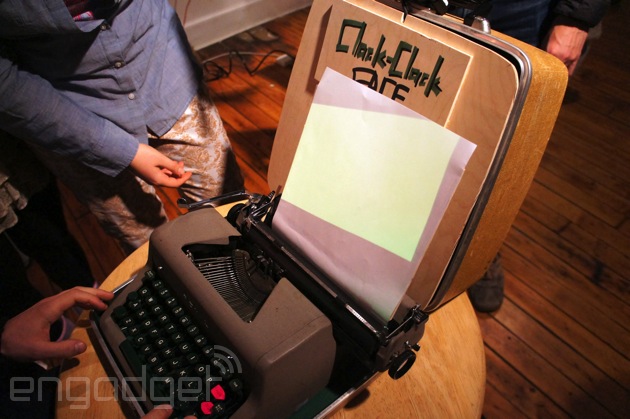
There's something oddly romantic about taking a piece of archaic technology and giving it new life as a work of 21st century art. Take the Royal Empress typewriter you see above. This particular model was built in 1961 and eventually landed in the hands of Amanda Gelb as graduation gift. She and her fellow classmates, Jinyi Fu and Quingyuan Chen, looked at the hunk of aging metal and saw potential instead of an obsolete writing tool. For their installation at the ITP Winter Show, they wired up each of the keys to an Arduino for tracking what a user types, then paired that with a tiny projector that displays the letters on a sheet of paper wrapped around the platen.

The "face" part of the equation comes from the webcam mounted to the top of the typewriter case. It uses brightness to map a silhouette of the person sitting in front of it and fills only the darkened areas with letters, creating an ASCII portrait in real time. The code also automatically loops the letters you type, so even if you press only a single key the picture will appear. Of course, you could also type out a love letter or a quick blog post and the whole thing will be wrapped inside the confines of your outline. When you're done, you can press the re-labeled print key and a laser printer spits out your portrait.

While there are already plenty of apps and sites out there that will automatically create ASCII versions of images, there's something alluring about sitting in front of gorgeous piece of hardware and creating it live. Plus, there are few things in this world as satisfying as pressing down the stiff keys of an old typewriter, hearing the titular onomatopoeia and seeing the letter appear before you. Especially when you know you're creating a work of art, even if you're a terrible writer.%Gallery-slideshow157402%

Filed under: Misc, Alt

Comments

Engadget 17 Dec 00:55

PIR Sensor (Part 1)


PIR sensors are pyroelectric or “passive” infrared sensors which can be used to detect changes in infrared radiation levels. The sensor is split in half, and any significant difference in IR levels between the two sections of the sensor will cause the signal pin to swing HIGH or LOW. Hence it can be used as a motion detector when IR levels move across and trigger the sensor (eg. human movement across a room).
The potentiometers are used to adjust the amount of time the sensor remains “on” and “off” after being triggered.  Essentially the delay between triggered events.
Here are a couple of pictures of the PIR sensor.


The sensor used in this tutorial is HC-SR501 PIR sensor.
You can get more information about this sensor here.


Parts Required


Sketch


Video


Sketch Explanation


The sketch described above can be used to test the functionality of the PIR sensor. I had another one of these sensors in my kit, and could not get it to work, no matter what I tried. The sensor would blink continuously even when there was no movement in the room. However, I must warn you, this specific sensor has an initialisation sequence which will cause the LED to blink once or twice in a 30-60sec timeframe. It will then remain off until the sensor detects movement. The amount of time that the LED remains on (when movement is detected) is controlled by one of the potentiometers.

Therefore, you could have it so that the LED blinks quickly or slowly after movement is detected.
If you set it to remain off for a long time, the sensor may appear to be unresponsive to subsequent movement events. Getting the timing right is mostly done out of trial an error, but at least the board indicates which side is “min” and which side is “max”.
Have a look at the PIR picture above for the potentiometer positions/timings that I used in the video.


In a future tutorial, I will connect this sensor to the Arduino. But don’t worry. The sketch is just as easy. And then the real fun begins.

See PART 2 - Connecting a PIR to an Arduino


Thankyou


I would like to thank the following people who took time out to help me when I was having issues with this sensor:
  • Steven Wallace
  • Bobby Slater
  • Pop Gheorghe
  • Mike Barela
  • Winkle ink
  • Jonathan Mayer
  • Don Rideaux-Crenshaw
  • Ralf Kramer
  • Richard Freeman
It just shows how great the maker community is. Thanks again… I almost gave up on this one !