Posts with «arduino» label

Autonomous Musical Soundscapes from 42 Fans and 7 Lasers

[dmitry] writes in to let us know about a new project that combines lasers with fans and turns the resulting modulation of the light beams into an autonomous soundscape. The piece is called “divider” and is a large, wall-mounted set of rails upon which seven red lasers are mounted on one end with seven matching light sensors mounted on the other end. Interrupting the lasers’ paths are forty-two brushless fans. Four Arduino Megas control the unit.

Laser beams shining into light sensors don’t do much of anything on their own, but when spinning fan blades interrupt each laser beam it modulates the solid beams and turns the readings of the sensors on the far end into a changing electrical signal which can be played as sound. Light being modulated by fan blades to create sound is the operating principle behind a Fan Synth, which we’ve discussed before as being a kind of siren (or you can go direct to that article’s fan synth demo video to hear what kind of sounds are possible from such a system.)

This project takes this entire concept of a fan synth further by not only increasing the number of lasers and fans, but by tying it all together into an autonomous system. The lasers are interrupted repeatedly and constantly, but never simultaneously. Listen to and watch it in action in the video below.

There isn’t a lot of in-depth technical information on the project page, but there are many really good photos. We especially love the way that the whole assembly is highly visual with the lasers turning on and off and interacting with different fans.

Any changing electrical signal can be played as sound, and if there’s one thing projects like self-playing musical hardware can teach us, it’s that if you have an electrical signal that looks strange or chaotic, hook a speaker up to it because it probably sounds pretty cool!


Filed under: musical hacks

Arduino simulator puts you in the driver’s seat of a toy car

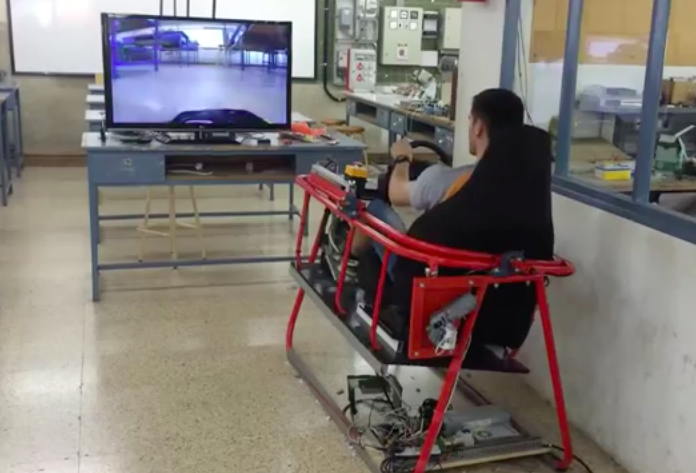
As part of their final project at EDN – Navàs, robotics students Rafart Jordi and Marc Thomas recently built an impressive Arduino simulator that captures video from a camera-equipped RC vehicle and displays it on a TV screen, making it feel as though you’re in the driver’s seat of a shrunken-down car.

The simulator is driven by an Arduino Uno along with an IBT-2 H-Bridge to control the 24V motors, and wirelessly communicates with the modified toy car via an XBee module.

You have to see it in action below!

Taming Robot Arm Jump with Accelerometers

Last fall, I grabbed a robot arm from Robot Geeks when they were on sale at Thanksgiving. The arm uses servos to rotate the base and move the joints and gripper. These work well enough but I found one aspect of the arm frustrating. When you apply power, the software commands the servos to move to home position. The movement is sufficiently violent it can cause the entire arm to jump.

This jump occurs because there is no position feedback to the Arduino controller leaving it unable to know the positions of the arm’s servos and move them slowly to home. I pondered how to add this feedback using sensors, imposing the limitation that they couldn’t be large or require replacing existing parts. I decided to try adding accelerometers on each arm section.

Accelerometers, being affected by gravity when on a planet, provide an absolute reference because they always report the direction of down. With an accelerometer I can calculate the angle of an arm section with respect to the direction of gravitational acceleration.

Before discussing the accelerometers, take a look at the picture of the arm. An accelerometer would be added to each section of the arm between the controlling servos.

Accelerometers

Gravity tugs everything toward the center of the mass of the Earth. It is a force that creates an acceleration exactly just like what you feel when a vehicle begins to move or stop. The force of gravity creates an acceleration of 1 g which is 9.8 m/s2 or 32.15 ft/s2. An accelerometer measures this force.

Integrated circuit accelerometers are inexpensive and small devices readily usable by hackers. One reason they are inexpensive is the high demand for them in smart phones. These small devices are based on etching mechanical structures within the integrated circuit using a technology called MEMS (Microelectromechanical systems).

One design for a MEMS accelerometer is basically a variable capacitor. One plate is fixed and the other mounted some distance away on a spring suspension. When the device is accelerated the suspended plate moves closer or further away from the fixed plate, changing the capacitance. Another uses piezo-resistive material to measure the stress on an arm caused by acceleration.
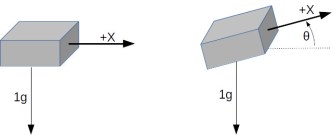
A single axis accelerometer measures acceleration in only one direction. If positioned so the direction is up and down it will measure the force of gravity but will not detect horizontal acceleration. When the device is tilted between horizontal and vertical the force of gravity is only partially affecting the measurement. This provides the ability to measure the angle of the device with the direction of gravity. The acceleration felt along the tilted axis, for a tilt angle can be calculated by:

Knowing the output of the accelerometer we can determine the angle by taking the inverse sine, the arc sine, of the output:

If you rotate a single axis device through 360° the output is a sine wave. Start with the device outputting zero and consider that 0°. As it rotates, the output is 1 when the angle is 90° and back to zero at 180°. Continuing the rotation, the output becomes -1 at 270°, or -90°, degrees and back to zero at 360°, or 0°.

Notice on the chart that between -60° and 60° the output is nearly linear. This is the best orientation for measuring inclination. Increases in inclination are not as accurate on the other portions of the curve. Also notice that the same output is generated for 45° and 135° (90° + 45°) creating an ambiguity. With a single axis you cannot determine which of those angles is measured.

Putting two accelerometers at a right angle to one another creates a 2-axis device which solves the ambiguity problem. As the device is rotated through 360° the outputs are 90° out of phase, the same relationship as the sine and cosine. By combining the measurements there is a unique solution for every angle throughout 360°. The acceleration due to gravity at each angle is given by:

which leads to calculating the angle by:

Actually, one more step is needed to determine the sign of the angle. This requires examining the sign of the values for the X and Y axis. It isn’t necessary to go into this here because a standard programming function handles this automatically.

The orientation of a quadcopter requires a 3-axis accelerometer. The calculations for the three spherical angles combine all three inputs for their results. You’ll need to study this carefully because the standard trigonometric equations can cause anomalies when the quadcopter flips.

First Pass Solution

Accelerometers are easily obtained and relatively cheap. You can find them mounted on breakout boards with voltage regulators and all the supporting circuits from the usual vendors. They are available for 1 to 3 axis, various amounts of g force, and providing either analog or digital outputs. Analog devices need an analog input for each axis being measured. Digital outputs use I2C or SPI buses for communications. I decided to use analog devices because digital units typically only allow two addresses and the arm needs three devices, one for each section.

The robot arm uses an Arduino board so there are at least 6 analog inputs. The original board was a Robot Geek Geekduino, their version of the Arduino Duemilanove, with 8 analog inputs. Unfortunately, when working with the arm I broke the USB connector so switched to a Uno equivalent having only 6 inputs.
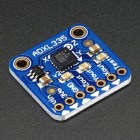
My choice for accelerometer is a 3-axis, ±3 g accelerometer breakout from Adafruit, their ADXL335. It has one analog output for each axis. Since I’m measuring three joints that means three boards which adds up to 9 analog outputs.

Because of the geometry of the arm, however, I only need 5 inputs for these three joints. The shoulder joint only moves from 0° to 180°. This can be handled by a single axis accelerometer by mounting it to read acceleration of 1 g for 0° and -1g for 180°. That provides a unique output for the necessary angles. The elbow and wrist joints each require two inputs. The third input is not needed because their motion is constrained to moving within the vertical plane of the arm.

Frame of Reference

The next issue is the frame of reference. This is a standard problem in robotics work. Early in a project, a global frame of reference is decided upon. This sets the origin for the coordinate system that the robot will follow and the direction of the three axes, usually specified as X, Y, and Z. For the arm, X is straight forward, Y is to the left, and Z is straight up. The zero point is the base of the shoulder. This also defines a global frame for rotation of the arms limbs with zero degrees also toward the front.
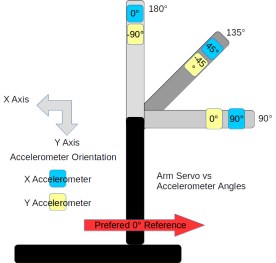
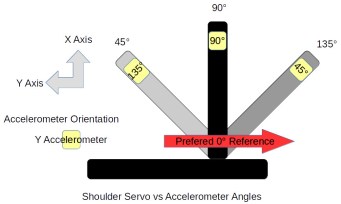
Sensors and controllers each have their own frame of reference. Any differences among these devices and the global frame need to be resolved in software. The shoulder servo’s frame of reference is 0° at the back of the arm and 180° at the front, a clockwise rotation. This is the reverse of the global frame. The elbow servo worked the opposite with a counter-clockwise rotation putting 180° straight up and 90° straight out when the shoulder was vertical. It is 90° off from the global frame of reference.

Sensors also have their own frame of reference. The Y-axis accelerometer measuring the shoulder orientation worked counter-clockwise. Both axis on the accelerometers measuring the elbow worked in the clock-wise direction. This may seem strange but it’s because of the different mounting orientations of the sensors.

Software

The actual code is straightforward once the frame of references are sorted out. A single axis is read from the analog input and its angle calculated with:

const int shouldery = shoulderAnalogY.read();
float shoulder_angle = degrees(asin(shouldery_value / 100.0));

The read() method scales the raw analog input values so ±1g is represented as ±100. The input to asin() is divided by 100.0 to convert to the actual g value. That suffices for the shoulder angle.

The elbow and wrist angles use values from two axis and the calculation is:

const int elbowx = elbowAnalogX.read();
const int elbowy = elbowAnalogY.read();
float elbow_angle = degrees(atan2(-elbowy, elbowx));

The atan2() function is a special version of the arc tangent calculation. It examines the signs of the input value to determine the quadrant of the angle to set the appropriate sign on its result. The negative sign on the elbowy is needed to set the appropriate quadrant. There’s the frame of reference issue, again.

Wrap Up

Adding the accelerometers solved the startup lurching problem well enough. Whether the accelerometers can be used for other purposes remains to be seen.

The accuracy of the angle measurements is not good. In part this is due to using a device that with a +/- 3 g range to measure 1/3 of the devices range, 1 g. The device outputs 0 to 3.3 volts while the Arduino is sampling for 5 volts, again losing accuracy. This might be improved by using an Arduino based on 3.3 volts. I have a couple Dues on hand so might try them. The Uno also provides for adjusting the reference voltage for analog inputs so setting it to 3.3 volts might help.

The analog values need to be calibrated with some care. Each accelerometer outputs slightly different values. Calibration requires measuring the outputs for 1 and -1 g for each axis, recording the values, and using them to scale the voltage input to acceleration. This calibration is not accurate given the other problems with the analog inputs.

Another problem is the mounting of the accelerometers on the arm’s sections. The alignment of the boards with the sections of the arm is not perfect. When the servo is positioned at 90° the accelerometer doesn’t necessarily sit at 90° with respect to the center of the earth. Of course, the servos are not that precise, either. They do not always arrive at the same position, especially when approaching from different directions. Another goal for this project was to use the accelerometer information to more precisely position the servos.

I guess I have to think about this project a bit more, including deciding what I actually want to accomplish with the arm. But then, just saying you have a robotic arm is a terrific hacking cred.


Filed under: Arduino Hacks, robots hacks

Minecraft Trojan Horse Teaches Kids to Love Electronics and Code

Kids love Minecraft, and a clever educator can leverage that love to teach some very practical skills. The summer class offered by the Children’s Museum in Bozeman Montana would have blown my mind if such a thing existed when we were younger. (Rather than begging one of the dads in my Boy Scout Troop to pirate Visual Studio for me, which was delivered in the form of an alarmingly tall stack of CDs.) The kids in Bozeman get to learn hardware, software, their integration, and all while playing Minecraft.

Minecraft is an immersive universe that has proven to suck in creative minds. It’s the bait that pulls the kids into the summer class but Serialcraft delivers on making the learning just as addictive. This is accomplished by providing students with physical objects that are tied to the Minecraft world in meaningful ways we just haven’t seen before (at least not all at one time). On the surface this adds physical LEDs, toggle switches, potentiometers, and joysticks to the game. But the physical controls invite understanding of the mechanisms themselves, and they’re intertwined in exciting ways, through command blocks and other in-game components that feel intuitive to the students. From their understanding of the game’s mechanics they understand the physical objects and immediately want to experiment with them in the same way they would new blocks in the game.

The thing that makes this magic possible is a Minecraft mod written by [John Allwine], who gave us a demonstration of the integration at Maker Faire Bay Area 2016. The mod allows the user to access the inputs and output of the Arduino, in this case a Pololu A-Star 32U4, from within Minecraft. For the class this is all packaged nicely in the form of a laser cut controller. It has some LEDs, two joysticks, buttons, potentiometers, and a photosensor.

As you can see in the video below the break, it’s really cool. The kids have a great time with it too. For example, [John] showed them how they can attach their unique controller to a piston in the world. Since this piston can be controlled by them alone, they quickly figured out how to make secret safe rooms for their items.

Another troublesome discovery, was that the photo transistor on the controller set the light level in the game world by altering the time of day. Kids would occasionally get up and change the world from day to night, by turning the lights in the room on or off. A feature that has a certain appeal for any Minecraft player, is rigging one of the LEDs on the controller to change brightness depending on proximity to a creeper.

There’s a lot more to the library, which is available on GitHub. The kids (and adults) have a great time learning to link the real world with the world’s most accessible fantasy world creation kit.  Great work [John]!


Filed under: Arduino Hacks

Use Your Smartphone as Your Car Key with an NFC Lock

Adding an NFC unlocker to your car allows you to open your vehicle with your phone, or an NFC ring.

Read more on MAKE

The post Use Your Smartphone as Your Car Key with an NFC Lock appeared first on Make: DIY Projects and Ideas for Makers.

How To Keep An Unruly Dryer In Line

If necessity is the mother of invention, then inconvenience is its frustrating co-conspirator. Faced with a finicky dryer that would shut down mid-cycle with a barely audible beep if its load was uneven (leaving a soggy mass of laundry), [the0ry] decided to add the dryer to the Internet of Things so it could send them an email whenever it shut itself down.

After opening a thinger.io account, adding the soon-to-be device, and setting up the email notification process, [the0ry] combined the ESP8266 Development Board, a photosensitive resistor, and a 5V power supply on a mini breadboard. All that was left was to mount it on the dryer and direct the LDR (light-dependent resistor) to the machine’s door lock LED to trigger an email when it turned off — indicating the cycle had finished or terminated prematurely. A little tape ensured the LDR would only be tripped by the desired light source.

If you’re an apartment-dweller have WiFi in the wash area it would be awesome to see a battery-powered version you take with you. But in general this is a great hardware blueprint as many device have status LEDs that can be monitored in a similar way. If you want to keep the server in-house (literally in this case) check out the Minimal MQTT series [Elliot Williams] recently finished up. It uses a Raspberry Pi as the center server and an ESP8266 is one of the limitless examples of hardware that plays nicely with the protocol.

We love seeing hacks like this because not only does it conserve water and energy by reducing instances of rewashing, but it’s also a clever way to extend the life of an appliance and potentially save hundreds of dollars in replacing it. Add this to the bevvy of hacks that add convenience to one’s home — some of which produce delicious results.


Filed under: Arduino Hacks, home hacks

DIY dtmf module and interfacing with arduino uno


In this post, we are going to make dtmf module and interface it using arduino.

My prototype

Theory of  DTMF:
Full form of dtmmf is dual tone multi frequency. The DTMF telephone keypad is laid out in a 4×4 matrix of push buttons in which each row represents the low frequency component and each column represents the high frequency component of the DTMF signal. Pressing a key sends a combination of the row and column frequencies. For example, the key 1 produces a superimposition of tones of 697 and 1209 hertz (Hz). Initial pushbutton designs employed levers, so that each button activated two contacts. The tones are decoded by the switching center to determine the keys pressed by the user.
DTMF keypad frequencies (with sound clips)
1209 Hz1336 Hz1477 Hz1633 Hz
697 Hz123A
770 Hz456B
852 Hz789C
941 Hz*0#D
We have to decode the dtmf tone generated by the phone. We can decode it using decoder ic i.e. MT8870.

Circuit diagram of  dtmf decoder ic:

Schematics

where 104 is 0.1 uF ceramic capacitor.
If it is not working with you android, then download this android app.


Arduino code:

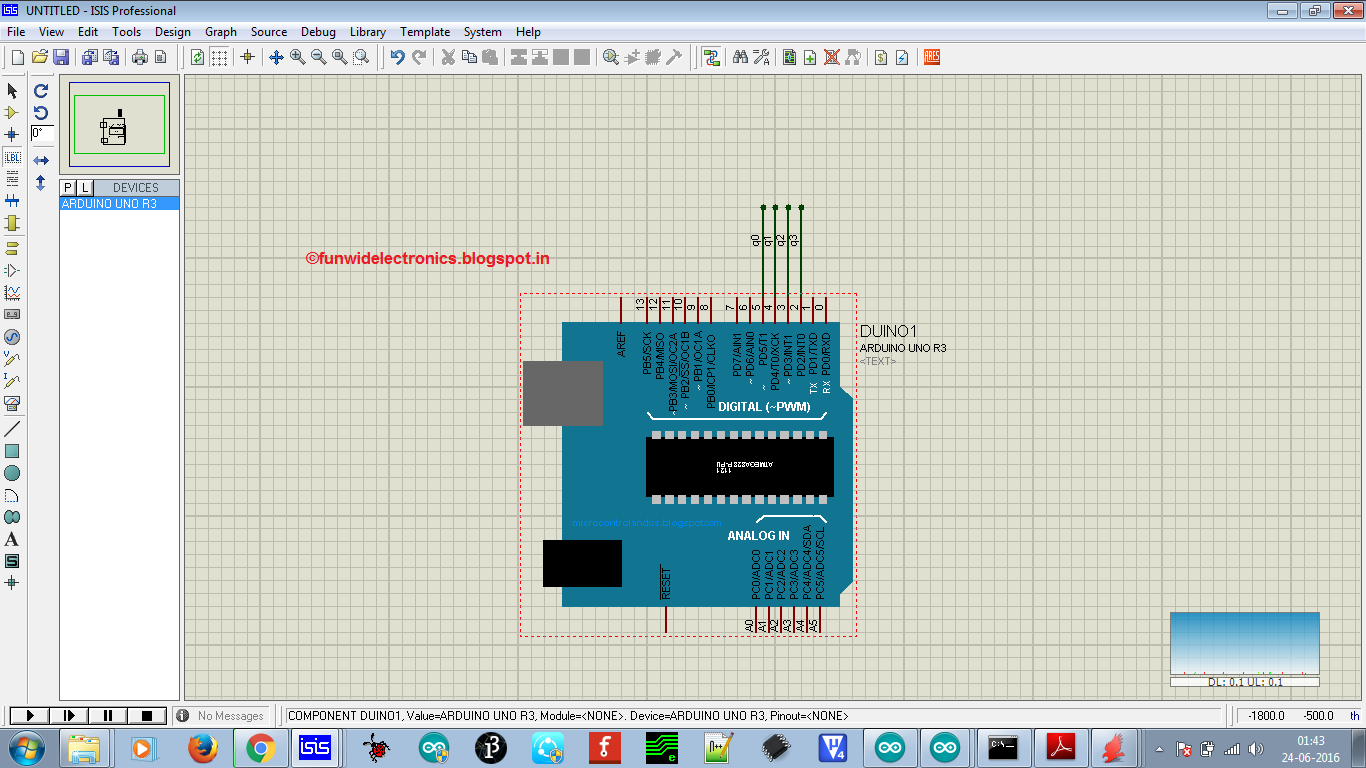
Proteus design
/* DOCUMENTATION: 
 *  INTERFACING DTMF MODULE WITH ARDUINO
 *  IT HAS FOUR DIGITAL OUTPUT'S i.e. Q0, Q1, Q2 AND Q3
 *  Q3 IS CONNECTED TO DIGITAL PIN 2
 *  Q2 IS CONNECTED TO DIGITAL PIN 3
 *  Q1 IS CONNECTED TO DIGITAL PIN 4
 *  Q0 IS CONNECTED TO DIGITAL PIN 5
 *  
 *  We will check the output using serial monitor
 *  By- Chandan Kumar 
 *  Contact: chandan90420@gmail.com
 */
int val=0;

boolean q0=LOW,q1=LOW,q2=LOW,q3=LOW;

void setup() {
  pinMode(2, INPUT);
  pinMode(3, INPUT);
  pinMode(4, INPUT);
  pinMode(5, INPUT);
  Serial.begin(9600);
}

void loop() {
q0=digitalRead(5); 
q1=digitalRead(4); 
q2=digitalRead(3); 
q3=digitalRead(2); 

val=q0+(q1*2)+(q2*4)+(q3*8);

Serial.println(val);

delay(400);
}

Thanks for visiting my blog.

Stay tuned for more updates !! 


FunWithElectronics 23 Jun 21:21

This funny robot pets your dog’s head and feeds them a treat

While this recent project may look like something straight out of Simone Giertz’s notebook, it’s actually the brainchild of James Cochrane. The engineer, who admittedly loves building all sorts of crazy machines, has developed an apparatus he calls the IoT Robot People/Pet Affectionator.

As its name would suggest, the Affectionator is an Arduino Nano-driven device that automatically gives his dog T-Bone a pat on the head along with a spoon-fed treat at the touch of an arcade button. That’s not all, though. It even allows the pup to reciprocate by pressing his own button and sending over a token of his appreciation on a fork–which in Cochrane’s case is a gummy worm.

Aside from the Arduino, the Affectionator is equipped with two H-Bridge motor drivers, two geared Pittman motors, and two geared hobby motors.

These days people are more connected with each other, however we are experiencing fewer physical interactions. This device will allow you to provide affection either locally or remotely to your pet without any physical contact. If your pet decides you are also worthy of their affection they can also reciprocate with a pat on the head and a tasty treat.

One day while giving my dog T-Bone a scratch behind the ears I came up with this silly idea. A robot which gives you a pet on the head and feeds you a treat. With the IoT, you can also build two of these and network them across the Internet.

Intrigued? Watch the hilarious idea in action below!

Cosmic Bitcasting is a wearable radiation detector

Cosmic Bitcasting is a digital art and science project emerging from the idea of connecting the human body with the cosmos by creating a wearable device with embedded light, sound and vibration that will provide sensory information on the invisible cosmic radiation that surrounds us. This open-source project actually works by detecting secondary muons generated by cosmic rays hitting the Earth’s atmosphere that pass through the body.

Artist Afroditi Psarra and experimental physicist Cécile Lapoire worked together to develop a prototype of the wearable cosmic ray detector during a one-month residency at Etopia in Zaragoza, and is currently on display at the Etopia-Center for Art and Technology in Zaragoza as part of the exhibition REVERBERADAS.

Cosmic Bitcasting is comprised of an Arduino Lilypad, High Flex 3981 7×1 fach Kupfer blank conductive thread from Karl Grimm, Pure Copper Polyester Taffeta Fabric by Less EMF, white SMD LEDs, a coin cell vibration motor, and an IRL3103 MOSFET with a 100 Ohm resistor to drive the motor.

Intrigued? Take a look at the video below and read the diary of the residency to learn more!


A Robot In A Day

While building a robot (nearly) from scratch isn’t easy, it needn’t be a lengthy process.  Is it possible to build a bot in a single day? With some musical motivation (a 10 hour loop of the A-Team theme song), [Tyler Bletsch] answers with a resounding ‘yes’ in the shape of his little yellow robot that he built for a local robotics competition.

Designing and fabricating on the fly, [Bletsch] used Sketchup to design the chassis, and OpenSCAD to model the wheels while the former was being 3D printed. Anticipating some structural weakness, he designed another version that could bolt to wood if the original failed, but the addition of some metal support rods provided enough stability. Mouse pad material gave the wheels ample traction. An Arduino with the L298 control module receives input via an HC-06 Bluetooth board. Eight AA batteries provide 12V of power to two Nextrox mini 12V motors with an integrated voltmeter to measure battery life.

Lacking a proper drive belt provided a bit of a challenge, so [Bletsch] — in an ingenious expression of resourcefulness — cobbled together an effective solution with some superglue and 3D printing filament packaging; the heat pressed parts proved to be strong and flexible. Waste not maker skills in action!

Arduino code was borrowed from a TerrorBytes student — the organization hosting the competition — and adapted by [Bletsch]. A python script combined with a joystick emulator he made in Google App inventor and some control equations from WPILiB allowed him to control his new robot from his phone.

Whether they are expressing your maker skills, assisting with your luggage or with your board meetings, robots can be a valuable inclusion in everyday life — or just a fun way to spend one day of it.


Filed under: robots hacks