Posts with «arduino» label

Watch the Toa Mata Band perform a cover of Kraftwerk

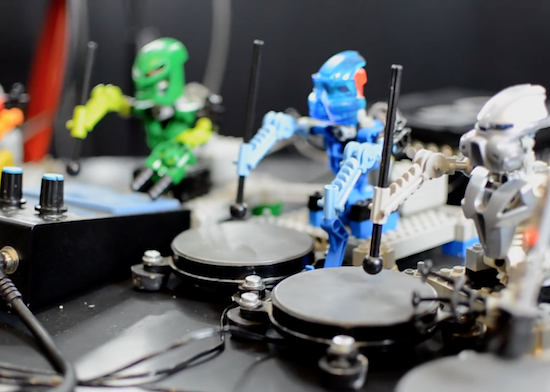
By now, you are probably familiar with the Toa Mata Band–the world’s first LEGO robotic band controlled by Arduino Uno, which is hooked up to a MIDI sequencer.

Now a few years since Toa Mata Band’s debut, Italian producer Giuseppe Acito has shared the group’s latest music video: a cover of Kraftwerk’s “The Robots.” As you can see below, Acito himself performs the 1978 track’s vocals while the LEGO Bionicle figures play the tunes using a variety of gadgets, including pocket synths, drum pads, xylophone keys, and iPhones running apps.

This is my inspiration to this Kraftwerk ‘s tribute, regarding their vision of the future and to their brilliant approaching to the music with a touch of irony that even now is still influencing a thousand of music producers around the world. My video contribution from Toa Mata Band (a tiny orchestra of Lego robots driven by Arduino) represents a version of the iconic tune “The Robots” using nowadays open-source technologies, microcontrollers, 3D printer, robot arm, music DAW, smarthphones, pocket synthesizers and more… trying to give a new way to read the message we got from them 40 years ago.

Annoy Your Neighbors with MIDI Musical Siren

[Yannick], aka [Gigawipf] brings us this (mostly) musical delicacy: a 3D-printed siren that’s driven by a brushless quadcopter motor, and capable of playing (mostly) any music that you’ve got the MIDI score for. This is a fantastic quickie project for any of you out there with a busted quad, or even some spare parts, and a 3D printer. Despite the apparent level of difficulty, this would actually be a great quickie weekend build.

First stop is Thingiverse, for the Mini Air Raid Siren model. Start that printing and get to work on the electronics. For the MIDI-to-ESC (electronic speed controller) conversion, any Arduino with USB support (ATmega32u4 or ARM boards) will work. The important bit is that you can run the MIDI-USB library. All that remains is a MIDI-to-servo pulse conversion and lookup table. Here’s [Yannick]’s file, but we’re guessing that you’ll want to tune your own siren.

How well does it work? See the videos below. Short notes, as well as note-offs, tax the quad motor’s ability to stop the siren rotor immediately. There’s a nice portamento effect as it ramps up between notes as well. You’ll need to pick your repertoire accordingly.

We have a strange affinity for musical sirens, so we’ll readily admit that [Yannick] had us at the word “spinning”. This is an easy project, with a pretty cool result. As far as we know, there’s only one 3D-printed, MIDI-controlled siren in the world, but it shouldn’t be hard to scale the siren model up or down to make different registers and effects. So who’s up for an entire symphony of these things?


Filed under: musical hacks
Hack a Day 30 Jan 03:00

8-bit Frogger game on a digital microfluidics device

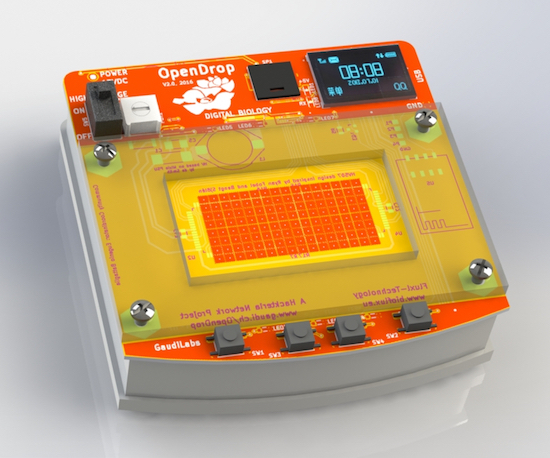
OpenDrop V2 is an updated design for an open-source digital microfludics platform, which was initiated by GaudiLabs in Luzern, Switzerland and developed by several communities including hackteria | open source biological art, BioFlux and digi.bio. The device is part of a much larger ecosystem focused around digital biology with hopes of making personal lab automation accessible to more people.

OpenDrop runs on a new technology called “electro-wetting” to control small droplets of liquids, which allows anyone to carry out digital biology experiments. Potential applications are not only limited to science, but the art, music, gaming and education fields as well.

One such example is OpenDropper, an 8-bit video game based on the OpenDrop. You can see it below!

Interested in learning more? Read all about the open-source microfluidics platform here.


Talking Arduino Tells GoPro What To Do

It’s 2017 and even GoPro cameras now come with voice activation. Budding videographers, rest assured, nothing will look more professional than repeatedly yelling at your camera on a big shoot. Hackaday alumnus [Jeremy Cook] heard about this and instead of seeing an annoying gimmick, saw possibilities. Could they automate their GoPro using Arduino-spoken voice commands?

It’s an original way to do automation, for sure. In many ways, it makes sense – rather than mucking around with trying to make your own version of the GoPro mobile app (software written by surfers; horribly buggy) or official WiFi remote, stick with what you know. [Jeremy] decided to pair an Arduino Nano with the ISD1820 voice playback module. This was then combined with a servo-based panning fixture – [Jeremy] wants the GoPro to pan, take a photo, and repeat. The Arduino sets the servo position, then commands the ISD1820 to playback the voice command to take a picture, before rotating again.

[Jeremy] reports that it’s just a prototype at this stage, and works only inconsistently. This could perhaps be an issue of intelligibility of the recorded speech, or perhaps a volume issue. It’s hard to argue that a voice control system will ever be as robust as remote controlling a camera over WiFi, but it just goes to show – there’s never just one way to get the job done. We’ve seen people go deeper into GoPro hacking though – check out this comprehensive guide on how to pwn your GoPro.


Filed under: Arduino Hacks, digital cameras hacks

The Soda Locker Vending Machine

With the rising popularity of electronic textbooks and laptops being used for schoolwork, the ubiquitous high school locker is becoming less and less necessary. So, students are left with a private storage space that they don’t really need. Why let it go to waste when you’re an enterprising young man with budding electronics and fabrication skills?

[Mistablik] is one such high school student who decided to take advantage of his unused locker. After a “wouldn’t it be cool if…” discussion with his friends, [Mistablik] decided to use his summer break to construct a soda vending machine that fit entirely within his school locker. Quite an ambitious project for a high school student, but the result speaks for itself.

Using an Arduino, coin acceptor, LCD screen, and a handful of other components, [Mistablik] started by prototyping the electronics in a shoebox. After his prototype was proven, he used his school’s laser cutter to fabricate an acrylic control panel and enclosure. Other than a couple of hurdles involving false coin triggers caused by static electricity, the process went smoothly and he was able to move onto the soda dispensing part of the build.

Because [Mistablik] was building this in his school locker, it was important that the build was entirely self-contained and that it wouldn’t require any modification to the locker itself. Once again he turned to the laser cutter to build a two-chute system for dispensing two varieties of soda. Using Fusion 360, he designed and 3D printed the dispenser mechanism.

The finished product fits nicely into his locker, and quickly became a source of chatter around the school. [Mistablik] even used the vending machine to ask his girlfriend to prom, a technique sure to win any geek lover’s heart. Vending machines are popular builds for hobbyists, as they are a fun way to combine electronics, mechanics, and programming. But, this project stands out for its unique requirements and inspiring story.

[thanks to Slartibartfast for the tip!]


Filed under: Arduino Hacks

Interfacing 20*4 LCD with arduino

Hello Friends,

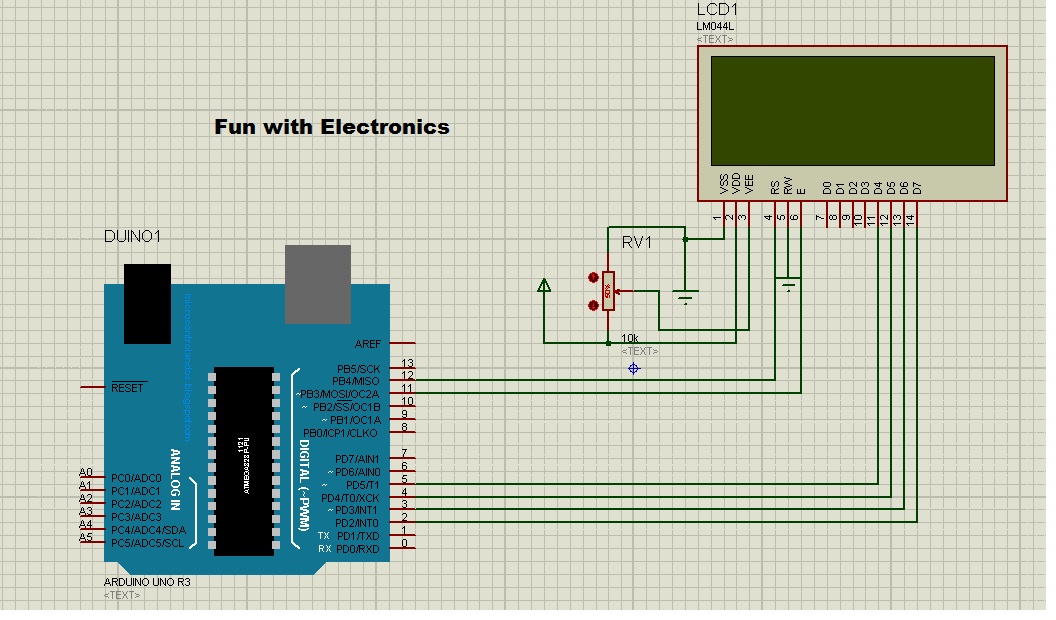
In this tutorial, we are going to interface 20*4 lcd with arduino uno. As the name suggests it has 4 rows and twenty columns. In total, we can show 80 characters. It has blue backlight. It has 16 pins just like 16*2. The pin configuration of 20*4 lcd is similar to that of 16*2 lcd.

Circuit Diagram:
Connection on proteus


List of components:

  • Arduino Uno
  • LCD 20*4
  • 10k pot
  • jumper wires
  • Arduino IDE


Programming is quite simple. Let's start programming.


From Files > Examples > Liquid Crystal > Hello World

Make the following changes in the code:


Code:

#include <LiquidCrystal.h>

LiquidCrystal lcd(12, 11, 5, 4, 3, 2);

void setup() {
  lcd.begin(20, 4);   // for 20*4 lcd
//  lcd.print("hello, world!");   // this string will display on line 1
}

void loop() {
  lcd.setCursor(0, 0);
  lcd.print("     Welcome To     ");
  lcd.setCursor(0, 1);
  lcd.print("      Fun With      ");
  lcd.setCursor(0, 2);
  lcd.print("     Electronics    ");
  lcd.setCursor(0, 3);
  lcd.print("        v 1.0       ");
}

Check out the result:


Tiny Morse Code USB Keyboard

We’ve featured quite a few of [mitxela]’s projects here in the past, and many of them have the propensity to be labelled “smallest”. His Morse Code USB Keyboard Mk II adds to that list. It’s a Saturday afternoon project, with a few parts slapped onto a piece of perf-board, that allows using a Morse key as a USB keyboard. This project isn’t new or fresh, but we stumbled across it while trying to figure out a use for a Morse key lying in the author’s bin of parts. You can practise transmitting, by reading text and typing it out on the key, and then look it up on your computer to see if you made any mistakes. Or you can practise receiving, by asking a friend to punch it out for you. Either way, it’s a great way to hone your skills and prepare for your radio operators license exam.

The project is a follow up to his earlier one where he hooked up the Morse key via a RS-232 — USB converter directly to a computer and let the code do all the work. That turned out to be a very resource hungry, impractical project and made him do it right the next time around. The hardware is dead simple. An ATtiny85, a piezo buzzer, some decoupling capacitors, and a few resistors and zeners to allow a safe USB interface. The design accommodates a straight key, but there is one spare pin left over in the ATtiny to allow for iambic or sideswiper keys too. There is no speed adjustment, which is hardcoded at the moment. That isn’t very user friendly, and [mitxela] suggests adding a speed potentiometer to that last remaining pin on the ATtiny. This would prevent use of iambic/sideswiper keys. Or, you could use the RST pin on the ATtiny as a (weak) IO. The RST pin can read analog values between 5V and 2.5V, and will reset when voltage falls below 2.2V. Or just use another microcontroller as a last resort.

For the USB interface, [mitxela] is using the V-USB library after wasting some time trying to reinvent the wheel. And since this is designed to work as a HID, there are no drivers required – plug it in, and the OS detects it as a keyboard. He’s borrowed code from the EasyLogger project to use the internal oscillator and help free up the IO pins. And to detect the characters being typed, his code uses a long string of compare statements instead of a dictionary lookup. Writing that code was tedious, but it makes the identification quicker, since most characters can be identified in less that five comparisons (one dit = E, two dits = I, three dits = S and so on). This “tree” makes it easier to figure it out.

If you’d like to look up some of his other “tiny” projects, check out The smallest MIDI synthesizer, Smallest MIDI synth, again! and the ATtiny MIDI plug synth.


Filed under: peripherals hacks

An experimental game with a conductive rubber band controller

RubberArms is an experimental rubber band game, created by Robin Baumgarten at the Global Game Jam 2017 in Yverdon-les-Bains, Switzerland.

The controller uses a conductive rubber cord from Adafruit that changes resistance as it’s stretched. This resistance is measured by an Arduino Micro/Leonardo (or a Teensy 3.2), which acts as a USB joystick sending signals to Unity3D. (The game is coded in Unity3D using Spring Joints and Line Renderers.)

At this point, the game is a simple prototype where you control the distance of two characters whose arms stretch whenever you stretch the rubber band, throwing little ‘Bleps’ around. You can read more about RubberArms on Baumgarten’s page, as well as his earlier project “Line Wobbler” here.

The Soda Locker

With books being replaced by electronic alternatives and sugary drinks in short supply, this custom locker has come to the rescue.

After a conversation with a few friends about an idea he had for a vending machine that fit entirely inside of a locker, high school student Blake Hawkins decided to actually make it a reality. His setup crams dispensing hardware for two types of highly-caffeinated soda, including an Arduino-connected coin acceptor and a spring to keep the locker closed between sales. The C-shaped cylindrical device that physically doles out the cans is quite clever as well.

No word on how school staff have reacted to his new in-school business, but the students have naturally been quite entertained and pleased about the new locker hardware. Hawkins even got to ask his girlfriend to the prom using the contraption with a custom can for her!

You can check out more of this build on its page. You may also enjoy these two DIY vending machines as well, which can be found here and here.

Build an automatic cat treat dispenser with Hummingbird

The Hummingbird by BirdBrain Technologies is an Arduino AtHeart microcontroller designed to enable beginners to create robots from craft materials. Hummingbird kits include LEDs, motors, and sensors that connect directly to the board. This eliminates the need for soldering or breadboarding and ensures that users have the parts they need to build their first robots. All of the components are reusable, so the same kit can be used to build many different robots.

In addition, the Hummingbird supports a variety of programming options, making it appropriate for beginning programmers as well as those who are more advanced. Some programming languages, such as Scratch and Snap!, can only be used when the board is connected to the computer. We will concentrate here on programming alternatives that enable users to upload a program onto the board’s Arduino.

Classrooms all over the world have used the Hummingbird from elementary to high school for projects ranging from Shakespeare dioramas to the physics of amusement park rides. In the following project, the BirdBrain Technologies team will show how they used the Hummingbird to build an automatic cat treat dispenser and demonstrate how the Hummingbird can be utilized to construct robots from everyday materials.

Building with the Hummingbird
Beginners can easily get started building Hummingbird robots with cardboard and craft materials. Motors, sensors, and LEDs can be connected directly to the Hummingbird board, and these elements can be added to the robot with hot glue. Hot glue peels off the components so that they can later be reused.

The example project uses one servo motor, one single color LED, and a light sensor. The dispenser consists of a servo motor attached to craft sticks that block the bottom of a chute containing cat treats. The position of the servo motor can be changed in software to release treats.

To receive a treat, the cat must cover a light sensor in front of the chute. When the cat covers the sensor, the servo motor briefly moves to open the chute and dispense a treat. The LED was included to show our test cat the location of the light sensor.

Programming with the Hummingbird
One unique feature of the Hummingbird is that it supports three different programming options for producing an Arduino program. These options provide steps of increasing difficulty to support learners as they transition from programming novices to Arduino experts.

Beginners can start with the CREATE Lab Visual Programmer. This software option is based on storyboarding. Users can select the motors and LEDs that they are using on a schematic of the Hummingbird board. Then they can create expressions by using sliders to set the values of these outputs. The expression below sets a servo motor to 100°.

Expressions can be combined to create sequences. For example, the sequence below controls our automatic cat treat dispenser. This sequence is controlled by a sensor block. If the light level is low, the three expressions on the left are executed. If the light level is high, the three expressions on the right are executed. The user can then convert this sequence to an Arduino program by simply clicking the “Export Sequence” button (shown outlined in red). The Hummingbird can then be placed into Arduino mode and the program uploaded to the microcontroller.

Another option for beginners is ArduBlock, which provides a visual introduction to the Arduino language. The Hummingbird extension for ArduBlock includes a block for each Hummingbird component. A program in ArduBlock to control the treat dispenser is shown below. This program is equivalent to the CREATE Lab Visual Programmer sequence shown above.

The Arduino code generated by this ArduBlock program is shown below. Individuals moving from the CREATE Lab Visual Programmer or ArduBlock to Arduino can start by modifying the generated code. For example, in the video we modified the commands inside the else to make the LED blink to attract the cat’s attention.

Once individuals are comfortable with the Arduino programming language, they can create more complex programs in Arduino. For instance, the video shows how we modified our robot and our code to incorporate three lights and three sensors. To get a treat, the cat must cover the sensor when the corresponding light is on.

The cat treat dispenser is only one example of a Hummingbird robot using the power of the Arduino at its core. The parts can be used and reused to construct an unlimited number of robots with low-cost materials such as cardboard, pipe cleaners, recycled materials, and even paper mache!