Posts with «software» label

Wise Clock 4 with ATmega1284

I thought that replacing the ATmega644P with it's bigger brother ATmega1284P in Wise Clock 4 would be trivial. How wrong I was.

The first step was to burn the bootloader. After a bit of research, here is what I found out:
  • USBtinyISP from adafruit cannot program chips with more than 64K of flash (see this thread);
  • if you don't want to start from scratch (that is, compile the source code and figuring the fuses) there are at least 3 sources: ryanmsutton, maniacbug and calunium;
  • USBtinyISP half-works: it writes to the flash, but reading back for verification purpose fails because of a bug in the firmware; I ignored the verification error;
  • although burning the bootloader (any of the three mentioned above) seemed successful, uploading any sketch afterwards always failed;
  • the setup from ryanmsutton did not work for me (I guess the fuses are wrong; then the core files also point to the arduino folder, instead of the sanguino, as it should be);
  • with the bootloader from calunium (atmega1284p_16MHz.hex) I was able to upload sketches; these are the settings in boards.txt I used:

atmega1284.name=Sanguino W/ ATmega1284p 16mhz
atmega1284.upload.protocol=stk500v1
atmega1284.upload.maximum_size=129024
atmega1284.upload.speed=57600
atmega1284.bootloader.low_fuses=0xFF
atmega1284.bootloader.high_fuses=0x98
atmega1284.bootloader.extended_fuses=0xFD
atmega1284.bootloader.path=atmega
atmega1284.bootloader.file=atmega1284p_16MHz.hex
atmega1284.bootloader.unlock_bits=0x3F
atmega1284.bootloader.lock_bits=0x0F
atmega1284.build.mcu=atmega1284p
atmega1284.build.f_cpu=16000000L
atmega1284.build.core=sanguino

Note the upload protocol (stk500v1), note the fuses and note the core folder (last line).

To compile the code for Sanguino with ATmega1284P, some macros must be updated as well, by adding
defined(__AVR_ATmega1284P__)  to any defined(__ATmega644P__)

like this:

#if defined(__AVR_ATmega644P__) || defined(__AVR_ATmega644__) || defined(__AVR_ATmega1284P__) // sanguino

In the end, the program space is about 126K (compared to 62K in ATmega644P) and the available RAM is 16K (compared to only 4K in Atmega644P). Not a bad upgrade for only a few bucks more.


Note: ATmega1284 is not defined in avrdude.conf shipped with Arduino 22 or 23 (folder \arduino-22\hardware\tools\avr), but it is defined in Arduino 1.0.


Wise Clock 4 - "Time Lived" menu option

At the request of AlexT, I implemented a new feature in Wise Clock 4, which allows the display of time lived (since birth) in different formats (years/months/days/hours/minutes/seconds, days only, hours only, minutes only).


The above photo shows the year/month/day on the top row and the hours/minutes/seconds on the bottom row.


Lifetime in Wise Clock 4 from florinc on Vimeo.

The birth date and time are read from the file message.txt on the SD card.

I was inclined to use the Time library, but I found it a little bulky for my needs and also unsuitable for dates before 1970. Then, I copied and modified the function makeTime() to convert a datetime to seconds, and I wrote my own diffTime() function to calculate the difference (in years, months, days etc) between two dates.

Alternating between display modes is done by pressing the SET (middle) button.

This code will be included in the next release of Wise Clock 4 software.

Wise Clock 4 - "Time Lived" menu option

At the request of AlexT, I implemented a new feature in Wise Clock 4, which allows the display of time lived (since birth) in different formats (years/months/days/hours/minutes/seconds, days only, hours only, minutes only).


The above photo shows the year/month/day on the top row and the hours/minutes/seconds on the bottom row.


Lifetime in Wise Clock 4 from florinc on Vimeo.

The birth date and time are read from the file message.txt on the SD card.

I was inclined to use the Time library, but I found it a little bulky for my needs and also unsuitable for dates before 1970. Then, I copied and modified the function makeTime() to convert a datetime to seconds, and I wrote my own diffTime() function to calculate the difference (in years, months, days etc) between two dates.

Alternating between display modes is done by pressing the SET (middle) button.

This code will be included in the next release of Wise Clock 4 software.


Scrolling message sign display with Wise Clock 3/4 - part 2

This post, written some time ago, demonstrated how to make a message sign using two 3216 displays connected to Wise Clock 3. The font used in the demo is 8*8 (actually just 7*7), quite small for the 16 LED height of the display.

The code for a larger (11x14) font is already included in the Wise Clock 3/4 software (file fontLarge.h), just not used and used when the "Big Font" menu option is selected (file AppBig.cpp). I resurrected this forgotten font and the functions that use it and this is how it works:


I modified the original sketch (posted in this thread of the Arduino forum) to include the following lines at the top of the file:

char* msgLine = "           Hello world - demo for large font scrolling on dual 3216 display.";
int crtPos = 0;
int crtColor = GREEN;

and the loop() function:

void loop ()
{
  displayLargeScrollingLine();

  if (crtPos >= strlen(msgLine))
      crtPos = 0;
}

The source code for the demo in the video can be found here.


Related posts:

Scrolling message sign display with Wise Clock 3/4 - part 2

This post, written some time ago, demonstrated how to make a message sign using two 3216 displays connected to Wise Clock 3. The font used in the demo is 8*8 (actually just 7*7), quite small for the 16 LED height of the display.

The code for a larger (11x14) font is already included in the Wise Clock 3/4 software (file fontLarge.h), just not used and used when the "Big Font" menu option is selected (file AppBig.cpp). I resurrected this forgotten font and the functions that use it and this is how it works:


I modified the original sketch (posted in this thread of the Arduino forum) to include the following lines at the top of the file:

char* msgLine = "           Hello world - demo for large font scrolling on dual 3216 display.";
int crtPos = 0;
int crtColor = GREEN;

and the loop() function:

void loop ()
{
  displayLargeScrollingLine();

  if (crtPos >= strlen(msgLine))
      crtPos = 0;
}

The source code for the demo in the video can be found here.


Related posts:


Speech / Voice Recognition. Arduino project, next in a series FFT and Arduino.

 Finally, I’d like to present  the most sophisticated project I’ve done so far, build around the idea turning Arduino board into a DSP.  The results are really impressive for small microprocessor, with low memory size and low MIPS. IMHO, arduino provides better results, than Windows Vista VR system, with 1 GB / 2.2 GHz  hardware, for short one-two words commands, of course.
No HMM, neural networks, or other very popular and “scientifically sounding” theories, were considered to be implemented in the algorithm. Google brings up  millions links on a topic, just ask, but only few of them are designed on really scientific concept, rather than dumb data base “sharpening”. I’m not saying they are completely wrong, and I’m not an expert in the field, but they are not smart ether. My decision is simple 2D cross-correlation. Basically, the heart of the recognition algorithm is similar to an image matching program, which works the same way for voice/sound.  To create a Spectrogram image, arduino is continuously monitoring sound level via microphone, and start capturing data when VOX threshold is exceeded. After input array “X” filled up, data transfered on next level to calculate FFT. The same “conveyor belt” works between FFT and Filtering, flags raised when data is ready, and flags lowered when process finished. The only difference is a speed, conveyor belt is running faster passing data ADC-FFT, and slower at Filter-Correlation stage, as it requires 64 regular cycles to complete spectrogram image in one SuperCycle.  The most time consuming part is Edge Enhancement / HPF Filtering of the spectrogram. I’m still looking around to improve performance of this stage, as it holds all process back from to be fully “Real Time”.
 Specification:
-  4 kHz sampling rate:  2 kHz voice freq. range;
-  64 FFT subroutine,    62.5 Hz spectral resolution;
-  16 x 64 Spectrogram Image, around 1 second max voice password;
-  duration of the Cross-Correlation < 5 milliseconds;
-  duration of the FFT+SQRT+Compression < 4 milliseconds;
-  duration of the Edge Enhancement ~ 35 milliseconds;Main cycle time frame is 16 milliseconds, it’s defined by sampling rate x FFT size, 0.25 x 64 = 64 millisecond. Super-cycle 1.024 is needed only because EE prevents all processes to be completed in less than 16 milliseconds. There is a resources left, to increase sampling up to 8 or even 12 kHz, I just had no time to conduct experiments if it is beneficial.

There is a Command Line Interface, built-in the software, which control “record” and debug “print” functions, 7 commands for now:
if (incomingByte == ‘x’) {           // INPUT ADC DATA
if (incomingByte == ‘f’) {           // FFT OUTPUT
if (incomingByte == ‘s’) {           // SPECROGRAMM PRE  FILTERED
if (incomingByte == ‘g’) {           // SPECROGRAMM POST FILTERED
if (incomingByte == ‘r’) {           // RECORD SPECROGRAMM TO EEPROM
if (incomingByte == ‘p’) {           // PLAY SPECROGRAMM FROM EEPROM
if (incomingByte == ‘m’) {           // FREE MEMORY BYTES

Software is written for AtMega328p microprocessor, Arduino Uno board or similar. For others, all referenced registers has to be replaced with appropriate names for microprocessor.Compiles on 022 IDE, there are some conflicts with 1.0 IDE, that I was not feel myself right to troubleshoot yet. For better understanding some math background, have a look at my previous posts.

Link to download a sketch:   Voice_Recognition_24_01

Analog front-end is the same, as I used in my first project: Color Ogran
There is not much could be improved on this part, and I again used both inputs – from microphone to do tests with my own voice, and also from “line” input, for single tone test generated by computer during debugging. Next picture shows “s” command print-out in the serial monitor window, after I pronounce a word : “Spectrogram” . Due limited size of the window, data printed with 90 degree rotation, left-right is frequencies bands direction, and up-down is time. Lower freq. on left side (60 Hz) and higher (2 kHz) on the right.  The same time 3D images generated in right view angle.

This is how spectrogram looks like after “g” command entered in serial monitor and word sounds just right after that:

Next couple images created with single tone frequency  (320 Hz), just to show more clear “internal properties” of the filtering, again “s” and “g” commands were entered:

Well, as tone sounds continuously, it shows filtering in one direction only, and not the best tutorial on edge-enhancement theory. (“Home brew” lab limits). The same time last picture shows, that each “peek” on the original spectrogram, become surrounded by negative smaller peeks, resulting in “0″ overall sum  on 3×3 foot-print, and consequently on the whole map. In electronics it goes under HPF name, and essence of process is to remove DC component, plus attenuate  Low Frequencies.
Excelent on-line book

Short manual:
to be completed later


MixiClock - 4 digits displayed on 8x8 LED matrix

So far, on a 8x8 LED matrix, I have only seen the time displayed with scrolling numbers (beside the geeky binary/hex/tix/dice/dots/bars or other coded formats). There is simply not enough room to statically display 4 digits at once, since the tiniest set of human-readable digits can be defined in a grid not smaller than 3x5 pixels.

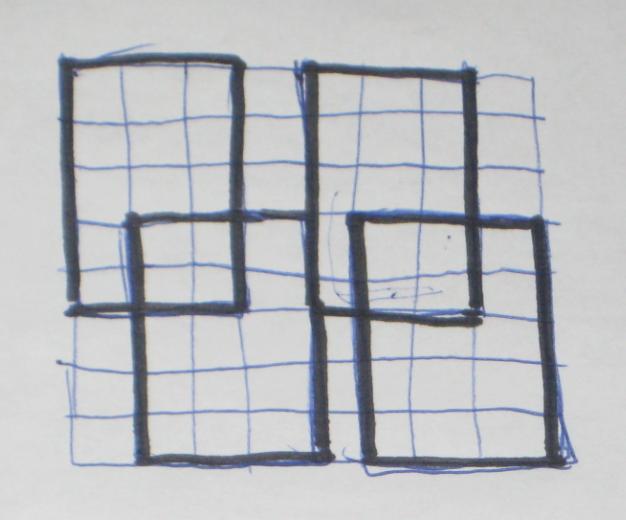
I challenged myself to find an intuitive way to display 4 digits on the "standard" 8x8 matrix. I figured that this is possible if using 2 colors. Even though they may overlap a bit (quite literally), digits of different colors can be easily distinguished. This is because the overlap makes a third color: in the case of the bi-color (red/green) LED matrix, it will be orange.

I focused on two aspects:
  • font definition (3x5) as simple as possible, with minimal number of "on" pixels, but still readable;
// tiny 3x5 digits;
byte digit[10][5] = {
  {2, 5, 5, 5, 2},  // 0
  {1, 1, 1, 1, 1},  // 1
  {6, 1, 2, 4, 7},  // 2
  {7, 1, 2, 1, 6},  // 3
  {4, 5, 7, 1, 1},  // 4
  {7, 4, 7, 1, 6},  // 5
  {3, 4, 7, 5, 2},  // 6
  {7, 1, 2, 4, 4},  // 7
  {7, 5, 2, 5, 7},  // 8
  {2, 5, 7, 1, 6},  // 9
};
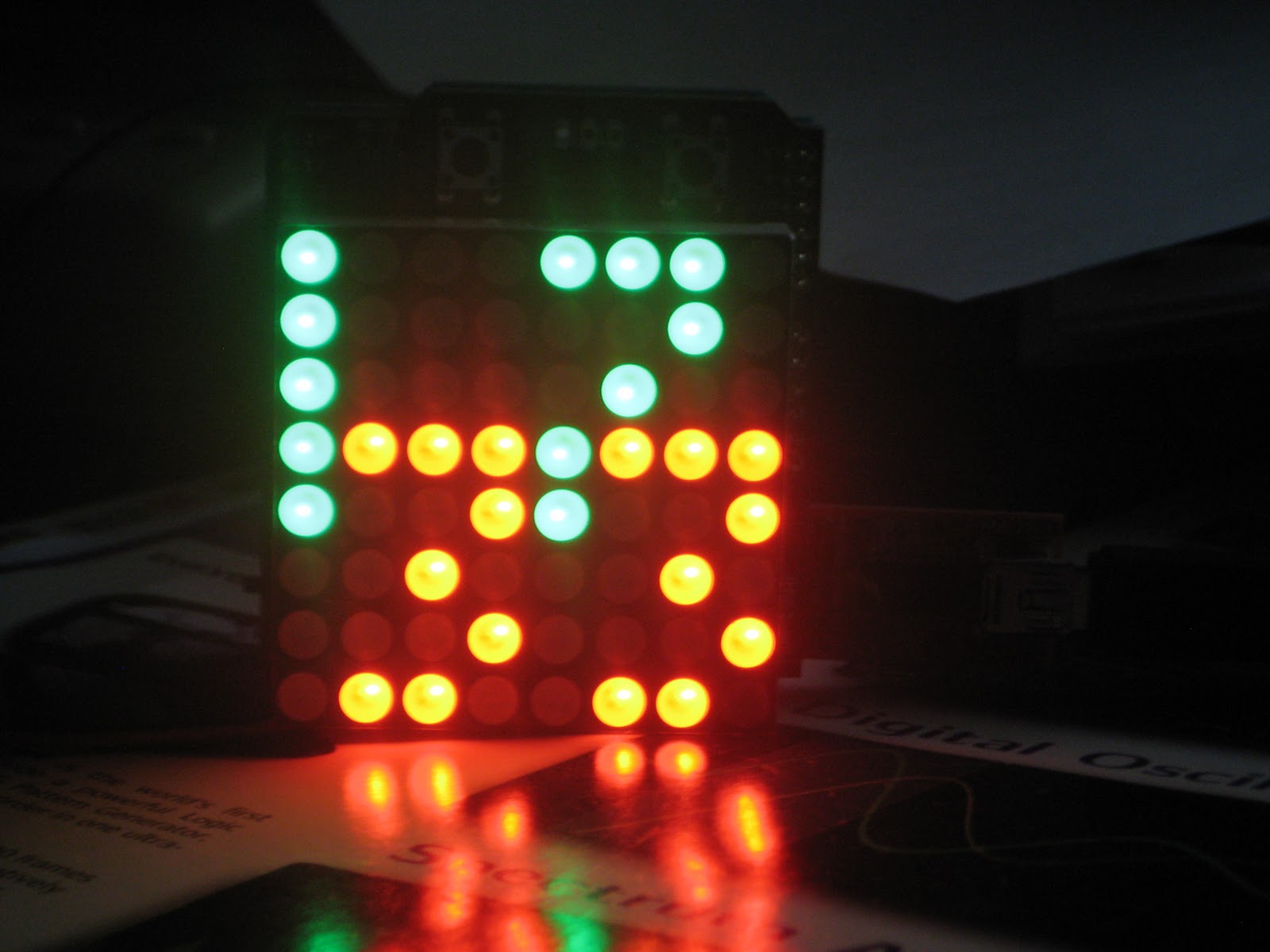
  • optimal placement of the digits on the 8x8 matrix, so the overlap is minimal (sometimes 1 pixel, very rarely 2 pixels). The photo below shows the starting point. There is more tweaking of the positions in the code, depending on the combination of digits.


As for the name, there are not too many choices, most of them are already taken, so I hastily settled for "MixiClock" (I am open to suggestions though :).

The sketch, written for my 8x8 bi-color LED matrix shield (also used in the original glass-domed Wise Clock) can be downloaded from here. It should be easy to adapt it to any other RG 8x8 LED matrix. The code also features setting up the clock using two buttons.


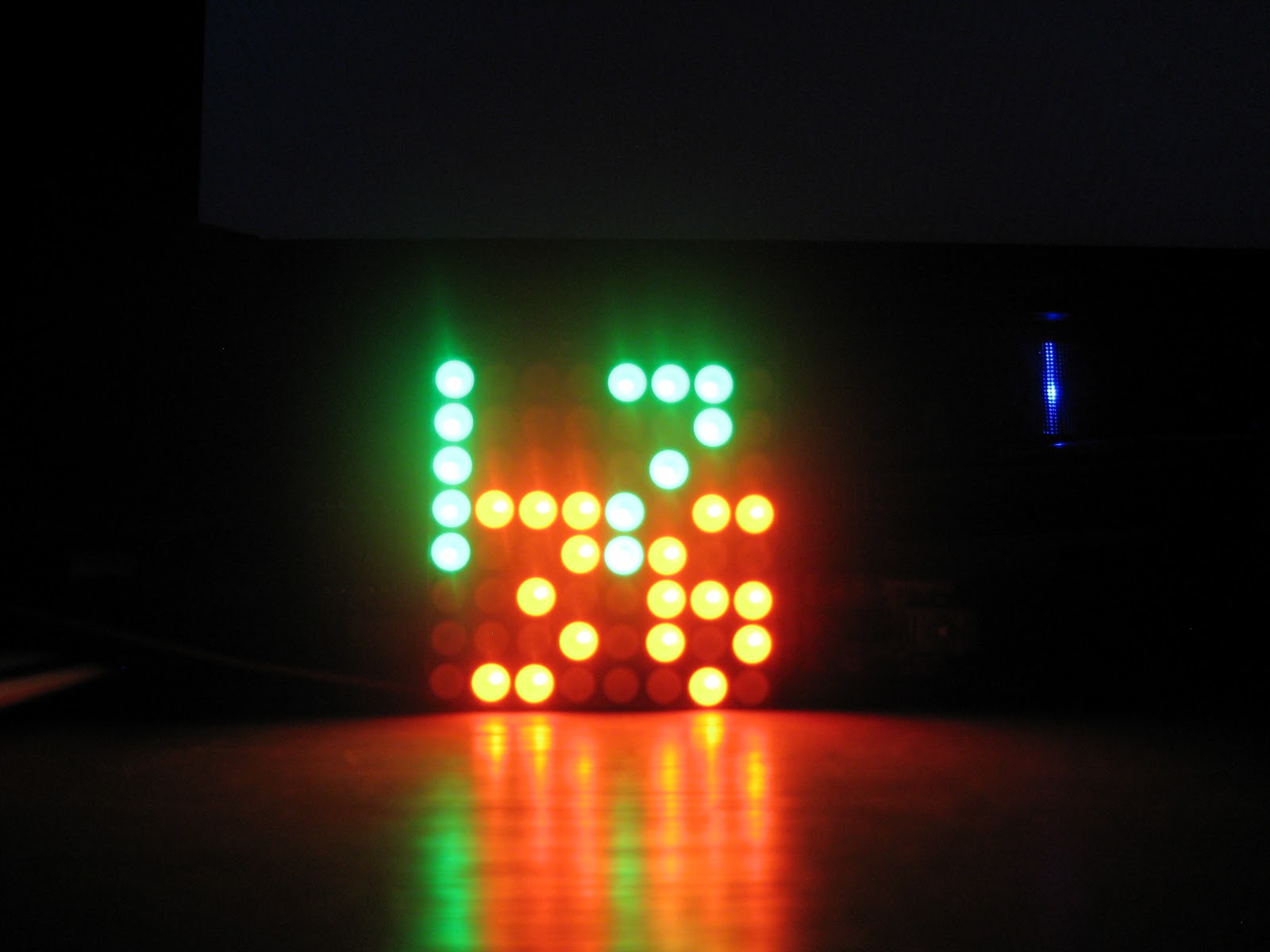
As you may have guessed, the top digits (green) indicate the hours, the bottom ones (red) the minutes. The position of the digits changes slightly depending on the combinations, so that there is no overlap or it is minimal (max 2 pixels, and those will be orange). The code is not final and I am sure it can be improved.

As always, comments and suggestions are welcome.


MixiClock - 4 digits displayed on 8x8 LED matrix

So far, on a 8x8 LED matrix, I have only seen the time displayed with scrolling numbers (beside the geeky binary/hex/tix/dice/dots/bars or other coded formats). There is simply not enough room to statically display 4 digits at once, since the tiniest set of human-readable digits can be defined in a grid not smaller than 3x5 pixels.

I challenged myself to find an intuitive way to display 4 digits on the "standard" 8x8 matrix. I figured that this is possible if using 2 colors. Even though they may overlap a bit (quite literally), digits of different colors can be easily distinguished. This is because the overlap makes a third color: in the case of the bi-color (red/green) LED matrix, it will be orange.

I focused on two aspects:
  • font definition (3x5) as simple as possible, with minimal number of "on" pixels, but still readable;
// tiny 3x5 digits;
byte digit[10][5] = {
  {2, 5, 5, 5, 2},  // 0
  {1, 1, 1, 1, 1},  // 1
  {6, 1, 2, 4, 7},  // 2
  {7, 1, 2, 1, 6},  // 3
  {4, 5, 7, 1, 1},  // 4
  {7, 4, 7, 1, 6},  // 5
  {3, 4, 7, 5, 2},  // 6
  {7, 1, 2, 4, 4},  // 7
  {7, 5, 2, 5, 7},  // 8
  {2, 5, 7, 1, 6},  // 9
};
  • optimal placement of the digits on the 8x8 matrix, so the overlap is minimal (sometimes 1 pixel, very rarely 2 pixels). The photo below shows the starting point. There is more tweaking of the positions in the code, depending on the combination of digits.


As for the name, there are not too many choices, most of them are already taken, so I hastily settled for "MixiClock" (I am open to suggestions though :).

The sketch, written for my 8x8 bi-color LED matrix shield (also used in the original glass-domed Wise Clock) can be downloaded from here. It should be easy to adapt it to any other RG 8x8 LED matrix. The code also features setting up the clock using two buttons.


As you may have guessed, the top digits (green) indicate the hours, the bottom ones (red) the minutes. The position of the digits changes slightly depending on the combinations, so that there is no overlap or it is minimal (max 2 pixels, and those will be orange). The code is not final and I am sure it can be improved.

As always, comments and suggestions are welcome.

Adventures in WiFly land - Part 1

This was a bit of a struggle, working with the XBee-footprinted WiFly RN-XV module from Roving Networks.

The goal was to get some data from the RSS feeds, kind of what this project had achieved.

First, I tried to set up the RN-XV module following this crash course (and using ladyada's XBee adapter with the FTDI cable). Everything went fine except connecting to my home WiFi network: I kept getting "AUTH-ERR". Eventually, after many tries, the module joined the network. I thought this is caused by the weak WiFi signal and other people may experience a similar scenario (which should be dealt with by the software).
Then I found with this software library, which, of course, did not work in my special case. After I started tweaking it and read the RN-XV manual once again, I found the explanation: WPA (which I am currently using) handshaking takes more than 1,000ms (1 second), which is the default timeout for the module. The solution was to increase this timeout (to 5000ms) with the command

set opt jointmr 5000

I ended up writing this sketch that makes requests to Yahoo's weather and stock quotes RSS feeds. It should work with the mentioned WiFly library (if they don't keep changing it).
Actually, I had to modify the library a bit too, to include my own specific commands in the initialization procedure. So I created this new function

boolean WiFlyDevice::myInit()
{
  if (!enterCommandMode())
  {
    DEBUG_LOG (1, "Failed to enter command mode");
    return false;
  }

  // turn off remote string;
  sendCommand("set com remote 0", false, "AOK");

  return sendCommand("set opt jointmr 5000", false, "AOK");
}

then modified begin() to look like this:

void WiFlyDevice::begin() 
{
  DEBUG_LOG(1, "Entered WiFlyDevice::begin()");

  if (!bDifferentUart) SPIuart.begin();
  myInit();
}

Another detail worth mentioning is the tuning of the delay between sending the request and reading the response. If this delay is too long, the response buffer gets overwritten, so response data is lost. If the delay is too short, the response is not there yet. Similar consideration while retrieving the response data from the buffer: we need to wait a bit for more data to come before we can say (kind-of) for sure that all data was received.

Next step (Part 2) is to parse the responses to find the correct values we are looking for, temperature and stock price, respectively, then to display them on Wise Clock 4.

Note: The RSS feeds I used are 
and
They could be custom-replaced with any other URL that returns a small(ish) set of XML data for easy parsing.

Adventures in WiFly land - Part 1

This was a bit of a struggle, working with the XBee-footprinted WiFly RN-XV module from Roving Networks.

The goal was to get some data from the RSS feeds, kind of what this project had achieved.

First, I tried to set up the RN-XV module following this crash course (and using ladyada's XBee adapter with the FTDI cable). Everything went fine except connecting to my home WiFi network: I kept getting "AUTH-ERR". Eventually, after many tries, the module joined the network. I thought this is caused by the weak WiFi signal and other people may experience a similar scenario (which should be dealt with by the software).
Then I found with this software library, which, of course, did not work in my special case. After I started tweaking it and read the RN-XV manual once again, I found the explanation: WPA (which I am currently using) handshaking takes more than 1,000ms (1 second), which is the default timeout for the module. The solution was to increase this timeout (to 5000ms) with the command

set opt jointmr 5000

I ended up writing this sketch that makes requests to Yahoo's weather and stock quotes RSS feeds. It should work with the mentioned WiFly library (if they don't keep changing it).
Actually, I had to modify the library a bit too, to include my own specific commands in the initialization procedure. So I created this new function

boolean WiFlyDevice::myInit()
{
  if (!enterCommandMode())
  {
    DEBUG_LOG (1, "Failed to enter command mode");
    return false;
  }

  // turn off remote string;
  sendCommand("set com remote 0", false, "AOK");

  return sendCommand("set opt jointmr 5000", false, "AOK");
}

then modified begin() to look like this:

void WiFlyDevice::begin() 
{
  DEBUG_LOG(1, "Entered WiFlyDevice::begin()");

  if (!bDifferentUart) SPIuart.begin();
  myInit();
}

Another detail worth mentioning is the tuning of the delay between sending the request and reading the response. If this delay is too long, the response buffer gets overwritten, so response data is lost. If the delay is too short, the response is not there yet. Similar consideration while retrieving the response data from the buffer: we need to wait a bit for more data to come before we can say (kind-of) for sure that all data was received.

Next step (Part 2) is to parse the responses to find the correct values we are looking for, temperature and stock price, respectively, then to display them on Wise Clock 4.

Note: The RSS feeds I used are 
and
They could be custom-replaced with any other URL that returns a small(ish) set of XML data for easy parsing.