Posts with «software» label

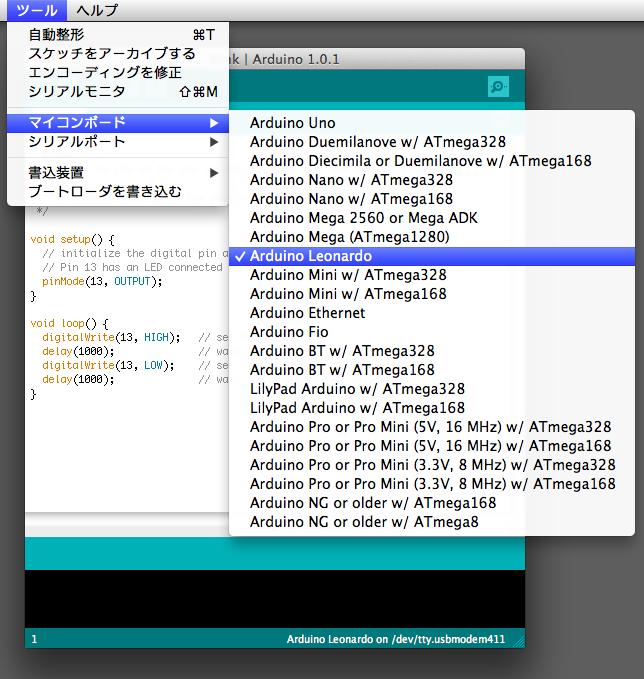
Arduino 1.0.1 release includes Arduino Leonardo support and multiple translations.

I’m very happy to announce that Arduino 1.0.1 is now available on the software page. This release includes a ton of bug fixes and new features (see the release notes for details). The biggest additions are support for the Arduino Leonardo and translation of the Arduino development environment into multiple languages. We’ll be doing a blog post on the Leonardo soon but, for now, see its getting started page and hardware page.

The translations were the work of many people, particularly Shigeru Kanemoto (who internationalized the software and translated it into Japanese) and David Cuartielles from the Arduino team (who coordinated the translation process). Languages in Arduino 1.0.1: Arabic, Aragonese, Catalan, Chinese Simplified, Chinese Traditional, Danish, Dutch), English, Estonian, Filipino, French, Galician, German, Greek, Hindi, Hungarian, Indonesian, Italian, Japanese, Korean, Latvian, Lithuaninan, Marathi, Norwegian, Persian, Polish, Portuguese – Brazil, Portuguese – Portugal, Romanian, Russian, Spanish, Tamil. (For details or to help with the translations, see this page on the playground.)

Thanks to the many people who contributed to this release (see the release notes for credits). Again, you can download Arduino 1.0.1 from the software page.

Arduino Blog 22 May 08:22
software  

Guest post: Wise Clock 3/4 Apr-2012 software release

Here is the email I received from Mike, who took on the challenge to fix and improve the code for Wise Clock 3/4, available here. Thanks Mike, keep up the great work!

My note: If you don't feel very confident about upgrading the software on Wise Clock 3/4, please do not do it.

I combined WiseClock3/WiseClock4 into one distribution, creating a WiseClockVer.h file with a
   #define _WISE_CLOCK_VER 3
line.  HT1632.cpp and Buttons.h include WiseClockVer.h, and use lines like
  #if _WISE_CLOCK_VER > 3
  #define HT1632_CLK      15      // clock pin (pin 2 of display connector)
  #else
  #define HT1632_CLK      11      // clock pin (pin 2 of display connector)
  #endif
That way the same distribution can be used for Wise Clock 3 or Wise Clock 4, and only one line has to be changed.

I found some places where over 100 bytes of data are copied into msgLine, overflowing the buffer.  Rather than just increasing the size of QUO_MSG_LEN, I changed all references to QUO_MSG_LEN to use MAX_MSG_LEN instead.

When reading a quote line a prefix character of Control-R (^R) will display the quote in red.  A prefix character of Control-O (^O) will display the quote in orange.

I removed all floating-point operations in favor of scaled integers.  For AppPong I scaled by 256, for temperature I scaled by 4 as the DS3231 is only accurate to 0.25 degrees.  I found that when the high and low temperatures were scaled by 10 and displaying farenheit that today's high could be 0.1 degree lower than the current temperature due to round-off errors.  These errors are avoided by saving the temperature scaled by 4 instead of 10.

I added a DST flag to indicate Daylight Savings Time is in affect.  DST+ sets the flag and advances the hour by one, DST- clears the flag and retards the hour by one.  The DST settings in the message file are still honored, setting the flag and incrementing the hour (if the DST flag is clear) or clearing the flag and decrementing the hour (if the DST flag is set) at the appropriate time.
The DST flag is used in the UTC code so the UTC offset is set once.  There is no need to change the UTC offset when Daylight Savings Time starts or ends.

I changed the sign of the UTC offset, so '-5' is now correct for Eastern Standard Time.  UTC + offset = current time.
Negative UTC offsets could not be restored properly, as -5 when retrieved would come back unsigned as 250.  I worked around the problem by adding 24 when saving to EEPROM and subtracting 24 when reading the EEPROM.

I changed the resolution of AppTimeLived's makeTime() from seconds to minutes.  The displayed seconds are calculated by taking the delta of the current second specified birth second, so makeTime() does not need the extra accuracy.  This change allows the offset to be calculated from 1900 instead of 1950.  With a second resolution and base of 1950 makeTime() would wrap in 2018.  With a minute resolution and a base of 1900 makeTime() won't wrap for another ~4000 years.

I changed the DEMO mode so it cycles through several display modes.  The number of minutes to display each mode is selected on the first screen after DEMO is selected, going from 0 minutes to 9 minutes.  Ten seconds is added to the cycle time, so selecting "0" goes to a new display every ten seconds.
The original lines Demo is only displayed for ten seconds, regardless of the selected cycle time.  The LIFE demo is displayed for fifteen seconds.
I was going to have AppWords as one of the demos, but I'd have to in-line most of AppWords' initialization code in the demo code, so I didn't bother.

I changed AppLife so it now wraps over the edges of the display.

I went through AppPong so all display offsets are relative to X_MAX and Y_MAX. As mentioned earlier, floating point math was replaced by scaled integers.  The height of the bat is now a #define and set to 5 instead of the previous version's hard-coded 6.  I settled on a color scheme -- ball and pitch are green, score is red, bats are orange.  I fixed some bugs in the ball prediction code and the 'flip' code (used to put 'english' on the ball).  I changed the 'miss' code to only miss by a few pixels.

The removal of the floating point freed up a lot of space.
It's [the whole sketch] less than 58K bytes.

I'm running the clock now.  The only issue is the year's high temperature needs to be re-initialized.  It was scaled by 10, now we expect it to be scaled by 4.  The nightly comparison won't save a new high temperature because the old one now is 2.5 times higher than it should be.  New clocks won't have the problem, but upgrading an existing one will.  The yearly low temperature isn't a problem because the scaled-by-four temp will be lower than the scaled-by-ten temp (unless your low is less than 0 C).  The work-around is easy, just set the year back by one overnight.  In the morning the yearly high/low temp will be reset.  The yearly high/low is only displayed in the "STATS" app anyway.


I corrected the life neighbor calculations.  The neighbor calculation used to be the sum of the colors for the eight neighbors.  This works when only green (1) is used, but when the colors are randomized the neighbor calculations are wrong, as some neighbors could be red (2) or orange (3).  I changed the color selection to use green for birth, orange for steady-state, red for dead.  The neighbor calculation now looks at the least significant bit of the color.  Green and Orange both have the lsb set, so this works well.

A quote-line can now be any length.  The quote buffer is replenished when processing is within 24 characters from the end of the buffer and the line was truncated.  Additional characters are tacked on to the end of the remaining 24, with no interruption.  This will repeat until the entire line has been processed, no matter how long the line is.  Reminders and Messages are still limited to 100 characters, and the lines in the Words files are still limited to 175 characters.

Guest post: Wise Clock 3/4 Apr-2012 software release

Here is the email I received from Mike, who took on the challenge to fix and improve the code for Wise Clock 3/4, available here. Thanks Mike, keep up the great work!

My note: If you don't feel very confident about upgrading the software on Wise Clock 3/4, please do not do it.

I combined WiseClock3/WiseClock4 into one distribution, creating a WiseClockVer.h file with a
   #define _WISE_CLOCK_VER 3
line.  HT1632.cpp and Buttons.h include WiseClockVer.h, and use lines like
  #if _WISE_CLOCK_VER > 3
  #define HT1632_CLK      15      // clock pin (pin 2 of display connector)
  #else
  #define HT1632_CLK      11      // clock pin (pin 2 of display connector)
  #endif
That way the same distribution can be used for Wise Clock 3 or Wise Clock 4, and only one line has to be changed.

I found some places where over 100 bytes of data are copied into msgLine, overflowing the buffer.  Rather than just increasing the size of QUO_MSG_LEN, I changed all references to QUO_MSG_LEN to use MAX_MSG_LEN instead.

When reading a quote line a prefix character of Control-R (^R) will display the quote in red.  A prefix character of Control-O (^O) will display the quote in orange.

I removed all floating-point operations in favor of scaled integers.  For AppPong I scaled by 256, for temperature I scaled by 4 as the DS3231 is only accurate to 0.25 degrees.  I found that when the high and low temperatures were scaled by 10 and displaying farenheit that today's high could be 0.1 degree lower than the current temperature due to round-off errors.  These errors are avoided by saving the temperature scaled by 4 instead of 10.

I added a DST flag to indicate Daylight Savings Time is in affect.  DST+ sets the flag and advances the hour by one, DST- clears the flag and retards the hour by one.  The DST settings in the message file are still honored, setting the flag and incrementing the hour (if the DST flag is clear) or clearing the flag and decrementing the hour (if the DST flag is set) at the appropriate time.
The DST flag is used in the UTC code so the UTC offset is set once.  There is no need to change the UTC offset when Daylight Savings Time starts or ends.

I changed the sign of the UTC offset, so '-5' is now correct for Eastern Standard Time.  UTC + offset = current time.
Negative UTC offsets could not be restored properly, as -5 when retrieved would come back unsigned as 250.  I worked around the problem by adding 24 when saving to EEPROM and subtracting 24 when reading the EEPROM.

I changed the resolution of AppTimeLived's makeTime() from seconds to minutes.  The displayed seconds are calculated by taking the delta of the current second specified birth second, so makeTime() does not need the extra accuracy.  This change allows the offset to be calculated from 1900 instead of 1950.  With a second resolution and base of 1950 makeTime() would wrap in 2018.  With a minute resolution and a base of 1900 makeTime() won't wrap for another ~4000 years.

I changed the DEMO mode so it cycles through several display modes.  The number of minutes to display each mode is selected on the first screen after DEMO is selected, going from 0 minutes to 9 minutes.  Ten seconds is added to the cycle time, so selecting "0" goes to a new display every ten seconds.
The original lines Demo is only displayed for ten seconds, regardless of the selected cycle time.  The LIFE demo is displayed for fifteen seconds.
I was going to have AppWords as one of the demos, but I'd have to in-line most of AppWords' initialization code in the demo code, so I didn't bother.

I changed AppLife so it now wraps over the edges of the display.

I went through AppPong so all display offsets are relative to X_MAX and Y_MAX. As mentioned earlier, floating point math was replaced by scaled integers.  The height of the bat is now a #define and set to 5 instead of the previous version's hard-coded 6.  I settled on a color scheme -- ball and pitch are green, score is red, bats are orange.  I fixed some bugs in the ball prediction code and the 'flip' code (used to put 'english' on the ball).  I changed the 'miss' code to only miss by a few pixels.

The removal of the floating point freed up a lot of space.
It's [the whole sketch] less than 58K bytes.

I'm running the clock now.  The only issue is the year's high temperature needs to be re-initialized.  It was scaled by 10, now we expect it to be scaled by 4.  The nightly comparison won't save a new high temperature because the old one now is 2.5 times higher than it should be.  New clocks won't have the problem, but upgrading an existing one will.  The yearly low temperature isn't a problem because the scaled-by-four temp will be lower than the scaled-by-ten temp (unless your low is less than 0 C).  The work-around is easy, just set the year back by one overnight.  In the morning the yearly high/low temp will be reset.  The yearly high/low is only displayed in the "STATS" app anyway.


I corrected the life neighbor calculations.  The neighbor calculation used to be the sum of the colors for the eight neighbors.  This works when only green (1) is used, but when the colors are randomized the neighbor calculations are wrong, as some neighbors could be red (2) or orange (3).  I changed the color selection to use green for birth, orange for steady-state, red for dead.  The neighbor calculation now looks at the least significant bit of the color.  Green and Orange both have the lsb set, so this works well.

A quote-line can now be any length.  The quote buffer is replenished when processing is within 24 characters from the end of the buffer and the line was truncated.  Additional characters are tacked on to the end of the remaining 24, with no interruption.  This will repeat until the entire line has been processed, no matter how long the line is.  Reminders and Messages are still limited to 100 characters, and the lines in the Words files are still limited to 175 characters.


Scrolling message sign with Bluetooth

A simple application for Bluetooth was suggested a while back by fellow arduinoer evanrich (who also created a home for his project on github): a scrolling sign using several cascaded 3216 displays and controlled through Bluetooth from an Android phone. His intention was to use it as a wireless sign that can be put in the back of the car to tell drivers to get off his tail.

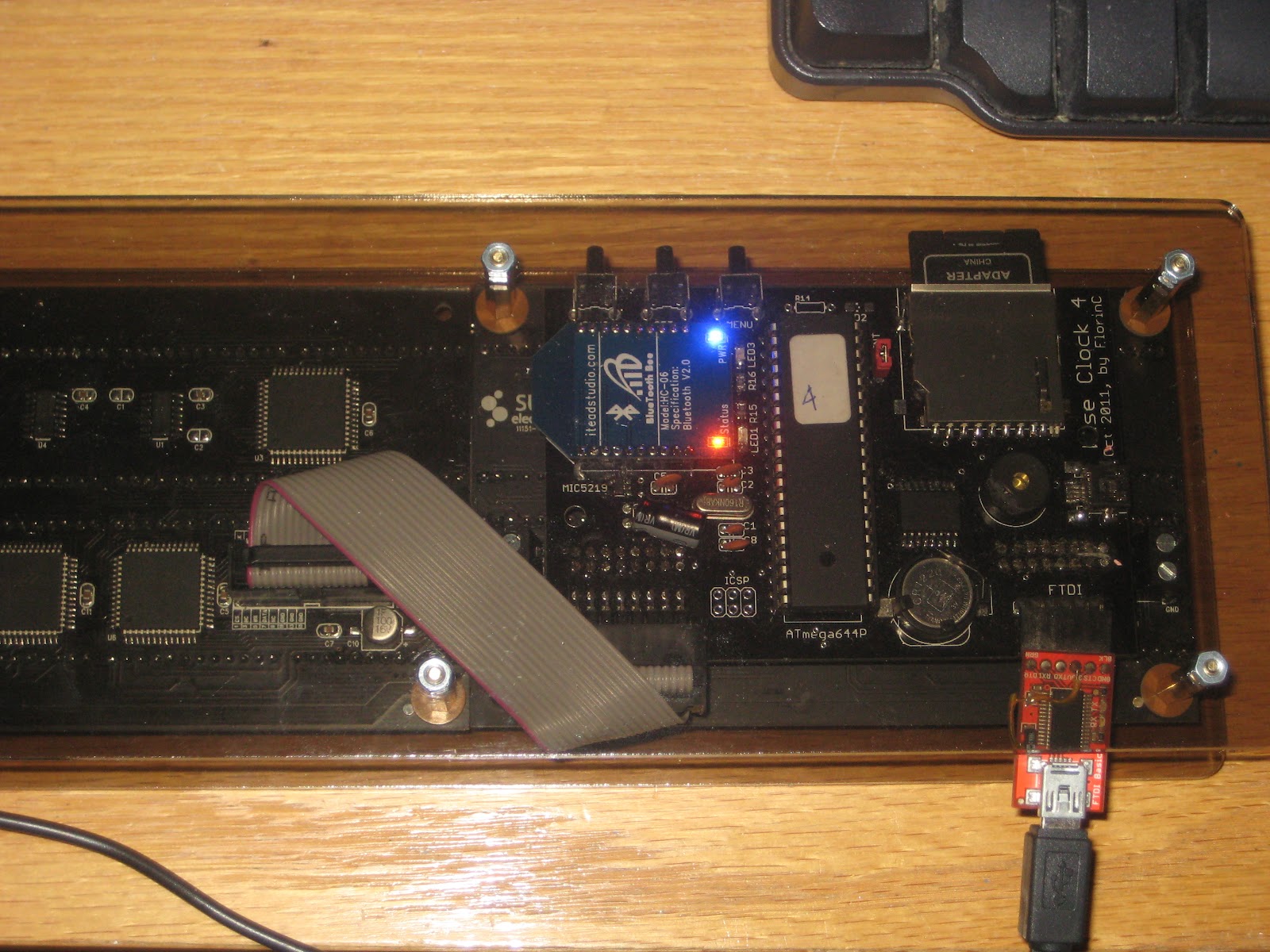
I gave it a try myself, using Wise Clock 4 with Bluetooth and two 3216 displays, as shown in this photo (the blue LED on the BTBee is power, the orange one is communication status).


The code is a modified version of the one posted here.

This message sign, especially if it is made with the larger (5mm) 3216 displays, can be also used in waiting rooms, call centers, stores etc, to show dynamic and easily-changeable messages.


Related posts:

Scrolling message sign with Bluetooth

A simple application for Bluetooth was suggested a while back by fellow arduinoer evanrich (who also created a home for his project on github): a scrolling sign using several cascaded 3216 displays and controlled through Bluetooth from an Android phone. His intention was to use it as a wireless sign that can be put in the back of the car to tell drivers to get off his tail.

I gave it a try myself, using Wise Clock 4 with Bluetooth and two 3216 displays, as shown in this photo (the blue LED on the BTBee is power, the orange one is communication status).


The code is a modified version of the one posted here.

This message sign, especially if it is made with the larger (5mm) 3216 displays, can be also used in waiting rooms, call centers, stores etc, to show dynamic and easily-changeable messages.


Related posts:


Wise Clock 4 with Bluetooth

Another thing that was supposed to be easy, but it wasn't: Arduino communicating with Windows XP through Bluetooth.

Like everybody else, I purchased the cheap and ubiquitous Bluetooth module from dealextreme.
I soldered it myself on the XBee-footprinted PCB (bare BTBee from IteadStudio), for a total price of about $8 (compare that to at least $15 as these Bluetooth XBees go for).

Without knowing much about Bluetooth, I plugged this new "BTBee" module in Wise Clock 4 expecting it to be "discovered" by XP (which has an USB Bluetooth dongle). Discovered it was: the name "linvor" appeared in the list of BT devices, with two serial ports attached to it.

Communication between XP and BT module is performed through the serial ports, I figured. Tried CoolTermWin, HyperTerminal, Putty, on both ports, nothing seemed to work. Time to read the documentation (which always reminds me of that joke). I learned that others had similar problems, and some have solved them by installing new BT drivers. The best advice came from this post. Putty did not work for me, so I stuck with what I had, namely HyperTerminal.

So here is my own step-by-step tutorial on how to make an Arduino communicate with Windows XP via a Bluetooth module.
Note: From the Bluetooth perspective, Wise Clock 4 I used for my testing is similar to Arduino.

1. Upload this simple sketch that "echos" what it reads from Bluetooth and also broadcasts a message periodically. The communication between Arduino and the BT module is serial, with a baud rate of 9600, according to the documentation.

#if ARDUINO < 100
  #include
#else
  #include
#endif


void setup()
{
  Serial.begin(9600);
}


void loop()
{
  while (Serial.available())
  {
    // get char from bluetooth;
    char inChar = (char) Serial.read();
    // output it back, between brackets;
    Serial.print('[');
    Serial.print(inChar);
    Serial.print(']');
  }
  // broadcast message;
  Serial.print("millis() from Arduino: ");
  Serial.println(millis());
  delay(2000);
}

2. Power Arduino, with the BT module connected, and let it run the sketch.

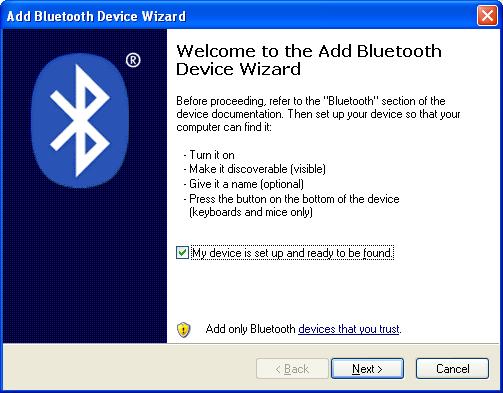
3. Make the BT module (on the Arduino) visible to XP, by adding it to the list of Bluetooth devices. For this, click on the "Bluetooth Devices" icon in the tray (bottom right corner of the XP's desktop). You will see this box.


Next, you will see the BT device added to the list, under the name "linvor".


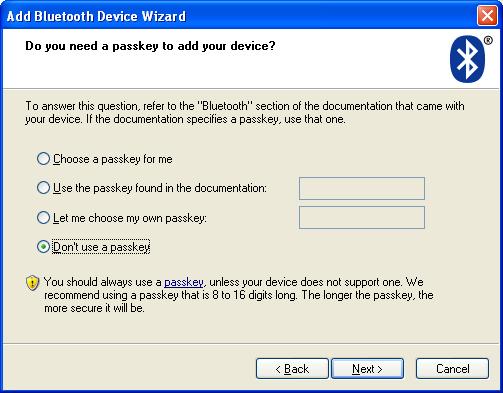
Then select the last option, "Don't use a passkey". Although it makes little sense at this point (since you know that the passkey is 1234, according to the documentation), it is very important to not use a passkey here.


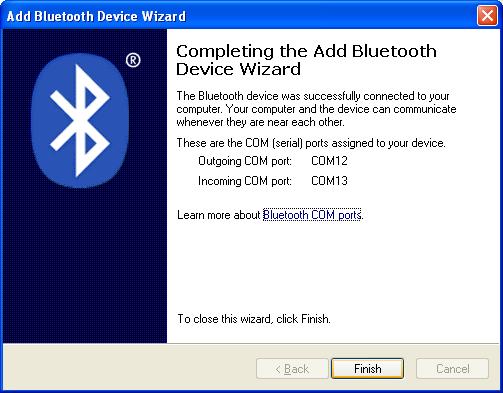
The last step of the wizard shows the two ports that have been added. Write down the "Outgoing COM port", since this is the one we will be using for communication (step 4).


4. Open HyperTerminal to establish the 2-way communication between XP and Arduino, via Bluetooth.
Select, from the list, the COM port specified as "outgoing" for the BT device.


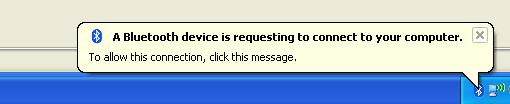
Next, you will be shown this pop-up.


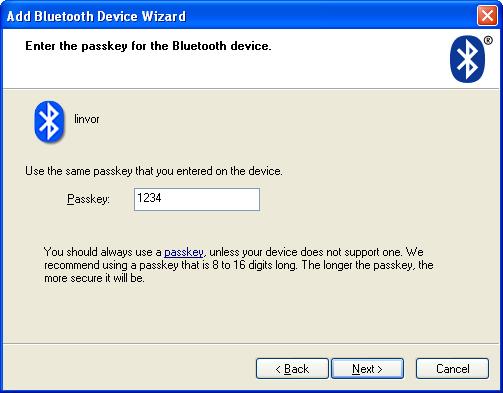
After you click on it, you are prompted to enter the passkey, the one you (reluctantly) skipped in the process of setting up the BT device. Type "1234", as specified in the BT module documentation.


After hitting "Next", you are shown this last confirmation box.


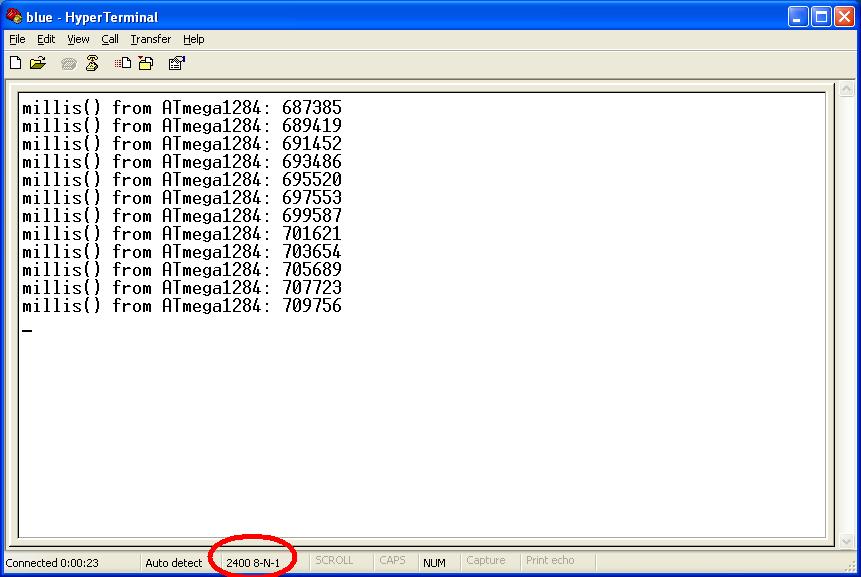
In the same time, the HyperTerminal starts displaying the message coming from Arduino.


Note that, when the COM port was opened in Auto mode, no parameters (bad rate etc) being specified.
Interestingly, after the communication is established, the baud rate is reported as 2400 (for some unexplained reason).
You can also type characters in the HyperTerminal and they will be echoed back (between brackets) by Arduino.

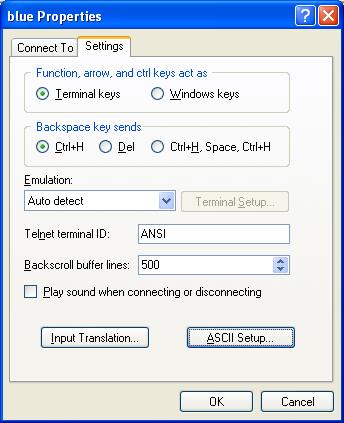
Optionally, if you want to see what you typed (before the echoing from Arduino takes place), you can enable local echo, by selecting "Properties", then "ASCII Setup".


Once the communication between XP (HyperTerminal) and Arduino is established via Bluetooth, the "Status" LED (if you have it soldered) is on continuously. When the BT module is not communicating, the "Status" LED is blinking at a frequency of about 2Hz.

The next time a HyperTerminal session is opened, XP remembers the BT device and the communication params (ports, passkey) and does not ask to set it up again. (I guess that's why it is called "pairing", although this word does not appear anywhere in the process.)


Time to write some serious applications using Bluetooth:)

Wise Clock 4 with Bluetooth

Another thing that was supposed to be easy, but it wasn't: Arduino communicating with Windows XP through Bluetooth.

Like everybody, I purchased the cheap and ubiquitous Bluetooth module from dealextreme.
I soldered it myself on the XBee-footprinted PCB (bare BTBee from IteadStudio), for a total price of about $8 (compare that to at least $15 as these Bluetooth XBees go for).

Without knowing much about Bluetooth, I plugged this new "BTBee" module in Wise Clock 4 expecting it to be "discovered" by XP (which has an USB Bluetooth dongle). Discovered it was: the name "linvor" appeared in the list of BT devices, with two serial ports attached to it.

Communication between XP and BT module is performed through the serial ports, I figured. Tried CoolTermWin, HyperTerminal, Putty, on both ports, nothing seemed to work. Time to read the documentation (which always reminds me of that joke). I learned that others had similar problems, and some have solved them by installing new BT drivers. The best advice came from this post. Putty did not work for me, so I stuck with what I had, namely HyperTerminal.

So here is my own step-by-step tutorial on how to make an Arduino communicate with Windows XP via a Bluetooth module.
Note: From the Bluetooth perspective, Wise Clock 4 I used for my testing is similar to Arduino.

1. Upload this simple sketch that "echos" what it reads from Bluetooth and also broadcasts a message periodically. The communication between Arduino and the BT module is serial, with a baud rate of 9600, according to the documentation.

#if ARDUINO < 100
  #include
#else
  #include
#endif


void setup()
{
  Serial.begin(9600);
}


void loop()
{
  while (Serial.available())
  {
    // get char from bluetooth;
    char inChar = (char) Serial.read();
    // output it back, between brackets;
    Serial.print('[');
    Serial.print(inChar);
    Serial.print(']');
  }
  // broadcast message;
  Serial.print("millis() from Arduino: ");
  Serial.println(millis());
  delay(2000);
}

2. Power Arduino, with the BT module connected, and let it run the sketch.

3. Make the BT module (on the Arduino) visible to XP, by adding it to the list of Bluetooth devices. For this, click on the "Bluetooth Devices" icon in the tray (bottom right corner of the XP's desktop). You will see this box.


Next, you will see the BT device added to the list, under the name "linvor".


Then select the last option, "Don't use a passkey". Although it makes little sense at this point (since you know that the passkey is 1234, according to the documentation), it is very important to not use a passkey here.


The last step of the wizard shows the two ports that have been added. Write down the "Outgoing COM port", since this is the one we will be using for communication (step 4).


4. Open HyperTerminal to establish the 2-way communication between XP and Arduino, via Bluetooth.
Select, from the list, the COM port specified as "outgoing" for the BT device.


Next, you will be shown this pop-up.


After you click on it, you are prompted to enter the passkey, the one you (reluctantly) skipped in the process of setting up the BT device. Type "1234", as specified in the BT module documentation.


After hitting "Next", you are shown this last confirmation box.


In the same time, the HyperTerminal starts displaying the message coming from Arduino.


Note that, when the COM port was opened in Auto mode, no parameters (baud rate etc) being specified.
Interestingly, after the communication is established, the baud rate is reported as 2400 for some unexplained reason.
You can also type characters in HyperTerminal and they will be echoed back, between brackets, by Arduino.

Optionally, if you want to see what you typed (before the echoing from Arduino takes place), you can enable local echo, by selecting "Properties", then "ASCII Setup".


Once the communication between XP (HyperTerminal) and Arduino is established via Bluetooth, the "Status" LED (if you have it soldered) is on continuously. When the BT module is not communicating, the "Status" LED is blinking at a frequency of about 2Hz.

The next time a HyperTerminal session is opened, XP remembers the BT device and the communication params (ports, passkey) and does not ask to set it up again. (I guess that's why it is called "pairing", although this word does not appear anywhere in the process.)


Time to write some serious applications using Bluetooth:)


BookClock revisited (time setting from buttons)

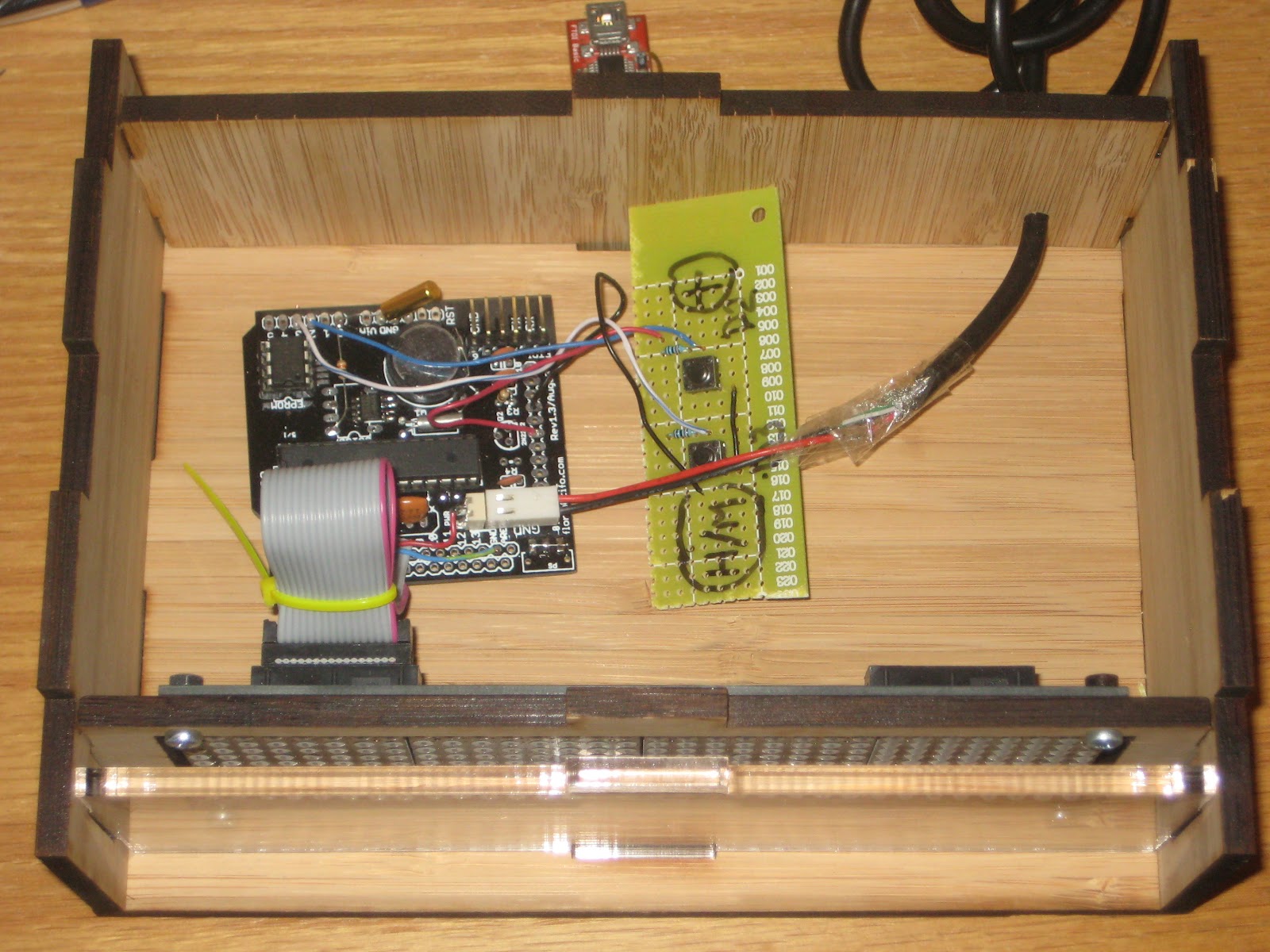
By popular demand, I added time setting capabilities to BookClock. Time and date can now be set from two buttons, called "Menu" ("H/M" in the photo) and "Plus" ("+").


Press "Menu" to select between hours and minutes. Press "Plus" to increment the blinking selection. When done, just let it time out (about 4 seconds) and the time will be saved in the RTC.
Hold down "Menu" until the date, formatted as yy/mm/dd, is displayed. Press "Menu" again to select either year, month or day, then press "Plus" to increment the blinking value.

The time-setting code is copied and adapted from IllyClock and uses the same state-machine mechanism.
I connected the two buttons to D16 ("Plus") and D17 ("Menu").

The code, compilable on both Arduino 23 and 1.0, can be downloaded from here.


BookClock revisited (time setting from buttons)

By popular demand, I added time setting capabilities to BookClock. Time and date can now be set from two buttons, called "Menu" ("H/M" in the photo) and "Plus" ("+").


Press "Menu" to select between hours and minutes. Press "Plus" to increment the blinking selection. When done, just let it time out (about 4 seconds) and the time will be saved in the RTC.
Hold down "Menu" until the date, formatted as yy/mm/dd, is displayed. Press "Menu" again to select either year, month or day, then press "Plus" to increment the blinking value.

The time-setting code is copied and adapted from IllyClock and uses the same state-machine mechanism.
I connected the two buttons to D16 ("Plus") and D17 ("Menu").

The code, compilable on both Arduino 23 and 1.0, can be downloaded from here.

Wise Clock 4 with ATmega1284

I thought that replacing the ATmega644P with its bigger brother ATmega1284P in Wise Clock 4 would be trivial. How wrong I was.

The first step was to burn the bootloader. After a bit of research, here is what I found out:
  • USBtinyISP from adafruit cannot program chips with more than 64K of flash (see this thread);
  • if you don't want to start from scratch (that is, compile the source code and figuring the fuses) there are at least 3 sources: ryanmsutton, maniacbug and calunium;
  • USBtinyISP half-works: it writes to the flash, but reading back for verification purpose fails because of a bug in the firmware; I ignored the verification error;
  • although burning the bootloader (any of the three mentioned above) seemed successful, uploading any sketch afterwards always failed;
  • the setup from ryanmsutton did not work for me (I guess the fuses are wrong; then the core files also point to the arduino folder, instead of the sanguino, as it should be);
  • with the bootloader from calunium (atmega1284p_16MHz.hex) I was able to upload sketches; these are the settings in boards.txt I used:

atmega1284.name=Sanguino W/ ATmega1284p 16mhz
atmega1284.upload.protocol=stk500v1
atmega1284.upload.maximum_size=129024
atmega1284.upload.speed=57600
atmega1284.bootloader.low_fuses=0xFF
atmega1284.bootloader.high_fuses=0x98
atmega1284.bootloader.extended_fuses=0xFD
atmega1284.bootloader.path=atmega
atmega1284.bootloader.file=atmega1284p_16MHz.hex
atmega1284.bootloader.unlock_bits=0x3F
atmega1284.bootloader.lock_bits=0x0F
atmega1284.build.mcu=atmega1284p
atmega1284.build.f_cpu=16000000L
atmega1284.build.core=sanguino

Note the upload protocol (stk500v1), note the fuses and note the core folder (last line).

To compile the code for Sanguino with ATmega1284P, some macros must be updated as well, by adding
defined(__AVR_ATmega1284P__)  to any defined(__ATmega644P__)

like this:

#if defined(__AVR_ATmega644P__) || defined(__AVR_ATmega644__) || defined(__AVR_ATmega1284P__) // sanguino

In the end, the program space is about 126K (compared to 62K in ATmega644P) and the available RAM is 16K (compared to only 4K in Atmega644P). Not a bad upgrade for only a few bucks more.


Note: ATmega1284 is not defined in avrdude.conf shipped with Arduino 22 or 23 (folder \arduino-22\hardware\tools\avr), but it is defined in Arduino 1.0.