Posts with «arduino» label

Mazie V2

Primary image

What does it do?

solves line mazes

Hi all,

I posted my maze solving robot Mazie V1 a few months ago. While Mazie V1 worked, she was very slow and lumbering, so I have decided to make an upgraded version with a smaller chassis and faster motors.

So far I have built the chassis and soldered the main circuit to drive the motors. I still need to connect the line sensors, and of course write the program. Hopefully this will not take too long as I can just modify my original maze solving program to to work with the faster motors.

Cost to build

$80,00

Embedded video

Finished project

Number

Time to build

Type

URL to more information

Weight

read more

Meet the Arduino Due, the 32-bit board that'll let your projects fly (really)

As much as we love the Arduino Uno, it's not the most powerful of hobbyist microcontrollers. Fortunately, the folks in Turin have just put the finishing touches on a 32-bit upgrade with buckets of potential. At the heart of the Arduino Due is an 84MHz Atmel CPU, based on ARM's Cortex M3 Architecture, which is capable of being the brains inside your own flying drone or homemade 3D printer. It should start trickling out onto shelves from today, setting you back $49, but hey, that's a small price to pay to automate your drinking adventures.

Continue reading Meet the Arduino Due, the 32-bit board that'll let your projects fly (really)

Filed under: Misc

Meet the Arduino Due, the 32-bit board that'll let your projects fly (really) originally appeared on Engadget on Mon, 22 Oct 2012 09:22:00 EST. Please see our terms for use of feeds.

Permalink | Email this | Comments

Giving the Arduino deques, vectors and streams with the standard template library

The Arduino IDE is extremely similar to C++, but judging from the sketches you can find on the Internet, you’d never know it. Simpler Arduino projects can make do with just toggling IO pins, reading values, and sending serial data between two points. More complex builds fall into the category of real software development, and this is where the standard Arduino IDE falls miserably short.

[Andy] saw this lack of proper libraries for more complicated pieces of software as a terrible situation and decided to do something about it. He ported the SGI Standard Template Library to bring all those fun algorithms and data structures to any AVR chip, including the Arduino.

Going over what’s included in [Andy]‘s port reads just like a syllabus for an object-oriented programming class. Stacks, queues, and lists make the cut, as do strings and vectors. Also included is just about everything in the   and headers along with a few Arduino-oriented additions like a hardware serial and liquid crystal streams.

With all these objects floating around, [Andy] says it will make an impact on Flash and SRAM usage in an AVR. Still, with all the hullabaloo over faster and larger ARM micros, it’s nice to see the classic 8-bit microcontroller becoming a bit more refined.


Filed under: arduino hacks, Software Development

Mini Maker Faire and Data Sensing Lab at Strata NY This Week

O'Reilly's Strata + Hadoop World New York kicks off Monday, and while the conference is sold out, there are several events that are part of New York City Data Week that are open to the public, including a data-focused Mini Maker Faire and an experiment with Arduinos, sensors, and XBees (courtesy of Digi) and cloud storage (courtesy of Amazon Web Services). Come and check out cool projects, or join the fun and play with data and sensors.

Read the full article on MAKE

MAKE » Arduino 22 Oct 04:30

DIY Arduino FM Radio Shield.

I’ve been visiting local convenience store (Dollarama, here in Montreal, Canada) and notice nice looking FM Radio, just for only $3. Why not to try to interface it to my lovely Arduino? Idea looks quite challenging, the same time what is the point in interfacing a DSP radio shield to arduino? I don’t need a radio, I want to have fun experimenting with it, so  lets go to the bare metal!

You, probably, could find the same or very similar radio all around the globe, with two buttons user interface, powered by two AAA or one CR2032 coin battery (like in my case), and low price. Hardware design based on IC TDA7088 (depending on the manufacturer, may be “clones” SC1088, SA1088, CD9088, D7088, or YD9088). My radio has YD9088  inside. Quick search on a Google, brings a  data sheet. I’d say, It’s not very informative, but at least it shows basic application circuit.

 HARDWARE.

 The most difficult part of this project, is soldering to surface mount radio components. In minimum configuration just two wires, “interfacing” two front-panel buttons. (Other two, for powering up the radio from arduino +3.3 V on-board voltage regulator instead of battery, should be much easier to attach). I solder wires to the caps, on the side, which connected  to the pins 15 and 16 of the IC. In this case, there is minimum impact on usability of the radio, as buttons were not touch. May be important for debugging. If your soldering skills are not as good as mine, you could solder to the traces, removing buttons. On the pictures below you would find two more wires, attached to pin 1 and to earphone’s jack-connector, but they are not in use in this project, and you could left them out.

If you look at the electrical drawings of the shield, you would notice  1 k pot. I build a first version using just two resistors divider, as it shown in “Reset” signal line. But it turns out, that IC is quite capricious for the voltage level it senses on the “Scan” input. On some occasions, it refused  to change a station, and in some it flipped to “reset”. Trim the pot, to get voltage at pin 15 about 3.1 – 3.2 V.  It would be easy to measure voltage with DMM, temporary changing “delay” in this section of the code:

 if (incomingByte == 's') { // SCAN - UP 
  digitalWrite( scan_pin, HIGH ); 
  delay(50); 
  digitalWrite( scan_pin, LOW ); 
  } 

to 10000 or even 20000.  You may need something to be plugged in the earphones jack, as radio is using wires like an antenna. Headphones, or USB speakers cable, works quite well. BTW, the default value 50 may not be enough to “push” a radio up with strong RF signal. Try to send a few “s” simultaneously, “ss” or “ssss”. Setting delay higher than 50 is not recommended, as “jump” may be to wide, so you likely to miss something interesting in broadcasting.

SOFTWARE.

int tunning = 0;

const uint8_t scan_pin = 14;
const uint8_t reset_pin = 15;

void setup() {
Serial.begin(115200); 
 ADCSRA = 0x87; // turn on adc, freq = 1/128 , 125 kHz. 
 ADMUX = 0x44;

pinMode ( scan_pin, OUTPUT );
pinMode ( reset_pin, OUTPUT );
digitalWrite( scan_pin, LOW );
digitalWrite(reset_pin, LOW );
}

void loop() {
char incomingByte;

 ADCSRA |= (1<<ADSC);
 while(!(ADCSRA & 0x10));

 uint16_t temp = 0;

 for( uint8_t i = 0; i < 16; i++ ) {
 ADCSRA |= (1<<ADSC);
 while(!(ADCSRA & 0x10));
 temp += ADC;
 } 
 tunning = (5 * temp) / 16;

 if (Serial.available() > 0) {
 incomingByte = Serial.read();
 if (incomingByte == 'x') { // 
 Serial.print(F("\t Tunning = "));
 Serial.print( tunning, DEC);
 Serial.print(F("\t Frequency = "));
 Serial.println(( 92.5 + pow((3340 - tunning), 0.85)/ 24.5), 1);
}

 if (incomingByte == 's') { // SCAN - UP
 digitalWrite( scan_pin, HIGH );
 delay(50);
 digitalWrite( scan_pin, LOW );
 }
 if (incomingByte == 'r') { // RESET - RESTART
 digitalWrite(reset_pin, HIGH );
 delay(50);
 digitalWrite(reset_pin, LOW );
 }
 } 
}

As you can see, arduino is not doing much in the scetch, only constantly monitoring “tunning” line and checking serial if there is any command waiting to be proceed. CLI includes 3 commands, so far, “x”, “s” and “r”. Sending last two, is equivalent to pressing “switch to next” and “reset” buttons. First one, would print out current “tunning” settings of the radio in millivolts and in MHz. Very likely, you will have to change a coefficients in frequency calculation formula (power regression equation):

92.5 + pow((3340 – tunning), 0.85)/ 24.5

In order to find right digits, you would need to run a full “scan” of all available radio stations in your area. Write down a name of radio station, and corresponding voltage you are getting constantly sending “x”. Than, replace the names with appropriate frequency numbers to any radio station in your list. Look up for such data over Internet at  the station’s web page.  If you do have an another radio with digital scale, than tune this radio on the same radio station as your shield currently preset, and write down a frequency – voltage table.  Filling this data in LibreOffice spreadsheet and plotting a chart would reveal some-kind of non-linear curve:  On the picture you can see:  blue line – real data for my DIY FM Radio shield, orange line – linear approximation, and yellow line is a “power – polynom” approximation. Linear gives big error in the middle, around 1 MHz “off”. Polynomial is much better, and stay close to real data with accuracy +- 0.2 MHz, which is quite good. All you have to do, is “tweak” a coefficients to find the best approximation. Start with lowest frequency you get in your list ( 92.5 and 3340 in an example), than vary 24.5 to get close for highest radio station data. Very likely, 0.85 will be the same, I just have no clue why is it so. To do calculation right, a lot of information is missing, I even don’t know the varicap diode they use to tune a radio!


Arduino UNO - XBee Setup

There are many XBee tutorials out there, but I could not find one that I could apply to my specific Arduino/Shield/Xbee configuration. While this particular configuration may not apply to you, perhaps it will send you in the right direction, so please read on.
Please note, that your XBee shield may require you to perform extra steps, so please do further reading before jumping in head first. I am not an expert, so don't blame me if you fry your board.

The following set of steps worked for me:


Step 1: Download and Install X-CTU

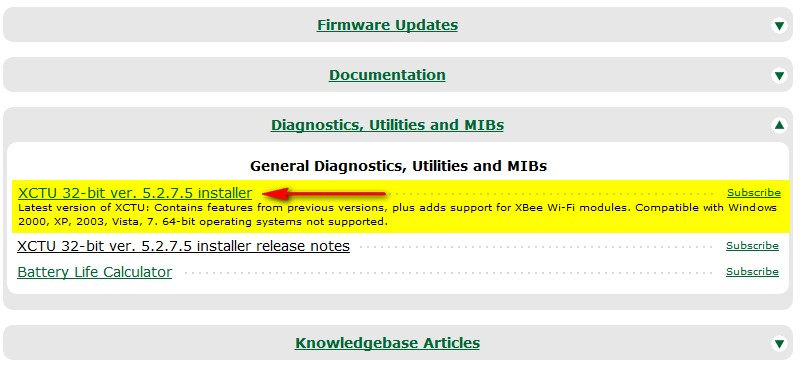
The easiest way to setup your XBee module is via the X-CTU software from Digi. It can be downloaded from their site here:  http://www.digi.com/support/productdetail?pid=3257

  • Select  the Diagnostics, Utilities and MIBs section


  • Download and install the XCTU 32-bit ver 5.2.7.5 installer (do a virus check after download)
  • Please note that this is for Windows platforms only

  • FYI: We will run the software later


Step 2: Upload the bare-minimum script on your Arduino controller

I perform this step to prevent any previous projects from interfering. This may not be necessary, but I tend to do this before wiring up any of my new projects. This is the script I load onto the Arduino:

Bare Minimum Arduino Sketch:
1
2
3
4
5
6
7
void setup() {

}

void loop() {

}


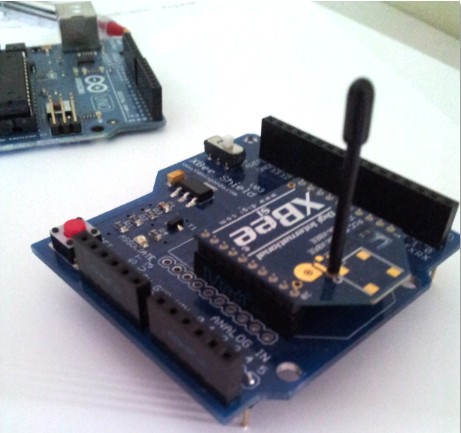
Step 3: Connect the Shield to Arduino, and XBee to Shield.


  • Disconnect the Arduino UNO from the computer. 

  • Insert the XBee module into the Shield.
  • This is the XBee Shield and XBee module side by side


    This is the XBee module on the XBee Shield


  • The pins from the XBee module should slot into the respective headers on the Shield.


  • Connect the XBee shield to the Arduino

  • The pins from the XBee shield should slot into the respective headers on the Arduino board.


  • Move the little white switch in the corner to USB.

    • There are 2 options - USB mode and XBee mode.
    • We want USB mode which will allow the computer to communicate with the XBee module


Step 4: Connect Arduino to computer, and run the X-CTU Software


  • With the XBee module and Shield connected to the Arduino, and the Shield's white switch in USB mode;  connect the Arduino to the computer using a USB cable.
  • This Arduino board appears as COM7 on my computer.
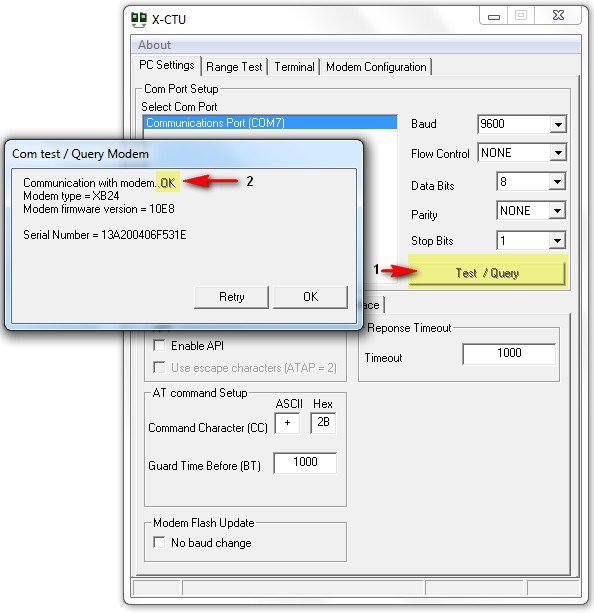
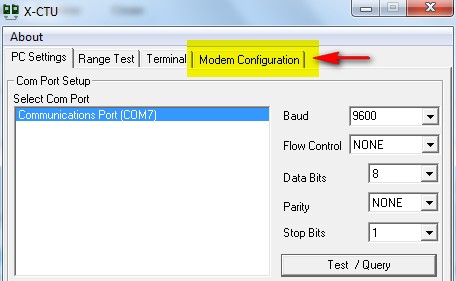
  • Here is what the X-CTU software looks like when it loads up


  • Press the Test / Query button to see if the computer can talk to the XBee module.
    • If successful, you should see something like this:


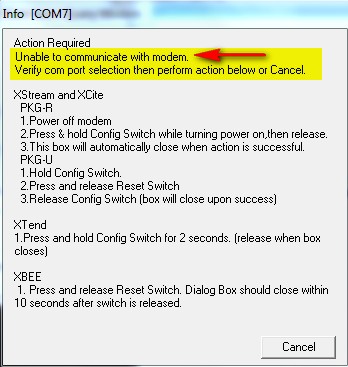
  • If you accidentally leave the XBee shield in XBee mode, or if your computer fails to communicate with the XBee module, you may encounter these screens.


If you get a successful Test / Query, then move onto the next step.


Step 5: Read XBee Firmware settings:

We can now try to read the XBee firmware settings by
  • Selecting the Modem Configuration Tab

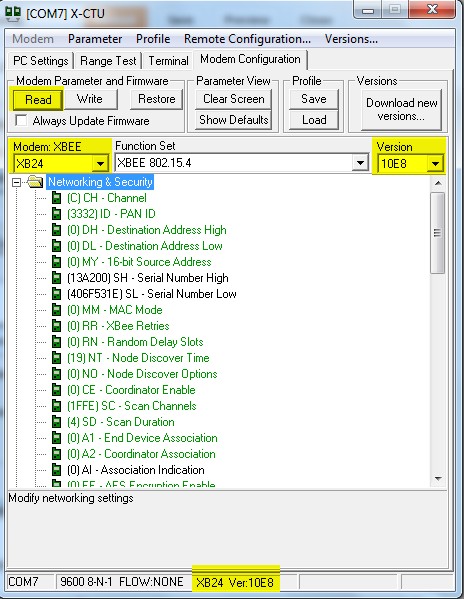
  • Select the Read button to read the XBee firmware settings


Step 6: Download older version of firmware if necessary

  • If you did not have any issues with the previous step, then continue to step 7, otherwise read on.
  • In my case, the software could not find the firmware file necessary to read the firmware settings.
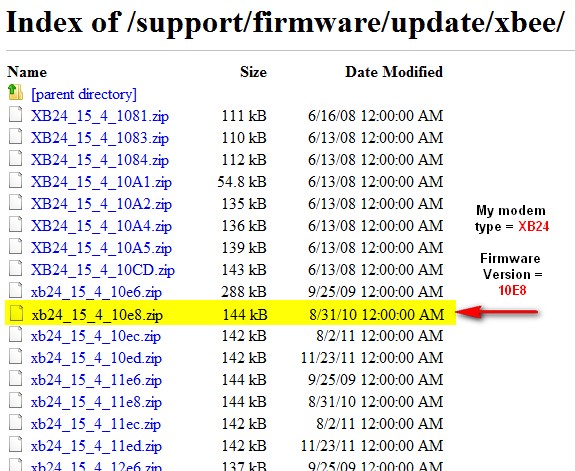
  • In step 4, I could see that I had the XB24 Modem type, and 10E8 firmware version,

  • I tried downloading new versions, but this did not seem to work, as the computer could not detect any newer updates available. The problem I had, was that I needed an "older version" of firmware to communicate with the XBee module in order to read/write new settings to it.
  • I could not select the firmware version from the drop down boxes, which indicated that this particular firmware version was not installed on my computer. So here is what I did.
    • I went back to the Digi site and selected the Firmware update section.
    • This provided a link to an FTP site with "previous versions" of firmware.


  • I then selected the relevant firmware version from the list, and downloaded the zip file to a logical folder on my hard-drive.  There is no need to unzip the file, because the X-CTU software will look for a zipped file.


  • In the X-CTU software, in the Modem Configurations tab, select the "Download new versions button", and select File. Navigate to the zip-file just downloaded and select it. 


  • The software should tell you that it has updated successfully or something to that effect.
  • The modem type and version should now be an available option in the drop down boxes, however, we will continue where we left off (in step 5) and try an read the firmware settings from the XBee module, by pressing the Read button in the Modem Configurations tab on the X-CTU software.
  • It should look something like this:

TO BE CONTINUED.......

The Arduino Due is finally here

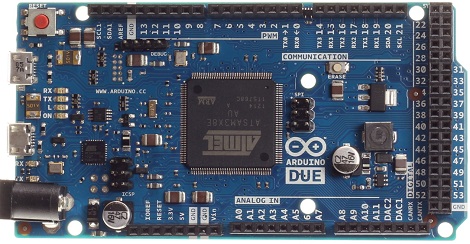
After a years-long wait, an ARM powered Arduino is finally due. The Arduino Due will finally be released this coming Monday.

On board the Arduino Due is an Atmel-sourced ARM Cortex M3 microcontroller running at 84 MHz. The Due has an impressive list of features including a USB 2.0 host, compatibility with the Android ADK (lest you still need an IOIO), 12 analog inputs with 12-bit resolution, 2 analog outputs running at 12 bits, a CAN interface, and more input pins than you can shake a stick at.

For a full list of features, you can grab this PDF we picked up when we saw the Due at Maker Faire NYC

This hardware update to the Arduino platform makes a lot of very cool builds very possible for even the beginner hardware hacker. Of course the Due will be used for controlling drones and UAVs, laser cutters and 3D printers, and playing WAV files from the analog outputs. The much improved hardware opens up a lot of other possible builds including making your own guitar pedals – DSP is a wonderful thing – and reading the telemetry from your car in real-time via the CAN bus.

Although it’s not available right now, you will be able to buy an Arduino Due for $49 USD this coming Monday at your favorite electronics retailers. 


Filed under: arduino hacks, ARM
Hack a Day 20 Oct 16:00

Halloween Props: Spooky eyes light up the bushes

This is just one example of several pairs of spooky eyes which light up [Vato Supreme's] bushes this Halloween. The quick and inexpensive build process make it a perfect diy decoration.

Each eye is made up of a ping-pong ball and an LED. But that alone won’t be very spook as the entire ball will glow rather brightly. So he spiced things up a bit by masking off the shape of a pupil and spraying the balls black. The vertical slit seen in white above will glow red like a demon in the night.

The LEDs are driven by an ATtiny85 running the Arduino bootloader. [Vato] found there was plenty of space two write code which fades the eyes in and out using PWM. This happens at random intervals for each of the four pairs he is driving.

We’ve seen a similar project that used oversized LEDs as the eyes. But we really like the idea of using a diffuser like this one. See it in action after the break.


Filed under: Holiday Hacks
Hack a Day 19 Oct 22:09

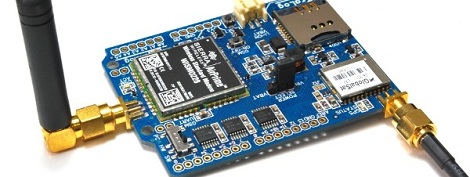
Stacking GPS, GSM, and an SD card into an Arduino shield

A few years ago, [Phang Moh] and his compatriots were asked by a client if they could make a vehicle tracking device for oil tankers all around Indonesia. The request of putting thousands of trackers on tanks of explosives was a little beyond [Phang Moh]‘s capability, but he did start tinkering around with GPS and GSM on an Arduino.

Now that tinkering has finally come to fruition with [Phang]‘s TraLog shield, a single Arduino shield that combines GPS tracking with a GSM and GPRS transceiver. There’s also an SD card thrown in for good measure, making this one of the best tracking and data logging shields for the Arduino.

The shield can be configured to send GPS and sensor data from devices attached to an I2C bus to remote servers, or a really cool COSM server. [Phang] is selling his TraLog for $150, a fairly good deal if you consider what this thing can do.

Seems like the perfect piece of kit for just about any tracking project, whether you want to know the location of thousands of oil tankers or just a single high altitude balloon.

Tip ‘o the hat to [Brett] for finding this one.


Filed under: arduino hacks, cellphones hacks, gps hacks

Hacking Beer Cans for Fun and Publicity

Although beer is generally a good way to get people to come to your trade show booth, [Robofun.ru] decided to put a new spin on things. Instead of (or possibly in addition to) giving out beer, they decided to turn 40 Staropramen beer cans into a keyboard.

This was done using an Arduino hooked up to four Sparkfun MPR121 Capacitive Touch Sensor Breakout Boards, allowing them to act as keys. These inputs are translated via the Arduino into a standard output (we assume USB) that can be plugged into any computer.  Additionally, a Sparkfun MP3 trigger board was used to control the sound effects.  Rounding out the build, a Raspberry Pi computer was used to run the human machine interface, a large plasma display.

Be sure to check out this keyboard in action after the break. If this isn’t enough alternative input fun, why not check our post about how to make a banana piano and giant NES controller.


Filed under: arduino hacks, beer hacks, Raspberry Pi