Posts with «arduino» label

This Old Mouse Keeps Track of Filament Usage

Keeping track of your 3D-printer filament use can be both eye-opening and depressing. Knowing exactly how much material goes into a project can help you make build-versus-buy decisions, but it can also prove gut-wrenching when you see how much you just spent on that failed print. Stock filament counters aren’t always very accurate, but you can roll your own filament counter from an old mouse.

[Bin Sun]’s build is based around an old ball-type PS/2 mouse, the kind with the nice optical encoders. Mice of this vintage are getting harder to come by these days, but chances are you’ve got one lying around in a junk bin or can scrounge one up from a thrift store. Stripped down to its guts and held in place by a 3D-printed bracket, the roller that used to sense ball rotation bears on the filament on its way to the extruder. An Arduino keeps track of the pulses and totalizes the amount of filament used; the counter handily subtracts from the totals when the filament is retracted.

Simple, useful, and cheap — the very definition of a hack. And even if you don’t have a 3D-printer to keep track of, harvesting encoders from old mice is a nice trick to file away for a rainy day. Or you might prefer to just build your own encoders for your next project.


Filed under: 3d Printer hacks, Android Hacks

Peeqo is a desktop bot that communicates through GIFs

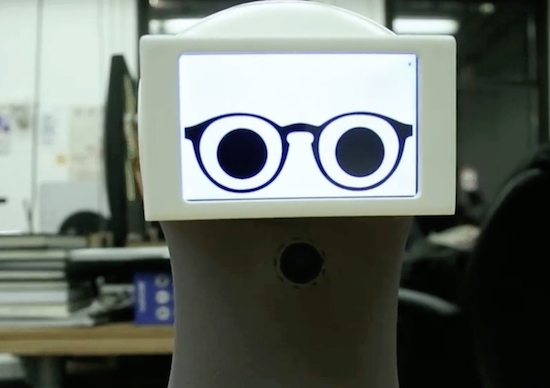
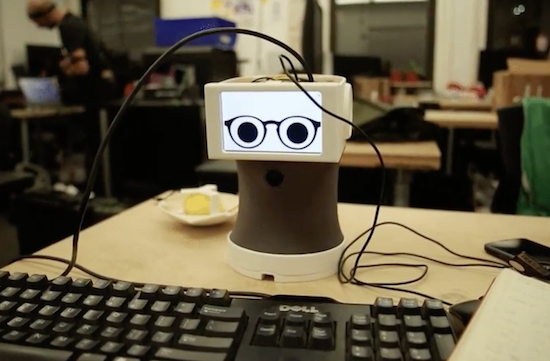
If you’ve been looking for a robotic assistant with the functionality of an Amazon Echo and the cuteness of a Disney character, you’re in luck. That’s because Abhishek Singh has created Peeqo, an open-source DIY device that responds to human speech through GIFs.

Peeqo has a Raspberry Pi 3 for his brain along with a pair of Arduino Mini boards for controlling movement and LED notifications. The 3D-printed bot is equipped with a half-dozen servos, four custom microphones, a NeoPixel ring on top of his head, a camera at his chest, a USB speaker, and an LCD display.

As for voice recognition, Peeqo uses the Google Speech API for detecting the wake word ‘Peeqo’ and API.AI for responding to the query. The desktop companion can also serve as a full-fledged entertainment system that plays your favorite Spotify tunes. Ask for a song and he’ll sway to the beat.

But that’s not all. Singh even developed a Chrome extension that uses Peeqo to boost his productivity and motivate him to avoid social media while working. Once he tells it to block a certain site, the robot lets his displeasure be known in the form of a GIF.

Intrigued? You can see how Singh brought Peeqo to life on Imgur.

An Arduino round word clock

After considering building a square word clock, Maker Roald Hendriks and his sister came up with something a bit more unique!

Clocks, being decorative, useful and easily hackable, have been targets for creative types, likely from when they were first invented. You’d think maybe all ideas for new clocks have been exhausted. Fortunately, human ingenuity never seems to run dry, and this latest device tells time using Arduino Uno-controlled LEDs.

Outer numbers on the modified IKEA PUGG wall clock illuminate to indicate the hour, while words on the inside represent the minutes. These minutes are literally spelled out in Dutch phrases reveal the particular time, but if you don’t speak the language, the position of the LEDs should give you some clue as to what is going on.

You can read more about the project on its website, and watch a demo below!

Decabit: Or The Conspiracy Theory That Wasn’t

[LDX] first noticed the odd sounds coming out of his ceiling fan, regularly, on the hour and half-hour. Then he noticed that the lights were flickering as well. Figuring something was up, he built a logging power-line monitor to see if he could decode the shadowy signals and figure out what cryptic messages were being transmitted over the power lines. Naturally, he suspected the Illuminati were behind it.

Even if you’re not prone to flights of fancy, you might want to keep track of your power line because it can serve as an accurate long-run timebase for projects, or because it can tell you something about the overall health of the grid.

[LDX]’s circuit is as simple as can be. A 10 V AC transformer reduces the mains power down to something reasonable. A resistive divider chops this down further to the range that an Arduino can handle, and then another voltage divider biases the signal to the Arduino’s ADC midpoint. The plus-minus 10 V signal thus swings between 0 and 5 V, just.

SPOILERS! After confirming that there was a higher-frequency wiggle superimposed on top of the power-line frequency, he contacted the folks at his power company in Denver. The system is called Decabit and it’s used to control street lights, hot water boilers, and other public infrastructure that might want to be coordinated to run when power is cheap or when it gets dark. The PDF that he links to explains it all, so you can take your tinfoil hat right back off.
But we still think it’s a fun project to look into the power lines. Who knows what other people will find? CON-spiracy!


Filed under: Arduino Hacks
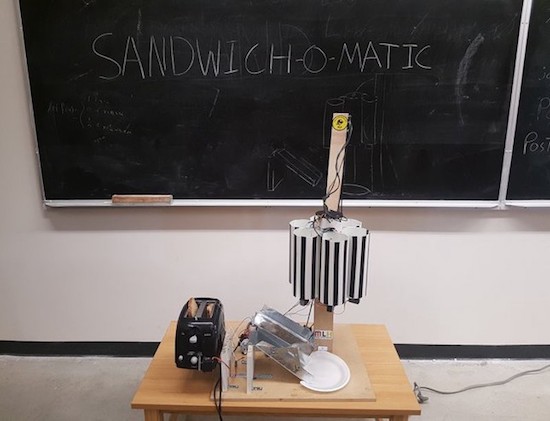
The Sandwich-o-Matic will make your lunch automatically

Love eating lunch, but hate making it? Good news, an automated machine may soon be able to take care of the task for you. Meet Sandwich-o-Matic, a voice-controlled, robotic sandwich-building station.

The project–which was created during a thirty-six hour hackathon by the team of Clive Chan, Colin Daly, Alex Foley and Wilson Wu–is based on an Arduino and a Photon. A rotating dispenser is driven by a series of servos, while a DC motor is responsible for a toaster-lifting mechanism. The backend is running Node.js, hosted on AWS, and the Google Cloud Platform handles the voice-to-text features.

The Sandwich-o-Matic accepts both voice and NFC requests. Simply place your order by saying the ingredients, or tapping their respective images on an accompanying menu. The device will then begin crafting your lunch from scratch.

The Makers hope to even develop a future version, which will include more topping and condiment options as well as a more streamlined voice-to-sandwich process. You can read more about the project on Devpost and its GitHub page.

Garage Door Monitor with Cayenne


Description

Using the HMC5883L magnetometer sensor of the GY-80 module from ICStation to monitor a garage door and notify when it has been opened or closed. The Cayenne service provides much of the monitoring and notifying functionality. A major feature of this project. Cayenne takes care of all of the complicated work behind the scenes, making it easy to connect your Arduino to the cloud and allow you to monitor your garage from virtually anywhere.
 
This project was created specifically to monitor a garage, but you will soon discover that this project could be used to monitor a whole host of other things. Monitor your front door, your back door, your bag, your chair, your cookie jar.
 
Monitor for peace of mind, or catch someone in the act of stealing your stuff. This project has got you covered. Let's see how:


HMC5883L DataSheet:

You can find the datasheet for the HMC5883L pretty easily by searching on the internet.
HMC5883L datasheet - Sparkfun


Arduino Libraries and IDE

Here is a link to the Arduino IDE download. The IDE is required to upload code to the Seeeduino Cloud.

You need the Cayenne Library installed in your Arduino IDE.
You can find the Cayenne library here:
Cayenne Libarary
 
There are libraries on the internet for the GY-80 module, however, it is relatively easy to use the magnetometer on this module. And therefore no libraries are required for the sensor. If you would like some more information about using the magnetometer sensor, and how to get the most out of it, then please have a look at my previous tutorial which goes into much more detail.


ARDUINO CODE:


You need to make sure to insert your OWN Cayenne token into the sketch above. You will get this token when connecting your Arduino to the Cayenne service. Watch the video for further explanation.


Fritzing diagram

Cayenne Widgets

Please make sure to watch the video to see how to connect the Seeeduino Cloud to Cayenne and how to create the Cayenne widgets. Cayenne widgets are necessary to create the dashboard on your phone or browser. They will also interact with the Arduino sketch, and will also be involved in creating the notification system. The following links will take you to the relevant part of the video:

The Master switch button is used to switch monitoring from OFF to ON (and vice versa). Therefore you can choose when to monitor the garage and when to stop monitoring. When first installing the project onto your garage door, and turning the Seeeduino Cloud on, it will automatically calibrate each sensor to a value of 1000.
 
If you experience any drift away from 1000 for whatever reason, simply press the Request calibration button, and each sensor will be recalibrated back to 1000. The x,y and z axis widgets are there so that you can see the readings coming from the magnetometer sensor. And when any of the axis variables breach the threshold away from 1000, it will trigger the Door Status widget. This is how we can tell if the door is open or closed.
 
We also use the Door Status widget to help with the notification system. When the Door status changes from "Closed" to "Open", a notification trigger will be activated, and a message will be sent via email or SMS. This notification is useful for monitoring when the door was opened. If you happen to recalibrate when the door is open. You will get a notification when the garage door closes.


Concluding comments

This project is relatively simple, and quite easy to set up. What I liked about this project was the versatility and alternate uses. You can use the same setup to monitor many different things. It is not just limited to monitoring a garage door. But being able to tell whether my garage door is opened or closed, especially after I have driven away from my house , is really cool. Now I don't have to drive all the way back home to check. Let me know if you have replicated this project, and also what kinds of things you decided to monitor with this project.

Garage Door Monitor with Cayenne


Description

Using the HMC5883L magnetometer sensor of the GY-80 module from ICStation to monitor a garage door and notify when it has been opened or closed. The Cayenne service provides much of the monitoring and notifying functionality. A major feature of this project. Cayenne takes care of all of the complicated work behind the scenes, making it easy to connect your Arduino to the cloud and allow you to monitor your garage from virtually anywhere.
 
This project was created specifically to monitor a garage, but you will soon discover that this project could be used to monitor a whole host of other things. Monitor your front door, your back door, your bag, your chair, your cookie jar.
 
Monitor for peace of mind, or catch someone in the act of stealing your stuff. This project has got you covered. Let's see how:


HMC5883L DataSheet:

You can find the datasheet for the HMC5883L pretty easily by searching on the internet.
HMC5883L datasheet - Sparkfun


Arduino Libraries and IDE

Here is a link to the Arduino IDE download. The IDE is required to upload code to the Seeeduino Cloud.

You need the Cayenne Library installed in your Arduino IDE.
You can find the Cayenne library here:
Cayenne Libarary
 
There are libraries on the internet for the GY-80 module, however, it is relatively easy to use the magnetometer on this module. And therefore no libraries are required for the sensor. If you would like some more information about using the magnetometer sensor, and how to get the most out of it, then please have a look at my previous tutorial which goes into much more detail.


ARDUINO CODE:


You need to make sure to insert your OWN Cayenne token into the sketch above. You will get this token when connecting your Arduino to the Cayenne service. Watch the video for further explanation.


Fritzing diagram

Cayenne Widgets

Please make sure to watch the video to see how to connect the Seeeduino Cloud to Cayenne and how to create the Cayenne widgets. Cayenne widgets are necessary to create the dashboard on your phone or browser. They will also interact with the Arduino sketch, and will also be involved in creating the notification system. The following links will take you to the relevant part of the video:

The Master switch button is used to switch monitoring from OFF to ON (and vice versa). Therefore you can choose when to monitor the garage and when to stop monitoring. When first installing the project onto your garage door, and turning the Seeeduino Cloud on, it will automatically calibrate each sensor to a value of 1000.
 
If you experience any drift away from 1000 for whatever reason, simply press the Request calibration button, and each sensor will be recalibrated back to 1000. The x,y and z axis widgets are there so that you can see the readings coming from the magnetometer sensor. And when any of the axis variables breach the threshold away from 1000, it will trigger the Door Status widget. This is how we can tell if the door is open or closed.
 
We also use the Door Status widget to help with the notification system. When the Door status changes from "Closed" to "Open", a notification trigger will be activated, and a message will be sent via email or SMS. This notification is useful for monitoring when the door was opened. If you happen to recalibrate when the door is open. You will get a notification when the garage door closes.


Concluding comments

This project is relatively simple, and quite easy to set up. What I liked about this project was the versatility and alternate uses. You can use the same setup to monitor many different things. It is not just limited to monitoring a garage door. But being able to tell whether my garage door is opened or closed, especially after I have driven away from my house , is really cool. Now I don't have to drive all the way back home to check. Let me know if you have replicated this project, and also what kinds of things you decided to monitor with this project.

An Arduino-controlled automated whiskey distillery

If you simply want to have a drink now and then, building your own automated distillery probably isn’t the easiest way to obtain alcohol. As shown in this Instructables post, however, it can be done. On the other hand, if you create your own “NanoStillery,” you’ll have to contend with possible legal and safety issues while running the process… and of course, the risks of actually using the product.

Though the writeup appears quite good, with three control panels, custom mechanical components and a nicely-welded frame, it’s likely not a good project to attempt without a bit of engineering experience!

There are three panel boxes in the NanoStillery™, the main panel is driven by an Arduino Mega and the secondary one houses an Adafruit Feather GPRS board for transmitting data to the interweb. The third box has a large 12V power supply and a bank of relays in it.

The main control panel receives information from the various sensors in the system—temperatures, pressure and alcohol vapor levels and controls various valves, pump and the boiler heater via the relays. It then communicates with the Adafruit Feather via the I2C bus which then sends the data to a database where it is accessed from this webpage.

The GPRS module could very well have been bolted into the main control panel, but, for one, I had run out of room and secondly, I wanted the module to be removable so that it could be used for other projects in the future. Getting the two ‘machines’ to communicate with each other effectively was quite challenging. It was OK if the numbers were just simple small integers, but as soon as more complex ‘floats’ were involved, some serious number crunching code had to be developed.

Want to learn more? You can find all the necessary information on NanoStillery, including its code, over on Instructables.

The Rex800 looks like a dinosaur Terminator

The Rex800 looks like a dinosaur Terminator, a terrifying proposition, and perhaps a great merchandising opportunity!

YouTuber “RobitFactory” is in the process of creating a 1/10 replica of the “Sue” dinosaur skeleton, now featured at the Field Museum of Natural History in Chicago. What he has at the moment is a rough frame made out of tubing, as well as a metallic gray head with glowing red eyes.

The video takes us through the build process, along with some of RobitFactory’s future plans which include voice-activation. It’s an ambitious project, and in preparation for upgrades, he’s switched out the Arduino Uno used originally for a Mega board, and installed a Molex connector on the head so it can be easily disconnected. It will be exciting to see where this build goes!

Intrigued? Be sure to check out the RobitFactory’s YouTube page.

Arduino Blog 05 Dec 21:05

Repurpose a Classroom Clicker for Great Justice

If you’ve been in a university class of a certain size, with a professor who wants to get live feedback from the students, you’ve probably been forced to buy a Turning Point “clicker”. Aside from the ridiculousness of making students pay for their professor’s instructional aides (do the make you pay extra for the chalk too?!?!) these clickers are a gauntlet thrown down to any right-minded hacker because they supposedly contain secrets.

[Nick] had one of these gadgets, and hopped right up on the shoulders of giants to turn it into a remote control that interfaces with his computer and drives a synthesizer, so he can work through the chord changes by clicking. His two references, to [Travis Goodspeed]’s nRF promiscuity hack and to [Taylor Killian]’s Arduino library for the clickers are a testament to why we need both reverse engineers doing the hard work and people who’ll wrap up the hard work in an easy-to-use library.

That’s it, really. [Nick] hooked up an Arduino to an nRF24, sent the decoded output from the clicker to his computer, and wrote a Python routine that would play whatever music he wanted over MIDI to a baseline synthesizer. The whole shooting match is available on GitHub. If you have one of these clickers collecting dust somewhere, pull it out and do something with it.


Filed under: wireless hacks