Posts with «arduino» label

’60s jukebox modernized with an Arduino Mega

As seen here, artist Tijuana Rick’s father-in-law received a 1969 Wurlitzer 3100 jukebox for free, with one small catch. It didn’t come with any records. Of course, Rick could have purchased vintage records from a number of sources, but instead decided to transform it into an amazing retro music streaming device.

In order to take input from the jukebox’s 40+ interface buttons, he turned to the Arduino Mega. After the Mega receives these on/off signals, it then pushes selection information to a Raspberry Pi, which does the actual streaming.

Luckily, he had stumbled upon this GitHub repository from Thomas Sprinkmeier, which became the foundation for the project’s software. You can find more details and images of Tijuana Rick’s restoration on his website, including how he cast replacement buttons that he needed for the jukebox in silicon molds!

PobDuino Makes the Most of Grove

The chassis of a toy robot serves as the base of a robot built by [Jean Noel]. Called #PobDuino, the robot features two Arduino-compatible boards under the hood.

First, a Seeeduino Lotus, a Arduino board peppered with a dozen Grove-compatible sockets. The board, which is the size of an UNO, is mounted so that the plugs project out of the front of the robot, allowing ad-hoc experimentation with the various Grove System modules. Meanwhile, a custom ATmega328 board (the PobDuino) interprets Flowcode instructions and sends commands to the various parts of the robot: servos are controlled by an Adafruit servo driver board and the DC motors are driven by a Grove I2C motor driver.

We love how easy it is to customize the robot, with both the Lotus and the Adafruit 16-channel servo driver on the exterior of the robot. Just plug and play!

Learn more about Grove-compatible plugs and a lot more in [Elliot]’s My Life in the Connector Zoo.


Filed under: robots hacks
Hack a Day 27 Jul 09:00

KIM-1 to COSMAC Elf Conversion — Sort Of

In the mid-1970s, if you had your own computer, you probably built it. If you had a lot of money and considerable building skill, you could make an Altair 8800 for about $395 — better than the $650 to have it built. However, cheaper alternatives were not far behind.

In 1976, Popular Electronics published plans for a computer called the COSMAC Elf which you could build for under $100, and much less if you had a good junk box. The design was simple enough that you could build it on a piece of perf board or using wire wrap. We featured the online archive of the entire Popular Electronics collection, but hit up page 33 of this PDF if you want to jump right to the article that started it all. The COSMAC Elf is a great little machine built around a 40-pin RCA 1802 processor, and for many was the first computer they owned. I lost my original 1802 computer in a storm and my recent rebuild in another completely different kind of storm. But there is a way to reclaim those glory days without starting from scratch.  I’m going to repurpose another retro-computing recreation; the KIM-1.

I’ll admit it, Rewiring a real KIM-1 to take an 1802 CPU would be difficult and unnecessary and that’s not what this article is about. However, I did have a KIM UNO — [Oscar’s] respin of the classic computer using an Arduino mini pro. Looking at the keyboard, it occurred to me that the Arduino could just as easily simulate an 1802 as it could a 6502. Heck, that’s only two digits different, right?

The result is pretty pleasing. A “real” Elf had 8 toggle switches, but there were several variations that did have keypads, so it isn’t that far off. Most Elf computers had 256 bytes of memory (without an upgrade) but the 1802 UNO (as I’m calling it) has 1K. There’s also a host of other features, including a ROM and a monitor for loading and debugging programs that doesn’t require any space in the emulated 1802.

Repurpose

The KIM UNO has 24 switches. There are 16 for the hex digits, of course. The top two rows mimic functions from the original KIM-1. A real Elf had a way to input a byte (usually 8 toggle switches), a load switch, a run switch, a memory protect switch, and a push button wired to a CPU pin. That means the hardware has more than enough switches.

On the display side, a normal Elf had a single-byte hex display although some clones had more. There was also the Q LED that a program could light or extinguish. The KIM UNO hardware has many 7-segment displays so it is possible to put those digits to use like an Elf clone. There isn’t an LED, however, except for the Arduino’s built in LED which is not normally visible in operation. However, the digital displays have decimal points and they are connected to the Arduino. So if you don’t mind using those, you have plenty of LEDs, too.

The hardware is open source and easy to duplicate. [Oscar] sometimes has kits as well and they are very inexpensive (about $20).

The KIM UNO software is open source, so I started there. I first stripped all the code out of the main file other than the parts that drove the display and the keyboard, then built up everything need to suppot 1802 emulation. You can find all the code in my 1802UNO GitHub repository.

Inside the 1802

The 1802 instruction set is very regular and quite simple. Most instructions use the top 4 bits as an op code and the bottom 4 bits to select one of sixteen 16-bit registers. So 0x12 increments register 2 and 0x15 increments register 5. There are only a handful of op codes that don’t follow this pattern. There’s also an 8-bit accumulator called “D” (not to be confused with register D).

One unique feature in the 1802 architecture is the program counter. There isn’t one. Well, more precisely, there are up to 16. Any of the registers can be the program counter and a subroutine call can be as simple as switching the program counter. Unfortunately, that isn’t very reentrant (or good for recursion). If you want a proper subroutine call, you had to code it yourself. RCA provided the “standard call and return technique” that had the unfortunate downside of destroying the accumulator.

With so few instructions, the emulator turns out to be a few switch statements and some pretty simple code. Although it is made to run with the KIM UNO hardware, like the KIM UNO, you should be able to use it with just about any Arduino via the serial port. It isn’t quite as fun as having the real hardware, but it is simpler.

Unreal

The emulator is reasonably accurate except it doesn’t simulate interrupts (since there is no source of them). However, it doesn’t faithfully reproduce the 1802’s load mode which used DMA. Instead, load mode is just completely custom code that enters data into memory. It does not simulate the cycle and register manipulations that go on in a real 1802 using DMA in load mode.

In addition to loading a program with the ersatz load mode, you can also move RAM back and forth to EEPROM or a PC via the serial port.

Serial and Push Buttons

The serial port is just the usual Arduino serial port set for 9600 baud. By default, the serial input will mimic the hardware keys. However, you can use the pipe character (‘|’) to shift the serial port into terminal mode. Then the 1802 code can read data from the serial port. You lose the front panel functions and there’s no way to go back until you cycle the power unless you make the 1802 code release the port.

A few of the push buttons have special functions if you hold them down for more than one second. For example, the AD button writes the EEPROM data into RAM. This is useful for storing a self-contained demo, for example.

You can find a summary of the keyboard and serial commands on the GitHub site. The serial port can do things you can’t do from the front panel, like set a trace mode, dump the CPU registers, and more.

Building

The hardware doesn’t require any changes to the stock KIM UNO kit. There’s a lot to solder and once you solder the displays on, it would be hard to get the Arduino back off the board.

You could probably build the software using the Arduino IDE, but I used Platform IO. That lets me use the editor of my choice, but you ought to be able to get the code to work in the IDE, as well. There is enough memory to make the RAM slightly bigger, but I didn’t do it. Since one way to save and load the RAM is to EEPROM, I didn’t want the RAM to be larger than the EEPROM. In addition, the RAM “maps” like a real Elf (that is, RAM at location 0x0 also appears at 0x4000, 0x8000, etc). This would be more difficult if you added a little bit more than 1K of RAM.

There are a few other options at the top of 1802config.h. You can select how often the screen and keyboard refresh. Higher values are slower to refresh but faster to execute code. You can change the I/O ports associated with the keyboard, displays, and serial port. You can also change the serial escape character.

Examples

There are some examples provided that blink the LEDs and manipulate the serial port. If you look around, there’s a lot of 1802 code on the web. However, be aware that most 1802s don’t have a hardware UART. They emulate serial ports using the Q output and one of the EF inputs. That’s fine for a real device even though it takes lots of code, but for this virtual device, it isn’t practical. You’ll need to rip out any code that does serial I/O and replace it with single I/O instructions.

If you have a binary file (or a format you can convert to binary) I have a converter written in C included on GitHub. You can compile it on nearly any platform and use it to convert. It always assumes address. If that’s not right, you can always open the output in a text editor and adjust.

In addition, there are three ROMs included that you can try. By default, there is a simple high-low game. There are also two monitors, one for use with the built-in keyboard and another for use with a serial port. To select a ROM, edit 1802rom.h and change the comments so the ROM you want is not commented and the others are.

Practical?

Emulators are fun, but as the song goes, there’s nothing like the real thing. If that’s not authentic enough for you, it is possible to build a very authentic looking Elf, even today. The reason real 1802s are still around is they had several desirable characteristics, namely low power consumption and resistance to radiation.

The Arduino simulation has neither of those features. However, it is a fun retrocomputing toy, inexpensive, and a great learning tool. The CPU is simple enough to program directly in machine code and the portability is better than most other old school computers.

If you want to learn more about the 1802 there are several sites dedicated to it and a very helpful Yahoo group. One site has a very prolific software author, but most of the code won’t fit in the 1802 UNO’s 1K RAM. Maybe a version with more memory is in the future.


Filed under: Arduino Hacks, classic hacks, computer hacks, Hackaday Columns

The End of Arduino 101: Intel Leaves Maker Market

This looks like the end of the road for Intel’s brief foray into the “maker market”. Reader [Chris] sent us in a tip that eventually leads to the discontinuation notice (PCN115582-00, PDF) for the Arduino 101 board. According to Intel forum post, Intel is looking for an alternative manufacturer. We’re not holding our breath.

We previously reported that Intel was discontinuing its Joule, Galileo, and Edison lines, leaving only the Arduino 101 with its Curie chip still standing. At the time, we speculated that the first wave of discontinuations were due to the chips being too fast, too power-hungry, and too expensive for hobbyists. Now that Intel is pulling the plug on the more manageable Arduino 101, the fat lady has sung: they’re giving up on hardware hackers entirely after just a two-year effort.

According to the notice, you’ve got until September 17 to stock up on Arduino 101s. Intel is freezing its Curie community, but will keep it online until 2020, and they’re not cancelling their GitHub account. Arduino software support, being free and open, will continue as long as someone’s willing to port to the platform.

Who will mourn the Arduino 101? Documentation was sub-par, but a tiny bit better than their other hacker efforts, and it wasn’t overpriced. We’re a little misty-eyed, but we’re not crying.  You?

[via Golem.de]


Filed under: Microcontrollers, news

Make your own Operation-style board game with Arduino

Usually, when you think of doing “surgery” on electronics, it’s to replace a component, or maybe modifying an appliance into something different. In this case, an Arduino Nano powers Hurry, Doctor!, an updated version of the board game classic Operation meant as a middle school STEM exercise.

This game, of which creator “TrevorB23” gives an extensive explanation in his Instructables write-up, features a LEGO minifigure with cutouts inside that house obstructions such as a “mental block” and “funny bone.” As with the original, the objective is to remove these foreign bodies without touching the sides, constructed here with conductive aluminum foil tape in order to signal the Nano.

With its enhanced electronics, TrevorB23’s version adds a timing element to encourage “surgeons” to complete tasks faster, as well as doctor names and melodies that can be altered if so desired. Want to make your own game? You can follow along with his 31-step tutorial.

An Arduino-powered iris door… for chickens!

There’s something beautifully sci-fi about the way an iris opens, whether as part of a camera or perhaps even as an entryway. Knowing that his father wanted an automatic chicken coop door, Ziven Posner decided to build one in the form of an iris, adding style to what would normally be the mundane task of letting the birds in/out.

The resulting iris mechanism is powered by a DC motor, and actuated by a toggle switch. Starting and stopping is controlled with an Arduino Uno, which prevents overtravel on the door via a set of limit switches.

If you’d like more details on the project, be sure to check out his Instructables post!

Meet the Video DJ Machine

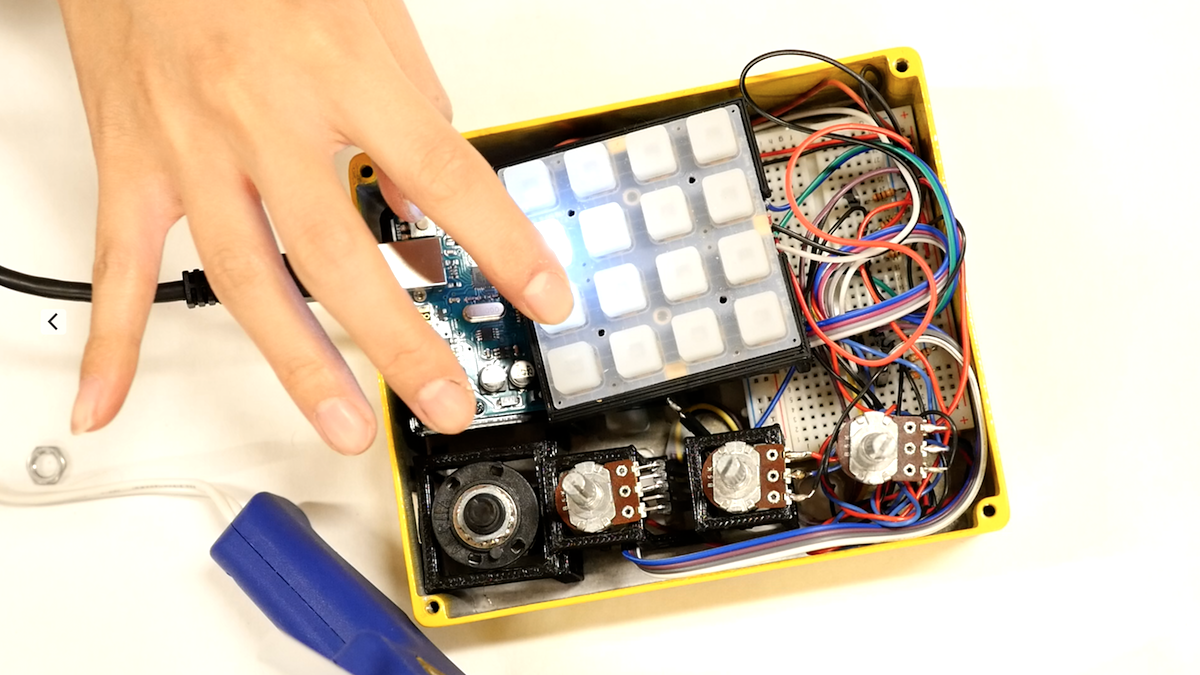
Have you ever wanted to perform as a DJ but found the equipment expensive as well as intimidating? Well, your prayers have been answered by [Dror Ayalon] who has designed Nomnom 2. It is an open source, music mixing project that uses up to 16 video clips to give you control of your next hit album.

You are given charge of a physical control panel that has 16 buttons and four knobs. Each button can be used to turn on or off a particular clip while the knobs control the repetition rate, volume, speed and playable length of each track. An Arduino sits under the buttons and is responsible for sending the information to an application that runs in your web browser. The browser app uses the NexusUI library to control playback of the audio clips and bring to life the entire experience.

[Dror Ayalon] has been busy polishing his project and there are some neat videos of him demonstrating it so check out the videos below. The code is available for down from GitHub and the BOM is available at the Hackaday.io project page. The web app can be ported to a desktop app using electron and a PCB can be designed for the controller for future versions.

For now, it is incredible to see hardware and software, come together in such a harmonious fashion. This may be the start of something wonderful but if you are just looking for a way to annoy the neighbors, check out the Midi Musical Siren instead.


Filed under: musical hacks
Hack a Day 24 Jul 12:00

Automatic Phone Dialer Illuminates Inner Workings

The invention of the transistor ushered in a lot of technologies that we now take for granted, and one of the less-thought-about areas that it improved living conditions worldwide was by making the touch-tone phone possible. No longer would the world have to fuss with dials to make phone calls, they could simply push some buttons. This technology is still in use today, and it is possible to build external phone dialers that use these tones to make phone calls, as [SunFounder] demonstrates with his latest project.

The tones that a phone makes when a button is pressed correlate with specific frequencies for each number. Automatic dialers like this one help when there are multiple carriers (like different long-distance carriers, for example) where different prefixes can be used to make calls cheaper depending on the destination of the call. A preprogrammed dialer can take all of this complication out of making phone calls. [SunFounder] is able to make a simple dialer from scratch, using an Arduino, its “tone” library, and a speaker that is simply held up to the phone that the call will be placed on.

[SunFounder] points out that he built this more because he’s interested in the inner workings of phones, and not because he needed a purpose-built dialer. It’s a good demonstration of how phones continue to use DTMF though, and how easy it is to interface with such a system. It might also suit a beginner as an introduction to the world of phreaking.


Filed under: phone hacks

Play it Again, Arduino

[MrRedBeard] wanted to play a particular song from an Arduino program and got tired of trying to hand transcribe the notes. A little research turned up that there was a project to convert Music XML (MXL) files to the Arduino. However, [MrRedBeard] wasn’t a fan of the language it used, so he created his own means of doing the same thing. He learned a lot along the way and was willing to share it in a tutorial that will help you if you want to do the same thing. You can see a video of his results, below.

Of course, MXL files are probably not better than sheet music if you had to create them by hand. Luckily, there’s a large collection of them available online and the song of interest was there. Note that the link in [MrRedBeard’s] post erroneously has the site as a .com instead of a .org, so you’ll want to use the link here instead of there.

A C# application reads the MXL file and converts it for use on the Arduino. There’s also sample code for the Arduino to get you started.

The project that inspired him is on GitHub and uses Ruby if that suits you better. We’ve talked about MXL before, by the way. If you want to integrate multi channel music on the Arduino, you might start here.


Filed under: Arduino Hacks, musical hacks
Hack a Day 23 Jul 09:00

Arduino-Neopixel Traffic Map

This project displays live traffic conditions between two locations on a physical map, using an Adafruit Feather Huzzah that gathers data from the Google Maps API and then sets the color of a string of NeoPixels

Read more on MAKE

The post Arduino-Neopixel Traffic Map appeared first on Make: DIY Projects and Ideas for Makers.