Posts with «arduino» label

Create mesmerizing designs in the sand with this Arduino-controlled Zen table!

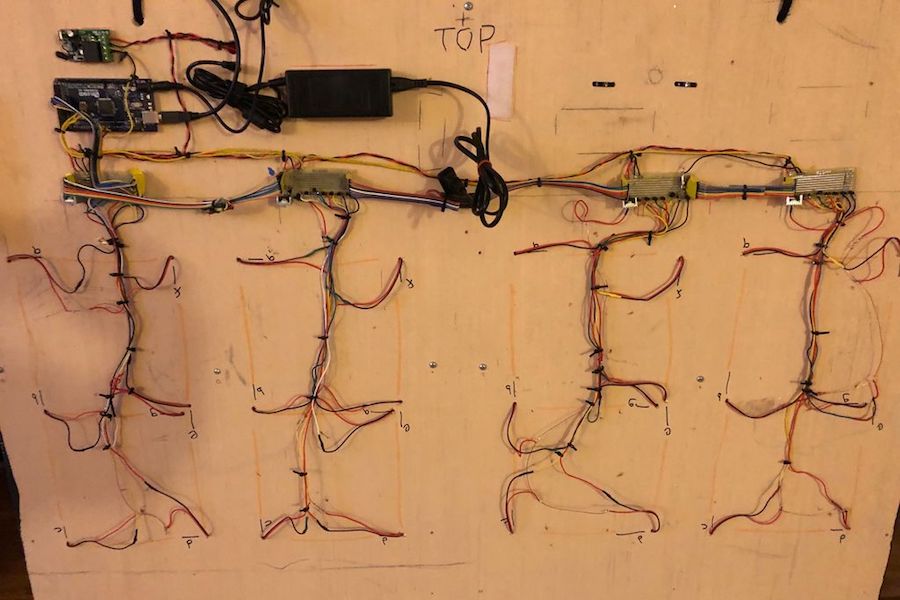
A sandbox game generally refers to an open world computer simulation, but Tim Callinan’s fall semester project takes things in a different direction—an actual sandbox controlled by an Arduino and gShield.

Callinan’s Zen table is capable of producing complicated designs in the sand, using a single steel marble that appears to magically move across the surface by itself.

Underneath the sand assembly is a stepper-controlled gantry that acts like a laser cutter or other CNC tool, dragging the marble around with a powerful magnet. The results are stars, rotating squares, and other kaleidoscopic patterns, beautifully edge-lit with a series of RGB LEDs.

Several other classmates were involved in making this build a reality, including Mark Morello, who wired and programmed the device.

Draw on an oscilloscope with Arduino

If you’ve ever wanted to plot shapes using an oscilloscope, YouTuber Electronoobs reveals the tricks in his latest video. In it, he draws a Christmas tree, along with a few other shapes, and while that holiday is now past, there’s always the 2019. Of course, you don’t have to wait, as these concepts can be applied to anything you like throughout the year!

In the video, Electronoobs uses an Arduino Nano to produce PWM signals on two channels, filtering each of them with a capacitor and resistor. As he explains, shapes must be fairly simple, and end in the same place they started. Even with these restrictions, once the oscilloscope it turned to x/y plot mode and the signal is tuned in, the results are quite good.

In this tutorial we will use two pins from the Arduino to create fast PWM signals. With a small filter, we change the amplitude of that signal according to the width of the PWM pulse. By that, we can draw shapes on the oscilloscope when in XY mode.

Code for the project can be found in Electronoobs’ write-up here.

Machine Learning on Tiny Platforms Like Raspberry Pi and Arduino

Machine learning is starting to come online in all kinds of arenas lately, and the trend is likely to continue for the forseeable future. What was once only available for operators of supercomputers has found use among anyone with a reasonably powerful desktop computer. The downsizing isn’t stopping there, though, as Microsoft is pushing development of machine learning for embedded systems now.

The Embedded Learning Library (ELL) is a set of tools for allowing Arduinos, Raspberry Pis, and the like to take advantage of machine learning algorithms despite their small size and reduced capability. Microsoft intended this library to be useful for anyone, and has examples available for things like computer vision, audio keyword recognition, and a small handful of other implementations. The library should be expandable to any application where machine learning would be beneficial for a small embedded system, though, so it’s not limited to these example applications.

There is one small speed bump to running a machine learning algorithm on your Raspberry Pi, though. The high processor load tends to cause small SoCs to overheat. But adding a heatsink and fan is something we’ve certainly seen before. Don’t let your lack of a supercomputer keep you from exploring machine learning if you see a benefit to it, and if you need more power than just one Raspberry Pi you can always build a cluster to get your task done just a little bit faster, too.

Thanks to [Baldpower] for the tip!

Arduino and Pi Share Boardspace

A Raspberry Pi Zero (W) and Arduino are very different animals, the prior has processing power and connectivity while the latter has some analog to digital converters (ADCs) and nearly real-time reactions. You can connect them to one another with a USB cable and for many projects that will happily wed the two. Beyond that, we can interface this odd couple entirely through serial, SPI, I2C, and logic-level signaling. How? Through a device by [cburgess] that is being called an Arduino shield that supports a Pi0 (W). Maybe it is a cape which interfaces with Arduino. The distinction may be moot since each board has a familiar footprint and both of them are found here.

Depending on how they are set up and programmed, one can take control over the other, or they could happily do their own thing and just exchange a little information. This board is like a marriage counselor between a Raspberry Pi and an Arduino. It provides the level-shifting so they don’t blow each other up and libraries so they can speak nicely to one another. If you want to dig a bit deeper into this one, design files and code examples are on available.

Perhaps we’ll report on this board at the heart of a pinball machine retrofit, a vintage vending machine restoration, or maybe a working prop replica from the retro bar in Back to the Future II.

Alcohol Detection Project

Please visit:
https://arduinobasics.blogspot.com
for original tutorial.


Description

'Tis the season to be jolly, but sometimes you would like to tone down the jolliness. Or perhaps you are the designated driver and need to know how festive that punch is !
I have the perfect solution for you:

The grove alcohol sensor.


Most people look to buy this sensor to make their own DIY breathalyser. Don't bother. You won't get the accuracy you are looking for, or you probably won't have all the necessary equipment/materials required to calibrate it. While you can get a rough idea, I would NOT recommend using this sensor to make any decisions based on quantitative measurements.

I will also point out that this sensor is not specific for Alcohol. It will react to some other chemicals too. In other words, you cannot assume that a positive result equates to the presence of alcohol (ethanol) in the air. It could be butane, LPG, Isopropanol etc etc.

This project will attempt to show how much alcohol is in the air, for the sole purpose of identifying the presence, as well as getting a rough estimate of the strength of alcohol, in a variety of festive drinks.

PLEASE NOTE:
Do not submerge the sensor in liquid, and avoid splashing the sensor. Also do not expose the sensor to strong chemicals (including alcohol) for extended periods. There is a 48 hour burn-in time for this sensor. Which means that it actually performs better once it has been used for over 48 hours. The sensor also needs to warm up, which often takes more than 15 minutes long. Once exposed to a strong concentration of alcohol in the air, the sensor takes what seems like an eternal amount of time to recover. Take this into consideration when planning your future project.


Parts Required

  1. Arduino Uno (or compatible board)
  2. Grove Base Shield (v2)
  3. Grove Alcohol Sensor
  4. Grove 16x2 LCD (White on Blue)
  5. Grove Universal 4 pin buckled cable: one supplied with each module.
  6. USB cable - to power and program the Arduino
  7. Battery pack / Power bank

More information about the Grove Modules can be found here:

The Grove Base shield has 14 pins on the Analog side, and 18 pins on the digital side. Check the number of pins on your Arduino UNO (or compatible board) to ensure the shield will sit nicely on top. NOT compatible with Arduino boards that have the Arduino Duemilanove pin header layout.


Arduino IDE

While there are many Arduino IDE alternatives out there, I would recommend that you use the official Arduino IDE for this project. I used the official Arduino IDE app (v1.8.5) for Windows 10.
Make sure to get the most up-to-date version for your operating system here.


Libraries required

The following libraries will be used in the Arduino code:

  1. Wire.h
  2. math.h
  3. rgb_lcd.h
The Wire.h library is used for I2C communication, for the Grove LCD screen.
The math.h library is used for the pow() function, to calculate the concentration of alcohol in the air.
The rgb_lcd.h library simplifies the operation of the LCD screen.
 
The Wire.h and math.h library are already within the Arduino IDE, no further download or installation required. However, you will need to install the rgb_lcd.h library - which can be downloaded from GitHub. Once you download the zip file, install it into the Arduino IDE:
  1. Load the Arduino IDE
  2. Navigate to Sketch >Include library > Add .ZIP library...
  3. Select the downloaded zip file from GitHub, and press the "Open" button
  4. Check that it installed correctly by navigating to File > Examples > Grove-LCD RGB Backlight


Arduino Code

If the Grove-LCD RGB Backlight option is available in the examples folder, then you are good to go.
 
Select File > New
 
Paste the following code into the Arduino IDE, and upload it to the Arduino UNO (or compatible board).
 
PLEASE NOTE: Make sure the Alcohol Sensor is NOT connected to the Arduino while uploading your code to the Arduino. It seems to interfere with Serial communication for some reason, and the renders the COM port unusable until you reset the board, reboot the IDE and/or your computer. The best way to avoid this issue, is to unplug the Alcohol sensor from the Grove Base shield, ANY time you upload code to the Arduino.


Connection instructions


Now that the code has been uploaded, it is now time to make the necessary connections from the Arduino to the Grove 16x2 LCD module, and also to the Grove Alcohol sensor.

  1. Disconnect the USB cable from the Arduino to remove power.
  2. Install the Grove Base Shield (v2) onto the Arduino UNO. The header pins on the Base shield should line up exactly with female headers of the Arduino. Please make sure that there are no stray or misaligned pins that are unaccounted for by the Arduino board.
  3. Set the Base Shield Switch to 5V. The switch is in the corner near the LED on the Base Shield.
  4. Connect one end of the 4-pin cable to A0 connector on the Grove Base Shield, and the other end of the cable to the Grove Alcohol Sensor module.
  5. Connect one end of a 4-pin cable to an I2C connector on the Grove Base Shield, and the other end of the cable to the Grove 16x2 LCD module.
  6. You can now apply power to the Arduino Board via the power jack or the USB cable.


Connection Table

Arduino to Grove Alcohol Sensor module

The Grove Alcohol sensor operates off 5V.
If you are using the Grove Base Shield, place the switch to 5V.
Disconnect the Alcohol sensor from the base shield when uploading code to the Arduino.


Arduino to Grove 16x2 LCD module

The Grove 16x2 LCD module can operate off 5V or 3.3V.
I used 5V from the Arduino UNO.


Project Explained

When the Arduino is powered up, you will be presented with a message, "Alcohol Project by ArduinoBasics". This is a splash screen to introduce the project.
 
The heater pin on the Alcohol sensor is then activated, which can cause the program to hang. If you do not see the message "Heater Activated", and only see a blank LCD screen - reset the Arduino board. There is a reset pin on the Base shield next to the LED. This message will only display for about 3 seconds before it starts to take readings from the Alcohol sensor.
 
I am guessing that each sensor is different, however, I found that the sensor worked best, once it had been in use for over 48 hours. I normally wait for the sensor reading to get above 5 or 6 before exposing it to alcohol fumes. You will notice the readings slowly increase over time. Wait until the readings stabalise, which can take anywhere between 15-20 minutes, or longer if the sensor has not been used for a while.


In the presence of alcohol fumes/vapour, the sensor readings will drop, and will trigger the Arduino to change the display to show the rough concentration of alcohol in the Air. Do not expose the sensor to strong concentrations of alcohol for extended periods, as this may permanently affect the sensor performance thereafter. I cannot tell you what readings are NORMAL, because I only have one sensor, and have nothing to compare it to. I have seen my sensor reading get to 11.96, but have noticed that the maximum reading changes each time I test it (sometimes higher, sometimes lower). I am guessing that the surrounding environmental conditions will affect this maximum (i.e. temperature / humidity / air quality), and also the length of time the sensor has had to "burn in" for.
 
Once you reach the maximum value (or as long as you are willing to wait), go ahead and test it out. Hover the sensor over the suspiciously alcoholic festive punch, and catch out your sneaky grandmother.


Conclusion

The biggest learning points for me about using the Grove Alcohol sensor, was how surprisingly long it took for the sensor to stabalise, and I guess how impatient I am. These types of sensors are often advertised as being a way to create your own breathalyser. But I quickly found out just how hard that was, and after my experience with the sensor, I would never contemplate using it for that purpose, because I cannot verify the accuracy of the results.
 
Can it detect alcohol in the air? Yes it can. The Grove Alcohol sensor can give a rough estimate of the concentration of alcohol vapour in the air, and at best, I would say that it gives you a semi-quantitative result. The same sensor will detect butane, LPG, petrol, isopropanol fumes - which is good or bad, depending on what you plan to use it for.


One of the most common ways of reading the Alcohol results is through the Serial monitor. However, the Alcohol sensor would for some reason lock up or freeze the Serial communication. I found the best way to observe readings from the Alcohol sensor was to use a Grove LCD module.
 
The Grove LCD module was very easy to use and enabled a more portable project. Grove modules are generally very easy to connect to the Grove Base shield, and are very much "plug and play". The Universal 4pin cables, reduce the "rats-nest" of wires - endemic to Arduino projects.
 
I hope this tutorial has helped you somewhat. If you use this project, please let me know your experience with it in the comments below, and even better, tell me who you caught out.


If you found this tutorial helpful, please consider supporting me by buying me a virtual coffee.


Social Media

You can find me on various social networks:

Visit my ArduinoBasics Google + page.
Follow me on Twitter by looking for ScottC @ArduinoBasics.
I can also be found on Pinterest and Instagram.
Have a look at my videos on my YouTube channel.


Manual 3D Digitizer Works a Bit Like 3-Dimensional Measuring Tape

Digitizing an object usually means firing up a CAD program and keeping the calipers handy, or using a 3D scanner to create a point cloud representing an object’s surfaces. [Dzl] took an entirely different approach with his DIY manual 3D digitizer, a laser-cut and 3D printed assembly that uses rotary encoders to create a turntable with an articulated “probe arm” attached.

Each joint of the arm is also an encoder, and by reading the encoder values and applying a bit of trigonometry, the relative position of the arm’s tip can be known at all times. Manually moving the tip of the arm from point to point on an object therefore creates measurements of that object. [Dzl] successfully created a prototype to test the idea, and the project files are available on GitHub.

We remember the earlier version of this project and it’s great to see how it’s been updated with improvements like the addition of a turntable with an encoder. DIY 3D digitizing takes all kinds of approaches, and one example was this unit that used four Raspberry Pi Zeros and four cameras to generate high quality 3D scans.

A Star-Trek-Inspired Robot With Raspberry Pi and AI

When [314Reactor] got a robot car kit, he knew he wanted to add some extra things to it. At about the same time he was watching a Star Trek episode that featured exocomps — robots that worked in dangerous areas. He decided to use those fictional devices to inspire his modifications to the car kit. Granted, the fictional robots were intelligent and had a replicator. So you know he won’t make an actual working replica. But then again, the ones on the TV show didn’t have all that either.

A Raspberry Pi runs Tensorflow using the standard camera.  This lets it identify objects of interest (assuming it gets them right) and sends the image back to the operator along with some identifying information. The kit already had an Arduino onboard and the new robot talks to it via a serial port. You can see a video about the project, below.

The design is complicated a bit by the fact that the original kit uses a Bluetooth adapter to send and receive serial commands from a mobile device. However, the controller software with the kit, though, allows for extra buttons, so the Arduino can receive command and send them to the Pi.

The code for the robot — known as Scorpion — is available on GitHub. The extra commands relate to the camera and also some servos that move pincers to mimic the TV robot. Images return to the operator via the Telegram cloud service.

We have to admit, the Scorpion isn’t quite the same as an exocomp. But we can see the influence on the design. It wasn’t smart enough to identify itself in the mirror, so we don’t think it achieved sentience.

We’ve seen smart robots using Tensorflow before. If you prefer, you can always try OpenCV.

OpenLH robot automates biological exploration

If you’d like an easy way to accomplish repetitive biological experiments, the OpenLH presents a great option for automating these tasks. 

The heart of the system is the Arduino Mega-controlled uArm Swift Pro robot, which is equipped with a custom end effector and syringe pump. This enables it to dispense liquids with an average error of just .15 microliters.

A Python/Blockly interface allows the OpenLH to be set up for creative exploration, and because of the arm’s versatility, it could later be modified for 3D printing, laser cutting, or any number of other robotic duties. 

Liquid handling robots are robots that can move liquids with high accuracy allowing to conduct high throughput experiments such as large scale screenings, bioprinting and execution of different protocols in molecular microbiology without a human hand, most liquid handling platforms are limited to standard protocols.

The OpenLH is based on an open source robotic arm (uArm Swift Pro) and allows creative exploration. With the decrease in cost of accurate robotic arms we wanted to create a liquid handling robot that will be easy to assemble, made by available components, will be as accurate as gold standard and will cost less than $1,000. In addition the OpenLH is extendable, meaning more features can be added such as a camera for image analysis and real time decision making or setting the arm on a linear actuator for a wider range. In order to control the arm we made a simple Blockly interface and a picture to print interface block for bioprinting images.

We wanted to build a tool that would be used by students, bioartists, biohackers and community biology labs around the world.

The OpenLH can be seen in the video below, bioprinting with pigment-expressing E. coli bacteria.

A First Look at Sony’s Spresense

The Spresense development board is Sony’s debut into the Maker market for microcontrollers, and it’s an impressive one.

Read more on MAKE

The post A First Look at Sony’s Spresense appeared first on Make: DIY Projects and Ideas for Makers.

An inexpensive device for analyzing roasted coffee beans

While you may not consider in detail how your coffee is roasted, those that produce it must pay special attention to make sure that the end product is consistent. Equipment to help analyze roasted coffee is normally quite expensive, but using a near-infrared sensor, Arduino Uno and Bluetooth module, Spencer Corry was able to make his own analysis setup.

As shown in the video below, after calibration, beans are inserted into the analysis chamber using a tryer scoop. Light is shined onto the roasted beans, and the intensity of the reflected near-infrared radiation is analyzed in six different wavelengths. Intensity data is then transmitted via Bluetooth to a smart device, which can be used to make sure things are roasted perfectly.

There has recently been a growth of small roasting companies offering custom in-house roasts. These companies are looking for less expensive alternatives to hiring and training a roast master or using the expensive Agtron Process Analyzer. The Degree of Roast Infrared Analyzer for Coffee Roasters, as described in this document, is meant to be an inexpensive means of measuring the degree of roast of coffee beans. The Degree of Roast Infrared Analyzer uses a tryer, a tool found on coffee roasters used to sample the coffee during roasting, to hold a sample of coffee. The tryer is inserted into the analyzer where the AS7263 NIR Spectral sensor is used to measure 6 different infrared bands (610, 680, 730, 760, 810, and 860nm). The reflectance measurements are transmitted via Bluetooth and can then be correlated to the degree of roast. The analyzer must first be calibrated by pressing a button on the inside of the box in which the PVC is used as a white balance as it has a relatively flat reflectance in the spectral range detected by the sensor.