Tutorial – Numeric Keypads and Arduino

Numeric keypads can provide a simple end-user alternative for various interfaces for your projects. Or if you need a lot of buttons, they can save you a lot of time with regards to construction. We’ll run through connecting them, using the Arduino library and then finish with a useful example sketch.

Getting Started

No matter where you get your keypads from, make sure you can get the data sheet – as this will make life easier when wiring them up. For example:

The data sheet is important as it will tell you which pins or connectors on the keypad are for the rows and columns. If you don’t have the data sheet – you will need to manually determine which contacts are for the rows and columns.

This can be done using the continuity function of a multimeter (the buzzer). Start by placing one probe on pin 1, the other probe on pin 2, and press the keys one by one. Make a note of when a button completes the circuit, then move onto the next pin. Soon you will know which is which. For example, on the example keypad pins 1 and 5 are for button “1″, 2 and 5 for “4″, etc…

At this point please download and install the keypad Arduino library. Now we’ll demonstrate how to use both keypads in simple examples. 

Using a 12 digit keypad

We’ll use the small black keypad, an Arduino Uno-compatible and an LCD with an I2C interface for display purposes. If you don’t have an LCD you could always send the text to the serial monitor instead.

Wire up your LCD then connect the keypad to the Arduino in the following manner:
  • Keypad row 1 to Arduino digital 5
  • Keypad row 2 to Arduino digital 4
  • Keypad row 3 to Arduino digital 3
  • Keypad row 4 to Arduino digital 2
  • Keypad column 1 to Arduino digital 8
  • Keypad column 2 to Arduino digital 7
  • Keypad column 3 to Arduino digital 6

If your keypad is different to ours, take note of the lines in the sketch from:

// keypad type definition

As you need to change the numbers in the arrays rowPins[ROWS] and colPins[COLS]. You enter the digital pin numbers connected to the rows and columns of the keypad respectively.

Furthermore, the array keys stores the values displayed in the LCD when a particular button is pressed. You can see we’ve matched it with the physical keypad used, however you can change it to whatever you need. But for now, enter and upload the following sketch once you’re satisfied with the row/pin number allocations:

/* Numeric keypad and I2C LCD
   http://tronixstuff.com
   Uses Keypad library for Arduino
   http://www.arduino.cc/playground/Code/Keypad
   by Mark Stanley, Alexander Brevig */

#include "Keypad.h"
#include "Wire.h" // for I2C LCD
#include "LiquidCrystal_I2C.h" // for I2C bus LCD module 
// http://www.dfrobot.com/wiki/index.php/I2C/TWI_LCD1602_Module_(SKU:_DFR0063)
LiquidCrystal_I2C lcd(0x27,16,2);  // set the LCD address to 0x27 for a 16 chars and 2 line display

// keypad type definition
const byte ROWS = 4; //four rows
const byte COLS = 3; //three columns
char keys[ROWS][COLS] =
 {{'1','2','3'},
  {'4','5','6'},
  {'7','8','9'},
  {'*','0','#'}};

byte rowPins[ROWS] = {
  5, 4, 3, 2}; //connect to the row pinouts of the keypad
byte colPins[COLS] = {
  8, 7, 6}; // connect to the column pinouts of the keypad

int count=0;

Keypad keypad = Keypad( makeKeymap(keys), rowPins, colPins, ROWS, COLS );

void setup()
{
  lcd.init();          // initialize the lcd
  lcd.backlight(); // turn on LCD backlight
}

void loop()
{
  char key = keypad.getKey();
  if (key != NO_KEY)
  {
    lcd.print(key);
    count++;
    if (count==17)
    {
      lcd.clear();
      count=0;
    }
  }
}

And the results of the sketch are shown in this video.

So now you can see how the button presses can be translated into data for use in a sketch. We’ll now repeat this demonstration with the larger keypad.

Using a 16 digit keypad

We’ll use the larger 4×4 keypad, an Arduino Uno-compatible and for a change the I2C LCD from Akafugu for display purposes. Again, if you don’t have an LCD you could always send the text to the serial monitor instead. Wire up the LCD and then connect the keypad to the Arduino in the following manner:

  • Keypad row 1 (pin eight) to Arduino digital 5
  • Keypad row 2 (pin 1) to Arduino digital 4
  • Keypad row 3 (pin 2) to Arduino digital 3
  • Keypad row 4 (pin 4) to Arduino digital 2
  • Keypad column 1 (pin 3) to Arduino digital 9
  • Keypad column 2 (pin 5) to Arduino digital 8
  • Keypad column 3 (pin 6) to Arduino digital 7
  • Keypad column 4 (pin 7) to Arduino digital 6
Now for the sketch – take note how we have accommodated for the larger numeric keypad:
  • the extra column in the array char keys[]
  • the extra pin in the array colPins[]
  • and the byte COLS = 4.
/* Numeric keypad and I2C LCD
   http://tronixstuff.com
   Uses Keypad library for Arduino
   http://www.arduino.cc/playground/Code/Keypad
   by Mark Stanley, Alexander Brevig */

#include "Keypad.h"
#include "Wire.h" // for I2C LCD
#include "TWILiquidCrystal.h"
// http://store.akafugu.jp/products/26
LiquidCrystal lcd(12, 11, 5, 4, 3, 2);

const byte ROWS = 4; //four rows
const byte COLS = 4; //four columns
char keys[ROWS][COLS] =
 {{'1','2','3','A'},
  {'4','5','6','B'},
  {'7','8','9','C'},
  {'*','0','#','D'}};
byte rowPins[ROWS] = {
  5, 4, 3, 2}; //connect to the row pinouts of the keypad
byte colPins[COLS] = {
  9, 8, 7, 6}; //connect to the column pinouts of the keypad
int count=0;

Keypad keypad = Keypad( makeKeymap(keys), rowPins, colPins, ROWS, COLS );

void setup()
{
  Serial.begin(9600);
  lcd.begin(16, 2);
  lcd.print("Keypad test!");  
  delay(1000);
  lcd.clear();
}

void loop()
{
  char key = keypad.getKey();
  if (key != NO_KEY)
  {
    lcd.print(key);
    Serial.print(key);
    count++;
    if (count==17)
    {
      lcd.clear();
      count=0;
    }
  }
}

And again you can see the results of the sketch above in this video.

And now for an example project, one which is probably the most requested use of the numeric keypad…

Example Project – PIN access system

The most-requested use for a numeric keypad seems to be a “PIN” style application, where the Arduino is instructed to do something based on a correct number being entered into the keypad. The following sketch uses the hardware described for the previous sketch and implements a six-digit PIN entry system. The actions to take place can be inserted in the functions correctPIN() and incorrectPIN(). And the PIN is set in the array char PIN[6]. With a little extra work you could create your own PIN-change function as well. 

// PIN switch with 16-digit numeric keypad
// http://tronixstuff.com
#include "Keypad.h"
#include <Wire.h>
#include <TWILiquidCrystal.h>
LiquidCrystal lcd(12, 11, 5, 4, 3, 2);

const byte ROWS = 4; //four rows
const byte COLS = 4; //four columns
char keys[ROWS][COLS] =
{
  {
    '1','2','3','A'  }
  ,
  {
    '4','5','6','B'  }
  ,
  {
    '7','8','9','C'  }
  ,
  {
    '*','0','#','D'  }
};
byte rowPins[ROWS] = {
  5, 4, 3, 2}; //connect to the row pinouts of the keypad
byte colPins[COLS] = {
  9, 8, 7, 6}; //connect to the column pinouts of the keypad

Keypad keypad = Keypad( makeKeymap(keys), rowPins, colPins, ROWS, COLS );

char PIN[6]={
  '1','2','A','D','5','6'}; // our secret (!) number
char attempt[6]={ 
  '0','0','0','0','0','0'}; // used for comparison
int z=0;

void setup()
{
  Serial.begin(9600);
  lcd.begin(16, 2);
  lcd.print("PIN Lock ");
  delay(1000);
  lcd.clear();
  lcd.print("  Enter PIN...");
}

void correctPIN() // do this if correct PIN entered
{
  lcd.print("* Correct PIN *");
  delay(1000);
  lcd.clear();
  lcd.print("  Enter PIN...");
}

void incorrectPIN() // do this if incorrect PIN entered
{
  lcd.print(" * Try again *");
  delay(1000);
  lcd.clear();
  lcd.print("  Enter PIN...");
}

void checkPIN()
{
  int correct=0;
  int i;
  for ( i = 0;   i < 6 ;  i++ )
  {

    if (attempt[i]==PIN[i])
    {
      correct++;
    }
  }
  if (correct==6)
  {
    correctPIN();
  } 
  else
  {
    incorrectPIN();
  }

  for (int zz=0; zz<6; zz++) 
  {
    attempt[zz]='0';
  }
}

void readKeypad()
{
  char key = keypad.getKey();
  if (key != NO_KEY)
  {
    attempt[z]=key;
    z++;
    switch(key)
    {
    case '*':
      z=0;
      break;
    case '#':
      z=0;
      delay(100); // for extra debounce
      lcd.clear();
      checkPIN();
      break;
    }
  }
}

void loop()
{
  readKeypad();
}

The project is demonstrated in this video.

Conclusion

So now you have the ability to use twelve and sixteen-button keypads with your Arduino systems. I’m sure you will come up with something useful and interesting using the keypads in the near future.

To keep up to date with new posts at tronixstuff.com, please subscribe to the mailing list in the box on the right, or follow us on x – @tronixstuff.

I hope you enjoyed making this or at least reading about it. If you find this sort of thing interesting, please consider ordering one or more of my books from amazon.

And as always, have fun and make something.
Tracking the ISS Made Easy

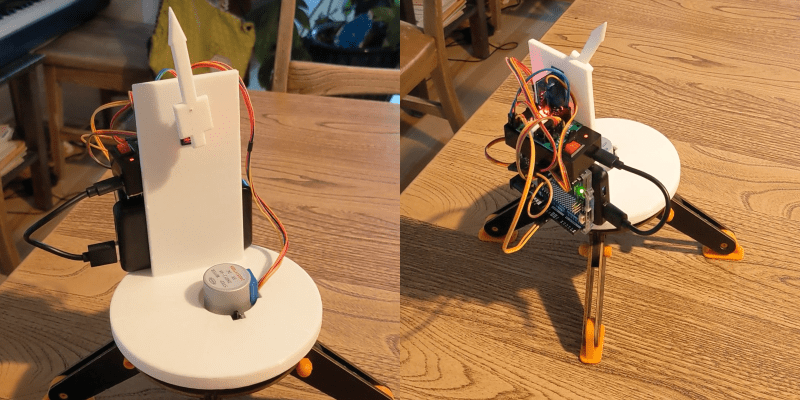
If you made something blink, and now it’s time for you to make something move, something like a point-to-a-satellite tracker is a great idea. [Farid Rener] made this moving arrow that always points at the ISS, and documented it nicely to boot.

And there’s a little bit of everything here, from orbital mechanics and fetching the two-line elements (TLE) from the web, to writing the code to translate that into the tabletop machine’s coordinate system. It looks like [Farid] hadn’t done much 3D CAD before, so he got a chance to stretch those muscles too. Finally, it served as an introduction to resource-constrained programming: “This was the first time I’ve had to think about the size of a compiled binary – the most frustrating part was figuring out that using a C++ stringstream was adding too much code to my binary.”

[Farid] is learning a lot here, and you might too. For instance, using pencil lead (graphite) as a lubricant on sliding 3D-printed parts is new to us, but makes sense. We’ll have to try that out.

And while this is a simple desktop tracker, with a lot more mechanical design, the same basics could be put to real use for pointing a receiver dish. Of course, who says you need fancy motors and computers to point a satellite dish anyway? If you work on your arm muscles a bit, you could become the satellite pointer.

Automatically Crack Safes with this Autodialer

When attempting to secure something, whether it’s a computer, sensitive data, or valuables, there’s always going to be a way to break that security. It might be impossibly hard, like taking centuries to brute-force an encryption algorithm, but it’s weakness is still there. And, like the future might make certain encryption obsolete, modern electronics has made security of the past somewhat obsolete as well. [Startup Chuck] has been using tools the creators of safes from the late 1800s could probably not have imagined.

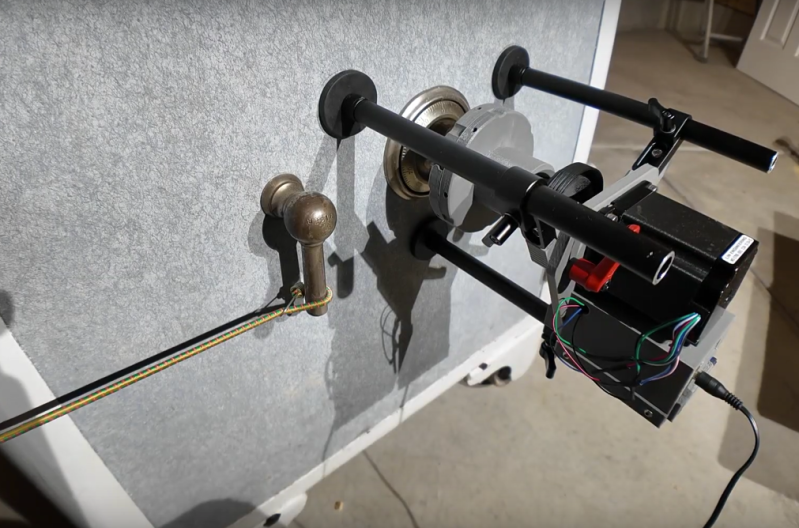
The tool that [Startup Chuck] has come up with is known as an autodialer in the safe-cracking world, and as its name suggests it automates the process of opening the safe by trying as many combinations as possible. The autodialer attaches to the safe with three magnetic feet and couples to the dial through a chuck attached to a magnetic clutch, which allows the autodialer to disengage as soon as the correct combination is found. It’s driven with a stepper motor which can test out combinations so fast that [Startup Chuck] needed to take 240 fps video and slow it down to make sure that the mechanism was behaving properly.

The autodialer itself can’t actually open the safe, though. The last step of the process is taken care of by a bungie cord, attached to the safe handle to pre-tension it enough so that when the correct combination is finally entered the safe pops open automatically. For anyone looking to duplicate the project, [Startup Chuck] has added the program code to a GitHub page. If you’re looking at a more modern safe, though, there are of course ways to crack their security systems as well.

Laser Harp Sets the Tone

In many ways, living here in the future is quite exiting. We have access to the world’s information instantaneously and can get plenty of exciting tools and hardware delivered to our homes in ways that people in the past with only a Sears catalog could only dream of. Lasers are of course among the exciting hardware available, which can be purchased with extremely high power levels. Provided the proper safety precautions are taken, that can lead to some interesting builds like this laser harp which uses a 3W laser for its strings.

[Cybercraftics]’ musical instrument is using a single laser to generate seven harp strings, using a fast stepper motor to rotate a mirror to precise locations, generating the effect via persistence of vision. Although he originally planned to use one Arduino for this project, the precise timing needed to keep the strings in the right place was getting corrupted by adding MIDI and the other musical parts to the project, so he split those out to a second Arduino.

Although his first prototype worked, he did have to experiment with the sensors used to detect his hand position on the instrument quite a bit before getting good results. This is where the higher power laser came into play, as the lower-powered ones weren’t quite bright enough. He also uses a pair of white gloves which help illuminate a blocked laser. With most of the issues ironed out, [Cybercraftics] notes that there’s room for improvement but still has a working instrument that seems like a blast to play. If you’re still stuck in the past without easy access to lasers, though, it’s worth noting that there are plenty of other ways to build futuristic instruments as well.

Taming the Wobble: An Arduino Self-Balancing Bot

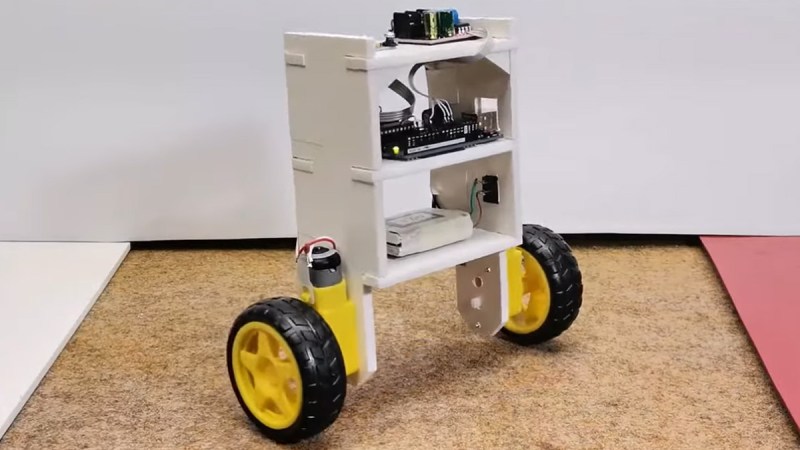
Getting a robot to stand on two wheels without tipping over involves a challenging dance with the laws of physics. Self-balancing robots are a great way to get into control systems, sensor fusion, and embedded programming. This build by [mircemk] shows how to make one with just a few common components, an Arduino, and a bit of patience fine-tuning the PID controller.

At the heart of the bot is the MPU6050 – a combo accelerometer/gyroscope sensor that keeps track of tilt and movement. An Arduino Uno takes this data, runs it through a PID loop, and commands an L298N motor driver to adjust the speed and direction of two DC motors. The power comes from two Li-ion batteries feeding everything with enough juice to keep it upright. The rest of the magic lies in the tuning.

PID (Proportional-Integral-Derivative) control is what makes the robot stay balanced. Kp (proportional gain) determines how aggressively the motors respond to tilting. Kd (derivative gain) dampens oscillations, and Ki (integral gain) helps correct slow drifts. Set them wrong, and your bot either wobbles like a confused penguin or falls flat on its face. A good trick is to start with only Kp, then slowly add Kd and Ki until it stabilizes. Then don’t forget to calibrate your MPU6050; each sensor has unique offsets that need to be compensated in the code.

Once dialed in, the result is a robot that looks like it defies gravity. Whether you’re hacking it for fun, turning it into a segway-like ride, or using it as a learning tool, a balancing bot is a great way to sharpen your control system skills. For more inspiration, check out this earlier attempt from 2022, or these self-balancing robots (one with a little work) from a year before that. You can read up on [mircemk]’s project details here.

Physical Computing Used to be a Thing

In the early 2000s, the idea that you could write programs on microcontrollers that did things in the physical world, like run motors or light up LEDs, was kind of new. At the time, most people thought of coding as stuff that stayed on the screen, or in cyberspace. This idea of writing code for physical gadgets was uncommon enough that it had a buzzword of its own: “physical computing”.

You never hear much about “physical computing” these days, but that’s not because the concept went away. Rather, it’s probably because it’s almost become the norm. I realized this as Tom Nardi and I were talking on the podcast about a number of apparently different trends that all point in the same direction.

We started off talking about the early days of the Arduino revolution. Sure, folks have been building hobby projects with microcontrollers built in before Arduino, but the combination of a standardized board, a wide-ranging software library, and abundant examples to learn from brought embedded programming to a much wider audience. And particularly, it brought this to an audience of beginners who were not only blinking an LED for the first time, but maybe even taking their first steps into coding. For many, the Arduino hello world was their coding hello world as well. These folks are “physical computing” natives.

Now, it’s to the point that when Arya goes to visit FOSDEM, an open-source software convention, there is hardware everywhere. Why? Because many successful software projects support open hardware, and many others run on it. People port their favorite programming languages to microcontroller platforms, and as they become more powerful, the lines between the “big” computers and the “micro” ones starts to blur.

And I think this is awesome. For one, it’s somehow more rewarding, when you’re just starting to learn to code, to see the letters you type cause something in the physical world to happen, even if it’s just blinking an LED. At the same time, everything has a microcontroller in it these days, and hacking on these devices is also another flavor of physical computing – there’s code in everything that you might think of as hardware. And with open licenses, everything being under version control, and more openness in open hardware than we’ve ever seen before, the open-source hardware world reflects the open-source software ethos.

Are we getting past the point where the hardware / software distinction is even worth making? And was “physical computing” just the buzzword for the final stages of blurring out those lines?

This article is part of the Hackaday.com newsletter, delivered every seven days for each of the last 200+ weeks. It also includes our favorite articles from the last seven days that you can see on the web version of the newsletter. Want this type of article to hit your inbox every Friday morning? You should sign up!

Customer feedback and contribution

Nick built his Nixie 6-digit clock from the kit. The enclosure and inner works, to make it function and look like a clock, is his own original creation, all nicely documented here.


The Arduino code is based on the example code, but he added extra features that are controlled via an ESP8266 over Serial, using an interesting ATMega + ESP8266 combo board. Please check it out.


Wise time with Arduino 31 Aug 14:58

Exporting KiCad PCB w/ silkscreen to Fusion 360

Here’s the process I’ve been using to add a silkscreen image to the exported STEP model from KiCad to Fusion 360. The steps are: In KiCad PCB: In Fusion 360:
Todbot 15 Jun 20:31

Adobe is updating its terms of service following a backlash over recent changes

Following customer outrage over its latest terms of service (ToS), Adobe is making updates to add more detail around areas like of AI and content ownership, the company said in a blog post. "Your content is yours and will never be used to train any generative AI tool," wrote head of product Scott Belsky and VP of legal and policy Dana Rao. 

Subscribers using products like Photoshop, Premiere Pro and Lightroom were incensed by new, vague language they interpreted to mean that Adobe could freely use their work to train the company's generative AI models. In other words, creators thought that Adobe could use AI to effectively rip off their work and then resell it. 

Other language was thought to mean that the company could actually take ownership of users' copyrighted material (understandably so, when you see it). 

None of that was accurate, Adobe said, noting that the new terms of use were put in place for its product improvement program and content moderation for legal reasons, mostly around CSAM. However, many users didn't see it that way and Belsky admitted that the company "could have been clearer" with the updated ToS.

"In a world where customers are anxious about how their data is used, and how generative AI models are trained, it is the responsibility of companies that host customer data and content to declare their policies not just publicly, but in their legally binding Terms of Use," Belsky said. 

To that end, the company promised to overhaul the ToS using "more plain language and examples to help customers understand what [ToS clauses] mean and why we have them," it wrote.

Adobe didn't help its own cause by releasing an update on June 6th with some minor changes to the same vague language as the original ToS and no sign of an apology. That only seemed to fuel the fire more, with subscribers to its Creative Cloud service threatening to quit en masse. 

In addition, Adobe claims that it only trains its Firefly system on Adobe Stock images. However, multiple artists have noted that their names are used as search terms in Adobe's stock footage site, as Creative Bloq reported. The results yield AI-generated art that occasionally mimics the artists' styles. 

Its latest post is more of a true mea culpa with a detailed explanation of what it plans to change. Along with the AI and copyright areas, the company emphasized that users can opt out of its product improvement programs and that it will more "narrowly tailor" licenses to the activities required. It added that it only scans data on the cloud and never looks at locally stored content. Finally, Adobe said it will be listening to customer feedback around the new changes.

This article originally appeared on Engadget at https://www.engadget.com/adobe-is-updating-its-terms-of-service-following-a-backlash-over-recent-changes-120044152.html?src=rss

The Morning After: Everything Apple announced at WWDC

Apple’s annual developer shindig kicked off with its traditional keynote outlining all the new tricks its products will soon do. There are big changes for iOS 18, iPadOS 18, macOS Sequoia and watchOS 11, not to mention visionOS 2. Some highlights include a standalone Passwords app, better health metrics on the Watch and Apple Intelligence, its own spin on AI. There’s more to learn about, so keep reading to learn all the biggest stories from the show.

— Dan Cooper

The biggest stories you might have missed

Blackmagic is developing a camera for immersive Apple Vision Pro videos

Yes, iOS 18 will include RCS support

Apple’s new AI-powered Siri can use apps for you

Apple may integrate Google’s Gemini AI into iOS in the future

iOS 18 embraces Apple Intelligence, deeper customization and a more useful Siri

macOS Sequoia will let you see your iPhone mirrored on your Mac’s screen

iPadOS 18 is getting a big boost with Apple Intelligence

​​You can get these reports delivered daily direct to your inbox. Subscribe right here!

Apple’s first attempt at AI is Apple Intelligence

A for Apple… A for Artificial… I get it!

Apple

Apple has finally bowed to pressure, bringing AI to its devices in the form of Apple Intelligence, powered by OpenAI. The system will bolster Siri, offering its generative AI smarts to write emails, summarize news articles and offer finer-grain control of your apps. It’ll be interesting to see, given Apple’s long-held distaste for machine learning gimmicks, if this can win where Google and Microsoft have floundered.

Continue Reading.

Apple brings a full-featured Passwords app to the Mac, iPhone, iPad and Windows

Let’s see how third-party password managers respond.

Apple

Apple already has a dedicated password manager buried in its operating systems, but now it’ll be its own app. Passwords will act as a standalone password manager across every Apple platform and will even work on Windows via iCloud. Like iCloud Keychain, it’ll generate and record passwords to all of your sites and services, locking them behind biometric security.

Continue Reading.

This article originally appeared on Engadget at https://www.engadget.com/the-morning-after-everything-apple-announced-at-wwdc-111550649.html?src=rss