Posts with «arduino» label

Bootstrapping Motion Input with Cheap Components

Motion control is a Holy Grail of input technology. Who doesn’t want an interface that they can control with simple and natural movements? But making this feel intuitive to the user, and making it work robustly are huge hills to climb. Leap Motion has done an excellent job creating just such a sensor, but what about bootstrapping your own? It’s a fun hack, and it will give you much greater appreciation for the currently available hardware.

Let’s get one thing straight: This device isn’t going to perform like a Leap controller. Sure the idea is the same. Wave your hands and control your PC. However, the Leap is a pretty sophisticated device and we are going to use a SONAR (or is it really SODAR?) device that costs a couple of bucks. On the plus side, it is very customizable, requires absolutely no software on the computer side, and is a good example of using SONAR and sending keyboard commands from an Arduino Leonardo to a PC. Along the way, I had to deal with the low quality of the sensor data and figure out how to extend the Arduino to send keys it doesn’t know about by default.

The Plan

The plan is to take an inexpensive SONAR module (the HC-SR04) and an Arduino Leonardo and use it to perform some simple tasks by mimicking keyboard input from the user. The Leonardo is a key element because it is one of the Arduinos that can impersonate a USB keyboard (or mouse) easily. The Due, Zero, and Micro can also do the trick using the Arduino library.

I wanted to determine how many gestures I could really determine from the HC-SR04 and then do different things depending on the gesture. My first attempt was just to have the Arduino detect a few fingers or a hand over the sensor and adjust the volume based on moving your hand up or down. What I didn’t know is that the default Arduino library doesn’t send multimedia keys! More on that later.

How the SONAR Works

The SONAR boards come in several flavors, but the one I used takes 4 pins. Power and ground, of course, are half of the pins. In fact, my early tests didn’t work and I finally realized the module requires more power than I could draw from the Arduino. I had to add a bench supply to power the module (and, of course, I could have powered the module and the Arduino from the same supply).

The other two pins are logic signals. One is an input and a high-going pulse causes the module to ping (8 cycles at 40kHz). There is a delay and then the other pin (an output) will go high and return low when the module detects the return ping. By measuring the time between your signal to ping and the return, you can judge the distance. In my case, I didn’t care about the actual distance (although that’s easy to compute). I just wanted to know if something was farther away or closer.
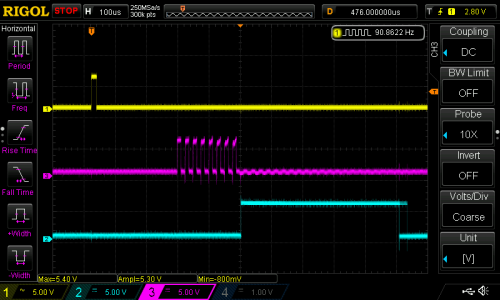
The scope trace to the right shows the sensor pointing at something relatively near. The top trace is the start pulse and the bottom trace is the input to the Arduino. The center trace is the output of the SONAR transducer. All the signal conditioning is inside the sensor, so you don’t need to worry about the actual signal processing to generate and recover the audio. You only need to measure the width of that bottom pulse.

The scope has persistence and you can see that the bottom trace does not always come out right at the same time (look at falling edge and you can see “ghosts” for previous samples. It shouldn’t come as a surprise that it may take a little effort to reduce the variations of the signal coming back from the SONAR.

Noise Reduction and Actions

Averaging

I wound up trying several different things to attempt to stabilize the input readings. The most obvious was to average more than one sample. The idea is that one or two samples that are way off will get wiped out by the majority of samples that are hovering around some center value. I also found that sometimes you just miss–especially when looking for fingers–and you get a very large number back. I elected to throw out any data that seemed way off when compared to the majority of received data.

Verifying

One other tactic I used was to verify certain elements with a second reading. For example, the start event occurs when the SONAR reports a value under the idle limit. The idle limit is a number less than the reading you get when the SONAR is pointed at the ceiling (or wherever it is pointing) and you don’t have anything blocking it. To recognize a valid start, the code reads twice to make sure the value is under the limit.

The code inside the Arduino loop is essentially a state machine. In the IDLE state, it looks for a reading that is below the idle limit. When found, that causes a transition to the sampling state. When the reading goes up or down more than some preset value, the code in the sample state sends a volume up or down key via the keyboard interface. If the sample goes back over the idle limit, the state machine returns to IDLE.

I got pretty good results with this data reduction,  but I also found the NewPing library and installed it. Even though it isn’t hard to write out a pulse and then read the input pulse, the NewPing library makes it even easier (and the code shorter). It also has a method, ping_median, that does some sort of data filtering and reduction, as well.

You can select either method by changing the USE_NEW_PING #define at the top of the file. Each method has different configuration parameters since the return values are slightly different between the two methods.

I said earlier that the code sends volume up and down commands when it detects action. Actually, the main code doesn’t do that. It calls an action subroutine and that subroutine is what sends the keys. It would be easy to make the program do other things, as well. In this case, it simply prints some debugging information and sends the keys (see below). I didn’t react to the actual position, although since the action routine gets that as a parameter, you could act on it. For example, you could make extreme positions move the volume up two or three steps at a time.

Sending Keyboard Commands

I wanted to send standard multimedia keys to the PC for volume up and down. Many keyboards have these already and usually your software will understand them with no effort on  your part. The problem, though, is that the default Arduino library doesn’t know how to send them.

Fortunately, I found an article about modifying the Arduino’s library to provide a Remote object that wasn’t exactly what I had in mind, but would work. Instead of sending keys, you have methods on a global Remote object that you can call to do things like change or mute the volume. The article was for an older version of the Arduino IDE, but it wasn’t hard to adapt it to the version I was using (version 2.1.0.5).

The action routine really only needs the UP_IN and DN_IN cases for this example. However, I put in all four branches for future expansion. Here’s the action subroutine:

void action(int why, unsigned value=0)
{
 Serial.print(value);
 switch (why)
 {
 case START_IN:
 Serial.println(" Start");
 break;
 case STOP_IN:
 Serial.println(" Stop");
 break;
 case UP_IN:
 Serial.println(" Up");
 Remote.increase();
 break;
 case DN_IN:
 Serial.println(" Down");
 Remote.decrease();
 break;
 }
}

The Final Result
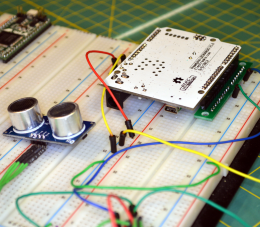
The final result works pretty well, although the averaging makes it less responsive than you might wish. You can turn down the number of samples to make it faster, but then it becomes unreliable. You can download the complete code from Github. The first thing you’ll want to do is check the top of the file to make sure your module is wired the same (pin 3 is the trigger pin and pin 8 is the echo return pin). You’ll also want to select if you are going to use the NewPing library or not. If you choose to use it, you’ll need to install it. I flipped my Leonardo upside down and mounted it on a breadboard with some adapters (see picture to right). It really needs a more permanent enclosure to be useful. Don’t forget to give the SONAR module its own 5V power supply.

If you look near the top of the loop function there is an #if statement blocking out 3 lines of code. Change the 0 to a 1 and you’ll be able to just get averaged data from the sensor. Put the module where you want it and see what kind of numbers you get. Depending on the method I used I was getting between 4000 and 9000 pointed up to the ceiling. Deduct a bit off of that for margin and change IDLETHRESHOLD (near the top of the file) to that number.

The DELTATHRESHOLD is adjustable too. The code sees any change that isn’t larger than that parameter as no change. You might make that bigger if you have shaky hands or smaller if you want to recognize more “zones”. However, the smaller the threshold, the more susceptible the system will be to noise. The display of samples is helpful because you can get an idea how much the readings vary when your hand is at a certain spot over the sensor. You can try using one or two fingers, but the readings are more reliable when the sound is bouncing off the fleshy part of your palm.

If you want to add some more gestures, you may have to track time a bit better. For example, holding a (relatively) stationary position for a certain amount of time could be a gesture. To get really sophisticated gestures, you may have to do some more sophisticated filtering of the input data than a simple average. A Kalman filter might be overkill, but would probably work well.

If you look around, many robots use these sensors to detect obstacles. Makes sense, they’re cheap and work reasonably well. There are also many projects that use these to show an estimate of distance (like an electronic tape measure). However, you can use them for many other things. I’ve even used a similar set up to measure the level of liquid in a tank and earlier this week we saw ultrasonic sensors used to monitor rice paddies.

If you really want to get serious, [uglyduck] has some analysis of what makes spurious readings on this device. He’s also redesigning them to use a different processor so he can do a better job. That might be a little further than I’m willing to go, although I was impressed with the 3D sonic touchscreen which also modified the SONAR units.


Filed under: Arduino Hacks, Featured, peripherals hacks

The Arduino Birthday Cake is No Lie

Making someone a birthday cake is very thoughtful, but not if they are watching their weight. [MrFox] found a way around that: an Arduino-powered birthday cake. Even if you don’t mind the calories, an Arduino cake is a novelty and sure to be a hit with a hacker who’s another year older.

The cake uses a UTFT LCD shield which eats up a lot of pins and memory, so the project uses an Arduino Mega. A speaker plays the happy birthday song (which may even be legal now) while a microphone detects the birthday boy or girl blowing out the virtual candles.

We’ve seen similar cakes with a fixed number of LED “candles” before, but the LCD screen makes this a cake of a different color. If you want, you could look into something that is actually edible. On the other hand, we’re kind of partial to the Jolly Wrencher with red eyes and fireworks, ourselves.

The video shows the birthday cake in action. Given the screen, we were surprised that nothing popped out. Not a life-changing project, but still fun for your next hacker party, even if you have a real cake as a backup.


Filed under: Arduino Hacks
Hack a Day 07 Oct 09:01

DIY Connected objects for happy connected people

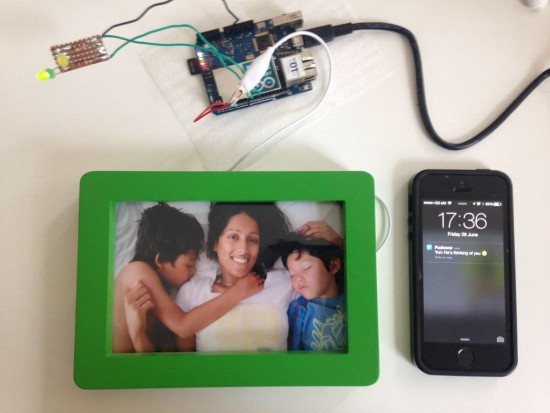
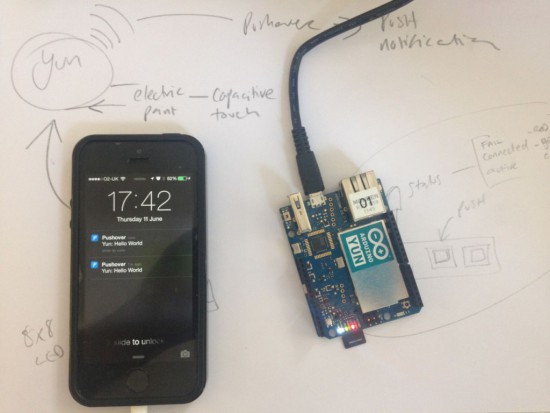
What happens when a creative technologist wants his family to know he’s thinking about them? He creates a project with Arduino Yún! IMissYou is a simple project transforming a picture in a connected object thanks to a capacitive layer made with Bareconductive Paint and inserted behind the photo. The ‘touch’ is detected by the Arduino through the glass of the frame by a spike in the values (with a basic Capsense library), sent to the internet via wi-fi and delivered to a phone with Pushover.

Martin Hollywood, the Arduino user who made  the project, wrote us:

Looking at the photograph of my family that I have on my desk one day, I missed them and wanted to be home. I touched the photo and realised that somewhere between those was the germ of the idea…

I wanted my family to know I was thinking of them, but I didn’t want to create two products; think GoodNight Lamp – I do love that project. In any case, there was no guarantee they would even notice a ‘blinking’ photo frame responding to my signal. Making the Receive a PUSH notification seemed like a no brainer, but the last time I developed for mobile was iOS 1! There are a number of service apps out there: Pusher, Pushingbox but I decided on Pushover. It had a 7 day trial period and good API support (I’ve since bought a license).

Take a look at his blog for more details and if you want to give him some tips to make it a real product.

Motor control or servo control


I came across this circuit on google. It controls motor speed by simple flip-flop that gives a PWM signal.

The question is can this be used as a servo control ?

first use 5 volts supply instead of 12 volts ...then by replacing the 3RD NPN transistor with a servo. the + goes up, the - goes down and the signal feeds from the flip flop...can we do that ??

Motor control or servo control


I came across this circuit on google. It controls motor speed by simple flip-flop that gives a PWM signal.

The question is can this be used as a servo control ?

first use 5 volts supply instead of 12 volts ...then by replacing the 3RD NPN transistor with a servo. the + goes up, the - goes down and the signal feeds from the flip flop...can we do that ??

Listening to the sound of a 300-million-year-old disc

There’s a mineral called pyrite with a interesting nickname, fool’s gold, because it has a superficial resemblance to gold and it’s by far the most frequently mineral mistaken for gold. Even if it’s pretty abundant, there’s a rare form of pyrite which is crystallised in radial shape (as unusual disc spherulites), taking the shape of a disc. The amazing fact is that the only deposit where pyrites of such morphology are found is in Illinois (USA) and the discs are dated around 300 million years ago!

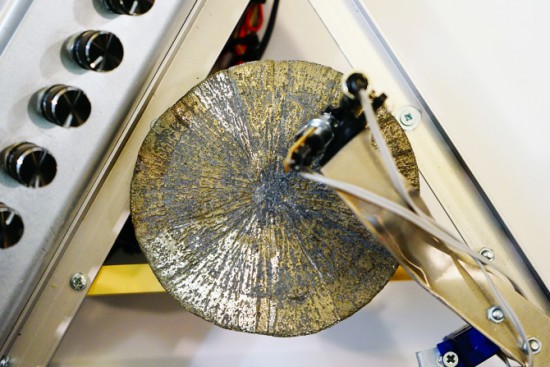
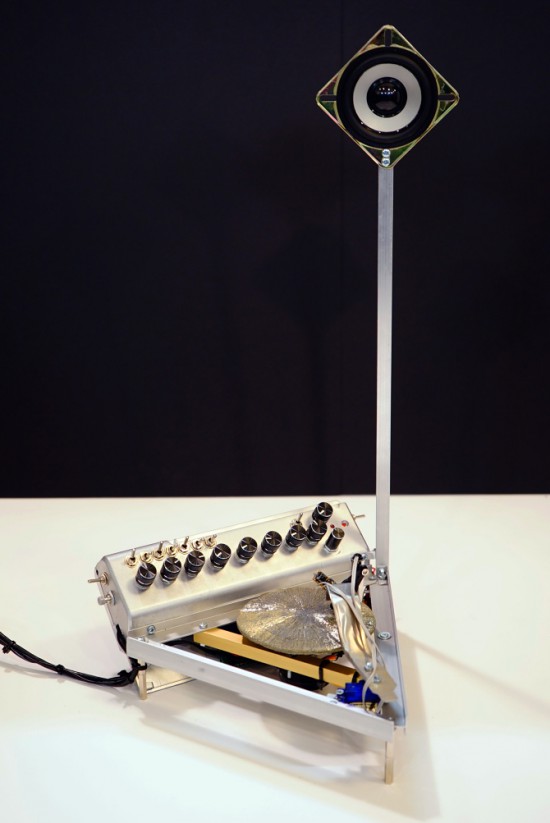
Dmitry Morozov (aka ::vtol::), a media artist living in Moscow, had the chance to use a pyrite disc and created Ra,  a sound object / synthesizer running on Arduino Nano. Ra uses laser for scanning the irregularities of the surface of the disc and further transforms this data to produce sound:

This project originated as a result of an interesting set of circumstances – a pyrite disc was given to me as a gift by a mineral seller in Boulder city (USA). Upon hearing about my works, she asked to do something with such crystal, and refused to take payment for getting it. In the same period, I was reading articles on various ways of archiving and preservation of sounds from the first, historical sources of the recorded sound – wax discs and other fragile carriers. All technologies were based on the usage of lasers. Inspired by these projects, I set out to create a self-made laser sound reader which would be able to produce sound from various uneven surfaces, using minimal resources to achive it. Thus emerged the idea to construct an instrument using the pyrite disc and a self-made laser sound reader.

The production of the object was possible thanks to the commission of the Sound Museum in St.-Petersburg which now has Ra in its collection.

Check the bill of materials and other details on Dmitry’s website. Explore other projects by Dmitry featured on Arduino Blog.

Arduino Blog 05 Oct 12:54

New Project: Control Halloween Effects with DIY Infrared Remote Controls

In this project, I'll show you how to set up some simple infrared remote controls for effects that you can use in your haunted house this year.

Read more on MAKE

The post Control Halloween Effects with DIY Infrared Remote Controls appeared first on Make: DIY Projects, How-Tos, Electronics, Crafts and Ideas for Makers.

Arduino’s Long-Awaited Improved WiFi Shield

Announced at the 2014 Maker Faire in New York, the latest Arduino WiFi shield is finally available. This shield replaces the old Arduino WiFi shield, while providing a few neat features that will come in very handy for the yet-to-be-developed Internet of Things.

While the WiFi Shield 101 was announced a year ago, the feature set was interesting. The new WiFi shield supports 802.11n, and thanks to a few of Atmel’s crypto chip offerings, this shield is the first official Arduino offering to support SSL.

The new Arduino WiFi Shield 101 features an Atmel ATWINC1500 module for 802.11 b/g/n WiFi connectivity. This module, like a dozen or so other WiFi modules, handles the heavy lifting of the WiFi protocol, including TCP and UDP protocols, leaving the rest of the Arduino free to do the actual work. While the addition of 802.11n  will be increasingly appreciated as these networks become more commonplace, the speed offered by ~n isn’t really applicable; you’re not going to be pushing bits out of an Arduino at 300 Mbps.

Also included on the WiFi shield is an ATECC508A CryptoAuthentication chip. This is perhaps the most interesting improvement over the old Arduino WiFi shield, and allows for greater security for the upcoming Internet of Things. WiFi modules already in the space have their own support for SSL, including TI’s CC3200 series of modules, Particle‘s Internet of Things modules, and some support for the ESP8266.


Filed under: Arduino Hacks

New Project: Build an Aquaponic Garden with Arduino

Build this aquaponic garden to bring your veggies and your fish tank into perfectly sustainable harmony. Then use Arduino to take your set-up to the next level.

Read more on MAKE

The post Build an Aquaponic Garden with Arduino appeared first on Make: DIY Projects, How-Tos, Electronics, Crafts and Ideas for Makers.

Arduino Development; There’s a Makefile for That

Hardware and software combined, Arduino does many things right. It lowers the entry level into embedded systems development with a nifty hardware abstraction layer. It aims for cross-platform compatibility by supporting Windows, Mac OSX, and Linux operation systems. It throws out the need for an external programmer to get you up-and-blinkin’ those LEDs quickly.

One thing most of us never cease to curse about, though, is the IDE. Many have cried out wildly against the Java-based text-editor for its cryptic compiling-and-linking process, its inability to accommodate bare C or C++ source files, and (shh!) its lack of Vim keybindings. Fortunately, our cries have been heard, and the like many community-based projects, the community fights back with a custom solution.

Calling all Grumpy Engineers: The Arduino-Makefile

Enter the Arduino Makefile.

What began as [Sudar’s] lightweight program to escape the IDE has become a fully-blown, feature rich Makefile that has evolved and adapted to grow with the changes of Arduino. With a community of 47 contributors, the Makefile enables you to escape from the IDE entirely by writing code in the cushy text editor of your choice and compiling with a simple incantation of make into your terminal, be you in Linux, Mac, or Windows.

Without further ado, let’s take a walking tour of the project’s highlights.

Cryptic Shortcuts–Begone!

For many beginners, writing (or even editting) a Makefile can cause some serious confusion with most Makefile authors’ shameless shortcut use. Make no mistake, the cryptic syntax of many Makefiles forms a concise list of instructions for compiling and linking your executable, but this recipe does seem a bit hard to parse for the uninitiated. What’s more, Makefiles also tend to throw bizarre errors (trailing whitespace anyone?) that are difficult to track down–especially when we want to spend most of our time bringing up embedded systems, not understanding the mechanics and syntax of a Makefile. Fortunately [Sudar] and the rest of the development team have made the interface very human readable.

Their solution: A two-part Makefile. For a simple project, your Makefile need be no longer than this snippet (inspired from the Makefile Examples):

BOARD_TAG    = uno
include $(ARDMK_DIR)/Arduino.mk

Project-specific settings (like which board you’re using) are outlined in this brief Makefile that then includes the larger Makefile which contains the actual nuts and bolts for building your code. The assumption here is that you’ve defined two environment variables, both ARDMK_DIR and ARDUINO_DIR that point towards the (1) Arduino Makefile directory and the (2) Arduino Installation directory. In addition, if you have additional libraries, you can include them with a line in your top-level Makefile that defines the filepath.

 USER_LIB_PATH += /home/my_username/my_libraries_directory

You’ll also need to add all libraries you’re using (both user-added and built-in) to the list of libraries like so:

ARDUINO_LIBS += Wire \
                SPI \
                my_custom_lib

The benefit of a “split-Makefile” setup is that the short, top-level Makefile hides the gritty compiler gymnastics involved in compiling and linking against the default and user-added Arduino Libraries. On the flip-side, this “mini” Makefile becomes a brief, informative summary of a few minor details, such as which Arduino Libraries are being used, that are likely more relevant to the author and future developers.

Raw C and C++ is In–if you prefer such things

Tired of that *.ino file extension? Tired of having to constrain yourself into those setup and loop functions? With the Makefile, you can quickly wish these away and write your code in raw C or C++. You can even neglect to #include <Arduino.h> if you want to work in vanilla C or C++ and disregard the Arduino libraries altogether.

That said, if you’re mixing C and C++, keep in mind that you’ll need to insert guards around your C header files like so:

#ifdef __cplusplus
extern "C" {
#endif

/// the rest of my C header file 

#ifdef __cplusplus
}
#endif

Adding Project Libraries

Possibly my favorite aspect of the Arduino Makefile is its flexibility to accomodate a richer file structure and painlessly split your project into multiple files. Let’s say I have a one-off project where it makes sense to include a custom library. Given the flexibility of the Makefile, you can define:

    USER_LIB_PATH+=.
    ARDUINO_LIBS += my_custom_library

in your project Makefile and produce a directory tree like so.

 ├── main.ino
 ├── Makefile
 ├── my_custom_library
 ├── my_custom_library.cpp
 └── my_custom_library.h

If you need more flexibility, you can also split your source code across several directories, keeping the Makefile in the same directory of your code that acts like a “main.” (In this case, main.ino defines setup  and loop.) To do so, your Makefile will, instead, have:

    USER_LIB_PATH+=../libs
    ARDUINO_LIBS += my_custom_library

in your project Makefile, and your directory structure will look like so:

 ├── libs
 │   └── my_custom_library
 │     ├── my_custom_library.cpp
 │     └── my_custom_library.h
 └── src
  ├── main.ino
  └── Makefile

Finally, we don’t need to constrain ourselves to writing just C++ classes to split projects into multiple files.  Since we’re really working with vanilla C++, you can freely split your project into multiple source (*.c, *.cpp, *.ino, *.pde) and header (*.h, *.hpp) files that live in the same directory as the Makefile, and the Makefile will compile them into one executable.

Other Micros are Fair Game Too

Finally, the Arduino-Makefile is also compatible with a host of other microcontrollers and programmers, not just the ATMEGA328P on the Uno. In short, this feature is an exposition of the features of AVRDUDE, the program for downloading and uploading code to various AVR microcontrollers. Last, but not least, it’s also Teensy-compatible.

Define Our Standard

If you’re looking to get comfortable with the Arduino-Makefile workflow, have a quick look at their examples directory for a host of different use-cases. You can also take a peek at my i2c_demultiplexing_demo source from a couple weeks back for yet another example. At the end of the day, Arduino, with its giant library collection, makes project prototyping fast. For bigger projects, though, we don’t tend to see any standard practices for file organization to make projects easier to navigate. That’s where you come in. With the flexibility of the Makefile, you get it all: the text editor you always wanted, the separate header and implementation files, a clean directory… Now it’s your shot to take this tool and refine your workflow into a method worth sharing with the rest of us.


Filed under: Arduino Hacks, Featured