Posts with «software» label

Data logging with Wise Clock 3/4

If you ever tried to compile the SD library (packaged with Arduino IDE 22 and 23) targeting the Sanguino board (which also covers Wise Clock 3 and Wise Clock 4), you got compilation errors.

For example, compiling Datalogger.pde with the Sanguino file setup detailed here, will give these kinds of errors:

Datalogger:67: error: 'class File' has no member named 'println'
Datalogger:67: error: 'dataString' was not declared in this scope

The main cause for these errors is missing files (e.g. Stream.h, WString.h). Even if you fix these compilation errors, Datalogger.pde sketch will still not work, and this is because SPI pins are incorrectly defined for Sanguino. (Note that the Datalogger sketch compiles and works fine for Arduino.)


I know that Arduino IDE 22 and 23 are no longer supported, but I bet many out there are still using them, as I do. Until I upgrade to Arduino 1.0, I think it is worth fixing the issue in these older IDEs.


So here is the quick recipe for covering the Sanguino board in Arduino 22 and 23 IDEs:

1. add the following section to Arduino-0022/hardware/arduino/boards.txt file:


##############################
sanguino.name=Sanguino
sanguino.upload.protocol=stk500
sanguino.upload.maximum_size=63488
sanguino.upload.speed=38400
sanguino.bootloader.low_fuses=0xFF
sanguino.bootloader.high_fuses=0xDC
sanguino.bootloader.extended_fuses=0xFD
sanguino.bootloader.path=atmega644p
sanguino.bootloader.file=ATmegaBOOT_644P.hex
sanguino.bootloader.unlock_bits=0x3F
sanguino.bootloader.lock_bits=0x0F
sanguino.build.mcu=atmega644p
sanguino.build.f_cpu=16000000L
sanguino.build.core=sanguino
sanguino.verbose=false

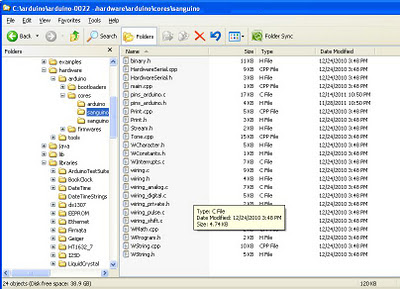
2. Download file sanguino22.zip and expand its content into the folder Arduino-0022/hardware/arduino/cores/. This will create the folder "sanguino" under "cores".

Sanguino22.zip contains the following files, copied from Arduino-0022/hardware/arduino/cores/arduino/:


Only 2 4 of the original Arduino files have been modified specifically for Sanguino, and they are: pins_arduino.h
pins_arduino.c.
WInterrupts.c
wiring_private.h

Note (March 12/2012): I updated the zip file to include the last two files enumerated above. The original Arduino ones did not handle attachInterrupt() correctly, as the original Sanguino files (released a long time ago for version 18) did. So I just copied over the old files.

By following the 2 steps above, you should be able to compile sketches for the "Sanguino" target (selectable from the menu "Tools/Board" of the IDE). (A few extra steps are required to be able to burn the bootloader, but I will leave this out for now, for the sake of simplicity.)

Now try compiling and uploading Datalogger.pde and see the results for yourself: data is appended to the file datalog.txt on SD card.

Note: The Wise Clock 3/4 software handles reading from SD card just fine even with the old Sanguino files because the SPI pins are defined in the file mmc.cpp, which is part of the Wise Clock 3/4 library. The SD library relies on externally-defined (in file pins_arduino.h) SPI pins.

Guess why am I bringing up data logging on Wise Clock 4? :)

Wise Clock 3 - Dec 2011 software release

From the desk of Mr. Ruud, a new software release for Wise Clock 3 is now available.
Below is the long list of impressive features, improvements, changes etc. Ruud, thanks again.

  • Because of the large number (28) of menu entries the menu is now split in 2 loops, one for the Apps and one for the Settings.
------------------
  Apps menu loop:
  SETUP, QUOTE, BIG, TIX, WORDS, CNTDN, STOPW, SCORE, PONG, PACMN, TCLOK, UTC, LIFE, DEMO, STATS.

  Settings menu loop:
  APPS, ALARM, AL+/AL-, DATE+/DATE-, REMI+/REMI-, TEMP+/TEMP-, MESG+/MESG-, CHME+/CHME-, FONT+/FONT-, CELC/FAHR, 24H+/24H-, TIME, Y M D, DAY, SLEEP.

Selecting the "SETUP" menu entry will take you to the Settings menu loop, selecting the "APPS" menu entry
will take you to the Apps menu loop.
------------------
  • Stopwatch: This will show the time passed by in tenths of seconds, pressing the Set key will show the "lap" time.
  • Count Down Timer: This timer allows for setting a time of up to 24 hours and will beep 3 times after counting down to 0 seconds.
  • TIX clock: Showing the time using colored squares (if you do not know what a TIX clock is, Google it!) The PLUS key alows for changing the interval between 1, 4 and 60 seconds.
  • Time Clock: This allows for recording the amount of time spent on a project. You clock "IN" at the start of the project and clock "OUT" when you are finished for the day. The Time clock will show the total amount of hours and minutes spent on that project over several days. It allows for 5 different projects. A project may be cleared by pressing the Plus key when the "IN?" text is displayed, a future version will store all "IN" and "OUT" times together with the project number in  an Excel compatible file on the SD card. This file may then be processed on a PC using Excel.
  • "Word Clock": This will show the time and date using words instead of numbers. All "words" come from a "word" text file on the SD card and can be changed with any editor. At runtime you may choose from 10 different "word" files. Currently there are 5 different "word" files included:
  1. word1.txt The "official" English version showing: "The time is seven minutes past one o'clock in the morning on Monday the fourth of July."
  2. word2.txt The short English version showing: "It's one oh-seven am"
  3. word3.txt The "funny" English version showing: "It's 5 + 2 past six and you are up early"
  4. word4.txt The French texts version showing: "Le temps est sept minutes apres une heure du matin."
  5. word5.txt Example file for advertisement purposes, showing texts like: "We are now closed, opening hours are from 9 - 5" or "10% extra discount from 12 - 1".
  You may create your own versions with whatever texts/language you like, see the word1.txt file for details.

  • New large Font: This new proportional font, selected by "FONT+/FONT-", is 14 dots high and has variable width (letter i = 2 dots wide, letter m = 10 dots wide).
  • The "message.txt" file now contains, 10 different personal messages, the "MESG+" menu entry allows for selecting one of them (M1, M2, M3 etc.).
  • The "Quotes" menu entry now let you choose from up to 10 different "Quotes" files named quot1.txt, quot2.txt etc. several sample files (like: Texts by Shakespeare, fake alarm system, Spanish lesson, the clock's user manual (what you are reading now = "quot0.txt") are included. If you select the 11th file then the "message.txt" file is displayed which shows e.g. all 10 personal messages, reminders, DST etc.You may put your own "quote" file on the SD card, make sure that lines are not longer then 175 characters and end with a Carriage Return and Linefeed character. The file must be bigger then 512 bytes.
  • It is now possible to put characters in the non visible "video" ram and make them visible by overlaying the present display in horizontal or vertical mode. When in Big Mode, press the Set Key to see a demo.
  • The "UTC" mode now allows for changing the number of hours difference (+12 till -12). It allows for showing the time in "Graph" (= analog clock) or "Text" mode. The "Time.txt" file is no longer used and should be removed.
  • The temperature (TEMP+ menu entry) will now also show the highest and lowest temperature for that day.
  • The brightness is now changed with the Plus Key and the scroll speed with the Set key. The Set key is used in some of the new apps, but the brightness can always be changed with the Plus Key. 
  • "STATS" menu: This menu entry will show the highest and lowest temperature for the current year, the last time the power went off and the time when the power came back. It may take up to 24 hours before this info is available.

NOTE: The filemanager for the SD card is limited, so if you want to make any change to the files on the SD card then format the SD card first and copy all files in one go to the SD card. Also there cannot be more then 16 files on the SD Card.


Wise Clock 3 - Dec 2011 software release

From the desk of Mr. Ruud, a new software release for Wise Clock 3 is now available.
Below is the long list of impressive features, improvements, changes etc. Ruud, thanks again.

  • Because of the large number (28) of menu entries the menu is now split in 2 loops, one for the Apps and one for the Settings.
------------------
  Apps menu loop:
  SETUP, QUOTE, BIG, TIX, WORDS, CNTDN, STOPW, SCORE, PONG, PACMN, TCLOK, UTC, LIFE, DEMO, STATS.

  Settings menu loop:
  APPS, ALARM, AL+/AL-, DATE+/DATE-, REMI+/REMI-, TEMP+/TEMP-, MESG+/MESG-, CHME+/CHME-, FONT+/FONT-, CELC/FAHR, 24H+/24H-, TIME, Y M D, DAY, SLEEP.

Selecting the "SETUP" menu entry will take you to the Settings menu loop, selecting the "APPS" menu entry
will take you to the Apps menu loop.
------------------
  • Stopwatch: This will show the time passed by in tenths of seconds, pressing the Set key will show the "lap" time.
  • Count Down Timer: This timer allows for setting a time of up to 24 hours and will beep 3 times after counting down to 0 seconds.
  • TIX clock: Showing the time using colored squares (if you do not know what a TIX clock is, Google it!) The PLUS key alows for changing the interval between 1, 4 and 60 seconds.
  • Time Clock: This allows for recording the amount of time spent on a project. You clock "IN" at the start of the project and clock "OUT" when you are finished for the day. The Time clock will show the total amount of hours and minutes spent on that project over several days. It allows for 5 different projects. A project may be cleared by pressing the Plus key when the "IN?" text is displayed, a future version will store all "IN" and "OUT" times together with the project number in  an Excel compatible file on the SD card. This file may then be processed on a PC using Excel.
  • "Word Clock": This will show the time and date using words instead of numbers. All "words" come from a "word" text file on the SD card and can be changed with any editor. At runtime you may choose from 10 different "word" files. Currently there are 5 different "word" files included:
  1. word1.txt The "official" English version showing: "The time is seven minutes past one o'clock in the morning on Monday the fourth of July."
  2. word2.txt The short English version showing: "It's one oh-seven am"
  3. word3.txt The "funny" English version showing: "It's 5 + 2 past six and you are up early"
  4. word4.txt The French texts version showing: "Le temps est sept minutes apres une heure du matin."
  5. word5.txt Example file for advertisement purposes, showing texts like: "We are now closed, opening hours are from 9 - 5" or "10% extra discount from 12 - 1".
  You may create your own versions with whatever texts/language you like, see the word1.txt file for details.

  • New large Font: This new proportional font, selected by "FONT+/FONT-", is 14 dots high and has variable width (letter i = 2 dots wide, letter m = 10 dots wide).
  • The "message.txt" file now contains, 10 different personal messages, the "MESG+" menu entry allows for selecting one of them (M1, M2, M3 etc.).
  • The "Quotes" menu entry now let you choose from up to 10 different "Quotes" files named quot1.txt, quot2.txt etc. several sample files (like: Texts by Shakespeare, fake alarm system, Spanish lesson, the clock's user manual (what you are reading now = "quot0.txt") are included. If you select the 11th file then the "message.txt" file is displayed which shows e.g. all 10 personal messages, reminders, DST etc.You may put your own "quote" file on the SD card, make sure that lines are not longer then 175 characters and end with a Carriage Return and Linefeed character. The file must be bigger then 512 bytes.
  • It is now possible to put characters in the non visible "video" ram and make them visible by overlaying the present display in horizontal or vertical mode. When in Big Mode, press the Set Key to see a demo.
  • The "UTC" mode now allows for changing the number of hours difference (+12 till -12). It allows for showing the time in "Graph" (= analog clock) or "Text" mode. The "Time.txt" file is no longer used and should be removed.
  • The temperature (TEMP+ menu entry) will now also show the highest and lowest temperature for that day.
  • The brightness is now changed with the Plus Key and the scroll speed with the Set key. The Set key is used in some of the new apps, but the brightness can always be changed with the Plus Key. 
  • "STATS" menu: This menu entry will show the highest and lowest temperature for the current year, the last time the power went off and the time when the power came back. It may take up to 24 hours before this info is available.

NOTE: The filemanager for the SD card is limited, so if you want to make any change to the files on the SD card then format the SD card first and copy all files in one go to the SD card. Also there cannot be more then 16 files on the SD Card.


Testing the XBee on Wise Clock 4

To test the XBee on Wise Clock 4 I used the sketch below (upload it to the board; display is not required).

int nCount = 0;
void setup()
{
  Serial.begin(9600);
  Serial1.begin(9600);
  Serial.println("WC4 XBee ready for comm..."); 
}


void loop()
{
  // read from port 1, report characters on port 0:
  while (Serial1.available())
  {
    char inChar = Serial1.read();
    Serial.print(inChar); 
  }
  Serial1.print("WC4 XBee transmit ");
  Serial1.print(nCount++);
  Serial1.print(", ");
  Serial1.println(millis());
  delay(3000);
}

Notice the use of Serial1 instance to talk to the XBee, since this is connected to the second hardware serial port of the ATmega644P (D10/D11, pins 16/17). Had Sanguino offered no support for the second USART, we could have used NewSoftwareSerial library.

The second XBee is linked directly to a terminal (e.g. HyperTerminal in Windows, or Terminal panel in the X-CTU application from Digi). I personally used the XBee Adapter from Adafruit, connected through the FTDI cable to the PC as shown here.

Once this XBee test passed, you can adapt the Wise Clock 4 software to display any message sent to it from a second XBee. A simple hack is to add to the function fetchMessage() in file WiseClock4.cpp, as shown below:

void WiseClock4::fetchMessage()
{
  // new code for XBee............
  // read from XBee into the "personalized message" buffer;
  char* Ptr1 = &personalMsg[0];
  if (Serial1.available())
  {
    while (Serial1.available())
    {
      *Ptr1++ = Serial1.read();
    }
    *Ptr1 = 0;
  }

  // existing code................
  strcpy(msgLine, "      ");

Now, instead of the personalized message (read from file message.txt on the SD card) you will get whatever is sent from the terminal application (second XBee).

Don't forget to add this line in function setup (file WiseClock4.pde):

  Serial1.begin(9600);


Testing the XBee on Wise Clock 4

To test the XBee on Wise Clock 4 I used the sketch below (upload it to the board; display is not required).

int nCount = 0;
void setup()
{
  Serial.begin(9600);
  Serial1.begin(9600);
  Serial.println("WC4 XBee ready for comm..."); 
}


void loop()
{
  // read from port 1, report characters on port 0:
  while (Serial1.available())
  {
    char inChar = Serial1.read();
    Serial.print(inChar); 
  }
  Serial1.print("WC4 XBee transmit ");
  Serial1.print(nCount++);
  Serial1.print(", ");
  Serial1.println(millis());
  delay(3000);
}

Notice the use of Serial1 instance to talk to the XBee, since this is connected to the second hardware serial port of the ATmega644P (D10/D11, pins 16/17). Had Sanguino offered no support for the second USART, we could have used NewSoftwareSerial library.

The second XBee is linked directly to a terminal (e.g. HyperTerminal in Windows, or Terminal panel in the X-CTU application from Digi). I personally used the XBee Adapter from Adafruit, connected through the FTDI cable to the PC as shown here.

Once this XBee test passed, you can adapt the Wise Clock 4 software to display any message sent to it from a second XBee. A simple hack is to add to the function fetchMessage() in file WiseClock4.cpp, as shown below:

void WiseClock4::fetchMessage()
{
  // new code for XBee............
  // read from XBee into the "personalized message" buffer;
  char* Ptr1 = &personalMsg[0];
  if (Serial1.available())
  {
    while (Serial1.available())
    {
      *Ptr1++ = Serial1.read();
    }
    *Ptr1 = 0;
  }

  // existing code................
  strcpy(msgLine, "      ");

Now, instead of the personalized message (read from file message.txt on the SD card) you will get whatever is sent from the terminal application (second XBee).

Don't forget to add this line in function setup (file WiseClock4.pde):

  Serial1.begin(9600);


Arduino Musical Note Recognition – Pushing the limits.

Second project based on Arduino Uno and FFT code.    (First one : Project 1.)
Short description ( EDITED: Project stopped. I lost my inspiration and working on visual recognition now, I decided to publish a code, so someone else could find it useful and continue research. ).

Main array size is 1024 bytes, real / imaginary 512 / 512, output 256 bins (only half real part, other half is mirror).  Sampling rate 4 kHz, upper note B6 (1975.5 Hz) on yellow line – right side led, lower note C3 (130.8 Hz) on red line – left side led.  Frequency resolution is approximately 7.8 Hz per bin. Processing and sampling are running in parallel. Sampling array size is 256. After data captured (256 x 0.25 msec = 64 msec) they transfered to processing array 1024, missing 256 real samples is “zero padded”, and sampling continue w/o interruption.  I did zero padding on a purpose to get “response time” of led matrix as fast as possible, so real-time 1/16 notes could be visually distinguished the same time,  as they played.

After computational cycle is completed (~36 msec), main program executes “cognitive core function” to differentiate between notes / tones, that have to be displayed on LED matrix.

 In order to minimize error rate of this process, Masking Shadow Theory (MST) was developed. Masking shadow for each note is calculated in several steps and result is compared with notes magnitude in the cycle. If magnitude is less than shadow, than led corresponding to this note wouldn’t  lights up. There are five steps for now, but as I say, work in progress. 
Step 1 (masking shadow 0):  noise floor, which is common for all notes. 
Step 2 (masking shadow 1):  shadow from neighboring notes, that includes 8   notes on left and right side, in inverse proportion to their distances. 
Step 3 (masking shadow 2):  shadow from the note, which is located 1 octave below. Or in other words, cross check if current bins value isn’t second harmonic from sounding note 1 octave below  it. 
Step 4 (masking shadow 3):  similar to step 3, the only difference is, cross check if current bin (note) isn’t third harmonic from sounding note below  it. 
Step 5 (masking shadow 5):  similar to step 3 and 4,  cross check if current note isn’t fifth harmonic from sounding note below  it.

Masking shadow is multiplied by notes specific coefficients after steps 3 – 5, to accommodate significantly richer spectral content for lower octaves.  Formula for calculation of the coefficients, is the trickiest   part of all project. What I’ve discovered, coefficient not just varying between notes / tones, they dynamically varying during “life-time” of the tone.

25 Sept. 2011 

There are two variables have been considered: speed, octave range. Third one, “not technical” – is a price for the project. 
 Octave range is defined by  RAM memory available on chip. 2K on UNO. As maximum processing array size is must be power of 2 ( FFT Radix-2 ), array couldn’t be more than  1024 bytes, next value – 2048 is size of all RAM, that obviously couldn’t be taken. Size of array defines maximum quantity of frequency bins at the output 1024 / 4 = 256. Divided by 4 as there is real / imaginary part, and only half real part is present data. What is interesting, that musical octave is nothing else than doubling of the tones frequency, so it follows binary arithmetic rules… If I will count from high side, the upper octave would occupied half of all 256 bins, from bin 256 to bin 128. Simply because frequency / musical tone spaced logarithmically (LOG_2), and bins spaced equally. Next octave takes half what left over, from bin 128 to bin 64. Third octave 64 to 32, and fourth 32 to 16. Can I go more down ? No. There are 12 notes in each octave. It means, that after fourth octave counting down , I arrived to location where bins and tones spaced almost in sequence, bin 16 – C3, bin 17 – C3#, bin 18 – D3. Well there is four more ( 15, 14, 13, and 12 ), but it doesn’t change much, as it only 1/3 of octave and only would complicate multiplexing LED display.
This is why variable octave range = 4. Summing up, increasing octave range by 1 ( to 5 octaves ) would require double memory size (2K processing array, still possible with chip 4K), by 2 ( to 6 octaves ) – four times more memory (4K processing array).

Arduino mega board has 8K RAM, would it be better to design project with it? In first, it cost more money. In second, it has the same CPU performance, and as you will see below, to have more memory w/o faster CPU doesn’t make any sense. CPU wouldn’t be able to process bigger volume of data in time.

Now lets have a look at speed variable. Following math (and design itself), is greatly depends on it. In order to get at least 1/16 note to be visually “alive”, all cycle ( sampling , pre-processing, FFT, post-processing ) has to be completed for less than 64 msec. My impression is, when timing a little bit longer, LED display looks like it shows something, that was played last Saturday night. Invisible real-time connection between “light” and “music” become broken.
Octave range variable ( 4 octave to be specific ), especially low notes starting from C3, begging for 8 Hz resolution, as it equals to distance between C3 and C3#. And consequently, for 128 msec sampling frame duration. So, there is a contradiction. To solved this , zero padding was introduced, which help to keep sampling window down to 64 msec, the same time frequency resolution not very far from 8 Hz. To make real-time life show, sampling must continue w/o interruption. Even more, it has to be “overlapped”, as pre-processing (windowing) would cut off beginning and ending of the sampling pull. All three other functions ( FFT, pre- and post-processing ) have to go in parallel and must be completed in the same time frame 64 msec. Arduino platform has 8-bit microprocessor, with low horse power engine under hood. This is why 8-bit math was selected instead of 16-bits ( which would save me a lot of troubles ). Troubles, I’m talking about, are very low dynamic range when integer math and 8 – bit comes together in FFT. Integer math, which gives nice time performance, puts really hard constrain on dynamic range, just because it performs “scaling” before and after every “butterfly”. And every scaling procedure brings in rounding error, which grows enormously, as there are 2304 butterfly (9216 round operation) for N = 512 FFT. Special attention must be payed, to keep rounding error under control, the same time not to increase calculation time too much or integer math would not make any sense. What I find out, there is  an excellent algorithm to make “symmetrical” 1/2 bit rounding, but it almost doubles calculation FFT timing, which I obviously, could not afford. So, I choose other path, to increase dynamic range. Compression algorithm on the input data. The easiest way to do it, is “clipping”. Set couple lines in the code:
             if ( x[i] >  127 )  x[i] =  127; 
             if ( x[i] < -127 )  x[i] = -127; 

and all good. Not quite. It will do a great job for any other signal (vibration from accelerometer for example), except music…..
Clipping generates a very high level of harmonics, and ones again , it couldn’t be afford, as it just undermine basic idea of the project – MUSICAL note recognition.
 
 Summary: Scaling extends dynamic range of integer FFT on 24 dB ( 4 bits ).

8- bit FFT dynamic range is +36 dB;
scaling                               +24 dB;
noise                                 -   3 dB;     
———————————————————–
Overall                                 57 dB.   


Link to download a scketch:


Arduino_Musical_Notes_Recognition


HexMotor.h expanded to Adafruit Motor shield

I expanded the HexMotor.cc and HexMotor.h library today, so that I can use the same library with both my HexMotor board and the Adafruit Industries motor shield.  The only differences from a user’s standpoint are

  • Declare an AdafruitMotorBoard instead of HexMotorBoard.
  • Use motors 1,2,3,4 instead of 0,1,2,3,4,5.
  • motor.release() works on the AdafruitMotorBoard, but is not usable on the HexMotorBoard, which only brakes when off.

I also figured out a way to get some debugging capability into the library, so that people could check that their configuration is consistent (though there is no way to check whether the jumpers and wiring are actually what the user says they are supposed to be).  I can’t use “assert” statements the way I’m used to, so I did explicit if-statements and provided output through Serial.print() calls.  This only works for tests that come after the Serial.begin() call, so I put the tests in the HexMotorBoard::setup() method, assuming that it would be called after Serial.begin() in setup().

The tests can be turned off by commenting out the #define HEX_MOTOR_DEBUG 1 line in the HexMotor.h file, reducing the size of the downloaded program by 860 bytes.  Actually, almost everyone will have to turn the debugging off, since every run() command sends debugging output to the serial line, so the default is to have the debugging off.

The software library is pretty much done for controlling brushed motors, except for changing PWM frequency.  Currently motors 0 and 1 (1 and 2 on the Adafruit board) run at 490Hz, while motors 2 and 3 (3 and 4 of the Adafruit board) run at 976.5Hz and motors 4 and 5 at 490Hz.  I don’t want to mess with the PWM for motors 2 and 3, since that timer is also used for the delay() and millis() calls, so I probably want to change the PWM frequency for the other PWM pins.

Update 8 October 2011: Since I’ve just found out how to put source code into WordPress blogs, let me put the latest versions of HexMotor.h and HexMotor.cpp here:

// HexMotor.h
// copyright Kevin Karplus 8 August 2011
// Creative Commons license Attribution-NonCommercial
//	http://creativecommons.org/licenses/by-nc/3.0/

#ifndef _HexMotor_h_
#define _HexMotor_h_

#include <inttypes.h>
#include <avr/io.h>

// Define HEX_MOTOR_DEBUG if you want to get error messages from setup() for erroneous setup.
// #define HEX_MOTOR_DEBUG 1

// Declaring a HexMotorBoard gives the jumperable configuration for the board.
// The relevant jumpers are which pins drive the motor speed inputs
// and whether the H-bridges are configured for lock antiphase or sign-magnitude.
//
// IN2 of the H-bridge is always connected to SIGN XOR MAG
//
// IN1 of the H-bridge can be connected to either SIGN  or MAG.
//		If IN1 is connected to SIGN, then the TLE-5206 H-bridge will
//			be running in a sign magnitude mode, with the Speed pin low meaning BRAKE
//				and Speed pin high meaning RUN (with the sign bit indicating which way to turn).
//		If IN1 is connected to MAG, then the TLE-5206 H-bridge will
//		    be in lock antiphase, running if the SIGN bit is high and BRAKING if the SIGN bit is low.
//			The MAG bit determines which way the motor runs.
//      If the MAG bit is not a PWM output, then IN1 should be connected to MAG.
// Note: on the rev 1.3 boards, the silkscreen for the jumpers is misleading.  
//      The center of the 5 holes for header pins is MAG and the outer one is SIGN.

// The PWM frequency for all channels defaults to 1kHz (actually 16Mz/ 2^14 = 976.56Hz)
// Changes could be made in the HexMotorBoard::setup() routine if other PWM frequencies are needed.


class HexMotorBoard
{ protected:
	uint8_t SpeedPins[6];
	    // which pins are connected to the "speed" (MAG) inputs of each H-bridge?
	    // Numbers 0-54 are for Arduino pins
	    // Numbers 0xA0..0xA7 are for the low byte of the serial output latch
	    // Numbers 0xA8..0xAF are for the high byte of the serial output latch
		//		(on rev2 or later)
		// Number 0xFF means that the MAG bit is tied to +5V
	    // 
	    // Note: all SpeedPins should be connected to something.
		
	
	    // Note: on Arduinos other than Mega, using the Servo library means that pins 9 and 10
	    // are not PWM pins.  If used, they should be set up as ON/OFF pins. 
	
	
	enum{NOT_THERE, SIGN_MAG, ANTIPHASE, FORWARD_BACKWARD_BRAKE, ONE_BIT, ADAFRUIT} MotorMode[6];	// MotorMode[i] is
				// NOT_THERE if motor_i is not usable on this board
				// SIGN_MAG if IN1 of motor i is connected to SIGN, and MAG is assumed to be PWM
				// ANTIPHASE if IN1 of motor i connected to MAG and MAG is a PWM bit
			    // FORWARD_BACKWARD_BRAKE if IN1 of motor i connected to MAG, but MAG is ON/OFF, not PWM.
				// ONE_BIT if IN1 is connected to MAG, which is tied to +5v, so the
			    //		the motor is always either running forward or backward, controlled by the SIGN bit
				// ADAFRUIT if this is not a HexMotor board, but an Adafruit Motor shield
				//
	
	uint8_t LatchPin, ClockPin, DataPin;
		// which Arduino pins are used for talking to the Hexmotor shift register?
	
	uint16_t ShiftRegister;  // the current or future contents of the HexMotor shift register
	
	uint8_t Version;	// which model of board is used
	
	// set (or clear) a bit in the ShiftRegister corresponding to the specified motor
	inline void set_signbit(uint8_t motor, bool value=1)
	{   digitalWrite(0xA0+motor, value);
	}  
	
	void serial_out(void);	// transfer the shift register to the HexMotor board.
  public:
	HexMotorBoard(
				  const char *antis, 
				  const uint8_t *pins=0,	// defaults to {11, 3, 6, 5, 9,10}
				  uint8_t version=1,
				  uint8_t clock=4, 
				  uint8_t data=8, 
				  uint8_t latch=12);
	    // An array of pins is given to indicate where the MAG output for each motor goes.
					
	    // The 6 antis characters are 
		// '-' for NOT_THERE
		// 'S' or 's' for SIGN_MAG (IN1==SIGN)
	    // 'A' or 'a' for ANTIPHASE (IN1==MAG) 
	    // 'F' or 'f' for FORWARD_BACKWARD_BRAKE (IN1==MAG, but MAG is not PWM bit)
		// 'O' or 'o' for ONE_BIT
		// 'M' or 'm' for ADAFRUIT motor shield
		
		// The version is the integer part of the board rev number (rev1.3 is 1, rev 2.3 is 2).
	    // This indicates, for example, whether the board has 8 or 16 bits of shift register.
		// Use rev 0 to indicate an Adafruit motorshield.
	    // latch, data, and clock are Arduino pins that are used for the serial output to the shift register. 
	
	void setup(void);
	    // makes sure that PWM frequencies are appropriately set and turns all motors off.
	    // Should be called during the global setup() procedure.
	    // QUERY: should PWM frequency be settable here (or even as separate call?)
	
	void digitalWrite(uint8_t pin, bool value);	// write a single bit to a pin (using SpeedPins naming convention)
	friend class HexMotor;
};


// Declaring an AdafruitMotorBoard sets up the HexMotorBoard interface for an AdaFruit Industries Motor Shield, 
// rather than for a HexMotor board.
// The declaration has no parameters, as the AdaFruit motor shield is not configurable.
// For compatibility with the M1 through M4 labeling on the motor shield, motors 1 through 4 are used,
// rather than 0 through 3.

class AdafruitMotorBoard : public HexMotorBoard
{  protected:
	typedef enum{FORWARD, BACKWARD, BRAKE} MotorDir;
	void change_motor_bits(uint8_t motor,  MotorDir control);
  public: 
	AdafruitMotorBoard(void);
   	friend class HexMotor;

};


class HexMotor 
{  protected: 
	uint8_t Motor;
	HexMotorBoard* Board;

  public:
	HexMotor(HexMotorBoard &board, uint8_t motor_num);
	
	void run(int speed);
	// speed is between -256 (full reverse) and 255 (full forward)
	// 0 is off (braking on HexMotor, released on Adafruit)
	
	void brake(void);

	void release(void);		// Available on Adafruit Motor shield,
							// but not on HexMotor boards rev1 or rev 2
							// since the TLE-5206 chips do not have a Hi-Z output
};


#endif

// HexMotor  library
// Kevin Karplus
//copyright 8 August 2011
//	http://creativecommons.org/licenses/by-nc/3.0/

#include <avr/io.h>
#include <pins_arduino.h>
#include <WProgram.h>
#include "HexMotor.h"

// The PWM frequency for all channels defaults to 1kHz.
// Changes could be made in the HexMotorBoard::setup() routine if other PWM frequencies are needed.

// The frequencies below are approximate.
// The actual frequency in fast PWM mode is f_clk/(256*prescale)
// For the 16.000MHz crystal of the Arduino, the frequencies are
// 62.5KHz, 7.125KHz, 1.9531 kHz, 976.56Hz, 488.28Hz, 244.14 Hz, and 61.035Hz

// Don't mess with timer 0, since it is used for "delay()" and "millis()"
#define OCR0_64KHz (1)  // no prescale
#define OCR0_8KHz (2)   // divide by 8
#define OCR0_1KHz (3)  // divide by 16

// Timer 1 (and Timers 3, 4, 5 on Arduino Mega) have limited
//	prescale choices, because they allow external clock as well.
#define OCR1_62KHz	(1)	// no prescale
#define OCR1_7KHz	(2)	// divide by 8
#define OCR1_1KHz	(3)	// divide by 64
#define OCR1_240Hz	(4)	// divide by 256
#define OCR1_61Hz	(5)	// divide by 1024

#define OCR2_62KHz	(1)	// no prescale
#define OCR2_7KHz	(2)	// divide by 8
#define OCR2_2KHz	(3)	// divide by 32
#define OCR2_1KHz	(4)	// divide by 64
#define OCR2_490Hz	(5)	// divide by 128
#define OCR2_240Hz	(6)	// divide by 256
#define OCR2_61Hz	(7)	// divide by 1024

// The Adafruit Motor Shield has an extra output bit for its serial interface:
#define AdafruitEnablePin (7)

/////////////////
// HexMotorBoard
/////////////////
const uint8_t defaultPins[6]={11, 3, 6, 5, 9,10};

HexMotorBoard::HexMotorBoard(
							 const char *antis,
							 const uint8_t *pins,
							 uint8_t version,
							 uint8_t clock,
							 uint8_t data,
							 uint8_t latch)
{
	if (pins==0) {pins= defaultPins;}
	// Save all the jumper information.
	for(int8_t i=5; i>=0; i--)
	{   SpeedPins[i] = pins[i];
		switch (antis[i]) {
			case 'A': case 'a':
				MotorMode[i] = ANTIPHASE;
				// should check that pins[i] is legal PWM pin
				break;
			case 'S': case 's':
				MotorMode[i] = SIGN_MAG;
				// should check that pins[i] is legal PWM pin
				break;
			case 'F': case 'f':
				MotorMode[i] = FORWARD_BACKWARD_BRAKE;
				// should check that pins[i] is consistent with board version
				break;
			case 'O': case 'o':
				MotorMode[i] = ONE_BIT;
				// should check that pins[i] is 0xFF (indicating MAG tied to +5v)
				break;
			case 'M': case 'm':
				MotorMode[i] = ADAFRUIT;
				// should check that 1<=i<=4 and pins[i]=AdafruitDefaultPins[i] and version==0
				break;

			default:
				MotorMode[i] = NOT_THERE;
				break;
		}
	}
	Version=version;
	ClockPin=clock;
	DataPin=data;
	LatchPin=latch;
}

void HexMotorBoard::setup(void)
{
	// setup the serial output pins and clear the shift register
	pinMode(LatchPin, OUTPUT);
	pinMode(DataPin, OUTPUT);
	pinMode(ClockPin, OUTPUT);
    if (Version==0)
    {   pinMode(AdafruitEnablePin, OUTPUT);
    }

	ShiftRegister=0;
	serial_out();

	for (int8_t m=5;m>=0;m--)
	{
		switch (MotorMode[m])
		{   case NOT_THERE: case ONE_BIT:
#ifdef HEX_MOTOR_DEBUG
			    if (SpeedPins[m]!=0xFF)
			    {   Serial.print(m,DEC);
				    Serial.println(" motor shouldn't have speed pin");
			    }
#endif
		        continue;

			case FORWARD_BACKWARD_BRAKE:
				if (SpeedPins[m] >= 0xA0)
				{
#ifdef HEX_MOTOR_DEBUG
					if (Version<2 && SpeedPins[m]>0xA7)
					{   Serial.print(m,DEC);
						Serial.println(" motor has SpeedPin>0xA7");
					}
#endif
					continue;	// no need to set pinMode for HexMotorPins
				}
				pinMode(SpeedPins[m], OUTPUT);
				continue;	// no PWM to check

			case ADAFRUIT:
#ifdef HEX_MOTOR_DEBUG
				if (Version!=0)
				{   Serial.print(m,DEC);
					Serial.print(" mode M, but board version");
					Serial.println(Version,DEC);
				}
#endif
				break;

			default:
				break;

		}

		if (SpeedPins[m] >= 0xA0)
		{   // A HexMotor shift register output or tied to +5v, can't do PWM.
#ifdef HEX_MOTOR_DEBUG
			Serial.print(m,DEC);
			Serial.print(" motor has one-bit speed in mode ");
			Serial.println(MotorMode[m]);
#endif
			continue;
		}

		//real Arduino pin (not HexMotor shift register)
		pinMode(SpeedPins[m], OUTPUT);

		// Set up PWM frequency
		switch (digitalPinToTimer(SpeedPins[m])) {
			case NOT_ON_TIMER:
#ifdef HEX_MOTOR_DEBUG
				    Serial.print(m,DEC);
					Serial.print(" pin ");
					Serial.print(SpeedPins[m]);
					Serial.println(" not a PWM pin");
#endif
				break;

			// timer 0 is used for delay() and millis(),
			// so don't mess with its frequency
			case TIMER0A:
				TCCR0A =  (TCCR0A & 0x30) | _BV(COM0A1) | _BV(WGM00) | _BV(WGM01); // fast PWM, turn on OC0A
				OCR0A = 0;
				break;
			case TIMER0B:
				TCCR0A =  (TCCR0A & 0xC0) | _BV(COM0B1) | _BV(WGM00) | _BV(WGM01); // fast PWM, turn on OC0B
				OCR0B = 0;
				break;

			// Timer 2 is used for pins 11 and 3 of Arduino (not Arduino Mega)
			// default pins for motors 0 and 1, (M1 and M2 on Adafruit Motor shield)
			case TIMER2A:
				TCCR2A = (TCCR2A & 0x30) | _BV(COM2A1) | _BV(WGM20) | _BV(WGM21); // fast PWM, turn on oc2a
				TCCR2B = OCR2_1KHz & 0x7;
				OCR2A = 0;
				break;
			case TIMER2B:
				TCCR2A =  (TCCR2A & 0xC0) | _BV(COM2B1) | _BV(WGM20) | _BV(WGM21); // fast PWM, turn on oc2b
				TCCR2B = OCR2_1KHz & 0x7;
				OCR2B = 0;
				break;

			// Timer 1
			case TIMER1A:
				TCCR1A = (TCCR1A & 0x3C) | _BV(COM1A1) | _BV(WGM10); // fast PWM 8-bit, turn on oc1a
				TCCR1B = (OCR1_1KHz & 0x7) | _BV(WGM12);
				TCCR1C = 0;
				OCR1A = 0;
				break;
			case TIMER1B:
				TCCR1A  = (TCCR1A & 0xCC) | _BV(COM1B1) | _BV(WGM10); // fast PWM 8-bit, turn on oc1b
				TCCR1B = (OCR1_1KHz & 0x7) | _BV(WGM12);
				TCCR1C = 0;
				OCR1B = 0;
				break;
#if defined(__AVR_ATmega1280__) || defined(__AVR_ATmega2560__)
			// Timer 3
			case TIMER3A:
				TCCR3A = (TCCR3A & 0x3C) | _BV(COM3A1) | _BV(WGM10); // fast PWM 8-bit, turn on oc3a
				TCCR3B = (OCR1_1KHz & 0x7) | _BV(WGM12);
				TCCR3C = 0;
				OCR3A = 0;
				break;
			case TIMER3B:
				TCCR3A  = (TCCR3A & 0xCC) | _BV(COM3B1) | _BV(WGM10); // fast PWM 8-bit, turn on oc3b
				TCCR3B = (OCR1_1KHz & 0x7) | _BV(WGM12);
				TCCR3C = 0;
				OCR3B = 0;
				break;
			case TIMER3C:
				TCCR3A  = (TCCR3A & 0xF0) | _BV(COM3C1) | _BV(WGM10); // fast PWM 8-bit, turn on oc3c
				TCCR3B = (OCR1_1KHz & 0x7) | _BV(WGM12);
				TCCR3C = 0;
				OCR3C = 0;
				break;

			// Timer 4
			case TIMER4A:
				TCCR4A = (TCCR4A & 0x3C) | _BV(COM4A1) | _BV(WGM10); // fast PWM 8-bit, turn on oc4a
				TCCR4B = (OCR1_1KHz & 0x7) | _BV(WGM12);
				TCCR4C = 0;
				OCR4A = 0;
				break;
			case TIMER4B:
				TCCR4A  = (TCCR4A & 0xCC) | _BV(COM4B1) | _BV(WGM10); // fast PWM 8-bit, turn on oc4b
				TCCR4B = (OCR1_1KHz & 0x7) | _BV(WGM12);
				TCCR4C = 0;
				OCR4B = 0;
				break;
			case TIMER4C:
				TCCR4A  = (TCCR4A & 0xF0) | _BV(COM4C1) | _BV(WGM10); // fast PWM 8-bit, turn on oc4c
				TCCR4B = (OCR1_1KHz & 0x7) | _BV(WGM12);
				TCCR4C = 0;
				OCR4C = 0;
				break;

			// Timer 5
			case TIMER5A:
				TCCR5A = (TCCR5A & 0x3C) | _BV(COM5A1) | _BV(WGM10); // fast PWM 8-bit, turn on oc5a
				TCCR5B = (OCR1_1KHz & 0x7) | _BV(WGM12);
				TCCR5C = 0;
				OCR5A = 0;
				break;
			case TIMER5B:
				TCCR5A  = (TCCR5A & 0xCC) | _BV(COM5B1) | _BV(WGM10); // fast PWM 8-bit, turn on oc5b
				TCCR5B = (OCR1_1KHz & 0x7) | _BV(WGM12);
				TCCR5C = 0;
				OCR5B = 0;
				break;
			case TIMER5C:
				TCCR5A  = (TCCR5A & 0xF0) | _BV(COM5C1) | _BV(WGM10); // fast PWM 8-bit, turn on oc5c
				TCCR5B = (OCR1_1KHz & 0x7) | _BV(WGM12);
				TCCR5C = 0;
				OCR5C = 0;
				break;

#endif
			default:
				break;
		}

	}
}

void HexMotorBoard::serial_out(void)
{
#ifdef HEX_MOTOR_DEBUG
	Serial.print("shift 0x");
	Serial.println(ShiftRegister,HEX);
#endif
	digitalWrite(LatchPin,LOW);
	// Output high order bits first
	if (Version>=2)
	{	shiftOut(DataPin,ClockPin, MSBFIRST, highByte(ShiftRegister));
	}
	shiftOut(DataPin,ClockPin, MSBFIRST, lowByte(ShiftRegister));
	// rising edge on latch pin transfers shift register to output register
	digitalWrite(LatchPin, HIGH);
	if (Version==0)
	{   digitalWrite(AdafruitEnablePin, LOW);	// enable output
	}
}

void HexMotorBoard::digitalWrite(uint8_t pin, bool value)
{
	if (pin<0xA0)
	{   ::digitalWrite(pin, value);
		return;
	}
	if (pin==0xFF)	return;	// pin is +5v and can't be changed
	uint16_t pos = (1 << (pin-0xA0));
	bool old_bit = ShiftRegister & pos;
	if ((value && ! old_bit) || (!value && old_bit))
	{   ShiftRegister ^= pos;
		serial_out();
		return;
	}
}

//////////////////////
// AdafruitMotorBoard
//////////////////////

const uint8_t AdafruitDefaultPins[6]={0xFF, 11, 3, 6, 5, 0xFF};

AdafruitMotorBoard::AdafruitMotorBoard(void): HexMotorBoard("-MMMM-",AdafruitDefaultPins,0)
{
}

// Map the motor number to the two control pins for the motors, based on the
// mapping from the AFMotor.h file:
//      MOTOR1_A 2
//      MOTOR1_B 3
//      MOTOR2_A 1
//      MOTOR2_B 4
//      MOTOR3_A 5
//      MOTOR3_B 7
//      MOTOR4_A 0
//      MOTOR4_B 6

const uint8_t AdafruitMotorAPin[5]={0, 1<<2, 1<<1, 1<<5, 1<<0};
const uint8_t AdafruitMotorBPin[5]={0, 1<<3, 1<<4, 1<<7, 1<<6};

void AdafruitMotorBoard::change_motor_bits(uint8_t motor,
										   MotorDir control)
{
    if (MotorMode[motor] != ADAFRUIT) return;	// error
	switch(control)
	{    case FORWARD:
			ShiftRegister |= AdafruitMotorAPin[motor];
			ShiftRegister &= ~AdafruitMotorBPin[motor];
			break;
		case BACKWARD:
			ShiftRegister &= ~AdafruitMotorAPin[motor];
			ShiftRegister |=  AdafruitMotorBPin[motor];
			break;
		case BRAKE:  // set both outputs low
			ShiftRegister &= ~AdafruitMotorAPin[motor];
			ShiftRegister &= ~AdafruitMotorBPin[motor];
			break;
	}
	serial_out();

}

/////////////////////
// HexMotor
/////////////////////

HexMotor::HexMotor(HexMotorBoard &board, uint8_t motor_num)
{
	Board=&board;
	Motor=motor_num;
}

// speed is between -255 (full reverse) and 255 (full forward)
// 0 is off (braking)
void HexMotor::run(int speed)
{
	// clip to legal range
	if (speed>255) speed=255;
	else if (speed<-255) speed= 0-255;
#ifdef HEX_MOTOR_DEBUG
	Serial.print(Motor, DEC);
	Serial.print(" motor running at ");
	Serial.println(speed);
#endif

	switch (Board->MotorMode[Motor])
	{
		case HexMotorBoard::NOT_THERE:
#ifdef HEX_MOTOR_DEBUG
			Serial.print(Motor, DEC);
			Serial.println("motor NOT_THERE. Can't run");
#endif
			return;
		case HexMotorBoard::SIGN_MAG:
			// (Sign-magnitude) IN1 is connected to SIGN, and MAG is assumed to be PWM
			Board->set_signbit(Motor, speed<0);
			analogWrite(Board->SpeedPins[Motor], speed>=0? speed: 0-speed);
			return;
		case HexMotorBoard::ANTIPHASE:
			// (MotorMode) IN1 is connected to MAG, and MAG is PWM
			if (speed==0)
			{   // Brake
				Board->set_signbit(Motor,0);
				analogWrite(Board->SpeedPins[Motor], 0);
				return;
			}
            Board->set_signbit(Motor,1);
			analogWrite(Board->SpeedPins[Motor], (256-speed)>>1);
			return;
		case HexMotorBoard::FORWARD_BACKWARD_BRAKE:
			// (Forward/Backward/Brake) IN1 is connected to MAG, and MAG is ON/OFF only
			if (speed==0)
			{   // Brake
				Board->set_signbit(Motor,0);
				return;
			}
			Board->digitalWrite(Board->SpeedPins[Motor], speed<0);
			Board->set_signbit(Motor,1);
			return;
		case HexMotorBoard::ONE_BIT:
			// IN1 connected to MAG=+5V
			Board->digitalWrite(Board->SpeedPins[Motor], speed<0);
			return;
		case HexMotorBoard::ADAFRUIT:
			// shift_register pins are interpreted differently by Adafruit board
			if (speed>=0)
			{   static_cast<AdafruitMotorBoard*>(Board)->change_motor_bits(Motor,AdafruitMotorBoard::FORWARD);
				analogWrite(Board->SpeedPins[Motor],speed);
			}
			else
			{   static_cast<AdafruitMotorBoard*>(Board)->change_motor_bits(Motor,AdafruitMotorBoard::BACKWARD);
				analogWrite(Board->SpeedPins[Motor],0-speed);
			}
			return;

	}
}

void HexMotor::brake(void)
{
	switch (Board->MotorMode[Motor])
	{   case HexMotorBoard::ADAFRUIT:
			static_cast<AdafruitMotorBoard*>(Board)->change_motor_bits(Motor,AdafruitMotorBoard::BRAKE);
			analogWrite(Board->SpeedPins[Motor],255);
			return;
		case HexMotorBoard::NOT_THERE:
		case HexMotorBoard::ONE_BIT:
#ifdef HEX_MOTOR_DEBUG
			Serial.print(Motor,DEC);
			Serial.println("motor NOT_THERE or ONE_BIT. Can't brake.");
#endif
			return;	// no such operation exists
		default:
			run(0);
			return;
	}
}

void HexMotor::release(void)
{
	switch (Board->MotorMode[Motor])
	{   case HexMotorBoard::ADAFRUIT:
			static_cast<AdafruitMotorBoard*>(Board)->change_motor_bits(Motor,AdafruitMotorBoard::BRAKE);
			analogWrite(Board->SpeedPins[Motor],0);
			return;
		default:
#ifdef HEX_MOTOR_DEBUG
			Serial.println("Not Adafruit motor shield, can't release.");
#endif
			run(0);	// not a release, but a brake on HexMotor boards.
					// The closest the TLE-5206 chips can get.
			return;
	}
}


Tagged: Adafruit Industries, Arduino, motor controller, software

Board (partially) populated and tested

My 4-up board about to be cut apart on the board shears. The adjustable railing for the back edge of the board and a railing along the bottom make it fairly easy to line up boards for repeated identical cuts (which I did not need). The bottom rail was useful for making sure that the cut was square, though.

Yesterday, I went to the basement shop where the support team for the enginineering teaching labs have their offices, and used their board shears to cut my PC board up. The shears are like a souped-up paper cutter. The noise they make when cutting through the PC board is a bit scary, though as it it sounds like you are crushing the board, rather than cutting. It makes a pretty clean cut, despite how it sounds.

HexMotor rev1.3 board with one H-bridge installed.

This morning I woke up early and decided to populate the board. I soldered in the switching power supply (and associated resistors and capacitors) first, and checked that there were no shorts and that it produced the correct output voltage. I then added the digital logic, the sockets for connecting to the Arduino, and the various headers.

It turned out that most of the headers did lock in place nicely with the Sparkfun offset-hole header design, making soldering much easier. A few of my 3-pin headers seem to have slightly smaller posts, and they did not lock in place as nicely. The hardest thing to solder in place were the 0.1″ jumper wires (which are not part of the next design). I may want to leave another 1–2 mm for the resistor, also, as I found it a bit difficult to fit the resistor I had into a 5mm spacing. Perhaps I should go with a 7mm spacing.

I only put in one H-bridge for testing, as I did not want to unsolder H-bridges if the board did not work.  If I’d been really careful, I would have waited on the switching regulator as well, since it is not really needed when there are no servos and the Arduino is powered over the USB line.

I spent most of the day writing driver code for the Arduino.  I came up with a pretty simple interface (much simpler than the AFMotor library for the Adafruit motor shield—I may want to extend the library to cover that board as well).

There is one global declaration of a HexMotorBoard to explain how the board is configured. As a minimum, you need to specify for each motor whether it is configured for Antiphase, Sign-Magnitude, or On-Off control. I suppose that if you connected the boards with ribbon cables, you could control several HexMotorBoards from a single Arduino Mega board, though with a standard Arduino there’s not  much point to having more than one HexMotorBoard, as there are only 6 PWM pins (unless you just need  full-on Forward/Backward and brake).

In the setup() procedure, you call the setup() member function of the HexMotorBoard.  To control a motor, you just use a single function: motor_name.run(speed).  The speed is always in the range -256 to 255, with a speed of 0 meaning brake. The software takes care of translating the speed into appropriate commands for the H-bridge, depending on how the H-bridge is jumpered.  (For convenience, I provided an inline function for motor_name.brake() that just expands to motor_name.run(0).)

I couldn’t come up with a much simpler user interface: declare the board, declare each motor, one setup() call for the board, and one function (run) to control each motor.  I suppose that I could get rid of the setup() function, since all it currently does is set the appropriate pins to be output pins and that could be folded into the run() function, but I’ll have to think about the value of keeping the HexMotorBoard::setup() function around to provide a place for consistency checks (like whether the configured pins are capable of PWM output).

Because I’m using the standard analogWrite() and digitalWrite() commands, and not fussing with the PWM frequency, very little code is needed to run on any Arduino.

I tested the board with its single H-bridge using a 12v door-lock actuator, and it worked in all three modes (antiphase, sign-magnitude, and on/off).  I did notice that the TLE-5206 got quite hot when the actuator was run for a few seconds, so I’m definitely going to need a heat sink.  I was planning on using a shared heat sink for the 6 H-bridges, but the electrolytic capacitors get in the way a little.  I’ll make sure to leave more clearance for heat sinks in the next revision.

I don’t have much time over the next few days, but on Sunday I hope to bring the board up to 4 or 6 H-bridges and make and  hook up the heat sink. Hmm—I don’t have any thermal grease—yet another thing to order.


Tagged: Arduino, board shears, motor controller, Printed circuit board, software

Scratch and the Arduino

Small S4A (Scratch for Arduino) program that detects when a button is pressed. I used a pull-up resistor, so pressing the button pulled the signal low. Since that is a very standard circuit, I object somewhat to the "Sensor pressed" terminology. It should say either "Sensor Digital1" (since the value is Boolean) or "Sensor Digital1 high"—the "pressed" word is misleading.

There is a project now that combines two of my favorite tools for teaching about computers: Scratch for beginning programming and Arduino for beginning embedded systems and microcontrollers: Citilab – Projecte Scratch. The project appears to be from Spain, as the main page of the site is in Catalan, though the Arduino page is in English.

The idea is a simple one: the Arduino is loaded with a standard program that interchanges information with the Scratch program via USB every 75 msec. The I/O pins of the Arduino have a standard configuration:

The configuration offers 6 analog inputs (analog pins), 2 digital inputs (digital pins 2 and 3), 3 analog outputs (digital pins 5, 6 and 9), 3 digital outputs (pins 10, 11 and 13) and 4 special outputs to connect Parallax continuous rotation servomotors (digital pins 4, 7, 8 and 12).

They had to modify Scratch a little to add blocks for the I/O (similar to the official Scratch blocks for the “Scratchboard” which is not nearly as versatile as the Arduino). It would be nice if the S4A modifications made their way into the official version of Scratch, as the Arduino and Scratch communities are natural allies in making computer science and computer engineering more accessible to non-specialists.

There are some mistakes they made. For example, they put all the Arduino blocks with the “motion” blocks, though it would have made more sense to have a new page of blocks (or to have spread them between the motion and sensing pages).

They also refer to digital inputs pin 2 and 3 as Digital1 and Digital2, and to Analog pins 0 through 5 and Analog1 through Anlaog6. I think that they need to make their Scratch programs consistent with the labeling on the Arduino board! The digital outputs are correctly labeled 10, 11, and 13, but they have separate blocks for On and Off, which is not as nice as a single block that can set the digital output to a Boolean (though Scratch would have to have constants <True> and <False> for that to work well).

I’ll be sharing S4A with the robotics club, as it looks like a fun thing to play with, even if there are some minor design flaws.


Filed under: Scratch, Software Tagged: Arduino, Scratch, software

Scratch plus Arduino

Small S4A (Scratch for Arduino) program that detects when a button is pressed. I used a pull-up resistor, so pressing the button pulled the signal low. Since that is a very standard circuit, I object somewhat to the "Sensor pressed" terminology. It should say either "Sensor Digital1" (since the value is Boolean) or "Sensor Digital1 high"—the "pressed" word is misleading.

There is a project now that combines two of my favorite tools for teaching about computers: Scratch for beginning programming and Arduino for beginning embedded systems and microcontrollers: Citilab – Projecte Scratch.  The project appears to be from Spain, as the main page of the site is in Catalan, though the Arduino page is in English.

The idea is a simple one: the Arduino is loaded with a standard program that interchanges information with the Scratch program via USB every 75 msec.  The I/O pins of the Arduino have a standard configuration:

The configuration offers 6 analog inputs (analog pins), 2 digital inputs (digital pins 2 and 3), 3 analog outputs (digital pins 5, 6 and 9), 3 digital outputs (pins 10, 11 and 13) and 4 special outputs to connect Parallax continuous rotation servomotors (digital pins 4, 7, 8 and 12).

They had to modify Scratch a little to add blocks for the I/O (similar to the official Scratch blocks for the “Scratchboard” which is not nearly as versatile as the Arduino).  It would be nice if the S4A modifications made their way into the official version of Scratch, as the Arduino and Scratch communities are natural allies in making computer science and computer engineering more accessible to non-specialists.

There are some mistakes they made.  For example, they put all the Arduino blocks with the “motion” blocks, though it would have made more sense to have a new page of blocks (or to have spread them between the motion and sensing pages).

They also refer to digital inputs pin 2 and 3 as Digital1 and Digital2, and to Analog pins 0 through 5 and Analog1 through Anlaog6.  I think that they need to make their Scratch programs consistent with the labeling on the Arduino board!  The digital outputs are correctly labeled 10, 11, and 13, but they have separate blocks for On and Off, which is not as nice as a single block that can set the digital output to a Boolean (though Scratch would have to have constantsandfor that to work well.

I’ll be sharing S4A with the robotics club, as it looks like a fun thing to play with, even if there are some minor design flaws.


Filed under: Scratch, Software Tagged: Arduino, computer science, education, programming, robotics, Scratch