When you check the security settings of your Google account, you will now find a new section marked "Passkeys." That's because the tech giant has started rolling out support for the new authentication technology, which offers a passwordless experience across its services. I'm already seeing the option in my accounts, and activating it for my phone and laptop was almost a one-click experience.
The technology uses your device biometrics — your fingerprint or your face — or its pin to confirm that it's you logging in. However, it's completely different from using your biometrics to auto-populate username and password boxes. Creating a passkey for your account generates a pair of cryptographic keys, one private and one public. The private key stays on your device, and it's what Google will use to verify your identity with the public key uploaded to its servers. Passkeys are considered more secure than current login technologies, since private keys only stay on the device where they're created and can't be stolen if a hacker breaks into Google's servers. The fact that you don't have to use a password to sign in means the technology can also protect you from phishing attempts.
Google has been championing the use of passwordless logins and had added passkey support for Chrome and Android last year. That said, it will not be removing the option to sign in using passwords — or to activate two-factor authentication — which will be especially helpful if you have a device that doesn't support the newer technology yet. If you log into your account on multiple devices, you can create a passkey for each one of them, unless you have access to a service that backs up or syncs passkeys. A passkey you create on an iPhone, for instance, will sync with devices that use the same iCloud account, so it can also be available on an iPad or a MacBook.
You can also use a passkey stored on your current phone to sign into a new device. Just choose "use a passkey from another device" and click through, after which Google will ask if you want to create a separate passkey for that device.
In the blog post written by the Google Account Security and Safety teams, they said:
"Today's launch is a big step in a cross-industry effort that we started more than 10 years ago and we are committed to passkeys as the future of secure sign-in, for everyone. We hope that other web and app developers adopt passkeys as well and are able to use our deployment as a model."
This article originally appeared on Engadget at https://www.engadget.com/google-rolls-out-support-for-passkeys-across-its-services-130003969.html?src=rss
Motorola is bringing some of its headlining smartphones to the US, and they may be welcome upgrades if you were disappointed with previous models. To start, the 2023 Moto Edge+ is a significant upgrade that addresses some of last year's shortcomings. The new phone packs a smoother 165Hz 6.7-inch OLED screen, a speedier Snapdragon 8 Gen 2 chip and a larger 5,100mAh battery. And gone is the 2-megapixel depth sensor — instead, you'll get an actually-useful 12MP 2X telephoto camera to go alongside the 50MP standard and ultra-wide cams. A 60MP front sensor promises extra-detailed selfies.
The 8GB of RAM is unspectacular, but you'll get 256GB of 512GB of (non-expandable) storage as well as 68W fast wired charging, 15W wireless charging and 5W wireless power sharing. More importantly, Motorola is promising better update support than in the past — you'll get three years of OS upgrades and four years of bi-monthly security fixes. That's not quite up to Samsung's level (four years for both), but it might last the practical life of your device.
The price is also a major selling point. Where the 2022 Edge+ was priced like a flagship at $1,000, the 2023 version will be available for $800 when the unlocked version arrives May 25th at Amazon, Best Buy and Motorola. That makes it a relative bargain if you're looking for a big-screen phone with modern specs.
Motorola
There are more affordable phones coming, too. The 2023 editions of the Moto G 5G (pictured) and Moto G Stylus all more compelling if cost matters more than raw power. Both have 6.5-inch 720p displays, and you'll have to be content with either a Helio G85 (on the G Stylus) or a Snapdragon 480+ (G 5G) equipped with 4GB of RAM. You'll get up to 128GB of expandable storage, a 50MP (G Stylus) or 48MP (G 5G) main camera, a 2MP macro sensor and an 8MP front cam. As you'd expect in this class, you'll have to charge with a cable.
The Moto G Stylus arrives first, shipping May 5th for $200. It will come to prepaid carriers like Cricket and Straight Talk in the months ahead. The Moto G 5G debuts May 25th for $250, and will come to AT&T, Google Fi, T-Mobile and US Cellular, among others. There's no mention of a lengthy OS update policy, so you may not want to expect the Edge model's software longevity.
This article originally appeared on Engadget at https://www.engadget.com/motorolas-2023-moto-edge-and-g-come-to-the-us-151532466.html?src=rss
Weber debuted its smart grilling platform in 2020 with a standalone connected device and a WiFi-equipped pellet grill. The company has continued to add new features to the app that controls both of those since launch, and today it released a massive overhaul to the software. Officially dubbed version 2.0, the new Weber Connect app now includes grill tools like an updated dashboard, temperature graphing, more recipes and the ability to monitor multiple grills — and multiple recipes — at the same time.
Weber says one of the most-requested features is the ability to watch multiple recipes simultaneously inside the app. You can now do so with the new "mission-control-style" interface. The company explains that its smart grills and the Weber Connect Smart Grilling Hub can handle up to 12 recipes and timers at the same time. What's more, you don't have to keep all of your dishes on the same grill as the app can also keep tabs on multiple grills at once. There's a Launchpad section of the app that offers easy access to the Smokeboost feature, adjusting grill temp, adding a temperature alert, starting a timer and shutting down the grill — most of which are exclusive to the SmokeFire pellet grills.
For all of the barbecue data nerds, Weber Connect now features temperature graphing. The company says these colorful live visuals are updated every second as the cook progresses. Graphs display temperature stats for the grill and up to four connected probes, so all of info is viewable in one place. The graphs also appear on the Now Grilling screen alongside start time, current temp and target temp info for each probe. Data can be shared with other users, including status updates and still images. What's more, you can create CSV files to use all of your grilling data in spreadsheets.
Weber also made the app more accessible with the option to increase font size via dynamic text and the addition of voiceovers. A new dark more changes the entire interface from color to black-and-white for aspiring pitmasters who wish to reduce eye strain. With this update, Weber says the Connect app now houses over 800 recipes. 350 of those are "smart" recipes, meaning they offer step-by-step guidance with videos and detailed instructions. All of today's updates join tools like the ability to monitor and adjust temperatures remotely so you don't have to stay near the grill or Hub the entire time.
Weber Connect 2.0 is available now in the Apple App Store and Google Play store. The software supports iPhone, iPad, macOS and Android devices. Additionally, iOS users can choose to have grilling notifications sent to Apple Watch. Weber is also offering a discount on the Weber Connect Smart Grilling Hub ahead of grilling season. The device is typically $139, but you can get one for $89 for a limited time.
This article originally appeared on Engadget at https://www.engadget.com/webers-smart-grilling-app-now-lets-you-monitor-multiple-grills-at-the-same-time-150001446.html?src=rss
Apple and Google have announced a partnership to tackle the issue of unwanted tracking through the likes of AirTags and Tile devices. The companies have proposed industry standards "to help combat the misuse of Bluetooth location-tracking devices for unwanted tracking."
The proposal has received backing from Samsung, Tile, Chipolo, Anker's Eufy brand and Pebblebee, as well as a number of safety and advocacy groups. The draft specification includes best practices and instructions for Bluetooth tracker manufacturers on how to implement “unauthorized tracking detection and alerts” for iOS and Android.
Apple and Google submitted the draft specification to the Internet Engineering Task Force, a notable standards development organization. Over the next three months, interested parties will have a chance to review the documentation and weigh in on it. Apple and Google will address feedback from the comment period, then work together to develop a production version of the specification by the end of the year. Future versions of iOS and Android will support the tech.
“Bluetooth trackers have created tremendous user benefits, but they also bring the potential of unwanted tracking, which requires industrywide action to solve,” Dave Burke, Google’s vice president of engineering for Android, said in a press release. “Android has an unwavering commitment to protecting users, and will continue to develop strong safeguards and collaborate with the industry to help combat the misuse of Bluetooth tracking devices.”
“We built AirTag and the Find My network with a set of proactive features to discourage unwanted tracking — a first in the industry — and we continue to make improvements to help ensure the technology is being used as intended," Ron Huang, Apple’s vice president of sensing and connectivity, said. "This new industry specification builds upon the AirTag protections, and through collaboration with Google results in a critical step forward to help combat unwanted tracking across iOS and Android.”
There have been numerouscases of Bluetooth trackers being used to stalk people over the last few years, as bad actors have planted such devices on unsuspecting victims. It's not only people that can be unwillingly tracked by Bluetooth devices. According to reports, thieves have used them to steal high-end cars.
Since it debuted its AirTags in 2021, Apple has rolled out some anti-stalking features. For instance, it has updated the devices so they emit as loud a noise as possible at some point after they're separated from their owners. An Android app can also detect AirTags and other Find My-compatible trackers that may have been planted on someone.
It was reported last year that Google was exploring the idea of OS-level Bluetooth tracker detection, which now seems very likely to happen in the coming months. The company plans to reveal more details about its efforts to combat unwanted tracking at I/O next week. Google is also said to be working on its own Bluetooth tracker, which it may reveal at I/O.
This article originally appeared on Engadget at https://www.engadget.com/apple-and-google-team-up-to-tackle-bluetooth-tracker-stalking-140516646.html?src=rss
Apple promised faster turnaround times for security patches with iOS 16 and macOS Ventura, and it's now delivering on that claim. The company has released its first Rapid Security Response updates for devices running iOS 16.4.1, iPadOS 16.4.1 and macOS 13.3.1. They're available through Software Update as usual, but are small downloads that don't require much time to install. MacRumors says the fix is deploying over the course of 48 hours, so don't be surprised if you have to wait a short while.
There have been hitches so far. Engadget and others have received an error warning that iOS can't verify the update as the device is "no longer connected to the internet." We've asked Apple for comment, but you may have to be patient with this software. To date, the upgrades have only been available to beta testers.
Rapid Security Response lets Apple fix vulnerabilities sooner than it would through conventional software updates. While you can disable them, they may be ideal for quickly fixing zero-day flaws that attackers can use right away. That, in turn, could prevent malware from rapidly spreading through the community — particularly among users who have automatic updates enabled.
The concept of emergency security updates isn't new, of course. Apple, Microsoft and others have posted out-of-schedule patches. This just streamlines the process, and (along with recent additions like Safety Check) provides some reassurance. You're less likely to spend days worrying that your data could be up for grabs.
This article originally appeared on Engadget at https://www.engadget.com/apple-releases-its-first-rapid-fire-security-updates-for-iphone-ipad-and-mac-192642560.html?src=rss
The Apple Pencil has dropped back down to $89 at Amazon and Best Buy, which is a 31 percent savings over the usual $129 list price. It's the lowest the stylus has sold for since its debut, though we've seen it drop this low a few timesbefore. It's also on sale at Target, but you'll pay about a dollar more if you get it there. We think the Apple Pencil is one of the best accessories for your iPad and it's compatible with most late-model iPad Airs, minis and Pros.
The second-generation Apple Pencil stores and charges magnetically at the side of your tablet, so you don't need to keep track of cables. A double tap function lets you change tools quickly and the low-lag makes it responsive for drawing and note taking. Features like pressure sensitivity and tilt capabilities make the stylus feel more like a real drawing tool, particularly when paired with a textured screen protector. I particularly enjoy using the pencil to write in text fields, a process that's surprisingly accurate and faster than tapping out words with the on-screen keyboard.
The usual MSRP of $130 makes it an expensive accessory, so it's nice to see it drop to a more reasonable price. The only other caveat is compatibility. The latest generation standard iPad is still tied to the first-generation Pencil, which is on sale at Amazon for $79 and at Target for $80. So if you have that tablet, you can still save on a stylus that will work with it.
This article originally appeared on Engadget at https://www.engadget.com/the-second-gen-apple-pencil-returns-to-its-lowest-price-ever-163705136.html?src=rss
I really thought we were done with Android tablets. Google itself hasn’t released one in years, though that’ll change soon with the forthcoming Pixel Tablet. Samsung has hit on a high-end formula that works pretty well, Amazon’s cheap Fire tablets technically run Android… and that’s basically it. Plenty of manufacturers have tried, but for various reasons Android tablets have never caught on.
Despite that market reality, OnePlus is taking its first shot at this market with the $479 OnePlus Pad. As the price hints, OnePlus isn’t going right after high-end tablets like Samsung’s Galaxy S8 lineup or Apple’s iPad Air or Pro. Instead, this tablet reminds me more of Apple’s 10th-generation iPad, in style, substance and price. And the fact that OnePlus is also making a keyboard folio and a stylus shows they’re serious about making a tablet built for more than just watching movies or browsing the web. But while OnePlus made a lovely piece of hardware, Android’s large-screen limitations continue to hamper the overall experience.
Hardware
The OnePlus Tab makes a great first impression. That starts with its striking metallic green color and subtle rounded brushing of the metal that surrounds the centered camera bump on the tablet’s back. I’m a little surprised that OnePlus isn’t offering the Tab in a more generic color like black or silver, but the green makes it stand out a bit without being something most people will object to.
Despite having a relatively large, 11.6-inch display, it’s light and easy to hold with one hand. That’s due in part to the tiny 6.7mm bezel surrounding the display. That’s slightly thinner than the one on my 11-inch iPad Pro and noticeably thinner than the one on the current Air or 10th-generation iPad. OnePlus used a rather unusual screen ratio here, 7:5, but I definitely prefer that over the 16:9 ratio so common on other devices. Movies and shows will have more noticeable black bars, but everything else benefits from more vertical screen real estate.
Photo by Nathan Ingraham / Engadget
Besides the screen, there’s nothing else of note on the front of the Pad aside from the landscape-oriented 8-megapixel camera for video chat. On the sides, you’ll notice the power button and two volume buttons, a USB-C port and four speakers. As with most successful tablet designs, it’s a screen-first device that is light and easy to hold, which is probably the most important thing.
There’s a lot to like about the OnePlus Tab’s screen besides just the size. OnePlus says it’s a Dolby Vision panel with HDR, and its 2,800 x 2,000 resolution works out to 296 pixels per inch. Even though it’s an LCD, lacking the extreme contrast ratios you’ll find on OLED or mini-LED panels, it’s still an extremely bright and vibrant display, whether you’re looking through photos, watching a movie or playing games. It also has a 144Hz refresh rate, though most apps max out at 120Hz. Still, that’s better than any iPad in this price range.
The four-speaker system is also much better than I expected, given the Tab’s svelte profile. It can get surprisingly loud, pumping out enough volume for watching movies on your own or with a friend. But more importantly than just the level, the sound is clear and balanced. You’ll still likely want to opt for headphones during any more serious listening session, but these speakers definitely do the job in a pinch.
On the inside is MediaTek’s Dimensity 9000, a Cortex-X2 processor which runs at 3.05 GHz; that’s paired with 8GB of RAM and 128GB of storage.
Accessories
Unsurprisingly, OnePlus made a keyboard folio and stylus to go along with the Tab.Also unsurprisingly, the tablet isn’t bundled with either, so you’ll need to shell out extra cash to complete your rig. The $149 keyboard includes a trackpad and connects directly to the Tab via pogo pins, so it doesn’t need its own power or a Bluetooth connection. It’s thin and attaches easily to the Tab without adding any significant weight or bulk, which is a nice change of pace from the comfortable but heavy Magic Keyboard that goes along with my iPad Pro.
The keyboard is a bit of a mixed bag, though. On the plus side, it’s just big enough to be comfortable to type on for extended periods of time. Like the keyboard on the similarly-sized iPad Air or Pro, there’s a little learning curve, but the keys are a good size and have decent travel. The space key was a lot less reliable than I hoped, though (apologies to my editor who had to fix the numerous missing spaces in this draft). The trackpad, on the other hand, was a bit more problematic. It wasn’t great at rejecting input from the edge of my hands, so it often moved the cursor randomly around as I was typing this review. It was incredibly frustrating and almost made me give up on it entirely. I eventually managed to hold my hands to minimize the mistaken input, but it still happened often enough to be maddening.
Photo by Nathan Ingraham / Engadget
The trackpad itself was generally fine for moving through the OnePlus Pad’s interface, but it felt just a little slow to respond to everything I was doing, whether scrolling, swiping or clicking on things. This is a recurring theme with the whole OnePlus Pad experience, unfortunately. The trackpad itself is small, but I’m plenty comfortable with a similar-sized one on my iPad.
The last nit I’ll pick about the keyboard folio is that you can’t adjust the angle of the screen at all. The folio holds it in a fixed position, so hopefully that works for you. This isn’t dissimilar to some other keyboard folios for other tablets in this price range, so I will only complain so much, but it would still be nice if it was adjustable.
There’s also a stylus available for the Pad, the $99 OnePlus Stylo. Like the second-generation Apple Pencil, the Stylo magnetically attaches to the top of the Pad for power and convenient storage. I love this trick on the iPad, and I love it here as well. The Stylo itself is a round (aside from the flat charging edge), fairly nondescript piece of hardware that serves its purpose well.
I have zero visual arts skills, so I can’t say exactly how it compares to using an iPad and Apple Pencil for serious creative work. But, OnePlus says it has 4,096 levels of pressure and 60 degrees of tilt, which should make it a versatile instrument. And in a little testing taking notes and scribbling around in the OnePlus Notes app, I was immediately impressed at the total lack of lag. If you can find the right drawing software, the OnePlus Pad and the Stylo could make a reasonably affordable and powerful drawing kit.
Photo by Nathan Ingraham / Engadget
Software experience
As with basically every Android tablet I’ve ever used, the thing that is holding the OnePlus Pad back isn’t its hardware, but the software. The Pad runs Android 13.1 with OnePlus’ Oxygen OS on top of it. For the most part, Oxygen OS represents a minor re-skinning of the Android UI, along with a couple custom OnePlus apps as well as some handy tricks if you also use a OnePlus phone. Unfortunately, I didn’t have access to a OnePlus phone for this review, but these features are worth noting.
For starters, OnePlus has a cellular data sharing feature that lets the Pad jump onto the 5G signal from a OnePlus smartphone. It’s automatically enabled when the phone is near the Pad. Obviously, tethering another device to a smartphone signal isn’t new technology, but OnePlus is definitely trying to make it more seamless. Furthermore, OnePlus built in an “Auto Connect” feature between the Pad and a compatible phone, which means you can receive notifications, share clipboard data for instant copy and pasting, and see text messages and phone calls on the Pad. If you’re in the OnePlus ecosystem already, this is a solid reason to consider the Pad over another competing tablet.
OnePlus also did a decent job of including some apps that take advantage of the Pad’s screen – the Notes app uses multiple panes to show your list of notes as well as whatever you’re working on, or you can go into a full-screen focus mode. It also has a to-do app built in and works well with the Stylo if you want to draw or take handwritten notes. The Weather app, meanwhile, feels like a clone of what you might find on the iPad, but it’s still useful and takes advantage of a bigger screen, rather than feeling like a blown-up phone app.
Photo by Nathan Ingraham / Engadget
Naturally, Google has done a great job of making its apps work on a larger screen, as well. Chrome, Gmail, Photos, Drive, Docs, Meet and basically anything else I tried from Google felt native, which goes a long way towards making the OnePlus Pad feel useful.
The experience isn’t so great once you start using third-party apps, though. If you’ve ever read a review of an Android tablet, you’ve heard this complaint before. There just aren’t enough Android apps designed to take advantage of a bigger screen. Comparing things like Slack and Twitter to their iPad counterparts shows that the developers haven’t taken larger-screen Android devices into account. On the iPad, both apps have multiple panes which makes it much easier to get things done. On the Pad, Slack just shows any conversation you’re in at full width. Similarly, tweets stretch across the entire screen and images or video aren’t scaled down at all. Todoist, another app I use constantly, has a sidebar, but it automatically hides whenever I tap on an item, so I have to keep resummoning it.
There are also numerous apps, like Reddit and Instagram, that simply don’t run in landscape orientation at all. Even worse, some apps throw you from landscape into portrait mode. For example, HBO Max seems to work fine in landscape mode, but when I exit a movie, the screen jumps to portrait mode. There are also plenty of strange bugs throughout the system. More than once, I tried playing a video in HBO Max or the Google TV app only to have it refuse to load. This happened in both apps back-to-back and was only cleared up after rebooting the tablet. Another fun one is the notification I get every single time I open up the keyboard folio that tells me to “configure physical keyboard,” which brings up a menu with basically nothing you can actually configure.
Probably the most frustrating thing for me was simply trying to work across multiple apps. Pressing alt-tab brings up a view of recently-used apps, but the implementation is poor. If you tap alt-tab once and don’t hold anything, all it does is zoom out of the app you’re in and then drop you back. On basically every other computer I can think of, this key command brings you straight to the last app you were using. If you keep holding alt and press tab again, you’ll start cycling through your recent apps – but there’s absolutely no visual indicator to show which you have selected, so it’s useless. Swiping up on the trackpad with three fingers and holding for a second also drops you into this view, and you can then swipe around with the trackpad and click on the app you want. That’s marginally better, but not having a reliable keyboard shortcut for moving between apps is infuriating.
Just as you can on an iPad, you can split an app view and run two apps side-by-side. This generally works fine – but if you exit out to the home screen, the only way to get that dual view back is by going into the aforementioned app switching view. Tapping the app’s icon on the home screen will bring that app back up in full screen, forgetting the configuration you had before
Despite all this, the OnePlus Pad is fairly responsive, at least. Websites and apps loaded quickly, but scrolling through sites or my long list of emails felt a little bit choppy. That’s despite the screen’s high refresh rate. Similarly, games I tried (including Genshin Impact, Asphalt 9 and my go-to Alto’s Odyssey) mostly worked fine, but had occasional moments where it felt the hardware was struggling slightly. For a tablet priced under $500, the OnePlus Pad more or less met my expectations – but it’s not as smooth as even the most basic iPad.
One area where the OnePlus Pad is definitively great is on battery life. I can get about 10 hours doing my normal work routine on the device, jumping between multiple apps, playing occasional games, watching some videos and streaming music. More extensive gaming sessions will always run the battery down quicker, as will jacking up the screen brightness, but I don’t think anyone who tries this tablet will need to worry about reaching for the charger too often.
Photo by Nathan Ingraham / Engadget
Wrap-up
After using the OnePlus Pad for a few weeks, I’m left struggling with who this device is for. Die-hard Android fans are probably better served by a Samsung tablet, though people who use a OnePlus phone will appreciate the way the two devices work together. For the price, the OnePlus Pad does a fair few things well, at least. The battery is very good, the Stylo is a solid drawing tool and the screen is better than one you’ll find on a similarly-priced iPad.
But the app ecosystem for large-screen Android devices remains dire, and the experience of using Android on a tablet still does not feel fully baked. Most Android users who have a passing interest in using a tablet will likely still be better off with an iPad. They’re faster, less buggy and have a wildly better app ecosystem. And the price comparison doesn’t exactly work out well in the OnePlus Pad’s favor, either. The kit I tested cost $730, while you can get a 10th-generation iPad with its keyboard folio and pencil for $800.
If you’re absolutely not willing to consider Apple hardware, we’re just a few weeks away from Google taking the wraps off the Pixel Tablet. While that won’t solve the third-party app issue (after more than a decade, I don’t know what will), I do think it’s worth waiting to see what Google has in store before committing to new hardware. Unless, of course, you’re a die-hard OnePlus fan – but even those folks should think long and hard before pulling the trigger here.
This article originally appeared on Engadget at https://www.engadget.com/oneplus-tab-review-solid-hardware-thats-let-down-by-android-130039871.html?src=rss
I really thought we were done with Android tablets. Google itself hasn’t released one in years, though that’ll change soon with the forthcoming Pixel Tablet. Samsung has hit on a high-end formula that works pretty well, Amazon’s cheap Fire tablets technically run Android… and that’s basically it. Plenty of manufacturers have tried, but for various reasons Android tablets have never caught on.
Despite that market reality, OnePlus is taking its first shot at this market with the $479 OnePlus Pad. As the price hints, OnePlus isn’t going right after high-end tablets like Samsung’s Galaxy S8 lineup or Apple’s iPad Air or Pro. Instead, this tablet reminds me more of Apple’s 10th-generation iPad, in style, substance and price. And the fact that OnePlus is also making a keyboard folio and a stylus shows they’re serious about making a tablet built for more than just watching movies or browsing the web. But while OnePlus made a lovely piece of hardware, Android’s large-screen limitations continue to hamper the overall experience.
Hardware
The OnePlus Pad makes a great first impression. That starts with its striking metallic green color and subtle rounded brushing of the metal that surrounds the centered camera bump on the tablet’s back. I’m a little surprised that OnePlus isn’t offering the Pad in a more generic color like black or silver, but the green makes it stand out a bit without being something most people will object to.
Despite having a relatively large, 11.6-inch display, it’s light and easy to hold with one hand. That’s due in part to the tiny 6.7mm bezel surrounding the display. That’s slightly thinner than the one on my 11-inch iPad Pro and noticeably thinner than the one on the current Air or 10th-generation iPad. OnePlus used a rather unusual screen ratio here, 7:5, but I definitely prefer that over the 16:9 ratio so common on other devices. Movies and shows will have more noticeable black bars, but everything else benefits from more vertical screen real estate.
Photo by Nathan Ingraham / Engadget
Besides the screen, there’s nothing else of note on the front of the Pad aside from the landscape-oriented 8-megapixel camera for video chat. On the sides, you’ll notice the power button and two volume buttons, a USB-C port and four speakers. As with most successful tablet designs, it’s a screen-first device that is light and easy to hold, which is probably the most important thing.
There’s a lot to like about the OnePlus Tab’s screen besides just the size. OnePlus says it’s a Dolby Vision panel with HDR, and its 2,800 x 2,000 resolution works out to 296 pixels per inch. Even though it’s an LCD, lacking the extreme contrast ratios you’ll find on OLED or mini-LED panels, it’s still an extremely bright and vibrant display, whether you’re looking through photos, watching a movie or playing games. It also has a 144Hz refresh rate, though most apps max out at 120Hz. Still, that’s better than any iPad in this price range.
The four-speaker system is also much better than I expected, given the Tab’s svelte profile. It can get surprisingly loud, pumping out enough volume for watching movies on your own or with a friend. But more importantly than just the level, the sound is clear and balanced. You’ll still likely want to opt for headphones during any more serious listening session, but these speakers definitely do the job in a pinch.
On the inside is MediaTek’s Dimensity 9000, a Cortex-X2 processor which runs at 3.05 GHz; that’s paired with 8GB of RAM and 128GB of storage.
Accessories
Unsurprisingly, OnePlus made a keyboard folio and stylus to go along with the Tab.Also unsurprisingly, the tablet isn’t bundled with either, so you’ll need to shell out extra cash to complete your rig. The $149 keyboard includes a trackpad and connects directly to the Pad via pogo pins, so it doesn’t need its own power or a Bluetooth connection. It’s thin and attaches easily to the Pad without adding any significant weight or bulk, which is a nice change of pace from the comfortable but heavy Magic Keyboard that goes along with my iPad Pro.
The keyboard is a bit of a mixed bag, though. On the plus side, it’s just big enough to be comfortable to type on for extended periods of time. Like the keyboard on the similarly-sized iPad Air or Pro, there’s a little learning curve, but the keys are a good size and have decent travel. The space key was a lot less reliable than I hoped, though (apologies to my editor who had to fix the numerous missing spaces in this draft). The trackpad, on the other hand, was a bit more problematic. It wasn’t great at rejecting input from the edge of my hands, so it often moved the cursor randomly around as I was typing this review. It was incredibly frustrating and almost made me give up on it entirely. I eventually managed to hold my hands to minimize the mistaken input, but it still happened often enough to be maddening.
Photo by Nathan Ingraham / Engadget
The trackpad itself was generally fine for moving through the OnePlus Pad’s interface, but it felt just a little slow to respond to everything I was doing, whether scrolling, swiping or clicking on things. This is a recurring theme with the whole OnePlus Pad experience, unfortunately. The trackpad itself is small, but I’m plenty comfortable with a similar-sized one on my iPad.
The last nit I’ll pick about the keyboard folio is that you can’t adjust the angle of the screen at all. The folio holds it in a fixed position, so hopefully that works for you. This isn’t dissimilar to some other keyboard folios for other tablets in this price range, so I will only complain so much, but it would still be nice if it was adjustable.
There’s also a stylus available for the Pad, the $99 OnePlus Stylo. Like the second-generation Apple Pencil, the Stylo magnetically attaches to the top of the Pad for power and convenient storage. I love this trick on the iPad, and I love it here as well. The Stylo itself is a round (aside from the flat charging edge), fairly nondescript piece of hardware that serves its purpose well.
I have zero visual arts skills, so I can’t say exactly how it compares to using an iPad and Apple Pencil for serious creative work. But, OnePlus says it has 4,096 levels of pressure and 60 degrees of tilt, which should make it a versatile instrument. And in a little testing taking notes and scribbling around in the OnePlus Notes app, I was immediately impressed at the total lack of lag. If you can find the right drawing software, the OnePlus Pad and the Stylo could make a reasonably affordable and powerful drawing kit.
Photo by Nathan Ingraham / Engadget
Software experience
As with basically every Android tablet I’ve ever used, the thing that is holding the OnePlus Pad back isn’t its hardware, but the software. The Pad runs Android 13.1 with OnePlus’ Oxygen OS on top of it. For the most part, Oxygen OS represents a minor re-skinning of the Android UI, along with a couple custom OnePlus apps as well as some handy tricks if you also use a OnePlus phone. Unfortunately, I didn’t have access to a OnePlus phone for this review, but these features are worth noting.
For starters, OnePlus has a cellular data sharing feature that lets the Pad jump onto the 5G signal from a OnePlus smartphone. It’s automatically enabled when the phone is near the Pad. Obviously, tethering another device to a smartphone signal isn’t new technology, but OnePlus is definitely trying to make it more seamless. Furthermore, OnePlus built in an “Auto Connect” feature between the Pad and a compatible phone, which means you can receive notifications, share clipboard data for instant copy and pasting, and see text messages and phone calls on the Pad. If you’re in the OnePlus ecosystem already, this is a solid reason to consider the Pad over another competing tablet.
OnePlus also did a decent job of including some apps that take advantage of the Pad’s screen – the Notes app uses multiple panes to show your list of notes as well as whatever you’re working on, or you can go into a full-screen focus mode. It also has a to-do app built in and works well with the Stylo if you want to draw or take handwritten notes. The Weather app, meanwhile, feels like a clone of what you might find on the iPad, but it’s still useful and takes advantage of a bigger screen, rather than feeling like a blown-up phone app.
Photo by Nathan Ingraham / Engadget
Naturally, Google has done a great job of making its apps work on a larger screen, as well. Chrome, Gmail, Photos, Drive, Docs, Meet and basically anything else I tried from Google felt native, which goes a long way towards making the OnePlus Pad feel useful.
The experience isn’t so great once you start using third-party apps, though. If you’ve ever read a review of an Android tablet, you’ve heard this complaint before. There just aren’t enough Android apps designed to take advantage of a bigger screen. Comparing things like Slack and Twitter to their iPad counterparts shows that the developers haven’t taken larger-screen Android devices into account. On the iPad, both apps have multiple panes which makes it much easier to get things done. On the Pad, Slack just shows any conversation you’re in at full width. Similarly, tweets stretch across the entire screen and images or video aren’t scaled down at all. Todoist, another app I use constantly, has a sidebar, but it automatically hides whenever I tap on an item, so I have to keep resummoning it.
There are also numerous apps, like Reddit and Instagram, that simply don’t run in landscape orientation at all. Even worse, some apps throw you from landscape into portrait mode. For example, HBO Max seems to work fine in landscape mode, but when I exit a movie, the screen jumps to portrait mode. There are also plenty of strange bugs throughout the system. More than once, I tried playing a video in HBO Max or the Google TV app only to have it refuse to load. This happened in both apps back-to-back and was only cleared up after rebooting the tablet. Another fun one is the notification I get every single time I open up the keyboard folio that tells me to “configure physical keyboard,” which brings up a menu with basically nothing you can actually configure.
Probably the most frustrating thing for me was simply trying to work across multiple apps. Pressing alt-tab brings up a view of recently-used apps, but the implementation is poor. If you tap alt-tab once and don’t hold anything, all it does is zoom out of the app you’re in and then drop you back. On basically every other computer I can think of, this key command brings you straight to the last app you were using. If you keep holding alt and press tab again, you’ll start cycling through your recent apps – but there’s absolutely no visual indicator to show which you have selected, so it’s useless. Swiping up on the trackpad with three fingers and holding for a second also drops you into this view, and you can then swipe around with the trackpad and click on the app you want. That’s marginally better, but not having a reliable keyboard shortcut for moving between apps is infuriating.
Just as you can on an iPad, you can split an app view and run two apps side-by-side. This generally works fine – but if you exit out to the home screen, the only way to get that dual view back is by going into the aforementioned app switching view. Tapping the app’s icon on the home screen will bring that app back up in full screen, forgetting the configuration you had before
Despite all this, the OnePlus Pad is fairly responsive, at least. Websites and apps loaded quickly, but scrolling through sites or my long list of emails felt a little bit choppy. That’s despite the screen’s high refresh rate. Similarly, games I tried (including Genshin Impact, Asphalt 9 and my go-to Alto’s Odyssey) mostly worked fine, but had occasional moments where it felt the hardware was struggling slightly. For a tablet priced under $500, the OnePlus Pad more or less met my expectations – but it’s not as smooth as even the most basic iPad.
One area where the OnePlus Pad is definitively great is on battery life. I can get about 10 hours doing my normal work routine on the device, jumping between multiple apps, playing occasional games, watching some videos and streaming music. More extensive gaming sessions will always run the battery down quicker, as will jacking up the screen brightness, but I don’t think anyone who tries this tablet will need to worry about reaching for the charger too often.
Photo by Nathan Ingraham / Engadget
Wrap-up
After using the OnePlus Pad for a few weeks, I’m left struggling with who this device is for. Die-hard Android fans are probably better served by a Samsung tablet, though people who use a OnePlus phone will appreciate the way the two devices work together. For the price, the OnePlus Pad does a fair few things well, at least. The battery is very good, the Stylo is a solid drawing tool and the screen is better than one you’ll find on a similarly-priced iPad.
But the app ecosystem for large-screen Android devices remains dire, and the experience of using Android on a tablet still does not feel fully baked. Most Android users who have a passing interest in using a tablet will likely still be better off with an iPad. They’re faster, less buggy and have a wildly better app ecosystem. And the price comparison doesn’t exactly work out well in the OnePlus Pad’s favor, either. The kit I tested cost $730, while you can get a 10th-generation iPad with its keyboard folio and pencil for $800.
If you’re absolutely not willing to consider Apple hardware, we’re just a few weeks away from Google taking the wraps off the Pixel Tablet. While that won’t solve the third-party app issue (after more than a decade, I don’t know what will), I do think it’s worth waiting to see what Google has in store before committing to new hardware. Unless, of course, you’re a die-hard OnePlus fan – but even those folks should think long and hard before pulling the trigger here.
This article originally appeared on Engadget at https://www.engadget.com/oneplus-pad-review-solid-hardware-thats-let-down-by-android-130039695.html?src=rss
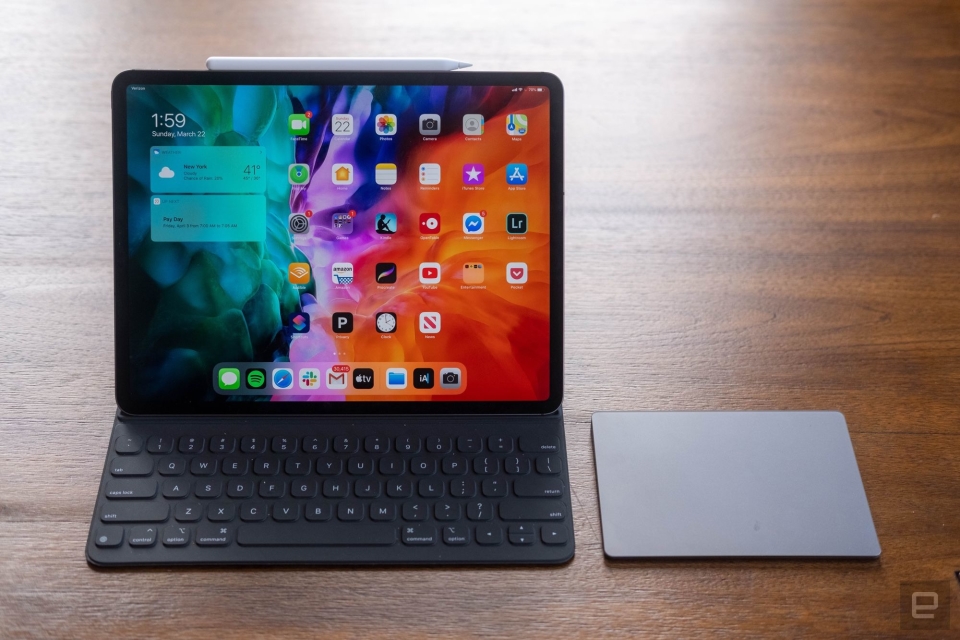
The perfect hybrid machine that’s just as good a tablet as it is a laptop still doesn’t exist. But throughout last year, companies like Microsoft, Apple and Google continued to improve their operating systems for machines that do double duty. Windows 11 has features that make it friendlier for multi-screen devices, while Android has been better optimized for larger displays. Plus, with the rise of ARM-based chips for laptops, especially Apple’s impressive M series, prospects for a powerful 2-in-1 with a vast touch-friendly app ecosystem is at an all-time high.
Even the best 2-in-1 laptops still have their limits, of course. Since they’re smaller than proper laptops, they tend to have less-powerful processors. Keyboards are often less sturdy, with condensed layouts and shallower travel. Plus, they’re almost always tablets first, leaving you to buy a keyboard case separately. (And those ain’t cheap!) So, you can’t always assume the advertised price is what you’ll actually spend on the 2-in-1 you want.
Sometimes, getting a third-party keyboard might be just as good, and they’re often cheaper than first-party offerings. If you’re looking to save some money, Logitech’s Slim Folio is an affordable option, and if you don’t need your keyboard to attach to your tablet, Logitech’s K780 Multi-Device wireless keyboard is also a good pick.
While we’ve typically made sure to include a budget 2-in-1 laptop in previous years, this time there isn’t a great choice. We would usually pick a Surface Go, but the latest model is still too expensive. Other alternatives, like cheaper Android tablets, are underpowered and don’t offer a great multitasking interface. If you want something around $500 that’s thin, lightweight and long-lasting, you’re better off this year looking at a conventional laptop (like those on our best budget PCs list).
Chris Velazco / Engadget
When you’re shopping for a 2-in-1, there are some basic criteria to keep in mind. First, look at the spec sheet to see how heavy the tablet is (alone, and with the keyboard). Most modern hybrids weigh less than 2 pounds, with the 1.94-pound Surface Pro 9 being one of the heaviest around. The iPad Pro 12.9 (2022) and Samsung’s Galaxy Tab S8+ are both slightly lighter. If the overall weight of the tablet and its keyboard come close to 3 pounds, you’ll be better off just getting an ultraportable laptop.
You’ll also want to opt for an 11-inch or 12-inch screen instead of a smaller 10-inch model. The bigger displays will make multitasking easier, plus their companion keyboards will be much better spaced. Also, try to get 6GB of RAM if you can for better performance — you’ll find this in the base model of the Galaxy Tab S7+, while this year’s iPad Pro and the Surface Pro 8 start with 8GB of RAM.
Finally, while some convertible laptops offer built-in LTE or 5G connectivity, not everyone will want to pay the premium for it. An integrated cellular radio makes checking emails or replying to messages on the go far more convenient. But it also often costs more, and that’s not counting what you’ll pay for data. And, as for 5G — you can hold off on it unless you live within range of a mmWave beacon. Coverage is still spotty and existing nationwide networks use the slower sub-6 technology that’s barely faster than LTE.
Best overall: Surface Pro 9 (Intel)
There’s no beating the Surface series when it comes to 2-in-1s. They’re powerful, sleek tablets running an OS that’s actually designed for productivity. The Surface Pro 9 is Microsoft’s latest and great tablet, and it builds upon the already excellent Pro 8. It features speedy 12th-gen Intel CPUs and all of the major upgrades from last year, including a 120Hz display and a more modern design. It’s the best implementation of Microsoft’s tablet PC vision yet.
Don’t confuse this with the similarly named Surface Pro 9 with 5G, though, which has a slower ARM processor and inferior software compatibility. Built-in cellular is nice and all, but the Intel Pro 9 is a far better PC.
Like most of the other convertible laptops on this list, the Pro 9 doesn’t come with a keyboard cover — you’ll have to pay extra for that. That’s a shame, considering it starts at $1,000. Microsoft offers a variety of Type Covers for its Surface Pros ranging from $100 to $180, depending on whether you want a slot for a stylus. But at least they’re comfortable and well-spaced. You can also get the Surface Slim Pen 2 ($130) for sketching out your diagrams or artwork, which features haptic feedback for a more responsive experience.
Best for Apple users: 12.9-inch iPad Pro
If you’re already in the Apple ecosystem, the best option for you is obviously an iPad. The 12-inch Pro is our pick. Like older models, this iPad Pro has a stunning 12.9-inch screen with a speedy 120Hz refresh rate, as well as mini-LED backlighting. This year, it includes Apple’s incredibly fast M2 chip and more battery life than ever before.
Apple’s Magic Keyboard provides a satisfying typing experience, and its trackpad means you won’t have to reach for the screen to launch apps. But it’ll also cost you an extra $300, making it the most expensive case on this list by a lot. The iPad also lacks a headphone jack and its webcam is awkwardly positioned along the left bezel when you prop it up horizontally, so be aware that it’s still far from a perfect laptop replacement. Still, with its sleek design and respectable battery life, the iPad Pro 12.9 is a good 2-in-1 for Apple users.
Best for Android users: Samsung Galaxy Tab S8+
While Windows is better than iPadOS and Android for productivity, it lags the other two when it comes to apps specifically designed for touchscreens. If you want a tablet that has all the apps you want, and only need it to occasionally double as a laptop, the Galaxy Tab S8+ is a solid option. You’ll enjoy watching movies and playing games on its gorgeous 12.4-inch 120Hz AMOLED screen, and Samsung includes the S Pen, which is great for sketching and taking notes. The Snapdragon 8 Gen 1 chip and 8GB of RAM keep things running smoothly, too.
Last year, Samsung dramatically improved its keyboard case, making the Tab an even better convertible laptop. You could type for hours on this thing and not hate yourself (or Samsung). The battery life is also excellent, so you won’t need to worry about staying close to an outlet. The main caveat is that Android isn’t great as a desktop OS, even with the benefits of Android 12L. And while Samsung’s DeX mode offers a somewhat workable solution, it has plenty of quirks.
There’s a lot to keep track of as a new mom. All of a sudden, you’re scrambling to learn how to care for a tiny person, without sleep and with a lot of new responsibilities. It’s a rough adjustment that takes time, patience and probably at least a few crying jags to get the hang of. If you’re looking for the perfect gift for a new mother, give her time to sleep. If you’re looking for the next best thing, try these helpful gadgets that are designed to make the job at least a little easier.
Hatch Rest+
Having a soft light on during nighttime feeds and diaper changes can be really helpful, especially when you’re sleep deprived. And a lot of experts will recommend using a white noise machine to help babies sleep soundly. Hatch’s Rest line combines both functions into a single device that can be controlled entirely from a smartphone. The Rest, and Rest+, offer 11 colors and sounds that can be combined, favorited, programed and timed to help your baby doze. The Rest+ is more expensive at $90, but adds a clock, battery power and a two-way audio monitor feature. It can also be voice controlled using Alexa. I’ve used it successfully to help sleep train the twins and, when they’re bigger, it can be programmed to help them learn when to wake up. — Amber Bouman, Commerce Writer
Owlet baby monitor and smart sensor
If there is only one piece of tech that makes it into the nursery, it should be a baby monitor. Being able to check on your sleeping infant without waking them is an invaluable gift, and you’ll want one that’s reliable, clear and adds thoughtful features (not just tech for tech’s sake).
Owlet makes a Cam that streams 1080p HD video to an app on your phone. The camera itself can sit on a base or get mounted to a wall. It has a 130-degree wide-angle lens to cover the room, but has to be manually tilted or adjusted so you can’t pan remotely. The video feed has night vision and displays in color during the day. The camera has two-way audio, so you can both hear your little one and speak to them through the device. There’s also background audio so sound from the camera will play over other apps if you have it up and running as well. In addition, it can send you notifications if it senses movement or sound coming from your baby’s crib. The Cam uses AES 128-bit encryption and a TSL connection to WiFi for security, though the feed can be shared with up to five people at a time (assuming you’ve shared your log-in credentials with them).
Lastly, it can be paired with Owlet's wearable sensor, the Smart Sock, which measures an infant’s heart rate and pulse ox. If the baby’s stats take a dive or shoot into irregular levels, you’ll get a very unsubtle alert on your phone — and on the sock’s base station. Because it’s intended to be worn at night and during naps, the Owlet Sock also tracks babies’ sleep habits. All this data is viewable in the app, making it a fairly complete monitoring system. — A.B.
LIFX smart lights
New moms don’t have enough hands to do everything they need to, when it needs to be done. Automating even the smallest task, like turning on and off a light, can be a big help. LIFX’s smart lights make great gifts because they come in all-white or color options, they’re dimmable and they require no connecting bridge or hub. That means your giftee can just screw them into their existing lamps, connect them to WiFi via the mobile app and start using them. They may want to automatically dim the lights in their baby’s room at a certain time, or shift to warmer or cooler light depending on the time of day. They can customize it as much or as little as they want — and if they just can’t be bothered, they can always use Alexa, Siri or Google Assistant voice commands to control these smart lights, too. — Valentina Palladino, Senior Commerce Editor
Kobo Clara 2E
Whether she’s bottle or breast feeding, a new mom has a lot of sitting-around time when the baby’s first born. She could spend time scrolling social media, but “flipping” through a book on an e-reader might be more rewarding. Kobo’s Clara 2E earned the top spot in our guide to e-readers thanks to its eye-friendly warm light, sharp display, intuitive interface and speedy but accurate touch responses. It’s compact and lightweight enough to hold in one hand, which is particularly important for busy new moms, and it can handle getting accidentally drenched. She can buy books through the Kobo store, borrow them from the library or subscribe to Kobo Plus for $10 per month to get unlimited access to a big selection of audio- and e-books. – Amy Skorheim, Commerce Writer
Theragun Mini 2.0
If the new baby has mom feeling knots, a personal massage “gun” like the Theragun Mini 2.0 can provide some temporary relief by gently pummeling away her muscle aches. While not the most forceful device of its kind, this triangular massager is effective enough to ease soreness yet small enough to carry around and outside of the house. We’ve recommended the original Mini in past gift guides; that one has slightly longer battery life and remains a good buy if you’re on a tighter budget, but this model is 20 percent smaller and supports a couple more attachments for targeting different parts of the body. Just be warned neither is exactly quiet. No massage gun is a substitute for proper sleep and nutrition habits, but since those will be in shorter supply for any new mom, it can be a useful tool to have on hand. — Jeff Dunn, Senior Commerce Writer
Twelve South HoverBar Duo
A tablet might be a new mom’s saving grace when she’s constantly shuffling around the house tending to the needs of a baby. A good stand like the HoverBar Duo can make it easier for her to safely and securely prop up her device without fear of it accidentally being knocked over by a rogue, tiny fist. One of our favorite iPad accessories, the HoverBar Duo has a weighted base, and while it could be knocked over, it would require more force than most infants could muster. It also comes with a clamp attachment so they could hook it to a table or desk if that’s more convenient. Whether they need to use their tablet to read work documents, show off the little bundle of joy to friends and family in a video call, or just binge-watch a show while the kid naps, the HoverBar Duo can give them a stable way to keep their table in view. — V.P.
Baby Brezza Safe + Smart bottle warmer
I’m not sure exactly how many steps I’m earning walking up and downstairs to check on the bottle warmer, but it’s probably a fair percentage of my daily exercise. Baby Brezza makes a Safe + Smart Baby Bottle Warmer that uses Bluetooth to connect the device to your phone. Using the Baby Brezza app you can operate the warmer remotely and get alerts when the bottle is ready. Though the app is pretty minimal, that’s not always a bad thing when you’re bleary-eyed and trying to feed an infant in the early morning hours. Plus, having controls on your phone allows you to turn off the warmer and avoid overheating a bottle. The downside is that the Safe + Smart warmer only holds a single bottle at a time. — A.B.
Smart breast pump
If your giftee is breastfeeding or pumping, a smart breast pump from Elvie or Willow is going to be a huge time saver. These wearable pumps let Mom keep on schedule while keeping her hands free to do any of the 40 other things she’s got on her plate. The pump, power supply and container are all contained in the egg-shaped device, which pairs to an app using Bluetooth. They’re a bit cumbersome to wear, but comfortable to use, and it beats being tethered to a wall unit, though the results are not always as consistent.
Though both products are similar in design and functionality, there are some differences between them. The Willow pump can be used with reusable containers or disposable bags, while the Elvie only has the container option. The Elvie pump is quieter and more discreet, while the Willow pump offers a spill-proof system that can be used even while upside down. (I tested this myself and it works.) They can be purchased in a set or two, or as an individual pump. — A.B.
Wabi Baby 3-in-1 sanitizer
While my children are very cute, they also like to chew on my house slippers, eat post-its and lick the touch-and-feel books. So I spend a lot of time cleaning the things that do belong in their mouths like pacifiers and teethers and plastic toys, which invariably end up on the car floor. While most of these things are easy to throw into boiling water, it can be worth the time saved to let a sanitizer do the job. The Wabi Baby sanitizer is something that I received as a gift, and it’s served me well. It takes up a fair amount of counter space but it’s relatively quiet; it fits a wide variety of bottles, dinnerware and accessories; and it can run a drying cycle after the steam sanitation session.
The display shows how much longer the process will run, it’s fairly simple to operate and it automatically remembers your last session so you can select it again easily. However, you can only use distilled water which can admittedly be a pain. Also, you have to be careful about where you put the Wabi; it requires a drainage mat for excess water. — A.B.
Bose QuietComfort 2 earbuds
Bose’s QuietComfort 2 earbuds have excellent active noise cancellation (ANC), but new moms might not feel comfortable flipping it on when they’re always on alert. Fortunately, Bose’s latest buds also have a good transparency mode, which lets you hear the world around you and your music or podcast. They’ll pair up with Apple or Android devices and their smaller size make them more comfortable than previous generations. We awarded them an 87 in our review and gave them a spot in our wireless earbuds guide, mostly thanks to their ANC. Moms might not get the chance to tune out the world all that often, but when someone else is on baby duty, a little bit of silence may feel like a blessing. – A.S.
Hulu subscription
The new mom in your life will probably appreciate some TV time on your dime when she finally gets the little one to go to sleep – and when the baby inevitably wakes up and needs to be held soon after. Hulu’s app isn’t the cleanest, but the service remains one of the better streaming services for keeping up with recent episodes from primetime TV shows. It has its share of kid-friendly content as well, though you can expand that catalog by pairing the service with Disney+ (and ESPN+) through a Disney Bundle subscription. — J.D.
This article originally appeared on Engadget at https://www.engadget.com/best-tech-gifts-for-new-moms-123052827.html?src=rss