An ATmega2560 with 8 KB of RAM can support a multitasking desktop environment, complete with games, file management and video playback. That is what Vladimir demonstrated by building a DIY laptop around an Arduino-compatible board with an ATmega2560, the Mega 2560 Pro Mini. The device measures 12x11x3.4 cm and packs a QWERTY keyboard, a 128×64 monochrome display, audio, microSD, an RTC and an 18650 battery into a 3D-printed enclosure. The firmware runs on FreeRTOS and offers real multitasking, with task switching via Alt-Tab. So a video that has been started keeps playing its audio while you play Sokoban.
The architecture of independent tasks is the core of the project. Applications receive events and draw through the UI engine, while the shell handles registration, stacks, switching and events. As a result, adding a new application does not require touching the others. A new task is a class with setup and loop plus a couple of methods for its menu entry and icon.
The UI engine and the applications on FreeRTOS
The interface engine handles forms, buttons, checkboxes, lists, input fields and dialogs. It takes care of key presses, tabbing, redrawing and the events sent to the owning task. On top of it run the ready-made applications:
file manager
video player
music player
clock
calculator
Sokoban
Snake
Game of Life
text editor
The ST7920 display is driven in parallel mode with a custom-written driver and a 1 KB video buffer in SRAM. The graphics functions range from a single pixel to text and XBM images. The AVR microcontroller runs at 16 MHz and everything runs on 8 KB of RAM, half of which is already taken up by global variables. That is why every byte of the buffer counts.
8×8 keyboard, debouncing and a 4-to-16 decoder
The keyboard has 64 keys in total, arranged in an 8×8 matrix that requires two 8-bit ports of the microcontroller. The keys were laid out in an 11×6 rectangle. Scanning happens column by column at hundreds of hertz, with software debouncing. In one revision a diode was added for each key and column selection moved to a 4-to-16 decoder. This way four pins are enough to select a column and the keyboard can expand to 16 columns.
24 fps video and XBM format plus MP3 in a single file
The video player uses a custom format with an XBM stream and MP3 in a single file. This way the player comfortably handles 24 fps video with audio, without keeping more in RAM than needed. The rest of the board is taken up by the RTC and the 18650 battery, which make the device self-contained. The enclosure was machined with a CNC3018 and 3D printed, while the schematics were drawn in EasyEDA.
Anyone who wants to rebuild the project will find the story of the work and the information to recreate it on the project page on Hackaday.io signed by Vladimir. Alternatively, an enclosure for an Arduino Mega can serve as a dimensional reference for the electronics, even though this laptop’s case is printed to measure.
The 0.96-inch 128×64 OLED display is a compact module widely used in electronics projects. It uses the SSD1306 driver and communicates over I2C, so it connects to Arduino, ESP8266 and ESP32 with just a few wires. It shows text, sensor data, symbols and graphics. AdriRobot tested it with an Arduino UNO and with an ESP32-C3 SuperMini.
128×64 OLED display: technology and colours
OLED stands for Organic Light Emitting Diode. Each pixel emits its own light, so contrast is high and no backlight is needed. Power consumption is lower than that of a backlit LCD, and readability stays good both in the dark and in bright light. The module comes with white, blue or yellow pixels, or in a two-colour version with a yellow top strip and the rest in blue.
supply from 3.3 to 5 V, 0.06 W consumption in normal display mode;
viewing angle greater than 160°;
operating temperature from -30 to +70 °C;
glass screen, lifetime of at least 16,000 hours;
module dimensions: 29.28 × 27.1 mm.
Pins, I2C address and power supply
The connector has four pins: VCC (3.3-5 V), GND, SCL and SDA. The reset circuit is on board, so no extra pin is needed. On the Arduino UNO the I2C pins are A5 for SCL and A4 for SDA, on the Mega they are 21 and 20.
Watch out for the two power pins, because on some modules their order is reversed. Displays marked JMDO.96C.1 let you choose: two pads on the PCB, shorted with 0 Ω SMD resistors or with a blob of solder, swap the two pins. Before connecting, it is therefore worth checking the silkscreen.
On some modules VCC and GND are swapped: read the silkscreen (photo: AdriRobot)
The I2C address is 0x3C, the same as other SSD1306 displays, and it cannot be changed. If other peripherals with that address are on the bus, another solution is needed.
Test with Arduino UNO
For the test, the display is mounted on a small breadboard and connected to an Arduino UNO. First you read the address with the i2c_scanner sketch (File, Examples, Wire): if nothing shows up, try swapping the SDA and SCL wires. Then install the Adafruit SSD1306 library from the Library Manager, accepting the Adafruit GFX dependency as well with Install all.
The test sketch then fills the screen, draws a pixel in each corner and writes a few lines of text. On the two-colour model, in fact, the first line comes out yellow because it sits in the top strip.
The test sketch running on the 128×64 OLED display (photo: AdriRobot)
Test with ESP32-C3 SuperMini
Connecting the display to the ESP32-C3 SuperMini (diagram: AdriRobot)
With the ESP32-C3 SuperMini the display uses 3.3 V, GND, GPIO9 as SCL and GPIO8 as SDA. In the IDE you select ESP32C3 Dev Module and enable USB CDC On Boot and Erase All Flash Before Sketch Upload, as in the other tests. Finally the sketch initialises I2C on pins 8 and 9, starts the display at address 0x3C and writes a few lines of text.
AdriRobot also used it on a board with an ESP8266 12F, to show temperature and humidity from a DHT11, and on a shield with a DFPlayer Mini, to print messages. The white-pixel model is available as a 0.96-inch I2C OLED display.
Source: AdriRobot’s original article includes the circuit diagram, the downloadable sketches and the test video.
A boxing band that counts your punches and analyses them as you throw them. Manivannan’s project brings together an Arduino Nesso N1, a Pulse Sensor and a machine learning model trained in Edge Impulse. The built-in 1.14-inch touch display shows the count and changes colour according to heart rate. That way the athlete immediately knows whether they are working in the rest zone or at peak intensity, without looking at an external app.
The Nesso N1 is the board that carries the whole system. The ESP32-C6 microcontroller mounts two 32-bit RISC-V processors, with an HP core up to 160 MHz and an LP core at 20 MHz. Memory amounts to 16 MB of NOR flash and 512 KB of SRAM, figures that leave room for the model and the firmware. On board there is also an SX1262 LoRa module in the 850-960 MHz band, useful if you later want to send data to a second device. The dimensions are 18 mm x 45 mm, so the band stays compact. Power comes from an integrated lithium-polymer battery, with a nominal 5 V input.
From the Nesso_IMU.ino firmware to the four punch classes
The Nesso_IMU.ino firmware initialises the Nesso N1’s IMU, configures the sampling pipeline and sends the readings from the 3-axis accelerometer over the serial port. The serialised motion frames are then acquired by Edge Impulse through the data forwarder. Here the work moves to Edge Impulse Studio, where the frames are segmented and labelled into four classes: Idle, Hook, Jab-Cross and UppeCut.
The preprocessing block is Spectral analysis, the learning block is Classification. The analysis window is 1200 ms and the stride is 750 ms, so the system looks at a little over one second of movement at a time and advances by three quarters of a second. The neural network is trained with 100 training cycles and a learning rate of 0.05. The stated result is 100% accuracy in both the training and the testing phase.
The trained model is exported as an Arduino library and imported into the IDE. From that point on, inference runs locally on the device, with no cloud dependency. The results update the punch count variables, while the Pulse Sensor continuously reads heart rate. Anyone who wants to retrace the path will find the full account of the workflow, from data collection to library export, on Manivannan’s project page on Hackster.io.
The Pulse Sensor on pin GPIO5 and the backlight colours
The pulse sensor must be connected to pin GPIO5, not to the default pin. The PulseSensor Playground library therefore has to be modified: inside PulseSensor.cpp the InputPin variable goes from 7 to 5. The sensor sits on the tip of the index finger and is secured with a hook-and-loop strap, so it stays in contact during the punches.
Heart rate sets the colour of the LED backlight, which becomes an intensity indicator you can read out of the corner of your eye:
Below 100 bpm the backlight turns green, rest zone or low intensity.
Between 100 and 140 bpm it turns blue, moderate activity.
Between 140 and 160 bpm it turns yellow, high intensity.
Above 160 bpm it turns red, peak intensity.
Rebuilding the band takes only a few parts: the Nesso N1, a Pulse Sensor, hook-and-loop tape and a 5 cm jumper wire kit. Assembly requires no special soldering, because the connections go through the jumpers. What is more, the hook-and-loop strap holds sensor and band together without 3D printing. Anyone looking for a board from the same family for other IoT experiments will find the board with Matter and Bluetooth LE in the catalogue, intended for home automation rather than for sports wearables.
The delicate point is calibrating the heart-rate thresholds. The four ranges on the board hold true for this project, but every athlete has different maximums. So it is worth recording a few rounds and comparing the colours with the real values before trusting the feedback. Sensor position matters too: if it shifts even slightly, the reading wobbles and the colour changes for no good reason.
Punch counting relies on the model’s four classes. Idle increments nothing, while Hook, Jab-Cross and UppeCut push the counter up. Consequently the number on screen is not a simple accelerometer peak, but the result of a classification. The limitation is that the model was trained on one person’s movements: with a different boxer, or with the opposite hand, performance can drop.
A buzzer module emits a sound to signal a danger or the end of a set time. It also serves to confirm a command. There are two types: passive, such as the KY-006 and Ks0019, and active, such as the KY-012 and Ks0018. AdriRobot tested them with an Arduino UNO, with a Multi Test Shield and with the micro:bit board.
Active and passive buzzer module: the difference
Loose buzzers and buzzer modules used in the tests (photo: AdriRobot)
The buzzer is an audio signalling device. It can be mechanical, electromechanical or piezoelectric. In the active module there is an internal oscillator: you just power it and the sound starts. The passive module has none, so the control circuit must supply it with a square wave between 2 and 5 kHz.
The piezoelectric buzzer is based on a ceramic disc with a metallic layer. It is robust and cheap. That is why it is used for narrow-band alarm signals, for example in household appliances and in medical technology. Electromagnetic buzzers, on the other hand, have a metal diaphragm set vibrating by an electromagnetic circuit, with the electronics already integrated.
The four modules compared
The KY-006 and KY-012 have the same circuit, made up of a connector and the buzzer. Only the type of buzzer changes, passive in the first and active in the second. Of the connector only GND and signal are used, so the current comes from the Arduino pin. Each module also measures 15 × 19 × 9 mm and weighs 2.4 g.
The Keyestudio Ks0018 (active) and Ks0019 (passive) modules are more elaborate. An NPN S8050 transistor acts as a switch between the control pin and the buzzer. There are two resistors: one on the base and one in series with the power supply. This way the control pin only supplies the current for the transistor. The connector therefore has three connections: GND, signal and 3.3 or 5 V power. Finally, these modules measure 30 × 20 × 10 mm and weigh 3 g.
The NPN S8050 transistor acts as a switch on the Keyestudio module (schematic: AdriRobot)
Testing with Arduino: square wave and tone()
The KY-006 module connected to an Arduino UNO for the basic test (schematic: AdriRobot)
To test a passive module you need an Arduino UNO, some Dupont jumpers and the KY-006 or the Ks0019. In the first sketch digital pin 3 goes from high to low with short pauses. This way the square wave is built by hand. Alternatively you use tone(pin, frequency, duration), which generates a square wave with a 50% duty cycle.
The command also produces only one tone at a time. If another pin is already playing, the call has no effect, while on the same pin it changes the frequency. To stop the sound you use noTone(pin). In AdriRobot’s example the buzzer sounds at 500 Hz and at 1000 Hz for one second each. Then it stays silent for five seconds.
The active module is simpler. With the KY-012 or Ks0018 a signal pin at high level makes the buzzer sound. At low level it stops it.
Multi Test Shield and micro:bit
The Multi Test Shield is a shield built by AdriRobot, compatible with the Arduino UNO R3. It is used to test the sensors of the 37-in-1 kit. The KY-012 is inserted on the JP2 connector. This way the sketch alternates sound and silence and shows the various phases on a small OLED display.
The Ks0018 and Ks0019 modules can also be connected to a micro:bit board. You need the Keyestudio Micro:bit Sensor V2 shield and three female-female Dupont cables. The program is also written with the MakeCode block editor and saved directly onto the board.
A group of children aged 7 to 13 is building a tactile zoo with 3D-printed robotic animals. The creatures, more than 20 in total, are equipped with LEDs, motors, buttons, and gears. At Maker Faire Bay Area, the group will also display their printing errors and failed prototypes. The goal is to show the iteration process that leads from an idea to a working object.
The project turns 3D printing into an educational and interactive activity. Mistakes are not hidden but become an integral part of the exhibition. Visitors can thus understand that making errors is a normal step in the work, not a failure. The maker’s website details how the children faced technical difficulties and what solutions they found.
From choosing the animal to the first print
Each young maker chooses an animal, real, mythological, or completely invented. Then they decide what behavior the creature should have. Some design the animals from scratch, others start from existing 3D models and modify them, cutting or redesigning sections to make room for the electronics. Once the body is ready, they add a function such as an LED, a servo, a motor, a button, or a set of gears.
The group includes eight creatures, among them Em. To make Plate the Armadillo roll into a ball, 11 prints were needed. Each failed attempt taught something new: a joint too tight, a motor off-axis, a wall too thin. The children learned to observe the error and correct it in the next print.
An exhibition you can touch and open
The zoo is not a simple showcase. Visitors can press buttons, flip switches, and open the animals to see the wires, gears, and electronics inside. This choice makes the electronics transparent and understandable even to those who have never opened a device. Next to the finished animals, broken prints, melted parts, and earlier versions are displayed, so visitors can ask what went wrong and how it was fixed.
For those who want to recreate the project, the electronic part can be built with simple, modular components. For example, a servo motor with metal gears can move an animal’s legs, while a shield for controlling RC servos allows managing multiple movements with an Arduino board. For light effects, a WS2812 LED matrix offers endless color possibilities. Finally, a compact board like the Arduino Nano Matter can handle logic and connectivity in a small space.
Mistakes on display: the educational value of failure
The choice to display printing errors is the heart of the project. In a world that shows only perfect results, these children reveal the behind-the-scenes. The broken prints tell the real difficulties of 3D printing: material shrinkage, parts detaching from the bed, motors that don’t find space. Visitors to Maker Faire will be able to talk with the young makers and discover how each problem was tackled.
This approach also changes the way the children work. They learn that a failed prototype is not wasted time, but a step forward. Each error provides valuable information for the next version. The iteration process thus becomes a mental habit, useful not only in 3D printing but in every design activity.
An SO-101 robot arm, originally a desktop toy, now picks and places rubber ducks by reasoning with a vision-language-action model. Dmitry Maslov’s project swaps the original brain for an Arduino VENTUNO Q board, which runs Hugging Face’s SmolVLA model locally. The result shows that robotics tasks combining vision and language, once confined to costly labs, now fit on a 299-dollar board.
Hardware: two processors on one board
The Arduino VENTUNO Q board has a dual nature. On one side sits an SBC system with a Qualcomm Dragonwing IQ8 processor, equipped with an Adreno 623 GPU and a Hexagon Tensor NPU, built for AI processing. On the other side is an STM32H5F5 microcontroller with an Arm Cortex-M33 core running at 250 MHz, which handles real-time servo control. The board offers 16 GB of LPDDR5 RAM and 64 GB of integrated eMMC storage.
The original SO-101 arm carries gearmotors on every joint and two cameras: one fixed overhead and one on the gripper. The images and joint position data go to the Dragonwing IQ8 processor, where the SmolVLA model interprets them. The model was trained with 50 demonstrations of the task of grabbing and moving the rubber ducks.
The SmolVLA model and the system’s numbers
SmolVLA is an open source vision-language-action model from Hugging Face. It processes the camera images and joint data, then produces the commands for the servo motors. All the processing happens locally on the VENTUNO Q board, with no connection to external services. The board costs 299 dollars, against 399 dollars for the Jetson Orin Nano Super Developer Kit, cited as a competitor.
Dmitry Maslov’s system points the way to accessible robotics. What’s more, the fact that the model runs on a commercial board costing less than 300 dollars opens up new scenarios for makers. For anyone who wants to see the project in action, Dmitry Maslov’s video shows the arm grabbing and moving the rubber ducks.
Arduino VENTUNO Q board with Qualcomm Dragonwing IQ8 processor and STM32H5F5
Hugging Face SmolVLA model running locally
50 demonstrations to train the pick-and-place task
Two cameras: one overhead and one on the gripper
16 GB of LPDDR5 RAM and 64 GB of eMMC storage
For anyone wanting to rebuild the project, the trickiest part is the integration between the SBC side and the microcontroller side of the board. The Dragonwing IQ8 processor runs the model, while the STM32H5F5 controls the servos. Communication between the two sides is essential to synchronise vision with movement.
Let’s find out how to use the MAX7219 to drive an LED matrix. Wiring, Arduino libraries and sketches will guide us through building custom graphic and numeric displays.
An LED matrix display is one of the most fascinating components for anyone starting to experiment with Arduino: with a small square module we can bring to life numbers, letters, symbols and animations that immediately catch the eye. The problem? An 8×8 matrix means no fewer than 64 LEDs to control individually: an almost impossible task without dedicated support. That is where the MAX7219 chip comes in, an IC designed specifically to simplify the management of matrix and 7-segment displays, reducing the connection to the Arduino board to just a few pins. In this article we will see how to connect the MAX7219 to an 8×8 matrix, how to use the ready-made modules available on the market and how to program everything with the LedControl library.
The MAX7219
Fig. 1 Pinout of the chip and of the display.
The MAX7219 chip has 24 pins. The 8×8 display (Fig. 1) is connected so that the rows are linked to the DIG pins and the columns to the SEG pins of the MAX7219.
Brightness is varied in software after setting the maximum current with an external resistor connected to the Iset pin. Three pins are dedicated to communication with the control board: DIN (to transfer data from the board to the chip), CS (for device selection) and CLK (for the data clock). A further pin, DOUT, is used to connect the DIN of the next chip, in case you want to chain several LED matrices together (for example to build scrolling text).
The complete schematic of the connection between the chip and the display is shown in Fig. 2, with particular emphasis on the links to the Arduino board and to a second chip. Using the MAX7219 is made even simpler by the availability on the market of modules (such as those in Fig. 3) that integrate both the chip and the LED matrix, along with the relevant wiring.
Fig. 2 Schematic of the connection between the chip and the display.
Fig. 3 Schematic of the connection between modules and the Arduino board.
Using a module reduces the wiring to just the connections between the module and the Arduino board, and between modules possibly arranged in a chain. Each module has 5 input pins (VCC, GND, DIN, CS/LOAD and CLK, to be connected to a board such as the Arduino UNO R3) and 5 output pins (VCC, GND, DOUT, CS and CLK, for any subsequent modules in the chain). The Arduino UNO R3 board can be replaced by the more recent Arduino UNO R4 versions, available in the Minima and WIFI models, both fully compatible electrically and in software with the previous R3. Both versions keep the same pin layout and are compatible with most shields and libraries already developed for the R3.
Programming with Arduino
Several libraries make programming the MAX7219 easier; among them, in particular, the LedControl library, which is very widespread and simple to use.
An object of the LedControl class is created, to which an identifying name is assigned (for example, LC). The DIN, CLK and CS parameters will be replaced with the numbers of the Arduino pins (for example: 2, 4, 3) to which the respective signals are connected.
LC.SHUT (module_number, 0/1)
Enables or disables the chip. The value 0 makes it operational, while 1 puts it in standby. On power-up, the chip is in standby mode by default. The module_number parameter identifies the module in a serial chain, numbered starting from 0.
lc.setIntensity (module_number, intensity)
Adjusts the brightness of the LEDs, with a value between 0 (minimum) and 15 (maximum). The value 0 does not turn the LEDs completely off; to do that, you need to use LC.Shutdown(module_number, 1).
lc.clearDisplay (module_number)
Turns off all the LEDs of the specified module, clearing the displayed content.
Turns a single LED on or off. row_number and column_number indicate the position of the LED (numbered from 0 to 7). state = true (or 1) turns the LED on, false (or 0) turns it off. Rows are numbered from 0 (top) to 7 (bottom), columns from 0 (left) to 7 (right).
For example, the top-left LED occupies position (0, 0), the bottom-right one (7, 7).
lc.setRow (module_number, row_number, byte)
Lets you turn all the LEDs of a row on or off, specifying their state with a binary byte. For example, to turn on the first four LEDs of a row you use: B11110000.
lc.setColumn (module_number, column_number, byte)
Works in a similar way to setRow, but acts on a column. The byte defines which LEDs to turn on or off in the specified column.
Let’s now look at some practical examples of use.
Example 1
The first sketch, shown in Listing 1, is meant to display the 8 rows in sequence, one at a time, starting from the top; then the 8 columns, one at a time, starting from the left; then the 8 rows starting from the bottom; then the 8 columns starting from the right. Finally, all the LEDs are turned on gradually in pairs of rows, starting from the two middle rows and following the order: 4-5, 3-6, 2-7, 1-8. In this last phase, the lighting happens at low intensity, with brightness varying progressively from 10 to 2.
The first sketch lights up rows and columns of the matrix in sequence.
Example 2
The purpose of this sketch (Listing 2) is to gradually light up the LEDs of the matrix rows starting from the bottom, as a consequence of a voltage varying between 0 V and 5 V set by a potentiometer connected to pin A5; the comments inside the sketch describe how the gradual lighting works.
The second sketch lights the rows gradually as the potentiometer voltage changes.
Using arrays
The goals of the two previous examples can be achieved in a similar way using arrays. One approach is to define the row structure inside an array of bytes (for example in binary): with 8 elements of 8 bits you describe the LED states of the whole display. The first cell of the array corresponds to the state of the eight LEDs of row 0 (from left to right), the second to that of row 1, and so on up to row 7.
If, for example, you want to turn off all the LEDs of the first four rows and turn on those of the last four, you can use the following array:
The purpose of this sketch (Listing 3) is to display in sequence all the numbers between 0 and 9 using 10 arrays that define the numbers and 10 for loops that call them up.
The third sketch displays the digits 0 to 9 in sequence.
Example 4
The fourth sketch shows temperature and humidity thresholds on the matrix.
Fig. 4 Display of the temperature and humidity thresholds.
The purpose of this sketch (Listing 4) is to show when certain temperature and humidity thresholds (set in the program) are exceeded, as shown in Fig. 4.
In the left half of the display (columns 0-1-2) the temperature data is shown, while in the right half (columns 5-6-7) the humidity data is shown.
In the upper part of the display (rows 0-1-2) the letters T and U appear; in the lower part (rows 4-5-6-7) the lighting of the LEDs indicates that a given temperature or humidity threshold has been reached.
Four thresholds are defined in the code: as the value increases, the corresponding rows light up progressively, starting from row 7. Temperature and humidity are measured with the HTS221 sensor, integrated into the STMicroelectronics IKS01A3 expansion board (Fig. 5), mounted on the Arduino UNO board. Those who do not have this board can use other sensors, such as the DHT11 or DHT22, adapting the data acquisition part of the software accordingly.
Fig. 5 The IKS01A3 expansion board.
Conclusion
The MAX7219 makes LED matrix management accessible to everyone, turning a complex task into a fun, stimulating and creative experience. Once you understand the basic commands, the possibilities become practically endless: custom scrolling text, small animations, graphic indicators, simple light games and real-time data visualisations. All that is left is to experiment, adapt the sketches provided and let yourself be inspired: with a simple LED matrix your Arduino project can finally “speak with light” in a clear, dynamic and original way.
Physical AI needs a board that can think and act at the same time. This project pairs a Qualcomm Dragonwing IQ8 processor with an STM32H5 in a dual-brain architecture. The first runs AI models with 40 TOPS, while the second controls motors and peripherals in real time. The result is a complete platform for robotics and automation.
The board carries 16 GB of LPDDR5 RAM and 64 GB of eMMC storage. Connectivity includes tri-band Wi-Fi 6, Bluetooth 5.3, 2.5 Gb Ethernet, and CAN-FD. The board with integrated display from the Arduino UNO Q family offers a similar starting point for anyone approaching this world. The project board is open source and free of proprietary lock-ins.
How the dual-brain architecture works
The Qualcomm Dragonwing IQ8 processor handles the artificial intelligence. The STM32H5, on the other hand, guarantees deterministic control over motors, CAN bus, and other peripherals. The two processors communicate efficiently, so the AI can make decisions and the hardware executes without unpredictable latencies.
The preinstalled operating system is Ubuntu with an Ubuntu Pro license. The Arduino core runs on Zephyr RTOS, which offers guaranteed response times. In addition, the environment supports VS Code, PyCharm, Jupyter, and Docker for development.
AI models optimized for the NPU run through Arduino App Lab. The platform supports importing GGUF models from Hugging Face and training with Edge Impulse Studio. There are over 100 ready-to-use examples.
40 TOPS of AI power
16 GB LPDDR5 RAM
64 GB eMMC
Tri-band Wi-Fi 6 (2.4/5/6 GHz)
Bluetooth 5.3
2.5 Gb Ethernet
CAN-FD
Why a board for Physical AI is needed
Modern robotics requires perception, decision, and action in a single device. This board unifies everything in an open format. Makers can prototype with Arduino UNO shields and Raspberry Pi HATs. Moreover, ROS 2 support and the CAN-FD, I2C/I3C, SPI, PWM, and UART interfaces make it suitable for professional projects.
Compatibility with existing shields lets you reuse sensors and actuators you already own. For example, those with the more powerful processor board from the Raspberry Pi family can compare performance. In addition, the Works with Arduino program allows scaling prototypes to production level with certified SOMs from SECO and Toradex.
An open ecosystem for physical AI
The board uses Ubuntu Pro as its main operating system. Zephyr RTOS handles real-time hardware control. This mix ensures flexibility for development and robustness for execution.
Arduino App Lab is the access point for AI models. It supports importing from Hugging Face and training with Edge Impulse. There are also over 100 ready-made examples to get started right away.
The board is powered by a 65W USB-C power supply. It is designed for those who want to move from prototyping to production without changing platforms. Finally, support for Arduino shields and Raspberry Pi HATs makes it versatile.
For those starting out with embedded AI, the board with the STM32 microcontroller offers a simpler alternative. However, this board represents the next step for advanced robotics projects. Physical AI thus becomes accessible to makers, educators, and professionals.
Upline is a minimal serial protocol that turns any microcontroller into an IoT device. The project sheet describes a system based on newline-delimited ASCII records, with a complete Arduino implementation in a single header. The project, by smlcrft, targets 8-bit chips with very limited resources.
The operation is simple. The byte stream is split into lines using LF or CR terminators, ignoring empty lines and those that do not start with the ‘^’ character. Each line is a list of independent entries, delimited by the same ‘^’ character. Each entry represents an operation on a specific key.
How the Upline protocol works
Entries are only processed if fully delimited by two carets. This way partial data is never applied, and an interrupted communication does not leave the device in an inconsistent state. Writes are confirmed via an echo of the value actually in use: this distinguishes a rejection from a loss of communication.
A periodic heartbeat demonstrates that the device is alive and speaks the Upline protocol. This limits the receiver’s wait time, which immediately knows if the node is operational. The protocol also supports escaping special characters with six symbolic sequences, and does not require floating-point numbers: it uses the fixN format for decimals.
4,060 bytes of flash on ATmega328P, 358 bytes of SRAM
3,168 bytes of flash on ATtiny85, 253 bytes of SRAM
2,100 bytes of flash on ATtiny85 in transmit-only mode
98 bytes for a universal line reader on ATmega328P
The numbers are remarkable for a complete protocol. On ATmega328P, 4,060 bytes of flash and 358 bytes of SRAM are needed. On ATtiny85, consumption drops to 3,168 bytes, and in transmit-only mode to 2,100 bytes. The project sheet also reports 98 bytes for a universal line reader on ATmega328P.
Why Upline matters to makers
Upline lets you turn any microcontroller into an IoT device with a minimal, efficient, and robust protocol. The philosophy is the opposite of heavy frameworks: here everything fits in one header and runs even on 8-bit chips with only a few hundred free bytes. An Arduino Nano ESP32 board can use the same protocol as an ATtiny85, simplifying communication between heterogeneous nodes.
The protocol is particularly suited to those building distributed sensors, remote actuators, or small monitoring nodes. Moreover, the echo confirmation makes the system reliable even over noisy radio links. To connect a node to a PC and read the record stream, just use a 3.3 V / 5 V USB-serial converter: Upline speaks over any UART.
Getting started with Upline
To start, simply download the upline-arduino header and include it in an Arduino project. The fact sheet lists support for ATmega328P, ATtiny85, SAMD21, ESP32, and RP2040, among others. An Uno R3 with an ATmega328 is a great test bench to learn the protocol without soldering anything: those are the 4,060 bytes of flash measured by the author.
The source code is a single header file, so integration is immediate. No external libraries or complex build tools are needed. A USB ATtiny85 board is instead the project’s edge case: 3,168 bytes of flash and 253 of SRAM, and the protocol fits entirely inside.
Finally, the project documentation reports precise numbers for each configuration. This helps choose the right microcontroller based on flash and SRAM budget. For the smallest projects, transmit-only mode on ATtiny85 requires just 112 bytes of SRAM.
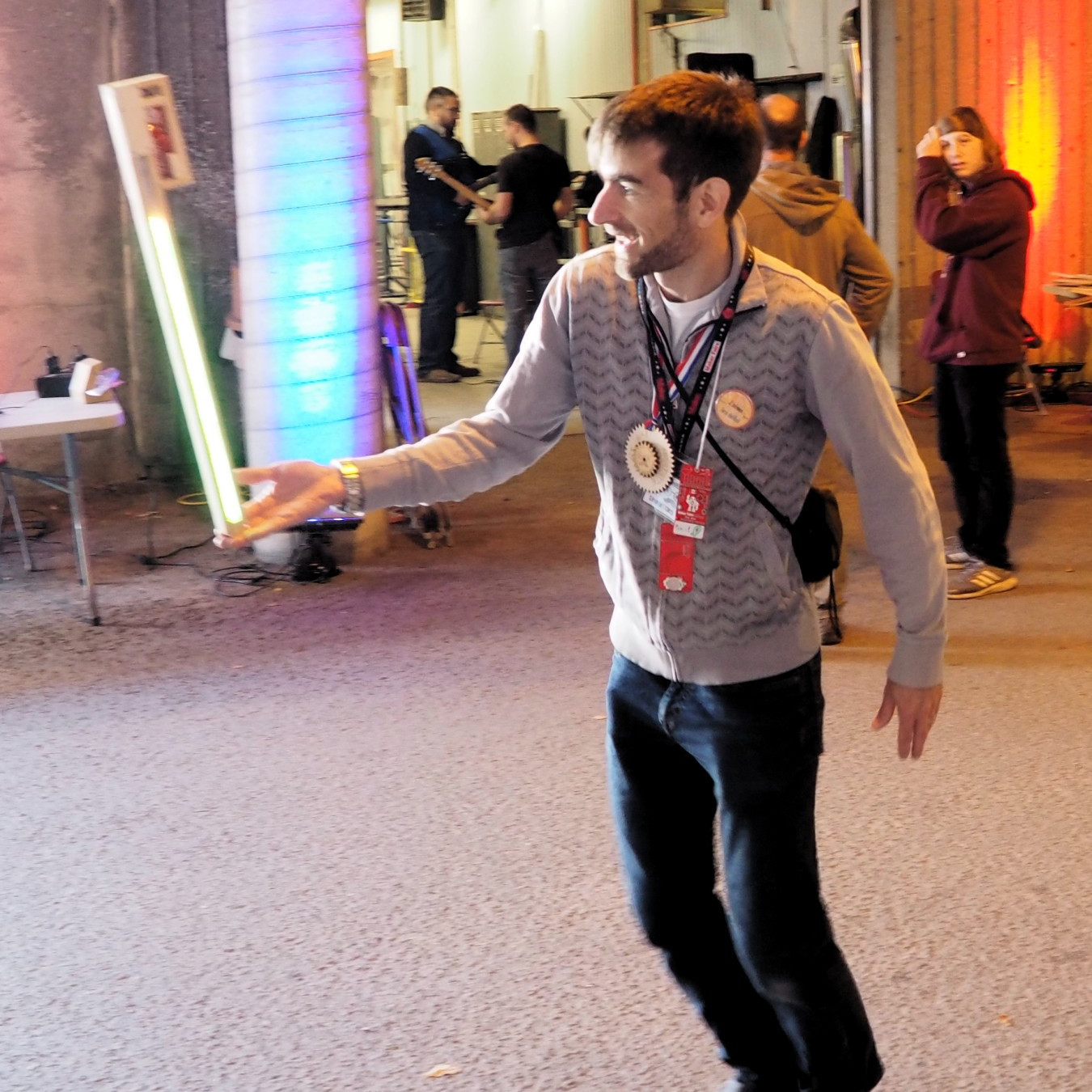
Self-described “Inventor Dad” [pepelepoisson]’s project is called Stecchino (English translation link here) and it’s an Arduino-based physical balancing game that aims to be intuitive to use and play for all ages. Using the Stecchino (‘toothpick’ in Italian) consists of balancing the device on your hand and trying to keep it upright for as long as possible. The LED strip fills up as time passes, and it keeps records of high scores. It was specifically designed to be instantly understood and simple to use by people of all ages, and we think it has succeeded in this brilliantly.
To sense orientation and movement, Stecchino uses an MPU-6050 gyro and accelerometer board. An RGB LED strip gives feedback, and it includes a small li-po cell and charger board for easy recharging via USB. The enclosure is made from a few layers of laser-cut and laser-engraved material that also holds the components in place. The WS2828B LED strip used is technically a 5 V unit, but [pepelepoisson] found that feeding them direct from the 3.7 V cell works just fine; it’s not until the cell drops to about three volts that things start to glitch out. All source code and design files are on GitHub.
Games are great, and the wonderful options available to people today allow for all kinds of interesting experimentation like a blind version of tag, or putting new twists on old classics like testing speed instead of strength.