Posts with «rfid» label

RFID with RC522: Radio-Frequency Identification with Arduino

Let’s get to know and learn how to use a board for RF tag identification, easily paired with Arduino.

We have covered radio-frequency identification, better known as RFID, several times before; for example, in issue no. 254 we dedicated an in-depth look at it with a thorough theoretical introduction and some usage examples based on the RFID PN522 module, accompanied by the ever-present Arduino board. In this article, we pick up the discussion again by experimenting with another module, the RFID-RC522, based on the MFRC522 chip produced by NXP (the datasheet is available at the web link https://www.nxp.com/docs/en/data-sheet/MFRC522.pdf).

The RFID-RC522 module

The MFRC522 is a highly integrated RFID reader/writer for contactless communication at 13.56 MHz, supporting the ISO/IEC14443A/MIFARE and NTAG standards.

The transmitter inside the MFRC522 can drive an antenna designed to communicate with cards and transponders without additional active circuits. The internal receiver can efficiently demodulate and decode signals from cards and transponders compatible with the standards listed above.

The MFRC522 supports the MF1xxS20, MF1xxS70, and MF1xxS50 models. It also supports contactless communication with MIFARE transfer rates up to 848 kB (kiloBaud) in bidirectional mode.

The MFRC522 is compatible with all variants of the MIFARE identification protocols MIFARE Mini, MIFARE 1K, MIFARE 4K, MIFARE Ultralight, MIFARE DESFire EV1, and MIFARE Plus RF, grouped under the generic term MIFARE.

Below we summarize the main technical features of the module:

  • analog circuit to demodulate and decode responses;
  • buffered drivers for connecting an antenna with a reduced number of external components;
  • supports ISO/IEC 14443 A/MIFARE and NTAG;
  • typical operating distance in read/write mode up to 50 mm depending on antenna size and tuning;
  • supports MF1xxS20, MF1xxS70, and MF1xxS50 encryption in read/write mode;
  • supports ISO/IEC 14443 with high transfer rate communication up to 848 kbaud;
  • supports MFIN/MFOUT;
  • additional internal power supply to the smart card IC connected via MFIN/MFOUT;
  • supported host interfaces: SPI up to 10 Mbit/s, I²C-Bus up to 400 kBd in Fast mode, up to 3400 kBd in High-speed mode, serial UART RS232 up to 1,228.8 kB/s, with voltage levels depending on the pin supply voltage;
  • the FIFO buffer manages sending and receiving at 64 bytes;
  • flexible interrupt modes;
  • hard reset with low-power function;
  • software power-down;
  • programmable timer;
  • supply voltage from 2.5 to 3.3 V;
  • programmable I/O pins.

The RFID-RC522 module is detailed in Fig. 1, where you can see all the available connections.

Fig. 1 The RFID-RC522 module

Connecting to Arduino

Since all current libraries for using the module with Arduino reuse the SPI connection, we will focus only on that; Fig. 2 illustrates the connection to make for the subsequent tests with Arduino UNO.

Fig. 2 RC522_ISP connections

In Table 1 we describe the connections analytically with their signals: on the left are those of the Arduino UNO and on the right the contacts of the RFID-RC522 module with the corresponding wire colors in the diagram in Fig. 2. The IRQ pin of the RFID module should be left unconnected because we do not manage it in this project and do not need it.

Table 1 Connections between the RFID-RC522 module and Arduino

Of course, you must be very careful, because swapping just two wires will cause the module to fail; another important thing is power: the module requires 3.3 V, and the corresponding pin on Arduino is right next to the 5 V one; a moment of distraction would almost certainly damage the module.

The board (the RFID module used in the project) comes with two 8-pin strip headers (one straight and one at 90°) to solder as you prefer into the appropriate signal holes, an RFID Tag Card, and an RFID keychain Tag for initial testing.

Libraries for RC522

Using this module is made easier by the availability of specific libraries, of which we have selected two: the one from Velleman and the one written by Miguel Balboa.

Velleman: it is a minimal library consisting of only two files (RFID.h and RFID.cpp). Once downloaded from the link: https://www.velleman.eu/downloads/29/vma405_library.zip, you need to include it by opening a new sketch with an updated version of the IDE (in our case 1.8.12). Run the command Sketch – Include Library – Add .ZIP Library… and select the .zip file (Fig. 3), then close the IDE; it will be available when you reopen it.

Fig. 3 Including the vma405 library

Miguel Balboa: this library, much more powerful and articulated, is recommended by the official Arduino website; it is constantly updated, so it is always best to go to the link https://www.arduino.cc/reference/en/libraries/mfrc522/ or directly to the GitHub https://github.com/miguelbalboa/rfid; at the time of writing, the latest version is 1.4.8.

Its inclusion in the IDE is done in the same way as seen before. This library is quite demanding and requires considerable skills in RFID and programming to exploit it, so we only point it out to more experienced readers, while for the test we will see later we will use the one distributed by Velleman.

Functionality test

Let’s start with a test to verify the connections and the correct installation of the vma405 library. We have prepared a sketch named “RFID_TAG_CODE”; open it in the IDE and upload it to the Arduino UNO, then open the Serial Monitor, which will show the message “Avvicina un Tag al Modulo” (Bring a Tag close to the Module); at this point, bring the Tag close to the part of the module where the radio wave symbols are silkscreened (Fig. 4).

Fig. 4 Reading a Tag with the RC522 module

Keep in mind that the module should always be kept away from devices that can generate electric or electromagnetic fields, otherwise it might not work correctly.

The moment the Tag is recognized, the module reads its UID (unique identification code) and displays it on the Serial Monitor, both in decimal and hexadecimal format; in Fig. 5 we can observe the successive reading of two Tags.

Fig. 5 Reading the UID of two Tags

If after the first identification you bring the same Tag close again, nothing will happen because we have not included an alternative action in the sketch; bringing another Tag close instead will give its UID in both formats.

When this test succeeds, you need to decide which Tag will be the “System Administrator” of the circuit we have prepared for experimenting with this module and note the five decimal numbers that make up its UID. For our example, we will use the first group visible in the figure (197, 5, 190, 35, 93).

Access control project

With the help of a breadboard and very few other components, let’s now build a circuit to simulate an access control system using RFID technology with our RC522 module.

The sketch we have prepared can be downloaded and is called Access_Control.rar; it consists of two tabs, and the folder obtained from decompressing the file must be placed in the sketch folder of your IDE; the vma405_library must have been installed beforehand.

The idea is a hypothetical access control system, where the acceptance of a Tag is indicated by the alternating on/off of a blue LED, while rejection is represented by a red LED turning on for about 3 seconds.

Authorized Tags are pre-stored in the EEPROM of the Arduino microcontroller; our sketch supports up to three, but they can be increased up to the availability of the EEPROM. Storage only happens with prior authorization from the “System Administrator,” who has an RFID CARD Tag whose UID must be manually entered in the sketch and which, once read by the module, allows other Tags to be brought close to accredit them and store them in the EEPROM.

From this point on, when you bring an authorized tag near the module, the blue LED will turn on or off with each pass, toggling its state. The red LED, on the other hand, will light up for three seconds when someone tries to gain access with an unregistered tag, effectively denying authorization, and then it will turn off.

Before uploading the sketch to the Arduino, you need to open it and assign the corresponding decimal values of the chosen tag’s UID to the five variables dec_code0 through dec_code4 (Fig. 6), replacing the pre-stored values you will find there.

Fig. 6 Entering the administrator UID in the sketch

At this point you can upload the sketch to the Arduino and then disconnect the USB cable to remove power. Next, move on to building the practical layout shown in Fig. 7, which explains how to connect all the required components.

Fig. 7 Wiring diagram of the access control

Required materials

The materials needed to build the project are:

  • RFID-RC522 module
  • Arduino UNO
  • Breadboard with side power rails (red and black, or red and blue)
  • 6×6 mm push button
  • Red LED
  • Blue LED (or another color of your choice)
  • 2 resistors of 220 Ohm
  • 1 resistor of 10 kOhm
  • 5 M-M jumper wires
  • 7 M-F jumper wires
  • 1 jumper bridge, 3-pin
  • 1 jumper bridge, 5-pin
  • 1 jumper bridge, 19-pin
  • 4 tags, one of which marked as administrator

Note that regarding jumper wires and bridges, we provided the list to replicate our exact practical layout; of course you can make any variation, as long as you correctly make the proposed connections, otherwise the circuit will not work. Above all, be extremely careful not to reverse the power supply (3.3V and GND), otherwise you risk burning the module!

A special note about the breadboard: during our tests we came across a model with the power rails interrupted in the middle section. This was actually clearly indicated by the break in the red and blue silkscreen lines, but since it is unusual, we initially did not notice it. As a result, the RC522 module’s LED still turned on (due to current carried by the signals), but tag reading did not work. We therefore had to add two jumper wires to connect the two rails along their entire length (Fig. 8), i.e., to bridge them.

Fig. 8 Detail of the connection of the breadboard power rails

How the access control works

Once the circuit is complete on the breadboard and the connections are checked, to begin simply reconnect the USB cable from the PC to the Arduino UNO board. You will see the RC522 module’s red LED light up (but as explained earlier, this does not indicate correct power supply), while the two red and blue LEDs on the breadboard remain off.

Now open the Serial Monitor of the Arduino IDE, and the message “Controllo accessi attivo” will appear. The first operation to perform is to bring the Administrator tag near the module. If everything is in order, the two LEDs will blink simultaneously three times and remain on; the Serial Monitor will also show the message visible in Fig. 9, indicating that Administrator mode is active.

Fig. 9 Administrator mode

If at first power-up a number other than 0 appears (usually it will be 255), you need to reset the EEPROM. Simply press the push button mounted on the breadboard to achieve the desired result (Fig. 10).

Fig. 10 EEPROM reset

After the reset, you will exit Administrator mode and the LEDs will turn off. You must pass the Administrator tag again to re-enter, then simply bring the tag you want to authorize near the module to store its UID (Fig. 11).

Fig. 11 Storing an authorized tag

This operation can be performed for a maximum of three tags; after that, no more can be stored unless you modify the sketch accordingly.

Daily use of the system

At this point we can observe the circuit’s behavior depending on the type of tag we bring near the RFID reader; there are two possibilities.

Unregistered tag: the red LED turns on for about three seconds, then turns off; authorization is denied.

Registered tag: if the blue LED is off, it turns on, indicating that authorization has been granted; the LED stays on until you pass the same tag or another registered tag, at which point it turns off.

One last curiosity: if you lack other tags to simulate unauthorized access, you can use your own smartphone. If you have a phone with an NFC chip running Android 5.0 or later, simply enable NFC in the settings and then use the smartphone as if it were a tag.

In fact, when you bring it near the module with the chip side facing it, it will be recognized as a tag, but with a peculiarity that prevents its use as an authorized tag: with each new read, the UID turns out to be different from the previous read. This is easily verifiable with the “RFID_TAG_CODE” sketch. So even if you store the chip as authorized, it will not be recognized on subsequent reads.

In some rare cases, the smartphone may need a specific app to function as a tag. Simply download “NFC Tools” from the Play Store and leave it active, without doing anything else.

Conclusions

We end this article with a suggestion: as you can easily imagine, this project can be expanded by adding, for example, a relay driven by the same pin as the blue LED, which would allow you to activate an actuator such as an electric lock. The only limits are those of your imagination.

Naturally, the greater the complexity of the expansion, the more variations and implementations you will need to make to the sketch, but it will all be a useful programming exercise that will increase your skills and give you great satisfaction.

The post RFID with RC522: Radio-Frequency Identification with Arduino appeared first on Open Electronics.
Open Electronics 08 Sep 12:00
access control  arduino  mfrc522  mifare  nfc  rc522  rfid  spi  velleman  

Kids’ Jukebox Based on Arduino with RFID

Consumer electronics aimed at young children tend to be quite janky and cheap-looking, and they often have to be to survive the extreme stress-testing normal use in this situation. You could buy a higher quality item intended for normal use, but this carries the risk of burning a hole in the pockets of the parents. To thread the needle on this dilemma for a child’s audiobook player, [Turi] built the Grimmboy for a relative of his.

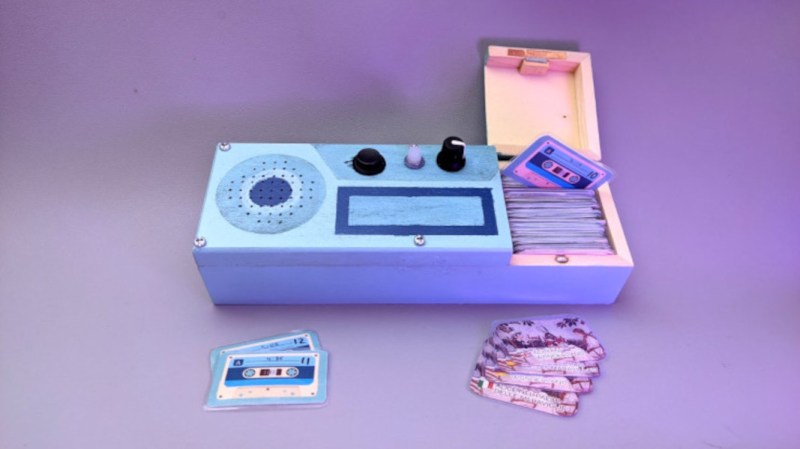
Taking its name from the Brothers Grimm, the player is able of playing a number of children’s stories and fables in multiple languages, with each physically represented by a small cassette tape likeness with an RFID tag hidden in each one. A tape can be selected and placed in the player, and the Arduino at the center of it will recognize the tag and play the corresponding MP3 file stored locally on an SD card. There are simple controls and all the circuitry to support its lithium battery as well. All of the source code that [Turi] used to build this is available on the project’s GitHub page.

This was also featured at the Arudino blog as well, and we actually featured a similar project a while ago with a slightly different spin. Both are based on ideas from Tonuino, an open source project aimed at turning Arduinos into MP3 players. If you’re looking to build something with a few more features, though, take a look at this custom build based on the RP2040 microcontroller instead.

Hack a Day 17 Dec 06:00

Son of Rothult

We are continuously inspired by our readers which is why we share what we love, and that inspiration flows both ways. [jetpilot305] connected a Rothult unit to the Arduino IDE in response to Ripping up a Rothult. Consider us flattered. There are several factors at play here. One, the Arduino banner covers a lot of programmable hardware, and it is a powerful tool in a hardware hacker’s belt. Two, someone saw a tool they wanted to control and made it happen. Three, it’s a piece of (minimal) security hardware, but who knows where that can scale. The secure is made accessible.

The Github upload instructions are illustrated, and you know we appreciate documentation. There are a couple of tables for the controller pins and header for your convenience. You will be compiling your sketch in Arduino’s IDE, but uploading through ST-Link across some wires you will have to solder. We are in advanced territory now, but keep this inspiration train going and drop us a tip to share something you make with this miniature deadbolt.

Locks and security are our bread and butter, so enjoy some physical key appreciation and digital lock love.

Capture the Flag, Along with the Game Data

With events of all sizes on hold and live sports mostly up in the air, it’s a great time to think of new ways to entertain ourselves within our local circles. Bonus points if the activity involves running around outside, and/or secretly doubles as a team-building exercise, like [KarelBousson]’s modernized version of Capture the Flag.

Much like the original, the point of this game is to capture the case and keep it for as long as possible before the other team steals it away. Here, the approach is much more scientific: the box knows exactly who has it and for how long, and the teams get points based on the time the case spends in any player’s possession.

Each player carries an RFID tag to distinguish them from each other. Inside the case is an Arduino Mega with a LoRa shield and a GPS unit. Whenever the game is afoot, the case communicates its position to an external Raspi running the game server.

If you haven’t met LoRa yet, check out this seven-part introductory tutorial.

An RFID-powered seating chart for your wedding

Seating charts at weddings and other formal events are usually handled by small cards at each table, but Gabrielle Martinfortier had other plans. 

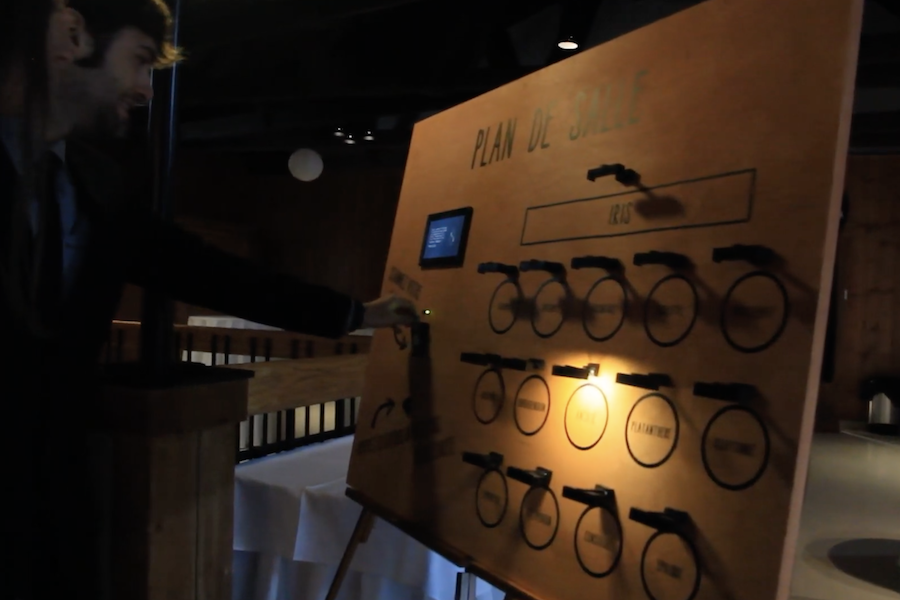
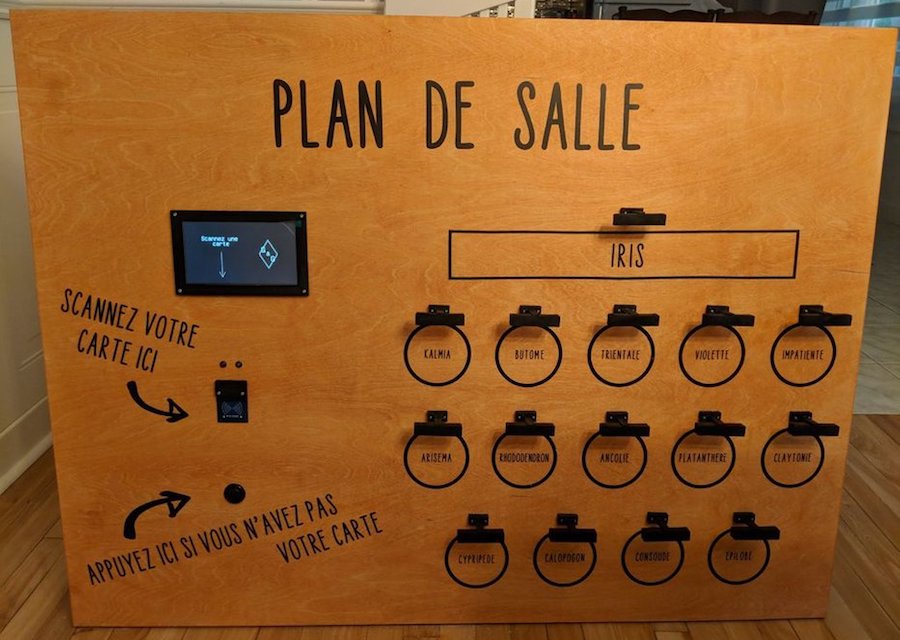
For her big event, she along with help from her now-husband and friends constructed a seating arrangement on a 3’ x 4’ wood canvas, equipped with a 7” TFT display and an RFID reader. An Arduino Mega serves as the brains of the device, taking advantage of its expanded IO capabilities to control an LED assembly over each table on the chart.

Wedding guests simply had to present the card they received with the invitation, then their proper table was lit. As seen in the video below, this eliminated seating confusion, and provided a bit of extra entertainment for those involved. 

I wanted to make something special for my wedding tables chart, and I thought this was a good way of making it personal, as it reflects my love (addiction) for electronic projects.

So the plan was to make a big wood panel with the plan of the room on it, including, of course, the tables and their names (they are plant names, in French). The guests received a card with an RFID sticker on it along with their invitation. On the back of the card was written (in French) something like “This card is of great importance, keep it safe and carry it on you at the wedding.” I didn’t want them to know what it was for until the wedding.

The chart has several elements  a TFT display, an RFID reader, a green LED and a red LED, a push button and one strip of 3 LEDs for each table. When the RFID tags are scanned, the green LED turns on if it is recognized, and a personalized message is displayed on the screen, including the name of the table where the guest is seated. In addition, the LED strip associated with the table is turned on, shedding light on the table on the room’s plan. If the card is misread or unrecognized, the red LED is turned on with an “access denied” message on the screen. The button is for those who did not succeed in not losing or forgetting the card. It displays a message on the screen, asking them to go to the bar and say something like “I am not reliable,” in exchange of which they get a backup chart to find their seat.

I changed a few things along the way: I wanted to paint the wood panel but changed my mind because I was scared I’d make a mess and have to start over with a new panel. Since I have a circuit machine I decided to make the writings and drawings with vinyl.

I also had a 20×04 character LCD screen in the beginning, but I upgraded to a 7″ TFT screen because it’s bigger and not as limiting in terms of message length.

An Arduino-based RFID tag system perfect for escape rooms

As seen here, “Annaane!” has come up with what could form the guts of a very interesting escape room puzzle. 

Her build features four RFID card readers, which cause an Arduino Uno to release a door lock or other device via a 5V relay, only when the corresponding tags are arranged correctly.

From the looks of the video below, the design is very much a prototype, but could easily be morphed into an arrangement to frustrate and entertain participants. As noted, the project uses all but the TX and RX pins on the Uno, but this could be expanded by using a Mega or an I2C port expander. 

Code for the system can be found on GitHub.

Held Captive by Arduino and Multiple RFID Readers

If you’re the kind of person who has friends, and/or leaves the confines of the basement from time to time, we hear that these “Escape Rooms” are all the rage. Basically you get locked into a room with a couple other people and have to solve various problems and puzzles until you’ve finally made enough progress that they let you out. Which actually sounds a lot like the working conditions here at Hackaday HQ, except they occasionally slip some pizza rolls under the door for us which is nice.

Whichever side you find yourself on in one of these lighthearted hostage situations, knowledge of this multi-tag RFID lock created by [Annaane] may come in handy. By connecting multiple MFRC522 RFID readers to an Arduino Uno, she’s come up with a method of triggering a device (like an electronic door lock) only when the appropriate combination of RFID tags have been arranged. With a little imagination, this allows for some very complex puzzle scenarios which are sure to keep your prisoners enthralled until you can lower the lotion down to them.

Her code allows you to configure the type and number of RFID cards required to trigger one of the Arduino’s digital pins, which usually would be connected to a relay to fire off whatever device you want. The Arduino sketch is also setup to give “hints” to the player by way of a status LED: fast blinking let’s you know the tag scanned is wrong, and slow blinking means you don’t have enough scanned in yet.

The video after the break shows some highlights of the build, as well as a quick demonstration of how both the RFID “combination” and manual override can be used to trigger the attached relay.

Hackers do love RFID. Using them for physical access control is a fairly common project around these parts, and we’ve even seen similar setups for the digital realm.

RFID Unlock Your PC, Because You’re 1337

Ever wanted to feel like one of those movie hackers from the late 90s? Yes, your basement’s full of overclocked Linux rigs and you’ve made sure all your terminal windows are set to green text on a black background, but that’s not always enough. What you need is an RFID tag that unlocks your PC when you touch the reader with your RFID card. Only then may you resume blasting away at your many keyboards in your valiant attempts to hack the mainframe.

[Luke] brings us this build, having wanted an easier way to log in quickly without foregoing basic security. Seeing as an RC522 RFID reader was already on hand, this became the basis for the project. The reader is laced up with a Sparkfun Pro Micro Arduino clone, with both devices serendipitously running on 3.3V, obviating the need for any level shifters. Code is simple, based on the existing Arduino RC522 library. Upon a successful scan of the correct tag, the Arduino acts as a HID keyboard and types the user’s password into the computer along with a carriage return, unlocking the machine. Simple!

Overall, it’s a tidy build that achieves what [Luke] set out to do. It’s something that could be readily replicated with a handful of parts and a day’s work. If you’re interested in the underlying specifics, we’ve discussed turning Arduinos into USB keyboards before.

Hack a Day 18 Mar 06:00

RFID Stethoscope Wheezes and Murmurs for Medical Training

You’d think that with as many sick people as there are in the world, it wouldn’t be too difficult for a doctor in training to get practice. It’s easy to get experience treating common complaints like colds and the flu, but it might take the young doctor a while to run across a dissecting abdominal aortic aneurysm, and that won’t be the time for on the job training.

Enter the SP, or standardized patient – people trained to deliver information to medical students to simulate a particular case. There’s a problem with SPs, though. While it’s easy enough to coach someone to deliver an oral history reflecting a medical condition, the student eventually needs to examine the SP, which will reveal none of the signs and symptoms associated with the simulated case. To remedy this, [Chris Sanders] and [J Scott Christianson] from the University of Missouri developed an open-source RFID stethoscope to simulate patient findings.

This is one of those “why didn’t I think of that?” ideas. A cheap stethoscope is fitted with an Arduino, and RFID reader, and a small audio board. RFID tags are placed at diagnostic points over an SP’s chest and abdomen. When the stethoscope is placed over a tag, a specific sound file is fetched from an SD card and played over earbuds. The student doesn’t have to ask, “What am I hearing?” anymore – the actual sound of bruits or borborygmi are heard.

We can easily see expanding this system – RFID tags that trigger a faux ultrasound machine to display diagnostic images, or tiny OLED screens displaying tagged images into an otoscope. A good place to start expanding this idea might be this digital stethoscope recorder and analyzer.


Filed under: Medical hacks

Huge Interactive Crossword

Give kids some responsible and challenging tasks, and you’d be surprised at the results. The “Anything Goes” exhibit at the National Museum in Warsaw was aimed as a museological and educational experiment. A group of 69 children aged 6–14 was divided into teams responsible for preparing the main temporary exhibition at the museum. Over six months, they worked on preparing the exhibition during weekly four-hour meetings. They prepared scripts, provided ideas for multimedia presentations, and curated almost 300 works for display. One of those was [Robert Mordzon]’s Giant Interactive Crossword.

The build is in two parts. The letter tiles, which have embedded RFID tags, obviously look like the easiest part of the build. The table, looking at the video (after the break), probably needed a lot more effort and labour. It is built in two halves to make construction easier. There are a 130 boxes that need to be filled in with the right letters to complete the crossword. Each box contains a bunch of electronics consisting of an Arduino Nano, a RFID Reader and a bunch of sixteen WS2812B LEDs, all assembled on a custom PCB. Do the math, and you’ll figure out that there’s 2080 LEDs, each capable of sipping 60 mA at full brightness. That’s a total current requirement of almost 125 amps at 5 V. Add in all the Arduino’s, and [Robert] needed a beefy 750 W of power, supplied via four switch mode power supplies.

Each Arduino Nano is a slave on the I²C bus. The I²C master is an Arduino Mega 2560, which in turn communicates with a computer over serial. When a box is empty, the LEDs are dim, when a wrong letter is placed, they turn Red, and when the right letter is placed, they turn Green. If a word gets completed, a special word animation is played. This information is also passed on to the computer, which then projects an animation related to the word on a giant wall screen. Upon the crossword getting completed, the table erupts in to a sound (via the computer) and light “disco” show and also reveals the main motto of this section of the exhibit – “Playing the Hero”.


Filed under: Arduino Hacks