Posts with «microcontrollers» label

A DIY laptop built on the ATmega2560: real multitasking on 8 KB of RAM

An ATmega2560 with 8 KB of RAM can support a multitasking desktop environment, complete with games, file management and video playback. That is what Vladimir demonstrated by building a DIY laptop around an Arduino-compatible board with an ATmega2560, the Mega 2560 Pro Mini. The device measures 12x11x3.4 cm and packs a QWERTY keyboard, a 128×64 monochrome display, audio, microSD, an RTC and an 18650 battery into a 3D-printed enclosure. The firmware runs on FreeRTOS and offers real multitasking, with task switching via Alt-Tab. So a video that has been started keeps playing its audio while you play Sokoban.

The architecture of independent tasks is the core of the project. Applications receive events and draw through the UI engine, while the shell handles registration, stacks, switching and events. As a result, adding a new application does not require touching the others. A new task is a class with setup and loop plus a couple of methods for its menu entry and icon.

The UI engine and the applications on FreeRTOS

The interface engine handles forms, buttons, checkboxes, lists, input fields and dialogs. It takes care of key presses, tabbing, redrawing and the events sent to the owning task. On top of it run the ready-made applications:

  • file manager
  • video player
  • music player
  • clock
  • calculator
  • Sokoban
  • Snake
  • Game of Life
  • text editor

The ST7920 display is driven in parallel mode with a custom-written driver and a 1 KB video buffer in SRAM. The graphics functions range from a single pixel to text and XBM images. The AVR microcontroller runs at 16 MHz and everything runs on 8 KB of RAM, half of which is already taken up by global variables. That is why every byte of the buffer counts.

8×8 keyboard, debouncing and a 4-to-16 decoder

The keyboard has 64 keys in total, arranged in an 8×8 matrix that requires two 8-bit ports of the microcontroller. The keys were laid out in an 11×6 rectangle. Scanning happens column by column at hundreds of hertz, with software debouncing. In one revision a diode was added for each key and column selection moved to a 4-to-16 decoder. This way four pins are enough to select a column and the keyboard can expand to 16 columns.

The matrix rows are currently 6, but by reading a whole port of the microcontroller they can be brought to 8. The key labels were printed with a 0.25 mm nozzle. For the audio and memory side, the project relies on components that have a direct counterpart in the catalogue: an audio decoding shield for compressed formats, a microSD card reader with an SPI interface for the files, and a board that combines an ATmega2560 with Wi-Fi connectivity for anyone who would rather start from a different base.

24 fps video and XBM format plus MP3 in a single file

The video player uses a custom format with an XBM stream and MP3 in a single file. This way the player comfortably handles 24 fps video with audio, without keeping more in RAM than needed. The rest of the board is taken up by the RTC and the 18650 battery, which make the device self-contained. The enclosure was machined with a CNC3018 and 3D printed, while the schematics were drawn in EasyEDA.

Anyone who wants to rebuild the project will find the story of the work and the information to recreate it on the project page on Hackaday.io signed by Vladimir. Alternatively, an enclosure for an Arduino Mega can serve as a dimensional reference for the electronics, even though this laptop’s case is printed to measure.

Source: https://hackaday.io/project/206744-avr-laptop

Related products

The post A DIY laptop built on the ATmega2560: real multitasking on 8 KB of RAM appeared first on Open Electronics.


Arduino Zephyr core 1.0.0: the move away from MbedOS is complete

The Arduino core for Zephyr RTOS has reached version 1.0.0. This release marks the completion of the transition away from the old MbedOS-based core. The new core provides a modern and flexible foundation for current and future Arduino boards. It also lets you use Zephyr RTOS features and APIs directly from the Arduino IDE, Arduino CLI and Arduino App Lab tools.

The project is built on a two-component architecture. The core generates a standalone elf file that is loaded dynamically by a precompiled Zephyr firmware called the loader. The loader handles the interaction between sketches and the underlying Zephyr system. After the initial bootloader installation, the loader automates the sketch loading process. Version 0.90.0 made the Zephyr loader installation procedure fully automatic.

The loader and its operating modes

The loader’s behaviour is set through the IDE’s Mode menu. In Standard mode, the loader loads the sketch automatically. In Debug mode, on the other hand, it requires you to type ‘sketch’ in the Zephyr shell. This flexibility makes debugging much easier. The loader design is generic: board-specific changes are made in the DTS overlay or fixup files.

The core is validated with version v0.16.8 of the Zephyr SDK. Development uses the standard tools of the Zephyr ecosystem, such as west and sync-zephyr-artifacts. The core also relies on components such as llext, the dynamic extension mechanism, and zephyr-sketch-tool for compiling sketches. Everything rests on ArduinoCore-API to maintain compatibility with the Arduino ecosystem.

What you need to get started

To try the Zephyr core you need a supported board and an up-to-date development environment. Here are the main steps:

  • Install Arduino IDE 2.x.x or Arduino CLI
  • Add board support through the Board Manager
  • Install the Zephyr core from version 1.0.0
  • Configure the loader mode from the IDE’s Mode menu

Version 1.0.0 of the Zephyr core is a milestone release. The move from MbedOS to Zephyr is complete. The new core offers a more solid foundation for the future of Arduino boards. Among the new features, support for the project’s code repository includes all the loader and core sources. In addition, the new Arduino UNO Q board is among the first devices to benefit from this architecture.

Arduino’s Zephyr core, designed to replace the MbedOS version, has reached release 1.0.0 and now supports the VENTUNO Q.

The Zephyr core represents a paradigm shift for Arduino. It is not just an update: it is an infrastructure built to last. The separation between loader and sketch makes the system safer and easier to update. What’s more, using Zephyr RTOS opens the door to advanced features such as support for numerous protocols and optimised power management. For anyone developing IoT applications, this is a solid foundation to build on.

The transition from MbedOS to Zephyr was not only technical, but also strategic. Zephyr is an open source RTOS with an active community and a regular release cycle. This guarantees long-term support for Arduino boards. In addition, version 1.0.0 of the core is validated with the Zephyr SDK v0.16.8, ensuring stability and compatibility. The future of Arduino boards goes through here.

Source: https://github.com/arduino/ArduinoCore-zephyr

Related products

The post Arduino Zephyr core 1.0.0: the move away from MbedOS is complete appeared first on Open Electronics.
The Need For Speed?

We wrote up a video about speeding up Arduino code, specifically by avoiding DigitalWrite. Now, the fact that DigitalWrite is slow as dirt is long known. Indeed, a quick search pulls up a Hackaday article from 2010 demonstrating that it’s fifty times slower than toggling the pin directly using the native pin registers, but this is still one of those facts that gets periodically rediscovered from generation to generation. How can this be new again?

First off, sometimes you just don’t need the speed. When you’re just blinking LEDs on a human timescale, the general-purpose Arduino functions are good enough. I’ve written loads of useful firmware that fits this description. When the timing requirements aren’t tight, slow as dirt can be fast enough.

But eventually you’ll want to build a project where the old slow-speed pin toggling just won’t cut it. Maybe it’s a large LED matrix, or maybe it’s a motor-control application where the loop time really matters. Or maybe it’s driving something like audio or video that just needs more bits per second. One way out is clever coding, maybe falling back to assembly language primitives, but I would claim that the right way is almost always to use the hardware peripherals that the chipmakers gave you.

For instance, in the end of the video linked above, the hacker wants to drive a large shift register string that’s lighting up an LED matrix. That’s exactly what SPI is for, and coming to this realization makes the project work with timing to spare, and in just a few lines of code. That is the way.

Which brings me to the double-edged sword that the Arduino’s abstraction creates. By abstracting away the chips’ hardware peripherals, it makes code more portable and certainly more accessible to beginners, who don’t want to learn about SPI and I2C and I2S and DMA just yet. But by hiding the inner workings of the chips in “user friendly” libraries, it blinds new users to the useful applications of these same hardware peripherals that clever chip-design engineers have poured their sweat and brains into making do just exactly what we need.

This isn’t really meant to be a rant against Arduino, though. Everyone has to start somewhere, and the abstractions are great for getting your feet wet. And because everything’s open source anyway, nothing stops you from digging deeper into the datasheet. You just have to know that you need to. And that’s why we write up videos like this every five years or so, to show the next crop of new hackers that there’s a lot to gain underneath the abstractions.

This article is part of the Hackaday.com newsletter, delivered every seven days for each of the last 200+ weeks. It also includes our favorite articles from the last seven days that you can see on the web version of the newsletter. Want this type of article to hit your inbox every Friday morning? You should sign up!

CH32 RISC-V MCUs Get Official Arduino Support

Like many of you, we’ve been keeping a close eye on the CH32 family of RISC-V microcontrollers from WCH Electronics. You can get the CH32V003, featuring 2 kB RAM and 16 kB of flash for under fifteen cents, and the higher-end models include impressive features like onboard Ethernet. But while the hardware is definitely interesting, the software side of things has been a little rocky compared to what we’ve come to expect from modern MCUs.

Things should start looking up a bit though with the release of an Arduino core for the CH32 direct from WCH themselves. It’s been tested on Windows, Linux, and Mac, and supports the CH32V00x, CH32V10x, CH32V20x, CH32V30x, and CH32X035 chips. Getting it installed is as easy as adding the URL to the Arduino IDE’s Boards Manager interface, though as the video below shows, running it on Linux does require an extra step or two.

So far, we’ve seen several projects, like this temperature sensor or this holiday gizmo that use [cnlohr]’s open-source toolchain. But there’s no question that plenty of hobbyists out there feel more comfortable in the Arduino environment, and if those folks are now able to pick up a CH32 and do something cool, that means more people jumping on board, more libraries developed, more demo code written…you get the idea.

Just like the ESP8266’s popularity exploded when it was added to the Arduino IDE, we’ve got high hopes for the CH32 family in the coming months.

Arduino Measures Remaining Battery Power With Zero Components, No I/O Pin

[Trent M. Wyatt]’s CPUVolt library provides a fast way to measure voltage using no external components, and no I/O pin. It only applies to certain microcontrollers, but he provides example Arduino code showing how handy this can be for battery-powered projects.

The usual way to measure VCC is simple, but has shortcomings.

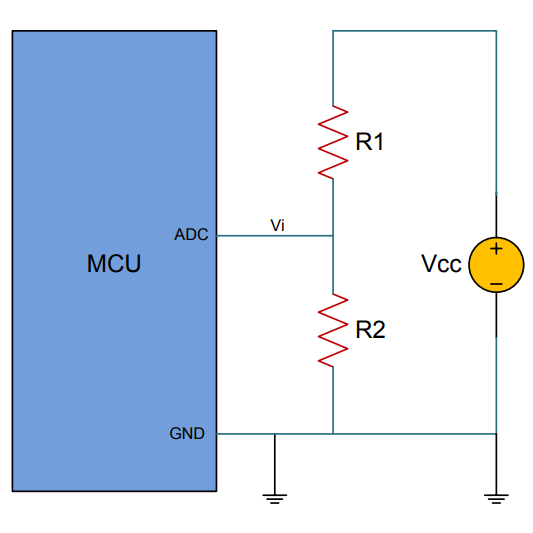
The classical way to measure a system’s voltage is to connect one of your MCU’s ADC pins to a voltage divider made from a couple resistors. A simple calculation yields a reading of the system’s voltage, but this approach has two disadvantages: one is that it constantly consumes power, and the other is that it ties up a pin that you might want to use for something else.

There are ways to mitigate these issues, but it would be best to avoid them entirely. Microchip application note 2447 describes a method of doing exactly that, and that’s precisely what [Trent]’s Arduino library implements.

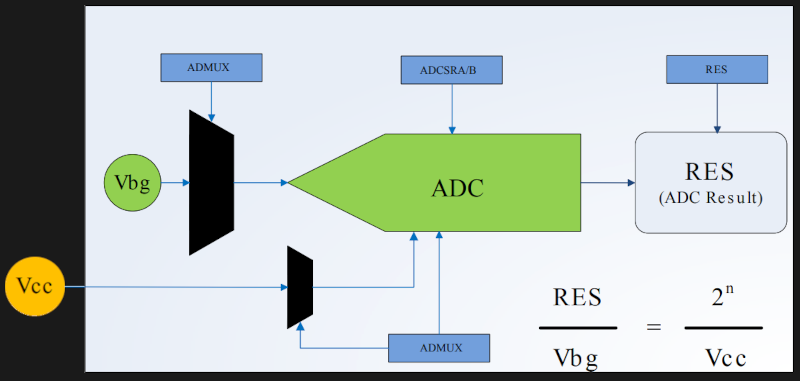
What happens in this method is one selects Vbg (a fixed internal voltage reference that is temperature-independent) as Vin, and selects Vcc as the ADC’s voltage reference. This is essentially backwards from how the ADC is normally used, but it requires no external hookup and is only a bit of calculation away from determining Vcc in millivolts. There is some non-linearity in the results, but for the purposes of measuring battery power in a system or deciding when to send a “low battery” signal, it’s an attractive solution.

Being an Arduino library, CPUVolt makes this idea very easy to use, but the concept and method is actually something we have seen before. If you’re interested in the low-level details, then check out our earlier coverage which goes into some detail on exactly what is going on, using an ATtiny84.

This 3D Printable Soldering Air Filter Really Sucks

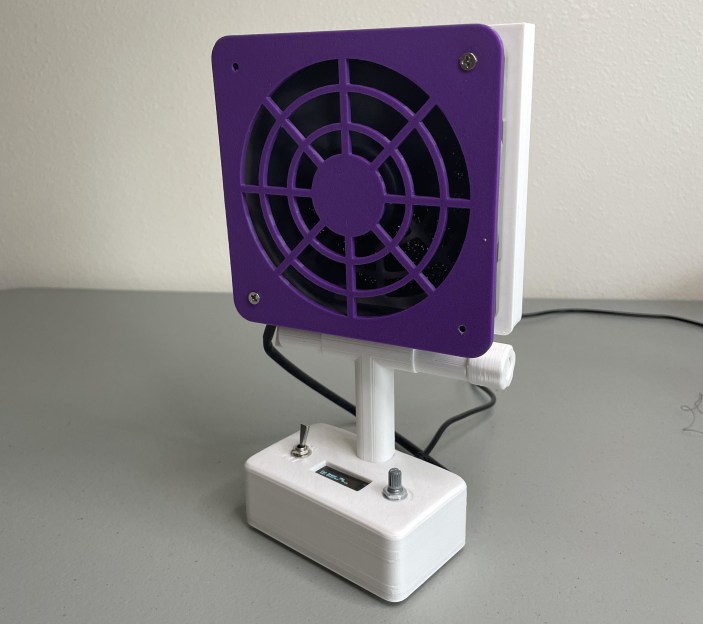
If you solder (and we know you do), you absolutely need ventilation, even for that lead-free stuff. Fortunately, [tinyboatproductions] has gotten into air quality lately and is here to help you with their snappy 3D printed air-filtering design.

At the heart of this build is a 120 mm notoriously-quiet Noctua fan coupled with a carbon filter. It does what you’d think — position the fan the right way and it sucks the air through the filter, which catches all those nasty particles.

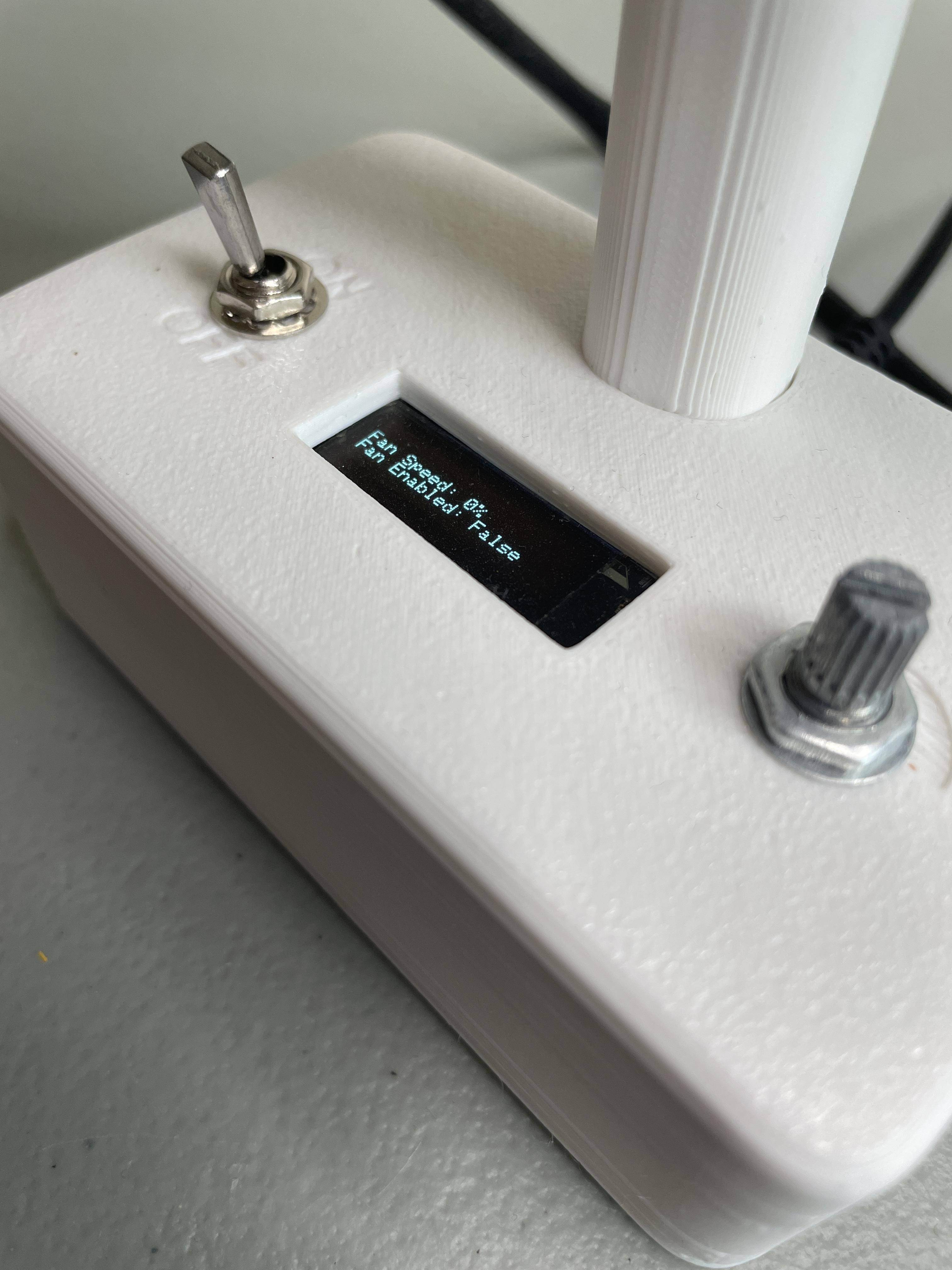
The only problem is that the Noctua uses PWM, so there’s no governing it with a just potentiometer. To get around this, [tinyboatproductions] introduced an Arduino Nano and a buck converter, both of which were admittedly a bit overkill. Now the speed can be controlled with a pot.

Once control of the fan was sorted, [tinyboatproductions] decide to add an OLED display to show the fan speed and power condition, which is a nice touch. Be sure to check out the build video after the break.

If this doesn’t have quite enough features for you, here’s one that’s battery powered.

This Arduino Debugger Uses the CH552

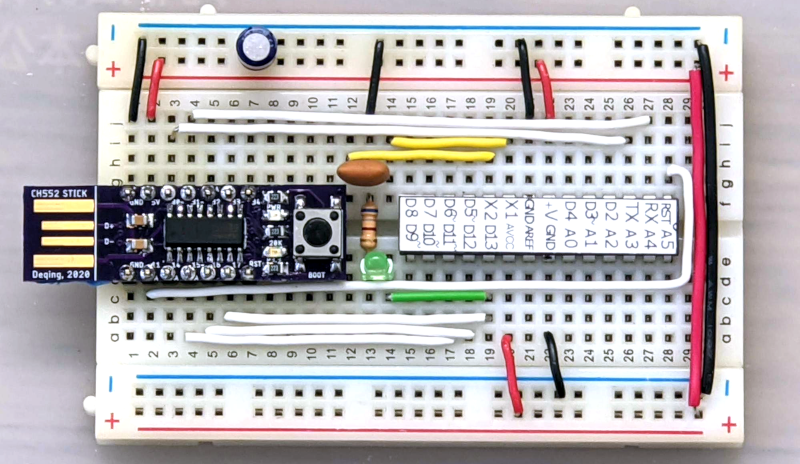
One of the things missing from the “classic” Arduino experience is debugging. That’s a shame, too, because the chips used have that capability. However, the latest IDE has the ability to work with external debuggers and if you want to get started with a classic ATMega Arduino, [deqing] shows you how to get started with a cheap CH552 8-bit USB microcontroller board as the debugging dongle.

The CH552 board in question is a good choice, primarily because it is dirt cheap. There are design files on GitHub (and the firmware), but you could probably pull the same trick with any of the available CH552 breakout boards.

There was a time when having a god-eye view of your embedded system required an expensive in-circuit emulation system. These were expensive, difficult to deploy, and rare. Then, CPUs started adding debugging hardware right on the chip. A few spare pins on the CPU and some sort of adapter would give you most of what you wanted from an emulation system. Although these adapters are often proprietary, sometimes they aren’t, or they have been reverse-engineered. If you know the protocol, it is easy enough to get a processor to speak it for you. That’s why you often see, for example, Raspberry Pi Picos debugging other Picos. There’s nothing you can’t do a million other ways here, but it is an excellent step-by-step tutorial for getting started without breaking the bank.

RP2040 DMA Hack Makes Another ‘CPU Core’

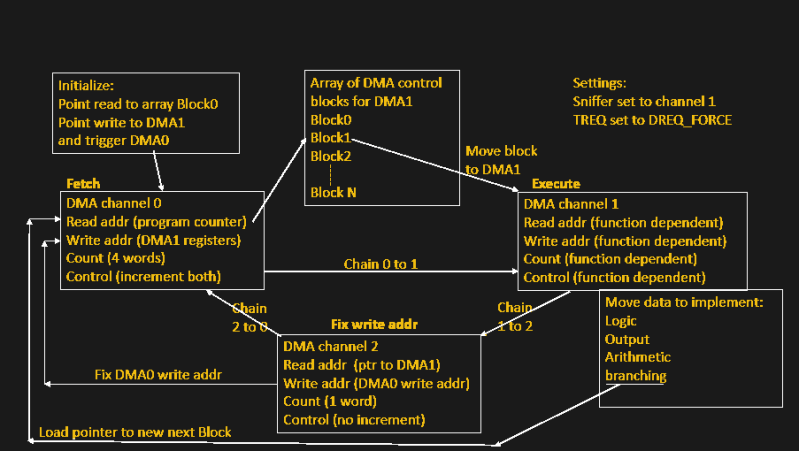
[Bruce Land] of Cornell University will be a familiar name to many Hackaday readers, searching the site for ‘ECE4760′ will bring up many interesting topics around embedded programming. Every year [Bruce] releases yet more of the students’ work out into the wild to our great delight. This RP2040-based project is a bit more abstract than some previous work and shows yet another implementation of an older hack to utilise the DMA hardware of the RP2040 as another CPU core. While the primary focus of the RP2040 DMA subsystem is moving data between memory spaces, with minimal CPU intervention, the DMA control blocks have some fairly complex behaviour. This allows for a Turing-complete CPU to be implemented purely with the DMA hardware and a sprinkling of memory.

The method ties up three of the twelve DMA channels, and is estimated to have a similar performance to ‘an Arduino’ but [Bruce] doesn’t specify which one of the varied models that could be. But who cares anyway? Programming the CPU is a matter of leveraging the behaviour of the hardware, which is all memory mapped and targetable by the DMA. For example, the CPU can waggle GPIO pins by using the DMA to write values to the peripheral address space. The basic flow can be seen in the image above. DMA0 is used as the program counter, which points DMA1 to an array of DMA control blocks, a sequence of which codes for some of the ‘opcodes’ of the CPU model. DMA0 chains to (hands over control to) DMA1 which reads the control blocks and configures itself accordingly. DMA1 performs whatever data move is programmed, chains to DMA2, which in turn reprograms the DMA0 program counter to point to the next block in the list to be executed by DMA1.

By also using DMA1 to modify subsequent DMA1 control blocks (that’s self-modifying code happening there!) the system can implement more useful operations such as addition, logical operations, and conditional branching. Transport-triggered operations in certain shadow registers enable atomic set, reset, and XOR operations. All clever stuff, and a wonderful student project to have been involved with. [Bruce] points out a paper (using the Pi2) from the WOOT 2015 workshop which might offer a better explanation of this whole process.

If you’re still wondering who [Bruce Land] is and want a bit of a primer on some of these topics, then check out our previous coverage. If this theoretical stuff is a bit heavy (i.e. boring) then some of the projects have a more practical bent, such as the critical task of colour-sorting skittles.

Thumbnail image: Thomas Glau, CC BY-SA 4.0.

Hack a Day 21 Jan 03:00

Arduino Brings A MicroPython IDE

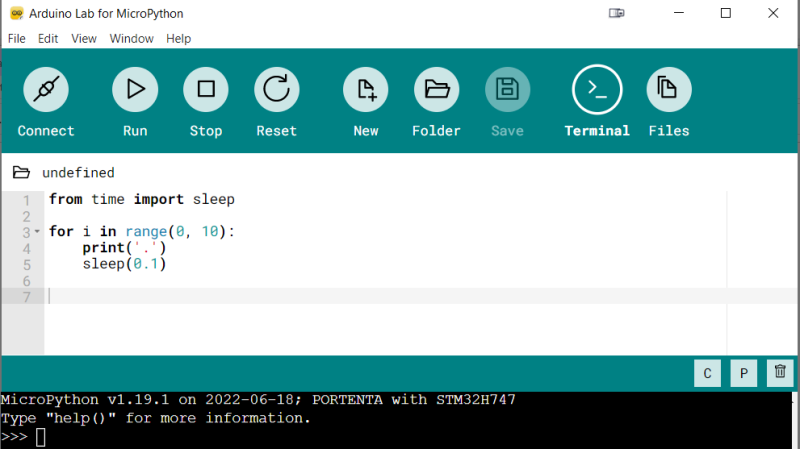
Both Arduino and MicroPython are giants when it comes to the electronics education area, and each one of them represents something you can’t pass up on as an educator. Arduino offers you a broad ecosystem of cheap hardware with a beginner-friendly IDE, helped by forum posts explaining every single problem that you could and will stumble upon. MicroPython, on the other hand, offers a powerful programming environment ripe for experimentation, and doesn’t unleash a machine gun fire of triangle brackets if you try to parse JSON slightly incorrectly. They look like a match made in heaven, and today, from heaven descends the Arduino Lab for MicroPython.

This is not an Arduino IDE extension – it’s a separate Arduino IDE-shaped app that does MicroPython editing and uploads code to your board from a friendly environment. It works over a serial port, and as such, the venerable ESP8266-based boards shouldn’t be be left out – it even offers file manager capabilities! Arduino states that this is an experimental effort – it doesn’t yet have syntax checks, for instance, and no promises are made. That said, it already is a wonderful MicroPython IDE for beginner purposes, and absolutely a move in the right direction. Want to try? Download it here, there’s even a Linux build!

High-level languages let you build projects faster – perfect fit for someone getting into microcontrollers. Hopefully, what follows is a MicroPython library manager and repository! We’ve first tried out MicroPython in 2016, and it’s come a long way since then – we’ve seen quite a few beginner-friendly MicroPython intros, from a gaming handheld programming course, to a bipedal robot programming MicroPython exploration. And, of course, you can bring your C libraries with you.

Trigger Your Home Automation Routines With Home Buttons

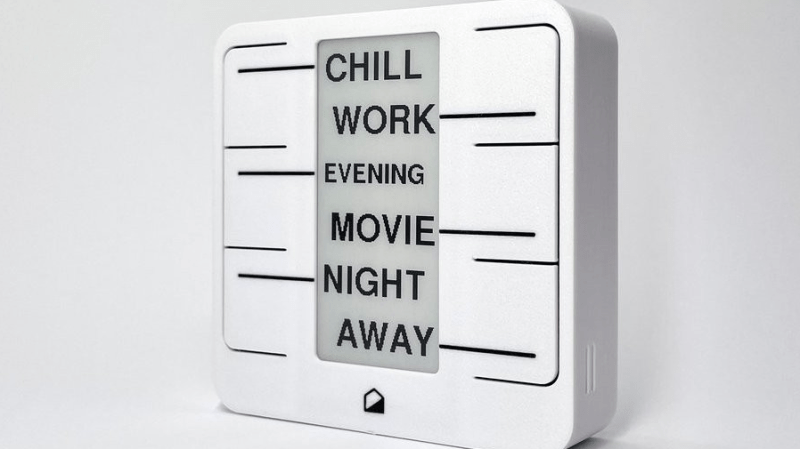
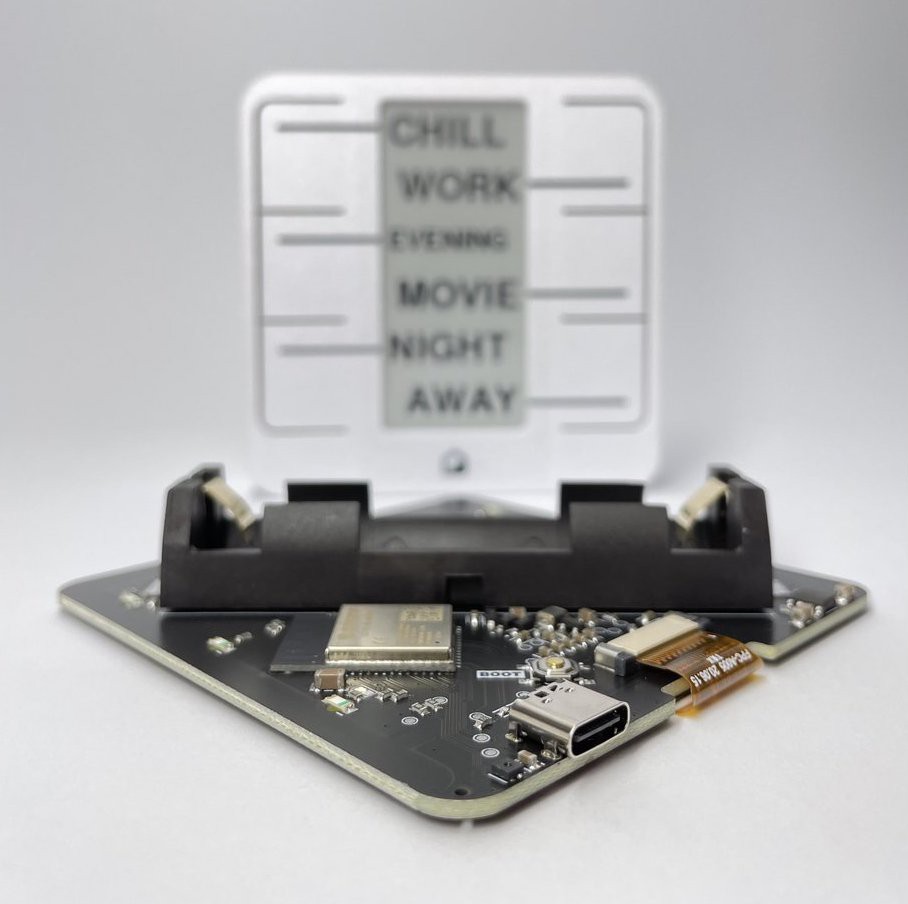
Home automation systems are all well and good, so long as the person who built it all is around to drive it. Let’s face it, they’re quite often a complex web of interconnected systems, all tied to the specifics of one’s home — and someone less familiar with it all could get a little irritated if, on a chilly day, the interface to the boiler is via a Python script, and something won’t work. Just saying. Home Buttons by [Matej Planinšek] over on Hackaday.IO is a nicely polished project, which aims to take some of the hackiness out of such automation by providing a sleek front end to those automation routines, enabling anyone to rock on over and set one in action without hassle.

The PCB is based around the ESP32-S2-mini which deals with WiFi connectivity and integration with Home Assistant using the usual MQTT protocol. We expect integration with other flavors of home automation would not be difficult to achieve. The center of the unit holds a simple E-Ink display, for that low-standby power. Specifically, the unit chosen is a Good Display GDEY029T94 2.9″ which this scribe can confirm is easy to interface and pretty cheap to purchase from the usual Chinese online vendors. This was matched up with six clicky Alps SKRB-series low-profile tact switches, which sit on either side of the display, and corresponds to a flexure-type affair on the 3D printed front casing. Neat and simple.

The PCB design was provided in Altium format, which you can find on the project GitHub page. This shows a straightforward design, with a few nice little details here and there. The internally mounted 186550 cell is reportedly good for at least a year of operation, but when time, it can be charged via USB. A Xysemi XB8608AF (PDF) protection chip provides appropriate limiting for the 186550 cell, shielding it from the perils of overcharging, discharging, and whatnot. Not that that is likely in this current setup. A Sensiron SHTC3 humidity and temperature sensor is also in there, hanging off the I2C bus, which makes sense for this application.

Home Automation hacks are plenty on these pages, like this scroll-wheel interface, for instance. If all this stuff is looking quite overbearingly complicated to get into, how about starting with a Pico W?