Posts with «oled display» label

0.96-inch 128×64 OLED Display: SSD1306 and I2C

The 0.96-inch 128×64 OLED display is a compact module widely used in electronics projects. It uses the SSD1306 driver and communicates over I2C, so it connects to Arduino, ESP8266 and ESP32 with just a few wires. It shows text, sensor data, symbols and graphics. AdriRobot tested it with an Arduino UNO and with an ESP32-C3 SuperMini.

128×64 OLED display: technology and colours

OLED stands for Organic Light Emitting Diode. Each pixel emits its own light, so contrast is high and no backlight is needed. Power consumption is lower than that of a backlit LCD, and readability stays good both in the dark and in bright light. The module comes with white, blue or yellow pixels, or in a two-colour version with a yellow top strip and the rest in blue.

  • 0.96-inch size, 128 × 64 pixel resolution, SSD1306 driver;
  • supply from 3.3 to 5 V, 0.06 W consumption in normal display mode;
  • viewing angle greater than 160°;
  • operating temperature from -30 to +70 °C;
  • glass screen, lifetime of at least 16,000 hours;
  • module dimensions: 29.28 × 27.1 mm.

Pins, I2C address and power supply

The connector has four pins: VCC (3.3-5 V), GND, SCL and SDA. The reset circuit is on board, so no extra pin is needed. On the Arduino UNO the I2C pins are A5 for SCL and A4 for SDA, on the Mega they are 21 and 20.

Watch out for the two power pins, because on some modules their order is reversed. Displays marked JMDO.96C.1 let you choose: two pads on the PCB, shorted with 0 Ω SMD resistors or with a blob of solder, swap the two pins. Before connecting, it is therefore worth checking the silkscreen.

On some modules VCC and GND are swapped: read the silkscreen (photo: AdriRobot)

The I2C address is 0x3C, the same as other SSD1306 displays, and it cannot be changed. If other peripherals with that address are on the bus, another solution is needed.

Test with Arduino UNO

For the test, the display is mounted on a small breadboard and connected to an Arduino UNO. First you read the address with the i2c_scanner sketch (File, Examples, Wire): if nothing shows up, try swapping the SDA and SCL wires. Then install the Adafruit SSD1306 library from the Library Manager, accepting the Adafruit GFX dependency as well with Install all.

The test sketch then fills the screen, draws a pixel in each corner and writes a few lines of text. On the two-colour model, in fact, the first line comes out yellow because it sits in the top strip.

The test sketch running on the 128×64 OLED display (photo: AdriRobot)

Test with ESP32-C3 SuperMini

Connecting the display to the ESP32-C3 SuperMini (diagram: AdriRobot)

With the ESP32-C3 SuperMini the display uses 3.3 V, GND, GPIO9 as SCL and GPIO8 as SDA. In the IDE you select ESP32C3 Dev Module and enable USB CDC On Boot and Erase All Flash Before Sketch Upload, as in the other tests. Finally the sketch initialises I2C on pins 8 and 9, starts the display at address 0x3C and writes a few lines of text.

AdriRobot also used it on a board with an ESP8266 12F, to show temperature and humidity from a DHT11, and on a shield with a DFPlayer Mini, to print messages. The white-pixel model is available as a 0.96-inch I2C OLED display.

Source: AdriRobot’s original article includes the circuit diagram, the downloadable sketches and the test video.

Related products

The post 0.96-inch 128×64 OLED Display: SSD1306 and I2C appeared first on Open Electronics.

BH1750 Sensor: Measuring Lux with Arduino and the GY-302

The BH1750 sensor converts light intensity into a digital value and makes it available on the I2C bus. Its measurement range goes from 1 to 65,535 lux. On the GY-302 breakout the sensor comes ready to use with Arduino, ESP32 and other boards. AdriRobot tried it with an Arduino UNO and writes about it on his blog.

What the BH1750 sensor measures

The lux is the unit of measurement for illuminance: it corresponds to one lumen per square metre. It therefore describes the light falling on a surface, evaluated as the human eye perceives it. For reference, light reflected by a full Moon is about 1 lx, a bright office is about 400 lx, and sunlight ranges between 32,000 and 100,000 lx.

Measurement modes and resolution

The BH1750 works in six modes, divided into two groups: continuous measurement and single measurement. In continuous mode the sensor detects light without stopping. In single mode it takes one measurement and then shuts down, so it must be reconfigured before the next reading. The library used in the article does this automatically.

Each mode offers three levels of precision:

  • low resolution: 4 lx precision and 16 ms measurement time;
  • high resolution: 1 lx and 120 ms;
  • high resolution 2: 0.5 lx and 120 ms.

By default the library selects continuous high resolution. In low and high resolution modes the maximum value is 54,612.5 lx, while in high resolution 2 it stops at 27,306.25 lx. In practice the sensor returns a 16-bit integer, which the library converts into lux by dividing it by 1.2. A result of -1 means no valid data arrived, while -2 signals an unconfigured device.

You can also change the time interval in which the sensor counts light, through the MTreg register. The value ranges from 32 to 254 and the default is 69.

The GY-302 module: power, pinout and address

The GY-302 breakout with the BH1750 sensor and the pins to be soldered (photo: AdriRobot)

On the GY-302 the sensor is joined by a 3.3 V LDO regulator, marked 662K, and its capacitors. The module therefore accepts Arduino’s 5 V on the VCC pin. The regulator supplies up to 250 mA and withstands a maximum of 6.5 V at its input. On the SCL and SDA lines there are also two 4.7 kΩ pull-up resistors. The breakout is sold as a light intensity sensor.

The connector has five pins: VCC, GND, SCL, SDA and ADDR. The last one is used to choose the I2C address and comes into play when several BH1750 sensors share the same bus. With ADDR at a low level the address is 0x23, with ADDR high it becomes 0x5C. On the module tested the pin is tied to ground through a 4.7 kΩ resistor, so the sensor responds at 0x23.

  • measurement range: from 1 to 65,535 lux;
  • supply voltage: from 3 to 5 V;
  • operating temperature: from -40 to +85 °C;
  • dimensions: 18.5 × 13.9 × 2.5 mm, connectors excluded.

Connecting it to an Arduino UNO and an OLED display

Basic connection between Arduino UNO and GY-302 (diagram: AdriRobot)

For the first test you only need an Arduino UNO board, the GY-302 module and a few male-to-female jumper wires. VCC and GND go to the power supply, while SDA and SCL connect to Arduino’s I2C pins. Before uploading the sketch it is worth running the IDE’s i2c_scanner example: if the wiring is correct, the serial monitor reports a device at address 0x23.

The reading uses Christopher Laws’ BH1750 library, which is installed from the Library Manager together with the Wire library, already included in the IDE. The sketch reads the value every second and also writes it to the serial monitor.

The project is then completed with a 0.96-inch OLED display, 128×64 pixels, SSD1306 driver and I2C interface. The display responds at address 0x3C, so it shares the same bus as the sensor. The Adafruit SSD1306 and Adafruit GFX libraries are needed, and the lux meter shows the lux directly on the screen.

The lux meter with GY-302 and OLED display during the measurement (photo: AdriRobot)

Anyone who wants to see the BH1750 at work in a larger project can read the ESP32 weather station with a live web dashboard, which pairs it with a DHT22 and a BMP280.

Source: the original AdriRobot article also contains the complete schematic, the sketches and the test video.

Related products

The post BH1750 Sensor: Measuring Lux with Arduino and the GY-302 appeared first on Open Electronics.
Electronic door lock with Arduino UNO R4 WiFi and touch sensor

This project builds a basic electronic door lock with the Arduino UNO R4 WiFi. A touch sensor detects contact, a relay controls a solenoid lock, and an OLED display shows the system status. The principle is simple: touch the sensor, the door unlocks for 5 seconds, then locks itself again. It is a starting point for customizable smart locking systems.

The central board is the Arduino UNO R4 WiFi, which manages the whole flow. The touch sensor sends a signal to the board, which activates the relay to power the lock. The 128×64 pixel OLED display shows the startup, locked, and unlocked screens. The system uses a relay module to separate the control circuit from the power circuit, so the solenoid lock operates safely.

The circuit and components of the lock

Assembly requires few components: the Arduino board, the touch sensor, the OLED display, the relay module, and a solenoid lock. Everything connects on a breadboard with jumper wires. The relay is essential because the lock runs at 12 VDC, while the Arduino operates at 5 V. Without the relay, the lock’s current would damage the board.

The OLED display connects via I2C, using the SSD1306 and Adafruit_GFX libraries. The 128×64 pixel resolution is enough to show the system status with clear characters. The touch sensor connects to a digital pin: when it detects a touch, it sends a high signal to the Arduino. The response is immediate, and the relay trips right away.

The firmware and unlock time

The code is written in the Arduino IDE and uses the SSD1306, Adafruit_GFX, and Adafruit_SSD1306 libraries. The sketch reads the touch sensor state and, when it detects a touch, activates the relay. The display shows the unlock screen for 5 seconds, then the system locks the door again. The unlock time is fixed at 5 seconds, but it can be changed in the code.

The operation is cyclic: startup, waiting, unlock, relock. The OLED display updates the status in real time, so you always know whether the door is locked or unlocked. The project demonstrates the principle of a basic electronic lock, and the maker’s website collects the details for replicating it. It is a simple but complete system.

For assembly you also need a universal acrylic support to keep the Arduino and breadboard tidy. 15 cm male-to-female jumper wires help connect the modules without soldering. The project can be expanded with a numeric keypad, an RFID reader, or a Wi-Fi module for remote control.

In short, this project is an excellent base for anyone who wants to understand how an electronic lock works. The components are few, the code is essential, and the result is functional. With the Arduino UNO R4 WiFi you also have the option to add connectivity in the future, turning the prototype into a real smart lock.

Source: https://srituhobby.com/how-to-make-a-solenoid-door-lock-system-using-a-touch-sensor/

The post Electronic door lock with Arduino UNO R4 WiFi and touch sensor appeared first on Open Electronics.
Open Source Stream Deck Does it Without Touch Screens

[Adam Welch] has built macro pads in the past out of pre-fab key matrices and handfuls of Cherry MX clones. But all the stickers and custom keycaps in the world wouldn’t make those macro pads as versatile as a stream deck — those visual shortcut panels with tiny touchscreens for each button that some streamers use to change A/V settings or switch between applications.

Let’s face it, stream decks are expensive. But 0.96″ OLED displays are not, and neither are SMD tactile buttons. Why not imitate a screen deck on the cheap by making it so the screens actuate buttons behind them? [Adam] based this baby on the clever design of [Kilian Gosewisch]’s FreeDeck, and they ended up working together to improve it with a dedicated PCB.

The brains of the operation is an Arduino Pro Micro, which addresses each screen individually via two 74HC4051 mux ICs. Thanks to an SD card module, there’s no need to flash the ‘duino every time you want to change a shortcut or its picture. Even if this deck doesn’t hold up forever, it won’t break the bank to build another one. Poke past the break for the build video, which has all the links you’d need to make your own, including a handy configurator.

There’s more than one way to do a visual macro pad. Here’s one that uses a single screen and splits it Brady Bunch style to match the matrix.

Thanks for the tip, [arturo182]!

Multi-Volume Knob Gives All Your Programs a Turn

We’ve all been there. You’re manning the battle station, deep in the sim-racing or some other n00b-pwning zone and suddenly some loudmouth blows out your eardrums over Discord. It’s insulting to have to stop what you’re doing to find the right Windows volume slider. So why do that? Build [T3knomanzer]’s simple yet elegant multi-volume knob and stay zen in the zone.

It’s easy, just turn the knob to cycle through your programs until Discord comes up on the little screen, and then push down to change it into a volume knob. If you need to change another volume, just click it again. Since there’s no Alt+Tabbing out to the desktop, no checkered flags should ever slip through your fingers.

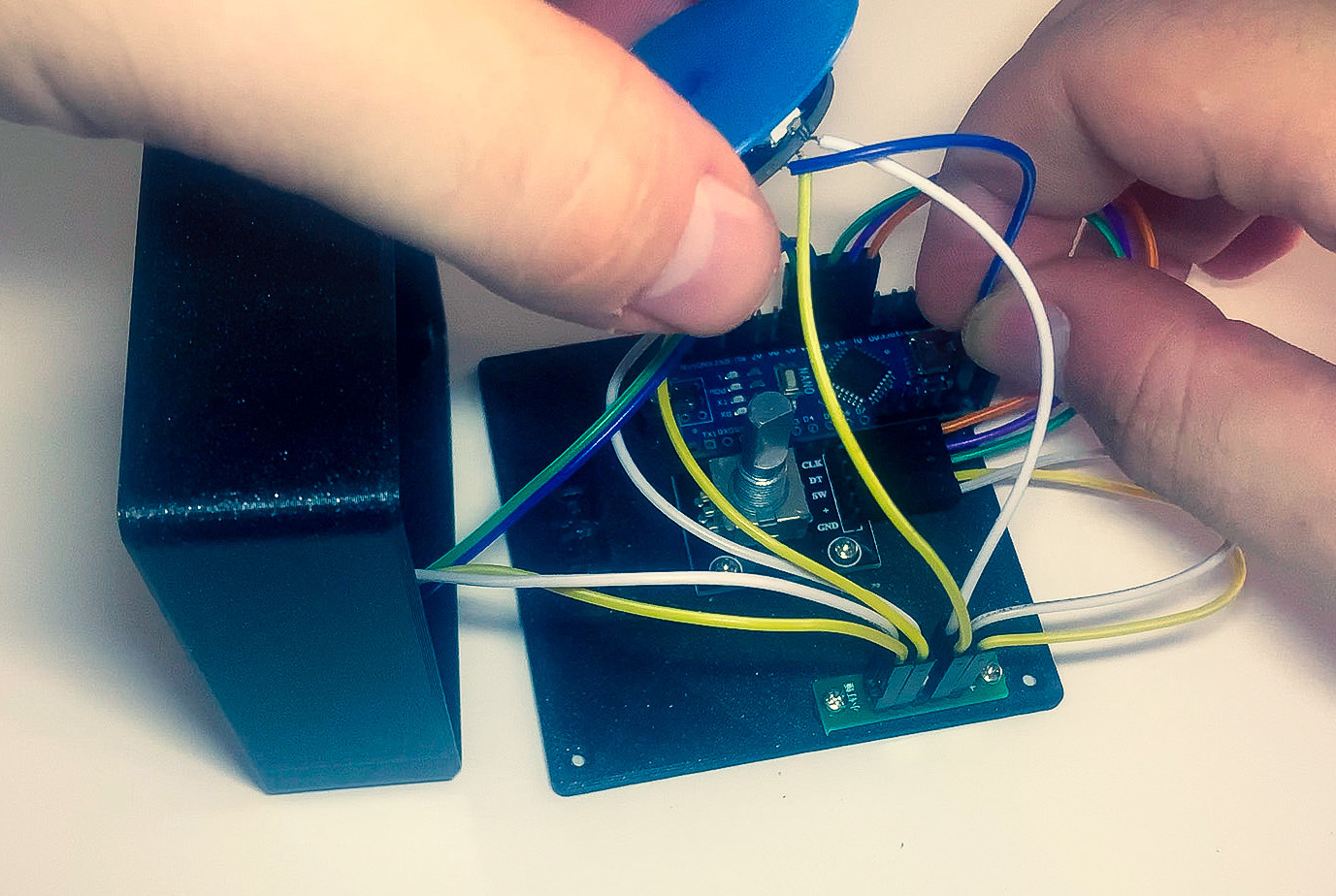
Inside the well-designed case you’ll find the usual suspects — Arduino Nano, rotary encoder, an OLED display, and an LED ring, each with their own place carved out.

This completely open-source knob looks great, and we love that it’s been made incredibly easy to replicate by standing up a site with foolproof, well-depicted, step-by-step instructions. Watch them take it for a spin after the break.

Want more than volume at your fingertips? Here’s a DIY USB knob that does shortcuts, too.

Dragon Ball Z head-mounted Scouter computer replica

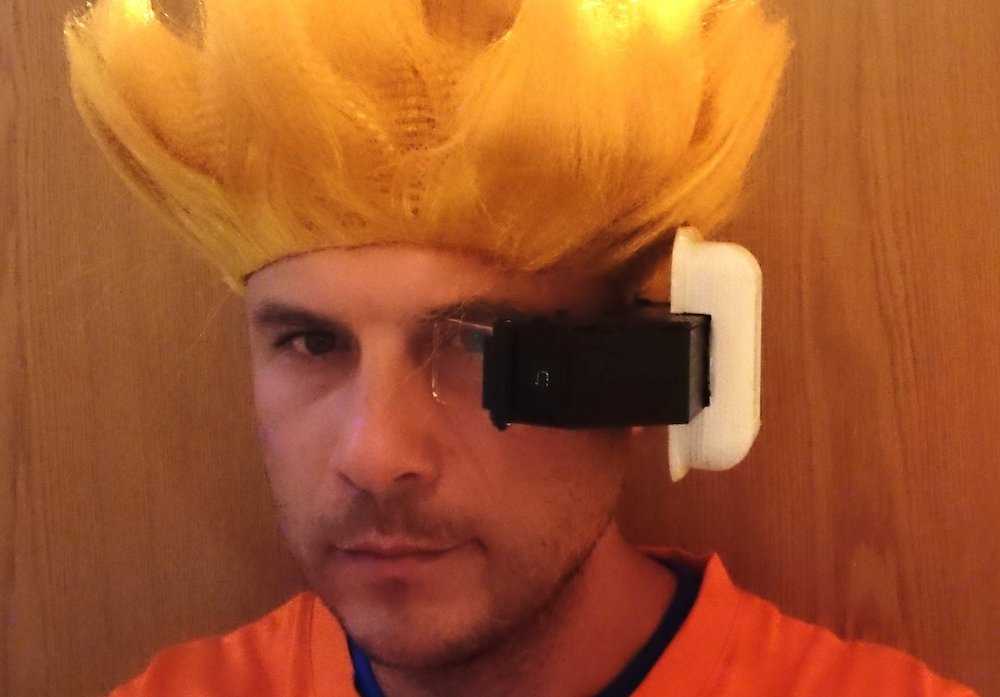
Those familiar with the Dragon Ball Z franchise will recognize the head-mounted Scouter computer often seen adorning character faces. As part of his Goku costume, Marcin Poblocki made an impressive replica, featuring a see-through lens that shows the “strength” of the person he’s looking at, based on a distance measurement taken using a VL53L0X sensor. 

An Arduino Nano provides processing power for the headset, and light from a small OLED display is reflected on the lens for AR-style viewing.

It’s not exactly perfect copy but it’s actually working device. Inspired by Google virtual glasses I made virtual distance sensor.

I used Arduino Nano, OLED screen and laser distance sensor. Laser sensor takes readings (not calibrated yet) and displays number on OLED screen. Perspex mirror reflects the image (45 degrees) to the the lens (used from cheap Google Cardboard virtual glasses) and then it’s projected on clear Perspex screen.

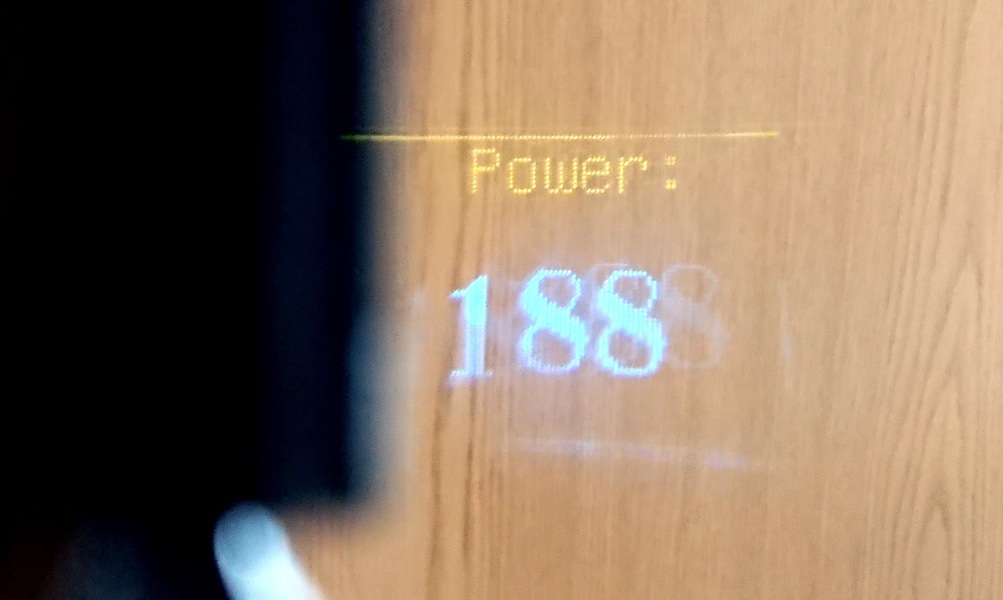
So you will still see everything but in the clear Perspex you will also see distance to the object you looking at. On OLED screen I typed ‘Power’ instead distance because that’s what this device suppose to measure in DBZ.

Print files as well as code and the circuit diagram needed to hook this head-mounted device up are available on Thingiverse. For those that don’t have a DBZ costume in their immediate future, the concept could be expanded to a wide variety of other sci-fi and real world applications.

“The Cow Jumped Over The Moon”

[Ash] built Moo-Bot, a robot cow scarecrow to enter the competition at a local scarecrow festival. We’re not sure if Moo-bot will win the competition, but it sure is a winning hack for us. [Ash]’s blog is peppered with delightful prose and tons of pictures, making this an easy to build project for anyone with access to basic carpentry and electronics tools. One of the festival’s theme was “Out of this World” for space and sci-fi scarecrows. When [Ash] heard his 3-year old son sing “hey diddle diddle, the cat and the fiddle…”, he immediately thought of building a cow jumping over the moon scarecrow. And since he had not seen any interactive scarecrows at earlier festivals, he decided to give his jumping cow a lively character.

Construction of the Moo-Bot is broken up in to three parts. The skeleton is built from lumber slabs and planks. The insides are then gutted with all of the electronics. Finally, the whole cow is skinned using sheet metal and finished off with greebles to add detailing such as ears, legs, spots and nostrils. And since it is installed in the open, its skin also doubles up to help Moo-bot stay dry on the insides when it rains. To make Moo-Bot easy to transport from barn to launchpad, it’s broken up in to three modules — the body, the head and the mounting post with the moon.

Moo-Bot has an Arduino brain which wakes up when the push button on its mouth is pressed. Its two OLED screen eyes open up, and the MP3 player sends bovine sounding audio clips to a large sound box. The Arduino also triggers some lights around the Moon. Juice for running the whole show comes from a bank of eight, large type “D” cells wired to provide 6 V — enough to keep Moo-Bot fed for at least a couple of months.

Check out the video after the break to hear Moo-bot tell some cow jokes – it’s pretty funny. We’re rooting for it to win the competition — Go Moo-bot.

If you’re hungry for more scarecrows, this isn’t the first we’ve seen.


Filed under: Arduino Hacks, robots hacks