Posts with «language|en-us» label

Eargo's in-app test transforms its next-gen hearing aids

Eargo recently announced its latest smart hearing aid — the Eargo 5. We don’t do a lot of hearing aid news here at Engadget, but the California-based company makes some of the most "gadgety" we’ve tried and the latest model certainly appears to continue that trend.

Like the Neo HiFi and the Neo before it, the Eargo 5 is a tiny, "invisible" (completely in the canal, or CIC) hearing aid that comes with a charging case. With older Eargos, that case doubled as a way to connect the “buds” to your phone. Unfortunately, that meant the buds had to be in it while they were updated. What’s new this time around is that you can perform profile changes and more while actually wearing the hearing aids. What's more, there are key new features that change how the hearing aids sound. It’s an exciting update for fans of the brand as it adds to Eargo’s already slick user experience, something sorely lacking in many of the mainstream brands you find at your local audiologists.

The most interesting new feature is “Sound Match." Hearing aids have long had different profiles, and will usually be tuned for your own needs by an audiologist, but Eargo’s direct-to-consumer (and the need for the buds to be in the case) approach has made this much-needed personalization difficult. Until now?

Sound Match is effectively a hearing test built-in to the Eargo app. Once you pair the case (via Bluetooth) you can remove the Eargo 5s and the app will walk you through the test. If you’ve ever completed a hearing test, you’ll be familiar with this one. The app plays a series of sounds and you tell it if you can hear it or not; at the end, you’ll be presented with the results for each ear.

James Trew / Engadget

As simple as this is, my initial experiences with it weren’t entirely smooth. Not least because it took a few tries (and some back and forth with Eargo) to even get the case to pair with the app. After trying several restarts and installations, I was able to get connected and access the test — most likely due to me having early hardware.

From then on the test was mostly straightforward, until I spotted there was a “replay” button. I noticed that sometimes when I didn’t initially hear a sound, I definitely heard it after tapping replay. As in, it was audible enough that I wouldn’t have missed it the first time around. This meant I had to re-do the test to make sure I hadn’t incorrectly tapped “No” when really the sound just didn’t play at all.

Minor hiccups aside, once I was confident I had completed the test properly, I could further customize the experience by changing what profiles are available on the device. There are six situational ones (restaurant/meeting etc) and four presets. You can store a total of four on the hearing aids themselves.

Previous Eargo models would simply tell you the number of the audio profile that is active as you switch through the four on offer (via a double-tap on your tragus). With the Eargo 5 it now tells you the name of that profile if you chose one of the "situational" ones to eliminate any guesswork. You can also further tweak these profiles in the app, or simply change the volume and noise reduction (there’s now noise reduction here too I should mention) without having to permanently change the profile. This includes adjusting the volume and the treble/bass.

James Trew / Engadget

Although you can now adjust the sound and profiles while actually wearing the Eargo (before, you had to take them out and plop them in the case, which is less than ideal), there’s no capability for music/audio streaming from your phone. Eargo uses ultrasonic commands to communicate between the case and the hearing aids. That’s a neat way to enable small updates, but not enough for anything more heavyweight. Remember, size is key here, and streaming on devices this small, that go fully in your ear, isn’t a simple thing to do.

This new customization functionality really does improve the Eargo experience. I have tried several different devices and the ones that best serve my hearing loss are, predictably, the ones that have been tuned by an audiologist. This meant that, while older Eargos were some of the most appealing in terms of user experience and fit, they weren’t quite suitable for my personal situation and only provided users with limited tools to adjust the sound to their needs.

With the Eargo 5, I find them much more assistive in my hearing, particularly on the side I have problems with. In fact, I personally prefer just wearing only one, as my hearing loss is unilateral and having a boost on the "good" side can feel a bit much. I also find wearing both a bit less comfortable. There’s no logical reason why wearing one for extended periods should be fine, but two isn’t, but I think the combination of too much "extra" hearing (on my good side) and the physical feeling of something in both ears is just a lot of sensory stimulation, for me at least. Obviously, if you have a bilateral hearing deficiency you’ll want all the assistance you can get.

If you own a pair of older Eargos and were wondering if the hearing test feature might come to your model via an update, sadly it's not possible. There's specific hardware here to enable the ultrasonic commands, that isn't present in previous models.

James Trew / Engadget

Beyond Sound Match, Eargo claims the sound has been redesigned from the ground up for “optimal audio and speech performance.” The company doesn’t elaborate further but, with the new customization feature, it’s fair to say this is a very different experience than previous models already so any other improvements are hard to pick out, but good to know they are there.

Beyond the core updates, there are some welcome usability tweaks, too. The charging case now has lights around where the hearing aids should be placed to help you correctly seat them at night. Those lights also provide feedback by changing color when there’s a software update or the aids aren’t charging properly. You’ll also no longer need to make sure the contacts on the buds meet the ones in the case. A new magnetic inductive charging system means they will click themselves into the right position automatically.

While Eargo's app remains a slick experience, there are a few small opportunities to improve it further. The volume control is nice and simple, and you can choose to boost either side individually, or both as a pair. What’s lacking is visual feedback or even a tone in your ear, to let you know when you’ve reached the top or bottom of the range. There’s also no indication of whether any changes you make to a profile are permanently saved or an obvious way to reset them to default, but these are minor UI issues.

Battery life is claimed to be around 16 hours per charge. Add to that the battery in the case and this means you won’t need to plug them in for a couple of days, which is handy for weekends away where you don’t want to have to worry about finding an outlet. Should you need to, though, the charger is USB-C, so likely something you already have for your phone or laptop (a cable is, of course, included).

All in all, it's a substantial update for a direct-to-consumer product. Eargo has been getting a lot of things right in terms of making its products user-friendly and appealing to a mass audience. This matters when it's estimated that over 40 million Americans could benefit from an assistive hearing device. What was lacking, until now that is, was a way to tune them to your specific needs. Which in the world of hearing loss, can be the difference between understanding the television a bit better and being able to pick out quieter sounds in a noisy environment. The latter is something that makes daily life feel a lot more natural and makes social situations much more comfortable, so it's something really valuable to have on a device this small.

Remember, though, hearing aids are not a cheap product category. A good pair will often run you a couple of thousand dollars, more if you want something bespoke. The Eargo 5, then, at $2,950 might seem steep compared to a pair of wireless headphones but is relatively affordable among its hearing aid peers. If you’re already an Eargo user looking to upgrade, there’s a “repeat customer discount” that can shave off $500 from the MSRP.

This week's best deals: $100 off Apple's iPad Air and more

A bunch of gadgets went on sale this week, from Apple products to streaming devices. The latest iPad Air is $100 off at Amazon, bringing it down to an all-time low of $500. Plus, you can still grab a pair of AirPods Pro for $190 and this year's Apple TV 4K with 64GB of storage of $180. If you're more of a Roku person, many of the company's streaming gadgets are on sale — including the Roku Streambar, which is down to $99. And those looking for a new TV can save hundreds on some of the latest OLED sets from LG, Sony and Samsung in Best Buy's Black Friday in July sale. Here are the best tech deals we found this week that you can still get today.

iPad Air

Dana Wollman/Engadget

The latest iPad Air is down to the best price we've seen it, just $500 for the base model. That's $100 off its normal price and a great deal on what we think is the best iPad for most people. We gave the slab a score of 90 for its fast performance, speedy WiFi, healthy battery life and support for the second-generation Apple Pencil. 

Buy iPad Air (64GB) at Amazon - $500Buy iPad Air (256GB) at Amazon - $639

Buy iPad Air (64GB, cellular) at Amazon - $629Buy iPad Air (256GB, cellular) at Amazon - $780

Best Buy Black Friday in July sale

LG

Best Buy's Black Friday in July sale runs through this weekend and, while there are a bunch of gadgets on sale, OLED TVs stand out with some of the best prices. The retailer knocked hundreds of dollars off the latest LG OLED sets and you can also save on Sony and Samsung TVs, too.

Shop Black Friday in July sale

AirPods Pro

Billy Steele / Engadget

The AirPods Pro are back on sale for $190, or $60 off their normal price. While not a record low, it's still one of the best sale prices we've seen all year. The AirPods Pro earned a score of 87 for their improved audio quality, comfortable fit, solid ANC and IPX4 water resistance.

Buy AirPods Pro at Amazon - $190

10.2-inch iPad

Apple's 10.2-inch iPad is still on sale for $299, or $30 off its normal price. It's arguably the best iPad for new tablet owners and we liked its improved performance, familiar design and support for the first-generation Apple Pencil.

Buy 10.2-inch iPad at Amazon - $299

MacBook Air M1

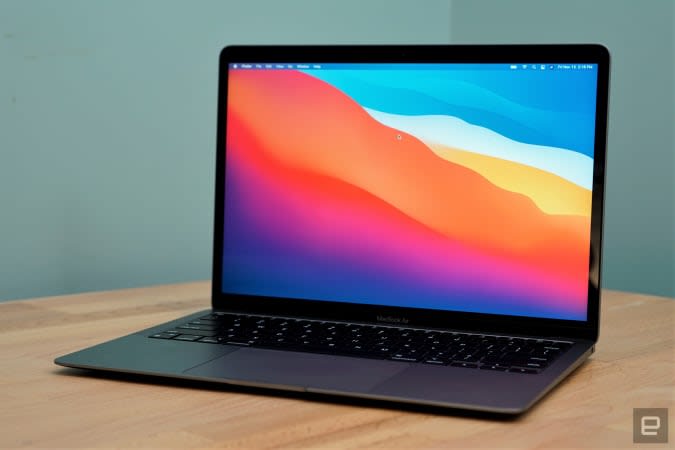
The latest MacBook Air M1 is down to $899 at Amazon, or $100 off its regular price. It's one of the best laptops for most people, and the M1 chipset only makes it a better buy. The Air M1 earned a score of 94 from us for its incredibly fast performance, excellent keyboard and trackpad, good battery life and lack of fan noise.

Buy MacBook Air M1 at Amazon - $899

Apple TV 4K (64GB)

Devindra Hardawar/Engadget

The 2021 Apple TV 4K with 64GB of storage is nearly $20 off right now, bringing it down to $180. This deal represents a new record-low price on the set-top box, and it lets you get the extra-storage model for the original price of the base model. We gave the Apple TV 4K a score of 90 for its excellent new Siri remote, improved performance, HomeKit integration and support for Dolby Vision and Atmos.

Buy Apple TV 4K (64GB) at Amazon - $180

Roku sale

Valentina Palladino / Engadget

A bunch of Roku devices are on sale at Amazon, including the Roku Streambar, which is down to a record low of $99. This compact soundbar is a convenient gadget to get if you want to upgrade your home theater system without spending a ton of money. We gave it a score of 86 for its space-saving design, Dolby Audio support and built-in 4K streaming technology. If you want to spend even less, a handful of Roku streamers have been discounted, including the Express ($25) and the Streaming Stick+ ($39).

Buy Roku Streambar at Amazon - $99Buy Roku Express at Amazon - $25Buy Roku Express 4K+ at Amazon - $29Buy Roku Streaming Stick+ at Amazon - $39

Instant Pot Duo Crisp

The Instant Pot Duo Crisp multi-cooker and air fryer is down to $98 at Amazon, or more than $50 off its normal price. You're getting 11 cooking modes with this appliance, including air fry, dehydrate, bake, broil and more, plus most of the accessories needed to try out all of the presets. While we have seen this model on sale for $79 around Black Friday, this is the best price we've seen on Amazon all year.

Buy Instant Pot Duo Crisp at Amazon - $98

ThermoWorks Thermapen Mk4

The Thermapen Mk4 has been discounts to $69 as ThermoWorks makes room for the new Thermapen One thermometer. The Mk4 is the best instant-read thermometer we've used so far —the backlit display makes it easy to read in almost any situation and the display rotates depending on how you're holding the pen. Plus, you never have to remember to turn it off because the pen automatically turns on when you pick it up and will shut off after some time of no use.

Buy Thermapen Mk4 at ThermoWorks - $69

Virgin Galactic sweepstakes

In Omaze's latest giveaway, you can win two seats on one of the first Virgin Galactic flights to space. In addition, you'll go on a tour of Spaceport America in New Mexico with Richard Branson. You don't have to pay to enter, but funds from all paid entries will support Space for Humanity, an organization that hopes to make space more accessible for all.

Enter to win at Omaze

Gaming PC sweepstakes

Omaze is giving away another $20,000 to build your ultimate gaming PC. This sweepstakes is free to enter, but funds donated with purchased entries will benefit Schools on Wheels, an organization that provides free tutoring and mentoring services to children experiencing homelessness across Southern California.

Enter to win at Omaze

Pricing and availability is subject to change. No donation or payment necessary to enter or win this sweepstakes.See official rules on Omaze.

New tech deals

Mirror

Mirror's summer sale knocks $400 off its high-tech fitness system when using the code JULY400 at checkout. The discount breaks down to $150 off the mirror device itself, plus free delivery and installation. Just know that the sale is only on the product itself, not on the subscription needed to take the Mirror's fitness classes.

Buy Mirror - $1,345

Eufy SpaceView Pro baby monitor

Eufy's SpaceView Pro baby monitor kit is down to $130, or $40 off its normal price. It comes with one camera that's capable of shooting 720p video, and one video receiver that lets you see what your kid's up to at all times. In addition to the camera's 330-degree pan and 110-degree tilt capabilities, we also appreciate the display's 12-hour battery life when kept on.

Buy SpaceView Pro at Amazon - $130

Fitbit Charge 4

Fitbit's Charge 4 tracker is back down to its record-low price of $100. If the smartwatch life isn't for you, this might be a good fit because it does a good job marrying fitness tracking with handy smart features. We gave it a score of 82 for its accurate built-in GPS, standard Fitbit Pay and multi-day battery life.

Buy Charge 4 at Amazon - $100

Arturia Destination: Sound sale

Arturia has knocks 50 percent off all of its individual software titles through August 8. That means you can get some of our favorite music software, including Pigments and Analog Labs, for $99 each. This is a good opportunity to add new synths and other software instruments to your collection for less.

Shop Arturia sale

Board games

A number of our favorite board games are on sale at Amazon, including Codenames for $11 and Star Wars: Outer Rim for $43. While you may be spending more time out of the house this summer, now's a good time to stock up on some new games to get you through the colder fall and winter months.

Buy Codenames at Amazon - $11Buy Star Wars: Outer Rim at Amazon - $43

NordVPN

One of our recommended VPNs is running a good sale on a two-year subscription. You can sign up for NordVPN for only $89 for the first two years, which comes out to $44.50 per year — and an additional summer promotion adds three free months on top of that. We like NordVPN for its speed, its no-logs policy, the thousands of servers it has to choose from and that one account supports up to six connected devices.

Sign up for NordVPN (two years) - $89

Follow @EngadgetDeals on Twitter for the latest tech deals and buying advice.

GM recalls Bolt EVs once again over fire risks

GM is issuing a second recall for 2017 to 2019 Bolt EVs over potential fire issues. The company says it plans to replace defective batteries, but until it can do so it's advising Bolt customers to limit their charging up to 90 percent, and not to go below 70 miles of range. It's also reiterating a recommendation from last week against parking indoors and leaving the car's to charge overnight unattended. This latest recall follows a similar one from last November, where GM recalled more than 68,000 Bolts.

The company also suggests that Bolt customers visit their nearest Chevy EV dealer to get the advanced diagnostics software, which should alert them ahead of any future battery issues. Hyundai, which also sources batteries from LG Chem like GM, ended up replacing more than 75,000 batteries for its Kona EV.

While it may sound alarming — GM's recalls were triggered by five Bolt fires between 2017 and 2019 — it's worth noting that gas cars typically cause around 150 fires a day, according to a FEMA report. Still, EV makers need to prove they can responsibly deal with potential issues before they can hurt more people (and before it leads to more negative sentiment towards electric vehicles).

How to clean and organize your PC

Outside of your phone, your PC is likely the one piece of technology you use the most. If for no other reason than that, you should take care of it. Not only will it last for longer, but it will also work better over the time that you keep it. In this how-to, we'll share some tips on how to take care of your PC. Of course, it's impossible to cover this topic from every angle, so think of this guide as an introduction more than anything else.

How to clean your computer and peripherals

Will Lipman Photography for Engadget

Windows PCs, especially desktops, come in various shapes and sizes, but the tips we're about to go through here will help you clean your computer whether you bought it prebuilt or put together yourself. If you own a laptop, look at our recent Mac organization guide. All the steps we detail there will work just as well for a Windows portable.

Before cleaning the inside of your computer, start with your display and peripherals. At this stage, all you'll need is some distilled water in a spray bottle and a microfiber cloth. You can buy the former at a grocery store or make it yourself. And if you don't already own any microfiber cloths, Amazon sells affordable 24-packs you can get for about $15. Once you have those in hand, spray the water onto a clean cloth and wipe down your computer's display before moving to the mouse and keyboard. You want to start with your screen to avoid transferring dirt and residue to the panel.

It’s possible to write an entirely separate guide on how to clean keyboards, but the short version is you'll want to pick up a keycap puller and use that to give you unobstructed access to any debris and gunk that has been building up under your keys. If the keycaps have a lot of dirt and residue on them, your best option is to soak them in warm water and use a toothbrush to scrub away the buildup. Give them plenty of time to dry before reinstalling them on your keyboard.

Will Lipman Photography for Engadget

Once you’re done with those, turn off your PC and unplug everything that's connected to it. You'll also want to switch off the power supply unit (PSU) by flipping the toggle on its outside to the "O" position. Next, push down on the power button a couple of times to discharge any static electricity that you might be carrying around.

If at all possible, do most of the steps we're about to describe outside. The last thing you want to do is go through the trouble of cleaning your computer and then let it pull in all that dust again.

Once you've moved your computer, start by removing the side panels. Most modern cases allow you to do this without any tools, but you'll need at least one screwdriver for most of the work we'll detail in a moment. When it comes to most screws inside your computer, a 4-inch Phillips screwdriver should be all you need. Some components, such as your GPU, may include Torx screws and the like, but don't worry about those for now since we won't be taking them apart. If you don't already own a decent set of screwdrivers and have something of a DIY streak in you, a driver kit from iFixit is your best bet. The 16, 32 and 62-bit kits it sells are an excellent starting point, and they'll come in handy with more than just your computer.

If your PC has any dust filters, remove those now and give them a rinse at the sink before setting them aside to dry. Depending on how long your computer has been collecting dust, you may want to remove some components such as the GPU to make it easier to clean everything. If that's something you feel comfortable doing and it's your first time removing any of the internals, use your phone to take photos of the interior. The images will help you put all the parts in their original place at the end. That's important to do since there's an optimal way to install many of the components in your computer. For instance, you always want to install your GPU in the fastest available PCIe lane. When it comes to removing any PCI cards, first unscrew its mounting bracket and then push the corresponding release on your motherboard before pulling the card out.

Will Lipman Photography for Engadget

Whether you decide to keep all your computer's internals in place or not, you'll need something to blow all that dust away. A can of compressed air is one option, but I like to use a Giottos Rocket Blower. It was designed for cleaning camera sensors and won't damage any of your components. It's also a one-time purchase. Whatever you have at hand, use it to blow away the dust that's been building up on your computer's internal components, fans and grills. Pay special attention to the heatsinks attached to your PC’s CPU, GPU, chipset and voltage regulators. They will likely have most of the hardest to remove dust in your system thanks to their tight fin stacks. What’s more, especially bad buildup can make them ineffective at cooling those components, which will, in turn, affect their performance.

When cleaning any exposed PCB, use an antistatic brush (like this one from OXO) instead of a microfiber cloth. You'll avoid damaging any of the sensitive components on the board. You can go over any non-electronic part with a dampened microfiber cloth.

At this point, all you need to do is put everything back in its place. As one final tip, if there's any way you can avoid leaving your desktop on the floor, you'll end up spending less time cleaning it since it won't be near all the dust and dander that collects there. If your desk setup or living space makes that not an option, a PC tower stand is a cheap but effective way to elevate your computer off the ground and help it pull in less debris.

How to organize your PC’s storage drives

MacPaw

If it's been a while since you've done an audit of all the software you have installed on your computer, the best place to start is in the Task Manager. It's here you can see how much of its resources your computer is devoting to specific processes. Since everyone will have different software installed on their PC, it's hard to offer blanket recommendations, but using the Task Manager you can get a sense of the apps that may be slowing down your computer. For most people, there will be two main culprits: bloatware and antivirus software.

If you bought your PC from a system integrator like Dell, it will almost certainly include software your computer doesn't need to operate. So you can safely uninstall those apps to improve performance and save on space.

This next tip may be contentious for some, but I believe as long as you avoid clicking on sketchy links and stay away from the dark corners of the internet, Windows Defender is all you need to protect your computer from the majority of malware that's out there. While there are good antivirus programs like Bitdefender and Malwarebytes, the majority cost far too much for what they offer and will only slow down your computer. If you don't feel comfortable uninstalling your antivirus software, then by all means, leave it on your computer.

While you're in the task manager, you'll also want to click on the "Startup" tab to see what programs your computer is launching when you power it on. You can speed up that process simply by limiting that list to as few apps as possible. As for the actual process of deleting any software you don't need, always uninstall programs from the Control Panel as this will leave the fewest leftovers when everything is said and done. If you've used Windows for a while, you'll have errant files, folders and registry entries all over the place. It's possible to cull those manually, but doing so can be time-consuming. So we recommend using a program like Iolo System Mechanic or CleanMy PC to complete a deep clean of your system.

If you have any mechanical drives installed in your computer, it's good to get into the habit of defragging them regularly. First, launch the built-in Defragment and Optimize Drives app and click the "Optimize" button. Depending on the size of your hard drive, this process may take a while. Don't defrag your SSDs, as you'll only shorten their lifespan for little to no performance improvement.

How to organize your apps, tabs and other windows

ymgerman via Getty Images

Say what you will about Windows 10, but the fact is it comes with some of the best window management tools built right into an operating system. You don't need to download any additional software to organize your desktop, but there are some settings you can tweak to get even more out of its signature Snap functionality.

As you may already know, you can press the Windows and Tab keys at the same time to bring up the Task View pane. It's here that you can add additional virtual desktops. If you're not already using virtual desktops, they're great for organizing your active windows so that you don't have to constantly rearrange them when you're trying to find a specific one. You can quickly press the Windows key, Ctrl and either the left or right arrow keys to move between desktops. But to make things even simpler, head to the Settings app and into the Multitasking section of the System menu. Under the "Virtual desktops" heading, switch both settings to "All desktops." You can now use the Alt-Tab shortcut or taskbar to switch to any app on any desktop.

When it comes to wrangling your tabs, a lot of that will depend on the browser you use. But as a decent starting point, all the most popular ones include a feature that allows you to pin tabs. I use this to keep the websites I visit most frequently throughout a workday (in my case, Gmail, Trello and Google Drive) open at all times and at the top of my tab bar. In that way, those tabs never get lost among the countless other websites I might have open for a story I'm writing. What's more, in the case of Brave, the browser I use, I can use a handful of keyboard shortcuts to jump to those tabs quickly.

In closing, we want to highlight just how much customization Windows 10 offers you when it comes to the organization of your computer. As just one example, you can right-click on items located on the taskbar and start menu to put the apps and shortcuts you use most frequently within easy reach. However, if you want to really dig into all the options Windows 10 offers on that front, websites like Windows Central have detailed how-tos that are an excellent starting point.

Best Buy's 'Black Friday in July' sale knocks hundreds off OLED TVs from Sony, LG

While it's a bit early to be thinking about the holidays, retailers jump on the opportunity to remind us that we're six months out from the festivities. Black Friday in July sales have been ongoing this month, but Best Buy's just began and will run through this weekend. A plethora of gadgets have been discounted across the site, but there are a number of sales on TVs that are worth highlighting. Best Buy slashed hundreds off TVs big and small, including some of the latest OLED sets from LG, Sony and Samsung. Amazon's matching many of the deals, too, so you have options when it comes to where you spend your money. Here are the best smart TV deals we found in Best Buy's Black Friday in July sale.

55-inch LG A1 OLED 4K TV

LG

The latest LG OLED lineup just became available a few months ago and now you can grab the 55-inch A1 model for $1,300. The A1 series is the most affordable of the bunch, making these sets good options for anyone looking to upgrade to OLED while on a tight budget.

Buy 55-inch LG A1 OLED at Best Buy - $1,300Buy 55-inch LG A1 OLED at Amazon - $1,300

55-inch LG C1 OLED 4K TV

LG

The 55-inch, mid-tier LG C1 OLED TV is down to $1,500, or $300 off its normal price. It uses LG's a9 Gen4 AI Processor 4K and supports HDMI 2.1, G-SYNC and FreeSync for gaming and voice commands using Alexa or the Google Assistant. 

Buy 55-inch LG C1 OLED at Best Buy - $1,500Buy 55-inch LG C1 OLED at Amazon - $1,500

48-inch Sony Bravia A9S OLED 4K TV

Sony

Sony's 48-inch Bravia A9S OLED TV has been discounted by $300, bringing it down to $1,500. It runs on the company's Processor X1 Ultimate and supports HDR and Dolby Vision, Acoustic Surface Audio, X-Motion Clarity technology, AirPlay 2 and more.

Buy 48-inch Sony Bravia A9S OLED at Best Buy - $1,500Buy 48-inch Sony Bravia A9S OLED at Amazon - $1,500

55-inch LG GX OLED 4K TV

LG

Last year's flagship LG GX OLED TV is on sale for $1,500 for the 55-inch mode, or $500 off its normal price. While the latest G1 flagship is also on sale (see below), it'll set you back an additional $500. If you can deal with a slightly older processor and fewer bells and whistles, this remains a solid OLED set to invest in.

Buy 55-inch LG GX OLED at Best Buy - $1,500Buy 55-inch LG GX OLED at Amazon - $1,500

82-inch Samsung Q60T LED 4K TV

Samsung

This massive 82-inch Samsung Q60T smart TV is on sale for $1,580, or $420 off its regular price. You're getting Quantum Dot technology here with HDR support, a refresh rate up to 60Hz, Game Enhancer for a better gaming experience and support for multiple voice assistants including Alexa and the Google Assistant.

Buy 82-inch Samsung Q60T LED at Best Buy - $1,580

55-inch Sony Bravia XR A80J OLED 4K TV

Sony

One of Sony's premium OLED TVs, the 55-inch Bravia XR A80J set, is down to $1,800 in this sale, or $500 off its normal price. It packs most of Sony's best TV technology into one set, including the Cognitive Processor XR, HDMI 2.1 support, 4K upscaling, XR Motion Clarity and improved sound with Acoustic Surface Audio+ and built-in subwoofers. It also runs the Google TV operating system, so you can call upon the Assistant for all your entertainment needs.

Buy 55-inch Sony Bravia XR A80J OLED at Best Buy - $1,800Buy 55-inch Sony Bravia XR A80J OLED at Amazon - $1,800

65-inch Samsung The Frame LED 4K TV

Samsung

The 65-inch The Frame set from Samsung is down to $1,700, or $300 less than normal. This is the TV to get if you'd prefer to look at something more interesting than a black box when not actually watching a TV show or movie. Its art mode lets you select art to display on the screen whenever you want, and it also supports 4K AI upscaling and truer colors using Quantum Dot technology.

Buy 65-inch Samsung The Frame LED at Best Buy - $1,700Buy 65-inch Samsung The Frame LED at Amazon - $1,700

55-inch LG G1 OLED evo 4K TV

LG

A 55-inch LG G1 OLED TV will set you back $2,000 if you grab it during this sale, saving you $200 off its normal price. It's part of the "gallery" series and it uses OLED evo panel technology, which provides better brightness and clearer whites than standard OLED displays. It also runs on LG's a9 Gen4 AI Processor 4K and supports features like G-SYNC, FreeSync, OLED Motion Pro and voice commands via Alexa and the Google Assistant.

Buy 55-inch LG G1 OLED at Best Buy - $2,000Buy 55-inch LG G1 OLED at Amazon - $2,000

75-inch Samsung Q900TS 8K TV

Samsung

If you're keen on investing in an 8K TV, this 75-inch Samsung Q900T QLED 8K set is $1,500 off, bringing it down to $3,000. It includes Quantum HDR 32X, precisely controlled LED backlights and 8K AI upscaling. Just keep in mind that there isn't a ton of 8K content available just yet, so it may be a while before you experience the full benefits of this smart TV.

Buy 75-inch Samsung Q900TS at Best Buy - $3,000

Follow @EngadgetDeals on Twitter for the latest tech deals and buying advice.

Women's soccer is coming to 'Football Manager,' but it will take a while

Football Manager developer Sports Interactive has a history of inclusive gameplay, and that now extends to women. The company has revealed that it's adding women's soccer (aka football) to its management sim. This will likely be a "multi-year" project, SI warned, but this also isn't a simple character model swap. The studio wants to offer the same kind of depth it has for men's sport while accounting for the differences between players and leagues.

There will be new models and databases, of course. However, SI noted that it also has to account for different league rules, gender differences in text translations (the most expensive part of the project) and tweaks to different player attribute systems. The company also has to decide whether or not it accounts for certain practical realities of women's soccer, at least at first — does it factor in menstruation and pregnancy, for example?

The team recently hired coach and research expert Tina Keech to lead its women's soccer efforts, and there are already motion capture sessions underway.

The expansion will likely prove costly. SI expects adding women will "cost millions," and it's looking for sponsorship deals that could help fund the project. However, the company believes there's a moral imperative to add women to the game — it wants to "smash" the glass ceiling for women's soccer and help it get the same attention given to men's leagues. In other words, Football Manager will be part of a larger sports equality campaign that includes games like FIFA as well as better TV coverage of real-world matches.

The Google Pixel 4 is on sale for $380 at Woot

If you've been on the hunt for a capable Android phone that won't break the bank, there's a solid deal over at Woot that's worth checking out. Google's Pixel 4 is on sale for $380, down from the usual $800 for the 64GB model. It's the lowest price we've seen for the smartphone in quite some time. Woot's parent company Amazon and B&H Photo were both selling the Pixel 4 for $400 earlier this month.

Buy Pixel 4 (64GB) at Woot - $380

As you might expect from a Google smartphone, the Pixel 4 has great cameras. It has a "smooth" display system that can boost the refresh rate from the typical 60Hz to 90Hz. The device will also support Android 12 and it's quick enough for most use cases.

Overall, the Pixel 4 might be better value than the Pixel 4a 5G and Pixel 5 right now. The Pixel 4a, meanwhile, costs $350 and arrived a year after the Pixel 4, but Google downgraded some of the specs — the display only has a 60Hz refresh rate and there's just a single rear camera, rather than two.

There are a few provisos to bear in mind with the Pixel 4. Google will provide Android and security updates for the Pixel 4 until October 2022, but there's no guarantee it will continue to do so after that time. Phone and online support might not be available after then either. Meanwhile, the device's screen brightness and battery life don't quite match up to equivalent flagships from Apple and Samsung.

It's worth noting Woot's return policy is more limited than that of Amazon. You can send back most goods within 30 days and Woot will reduce the refund amount by the cost of return shipping (as long as the product isn't defective or damaged). So, if you do snap up a Pixel 4 while it's on sale, it's probably best to decide quickly if you want to hang onto it.

Follow @EngadgetDeals on Twitter for the latest tech deals and buying advice.

Alphabet's latest moonshot aims to make industrial robots more practical

Alphabet has launched another company in its X moonshot factory, and this one may be its most ambitious robotics project to date. The just-opened firm, Intrinsic, plans to make industrial robots more accessible to people and businesses that couldn't otherwise justify the effort involved to teach the machines. You could see robotic manufacturing in more countries, for example, or small businesses that can automate production that previously required manual labor.

Intrinsic will focus on software tools that make these robots easier to use, more flexible and more affordable. To that end, the company has been testing a mix of software tools that include AI techniques like automated perception, motion planning and reinforcement learning. Company chief Wendy Tan-White has relevant experience, too. She started the "world's first" software-as-a-service site builder to make web development more accessible, launched early online banking and lending services, and helped nurture startups as a VP at X.

The technology is still early, but there are already promising results. During its development time at X, the team trained a robot to make a USB connection in two hours (instead of programming it over hundreds of hours) and had robotic arms build simple furniture (shown below). Automation wouldn't be "realistic or affordable" for efforts like these using existing technology, Intrinsic said.

Intrinsic/X

The new company still has much work to do. It's now focused more on creating a practical product and "validating" its tech. It's also hunting for partners in car manufacturing, electronics and healthcare that currently use industrial robots. If Intrinsic succeeds, though, it could make robotics more equitable and fill gaps in production. The company even suggests that its work could help the environment — the closer robotic factories are to people, the lower the emissions needed to transport goods to customers.

This might prove challenging. Rethink Robotics spent years developing collaborative robots that learn through simple human guidance, only to shut down as sales fell short. X moonshot companies also aren't guaranteed to succeed — look at Loon's fate as an example. Alphabet's money could help where companies like Rethink struggled, however, and Intrinsic is focused more on solving overall robotics problems rather than specific scenarios. This effort might stand a better chance than most.

HTC Vive Pro 2 review: An excellent 5K headset for the VR faithful

The HTC Vive Pro 2 is a VR enthusiast's dream. Its 5K 120Hz display delivers the sharpest desktop VR experience I've ever seen. And while its design hasn't changed from the 2018 model, it's still very comfortable to wear for extended sessions. But its high price and reliance on old controllers make it a tough sell. And let's be honest, it'll take a lot to dethrone the $299 Oculus Quest 2 as the ideal VR headset for mainstream users.

That's not who HTC Vive is really targeted at, though. Like the standalone Vive Focus 3, this headset is clearly geared towards professionals. But unlike that device, it also has plenty to offer gamers. For them, spending $1,399 on the entire Vive Pro 2 package would be worth it to play Half Life: Alyx in the best quality possible. And if you've already invested in the previous Vive Pro or Valve Index, you can nab the new headset on its own for $749.

Just be sure to keep track of which Vive Pro is which, because they look practically identical. The Pro 2 features a black and purple color scheme, but its front facia, strap and headphones all look the same as before. The difference becomes clear once you put on the Vive Pro 2, though: Its 5K screen offers 2,448 by 2,448 pixels per eye, a huge leap ahead of the 1,440 by 1,600 pixels from the Pro. Plus the Pro 2's LCDs have RGB sub-pixels, which helps make everything look sharper still. The screen can also refresh at up to a 120Hz, which is noticeably smoother than the previous 90Hz panel, and I appreciated the wider 120-degree field of view, which makes virtual worlds feel all the more immersive.

These specs may sound familiar, because the Vive Focus 3 also has the same 5K screen, it just happens to have a slower 90Hz refresh rate. But I came away far more impressed with the Pro 2, because it can easily run any PC VR game or app. The Focus 3, meanwhile, has a limited selection of mobile titles, and I was never able to successfully stream higher-end VR from my gaming PC. And, honestly, even if I got that to work, streaming is still a clear step down from running natively.

Devindra Hardawar/Engadget

I revisited old and newer games on the Pro 2, and everything just looked fantastic. I kept getting distracted by the detailed environments in Half Life Alyx — a game that looked great on the Index, but has an extra level of polish with the Pro 2's resolution bump. It's sort of like the jump from 1080p video to 4K. You might not notice the difference at first glance, but once you start inspecting the finer details like grass and wood grain you can tell you're working with more pixels.

Hopping back into Superhot almost felt like I was playing Superhot 2. I could make out plenty more detail in the game's cyberpunk introductory room. And even though its aesthetic is relatively simple, the game's enemies, weapons and environments all looked more detailed than I remembered. I also spent more time than I expected gawking at just about everything in the VR version of Hellblade: Senua's Sacrifice. That game already looked impressive on a normal monitor, but in 5K VR I could appreciate Senua's intricate character model even more.

Devindra Hardawar/Engadget

As impressive as everything looked, though, I really wish HTC had upgraded the Pro 2's controllers. Its full kit includes the same enormous wands that came with the original Vive in 2016. They work decently enough, but they're not nearly as ergonomic as Oculus's touch controllers, or even the Focus 3's gamepads. They're particularly archaic after experiencing Valve's hand-tracking Steam VR controllers, which are bundled with the Index. Since it's a SteamVR headset as well, you could always use the Index gamepads with the Pro 2, but that's another $280 on top of an already expensive headset.

It also would have been nice to see HTC Vive upgrade the Pro 2's design a bit. It's still very comfortable, thanks to its plush cushioning along the front and back, as well as its balanced weight distribution. But the company could have taken a few cues from the Valve Index. Near-field speakers would have been a solid upgrade from on-ear headphones, especially since the Pro 2's cans tended to make my head feel warm. The headset's displays also generate a decent amount of heat as well, which led to some sweaty play sessions.

Setting up the Vive Pro 2 also takes a bit of work, but that shouldn't be a surprise to VR heads. It requires having two SteamVR base stations set up in opposite corners of your room, as well as USB 3.0 and DisplayPort cables running to a breakout box. If you've already got base stations from the original Vive Pro or Valve Index, they'll still work. And if you don't, be sure to pick up the full Pro 2 kit, which includes the base stations and VR wands.

To get the most out of the Vive Pro 2, you'll also need to make sure you've got some serious graphics power. I tested it on a system running an NVIDIA RTX 3080 Ti, AMD Ryzen 7 5800X and 32GB of RAM. That was enough to get smooth performance at the headset's full resolution, though I couldn't tell if I was always reaching 120fps to fill its refresh rate. I didn't notice any stuttering or slowdown, though. True VR aficionados typically stuff even more absurdly powerful hardware in their systems, so I'd wager they'd have a similar experience. But you can probably forget about getting anything truly usable out of the Vive Pro 2 using its minimum system requirements (a GTX 1060 and 4th-gen Intel CPU).

If you're stuck with slower hardware, and you don't want to fight to the death for a new GPU, you'll be better off with a less demanding VR headset. The Oculus Quest 2 remains my main recommendation for most people, since it offers excellent standalone virtual reality, as well as a simple way to connect it to your PC to stream high-end experiences. HP's Reverb G2 is another solid option based on its resolution alone, though I'm not the biggest fan of its controllers.

Devindra Hardawar/Engadget

I’ll admit, the Vive Pro 2 doesn’t sound like a great deal if you compare it to practically any other VR headset on the market, especially at its full $1,399 price. It’s in many ways an example of the greatest issue facing VR today: To get the best experiences, you’ll have to shell out a ridiculous amount of money, not to mention deal with a clunky setup process and annoying cables. That’s not stopping true virtual enthusiasts though — for them, and for businesses who need the highest quality VR around, the Vive Pro 2 is the new benchmark.

The Tokyo Olympics' opening ceremony featured an orchestrated video game soundtrack

The Tokyo Olympics opening kicked off early this morning, and the parade of nations, where athletes walk through Japan's Olympic stadium, had a Japanese twist. A medley of videogame music, orchestrated, formed the soundtrack for the parade. 

It all kicked off with the main theme from Dragon Quest — which sounds pretty Olympian outright — followed by hits from Final Fantasy, Monster Hunter, Nier, Sonic, Chrono Trigger and, er, eFootball. (That's the new name for Pro Evolution Soccer, in case you missed it.)

There are some notable omissions — no Nintendo songs (Pokemon? Mario? Zelda?) being the biggest one — but some Street Fighter II songs might have fitted well into the competitive theme. Maybe the latter was too violent? 

The march hasn't quite finished, but we'll try to embed a video here when we can. The USA will be the third-to-last country to march, as it's hosting the Olympics soon in LA. You might be able to catch the final parts of the march on the NBC live stream.

Nikkan Sports offers a full tracklist here. Hopefully, a kind soul will make a Spotify playlist for us. Please?