Posts with «featured» label

Track planets with a laser!
If you’d like to observe certain celestial elements, you could do research and search the sky manually. Or just create a system to do it for you!

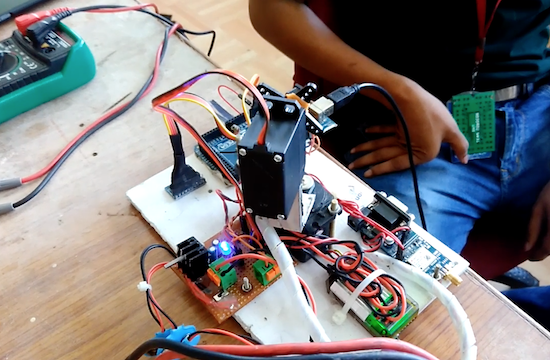
This is exactly what Subham Paul has done using an Arduino Mega, a GPS module, and 3.5-turn-pan and 180-degree-tilt servos. The real-time tracking device can predict the position of planets, calculated using Kepler’s Laws.

Data about the celestial body is input into his setup and then precisely pointed it out in the sky with a laser. All of this, of course, is dependent on where the user currently resides, which is taken care of via the GPS module as well as an optional MPU-9250.

As you could imagine, this is naturally an involved project in concept and implementation. You can find an introduction and links to further build steps here.

 

12 dazzling holiday light displays with Arduino

There’s nothing like a dazzling display of lights to help get you into the holiday spirit. Every year, enthusiasts share the magic of the season by decorating their homes with artfully strung, animated bulbs, while some Makers take their projects to the next level using open-source hardware.

2016 did not disappoint. A quick Google search revealed a bunch of Arduino-controlled LED shows that you’ll want to see!

Did you deck out your house? Share it below! Also, don’t forget to enter your Internet of Holiday Things projects in our latest contest here.

Create the ultimate Christmas jumper with Arduino

We’ve seen plenty of Arduino-equipped holiday sweaters over the years, but none as teched-out as this one. Last Christmas, UK-based Makerspace fizzPOP and electronics retailer Maplin teamed up to create quite the fun and festive jumper.

The aptly named “Ultimate Christmas Jumper” features an Uno, a Mega, an Adafruit FLORA, four 8×8 LED panels, some NeoPixels, a portable 10,000mAh power bank, as well as a pair of electret microphone amplifiers that enable it to react to sounds.

A sewn-on, 3D-printed fireplace holds the display, which as you can see in the video below, flashes a series of holiday images ranging from Santa, to Rudolph, to season’s greetings.

Want to wear one to your next party? Lucky for you, fizzPOP and Maplin have put together a video tutorial to help get you started!

This phone-controlled robot can beat you in air hockey

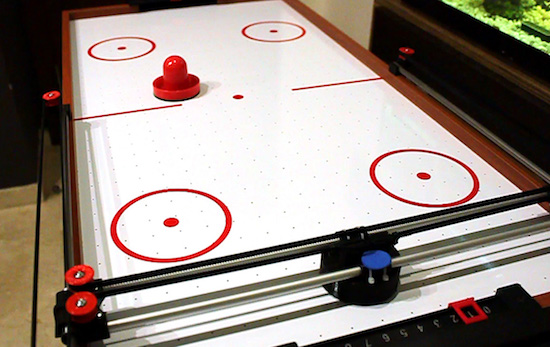
Air hockey is a classic arcade game consisting of two players, two paddles, a puck, and a low-friction table. But what happens if you don’t have an opponent? If you’re Jose Julio, you build a robotic one out of 3D printer parts.

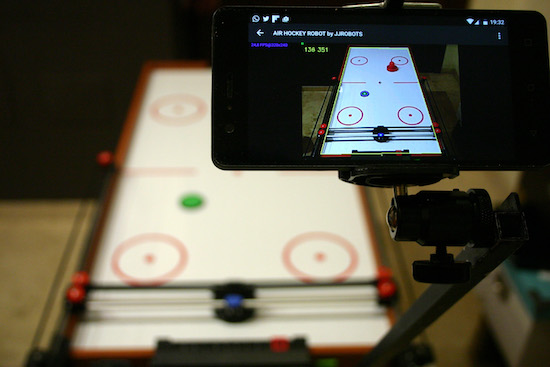
An updated version of his earlier design from 2014, Julio upgraded the Air Hockey Robot’s original camera and vision system to a smartphone for its eyes and brain. Other components include an Arduino, an ESP8266-based shield, NEMA 17 stepper motors, stepper motor drivers, as well as some belts, bearings, rods, and a few more 3D-printed pieces.

As you can see in Julio’s video below, the robot moves along two different axes with a paddle to cover its half of the table. An Android phone running the Air Hockey Robot EVO app monitors the playing surface, and makes real-time decisions by tracking the puck’s location and predicting its trajectories.

The smartphone’s camera is looking at the playing court. The camera’s captured data is processed in real-time by the smartphone. Detecting the position of the puck and the “pusher robot” (and according to the current location of all the elements on the court), your smartphone makes decisions and commands the robot what to do via Wi-Fi.

Your smartphone will become an augmented reality device, showing predicted trajectories and position of all the objects involved in this game.

Want your own? Julio has made both the instructions and code available to everyone.


Stage Bench is an Arduino-based live controller table

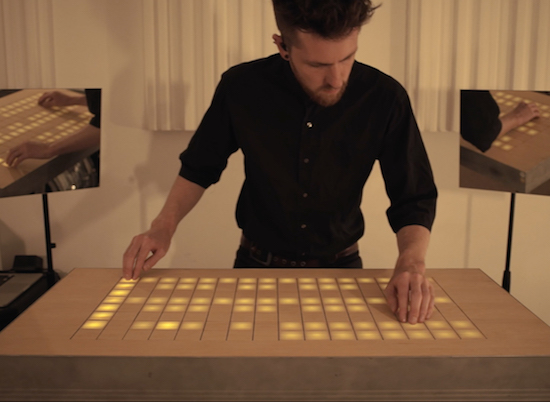
Manuel Lukas, a student at the University of Applied Science Mainz, and Sascha Lukas, a student at Cologne University of Music, together make up the German pop band Wyoming. As part of an interdisciplinary project, the duo decided to combine their love for both design and music into one live MIDI controller that’s bigger than commonly available commercial devices, but due to its size, more comprehensible for the audience.

The result? A DJ table, dubbed “Stage Bench,” that doubles as an instrument.

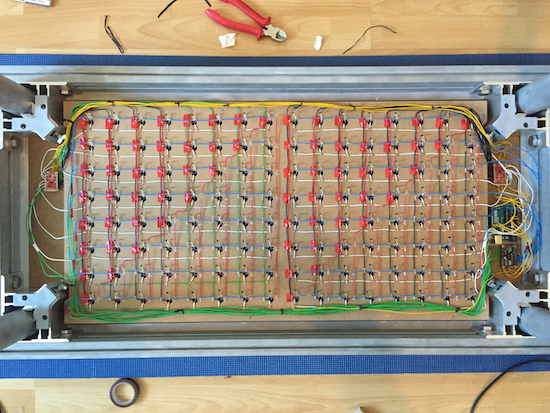
Stage Bench is based on an Arduino Uno which interacts with two matrices, a 128-LED matrix and a 128-button matrix, via a pair of shields. The connection to the computer is managed by serial communication and corresponds with a self-programmed patch in Max/MSP, which also sends MIDI data to any preferred DAW to play instruments or samplers.

Check out Stage Bench in Wyoming’s music video below!

Web Editor updates: Import your sketchbook and more


Some useful updates on the Arduino Web Editor!

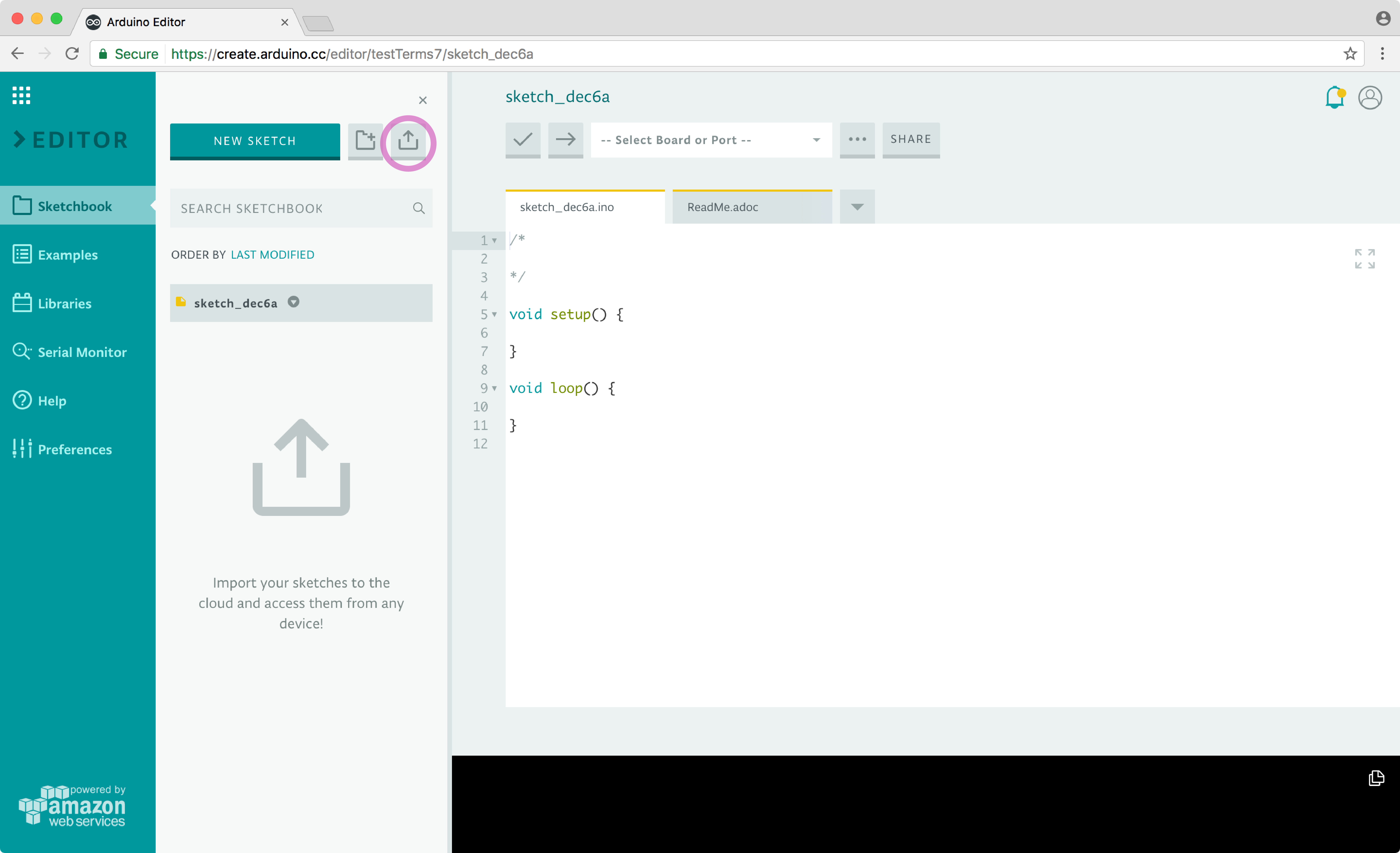
Are you sticking to the desktop Arduino IDE because all your work is saved locally? That’s no longer a problem! Our brand new import tool enables you to upload your entire sketchbook with just a few clicks on the Arduino Web Editor. It is particularly handy because it lets you move all your sketches and libraries to the cloud in a single flow.

Once your sketches and libraries are online, they will be available on any device and backed up. For details on how to migrate all your code online, check out this tutorial.

Sadly, Codebender is shutting down. You can use the import feature also to easily migrate to the Web Editor. (More details here.)

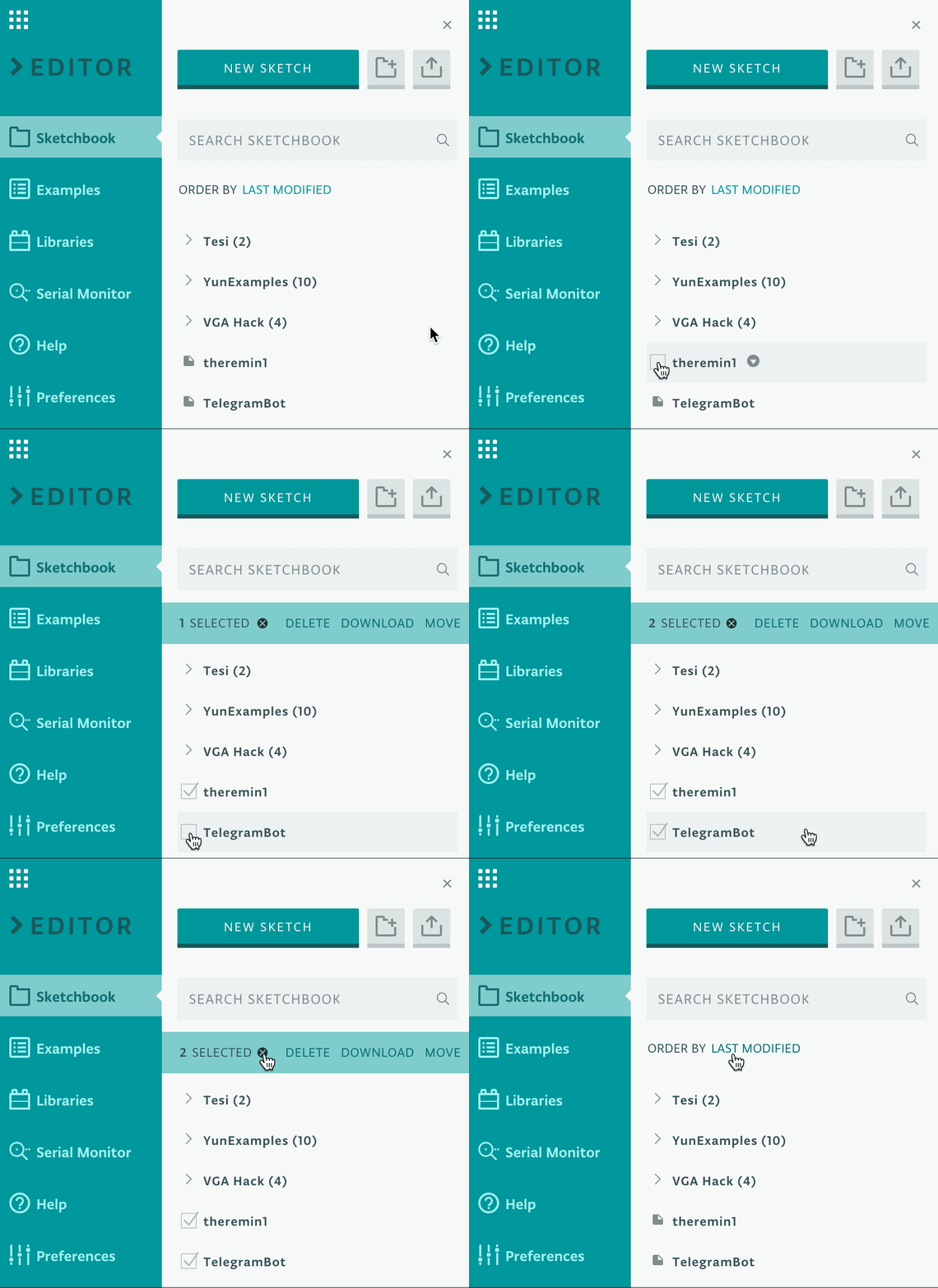
If you have a big sketchbook, you may want to clean up or categorize things once in awhile. With our bulk action tool, you can delete, move, or download multiple sketches at the same time. Go to the Sketchbook panel, hover on the sketch icon, and select all the files you want to act on. Doubts on how this will work? Learn more in this guide.

What’s coming next?

We are currently working on a super streamlined way to edit your libraries within the Web Editor, and looking for the best way to implement the Chromebook plugin. Stay tuned!

Lixie is a Nixie tube alternative

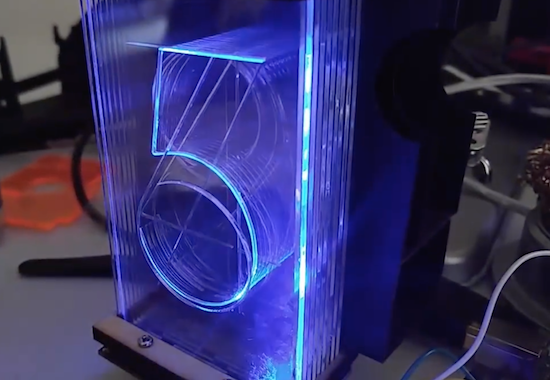
Using a series of etched acrylic panes, the “Lixie” display can show numbers in the style of a Nixie tube.

Nixie tubes are beautiful pieces of display hardware that are no longer in production, and are becoming harder and harder to find. They also generally require relatively high DC voltages to operate, making them difficult and potentially dangerous. Connor Nishijima, however, has come up with an alternative called the Lixie.

This laser-cut item employs etched panes of acrylic to reflect the light from WS2812B LEDs as required, revealing digits 0-9. Since the LEDs are RGB, different colors can be selected as desired.

Edge-lighting panes of acrylic etched with a design has been done for decades, but they’ve always been static information like an “EXIT” sign. If you stack multiple panes of acrylic (each with a unique design) and light them individually, you can change what design the user sees! This makes edge-lighting perfect for a numeric display! And since I love the look of Nixies, we’ll emulate the typography as well. At the end of the day, what I’ve made is a beautiful over-sized numeric display using WS2812Bs and a laser cut digit assembly!

You can find more about this “modernized Nixie tube” on Hackaday.io.

Arduino Blog 13 Dec 19:19

Meet the new MKRZero, the power of the Zero in a smaller board!

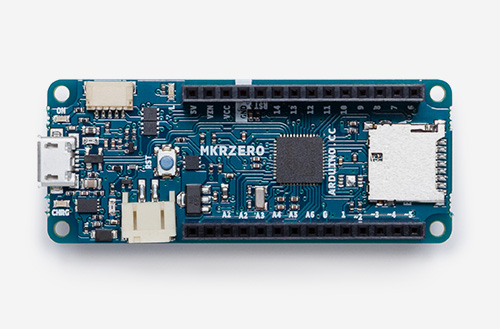
Say hello to the newest member of the Arduino family! The MKRZero–now available on our stores at the price of $21.90/€20.90 (+ tax)–shrinks the functionality of the Arduino Zero down into an Arduino MKR1000 form factor, making it a great educational tool for learning about 32-bit application development.

Like the Zero, the latest board is based on a Microchip SAM D21 ARM Cortex®-M0+ MCU. An integrated SD connector with dedicated SPI interfaces (SPI1) allows you to play with files without any extra hardware, while an analog converter enables you to monitor its battery voltage.

The MKRZero’s features in a nutshell:

  • small form factor
  • number crunching capability
  • low power consumption
  • integrated battery management
  • USB host
  • integrated SD management
  • programmable SPI, I2C and UART

Interested? You can explore the MKRZero in more detail, including its technical documentation, via the links below:

On the software side:

  • If you use the Arduino IDE, you will need to add the new Intel SAMD Core, selecting Tools menu, then Boards, and last Boards Manager on the Arduino Software (IDE).
  • If you use Arduino Web Editor, everything is already updated!

Watch out music makers, we’ve got some news for you! We have released two libraries for your enjoyment:

  • Arduino Sound library – a simple way to play and analyze audio data using Arduino on SAM D21-based boards.
  • I2S library – to use the I2S protocol on SAMD21-based boards. For those who don’t know, I2S (Inter-IC Sound) is an electrical serial bus interface standard for connecting digital audio devices.

Buy a brand new Arduino MKRZero now!

Join the discussion on the Arduino Forum!

Build an Arduino-powered, voice-activated clock

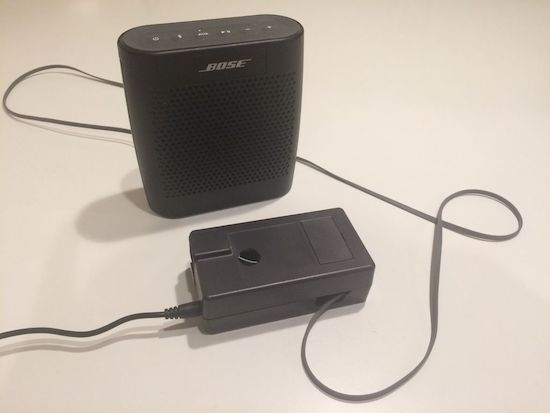
Using the MOVI voice recognizer and synthesizer Arduino shield, this DIY clock can respond to your querries.

We’re all familiar with the various brands of voice assistants, but most of them require Internet access in order to do anything useful. This project, however, employs the MOVI shield by itself to respond to a user’s request for the time or date, and can even set a timer or initiate a countdown. The clock replies back in a nice robotic tone with the piece of information the user was asking for.

The voice-activated clock also features an Arduino Uno, an RTC module, a speaker that plugs into the MOVI’s headphone jack, and a power supply. Although an interesting build as is, much more functionality could be added to the system, allowing for a custom device to suit your needs!

You can learn more about the project on its page here!

Make Etch A Sketch doodles on a VGA screen

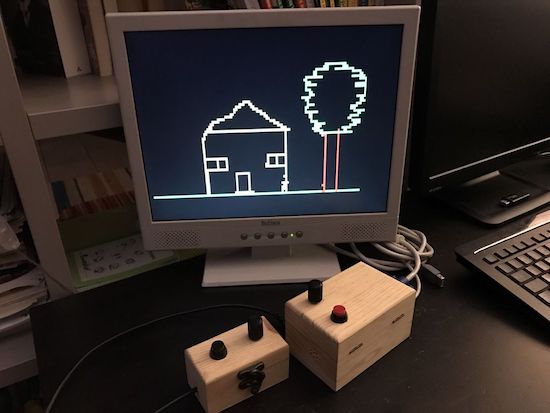
After building a Pong game using an Arduino Uno and a VGA monitor, Rob Cai realized this same setup could be used to make Etch A Sketch-style drawings.

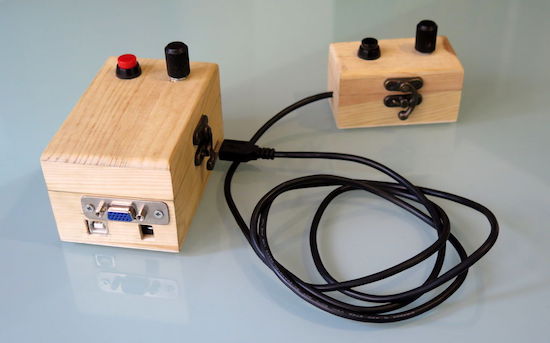
Control is surprisingly “Pong-compatible” with two boxes, each with a potentiometer and a button. One knob moves the cursor horizontally and the other vertically. Unlike an actual Etch A Sketch from your childhood, one button chooses the line color, while the other resets the screen (instead of shaking).

His system takes advantage of Sandro Maffiodo’s VGAx library, meaning it doesn’t need much more than a sacrificial VGA cable to draw a low-resolution picture on the display.

You can check out Cai’s Etch A Sketch on Instructables, where you’ll also find the project in its Pong form.