Posts with «featured» label

Staging Beckett with 11 motors and Arduino Mega

Happy Days is an installation inspired by the work of the Irish avant-garde novelist Samuel Beckett who wrote the namesake play in two acts in the 60s. Designer and visual artist Irena Kukric created it in collaboration with Canny Sutanto and the aim of exploring narrative in the form of an installation. The five-minute play is staged using ten servo motors and a DC motor with an Arduino Mega and VVVV live programming environment:

We were beginners with Arduino and motors so we started out pretty basic, trying to move several motors at once. We decided to use VVVV platform in addition when we realized we needed a timeline for our script for the play. With this timeline, it was easier to deal with details such as when we want to move which motor under which angle and such. For beginners with coding, this visual programming environment is very approachable and the entrance level is much lower.

It is easier and faster to get to your desired outcome. What is great about VVVV and Arduino is that there is the Firmata library that enables you to work with both platforms in conjunction so even artists and designers with lower level coding skills are able to go from concept to realization quite easy. We used Arduino Mega which was very convenient considering the number of our motors and the pins that Mega has to offer. After we had our final order of cables and pins, we even made our own shield for it.

The play was staged without human actors or conventional (verbal) dialogue  as performing a ritual in the play overshadows the performer, the object of the ritual can survive on its own. Therefore, they used these objects or rather props from the play and made them actors, animating them with motors, as you can see in the video below:


Come and meet Arduino team at the Genuino booth in Rome!

From October 16th to 18th, most of us will be participating to the third edition of Maker Faire Rome. We’re setting up an amazing booth showcasing Genuino boards, Arduino Create, Casa Jasmina installations, educational projects from Creative Technologies in the Classroom (CTC), the new Genuino Starter Kit and much more!

We’ll be at Maker Faire Rome all three days at our new Genuino booth, right next to the Maker Store where, for the first time, you’ll be able to purchase Genuino Uno and Genuino Mega!

Take a look at the map below to see where we are (in front of Pavillion U) and click on it if you want to download a PDF version.

Here’s a little preview of what’s new at our booth:

Genuino Modules
The Genuino Modules aim at providing the user a breadboard-less experience in building interactive electronic systems. The family of products contains a Hub, a Shield and umpteen number of individual modules. The Hub is a microcontroller board by itself, based on the ATmega32u4. The Shield is an add-on board that can be mounted onto another board (like Uno). The modules can be used by connecting them directly to the Hub, or to another Genuino or Arduino board using the Shield.

Eslov
The Eslov project is Genuino’s open-source, smart modular development platform made of a hub that connects to a computer, and a series of smart blocks. Each block features different functions, from analog sensors (like LDRs or potentiometers), to gyroscopes, accelerometers or even digital servo motors.
The different blocks automatically identify themselves in the Visual IDE when plugged to their hub. You can then virtually connect the blocks to one another by drawing pipes between sensor and actuator blocks. Without programming a single line of code, it’s possible to build complex prototypes like a seismic detector, a pet tracking device, or your own fitness band. Each block comes with a default firmware ready to run as part of the Eslov platform, but it is also possible to use it in combination with any of the existing Genuino or Arduino boards as a smart device connected via I2C.

Arduino Create 
Arduino Create is a platform that simplifies making a project as a whole, without having to switch between many different tools to manage the various aspects of whatever you are making.
You can write code and upload sketches to any Arduino & Genuino board directly from the browser, store all your sketches online, and access them from any device. The web-based software (IDE) offered by the Arduino Create platform is always up-to-date, including the latest Libraries and Cores, without having to install anything. Boards around you are automatically available in one single dropdown. You can add Schematics and Layout PNGs to your sketches, so that you have in one place all the core elements of your project.

During the three days you can also play with some cool interactive installations, among which:

Colour Theremin
The theremin is a musical electronic instrument that plays monophonic melodies by hand gestures. In this version, Colour Theremin creates a color ‘symphony': its intensity and shade are controlled by the movements of hands. The installation is based on a FastLED library by Daniel Garcia and Mark Kriegsman and it’s running on a Genuino Uno, an LCD shield, two ultrasound sensors, one pot for speed and 122 WS2812b pixels.

(S)passoUno
A DIY Live Stop Motion Tool heavily based on the work of Alexandre Quessy’s ToonLoop (2009), edited and used in Arduino and Processing workshop by Davide Gomba and Mirco Piccin.
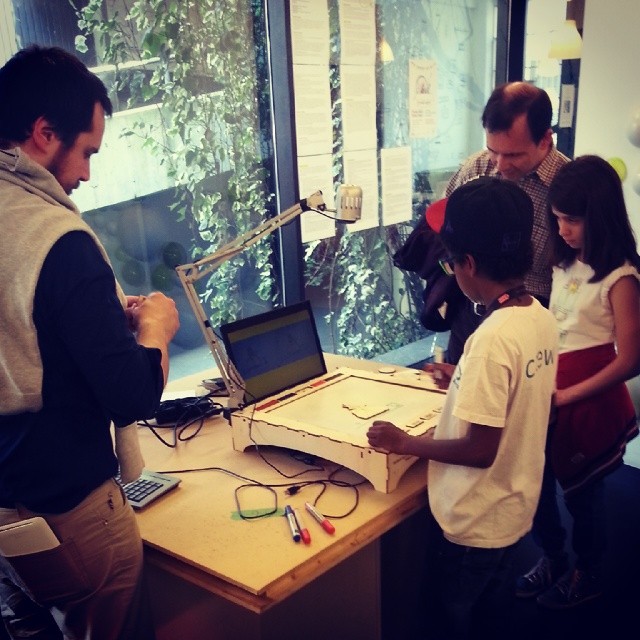
(S)passoUno offers the player the possiblity to easily create a custom animation positioning objects on a lasercut board. Add a frame by pressing the Big Red Button, erase the last frame by pressing the Big Black Button, choose a sequence, add colors, add symmetry effects and enjoy the result!

(s)passo uno

Ready to celebrate the maker movement with us? Add the following events to your agenda:

  • Friday, 16th October at 11.00am - During the Opening Conference “Life with the Machines” taking place at Aula Magna of Sapienza, Massimo Banzi will have a keynote and an important announcement.
  • Saturday 17th October at 4.30pm – Massimo Banzi and Bruce Sterling will talk about “Casa Jasmina, the IoT for real people” at Room 10 of the Maker Faire (check map above).

Share your pictures and thoughts on social media channels using the hashtag #MFR15 and #Genuino

Get your discounted ticket to Maker Faire Rome (promo valid until October 14th –  h.18).

Staying focused with a brain-sensing smart lamp

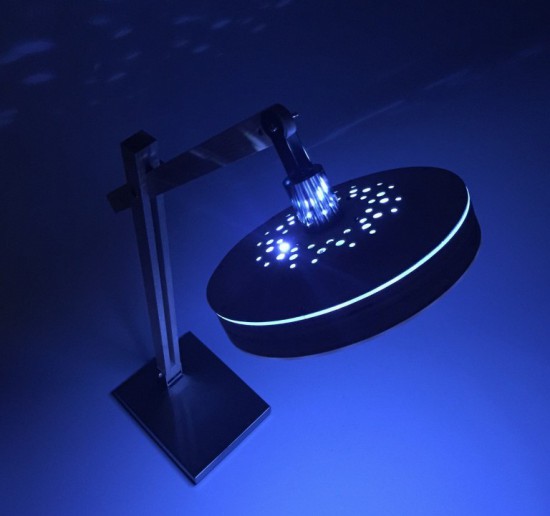
Clara is a smart lamp able to respond to your brain waves and subtly adjust your environment. The project, running on Arduino Uno, was created by  Marcelo Mejía Cobo, Belen Tenorio, and Josh Sucher for a class at the School of Visual Arts in NYC (US).

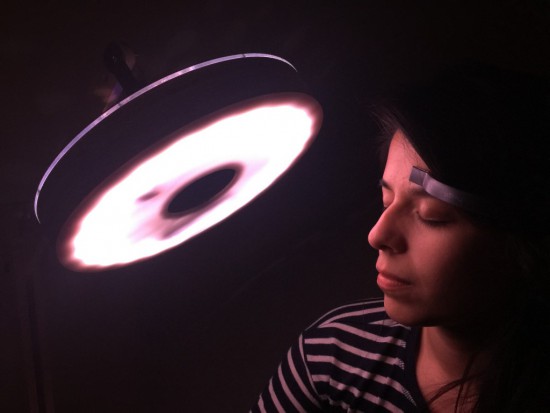
The team worked with the Neurosky MindWave Mobile, a Bluetooth EEG-reading headset in order to wirelessly detect “attention” and map the lamp’s color temperature and speaker volume accordingly:

At first, the lamp emits a warm, comforting glow, conducive to idea generation and creativity. But as you start homing in on a specific idea, the light becomes crisper and cooler, and the volume of the ambient noise flowing from the embedded speaker slowly increases, enhancing your ability to concentrate and block out external distractions.

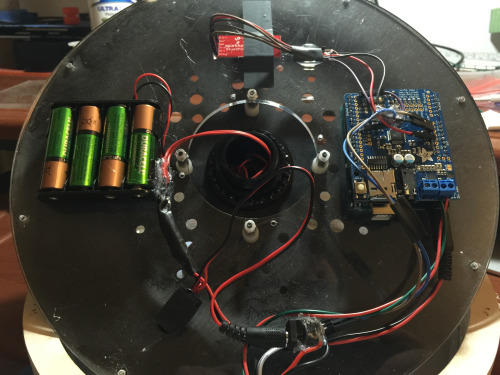
In the picture below you can see the inside of the lamp with the Arduino Uno and Adafruit Music Maker shield:

Explore the Arduino Sketch on Github.

Arduino Blog 09 Oct 23:19

Bootstrapping Motion Input with Cheap Components

Motion control is a Holy Grail of input technology. Who doesn’t want an interface that they can control with simple and natural movements? But making this feel intuitive to the user, and making it work robustly are huge hills to climb. Leap Motion has done an excellent job creating just such a sensor, but what about bootstrapping your own? It’s a fun hack, and it will give you much greater appreciation for the currently available hardware.

Let’s get one thing straight: This device isn’t going to perform like a Leap controller. Sure the idea is the same. Wave your hands and control your PC. However, the Leap is a pretty sophisticated device and we are going to use a SONAR (or is it really SODAR?) device that costs a couple of bucks. On the plus side, it is very customizable, requires absolutely no software on the computer side, and is a good example of using SONAR and sending keyboard commands from an Arduino Leonardo to a PC. Along the way, I had to deal with the low quality of the sensor data and figure out how to extend the Arduino to send keys it doesn’t know about by default.

The Plan

The plan is to take an inexpensive SONAR module (the HC-SR04) and an Arduino Leonardo and use it to perform some simple tasks by mimicking keyboard input from the user. The Leonardo is a key element because it is one of the Arduinos that can impersonate a USB keyboard (or mouse) easily. The Due, Zero, and Micro can also do the trick using the Arduino library.

I wanted to determine how many gestures I could really determine from the HC-SR04 and then do different things depending on the gesture. My first attempt was just to have the Arduino detect a few fingers or a hand over the sensor and adjust the volume based on moving your hand up or down. What I didn’t know is that the default Arduino library doesn’t send multimedia keys! More on that later.

How the SONAR Works

The SONAR boards come in several flavors, but the one I used takes 4 pins. Power and ground, of course, are half of the pins. In fact, my early tests didn’t work and I finally realized the module requires more power than I could draw from the Arduino. I had to add a bench supply to power the module (and, of course, I could have powered the module and the Arduino from the same supply).

The other two pins are logic signals. One is an input and a high-going pulse causes the module to ping (8 cycles at 40kHz). There is a delay and then the other pin (an output) will go high and return low when the module detects the return ping. By measuring the time between your signal to ping and the return, you can judge the distance. In my case, I didn’t care about the actual distance (although that’s easy to compute). I just wanted to know if something was farther away or closer.
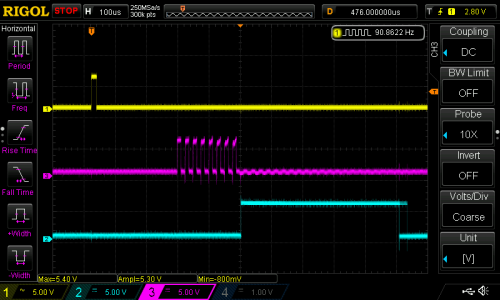
The scope trace to the right shows the sensor pointing at something relatively near. The top trace is the start pulse and the bottom trace is the input to the Arduino. The center trace is the output of the SONAR transducer. All the signal conditioning is inside the sensor, so you don’t need to worry about the actual signal processing to generate and recover the audio. You only need to measure the width of that bottom pulse.

The scope has persistence and you can see that the bottom trace does not always come out right at the same time (look at falling edge and you can see “ghosts” for previous samples. It shouldn’t come as a surprise that it may take a little effort to reduce the variations of the signal coming back from the SONAR.

Noise Reduction and Actions

Averaging

I wound up trying several different things to attempt to stabilize the input readings. The most obvious was to average more than one sample. The idea is that one or two samples that are way off will get wiped out by the majority of samples that are hovering around some center value. I also found that sometimes you just miss–especially when looking for fingers–and you get a very large number back. I elected to throw out any data that seemed way off when compared to the majority of received data.

Verifying

One other tactic I used was to verify certain elements with a second reading. For example, the start event occurs when the SONAR reports a value under the idle limit. The idle limit is a number less than the reading you get when the SONAR is pointed at the ceiling (or wherever it is pointing) and you don’t have anything blocking it. To recognize a valid start, the code reads twice to make sure the value is under the limit.

The code inside the Arduino loop is essentially a state machine. In the IDLE state, it looks for a reading that is below the idle limit. When found, that causes a transition to the sampling state. When the reading goes up or down more than some preset value, the code in the sample state sends a volume up or down key via the keyboard interface. If the sample goes back over the idle limit, the state machine returns to IDLE.

I got pretty good results with this data reduction,  but I also found the NewPing library and installed it. Even though it isn’t hard to write out a pulse and then read the input pulse, the NewPing library makes it even easier (and the code shorter). It also has a method, ping_median, that does some sort of data filtering and reduction, as well.

You can select either method by changing the USE_NEW_PING #define at the top of the file. Each method has different configuration parameters since the return values are slightly different between the two methods.

I said earlier that the code sends volume up and down commands when it detects action. Actually, the main code doesn’t do that. It calls an action subroutine and that subroutine is what sends the keys. It would be easy to make the program do other things, as well. In this case, it simply prints some debugging information and sends the keys (see below). I didn’t react to the actual position, although since the action routine gets that as a parameter, you could act on it. For example, you could make extreme positions move the volume up two or three steps at a time.

Sending Keyboard Commands

I wanted to send standard multimedia keys to the PC for volume up and down. Many keyboards have these already and usually your software will understand them with no effort on  your part. The problem, though, is that the default Arduino library doesn’t know how to send them.

Fortunately, I found an article about modifying the Arduino’s library to provide a Remote object that wasn’t exactly what I had in mind, but would work. Instead of sending keys, you have methods on a global Remote object that you can call to do things like change or mute the volume. The article was for an older version of the Arduino IDE, but it wasn’t hard to adapt it to the version I was using (version 2.1.0.5).

The action routine really only needs the UP_IN and DN_IN cases for this example. However, I put in all four branches for future expansion. Here’s the action subroutine:

void action(int why, unsigned value=0)
{
 Serial.print(value);
 switch (why)
 {
 case START_IN:
 Serial.println(" Start");
 break;
 case STOP_IN:
 Serial.println(" Stop");
 break;
 case UP_IN:
 Serial.println(" Up");
 Remote.increase();
 break;
 case DN_IN:
 Serial.println(" Down");
 Remote.decrease();
 break;
 }
}

The Final Result
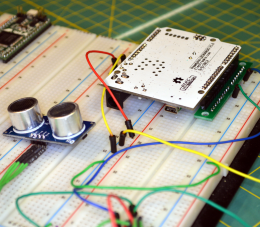
The final result works pretty well, although the averaging makes it less responsive than you might wish. You can turn down the number of samples to make it faster, but then it becomes unreliable. You can download the complete code from Github. The first thing you’ll want to do is check the top of the file to make sure your module is wired the same (pin 3 is the trigger pin and pin 8 is the echo return pin). You’ll also want to select if you are going to use the NewPing library or not. If you choose to use it, you’ll need to install it. I flipped my Leonardo upside down and mounted it on a breadboard with some adapters (see picture to right). It really needs a more permanent enclosure to be useful. Don’t forget to give the SONAR module its own 5V power supply.

If you look near the top of the loop function there is an #if statement blocking out 3 lines of code. Change the 0 to a 1 and you’ll be able to just get averaged data from the sensor. Put the module where you want it and see what kind of numbers you get. Depending on the method I used I was getting between 4000 and 9000 pointed up to the ceiling. Deduct a bit off of that for margin and change IDLETHRESHOLD (near the top of the file) to that number.

The DELTATHRESHOLD is adjustable too. The code sees any change that isn’t larger than that parameter as no change. You might make that bigger if you have shaky hands or smaller if you want to recognize more “zones”. However, the smaller the threshold, the more susceptible the system will be to noise. The display of samples is helpful because you can get an idea how much the readings vary when your hand is at a certain spot over the sensor. You can try using one or two fingers, but the readings are more reliable when the sound is bouncing off the fleshy part of your palm.

If you want to add some more gestures, you may have to track time a bit better. For example, holding a (relatively) stationary position for a certain amount of time could be a gesture. To get really sophisticated gestures, you may have to do some more sophisticated filtering of the input data than a simple average. A Kalman filter might be overkill, but would probably work well.

If you look around, many robots use these sensors to detect obstacles. Makes sense, they’re cheap and work reasonably well. There are also many projects that use these to show an estimate of distance (like an electronic tape measure). However, you can use them for many other things. I’ve even used a similar set up to measure the level of liquid in a tank and earlier this week we saw ultrasonic sensors used to monitor rice paddies.

If you really want to get serious, [uglyduck] has some analysis of what makes spurious readings on this device. He’s also redesigning them to use a different processor so he can do a better job. That might be a little further than I’m willing to go, although I was impressed with the 3D sonic touchscreen which also modified the SONAR units.


Filed under: Arduino Hacks, Featured, peripherals hacks

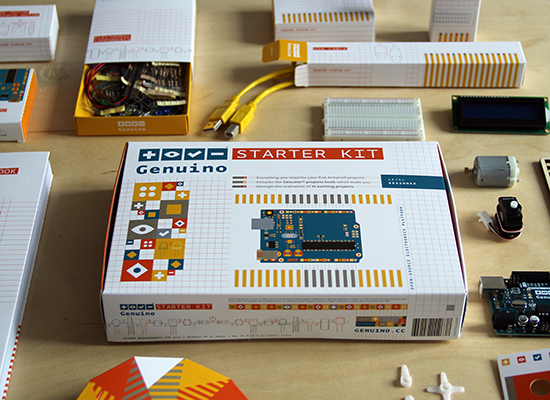
Arduino team (proudly) presents Genuino Starter Kit!

We are happy to announce that the new Genuino Starter Kit is now available on store.arduino.cc (customers from the USA will be redirected to the US-based store and will be able to purchase the Arduino Starter Kit from there).

Genuino Starter Kit, like the Arduino Starter Kit, is a great way to get started with making, coding and electronics!

Genuino is Arduino.cc’s sister-brand created by Arduino co-founders Massimo Banzi, David Cuartielles, Tom Igoe, and David Mellis, the Arduino.cc team and community.
This brand is used for boards and products sold outside the US and the Genuino Starter Kit is the first product of the series!

The Starter Kit is based on lessons Arduino’s founders have learned teaching their own classes: if you start with the assumption that learning to make digital technologies is simple and accessible, you can really make it so.

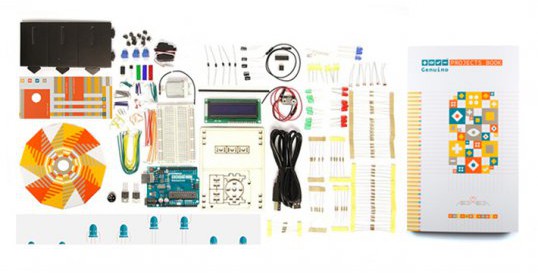
The package includes a Genuino Uno board and the components you need to make 15 fun projects following the step-by-step tutorials on the Project Book. The book walks you through the basics in a hands-on way, with creative projects you build by learning. Once you’ve mastered the basics, you’ll have a palette of software and circuits that you can use to create something beautiful, and useful!

Genuino Starter Kit will also be available for purchase during Maker Faire Rome! Come and visit us, we’ll be happy to show you demos and projects based on Arduino and Genuino boards.

DIY Connected objects for happy connected people

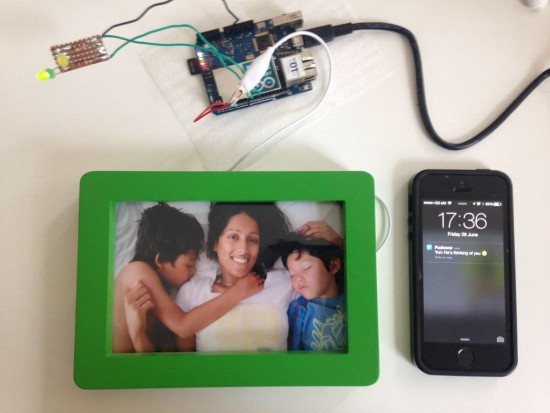
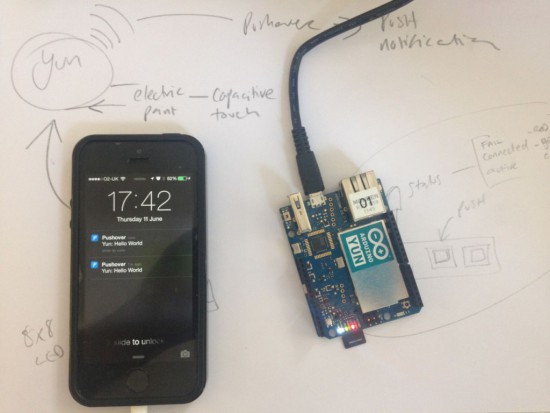
What happens when a creative technologist wants his family to know he’s thinking about them? He creates a project with Arduino Yún! IMissYou is a simple project transforming a picture in a connected object thanks to a capacitive layer made with Bareconductive Paint and inserted behind the photo. The ‘touch’ is detected by the Arduino through the glass of the frame by a spike in the values (with a basic Capsense library), sent to the internet via wi-fi and delivered to a phone with Pushover.

Martin Hollywood, the Arduino user who made  the project, wrote us:

Looking at the photograph of my family that I have on my desk one day, I missed them and wanted to be home. I touched the photo and realised that somewhere between those was the germ of the idea…

I wanted my family to know I was thinking of them, but I didn’t want to create two products; think GoodNight Lamp – I do love that project. In any case, there was no guarantee they would even notice a ‘blinking’ photo frame responding to my signal. Making the Receive a PUSH notification seemed like a no brainer, but the last time I developed for mobile was iOS 1! There are a number of service apps out there: Pusher, Pushingbox but I decided on Pushover. It had a 7 day trial period and good API support (I’ve since bought a license).

Take a look at his blog for more details and if you want to give him some tips to make it a real product.

Listening to the sound of a 300-million-year-old disc

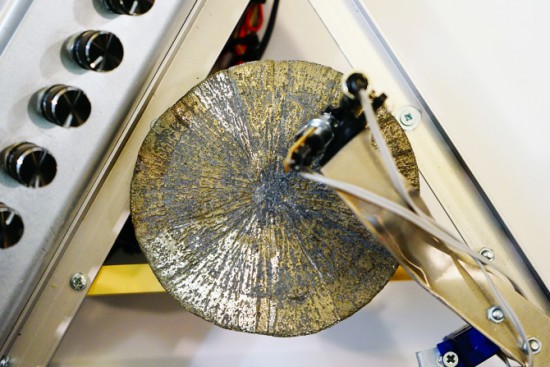
There’s a mineral called pyrite with a interesting nickname, fool’s gold, because it has a superficial resemblance to gold and it’s by far the most frequently mineral mistaken for gold. Even if it’s pretty abundant, there’s a rare form of pyrite which is crystallised in radial shape (as unusual disc spherulites), taking the shape of a disc. The amazing fact is that the only deposit where pyrites of such morphology are found is in Illinois (USA) and the discs are dated around 300 million years ago!

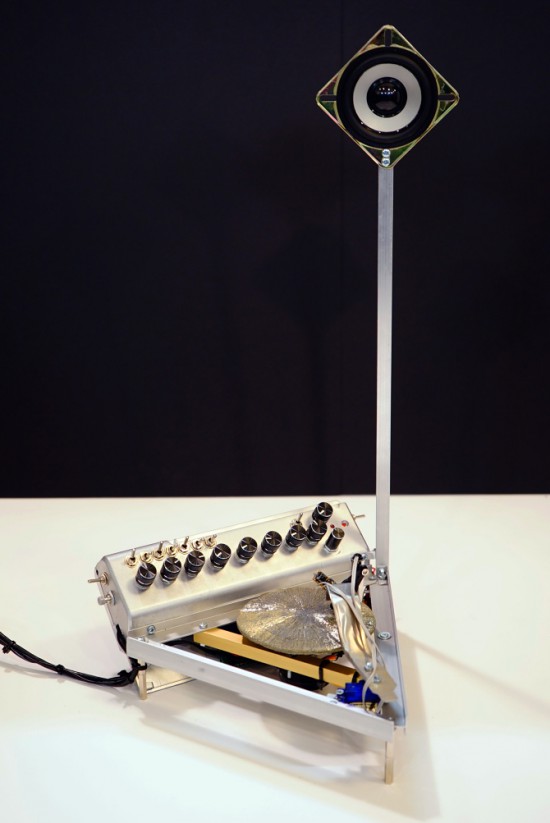
Dmitry Morozov (aka ::vtol::), a media artist living in Moscow, had the chance to use a pyrite disc and created Ra,  a sound object / synthesizer running on Arduino Nano. Ra uses laser for scanning the irregularities of the surface of the disc and further transforms this data to produce sound:

This project originated as a result of an interesting set of circumstances – a pyrite disc was given to me as a gift by a mineral seller in Boulder city (USA). Upon hearing about my works, she asked to do something with such crystal, and refused to take payment for getting it. In the same period, I was reading articles on various ways of archiving and preservation of sounds from the first, historical sources of the recorded sound – wax discs and other fragile carriers. All technologies were based on the usage of lasers. Inspired by these projects, I set out to create a self-made laser sound reader which would be able to produce sound from various uneven surfaces, using minimal resources to achive it. Thus emerged the idea to construct an instrument using the pyrite disc and a self-made laser sound reader.

The production of the object was possible thanks to the commission of the Sound Museum in St.-Petersburg which now has Ra in its collection.

Check the bill of materials and other details on Dmitry’s website. Explore other projects by Dmitry featured on Arduino Blog.

Arduino Blog 05 Oct 12:54

Arduino Development; There’s a Makefile for That

Hardware and software combined, Arduino does many things right. It lowers the entry level into embedded systems development with a nifty hardware abstraction layer. It aims for cross-platform compatibility by supporting Windows, Mac OSX, and Linux operation systems. It throws out the need for an external programmer to get you up-and-blinkin’ those LEDs quickly.

One thing most of us never cease to curse about, though, is the IDE. Many have cried out wildly against the Java-based text-editor for its cryptic compiling-and-linking process, its inability to accommodate bare C or C++ source files, and (shh!) its lack of Vim keybindings. Fortunately, our cries have been heard, and the like many community-based projects, the community fights back with a custom solution.

Calling all Grumpy Engineers: The Arduino-Makefile

Enter the Arduino Makefile.

What began as [Sudar’s] lightweight program to escape the IDE has become a fully-blown, feature rich Makefile that has evolved and adapted to grow with the changes of Arduino. With a community of 47 contributors, the Makefile enables you to escape from the IDE entirely by writing code in the cushy text editor of your choice and compiling with a simple incantation of make into your terminal, be you in Linux, Mac, or Windows.

Without further ado, let’s take a walking tour of the project’s highlights.

Cryptic Shortcuts–Begone!

For many beginners, writing (or even editting) a Makefile can cause some serious confusion with most Makefile authors’ shameless shortcut use. Make no mistake, the cryptic syntax of many Makefiles forms a concise list of instructions for compiling and linking your executable, but this recipe does seem a bit hard to parse for the uninitiated. What’s more, Makefiles also tend to throw bizarre errors (trailing whitespace anyone?) that are difficult to track down–especially when we want to spend most of our time bringing up embedded systems, not understanding the mechanics and syntax of a Makefile. Fortunately [Sudar] and the rest of the development team have made the interface very human readable.

Their solution: A two-part Makefile. For a simple project, your Makefile need be no longer than this snippet (inspired from the Makefile Examples):

BOARD_TAG    = uno
include $(ARDMK_DIR)/Arduino.mk

Project-specific settings (like which board you’re using) are outlined in this brief Makefile that then includes the larger Makefile which contains the actual nuts and bolts for building your code. The assumption here is that you’ve defined two environment variables, both ARDMK_DIR and ARDUINO_DIR that point towards the (1) Arduino Makefile directory and the (2) Arduino Installation directory. In addition, if you have additional libraries, you can include them with a line in your top-level Makefile that defines the filepath.

 USER_LIB_PATH += /home/my_username/my_libraries_directory

You’ll also need to add all libraries you’re using (both user-added and built-in) to the list of libraries like so:

ARDUINO_LIBS += Wire \
                SPI \
                my_custom_lib

The benefit of a “split-Makefile” setup is that the short, top-level Makefile hides the gritty compiler gymnastics involved in compiling and linking against the default and user-added Arduino Libraries. On the flip-side, this “mini” Makefile becomes a brief, informative summary of a few minor details, such as which Arduino Libraries are being used, that are likely more relevant to the author and future developers.

Raw C and C++ is In–if you prefer such things

Tired of that *.ino file extension? Tired of having to constrain yourself into those setup and loop functions? With the Makefile, you can quickly wish these away and write your code in raw C or C++. You can even neglect to #include <Arduino.h> if you want to work in vanilla C or C++ and disregard the Arduino libraries altogether.

That said, if you’re mixing C and C++, keep in mind that you’ll need to insert guards around your C header files like so:

#ifdef __cplusplus
extern "C" {
#endif

/// the rest of my C header file 

#ifdef __cplusplus
}
#endif

Adding Project Libraries

Possibly my favorite aspect of the Arduino Makefile is its flexibility to accomodate a richer file structure and painlessly split your project into multiple files. Let’s say I have a one-off project where it makes sense to include a custom library. Given the flexibility of the Makefile, you can define:

    USER_LIB_PATH+=.
    ARDUINO_LIBS += my_custom_library

in your project Makefile and produce a directory tree like so.

 ├── main.ino
 ├── Makefile
 ├── my_custom_library
 ├── my_custom_library.cpp
 └── my_custom_library.h

If you need more flexibility, you can also split your source code across several directories, keeping the Makefile in the same directory of your code that acts like a “main.” (In this case, main.ino defines setup  and loop.) To do so, your Makefile will, instead, have:

    USER_LIB_PATH+=../libs
    ARDUINO_LIBS += my_custom_library

in your project Makefile, and your directory structure will look like so:

 ├── libs
 │   └── my_custom_library
 │     ├── my_custom_library.cpp
 │     └── my_custom_library.h
 └── src
  ├── main.ino
  └── Makefile

Finally, we don’t need to constrain ourselves to writing just C++ classes to split projects into multiple files.  Since we’re really working with vanilla C++, you can freely split your project into multiple source (*.c, *.cpp, *.ino, *.pde) and header (*.h, *.hpp) files that live in the same directory as the Makefile, and the Makefile will compile them into one executable.

Other Micros are Fair Game Too

Finally, the Arduino-Makefile is also compatible with a host of other microcontrollers and programmers, not just the ATMEGA328P on the Uno. In short, this feature is an exposition of the features of AVRDUDE, the program for downloading and uploading code to various AVR microcontrollers. Last, but not least, it’s also Teensy-compatible.

Define Our Standard

If you’re looking to get comfortable with the Arduino-Makefile workflow, have a quick look at their examples directory for a host of different use-cases. You can also take a peek at my i2c_demultiplexing_demo source from a couple weeks back for yet another example. At the end of the day, Arduino, with its giant library collection, makes project prototyping fast. For bigger projects, though, we don’t tend to see any standard practices for file organization to make projects easier to navigate. That’s where you come in. With the flexibility of the Makefile, you get it all: the text editor you always wanted, the separate header and implementation files, a clean directory… Now it’s your shot to take this tool and refine your workflow into a method worth sharing with the rest of us.


Filed under: Arduino Hacks, Featured

Arduino WiFi Shield 101 is now available in the US store!

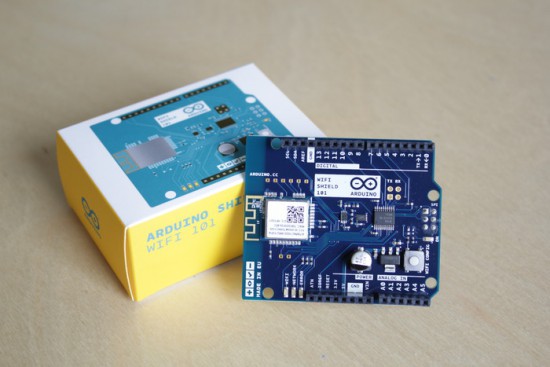
We are excited to announce Arduino Wifi Shield 101 developed with Atmel is now available for purchase on the Arduino Store US (49.90$).

Arduino WiFi Shield 101 is a powerful IoT shield with crypto-authentication that connects your Arduino or Genuino board to the internet wirelessly. Connecting it to a WiFi network is simple, no further configuration in addition to the SSID and the password are required. The WiFI library allows you to write sketches which connect to the internet using the shield.

The shield is based on the Atmel SmartConnect-WINC1500 module, compliant with the IEEE 802.11 b/g/n standard. The WINC1500 module provided is a network controller capable of both TCP and UDP protocols.  The main feature is an hardware encryption/decryption security protocol provided by the ATECC508A CryptoAuthentication chip that is an ultra secure method to provide key agreement for encryption/decryption, specifically designed for the IoT market.

Last year, Massimo Banzi introduced the shield:

“In this increasingly connected world, the Arduino Wi-Fi Shield 101 will help drive more inventions in the IoT market. Expanding our portfolio of Arduino extensions, this new shield can flawlessly connect to any modern Arduino board giving our community more options for connectivity, along with added security elements to their creative projects.”

The WiFi Shield 101 is the first Arduino product fully supporting SSL and all the communication between your board and our secured server. With the power of the Arduino Zero and the WiFi Shield 101 it is possible to make secure IoT applications simply and just using the Arduino Language.

A working example and instructions on how to get started are available on Arduino Cloud, a work-in-progress project that gives you access to a pre-configured MQTT server for your IoT sketches using only your Arduino account. More examples and features will be available in the next months.

Feel like knowing more about the shield? Explore the  Getting Started guide.

A door-stopper becomes an amazing game with Arduino

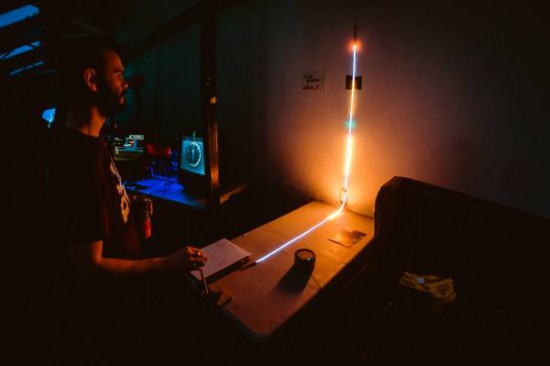
Developed by Robin Baumgarten during a 48-hour game jam,  Line Wobbler is a one-dimensional dungeon crawler game running on Arduino Uno. Robin was inspired watching a cat interacting with a door stopper and having fun!

The game is played using a unique wobble controller made out of a door-stopper spring and a several meter long ultrabright LED strip display. All the movement is controlled by bending the Wobble controller left and right, while enemies are attacked by wobbling:

Using a spring, an accelerometer and a rigid surface, the Wobble controller is a tactile and surprisingly precise joystick with a unique ‘wobble’ action (pull it back and let go to make it oscillate back and forth rapidly). It is this wobble action that is core to the experience and the game we have created for it. Initially made out of a shoe-tree, I’m now using door-stopper springs, since they’re easier to use. Fun fact: the original inspiration for the controller came from this cat video.

Since it was created, it’s been exhibited during Experimental Gameplay Workshop at GDC 2015, at Burning Man 2015 and other city around the world (London, Chicago and Oslo). Line Wobbler won also two prizes at the AMAZE Awards 2015 in Berlin and has been nominated as a finalist for the IndieCade 2015 awards last October!