Posts with «arduino» label

Schools projects with Arduino: Flow Meter

Loccioni Group, is an italian company that sponsors every year a project internship entitled “Classe Virtuale”, dedicated to young students coming from local technical schools.

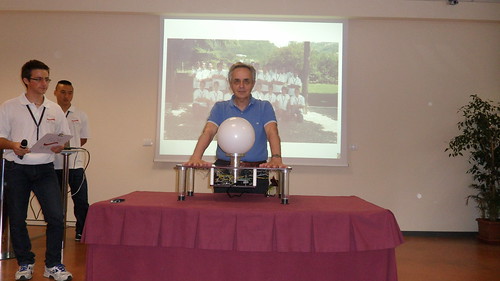
This year, “Classe Virtuale 2012″ has been composed by 27 students with different backgrounds, selected among 120 candidates. After a stating training period, during the three-weeks internship the team worked on a very nice Arduino-based project: Flow Meter.

Here you may find a brief interview we had with Daniele Caschera, one of the components of “Classe Virtuale 2012″, about Flow Meter and on how Arduino helped in its design.

Alessandro: Daniele, could you describe us what “Classe Virtuale” is, in practice?

Daniele: “Classe Virtuale”, the partnership between Loccioni Group and local technical education institutions, has began in 2001 when Mr. Loccioni decided to invest on young students, by offering training periods and stages inside his company. In 2010 the project, which occours on annual basis, expanded to three more scools and in 2012 it has reached the 12-th edition.

The goal of this collaboration is to train and educate young technicians, by serving as a bridge between school and a real employment.

A: Could you briefly describe us the “Flow Meter” project?

D: “Flow Meter” is a real flow measurer: it has been designed to measure the flow of all the students who have attended to the previous editions of “Classe Virtuale”, starting from the first edition.

First, we have designed a PHP web application usable to collect the information reagarding all the participants to the previous editions and, then, we used some Arduino boards to represent this amount of data into a visible form, by means of several LEDs.

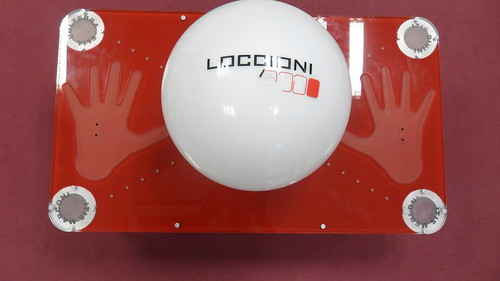
More in details, Flow Meter can be turned on by laying the hands on it, which can be detected by means of some proximity sensors located on the surface.

Then, it begins to show the collected data, starting from the first edition of “Classe Virtuale”, by turning on a set of LEDs, arranged in three rows inside a semi-transparent, white sphere. The first row, composed by red LEDs, represents how many students are currently employed at Loccioni, while the second one, composed by blue LEDs, shows how many people work or study in Italy; the last row (again composed by red LEDs) presents how many people work or study abroad.

By leaving the hands on Flow Meter, it is possible to scroll through all the editions of “Classe Virtuale”.

Finally, four small pillars, placed at the corners of the structure, represent the four schools involved in the 2012 edition of the project: a set of LEDs is used to show how many students come from each institution per year.

A: How Arduino contributed to this Flow Meter?

D: Many of us did not know Arduino at the beginning of “Classe Virtuale 2012″. The board has been introduced us during the initial training period by some electronic engineers at Loccioni. Then, we started to find out more information about it and how to adopt it in our project on the web, on books and so on.

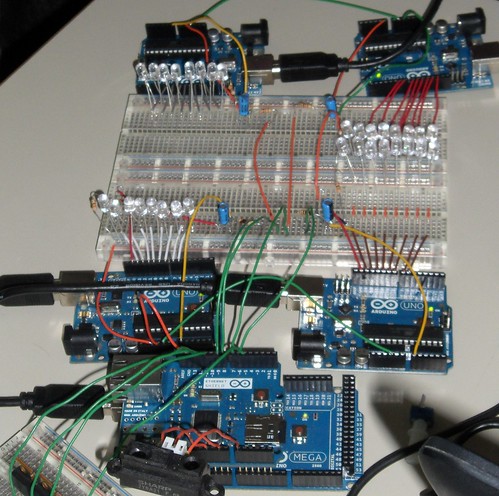
Arduino has been fundamental in our project, simply because it composes the “brain” of Flow Meter, by means of a set 4 Arduino Uno and an Arduino Mega, and because it is used to activate the LEDs composing its “visual” interface.


A: How do you evaluate this internship experience?

D: This experience has been very positive for us, mainly because it gave us the chance to work on a real project together with very skilled people and technicians. Moreover, since the team has been divided into small working groups (e.g., those working on mechanical parts and those working on electronics and programming), we have gained experience on topics that you typically won’t study at school. Everyone has learned a lot during “Classe Virtuale”!

This very nice project, which has been presented on July 19 (the streaming of the event will be available here), represents another example of how open-source solutions can be used as effective enabling technologies, even for educational purposes.

Great job “Classe Virtuale” and thanks for this interview!

Arduino Blog 10 Jul 14:54

Introducing BoardX: The Open Source Miniature Robotics Motherboard

Hi Everybody!

Long time robot enthusiast here, but just joined up after searching for some robotics tutorials. I'm searching for ideas to create a beginners robotics kit for my open source project, BoardX.

I'm going to post some information here, and if anybody is interested in purchasing one, send me an email and I'll give you instructions on how to get a discount!

Here's my site: http://www.upgradeindustries.com

read more

Capacitive sensing, part 2

The obvious next step with the capacitive sensor is to make the sensor actually control something.  This is not essential for the circuits class—for that class it is better to have the students viewing the waveform on the oscilloscope and seeing the frequency of the output vary  as the touch varies.  But I was curious about whether the various grounds (oscilloscope, USB cable, wall wart power supply) were making a difference to the capacitive sensing, so I wanted to redo the capacitive sensor to be a fully battery-based application, with no external ground connections.

To display whether the sensor had been touched or not, I turned on or off the LED on pin 13. I used the same software detection mechanism as in the previous post, counting the number of pulses it takes to get a total time for the signal being low. Touching my laptop (to reduce the resistance to ground) no longer makes a difference in the sensitivity of the switch, now that the battery ground is separated from the laptop ground.

// Capacitive sensor switch
// Mon Jul  9 06:05:54 PDT 2012 Kevin Karplus

// To use, connect the output of the LM555 oscillator to
// pin CAP_PIN on the Arduino.
// The code turns on the LED on pin 13 when a touch is sensed.

// The Arduino measures the number and width of LOW pulses on pin 2 until
//    the sum of the pulse width exceeds TOTAL_PULSE_USEC.
// The LED is turned on if the number of pulses is less than NO_TOUCH_NUM

#define CAP_PIN (2)

#define TOTAL_PULSE_USEC (100)	// total of pulse widths (in  microseconds) before reporting
#define NO_TOUCH_NUM (50)

void setup(void)
{
    pinMode(CAP_PIN,INPUT);
    pinMode(13, OUTPUT);
}

void loop(void)
{
    uint32_t pulse_sum=0;
    uint16_t num_pulses=0;
    while (pulse_sum<TOTAL_PULSE_USEC)
    {   pulse_sum += pulseIn(CAP_PIN,LOW);
        num_pulses++;
    }
    digitalWrite(13, (num_pulses<NO_TOUCH_NUM? HIGH:LOW));
}

I had to set the threshold a bit higher than I expected, indicating that the frequency shift was not as large without all the connections to ground, but the sensor still works with a moderately firm touch. With a light touch, the LED flickers on and off, indicating that the frequency shift is near the threshold. Raising NO_TOUCH_NUM too high has the LED always on. Even raising it from 50 to 55 makes the switch too sensitive—the LED turns on when my finger is still 5mm away from contact. Perhaps the ideal setting is 52, as that detects a light touch fairly reliably, but doesn’t fire until my finger is within about 1mm of the surface.

Note: it might make more sense to leave NO_TOUCH_NUM at 50 and adjust TOTAL_PULSE_USEC down to 96, since the larger number can be adjusted more finely.

If I wanted to avoid the flicker, I would debounce the detection.  I can’t use the Arduino Bounce library for this, as the signal that needs debouncing is in software, not on a pin.  It is a trivial matter to add a delay whenever the output changes, though:

// Capacitive sensor switch
// Mon Jul  9 06:44:33 PDT 2012 Kevin Karplus

// To use, connect the output of the LM555 oscillator to
// pin CAP_PIN on the Arduino.
// The code turns on the LED on pin 13 when a touch is sensed.

// The Arduino measures the number and width of LOW pulses on pin 2 until
//    the sum of the pulse width exceeds TOTAL_PULSE_USEC.
// The LED is turned on if the number of pulses is less than NO_TOUCH_NUM.

// pin that LM555 output connected to
#define CAP_PIN (2)

// total of pulse widths (in  microseconds) before reporting
#define TOTAL_PULSE_USEC (96)

// minimum number of pulses to indicate that sensor is not touched
#define NO_TOUCH_NUM (50)

// time (in milliseconds) to wait after a change in state before
// testing input again
#define DEBOUNCE_MSEC (100)

static uint8_t was_on;

void setup(void)
{
    was_on=0;
    pinMode(CAP_PIN,INPUT);
    pinMode(13, OUTPUT);
}

void loop(void)
{
    uint32_t pulse_sum=0;
    uint16_t num_pulses=0;
    while (pulse_sum<TOTAL_PULSE_USEC)
    {   pulse_sum += pulseIn(CAP_PIN,LOW);
        num_pulses++;
    }
    uint8_t on = num_pulses<NO_TOUCH_NUM? 1:0;
    digitalWrite(13, on);
    if (on!=was_on)
    {   delay(DEBOUNCE_MSEC);
        was_on=on;
    }
}

Debouncing does not completely eliminate multiple flashes. If I hold my finger very steady just touching the sensor or my whole hand flat about 1mm away, the LED will flash on and off about 5 times a second (the speed of the flashing is determined mainly by DEBOUNCE_MSEC).

Really good code would not require fixed NO_TOUCH_NUM and TOTAL_PULSE_USEC, but would learn what values are usual for off and on states and set the thresholds to separate them reliably.  I’ve not figured out a good way to do this as unsupervised learning. It would not be very difficult to have initial settings, gather averages for on and off states, then dynamically adjust the threshold, but I don’t know how stable such threshold setting would be. I suspect that it would end up rather unreliable, and highly dependent on good initial settings.


Filed under: Circuits course Tagged: Arduino, bioengineering, capacitive touch sensor, circuits, course design, LM555, sensors, teaching

Capacitive sensing

I decided that it was time to try a new circuits lab today.  Although I have the INA-126 instrumentation amplifier working (with a 220Ω gain resistor for a gain of about 370), and I did get some EKG stick-on electrodes, I don’t feel like trying to debug the EKG lab today.  I could do a little more with the instrumentation amplifier and the new function generator, adding the function generator output to the microphone output to see try to separate the differential gain from the common-mode gain, but I’m getting a bit tired of op-amp and instrumentation amp circuits.  I’ll try to come back to them later.

Other sensor ideas from What sensors for circuits class? that I have the parts for now include phototransistors, LEDs and IR emitters, and reflectance light sensors, but I don’t feel like playing with phototransistors today either.  That leaves one rather do-it-yourself sensor: a capacitance touch switch.  I was thinking of implementing this with LM555 timer chip as an oscillator, detecting capacitance increase as a change in the frequency of the oscillator.

Design questions include

  • What capacitance do we add by touching something?
  • What frequency should the oscillator run at without the touch?
  • What % change in frequency can we detect reliably? How will we do that detection?

Capacitance

Let’s do a first-principles calculation of capacitance of a touch, using a simple parallel-plate model.  Let’s say that the area of the touch, pressing lightly with a finger, is about 1cm^2.  We need to know the dielectric constant of the insulator and its thickness.  Let’s say we use a cheap plastic  wrap from the grocery store.  According to Wikipedia, common plastic wraps are about 0.5 mils (12.5 µm) thick and are now generally a low-density polyethylene (LDPE).  According to Bert Hickman (referring to sites that no longer exist), the relative dielectric constant for LDPE is 2.2, with a breakdown voltage of 3000v/mil (or 1500v for 0.5mil).  Of course, he also claims that the common wrap material is a mix of PVC and PVDC, which seems to be out of date information. The A to Z of Materials site for LDPE claims

Dielectric Strength (MV/m) 27
Dissipation Factor 1kHz 0.0003
Dielectric Constant  1kHz 2.3

That dielectric strength would be 337V at 12.5µm, which seems more reasonable than Bert Hickman’s numbers.

I also have 3M contractor’s plastic for masking large areas when painting. It claims to be 8.9 µm thick, but I can’t figure out what the material is (they just say “high density plastic”).  If it is HDPE (a possibility), the A to Z of Materials site for HDPE claims

Dielectric Strength (MV/m) 22
Dissipation Factor 1kHz 0.0005
Dielectric Constant  1kHz 2.3

which gives the same dielectric constant as LDPE, but the breakdown voltage would be about 195V at 8.9µm—still plenty for a touch sensor.

If I have 1 cm^2 (1E-4 m^2) area, 5 mil thickness (12.5E-6m), relative dielectric constant of 2.3, and ε0=8.8542E-12 F/m, I get a capacitance of 163pF for the touch.

Frequency

The LM555 can be set up as an astable oscillator:

LM555 astable oscillator circuit from the Fairchild Semiconductor LM 555 data sheet.

The data sheet gives the period of the oscillator as and the frequency as . If I want a slow oscillator, I’ll need to use a large resistance.  The largest resistance they show in the data sheet is RA+2RB=10MΩ, and I happen to have some 3.3MΩ resistors, so 9.9MΩ seems reasonable.  If I had no stray capacitance, 163pF and 9.9MΩ would give a period of 1.6msec (620Hz).  But, of course there will be substantial stray capacitance—probably much larger than the touch capacitance.  In any event, the increment to the period of the oscillator by adding the touch capacitance should be about 1.6msec, so we need to be able to detect that small a change in the period.  The percentage change will depend mainly on the stray capacitance.

One thing that is not clear from the LM555 data sheet is what value should be used for C2.  I suspect that it is just a bypass capacitor to reduce noise in the reference voltages used for the threshold, so a 4.7µF ceramic capacitor (of which I have several) should do fine.  Design notes I’ve seen on the web suggest that 0.1µF is plenty, though a bypass on the Vcc input of that amount is also recommended.

Experiment

I set up the circuit on the breadboard, with RA=RB=3.3MΩ, C1 being just the stray capacitance in the circuit, and C2 being a 4.7µF ceramic bypass capacitor. I also put a 4.7µF bypass capacitor between pins 1 and 8, as well as a 470µF electrolytic capacitor, to make sure that the power supply was clean.

The resulting oscillator has a period of about 0.2msec (4.4kHz), but it fluctuated a lot, so that I could not get a clean trace on my oscilloscope. Touching the insulted sensor pad (made from Al foil and Glad Cling Wrap) caused the period to increase enormously, but to a pulse train of 3 pulses that repeated at 60Hz.  I believe that what I was mainly doing was coupling in a 60Hz noise signal, rather than detecting a change in the capacitance to ground.

I could decrease the sensitivity of the circuit to noise by reducing the resistances and adding some more capacitance to C1. Adding 1nF cleans up the signal, but doesn’t eliminate the problem.  I get 107±1Hz without a touch, and 60Hz with a touch.  I’m still mainly coupling in 60Hz noise!  I’d have to reduce the impedance to reduce the 60Hz coupling, reducing RA and RB.

Leaving in the 1nF capacitor and reducing RA and RB to 100kΩ results in a non-touch frequency of 4.05kHz and a touch frequency of 3.6kHz.  This is about a 30µsec difference in period, consistent with an 150pF change in capacitance. But this frequency change seems to be almost independent of the area of contact, which is not consistent with a parallel plate model.  The lower frequency still seems to be modulated by a 60Hz hum.

Removing the 1nF capacitor, but leaving the 100kΩ resistors, I get a no-touch frequency of 140kHz–156kHz (depending on how close my arm comes to the sensor) and a touch frequency around 45kHz–50kHz, a 15µsec difference in the period. A firm press with all my fingers depresses the frequency further, down to about 20kHz. Touching my laptop (reducing my resistance to ground) decreases the frequency further—pressing with my palm and touching the laptop gets the frequency own to about 13kHz.

Here is the complete layout for the capacitive touch sensor, showing (clockwise) the aluminum foil wrapped in Glad Cling Wrap (except for the folded over part where the alligator clip is attached, the breadboard with the LM555 chip, and the Arduino board.

I wouldn’t want to use the interrupt-driven timer code to measure this frequency, but a simple busy-wait loop that times the period could work, or I could add a counter to divide the frequency down (and average out many clock cycles).  But this is supposed to be a circuits class, not a digital design class, so adding a counter is probably not appropriate for the lab.  Perhaps a better approach is to measure the duration of the low part of the pulse, which should be about 1/3 of the total period, using the Arduino pulseIn function.  Looking on the scope, the low part of the pulse seems to be closer on 1/6th of the total period than to 1/3 at the high frequency, though the ratios are more reasonable at the low frequency.  I suspect that there are stray capacitance within the LM555 that account for some of the pulse shape error.

By averaging over 500 pulses, I see a switch from 1.15±0.03 µsec for the low pulse in the no-touch configuration to 5.4±0.3µsec for a firm touch and 2.8±0.2µsec for a light touch (and up to 220µsec for a full-palm touch while touching my laptop). Single pulse measurements may be a bit unreliable at those speeds, since pulseIn only has 1µsec resolution, but adding 500 pulses doesn’t take much time, unless the capacitance is very high. Putting the 1nF capacitor back in the circuit makes the low time look more like 1/3 of the period.  The pulse widths are about 78.4±0.05µsec for no-touch and 80µsec–85µsec for a touch.  Those are long enough to be reliably detected with even a single pulseIn call, but the difference is rather small, so setting a fixed threshold would be a bit risky.

An alternative approach to averaging 100s of pulse widths is to collect pulses until the total pulse width exceeds 200µsec and report the number of pulses collected.  That mechanism results in an easily detected change in counts (from over 150 to under 60) and a response time of about 2–5msec (most of which is probably in the serial communication).  A detection threshold would have to be set for each different sensor plate the circuit is connected to, but that is pretty straightforward.

Here is the code I used for detecting sensor touches with summed pulse widths (click to expand):

// Capacitive sensor timer
// Sun Jul  8 17:59:49 PDT 2012 Kevin Karplus
//
// License: CC-BY-NC http://creativecommons.org/licenses/by-nc/3.0/
//
// To use, connect the output of the LM555 oscillator to
// digital pin 2 on the Arduino.
// On initialization, the Arduino will print "Arduino ready." to serial.
// The Arduino measures the number and width of LOW pulses on pin 2 until
//    the sum of the pulse width exceeds TOTAL_PULSE_TIME.
// It then reports 3 numbers to the serial line:
// The first is the time since the start, in microseconds.
// The second is the number of pulses measured.
// The third is the average duration of the pulses.
// Serial baudrate is 115200.
// The start time may be reset by sending the character 'R'.

#define TOTAL_PULSE_TIME (200)	// total of pulse widths (in  microseconds) before reporting

unsigned long first_time;   // what was the time for the first tick since reset?
// All times are in microseconds.

// do_reset() empties the queue and sents the count to 0
void do_reset(void)
{
    noInterrupts();     // don't take interrupts in the middle of resetting
    first_time=micros();
    // let the user know that the Arduino is ready
    Serial.print(F("\nArduino ready.\n"));
    interrupts();
}

// interrupt handler for data becoming available on the serial input
// Reset if an R is received
void serialEvent(void)
{
    if (Serial.read() == 'R')
    {
        do_reset();
    }
}

void setup(void)
{
    Serial.begin(115200);       // use the fastest serial connection available
    do_reset();
    pinMode(2,INPUT);
}

void loop(void)
{   // keep trying to print out what is in the queue.
    uint32_t pulse_sum=0;
    uint16_t num_pulses=0;
    while (pulse_sum<TOTAL_PULSE_TIME)
    {    pulse_sum += pulseIn(2,LOW);
        num_pulses++;
    }
    uint32_t datum=micros();
    Serial.print(datum - first_time); // time since start (usec)
    Serial.print("\t");
    Serial.print(num_pulses); // number of pulses
    Serial.print("\t");
    Serial.println(pulse_sum*(1.0/num_pulses), 2); // avg pulse duration
}


Filed under: Circuits course Tagged: Arduino, bioengineering, capacitive touch sensor, circuits, course design, LM555, sensors, teaching

Simple Arduino Serial Communication (Part 2)

In Stages 1 to 5 , we experimented with the Serial Monitor on the Arduino IDE to transmit data to the Arduino and receive data from the Arduino. We performed simple Serial communication of data in both directions.

We then moved from transmitting a String of characters to the more difficult task of transmitting a double or a float.

Finally, we used the Serial monitor to receive sensor data from our Arduino, and played with a couple of Arduino functions.

We will now look at replacing the Serial Monitor with a much more exciting program such as "Processing" which is a free Open Source program that interfaces very easily with the Arduino. It can be downloaded here.

We will use a few processing scripts to bring our Arduino Sensor projects to life !


Stage 6: A simple Processing Sketch: BLINK


Arduino IDE vs Processing IDE


While the processing IDE looks very similar to the Arduino IDE, it is important that you realise that the Processing sketch will run on your computer, and NOT on the Arduino. In fact, you do not even need an Arduino to run a Processing sketch. And that is exactly what we are going to do: Run a Processing sketch without an Arduino.

Parts Required


  • A computer
  • Processing IDE

  • Once you have downloaded and installed the Processing IDE onto your computer, open the program and copy the following sketch into it, and then press the play button. This is different from the Arduino IDE, in that we do not have to upload it to anything, as it will be running from the computer.

    Processing Sketch


    1
    2
    3
    4
    5
    6
    7
    8
    9
    10
    11
    12
    13
    14
    15
    16
    17
    18
    19
    20
    21
    22
    23
    24
    25
    26
    27
    28
    29
    30
    31
    32
    33
    34
    35
    36
    37
    38
    39
    40
    41
    42

    /* Stage 6: Simple Processing Blink Sketch
    Created by ScottC on the 8/7/2012
    http://arduinobasics.blogspot.com/ */


    /* Setup the color variables and switching mechanism */
    color Red=color(255,0,0);
    color White=color(255,255,255);
    Boolean mySwitch=true;


    /* The setup function only runs once */

    void setup(){
    /* Set the size of the window using size(width,height) */
    size(400,400);
    }

    /* The draw function will refresh screen only after it has
    processed all functions within it. Which is why I needed
    a switch to swap between the red and the white background
    The draw() function will run in an endless loop. */

    void draw(){
    blink(mySwitch); //Call to blink function
    delay(2000); //The blinking speed (2 secs)
    }


    /* The blink function switches the background from red to white
    or from white to red. */

    void blink(Boolean swtch){
    /* If swtch is true, make the background red
    otherwise make it white */
    if(swtch){
    background(Red); // red
    }else {
    background(White); // white
    }
    /* Toggle mySwitch between true and false */
    mySwitch=!mySwitch;
    }


    Things to Try


    1. Change the White background to a black background

    2. Insert on line 9: color Black=color(0,0,0);
      Change line 38: background(Black);


    3. Increase the blink rate to 1 second

    4. Change line 25: delay(1000);
      WARNING : Do not increase the speed too much, it may cause an epileptic fit.


    Now that wasn't too hard I hope.
    And if you want a very good site to learn Processing have a look at these


  • The official Processing reference library
  • Official Processing Tutorials
  • Getting started with Processing
  • Daniel Shiffman's Processing Examples and Tutorials


  • Stage 7: Arduino and Processing Unite.


    So how do we get our Arduino to interface with our computer? Well, if the Serial Monitor on the Arduino IDE is not good enough, then you could use any program that is capable of Serial communication. Fortunately, Processing is one of those programs, but you could use C++, Java, Python, Microsoft Excel (using VBA), VB.Net, Gobetwino or some other programming language.

    Two programs will be created: One will be uploaded to the Arduino using the Arduino IDE, and the other will run on the computer. In this example we will use Processing as the program that will run on the computer.

    Enter the following sketch into the Arduino IDE and upload it to the Arduino. It serves to generate a random number between 0 and 400 every 200msec and will send it to the computer via the USB cable , using Serial communication.

    Arduino Sketch


     1
    2
    3
    4
    5
    6
    7
    8
    9
    10
    11
    12
    13
    /* Stage 7: Simple Arduino Serial Random Number Generator
    Written by ScottC on 09/07/2012
    http://arduinobasics.blogspot.com/
    */


    void setup(){
    Serial.begin(9600); //Begin Serial Communication
    }

    void loop(){
    Serial.println(random(1,1000)); //Send Random # to computer
    delay(200); //Delay 200ms between values.
    }


    Instructions

    Once the program has been uploaded to the Arduino, we will want to make sure that it is performing to expectations before moving onto the Processing script.

    Open the Arduino Serial Monitor and make sure that you see a bunch of random numbers scrolling down the page. If not, then go back over your code and try again. Once you see the random numbers, then it is safe to move on to the next step.


    Processing

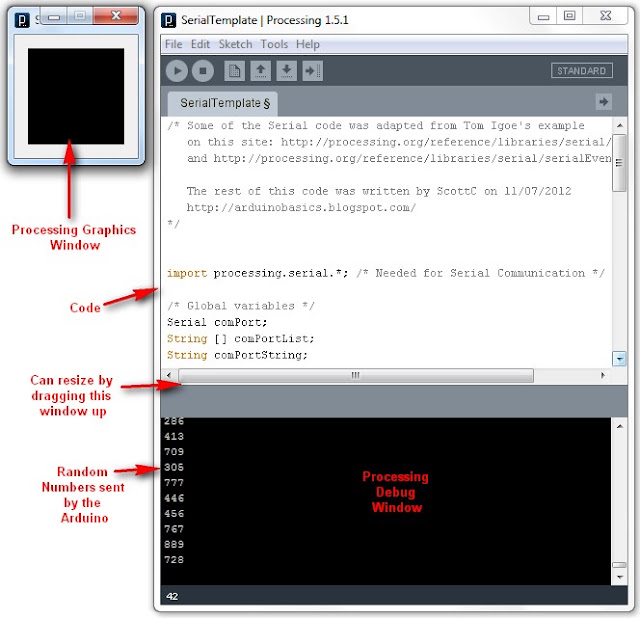
    The following Processing script will display the Random numbers being sent from the Arduino in the Processing IDE debug window. This particular script is very much like a simplified Arduino Serial Monitor, and it will show you that the Processing Script is successfully communicating with the Arduino.


    Processing Sketch

     1
    2
    3
    4
    5
    6
    7
    8
    9
    10
    11
    12
    13
    14
    15
    16
    17
    18
    19
    20
    21
    22
    23
    24
    25
    26
    27
    28
    29
    30
    31
    32
    33
    34
    35
    36
    37
    38
    39
    40
    41
    42
    43
    44
    45
    46
    47
    48
    49
    50
    51
    52
    53
    54
    /* Some of the Serial code was adapted from Tom Igoe's example
    on this site: http://processing.org/reference/libraries/serial/Serial.html
    and http://processing.org/reference/libraries/serial/serialEvent_.html

    The rest of this Processing code was written by ScottC on 11/07/2012
    http://arduinobasics.blogspot.com/
    */


    import processing.serial.*; /* Needed for Serial Communication */

    /* Global variables */
    Serial comPort;
    String [] comPortList;
    String comPortString;

    /*--------------------------------------------------*/

    void setup(){
    size(100,100); /* Set the size of the window */
    background(0); /* Set the background to black */


    /* Get the available com ports. If there is at least one
    com port available, then start communicating on it.
    If there are more than one com ports available, we will
    only open the first one (i.e. comPortList[0])
    The bufferUntil('\n'); statement will generate a serial Event
    when it reads a carriage return */

    comPortList = Serial.list();
    if(comPortList.length>0){
    comPort = new Serial(this, comPortList[0], 9600);
    comPort.bufferUntil('\n');
    }
    }

    /*--------------------------------------------------*/

    void draw(){
    /* The serialEvent function will update the display */
    }

    /*--------------------------------------------------*/

    void serialEvent(Serial cPort){
    comPortString = cPort.readStringUntil('\n');
    if(comPortString != null) {
    comPortString=trim(comPortString);

    /* Print to the Debug screen in Processing IDE */
    println(comPortString);
    }
    }


    When you run the Processing script, a little black window will appear. This is the Processing Graphics window, which is normally where all the action takes place. However in the sketch above, this window does nothing. Instead we make use of the black Debug window which is part of the Processing IDE (below the code window). If everything went to plan, you should see random numbers scrolling down in a similar fashion to the Arduino Serial monitor. Here is an example of what it should look like.


    Things to Try


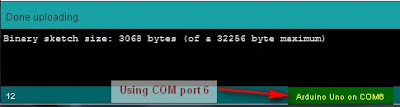
    1. If you are having problems with COM port selection. Then have a look at the COM port being used on the Arduino IDE to upload sketches to the Arduino. Processing generally uses the same COM port. So make sure to close the Arduino Serial Monitor before running the Processing Sketches.


    The image above shows that I am currently using COM PORT 6 on my computer to upload Arduino Sketches. In the Processing sketch on line 32-35, I had this code:

    32
    33
    34
    35
      if(comPortList.length>0){
    comPort = new Serial(this, comPortList[0], 9600);
    comPort.bufferUntil('\n');
    }


    We can change line 33 to get Processing to use COM port 6 exclusively. We do this by replacing comPortList[0] with "COM6", as seen below:

    32
    33
    34
    35
      if(comPortList.length>0){
    comPort = new Serial(this, "COM6", 9600);
    comPort.bufferUntil('\n');
    }


    Stage 8 : Arduino and Processing - Random Font Project


    Arduino and Processing are speaking to each other by this stage, and we will keep our original Arduino Sketch to produce random numbers for us. Sure, we don't actually need the Arduino to do this for us, because Processing is more than capable of doing this itself, but we are building up towards an interactive sketch, so lets just go through the motions.

    Just in case your mouse scroll wheel doesn't move upwards, here is the Arduino Sketch again:

    Arduino Sketch


     1
    2
    3
    4
    5
    6
    7
    8
    9
    10
    11
    12
    13
    /* Stage 8: Simple Arduino Serial Random Number Generator
    Written by ScottC on 09/07/2012
    http://arduinobasics.blogspot.com/
    */


    void setup(){
    Serial.begin(9600); //Begin Serial Communication
    }

    void loop(){
    Serial.println(random(1,1000)); //Send Random # to computer
    delay(100); //Delay 100ms between values.
    }


    Upload the Arduino sketch to the Arduino, and then put the following code into the Processing IDE:

    Processing Sketch


    The output of this sketch should look something like this:


    For stages 9 and above: Click Here


    aMaze

    Primary image

    What does it do?

    Solve's a maze and remembers the quickest route.

    aMaze is A Maze solving robot.

    Custom build using an Arduino bootloaded atmeag328p as the brain, a SN754410 as Motor Control, all wired on a solderless breadboard and fitted to a laser cut chassie designed by myself.

    Cost to build

    $90,00

    Embedded video

    Finished project

    Complete

    Number

    Time to build

    40 hours

    Type

    URL to more information

    Weight

    450 grams

    read more

    Try this....

    Take a look at this:

    http://cubloc.com/product/01_01cb210.php

    It LOOKS like an Arduino (but its not). Same basic Arduino feature set. (add a power switch and a little more neat stuff)

    It runs ,,,,,, tada ,,,,,, BASIC!  (Don't run, shake or shiver!)

    (It looks one HECK of a lot like P-BASIC (STAMP 2) but has more commands and floating point.)

    The editor can be downloaded and looks nice, but nothing special.

    The manual looks nice and well organized and is BIG, but again is nothing special.

    It costs $29

    read more

    Let's Make Robots 05 Jul 01:37
    arduino  basic  ladder logic  new  other  

    [RobB's] house has no light switches

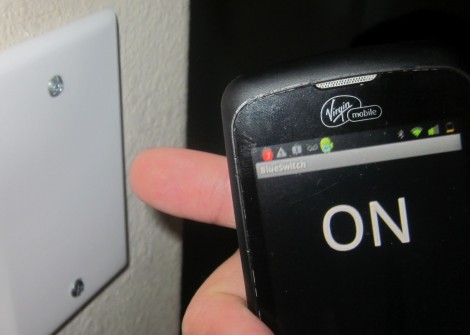
    So [RobB] wanted to take out all the light switches in his house. His plan was to replace them with a system that could be operated from his smart phone. But his wife insisted that there still must be some way to control the lighting directly — we have to agree with her on that one. The solution was to develop a system that switches the lights via a touch sensor or by Bluetooth.

    The touch part of the project is pretty easy. He coated the back of a blank outlet plate with tin foil and hooked it to a microcontroller with a couple of resistors. He’s using an ATtiny85, which can be programmed using Arduino sketches, so the software side is made easy by the CapSense Library. The chip also uses the software serial library to communicate with a Bluetooth module. You can see the result of both in the demo video after the break.

    Of course you need to throw a relay in there to switch mains, and find a way to power the uC and Bluetooth module. [RobB] went with a tiny plug-in USB power converter and managed to fit everything in a single-gang switch.


    Filed under: home hacks

    Nerf gun prototype 1

    The Santa Cruz Robotics Club met again today, for the first time in over a month.  The current project is not the underwater ROV (we’re all getting very tired of waterproofing problems), but an automated Nerf gun.

    The club members came up with some very ambitious plans for the Nerf gun (which included getting a Raspberry Pi and doing image processing to have a self-aiming gun), but I’m making them build quick-and-easy prototypes to try out their ideas one step at a time.  I don’t think I can get an Raspberry Pi this summer—the companies doing the distribution aren’t taking more orders (just expressions of interest) and they don’t expect to clear the current backlog until September at the soonest.  They are doing batches of 100,000 units, and that doesn’t seem to be enough to shrink the lead time—if anything, the lead time is growing.

    So, giving up on image processing for this summer, there are still a lot of things to build.  For today’s four-hour meeting (which included a 1-hour trip to the hardware store and a fifteen-minute snack break), the goal was simply to test out the basic launcher concept: an air reservoir pressurized by a bike pump, a solenoid valve, and a barrel.

    The first prototype. The air reservoir is about 18″ of 1-½” PVC pipe on the left, and the barrel is about 24″ of ½” PVC pipe on the right.

    The biggest problem was that the valve has ¾” male pipe threads, but we wanted 1-½” PVC pipe for the reservoir (because we had a piece handy—we may build a bigger reservoir later) and ½” PVC pipe for the barrel (because Nerf darts just fit inside—probably Nerf guns were prototyped with PVC barrels).  Our hardware store run was to get threaded adapters to make things fit.We wanted everything to be joined with screw threads, so that we could disassemble the components and replace them or add elbows as needed.

    Note that the ½” PVC pipe is also a good size for compressed-air paper “rockets”.  The term “rocket” is a misnomer here, as all the acceleration occurs while the rocket is on the launcher—it is modeled more like a gun than like a rocket. (But my soda-bottle rocket simulator can model these paper bullets also.)  It would probably best to have a shorter barrel for doing rocket launching—just the length of the rocket and no more, since the longer barrel results in more pressure loss with no gain in launch speed.

    The bicycle valve glued into a ½” female-threaded end cap was one I’ve had for a long time, as part of a soda-bottle rocket launcher. I had two of them, and both failed in testing today (the Barge cement holding the valve stem in failed—we’ve now reglued them with a different cement), though we managed some testing before the failure.

    The solenoid valve we used was the same model (sold by Sparkfun) as the one used for the vacuum bottle on the ROV.  It has ¾” male pipe threads on each side.  To make it air-tight we had to disassemble it and grease the rubber membrane thoroughly with vaseline or faucet grease, but we had done that months ago, so it did not need to be done today.  The valve only works in one direction, but the high-pressure side is clearly marked by a metal intake screen, so assembling it the right way around is easy.

    I was not sure that the solenoid valve would work in this application. It is not the model of valve that the compressed-air “rocket” people have used—those valves cost about twice as much and have female threaded ends rather than male threaded ends. I think that the mechanism they use may open up a bigger channel for air or water than the cheap solenoid valve sold by Sparkfun.

    My first concern was that I did not know whether the valve would open up wide enough and fast enough to let a blast of air through to get a clean launch.  Second, I did not know whether we could open and close the valve fast enough to retain pressure in the reservoir for doing multiple shots.

    We controlled the solenoid valve with an Arduino and the Hexmotor motor-control board (which is really overkill for one solenoid—a single power transistor would be enough to interface the Arduino to a solenoid, but I did not have one handy).  My son wrote an Arduino program to allow us to experiment with the duration of the solenoid pulse.  If it were too short, the Nerf dart would not leave the barrel.  If it were too long, air pressure would be wasted.  He allowed for 100 µsec increments in pulse duration, under control from commands on the USB serial line.

    Because the glue they used takes 24 hours to set properly, we only tested at low pressure today (20–30 psi).  At those pressures, a 16 msec pulse was not long enough for the dart to clear the barrel, but a 19.2 msec pulse was easily long enough. We were also able to launch a 14g paper “rocket” left over from Maker Faire, though it did not go as high as the approximately 1.6g “Nerf” darts (I think several of the foam darts we have a different brand). We would not have expected it to go as high, since it was only accelerated for its 11″ length, not the 24″ length of the barrel for the darts, and it weighed a lot more.

    One thing I thought about was monitoring the air pressure in the reservoir electronically. I doubt that we’ll put a pressure sensor in the reservoir, though, as the sensors I have only go up to 250 kPa absolute (about 21 psi above atmospheric pressure—about as low as we could fire with).  Freescale makes a 145psi (1000 kPa) sensor, the MPX5999D, but it is a differential sensor without port tubes (so would be difficult to mount) and it costs $13.

    Perhaps the other thing worth doing today is to analyze how fast the Nerf dart should be going as it leaves the barrel, and how high it should fly if we shoot it straight up.  The physics here is fairly simple, if we assume that opening the solenoid valves connects us to a constant-pressure source. (In practice, we saw about a 10psi or 70kPa drop in pressure after one shot. If the pressure is P, then the force on the dart is P*area.  The cross-sectional area of the foam dart is a little hard to measure, because of the squishiness of the foam, but the inside diameter of the barrel is 1.45cm, for a cross-sectional area of 1.65 cm^2. At 140 kPa (about 20 psi), the force on the dart would be 23 Newtons.  That force is applied for about 60 cm (the length of the barrel), for a total energy of about 14 Joules.

    We can use the kinetic energy of the dart to get its speed (E = ½ m v2), so for 140 kPa, the dart should leave the barrel at about 130 m/s or 290 mph. I suspect that we are not getting anywhere near that speed, for several reasons, including leakage of air around the dart, limited speed of air moving through the valve, and friction of the dart in the barrel (mainly from the pressure wave in front of it, but also from rubbing on the sides of the barrel).

    We can also use the kinetic energy of the dart to estimate how high it would fly (ignoring air resistance, which is obviously hugely important for a low density object like a foam dart). The potential energy of a mass at height h is , so the height it would go without air resistance is . For 14 Joules and 1.6 grams, that would be almost 900m. I think that 20m is a more reasonable estimate for the height the dart went, though I never could see it near the top of its trajectory.

    I tried adding the specs for the Nerf dart and a 60cm barrel to my rocket simulator (to get a crude estimate of the effect of air drag), and for 140 kPa I got an estimated max speed of 132m/s and an estimated max height of 52.6m. I don’t know if that height is reasonable—certainly it is better than the no-air-resistance estimate. The 6.78 second estimated time of flight seems to be fairly reasonable, though we never timed it.

    Doubling the pressure increases the maximum velocity by a factor of 1.414, but only increases the maximum height to 60.8 m, a 16% increase. Doubling the barrel length has about the same effect. Air drag is what determines the speed of the dart, and that is the least well-modeled part of my simulation.

    On Thursday, when they club meets again, they’ll try experimenting with higher pressures, and see whether 17 or 18 msec pulses are long enough—the shorter the pulse the less air will be wasted, and the more shots they can make from the reservoir.  It may be necessary to design a bigger reservoir or add a compressor to the design, since they eventually want a fully automatic Nerf gun, not the one-shot muzzle-loader that they made as the prototype today.  They’ll also start designing a pan-tilt mechanism for the Nerf gun, probably prototyping it out of Lego Technic components.


    Filed under: Robotics Tagged: Arduino, Nerf gun, nerf guns, physics, rocket, simulation, SparkFun Electronics

    Simple Arduino Serial Communication

    This Tutorial is progressive and will be updated from time to time. The goal is to start from a very basic form of Arduino Serial communication, and progressively add or improve components so that we can ultimately transmit data from one computer to another using an XBee.
    Please note: I am not an expert, but am happy to share what I have learned. The Arduino forums are a great place to ask questions, feel free to link to this blog (if required).

    Let us begin.


    Stage 1: ECHO ECHO                                                                                    


    Parts Required:

    • Computer
    • USB cable
    • Arduino UNO (or equivalent)
    • Arduino IDE

    The following code will make the Arduino ECHO anything you send to it. Therefore, if you type a 3, the Arduino will send back a 3. If you type a letter F, the Arduino will send back a letter F. 
    Enter the following code into your Arduino IDE and upload it to your Arduino.


    Arduino Sketch


     1
    2
    3
    4
    5
    6
    7
    8
    9
    10
    11
    12
    13
    14
    15
    16
    17
    18
    19
    20
    /* Simple Serial ECHO script : Written by ScottC 03/07/2012 */

    /* Use a variable called byteRead to temporarily store
    the data coming from the computer */
    byte byteRead;

    void setup() {
    // Turn the Serial Protocol ON
    Serial.begin(9600);
    }

    void loop() {
    /* check if data has been sent from the computer: */
    if (Serial.available()) {
    /* read the most recent byte */
    byteRead = Serial.read();
    /*ECHO the value that was read, back to the serial port. */
    Serial.write(byteRead);
    }
    }
    The above code was formatted using this site


    Instructions

    1. Once the Arduino sketch has been uploaded to the Arduino. Open the Serial monitor, which looks like a magnifying glass at the top right section of the Arduino IDE. Please note, that you need to keep the USB connected to the Arduino during this process, as the USB cable is your communication link between your computer and the Arduino.


    2. Type anything into the top box of the Serial Monitor and press <Enter> on your keyboard. This will send a series of bytes to the Arduino. The Arduino will respond by sending back your typed message in the larger textbox.


    3. Please note that we are using Serial.write(byteRead); on line 18 to get the Arduino to ECHO the message back to you on your computer. 


    Things to Try 

    1. Delete lines 16 to 18, and replace them with the following line :

                   Serial.write(Serial.read());

    This essentially eliminates the byteRead variable in the sketch above. But we will be using it later on, so once you have tested it out, put the code back together as originally displayed.


    --------------------------------------------------------------------
    2. Replace line 18 with a Serial.println instead of Serial.write

                   Serial.println(byteRead);

    Once uploaded, type 1 <enter> 2 <enter> 3 <enter>  into the Serial Monitor.
    You should see:

    49
    50
    51

    Serial.print and Serial.println will send back the actual ASCII code, whereas Serial.write will send back the actual text. See ASCII codes for more information.


    --------------------------------------------------------------------
    3. Try typing in numbers like 1.5  or  2.003  or  -15.6 into the Serial Monitor using Serial.write and Serial.print or Serial.println commands as described before.

    You will notice that the decimal point transmits as a number using Serial.print  or Serial.println, and will transmit as a decimal point when using Serial.write


    STAGE 2: Delimiters                                                                                


    How do you handle 2 or more numbers when sending or receiving?
    Let us say that you have number pairs that you want the Arduino to interpret. How do you separate the numbers? The answer is Delimiters.
    You may be familiar with CSV (comma separated value) files, where each field is separated by a comma (,). The comma is a useful way of separating or grouping information.

    Lets say you have the following stream of numbers:
    12345678910

    How will your Arduino know if this is a single number, or a series of numbers?
    Eg:

    12,34,56,78,91,0
    123,456,78,910
    1,2,3,4,5,6,7,8,9,10
    12345678910

    The comma delimiters help to identify how the numbers should be interpreted.

     In the echo example in Stage 1 above, you would have noticed that when we used Serial.print(byteRead); that the values displayed one after another in a similar fashion to 12345678910.

    You would have also noticed that Serial.println(byteRead); provided a line break between each value sent. And depending on the numbers sent, it could have looked like this:
    12
    34
    56
    78
    91
    0

    The Serial.println() function essentially uses a line feed to separate the values being sent. This line break can be used as a delimiter, but we will look at that later on. For now we will concentrate on using a comma (,).

    We will now get the Arduino to "listen" for the comma to help it identify a new number.
    According to the ASCII code site, a comma is equal to byte code 44. So when the Arduino reads a byte code that is equal to 44, we will get it to print a line feed.


    Enter the following sketch into your Arduino IDE and upload it to your Arduino.

    Arduino Sketch


     1
    2
    3
    4
    5
    6
    7
    8
    9
    10
    11
    12
    13
    14
    15
    16
    17
    18
    19
    20
    21
    22
    23
    24
    25
    26
    27
    /* Simple Serial ECHO script : Written by ScottC 04/07/2012 */
    /* Stage 2 : Delimiters */

    /* Use a variable called byteRead to temporarily store
    the data coming from the computer */
    byte byteRead;

    void setup() {
    // Turn the Serial Protocol ON
    Serial.begin(9600);
    }

    void loop() {
    /* check if data has been sent from the computer: */
    if (Serial.available()) {
    /* read the most recent byte */
    byteRead = Serial.read();

    /*Listen for a comma which equals byte code # 44 */
    if(byteRead==44){
    Serial.println();
    }else{
    /*ECHO the value that was read, back to the serial port. */
    Serial.write(byteRead);
    }
    }
    }
    The above code was formatted using this site


    Instructions

    1. Once the code has been uploaded to the Arduino, open the Serial Monitor once again and type the following sequence of numbers:

    1 <enter>  2 <enter> 3 <enter>

    You should see the Serial monitor display the following number:    123


    --------------------------------------------------------------------
    2. While still in the serial monitor, type the following:

    , <enter> 1 <enter> , <enter> 2 <enter> , <enter> 3 <enter> ,

    Please note the commas between each numerical entry. You should now see a pattern like this:
    1
    2
    3


    --------------------------------------------------------------------
    3. While still in the serial monitor, type the following:

    12,23,34,45, <enter>

    Please note the commas between each numerical entry. You should now see a pattern like this:
    12
    23
    34
    45

    You will notice that the commas have been replaced by line feeds, and each number should display on a new line.


    --------------------------------------------------------------------
    4. While still in the serial monitor, type the following:

    1,,2,,3, <enter>

    You should see the following pattern:
    1

    2

    3


    So hopefully that explains the concept of delimiters and how they can be used to separate a stream of numbers, no matter how long it takes to get to the Arduino. We used an IF-statement to listen for the comma, but we could have used any other delimiter provided we knew the byte code.

    We did not identify how to send delimiters FROM the Arduino, but we will get to that I promise. It is not that hard, and uses a similar principle. I am sure you can work it out, if not, stay tuned.


    STAGE 3: Arduino Maths: Simple addition                                                  


    In this stage, we are going to get the Arduino to do simple maths. We will send it two integers (or whole numbers), and the Arduino will do the hard work and send us the answer in no time at all.
    This might seem like a simple task, but when you send a number like 27 to the Arduino, it does not receive the number 27. It receives 2 and then 7 in byte form. In other words, the Arduino will see the byte codes 50 and then 55 as per the ASCII table on this page.

    One way to convert this byte code back to a 2 and a 7 is to subtract 48 from each byte received, providing the byte is in the range 48 to 57 inclusive (which equates to the numbers 0-9).
    We are not done yet. We then need to join these numbers to make 27.

    Step1: Subtract 48 from the bytes received, only if the bytes are in the range 48 to 57.
                     Example:    50 - 48 = 2
                                        55- 48 = 7

    Step2: Multiply the previous number by 10, before adding the most recent byte received.
                     Example:   (2 x 10) + 7 = 27

    If we have a number like 1928, then we would create this number using the following calculation
                                       1 =                         1
                       (1 x 10) + 9 =    10 + 9   =   19
                    (19 x 10) + 2  = 190 + 2   =  192
                  (192 x 10) + 8  = 1920 + 8 = 1928

    Step3: Use a "+" sign as a delimiter so that the Arduino can move onto the Second number

    Step4:  Capture the second number as per Step2. An "=" sign will tell the Arduino that it has reached the end of the second number, and to proceed to step 5.

    Step5:  Add the 2 numbers together and send back the answer.


    The following code will carry out the 5 steps above.
    Enter the following sketch into your Arduino IDE and upload it to your Arduino.

    Arduino Sketch


     1
    2
    3
    4
    5
    6
    7
    8
    9
    10
    11
    12
    13
    14
    15
    16
    17
    18
    19
    20
    21
    22
    23
    24
    25
    26
    27
    28
    29
    30
    31
    32
    33
    34
    35
    36
    37
    38
    39
    40
    41
    42
    43
    44
    45
    46
    47
    48
    49
    50
    51
    52
    53
    54
    55
    56
    57
    58
    59
    60
    61
    62
    63
    64
    /* Simple Serial ECHO script : Written by ScottC 05/07/2012 */
    /* Stage 3: Arduino Maths: Simple Addition */

    /* Global variables needed for programming workflow
    byteRead: holds the value being read from the COM port
    num1: holds the entire first number
    num2: holds the entire second number
    answer: holds the sum of num1 and num2
    mySwitch: enables the switch between num1 and num2 */

    byte byteRead;
    long num1, num2,answer;
    boolean mySwitch=false;

    void setup() {
    /* Turn the Serial Protocol ON and
    initialise num1 and num2 variables.*/
    Serial.begin(9600);
    num1=0;
    num2=0;
    }

    void loop() {
    /* check if data has been sent from the computer: */
    while (Serial.available()) {
    /* read the most recent byte */
    byteRead = Serial.read();

    //listen for numbers between 0-9
    if(byteRead>47 && byteRead<58){
    //number found

    /* If mySwitch is true, then populate the num1 variable
    otherwise populate the num2 variable*/
    if<!mySwitch)><br /> num1=(num1*10)+(byteRead-48);<br /> }<span>else</span>{<br /> num2=(num2*10)+(byteRead-48);<br /> }<br /> }<br /> <br /> <span>/*Listen for an equal sign (byte code 61) </span><br /><span> to calculate the answer and send it back to the</span><br /><span> serial monitor screen*/</span><br /> <span>if</span>(byteRead==61){<br /> answer=num1+num2;<br /> Serial.print(num1);<br /> Serial.print(<span>"+"</span>);<br /> Serial.print(num2);<br /> Serial.print(<span>"="</span>);<br /> Serial.println(answer);<br /> <br /> <span>/* Reset the variables for the next round */</span><br /> num1=0;<br /> num2=0;<br /> mySwitch=<span>false</span>;<br /> <br /> <span>/* Listen for the addition sign (byte code 43). This is</span><br /><span> used as a delimiter to help define num1 from num2 */</span> <br /> }<span>else</span> <span>if</span> (byteRead==43){<br /> mySwitch=<span>true</span>;<br /> }<br /> }<br />}<br /></pre></td></tr></tbody></table></div><br /><span>The above code was formatted using <a href="http://hilite.me/">this site</a></span><br /><br /><br /><h3> <u>Instructions</u></h3><br /><b>1.</b> Once the code has been uploaded to the Arduino, open the Serial Monitor once again and type the following sequence:<br /><br />         <span>1+2=   <enter></span><br /><br />You should get the following message sent back to Serial Monitor<br /><br />        <span> 1+2=3</span><br /><br /><br /><br /><h3> <b><u>Things to Try</u></b></h3><b>1.</b>   Enter this sequence: <br />              <span>10   <enter></span><br /><span>               +   <enter></span><br /><span>              10  <enter></span><br /><span>               =   <enter></span><br /><br />       Result:     <span>10+10=20</span><br /><br /><span>--------------------------------------------------------------------</span><br /><b>2. </b>  Enter this sequence:<br />            <span> 10  <enter></span><br /><span>             20  <enter></span><br /><span>             +5= <enter></span><br /><br /><br />      Result:  <span> 1020+5=1025</span><br /><br /><br /><br /><br /><span>--------------------------------------------------------------------</span><br /><b>3.</b>   Enter this sequence:<br />            <span> 10+20+30=   <enter></span><br /><br /><br />      Result:    <span>10+2030=2040</span><br /><br />I have specifically written this script to add <b>two</b> whole numbers together. If you start to introduce more complicated calculations, the results become unpredictable.<br /><br /><span>--------------------------------------------------------------------</span><br /><b>4.</b>    Enter this sequence:<br />           <span>1.2+1.0=    <enter></span><br /><br />      Result: <span>12+10=22</span><br /><br />Once again, I have only designed this script to handle whole numbers. Therefore, decimal points are ignored.<br /><br /><span>--------------------------------------------------------------------</span><br /><b>5.</b>  Enter this sequence:<br />         <span> -5 + 10=     <enter></span><br /><br /><br />     Result:    <span>5+10=15</span><br /><br /><br />This script ignores the negative sign, and treats the -5 as a positive 5.<br /><br /><br /><div>I have done this on purpose. I wanted to show you how the Arduino reads numbers from the com port, and how easy it is to exclude vital functionality in your code. I have kept this script simple, however, if you wanted to, you could make the Arduino deal with each of the above situations and more.  Multiplication, division and subtraction is handled in the same way. </div><br />This is the last thing I want you to try before we go to the next stage:<br /><br />6. Enter this sequence:<br />           <span>2147483646+1=  <enter></span>           Result:  <span>2147483646+1=2147483647</span><br />          <span> 2147483647+1=  <enter></span>           Result: <span>2147483647+1=</span><span>-</span><span>2147483648</span><br /><br /><br />Note that the maximum size of a "long" number is 2147483647. If you add one to this number, the result is equal to the minimum size of a "long" which is -2147483648.<br /><br /><br /><br /><br /><h3> <b><span><span>STAGE 4:  Sending doubles to Arduino</span> : <span>The double doubler</span>             </span></b></h3><div>Now we get to some tricky business. Sending and receiving Doubles (to and from) the Arduino.<br /><br />Up until now, I have tried to keep it simple using whole numbers, but there will come a time when you will want to send a fraction of a number through the Serial line.</div><div>To test our program, we will want to send a very small number to the Arduino, multiply the number by 2, and return it back.</div><div><br /></div><div>Our final test is to try a number like :  <b>0.000001</b></div><div>             and then a number like:<b>   123.321</b></div><div><br /></div><div><br /><b><span>IMPORTANT NOTE</span></b>:   When the Arduino sends a float or a double through the COM port using Serial.print() or Serial.println(), it will automatically send the number to 2 decimal places.<br />A number like 1.2345 will appear as 1.23,   and a number like 1.9996 will appear as 2.00<br />To demonstrate this, we will get the Arduino to send these floats/doubles to the Serial Monitor.<br /><br /><br /><div>Enter the following sketch into your Arduino IDE and upload it to your Arduino.</div><div><br /></div><h3> <u>Arduino Sketch</u></h3><br /><div><table><tbody><tr><td><pre><span><span> 1<br /> 2<br /> 3<br /> 4<br /> 5<br /> 6<br /> 7<br /> 8<br /> 9<br />10<br />11<br />12<br />13<br />14<br />15<br />16<br />17<br />18<br />19<br />20<br />21<br />22<br />23<br />24<br />25<br />26<br />27<br />28</span></span></pre></td><td><pre><span>/* Stage 4: Simple Transmission of a Double</span><br /><span> Written by ScottC on 7/7/2012 */</span><br /><br /><span>/* Declare the doubles that will be sent to the Serial Monitor */</span><br /> <span>double</span> myDub1, myDub2;<br /><br /><span>/* This part of the program only runs ONCE */</span><br /><br /> <span>void</span> setup(){<br /><br /> <span>/* Turn ON Serial Communication */</span><br /> Serial.begin(9600);<br /> <br /> <span>/* Assign a value 1.2345 and 1.9996 to the Doubles being sent */</span><br /> myDub1=1.2345;<br /> myDub2=1.9996;<br /> <br /> <span>/*Send the values to the Serial Monitor */</span><br /> Serial.print(<span>"myDub1 (1.2345) : "</span>);<br /> Serial.println(myDub1);<br /> Serial.print(<span>"myDub2 (1.9996) : "</span>);<br /> Serial.println(myDub2);<br /> }<br /><br /><br /> <span>void</span> loop(){<br /> <span>//Loop does nothing</span><br /> }<br /></pre></td></tr></tbody></table></div><span>The above code was formatted using </span><a href="http://hilite.me/">this site</a><br /><br />When you open the Serial monitor (after you have uploaded the sketch above), you will notice the following output:<br /><br /><br />         <span> myDub1 (1.2345) :</span> <span>1.23</span><br />         <span> myDub2 (1.9996) :</span> <span>2.00</span><br /><div><br /></div><br /><br />The <span>blue text</span> represents the string (or array of characters) being sent using lines 19 and 21.<br />The <span>red text</span> represents the actual double being sent using lines 20 and 22.<br /><br />You will notice that myDub2 rounds to 2.00.  This may or may not be what you want.<br />If you wish to increase the number of decimal places, then you will need to change lines 20 and 22 to the following:<br /><br /><span><span>20         Serial.println(myDub1,</span><span>4</span><span>)</span>;</span><br /><span><span>22         Serial.println(myDub2,</span><span>4</span><span>);</span></span><br /><br />The number 4 highlighted in red, indicates the number of decimal places you wish to send.<br />Try it ! And try changing this number to something bigger or smaller.<br /><br />---------------------------------------------------------------------------------------------------<br />Ok - now that we understand this little Serial.print(double,decimals) trick, we will now get the Arduino to echo back a Double.<br /><br />Before we jump in, perhaps we should try and map out our strategy. For this we will choose a simple decimal to make it easier. So in this example, we will choose <b>0.1</b></div><div>Once we get this working, we can then do our final test (as mentioned above).</div><div><br /></div><div>If we send 0.1 to the Arduino, it will read the following byte code</div><div><br /></div><div>48                    0</div><div>46                    .</div><div>49                    1</div><div><br /></div><div>We can use the decimal point as a delimiter.<br />We will use the following 5 steps to echo the double back to the Serial Monitor:</div><div><br /></div><div><b><span>Step1</span>:</b> Arduino collects all numbers before the decimal point using the same technique as in Stage3.<br /><br /></div><div><b><span>Step2</span>: </b>When the Arduino receives byte code 46, it will go into decimal mode.<br /><br /></div><div><b><span>Step3</span>:</b> The Arduino will collect numbers after the decimal point using a similar technique to step1.<br /><br /></div><div><b><span>Step4</span>:</b> Use maths to create the double, and then multiply it by 2<br /><br /></div><div><b><span>Step5</span>:</b> Display the doubled Double value in the Serial monitor.</div><div><br /></div><div><br /></div><div><br /><div>Enter the following sketch into your Arduino IDE and upload it to your Arduino.</div><div><br /></div><h3> <u>Arduino Sketch</u></h3></div><div><br /></div><div><table><tbody><tr><td><pre><span><span> 1<br /> 2<br /> 3<br /> 4<br /> 5<br /> 6<br /> 7<br /> 8<br /> 9<br />10<br />11<br />12<br />13<br />14<br />15<br />16<br />17<br />18<br />19<br />20<br />21<br />22<br />23<br />24<br />25<br />26<br />27<br />28<br />29<br />30<br />31<br />32<br />33<br />34<br />35<br />36<br />37<br />38<br />39<br />40<br />41<br />42<br />43<br />44<br />45<br />46<br />47<br />48<br />49<br />50<br />51<br />52<br />53<br />54<br />55<br />56<br />57<br />58<br />59<br />60<br />61<br />62<br />63<br />64<br />65<br />66<br />67<br />68<br />69<br />70<br />71<br />72<br />73<br />74<br />75<br />76<br />77<br />78<br />79<br />80<br />81<br />82<br />83<br />84<br />85</span></span></pre></td><td><pre><span>/* Simple Serial ECHO script : Written by ScottC 06/07/2012 */</span><br /><span>/* Stage 4: Double doubler */</span><br /><br /><span>/* Global variables needed for programming workflow</span><br /><span> ------------------------------------------------------</span><br /><span> byteRead: holds the value being read from the COM port</span><br /><span> num1: holds the number before the decimal point</span><br /><span> num2: holds the number after the decimal point</span><br /><span> complNum: holds the complete number (before multiplation)</span><br /><span> answer: holds the final value after multiplication</span><br /><span> counter: is used to convert num2 to the number after the decimal</span><br /><span> numOfDec: counts the numbers after the decimal point</span><br /><span> mySwitch: enables the switch between num1 and num2 */</span><br /> <br /> byte byteRead;<br /> <span>double</span> num1, num2;<br /> <span>double</span> complNum,answer,counter;<br /> <span>int</span> numOfDec;<br /> boolean mySwitch=<span>false</span>;<br /><br /><br /> <span>void</span> setup() { <br /><span>/* Turn the Serial Protocol ON and </span><br /><span> initialise num1 and num2 variables.*/</span><br /> Serial.begin(9600);<br /> num1=0;<br /> num2=0;<br /> complNum=0;<br /> counter=1;<br /> numOfDec=0;<br /> }<br /><br /> <span>void</span> loop() {<br /><span>/* check if data has been sent from the computer: */</span><br /> <span>while</span> (Serial.available()) {<br /> <span>/* read the most recent byte */</span><br /> byteRead = Serial.read();<br /> <br /> <span>//listen for numbers between 0-9</span><br /> <span>if</span>(byteRead>47 && byteRead<58){<br /> <span>//number found</span><br /> <br /> <span>/* If mySwitch is true, then populate the num1 variable</span><br /><span> otherwise populate the num2 variable*/</span><br /> <span>if</span><!mySwitch)><br /> num1=(num1*10)+(byteRead-48);<br /> }<span>else</span>{<br /> num2=(num2*10)+(byteRead-48);<br /> <br /> <span>/* These counters are important */</span><br /> counter=counter*10;<br /> numOfDec++;<br /> }<br /> }<br /> <br /> <span>/*Listen for an equal sign (byte code 61) </span><br /><span> to calculate the answer and send it back to the</span><br /><span> serial monitor screen*/</span><br /> <span>if</span>(byteRead==61){<br /> <span>/* Create the double from num1 and num2 */</span><br /> complNum=num1+(num2/(counter));<br /> <br /> <span>/* Multiply the double by 2 */</span> <br /> answer=complNum*2;<br /> <br /> <span>/* Send the result to the Serial Monitor */</span> <br /> Serial.print(complNum,numOfDec);<br /> Serial.print(<span>" x 2 = "</span>);<br /> Serial.println(answer,numOfDec);<br /> <br /> <span>/* Reset the variables for the next round */</span><br /> num1=0;<br /> num2=0;<br /> complNum=0;<br /> counter=1;<br /> mySwitch=<span>false</span>;<br /> numOfDec=0;<br /> <br /> <span>/* Listen for the decimal point (byte code 46). This is</span><br /><span> used as a delimiter to help define num1 from num2 */</span> <br /> }<span>else</span> <span>if</span> (byteRead==46){<br /> mySwitch=<span>true</span>;<br /> }<br /> }<br /> }<br /></pre></td></tr></tbody></table></div><div><span>The above code was formatted using </span><a href="http://hilite.me/">this site</a></div><div><br /></div><div><br /></div><div><br /><h3> <b><u>Things to Try</u></b></h3><div><b><u><br /></u></b></div><div>1. Type the following into the serial monitor:</div><div><br /></div><div>       <span>1.2=  <enter></span>                             Result:   <span>1.2 x 2 = 2.4</span></div><div><br /></div><div>Make sure that you type the equal sign (=) before you press enter, otherwise the Arduino will not know that you are finished, and will not send anything back.</div><div><br /></div><div>--------------------------------------------------------------------</div><div>2. Type the following into the serial monitor:</div><div><br /></div><div>      <span>100.001=  <enter></span>                      Result:   <span>100.001 x 2 = 200.002</span></div><div><br /></div><div>You will notice that the Arduino is formatting the decimal to the SAME number of decimals as that entered.</div><div>This is controlled by the variable: <span>numOfDec</span>.</div><div>---------------------------------------------------------------------</div><div>3. Now for our final test: Type the following into the serial monitor:</div><div><br /></div><div>   <span> 0.000001= <enter></span>                       Result: <span>0.000001 x 2 = 0.000002</span></div><div><br /></div><div>First test:<span> PASSED</span></div><div><br /></div><div>----------------------------------------------------------------------</div><div>4. Type the following into the Serial monitor for our last test:</div><div><br /></div><div>     <span>123.321=  <enter></span>                      Result: <span>123.321 x 2 = 246.642</span></div><div><br /></div><div>Second test: <span>PASSED</span></div><div>-----------------------------------------------------------------------</div><div><br /></div><div><span>BEWARE</span>: While everything looks perfect, let me tell you that it isn't. But hopefully this code will help you get on the right track. If you decide to type in a number like 123123.111222, you will not get the answer you expected. </div><div>I have found that this program will work if the amount of numbers before and after the decimal point are less than about 9.  Eg. 1234.1234   will produce the right result.</div><div>However, 11111.2222 will NOT, because there are 9 numbers represented.</div><div><br /></div><div>I think this has something to do with the memory allocated to a double, but I am not sure. </div><div>I don't know if people work with these types of numbers, but I am sure there is a workaround, and I am sure someone out there can work it out. I don't personally need this kind of precision, but thought to mention it just in case you do.</div><div><br /></div><div><br />----------------------------------------------------------------------- <br />----------------------------------------------------------------------- <br /><br /><h3> <b><span><span>STAGE 5:  Sending sensor data to the Serial Monitor</span>             </span></b></h3><br /><br />We know the Arduino is very good at copy-Cat games, how about getting the Arduino to send us some data from one of our sensors. We will use the Serial Monitor to view the sensor data.<br /><br />Disconnect the USB cable, and hook up one of your favourite analog sensors to your Arduino. For simplicity, I am going to hook up a potentiometer as per the Fritzing sketch below.<br /><br /><h3> <u> Parts Required</u></h3><br /><ul><li>Arduino UNO (or equivalent)</li><li>Computer with USB cable</li><li>Breadboard</li><li>Potentiometer</li><li>3 Wires</li></ul><div><br /></div><br /><h3> <u> Arduino Fritzing Sketch</u></h3><br /></div><div><div><a href="http://1.bp.blogspot.com/-JZlWUi3MDck/T_g6ldkqSVI/AAAAAAAAAPY/_UJj4EU3YYE/s1600/Fritzing_Potentiometer_Sketch.jpg"><img src="http://1.bp.blogspot.com/-JZlWUi3MDck/T_g6ldkqSVI/AAAAAAAAAPY/_UJj4EU3YYE/s400/Fritzing_Potentiometer_Sketch.jpg" /></a></div><br /></div><div><br /></div><div>     </div><div><br /></div><div><br /></div></div><br /><br /><br /><br /><br /><br /><br /><br /><br /><br /><br /><br /><br /><br /><br /><br /><br />Once you have attached your sensor to the board, plug your USB cable into the Arduino, and upload the following sketch.<br /><br /><br /><h3> <u>Arduino Sketch</u></h3><div><u><br /></u></div><div><table><tbody><tr><td><pre><span><span> 1<br /> 2<br /> 3<br /> 4<br /> 5<br /> 6<br /> 7<br /> 8<br /> 9<br />10<br />11<br />12<br />13<br />14<br />15<br />16<br />17<br />18<br />19<br />20<br />21</span></span></pre></td><td><pre> <span>/* Stage 5: Send Sensor Value to Serial Monitor</span><br /><span> Written by ScottC on 7/7/2012 */</span><br /><br /> <span>int</span> sensorVal = 0; <br /><br /> <span>void</span> setup() {<br /> <span>// Setup Serial communication with computer</span><br /> Serial.begin(9600);<br /> }<br /><br /> <span>void</span> loop() {<br /> <span>// Read the value from the sensor:</span><br /> sensorVal = analogRead(A0);<br /> <br /> <span>// Send the value to the Serial Monitor</span><br /> Serial.print(<span>"Sensor Value="</span>);<br /> Serial.println(sensorVal);<br /><br /> <span>// Interval between readings = 1 second</span><br /> delay(1000); <br /> }<br /></pre></td></tr></tbody></table></div><div><span>The above code was formatted using </span><a href="http://hilite.me/">this site</a><br /><u><br /></u><br /><u><br /></u><br /><h3> <u>Instructions</u></h3></div></div></div><div>1. Open the Serial monitor and watch the readings change depending on the input conditions. In my case, by turning the potentiometer from left to right, I get an output similar to the picture below.</div><div><br /></div><div><a href="http://2.bp.blogspot.com/-F8H8h8YkXJo/T_g_dcPTN1I/AAAAAAAAAPk/AXQaR5x_UFk/s1600/Serial+Monitor.jpg"><img src="http://2.bp.blogspot.com/-F8H8h8YkXJo/T_g_dcPTN1I/AAAAAAAAAPk/AXQaR5x_UFk/s400/Serial+Monitor.jpg" /></a></div><div><br /></div><div><br /></div><div><br /></div><div><br /></div><div><br /></div><div><br /></div><div><br /></div><div><br /></div><div><br /></div><div><br /></div><div><br /></div><div><br /></div><div><br /></div><div><br /></div><div><br /></div><div><br /></div><div><br /></div><div><br /></div><div><br /></div><div>As per the Arduino reference site, <a href="http://arduino.cc/en/Reference/analogRead">AnalogRead</a> returns an integer between 0 and 1023. You can see this is true based on the picture above. But what if we do not want a value between 0 and 1023. Let us say we want a value between 0 and 100?</div><div><br /></div><div>You would have to use the <a href="http://arduino.cc/en/Reference/Map">map function</a>. We will do it by changing line 13 to this:</div><div><br /></div><div><pre><span><span>13</span></span><span> </span><span><span><b>sensorVal = map(analogRead(A0),0,1023,0,100);</b></span></span></pre></div><div><br /></div><div>The map function is quite a cool function, and good fun to play around with. So here are some things to try.</div><div><h3> <b><u>Things to Try</u></b></h3></div><div>1. Change line 13 to the following, upload to the Arduino </div><div>    and then open the Serial Monitor to see the effect.</div><div><br /></div><div><b><span>Trial 1</span></b>:</div><div><pre><span><span>13</span></span><span> </span><span><span><b>sensorVal = map(analogRead(A0),0,1023,100,0);</b></span></span></pre></div><div><br /></div><div><div><b><span>Trial 2</span></b>:</div><div><pre><span><span>13</span></span><span> </span><span><span><b>sensorVal = map(analogRead(A0),0,1023,0,1000);</b></span></span></pre></div></div><div><br /></div><div><div><span><b>Trial 3</b></span>:</div><div><pre><span><span>13</span></span><span> </span><span><span><b>sensorVal = map(analogRead(A0),200,800,0,100);</b></span></span></pre></div></div><div><br /></div><div><br /></div><div>In <b><span>Trial 1</span></b>: We see that the values have been inverted. Instead of ranging from 0 up to100, they now go from 100 down to 0.</div><div><br /></div><div>In <b><span>Trial 2</span></b>: The analog readings are now mapped to a range of 0 up to 1000. </div><div><br /></div><div>In <b><span>Trial 3</span></b>: The analog readings that range from 200 to 800 are mapped to a range of 0 to 100. Therefore if the analog readings drop below 200, we will end up with a negative value for sensorVal. </div><div>If the analog readings go above 800, we will end up with a value greater than 100.  For this particular example, my readings actually range from  -33 to 137.</div><div><br /></div><div>Therefore an Analog reading of 0 = -33</div><div>                 Analog reading of 200 = 0</div><div>                 Analog reading of 800 = 100</div><div>               Analog reading of 1023 = 137</div><div><br /></div><div><br /></div><div>----------------------------------------------------------------------------------</div><div>What if we don't want the output to go beyond our intended limits of 0 to 100?</div><div>Then you would have to use the <a href="http://arduino.cc/en/Reference/Constrain">constrain function</a>. This essentially trims the reading range of the sensor, and sets a minimum and maximum value.</div><div><br /></div><div>Replace line 13 with the following code:</div><div><br /></div><div><pre><span><span>13</span></span><span> </span><span><span><b>sensorVal = constrain(map(analogRead(A0),200,800,0,100),0,100);</b></span></span></pre></div><div><br /></div><div><div>Therefore an Analog reading of 0 = 0</div><div>                 Analog reading of 100 = 0</div><div>                 Analog reading of 200 = 0</div><div>                 Analog reading of 800 = 100</div><div>                  Analog reading of 955 = 100</div><div>               Analog reading of 1023 = 100</div></div><div>Analog values between 200 and 800 will produce a result between 0 and 100.</div><div><br /></div><div>-------------------------------------------------------------------------------------<br /><br /><h3><span>If you wish to continue with this tutorial (stage 6 and above), please follow this link:  <a href="http://arduinobasics.blogspot.com/2012/07/arduino-basics-simple-arduino-serial_09.html">Serial Communication Stage 6 and above</a> </span></h3></div><div><br /></div><div><br /></div> <br />  <br />  <div> <p> <!--separator --> <img src="https://images-blogger-opensocial.googleusercontent.com/gadgets/proxy?url=http%3A%2F%2F1.bp.blogspot.com%2F-XQiwNpdqOxk%2FT_rKCzDh4nI%2FAAAAAAAAAQY%2FOfYBljhU6Lk%2Fs1600%2FSeparator.jpg&container=blogger&gadget=a&rewriteMime=image%2F*" /><br /> <br /> </p> </div> <p> <div> <p> If you like this page, please do me a favour and show your appreciation : <br /> <br />  <br /> Visit my <a href="https://plus.google.com/u/0/b/107402020974762902161/107402020974762902161/posts">ArduinoBasics Google + page</a>.<br /> Follow me on Twitter by looking for <a href="https://twitter.com/ArduinoBasics">ScottC @ArduinoBasics</a>.<br /> I can also be found on <a href="https://www.pinterest.com/ArduinoBasics/">Pinterest</a> and <a href="https://instagram.com/arduinobasics">Instagram</a>. <br /> Have a look at my videos on my <a href="https://www.youtube.com/user/ScottCMe/videos">YouTube channel</a>.<br /> </p></div> <div> <p>              <a href="http://arduinobasics.blogspot.com.au/p/arduino-basics-projects-page.html"><img src="http://2.bp.blogspot.com/-4b59S-y-Tws/VYeJtC1HNyI/AAAAAAAABk4/_CWyTKOPYOw/s320/ArduinoBasics_OpenLogo%2Bon%2BBlack.png" /></a> </p></div> <div> <p> <img src="https://images-blogger-opensocial.googleusercontent.com/gadgets/proxy?url=http%3A%2F%2F1.bp.blogspot.com%2F-XQiwNpdqOxk%2FT_rKCzDh4nI%2FAAAAAAAAAQY%2FOfYBljhU6Lk%2Fs1600%2FSeparator.jpg&container=blogger&gadget=a&rewriteMime=image%2F*" /><br /> <br /> </p></div> <div> <p> However, if you do not have a google profile... <br />Feel free to share this page with your friends in any way you see fit. </p></div></p>