Posts with «arduino» label

Slow Arduino IDE

Up until a few days ago, I’d been doing most of my Arduino development on my desktop (XP). Recently, I’ve started drafting more ideas on the go with my laptop (Vista). The problem I encountered on the laptop, which I never had on the desktop, was that the Arduino IDE was running painfully slow. It took about 30 seconds to start up, and any time I accessed the “tools” menu, it would hang for another 20 seconds. Boo!

After doing some research, I came across this thread on the Arduino forums. Reading on that thread and in other posts on the forums, it’s apparent that this is not an uncommon problem. Apparently it has to do with the rxtx library which the IDE uses to scan and manipulate COM ports, and is caused generally by the fact that the IDE is a cross-platform project but that Windows (particularly Vista) has more problems than most other platforms.

The fact that my laptop has bluetooth (I use a BT mouse and headphones) only compounds the problem. Bluetooth is something of a serial comm resource hog, but it’s also something I basically need — I can’t run Eagle without my mouse (or my music for that matter). Turning it off every time I run the Arduino IDE is not an option.

Thankfully, Arduino forum member eried did us all a great favor in isolating and solving the problem.

Here’s a link to the “fixed” rxtxSerial.dll file (wrapped in a rar). All you need to do is swap it in for the existing rxtxSerial.dll file in the Arduino directory, and you’re good to go!

johnginneer 03 Sep 02:42
arduino  

ThingM at Maker Faire 2010

My company ThingM had an official presence at Maker Faire this year. We were showing off the BlinkM line, including the new BlinkM MinM and the LinkM USB BlinkM controller. It was a lot of fun. And packed!

(click any photo to go to larger version on Flickr)

We were in the Maker Shed building, right underneath the Arduino banner, so we got lots of awesome questions about Arduino. The most common: “So I just picked up this thing that says ‘works with Arduino’…well, what *is* Arduino?” It was so great to see so many people interested [...]

Todbot 31 May 00:51
arduino  blinkm  thingm  

Acclerometer + Arduino = Aii

See what I did there…

I will have to list the Nintendo Wii as my inspiration for this project.

I’ve been working on my Arduino + accelerometer for quite some time now, but I’ve finished the code. The main features I wanted to has was to be able to send, via the serial connection, to the PC the ACTUAL values in g. So I’d know how many gs the module was pulling. I also wanted the RGB LED I’d mounted on the shield to change colours as the board was moved.

However I ran into a few problems namely, as gs are quite large units the results would be in floating point numbers. Which cannot be sent by the Arduino command “Serial.print”. I tried many work arounds, but I eventually gave up, and settled for the raw data value being sent.

And here’s the code running on the Arduino:

/* Aii - Accelerometer Shield */
/* Interfaces an accelerometer */
/* and an RBGB LED to an arduino */
/* board. TODO: use arrays? */
/* (CC) TheFallenIndustries 2007 */

int red = 3; // Outputs
int green = 6;
int blue = 5;
int fs = 4;


int x = 0; // Inputs
int y = 1;
int z = 2;
int button = 2;

int xval = 0; // Accelerometer variables
int yval = 0;
int zval = 0;

float xfloat = 0; // Values of g
float yfloat = 0;
float zfloat = 0;


int rval = 0; // PWM out variables
int gval = 0;
int bval = 0;

void setup()
{
pinMode(red,OUTPUT); // Set the RGB PWMs as outputs
pinMode(green,OUTPUT);
pinMode(blue,OUTPUT);
pinMode(button,INPUT); // Set button as an input
digitalWrite(green,LOW); // Turn off the ever-on green LED
digitalWrite(fs,HIGH); // Fullscale setting 1=6g 0=2g
beginSerial(9600);
}

void loop()
{
xval = analogRead(x); // Read the raw values
yval = analogRead(y);
zval = analogRead(z);

Serial.print("x:"); // Print the raw values
Serial.print(xval);
Serial.print(", y:");
Serial.print(yval);
Serial.print(", z:");
Serial.print(zval);
Serial.print(10, BYTE);

xfloat = xval; // set float to gravity in axis
xfloat = (xfloat - 441)/ 63;
yfloat = yval;
yfloat = (yfloat - 441)/ 63;
zfloat = zval;
zfloat = (zfloat - 441)/ 63;


rval = xval - 260; // set RGB LED PWMs
analogWrite(red,rval);
gval = yval - 260;
analogWrite(green,gval);
bval = zval - 260;
analogWrite(blue,bval);

delay(500); // Pause of 1/4 a second
}

Some changes I haven’t got round to making to the code:
Using arrays to store variables.
Using a function to convert the raw value to a value of g, and to store it as an array
General house keeping

But it worked for me in that video so all is good!


Acclerometer + Arduino = Aii

See what I did there…

I will have to list the Nintendo Wii as my inspiration for this project.

I’ve been working on my Arduino + accelerometer for quite some time now, but I’ve finished the code. The main features I wanted to has was to be able to send, via the serial connection, to the PC the ACTUAL values in g. So I’d know how many gs the module was pulling. I also wanted the RGB LED I’d mounted on the shield to change colours as the board was moved.

However I ran into a few problems namely, as gs are quite large units the results would be in floating point numbers. Which cannot be sent by the Arduino command “Serial.print”. I tried many work arounds, but I eventually gave up, and settled for the raw data value being sent.

And here’s the code running on the Arduino:

/* Aii - Accelerometer Shield */
/* Interfaces an accelerometer */
/* and an RBGB LED to an arduino */
/* board. TODO: use arrays? */
/* (CC) TheFallenIndustries 2007 */

int red = 3; // Outputs
int green = 6;
int blue = 5;
int fs = 4;


int x = 0; // Inputs
int y = 1;
int z = 2;
int button = 2;

int xval = 0; // Accelerometer variables
int yval = 0;
int zval = 0;

float xfloat = 0; // Values of g
float yfloat = 0;
float zfloat = 0;


int rval = 0; // PWM out variables
int gval = 0;
int bval = 0;

void setup()
{
pinMode(red,OUTPUT); // Set the RGB PWMs as outputs
pinMode(green,OUTPUT);
pinMode(blue,OUTPUT);
pinMode(button,INPUT); // Set button as an input
digitalWrite(green,LOW); // Turn off the ever-on green LED
digitalWrite(fs,HIGH); // Fullscale setting 1=6g 0=2g
beginSerial(9600);
}

void loop()
{
xval = analogRead(x); // Read the raw values
yval = analogRead(y);
zval = analogRead(z);

Serial.print("x:"); // Print the raw values
Serial.print(xval);
Serial.print(", y:");
Serial.print(yval);
Serial.print(", z:");
Serial.print(zval);
Serial.print(10, BYTE);

xfloat = xval; // set float to gravity in axis
xfloat = (xfloat - 441)/ 63;
yfloat = yval;
yfloat = (yfloat - 441)/ 63;
zfloat = zval;
zfloat = (zfloat - 441)/ 63;


rval = xval - 260; // set RGB LED PWMs
analogWrite(red,rval);
gval = yval - 260;
analogWrite(green,gval);
bval = zval - 260;
analogWrite(blue,bval);

delay(500); // Pause of 1/4 a second
}

Some changes I haven’t got round to making to the code:
Using arrays to store variables.
Using a function to convert the raw value to a value of g, and to store it as an array
General house keeping

But it worked for me in that video so all is good!


Knowledge Updates

Recently I’ve moved into University. I’m doing a course in Electronic Engineering, and I hope to gain a masters at the end of it.

So far I’m in my 5th week (4rd week of teaching) and I’m finding it very different, but also very interesting. The day is split up into hour blocks, with the first 50 minutes for lectures, and the remaining 10 minutes so that you can rush to the next thing on the timetable. I get 6 hours a week in laboratories messing around with components, and then the rest is theory, and there is quite a bit of that, with me spending about 26 hours a week working. There is on top of that exercises and prep work to be done outside of lectures and labs. That makes it quite intensive as courses go.

I’m living in halls on campus, however there are only 7 people on my floor, 3 girls and 3 other boys. As our floor is none too spacious we have gotten to know each other quite well and enjoy ourselves. I’m a bit new to actually living away from home so things are very different for me, but I seem to be managing.

All this change in scenery has not slowed my electronics. Today I received my latest order from Rapid. This consisted of about 300+ 0.1µF capacitors, 50×2 header pins, a 35A 600V bridge rectifier and an AVR ISP MKII. I bought the 0.1µF capacitors because they are rather ubiquitous in electronics as de-coupling capacitors, they are also used in the Arduino Diecimila, but more about that later. The 50×2 header pins are for in circuit programmers, to go along with the AVR ISP MKII for the new AVR projects that I’m planning. However the 35A 600V bridge rectifier is for an older project, I wanted to see if it could be practically be used in the intended application, or whether it would just be destroyed, unfortunately the intended application is a secret for the moment. The AVR ISP MKII is, unsurprisingly, for programming AVR projects. I also wanted to get it for burning Arduino boot loaders.

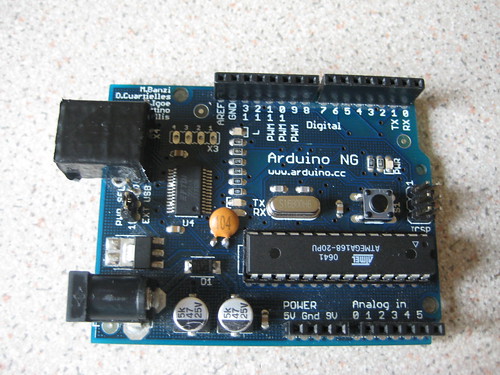
Recently a new Arduino board, the Arduino Diecimila has been released. This board is an updated version of the Arduino NG, which I own. It features a couple of new features, most notably a 3V3 out and an auto reset function. With the NG you needed to press reset to load a new program onto it, and it took 10 seconds to initialize the program when power was turned on, with the Diecimila this is not necessary and it boots up much faster. Normally I’d need to buy a new batch of Arduino Diecimila ATMega168s and boards, but by making some small alterations to the boards, detailed here or here. I went and made the modification to my Arduino NG board as you can see here:

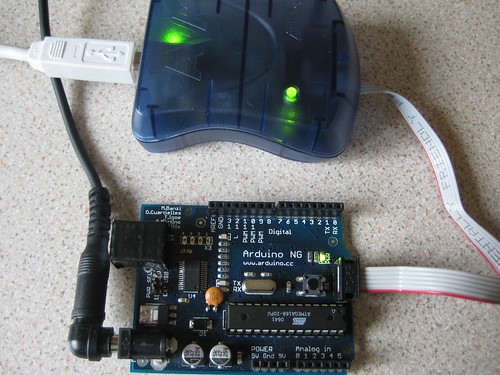
I also needed to upload a new boot loader onto the ATMega168 in order to take full advantage of the 0.1µF capacitor. To do this I needed to connect up the AVR ISP MKII that I also received today. This fitted onto the 2×3 pin header at the rear of the Arduino NG.

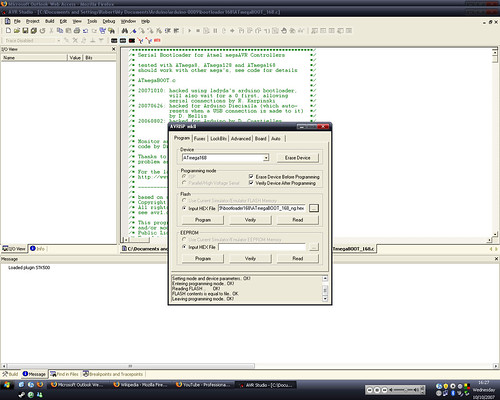
Once it was all connected I need to make a few modifications to the boot loader. I did this using Lady Ada’s instructions here, this ended up looking like this:

This was just after uploading the new boot loader to the Arduino NG. I found that this worked perfectly and I shall be doing the same to the rest of the Arduino hardware that I own. I’m also now aiming to start working more with Arduino.

Now with these improvements to my base Arduino I took another look at my accelerometer project, I’m aiming to get the code finished, all be it in a rough-ish form by the end of the week. Once I’ve done that I’ll be posting here about the hardware changed, aims and the code.


Knowledge Updates

Recently I’ve moved into University. I’m doing a course in Electronic Engineering, and I hope to gain a masters at the end of it.

So far I’m in my 5th week (4rd week of teaching) and I’m finding it very different, but also very interesting. The day is split up into hour blocks, with the first 50 minutes for lectures, and the remaining 10 minutes so that you can rush to the next thing on the timetable. I get 6 hours a week in laboratories messing around with components, and then the rest is theory, and there is quite a bit of that, with me spending about 26 hours a week working. There is on top of that exercises and prep work to be done outside of lectures and labs. That makes it quite intensive as courses go.

I’m living in halls on campus, however there are only 7 people on my floor, 3 girls and 3 other boys. As our floor is none too spacious we have gotten to know each other quite well and enjoy ourselves. I’m a bit new to actually living away from home so things are very different for me, but I seem to be managing.

All this change in scenery has not slowed my electronics. Today I received my latest order from Rapid. This consisted of about 300+ 0.1µF capacitors, 50×2 header pins, a 35A 600V bridge rectifier and an AVR ISP MKII. I bought the 0.1µF capacitors because they are rather ubiquitous in electronics as de-coupling capacitors, they are also used in the Arduino Diecimila, but more about that later. The 50×2 header pins are for in circuit programmers, to go along with the AVR ISP MKII for the new AVR projects that I’m planning. However the 35A 600V bridge rectifier is for an older project, I wanted to see if it could be practically be used in the intended application, or whether it would just be destroyed, unfortunately the intended application is a secret for the moment. The AVR ISP MKII is, unsurprisingly, for programming AVR projects. I also wanted to get it for burning Arduino boot loaders.

Recently a new Arduino board, the Arduino Diecimila has been released. This board is an updated version of the Arduino NG, which I own. It features a couple of new features, most notably a 3V3 out and an auto reset function. With the NG you needed to press reset to load a new program onto it, and it took 10 seconds to initialize the program when power was turned on, with the Diecimila this is not necessary and it boots up much faster. Normally I’d need to buy a new batch of Arduino Diecimila ATMega168s and boards, but by making some small alterations to the boards, detailed here or here. I went and made the modification to my Arduino NG board as you can see here:

I also needed to upload a new boot loader onto the ATMega168 in order to take full advantage of the 0.1µF capacitor. To do this I needed to connect up the AVR ISP MKII that I also received today. This fitted onto the 2×3 pin header at the rear of the Arduino NG.

Once it was all connected I need to make a few modifications to the boot loader. I did this using Lady Ada’s instructions here, this ended up looking like this:

This was just after uploading the new boot loader to the Arduino NG. I found that this worked perfectly and I shall be doing the same to the rest of the Arduino hardware that I own. I’m also now aiming to start working more with Arduino.

Now with these improvements to my base Arduino I took another look at my accelerometer project, I’m aiming to get the code finished, all be it in a rough-ish form by the end of the week. Once I’ve done that I’ll be posting here about the hardware changed, aims and the code.


Arduino Joy Part 2

Previously I had got both my Arduino and the accelerometer shield working, with it returning values of “x:453 y:450 z:395.” But I had no idea of what they meant. After doing a little detective work on the data sheet I figured that around 450 meant 0g, that is to say, it was not experiencing any gravity in those planes. This then meant that around 395 meant it was experiencing +/- 1g as I was unsure of the intended orientation of the sensor. After rechecking the data sheet it seemed the chip was designed to be facing down, this would mean that around 395 meant -1g. Doing some rough maths (450 – 390 = 60) I guessed that a change of 1g was equivalent to 60. This would mean that +1g would be about 510. I turned the Arduino module and the shield over and lo and behold I got a value of about 510 in the Z axis. What remains is to turn this int value into a float value of how many much g the board is experiencing.

I also very recently received a Babe bones Arduino Breadboard PCB and soldered it up, and this is what I received.

And a closer look at the top of the unpopulated PCB:

I then preceded to start soldering it up, starting with the surface mount inductor, then the continued with the smallest components, and ending with the largest. This allows me to rest it on the work surface as I solder, greatly easing construction. Below I have a picture of the Bare Bones Arduino board fully soldered up. I have to say i find it to be a great kit which is very simple to understand and then solder together. I only now need to figure out a way of getting a USB->TTL cable.

I found it fairly simple if not rather tight to fit it into my mini-breadboard but it fitted and seems to work perfectly. I’ll post again later with some news of how it’s worked for me.

One other thing I’ve been keeping an eye on is, again, at uHobby, where Mr Fowler has now finished development of a Signal Generator that is designed to fit on the header pins attached to the Bare Bones Arduino. You can see his post here and his earlier post on the Signal Generators development here. One thing that is touched upon often is the feeling that comes from ordered PCB’s arriving, begin soldered up, and then working! I, as yet, have yet to order PCB parts, but I have made my own, and I’ve found it to be very relaxing.


Arduino Joy Part 2

Previously I had got both my Arduino and the accelerometer shield working, with it returning values of “x:453 y:450 z:395.” But I had no idea of what they meant. After doing a little detective work on the data sheet I figured that around 450 meant 0g, that is to say, it was not experiencing any gravity in those planes. This then meant that around 395 meant it was experiencing +/- 1g as I was unsure of the intended orientation of the sensor. After rechecking the data sheet it seemed the chip was designed to be facing down, this would mean that around 395 meant -1g. Doing some rough maths (450 – 390 = 60) I guessed that a change of 1g was equivalent to 60. This would mean that +1g would be about 510. I turned the Arduino module and the shield over and lo and behold I got a value of about 510 in the Z axis. What remains is to turn this int value into a float value of how many much g the board is experiencing.

I also very recently received a Babe bones Arduino Breadboard PCB and soldered it up, and this is what I received.

And a closer look at the top of the unpopulated PCB:

I then preceded to start soldering it up, starting with the surface mount inductor, then the continued with the smallest components, and ending with the largest. This allows me to rest it on the work surface as I solder, greatly easing construction. Below I have a picture of the Bare Bones Arduino board fully soldered up. I have to say i find it to be a great kit which is very simple to understand and then solder together. I only now need to figure out a way of getting a USB->TTL cable.

I found it fairly simple if not rather tight to fit it into my mini-breadboard but it fitted and seems to work perfectly. I’ll post again later with some news of how it’s worked for me.

One other thing I’ve been keeping an eye on is, again, at uHobby, where Mr Fowler has now finished development of a Signal Generator that is designed to fit on the header pins attached to the Bare Bones Arduino. You can see his post here and his earlier post on the Signal Generators development here. One thing that is touched upon often is the feeling that comes from ordered PCB’s arriving, begin soldered up, and then working! I, as yet, have yet to order PCB parts, but I have made my own, and I’ve found it to be very relaxing.


Arduino Woe

Lately my Arduino’s been giving me terrible problems, it would take absolutely AGES to start up, and then once it did, the moment I clicked on the “Tools” menu it would freeze for about 10 minutes before the menu would pop up. Not good. anyway, after a long time of Google searching and then giving up and then resuming my searching for a solution I recently came upon a post in the Arduino forums here which had the answer. It seems that by having a Bluetooth module attached to my computer (for Salling Clicker, a GREAT piece of software) the Arduino IDE was constantly searching through the COM ports for an Arduino BT or one of the COM ports, a Bluetooth one most likely, was giving it something unexpected.

Happily I just had to disable my Bluetooth adapter and suddenly it all worked. So to try I tested the following piece of code:

/*
Test of interrupts and clock
(CC) 2007 TheFallenIndustries
Complies to around 2032 kilobytes and needs an ATMega168
*/

#include <FrequencyTimer2.h>

unsigned long freq = 667; // f = 1/T so 1.5kHz is about 667uSec
int val = 0;
int analogPin = 5;
int pin = 13;
int capdump = 7;

void setup()
{
pinMode(11,OUTPUT); // clock is on io pin 11
pinMode(7,OUTPUT); // capacitor dump
pinMode(2,INPUT); // the interrupt input
attachInterrupt(0, fire, RISING); // 0 is pin2, 1 is pin3
FrequencyTimer2::setPeriod(freq);
FrequencyTimer2::enable();
}

void loop()
{
val = analogRead(analogPin);
if(val >= 1000) // Capacitor Charged
{
FrequencyTimer2::disable(); // stop charging
}
else // Capacitor Discharged
{
FrequencyTimer2::enable(); // start charging
}
}

void fire()
{
if(val >= 1000)
{
digitalWrite(capdump,HIGH);
}
}

This seemed to work fine, so I’m expecting a flurry of Arduino experimenting soon. Hopefully I’ll get some LCD displays running in both 8 bit and 4 bit mode.

Another blog I’ve come across recently is http://www.uchobby.com/ It would seem that should you link to this guy’s site, or write an article about hobby electronics, he will send you a kit or a PCB for free. In the past it has been LCD displays but recently it has all been Arduino themed. I found a particular article that was very interesting as I’ve been tryign to convert my La Fonera’s into embedded device servers. However some of the articles are not as complicated, for example this about sorting through large “lucky bags” of components.


Arduino Woe

Lately my Arduino’s been giving me terrible problems, it would take absolutely AGES to start up, and then once it did, the moment I clicked on the “Tools” menu it would freeze for about 10 minutes before the menu would pop up. Not good. anyway, after a long time of Google searching and then giving up and then resuming my searching for a solution I recently came upon a post in the Arduino forums here which had the answer. It seems that by having a Bluetooth module attached to my computer (for Salling Clicker, a GREAT piece of software) the Arduino IDE was constantly searching through the COM ports for an Arduino BT or one of the COM ports, a Bluetooth one most likely, was giving it something unexpected.

Happily I just had to disable my Bluetooth adapter and suddenly it all worked. So to try I tested the following piece of code:

/*
Test of interrupts and clock
(CC) 2007 TheFallenIndustries
Complies to around 2032 kilobytes and needs an ATMega168
*/

#include <FrequencyTimer2.h>

unsigned long freq = 667; // f = 1/T so 1.5kHz is about 667uSec
int val = 0;
int analogPin = 5;
int pin = 13;
int capdump = 7;

void setup()
{
pinMode(11,OUTPUT); // clock is on io pin 11
pinMode(7,OUTPUT); // capacitor dump
pinMode(2,INPUT); // the interrupt input
attachInterrupt(0, fire, RISING); // 0 is pin2, 1 is pin3
FrequencyTimer2::setPeriod(freq);
FrequencyTimer2::enable();
}

void loop()
{
val = analogRead(analogPin);
if(val >= 1000) // Capacitor Charged
{
FrequencyTimer2::disable(); // stop charging
}
else // Capacitor Discharged
{
FrequencyTimer2::enable(); // start charging
}
}

void fire()
{
if(val >= 1000)
{
digitalWrite(capdump,HIGH);
}
}

This seemed to work fine, so I’m expecting a flurry of Arduino experimenting soon. Hopefully I’ll get some LCD displays running in both 8 bit and 4 bit mode.

Another blog I’ve come across recently is http://www.uchobby.com/ It would seem that should you link to this guy’s site, or write an article about hobby electronics, he will send you a kit or a PCB for free. In the past it has been LCD displays but recently it has all been Arduino themed. I found a particular article that was very interesting as I’ve been tryign to convert my La Fonera’s into embedded device servers. However some of the articles are not as complicated, for example this about sorting through large “lucky bags” of components.