Posts with «arduino» label

Scratch and the Arduino

Small S4A (Scratch for Arduino) program that detects when a button is pressed. I used a pull-up resistor, so pressing the button pulled the signal low. Since that is a very standard circuit, I object somewhat to the "Sensor pressed" terminology. It should say either "Sensor Digital1" (since the value is Boolean) or "Sensor Digital1 high"—the "pressed" word is misleading.

There is a project now that combines two of my favorite tools for teaching about computers: Scratch for beginning programming and Arduino for beginning embedded systems and microcontrollers: Citilab – Projecte Scratch. The project appears to be from Spain, as the main page of the site is in Catalan, though the Arduino page is in English.

The idea is a simple one: the Arduino is loaded with a standard program that interchanges information with the Scratch program via USB every 75 msec. The I/O pins of the Arduino have a standard configuration:

The configuration offers 6 analog inputs (analog pins), 2 digital inputs (digital pins 2 and 3), 3 analog outputs (digital pins 5, 6 and 9), 3 digital outputs (pins 10, 11 and 13) and 4 special outputs to connect Parallax continuous rotation servomotors (digital pins 4, 7, 8 and 12).

They had to modify Scratch a little to add blocks for the I/O (similar to the official Scratch blocks for the “Scratchboard” which is not nearly as versatile as the Arduino). It would be nice if the S4A modifications made their way into the official version of Scratch, as the Arduino and Scratch communities are natural allies in making computer science and computer engineering more accessible to non-specialists.

There are some mistakes they made. For example, they put all the Arduino blocks with the “motion” blocks, though it would have made more sense to have a new page of blocks (or to have spread them between the motion and sensing pages).

They also refer to digital inputs pin 2 and 3 as Digital1 and Digital2, and to Analog pins 0 through 5 and Analog1 through Anlaog6. I think that they need to make their Scratch programs consistent with the labeling on the Arduino board! The digital outputs are correctly labeled 10, 11, and 13, but they have separate blocks for On and Off, which is not as nice as a single block that can set the digital output to a Boolean (though Scratch would have to have constants <True> and <False> for that to work well).

I’ll be sharing S4A with the robotics club, as it looks like a fun thing to play with, even if there are some minor design flaws.


Filed under: Scratch, Software Tagged: Arduino, Scratch, software

Scratch plus Arduino

Small S4A (Scratch for Arduino) program that detects when a button is pressed. I used a pull-up resistor, so pressing the button pulled the signal low. Since that is a very standard circuit, I object somewhat to the "Sensor pressed" terminology. It should say either "Sensor Digital1" (since the value is Boolean) or "Sensor Digital1 high"—the "pressed" word is misleading.

There is a project now that combines two of my favorite tools for teaching about computers: Scratch for beginning programming and Arduino for beginning embedded systems and microcontrollers: Citilab – Projecte Scratch.  The project appears to be from Spain, as the main page of the site is in Catalan, though the Arduino page is in English.

The idea is a simple one: the Arduino is loaded with a standard program that interchanges information with the Scratch program via USB every 75 msec.  The I/O pins of the Arduino have a standard configuration:

The configuration offers 6 analog inputs (analog pins), 2 digital inputs (digital pins 2 and 3), 3 analog outputs (digital pins 5, 6 and 9), 3 digital outputs (pins 10, 11 and 13) and 4 special outputs to connect Parallax continuous rotation servomotors (digital pins 4, 7, 8 and 12).

They had to modify Scratch a little to add blocks for the I/O (similar to the official Scratch blocks for the “Scratchboard” which is not nearly as versatile as the Arduino).  It would be nice if the S4A modifications made their way into the official version of Scratch, as the Arduino and Scratch communities are natural allies in making computer science and computer engineering more accessible to non-specialists.

There are some mistakes they made.  For example, they put all the Arduino blocks with the “motion” blocks, though it would have made more sense to have a new page of blocks (or to have spread them between the motion and sensing pages).

They also refer to digital inputs pin 2 and 3 as Digital1 and Digital2, and to Analog pins 0 through 5 and Analog1 through Anlaog6.  I think that they need to make their Scratch programs consistent with the labeling on the Arduino board!  The digital outputs are correctly labeled 10, 11, and 13, but they have separate blocks for On and Off, which is not as nice as a single block that can set the digital output to a Boolean (though Scratch would have to have constantsandfor that to work well.

I’ll be sharing S4A with the robotics club, as it looks like a fun thing to play with, even if there are some minor design flaws.


Filed under: Scratch, Software Tagged: Arduino, computer science, education, programming, robotics, Scratch

Data Acquisition

One of the science-teacher blogs that I read has recently discussed using an Arduino for data acquisition: The DAQ-ness Monster « Science Learnification.

I’ve not played with the Arduino much that way, but I do have a 3-axis accelerometer, the ADXL335 from Analog Devices, on a breakout board from Adafruit Industries.  This accelerometer has analog readout, so I connected the three X, Y, and Z pins to analog pins 0,1, and 2 of the Arduino, and powered the breakout board from the Arduino 3.3 volt supply.  I also sent the 3.3 volt input to the AREF pin of the Arduino so that the I could use “ratiometric” measurements.  The ADXL335 is designed so that 0g acceleration is mid-scale, so using the same voltage for powering the chip and for the Arduino AREF input means that 512 is 0g and the scaling is approximately 1g for each difference of 100.  It turns out that the calibration is not perfect (no surprise there), so you can improve the measurements by tweaking the offset and scaling for each axis separately.  I did this manually for my code, and the results are only good to about 1%.

I should be able to do better if I write a calibration program on my laptop that gathers results from the Arduino and tries to optimize the magnitudes of the reported acceleration vectors to be one.  If the accelerometer is held steady in several different orientations, this should auto-calibrate.

I wrote a little program that measured the X, Y, and Z values 1000 times, averaged them, and sent the average over the USB line to my laptop.  I’ve put the code on-line at https://gist.github.com/1054649  Each of the measurements takes about 3.3 msec (about 1msec per DAC reading)

Limitations of the Arduino as a data-acquisition device:

  • Only 6 analog inputs
  • Only 10-bit resolution
  • All 6 channels on same scale, and input must be between 0 and a single reference voltage (3.3v for the setup I used).
  • No faster than about 1msec/sample (so don’t try to collect audio or video data)

UPDATE 8 October 2011.  I’ve just found out how to put code into the blog itself, so here it is:

// Accelerometer (ADXL335) test
// Kevin Karplus
// 29 June 2011

void setup()
{
  analogReference(EXTERNAL);   // essential if you are going to connect to AREF
  Serial.begin(115200);
  Serial.println("setup");
}

// I used wires to connect the breakout board to 
// three analong inputs, 3.3v, and ground.
// I also connected the AREF input of the Arduino to 3.3v

const int Xpin=2;
const int Ypin=1;
const int Zpin=0;

const int num_to_sum=1000;
const float xscale = 0.0098/num_to_sum;
const float yscale = 0.0097/num_to_sum;
const float zscale = 0.0099/num_to_sum;

const int zero_x = 500;
const int zero_y = 506;
const int zero_z = 511;

long xsum,ysum,zsum;

void loop()
{
  unsigned long startTime=millis();
  xsum = ysum = zsum = 0;
  for (int i=num_to_sum; i>0; i--)
  {    
     xsum += analogRead(Xpin) -zero_x;
     ysum += analogRead(Ypin) -zero_y;
     zsum += analogRead(Zpin) -zero_z;
  }
  Serial.print(millis()-startTime);
  float x=xscale*xsum;
  float y=yscale*ysum;
  float z=zscale*zsum;
  Serial.print(" X=");
  Serial.print(x);
  Serial.print(" Y=");
  Serial.print(y);
  Serial.print(" Z=");
  Serial.print(z);
  
  Serial.print(" total=");
  Serial.println(sqrt(x*x+y*y+z*z));
}


Filed under: Accelerometer, Data acquisition, Robotics, Software Tagged: accelerometer, Arduino, data acquisition, robotics

3-Digit 7-Segment Display With an SAA1064


Working on the grinder timer project, I built out a basic circuit (EAGLE .sch) with an NXP SAA1064 and resurrected a test sketch (Arduino .pde) for it. The SAA1064 works beautifully for driving common anode 4-digit 7-segment displays with constant current per segment, from 3 to 21 mA in 3mA increments; in this case I'm only driving three digits since that's what the design calls for.

There are two buttons in the test sketch (on D10 and D11), the first to change count modes (seconds, tenths, hundredths, hex, and "chase") and the second to cycle through the seven current settings.

This schematic is identical to one I did a board layout for with an SO24 package chip, but for some reason those boards didn't work; maybe something in manufacture or assembly bridged pins somewhere. I'll redo the layout and see what happens, with vias further from pads.

Minimalduino 105: Nice!

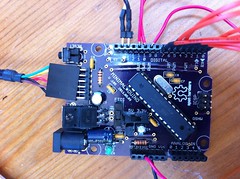
I built out one of the "V.105" boards I got a few weeks ago from the DorkbotPDX PCB order, and it works beautifully, almost identical to the version 107 I posted files of, with "5V/3.3V" voltage and "FTDI/IN" power selector switches. I mounted a mini USB socket and a 7805 regulator, in addition to the barrel jack for power in.

I've gone to whole number versioning btw, no need for "always under 1" versioning or major/minor versions, and if I need to go higher than 999 (huh?!), I can just use four digits.

Top and bottom labeling came out great, including the Open Hardware logo, though the letters mush together a little. Also, the "FTDI" header label didn't print at all, maybe there's a problem having two "FTDI" text labels.

One issue is that the drills for the main female headers are smaller than those on versions 89 and 97 boards, even though they use the same parts in EAGLE! I'll check the parts and maybe swap them out. That's a bummer-- I had to drill them all out to mount the headers, which ripped some of the pads off the fiberglass, but thankfully they stayed connected to the traces.

Minor edits for the next version:
  • Move the power input components to give electrolytic capacitors more room to accomodate shorter/fatter ones or taller ones mounted horizontally. As it is, the 100uF cap at the input is jammed between the .1uF cap and the barrel jack. [done]
  • Rotate LED's so they can be mounted horizontally for better side viewing when using a shield. [done]
  • Add heat sink polygon and vias under the 7805 tab.
  • Fix the Sparkfun mini USB through-hole part: its outline is on the bPlace layer, not tPlace where it belongs. Or just use a different part. [done]
  • Check female header drill diameters.
  • Add 2-pin header at the reset button to make it easier to add a remote panel-mounted reset button. [done]
  • Round the corners; looks nice on the Freetronics boards. Also check Uno outline and drills to make sure things are lined up right. [done]
I'm pretty happy with this for now though-- I have plenty of cheap, homemade, 5/3.3V-switchable Arduino-compatible boards to work with!

BlinkM Cylon mkII

For Maker Faire this year I made a second version of my BlinkM Cylon: BlinkM Cylon mkII. This is not a very cost-effective way of getting a Cylon effect. It however is a good way of showing how to wire up multiple BlinkMs with a long cable, using our new WireM cabling kit for BlinkM. And unlike normal Cylon circuits, this has full RGB color effects and gradual fading.

Here’s a quick video showing it in action.

BlinkM Cylon mkII consists of: - 13 BlinkMs (one for each of the tribes of Kobol) - one WireM cabling kit for BlinkM, consisting [...]

Todbot 30 May 07:32
arduino  blinkm  

Arduino I2C Sniffer

I’m working on an I2C project, but I don’t have a sampling oscilloscope and I need to see what the heck is going on, so I put together this quick and dirty I2C sniffer sketch.

You connect two digital pins on the Arduino to the I2C bus lines SDA and SCL, and Arduino ground to I2C ground. The digital pins on the Arduino must be on PORTD, which are pins 0 through 7. It’s probably a good idea to avoid the serial lines, which means you should use any two pins between 2 and 7.

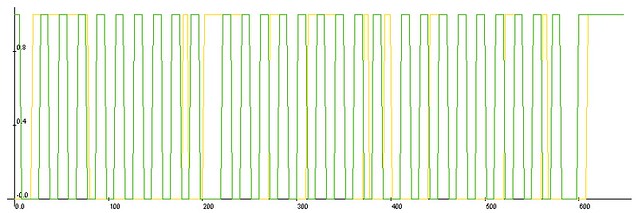
It captures the data (within a certain time window) and then it sends CSV-formatted output to the serial port. You can then take this data and plot it to get an idea of what’s going on on your I2C bus. Naturally, you could expand this to sniff other bus-types, like 1-wire or SPI, provided the signalling rate is low enough. For SPI you might trigger off the SS line. This code samples at about 2Msps on an Arduino running at 16MHz — that figure is derived from the fact that it records approximately 20 samples per 100kbit/s clock cycle.

This code runs a “one-shot” capture, meaning that it only captures data once and then dumps it to the serial port. It starts capturing when it detects the SDA line has gone low. it does not check the SCL line (as a proper start condition detector would).

You can adjust the capture window to suit your needs, though bear in mind that the ATMega328 only has 2k of RAM, so values approaching 2000 may not work so well. A value of 250 is long enough to catch one byte sent over I2C at the 100 kbit/s standard rate. The sampled data is good enough to show you the sequence of events.

If you need very specific, time-aligned data, you should use a logic analyzer or sampling oscilloscope.

For plotting, I recommend LiveGraph, which is super easy to use and runs in Java, so it’s portable.

The code is CC-BY-SA 3.0 and unsupported. Use at your own risk.

Source:

/******************************************************
Arduino I2C Sniffer

2011 J. M. De Cristofaro
CC-BY-SA 3.0
this code is unsupported -- use at your own risk!

connect one digital pin each to SCL and SDA
use pins on PORTD (Arduino UNO/Duemilanove pins #0 - 7)
do not connect to serial pins (0 & 1)!

connect GND on Arduino to GND of I2C bus
*******************************************************/

/** DESCRIPTION **/
/*******************************************************
this code runs a "one-shot" capture, meaning that
it only captures data once and then dumps it to the
serial port.

it starts capturing when it detects the SDA line has
gone low. it does not check the SCL line (as a proper
start condition detector would). 

you can adjust the capture window to suit you needs.
a value of 300 is long enough to catch one byte sent
over i2c at the 100 kbit/s standard rate. the sample
data is good enough to show you the sequence of events,
but little else.

if you need very specific, time-aligned data, you should
use a logic analyzer or sampling oscilloscope.
*******************************************************/

// assign pin values here
const char sda_pin = 2;
const char scl_pin = 7;

// sampling window
const int data_size = 250;

// array to contain sampled data
byte captured_data[data_size];

// housekeeping booleans
boolean captured;
boolean dumped;

void setup()
  {
    Serial.begin(57600);
    pinMode(sda_pin, INPUT);
    pinMode(scl_pin, INPUT);
    captured = false;
    dumped = false;
    Serial.println("Good to go, chief!");
  }

// main loop: waits for SDA to go low, then
// samples the data, then formats and dumps it
// to the serial port.
void loop()
  {
    while(digitalRead(sda_pin)==HIGH) {}
    capture();
    if (captured == true && dumped == false)
      {
        serial_dump();
        dumped = true;
      }
  }

// captures the data on PORTD and stores it in a global array
void capture()
  {
    byte tempdata;
    for (int x = 0; x < data_size; x++)
      {
        tempdata = PIND;
        captured_data[x] = tempdata;
      }
    captured = true;
  }

// reads the data out of the global array, formats it
// and outputs it to the serial port.
void serial_dump()
  {
    byte temp;
    Serial.println("sample, sda, sck");
    for(int x = 0; x < data_size; x++)
    {
      if (x<10) { Serial.print("0"); }
      if (x<100) { Serial.print("0"); }
      Serial.print(x);
      Serial.print(",     ");
      temp = bitRead(captured_data[x], sda_pin);
      if (temp == 0) { Serial.print(0); }
      else { Serial.print(1); }
      Serial.print(",   ");
      temp = bitRead(captured_data[x], scl_pin);
      if (temp == 0) { Serial.println(0); }
      else { Serial.println(1); }
    }
  }

EIA 485 over unused pairs of ethernet cable [Test]

To carry out my plan of a home automation system (domotics) made by me I am experimenting the use of the EIA 485 communications protocol. Having wired the house with lots of cat5 cables and knowing that two of the four pairs of which it is composed are not used to the speed of 100 Mb, I tried to pass the signal on these wires to see if the two streams (TCP/IP and the EIA 485) could coexist without major problems. Here’s how the test was performed:

I defined my own communication protocol as the EIA 485 only defines the physical parameters, as Master-Slave, half duplex with 14-byte frame consisting of address, the slave’s actions, 5 bytes for data and one byte for checksum and other embroidery. For each frame received correctly, the slave sends an acknowledge to the master after performing the required action. The baud rate was set to 9600 bits/s serial communication 8-n-1 (8-bit data, no parity, 1 stop bit). To test these, the master cyclically sends once per second, request to slaves to put high one of their pins to turn on and off a LED. One of the pins of the PIC was connected to another LED programmed to turn on in case of the frame error, the bit FERR in the RCSTA register is set to 1 if the stop bit is erroneously detected as zero.

I’ve programmed a simple Arduino as a master, another Arduino and a pic

16f88 as a slave. In the photo appear beside the master and slave, the PIC16F88 is placed at the other end of the network cable about 10 meters long. For the test I did not use terminating resistors nor bias resistors since with these distances it’ not required. A pair of wires is connected to pins A and B integrated the MAX485, the other was used for the reference (connected to ground, to avoid groundloops …) it according to a daisy chain connection scheme. Throughout the test I have maintained a steady stream of  TCP/IP traffic node continuously pinging the node at the other end of cable. Result is that in over an hour of practice there was never a frame error (FERR bit was never set) and all the frames have been received correctly (no checksum errors). The TCP / IP traffic has not suffered any errors or delays (0% packet loss and response times in the standard). Now we have to run the test with a much longer cable!

In spare time i started to work on an Arduino shield (with relative library) for simple eia-485 communication. Keep seeing my blog for news.

Eraclitux 02 May 14:03

EIA 485 over unused pairs of ethernet cable [Test]

To carry out my plan of a home automation system (domotics) made by me I am experimenting the use of the EIA 485 communications protocol. Having wired the house with lots of cat5 cables and knowing that two of the four pairs of which it is composed are not used to the speed of 100 Mb, I tried to pass the signal on these wires to see if the two streams (TCP/IP and the EIA 485) could coexist without major problems. Here’s how the test was performed:

I defined my own communication protocol as the EIA 485 only defines the physical parameters, as Master-Slave, half duplex with 14-byte frame consisting of address, the slave’s actions, 5 bytes for data and one byte for checksum and other embroidery. For each frame received correctly, the slave sends an acknowledge to the master after performing the required action. The baud rate was set to 9600 bits/s serial communication 8-n-1 (8-bit data, no parity, 1 stop bit). To test these, the master cyclically sends once per second, request to slaves to put high one of their pins to turn on and off a LED. One of the pins of the PIC was connected to another LED programmed to turn on in case of the frame error, the bit FERR in the RCSTA register is set to 1 if the stop bit is erroneously detected as zero.

I’ve programmed a simple Arduino as a master, another Arduino and a pic

16f88 as a slave. In the photo appear beside the master and slave, the PIC16F88 is placed at the other end of the network cable about 10 meters long. For the test I did not use terminating resistors nor bias resistors since with these distances it’ not required. A pair of wires is connected to pins A and B integrated the MAX485, the other was used for the reference (connected to ground, to avoid groundloops …) it according to a daisy chain connection scheme. Throughout the test I have maintained a steady stream of  TCP/IP traffic node continuously pinging the node at the other end of cable. Result is that in over an hour of practice there was never a frame error (FERR bit was never set) and all the frames have been received correctly (no checksum errors). The TCP / IP traffic has not suffered any errors or delays (0% packet loss and response times in the standard). Now we have to run the test with a much longer cable!

In spare time i started to work on an Arduino shield (with relative library) for simple eia-485 communication. If you want to help me doing this consider a small donation.

Eraclitux 02 May 14:03

BlinkM Smart LED as the Smallest Arduino

Did you know you can run Arduino programs on tiny BlinkM Smart LEDs? It might make BlinkM the smallest Arduino so far. To use a BlinkM as an Arduino, all you need is the free Arduino software, a low-cost AVR programmer, some wire, and a BlinkM.

Here’s a quick video showing how it all works.

BlinkM Capabilities as an Arduino

The BlinkM board doesn’t have nearly the I/O pins and other features of a real Arduino board. But it is very tiny. Here are its capabilities: - 0.4″ square (MinM), or 0.6″ square (BlinkM) - 8MHz clock speed - [...]

Todbot 22 Mar 09:17
arduino  blinkm