Posts with «arduino» label

New board designed

I’ve just sent a new set of boards for fab.  The HexMotor rev2.3 boards have several new features: LEDs for +5v and +6.25v, a reset button, 16-bit shift register instead of 8-bit, servo outputs connected to pins 13, 7, 2, 9, 10 (rather than to the pins used for PWM).  The new board should be able to do either 6 PWM motors or 4 PWM motors, 5 servos, and 2 non-modulated reversible motors.

I’m also making some breakout boards for the MPXHZ6250A pressure sensors from Freescale Semiconductor, which will require doing some SMD soldering.  At least the design uses gull-wing pins, which can (supposedly) be hand soldered.  One of the breakout boards also has a place for mounting an ADXL335 accelerometer, which may be more difficult to solder.  I don’t think I want to spend the money for a hot-air rework station, and I’m a bit dubious about my ability to solder using a toaster oven.

The pressure sensors are tiny!  My original suggestion to the robotics club was to drill a hole in the dry box and superglue the pressure sensor to the inside of the box (after the pressure sensor had been attached to the breakout board, of course).  Now I’m not so sure that there will be enough glue area to hold firmly enough.  Perhaps a dab of some sealant on the outside of the box might help, if we can keep from plugging the hole in the sensor.

The breakout board that I think that the robotics club will end up using puts a pressure sensor on one side and headers for a piggyback ADXL335 breakout board on the back.  that way there only need to be one set of wires for connecting the analog inputs and power to the sensors.

One limitation of the Arduino for use with this combination of sensors is that the accelerometer is a 3v part and the pressure sensor is a 5v part. We’ll have to set up the analog-to-digital converter on the Arduino to have a 5v range, which reduces the precision of the acceleration readings.

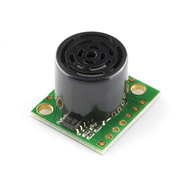
I’ve also bought some other sensors (not for the underwater vehicle, but for physics class and dry robotics): a couple of ultrasonic rangefinders.  More on those in a separate post, after I’ve had a chance to play with them.


Tagged: accelerometer, Arduino, H-bridge, motor controller, pressure sensor, Printed circuit board

Arduino Musical Note Recognition – Pushing the limits.

Second project based on Arduino Uno and FFT code.    (First one : Project 1.)
Short description ( EDITED: Project stopped. I lost my inspiration and working on visual recognition now, I decided to publish a code, so someone else could find it useful and continue research. ).

Main array size is 1024 bytes, real / imaginary 512 / 512, output 256 bins (only half real part, other half is mirror).  Sampling rate 4 kHz, upper note B6 (1975.5 Hz) on yellow line – right side led, lower note C3 (130.8 Hz) on red line – left side led.  Frequency resolution is approximately 7.8 Hz per bin. Processing and sampling are running in parallel. Sampling array size is 256. After data captured (256 x 0.25 msec = 64 msec) they transfered to processing array 1024, missing 256 real samples is “zero padded”, and sampling continue w/o interruption.  I did zero padding on a purpose to get “response time” of led matrix as fast as possible, so real-time 1/16 notes could be visually distinguished the same time,  as they played.

After computational cycle is completed (~36 msec), main program executes “cognitive core function” to differentiate between notes / tones, that have to be displayed on LED matrix.

 In order to minimize error rate of this process, Masking Shadow Theory (MST) was developed. Masking shadow for each note is calculated in several steps and result is compared with notes magnitude in the cycle. If magnitude is less than shadow, than led corresponding to this note wouldn’t  lights up. There are five steps for now, but as I say, work in progress. 
Step 1 (masking shadow 0):  noise floor, which is common for all notes. 
Step 2 (masking shadow 1):  shadow from neighboring notes, that includes 8   notes on left and right side, in inverse proportion to their distances. 
Step 3 (masking shadow 2):  shadow from the note, which is located 1 octave below. Or in other words, cross check if current bins value isn’t second harmonic from sounding note 1 octave below  it. 
Step 4 (masking shadow 3):  similar to step 3, the only difference is, cross check if current bin (note) isn’t third harmonic from sounding note below  it. 
Step 5 (masking shadow 5):  similar to step 3 and 4,  cross check if current note isn’t fifth harmonic from sounding note below  it.

Masking shadow is multiplied by notes specific coefficients after steps 3 – 5, to accommodate significantly richer spectral content for lower octaves.  Formula for calculation of the coefficients, is the trickiest   part of all project. What I’ve discovered, coefficient not just varying between notes / tones, they dynamically varying during “life-time” of the tone.

25 Sept. 2011 

There are two variables have been considered: speed, octave range. Third one, “not technical” – is a price for the project. 
 Octave range is defined by  RAM memory available on chip. 2K on UNO. As maximum processing array size is must be power of 2 ( FFT Radix-2 ), array couldn’t be more than  1024 bytes, next value – 2048 is size of all RAM, that obviously couldn’t be taken. Size of array defines maximum quantity of frequency bins at the output 1024 / 4 = 256. Divided by 4 as there is real / imaginary part, and only half real part is present data. What is interesting, that musical octave is nothing else than doubling of the tones frequency, so it follows binary arithmetic rules… If I will count from high side, the upper octave would occupied half of all 256 bins, from bin 256 to bin 128. Simply because frequency / musical tone spaced logarithmically (LOG_2), and bins spaced equally. Next octave takes half what left over, from bin 128 to bin 64. Third octave 64 to 32, and fourth 32 to 16. Can I go more down ? No. There are 12 notes in each octave. It means, that after fourth octave counting down , I arrived to location where bins and tones spaced almost in sequence, bin 16 – C3, bin 17 – C3#, bin 18 – D3. Well there is four more ( 15, 14, 13, and 12 ), but it doesn’t change much, as it only 1/3 of octave and only would complicate multiplexing LED display.
This is why variable octave range = 4. Summing up, increasing octave range by 1 ( to 5 octaves ) would require double memory size (2K processing array, still possible with chip 4K), by 2 ( to 6 octaves ) – four times more memory (4K processing array).

Arduino mega board has 8K RAM, would it be better to design project with it? In first, it cost more money. In second, it has the same CPU performance, and as you will see below, to have more memory w/o faster CPU doesn’t make any sense. CPU wouldn’t be able to process bigger volume of data in time.

Now lets have a look at speed variable. Following math (and design itself), is greatly depends on it. In order to get at least 1/16 note to be visually “alive”, all cycle ( sampling , pre-processing, FFT, post-processing ) has to be completed for less than 64 msec. My impression is, when timing a little bit longer, LED display looks like it shows something, that was played last Saturday night. Invisible real-time connection between “light” and “music” become broken.
Octave range variable ( 4 octave to be specific ), especially low notes starting from C3, begging for 8 Hz resolution, as it equals to distance between C3 and C3#. And consequently, for 128 msec sampling frame duration. So, there is a contradiction. To solved this , zero padding was introduced, which help to keep sampling window down to 64 msec, the same time frequency resolution not very far from 8 Hz. To make real-time life show, sampling must continue w/o interruption. Even more, it has to be “overlapped”, as pre-processing (windowing) would cut off beginning and ending of the sampling pull. All three other functions ( FFT, pre- and post-processing ) have to go in parallel and must be completed in the same time frame 64 msec. Arduino platform has 8-bit microprocessor, with low horse power engine under hood. This is why 8-bit math was selected instead of 16-bits ( which would save me a lot of troubles ). Troubles, I’m talking about, are very low dynamic range when integer math and 8 – bit comes together in FFT. Integer math, which gives nice time performance, puts really hard constrain on dynamic range, just because it performs “scaling” before and after every “butterfly”. And every scaling procedure brings in rounding error, which grows enormously, as there are 2304 butterfly (9216 round operation) for N = 512 FFT. Special attention must be payed, to keep rounding error under control, the same time not to increase calculation time too much or integer math would not make any sense. What I find out, there is  an excellent algorithm to make “symmetrical” 1/2 bit rounding, but it almost doubles calculation FFT timing, which I obviously, could not afford. So, I choose other path, to increase dynamic range. Compression algorithm on the input data. The easiest way to do it, is “clipping”. Set couple lines in the code:
             if ( x[i] >  127 )  x[i] =  127; 
             if ( x[i] < -127 )  x[i] = -127; 

and all good. Not quite. It will do a great job for any other signal (vibration from accelerometer for example), except music…..
Clipping generates a very high level of harmonics, and ones again , it couldn’t be afford, as it just undermine basic idea of the project – MUSICAL note recognition.
 
 Summary: Scaling extends dynamic range of integer FFT on 24 dB ( 4 bits ).

8- bit FFT dynamic range is +36 dB;
scaling                               +24 dB;
noise                                 -   3 dB;     
———————————————————–
Overall                                 57 dB.   


Link to download a scketch:


Arduino_Musical_Notes_Recognition


Physics Lab 1

I asked physics teacher John Burk for advice on putting together labs for homeschooling my son in calculus-based physics using the Matter and Interactions book (see School decisions part 3 on the decision to homeschool).  He was kind enough to pass on my request to the readers of his Quantum Progress blog: The ideal lab experience for a homeschooled student.  He also gave me a suggestion for a piece of lab equipment we could use for a number of experiments in Newtonian mechanics: an ultrasonic rangefinder.

This post is my first attempt at a physics lab assignment for my son. (Note: we are also hoping to use tech writing this year to satisfy some of his English requirements, so the assignment is a bit heavier on the writing than might otherwise be appropriate for a physics class.)  The exploration in this lab is more engineering than physics, but familiarity with measuring tools is a good place to start, I think.

I welcome feedback and suggestions, particularly from those who have taught physics!

Lab 1: ultrasonic range finder

Prelab

Research how an ultrasonic range finder works (note: as of 25 Aug 2011, the Wikipedia article is a terrible stub—other sources will be needed).

Write: Write a paragraph or two explaining how an ultrasonic rangefinder works.  This should be at a reading level and level of detail suitable for replacing the current Wikipedia stub. Explain what determines the precision, accuracy, and range of the range finder.  How frequently can it measure the range? How is the speed of sound involved?  What does that depend on … ? Why do some have one transducer and others have two?  Audience: new robotics club members (technically interested high school students without prior knowledge of physics or electronics).

Bonus audience: if the writeup is good, it can replace the current Wikipedia stub.

Read the product information (and data sheets when possible) for at least 3 different (cheap) range finding modules like the following three four (added one more 1 Sept 2011):

Choose one of the range finders for us to buy.

Write: justify the choice in writing, doing a comparison of the advantages and disadvantages of each choice.  Give URLs as citations for data used in making the choice.

Sketch out in pseudocode the program needed to read the sensor on the Arduino using a simple busy loop.  What will determine the precision and sampling rate of the measurements?  What will the code do if there is no object in range of the sensor?

Advanced option: sketch out pseudocode for using interrupts instead of a busy loop.

The Lab Proper

  1. Hook up the rangefinder to the Arduino and program the Arduino to keep taking measurements and reporting them to the serial line.
  2. Calibrate the sensor by placing it at carefully measured distances from a hard wall and recording the readings.  Repeat at several different distances.  (Record temperature, humidity, and barometric pressure, if possible.)
  3. Plot the sensor readings vs. the actual distance.
  4. Do linear regression to get predictor of actual distance given sensor reading.  (Caveat: need to plot distance vs. readings rather than readings vs. distance to get best fit for calibration.)
  5. Modify Arduino code to use the calibration parameters to provide better distance measurements.
  6. Re-calibrate using new code.  What is the accuracy and precision of the measurements?  What range of distances can be measured? Is the accuracy better expressed in terms of absolute error (±1cm, for example) or relative error (±5%, for example)?
  7. Open-ended: Experiment with detecting different targets (maybe flat targets from wall size down to the size of a quarter, maybe targets of different materials, maybe spherical targets).  What effect does target size, shape, material,  … have on range and accuracy of the measurement?

Tagged: Arduino, engineering education, Matter and Interactions, physics, rangefinder, science education, ultrasonic sensor

Poor Man's Colour Detector (Part 2) - The project

In this project we will be detecting the colour of 3 different Mega Blok colours (Red, Yellow and Green). We will be using an Arduino UNO connected to  2 LEDs (one Yellow and one Red LED) as light detectors, and an RGB LED to illuminate the subject. We will use a Photocell to account for varying ambient light levels. 

The signals from the LED light sensors will be sent to a Processing.org program via a Serial command. The computer program will make use of my Neural Network to classify the pattern of results and hopefully provide the correct colour "answer". The program should change the colour of the computer screen background to coincide with the colour of the Mega Blok.

The Video


Parts Required:

  • Arduino UNO...........x1   
  • Red LED .................x1
  • Yellow LED.............x1
  • 330 Ohm resistors... x 5  (for the LEDs)
  • Photocell .................x1
  • 10K Ohm resistor....x1   (for the Photocell)
  • Around 11 wires and a Breadboard (or two) to put it all together


Here is the Fritzing Sketch:   (made with Fritzing)


The Arduino Code

Load the following code into the Arduino.


arduino code Arduino: Colour Detector

01
02
03
04
05
06
07
08
09
10
11
12
13
14
15
16
17
18
19
20
21
22
23
24
25
26
27
28
29
30
31
32
33
34
35
36
37
38
39
40
41
42
43
44
45
46
47
48
49
50
51
52
53
54
55
56
57
58
59
60
61
62
63
64
65
66
67
68
69
70
71
72
73
74
75
76
77
78
79
80
81
82
83
84
85
86
87
88
89
90
91
92
93
94
95
96
97
98
99
100
101
102
103
104
105
106
107
108
109
110
111
112
113
114
/* Define the pin for the PhotoResistor */
#define PhotoR_Pin 0

/* Define the pins for the Red LED Sensor */
#define Red_LED_Sensor_POS 4
#define Red_LED_Sensor_NEG 5

/* Define the pins for the Yellow LED Sensor */
#define Yellow_LED_Sensor_POS 7
#define Yellow_LED_Sensor_NEG 8

/* Define the pin for the RGB LED torch */
#define RGB_LED_RedPin 11
#define RGB_LED_GreenPin 10
#define RGB_LED_BluePin 9

/* Controls the brightness of the RGB LED */
int intensity=255;


/* Define the maximum cycles/time allowed for each LED to capture light */
long max_darkness=80000;


void setup(){
/* Setup the RED LED Sensor */
pinMode(Red_LED_Sensor_POS,OUTPUT);
digitalWrite(Red_LED_Sensor_POS,LOW);

/* Setup the YELLOW LED Sensor */
pinMode(Yellow_LED_Sensor_POS,OUTPUT);
digitalWrite(Yellow_LED_Sensor_POS,LOW);

/* No need to setup the RGB LED Pins */

/* Turn on Serial Protocol */
Serial.begin(9600);
}

void loop()
{
byte byteRead;

/* check if data has been sent from the computer: */
if (Serial.available()) {

/* read the most recent byte (which will be from 0 to 255): */
byteRead = Serial.read();

if(byteRead==0){

/* Turn off if the byte Read was 0 */
set_RGB_LED(0,0,0,false);

}else{

/* set the brightness of the LED and then take readings: */
set_RGB_LED(0,0,0,false);
photoR_Read();
set_RGB_LED(0,0,0,true);
set_RGB_LED(intensity,0,0,true);
set_RGB_LED(0,intensity,0,true);
set_RGB_LED(0,0,intensity,true);
}
}
}

void photoR_Read(){
int ambiLight = analogRead(PhotoR_Pin);
ambiLight = map(ambiLight, 0, 900, 0, 50);
ambiLight = constrain(ambiLight, 0, 50);

/* Print the Ambient light level to the serial port */
Serial.println(ambiLight);
}

void set_RGB_LED(int redInt, int greenInt, int blueInt, boolean takeReadings ){
/* set the brightness and colour of the RGB LED: */
analogWrite(RGB_LED_RedPin, redInt);
analogWrite(RGB_LED_GreenPin, greenInt);
analogWrite(RGB_LED_BluePin, blueInt);

/* If takeReadings is true - then take Readings. */
if(takeReadings){

/* Read the amount of Yellow light */
read_LED('Y', Yellow_LED_Sensor_NEG);

/* Read the amount of Red light */
read_LED('R', Red_LED_Sensor_NEG);
}
}

void read_LED(char LED_Colour, int LED_Pin){

/* Charge the LED by applying voltage in the opposite direction */
pinMode(LED_Pin,OUTPUT);
digitalWrite(LED_Pin,HIGH);

/* Read the amount of Light coming into the LED sensor */
long darkness=0;
int lightLevel=0;
pinMode(LED_Pin,INPUT);
digitalWrite(LED_Pin,LOW);

while((digitalRead(LED_Pin)!=0) && darkness < max_darkness){
darkness++;
}

lightLevel=((max_darkness-darkness)+1)/80;

/* Print the light level to the serial port */
Serial.println(lightLevel);
}


The Processing Code:

The processing code is very long:
Please visit this link to copy and paste the code into your Processing sketch.
http://www.openprocessing.org/visuals/?visualID=34210

Make sure to select "Source Code" when you get there: (as displayed below)


If you have any problems with accessing the code - please let me know in the comments section of this blog.


This sketch utilises a simple feed forward Neural Network (that I developed from scratch). For more detailed information about this neural network please navigate through my previous blog postings.

Neural Network


So there you go, a simple idea, a simple outcome, and a lot of "stuff" happening in the background.
I am sorry. This project is not basic, but hopefully someone out there will get some use out of it.

Have fun !

ScottC

Makers Factory Meetup report

I went to the  Santa Cruz New Tech Meetup on Friday 12 Aug 2011 to find out more about the Makers Factory that is starting in Santa Cruz in November.  (I blogged about the Makers Factory already.)  Details about the event are on the meetup web page.

At the meetup they confirmed that they will not be getting the sort of expensive shop equipment that places like TechShop (over the hill) have.  The initial setup will be suitable for mechatronics work, similar to what Gabriel Elkaim teaches in the Mechatronics class at UCSC.  Gabriel was the fifth of five speakers at the MeetUp and provided a nice overview of the Mechatronics class.

What the Makers Factory will have are low-cost 3D printing machines (which I suspect will not be useful for much, but are fun toys), a laser cutter, a vinyl cutter, and some electronics equipment (soldering stations and some oscilloscopes, I guess).  They’ll probably also get some board shears.  I think I talked them out of trying to do their own PC board fabrication, in favor of ordering boards from some place like 4pcb.com.  You can probably do a class full of small boards as one $145 order from 4pcb.com (even without a .edu address) and give each person 4 copies of their board.  The 2-week turnaround time is fine for a class. It would probably take longer than that to make your own using low-cost tools in a classroom setting with only a few hours of class time a week, and the quality would be much worse.  I’d also hate to be the one in charge of getting rid of the hazardous waste produced by PC board etching.

I brought my HexMotor board with me to the MeetUp and showed it off to a few people, including Gabriel Elkaim, who was properly polite about it.  He also told me about the new PC boards he had just sent out for fab—they are redoing the electronic cockroaches that are used for the first lab in Mechatronics, since the old ones have started acquiring too much damage.  The problem is that students were much more inventive in discovering ways to damage the boards than originally expected, so the new design has a lot more protection circuitry.

I did get a chance to talk with Chris Yonge, who will be running Makers Factory.  It sounds like he is interested in having me teach an Arduino programming class and PC board design using free tools. I recommended Eagle for PC board design, even though it is not open-source, because it is fairly mature, the free version is enough for classes and hobbyists, it runs on both PCs and Macs, it has an adequate auto-router, and the licensed version is still fairly cheap.

There are open-source projects for PCB design, like FreePCB, which runs only on Windows and has no auto-router, KICAD which runs under Linux and Windows (but not Mac OS X, I believe), and many others.  There is a good list at http://www.olimex.com/pcb/dtools.html.  The general consensus of the hobbyist community seems to be that currently Eagle is most fully featured and robust free PCB editor, and that none of the open-source projects comes close yet.  Since I need Mac OS X software, and most of the open-source software is for Linux, my choices are more restricted still.  I don’t know what sort of computers Makers Factory is planning to get for classes—but they should choose software as much as possible that is platform independent.


Tagged: Arduino, Makers Factory, Meetup, open source, Printed circuit board

Board fully populated and tested

Top view of the HexMotor rev 1.3 board fully populated.

I got the board fully populated yesterday, plus I made a heat sink out of a piece of ¼” × ¾” aluminum bar stock.  The heat sink makes an enormous difference.  Before using it, running a small motor at low power for 20–30 seconds was enough to make the H-bridge uncomfortably hot.  Now running the same 12v motor stalled at full current (3A) for a full minute raises the temperature only to 100ºF.

The motor got warmer than that, and I think I burned it out, since it no longer runs and has a 400kΩ resistance.  I’m not really surprised—it was a cheap door-lock actuator, and only intended to be used with fraction of a second pulses.  Further testing will require a more robust motor.

As you can see from the photo, the screw terminal for motor 4 (second from the bottom) is a bit crooked—I’ll have to unsolder it and straighten it.  For the HexMotor 2 board, I’ll use slightly smaller holes so alignment is easier.

The thermal grease I used (Cooler Master IceFusion High Performance Thermal Compound 40G RG-ICF-CWR2-GP) was more liquid than I expected, especially since it comes with a little spatula for applying it.  I had to put on a fairly thick layer, because the aluminum extrusion was not very smooth, and when I tightened the bolts the stuff oozed out making a sticky mess. Next time, I’ll sand the aluminum smooth first and use much less thermal grease.

Closeup, showing the excess thermal grease puddling under the H-bridges, where it is very difficult to wipe off.

This closeup photo, in addition to showing the pooled excess thermal grease, shows the header pins with shorting jumpers to configure the H-bridges for either lock antiphase or sign-magnitude control.  (Because of the last-minute change from TLE-5205 to TLE-5206 chips, the silk-screen labeling of the header pins is wrong—this board is actually configured for sign-magnitude throughout not lock antiphase.

The photos also show that I did not leave room for the heat sink between the electrolytic capacitors.  The HexMotor 2.0 board will fix this problem also.

The HexMotor software now can handle 3 different boards: the HexMotor rev 1.3 board shown here, the Adafruit Motor Shield, and the HexMotor rev 2 board, which I am just about done fussing with the design for.  I’ve only tested with an Arduino Duemilanove board, but the software should work with an Arduino Mega as well.


Tagged: Arduino, H-bridge, heat sink, motor controller, Printed circuit board, thermal grease

HexMotor.h expanded to Adafruit Motor shield

I expanded the HexMotor.cc and HexMotor.h library today, so that I can use the same library with both my HexMotor board and the Adafruit Industries motor shield.  The only differences from a user’s standpoint are

  • Declare an AdafruitMotorBoard instead of HexMotorBoard.
  • Use motors 1,2,3,4 instead of 0,1,2,3,4,5.
  • motor.release() works on the AdafruitMotorBoard, but is not usable on the HexMotorBoard, which only brakes when off.

I also figured out a way to get some debugging capability into the library, so that people could check that their configuration is consistent (though there is no way to check whether the jumpers and wiring are actually what the user says they are supposed to be).  I can’t use “assert” statements the way I’m used to, so I did explicit if-statements and provided output through Serial.print() calls.  This only works for tests that come after the Serial.begin() call, so I put the tests in the HexMotorBoard::setup() method, assuming that it would be called after Serial.begin() in setup().

The tests can be turned off by commenting out the #define HEX_MOTOR_DEBUG 1 line in the HexMotor.h file, reducing the size of the downloaded program by 860 bytes.  Actually, almost everyone will have to turn the debugging off, since every run() command sends debugging output to the serial line, so the default is to have the debugging off.

The software library is pretty much done for controlling brushed motors, except for changing PWM frequency.  Currently motors 0 and 1 (1 and 2 on the Adafruit board) run at 490Hz, while motors 2 and 3 (3 and 4 of the Adafruit board) run at 976.5Hz and motors 4 and 5 at 490Hz.  I don’t want to mess with the PWM for motors 2 and 3, since that timer is also used for the delay() and millis() calls, so I probably want to change the PWM frequency for the other PWM pins.

Update 8 October 2011: Since I’ve just found out how to put source code into WordPress blogs, let me put the latest versions of HexMotor.h and HexMotor.cpp here:

// HexMotor.h
// copyright Kevin Karplus 8 August 2011
// Creative Commons license Attribution-NonCommercial
//	http://creativecommons.org/licenses/by-nc/3.0/

#ifndef _HexMotor_h_
#define _HexMotor_h_

#include <inttypes.h>
#include <avr/io.h>

// Define HEX_MOTOR_DEBUG if you want to get error messages from setup() for erroneous setup.
// #define HEX_MOTOR_DEBUG 1

// Declaring a HexMotorBoard gives the jumperable configuration for the board.
// The relevant jumpers are which pins drive the motor speed inputs
// and whether the H-bridges are configured for lock antiphase or sign-magnitude.
//
// IN2 of the H-bridge is always connected to SIGN XOR MAG
//
// IN1 of the H-bridge can be connected to either SIGN  or MAG.
//		If IN1 is connected to SIGN, then the TLE-5206 H-bridge will
//			be running in a sign magnitude mode, with the Speed pin low meaning BRAKE
//				and Speed pin high meaning RUN (with the sign bit indicating which way to turn).
//		If IN1 is connected to MAG, then the TLE-5206 H-bridge will
//		    be in lock antiphase, running if the SIGN bit is high and BRAKING if the SIGN bit is low.
//			The MAG bit determines which way the motor runs.
//      If the MAG bit is not a PWM output, then IN1 should be connected to MAG.
// Note: on the rev 1.3 boards, the silkscreen for the jumpers is misleading.  
//      The center of the 5 holes for header pins is MAG and the outer one is SIGN.

// The PWM frequency for all channels defaults to 1kHz (actually 16Mz/ 2^14 = 976.56Hz)
// Changes could be made in the HexMotorBoard::setup() routine if other PWM frequencies are needed.


class HexMotorBoard
{ protected:
	uint8_t SpeedPins[6];
	    // which pins are connected to the "speed" (MAG) inputs of each H-bridge?
	    // Numbers 0-54 are for Arduino pins
	    // Numbers 0xA0..0xA7 are for the low byte of the serial output latch
	    // Numbers 0xA8..0xAF are for the high byte of the serial output latch
		//		(on rev2 or later)
		// Number 0xFF means that the MAG bit is tied to +5V
	    // 
	    // Note: all SpeedPins should be connected to something.
		
	
	    // Note: on Arduinos other than Mega, using the Servo library means that pins 9 and 10
	    // are not PWM pins.  If used, they should be set up as ON/OFF pins. 
	
	
	enum{NOT_THERE, SIGN_MAG, ANTIPHASE, FORWARD_BACKWARD_BRAKE, ONE_BIT, ADAFRUIT} MotorMode[6];	// MotorMode[i] is
				// NOT_THERE if motor_i is not usable on this board
				// SIGN_MAG if IN1 of motor i is connected to SIGN, and MAG is assumed to be PWM
				// ANTIPHASE if IN1 of motor i connected to MAG and MAG is a PWM bit
			    // FORWARD_BACKWARD_BRAKE if IN1 of motor i connected to MAG, but MAG is ON/OFF, not PWM.
				// ONE_BIT if IN1 is connected to MAG, which is tied to +5v, so the
			    //		the motor is always either running forward or backward, controlled by the SIGN bit
				// ADAFRUIT if this is not a HexMotor board, but an Adafruit Motor shield
				//
	
	uint8_t LatchPin, ClockPin, DataPin;
		// which Arduino pins are used for talking to the Hexmotor shift register?
	
	uint16_t ShiftRegister;  // the current or future contents of the HexMotor shift register
	
	uint8_t Version;	// which model of board is used
	
	// set (or clear) a bit in the ShiftRegister corresponding to the specified motor
	inline void set_signbit(uint8_t motor, bool value=1)
	{   digitalWrite(0xA0+motor, value);
	}  
	
	void serial_out(void);	// transfer the shift register to the HexMotor board.
  public:
	HexMotorBoard(
				  const char *antis, 
				  const uint8_t *pins=0,	// defaults to {11, 3, 6, 5, 9,10}
				  uint8_t version=1,
				  uint8_t clock=4, 
				  uint8_t data=8, 
				  uint8_t latch=12);
	    // An array of pins is given to indicate where the MAG output for each motor goes.
					
	    // The 6 antis characters are 
		// '-' for NOT_THERE
		// 'S' or 's' for SIGN_MAG (IN1==SIGN)
	    // 'A' or 'a' for ANTIPHASE (IN1==MAG) 
	    // 'F' or 'f' for FORWARD_BACKWARD_BRAKE (IN1==MAG, but MAG is not PWM bit)
		// 'O' or 'o' for ONE_BIT
		// 'M' or 'm' for ADAFRUIT motor shield
		
		// The version is the integer part of the board rev number (rev1.3 is 1, rev 2.3 is 2).
	    // This indicates, for example, whether the board has 8 or 16 bits of shift register.
		// Use rev 0 to indicate an Adafruit motorshield.
	    // latch, data, and clock are Arduino pins that are used for the serial output to the shift register. 
	
	void setup(void);
	    // makes sure that PWM frequencies are appropriately set and turns all motors off.
	    // Should be called during the global setup() procedure.
	    // QUERY: should PWM frequency be settable here (or even as separate call?)
	
	void digitalWrite(uint8_t pin, bool value);	// write a single bit to a pin (using SpeedPins naming convention)
	friend class HexMotor;
};


// Declaring an AdafruitMotorBoard sets up the HexMotorBoard interface for an AdaFruit Industries Motor Shield, 
// rather than for a HexMotor board.
// The declaration has no parameters, as the AdaFruit motor shield is not configurable.
// For compatibility with the M1 through M4 labeling on the motor shield, motors 1 through 4 are used,
// rather than 0 through 3.

class AdafruitMotorBoard : public HexMotorBoard
{  protected:
	typedef enum{FORWARD, BACKWARD, BRAKE} MotorDir;
	void change_motor_bits(uint8_t motor,  MotorDir control);
  public: 
	AdafruitMotorBoard(void);
   	friend class HexMotor;

};


class HexMotor 
{  protected: 
	uint8_t Motor;
	HexMotorBoard* Board;

  public:
	HexMotor(HexMotorBoard &board, uint8_t motor_num);
	
	void run(int speed);
	// speed is between -256 (full reverse) and 255 (full forward)
	// 0 is off (braking on HexMotor, released on Adafruit)
	
	void brake(void);

	void release(void);		// Available on Adafruit Motor shield,
							// but not on HexMotor boards rev1 or rev 2
							// since the TLE-5206 chips do not have a Hi-Z output
};


#endif

// HexMotor  library
// Kevin Karplus
//copyright 8 August 2011
//	http://creativecommons.org/licenses/by-nc/3.0/

#include <avr/io.h>
#include <pins_arduino.h>
#include <WProgram.h>
#include "HexMotor.h"

// The PWM frequency for all channels defaults to 1kHz.
// Changes could be made in the HexMotorBoard::setup() routine if other PWM frequencies are needed.

// The frequencies below are approximate.
// The actual frequency in fast PWM mode is f_clk/(256*prescale)
// For the 16.000MHz crystal of the Arduino, the frequencies are
// 62.5KHz, 7.125KHz, 1.9531 kHz, 976.56Hz, 488.28Hz, 244.14 Hz, and 61.035Hz

// Don't mess with timer 0, since it is used for "delay()" and "millis()"
#define OCR0_64KHz (1)  // no prescale
#define OCR0_8KHz (2)   // divide by 8
#define OCR0_1KHz (3)  // divide by 16

// Timer 1 (and Timers 3, 4, 5 on Arduino Mega) have limited
//	prescale choices, because they allow external clock as well.
#define OCR1_62KHz	(1)	// no prescale
#define OCR1_7KHz	(2)	// divide by 8
#define OCR1_1KHz	(3)	// divide by 64
#define OCR1_240Hz	(4)	// divide by 256
#define OCR1_61Hz	(5)	// divide by 1024

#define OCR2_62KHz	(1)	// no prescale
#define OCR2_7KHz	(2)	// divide by 8
#define OCR2_2KHz	(3)	// divide by 32
#define OCR2_1KHz	(4)	// divide by 64
#define OCR2_490Hz	(5)	// divide by 128
#define OCR2_240Hz	(6)	// divide by 256
#define OCR2_61Hz	(7)	// divide by 1024

// The Adafruit Motor Shield has an extra output bit for its serial interface:
#define AdafruitEnablePin (7)

/////////////////
// HexMotorBoard
/////////////////
const uint8_t defaultPins[6]={11, 3, 6, 5, 9,10};

HexMotorBoard::HexMotorBoard(
							 const char *antis,
							 const uint8_t *pins,
							 uint8_t version,
							 uint8_t clock,
							 uint8_t data,
							 uint8_t latch)
{
	if (pins==0) {pins= defaultPins;}
	// Save all the jumper information.
	for(int8_t i=5; i>=0; i--)
	{   SpeedPins[i] = pins[i];
		switch (antis[i]) {
			case 'A': case 'a':
				MotorMode[i] = ANTIPHASE;
				// should check that pins[i] is legal PWM pin
				break;
			case 'S': case 's':
				MotorMode[i] = SIGN_MAG;
				// should check that pins[i] is legal PWM pin
				break;
			case 'F': case 'f':
				MotorMode[i] = FORWARD_BACKWARD_BRAKE;
				// should check that pins[i] is consistent with board version
				break;
			case 'O': case 'o':
				MotorMode[i] = ONE_BIT;
				// should check that pins[i] is 0xFF (indicating MAG tied to +5v)
				break;
			case 'M': case 'm':
				MotorMode[i] = ADAFRUIT;
				// should check that 1<=i<=4 and pins[i]=AdafruitDefaultPins[i] and version==0
				break;

			default:
				MotorMode[i] = NOT_THERE;
				break;
		}
	}
	Version=version;
	ClockPin=clock;
	DataPin=data;
	LatchPin=latch;
}

void HexMotorBoard::setup(void)
{
	// setup the serial output pins and clear the shift register
	pinMode(LatchPin, OUTPUT);
	pinMode(DataPin, OUTPUT);
	pinMode(ClockPin, OUTPUT);
    if (Version==0)
    {   pinMode(AdafruitEnablePin, OUTPUT);
    }

	ShiftRegister=0;
	serial_out();

	for (int8_t m=5;m>=0;m--)
	{
		switch (MotorMode[m])
		{   case NOT_THERE: case ONE_BIT:
#ifdef HEX_MOTOR_DEBUG
			    if (SpeedPins[m]!=0xFF)
			    {   Serial.print(m,DEC);
				    Serial.println(" motor shouldn't have speed pin");
			    }
#endif
		        continue;

			case FORWARD_BACKWARD_BRAKE:
				if (SpeedPins[m] >= 0xA0)
				{
#ifdef HEX_MOTOR_DEBUG
					if (Version<2 && SpeedPins[m]>0xA7)
					{   Serial.print(m,DEC);
						Serial.println(" motor has SpeedPin>0xA7");
					}
#endif
					continue;	// no need to set pinMode for HexMotorPins
				}
				pinMode(SpeedPins[m], OUTPUT);
				continue;	// no PWM to check

			case ADAFRUIT:
#ifdef HEX_MOTOR_DEBUG
				if (Version!=0)
				{   Serial.print(m,DEC);
					Serial.print(" mode M, but board version");
					Serial.println(Version,DEC);
				}
#endif
				break;

			default:
				break;

		}

		if (SpeedPins[m] >= 0xA0)
		{   // A HexMotor shift register output or tied to +5v, can't do PWM.
#ifdef HEX_MOTOR_DEBUG
			Serial.print(m,DEC);
			Serial.print(" motor has one-bit speed in mode ");
			Serial.println(MotorMode[m]);
#endif
			continue;
		}

		//real Arduino pin (not HexMotor shift register)
		pinMode(SpeedPins[m], OUTPUT);

		// Set up PWM frequency
		switch (digitalPinToTimer(SpeedPins[m])) {
			case NOT_ON_TIMER:
#ifdef HEX_MOTOR_DEBUG
				    Serial.print(m,DEC);
					Serial.print(" pin ");
					Serial.print(SpeedPins[m]);
					Serial.println(" not a PWM pin");
#endif
				break;

			// timer 0 is used for delay() and millis(),
			// so don't mess with its frequency
			case TIMER0A:
				TCCR0A =  (TCCR0A & 0x30) | _BV(COM0A1) | _BV(WGM00) | _BV(WGM01); // fast PWM, turn on OC0A
				OCR0A = 0;
				break;
			case TIMER0B:
				TCCR0A =  (TCCR0A & 0xC0) | _BV(COM0B1) | _BV(WGM00) | _BV(WGM01); // fast PWM, turn on OC0B
				OCR0B = 0;
				break;

			// Timer 2 is used for pins 11 and 3 of Arduino (not Arduino Mega)
			// default pins for motors 0 and 1, (M1 and M2 on Adafruit Motor shield)
			case TIMER2A:
				TCCR2A = (TCCR2A & 0x30) | _BV(COM2A1) | _BV(WGM20) | _BV(WGM21); // fast PWM, turn on oc2a
				TCCR2B = OCR2_1KHz & 0x7;
				OCR2A = 0;
				break;
			case TIMER2B:
				TCCR2A =  (TCCR2A & 0xC0) | _BV(COM2B1) | _BV(WGM20) | _BV(WGM21); // fast PWM, turn on oc2b
				TCCR2B = OCR2_1KHz & 0x7;
				OCR2B = 0;
				break;

			// Timer 1
			case TIMER1A:
				TCCR1A = (TCCR1A & 0x3C) | _BV(COM1A1) | _BV(WGM10); // fast PWM 8-bit, turn on oc1a
				TCCR1B = (OCR1_1KHz & 0x7) | _BV(WGM12);
				TCCR1C = 0;
				OCR1A = 0;
				break;
			case TIMER1B:
				TCCR1A  = (TCCR1A & 0xCC) | _BV(COM1B1) | _BV(WGM10); // fast PWM 8-bit, turn on oc1b
				TCCR1B = (OCR1_1KHz & 0x7) | _BV(WGM12);
				TCCR1C = 0;
				OCR1B = 0;
				break;
#if defined(__AVR_ATmega1280__) || defined(__AVR_ATmega2560__)
			// Timer 3
			case TIMER3A:
				TCCR3A = (TCCR3A & 0x3C) | _BV(COM3A1) | _BV(WGM10); // fast PWM 8-bit, turn on oc3a
				TCCR3B = (OCR1_1KHz & 0x7) | _BV(WGM12);
				TCCR3C = 0;
				OCR3A = 0;
				break;
			case TIMER3B:
				TCCR3A  = (TCCR3A & 0xCC) | _BV(COM3B1) | _BV(WGM10); // fast PWM 8-bit, turn on oc3b
				TCCR3B = (OCR1_1KHz & 0x7) | _BV(WGM12);
				TCCR3C = 0;
				OCR3B = 0;
				break;
			case TIMER3C:
				TCCR3A  = (TCCR3A & 0xF0) | _BV(COM3C1) | _BV(WGM10); // fast PWM 8-bit, turn on oc3c
				TCCR3B = (OCR1_1KHz & 0x7) | _BV(WGM12);
				TCCR3C = 0;
				OCR3C = 0;
				break;

			// Timer 4
			case TIMER4A:
				TCCR4A = (TCCR4A & 0x3C) | _BV(COM4A1) | _BV(WGM10); // fast PWM 8-bit, turn on oc4a
				TCCR4B = (OCR1_1KHz & 0x7) | _BV(WGM12);
				TCCR4C = 0;
				OCR4A = 0;
				break;
			case TIMER4B:
				TCCR4A  = (TCCR4A & 0xCC) | _BV(COM4B1) | _BV(WGM10); // fast PWM 8-bit, turn on oc4b
				TCCR4B = (OCR1_1KHz & 0x7) | _BV(WGM12);
				TCCR4C = 0;
				OCR4B = 0;
				break;
			case TIMER4C:
				TCCR4A  = (TCCR4A & 0xF0) | _BV(COM4C1) | _BV(WGM10); // fast PWM 8-bit, turn on oc4c
				TCCR4B = (OCR1_1KHz & 0x7) | _BV(WGM12);
				TCCR4C = 0;
				OCR4C = 0;
				break;

			// Timer 5
			case TIMER5A:
				TCCR5A = (TCCR5A & 0x3C) | _BV(COM5A1) | _BV(WGM10); // fast PWM 8-bit, turn on oc5a
				TCCR5B = (OCR1_1KHz & 0x7) | _BV(WGM12);
				TCCR5C = 0;
				OCR5A = 0;
				break;
			case TIMER5B:
				TCCR5A  = (TCCR5A & 0xCC) | _BV(COM5B1) | _BV(WGM10); // fast PWM 8-bit, turn on oc5b
				TCCR5B = (OCR1_1KHz & 0x7) | _BV(WGM12);
				TCCR5C = 0;
				OCR5B = 0;
				break;
			case TIMER5C:
				TCCR5A  = (TCCR5A & 0xF0) | _BV(COM5C1) | _BV(WGM10); // fast PWM 8-bit, turn on oc5c
				TCCR5B = (OCR1_1KHz & 0x7) | _BV(WGM12);
				TCCR5C = 0;
				OCR5C = 0;
				break;

#endif
			default:
				break;
		}

	}
}

void HexMotorBoard::serial_out(void)
{
#ifdef HEX_MOTOR_DEBUG
	Serial.print("shift 0x");
	Serial.println(ShiftRegister,HEX);
#endif
	digitalWrite(LatchPin,LOW);
	// Output high order bits first
	if (Version>=2)
	{	shiftOut(DataPin,ClockPin, MSBFIRST, highByte(ShiftRegister));
	}
	shiftOut(DataPin,ClockPin, MSBFIRST, lowByte(ShiftRegister));
	// rising edge on latch pin transfers shift register to output register
	digitalWrite(LatchPin, HIGH);
	if (Version==0)
	{   digitalWrite(AdafruitEnablePin, LOW);	// enable output
	}
}

void HexMotorBoard::digitalWrite(uint8_t pin, bool value)
{
	if (pin<0xA0)
	{   ::digitalWrite(pin, value);
		return;
	}
	if (pin==0xFF)	return;	// pin is +5v and can't be changed
	uint16_t pos = (1 << (pin-0xA0));
	bool old_bit = ShiftRegister & pos;
	if ((value && ! old_bit) || (!value && old_bit))
	{   ShiftRegister ^= pos;
		serial_out();
		return;
	}
}

//////////////////////
// AdafruitMotorBoard
//////////////////////

const uint8_t AdafruitDefaultPins[6]={0xFF, 11, 3, 6, 5, 0xFF};

AdafruitMotorBoard::AdafruitMotorBoard(void): HexMotorBoard("-MMMM-",AdafruitDefaultPins,0)
{
}

// Map the motor number to the two control pins for the motors, based on the
// mapping from the AFMotor.h file:
//      MOTOR1_A 2
//      MOTOR1_B 3
//      MOTOR2_A 1
//      MOTOR2_B 4
//      MOTOR3_A 5
//      MOTOR3_B 7
//      MOTOR4_A 0
//      MOTOR4_B 6

const uint8_t AdafruitMotorAPin[5]={0, 1<<2, 1<<1, 1<<5, 1<<0};
const uint8_t AdafruitMotorBPin[5]={0, 1<<3, 1<<4, 1<<7, 1<<6};

void AdafruitMotorBoard::change_motor_bits(uint8_t motor,
										   MotorDir control)
{
    if (MotorMode[motor] != ADAFRUIT) return;	// error
	switch(control)
	{    case FORWARD:
			ShiftRegister |= AdafruitMotorAPin[motor];
			ShiftRegister &= ~AdafruitMotorBPin[motor];
			break;
		case BACKWARD:
			ShiftRegister &= ~AdafruitMotorAPin[motor];
			ShiftRegister |=  AdafruitMotorBPin[motor];
			break;
		case BRAKE:  // set both outputs low
			ShiftRegister &= ~AdafruitMotorAPin[motor];
			ShiftRegister &= ~AdafruitMotorBPin[motor];
			break;
	}
	serial_out();

}

/////////////////////
// HexMotor
/////////////////////

HexMotor::HexMotor(HexMotorBoard &board, uint8_t motor_num)
{
	Board=&board;
	Motor=motor_num;
}

// speed is between -255 (full reverse) and 255 (full forward)
// 0 is off (braking)
void HexMotor::run(int speed)
{
	// clip to legal range
	if (speed>255) speed=255;
	else if (speed<-255) speed= 0-255;
#ifdef HEX_MOTOR_DEBUG
	Serial.print(Motor, DEC);
	Serial.print(" motor running at ");
	Serial.println(speed);
#endif

	switch (Board->MotorMode[Motor])
	{
		case HexMotorBoard::NOT_THERE:
#ifdef HEX_MOTOR_DEBUG
			Serial.print(Motor, DEC);
			Serial.println("motor NOT_THERE. Can't run");
#endif
			return;
		case HexMotorBoard::SIGN_MAG:
			// (Sign-magnitude) IN1 is connected to SIGN, and MAG is assumed to be PWM
			Board->set_signbit(Motor, speed<0);
			analogWrite(Board->SpeedPins[Motor], speed>=0? speed: 0-speed);
			return;
		case HexMotorBoard::ANTIPHASE:
			// (MotorMode) IN1 is connected to MAG, and MAG is PWM
			if (speed==0)
			{   // Brake
				Board->set_signbit(Motor,0);
				analogWrite(Board->SpeedPins[Motor], 0);
				return;
			}
            Board->set_signbit(Motor,1);
			analogWrite(Board->SpeedPins[Motor], (256-speed)>>1);
			return;
		case HexMotorBoard::FORWARD_BACKWARD_BRAKE:
			// (Forward/Backward/Brake) IN1 is connected to MAG, and MAG is ON/OFF only
			if (speed==0)
			{   // Brake
				Board->set_signbit(Motor,0);
				return;
			}
			Board->digitalWrite(Board->SpeedPins[Motor], speed<0);
			Board->set_signbit(Motor,1);
			return;
		case HexMotorBoard::ONE_BIT:
			// IN1 connected to MAG=+5V
			Board->digitalWrite(Board->SpeedPins[Motor], speed<0);
			return;
		case HexMotorBoard::ADAFRUIT:
			// shift_register pins are interpreted differently by Adafruit board
			if (speed>=0)
			{   static_cast<AdafruitMotorBoard*>(Board)->change_motor_bits(Motor,AdafruitMotorBoard::FORWARD);
				analogWrite(Board->SpeedPins[Motor],speed);
			}
			else
			{   static_cast<AdafruitMotorBoard*>(Board)->change_motor_bits(Motor,AdafruitMotorBoard::BACKWARD);
				analogWrite(Board->SpeedPins[Motor],0-speed);
			}
			return;

	}
}

void HexMotor::brake(void)
{
	switch (Board->MotorMode[Motor])
	{   case HexMotorBoard::ADAFRUIT:
			static_cast<AdafruitMotorBoard*>(Board)->change_motor_bits(Motor,AdafruitMotorBoard::BRAKE);
			analogWrite(Board->SpeedPins[Motor],255);
			return;
		case HexMotorBoard::NOT_THERE:
		case HexMotorBoard::ONE_BIT:
#ifdef HEX_MOTOR_DEBUG
			Serial.print(Motor,DEC);
			Serial.println("motor NOT_THERE or ONE_BIT. Can't brake.");
#endif
			return;	// no such operation exists
		default:
			run(0);
			return;
	}
}

void HexMotor::release(void)
{
	switch (Board->MotorMode[Motor])
	{   case HexMotorBoard::ADAFRUIT:
			static_cast<AdafruitMotorBoard*>(Board)->change_motor_bits(Motor,AdafruitMotorBoard::BRAKE);
			analogWrite(Board->SpeedPins[Motor],0);
			return;
		default:
#ifdef HEX_MOTOR_DEBUG
			Serial.println("Not Adafruit motor shield, can't release.");
#endif
			run(0);	// not a release, but a brake on HexMotor boards.
					// The closest the TLE-5206 chips can get.
			return;
	}
}


Tagged: Adafruit Industries, Arduino, motor controller, software

Board (partially) populated and tested

My 4-up board about to be cut apart on the board shears. The adjustable railing for the back edge of the board and a railing along the bottom make it fairly easy to line up boards for repeated identical cuts (which I did not need). The bottom rail was useful for making sure that the cut was square, though.

Yesterday, I went to the basement shop where the support team for the enginineering teaching labs have their offices, and used their board shears to cut my PC board up. The shears are like a souped-up paper cutter. The noise they make when cutting through the PC board is a bit scary, though as it it sounds like you are crushing the board, rather than cutting. It makes a pretty clean cut, despite how it sounds.

HexMotor rev1.3 board with one H-bridge installed.

This morning I woke up early and decided to populate the board. I soldered in the switching power supply (and associated resistors and capacitors) first, and checked that there were no shorts and that it produced the correct output voltage. I then added the digital logic, the sockets for connecting to the Arduino, and the various headers.

It turned out that most of the headers did lock in place nicely with the Sparkfun offset-hole header design, making soldering much easier. A few of my 3-pin headers seem to have slightly smaller posts, and they did not lock in place as nicely. The hardest thing to solder in place were the 0.1″ jumper wires (which are not part of the next design). I may want to leave another 1–2 mm for the resistor, also, as I found it a bit difficult to fit the resistor I had into a 5mm spacing. Perhaps I should go with a 7mm spacing.

I only put in one H-bridge for testing, as I did not want to unsolder H-bridges if the board did not work.  If I’d been really careful, I would have waited on the switching regulator as well, since it is not really needed when there are no servos and the Arduino is powered over the USB line.

I spent most of the day writing driver code for the Arduino.  I came up with a pretty simple interface (much simpler than the AFMotor library for the Adafruit motor shield—I may want to extend the library to cover that board as well).

There is one global declaration of a HexMotorBoard to explain how the board is configured. As a minimum, you need to specify for each motor whether it is configured for Antiphase, Sign-Magnitude, or On-Off control. I suppose that if you connected the boards with ribbon cables, you could control several HexMotorBoards from a single Arduino Mega board, though with a standard Arduino there’s not  much point to having more than one HexMotorBoard, as there are only 6 PWM pins (unless you just need  full-on Forward/Backward and brake).

In the setup() procedure, you call the setup() member function of the HexMotorBoard.  To control a motor, you just use a single function: motor_name.run(speed).  The speed is always in the range -256 to 255, with a speed of 0 meaning brake. The software takes care of translating the speed into appropriate commands for the H-bridge, depending on how the H-bridge is jumpered.  (For convenience, I provided an inline function for motor_name.brake() that just expands to motor_name.run(0).)

I couldn’t come up with a much simpler user interface: declare the board, declare each motor, one setup() call for the board, and one function (run) to control each motor.  I suppose that I could get rid of the setup() function, since all it currently does is set the appropriate pins to be output pins and that could be folded into the run() function, but I’ll have to think about the value of keeping the HexMotorBoard::setup() function around to provide a place for consistency checks (like whether the configured pins are capable of PWM output).

Because I’m using the standard analogWrite() and digitalWrite() commands, and not fussing with the PWM frequency, very little code is needed to run on any Arduino.

I tested the board with its single H-bridge using a 12v door-lock actuator, and it worked in all three modes (antiphase, sign-magnitude, and on/off).  I did notice that the TLE-5206 got quite hot when the actuator was run for a few seconds, so I’m definitely going to need a heat sink.  I was planning on using a shared heat sink for the 6 H-bridges, but the electrolytic capacitors get in the way a little.  I’ll make sure to leave more clearance for heat sinks in the next revision.

I don’t have much time over the next few days, but on Sunday I hope to bring the board up to 4 or 6 H-bridges and make and  hook up the heat sink. Hmm—I don’t have any thermal grease—yet another thing to order.


Tagged: Arduino, board shears, motor controller, Printed circuit board, software

Boards arrived

The hexmotor rev 1.3 boards before cutting them apart.

The printed circuit boards for hexmotor rev1.3 came today from 4pcb.com. I ordered the boards on July 21, so the total turnaround time from order to delivery was only 12 days. No wonder the company is so popular for student projects—low prices and fast service will do that!

The boards looked pretty good, so the first thing I did was to check some crucial dimensions:

  • I put headers into the holes for the connection to the Arduino board and checked that it would plug in.  No problem!
  • I checked that I could spread the pins of the TLE-5206-2S chips to fit the holes where they were supposed to plug in.  No problem!  In fact, it was surprisingly easy to get the right spacing, by using the board itself as a tool for bending the pins.
  • I checked that I could put in both the MTR2 TLE-5206-2 chip and capacitor C5 without conflict (as I’d noticed that the silk screen outlines overlapped only after I’d sent in the order).  This also turned out not to be a problem
  • I checked that the mounting holes on the board lined up with those on the Arduino.  Only 2 out of 3 do.  What is going on???I got the hole placement from the Adafruit library for Eagle, and it has 3 holes, but they are not in the same places as the Arduino board.  It turns out that two of the holes correspond to holes on the Arduino board, and two to holes on the Arduino Mega board, which has holes in different locations.  Neither pair corresponds to the holes on the  Adafruit motor shield, which has only 2 diagonally opposite holes, the two holes that are actually in common between the Arduino and the Arduino Mega footprints.  For the next revision of the boards, I have to decide whether to use the 3-hole design of this board, or to go with the pair of diagonally opposite holes.  Or put in 4 holes, so that either Arduino or Arduino Mega can be securely attached with 3 screws. I think that there is room for the fourth hole, if I move one of the electrolytic capacitors.
  • I also did some continuity checks on the power lines.  The power and ground lines connect to the right pins on the TLE-5206-2 footprints, and they aren’t shorted.  The 6.25v and 5v lines also seem fine.
  • I had to make some Eagle library components for the screw terminal blocks I was using, and they seem to be fine, except for two little problems: I put a silkscreen mark for the bump on the side of the 5mm block on the wrong side, and the holes specified by the manufacturer seem a bit too big for the pins.  I’ll specify a smaller drill hole (closer to the spec for the pin size) in the next revision.  Neither of these little problems will interfere with functionality.
  • I checked out the Sparkfun header pattern, with the slightly staggered holes to hold the headers while soldering.  The holes must be a bit bigger than Sparkfun gets from their manufacturer, or my headers smaller, because the headers were not held by the staggered holes.  They fit fine, but the holes are loose enough that they aren’t held.

Tonight, I’ll fix up my Eagle library to have a 4-hole Arduino template and to have a better 5mm screw terminal component.

Here's a 12" board shear that costs $379 from Circuit Specialists.

Tomorrow I’ll go up to campus and see if I can cut the boards apart with the board shears.

I took a look at  printed circuit board shears on the web (you need to include “printed circuit” if you search, or you get book-binding equipment), and they range in price from $125 to $500, depending on size and quality.  I don’t plan to buy one for myself, but it seems like the sort of low-price, special-purpose tool that a place like Makers Factory ought to get.


Tagged: Adafruit Industries, Arduino, board shears, motor controller, Printed circuit board, robotics

Makers Factory Meetup

On Friday 12 Aug 2011, the Santa Cruz New Tech Meetup is gathering at 6 p.m. at
Cruzio & Ecology Action Green Building

877 Cedar Street, Santa Cruz, CA
to discuss the Makers Factory that is starting in Santa Cruz in October.  (I blogged about the Makers Factory already.)

Details about the event are on the meetup web page—I’ve already committed to going, despite the $5 cost.  So far, it looks like they will not be getting the sort of expensive shop equipment that places like TechShop (over the hill) have, but lower-priced stuff suitable for a home shop.  I hope this means that they’ll be a lot cheaper than TechShop, which is $100 a month.


Filed under: Makers' Factory Tagged: Arduino, Makers Factory