Posts with «arduino» label

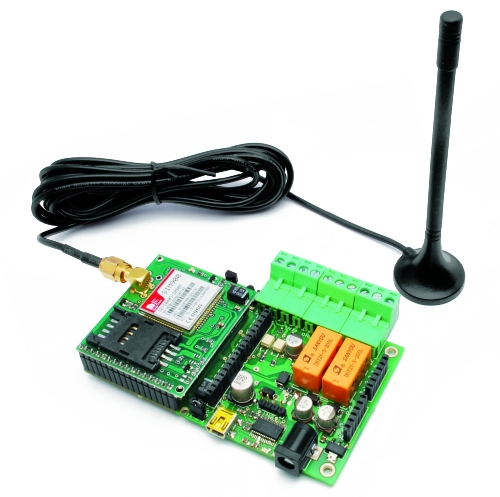
Software and firmware for TiDiGino (GSM remote controller with Arduino)

A lot of people who bought the TiDiGino ask me how to test it.
The Gsm Remote Control is provided with bootloader, so you have to insert the prefered sketch that you can find in code.google.
Daniele Denaro wrote a good sketch for TiDiGino, and I’m reporting his tutorial.
Ask me (and him) all do you need.
Author Daniele Denaro

Be careful, because you have to manipulate the environment of development (IDE) 1.0 to insert the new hardware.
In particular replace the file “boards.txt” (see below).
In this new version of the file has been added to the section on hardware TiDiGino.
You should also add the folder “tidigino” that “boards.txt” references (see below).
The changes will be visible to restart the IDE.

Changes from previous version 1.0:

- It was introduced double message mode for alarms. Meaning now is also detected the return to the base level (end alarm) with the possibility to be notified by a second message.

- It is advisable to perform a reset procedure to be safe pressing both the switch P1 and P2 on the first start after installation.

- Fixed some errors in the Java program.

NB. If you have an unmodified hardware TiDiGino, should arrange removal 100-ohm resistor R20 (near the USB connector). Because otherwise…
TiDiGino remains constantly in reset and will not start unless it is also connected to the USB.
(As distinct from the opening of the JP2 jumper that only affects the transparency serial link to the functioning of the operating TiDiGino)

The download includes:
- Installation of this file
- A Italian handbook pdf: TiDiGinoMan.pdf
- A quick Italian reference guide to the controls and the installation and startup: TiDiGinoShort.pdf

- A folder “FirmwareTiDiGino” containing the firmware for TiDiGino;
“TiDiGinoMainV12.ino”: main sketch;
5 modules in the folder “modules”:
“Commands.c”: Commands and their management
“Phone.c” Management Procedures GSM
“Pins.c” Definitions of corresponding pins of the Arduino and global variables
“StateVariables.c” Variables to store the state of the controller and procedures for EEPROM
“Utility.c”: Various procedures used by other modules

- An executable jar file “TiDiGinoW32.jar” and “TiDiGinoW64.jar”
(Containing the Java application interface for Windows32 or Windows64)
(Just extract the files in a directory and appropriate “to click” above)

- A “Library” folder containing (for convenience) Arduino libraries used.
To be installed in the directory “libraries” of the Arduino software (if not already present)

- File “boards.txt” that replaces the same name in the “hardware\arduino”. This file has been added TiDiGino the platform that you will find it listed along with the other (after restarted the IDE). This file is pointing to the directory “Tidigino” of “variants”

- The folder “tdigino” that contains the file “pins_arduino.h” which realizes the map particular hardware of TiDiGino. This folder should be added to other in the templates folder (the folder “hardware\arduino\variants” of the environment Arduino 1.0)

N.B.
To load the sketch of TiDiGino must first edit the path of inclusion forms.
In fact we used the absolute path to solve the problems with the Arduino compiler.
The inclusion of modules is obviously “TiDiGinoMain.ino”.
The easiest thing is to create a folder in the workspace Arduino “TiDiGinoMain”, copy the file “TiDiGinoMain” and the Forms folder, then edit the file, changing paths, and finally activate the upload.
Attention! At the first start after the upload, press P1 and P2 to reset and load the default values ​​to EEPROM.

N.B.
The application interface is in Java (and so you must have Java installed) but it is only for WINDOWS environment because of the library bill for the management of the serial port.
(If the jar was not associated with java you can run it from the console window command “java-jar TiDiGinoWxx.jar”, or creating a link using “javaw-jar TidiGinoWxx.jar”)
Keep in mind that every time you open the serial port you have a firmware restart unless you open jumper JP2 (near the USB connector) that prevents the software reset of Arduino.

N.B.
The software is “open source” and therefore disclaims any liability arising from its use.

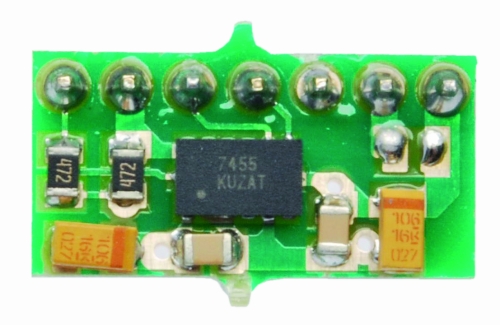
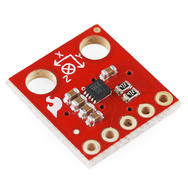
MMA7455L Three Axis Digital Output Accelerometer


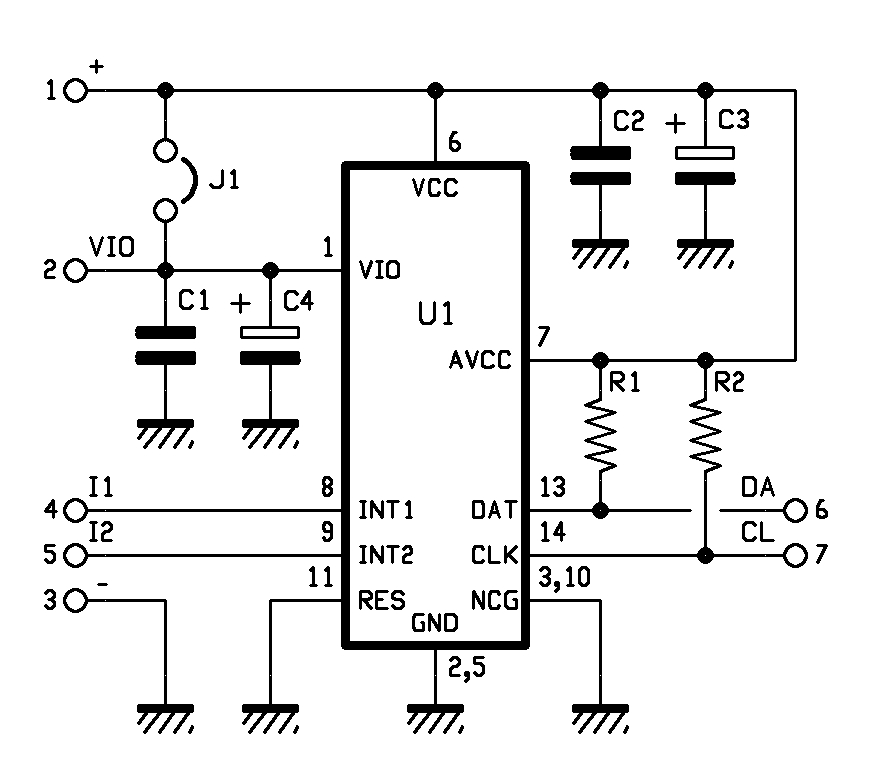
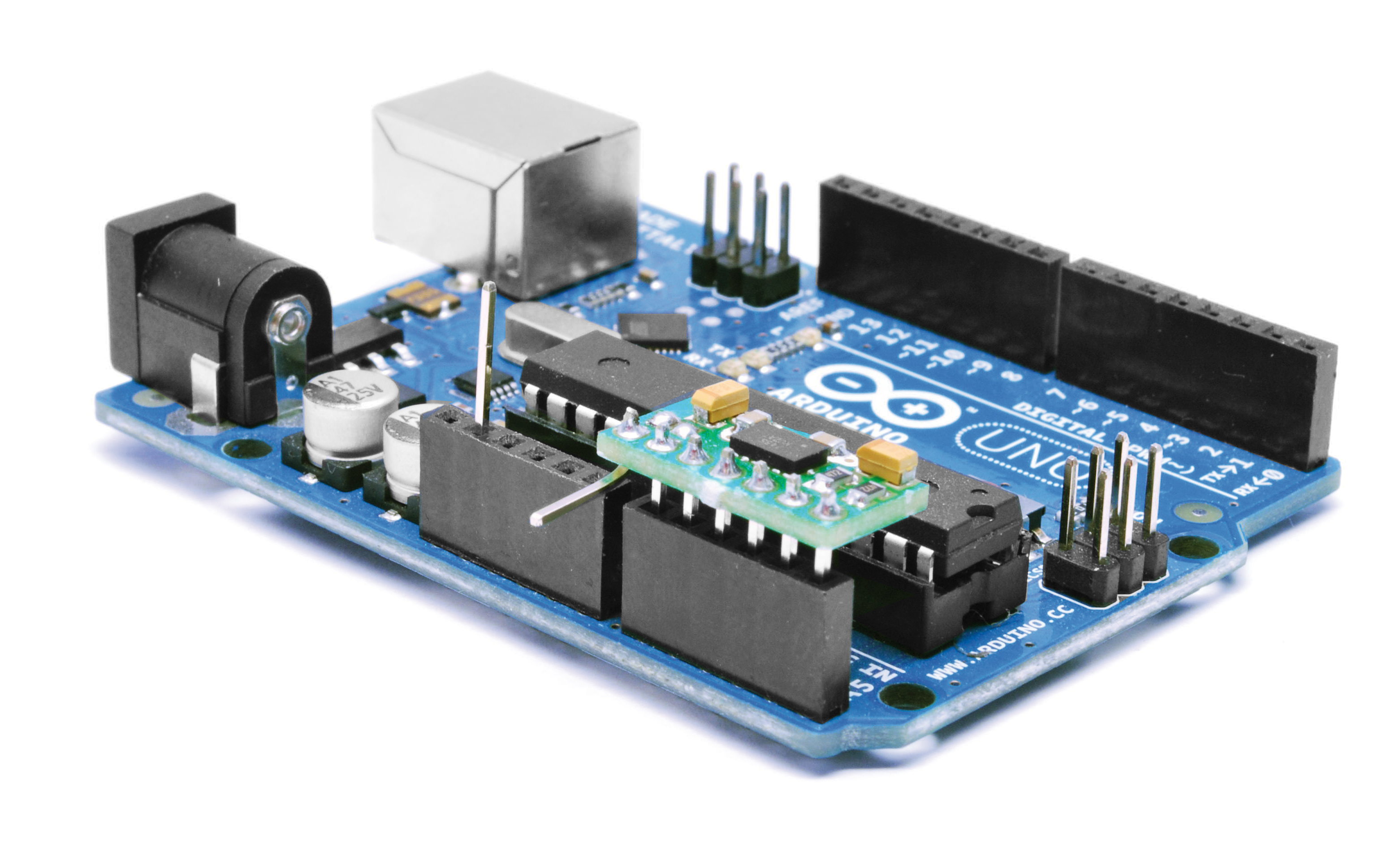
This module integrates the sensor MMA7455L (produced by Freescale), able to detect the movement on three axes, and then in every direction. The chip offers the possibility to select three different sensitivity (± 2g, ± 4g, ± 8g) and makes available, on an SPI bus and the I ² C-Bus, the data detected by allowing a more easily read by a microcontroller. There are also two programmable interrupt lines to communicate a certain event, or to perform one or more actions when it detects a certain acceleration or when the module is stopped.

The accelerometer connections are carried out on a male strip pitch 2.54 mm, seven contacts, which allows the insertion in any dip socket, female strip or directly on the printed circuit. The module, powered with a DC voltage of 2.5 to 3.6 V, is suitable for be used in all systems that require the detection of movement, acceleration, such as an alarm systems for vehicle, laboratory analytical instruments, electrical equipment, machinery test and robots.

The module has extremely compact dimensions (10x18x3, 6mm).

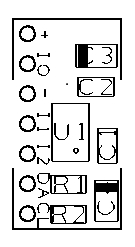
Before using this module is necessary to establish (through jumper J1) which must be the voltage applied to pin VIO (Digital Power for I/O pads), levels of the I / O interface must be the same of micro. If the voltage applied between the pin + and – of the module is the same as the interface device is necessary to close J1, while if it is different (for example because the micro operates at 5V) the jumper must be open and the line VIO must be connects to the same supply voltage of the microcontroller. The I ² C-Bus module is assigned to 00111011. For more information on the chip MMA7455L consult the datasheet from the Internet site www.freescale.com.

To show the operation of the module I made a little demo with Arduino.

The connection to the microcontroller is very simple and the pin-out allows you to insert the module in the 6-pin for the analog inputs.
The low absorption permit to use the input pin A0 as level of communicationis (VIO) brought it to a high logic level (5V), while the pin A1 is set to 0, the mass for the MMA7455L.
The main supply voltage is provide from 3.3 V by Arduino.

Thanks to the library Wire.h pin A4 and A5 are used to communicate directly with the module.
The communication is very simple thank the library MMA_7455.h developed by Moritz Kemper.

// Example which uses the MMA_7455 library
// Moritz Kemper, IAD Physical Computing Lab
// moritz.kemper@zhdk.ch
// ZHdK, 20/11/2011

//Modified by Boris Landoni
//www.open-electronics.org

#include <Wire.h> //Include the Wire library
#include <MMA_7455.h> //Include the MMA_7455 library

const int vcc =  A0;
const int gnd =  A1; 

MMA_7455 mySensor = MMA_7455(); //Make an instance of MMA_7455

char xVal, yVal, zVal; //Variables for the values from the sensor
float x, y, z;

void setup()
{
  pinMode(gnd, OUTPUT);
  pinMode(vcc, OUTPUT);
  digitalWrite(gnd, LOW);
  digitalWrite(vcc, HIGH);
  delay (1000);

  Serial.begin(9600);
  Serial.println("start");

  // Set the sensitivity you want to use
  // 2 = 2g, 4 = 4g, 8 = 8g
  mySensor.initSensitivity(8);
  // Calibrate the Offset, that values corespond in
  // flat position to: xVal = -30, yVal = -20, zVal = +20
  // !!!Activate this after having the first values read out!!!
  mySensor.calibrateOffset(0, 0, 0);

}

void loop()
{
  long start = micros();
  //xVal = mySensor.readAxis('x'); //Read out the 'x' Axis
  //yVal = mySensor.readAxis('y'); //Read out the 'y' Axis
  //zVal = mySensor.readAxis('z'); //Read out the 'z' Axis
 /* Serial.print("x: ");
  Serial.print(xVal*0.016, 2);
  Serial.print("\t y: ");
  Serial.print(yVal*0.016, 2);
  Serial.print("\t z: ");
  Serial.println(zVal*0.016, 2);

  Serial.print("x: ");
  Serial.print(xVal,DEC);
  Serial.print("\t y: ");
  Serial.print(yVal,DEC);
  Serial.print("\t z: ");
  Serial.print(zVal,DEC);
  Serial.print("\t summ: ");
  Serial.println((abs(xVal)+abs(yVal)+abs(zVal)),DEC);*/
    if (Serial.available() > 0) {
    int inByte = Serial.read();
      if (inByte==0x01){
        Serial.print( average(5,'x')); //Serial.print( "\t" );
        Serial.print( average(5,'y')); //Serial.print( "\t" );
        Serial.print( average(5,'z')); //Serial.print( "\t" );
      }
    //Serial.print( micros() - start ); Serial.println();
  }
}

char average(int num, char axis){
  long tot=0;
  char val;
  for (int i=1; i<=num; i++){
    val=mySensor.readAxis(axis);
    tot += val;
   //Serial.print( val,DEC );Serial.print( " " );
   delay(2);
  }
  val=tot/num;
  //Serial.println( val );
  return(val);

}


The software written in Processing By IAN allows you to immediately verify the correct operation of Freescale chip. A cube will rotate like the movements of the sensor.
The applications of this sensor are different and I will show you just developed.

//This example reads in a single byte value from 0 to 255 and graphs it.

/////////////////////////////////////////
//Basic serial communication code
//by Chang Soo Lee
//ITP, NYU
//Created 11/27/2005
/////////////////////////////////////////

//Modified by Boris Landoni
//www.open-electronics.org

import processing.serial.*;
Serial myPort;
int serial = 1;
byte s8=1, x8=0, y8=0, z8=0, cnt=0;
PFont font;
int numH = 370;  

// This will contain the pixels used to calculate the fire effect
int[][] fire;

// Flame colors
color[] palette;
float angle;
int[] calc1,calc2,calc3,calc4,calc5;

PGraphics pg;

void setup () {
    size(1500, 1000, P2D);

  // Create buffered image for 3d cube
  pg = createGraphics(width, height, P3D);

  calc1 = new int[width];
  calc3 = new int[width];
  calc4 = new int[width];
  calc2 = new int[height];
  calc5 = new int[height];

    colorMode(HSB);

  fire = new int[width][height];
  palette = new color[255];

  // Generate the palette
  for(int x = 0; x < palette.length; x++) {
    //Hue goes from 0 to 85: red to yellow
    //Saturation is always the maximum: 255
    //Lightness is 0..255 for x=0..128, and 255 for x=128..255
    palette[x] = color(x/3, 255, constrain(x*3, 0, 255));

  }

  // Precalculate which pixel values to add during animation loop
  // this speeds up the effect by 10fps
  for (int x = 0; x < width; x++) {
    calc1[x] = x % width;
    calc3[x] = (x - 1 + width) % width;
    calc4[x] = (x + 1) % width;
  }

  for(int y = 0; y < height; y++) {
    calc2[y] = (y + 1) % height;
    calc5[y] = (y + 2) % height;
  }

  //size(270, 440);
  println(Serial.list());
  myPort = new Serial(this, Serial.list()[15], 9600);
  // Load the font. Fonts must be placed within the data
  // directory of your sketch. Use Tools > Create Font
  // to create a distributable bitmap font.
  // For vector fonts, use the createFont() function.
  hint(ENABLE_NATIVE_FONTS);
  //font = loadFont("ArialMT-48.vlw");
  smooth();
    myPort.write(0x01);

}

void draw () {
  if (myPort.available() > 0) {
    serial = (myPort.read());
    s8=0;
    s8+=serial;
    switch(cnt) {
      case 0:
        x8=s8;
         break;
      case 1:
        y8=s8;
         break;
      case 2:
        z8=s8;
         break;
      default:
        cnt=0;
        break;
    }
    if(cnt<2){
      cnt++;
      return;
    }
    cnt=0;
    serialEvent();
  }
  //serial=50;
        //rect(120,numH-serial, 20, serial);
  angle = angle + 0.05;

  // Rotating wireframe cube
  pg.beginDraw();
  pg.translate(width >> 1, height >> 1);
  pg.rotateZ(radians((-x8)));
  pg.rotateX(radians(y8));
  pg.background(0);
  pg.stroke(128);
  pg.scale(80);
  pg.noFill();
  pg.box(4);
  pg.endDraw();

  loadPixels();

  int counter = 0;
    // Do the fire calculations for every pixel, from top to bottom
  for (int y = 0; y < height; y++) {
    for(int x = 0; x < width; x++) {
      // Add pixel values around current pixel

      fire[x][y] =
          ((fire[calc3[x]][calc2[y]]
          + fire[calc1[x]][calc2[y]]
          + fire[calc4[x]][calc2[y]]
          + fire[calc1[x]][calc5[y]]) << 5) / 129; 

      // Output everything to screen using our palette colors
      pixels[counter] = palette[fire[x][y]];

      // Extract the red value using right shift and bit mask
      // equivalent of red(pg.pixels[x+y*w])
      if ((pg.pixels[counter++] >> 16 & 0xFF) == 128) {
        // Only map 3D cube 'lit' pixels onto fire array needed for next frame
        fire[x][y] = 128;
      }
    }
  }
  //updatePixels();

}

void serialEvent(){

   background(255);
  line(70,70,70,370);
  line(70,270,200,270);
  line(70,370,200,370);
  fill(0);
  //textFont(font, 11);
  text("Sensor\nValue",22,80);
  text("Analog Input", 95, 390);

  noFill();

  println(x8+" "+y8+" "+z8);

  rect(100,270, 20, x8);
  rect(140,270, 20, y8);
  rect(180,270, 20, z8);
    text(s8,25,110);
        myPort.write(0x01);

}

DARPA's crowdsourced UAV competition heats up, takes off (video)

Late last year, DARPA launched UAVForge -- a competition that invites contestants to create their very own unmanned aerial vehicles, and submit them for voter-based evaluation. The project is far from over, but competing teams have already started sending in their proof-of-flight videos, giving us a glimpse of what's to come. So far, it looks like the GremLion UAV (pictured above) is the early favorite, after coming out victorious in the first round of voting. Developed by a team from the National University of Singapore, the GremLion looks like a bite-sized Death Star and flies around using a coaxial set of rotors that expand tulip-style out of its shell. Also included in the UAVForge showdown is a guy known as X-MAUS -- an Arduino-controlled quadcopter that can apparently transform into a more aerodynamic plane form upon liftoff. And, rounding out the list of notables is a submission from TU Delft known as the QuadShot, which is basically a miniature B-Wing from Star Wars. Except it's real. Hit up the break to see all three in action.

Continue reading DARPA's crowdsourced UAV competition heats up, takes off (video)

DARPA's crowdsourced UAV competition heats up, takes off (video) originally appeared on Engadget on Wed, 08 Feb 2012 04:58:00 EST. Please see our terms for use of feeds.

Permalink | Email this | Comments

Arduino hack turns Space Invaders alarm into Gmail Notifier (video)

Glaswegian engineer Grant Gibson spied a Space Invaders alarm clock being flogged off cheap ($5) and decided it deserved hacking. When activated, the battery-powered unit scuttled left to right, old-school style as it roused sleepy gamers but Mr. Gibson added a little Arduino magic to turn it into a moving Gmail notifier. Stripping out the battery compartment, he installed a USB-powered Arduino Nano, programmed to poll his email and activate the motion whenever he received a new message. The system is ripe for customization, it can be set up to alert when a front door bell is pushed or a notification received on Twitter -- which you'll be allowed to try as he's included all the details on his blog. The project (including the Nano and Alarm Clock) came to $20 and three hours of his time, which we're understandably impressed by. Head on past the break to see the thing in action and then fling yourself (highland-style) down to the source link to learn how to build your own.

Continue reading Arduino hack turns Space Invaders alarm into Gmail Notifier (video)

Arduino hack turns Space Invaders alarm into Gmail Notifier (video) originally appeared on Engadget on Mon, 06 Feb 2012 17:04:00 EST. Please see our terms for use of feeds.

Permalink | Email this | Comments

Cryoscope gadget simulates tomorrow's weather today (video)

This multi-layered device can't shower you with hail or tan your outdoor-deprived complexion, regrettably. What it can do though, is deliver a direct haptic sensation of how warm or cold it'll be tomorrow, just in case you decide to venture out of your bedroom. An Arduino controller pulls in forecast data from the web and uses it to adjust a Peltier element and a cooling fan, which are housed along with a heat sink inside a neat and tactile aluminum box. The Cryoscope is the handiwork of industrial design student Robb Godshaw, and it's the reason he already knew he'd be wearing a skinny t-shirt and stripey socks in the video after the break.

Continue reading Cryoscope gadget simulates tomorrow's weather today (video)

Cryoscope gadget simulates tomorrow's weather today (video) originally appeared on Engadget on Mon, 06 Feb 2012 08:28:00 EST. Please see our terms for use of feeds.

Permalink | Email this | Comments

Start your Car from Afar using Arduino

This DIYer had a 1st generation iPhone lying around, so he decided to put it to good use.  You can use any phone to accomplish this, even a $10 prepaid phone.  An SMS to the iPhone goes through an Arduino which tells yours car to start or stop from anywhere.  There’s some custom circuitry and programming which is all included in the instructions. When a text message is sent to the iPhone, the iPhone tells the Arduino to start the engine, and the iPhone sends a message back reporting that the start has commenced. Check out the full details to make your own.

Top Arduino Projects:

Magnetometer and accelerometer read simultaneously

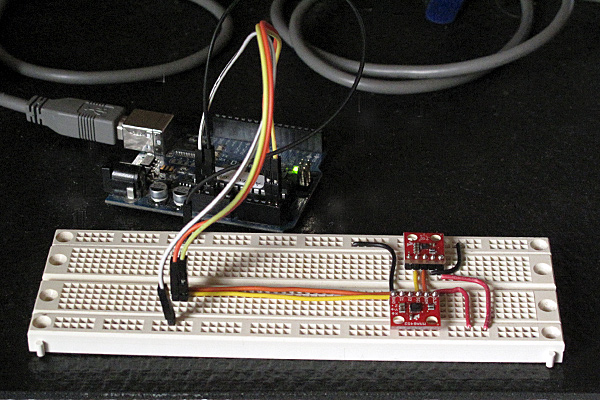
In Learning to Use I2C and Magnetometer not fried, I talked about interfacing the MAG3110 magnetometer and MQA8452Q accelerometer to an Arduino.  For both, I’m using breakout boards from Sparkfun Electronics.

I  checked today that there are no problems when I connect both devices to the same I2C bus.

The first test was very simple: I put both the breakout boards into a breadboard and wired them together, then tried running each of the programs I’d written for the chips separately. Result: no problems—worked first time.

I then tried merging the programs (cleaning up any naming conflicts) so that both could be run from the same code.  After a few typo fixes, this also worked fine

I think I’m now ready to hand over the software to the students to use for their robot.

I still need to put the i2c.h, i2c.cpp, and accel_magnet code in some public place for others to use (perhaps on github? maybe on my web pages at work?) [UPDATE 2012-jan-31: I have put the libraries and the sample code for the accelerometer and magnetometer at http://users.soe.ucsc.edu/~karplus/Arduino/]

One thing that is still missing is doing tilt correction for the compass heading.  Since the ROV is not expected to remain level (the accelerometer is intended to be used in a feedback loop to adjust the pitch, with anything from -90° to +90° being reasonable), getting a good compass heading requires rotating the magnetometer readings into the horizontal plane.  Only one of the students in the robotics club has had trigonometry or matrix math, so I’ll have to work with him to get him to figure out how to do the tilt correction. It may be simplest conceptually  to compute pitch and roll angles first, then rotate twice, rather than trying to do the whole tilt correction in one step (especially since the Arduino does not have matrix libraries).

Related articles

Tagged: accelerometer, Arduino, I²C, magnetometer, robotics, SparkFun, SparkFun Electronics

Arduino WiFi Shield


The shield most used in practice are those that expand the communication of the Arduino board and in particular those that allow to add a network connection to a TCP / IP.
The first shield of this kind were those based on Ethernet technology, which helps the Arduino to connect to a LAN based on Ethernet TCP / IP, and so to Internet.
The convenience of Wi-Fi is now known to all: no more cables to spread (which increases the cost and time of construction of any plant) and full freedom in the positioning of the different nodes of the wireless network.
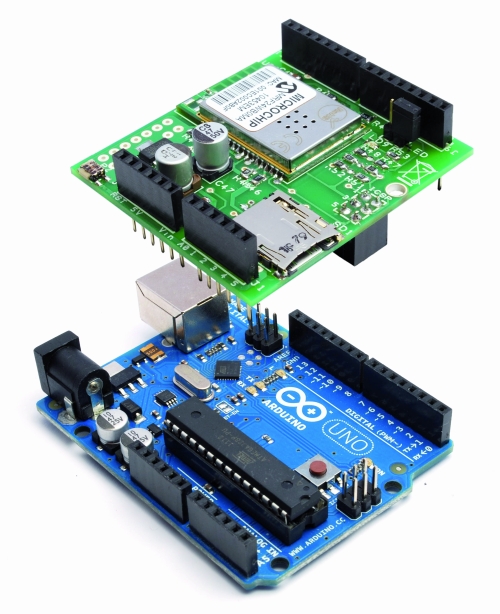
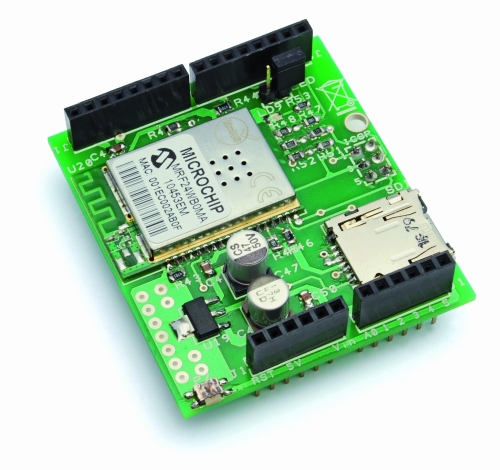
One of the first companies to focus on Wi-Fi was the AsyncLabs, who proposed a famous WiFi shield, including the appropriate libraries.
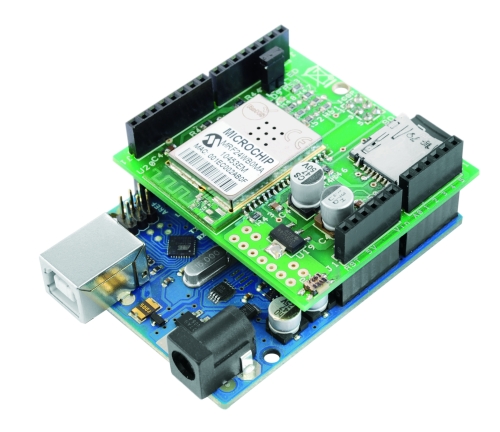
What we propose is a new solution for Wi-Fi: this is a shield that the hardware was inspired by that of AsyncLabs, but in addition, we have provided a slot for microSD memory.
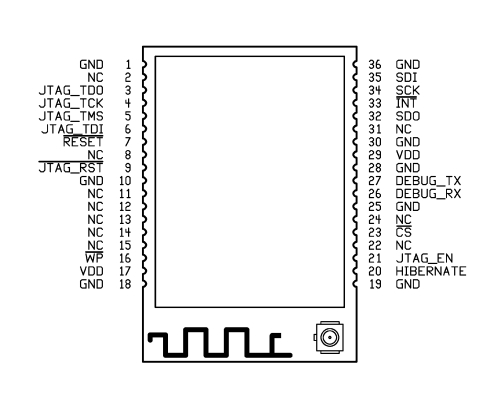
The basic component of the shield that we have made is a Wi-Fi module MRF24WB0MA manufactured by Microchip.
The device is a Wi-Fi IEEE 802.11 RF transceiver, with a data rate between 1 and 2 Mbps, and with an internal antenna.
The WiFi shield supports both types of wireless networks infrastructure (BSS) and ad-hoc (IBSS) and is also allowed to connect to secure networks (cryptographers and are supported 64 and 128-bit WEP, WPA/WPA2 and TKIP, AES and PSK).
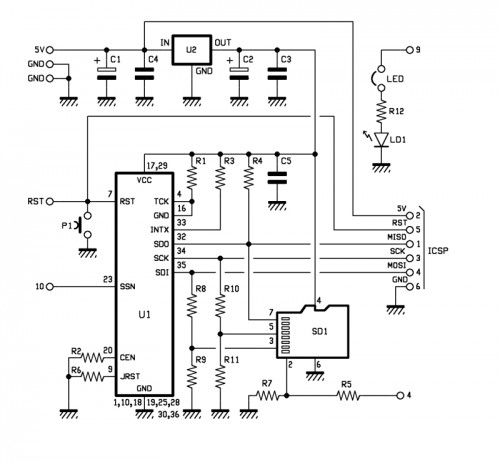
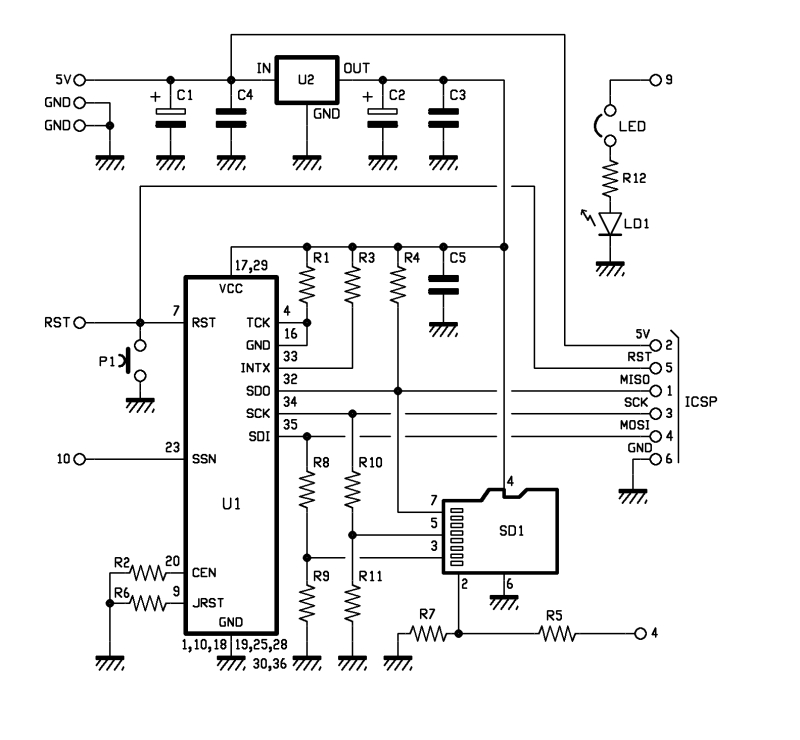
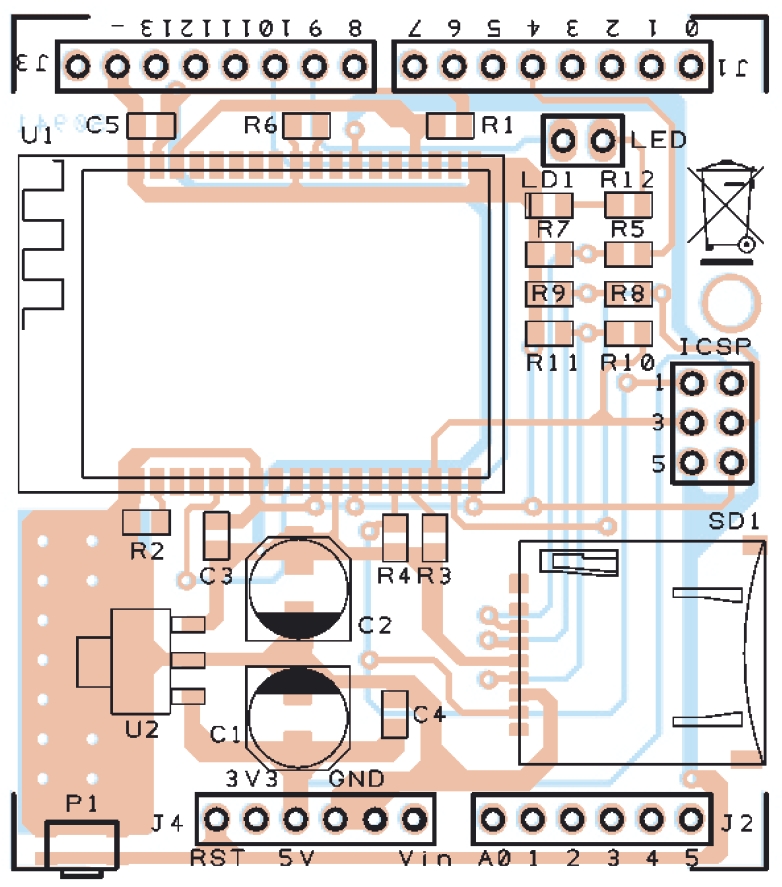
In our project is using the SPI connection for communication with the WiFi controller through the SDO, SCK and SDI (pin 32, 34 and 35) and, if necessary, can be reset using a button (P1 in the diagram).
Peculiarities of our shield is that it has a SD card slot (SD1 signed in the schematic), managed by Arduino always through the SPI port.
There is also a LED (LD1 signed) used to indicate whether the Wi-Fi is active or not, its management is implemented through a hardware port, so you usually can not be used by software. In the event that was needed precisely this port, you still have a jumper that, when opened, making it available again disconnect the LED pin I / O.
Finally, to complete the hardware of the shield there is a section dedicated to the power, consists of a 3.3 V voltage regulator (indicated with U2).
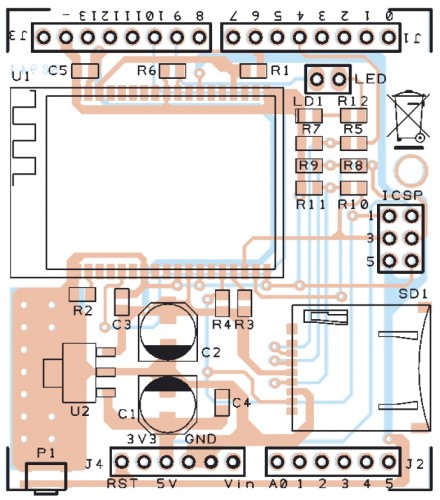
BOM

R1: 4,7 kohm (0805)
R2: 4,7 kohm (0805)
R3: 4,7 kohm (0805)
R4: 4,7 kohm (0805)
R5: 1 kohm (0805)
R6: 4,7 kohm (0805)
R7: 2,2 kohm (0805)
R8: 1 kohm (0805)
R9: 2,2 kohm (0805)
R10: 1 kohm (0805)
R11: 2,2 kohm (0805)
R12: 330 ohm (0805)

C1: 220 µF 6,3 VL (D)
C2: 220 µF 6,3 VL (D)
C3: 100 nF (0805)
C4: 100 nF (0805)
C5: 100 nF (0805)

LD1: Led (0805)

U1: MRF24WB0MA/RM
U2: TC1262-3.3 (SOT-223)

SD1: µSD-Card (MICROSDSOCK2)

P1: switch SMD

Varie:
- headers  male 2 via
- headers  M/F 6 via(2 pz.)
- headers  M/F 8 via(2 pz.)
- headers  M/F 3 via(2 pz.)
- Jumper
- PCB

The library supports various operating modes, which are Web Server, Web Client, Socket, UDP and WiServer.

The library is constantly evolving, so we have provided a space where they will be published on code.google.com various versions available.

Code Example for WiFi shield

 Web Client

/******************************************************
 SoftwareDemo2WebClientWiFi
 Esempio codice Web Client tramite Wi-Fi
 Autori: Ingg. Tommaso Giusto e Ing. Alessandro Giusto
 Email:  tommro@libero.it
******************************************************/

// Inclusione Libreria per Server Web WiFi
#include <WiServer.h>

// Definizione Parametri Rete Wireless
#define WIRELESS_MODE_INFRA	1  // Infrastrutturata (basata su Access Point)
#define WIRELESS_MODE_ADHOC	2  // Ad-hoc (senza Access Point)

unsigned char local_ip[] = {192, 168, 1, 250};      // Indirizzo IP
unsigned char gateway_ip[] = {192, 168, 1, 91};	    // Indirizzo gateway IP
unsigned char subnet_mask[] = {255, 255, 255, 0};   // Subnet Mask
const prog_char ssid[] PROGMEM = {"Sitecom"};	    // SSID access point

// Selezione tipo di cifratura rete Wireless
unsigned char security_type = 0;  // 0 -> nessuna cifratura
                                  // 1 -> cifratura WEP
                                  // 2 -> cifratura WPA
                                  // 3 -> cifratura WPA2

// Password cifratura per WPA/WPA2 (max. 64 cratteri)
const prog_char security_passphrase[] PROGMEM = {"12345678"};

// Password cifratura per WEP 128-bit keys
prog_uchar wep_keys[] PROGMEM = {0x01, 0x02, 0x03, 0x04, 0x05, 0x06, 0x07, 0x08, 0x09, 0x0a, 0x0b, 0x0c, 0x0d,
				 0x00, 0x00, 0x00, 0x00, 0x00, 0x00, 0x00, 0x00, 0x00, 0x00, 0x00, 0x00, 0x00,
				 0x00, 0x00, 0x00, 0x00, 0x00, 0x00, 0x00, 0x00, 0x00, 0x00, 0x00, 0x00, 0x00,
				 0x00, 0x00, 0x00, 0x00, 0x00, 0x00, 0x00, 0x00, 0x00, 0x00, 0x00, 0x00, 0x00};

// Selezione tipo di rete Wireless infrastrutturata
unsigned char wireless_mode = WIRELESS_MODE_INFRA;

// Variabili per lunghezza SSID e password di cifratura
unsigned char ssid_len;
unsigned char security_passphrase_len;

// Definizione Parametri Google Search
// Indirizzo IP per server www.google.it
uint8 google_ip[] = {209, 85, 148, 106};

// Richiesta GET verso GOOGLE
GETrequest getGoogleSearch (google_ip, 80, "www.google.it", "/search?q=ElettronicaIn");

// Inizializzazione Scheda
void setup() {
  // Inizializzo WiServer (NULL indica non dobbiamo servire pagine Web)
  WiServer.init (NULL);
  // Inizializzo porta seriale
  Serial.begin (9600);
  WiServer.enableVerboseMode (false);

  // Inizializzazione richiesta GET (parametro indica funzione a cui verra' passata la risposta)
  getGoogleSearch.setReturnFunc (Gestione_Risposte_Web);
}

// Variabile memorizzazione riavvio (millisecondi) di esecuzione ricerca
long updateSearch = 0;

// Programma Principale
void loop() {
  // Se passato periodo di attesa esecuzione ricerca
  if (millis() >= updateSearch) {
    // Eseguo ricerca
    getGoogleSearch.submit();
    // Aggiorno tempo di riavvio (attensa di 1 ora)
    updateSearch = updateSearch + (1000 * 60 * 60);
  }

  // Avvio WiServer
  WiServer.server_task();

  // Attesa
  delay(10);
}

// Gestione diverse risposte provenienti dal WEB
void Gestione_Risposte_Web (char* data, int len) {
  // Stampo la risposta proveniente dal WEB su porta seriale
  int i;

  // Stampo i singoli caratteri della risposta proveniente dal WEB su porta seriale
  for (i = 0; i < len; i++) {
    Serial.print(*(data));
    data++;
  }
}

Web Server

/******************************************************
 SoftwareDemo1WebServerWiFi
 Esempio codice Web Server tramite Wi-Fi
 Autori: Ingg. Tommaso Giusto e Ing. Alessandro Giusto
 Email:  tommro@libero.it
******************************************************/

// Inclusione Libreria per Server Web WiFi
#include <WiServer.h>

// Definizione pin INPUT/OUTPUT
int Pin_Led_Rosso = 7;  // Led rosso uscita digitale 7

// Definizione Variabili Globali Stato Led
byte Stato_Led_Rosso = 0;  // Stato led rosso

// Definizione Parametri Rete Wireless
#define WIRELESS_MODE_INFRA	1  // Infrastrutturata (basata su Access Point)
#define WIRELESS_MODE_ADHOC	2  // Ad-hoc (senza Access Point)

unsigned char local_ip[] = {192, 168, 1, 250};      // Indirizzo IP
unsigned char gateway_ip[] = {192, 168, 1, 91};	    // Indirizzo gateway IP
unsigned char subnet_mask[] = {255, 255, 255, 0};   // Subnet Mask
const prog_char ssid[] PROGMEM = {"Sitecom"};	    // SSID access point

// Selezione tipo di cifratura rete Wireless
unsigned char security_type = 0;  // 0 -> nessuna cifratura
                                  // 1 -> cifratura WEP
                                  // 2 -> cifratura WPA
                                  // 3 -> cifratura WPA2

// Password cifratura per WPA/WPA2 (max. 64 cratteri)
const prog_char security_passphrase[] PROGMEM = {"12345678"};

// Password cifratura per WEP 128-bit keys
prog_uchar wep_keys[] PROGMEM = {0x01, 0x02, 0x03, 0x04, 0x05, 0x06, 0x07, 0x08, 0x09, 0x0a, 0x0b, 0x0c, 0x0d,
				 0x00, 0x00, 0x00, 0x00, 0x00, 0x00, 0x00, 0x00, 0x00, 0x00, 0x00, 0x00, 0x00,
				 0x00, 0x00, 0x00, 0x00, 0x00, 0x00, 0x00, 0x00, 0x00, 0x00, 0x00, 0x00, 0x00,
				 0x00, 0x00, 0x00, 0x00, 0x00, 0x00, 0x00, 0x00, 0x00, 0x00, 0x00, 0x00, 0x00};

// Selezione tipo di rete Wireless infrastrutturata
unsigned char wireless_mode = WIRELESS_MODE_INFRA;

// Variabili per lunghezza SSID e password di cifratura
unsigned char ssid_len;
unsigned char security_passphrase_len;

// Inizializzazione Scheda
void setup() {
  // Inizializzo pin usati come INPUT/OUTPUT
  pinMode (Pin_Led_Rosso, OUTPUT);

  // Inizializzo WiServer (Gestione_Richieste_Web per creare/trasmettere pagine HTML)
  WiServer.init (Gestione_Richieste_Web);
  // Inizializzo porta seriale
  Serial.begin (9600);
  WiServer.enableVerboseMode (false);

  // Spengo led rosso
  Led_Rosso_OFF();
}

// Programma Principale
void loop() {
  // Avvio WiServer
  WiServer.server_task();
}

// Gestione diverse richieste provenienti dal WEB
// INPUT:   URL pagina web richiesta
// OUTPUT:  Flag URL riconosciuto/non riconosciutoo
boolean Gestione_Richieste_Web (char* URL) {
  // Se URL richieso corrisponde a "/" (pagina index)
  if (strcmp (URL, "/") == 0) {
    // Secondo gli I/O creo e invio le pagine Web
    Invia_Pagina_Web();

    // Ritorno URL è stato riconosciuto
    return (true);
  }    // Chiusura if URL richieso corrisponde a "/" (pagina index)

  // Se URL richieso corrisponde a "?OPERATION=ACCENDI_ROSSO
  if (strcmp (URL, "/?OPERATION=ACCENDI_ROSSO") == 0) {
    // Accendo led rosso
    Led_Rosso_ON();
    Stato_Led_Rosso = 1;

    // Secondo gli I/O creo e invio le pagine Web
    Invia_Pagina_Web();

    // Ritorno URL è stato riconosciuto
    return (true);
  }    // Chiusura if URL richieso corrisponde a "?OPERATION=ACCENDI_ROSSO"

  // Se URL richieso corrisponde a "?OPERATION=SPEGNI_ROSSO"
  if (strcmp (URL, "/?OPERATION=SPEGNI_ROSSO") == 0) {
    // Spengo led rosso
    Led_Rosso_OFF();
    Stato_Led_Rosso = 0;

    // Secondo gli I/O creo e invio le pagine Web
    Invia_Pagina_Web();

    // Ritorno URL è stato riconosciuto
    return (true);
  }    // Chiusura if URL richieso corrisponde a "?OPERATION=SPEGNI_ROSSO"

  // Ritorno URL non riconosciuto
  return (false);
}

// Funzione che, secondo gli I/O, crea e invia le pagine Web
void Invia_Pagina_Web() {
  // Usando le funzioni WiServer.print trasmette al pagina Web da visualizzare
  WiServer.print ("<html>");
  WiServer.print ("<head>");
  WiServer.print ("<meta http-equiv=""refresh"" content=""10;url=http://");
  WiServer.print (local_ip[0], DEC);
  WiServer.print (".");
  WiServer.print (local_ip[1], DEC);
  WiServer.print (".");
  WiServer.print (local_ip[2], DEC);
  WiServer.print (".");
  WiServer.print (local_ip[3], DEC);
  WiServer.print ("/"" />");
  WiServer.print ("</head>");
  WiServer.print ("<p align=""center"">");
  WiServer.print ("Hello World!<br>");
  WiServer.print ("Esempio Web Server tramite librerie WiShield<br>");
  WiServer.print ("By Ingg. Tommaso Giusto e Ing. Alessandro Giusto<br>");
  WiServer.print ("(tommro@libero.it)<br>");

  // Se led rosso spento
  if (Stato_Led_Rosso == 0) {
    WiServer.print ("<form>Led rosso spento<br>");
    WiServer.print ("<method=GET>");
    WiServer.print ("<input type=submit name=OPERATION value=ACCENDI_ROSSO></form><br>");
  }    // Chiusura if led rosso spento
  // Se led rosso acceso
  else {
    WiServer.print ("<form>Led rosso acceso<br>");
    WiServer.print ("<method=GET>");
    WiServer.print ("<input type=submit name=OPERATION value=SPEGNI_ROSSO></form><br>");
  }    // Chiusura if led rosso acceso

  // Termino pagina HTML
  WiServer.print ("</html>");
}

// Accende il led rosso
void Led_Rosso_ON() {
  digitalWrite (Pin_Led_Rosso, LOW);
}

// Spegne il led rosso
void Led_Rosso_OFF() {
  digitalWrite (Pin_Led_Rosso, HIGH);
}


Magnetometer was not fried

MAG3110 breakout board by Sparkfun

In Learning to Use I2C, I talked about the difficulty I’d been having getting the MAG3110 breakout board from Sparkfun to work, and my fears that I had burned it out by running it overnight at 5v (instead of the rated 3v).  I suspected that my problem was really a software problem, but debugging the software when I was afraid that the hardware was fried seemed like an exercise in futility.

I bought another of the breakout boards from Sparkfun (they’re only $15), and soldered on a header yesterday.  The code failed in almost exactly the same way with the new (presumed good) part as with the old (presumed fried) part, so I was convinced that the problem was indeed in the software.

I spent half of yesterday and most of this morning carefully rewriting the library of I2C interface code.  I was starting with example code from Sparkfun for the MMA8452Q accelerometer, which I had generalized to handle other I2C devices.

The library worked fine with the accelerometer, so I thought it was ok, but it did not work with the magnetometer. I added a lot of error checking (making sure that the microprocessor was in the expected state after each I2C operation), and found that things were not working as expected. The extra error checking made it much easier to diagnose the problems. I had to re-read the I2C documentation in the ATMega328 datasheet several times, to make sure that I had all the details right (I didn’t, of course). The documentation in that data sheet is better than several of the tutorials I’ve seen on line, and is both thorough and comprehensible in describing the interface.

I did not implement all features of the I2C  interface—in fact, I have a rather minimal implementation that uses polling rather than interrupts and assumes that the Arduino will always be the bus master.  Those assumptions are fine for most Arduino projects, which just use the I2C bus for talking to a handful of peripherals, but sometime in the future I may need to make a more complete set of code that can handle multiple masters, the Arduino as a slave device, and interrupts rather than polling and waiting for operations to finish.

Because I was more interested in simplicity and robustness than speed, I rewrote the code so that transactions were finished (and appropriate status checked) before functions returned.  With these changes I found that the STOP condition was not happening, despite being requested.  All other operations on the bus are checked with the TWINT bit  of the TWCR register and the upper bits of the TWSR register, but determining that STOP has completed requires checking the TSWTO bit of the TWCR register. The code I had started from just checked the TWINT bit for the other operations, and had a fixed timeout that was too short—it did no checking at all on the STOP state, just adding a fixed delay.

Once I got the STOP timing cleaned up (and earlier, making sure to send NAK when reading the last byte), everything worked fine.  The accelerometer code  had probably worked ok because there were enough delays after stops that the stops completed, even though I had not checked to make sure.  With the fixed code, even the magnetometer that I thought I had fried seems to work ok.

The interface for the students in the Robotics Club is fairly simple (much simpler than the standard “Wire” library):

// Read one register
uint8_t i2cReadRegister(uint8_t i2c_7bit_address, uint8_t address);
// Read num_to_read registers starting at address
void i2cReadRegisters(uint8_t i2c_7bit_address, uint8_t address, uint8_t num_to_read, uint8_t * dest);

// Write one register
void i2cWriteRegister(uint8_t i2c_7bit_address, uint8_t address, uint8_t data);
// Write num_to_write registers, starting at address
void i2cWriteRegisters(uint8_t i2c_7bit_address, uint8_t address, uint8_t num_to_write, const uint8_t *data);

I suppose I should check that there are no problems when I connect both devices to the same I2C bus, before handing this over to the students to use for their robot.

I should also put the i2c.h and i2c.cpp in some public place for others to use (perhaps on github? maybe on my web pages at work?). It is really a shame that WordPress.com does not permit code-like files as pages.

Related articles

Tagged: accelerometer, Arduino, i2c, magnetometer, robotics, SparkFun, SparkFun Electronics

Arduino hack gives a second screen to Android phones, isn't very useful (video)

Who knows why tech tinkerers do what they do. We're just happy to see those idle hands try the untested. Like this latest Arduino hack from modder Michael of Nootropic Design, who's seen fit to rig a 16 x 32 LED matrix up to an Android phone for use as a secondary display. The outputted video, downscaled via OpenCV software to an appropriate resolution and 12-bit color, is admittedly unimpressive, as it chugs along at a paltry four frames per second. But that's not the point of this can-do experiment -- it's all about the possibilities, however blurry and pointless they may be (although, we're sure Barbara Walters would beg to differ). Ready to see this modjob in motion? Then head on past the break for a brief video demo.

Continue reading Arduino hack gives a second screen to Android phones, isn't very useful (video)

Arduino hack gives a second screen to Android phones, isn't very useful (video) originally appeared on Engadget on Wed, 25 Jan 2012 09:28:00 EST. Please see our terms for use of feeds.

Permalink | Email this | Comments