Posts with «arduino» label

3-axis accelerometer motion detector project

Description:
A 3-axis accelerometer sits at the heart of this project to provide a nifty little motion detector. Want to know who is stealing from the cookie jar? Want a simple home intrusion detector? Or to test your partner's driving skills? Then have a look at this:

(Soldering required for this project)


Video:


Parts Required:


Instructions:

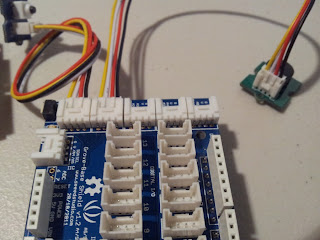
  1. Overlay the Seeed Studio Base Shield onto the Freetronics Eleven (or compatible Arduino).
  2. Use a Universal Cable to attach a Seeed Studio Grove Button to Analog Pin 0 on the Base Shield. The socket is located directly above the Freetronics Eleven Power plug, and next to the Reset button on the Base Shield. Please note that Analog Pin 1 is not used by the Grove Button.
  3. Use a universal Cable to attache a Seeed Studio Grove Buzzer to Analog Pin 1 on the Base Shield. This is the socket next to the one used in Step 2.
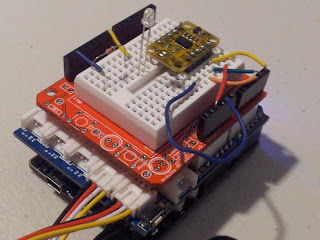
  4. Solder the female header pins to the Protoboard. Overlay the protoboard onto the Base Shield to create a third layer. I created this layer to tidy up the project and make it a little bit more portable. You could just wire up another breadboard on the side.
  5. Stick a mini-breadboard (4.5cm x 3.5cm) onto the protoboard. This allows you to use the protoboard for other projects.
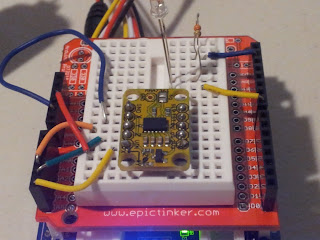
  6. Solder the male headers to the 3-axis accelerometer, and then place it centrally onto the breadboard.
  7. You need 5 wires to connect:
    • GND on protoboard to GND on accelerometer
    • 5V on protoboard to     VIN on accelerometer
    • Analog Pin 3 on protoboard to X on accelerometer
    • Analog Pin 4 on protoboard to Y on accelerometer
    • Analog Pin 5 on protoboard to Z on accelerometer
  8. Connect digital pin 8 to an LED and 330 ohm resistor on the breadboard,
  9. Use a wire to connect the resistor mentioned above to GND on the protoboard
  10. Connect the USB cable from your computer to the Freetronics Eleven, and upload the Arduino Sketch to the board. 
  11. Disconnect the USB cable, and then power the Freetronics Eleven using a 9V battery and clip.
  12. When you press the button, it will sound 3 warning sounds before it becomes activated.
  13. If it detects a vibration or motion that exceeds the tolerance level, it will alarm. The alarm will continue until you either press the Grove button - which resets and reactivates the device or you can press the Reset button on the Base Shield to Stop monitoring for motion.


Sketch


Freetronics Eleven / Arduino Sketch:

 1
2
3
4
5
6
7
8
9
10
11
12
13
14
15
16
17
18
19
20
21
22
23
24
25
26
27
28
29
30
31
32
33
34
35
36
37
38
39
40
41
42
43
44
45
46
47
48
49
50
51
52
53
54
55
56
57
58
59
60
61
62
63
64
65
66
67
68
69
70
71
72
73
74
75
76
77
78
79
80
81
82
83
84
85
86
87
88
89
90
91
92
93
94
95
96
97
98
99
100
101
102
103
104
105
106
107
108
109
110
111
112
113
114
115
116
117
118
119
120
121
122
123
124
125
126
127
128
129
130
131
132
133
134
135
136
137
138
139
140
141
142
143
144
145
146
147
148
149
150
151
152
153
154
155
156
157
158
159
160
161
162
163
164
165
166
167
168
169
170
171
172
173
174
175
176
177
178
179
180
181
182
183
184
185
186
187
188
189
190
191
192
193
194
195
196
197
198
199
200
201
202
203
204
205
206
207
208
209
210
211
212
213
214
215
216
217
218
219
//Motion Detector Alarm - Written by ScottC on 2/08/2012

//Global Variables and constants
const int buttonPin = A0; // button Pin connected to Analog 0
const int buzzerPin = A1; // buzzer Pin connected to Analog 1


//Accelerometer Pins
const int x = A3; // X pin connected to Analog 3
const int y = A4; // Y pin connected to Analog 4
const int z = A5; // Z pin connected to Analog 5


//Alarm LED
const int ledPin = 8; // LED connected to Digital 8


int tolerance=20; // Sensitivity of the Alarm
boolean calibrated=false; // When accelerometer is calibrated - changes to true
boolean moveDetected=false; // When motion is detected - changes to true


//Accelerometer limits
int xMin; //Minimum x Value
int xMax; //Maximum x Value
int xVal; //Current x Value

int yMin; //Minimum y Value
int yMax; //Maximum y Value
int yVal; //Current y Value

int zMin; //Minimum z Value
int zMax; //Maximum z Value
int zVal; //Current z Value


void setup(){
//Begin Serial communication
Serial.begin(38400);

//Initilise LED Pin
pinMode(ledPin, OUTPUT);

}


void loop(){
// If the button is pressed, initialise and recalibrate the Accelerometer limits.
if(analogRead(buttonPin)>500){
calibrateAccel();
}

// Once the accelerometer is calibrated - check for movement
if(calibrated){
if(checkMotion()){
moveDetected=true;
}
}

// If motion is detected - sound the alarm !
if(moveDetected){
Serial.println("ALARM");
ALARM();
delay(1000);
}

}


//This is the function used to sound the buzzer
void buzz(int reps, int rate){
for(int i=0; i<reps; i++){
analogWrite(buzzerPin,900);
delay(100);
analogWrite(buzzerPin,0);
delay(rate);
}
}


// Function used to calibrate the Accelerometer
void calibrateAccel(){
// reset alarm
moveDetected=false;

//initialise x,y,z variables
xVal = analogRead(x);
xMin = xVal;
xMax = xVal;

yVal = analogRead(y);
yMin = yVal;
yMax = yVal;

zVal = analogRead(z);
zMin = zVal;
zMax = zVal;

// Calibration sequence initialisation sound - 3 seconds before calibration begins
buzz(3,1000);

//calibrate the Accelerometer (should take about 0.5 seconds)
for (int i=0; i<50; i++){
// Calibrate X Values
xVal = analogRead(x);
if(xVal>xMax){
xMax=xVal;
}else if (xVal < xMin){
xMin=xVal;
}

// Calibrate Y Values
yVal = analogRead(y);
if(yVal>yMax){
yMax=yVal;
}else if (yVal < yMin){
yMin=yVal;
}

// Calibrate Z Values
zVal = analogRead(z);
if(zVal>zMax){
zMax=zVal;
}else if (zVal < zMin){
zMin=zVal;
}

//Delay 10msec between readings
delay(10);
}

//End of calibration sequence sound. ARMED.
buzz(3,40);
printValues(); //Only useful when connected to computer- using serial monitor.
calibrated=true;

}


//Function used to detect motion. Tolerance variable adjusts the sensitivity of movement detected.
boolean checkMotion(){
boolean tempB=false;
xVal = analogRead(x);
yVal = analogRead(y);
zVal = analogRead(z);

if(xVal >(xMax+tolerance)||xVal < (xMin-tolerance)){
tempB=true;
Serial.print("X Failed = ");
Serial.println(xVal);
}

if(yVal >(yMax+tolerance)||yVal < (yMin-tolerance)){
tempB=true;
Serial.print("Y Failed = ");
Serial.println(yVal);
}

if(zVal >(zMax+tolerance)||zVal < (zMin-tolerance)){
tempB=true;
Serial.print("Z Failed = ");
Serial.println(zVal);
}

return tempB;
}


// Prints the Sensor limits identified during Accelerometer calibration.
// Prints to the Serial monitor.
void printValues(){
Serial.print("xMin=");
Serial.print(xMin);
Serial.print(", xMax=");
Serial.print(xMax);
Serial.println();

Serial.print("yMin=");
Serial.print(yMin);
Serial.print(", yMax=");
Serial.print(yMax);
Serial.println();

Serial.print("zMin=");
Serial.print(zMin);
Serial.print(", zMax=");
Serial.print(zMax);
Serial.println();

Serial.println("------------------------");
}


//Function used to make the alarm sound, and blink the LED.
void ALARM(){

//don't check for movement until recalibrated again
calibrated=false;

// sound the alarm and blink LED
digitalWrite(ledPin, HIGH);
buzz(4,20);
digitalWrite(ledPin, LOW);
}

Yet another Arduino blinkenlight thing, actually pretty cool

On the Tasmanian Linux User Group mailing list, [Hoolio] read someone complaining about the eventual downfall of their upcoming hackerspace as becoming a club of Arduino fanboys. [Hoolio] asked what was wrong with the Arduino, and this terrible, terrible Tasmanian replied, “there’s far too much boring blinkenlights and not enough actual cool stuff.” [Hoolio] took this as a challenge and created his own Arduino blinkenlight project that emulates Space Invaders on a 5×5 matrix of LEDs

The board is just a buzzer, 25 LEDs, 10 transistors, and a pot and button. Before the game begins, a LED chaser is traced out on the perimeter of the display, its speed controllable by the pot. When the button is pressed the game begins, allowing [Hoolio] to move his ship left and right with the pot and fire his lazor with the button.

Yes, it’s a game written for an array of blinkenlights for the Arduino. This doesn’t diminish the build, though. If this were put in a fabulous beige and transported back to 1978, we’d look on the LED version of Space Invaders as fondly as Mattel’s Football.

You can see [Hoolio]‘s game demo after the break.


Filed under: arduino hacks

Learn a new language with the Babel Fish

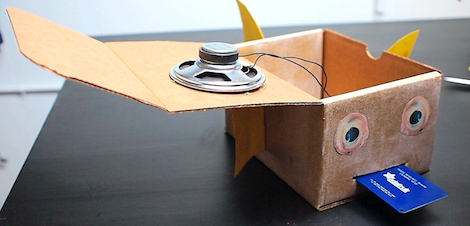
The Babel fish from Hitchhiker’s Guide to the Galaxy is one of the strangest things in the universe. After inserting a Babel fish into your ear, it feeds off brain wave energy and excretes a matrix from the conscious frequencies into the speech areas of the brain. It’s invaluable as a universal translator, but until Earth is targeted for demolition we’ll have to make do with [Becky] from Adafruit’s Babel fish language toy.

[Becky]‘s Babel fish is still able to feed off the energy given off by language, but in this case the energy comes from a set of RFID cards on which Chinese characters are written. After waving these RFID flash cards in front of the Babel fish, a wave shield connected to the Arduino plays a recording of how the logogram on the flash card should sound when pronounced.

While it’s not a biologically engineered fish that simultaneously proves and disproves the existence of god, every human endeavor – learning a language included - needs more [Douglas Adams] references. You can check out [Becky]‘s Babel fish demo video after the break.


Filed under: arduino hacks

Arduino updates - I hate the new Arduino

When I started using Arduino, V0018 was the latest and greatest. Since then there have been about 7 updates and every time they update, more and more of my code fails to compile.

Since V1.0 and now V1.01 it seems the capital letter "F" cannot be used for a function name. This caused the error:
error: expected unqualified-id before 'reinterpret_cast'

read more

Let's Make Robots 06 Aug 05:18
arduino  avr  code  compatibility  error  strange  update  

What is an ATMEGA328P

I'm about to start my first robot using Arduino, and I wonder what that long rectangular chip is. I later find out it is called the ATMEGA328P. What is it? Is it like a data storage for the code? If not, what does it do?

Making Music With Tennis Balls and Lego

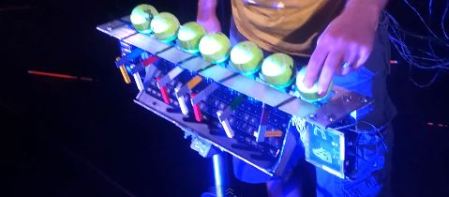
We’ve seen a lot of interesting MIDI controllers, but this one uses some unconventional materials. The World’s Coolest Keystroke, built by [Audiobody], is made from a combination of tennis balls, Lego bricks, servos, and switches.

When a tennis ball is lifted up, a Lego arm is actuated. It looks like a servo is used to move the Lego arm so it hits a switch. An Arduino is used to detect this and send a message to their computer.

They use the device to control Ableton Live and play different clips depending on which tennis ball was removed. It’s an interesting way to control sound with a tactile interface, and it looks pretty nifty.

After the break is a short video of the device in action, but [Audiobody] says that they will be releasing more information soon. We’re looking forward to seeing other interesting controllers that they have in the works.

[Via Make]


Filed under: musical hacks

Not quite building a Raspi Arduino bridge


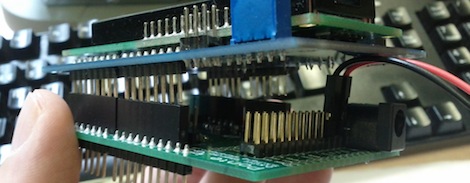
A few months ago, [Omer] sent in a Raspberry Pi to Arduino bridge he’s been working on called Ponte. Now that he’s gotten a few assembled, he can actually test out his ideas for combining the powerful Raspi with the ubiquitous Arduino.

Ponte revision 0 used a pair of 12-bit analog to digital converters, but during the soldering and debugging phase of development [Omer] discovered a few things were wrong with his original design. The FETs on the fabricated boards had the drain and source pins mixed up, but that problem was easily solved with a bit of board surgery.

The worst problem was the mechanical design of Ponte rev. 0 – the power jack on the Ponte is directly above the Raspi’s USB port, meaning it’s impossible to plug the Ponte into the Pi.

[Omer] is working on these problems and should have  the revised boards completed shortly. A few people have asked where they can get a Ponte, but right now there are no plans to assemble and ship boards. That may change, but for now if might be worth bugging [Omer] to put his new and improved Ponte (with an 8-port I2C port expander!) up on SeeedStudio


Filed under: arduino hacks, Rasberry pi

Babel Fish Language Toy


Fans of Douglas Adams will no doubt catch the reference to The Hitchhiker’s Guide to the Galaxy in the title of Becky Stern’s latest project, The Babel Fish Language Toy. This sound- and RFID-enabled Arduino project with a crafty enclosure helps you learn foreign languages with RFID flash cards. When you bring a flash card near the fish’s tongue, you’ll hear the pronunciation of the word, which comes from .WAV files that you pre-load onto the SD card. And naturally, a full how-to writeup and video will help you along the way should you decide to make your own. Xie xie Becky!


Filed under: Arduino, Education
MAKE » Arduino 04 Aug 14:00
arduino  education  fish  language  nfc  project  rfid  toy  

Controlling an Arduino with a standard RC transmitter/receiver


Controlling an Arduino with a standard RC transmitter/receiver

There are many ways to remote control an Arduino, Xbee, RF link, IR…

I decided to try and use something I had laying around and that is common among large group of hobbyist : RC transmitter and receiver pair


read more

3D Printed Binary Clock

Let's Make Robots 03 Aug 21:43
2  3d  3mm  arduino  binary  clock  cube  inches  ldr  powered  print  printed  teensy  usb