Posts with «arduino» label

Review – pcDuino v2

Introduction

Updated 29/01/2014 All pcDuino v2 tutorials

Update! The pcDuino version 3 is now available

In the last twelve months or so several somewhat inexpensive single-board computers have burst onto the market, and of those was the pcDuino. This has now evolved into the pcDuino v2,  the topic of our review. The pcDuino v2 is billed as the “mini PC + Arduino”, a combination with much promise. Out of the box it runs a version of Ubuntu 12.04 on Linaro 12.07, or can also run Android Ice Cream Sandwich if so desired.

The pcDuino v2 is a single-board computer like many others, however with some interesting additions – the most interesting being the Arduino-shield hardware connections and pcDuino v2 Arduino development environment. We’ll first run through the pcDuino v2 as a Linux computer, and then delve into the Arduino-compatibility. But first, our test board… which arrived safely in a neat box:

… which contains the pcDuino v2 itself:

At first glance you can see the various points of interest, such as the Allwinner A10, which is a 1GHz ARM Cortex A8 CPU:

… the Realtek WiFi add-on board (which is fitted to the pcDuino v2):

… and also a USB socket (for keyboard, mouse, USB hub and so on), a microUSB for USB OTG use, a full-sized HDMI socket for full HD video, RJ45 Ethernet socket,  a microSD socket for expansion, and the Hynix flash memory ICs. From the pcDuino v2 website, the specifications are:

Hardware:

  • CPU – 1GHz ARM Cortex A8
  • GPU – OpenGL ES2.0, OpenVG 1.1 Mali 400 core
  • DRAM – 1GB
  • Onboard Storage – 2GB Flash, microSD card (TF) slot for up to 32GB
  • Video Output – HDMI
  • OS – Linux3.0 + Ubuntu 12.04/Android ICS 4.0
  • Extension Interface Arduino Headers
  • Network interface – 10/100Mbps RJ45 and on-board WiFi module
  • USB Host port 1
  • Requires – Power 5V, 2000mA
  • Overall Size 125mm X 52mm

Software

  • OS – Ubuntu 12.04 (pre-loaded) or Android ICS 4.0
  • APIs – all the Arduino shield pins are accessible with the provided API. 

    It consists of API to access the following interfaces: UART, ADC, PWM, GPIO, I2C, SPI

  • Programming language support – C, C++ with GNU tool chain, Java with standard Android SDK, Python. 

However at the time of writing all models with the date stamp of 17/09/2013 (and newer) have 4G of onboard flash storage – a great little bonus. With the addition of an inexpensive microSD card you can add up to an additional 32 G of storage.

Getting Started

This is the crunch-point for many products – how does one get started? With the pcDuino – very easily. Apart from the computer itself, you’ll need a monitor with HDMI inputs and speakers, a USB keyboard and mouse (with a USB hub – or one of those keyboard/trackpad combinations) and a power supply. The pcDuino v2 requires up to 2A at 5V – a higher-rated plugpack than usual. Don’t be tempted to use a normal USB socket – the pcDuino v2 will not work properly on the available current.

So after plugging all that in with the power the last to connect – the pcDuino v2 fires up in around five seconds, quickly running through the Ubuntu startup process and ended with the configuration screen in around five seconds:

After setting the time zone, language, screen resolution (full HD) and so on it was another ten seconds to the desktop:

At this point we found by accident that the A10 CPU runs hot – in some warmer permanent installations it could use a heatsink. But I digress. We now have a “normal” computer experience – the WiFi found the home network without any issue and the Chromium web browser runs well considering the speed and the RAM (1G) of the pcDuino v2:

The next step is to format the extra onboard storage, which can be done with the usual tool:

We just formatted it to ext4 and moved on. The included software is nothing unexpected, there’s the Chromium web browser, office-style applications, terminal, XBMC, remote-desktop viewer and of course you can hit up the Ubuntu package manager and install what you need.

It’s easy to get carried away and forget you’re not using a typical multi-GHz computer so bear that in mind when software runs a little slower than expected. However working with WordPress and Google Docs inside Chromium was acceptable, and a fair amount of this review was written using the pcDuino v2.

Excluding the Arduino development environment which we look at in the next section, pre-installed programming tools include Python (v2.7), C/C++ with GNU tool chain and Java with the standard Android SDK. At this point we haven’t tried the pcDuino with the Android operating system, however plan to do so in the near future and this will be the subject of a separate article.

At this point we’d say that the pcDuino v2 is a winner in the SBC (single-board computer) stakes, as you don’t need to worry about external WiFi, or deliberating about which version of an OS to use and then having to download it to an SD card and so on… the pcDuino v2 just works as a computer out of the box.

The pcDuino v2 as an Arduino

At this point we’d like to note that the pcDuino v2 is not an Arduino circuit wired up to a computer (such as the Arduino team did with the Yun). Instead, the pcDuino v2 is a computer that can emulate an Arduino – and has the GPIO pins and shield sockets onboard.

So when you run a sketch on the pcDuino v2’s version of the Arduino IDE – the sketch is compiled and then executed using the CPU, not an ATmega microcontroller. Speaking of which, the IDE is a modified version of 1.5.3 which appears identical to the usual IDE:

In fact when you compile and upload that blink.ino sketch everything runs as normal, and a small LED situated near D2/3 will blink as normal. However you do need to use more #include statements, for example #include <core.h> for all sketches. When uploading a sketch, a new window appears that will be blank, as shown below – this window needs to stay open otherwise the sketch won’t run

One of the benefits of using the pcDuino v2 is the extra space available for sketches – a quick compile shows that you can have a fair bit more than your typical ATmega328 – in our example we had 104,857,600 bytes available:

We don’t have a sketch that large, but at least you have some headroom to create them if necessary.

Arduino Hardware support

The shield header sockets are in the standard R3 configuration – and all GPIO is 3.3V and not 5V tolerant. However there is a conversion shield available if necessary. There are also some extra GPIO pins available – another eight, as shown in the following image:

At the time of writing there is support for GPIO use, SPI (up to 12 MHz, master-only), I2C (up to 200 kHz, at 7-bit and master-only), a UART (serial on D0/D1), PWM and ADC on A0~5.

However ADC is a little different, due to the internal reference voltages of the Allwinner CPU. Take note of the following as if you exceed the maximum voltages you could damage your board. Pins A0 and A1 are 6-bit ADCs, which return values from 0 ~ 63, which range from 0V to 2V. Pins A2~A5 are 12-bit ADCs, which return values  from 0 ~ 4095, which range across the full 0V to 3.3V.

There isn’t access to the usual serial monitor in the Arduino IDE as such, instead you need to use an external, hardware-based solution such as connecting a USB-serial adaptor to pins D0/D1 and using another PC as the terminal. And when you press ‘reset’ on your Arduino shields – it resets the entire computer, just not the Arduino emulation – (learned that the hard way!).

However you can output text and data to the console window that appears after uploading a sketch – and doing so is pretty easy, just use prinf as you would in C or C++. For example, the following sketch:

#include <core.h>

// example code from http://www.cplusplus.com/reference/cstdio/printf/

void setup() {
  // put your setup code here, to run once:

}

void loop() 
{
   printf ("Characters: %c %c \n", 'a', 65);
   printf ("Decimals: %d %ld\n", 1977, 650000L);
   printf ("Preceding with blanks: %10d \n", 1977);
   printf ("Preceding with zeros: %010d \n", 1977);
   printf ("Some different radices: %d %x %o %#x %#o \n", 100, 100, 100, 100, 100);
   printf ("floats: %4.2f %+.0e %E \n", 3.1416, 3.1416, 3.1416);
   printf ("Width trick: %*d \n", 5, 10);
   printf ("%s \n", "A string");
  delay(1000);
}

produces the following output in the console window:

It would be recommended to read this guide about using the pcDuino v2 as an Arduino which highlights pretty well everything to get you started, including the notes on interrupts and PWM – and this page which explains the headers on the pcDuino v2. Finally, as the “Arduino” is emulated you cannot use the on-board networking capabilities of the pcDuino v2 such as Ethernet, instead you use a shield as you would with a normal Arduino.

At first glance it may seem that the pcDuino v2 is difficult, which it is not. One needs instead to consider their needs and then work with the available features. Just like many other new development boards and systems, the pcDuino v2 (and pcDuino platform) is still quite new – but growing – so more features and compatibility will appear over time.

How much faster is the pcDuino v2 against a normal Arduino board?

There should be a great difference between the Arduino’s microcontroller and the A10 CPU, even taking into account running the OS and emulation. To test this, we’ll use a sketch written by Steve Curd from the Arduino forum. It calculates Newton Approximation for pi using an infinite series. The pcDuino v2 version of the sketch is below:

//
// Pi_2
//
// Steve Curd
// December 2012
//
// This program approximates pi utilizing the Newton's approximation.  It quickly
// converges on the first 5-6 digits of precision, but converges verrrry slowly
// after that.  For example, it takes over a million iterations to get to 7-8
// significant digits.
//
// I wrote this to evaluate the performance difference between the 8-bit Arduino Mega,
// and the 32-bit Arduino Due.
// 

#include <core.h> // for pcDuino v2
#include "Serial.h"

#define ITERATIONS 100000L    // number of iterations
#define FLASH 1000            // blink LED every 1000 iterations

void setup() {
  pinMode(13, OUTPUT);        // set the LED up to blink every 1000 iterations
  Serial.begin(57600);
}

void loop() {

  unsigned long start, time;
  unsigned long niter=ITERATIONS;
  int LEDcounter = 0;
  boolean alternate = false;
  unsigned long i, count=0;
  float x = 1.0;
  float temp, pi=1.0;

  Serial.print("Beginning ");
  Serial.print(niter);
  Serial.println(" iterations...");
  Serial.println();

  start = millis();  
  for ( i = 2; i < niter; i++) {
    x *= -1.0;
    pi += x / (2.0f*(float)i-1.0f);
    if (LEDcounter++ > FLASH) {
      LEDcounter = 0;
      if (alternate) {
        digitalWrite(13, HIGH);
        alternate = false;
      } else {
        digitalWrite(13, LOW);
        alternate = true;
      }
      temp = 40000000.0 * pi;
    }
  }
  time = millis() - start;

  pi = pi * 4.0;

  Serial.print("# of trials = ");
  Serial.println(niter);
  Serial.print("Estimate of pi = ");
  Serial.println(pi, 10);

  Serial.print("Time: "); Serial.print(time); Serial.println(" ms");

  delay(10000);
}

As mentioned earlier, you can’t see the IDE serial monitor, so an external PC needs to be used. We connected a USB-serial adaptor running at 3.3V I/O to a PC:

Now back to the sketch. An Arduino Mega 2560 can do the calculation in 5765 ms, a Due 690 ms, and the fastest I saw the emulated Arduino in the pcDuino v2 do it was 9 ms:

Wow, that’s quick. However take note that the completion time was all over the place. When it was 9ms, the only application open was the pcDuino v2 Arduino IDE. The completion time increased when opening other applications such as Chromium, formatting a microSD card and so on.

Why is that? As the pcDuino v2 is emulating an Arduino, the CPU needs clock cycles to take care of that and all the other OS tasks – whereas a straight Arduino just runs the code generated by the IDE and compiler. Nevertheless the speed increase is welcome, and opens up all sorts of possibilities with regards to deeper calculations in sketches they may taken too long on existing hardware.

Support and Community

From what I can tell there is a growing base of users (including this one) and like everything else this will help the pcDuino platform develop and evolve over time. There is a Linksprite “Learning Centre” with a growing pcDuino v2 section, the website, wiki, and support forum which are useful sources of information and discussion.

Conclusion – so far

The pcDuino v2 is a great mix of single-board computer and Arduino-compatible power. There is a small learning curve, however the performance gains are more than worth it. Another USB socket wouldn’t go astray, and the documentation and support will increase over time. However we really liked the fact it’s totally plug-and-play with the onboard storage, OS and WiFi.

And finally a plug for my own store – tronixlabs.com – offering a growing range and Australia’s best value for supported hobbyist electronics from adafruit, DFRobot, Freetronics, Seeed Studio and much more.

Have fun and keep checking into tronixstuff.com. Why not follow things on twitter, Google+, subscribe  for email updates or RSS using the links on the right-hand column, or join our forum – dedicated to the projects and related items on this website.

The post Review – pcDuino v2 appeared first on tronixstuff.

Tronixstuff 13 Jan 01:15

Tutorial – Arduino and SIM900 GSM Modules

Use the SIM900 GSM modules with Arduino in Chapter 55 of our Arduino Tutorials. The first chapter is here, the complete series is detailed here. Updated 14/02/2014

Introduction

The goal of this tutorial is to illustrate various methods of interaction between an Arduino Uno (or compatible) and the GSM cellular network using a SIM900 GSM shield, with which you can then use your existing knowledge to build upon those methods. Updated 08/01/2014.

Apart from setting up the shield we’ll examine:

  • Making a telephone call from your Arduino
  • Sending an SMS text message
  • Receiving text messages with the shield and displaying them on the serial monitor
  • Simple controlling of the host Arduino by calling it from another telephone
  • Controlling the Arduino via SMS text message

We’ll be using a SIMCOM SIM900 GSM module shield. (If you’re looking for tutorials on the Spreadtrum SM5100 modules, start here). There must be scores of Arduino shields or modules using the SIM900, so as you can imagine each one may be a little bit different with regards to the hardware side of things – so we’re assuming you have an understanding of how hardware and software serial works as well as supply voltages and the hardware side of the Arduino world.

As for the specific shield to use, we just chose the cheapest one available at the time – which turned out to be the “SIM900 GPRS/GSM Arduino shield” from tronixlabs.com:

However with a little research and work on your part, the sketches provided should also work with any SIM900 module/shield and Arduino – as long as you have the appropriate serial and power settings.

Getting Started

A little preparation goes a long way, so make sure you’ve covered the following points:

  • Regarding your cellular provider. Do you have coverage on a GSM 850 MHz, GSM 900 MHz, DCS 1800 MHz or PCS 1900 MHz network?  When we say GSM that means 2G – not 3G, 4G or LTE. Will they allow the use of non-supported devices on the network? Some carriers will block IMEI numbers that were not provided by their sales channel. Or you may have to call the provider and supply the IMEI of your GSM module to allow it on the network. Finally, it would be wise to use either a prepaid or an account that offers unlimited SMS text messaging – you don’t want any large bills if things go wrong.
  • Power. Do you have adequate power for your SIM900 module? Some shields will use more current than the Arduino can supply (up to 2A), so you may need an external high-current supply. The Linksprite shield we use needs 5V up to 2A into the onboard DC socket. Otherwise, check with your supplier.
  • Antenna. If your module/shield etc. doesn’t have an antenna – get one. You do need it.
  • Turn off the PIN lock on the SIM card. The easiest way to do this is to put the SIM in a handset and use the menu function.
  • And as always, please don’t make an auto-dialler…

Furthermore, download the SIM900 hardware manual (.pdf) and the AT command manual (.pdf), as we’ll refer to those throughout the tutorial.

Power

There is a DC socket on the shield, which is for a 5V power supply:

Although the data from Linksprite claims the shield will use no more than 450 mA, the SIMCOM hardware manual (page 22) for the module notes that it can draw up to 2A for short bursts. So get yourself a 5V 2A power supply and connect it via the DC socket, and also ensure the switch next to the socket is set to “EXT”.

Furthermore, you can turn the GSM module on and off with the power button on the side of the shield, and it defaults to off during an initial power-up. Therefore you’ll need to set D9 to HIGH for one second in your sketch to turn the module on (or off if required for power-saving). Don’t panic, we’ll show how this is done in the sketches below.

Software Serial

We will use the Arduino software serial library in this tutorial, and the Linksprite shield has hard-wired the serial from the SIM900 to a set of jumpers, and uses a default speed of 19200. Make sure you your jumpers are set to the “SWserial” side, as shown below:

And thus whenever an instance of SoftwareSerial is created, we use 7,8 as shown below:

SoftwareSerial SIM900(7, 8); // RX, TX

If you shield is different, you’ll need to change the TX and RX pin numbers. This also means you can’t use an Arduino Leonardo or Mega (easily). Finally – note this for later – if your shield is having problems sending data back to your Arduino you may need to edit the SoftwareSerial library – read this for more information.

Wow – all those rules and warnings?

The sections above may sound a little authoritarian, however we want your project to be a success. Now, let’s get started…

A quick test…

At this point we’ll check to make sure your shield and locate and connect to the cellular network. So make sure your SIM card is active with your cellular provider, the PIN lock is off, and then insert it and lock the SIM card  to the carrier on the bottom of the shield:

Then plug the shield into your Uno, attach 5V power to the DC socked on the GSM shield, and USB from the Uno to the PC. Press the “PWRKEY” button on the side of the shield for a second, then watch the following two LEDs:

The bright “STATUS” LED will come on, and then the “NETLIGHT” LED will blink once every 800 milliseconds- until the GSM module has found the network, at which point it will blink once every three seconds. This is shown in the following video:

Nothing can happen until that magic three-second blink – so if that doesn’t appear after a minute, something is wrong. Check your shield has the appropriate power supply, the antenna is connected correctly, the SIM card is seated properly and locked in- and that your cellular account is in order. Finally, you may not have reception in that particular area, so check using a phone on the same network or move to a different location.

Making a telephone call from your Arduino

You can have your Arduino call a telephone number, wait a moment – then hang up. This is an inexpensive way of alerting you of and consider the following sketch:

// Example 55.1

#include <SoftwareSerial.h>
SoftwareSerial SIM900(7, 8); // configure software serial port

void setup()
{
  SIM900.begin(19200);               
  SIM900power();  
  delay(20000);  // give time to log on to network. 
}

void SIM900power()
// software equivalent of pressing the GSM shield "power" button
{
  digitalWrite(9, HIGH);
  delay(1000);
  digitalWrite(9, LOW);
  delay(5000);
}

void callSomeone()
{
  SIM900.println("ATD + +12128675309;"); // dial US (212) 8675309
  delay(100);
  SIM900.println();
  delay(30000);            // wait for 30 seconds...
  SIM900.println("ATH");   // hang up
}

void loop()
{
  callSomeone(); // call someone
  SIM900power();   // power off GSM shield
  do {} while (1); // do nothing
}

The sketch first creates a software serial port, then in void setup() starts the software serial port, and also turns on the GSM shield with the function SIM900power (which simply sets D9 high for a second which is the equivalent of pressing the power button). Notice the delay function in void setup – this gives the GSM module a period of time to locate and log on to the cellular network. You may need to increase (or be able to decrease) the delay value depending on your particular situation. If in doubt, leave it as a long period.

The process of actually making the call is in the function callSomeone(). It sends a string of text to the GSM module which consists of an AT command. These are considered the “language” for modems and thus used for various tasks. We use the ATD command to dial (AT… D for dial) a number. The number as you can see in the sketch needs to be in world-format. So that’s a “+” then the country code, then the phone number with area code (without the preceding zero).

So if your number to call is Australia (02) 92679111 you would enter +61292679111. Etcetera. A carriage return is then sent to finalise the command and off it goes dialling the number. Here’s a quick video demonstration for the non-believers:

After thirty seconds we instruct the module to hand up with another AT command – “ATH” (AT… H for “hang up”), followed by turning off the power to the module. By separating the call feature into a function – you can now insert this into a sketch (plus the preceding setup code) to call a number when required.

Sending an SMS text message

This is a great way of getting data from your Arduino to almost any mobile phone in the world, at a very low cost. For reference, the maximum length of an SMS text message is 160 characters – however you can still say a lot with that size limit. First we’ll demonstrate sending an arbitrary SMS. Consider the following sketch:

// Example 55.2

#include <SoftwareSerial.h>
SoftwareSerial SIM900(7, 8);

void setup()
{
  SIM900.begin(19200);
  SIM900power();  
  delay(20000);  // give time to log on to network. 
}

void SIM900power()
// software equivalent of pressing the GSM shield "power" button
{
  digitalWrite(9, HIGH);
  delay(1000);
  digitalWrite(9, LOW);
  delay(5000);
}

void sendSMS()
{
  SIM900.print("AT+CMGF=1\r");                                                        // AT command to send SMS message
  delay(100);
  SIM900.println("AT + CMGS = \"+12128675309\"");                                     // recipient's mobile number, in international format
  delay(100);
  SIM900.println("Hello, world. This is a text message from an Arduino Uno.");        // message to send
  delay(100);
  SIM900.println((char)26);                       // End AT command with a ^Z, ASCII code 26
  delay(100); 
  SIM900.println();
  delay(5000);                                     // give module time to send SMS
  SIM900power();                                   // turn off module
}

void loop()
{
  sendSMS();
  do {} while (1);
}

The basic structure and setup functions of the sketch are the same as the previous example, however the difference here is the function sendSMS(). It used the AT command “AT+CMGF” to tell the GSM module we want to send an SMS in text form, and then “AT+CMGS” followed by the recipient’s number. Once again note the number is in international format. After sending the send SMS commands, the module needs  five seconds to do this before we can switch it off. And now for our ubiquitous demonstration video:


You can also send text messages that are comprised of numerical data and so on – by compiling the required text and data into a string, and then sending that. Doing so gives you a method to send such information as sensor data or other parameters by text message.

For example, you might want to send daily temperature reports or hourly water tank levels. For our example, we’ll demonstrate how to send a couple of random numbers and some text as an SMS. You can then use this as a framework for your own requirements. Consider the following sketch:

// Example 55.3

#include <SoftwareSerial.h>
SoftwareSerial SIM900(7, 8);
int x,y;
String textForSMS;

void setup()
{
  SIM900.begin(19200);
  SIM900power();  
  delay(20000);  // give time to log on to network. 
  randomSeed(analogRead(0));
}

void SIM900power()
// software equivalent of pressing the GSM shield "power" button
{
  digitalWrite(9, HIGH);
  delay(1000);
  digitalWrite(9, LOW);
  delay(7000);
}

void sendSMS(String message)
{
  SIM900.print("AT+CMGF=1\r");                     // AT command to send SMS message
  delay(100);
  SIM900.println("AT + CMGS = \"+12128675309\"");  // recipient's mobile number, in international format
  delay(100);
  SIM900.println(message);                         // message to send
  delay(100);
  SIM900.println((char)26);                        // End AT command with a ^Z, ASCII code 26
  delay(100); 
  SIM900.println();
  delay(5000);                                     // give module time to send SMS
  SIM900power();                                   // turn off module
}

void loop()
{
  x = random(0,255);
  y = random(0,255);
  textForSMS = "Your random numbers are ";
  textForSMS.concat(x);
  textForSMS = textForSMS + " and ";
  textForSMS.concat(y);
  textForSMS = textForSMS + ". Enjoy!";  
  sendSMS(textForSMS);
  do {} while (1);
}

Take note of the changes to the function sendSMS(). It now has a parameter – message, which is a String which contains the text to send as an SMS. In void loop() the string variable textForSMS is constructed. First it contains some text, then the values for x and y are added with some more text. Finally the string is passed to be sent as an SMS. And here it is in action:

Receiving text messages and displaying them on the serial monitor 

Now let’s examine receiving text messages. All we need is to send two AT commands inside void setup() and then repeat every character sent from the shield to the serial monitor. The first command to use is AT+CMGF=1  which sets the SMS mode to text (as used in the previous example) and the second is AT+CNMI=2,2,0,0 – which tells the GSM module to send the contents of any new SMS out to the serial line. To demonstrate this, set up your hardware as before, upload the following sketch:

// Example 55.4

#include <SoftwareSerial.h>
SoftwareSerial SIM900(7, 8);

char incoming_char=0;

void setup()
{
  Serial.begin(19200); // for serial monitor
  SIM900.begin(19200); // for GSM shield
  SIM900power();  // turn on shield
  delay(20000);  // give time to log on to network.

  SIM900.print("AT+CMGF=1\r");  // set SMS mode to text
  delay(100);
  SIM900.print("AT+CNMI=2,2,0,0,0\r"); 
  // blurt out contents of new SMS upon receipt to the GSM shield's serial out
  delay(100);
}

void SIM900power()
// software equivalent of pressing the GSM shield "power" button
{
  digitalWrite(9, HIGH);
  delay(1000);
  digitalWrite(9, LOW);
  delay(7000);
}

void loop()
{
  // Now we simply display any text that the GSM shield sends out on the serial monitor
  if(SIM900.available() >0)
  {
    incoming_char=SIM900.read(); //Get the character from the cellular serial port.
    Serial.print(incoming_char); //Print the incoming character to the terminal.
  }
}

… then open the serial monitor, check it’s set to 19200 bps and wait around thirty seconds. You will see some odd characters, then the “OK” responses from the GSM module. Now send a text message to the shield – the time/date stamp, sender and message will appear, for example:

To preserve my sanity the number used in the demonstrations will be blanked out.

Simple controlling of the host Arduino by calling it from another telephone

When we call our shield from another telephone, it sends the text “RING” out to serial, then “NO CARRIER” when you hang up – which can be harnessed to create a simple dial-in remote control. Use the sketch from the previous example to test this – for example:

You can also display the number calling in by using the AT command AT+CLIP=1. To do this, just add the following lines to void setup() in the previous sketch:

SIM900.print("AT+CLIP=1\r"); // turn on caller ID notification
delay(100);

Now when a call is received, the caller’s number appears as well – for example:

Note that the caller ID data for incoming calls isn’t in the international format as it was with SMSs. This will vary depending on your country, so check it out for yourself.

So how can we control the Arduino by calling in? By counting the number of times the shield sends “RING” to the Arduino (just as we did with the other GSM shield). To do this we simply count the number of times the word “RING” comes in from the shield, and then after the third ring – the Arduino will do something.

For our example we have two LEDs connected (via 560Ω resistors) to D12 and D13. When we call the shield and let it ring three times, they will alternate between on and off. Enter and upload the following sketch:

// Example 55.5

#include <SoftwareSerial.h> 
char inchar; // Will hold the incoming character from the GSM shield
SoftwareSerial SIM900(7, 8);

int numring=0;
int comring=3; 
int onoff=0; // 0 = off, 1 = on

void setup()
{
  Serial.begin(19200);
  // set up the digital pins to control
  pinMode(12, OUTPUT);
  pinMode(13, OUTPUT); // LEDs - off = red, on = green
  digitalWrite(12, HIGH);
  digitalWrite(13, LOW);

  // wake up the GSM shield
  SIM900power(); 
  SIM900.begin(19200);
  SIM900.print("AT+CLIP=1\r"); // turn on caller ID notification
  delay(100);  
}

void SIM900power()
// software equivalent of pressing the GSM shield "power" button
{
  digitalWrite(9, HIGH);
  delay(1000);
  digitalWrite(9, LOW);
  delay(7000);
}

void doSomething()
{
  if (onoff==0)
  {
    onoff=1;
    digitalWrite(12, HIGH);
    digitalWrite(13, LOW);
    Serial.println("D12 high D13 low");
  } 
  else
    if (onoff==1)
    {
      onoff=0;
      digitalWrite(12, LOW);
      digitalWrite(13, HIGH);
      Serial.println("D12 low D13 high");
    }
}

void loop() 
{
  if(SIM900.available() >0)
  {
    inchar=SIM900.read(); 
    if (inchar=='R')
    {
      delay(10);
      inchar=SIM900.read(); 
      if (inchar=='I')
      {
        delay(10);
        inchar=SIM900.read();
        if (inchar=='N')
        {
          delay(10);
          inchar=SIM900.read(); 
          if (inchar=='G')
          {
            delay(10);
            // So the phone (our GSM shield) has 'rung' once, i.e. if it were a real phone
            // it would have sounded 'ring-ring' or 'blurrrrr' or whatever one cycle of your ring tone is
            numring++;
            Serial.println("ring!");
            if (numring==comring)
            {
              numring=0; // reset ring counter
              doSomething();
            }
          }
        }
      }
    }
  }
}

You can change the number of rings before action with the variable comring, and the action to take is in the function void doSomething(). Finally you can watch a short video of this in action.


We can also modify this system so it only allows control by callers from one number  –  as long as caller ID works on your system (well it should… it’s 2014 not 1996). So in the next example the system will only call the function doSomething if the call is from a certain number. The sketch works in the same manner as last time – but instead of counting the word “RING”, it will compare the incoming caller’s ID number against one in the sketch.

It may look a little clunky, but it works. In the following example sketch, the number is 2128675309 – so just change the digits to check in void loop():

// Example 55.6

#include <SoftwareSerial.h> 
char inchar; // Will hold the incoming character from the GSM shield
SoftwareSerial SIM900(7, 8);

int onoff=0; // 0 = off, 1 = on

void setup()
{
  Serial.begin(19200);
  // set up the digital pins to control
  pinMode(12, OUTPUT);
  pinMode(13, OUTPUT); // LEDs - off = red, on = green
  digitalWrite(12, HIGH);
  digitalWrite(13, LOW);

  // wake up the GSM shield
  SIM900power(); 
  SIM900.begin(19200);
  delay(20000);  // give time to log on to network.
  SIM900.print("AT+CLIP=1\r"); // turn on caller ID notification
  delay(100);  
}

void SIM900power()
// software equivalent of pressing the GSM shield "power" button
{
  digitalWrite(9, HIGH);
  delay(1000);
  digitalWrite(9, LOW);
  delay(7000);
}

void doSomething()
{
  if (onoff==0)
  {
    onoff=1;
    digitalWrite(12, HIGH);
    digitalWrite(13, LOW);
    Serial.println("D12 high D13 low");
  } 
  else
    if (onoff==1)
    {
      onoff=0;
      digitalWrite(12, LOW);
      digitalWrite(13, HIGH);
      Serial.println("D12 low D13 high");
    }
}

void loop() 
{
  if(SIM900.available() >0)
  {   
    inchar=SIM900.read(); 
    if (inchar=='2')
    {
      delay(10);
      inchar=SIM900.read(); 
      if (inchar=='1')
      {
        delay(10);
        inchar=SIM900.read(); 
        if (inchar=='2')
        {
          delay(10);
          inchar=SIM900.read(); 
          if (inchar=='8')
          {
            delay(10);
            inchar=SIM900.read(); 
            if (inchar=='6')
            {
              delay(10);
              inchar=SIM900.read(); 
              if (inchar=='7')
              {
                delay(10);
                inchar=SIM900.read(); 
                if (inchar=='5')
                {
                  delay(10);
                  inchar=SIM900.read(); 
                  if (inchar=='3')
                  {
                    delay(10);
                    inchar=SIM900.read();
                    if (inchar=='0')
                    {
                      delay(10);
                      inchar=SIM900.read(); 
                      if (inchar=='9')
                      {
                        Serial.println("do sometehing");
                        delay(10);
                        // now the number is matched, do something
                        doSomething();
                        // arbitrary delay so the function isn't called again on the same phone call
                        delay(60000);
                      }
                    }
                  }
                }
              }
            }
          }
        }
      }
    }
  }
}

The large delay after calling doSomething() exists to stop the same action being called twice (or more) on the same inbound call. Anyhow, you should now have a grasp on interrogating the data from the shield. Which leads us to the final section…

Controlling the Arduino via SMS text message

As you did with the caller ID data, you can also control the Arduino via SMS fairly easily, and have more options. In our example we’ll explain how to control four digital output pins via SMS. The example works in two stages. First it will wait for an SMS to be received, and then have the contents sent to the Arduino via serial just as we did earlier with the example 55.4. The next stage is to filter out the commands in the text message as we did with example 55.6.

The commands (that is, the contents of your text message to the Arduino) will be in the form

#axbxcxdx

where ‘x’ will be 0 (for off) and 1 (for on) – and a, b, c and d will relate to digital pins 10, 11, 12 and 13. For example, to turn on D10, 11 and turn off D12, D13 you would compose your SMS as #a1b1c0d0. After processing the SMS we use the AT command AT+CMGD=1,4 to delete all the SMSs from the SIM card, otherwise it will fill up and reject further commands. Moving on, here’s the example sketch:

// Example 55.7

#include <SoftwareSerial.h> 
char inchar; // Will hold the incoming character from the GSM shield
SoftwareSerial SIM900(7, 8);

int led1 = 10;
int led2 = 11;
int led3 = 12;
int led4 = 13;

void setup()
{
  Serial.begin(19200);
  // set up the digital pins to control
  pinMode(led1, OUTPUT);
  pinMode(led2, OUTPUT);
  pinMode(led3, OUTPUT);
  pinMode(led4, OUTPUT);
  digitalWrite(led1, LOW);
  digitalWrite(led2, LOW);
  digitalWrite(led3, LOW);
  digitalWrite(led4, LOW);

  // wake up the GSM shield
  SIM900power(); 
  SIM900.begin(19200);
  delay(20000);  // give time to log on to network.
  SIM900.print("AT+CMGF=1\r");  // set SMS mode to text
  delay(100);
  SIM900.print("AT+CNMI=2,2,0,0,0\r"); 
  // blurt out contents of new SMS upon receipt to the GSM shield's serial out
  delay(100);
  Serial.println("Ready...");
}

void SIM900power()
// software equivalent of pressing the GSM shield "power" button
{
  digitalWrite(9, HIGH);
  delay(1000);
  digitalWrite(9, LOW);
  delay(7000);
}

void loop() 
{
  //If a character comes in from the cellular module...
  if(SIM900.available() >0)
  {
    inchar=SIM900.read(); 
    if (inchar=='#')
    {
      delay(10);

      inchar=SIM900.read(); 
      if (inchar=='a')
      {
        delay(10);
        inchar=SIM900.read();
        if (inchar=='0')
        {
          digitalWrite(led1, LOW);
        } 
        else if (inchar=='1')
        {
          digitalWrite(led1, HIGH);
        }
        delay(10);
        inchar=SIM900.read(); 
        if (inchar=='b')
        {
          inchar=SIM900.read();
          if (inchar=='0')
          {
            digitalWrite(led2, LOW);
          } 
          else if (inchar=='1')
          {
            digitalWrite(led2, HIGH);
          }
          delay(10);
          inchar=SIM900.read(); 
          if (inchar=='c')
          {
            inchar=SIM900.read();
            if (inchar=='0')
            {
              digitalWrite(led3, LOW);
            } 
            else if (inchar=='1')
            {
              digitalWrite(led3, HIGH);
            }
            delay(10);
            inchar=SIM900.read(); 
            if (inchar=='d')
            {
              delay(10);
              inchar=SIM900.read();
              if (inchar=='0')
              {
                digitalWrite(led4, LOW);
              } 
              else if (inchar=='1')
              {
                digitalWrite(led4, HIGH);
              }
              delay(10);
            }
          }
          SIM900.println("AT+CMGD=1,4"); // delete all SMS
        }
      }
    }
  }
}

The example hardware has four LEDs via 560Ω resistors on the digital outputs being controlled. Finally, you can watch a short demonstration in this video.

Conclusion

After working through this tutorial you should have an understanding of how to use the SIM900 GSM shields to communicate and control with an Arduino. And if you enjoyed the tutorial, or want to introduce someone else to the interesting world of Arduino – check out my book (now in a third printing!) “Arduino Workshop”.

Have fun and keep checking into tronixstuff.com. Why not follow things on twitter, Google+, subscribe  for email updates or RSS using the links on the right-hand column, or join our forum – dedicated to the projects and related items on this website. Sign up – it’s free, helpful to each other –  and we can all learn something.

The post Tutorial – Arduino and SIM900 GSM Modules appeared first on tronixstuff.

Using KL25Z for measuring salinity

Continuing the series of posts on measuring salinity with a couple of resistors and microprocessor

  1. Towards automatic measurement of conductivity of saline solution describes another possible freshman design project: a conductivity meter using the KL25Z board.
  2. More on automatic measurement of conductivity of saline solution looks at waveforms for square waves generated using PWM on the KL25Z board.  In this post I found that 100kHz square waves would work well.
  3. Still more on automatic measurement of conductivity of saline solution looks at waveforms for bursts of square waves generated by an Arduino board.  The bursts are limited to about 4kHz, but that may be good enough for a conductivity meter.

Today I started over on using the KL25Z board.  Since I wasn’t interested in precise frequencies, I didn’t use the PWM output this time, but used the same trick I used on the Arduino board: flipping the output bit, reading a sample, and repeating in a burst.

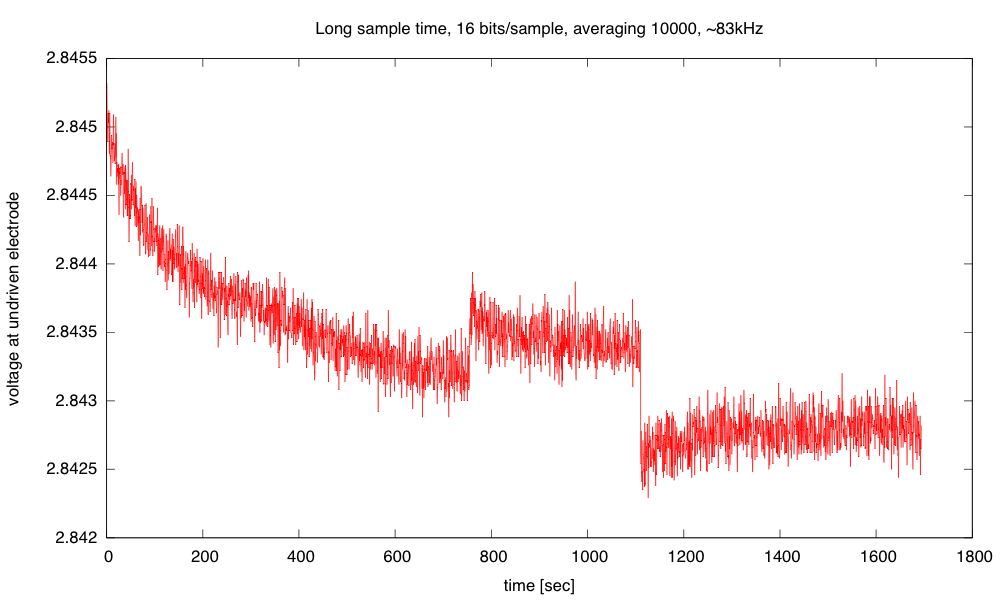
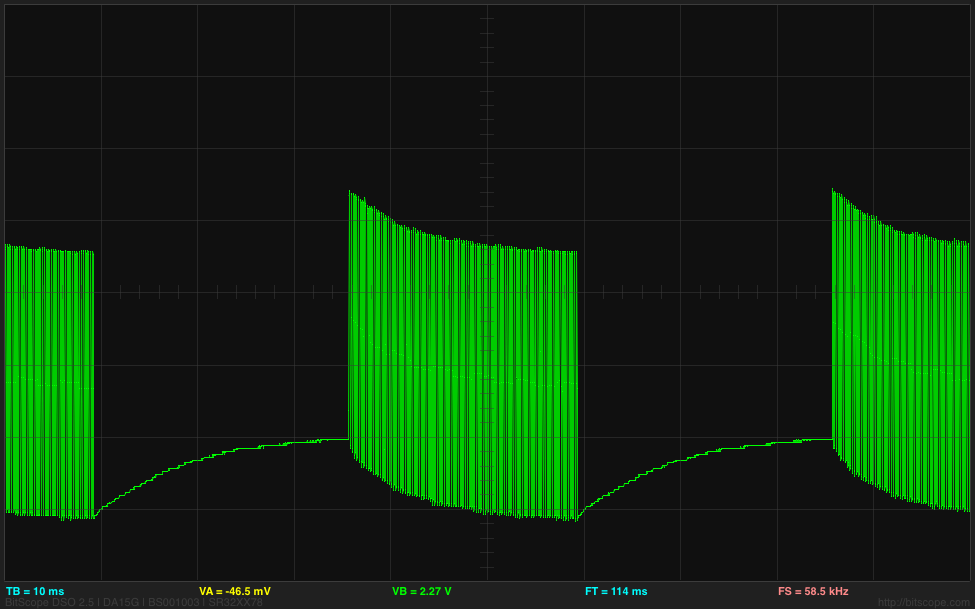
I record the sum of the differences between the high and low readings, and report the average at the end of each burst.  By using 40,000 cycles of warmup in each burst (discarded), then averaging over the next 10,000 cycles, I get a voltage reading that has a standard deviation of about 0.1mV on a reading of 2.843V, which is about 14–15 bits of accuracy.  The voltage reading is not constant, though, but drifts downward.

(click to embiggen) Voltage difference at undriven electrode as a function of time. The two sudden steps were probably the result of my jostling the table by putting down my teacup too hard.

I don’t have an explanation of the gradual drift in the voltage. I don’t think that this is a change in the salinity of the solution (which should be unchanged or increasing slowly due to evaporation). but a change in the characteristics of the electrodes. More likely, it is a change in the characteristics of the electrodes.  The sudden shifts when the table was jostled may be due to electrodes shifting their position in the cup or the release of a bubble.  Releasing a bubble should increase the surface area of the electrode and hence increase the conductivity and the voltage difference at the undriven electrode.  The gradual downward shift could be due to building up tiny hydrogen bubbles (too small to see) on the negative electrode.  The changes in voltage observed here are less than 0.1%, which is fairly respectable for a homebrew instrument.

Here is the (undocumented, throw-away) code that I wrote today to test out the ideas of an automatic salinity measurement system using a KL25Z:

#include "mbed.h"

DigitalInOut square_out(PTB0);   // PTB0=arduino A0
//PTB0, PTB1, PTD6, and PTD7 I/O have both high drive and normal drive capability selected by the associated PTx_PCRn[DSE] control bit.

AnalogIn IN(PTB1);  // PTB1=Arduino A1

Serial USB_io(USBTX, USBRX);  // defaults to 9600 8N1 (reset in main to 115200 baud)
Timer since_start;

#define WARMUP (40000)    // number of cycles of toggling output before collecting data
#define COLLECT (10000)   // number of cycles of data to sum for each output
#define Vdd (3.3)      // High voltage at output
int main()
{
    USB_io.baud(115200);
    USB_io.printf("\nusec\tvolts\nN\tN\n");

    //DEFAULT configuration of analog input
    ADC0->CFG1 = ADC_CFG1_ADLPC_MASK    // Low-Power Configuration
               | ADC_CFG1_ADIV(3)       // Clock Divide Select: (Input Clock)/8
               | ADC_CFG1_ADLSMP_MASK   // Long Sample Time
               | ADC_CFG1_MODE(3)       // (16)bits Resolution
               | ADC_CFG1_ADICLK(1);    // Input Clock: (Bus Clock)/2

    ADC0->CFG2 = ADC_CFG2_MUXSEL_MASK   // ADxxb channels are selected
               | ADC_CFG2_ADACKEN_MASK  // Asynchronous Clock Output Enable
               | ADC_CFG2_ADHSC_MASK    // High-Speed Configuration
               | ADC_CFG2_ADLSTS(0);    // Long Sample Time Select

    ADC0->SC2 = ADC_SC2_REFSEL(0);      // Default Voltage Reference

    ADC0->SC3 = ADC_SC3_AVGE_MASK       // Hardware Average Enable
                | ADC_SC3_AVGS(0);        // 4 Samples Averaged

    // FAST analog input
    ADC0->CFG1 =
                ADC_CFG1_MODE(3)       // (16)bits Resolution
               | ADC_CFG1_ADLSMP_MASK   // Long Sample Time
               | ADC_CFG1_ADICLK(0);    // Input Clock: (Bus Clock)

    ADC0->CFG2 = ADC_CFG2_MUXSEL_MASK   // ADxxb channels are selected
               | ADC_CFG2_ADACKEN_MASK  // Asynchronous Clock Output Enable
               | ADC_CFG2_ADHSC_MASK    // High-Speed Configuration
               | ADC_CFG2_ADLSTS(0);    // longest "long" Sample Time Select

//             | ADC_CFG2_ADLSTS(3);    // shortest "long" Sample Time Select

    ADC0->SC2 = ADC_SC2_REFSEL(0);      // Default Voltage Reference
    ADC0->SC3 = 0;        // No hardware averaging

    // set PORTB pin 0 to high drive here
    PORTB->PCR[0]  |= PORT_PCR_DSE_MASK;

    since_start.start();
    while(1)
    {
         square_out.output();
         for (int i=0; i
         {
             square_out=1;
             wait_us(1);
             volatile uint16_t rise_read=IN.read_u16();
             square_out=0;
             wait_us(1);
             volatile uint16_t fall_read=IN.read_u16();
        }
        int32_t sum=0;
        for (int i=0;i<COLLECT; i++)
        {
             square_out=1;
             wait_us(1);
             int32_t rise_read=IN.read_u16();
             square_out=0;
             wait_us(1);
             sum += rise_read - IN.read_u16();
        }
        square_out.input(); // hiZ state when not driving pulses

        USB_io.printf("%10d\t%7.5f\n", since_start.read_us(), sum*(Vdd/COLLECT/(1<<16))); // scale output to volts
    }
 }

There is still a lot that needs to be done to make this a finished project, but I’ve convinced myself that it is doable as freshman design project, which is all I really needed to do.


Filed under: Circuits course, freshman design seminar Tagged: Arduino, bioengineering, circuits, conductivity, electrodes, KL25Z

Using KL25Z for measuring salinity

Continuing the series of posts on measuring salinity with a couple of resistors and microprocessor

  1. Towards automatic measurement of conductivity of saline solution describes another possible freshman design project: a conductivity meter using the KL25Z board.
  2. More on automatic measurement of conductivity of saline solution looks at waveforms for square waves generated using PWM on the KL25Z board.  In this post I found that 100kHz square waves would work well.
  3. Still more on automatic measurement of conductivity of saline solution looks at waveforms for bursts of square waves generated by an Arduino board.  The bursts are limited to about 4kHz, but that may be good enough for a conductivity meter.

Today I started over on using the KL25Z board.  Since I wasn’t interested in precise frequencies, I didn’t use the PWM output this time, but used the same trick I used on the Arduino board: flipping the output bit, reading a sample, and repeating in a burst.

I record the sum of the differences between the high and low readings, and report the average at the end of each burst.  By using 40,000 cycles of warmup in each burst (discarded), then averaging over the next 10,000 cycles, I get a voltage reading that has a standard deviation of about 0.1mV on a reading of 2.843V, which is about 14–15 bits of accuracy.  The voltage reading is not constant, though, but drifts downward.

(click to embiggen) Voltage difference at undriven electrode as a function of time. The two sudden steps were probably the result of my jostling the table by putting down my teacup too hard.

I don’t have an explanation of the gradual drift in the voltage. I don’t think that this is a change in the salinity of the solution (which should be unchanged or increasing slowly due to evaporation). but a change in the characteristics of the electrodes. More likely, it is a change in the characteristics of the electrodes.  The sudden shifts when the table was jostled may be due to electrodes shifting their position in the cup or the release of a bubble.  Releasing a bubble should increase the surface area of the electrode and hence increase the conductivity and the voltage difference at the undriven electrode.  The gradual downward shift could be due to building up tiny hydrogen bubbles (too small to see) on the negative electrode.  The changes in voltage observed here are less than 0.1%, which is fairly respectable for a homebrew instrument.

Here is the (undocumented, throw-away) code that I wrote today to test out the ideas of an automatic salinity measurement system using a KL25Z:

#include "mbed.h"

DigitalInOut square_out(PTB0);   // PTB0=arduino A0
//PTB0, PTB1, PTD6, and PTD7 I/O have both high drive and normal drive capability selected by the associated PTx_PCRn[DSE] control bit.

AnalogIn IN(PTB1);  // PTB1=Arduino A1

Serial USB_io(USBTX, USBRX);  // defaults to 9600 8N1 (reset in main to 115200 baud)
Timer since_start;

#define WARMUP (40000)    // number of cycles of toggling output before collecting data
#define COLLECT (10000)   // number of cycles of data to sum for each output
#define Vdd (3.3)      // High voltage at output
int main()
{
    USB_io.baud(115200);
    USB_io.printf("\nusec\tvolts\nN\tN\n");

    //DEFAULT configuration of analog input
    ADC0->CFG1 = ADC_CFG1_ADLPC_MASK    // Low-Power Configuration
               | ADC_CFG1_ADIV(3)       // Clock Divide Select: (Input Clock)/8
               | ADC_CFG1_ADLSMP_MASK   // Long Sample Time
               | ADC_CFG1_MODE(3)       // (16)bits Resolution
               | ADC_CFG1_ADICLK(1);    // Input Clock: (Bus Clock)/2

    ADC0->CFG2 = ADC_CFG2_MUXSEL_MASK   // ADxxb channels are selected
               | ADC_CFG2_ADACKEN_MASK  // Asynchronous Clock Output Enable
               | ADC_CFG2_ADHSC_MASK    // High-Speed Configuration
               | ADC_CFG2_ADLSTS(0);    // Long Sample Time Select

    ADC0->SC2 = ADC_SC2_REFSEL(0);      // Default Voltage Reference

    ADC0->SC3 = ADC_SC3_AVGE_MASK       // Hardware Average Enable
                | ADC_SC3_AVGS(0);        // 4 Samples Averaged

    // FAST analog input
    ADC0->CFG1 =
                ADC_CFG1_MODE(3)       // (16)bits Resolution
               | ADC_CFG1_ADLSMP_MASK   // Long Sample Time
               | ADC_CFG1_ADICLK(0);    // Input Clock: (Bus Clock)

    ADC0->CFG2 = ADC_CFG2_MUXSEL_MASK   // ADxxb channels are selected
               | ADC_CFG2_ADACKEN_MASK  // Asynchronous Clock Output Enable
               | ADC_CFG2_ADHSC_MASK    // High-Speed Configuration
               | ADC_CFG2_ADLSTS(0);    // longest "long" Sample Time Select

//             | ADC_CFG2_ADLSTS(3);    // shortest "long" Sample Time Select

    ADC0->SC2 = ADC_SC2_REFSEL(0);      // Default Voltage Reference
    ADC0->SC3 = 0;        // No hardware averaging

    // set PORTB pin 0 to high drive here
    PORTB->PCR[0]  |= PORT_PCR_DSE_MASK;

    since_start.start();
    while(1)
    {
         square_out.output();
         for (int i=0; i
         {
             square_out=1;
             wait_us(1);
             volatile uint16_t rise_read=IN.read_u16();
             square_out=0;
             wait_us(1);
             volatile uint16_t fall_read=IN.read_u16();
        }
        int32_t sum=0;
        for (int i=0;i<COLLECT; i++)
        {
             square_out=1;
             wait_us(1);
             int32_t rise_read=IN.read_u16();
             square_out=0;
             wait_us(1);
             sum += rise_read - IN.read_u16();
        }
        square_out.input(); // hiZ state when not driving pulses

        USB_io.printf("%10d\t%7.5f\n", since_start.read_us(), sum*(Vdd/COLLECT/(1<<16))); // scale output to volts
    }
 }

There is still a lot that needs to be done to make this a finished project, but I’ve convinced myself that it is doable as freshman design project, which is all I really needed to do.


Filed under: Circuits course, freshman design seminar Tagged: Arduino, bioengineering, circuits, conductivity, electrodes, KL25Z

Put a box to good use with ShoeboxCNC

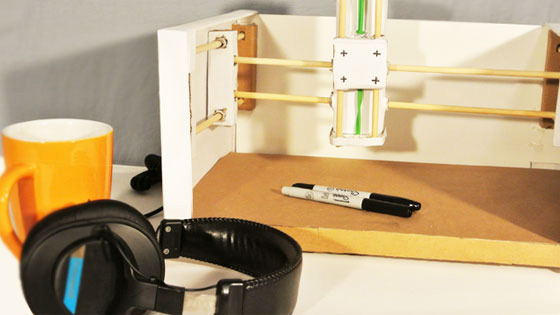
Oh, the lowly box. It spends most of the year being broken down, stashed away and pulped, but one day a year, it gets its moment to shine (at least in the UK and various Commonwealth Nations). Consider the ShoeboxCNC a continued celebration of the cardboard vessel, a kit you build from the box it arrives in. The router is an Arduino-controlled CNC fabrication machine you can put to use for all sorts of things that require an arm that moves on the X Y and Z axes - from cookie frosting to picturing painting (with varying degrees of success, of course). It's not exactly a heavy duty router or miller - more the sort of kit you'd expect from something made out of cardboard. Still, it looks to be a fun weekend activity for burgeoning makers - or a nice classroom project. The company's just opened up its Kickstarter, hoping to harness a bit of that spirit of giving. $250 will get you a kit scheduled to be delivered around this time next year, for an early Boxing Day celebration.

Filed under: Peripherals

Comments

Source: Kickstarter

Still more on automatic measurement of conductivity of saline solution

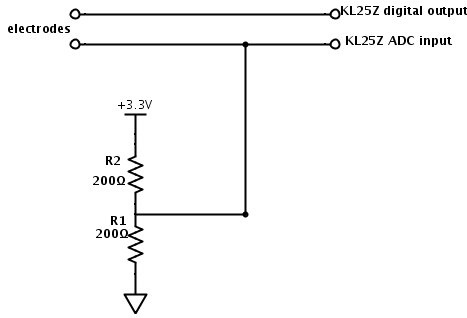
In More on automatic measurement of conductivity of saline solution, I suggested using a simple voltage divider and a microcontroller to make conductivity measurements with polarizable electrodes:

Simplified circuit for conductivity tester.

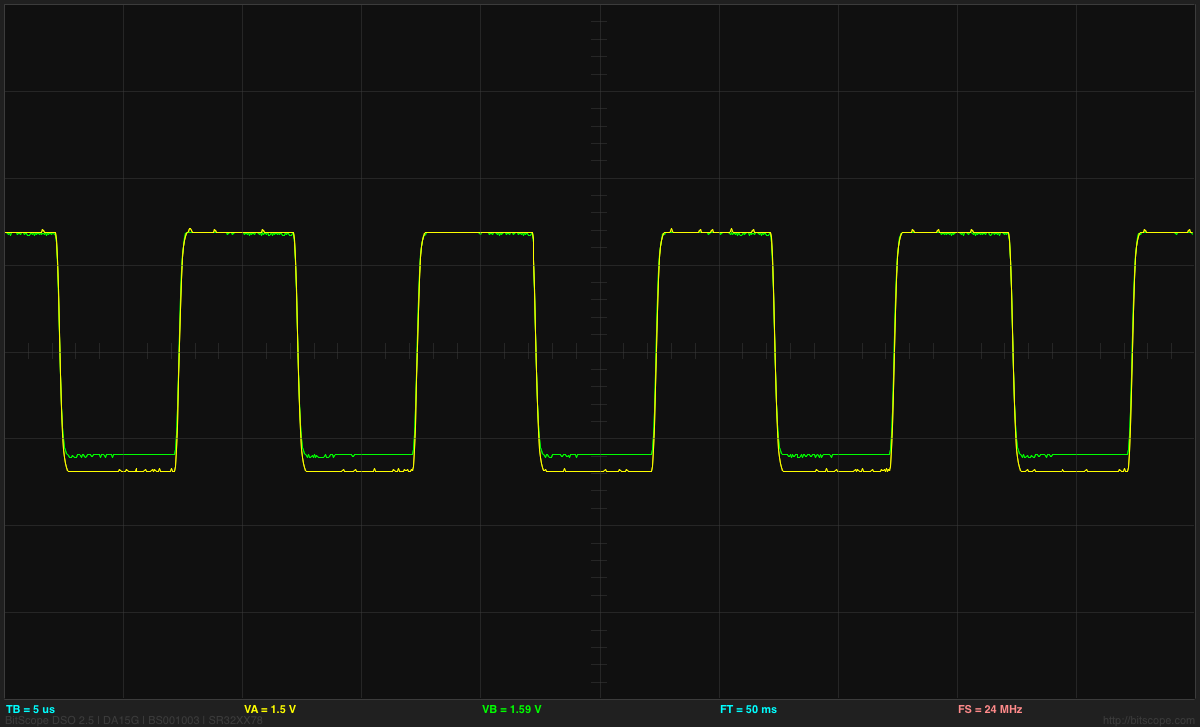
I found that putting in a 100kHz square wave worked well:

At 100kHz, both the voltage waveforms (input and output) look like pretty good square waves.

I have not yet figured out a good way on the KL25Z to provide the 100kHz signal, sample the outputs at fixed points, and communicate the result out the USB port.  Using PWM for the output was handy for just generating the output (once I fixed mbed’s off-by-one bug in their pwmout_api.c file), but that makes connecting up the analog reads more difficult.  I think that I may be better off not using PWM, but using a timer interrupt to read the analog value, change the output, and do the subtraction.  It would be fairly easy to arrange that (though I’ll probably have to figure out all the registers for the sample-and-hold and the analog-to-digital converter, as the mbed AnalogIn routine is unlikely to have the settings I want to use).   The hard part remains the interface to the host computer, as mbed does not include a simple serial interface and serial monitor like the Arduino IDE. [Correction 2013 Dec 25: my son points out that the mbed development kit has a perfectly usable serial USB interface—I had overlooked the inheritance from "Stream", which has all the functions I thought were missing. I should be able to use the Arduino serial monitor with the Freedom KL25Z board, as long as the serial interface is set up right.]

Because I’m more familiar with the Arduino environment, and because I already have Arduino Data Logger code for the host end of the interface, I started by making a simple loop that toggles the output and reads the value after each change in output.  After repeating this several times (40 or 100), I take the last difference as the output and report that to the data logger.  I couldn’t get the frequency up where I really want it (100kHz), because the Arduino analog-to-digital converter is slow, but I was able to run at about 4kHz, which would be adequate.

Because there needs to be time for the serial communication, I did bursts of pulses with pauses between bursts.  The bursts were alternating as fast as the analog inputs were read for a fixed number of cycles, and the start of the bursts was controlled by the Arduino data logger software. Although the ends of the bursts looked the same on the oscilloscope, with the same peak-to-peak voltage, I got different readings from the Arduino depending on the spacing between the bursts. I’m not sure what is causing the discrepancy.

A difference at the beginnings of the bursts I would understand as the space between the bursts put a DC voltage across the electrodes which gradually charged them up, so that the first few pulses actually end up going outside the range of the ADC:

The bottom of the grid is 0v, and the first pulse goes up to 5.442v. The pulses are at about 4kHz, but the bursts start 50msec apart.

The differences at the ends of the bursts as I change the spacing between bursts are probably also due to the charging, though I don’t see that clearly on the oscilloscope. I really don’t like the idea of having a DC bias across the electrodes, as we get electrolysis, with hydrogen bubbles forming on the more negative electrode. No oxygen bubbles form, probably because any oxygen released is reacting with the stainless steel to form metal oxides. If I increase the voltage and current, I get a lot of hydrogen bubbles on the negative electrode, some rusty looking precipitate coming off the positive electrode (probably an iron oxide), and a white coating building up on the positive electrode (probably a chromium oxide).

By putting a 4.7µF capacitor between the Arduino output and the electrode, I can reduce DC bias on the electrodes and get a more consistent signal from the Arduino, almost independent of the spacing between the bursts:

By using a 25msec spacing between the beginnings of bursts, I can get both the end of the burst and the beginning of the burst on the oscilloscope at once.
Using a 4.7µF capacitor between the square wave output and the electrodes results in sharp peaks across the resistor, but a more consistent reading from the Arduino ADC.

The voltage across the electrodes still does not average to 0v, as the pair of resistors provides a bias voltage halfway between the rails, but the pulse does not really swing rail to rail, but from 0.28v to 4.28v.  I think that the low-pass filter for setting the bias voltage that I suggested in More on automatic measurement of conductivity of saline solution may be a good idea after all, to make sure that there is no residual DC bias.

I can use the differential inputs of the Bitscope DP01 to look at the voltage across the electrodes and across the resistor to get voltage and current traces for the electrodes:

The central horizontal line is 0V for both traces here. The green trace is the voltage at the undriven electrode (@ 2v/division) and so corresponds to the current, and the yellow trace is the voltage between the electrodes (@0.2v/division).

Note that the voltage on the undriven electrode does run a little below 0V, outside the range of the Arduino ADC.  The voltage ratio of 0.248v/4.16v, together with the 100Ω Thévenin equivalent resistance results in a 5.47Ω resistance between the electrodes.  (Note: this is no longer a 1M NaCl solution—there has been evaporation, plus contamination from iron oxides, and the electrodes are not covered to the depth defined by the plastic spacer.)

I don’t know whether the conductivity meter is a good project for the freshman design seminar or not—I don’t expect the students to have the circuit skills or the programming skills to be able to do a design like this without a lot of coaching.  Even figuring out that they need to eliminate DC bias to eliminate electrolysis may be too much for them, though I do expect all to have had at least high-school chemistry. It is probably worth doing a demo of putting a large current through electrodes in salt solution, to show both the hydrogen bubbles and the formation of the oxides.  I could probably coach freshmen through the design, if they were interested in doing it, so I’ll leave it on the feasible list.

The square-wave analysis is not really suitable for a circuits course, so I think I’ll stick with sine-wave excitation for that course.


Filed under: Circuits course, freshman design seminar Tagged: Arduino, bioengineering, circuits, conductivity, electrodes, KL25Z, voltage divider

Still more on automatic measurement of conductivity of saline solution

In More on automatic measurement of conductivity of saline solution, I suggested using a simple voltage divider and a microcontroller to make conductivity measurements with polarizable electrodes:

Simplified circuit for conductivity tester.

I found that putting in a 100kHz square wave worked well:

At 100kHz, both the voltage waveforms (input and output) look like pretty good square waves.

I have not yet figured out a good way on the KL25Z to provide the 100kHz signal, sample the outputs at fixed points, and communicate the result out the USB port.  Using PWM for the output was handy for just generating the output (once I fixed mbed’s off-by-one bug in their pwmout_api.c file), but that makes connecting up the analog reads more difficult.  I think that I may be better off not using PWM, but using a timer interrupt to read the analog value, change the output, and do the subtraction.  It would be fairly easy to arrange that (though I’ll probably have to figure out all the registers for the sample-and-hold and the analog-to-digital converter, as the mbed AnalogIn routine is unlikely to have the settings I want to use).   The hard part remains the interface to the host computer, as mbed does not include a simple serial interface and serial monitor like the Arduino IDE. [Correction 2013 Dec 25: my son points out that the mbed development kit has a perfectly usable serial USB interface—I had overlooked the inheritance from "Stream", which has all the functions I thought were missing. I should be able to use the Arduino serial monitor with the Freedom KL25Z board, as long as the serial interface is set up right.]

Because I’m more familiar with the Arduino environment, and because I already have Arduino Data Logger code for the host end of the interface, I started by making a simple loop that toggles the output and reads the value after each change in output.  After repeating this several times (40 or 100), I take the last difference as the output and report that to the data logger.  I couldn’t get the frequency up where I really want it (100kHz), because the Arduino analog-to-digital converter is slow, but I was able to run at about 4kHz, which would be adequate.

Because there needs to be time for the serial communication, I did bursts of pulses with pauses between bursts.  The bursts were alternating as fast as the analog inputs were read for a fixed number of cycles, and the start of the bursts was controlled by the Arduino data logger software. Although the ends of the bursts looked the same on the oscilloscope, with the same peak-to-peak voltage, I got different readings from the Arduino depending on the spacing between the bursts. I’m not sure what is causing the discrepancy.

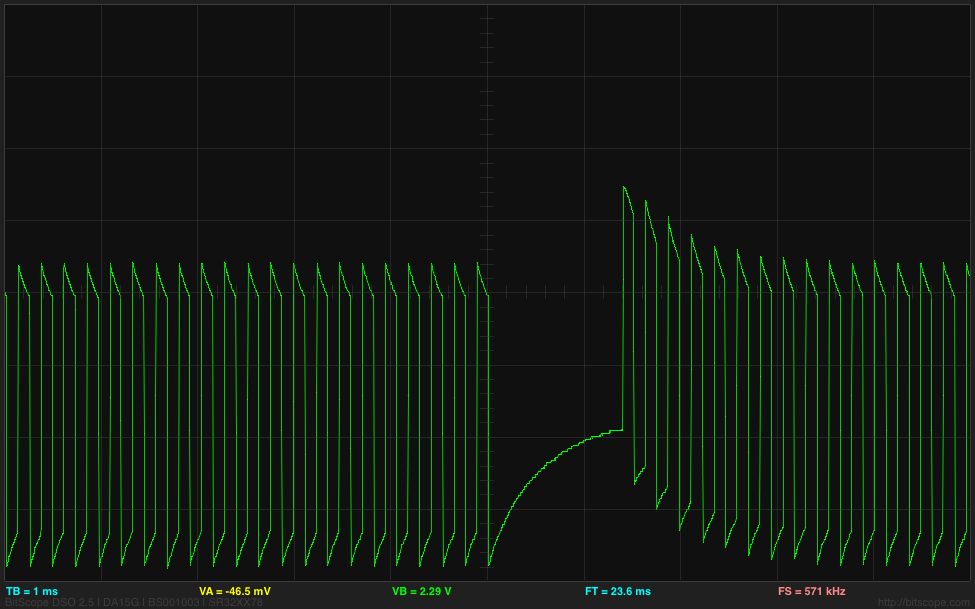
A difference at the beginnings of the bursts I would understand as the space between the bursts put a DC voltage across the electrodes which gradually charged them up, so that the first few pulses actually end up going outside the range of the ADC:

The bottom of the grid is 0v, and the first pulse goes up to 5.442v. The pulses are at about 4kHz, but the bursts start 50msec apart.

The differences at the ends of the bursts as I change the spacing between bursts are probably also due to the charging, though I don’t see that clearly on the oscilloscope. I really don’t like the idea of having a DC bias across the electrodes, as we get electrolysis, with hydrogen bubbles forming on the more negative electrode. No oxygen bubbles form, probably because any oxygen released is reacting with the stainless steel to form metal oxides. If I increase the voltage and current, I get a lot of hydrogen bubbles on the negative electrode, some rusty looking precipitate coming off the positive electrode (probably an iron oxide), and a white coating building up on the positive electrode (probably a chromium oxide).

By putting a 4.7µF capacitor between the Arduino output and the electrode, I can reduce DC bias on the electrodes and get a more consistent signal from the Arduino, almost independent of the spacing between the bursts:

By using a 25msec spacing between the beginnings of bursts, I can get both the end of the burst and the beginning of the burst on the oscilloscope at once.
Using a 4.7µF capacitor between the square wave output and the electrodes results in sharp peaks across the resistor, but a more consistent reading from the Arduino ADC.

The voltage across the electrodes still does not average to 0v, as the pair of resistors provides a bias voltage halfway between the rails, but the pulse does not really swing rail to rail, but from 0.28v to 4.28v.  I think that the low-pass filter for setting the bias voltage that I suggested in More on automatic measurement of conductivity of saline solution may be a good idea after all, to make sure that there is no residual DC bias.

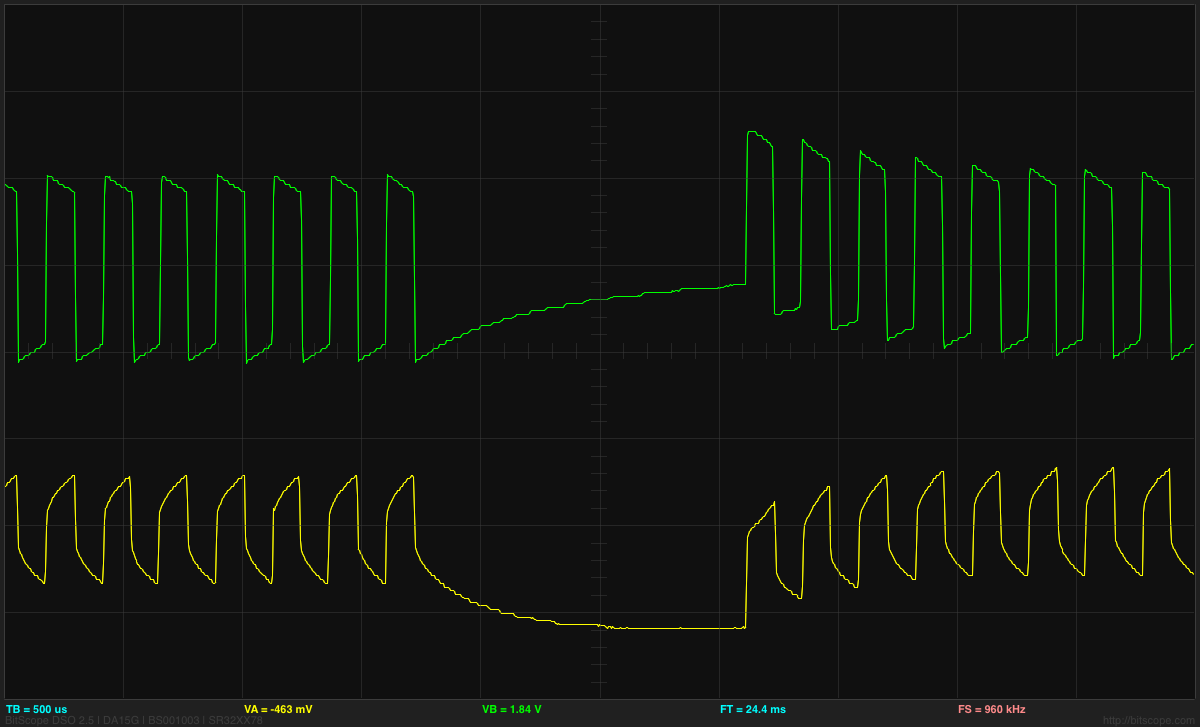
I can use the differential inputs of the Bitscope DP01 to look at the voltage across the electrodes and across the resistor to get voltage and current traces for the electrodes:

The central horizontal line is 0V for both traces here. The green trace is the voltage at the undriven electrode (@ 2v/division) and so corresponds to the current, and the yellow trace is the voltage between the electrodes (@0.2v/division).

Note that the voltage on the undriven electrode does run a little below 0V, outside the range of the Arduino ADC.  The voltage ratio of 0.248v/4.16v, together with the 100Ω Thévenin equivalent resistance results in a 5.47Ω resistance between the electrodes.  (Note: this is no longer a 1M NaCl solution—there has been evaporation, plus contamination from iron oxides, and the electrodes are not covered to the depth defined by the plastic spacer.)

I don’t know whether the conductivity meter is a good project for the freshman design seminar or not—I don’t expect the students to have the circuit skills or the programming skills to be able to do a design like this without a lot of coaching.  Even figuring out that they need to eliminate DC bias to eliminate electrolysis may be too much for them, though I do expect all to have had at least high-school chemistry. It is probably worth doing a demo of putting a large current through electrodes in salt solution, to show both the hydrogen bubbles and the formation of the oxides.  I could probably coach freshmen through the design, if they were interested in doing it, so I’ll leave it on the feasible list.

The square-wave analysis is not really suitable for a circuits course, so I think I’ll stick with sine-wave excitation for that course.


Filed under: Circuits course, freshman design seminar Tagged: Arduino, bioengineering, circuits, conductivity, electrodes, KL25Z, voltage divider

Project – Arduino “Book Monster”

Introduction

Recently we saw a neat project by the people from Evil Mad Scientist – their “Peek-O-Book“, a neat take on a book with a shy monster inside, based on hardware from their Snap-O-Lantern kit. Not wanting to fork out for the postage to Australia we decided to make our own version, of which you can follow along.

This is a fun project that doesn’t require too much effort and has a lot of scope for customisation. There’s no right or wrong when making your own (or this one!) so just have fun with it.

Construction

First, you’ll need a book of some sort, something large enough to hide the electronics yet not too large to look “suspicious” – then cut the guts out to make enough space for the electronics. Then again it’s subjective, so get whatever works for you. Coincidentally we found some “dummy books” (not books for dummies) that were perfect for the job:

After spraying the inside with matt black paint, the inside is better suited for the “eyes in the dark” effect required for the project:

The “book” had a magnet and matching metal disk on the flap to aid with keep the cover shut, however this was removed as it will not allow for smooth opening with the servo.

The electronics are quite simple if you have some Arduino or other development board experience. Not sure about Arduino? You can use any microcontroller that can control a servo and some LEDs. We’re using a Freetronics LeoStick as it’s really small yet offers a full Arduino Leonardo-compatible experience, and a matching Protostick to run the wires and power from:

By fitting all the external wiring to the Protostick you can still use the main LeoStick for other projects if required. The power is from 4 x AA cells, with the voltage reduced with a 1n4004 diode:

And for the “eyes” of our monster – you can always add more if it isn’t too crowded in the book:

We’ll need a resistor as well for the LEDs. As LEDs are current driven you can connect two in series with a suitable dropping resistor which allows you to control both if required with one digital output pin. You can use the calculator here to help determine the right value for the resistor.

Finally a servo is required to push the lid of the book up and down. We used an inexpensive micro servo that’s available from Tronixlabs:

The chopsticks are cut down and used as an extension to the servo horn to give it more length:

Don’t forget to paint the arm black so it doesn’t stand out when in use. We had a lazy attack and mounted the servo on some LEGO bricks held in with super glue, but it works. Finally, here is the circuit schematic for our final example – we also added a power switch after the battery pack:

To recap  – this is a list of parts used:

After some delicate soldering the whole lot fits neatly in the box:

Arduino Sketch

The behaviour of your “book monster” comes down to your imagination. Experiment with the servo angles and speed to simulate the lid opening as if the monster is creeping up, or quickly for a “pop-up” surprise. And again with the LED eyes you can blink them and alter the brightness with PWM. Here’s a quick sketch to give you an idea:

int angle;
int d; // for delays
int ledPin = 9; // LEDs on digital pin 9

#include <Servo.h>
Servo myservo;

void setup()
{
  myservo.attach(4); // servo control pin on digital 4
  pinMode(9, OUTPUT); 
  randomSeed(analogRead(0));
  myservo.write(10);
  delay(5000);
}

void behaviour1()
{
  for (angle = 10; angle <=40; angle++)
  {
    myservo.write(angle);
    delay(50);
  }
  digitalWrite(ledPin, HIGH);
  delay(250);
  digitalWrite(ledPin, LOW);
  delay(250);  
  digitalWrite(ledPin, HIGH);
  delay(250);
  digitalWrite(ledPin, LOW);
  delay(250);    
  digitalWrite(ledPin, HIGH);
  delay(1000);
  digitalWrite(ledPin, LOW);
  delay(250);    
  digitalWrite(ledPin, HIGH);
  delay(1000);
  digitalWrite(ledPin, LOW);
  delay(250);    
  digitalWrite(ledPin, HIGH);
  delay(1000);
  digitalWrite(ledPin, LOW);
  delay(250);    
  for (angle = 40; angle >=10; --angle)
  {
    myservo.write(angle);
    delay(5);
  }
}

void loop()
{
  behaviour1();
  delay(random(60000));
}

You can watch our example unit in this video.

Frankly the entire project is subjective, so just do what you want.

Conclusion

Well that was fun, and I am sure this will entertain many people. A relative is a librarian so this will adorn a shelf and hopefully give the children a laugh. Once again, thanks to the people from Evil Mad Science for the inspiration for this project – so go and buy something from their interesting range of kits and so on.

And if you enjoyed this article, or want to introduce someone else to the interesting world of Arduino – check out my book (now in a third printing!) “Arduino Workshop”.

Have fun and keep checking into tronixstuff.com. Why not follow things on twitter, Google+, subscribe  for email updates or RSS using the links on the right-hand column, or join our forum – dedicated to the projects and related items on this website. Sign up – it’s free, helpful to each other –  and we can all learn something.

The post Project – Arduino “Book Monster” appeared first on tronixstuff.
Grove Button Tutorial

The Grove Button is a handy little component which simplifies the push-button experience. It doesn't take much programming to get this component to work. And while the button works extremely well with the Grove Base Shield, we will be connecting this button directly to the Arduino UNO.

The button will be LOW in its normal resting state, and report HIGH when the button is pressed. Have a look at the video below to see this project in action.

Video


Parts Required


Sketch


Arduino Sketch


 1
2
3
4
5
6
7
8
9
10
11
12
/* Grove Button Sketch - Written by ScottC 22nd Dec 2013 
http://arduinobasics.blogspot.com
--------------------------------------------------------- */

void setup(){
pinMode(8, INPUT);
pinMode(13, OUTPUT);
}

void loop(){
digitalWrite(13, digitalRead(8));
}

The signal pin of the Grove Button attaches to digital pin 8 on the Arduino, and the LED is connected to digital pin 13 on the Arduino. When the button is pressed, it will send a HIGH signal to digital pin 8, which will turn the LED on. When the button is released, the signal will change to LOW and the LED will turn off.
PIR Sensor (Part 2)


In this tutorial we will connect our HC-SR501 PIR (movement) Sensor to an Arduino UNO. The PIR sensor will be powered by the Arduino and when movement is detected, the PIR sensor will send a signal to Digital Pin 2. The Arduino will respond to this signal by illuminating the LED attached to Pin 13.

PIR Sensor (Part 1) : Showed that this sensor can be used in isolation (without an Arduino). However, I will still demonstrate how you can attach this sensor to the Arduino so that we can move forward to more advanced objectives and concepts.


Video


Parts Required


Fritzing Sketch


Arduino Sketch


 1
2
3
4
5
6
7
8
9
10
11
12
13
14
/*Simple PIR sketch: Written by ScottC, 19th Dec 2013

http://arduinobasics.blogspot.com/

----------------------------------------------------*/

void setup(){
pinMode(13,OUTPUT);
pinMode(2,INPUT);
}

void loop(){
digitalWrite(13,digitalRead(2));
}


The sketch above reads the signal coming in from the PIR sensor on Pin 2, and if it reads HIGH, it light up the LED attached to Pin 13. If it reads LOW, it will turn the LED off. This is all controlled by line 13 in the Arduino Sketch above.
The following table helps to identify the purpose of the potentiometers on the PIR sensor. Most people say they use trial and error. I will attempt to reduce the mystery of these components on the PIR board.


104 (Left) – Max


LED on = 20 sec
LED off = 3 sec

When you move the 104 labelled potentiometer all the way to the left (max position), the LED will remain on for 20 seconds after movement is detected. The 20 seconds is independent of the other potentiometer (105) setting. When the LED turns off, it will remain off for 3 seconds before the sensor will trigger again from any further movement.


104 (Right) – Min


LED on = 1 sec
LED off = 3 sec

When you move the 104 labelled potentiometer all the way to the right (min position), the LED will remain on for 1 second after movement is detected. When the LED turns off, it will remain off for 3 seconds before the sensor will trigger again from any further movement.


105 (Left) – Max


Most sensitive – Detects movement from over 10 steps away.

The 105 labelled potentiometer controls the sensitivity of the PIR sensor. When in the left position, the PIR sensor is most sensitive and small amounts of movement will trigger the sensor. It detected my movement (ie a single step to the left of right) from over 10 steps away from the sensor. I was very impressed.


105 (Right) – Min


Least sensitive: Need significant movement for sensor to trigger. Detects movement from about 4 steps away.

When the 105 labelled potentiometer is twisted to the right, the PIR sensor becomes a lot less sensitive. I needed to take much bigger steps to the left or right to trigger the sensor (about 3 times the size compared to the left position). It also had a lot more trouble detecting movement occurring further away. It only really started to detect my movement when I was about 4 steps away from it. 

My preferred combination was 104-Right (min) + 105-Left (max), which meant that the sensor would remain on for only a short period of time, and detect any subtle movements in the room. This combination is displayed below:


I have not tested to see how it performs over a very long period with this setting, and whether it would suffer from false positive readings, but that could easily be fixed by turning the 105 labelled potentiometer a bit more to the right.