Posts with «arduino» label

Actual homework on data sheets and photodetectors

To save people the trouble of finding the homework on the class web page, I’ve copied the assignment that I mentioned in Fifth day of freshman design seminar here:

  • By Thursday night, 2014 Jan 23, e-mail your photospectrometer design to the class e-mail list, so that everyone can share the designs.
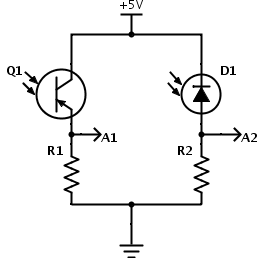
  • For Monday, 2014 Jan 27, as individuals (not groups), find a data sheet for the phototransistor WP3DP3BT. Also, select a cheap photodiode that is available in the same size and shape of package as the WP3DP3BT phototransistor and look up its data sheet.For the photodiode and the phototransistor, report the dark current, the voltage drop across the device (that would be collector-emitter saturation voltage for a phototransistor and the open-circuit voltage for a photodiode), and the sensitivity (current at 1mW/cm2 at λ=940nm, which is the wavelength where silicon photodiodes and phototransistors are most sensitive).Find a plot of the spectral sensitivity of a silicon photodiode or phototransistor (it need not be from the data sheets you found—all the silicon photodiodes and phototransistors have similar properties, unless the packaging they are in filters the light).We want to make a circuit so that the full-scale (5v) reading on the Arduino corresponds to an irradiance of 204.8μW/cm2 at 940nm, so that each of the 1024 steps corresponds to an increment of 0.2μW/cm2. Remember that 1000μW=1mW. (We may not be able to use the full range, as the circuit should saturate at a somewhat lower value, depending on the saturation voltage or open-circuit voltage of the photodetector.)Update 2014 Feb 6: Q1 is intended to be an NPN phototransistor, not PNP as shown here!
    For the circuits above, figure out what values of R1 and R2 to use to get the desired voltage range at A1 or A2. Look up what standard resistance values are available with 2% tolerance, and pick the nearest one. (Hint: Google is your friend for finding tables of information.)

    In class on Monday, we’ll try building this circuit and seeing how it works with the Arduino Data Logger.

  • Before Monday 2014 Feb 3, get an Arduino board (I recommend Uno Rev 3, but any ATMega Arduino board should do), install Arduino software (more instructions in the Getting started guide), and start doing some of the on-line tutorials.

Filed under: freshman design seminar Tagged: Arduino, bioengineering, engineering education, homework, photodiode, phototransistor

Actual homework on data sheets and photodetectors

To save people the trouble of finding the homework on the class web page, I’ve copied the assignment that I mentioned in Fifth day of freshman design seminar here:

  • By Thursday night, 2014 Jan 23, e-mail your photospectrometer design to the class e-mail list, so that everyone can share the designs.
  • For Monday, 2014 Jan 27, as individuals (not groups), find a data sheet for the phototransistor WP3DP3BT. Also, select a cheap photodiode that is available in the same size and shape of package as the WP3DP3BT phototransistor and look up its data sheet.For the photodiode and the phototransistor, report the dark current, the voltage drop across the device (that would be collector-emitter saturation voltage for a phototransistor and the open-circuit voltage for a photodiode), and the sensitivity (current at 1mW/cm2 at λ=940nm, which is the wavelength where silicon photodiodes and phototransistors are most sensitive).Find a plot of the spectral sensitivity of a silicon photodiode or phototransistor (it need not be from the data sheets you found—all the silicon photodiodes and phototransistors have similar properties, unless the packaging they are in filters the light).We want to make a circuit so that the full-scale (5v) reading on the Arduino corresponds to an irradiance of 204.8μW/cm2 at 940nm, so that each of the 1024 steps corresponds to an increment of 0.2μW/cm2. Remember that 1000μW=1mW. (We may not be able to use the full range, as the circuit should saturate at a somewhat lower value, depending on the saturation voltage or open-circuit voltage of the photodetector.)Update 2014 Feb 6: Q1 is intended to be an NPN phototransistor, not PNP as shown here!
    For the circuits above, figure out what values of R1 and R2 to use to get the desired voltage range at A1 or A2. Look up what standard resistance values are available with 2% tolerance, and pick the nearest one. (Hint: Google is your friend for finding tables of information.)

    In class on Monday, we’ll try building this circuit and seeing how it works with the Arduino Data Logger.

  • Before Monday 2014 Feb 3, get an Arduino board (I recommend Uno Rev 3, but any ATMega Arduino board should do), install Arduino software (more instructions in the Getting started guide), and start doing some of the on-line tutorials.

Filed under: freshman design seminar Tagged: Arduino, bioengineering, engineering education, homework, photodiode, phototransistor

Fifth day of freshman design seminar

Today we continued the design exercise I started last week (see also 4th class) designing a photospectrometer.

I started the class by collecting the work I had asked them to do on fleshing out the design of the photospectrometer, which I have not read yet.  Just glancing at the pile, it looks like most wrote very little, and just drew a picture of the components we talked about in class, not adding much. I’ll know more about the class once I’ve had a chance to look at what they did more carefully.  I have asked them to mail their work to the class e-mail list by tomorrow night, so that the rest of the class can see what everyone has done.

I then told them that we’d do some electronics and computer programming, since many of them had requested that on the first-day survey, and that we’d use Arduino boards to do that learning.  I suggested that they get Arduino Uno Rev 3 boards as being the current standard (about $30), but told them that almost any Arduino board that used an ATMega processor would be fine—the older boards, like a Uno that is not Rev 3, are often half the price.  They can probably get the boards from the University through BELS (the lab support group for the engineering labs), but it might be cheaper on line.

I then asked them for some details that they had added to the photospectrometer design.  The first one to come up was the photodetector, so we started talking about different photodetectors. They came up with photodiode, photomultiplier, and photocell, to which I added phototransistor and photoresistor.  I asked them what sort of characteristics might be important to a photodetector, and (with some prompting) got them to come up with the ideas of sensitivity and which wavelengths the detector was sensitive to.

One student came up with “resolution” for the sensor, and I took that as an opportunity for a digression into the differences between accuracy, precision, and resolution.  I also talked about resolution being a property of the whole system (how many digits were in the numbers), but that there was a property of sensors that was related—how much noise they had. Sometime later in the class (I forget exactly when), I talked about Arduinos having a 10-bit analog-to-digital converter, and asked them to guess what that meant.  The only guess was that it meant that there were 10 different levels.  I was actually fairly pleased with this answer, as it got to the notion of resolution, and I could correct it from 10 to 210 without making anyone feel stupid. I told them that they should remember 210=1024, as that was a frequently used “magic” number in computers.

I quickly sketched rough sensitivity plots for phototransistors/photodiodes and photoresistors, and explained that that was why photoresistors were used as ambient light sensors—because of how they matched human visual sensitivity.  I also mentioned the slowness of photoresistors and said that they weren’t used for much for other applications.

I told them how to find datasheets—either by Googling “photodiode data sheet” or by doing a search on Digi-key, choosing the cheapest part that seemed to do what they want, and looking up its data sheet.  I assigned them the task of finding and trying to read a photodiode and a phototransistor data sheet.  I’ll make that more explicit on the class web page later tonight.  I’ll probably give them a part number for one, and make them look for the other from just a description.

I showed them the schematic symbol for a phototransistor (though, unfortunately, not for a photodiode), but I didn’t attempt to explain how it works.  I just told them that the current through the phototransistor was proportional to the light intensity as long as voltage across the transistor was at least 0.7v.  (I’ll have to tell them where to find that information on the data sheet.)  I also mentioned the notion of “dark current”, which prevents the phototransistor from getting down to 0 current.

I then tried to get them to figure out how to convert the current into a voltage that could be measured by the Arduino.  After a few tries, one of them finally remembered Ohm’s Law (V=IR), and they decided they needed a resistance.  I told them that there were fairly constant resistance devices available (called “resistors”) and mentioned the notions of resistor tolerance and that resistors had thermal coefficients, so that the resistance changed as a function of temperature.

I then gave them the phototransistor circuit below (though not the photodiode circuit):

Simple circuits for measuring light with an Arduino. Update 2014 Feb 6: Q1 is intended to be an NPN phototransistor, not PNP as shown here!

We then spent a fairly long time before they figured out that they needed to know what value resistor to use in the circuit. I got them (eventually) to the point where they realized that the maximum light intensity determined the maximum current, and if we set the maximum voltage to be as high as possible while keeping the transistor properly biased, the desired resistor was determined by R=Vmax/Imax. I showed them how increasing the value of R made the circuit more sensitive, but that if we made R too big the circuit would not be able to handle high light intensity.

We then looked at the overall spectrometer design, and saw how the optics coupled everything together: the brightness of the light, the absorbance of the sample, the efficiency of the monochromator, and the sensitivity of the photodetector. I introduced the notion of interface specifications, so that design problems could be divided up among a team, and the need for negotiating changes to the interface specs rather than just “throwing problems over the fence” for some other part of the team to solve. I gave the example of the lamp designer finding out that the initial spec called for an expensive, bright light (like and HID bulb) but being able to reduce the cost and power enormously with a somewhat less bright LED. The change to the spec might be accommodated by shortening the optical path in the sample (but that would need non-standard cuvettes) or by making the light sensor more sensitive (which is pretty cheap to do).

We ran out of time then, so did not get to looking at any other parts of the design.

Some of the students were amazed at how much thinking went into just one little detail of the design (one resistor value). They are used to big-picture, fuzzy thinking, where getting the general idea is what is important, and are not used to sweating the details. Part of getting them to “think like engineers” is getting them to realize that the details do matter.

For homework, I’ll ask them to figure out good values for R1 and R2 for particular parts (or maybe for one part that I specify and one that they choose), based on the data sheets and some light spec. In class on Monday, I’ll build the design they specified, and we’ll test it with the Arduino data logger.  If I happen to pick a bad resistor choice, either because I gave them a bad light intensity to design for or because their math was wrong, we’ll get bad results, and I’ll show them how to debug the design and iteratively improve it.


Filed under: freshman design seminar Tagged: Arduino, bioengineering, engineering education, photodiode, phototransistor, spectrometer, spectrophotometer, spectroscope

Fifth day of freshman design seminar

Today we continued the design exercise I started last week (see also 4th class) designing a photospectrometer.

I started the class by collecting the work I had asked them to do on fleshing out the design of the photospectrometer, which I have not read yet.  Just glancing at the pile, it looks like most wrote very little, and just drew a picture of the components we talked about in class, not adding much. I’ll know more about the class once I’ve had a chance to look at what they did more carefully.  I have asked them to mail their work to the class e-mail list by tomorrow night, so that the rest of the class can see what everyone has done.

I then told them that we’d do some electronics and computer programming, since many of them had requested that on the first-day survey, and that we’d use Arduino boards to do that learning.  I suggested that they get Arduino Uno Rev 3 boards as being the current standard (about $30), but told them that almost any Arduino board that used an ATMega processor would be fine—the older boards, like a Uno that is not Rev 3, are often half the price.  They can probably get the boards from the University through BELS (the lab support group for the engineering labs), but it might be cheaper on line.

I then asked them for some details that they had added to the photospectrometer design.  The first one to come up was the photodetector, so we started talking about different photodetectors. They came up with photodiode, photomultiplier, and photocell, to which I added phototransistor and photoresistor.  I asked them what sort of characteristics might be important to a photodetector, and (with some prompting) got them to come up with the ideas of sensitivity and which wavelengths the detector was sensitive to.

One student came up with “resolution” for the sensor, and I took that as an opportunity for a digression into the differences between accuracy, precision, and resolution.  I also talked about resolution being a property of the whole system (how many digits were in the numbers), but that there was a property of sensors that was related—how much noise they had. Sometime later in the class (I forget exactly when), I talked about Arduinos having a 10-bit analog-to-digital converter, and asked them to guess what that meant.  The only guess was that it meant that there were 10 different levels.  I was actually fairly pleased with this answer, as it got to the notion of resolution, and I could correct it from 10 to 210 without making anyone feel stupid. I told them that they should remember 210=1024, as that was a frequently used “magic” number in computers.

I quickly sketched rough sensitivity plots for phototransistors/photodiodes and photoresistors, and explained that that was why photoresistors were used as ambient light sensors—because of how they matched human visual sensitivity.  I also mentioned the slowness of photoresistors and said that they weren’t used for much for other applications.

I told them how to find datasheets—either by Googling “photodiode data sheet” or by doing a search on Digi-key, choosing the cheapest part that seemed to do what they want, and looking up its data sheet.  I assigned them the task of finding and trying to read a photodiode and a phototransistor data sheet.  I’ll make that more explicit on the class web page later tonight.  I’ll probably give them a part number for one, and make them look for the other from just a description.

I showed them the schematic symbol for a phototransistor (though, unfortunately, not for a photodiode), but I didn’t attempt to explain how it works.  I just told them that the current through the phototransistor was proportional to the light intensity as long as voltage across the transistor was at least 0.7v.  (I’ll have to tell them where to find that information on the data sheet.)  I also mentioned the notion of “dark current”, which prevents the phototransistor from getting down to 0 current.

I then tried to get them to figure out how to convert the current into a voltage that could be measured by the Arduino.  After a few tries, one of them finally remembered Ohm’s Law (V=IR), and they decided they needed a resistance.  I told them that there were fairly constant resistance devices available (called “resistors”) and mentioned the notions of resistor tolerance and that resistors had thermal coefficients, so that the resistance changed as a function of temperature.

I then gave them the phototransistor circuit below (though not the photodiode circuit):

Simple circuits for measuring light with an Arduino. Update 2014 Feb 6: Q1 is intended to be an NPN phototransistor, not PNP as shown here!

We then spent a fairly long time before they figured out that they needed to know what value resistor to use in the circuit. I got them (eventually) to the point where they realized that the maximum light intensity determined the maximum current, and if we set the maximum voltage to be as high as possible while keeping the transistor properly biased, the desired resistor was determined by R=Vmax/Imax. I showed them how increasing the value of R made the circuit more sensitive, but that if we made R too big the circuit would not be able to handle high light intensity.

We then looked at the overall spectrometer design, and saw how the optics coupled everything together: the brightness of the light, the absorbance of the sample, the efficiency of the monochromator, and the sensitivity of the photodetector. I introduced the notion of interface specifications, so that design problems could be divided up among a team, and the need for negotiating changes to the interface specs rather than just “throwing problems over the fence” for some other part of the team to solve. I gave the example of the lamp designer finding out that the initial spec called for an expensive, bright light (like and HID bulb) but being able to reduce the cost and power enormously with a somewhat less bright LED. The change to the spec might be accommodated by shortening the optical path in the sample (but that would need non-standard cuvettes) or by making the light sensor more sensitive (which is pretty cheap to do).

We ran out of time then, so did not get to looking at any other parts of the design.

Some of the students were amazed at how much thinking went into just one little detail of the design (one resistor value). They are used to big-picture, fuzzy thinking, where getting the general idea is what is important, and are not used to sweating the details. Part of getting them to “think like engineers” is getting them to realize that the details do matter.

For homework, I’ll ask them to figure out good values for R1 and R2 for particular parts (or maybe for one part that I specify and one that they choose), based on the data sheets and some light spec. In class on Monday, I’ll build the design they specified, and we’ll test it with the Arduino data logger.  If I happen to pick a bad resistor choice, either because I gave them a bad light intensity to design for or because their math was wrong, we’ll get bad results, and I’ll show them how to debug the design and iteratively improve it.


Filed under: freshman design seminar Tagged: Arduino, bioengineering, engineering education, photodiode, phototransistor, spectrometer, spectrophotometer, spectroscope

Online data analysis with Arduino and plotly

Introduction

It’s 2014 and the Internet-of-Things is flying along at a rapid rate with all sorts of services and devices that share data and allow control via the Internet. In the spirit of this we look a new service called plotly.

This is a “collaborative data analysis and graphing tool” which allows you to upload your own data to be analysed in many ways, and then graph the results using all sorts of plot types.

With plotly you can run your own mathematical functions over your data, run intense statistical analysis and use or edit one of the many APIs (Python, MATLAB, R, Julia, REST, Arduino, or Perl) to increase the level of customisation. Plotly works in conjunction with Google Drive to store your data, however this can be exported and imported without any issues. Futhermore plotly works best in Google Chrome.

For our review we’ll look at using plotly to quickly display and analyse data received from an Internet-connected Arduino – our EtherTen, or you can use almost any Arduino and Ethernet shield. The system isn’t completely documented however by revieiwng our example sketch and some experimenting with the interface plotly is very much usable, even in its current beta format.

Getting started with plotly

You will need to setup a plotly account, and this is simply accomplished from their main site. Some of you may be wondering what plotly costs – at the time of writing plotly is free for unlimited public use (that is – anyone can see your data with the right URL), but requires a subscription for extended private use. You can find the costs at the plans page.

Once you have a plotly account, visit your plotly home page, whose URL is https://plot.ly/~yourusername/# – then click “edit profile”. Another window will appear which amongst other things contains your plotly API key – make a note of this as you will need it and your username for the Arduino sketch.

Next, you’ll need some Arduino or compatible hardware to capture the data to log and analyse. An Arduino with an Ethernet or WiFi connection, and appropriate sensors for your application. We have our EtherTen that takes readings from a temperature/humidity sensor and a light level sensor:

Now you need a new Arduino library, which is available from the plotly API page. Lots of APIs there… Anyhow, click “Arduino” and you will arrive at the github page. Download the entire .zip file, and extract the plotly_ethernet folder into Arduino libraries folder which in most installations can be found at ..Arduino-1.0.xlibraries. 

Finally we’ll use a demonstration sketch provided by plotly and modify this to our needs, which can be downloaded from github. We’ll go through this sketch and show you what to update – so have a quick look and then at out example sketch at the end of this section.

First, insert any code required to get data from your sensors and store the data in a variable – do this so the values can be used in void loop. Next, update the MAC address and the IP address of your Ethernet-enabled Arduino with the following lines:

byte mac[] = { 0xDE, 0xAD, 0xBE, 0xEF, 0xFE, 0xED };
byte my_ip[] = { 192,168,0,77 };

and change the MAC and IP if necessary. If Arduino and Ethernet is new to you, check out the tutorial. Now look for the following two lines and enter your plotly username and API key:

plotly.username = "yourplotlyusername";
plotly.api_key = "yourplotlyAPIkey";

Next – it’s a good idea to set your time zone, so the time in plots makes sense. Add the following two lines in void setup():

plotly.timestamp = true; 
plotly.timezone = "Australia/Melbourne";

You can find a list of time zones available for use with plotly here. Now you need to determine how many traces and points to use. A trace is one source of data, for example temperature. For now you will have one point, so set these parameters using the following lines:

int nTraces=x; // x = number of traces
int nPoints=1;

For example, we will plot temperature, humidity and light level – so this requires three traces. The next step is to set the filename for the plot, using the following line:

char filename[] = "simple_example";

This will be sent to plotly and your data will be saved under that name. At the point in your sketch where you want to send some data back to plotly, use:

plotly.open_stream(nPoints, nTraces, filename, layout);

… then the following for each trace:

plotly.post(millis(),data);

where data is the variable to send back to plotly. We use millis() as our example is logging data against time.

To put all that together, consider our example sketch with the hardware mentioned earlier:

// Code modified from example provied by plot.ly

#include <SPI.h>
#include <Ethernet.h>
#include "plotly_ethernet.h"
#include "DHT.h"

// DHT Sensor Setup
#define DHTPIN 2               // We have connected the DHT to Digital Pin 2
#define DHTTYPE DHT22          // This is the type of DHT Sensor (Change it to DHT11 if you're using that model)
DHT dht(DHTPIN, DHTTYPE);      // Initialize DHT object
plotly plotly;                 // initialize a plotly object, named plotly

//initialize plotly global variables
char layout[]="{}";
char filename[] = "Office Weather and Light"; // name of the plot that will be saved in your plotly account -- resaving to the same filename will simply extend the existing traces with new data

float h, t, ll;
int lightLevel;

// Ethernet Setup
byte mac[] = { 0xDE, 0xAD, 0xBE, 0xEF, 0xFE, 0xED }; // doesn't really matter
byte my_ip[] = { 192, 168, 1, 77 }; // google will tell you: "public ip address"

void startEthernet(){
  Serial.println("Initializing ethernet");
  if(Ethernet.begin(mac) == 0){
    Serial.println("Failed to configure Ethernet using DHCP");
    // no point in carrying on, so do nothing forevermore:
    // try to congifure using IP address instead of DHCP:
    Ethernet.begin(mac, my_ip);
  }
  Serial.println("Done initializing ethernet");
  delay(1000);
}

void setup() {
  // Open serial communications and wait for port to open:
  Serial.begin(9600);
  while (!Serial) {
    ; // wait for serial port to connect. Needed for Leonardo only
  }

  dht.begin(); // initialize dht sensor reading
  startEthernet();    // initialize ethernet

    // Initialize plotly settings
  plotly.VERBOSE = true; // turn to false to suppress printing over serial
  plotly.DRY_RUN = false; // turn to false when you want to connect to plotly's servers 
  plotly.username = "yourplotlyusername"; // your plotly username -- sign up at https://plot.ly/ssu or feel free to use this public account. password of the account is "password"
  plotly.api_key = "yourplotlyapikey"; // "public_arduino"'s api_key -- char api_key[10]
  plotly.timestamp = true; // tell plotly that you're stamping your data with a millisecond counter and that you want plotly to convert it into a date-formatted graph
  plotly.timezone = "Australia/Melbourne"; // full list of timezones is here:https://github.com/plotly/arduino-api/blob/master/Accepted%20Timezone%20Strings.txt
}

void loop() 
{
  // gather data to plot
  h = dht.readHumidity(); // read humitidy from DHT pin
  t = dht.readTemperature();
  lightLevel = analogRead(A5);
  ll = lightLevel / 100; // reduce the value from the light sensor

  // Open the Stream
  plotly.open_stream(1, 3, filename, layout); // plotlystream(number_of_points, number_of_traces, filename, layout)

  plotly.post(millis(),t); // post temperature to plotly (trace 1)
  delay(150);
  plotly.post(millis(),h); // post humidity to plotly (trace 2)
  delay(150);
  plotly.post(millis(),lightLevel); // post light sensor readout to plotly (trace 3)

  for(int i=0; i<300; i++)
  { // (once every five minutes)
    delay(1000);
  }
}

After wiring up the hardware and uploading the sketch, the data will be sent until the power is removed from the Arduino.

Monitoring sensor data

Now that your hardware is sending the data off to plotly, you can check it out in real time. Log into plotly and visit the data home page – https://plot.ly/plot – for example:

Your data file will be listed – so just click on the file name to be presented with a very basic graph. Over time you will see it develop as the data is received, however you may want to alter the display, headings, labels and so on. Generally you can click on trace labels, titles and so on to change them, the interface is pretty intuitive after a few moments. A quick screencast of this is shown in this video.

To view and analyse the raw data – and create all sorts of custom plots, graphs and other analysis – click the “view data in grid” icon which is the second from the left along the bar:

At which point your data will be displayed in a new tab:

From this point you can experiment to your heart’s content – just don’t forget to save your work. In a short amount of time your data can be presented visually and analysed with ease:

Conclusion

Although plotly is still in beta form, it works well and the developers are responsive to any questions – so there isn’t much more to say but give it a try yourself, doing so won’t cost you anything and you can see how useful plotly is for yourself. And if you enjoyed this article, or want to introduce someone else to the interesting world of Arduino – check out my book (now in a third printing!) “Arduino Workshop”.

Have fun and keep checking into tronixstuff.com. Why not follow things on twitter, Google+, subscribe  for email updates or RSS using the links on the right-hand column, or join our forum – dedicated to the projects and related items on this website. Sign up – it’s free, helpful to each other –  and we can all learn something.
Tronixstuff 21 Jan 05:29
analysis  api  arduino  data  ethernet  internet  iot  of  online  plotly  things  tronixstuff  tutorial  

Online data analysis with Arduino and plotly

Introduction

It’s 2014 and the Internet-of-Things is flying along at a rapid rate with all sorts of services and devices that share data and allow control via the Internet. In the spirit of this we look a new service called plotly.

This is a “collaborative data analysis and graphing tool” which allows you to upload your own data to be analysed in many ways, and then graph the results using all sorts of plot types.

With plotly you can run your own mathematical functions over your data, run intense statistical analysis and use or edit one of the many APIs (Python, MATLAB, R, Julia, REST, Arduino, or Perl) to increase the level of customisation. Plotly works in conjunction with Google Drive to store your data, however this can be exported and imported without any issues. Futhermore plotly works best in Google Chrome.

For our review we’ll look at using plotly to quickly display and analyse data received from an Internet-connected Arduino – our EtherTen, or you can use almost any Arduino and Ethernet shield. The system isn’t completely documented however by revieiwng our example sketch and some experimenting with the interface plotly is very much usable, even in its current beta format.

Getting started with plotly

You will need to setup a plotly account, and this is simply accomplished from their main site. Some of you may be wondering what plotly costs – at the time of writing plotly is free for unlimited public use (that is – anyone can see your data with the right URL), but requires a subscription for extended private use. You can find the costs at the plans page.

Once you have a plotly account, visit your plotly home page, whose URL is https://plot.ly/~yourusername/# – then click “edit profile”. Another window will appear which amongst other things contains your plotly API key – make a note of this as you will need it and your username for the Arduino sketch.

Next, you’ll need some Arduino or compatible hardware to capture the data to log and analyse. An Arduino with an Ethernet or WiFi connection, and appropriate sensors for your application. We have our EtherTen that takes readings from a temperature/humidity sensor and a light level sensor:

Now you need a new Arduino library, which is available from the plotly API page. Lots of APIs there… Anyhow, click “Arduino” and you will arrive at the github page. Download the entire .zip file, and extract the plotly_ethernet folder into Arduino libraries folder which in most installations can be found at ..\Arduino-1.0.x\libraries. 

Finally we’ll use a demonstration sketch provided by plotly and modify this to our needs, which can be downloaded from github. We’ll go through this sketch and show you what to update – so have a quick look and then at out example sketch at the end of this section.

First, insert any code required to get data from your sensors and store the data in a variable – do this so the values can be used in void loop. Next, update the MAC address and the IP address of your Ethernet-enabled Arduino with the following lines:

byte mac[] = { 0xDE, 0xAD, 0xBE, 0xEF, 0xFE, 0xED };
byte my_ip[] = { 192,168,0,77 };

and change the MAC and IP if necessary. If Arduino and Ethernet is new to you, check out the tutorial. Now look for the following two lines and enter your plotly username and API key:

plotly.username = "yourplotlyusername";
plotly.api_key = "yourplotlyAPIkey";

Next – it’s a good idea to set your time zone, so the time in plots makes sense. Add the following two lines in void setup():

plotly.timestamp = true; 
plotly.timezone = "Australia/Melbourne";

You can find a list of time zones available for use with plotly here. Now you need to determine how many traces and points to use. A trace is one source of data, for example temperature. For now you will have one point, so set these parameters using the following lines:

int nTraces=x; // x = number of traces
int nPoints=1;

For example, we will plot temperature, humidity and light level – so this requires three traces. The next step is to set the filename for the plot, using the following line:

char filename[] = "simple_example";

This will be sent to plotly and your data will be saved under that name. At the point in your sketch where you want to send some data back to plotly, use:

plotly.open_stream(nPoints, nTraces, filename, layout);

… then the following for each trace:

plotly.post(millis(),data);

where data is the variable to send back to plotly. We use millis() as our example is logging data against time.

To put all that together, consider our example sketch with the hardware mentioned earlier:

// Code modified from example provied by plot.ly

#include <SPI.h>
#include <Ethernet.h>
#include "plotly_ethernet.h"
#include "DHT.h"

// DHT Sensor Setup
#define DHTPIN 2               // We have connected the DHT to Digital Pin 2
#define DHTTYPE DHT22          // This is the type of DHT Sensor (Change it to DHT11 if you're using that model)
DHT dht(DHTPIN, DHTTYPE);      // Initialize DHT object
plotly plotly;                 // initialize a plotly object, named plotly

//initialize plotly global variables
char layout[]="{}";
char filename[] = "Office Weather and Light"; // name of the plot that will be saved in your plotly account -- resaving to the same filename will simply extend the existing traces with new data

float h, t, ll;
int lightLevel;

// Ethernet Setup
byte mac[] = { 0xDE, 0xAD, 0xBE, 0xEF, 0xFE, 0xED }; // doesn't really matter
byte my_ip[] = { 192, 168, 1, 77 }; // google will tell you: "public ip address"

void startEthernet(){
  Serial.println("Initializing ethernet");
  if(Ethernet.begin(mac) == 0){
    Serial.println("Failed to configure Ethernet using DHCP");
    // no point in carrying on, so do nothing forevermore:
    // try to congifure using IP address instead of DHCP:
    Ethernet.begin(mac, my_ip);
  }
  Serial.println("Done initializing ethernet");
  delay(1000);
}

void setup() {
  // Open serial communications and wait for port to open:
  Serial.begin(9600);
  while (!Serial) {
    ; // wait for serial port to connect. Needed for Leonardo only
  }

  dht.begin(); // initialize dht sensor reading
  startEthernet();    // initialize ethernet

    // Initialize plotly settings
  plotly.VERBOSE = true; // turn to false to suppress printing over serial
  plotly.DRY_RUN = false; // turn to false when you want to connect to plotly's servers 
  plotly.username = "yourplotlyusername"; // your plotly username -- sign up at https://plot.ly/ssu or feel free to use this public account. password of the account is "password"
  plotly.api_key = "yourplotlyapikey"; // "public_arduino"'s api_key -- char api_key[10]
  plotly.timestamp = true; // tell plotly that you're stamping your data with a millisecond counter and that you want plotly to convert it into a date-formatted graph
  plotly.timezone = "Australia/Melbourne"; // full list of timezones is here:https://github.com/plotly/arduino-api/blob/master/Accepted%20Timezone%20Strings.txt
}

void loop() 
{
  // gather data to plot
  h = dht.readHumidity(); // read humitidy from DHT pin
  t = dht.readTemperature();
  lightLevel = analogRead(A5);
  ll = lightLevel / 100; // reduce the value from the light sensor

  // Open the Stream
  plotly.open_stream(1, 3, filename, layout); // plotlystream(number_of_points, number_of_traces, filename, layout)

  plotly.post(millis(),t); // post temperature to plotly (trace 1)
  delay(150);
  plotly.post(millis(),h); // post humidity to plotly (trace 2)
  delay(150);
  plotly.post(millis(),lightLevel); // post light sensor readout to plotly (trace 3)

  for(int i=0; i<300; i++)
  { // (once every five minutes)
    delay(1000);
  }
}

After wiring up the hardware and uploading the sketch, the data will be sent until the power is removed from the Arduino.

Monitoring sensor data

Now that your hardware is sending the data off to plotly, you can check it out in real time. Log into plotly and visit the data home page – https://plot.ly/plot – for example:

Your data file will be listed – so just click on the file name to be presented with a very basic graph. Over time you will see it develop as the data is received, however you may want to alter the display, headings, labels and so on. Generally you can click on trace labels, titles and so on to change them, the interface is pretty intuitive after a few moments. A quick screencast of this is shown in this video.

To view and analyse the raw data – and create all sorts of custom plots, graphs and other analysis – click the “view data in grid” icon which is the second from the left along the bar:

At which point your data will be displayed in a new tab:

From this point you can experiment to your heart’s content – just don’t forget to save your work. In a short amount of time your data can be presented visually and analysed with ease:

Conclusion

Although plotly is still in beta form, it works well and the developers are responsive to any questions – so there isn’t much more to say but give it a try yourself, doing so won’t cost you anything and you can see how useful plotly is for yourself. And if you enjoyed this article, or want to introduce someone else to the interesting world of Arduino – check out my book (now in a third printing!) “Arduino Workshop”.

Have fun and keep checking into tronixstuff.com. Why not follow things on twitter, Google+, subscribe  for email updates or RSS using the links on the right-hand column, or join our forum – dedicated to the projects and related items on this website. Sign up – it’s free, helpful to each other –  and we can all learn something.

The post Online data analysis with Arduino and plotly appeared first on tronixstuff.

Tronixstuff 21 Jan 05:29
analysis  api  arduino  data  ethernet  internet  iot  of  online  plotly  things  tronixstuff  tutorial  

Tutorial – Arduino Mega and SM5100B GSM Cellular

Connect your Arduino Mega or compatible to the cellular network with the SM5100 GSM module shield from Tronixlabs. If you have an Arduino Uno or compatible, visit this page. If you are looking for tutorials using the SIMCOM SIM900 GSM module, click here.

This is chapter twenty-seven of a series originally titled “Getting Started/Moving Forward with Arduino!” by John Boxall – A tutorial on the Arduino universe. The first chapter is here, the complete series is detailed here.

Updated 18/01/2014

Introduction

The purpose of this tutorial is to have your Arduino Mega to communicate over a GSM mobile telephone network using a shield based on the SM5100B module from Tronixlabs. We’ve written this as the shield from Sparkfun used in the previous tutorial was somewhat fiddly for use with an Arduino Mega – so this shield is a more convenient alternative:

Our goal is to illustrate various methods of interaction between an Arduino Mega and the GSM cellular network using the shield shown above, with which you can then use your existing knowledge to build upon those methods. Doing so isn’t easy – but it isn’t that difficult.

Stop! Please read first:

  • It is assumed that you have a solid understanding of how to program your Arduino. If not, start from chapter zero
  • Sending SMS messages and making phone calls cost real money, so it would be very wise to use a prepaid cellular account or one  that allows a fair amount of calls/SMS
  • The GSM shield only works with “2G” GSM mobile networks operating on the 850, 900 and PCS1800 MHz frequencies. If in doubt, ask your carrier first
  • Australians – you can use any carrier’s SIM card
  • Canadians – this doesn’t work with Sasktel
  • North Americans – check with your cellular carrier first if you can use third-party hardware (i.e. the shield)
  • I cannot offer design advice for your project nor technical support for this article.
  • If you are working on a college/university project and need specific help – talk to your tutors or academic staff. They get paid to help you.
  • Please don’t make an auto-dialler…


Getting started

Before moving forward there us one vital point you need to understand – the power supply. The GSM shield can often require up to 2A of current in short bursts – especially when turned on, reset, or initiating a call.

However your Arduino board can only supply just under 1A. It is highly recommended that you use an external regulated power supply of between 9 and 12 VDC capable of delivering 2A of current – from an AC adaptor, large battery with power regulator, etc. Otherwise there is a very strong probability of damaging your shield and Arduino. When connecting this supply use the Vin and GND pins. Do not under any circumstances power the Arduino and shield from just the USB power.

Next – use an antenna! The wire hanging from the shield is not an antenna. YOU NEED THE ANTENNA! For example:

Furthermore, care needs to be taken with your GSM shield with regards to the aerial lead-module connection, it is very fragile:

Pressing the hardware reset button on the shield doesn’t reset the GSM module – you need to remove the power for a second. And finally, download this document (.pdf). It contains all the AT and ERROR codes that will turn up when you least expect it. Please review it if you are presented with a code you are unsure about.

Wow – all those rules and warnings?

The sections above may sound a little authoritarian, however I want your project to be a success. With the previous iterations of the tutorial people just didn’t follow the instructions – so we hope you do.

Initial check – does it work?

This may sound like a silly question, but considering the cost of the shield and the variables involved, it is a good idea to check if your setup is functioning correctly before moving on. From a hardware perspective for this article, you will need your Arduino board, the GSM shield with activated SIM card and an aerial, and the power supply connected.

Next you need to set the serial line jumpers. These determine which of the four hardware serial ports we use to communicate with the GSM module. Place a jumper over each of the RX1 and TX1 pairs as shown in the following image. By doing this the communication with the GSM module is via Serial1 in our sketches, leaving Serial for normal communications such as the serial monitor.

Make sure your SIM card is set to not require a PIN when the phone is turned on. You can check and turn this requirement off with your cellphone. 

For our initial test, upload the following sketch:

// Example 27.1

char incoming_char=0;      // Will hold the incoming character from the Serial Port.
void setup()
{
  //Initialize serial ports for communication.
  Serial.begin(9600);
  Serial1.begin(9600);
  Serial.println("Starting SM5100B Communication...");
}
void loop()
{
  //If a character comes in from the cellular module...
  if(Serial1.available() >0)
  {
    incoming_char=Serial1.read();    // Get the character from the cellular serial port.
    Serial.print(incoming_char);  // Print the incoming character to the terminal.
  }
  //If a character is coming from the terminal to the Arduino...
  if(Serial.available() >0)
  {
    incoming_char=Serial.read();  // Get the character coming from the terminal
    Serial1.print(incoming_char);    // Send the character to the cellular module.
  }
}

Then connect the GSM shield, aerial, insert the SIM card and apply power. Open the serial monitor box in the Arduino IDE and you should be presented with the following:

It will take around fifteen to thirty seconds for the text above to appear in full. What you are being presented with is a log of the GSM module’s actions. But what do they all mean?

  • +SIND: 1 means the SIM card has been inserted;
  • the +SIND: 10 line shows the status of the in-module phone book. Nothing to worry about there for us at the moment;
  • +SIND: 11 means the module has registered with the cellular network
  • +SIND: 3 means the module is partially ready to communicate
  • and +SIND: 4 means the module is registered on the network, and ready to communicate

All the SIND data and other codes the module will give you are listed in the AT command guide we suggested you download. Please use it – any comments such as “What’s +SIND:5?” will be deleted.

From this point on, we will need to use a different terminal program, as the Arduino IDE’s serial monitor box isn’t made for full two-way communications. You will need a terminal program that can offer full two-way com port/serial communication. For those running MS Windows, an excellent option is available here.

It’s free, however consider donating for the use of it. For other operating systems, people say this works well. So now let’s try it out with the terminal software. Close your Arduino IDE serial monitor box if still open, then run your terminal, set it to look at the same serial port as the Arduino IDE was. Ensure the settings are 9600, 8, N, 1. Then reset your Arduino and the following should appear:

The next step is to tell the GSM module which network frequency(ies) to use. View page 127 of the AT command document. There is a range of frequency choices that our module can use. If you don’t know which one to use, contact the telephone company that your SIM card came from. Australia – use option 4. Find your option, then enter:

AT+SBAND=x

(where X is the value matching your required frequency) into the terminal software and click SEND. Then press reset on the Arduino and watch the terminal display. You should hopefully be presented with the same text as above, ending with +SIND: 4. If your module returns +SIND: 4, we’re ready to move forward.

If your terminal returned a +SIND: 8 instead of 4, double-check your hardware, power supply, antenna, and the frequency band chosen. If all that checks out call your network provider to see if they’re rejecting the GSM module on their network.

Our next test is to call our shield. So, pick up a phone and call it. Your shield will return data to the terminal window, for example:

As you can see, the module returns what is happening. I let the originating phone “ring” three times, and the module received the caller ID data (sorry, blacked it out). Some telephone subscribers’ accounts don’t send caller ID data, so if you don’t see your number, no problem. “NO CARRIER” occurred when I ended the call. +SIND: 6,1 means the call ended and the SIM is ready.

Have your Arduino “call you”

The document (.pdf) you downloaded earlier contains a list of AT commands – consider this a guide to the language with which we instruct the GSM module to do things. Let’s try out some more commands before completing our initial test. The first one is:

ATDxxxxxx

which dials a telephone number xxxxxx. For example, to call (212)-8675309 use:

ATD2128675309

The next one is:

ATH

which “hangs up” or ends the call. So, let’s reach out and touch someone. In the terminal software, enter your ATDxxxxxxxx command, then hit send. Let your phone ring. Then enter ATH to end the call. If you are experimenting and want to hang up in a hurry, you can also hit reset on the Arduino and it will end the call as well as resetting the system.

So by now you should realise the GSM module is controlled by these AT commands. To use an AT command in a sketch, we use the function:

Serial1.println()

Remember that we used Serial1 as the jumpers on the shield board are set to connect the GSM module to the Serial1 hardware serial port. For example, to dial a phone number, we would use:

Serial1.println("ATD2128675309");

To demonstrate this in a sketch, consider the following simple sketch which dials a telephone number, waits, then hangs up. Replace xxxxxxxx with the number you wish to call:

// Example 27.2

void setup()
{ 
  Serial.begin(9600);
  Serial1.begin(9600);
  delay(10);
  Serial.println("starting delay");
  delay(30000); // give the GSM module time to initialise, locate network etc.
  // this delay time varies. Use example 27.1 sketch to measure the amount
  // of time from board reset to SIND: 4, then add five seconds just in case
}

void loop()
{
  Serial.println("dialling");
  Serial1.println("ATDxxxxxxxxxx"); // dial the phone number xxxxxxxxx
  // change xxxxxxxxxx to your desired phone number (with area code)
  delay(20000); // wait 20 seconds.
  Serial.println("hang up");
  Serial1.println("ATH"); // end call
  do // remove this loop at your peril
  { 
    delay(1); 
  }
  while (1>0);
}

The sketch in example 27.2 assumes that all is well with regards to the GSM module, that is the SIM card is ok, there is reception, etc. The long delay function in void setup() is used to allow time for the module to wake up and get connected to the network. Later on we will read the messages from the GSM module to allow our sketches to deal with errors and so on. However, you can see how we can simply dial a telephone. And here’s a quick video for the non-believers.

Send an SMS from your Arduino

Another popular function is the SMS or short message service, or text messaging. Before moving forward, download and install Meir Michanie’s SerialGSM Arduino library from here. Some of you might be thinking “why are we using a software serial in the following sketch?”. Short answer – it’s just easier.

Sending a text message is incredibly simple – consider the following sketch:

// Example 27.3

#include <SerialGSM.h>
#include <SoftwareSerial.h>
SerialGSM cell(19,18);

void setup()
{ 
  delay(30000); // wait for GSM module
  cell.begin(9600);
}

void sendSMS()
{
  cell.Verbose(true); // used for debugging
  cell.Boot(); 
  cell.FwdSMS2Serial();
  cell.Rcpt("+xxxxxxxxx"); // replace xxxxxxxxx with the recipient's cellular number
  cell.Message("Contents of your text message");
  cell.SendSMS();
}
void loop()
{
  sendSMS();
  do // remove this loop at your peril
  { 
    delay(1); 
  }
  while (1>0);
}

It’s super-simple – just change the phone number to send the text message, and of course the message you want to send. The phone numbers must be in international format, e.g. Australia 0418 123456 is +61418123456 or USA (609) 8675309 is +16098675309. And the results:

Reach out and control something

Now let’s discuss how to make something happen by a simple telephone call. And the best thing is that we don’t need the the GSM module to answer the telephone call (thereby saving money) – just let the module ring a few times. How is this possible? Very easily. Recall Example 27.1 above – we monitored the activity of the GSM module by using our terminal software.

In this case what we need to do is have our Arduino examine the text coming in from the serial output of the GSM module, and look for a particular string of characters.

When we telephone the GSM module from another number, the module returns the text as shown in the image below:

We want to look for the text “RING”, as (obviously) this means that the GSM shield has recognised the ring signal from the exchange. Therefore need our Arduino to count the number of rings for the particular telephone call being made to the module. (Memories – Many years ago we would use public telephones to send messages to each other.

For example, after arriving at a foreign destination we would call home and let the phone ring five times then hang up – which meant we had arrived safely). Finally, once the GSM shield has received a set number of rings, we want the Arduino to do something.

From a software perspective, we need to examine each character as it is returned from the GSM shield. Once an “R” is received, we examine the next character. If it is an “I”, we examine the next character. If it is an “N”, we examine the next character. If it is a “G”, we know an inbound call is being attempted, and one ring has occurred.

We can set the number of rings to wait until out desired function is called. In the following example, when the shield is called, it will call the function doSomething() after three rings.

The function doSomething() controls two LEDs, two red,  two green. Every time the GSM module is called for 3 rings, the Arduino alternately turns on or off the LEDs. Using the following sketch as an example, you now have the ability to turn basically anything on or off, or call your own particular function:

// Example 27.4

char inchar; // Will hold the incoming character from the Serial Port.
int numring=0;
int comring=3; 
int onoff=0; // 0 = off, 1 = on

int led1 = 9;
int led2 = 10;
int led3 = 11;
int led4 = 12;

void setup()
{
  // prepare the digital output pins
  pinMode(led1, OUTPUT);
  pinMode(led2, OUTPUT);
  pinMode(led3, OUTPUT);
  pinMode(led4, OUTPUT);
  digitalWrite(led1, LOW);
  digitalWrite(led2, LOW);
  digitalWrite(led3, LOW);
  digitalWrite(led4, LOW);

  //Initialize GSM module serial port for communication.
  Serial1.begin(9600);
  delay(30000); // give time for GSM module to register on network etc.
}

void doSomething()
{
  if (onoff==0)
  {
    onoff=1;
    digitalWrite(led1, HIGH);
    digitalWrite(led2, HIGH);    
    digitalWrite(led3, LOW);
    digitalWrite(led4, LOW);    

  } 
  else
    if (onoff==1)
    {
      onoff=0;
      digitalWrite(led1, LOW);
      digitalWrite(led2, LOW);    
      digitalWrite(led3, HIGH);
      digitalWrite(led4, HIGH);  
    }
}

void loop() 
{
  //If a character comes in from the cellular module...
  if(Serial1.available() >0)
  {
    inchar=Serial1.read(); 
    if (inchar=='R')
    {
      delay(10);
      inchar=Serial1.read(); 
      if (inchar=='I')
      {
        delay(10);
        inchar=Serial1.read();
        if (inchar=='N')
        {
          delay(10);
          inchar=Serial1.read(); 
          if (inchar=='G')
          {
            delay(10);
            // So the phone (our GSM shield) has 'rung' once, i.e. if it were a real phone
            // it would have sounded 'ring-ring'
            numring++;
            if (numring==comring)
            {
              numring=0; // reset ring counter
              doSomething();
            }
          }
        }
      }
    }
  }
}

And now for a quick video demonstration. Each time a call to the shield is made, the pairs of LEDs alternate between on and off. Although this may seem like an over-simplified example, with your existing Arduino knowledge you now have the ability to run any function by calling your GSM shield.


Control Digital I/O via SMS

Now although turning one thing on or off is convenient, how can we send more control information to our GSM module? For example, control four or more digital outputs at once? These sorts of commands can be achieved by the reception and analysis of text messages.

Doing so is similar to the method we used in example 27.4. Once again, we will analyse the characters being sent from the GSM module via its serial out. However, there are two AT commands we need to send to the GSM module before we can receive SMSs, and one afterwards. The first one you already know:

AT+CMGF=1

Which sets the SMS mode to text. The second command is:

AT+CNMI=3,3,0,0

This command tells the GSM module to immediately send any new SMS data to the serial out. An example of this is shown in the terminal capture below:

Two text messages have been received since the module was turned on. You can see how the data is laid out. The blacked out number is the sender of the SMS. The number +61418706700 is the number for my carrier’s SMSC (short message service centre). Then we have the date and time. The next line is the contents of the text message – what we need to examine in our sketch.

The second text message in the example above is how we will structure our control SMS. Our sketch will wait for a # to come from the serial line, then consider the values after a, b, c and d – 0 for off, 1 for on. Finally, we need to send one more command to the GSM module after we have interpreted our SMS:

AT+CMGD=1,4

This deletes all the text messages from the SIM card. As there is a finite amount of storage space on the SIM, it is prudent to delete the incoming message after we have followed the instructions within. But now for our example. We will control four digital outputs, D9~12. For the sake of the exercise we are controlling an LED on each digital output, however you could do anything you like.

Although the sketch may seem long and complex, it is not – just follow it through and you will see what is happening:

// Example 27.5

char inchar; // Will hold the incoming character from the Serial Port.

int led1 = 9;
int led2 = 10;
int led3 = 11;
int led4 = 12;

void setup()
{
  // prepare the digital output pins
  pinMode(led1, OUTPUT);
  pinMode(led2, OUTPUT);
  pinMode(led3, OUTPUT);
  pinMode(led4, OUTPUT);
  digitalWrite(led1, LOW);
  digitalWrite(led2, LOW);
  digitalWrite(led3, LOW);
  digitalWrite(led4, LOW);

  //Initialize GSM module serial port for communication.
  Serial1.begin(9600);
  delay(30000); // give time for GSM module to register on network etc.
  Serial1.println("AT+CMGF=1"); // set SMS mode to text
  delay(200);
  Serial1.println("AT+CNMI=3,3,0,0"); // set module to send SMS data to serial out upon receipt 
  delay(200);
}

void loop() 
{
  //If a character comes in from the cellular module...
  if(Serial1.available() >0)
  {
    inchar=Serial1.read(); 
    if (inchar=='#')
    {
      delay(10);
      inchar=Serial1.read(); 
      if (inchar=='a')
      {
        delay(10);
        inchar=Serial1.read();
        if (inchar=='0')
        {
          digitalWrite(led1, LOW);
        } 
        else if (inchar=='1')
        {
          digitalWrite(led1, HIGH);
        }
        delay(10);
        inchar=Serial1.read(); 
        if (inchar=='b')
        {
          inchar=Serial1.read();
          if (inchar=='0')
          {
            digitalWrite(led2, LOW);
          } 
          else if (inchar=='1')
          {
            digitalWrite(led2, HIGH);
          }
          delay(10);
          inchar=Serial1.read(); 
          if (inchar=='c')
          {
            inchar=Serial1.read();
            if (inchar=='0')
            {
              digitalWrite(led3, LOW);
            } 
            else if (inchar=='1')
            {
              digitalWrite(led3, HIGH);
            }
            delay(10);
            inchar=Serial1.read(); 
            if (inchar=='d')
            {
              delay(10);
              inchar=Serial1.read();
              if (inchar=='0')
              {
                digitalWrite(led4, LOW);
              } 
              else if (inchar=='1')
              {
                digitalWrite(led4, HIGH);
              }
              delay(10);
            }
          }
          Serial1.println("AT+CMGD=1,4"); // delete all SMS
        }
      }
    }
  }
}

And a demonstration video showing this in action.

Conclusion

So there you have it – controlling your Arduino Mega’s digital outputs via a normal telephone or SMS. Now it is up to you and your imagination to find something to control, sensor data to return, or get up to other shenanigans. This shield and antenna is available from Tronixlabs. If you enjoyed this article, you may find this of interest – controlling AC power outlets via SMS. And if you enjoyed this article, or want to introduce someone else to the interesting world of Arduino – check out my book (now in a third printing!) “Arduino Workshop”.

Have fun and keep checking into tronixstuff.com. Why not follow things on twitter, Google+, subscribe  for email updates or RSS using the links on the right-hand column, or join our forum – dedicated to the projects and related items on this website. Sign up – it’s free, helpful to each other –  and we can all learn something.

The post Tutorial – Arduino Mega and SM5100B GSM Cellular appeared first on tronixstuff.

Tronixstuff 18 Jan 07:04

College applications finished

My son finished the last of his college application essays today—a letter of intent for the College of Creative Studies at UCSB.  UCSB is more of a safety school for him than a first-choice one, but they have a decent CS department, and the College of Creative Studies is a better honors program than the other UC campuses have.  It looks like that program provides enough flexibility in the general ed requirements that he would have relatively few courses to take that he did not choose for himself—certainly less than the rather specific laundry lists of UCSD colleges or UCB.

I had to bicycle down to the post office to mail paper copies of the application forms to the College of Creative Studies, because my son was running late for his afternoon appointment, and the forms really needed to be postmarked today.  It seemed a bit weird and old-fashioned to be sticking stamps on a big envelope and mailing it from the post office for a college application.  Of course, the College of Creative Studies is small enough that they can’t really afford to set up their own on-line application system, and UC is not about to modify their system to accommodate a small college on one campus.

Now that he has finally finished his essays, I’m hoping to get him to spend some time on two subjects he’s been neglecting: group theory and updating the data logger to work with the Freescale processors (along with lots of other upgrades requested on the bitbucket site).  I’ll have to tell the lab staff soon which processors the students will be buying for the spring quarter Applied Circuits course.  If the data logger is not working with the KL25Z boards, then we’ll have to continue using the Arduinos.  The Arduinos worked well enough last year, but we could run much higher sampling rates and higher resolution on the KL25Z boards.  I’m also wondering whether I should get a KL26Z board, which has 14-bit resolution for 3-axis acceleration measurements and 16-bit resolution for 3-axis magnetic measurements (the KL25Z board has only 12-bit resolution for 3-axis acceleration and no magnetometer).  Both boards have 48MHz ARM Cortex M0+ processors with 28kB of flash and 16kB of RAM, and use similar OpenSDA interfaces for downloading programs. The KL25Z is supported by free software from mbed.org, but the KL26Z does not seem to be (yet—they do support the KL46Z).


Filed under: Uncategorized Tagged: Arduino, college admissions, College of Creative Studies, data logger, KL25Z, UCSB

College applications finished

My son finished the last of his college application essays today—a letter of intent for the College of Creative Studies at UCSB.  UCSB is more of a safety school for him than a first-choice one, but they have a decent CS department, and the College of Creative Studies is a better honors program than the other UC campuses have.  It looks like that program provides enough flexibility in the general ed requirements that he would have relatively few courses to take that he did not choose for himself—certainly less than the rather specific laundry lists of UCSD colleges or UCB.

I had to bicycle down to the post office to mail paper copies of the application forms to the College of Creative Studies, because my son was running late for his afternoon appointment, and the forms really needed to be postmarked today.  It seemed a bit weird and old-fashioned to be sticking stamps on a big envelope and mailing it from the post office for a college application.  Of course, the College of Creative Studies is small enough that they can’t really afford to set up their own on-line application system, and UC is not about to modify their system to accommodate a small college on one campus.

Now that he has finally finished his essays, I’m hoping to get him to spend some time on two subjects he’s been neglecting: group theory and updating the data logger to work with the Freescale processors (along with lots of other upgrades requested on the bitbucket site).  I’ll have to tell the lab staff soon which processors the students will be buying for the spring quarter Applied Circuits course.  If the data logger is not working with the KL25Z boards, then we’ll have to continue using the Arduinos.  The Arduinos worked well enough last year, but we could run much higher sampling rates and higher resolution on the KL25Z boards.  I’m also wondering whether I should get a KL26Z board, which has 14-bit resolution for 3-axis acceleration measurements and 16-bit resolution for 3-axis magnetic measurements (the KL25Z board has only 12-bit resolution for 3-axis acceleration and no magnetometer).  Both boards have 48MHz ARM Cortex M0+ processors with 28kB of flash and 16kB of RAM, and use similar OpenSDA interfaces for downloading programs. The KL25Z is supported by free software from mbed.org, but the KL26Z does not seem to be (yet—they do support the KL46Z).


Filed under: Uncategorized Tagged: Arduino, college admissions, College of Creative Studies, data logger, KL25Z, UCSB

Tutorial – Arduino and MediaTek 3329 GPS

Learn how to use MediaTek 3329-based GPS shields with Arduino in Chapter 19 of our Arduino Tutorials. The first chapter is here, the complete series is detailed here. If you have an EM406A GPS module, please visit the separate tutorial. Updated 15/01/2014

Introduction

In this instalment we will introduce and examine the use of the Global Positioning System receivers with Arduino systems. What is the GPS? In very simple terms, a fleet of satellites orbit the earth, transmitting signals from space. Your GPS receiver uses signals from these satellites to triangulate position, altitude, compass headings, etc.; and also receives a time and date signal from these satellites.

The most popular GPS belongs to the USA, and was originally for military use – however it is now available for users in the free world.

Interestingly, the US can switch off or reduce accuracy of their GPS in various regions if necessary, however many people tell me this is not an issue unless you’re in a combat zone against the US forces. For more information, have a look at Wikipedia or the USAF Space Command GPS Ops Centre site. As expected,  other countries have their own GPS as well – such as Russia, China, and the EU is working on one as well.

So – how can us mere mortals take advantage of a multi-billion dollar space navigation system just with our simple Arduino? Easy – with an inexpensive GPS receiver and shield. In this tutorial we’ll use a GPS shield based on the MediaTek3329 GPS receiver from Tronixlabs.

Unlike the EM406A used in the other tutorial, the whole lot is all on one shield – and after some experimenting has better reception. Plus there’s an onboard SD card socket which we’ll use for a GPS logging device. The only catch is that you need to solder the stacking headers yourself. (update – if purchased from Tronixlabs these will be fully assembled):

Apart from the GPS shield we’ll also be using a typical Arduino-compatible LCD shield and of course an Arduino Uno or compatible. Finally before getting started, you need to set the two jumpers on the GPS shield as shown in the following image:

By doing this the serial data lines from the GPS receiver can be connected to Arduino D2 and D3 – which we will use with SoftwareSerial. The benefit of doing it this way is that you can then upload sketches without any hardware changes and also use the serial monitor and GPS at the same time. So let’s get started.

Testing your GPS shield

Simply connect your GPS shield as described above to your Arduino Uno or compatible, and upload the following sketch:

// Example 19.1

#include <SoftwareSerial.h>
SoftwareSerial GPS(2,3); // configure software serial port - 

void setup()
{
  GPS.begin(9600);
  Serial.begin(9600);
}
void loop()
{
  byte a;
    if (GPS.available() > 0 )
  {
    a = GPS.read(); // get the byte of data from the GPS
    Serial.write(a);
  }
}

Note the use of SoftwareSerial in the sketch. As mentioned earlier, the GPS data is transferred to the Arduino via D2/D2 – which we set up as a software serial port.

If possible try to get your hardware close to a window, then open the serial monitor window. The first time you power up your receiver, it may take a  minute or so to lock onto the available satellites, this period of time is the cold start time.

The subsequent times you power it up, the searching time is reduced somewhat as our receiver stores some energy in a supercap (very high-value capacitor) to remember the satellite data, which it will use the next time to reduce the search time (as it already has a “fair idea” where the satellites are).

Moving on, after a few moments you should be presented with a scrolling wall of text, for example:

What on Earth does all that mean? For one thing the hardware is working correctly. Excellent! Now how do we decode these space-signals… They are called NMEA codes. Let’s break down one and see what it means. For example, the line:

$GPRMC,100748.000,A,3754.9976,S,14507.0283,E,0.00,263.36,140114,,,A*70

  • $GPRMC tells us the following data is essential point-velocity-time data;
  • 100748.000 is the universal time constant (Greenwich Mean Time) – 10:07:48 (hours, minutes, seconds). So you now have a clock as well.
  • A is status – A for active and data is valid, V for void and data is not valid.
  • 3754.9976  is degrees latitude position data = 37 degrees, 54.9976′
  • S for south (south is negative, north is positive)
  • 14507.0283 is degrees longitude position data = 145 degrees, 07.0283′
  • E for east (east is positive, west is negative)
  • 0.00 is my speed in knots over ground. This shows the inaccuracy  that can be caused by not having a clear view of the sky
  • 263.36 – course over ground (0 is north, 180 is south, 270 is west, 90 is east)
  • 140114 is the date – 14th January 2014
  • the next is magnetic variation for which we don’t have a value
  • checksum number

Thankfully the data is separated by commas. This will be useful later when you log the data to a text file using the SD card, as you will then be able to use the data in a spreadsheet very easily. For more explanation about the data, here is the NMEA Reference Manual that explains them all.

Extracting the GPS data

You can’t decode all that NMEA on the fly, so thankfully there is an Arduino library to do this for us – TinyGPS. So head over to the library website, download and install the library before continuing.

Now with the same hardware from the previous example, upload the following sketch:

// Example 19.2

#include <TinyGPS.h>
#include <SoftwareSerial.h>
SoftwareSerial GPS(2,3); // configure software serial port 

// Create an instance of the TinyGPS object
TinyGPS shield;

void setup()
{
  GPS.begin(9600);
  Serial.begin(9600);
}

// The getgps function will interpret data from GPS and display on serial monitor
void getgps(TinyGPS &gps)
{
  // Define the variables that will be used
  float latitude, longitude;
  // Then call this function
  shield.f_get_position(&latitude, &longitude);
  Serial.println("--------------------------------------------------------------");
  Serial.print("Lat: "); 
  Serial.print(latitude,5); 
  Serial.print(" Long: "); 
  Serial.println(longitude,5);

  int year;
  byte month, day, hour, minute, second, hundredths;
  shield.crack_datetime(&year,&month,&day,&hour,&minute,&second,&hundredths);

  // Print data and time
  Serial.print("GMT - ");
  Serial.print(hour, DEC);
  Serial.print(":");
  if (minute<10)
  {
    Serial.print("0");
    Serial.print(minute, DEC);
  } 
  else if (minute>=10)
  {
    Serial.print(minute, DEC);
  }
  Serial.print(":");
  if (second<10)
  {
    Serial.print("0");
    Serial.print(second, DEC);
  } 
  else if (second>=10)
  {
    Serial.print(second, DEC);
  }
  Serial.print(" ");
  Serial.print(day, DEC);
  Serial.print("/");
  Serial.print(month, DEC);
  Serial.print("/");
  Serial.println(year, DEC);
  Serial.print("Altitude ");
  Serial.print(gps.f_altitude());
  Serial.print("m ");
  Serial.print(gps.f_speed_kmph());
  Serial.println("km/h");
}

void loop()
{
  byte a;
  if ( GPS.available() > 0 ) // if there is data coming from the GPS shield
  {
    a = GPS.read(); // get the byte of data
    if(shield.encode(a)) // if there is valid GPS data...
    {
      getgps(shield); // then grab the data and display it on the LCD
    }
  }
}

How this works is quite simple. In void loop() the sketch waits for data to come from the GPS receiver, and then checks if it’s valid GPS data. Then it passes over to the function getgps() which uses the function:

shield.f_get_position

to extract the location data and place it in two variables. Next, another function:

shield.crack_datetime

will extract the date and time data, and place them in the pre-determined variables. Finally the use of

gps.f_altitude

and

gps.f_speed_kmph

can be assigned to variables as they store the altitude and speed respectively. These functions will be commonly used across all the examples, so you can see how they can be used.

To test the sketch, position the hardware and open the serial monitor. After a moment you should be presented with the GPS data in a much more useful form, for example:

At this point you should be able to form ideas of how to harness that data and display or work with it in a more useful way. Useful hint – you can enter coordinates directly into Google Maps to see where it is, for example:

 A portable GPS display

Now that you can extract the GPS data, it’s a simple matter of sending it to an LCD shield for display. Just add the LCD shield to your hardware and upload the next sketch. Be sure to change the values in the LiquidCrysal LCD… line if your shield uses different digital pins.

// Example 19.3

#include <TinyGPS.h>
#include <SoftwareSerial.h>
SoftwareSerial GPS(2,3); // configure software serial port 

// Create an instance of the TinyGPS object
TinyGPS shield;

#include <LiquidCrystal.h>
LiquidCrystal lcd(8, 13, 9, 4, 5, 6, 7);

void setup()
{
  lcd.begin(16, 2);
  lcd.clear();
  lcd.print("tronixstuff.com");
  GPS.begin(9600);
  delay(1000);
  lcd.clear();  
}

// The getgps function will interpret data from GPS and display on serial monitor
void getgps(TinyGPS &gps)
{
  // Define the variables that will be used
  float latitude, longitude;
  // Then call this function
  shield.f_get_position(&latitude, &longitude);
  lcd.setCursor(0,0);
  lcd.print("Lat: "); 
  lcd.print(latitude,5); 
  lcd.print("  ");
  lcd.setCursor(0,1);
  lcd.print("Long: "); 
  lcd.print(longitude,5);
  lcd.print(" ");  
}

void loop()
{
  byte a;
  if ( GPS.available() > 0 ) // if there is data coming from the GPS shield
  {
    a = GPS.read(); // get the byte of data
    if(shield.encode(a)) // if there is valid GPS data...
    {
      getgps(shield); // then grab the data and display it on the LCD
    }
  }
}

Again, position the hardware and your current position should be shown on the LCD, for example:

A GPS Clock

Armed with the same hardware you can also create a GPS clock. With this you can finally have a reference clock and end all arguments about the correct time without calling the speaking clock. Just use the same hardware from the previous example and upload the following sketch:

// Example 19.4

#include <TinyGPS.h>
#include <SoftwareSerial.h>
SoftwareSerial GPS(2,3); // configure software serial port 

// Create an instance of the TinyGPS object
TinyGPS shield;

#include <LiquidCrystal.h>
LiquidCrystal lcd(8, 13, 9, 4, 5, 6, 7);

void setup()
{
  lcd.begin(16, 2);
  lcd.clear();
  lcd.print("tronixstuff.com");
  GPS.begin(9600);
  delay(1000);
  lcd.clear();  
}

// The getgps function will interpret data from GPS and display on serial monitor
void getgps(TinyGPS &gps)
{
  int year;
  byte month, day, hour, minute, second, hundredths;
  shield.crack_datetime(&year,&month,&day,&hour,&minute,&second,&hundredths);

  // Print data and time
  lcd.setCursor(0,0);
  lcd.print("GMT - ");
  lcd.print(hour, DEC);
  lcd.print(":");
  if (minute<10)
  {
    lcd.print("0");
    lcd.print(minute, DEC);
  } 
  else if (minute>=10)
  {
    lcd.print(minute, DEC);
  }
  lcd.print(":");
  if (second<10)
  {
    lcd.print("0");
    lcd.print(second, DEC);
  } 
  else if (second>=10)
  {
    lcd.print(second, DEC);
  }

  lcd.setCursor(0,1);  
  lcd.print(day, DEC);
  lcd.print("/");
  lcd.print(month, DEC);
  lcd.print("/");
  lcd.print(year, DEC);

}

void loop()
{
  byte a;
  if ( GPS.available() > 0 ) // if there is data coming from the GPS shield
  {
    a = GPS.read(); // get the byte of data
    if(shield.encode(a)) // if there is valid GPS data...
    {
      getgps(shield); // then grab the data and display it on the LCD
    }
  }
}

Now position the hardware again, and after a moment the time will appear – as shown in this video.

Unless you live in the UK or really need to know what GMT/UTC is, a little extra work is required to display your local time. First you will need to know in which time zone you are located – find it in this map.

If your time zone is positive (e.g. GMT +10) – you need to add 10 to your hour value, and if it’s over 23 you then subtract 24 to get the correct hours.

If your time zone is negative (e.g. GMT – 5) – you need to subtract 5 from your hour value, and if it’s under zero  you then add 24 to get the correct hours.

GPS Speedometer

Just as with the clock, it’s easy to display the speed readings with the LCD. Using the same hardware as above, enter and upload the following sketch:

// Example 19.5

#include <TinyGPS.h>
#include <SoftwareSerial.h>
SoftwareSerial GPS(2,3); // configure software serial port 

// Create an instance of the TinyGPS object
TinyGPS shield;

#include <LiquidCrystal.h>
LiquidCrystal lcd(8, 13, 9, 4, 5, 6, 7);

void setup()
{
  lcd.begin(16, 2);
  lcd.clear();
  lcd.print("tronixstuff.com");
  GPS.begin(9600);
  delay(1000);
  lcd.clear();  
}

// The getgps function will interpret data from GPS and display on serial monitor
void getgps(TinyGPS &gps)
{
  int year;
  byte month, day, hour, minute, second, hundredths, kmh, mph;
  shield.crack_datetime(&year,&month,&day,&hour,&minute,&second,&hundredths);

  // Print data and time
  lcd.setCursor(0,0);
  kmh=gps.f_speed_kmph();

  lcd.print(kmh, DEC);
  lcd.print(" km/h      ");
/*  
  mph = kmh * 1.6;
  lcd.print(mph, DEC);
  lcd.print(" MPH   ");
*/
}

void loop()
{
  byte a;
  if ( GPS.available() > 0 ) // if there is data coming from the GPS shield
  {
    a = GPS.read(); // get the byte of data
    if(shield.encode(a)) // if there is valid GPS data...
    {
      getgps(shield); // then grab the data and display it on the LCD
    }
  }
}

Now position the hardware again, and after a moment your speed should appear. You might get some odd readings if indoors, as the receiver needs data from several satellites to accurately determine your speed. The sketch is written for km/h, however you can replace the display lines with the section that is commented out to display miles per hour.

So at this point find a car and driver, an external power supply and go for a drive. You may find the GPS speed is quite different to the vehicle’s speedometer.

Build a GPS logging device

And for our final example, let’s make a device that captures the position, speed and time data to SD card for later analysis. The required hardware is just the GPS shield and Arduino Uno or compatible board – plus an SD memory card that is formatted to FAT16. SDXC cards may or may not work, they’re quite finicky – so try and get an older standard card.

Now enter and upload the following sketch:

// Example 19.6

#include <SD.h>
#include <TinyGPS.h>
#include <SoftwareSerial.h>
SoftwareSerial shield(2,3); // configure software serial port 

// Create an instance of the TinyGPS object
TinyGPS gps;

void setup()
{
  pinMode(10, OUTPUT);
  shield.begin(9600);
  Serial.begin(9600);
  // check that the microSD card exists and can be used v
  if (!SD.begin(10)) {
    Serial.println("Card failed, or not present");
    // stop the sketch
    return;
  }
  Serial.println("SD card is ready");
}

void getgps(TinyGPS &gps)
{
  float latitude, longitude;
  int year;
  byte month, day, hour, minute, second, hundredths;

  //decode and display position data
  gps.f_get_position(&latitude, &longitude); 
  File dataFile = SD.open("DATA.TXT", FILE_WRITE);
  // if the file is ready, write to it
  if (dataFile) 
  {
    dataFile.print("Lat: "); 
    dataFile.print(latitude,5); 
    dataFile.print(" ");
    dataFile.print("Long: "); 
    dataFile.print(longitude,5);
    dataFile.print(" ");  
    // decode and display time data
    gps.crack_datetime(&year,&month,&day,&hour,&minute,&second,&hundredths);
    // correct for your time zone as in Project #45
    hour=hour+11; 
    if (hour>23)
    {
      hour=hour-24;
    }
   if (hour<10)
    {
      dataFile.print("0");
    }  
    dataFile.print(hour, DEC);
    dataFile.print(":");
    if (minute<10) 
    {
      dataFile.print("0");
    }
    dataFile.print(minute, DEC);
    dataFile.print(":");
    if (second<10)
    {
      dataFile.print("0");
    }
    dataFile.print(second, DEC);
    dataFile.print(" ");
    dataFile.print(gps.f_speed_kmph());
    dataFile.println("km/h");     
    dataFile.close(); // this is mandatory   
    delay(10000); // record a measurement about every 10 seconds
  }
}

void loop() 
{
  byte a;
  if ( shield.available() > 0 )  // if there is data coming into the serial line
  {
    a = shield.read();          // get the byte of data
    if(gps.encode(a))           // if there is valid GPS data...
    {
      getgps(gps);              // grab the data and display it on the LCD
    }
  }
}

This will append the data to a text file whose name is determine in line 34 of the sketch. If you are using a different GPS shield or a separate SD card shield you may need to change the digital pin value for the chip select line, which is found in lines 14 and 18. The data in our example is logged every ten seconds, however you can change the frequency using the delay() function in line 73.

When you’re ready to start capturing data, simply insert the card and power up the hardware. It will carry on until you turn it off, at which point the data file can be examined on a PC. As an example capture, I took the hardware for a drive, and ended with a file containing much data – for example:

For a more graphical result, you can import the data using a third-party service into Google Maps to get a better idea of the journey. But first, the text file requires a little work. Open it as a text file using a typical spreadsheet, which will then ask how to organise the columns. Delimit them with a space, for example:

Which will give you a spreadsheet of the data. Now delete all the columns except for the latitude and longitude data, and add a header row as such:

Now save that file as an .xls spreadsheet. Next, visit the GPS Visuliser website, and upload the file using the box in the centre of the page. Select “Google Maps” as the output format, and your trip will be presented – for example:

There are many options on the visualiser site, so if you end up using it a lot – consider giving them a donation.

Conclusion

Now you have some easy example sketches that demonstrate how to extract and work with data from your GPS shield. For the curious, the static GPS locations displayed in this tutorial are not our current location. And if you enjoyed this article, or want to introduce someone else to the interesting world of Arduino – check out my book (now in a third printing!) “Arduino Workshop”.

Have fun and keep checking into tronixstuff.com. Why not follow things on twitter, Google+, subscribe  for email updates or RSS using the links on the right-hand column, or join our forum – dedicated to the projects and related items on this website. Sign up – it’s free, helpful to each other –  and we can all learn something.

The post Tutorial – Arduino and MediaTek 3329 GPS appeared first on tronixstuff.