Posts with «arduino» label

The Sandwich-o-Matic will make your lunch automatically
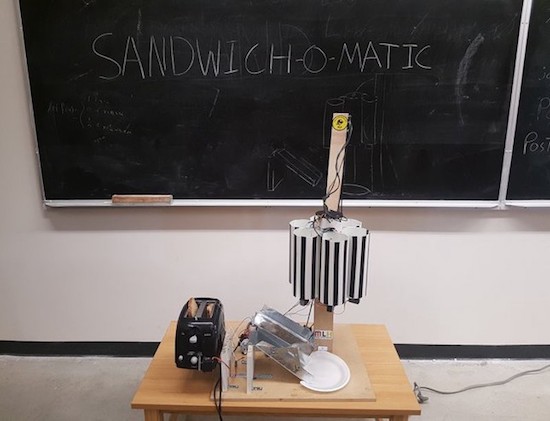
Love eating lunch, but hate making it? Good news, an automated machine may soon be able to take care of the task for you. Meet Sandwich-o-Matic, a voice-controlled, robotic sandwich-building station.

The project–which was created during a thirty-six hour hackathon by the team of Clive Chan, Colin Daly, Alex Foley and Wilson Wu–is based on an Arduino and a Photon. A rotating dispenser is driven by a series of servos, while a DC motor is responsible for a toaster-lifting mechanism. The backend is running Node.js, hosted on AWS, and the Google Cloud Platform handles the voice-to-text features.

The Sandwich-o-Matic accepts both voice and NFC requests. Simply place your order by saying the ingredients, or tapping their respective images on an accompanying menu. The device will then begin crafting your lunch from scratch.

The Makers hope to even develop a future version, which will include more topping and condiment options as well as a more streamlined voice-to-sandwich process. You can read more about the project on Devpost and its GitHub page.

Garage Door Monitor with Cayenne


Description

Using the HMC5883L magnetometer sensor of the GY-80 module from ICStation to monitor a garage door and notify when it has been opened or closed. The Cayenne service provides much of the monitoring and notifying functionality. A major feature of this project. Cayenne takes care of all of the complicated work behind the scenes, making it easy to connect your Arduino to the cloud and allow you to monitor your garage from virtually anywhere.
 
This project was created specifically to monitor a garage, but you will soon discover that this project could be used to monitor a whole host of other things. Monitor your front door, your back door, your bag, your chair, your cookie jar.
 
Monitor for peace of mind, or catch someone in the act of stealing your stuff. This project has got you covered. Let's see how:


HMC5883L DataSheet:

You can find the datasheet for the HMC5883L pretty easily by searching on the internet.
HMC5883L datasheet - Sparkfun


Arduino Libraries and IDE

Here is a link to the Arduino IDE download. The IDE is required to upload code to the Seeeduino Cloud.

You need the Cayenne Library installed in your Arduino IDE.
You can find the Cayenne library here:
Cayenne Libarary
 
There are libraries on the internet for the GY-80 module, however, it is relatively easy to use the magnetometer on this module. And therefore no libraries are required for the sensor. If you would like some more information about using the magnetometer sensor, and how to get the most out of it, then please have a look at my previous tutorial which goes into much more detail.


ARDUINO CODE:


You need to make sure to insert your OWN Cayenne token into the sketch above. You will get this token when connecting your Arduino to the Cayenne service. Watch the video for further explanation.


Fritzing diagram

Cayenne Widgets

Please make sure to watch the video to see how to connect the Seeeduino Cloud to Cayenne and how to create the Cayenne widgets. Cayenne widgets are necessary to create the dashboard on your phone or browser. They will also interact with the Arduino sketch, and will also be involved in creating the notification system. The following links will take you to the relevant part of the video:

The Master switch button is used to switch monitoring from OFF to ON (and vice versa). Therefore you can choose when to monitor the garage and when to stop monitoring. When first installing the project onto your garage door, and turning the Seeeduino Cloud on, it will automatically calibrate each sensor to a value of 1000.
 
If you experience any drift away from 1000 for whatever reason, simply press the Request calibration button, and each sensor will be recalibrated back to 1000. The x,y and z axis widgets are there so that you can see the readings coming from the magnetometer sensor. And when any of the axis variables breach the threshold away from 1000, it will trigger the Door Status widget. This is how we can tell if the door is open or closed.
 
We also use the Door Status widget to help with the notification system. When the Door status changes from "Closed" to "Open", a notification trigger will be activated, and a message will be sent via email or SMS. This notification is useful for monitoring when the door was opened. If you happen to recalibrate when the door is open. You will get a notification when the garage door closes.


Concluding comments

This project is relatively simple, and quite easy to set up. What I liked about this project was the versatility and alternate uses. You can use the same setup to monitor many different things. It is not just limited to monitoring a garage door. But being able to tell whether my garage door is opened or closed, especially after I have driven away from my house , is really cool. Now I don't have to drive all the way back home to check. Let me know if you have replicated this project, and also what kinds of things you decided to monitor with this project.

Garage Door Monitor with Cayenne


Description

Using the HMC5883L magnetometer sensor of the GY-80 module from ICStation to monitor a garage door and notify when it has been opened or closed. The Cayenne service provides much of the monitoring and notifying functionality. A major feature of this project. Cayenne takes care of all of the complicated work behind the scenes, making it easy to connect your Arduino to the cloud and allow you to monitor your garage from virtually anywhere.
 
This project was created specifically to monitor a garage, but you will soon discover that this project could be used to monitor a whole host of other things. Monitor your front door, your back door, your bag, your chair, your cookie jar.
 
Monitor for peace of mind, or catch someone in the act of stealing your stuff. This project has got you covered. Let's see how:


HMC5883L DataSheet:

You can find the datasheet for the HMC5883L pretty easily by searching on the internet.
HMC5883L datasheet - Sparkfun


Arduino Libraries and IDE

Here is a link to the Arduino IDE download. The IDE is required to upload code to the Seeeduino Cloud.

You need the Cayenne Library installed in your Arduino IDE.
You can find the Cayenne library here:
Cayenne Libarary
 
There are libraries on the internet for the GY-80 module, however, it is relatively easy to use the magnetometer on this module. And therefore no libraries are required for the sensor. If you would like some more information about using the magnetometer sensor, and how to get the most out of it, then please have a look at my previous tutorial which goes into much more detail.


ARDUINO CODE:


You need to make sure to insert your OWN Cayenne token into the sketch above. You will get this token when connecting your Arduino to the Cayenne service. Watch the video for further explanation.


Fritzing diagram

Cayenne Widgets

Please make sure to watch the video to see how to connect the Seeeduino Cloud to Cayenne and how to create the Cayenne widgets. Cayenne widgets are necessary to create the dashboard on your phone or browser. They will also interact with the Arduino sketch, and will also be involved in creating the notification system. The following links will take you to the relevant part of the video:

The Master switch button is used to switch monitoring from OFF to ON (and vice versa). Therefore you can choose when to monitor the garage and when to stop monitoring. When first installing the project onto your garage door, and turning the Seeeduino Cloud on, it will automatically calibrate each sensor to a value of 1000.
 
If you experience any drift away from 1000 for whatever reason, simply press the Request calibration button, and each sensor will be recalibrated back to 1000. The x,y and z axis widgets are there so that you can see the readings coming from the magnetometer sensor. And when any of the axis variables breach the threshold away from 1000, it will trigger the Door Status widget. This is how we can tell if the door is open or closed.
 
We also use the Door Status widget to help with the notification system. When the Door status changes from "Closed" to "Open", a notification trigger will be activated, and a message will be sent via email or SMS. This notification is useful for monitoring when the door was opened. If you happen to recalibrate when the door is open. You will get a notification when the garage door closes.


Concluding comments

This project is relatively simple, and quite easy to set up. What I liked about this project was the versatility and alternate uses. You can use the same setup to monitor many different things. It is not just limited to monitoring a garage door. But being able to tell whether my garage door is opened or closed, especially after I have driven away from my house , is really cool. Now I don't have to drive all the way back home to check. Let me know if you have replicated this project, and also what kinds of things you decided to monitor with this project.

An Arduino-controlled automated whiskey distillery

If you simply want to have a drink now and then, building your own automated distillery probably isn’t the easiest way to obtain alcohol. As shown in this Instructables post, however, it can be done. On the other hand, if you create your own “NanoStillery,” you’ll have to contend with possible legal and safety issues while running the process… and of course, the risks of actually using the product.

Though the writeup appears quite good, with three control panels, custom mechanical components and a nicely-welded frame, it’s likely not a good project to attempt without a bit of engineering experience!

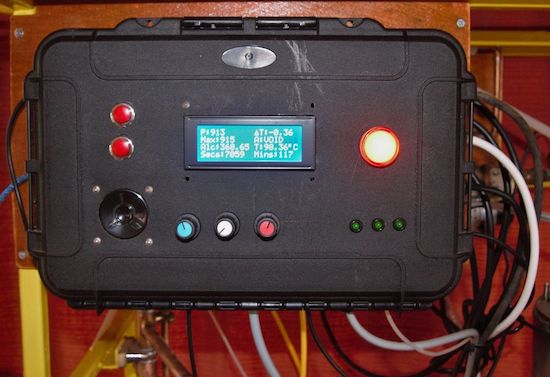
There are three panel boxes in the NanoStillery™, the main panel is driven by an Arduino Mega and the secondary one houses an Adafruit Feather GPRS board for transmitting data to the interweb. The third box has a large 12V power supply and a bank of relays in it.

The main control panel receives information from the various sensors in the system—temperatures, pressure and alcohol vapor levels and controls various valves, pump and the boiler heater via the relays. It then communicates with the Adafruit Feather via the I2C bus which then sends the data to a database where it is accessed from this webpage.

The GPRS module could very well have been bolted into the main control panel, but, for one, I had run out of room and secondly, I wanted the module to be removable so that it could be used for other projects in the future. Getting the two ‘machines’ to communicate with each other effectively was quite challenging. It was OK if the numbers were just simple small integers, but as soon as more complex ‘floats’ were involved, some serious number crunching code had to be developed.

Want to learn more? You can find all the necessary information on NanoStillery, including its code, over on Instructables.

The Rex800 looks like a dinosaur Terminator

The Rex800 looks like a dinosaur Terminator, a terrifying proposition, and perhaps a great merchandising opportunity!

YouTuber “RobitFactory” is in the process of creating a 1/10 replica of the “Sue” dinosaur skeleton, now featured at the Field Museum of Natural History in Chicago. What he has at the moment is a rough frame made out of tubing, as well as a metallic gray head with glowing red eyes.

The video takes us through the build process, along with some of RobitFactory’s future plans which include voice-activation. It’s an ambitious project, and in preparation for upgrades, he’s switched out the Arduino Uno used originally for a Mega board, and installed a Molex connector on the head so it can be easily disconnected. It will be exciting to see where this build goes!

Intrigued? Be sure to check out the RobitFactory’s YouTube page.

Arduino Blog 05 Dec 21:05

Repurpose a Classroom Clicker for Great Justice

If you’ve been in a university class of a certain size, with a professor who wants to get live feedback from the students, you’ve probably been forced to buy a Turning Point “clicker”. Aside from the ridiculousness of making students pay for their professor’s instructional aides (do the make you pay extra for the chalk too?!?!) these clickers are a gauntlet thrown down to any right-minded hacker because they supposedly contain secrets.

[Nick] had one of these gadgets, and hopped right up on the shoulders of giants to turn it into a remote control that interfaces with his computer and drives a synthesizer, so he can work through the chord changes by clicking. His two references, to [Travis Goodspeed]’s nRF promiscuity hack and to [Taylor Killian]’s Arduino library for the clickers are a testament to why we need both reverse engineers doing the hard work and people who’ll wrap up the hard work in an easy-to-use library.

That’s it, really. [Nick] hooked up an Arduino to an nRF24, sent the decoded output from the clicker to his computer, and wrote a Python routine that would play whatever music he wanted over MIDI to a baseline synthesizer. The whole shooting match is available on GitHub. If you have one of these clickers collecting dust somewhere, pull it out and do something with it.


Filed under: wireless hacks

Otto Bot is Bob’s Grandson

The Otto DIY robot has just taken first place in the coveted role as “best robot to 3D print for your (inner) child”. It’s cute, it dances, it doesn’t cost too much, it’s completely open source, and it’s not impossible to write code for. It’s probably the most refined Bob design that we’ve seen yet. Watch it move in the video below.

We fell in love with the Bob robot when we first saw it, and we apparently weren’t alone. There have been a ton of Bob-clones that have refined the basic design. And until Otto, the Spanish Zowi was the coolest that we’d ever seen.

Why is Otto so cool? They’ve tweaked the design so that, with the exception of some fiddly servo screws, everything just snaps together. The printed parts fit easily on a single RepRap bed, so you can practically churn them out. And the rest consists of very cheap commodity parts that you can easily source online. If four hobby servos cost $20, you could get the whole bot done for around $40.

Since this is a Bob clone, the firmware is approximately compatible with the Zowi. Indeed, there have already been people who’ve run Zowi firmware on the Otto (YouTube), adding Bluetooth to make use of Zowi’s cell-phone remote control. Besides the cute-factor, one of the strongest reasons to build yourself a Bob-style robot is the growing code ecosystem, both around Otto and Zowi. So don’t just sit there, get printing and contribute!


Filed under: robots hacks
Hack a Day 04 Dec 16:30
arduino  bob  otto  robot  robots hacks  zowi  

Code Like an Egyptian

[Marcelo Maximiano’s] son had a school project. He and a team of students built “The Pyramid’s Secret“–an electronic board game using the Arduino Nano. [Marcelo] helped with the electronics, but the result is impressive and a great example of packaging an Arduino project. You can see a video of the game, below.

In addition to the processor, the game uses a WT5001M02 MP3 player (along with an audio amplifier) to produce music and voices. There’s also a rotary encoder, an LCD, a EEPROM (to hold the quiz questions and answers), and an LED driver. There’s also a bunch of LEDs, switches, and a wire maze that requires the player to navigate without bumping into the wire (think 2D Operation).

In addition to the code and hardware diagrams, there is a PDF file on GitHub describing more about the game. It is in Portuguese, though, so most of us will probably need a little translation help. However, a Brazillian site did have an English post about the game, which might be a good place to start.

You might not want to replicate the game, but it is a great example of how much an Arduino can do with some simple externals devices and some attention to packaging.

Sadly, most of our projects look more like this game (no offense to that hacker). Projects like this are way more likely to spark young people’s interest than a blinking LED or a capacitor meter. If you are more in the mood for arcade play, you can also check out Arduinocade.


Filed under: Arduino Hacks
Hack a Day 04 Dec 06:00
arduino  arduino hacks  egypt  game  mp3  pyramid  

Arduino based DC Voltmeter (0-50 volts)

In this post, we are going to make digital voltmeter using arduino uno. It's a DC voltmeter and it's range is 0 to 50 volt. As we know, arduino is an open source hardware prototyping platform used worldwide by the hobbyists, educators and students across the globe.
This is a handy voltmeter.

Stuff required:

  1. Arduino uno
  2. 16*2 lcd
  3. 10k pot
  4. voltage source

Objective of the project: To make a digital voltmeter, which can measure voltage from 0 to 50 volt DC and thereafter it can display on 16*2 LCD.

Connections:

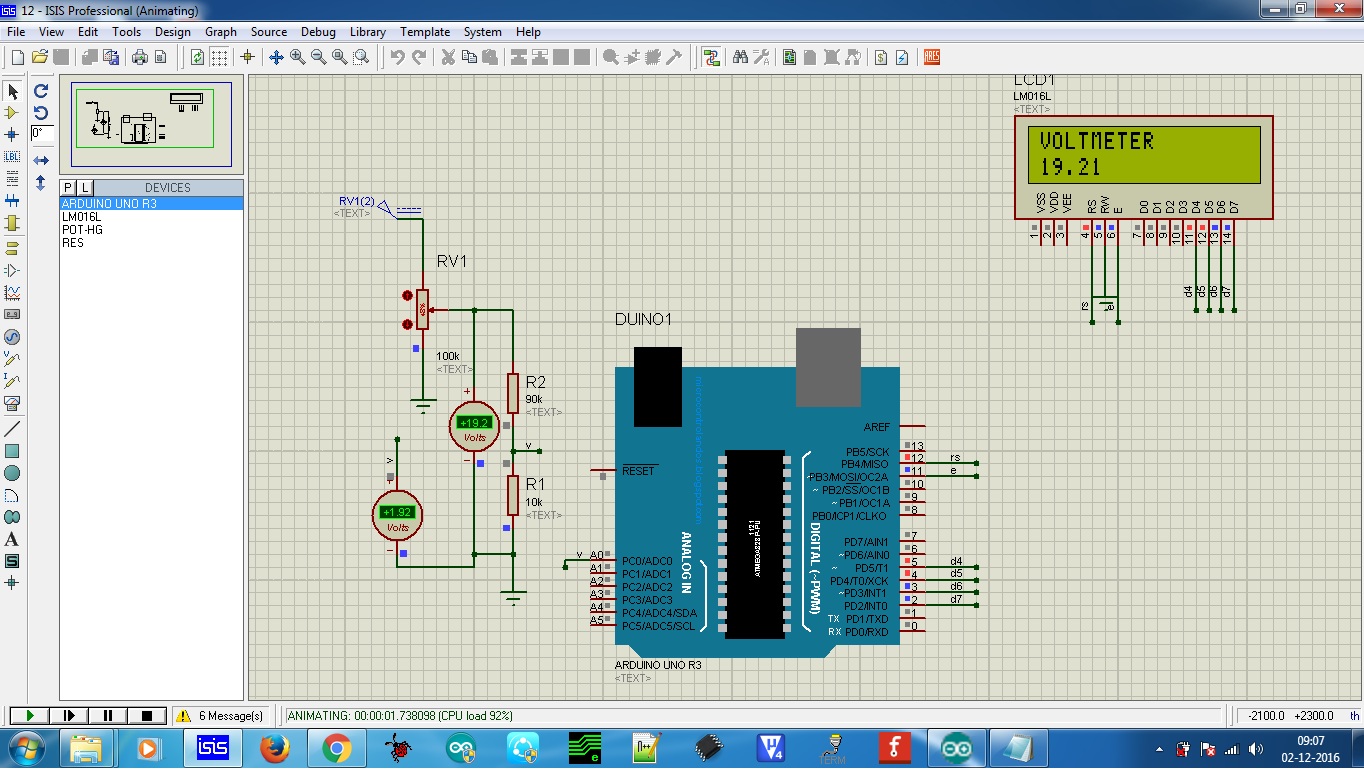
Make the connections as given in the figure below:

Arduino based voltmeter
Once the connection is made, upload the source code.

/* Source code */

const int volt=A0;

float val=0.0;

#include <LiquidCrystal.h>

LiquidCrystal lcd(12, 11, 5, 4, 3, 2);

void setup() {
  lcd.begin(16, 2);
  lcd.print("VOLTMETER");
}

void loop() {
  val=analogRead(volt);
  val=val*4.887;     // convert digital count into millivolt
  val=val/1000;      // convert millivolt into volts
  val=val*10.0;
  lcd.setCursor(0, 1);
  lcd.print(val);
}

/* End of source code */

Check out the video:


Hope you guys have enjoyed the post.

Thanks for reading the post.

Wrist thrusters let you fly through the water effortlessly

These small arm-mounted propeller units can carry a skin diver through the water with minimal effort.

YouTuber “PeterSripol” had only a week to prepare for his trip to Hawaii. Rather than purchase a set of fins or a snorkel, he instead hooked up two T100 thrusters that he had lying around to wrist straps. In his setup, these thrusters are controlled by a button interfaced with an Arduino that allows the user to select one of three power levels.

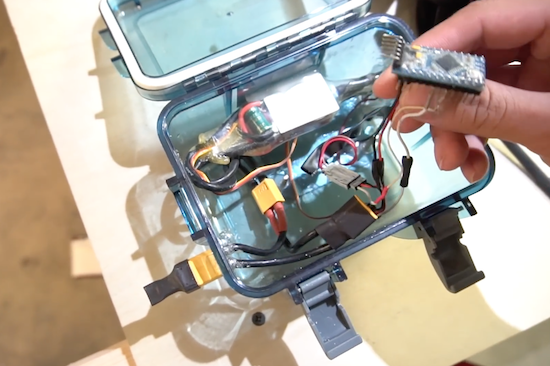
The required battery, as well as other control components are housed inside a waterproof box, and quite a bit of effort was put into making good (and hopefully waterproof) connections!

Unfortunately, the fun was cut short by a cut wire, but it looked awesome nevertheless! You can see the project in action below!