Posts with «rfid» label

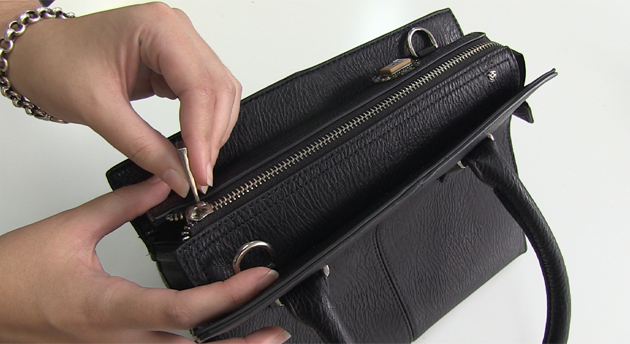
This smart handbag could stop you from overspending

If you're the sort who overspends at the mall, you may need a firm reminder to watch your budget. How does an ever-vigilant handbag sound? Finder.com.au could soon make one: meet the iBag, a prototype carryall that locks you out if it believes you're going to splurge. The Arduino-powered bag automatically shuts tight at those times you're most likely to shop. Outside of those moments, it uses GPS to warn you when you get too close to favorite stores; ignore the alert and it will both record when you take out your wallet as well as send a text message to a trusted partner. iBag is primarily a publicity stunt meant to highlight the dangers of credit card debt, but it might become a reality. The site is asking potential customers to register their interest, and it may sell both men's and women's versions of the bag for $199 AUD ($173 US) if there's enough demand.

Filed under: GPS, Household

Comments

Source: Finder.com.au

Engadget 30 Jan 09:07

Arduino Tutorials – Chapter 15 – RFID

Learn how to use RFID readers with your Arduino. In this instalment we use an RDM630 or RDM6300 RFID reader. If you have an Innovations ID-12 or ID-20 RFID reader, we have a different tutorial for you.

This is chapter fifteen of our huge Arduino tutorial series. Updated 19/11/2013

Introduction

RFID – radio frequency identification. Some of us have already used these things, and they have become part of everyday life. For example, with electronic vehicle tolling, door access control, public transport fare systems and so on. It sounds complex – but isn’t.

To explain RFID for the layperson, we can use a key and lock analogy. Instead of the key having a unique pattern, RFID keys hold a series of unique numbers which are read by the lock. It is up to our Arduino sketch to determine what happens when the number is read by the lock.  The key is the tag, card or other small device we carry around or have in our vehicles. We will be using a passive key, which is an integrated circuit and a small aerial. This uses power from a magnetic field associated with the lock. Here are some key or tag examples:

In this tutorial we’ll be using 125 kHz tags – for example. To continue with the analogy our lock is a small circuit board and a loop aerial. This has the capability to read the data on the IC of our key, and some locks can even write data to keys. Here is our reader (lock) example:

These readers are quite small and inexpensive – however the catch is that the loop aerial is somewhat fragile. If you need something much sturdier, consider the ID20 tags used in the other RFID tutorial.

Setting up the RFID reader

This is a short exercise to check the reader works and communicates with the Arduino. You will need:

Simply insert the RFID reader main board into a solderless breadboard as shown below. Then use jumper wires to connect the second and third pins at the top-left of the RFID board to Arduino 5V and GND respectively. The RFID coil connects to the two pins on the top-right (they can go either way). Finally, connect a jumper wire from the bottom-left pin of the RFID board to Arduino digital pin 2:

Next, upload the following sketch to your Arduino and open the serial monitor window in the IDE:

#include <SoftwareSerial.h>
SoftwareSerial RFID(2, 3); // RX and TX

int i;

void setup()
{
  RFID.begin(9600);    // start serial to RFID reader
  Serial.begin(9600);  // start serial to PC 
}

void loop()
{
  if (RFID.available() > 0) 
  {
     i = RFID.read();
     Serial.print(i, DEC);
     Serial.print(" ");
  }
}

If you’re wondering why we used SoftwareSerial – if you connect the data line from the RFID board to the Arduino’s RX pin – you need to remove it when updating sketches, so this is more convenient.

Now start waving RFID cards or tags over the coil. You will find that they need to be parallel over the coil, and not too far away. You can experiment with covering the coil to simulate it being installed behind protective surfaces and so on. Watch this short video which shows the resulting RFID card or tag data being displayed in the Arduino IDE serial monitor.

As you can see from the example video, the reader returns the card’s unique ID number which starts with a 2 and ends with a 3. While you have the sketch operating, read the numbers from your RFID tags and note them down, you will need them for future sketches.

To do anything with the card data, we need to create some functions to retrieve the card number when it is read and place in an array for comparison against existing card data (e.g. a list of accepted cards) so your systems will know who to accept and who to deny. Using those functions, you can then make your own access system, time-logging device and so on.

Let’s demonstrate an example of this. It will check if a card presented to the reader is on an “accepted” list, and if so light a green LED, otherwise light a red LED. Use the hardware from the previous sketch, but add a typical green and red LED with 560 ohm resistor to digital pins 13 and 12 respectively. Then upload the following sketch:

#include <SoftwareSerial.h>
SoftwareSerial RFID(2, 3); // RX and TX

int data1 = 0;
int ok = -1;
int yes = 13;
int no = 12;

// use first sketch in http://wp.me/p3LK05-3Gk to get your tag numbers
int tag1[14] = {2,52,48,48,48,56,54,66,49,52,70,51,56,3};
int tag2[14] = {2,52,48,48,48,56,54,67,54,54,66,54,66,3};
int newtag[14] = { 0,0,0,0,0,0,0,0,0,0,0,0,0,0}; // used for read comparisons

void setup()
{
  RFID.begin(9600);    // start serial to RFID reader
  Serial.begin(9600);  // start serial to PC 
  pinMode(yes, OUTPUT); // for status LEDs
  pinMode(no, OUTPUT);
}

boolean comparetag(int aa[14], int bb[14])
{
  boolean ff = false;
  int fg = 0;
  for (int cc = 0 ; cc < 14 ; cc++)
  {
    if (aa[cc] == bb[cc])
    {
      fg++;
    }
  }
  if (fg == 14)
  {
    ff = true;
  }
  return ff;
}

void checkmytags() // compares each tag against the tag just read
{
  ok = 0; // this variable helps decision-making,
  // if it is 1 we have a match, zero is a read but no match,
  // -1 is no read attempt made
  if (comparetag(newtag, tag1) == true)
  {
    ok++;
  }
  if (comparetag(newtag, tag2) == true)
  {
    ok++;
  }
}

void readTags()
{
  ok = -1;

  if (RFID.available() > 0) 
  {
    // read tag numbers
    delay(100); // needed to allow time for the data to come in from the serial buffer.

    for (int z = 0 ; z < 14 ; z++) // read the rest of the tag
    {
      data1 = RFID.read();
      newtag[z] = data1;
    }
    RFID.flush(); // stops multiple reads

    // do the tags match up?
    checkmytags();
  }

  // now do something based on tag type
  if (ok > 0) // if we had a match
  {
    Serial.println("Accepted");
    digitalWrite(yes, HIGH);
    delay(1000);
    digitalWrite(yes, LOW);

    ok = -1;
  }
  else if (ok == 0) // if we didn't have a match
  {
    Serial.println("Rejected");
    digitalWrite(no, HIGH);
    delay(1000);
    digitalWrite(no, LOW);

    ok = -1;
  }
}

void loop()
{
  readTags();
}

In the sketch we have a few functions that take care of reading and comparing RFID tags. Notice that the allowed tag numbers are listed at the top of the sketch, you can always add your own and more – as long as you add them to the list in the function checkmytags() which determines if the card being read is allowed or to be denied.

The function readTags() takes care of the actual reading of the tags/cards, by placing the currently-read tag number into an array which is them used in the comparison function checkmytags(). Then the LEDs are illuminated depending on the status of the tag at the reader. You can watch a quick demonstration of this example in this short video.

Conclusion

After working through this chapter you should now have a good foundation of knowledge on using the inexpensive RFID readers and how to call functions when a card is successfully read. For example, use some extra hardware (such as an N-MOSFET) to control a door strike, buzzer, etc. Now it’s up to you to use them as a form of input with various access systems, tracking the movement of people or things and much more.

And if you enjoyed the tutorial, or want to introduce someone else to the interesting world of Arduino – check out my book (now in a third printing!) “Arduino Workshop” from No Starch Press.

In the meanwhile have fun and keep checking into tronixstuff.com. Why not follow things on twitter, Google+, subscribe  for email updates or RSS using the links on the right-hand column? And join our friendly Google Group – dedicated to the projects and related items on this website. Sign up – it’s free, helpful to each other –  and we can all learn something.

The post Arduino Tutorials – Chapter 15 – RFID appeared first on tronixstuff.

Arduino Tutorials – Chapter 15 – RFID

Learn how to use RFID readers with your Arduino. In this instalment we use an RDM630 or RDM6300 RFID reader. This is chapter fifteen of our huge Arduino tutorial series. Updated 19/11/2013

Introduction

RFID – radio frequency identification. Some of us have already used these things, and they have become part of everyday life. For example, with electronic vehicle tolling, door access control, public transport fare systems and so on. It sounds complex – but isn’t.

To explain RFID for the layperson, we can use a key and lock analogy. Instead of the key having a unique pattern, RFID keys hold a series of unique numbers which are read by the lock. It is up to our Arduino sketch to determine what happens when the number is read by the lock.  The key is the tag, card or other small device we carry around or have in our vehicles. We will be using a passive key, which is an integrated circuit and a small aerial. This uses power from a magnetic field associated with the lock. Here are some key or tag examples:

In this tutorial we’ll be using 125 kHz tags – for example. To continue with the analogy our lock is a small circuit board and a loop aerial. This has the capability to read the data on the IC of our key, and some locks can even write data to keys. Here is our reader (lock) example:

These readers are quite small and inexpensive – however the catch is that the loop aerial is somewhat fragile. If you need something much sturdier, consider the ID20 tags used in the other RFID tutorial.

Setting up the RFID reader

This is a short exercise to check the reader works and communicates with the Arduino. You will need:

Simply insert the RFID reader main board into a solderless breadboard as shown below. Then use jumper wires to connect the second and third pins at the top-left of the RFID board to Arduino 5V and GND respectively. The RFID coil connects to the two pins on the top-right (they can go either way). Finally, connect a jumper wire from the bottom-left pin of the RFID board to Arduino digital pin 2:

Next, upload the following sketch to your Arduino and open the serial monitor window in the IDE:

#include <SoftwareSerial.h>
SoftwareSerial RFID(2, 3); // RX and TX

int i;

void setup()
{
  RFID.begin(9600);    // start serial to RFID reader
  Serial.begin(9600);  // start serial to PC 
}

void loop()
{
  if (RFID.available() > 0) 
  {
     i = RFID.read();
     Serial.print(i, DEC);
     Serial.print(" ");
  }
}

If you’re wondering why we used SoftwareSerial – if you connect the data line from the RFID board to the Arduino’s RX pin – you need to remove it when updating sketches, so this is more convenient.

Now start waving RFID cards or tags over the coil. You will find that they need to be parallel over the coil, and not too far away. You can experiment with covering the coil to simulate it being installed behind protective surfaces and so on. Watch this short video which shows the resulting RFID card or tag data being displayed in the Arduino IDE serial monitor.

As you can see from the example video, the reader returns the card’s unique ID number which starts with a 2 and ends with a 3. While you have the sketch operating, read the numbers from your RFID tags and note them down, you will need them for future sketches.

To do anything with the card data, we need to create some functions to retrieve the card number when it is read and place in an array for comparison against existing card data (e.g. a list of accepted cards) so your systems will know who to accept and who to deny. Using those functions, you can then make your own access system, time-logging device and so on.

Let’s demonstrate an example of this. It will check if a card presented to the reader is on an “accepted” list, and if so light a green LED, otherwise light a red LED. Use the hardware from the previous sketch, but add a typical green and red LED with 560 ohm resistor to digital pins 13 and 12 respectively. Then upload the following sketch:

#include <SoftwareSerial.h>
SoftwareSerial RFID(2, 3); // RX and TX

int data1 = 0;
int ok = -1;
int yes = 13;
int no = 12;

// use first sketch in http://wp.me/p3LK05-3Gk to get your tag numbers
int tag1[14] = {2,52,48,48,48,56,54,66,49,52,70,51,56,3};
int tag2[14] = {2,52,48,48,48,56,54,67,54,54,66,54,66,3};
int newtag[14] = { 0,0,0,0,0,0,0,0,0,0,0,0,0,0}; // used for read comparisons

void setup()
{
  RFID.begin(9600);    // start serial to RFID reader
  Serial.begin(9600);  // start serial to PC 
  pinMode(yes, OUTPUT); // for status LEDs
  pinMode(no, OUTPUT);
}

boolean comparetag(int aa[14], int bb[14])
{
  boolean ff = false;
  int fg = 0;
  for (int cc = 0 ; cc < 14 ; cc++)
  {
    if (aa[cc] == bb[cc])
    {
      fg++;
    }
  }
  if (fg == 14)
  {
    ff = true;
  }
  return ff;
}

void checkmytags() // compares each tag against the tag just read
{
  ok = 0; // this variable helps decision-making,
  // if it is 1 we have a match, zero is a read but no match,
  // -1 is no read attempt made
  if (comparetag(newtag, tag1) == true)
  {
    ok++;
  }
  if (comparetag(newtag, tag2) == true)
  {
    ok++;
  }
}

void readTags()
{
  ok = -1;

  if (RFID.available() > 0) 
  {
    // read tag numbers
    delay(100); // needed to allow time for the data to come in from the serial buffer.

    for (int z = 0 ; z < 14 ; z++) // read the rest of the tag
    {
      data1 = RFID.read();
      newtag[z] = data1;
    }
    RFID.flush(); // stops multiple reads

    // do the tags match up?
    checkmytags();
  }

  // now do something based on tag type
  if (ok > 0) // if we had a match
  {
    Serial.println("Accepted");
    digitalWrite(yes, HIGH);
    delay(1000);
    digitalWrite(yes, LOW);

    ok = -1;
  }
  else if (ok == 0) // if we didn't have a match
  {
    Serial.println("Rejected");
    digitalWrite(no, HIGH);
    delay(1000);
    digitalWrite(no, LOW);

    ok = -1;
  }
}

void loop()
{
  readTags();
}

In the sketch we have a few functions that take care of reading and comparing RFID tags. Notice that the allowed tag numbers are listed at the top of the sketch, you can always add your own and more – as long as you add them to the list in the function checkmytags() which determines if the card being read is allowed or to be denied.

The function readTags() takes care of the actual reading of the tags/cards, by placing the currently-read tag number into an array which is them used in the comparison function checkmytags(). Then the LEDs are illuminated depending on the status of the tag at the reader. You can watch a quick demonstration of this example in this short video.

Conclusion

After working through this chapter you should now have a good foundation of knowledge on using the inexpensive RFID readers and how to call functions when a card is successfully read. For example, use some extra hardware (such as an N-MOSFET) to control a door strike, buzzer, etc. Now it’s up to you to use them as a form of input with various access systems, tracking the movement of people or things and much more.

And if you enjoyed the tutorial, or want to introduce someone else to the interesting world of Arduino – check out my book (now in a third printing!) “Arduino Workshop” from No Starch Press.

In the meanwhile have fun and keep checking into tronixstuff.com. Why not follow things on twitter, Google+, subscribe  for email updates or RSS using the links on the right-hand column? And join our friendly Google Group – dedicated to the projects and related items on this website. Sign up – it’s free, helpful to each other –  and we can all learn something.

Color changing bag matches clothing color, tells you what’s inside

Adding some lights to your everyday items will certainly give you a style leaning toward the world of Blade Runner. But if you can add functionality to control the blinky components you’ve actually got something. A great example of this is [Kathryn McElroy's] Chameleon Bag. It’s a shoulder bag with a light-up flap. It can color match your clothing, but she also built some features that will let you know what is inside of the bag.

The project started by using a cardboard template in the size and shape of the bag’s flap. After adding an Arduino to control the LEDs and an RFID reader for an interactive element she sewed a replacement flap that also acts as a diffuser. In the video after the break she demonstrates matching the color of her scarf by reading a tag sewn in the end of it. She then starts loading up all the stuff needed for a day away from home. As the keys, phone, and computer are placed in the bag their tags are read, resulting in different combinations of color. Once everything she needs is inside, the flap turns green and she heads out the door.

This will go great with your illuminated umbrella.

[via Adafruit]


Filed under: led hacks, wearable hacks
Hack a Day 02 Jan 20:01

New in the Maker Shed: NFC Shield and Tags

You’ve probably heard about NFC but what is it, you ask? NFC (Near Field Communication) is an extension of RFID (Radio Frequency Identification) but with a purposefully decreased range. I know, why would you want LESS range? Mostly for security. You see, it’s common to think that RFID tags need to be right next to a reader before they register. In lots of cases this is true, but you can “shoot” a radio signal at an RFID tag or purchase a long range scanner to read it if from a distance. Since NFC is limited to a maximum of around 4 inches, it’s much more difficult for anyone to get your information without you knowing. This makes it a great technology to use for touch-less payment, door entry, or anywhere else that security is a consideration.

This NFC Shield for Arduino (available in the Maker Shed) is a great way to experiment with NFC and other 13.56MHZ RFID applications. The shield can be used it to not only read tags, but to write them as well. It can even “act” as an NFC tag for bi-directional communication with NFC equipped cell phones and tablets. The NFC Shield uses I2C or SPI for communication to minimize pin usage, and the antenna design improves reception and allows you to stack shields on top of it. The kit includes header pins (a little soldering required) and one writable MiFare 1k 13.56 MHZ NFC card. Since one card isn’t too much fun, we also have an assortment pack of 6 writable, 1KB tags available.


Filed under: Arduino, Cellphones, Maker Shed
MAKE » Arduino 12 Sep 16:00

No secret knocks required at [Steve's] house – your subway pass will do

[Steve] is often host to all sorts of guests, and he was looking for an easy way to let his friends come and go as they please. After discovering that his front door came equipped with an electronic strike, he decided that an RFID reader would be a great means of controlling who was let in, and when.

Giving all your friends RFID cards and actually expecting that they carry them is a bit of a stretch, but lucky for [Steve] he lives near Boston, so the MBTA has him covered. Just about everyone in town has an RFID subway pass, which pretty much guarantees that [Steve’s] cohorts will be carrying one when they swing by.

He crafted a stylish set of wooden boxes to contain both the RFID reader and the Arduino that controls the system, matching them to the Victorian styling of his home. A single button can control the setup, allowing him to add and remove cards from access lists without much fuss. For more granular control however, [Steve] can always tweak settings from the Arduino serial console.

The card system is both stylish and useful – a combination that’s hard to beat.


Filed under: arduino hacks, home hacks
Hack a Day 22 Aug 16:01

Learn a new language with the Babel Fish

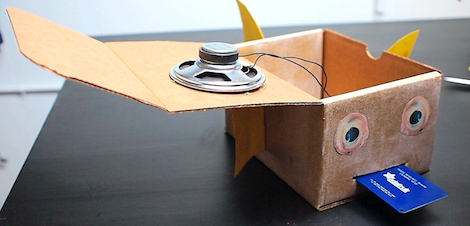
The Babel fish from Hitchhiker’s Guide to the Galaxy is one of the strangest things in the universe. After inserting a Babel fish into your ear, it feeds off brain wave energy and excretes a matrix from the conscious frequencies into the speech areas of the brain. It’s invaluable as a universal translator, but until Earth is targeted for demolition we’ll have to make do with [Becky] from Adafruit’s Babel fish language toy.

[Becky]‘s Babel fish is still able to feed off the energy given off by language, but in this case the energy comes from a set of RFID cards on which Chinese characters are written. After waving these RFID flash cards in front of the Babel fish, a wave shield connected to the Arduino plays a recording of how the logogram on the flash card should sound when pronounced.

While it’s not a biologically engineered fish that simultaneously proves and disproves the existence of god, every human endeavor – learning a language included - needs more [Douglas Adams] references. You can check out [Becky]‘s Babel fish demo video after the break.


Filed under: arduino hacks

Babel Fish Language Toy


Fans of Douglas Adams will no doubt catch the reference to The Hitchhiker’s Guide to the Galaxy in the title of Becky Stern’s latest project, The Babel Fish Language Toy. This sound- and RFID-enabled Arduino project with a crafty enclosure helps you learn foreign languages with RFID flash cards. When you bring a flash card near the fish’s tongue, you’ll hear the pronunciation of the word, which comes from .WAV files that you pre-load onto the SD card. And naturally, a full how-to writeup and video will help you along the way should you decide to make your own. Xie xie Becky!


Filed under: Arduino, Education
MAKE » Arduino 04 Aug 14:00
arduino  education  fish  language  nfc  project  rfid  toy  

Browser book-marks brought alive using RFID

A device that opens the websites using physical world interaction? This is a step closer to the internet of things. Using our beloved Arduino and RFID tags, we can think of a lot many applications of this device!

Too lazy to create your own Arduino + RFID reader? No fear! Arduino internet Gizmo is here.

A detailed Step-by-step making instruction is given here.

What websites are you going to keep as your shortcuts today?

Via:[TheVerge]

Arduino Blog 05 May 18:04

Upgrade Your Office With An RFID Reading Door

Tired of dealing with keys to get into his office, Valentin Heun hacked together this door unlocker with a laser-cutter, Arduino, and some bits n’ bobs from SparkFun.  Full design files and parts list can be found on the linked page.