Introduction
Updated 29/01/2014 All pcDuino v2 tutorials
Update! The pcDuino version 3 is now available
In the last twelve months or so several somewhat inexpensive single-board computers have burst onto the market, and of those was the pcDuino. This has now evolved into the pcDuino v2, the topic of our review. The pcDuino v2 is billed as the “mini PC + Arduino”, a combination with much promise. Out of the box it runs a version of Ubuntu 12.04 on Linaro 12.07, or can also run Android Ice Cream Sandwich if so desired.
The pcDuino v2 is a single-board computer like many others, however with some interesting additions – the most interesting being the Arduino-shield hardware connections and pcDuino v2 Arduino development environment. We’ll first run through the pcDuino v2 as a Linux computer, and then delve into the Arduino-compatibility. But first, our test board… which arrived safely in a neat box:

… which contains the pcDuino v2 itself:

At first glance you can see the various points of interest, such as the Allwinner A10, which is a 1GHz ARM Cortex A8 CPU:

… the Realtek WiFi add-on board (which is fitted to the pcDuino v2):

… and also a USB socket (for keyboard, mouse, USB hub and so on), a microUSB for USB OTG use, a full-sized HDMI socket for full HD video, RJ45 Ethernet socket, a microSD socket for expansion, and the Hynix flash memory ICs. From the pcDuino v2 website, the specifications are:
Hardware:
- CPU – 1GHz ARM Cortex A8
- GPU – OpenGL ES2.0, OpenVG 1.1 Mali 400 core
- DRAM – 1GB
- Onboard Storage – 2GB Flash, microSD card (TF) slot for up to 32GB
- Video Output – HDMI
- OS – Linux3.0 + Ubuntu 12.04/Android ICS 4.0
- Extension Interface Arduino Headers
- Network interface – 10/100Mbps RJ45 and on-board WiFi module
- USB Host port 1
- Requires – Power 5V, 2000mA
- Overall Size 125mm X 52mm
Software
- OS – Ubuntu 12.04 (pre-loaded) or Android ICS 4.0
- APIs – all the Arduino shield pins are accessible with the provided API.
It consists of API to access the following interfaces: UART, ADC, PWM, GPIO, I2C, SPI
- Programming language support – C, C++ with GNU tool chain, Java with standard Android SDK, Python.
However at the time of writing all models with the date stamp of 17/09/2013 (and newer) have 4G of onboard flash storage – a great little bonus. With the addition of an inexpensive microSD card you can add up to an additional 32 G of storage.
Getting Started
This is the crunch-point for many products – how does one get started? With the pcDuino – very easily. Apart from the computer itself, you’ll need a monitor with HDMI inputs and speakers, a USB keyboard and mouse (with a USB hub – or one of those keyboard/trackpad combinations) and a power supply. The pcDuino v2 requires up to 2A at 5V – a higher-rated plugpack than usual. Don’t be tempted to use a normal USB socket – the pcDuino v2 will not work properly on the available current.
So after plugging all that in with the power the last to connect – the pcDuino v2 fires up in around five seconds, quickly running through the Ubuntu startup process and ended with the configuration screen in around five seconds:

After setting the time zone, language, screen resolution (full HD) and so on it was another ten seconds to the desktop:

At this point we found by accident that the A10 CPU runs hot – in some warmer permanent installations it could use a heatsink. But I digress. We now have a “normal” computer experience – the WiFi found the home network without any issue and the Chromium web browser runs well considering the speed and the RAM (1G) of the pcDuino v2:

The next step is to format the extra onboard storage, which can be done with the usual tool:

We just formatted it to ext4 and moved on. The included software is nothing unexpected, there’s the Chromium web browser, office-style applications, terminal, XBMC, remote-desktop viewer and of course you can hit up the Ubuntu package manager and install what you need.
It’s easy to get carried away and forget you’re not using a typical multi-GHz computer so bear that in mind when software runs a little slower than expected. However working with WordPress and Google Docs inside Chromium was acceptable, and a fair amount of this review was written using the pcDuino v2.
Excluding the Arduino development environment which we look at in the next section, pre-installed programming tools include Python (v2.7), C/C++ with GNU tool chain and Java with the standard Android SDK. At this point we haven’t tried the pcDuino with the Android operating system, however plan to do so in the near future and this will be the subject of a separate article.
At this point we’d say that the pcDuino v2 is a winner in the SBC (single-board computer) stakes, as you don’t need to worry about external WiFi, or deliberating about which version of an OS to use and then having to download it to an SD card and so on… the pcDuino v2 just works as a computer out of the box.
The pcDuino v2 as an Arduino
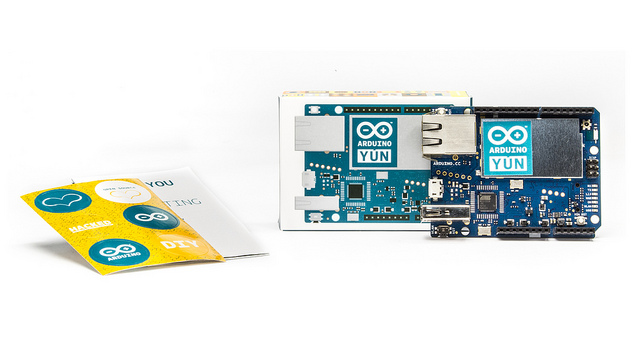
At this point we’d like to note that the pcDuino v2 is not an Arduino circuit wired up to a computer (such as the Arduino team did with the Yun). Instead, the pcDuino v2 is a computer that can emulate an Arduino – and has the GPIO pins and shield sockets onboard.
So when you run a sketch on the pcDuino v2’s version of the Arduino IDE – the sketch is compiled and then executed using the CPU, not an ATmega microcontroller. Speaking of which, the IDE is a modified version of 1.5.3 which appears identical to the usual IDE:

In fact when you compile and upload that blink.ino sketch everything runs as normal, and a small LED situated near D2/3 will blink as normal. However you do need to use more #include statements, for example #include <core.h> for all sketches. When uploading a sketch, a new window appears that will be blank, as shown below – this window needs to stay open otherwise the sketch won’t run

One of the benefits of using the pcDuino v2 is the extra space available for sketches – a quick compile shows that you can have a fair bit more than your typical ATmega328 – in our example we had 104,857,600 bytes available:

We don’t have a sketch that large, but at least you have some headroom to create them if necessary.
Arduino Hardware support
The shield header sockets are in the standard R3 configuration – and all GPIO is 3.3V and not 5V tolerant. However there is a conversion shield available if necessary. There are also some extra GPIO pins available – another eight, as shown in the following image:

At the time of writing there is support for GPIO use, SPI (up to 12 MHz, master-only), I2C (up to 200 kHz, at 7-bit and master-only), a UART (serial on D0/D1), PWM and ADC on A0~5.
However ADC is a little different, due to the internal reference voltages of the Allwinner CPU. Take note of the following as if you exceed the maximum voltages you could damage your board. Pins A0 and A1 are 6-bit ADCs, which return values from 0 ~ 63, which range from 0V to 2V. Pins A2~A5 are 12-bit ADCs, which return values from 0 ~ 4095, which range across the full 0V to 3.3V.
There isn’t access to the usual serial monitor in the Arduino IDE as such, instead you need to use an external, hardware-based solution such as connecting a USB-serial adaptor to pins D0/D1 and using another PC as the terminal. And when you press ‘reset’ on your Arduino shields – it resets the entire computer, just not the Arduino emulation – (learned that the hard way!).
However you can output text and data to the console window that appears after uploading a sketch – and doing so is pretty easy, just use prinf as you would in C or C++. For example, the following sketch:
#include <core.h>

// example code from http://www.cplusplus.com/reference/cstdio/printf/

void setup() {
  // put your setup code here, to run once:

}

void loop()
{
   printf ("Characters: %c %c \n", 'a', 65);
   printf ("Decimals: %d %ld\n", 1977, 650000L);
   printf ("Preceding with blanks: %10d \n", 1977);
   printf ("Preceding with zeros: %010d \n", 1977);
   printf ("Some different radices: %d %x %o %#x %#o \n", 100, 100, 100, 100, 100);
   printf ("floats: %4.2f %+.0e %E \n", 3.1416, 3.1416, 3.1416);
   printf ("Width trick: %*d \n", 5, 10);
   printf ("%s \n", "A string");
  delay(1000);
}
produces the following output in the console window:

It would be recommended to read this guide about using the pcDuino v2 as an Arduino which highlights pretty well everything to get you started, including the notes on interrupts and PWM – and this page which explains the headers on the pcDuino v2. Finally, as the “Arduino” is emulated you cannot use the on-board networking capabilities of the pcDuino v2 such as Ethernet, instead you use a shield as you would with a normal Arduino.
At first glance it may seem that the pcDuino v2 is difficult, which it is not. One needs instead to consider their needs and then work with the available features. Just like many other new development boards and systems, the pcDuino v2 (and pcDuino platform) is still quite new – but growing – so more features and compatibility will appear over time.
How much faster is the pcDuino v2 against a normal Arduino board?
There should be a great difference between the Arduino’s microcontroller and the A10 CPU, even taking into account running the OS and emulation. To test this, we’ll use a sketch written by Steve Curd from the Arduino forum. It calculates Newton Approximation for pi using an infinite series. The pcDuino v2 version of the sketch is below:
//
// Pi_2
//
// Steve Curd
// December 2012
//
// This program approximates pi utilizing the Newton's approximation.  It quickly
// converges on the first 5-6 digits of precision, but converges verrrry slowly
// after that.  For example, it takes over a million iterations to get to 7-8
// significant digits.
//
// I wrote this to evaluate the performance difference between the 8-bit Arduino Mega,
// and the 32-bit Arduino Due.
//

#include <core.h> // for pcDuino v2
#include "Serial.h"

#define ITERATIONS 100000L    // number of iterations
#define FLASH 1000            // blink LED every 1000 iterations

void setup() {
  pinMode(13, OUTPUT);        // set the LED up to blink every 1000 iterations
  Serial.begin(57600);
}

void loop() {

  unsigned long start, time;
  unsigned long niter=ITERATIONS;
  int LEDcounter = 0;
  boolean alternate = false;
  unsigned long i, count=0;
  float x = 1.0;
  float temp, pi=1.0;

  Serial.print("Beginning ");
  Serial.print(niter);
  Serial.println(" iterations...");
  Serial.println();

  start = millis();
  for ( i = 2; i < niter; i++) {
    x *= -1.0;
    pi += x / (2.0f*(float)i-1.0f);
    if (LEDcounter++ > FLASH) {
      LEDcounter = 0;
      if (alternate) {
        digitalWrite(13, HIGH);
        alternate = false;
      } else {
        digitalWrite(13, LOW);
        alternate = true;
      }
      temp = 40000000.0 * pi;
    }
  }
  time = millis() - start;

  pi = pi * 4.0;

  Serial.print("# of trials = ");
  Serial.println(niter);
  Serial.print("Estimate of pi = ");
  Serial.println(pi, 10);

  Serial.print("Time: "); Serial.print(time); Serial.println(" ms");

  delay(10000);
}
As mentioned earlier, you can’t see the IDE serial monitor, so an external PC needs to be used. We connected a USB-serial adaptor running at 3.3V I/O to a PC:

Now back to the sketch. An Arduino Mega 2560 can do the calculation in 5765 ms, a Due 690 ms, and the fastest I saw the emulated Arduino in the pcDuino v2 do it was 9 ms:

Wow, that’s quick. However take note that the completion time was all over the place. When it was 9ms, the only application open was the pcDuino v2 Arduino IDE. The completion time increased when opening other applications such as Chromium, formatting a microSD card and so on.
Why is that? As the pcDuino v2 is emulating an Arduino, the CPU needs clock cycles to take care of that and all the other OS tasks – whereas a straight Arduino just runs the code generated by the IDE and compiler. Nevertheless the speed increase is welcome, and opens up all sorts of possibilities with regards to deeper calculations in sketches they may taken too long on existing hardware.
Support and Community
From what I can tell there is a growing base of users (including this one) and like everything else this will help the pcDuino platform develop and evolve over time. There is a Linksprite “Learning Centre” with a growing pcDuino v2 section, the website, wiki, and support forum which are useful sources of information and discussion.
Conclusion – so far
The pcDuino v2 is a great mix of single-board computer and Arduino-compatible power. There is a small learning curve, however the performance gains are more than worth it. Another USB socket wouldn’t go astray, and the documentation and support will increase over time. However we really liked the fact it’s totally plug-and-play with the onboard storage, OS and WiFi.
And finally a plug for my own store – tronixlabs.com – offering a growing range and Australia’s best value for supported hobbyist electronics from adafruit, DFRobot, Freetronics, Seeed Studio and much more.

Have fun and keep checking into tronixstuff.com. Why not follow things on twitter, Google+, subscribe for email updates or RSS using the links on the right-hand column, or join our forum – dedicated to the projects and related items on this website.
The post Review – pcDuino v2 appeared first on tronixstuff.