Posts with «arduino» label

Reading from a Text File and Sending to Arduino

The following tutorial will demonstrate how to Read values from a Text file (.txt, .csv) to blink 1 of 9 LEDs attached to an Arduino. It uses the combination of an Arduino and Processing program to process the file. The Processing program will read the text file in real time, only sending new information to the Arduino.


Components Required

  • Arduino UNO
  • Breadboard
  • 9 LEDs
  • 9 x 330 ohm resistors
  • Wires to connect the circuit
  • USB connection cable: to connect the computer to the Arduino
  • A computer: to run the processing sketch, and to compile / upload the Arduino sketch
  • Processing Program installed on computer
  • Arduino Program installed on the computer
  • A comma separated text file (*.txt).


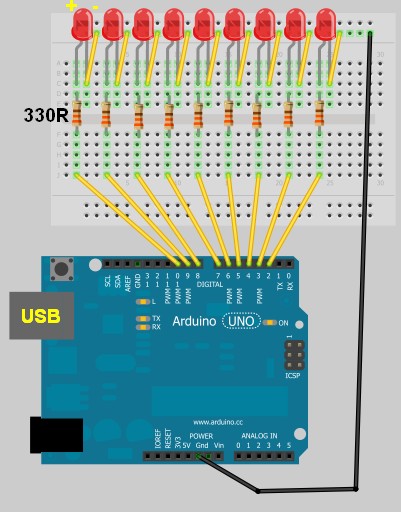
Arduino Layout


The Text File

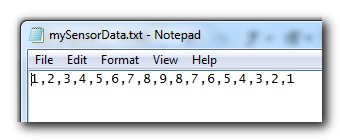
  • Open Notepad or equivalent text file editor, and paste the following data into it.

1,2,3,4,5,6,7,8,9,8,7,6,5,4,3,2,1

  • Save the file on your hard drive. In my case, I have chosen to save the file at this location.

D:/mySensorData.txt

  • It should look like the following screenshot

Additional notes regarding the Text file:
  • Just remember what you call it, and where you saved it, because we will be referring to this file later on in the Processing script.
  • Keep all values on the same line.
  • Separate each number with a comma.
  • The number 1 will blink the first LED which is attached to Pin 2 on the Arduino.
  • The number 9 will blink the last LED which is attached to Pin 10 on the Arduino.


Processing Code

You can download the Processing IDE from this site.

 1
2
3
4
5
6
7
8
9
10
11
12
13
14
15
16
17
18
19
20
21
22
23
24
25
26
27
28
29
30
31
32
33
34
35
36
37
38
39
40
41
42
43
44
45
46
47
48
49
50
51
52
53
54
55
56
57
58
59
60
61
62
63
64
65
66
67
68
69
70
71
72
73
74
75
76
77
78
79

style="color: blue;">import
processing.serial.*;

style="color: blue;">import
java.io.*;

style="color: rgb(43, 145, 175);">int
mySwitch=0;

style="color: rgb(43, 145, 175);">int
counter=0;
String [] subtext;
Serial myPort;


style="color: rgb(43, 145, 175);">void
setup(){

style="color: green;">//Create a switch that will control the frequency of text file reads.


style="color: green;">//When mySwitch=1, the program is setup to read the text file.


style="color: green;">//This is turned off when mySwitch = 0

mySwitch=1;


style="color: green;">//Open the serial port for communication with the Arduino


style="color: green;">//Make sure the COM port is correct

myPort =
style="color: blue;">new
Serial(this,
style="color: rgb(163, 21, 21);">"COM6"
, 9600);
myPort.bufferUntil(
style="color: rgb(163, 21, 21);">'\n'
);
}


style="color: rgb(43, 145, 175);">void
draw() {

style="color: blue;">if
(mySwitch>0){

style="color: green;">/*The readData function can be found later in the code.


style="color: green;"> This is the call to read a CSV file on the computer hard-drive. */

readData(
style="color: rgb(163, 21, 21);">"D:/mySensorData.txt"
);


style="color: green;">/*The following switch prevents continuous reading of the text file, until


style="color: green;"> we are ready to read the file again. */

mySwitch=0;
}

style="color: green;">/*Only send new data. This IF statement will allow new data to be sent to


style="color: green;"> the arduino. */


style="color: blue;">if
(counter<subtext.length){

style="color: green;">/* Write the next number to the Serial port and send it to the Arduino


style="color: green;"> There will be a delay of half a second before the command is


style="color: green;"> sent to turn the LED off : myPort.write('0'); */

myPort.write(subtext[counter]);
delay(500);
myPort.write(
style="color: rgb(163, 21, 21);">'0'
);
delay(100);

style="color: green;">//Increment the counter so that the next number is sent to the arduino.

counter++;
}
style="color: blue;">else
{
//If the text file has run out of numbers, then read the text file again in 5 seconds.
delay(5000);
mySwitch=1;
}
}


style="color: green;">/* The following function will read from a CSV or TXT file */


style="color: rgb(43, 145, 175);">void
readData(String myFileName){

File file=
style="color: blue;">new
File(myFileName);
BufferedReader br=
style="color: blue;">null
;

try{
br=
style="color: blue;">new
BufferedReader(
style="color: blue;">new
FileReader(file));
String text=
style="color: blue;">null
;


style="color: green;">/* keep reading each line until you get to the end of the file */


style="color: blue;">while
((text=br.readLine())!=
style="color: blue;">null
){
/* Spilt each line up into bits and pieces using a comma as a separator */
subtext = splitTokens(text,
style="color: rgb(163, 21, 21);">","
);
}
}
style="color: blue;">catch
(FileNotFoundException e){
e.printStackTrace();
}
style="color: blue;">catch
(IOException e){
e.printStackTrace();
}
style="color: blue;">finally
{
try {

style="color: blue;">if
(br != null){
br.close();
}
}
style="color: blue;">catch
(IOException e) {
e.printStackTrace();
}
}
}

I used this site to highlight and format my code.

Once you have copied the text above into the Processing IDE, you can now start working on the Arduino code as seen below.


Arduino Code

You can download the Arduino IDE from this site.

Copy and paste the following code into the Arduino IDE.

 1
2
3
4
5
6
7
8
9
10
11
12
13
14
15
16
17
18
19
20
21
22
23
24
25
26
27
28
29
30
31
32
33
34
35
36
37
38
39
40
41
42
43
44
45
46
47
48
49

style="color: green;">/* This program was created by ScottC on 8/5/2012 to receive serial


style="color: green;">signals from a computer to turn on/off 1-9 LEDs */


style="color: rgb(43, 145, 175);">void
setup() {

style="color: green;">// initialize the digital pins as an output.

pinMode(2, OUTPUT);
pinMode(3, OUTPUT);
pinMode(4, OUTPUT);
pinMode(5, OUTPUT);
pinMode(6, OUTPUT);
pinMode(7, OUTPUT);
pinMode(8, OUTPUT);
pinMode(9, OUTPUT);
pinMode(10, OUTPUT);

style="color: green;">// Turn the Serial Protocol ON

Serial.begin(9600);
}


style="color: rgb(43, 145, 175);">void
loop() {

style="color: rgb(43, 145, 175);">byte
byteRead;


style="color: green;">/* check if data has been sent from the computer: */


style="color: blue;">if
(Serial.available()) {


style="color: green;">/* read the most recent byte */

byteRead = Serial.read();

style="color: green;">//You have to subtract '0' from the read Byte to convert from text to a number.

byteRead=byteRead-
style="color: rgb(163, 21, 21);">'0'
;


style="color: green;">//Turn off all LEDs if the byte Read = 0


style="color: blue;">if
(byteRead==0){

style="color: green;">//Turn off all LEDS

digitalWrite(2, LOW);
digitalWrite(3, LOW);
digitalWrite(4, LOW);
digitalWrite(5, LOW);
digitalWrite(6, LOW);
digitalWrite(7, LOW);
digitalWrite(8, LOW);
digitalWrite(9, LOW);
digitalWrite(10, LOW);
}


style="color: green;">//Turn LED ON depending on the byte Read.


style="color: blue;">if
(byteRead>0){
digitalWrite((byteRead+1), HIGH);
style="color: green;">// set the LED on

}
}
}

Additional Information:
  • The Arduino code will still work without the processing program. You can open the serial monitor window to send the commands to the Arduino manually. In fact, if you encounter any problems, I would suggest you do this. It will help to identify the root cause of the problem (ie Processing or Arduino Code, or physical connections).
  • If you choose to use the Serial Monitor feature of the Arduino IDE, you cannot use the Processing program at the same time.

Once you have assembled the Arduino with all the wires, LEDs, resistors etc, you should now be ready to put it all together and get this baby cranking!


Connecting it all together

  • Connect the USB cable from your computer to the Arduino, and upload the code.
  • Keep the USB cable connected between the Arduino and the computer, as this will become the physical connection needed by the Processing Program
  • Make sure that you have the text file in the correct location on your hard drive, and that it only contains numbers relevant to the code provided (separated by commas).
  • Run the Processing program and watch the LEDs blink in the sequence described by the text file.
  • You can add more numbers to the end of the line, however, the processing program will not be aware of them until you save the file. The text file does not have to be closed.
Other programs can be used to create text file, but you will need the processing program to read the file and send the values to the Arduino. The Arduino will receive each value and react appropriately.

SIMILAR PROJECT: Use a mouse to control the LEDs on your Arduino - see this post.


An alternative Processing Sketch

This Processing sketch uses the loadStrings()method instead of the FileReader method used in the first sketch. This sketch also provides better control over sending the values to the Arduino. When the sketch first loads, the application window will be red. By clicking your mouse inside the window, the background will turn green and the file will be imported and sent to the Arduino, with every value being sent at half second intervals. If you update the text file and save, only new values will be transmitted, however, if you want the entire file to transmit again, you can press the window once (to reset the counter), and then again to read the file and send the values again from the beginning of the file.
I personally like this updated version better than the first, plus I was inspired to update this blog posting due to the fact that some people were having problems with the FileReader method in the first sketch. But both sketches should work (they worked for me).


 1
2
3
4
5
6
7
8
9
10
11
12
13
14
15
16
17
18
19
20
21
22
23
24
25
26
27
28
29
30
31
32
33
34
35
36
37
38
39
40
41
42
43
44
45
46
47
48
49
50
51
52
53
54
55
56
57
58
59
60
61
62

style="color: rgb(0, 128, 0);">/* TextFile Sender: Written by Scott C on 5th April 2013


style="color: rgb(0, 128, 0);"> using Processing Version 2.0b8 */


import processing.serial.*;

Serial comPort;

style="color: rgb(43, 145, 175);">int
counter=0;
style="color: rgb(0, 128, 0);">// Helps to keep track of values sent.


style="color: rgb(43, 145, 175);">int
numItems=0;
style="color: rgb(0, 128, 0);">//Keep track of the number of values in text file

boolean sendStrings=
style="color: rgb(0, 0, 255);">false
;
style="color: rgb(0, 128, 0);">//Turns sending on and off

StringLoader sLoader;
style="color: rgb(0, 128, 0);">//Used to send values to Arduino


style="color: rgb(43, 145, 175);">void
setup(){
comPort =
style="color: rgb(0, 0, 255);">new
Serial(
style="color: rgb(0, 0, 255);">this
, Serial.list()[0], 9600);
background(255,0,0);
style="color: rgb(0, 128, 0);">//Start with a Red background

}


style="color: rgb(43, 145, 175);">void
draw(){
}


style="color: rgb(43, 145, 175);">void
mousePressed() {

style="color: rgb(0, 128, 0);">//Toggle between sending values and not sending values

sendStrings=!sendStrings;


style="color: rgb(0, 128, 0);">//If sendStrings is True - then send values to Arduino


style="color: rgb(0, 0, 255);">if
(sendStrings){
background(0,255,0);
style="color: rgb(0, 128, 0);">//Change the background to green


style="color: rgb(0, 128, 0);">/*When the background is green, transmit


style="color: rgb(0, 128, 0);"> text file values to the Arduino */

sLoader=
style="color: rgb(0, 0, 255);">new
StringLoader();
sLoader.start();
}
style="color: rgb(0, 0, 255);">else
{
background(255,0,0);
style="color: rgb(0, 128, 0);">//Change background to red


style="color: rgb(0, 128, 0);">//Reset the counter

counter=0;
}
}


style="color: rgb(0, 128, 0);">/*============================================================*/


style="color: rgb(0, 128, 0);">/* The StringLoader class imports data from a text file


style="color: rgb(0, 128, 0);"> on a new Thread and sends each value once every half second */


style="color: rgb(0, 0, 255);">public

style="color: rgb(0, 0, 255);">class

style="color: rgb(43, 145, 175);">StringLoader
extends Thread{


style="color: rgb(0, 0, 255);">public
StringLoader(){

style="color: rgb(0, 128, 0);">//default constructor

}


style="color: rgb(0, 0, 255);">public

style="color: rgb(43, 145, 175);">void
run() {
String textFileLines[]=loadStrings(
style="color: rgb(163, 21, 21);">"d:/mySensorData.txt"
);
String lineItems[]=splitTokens(textFileLines[0],
style="color: rgb(163, 21, 21);">","
);
numItems=lineItems.length;

style="color: rgb(0, 0, 255);">for
(
style="color: rgb(43, 145, 175);">int
i = counter; i<numItems; i++){
comPort.write(lineItems[i]);
delay(500);
comPort.write(
style="color: rgb(163, 21, 21);">"0"
);
}
counter=numItems;
}
}


ScottC 09 May 14:09

Arduino controlled catapult

Want a timed egg thrower? Or a thrower triggered by motion?

A step-by-step instruction on how to make your own Arduino controlled catapult is here.

Looks like it can be built over a weekend!

Via:[Instructables]

Very Cheap Arduino Clones!

Hey everybody!

read more

The best possible solar dish

The build is part of a high school class and they packed in some really nice features. The first is the parabolic mirror which focuses the sun’s rays on the chamber of the engine. The heat is what makes it go, and the video after the breaks shows it doing just that.

But the concept behind the mirror makes for an interesting challenge. The light energy is focused at a narrow point. When the sun moves in the sky that point will no longer be at an efficient position to power the engine. This issue is solved by a pair of stepper motors which can reposition the dish. It’s done automatically by an Arduino Uno which makes readings from four LDR (photoresistors) in that cardboard tube mounted at the top of the dish. If the light intensity is the same for all four, then the tube is pointed at the sun. If not, the motors are tweaked to get the best angle possible.

Via:[Hackaday]

Arduino Blog 07 May 15:03
arduino  solar  

NFR24L01 bluetooth module and SPI

Hi


I am working on my first robot. Ibased it on an ArduinoMega128 and can make it drive a pre-programmed pattern. I now want to control it via bluetooth from my android phone. For this I was given a small BT module yesterday. It is based on the NFR24L01 chip, and contains no serial interface, but rather the default SPI that the chip communicates with. I know the Arduino has an SPI interface on leg 50-53. However, away from connecting, I have no idea on how to begin.


I know I need to add the #include spi.h to my Arduino sketch.

read more

Wireless In-Use Notification System

Why use a simple knock on the door when you can wire up a laser to tell you a bathroom is occupied? Gone are those awkward moments when taking care of business is unceremoniously interrupted. Thanks to the folks at Intuity, checking to see if somebody is in the WC is as easy as checking for the red dot of a laser or a real-time HTML5 app on your smartphone. [Thanks, Martin!]


MAKE » Arduino 07 May 10:30
arduino  wireless  

Arduino around the world – Africa

A blog post touched my heart.

While learning Clojure some years ago I stumbled upon a project that used Clojure and Arduino. Immediately, I wanted to try it out, I searched for where to get a board within my city(Port-Harcourt) or my country. I was disappointed , there was not a single distributor within the whole West Africa. It occurred to me that I may not be the only one facing this challenge and for my subcontinent to reduce poverty, we need to be part of Arduino world. How would they hack if there is no prototype board to play with? Who would supply boards when there is no distributor? These were the questions that came to my mind. Thereafter, I seized this wonderful opportunity and approached Arduino manufacturing team for distributorship. I was surprised that my application was approved. They even encouraged me to have online presence which they would link to.

Such a problem is faced by many people of the developing economy world. The first step to learning is to have access to learning tools.

One may ask what about Electrical/Electronics engineers? Well, we have them, and they have started showcasing their “unique capabilities”. Most University kids in Nigeria do not spend enough time with Micro-controllers and Microprocessors or should I say that they are intimidated. But they still yearn for a simple platform to help them get started.

“Now the good news, school kids in faraway Ghana are using Arduino boards in their Physics practicals. This is amazing! Thanks to a dutch volunteer who asked for Arduino boards in order to engage his pupils. Another wonderful story , very close to my heart is that of a secondary school kid from a privileged home(in Lagos) whose hobby is to hack Arduino board.” Writes the Nigerian Distributor.

Are you a maker in a developing nation? Would you like to spread the Arduino message? Or has Arduino touched your life in a special way? Do write to us.

Via:[emekamicro]

Arduino Blog 07 May 09:13

Text-Enabled Espresso Machine Prints Your Phone Number on the Foam


[Video Link] Kelsey Klevenberg of the cloud texting service Zipwhip says:

We made the Textspresso machine to show off our cloud texting technology. It’s a robotic coffee machine. It utilized java script, 3 arduino microcontrollers, a couple servos, an ikea cupboard, and about 100 other pieces. We think it’s great. We’re open sourcing the plans in the coming weeks.


MAKE » Arduino 06 May 22:47
arduino  coffee  

How popular is the dress that you are purchasing?

A sparsely known fashion label C&A introduces a new initiative called ‘Fashion-like’ in it’s Brazillian store. A unique feature to import ‘likes’ on a particular clothing as compared to another may interest other labels too!

In an age when the ‘likes’ can be bought and influenced using facebook Ads, maybe if an unbiased way of finding that out is tailored, it may prove to be the next generation deciding feature in fashion and apparel design.

This is doable using an Arduino too! Probably with a lot more features!

Is there a maker in the house?

Via:[TheVerge]

Arduino Blog 06 May 20:02

Browser book-marks brought alive using RFID

A device that opens the websites using physical world interaction? This is a step closer to the internet of things. Using our beloved Arduino and RFID tags, we can think of a lot many applications of this device!

Too lazy to create your own Arduino + RFID reader? No fear! Arduino internet Gizmo is here.

A detailed Step-by-step making instruction is given here.

What websites are you going to keep as your shortcuts today?

Via:[TheVerge]

Arduino Blog 05 May 18:04